Configuring image fields for clipart in the Form Builder | FB_006
In this tutorial, we'll continue with our sample product build using the Form Builder.
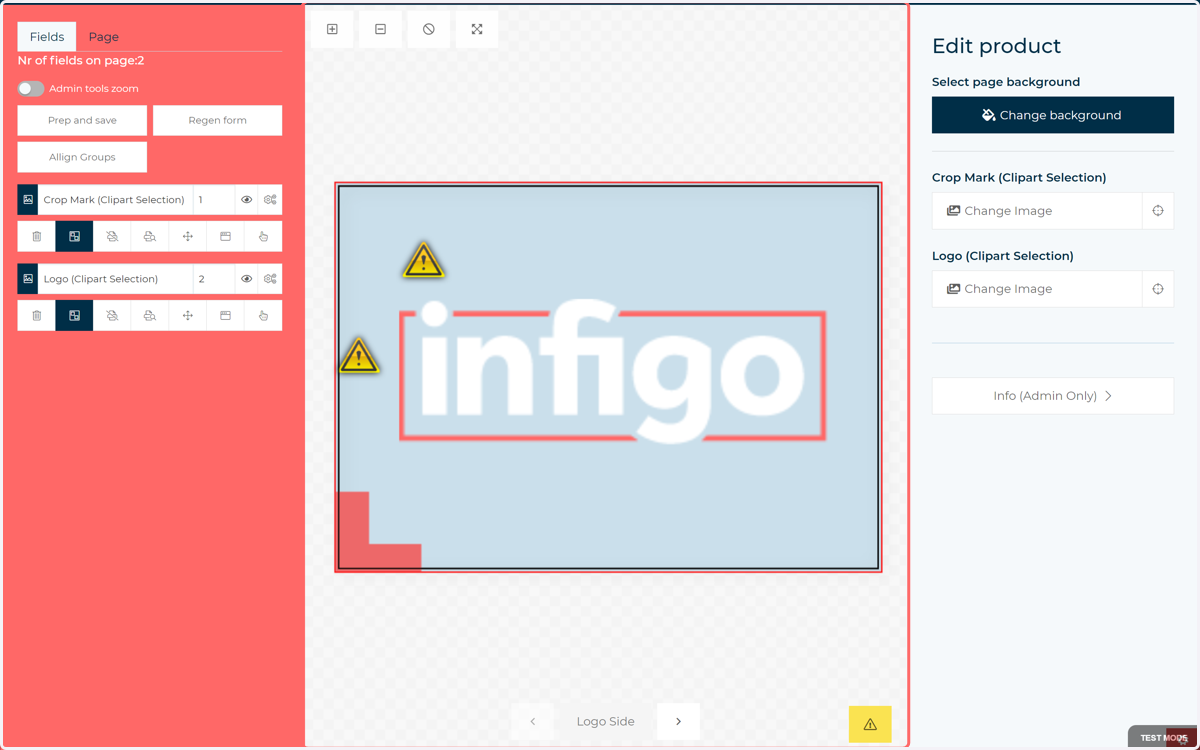
Here, we'll take a look at applying and configuring some image fields to accept clipart. The end result will be two fields on our artwork which are driven by selections in our form.
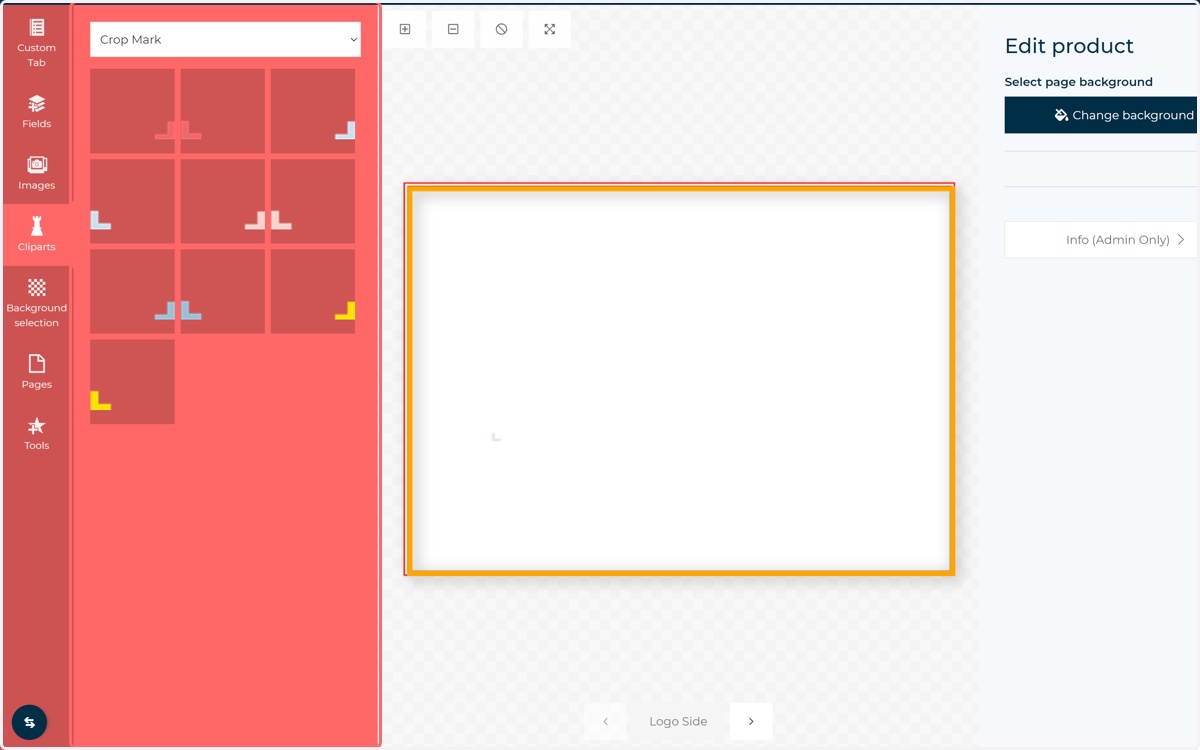
1. Add an image field to your form
This can be added from the Fields, Images or Cliparts tab. All will, in essence, be an image field which can be controlled from our form.
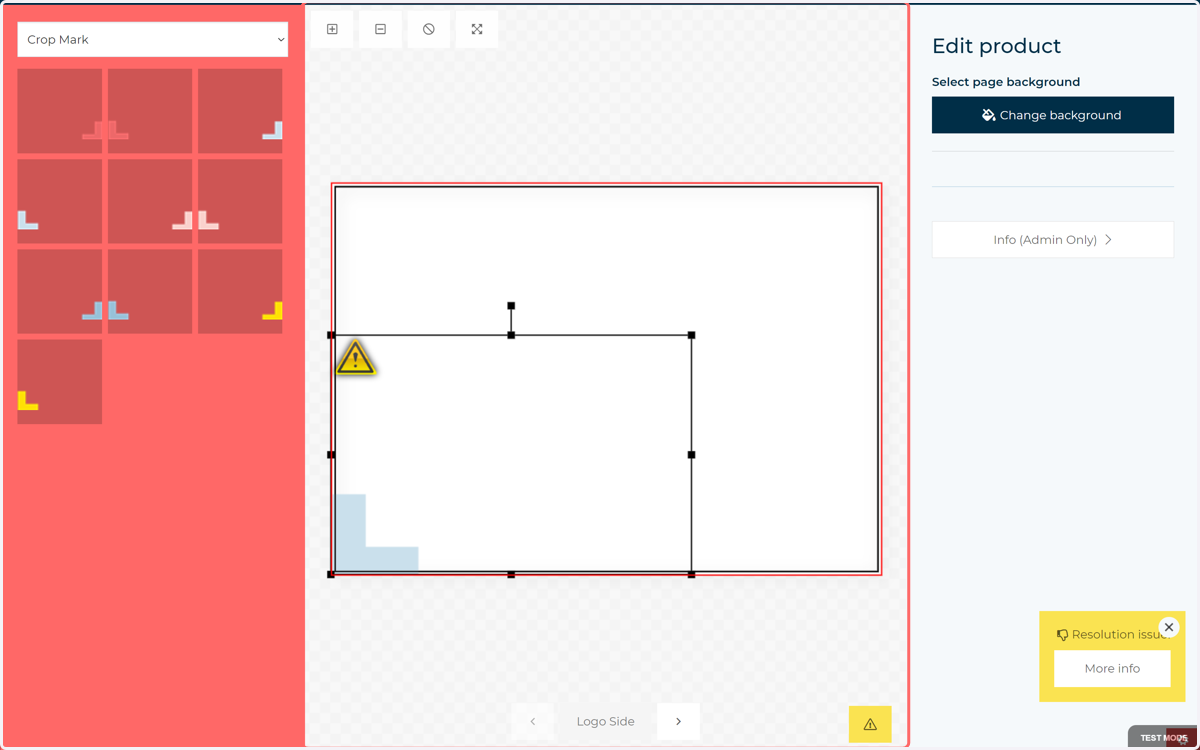
2. Resize and reposition the image field
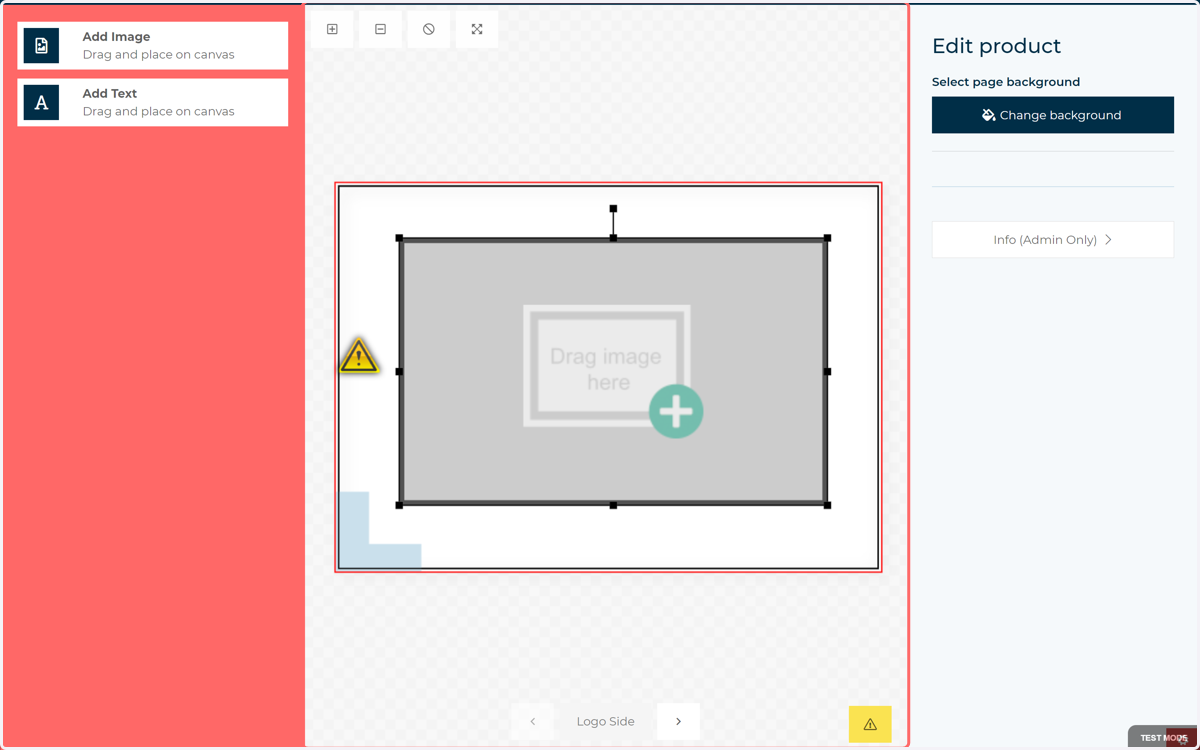
3. Add multiple fields if necessary
4. When you're ready to start defining your form, click on Custom Tab
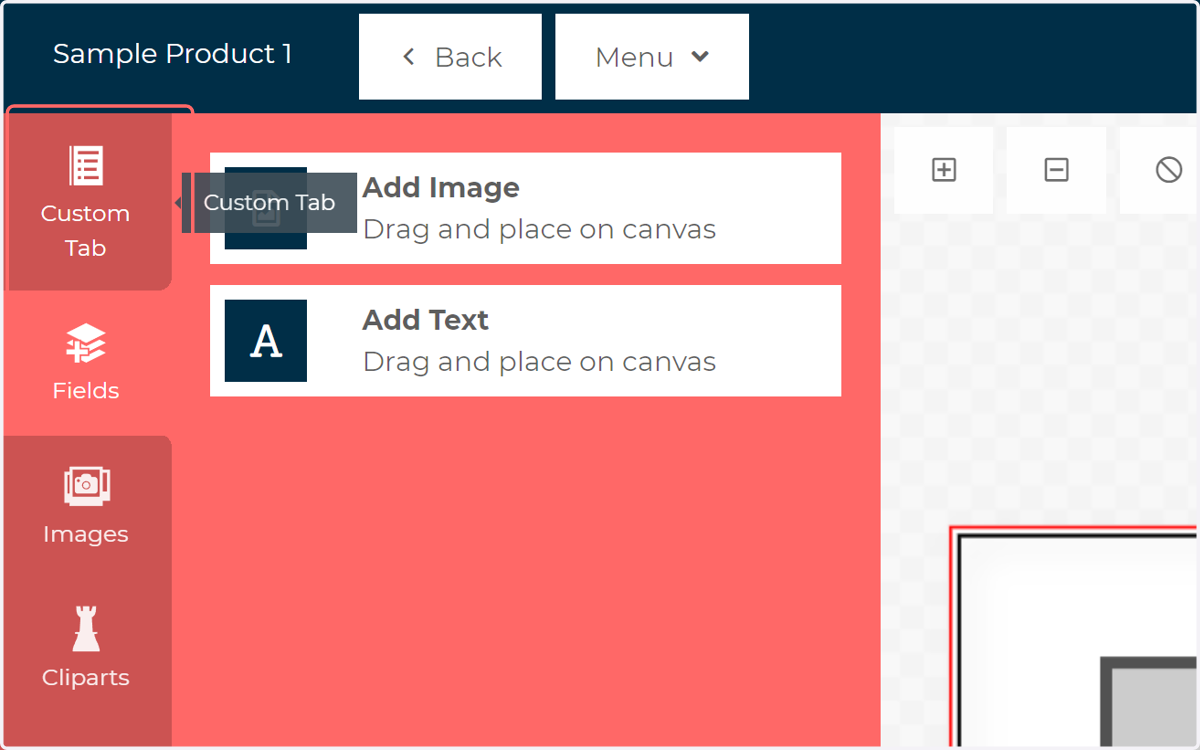
5. You will see that a new entry has appeared in the Custom Tab for each of the customisable fields present on the page.
In this case, we have a section available for each of the two image fields we applied.
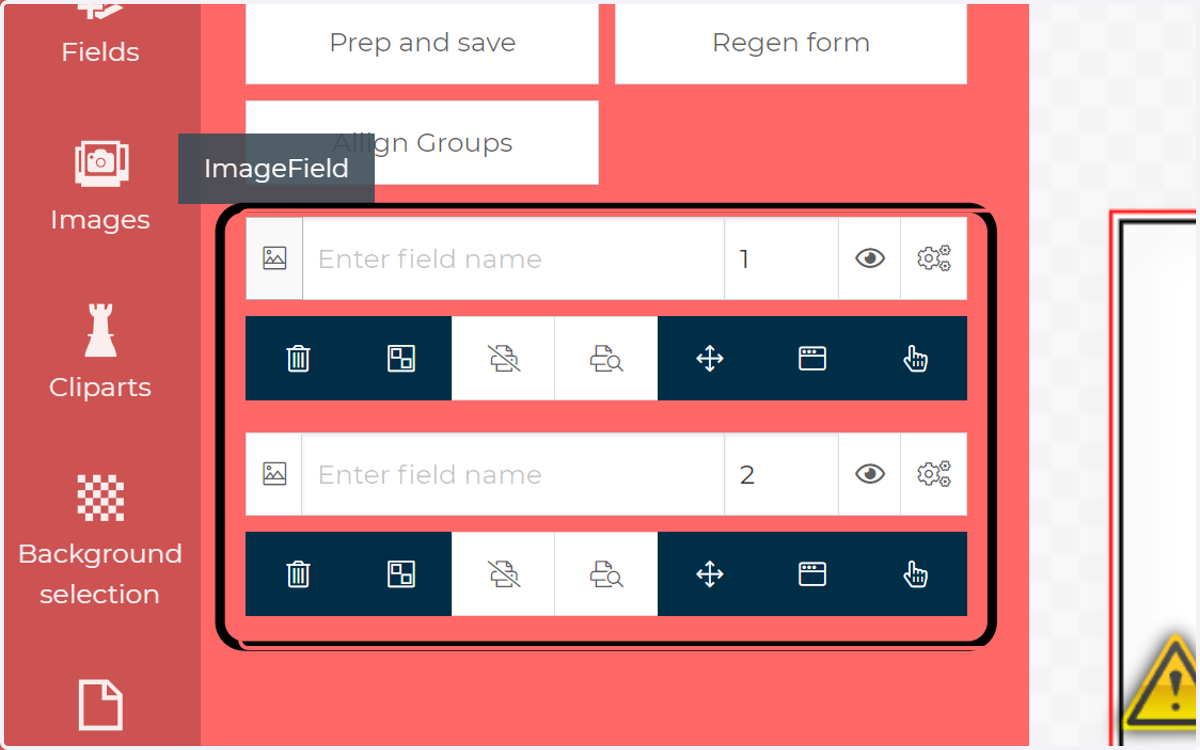
6. Click the field icon
Clicking this icon will select the field it is associated with on the canvas.
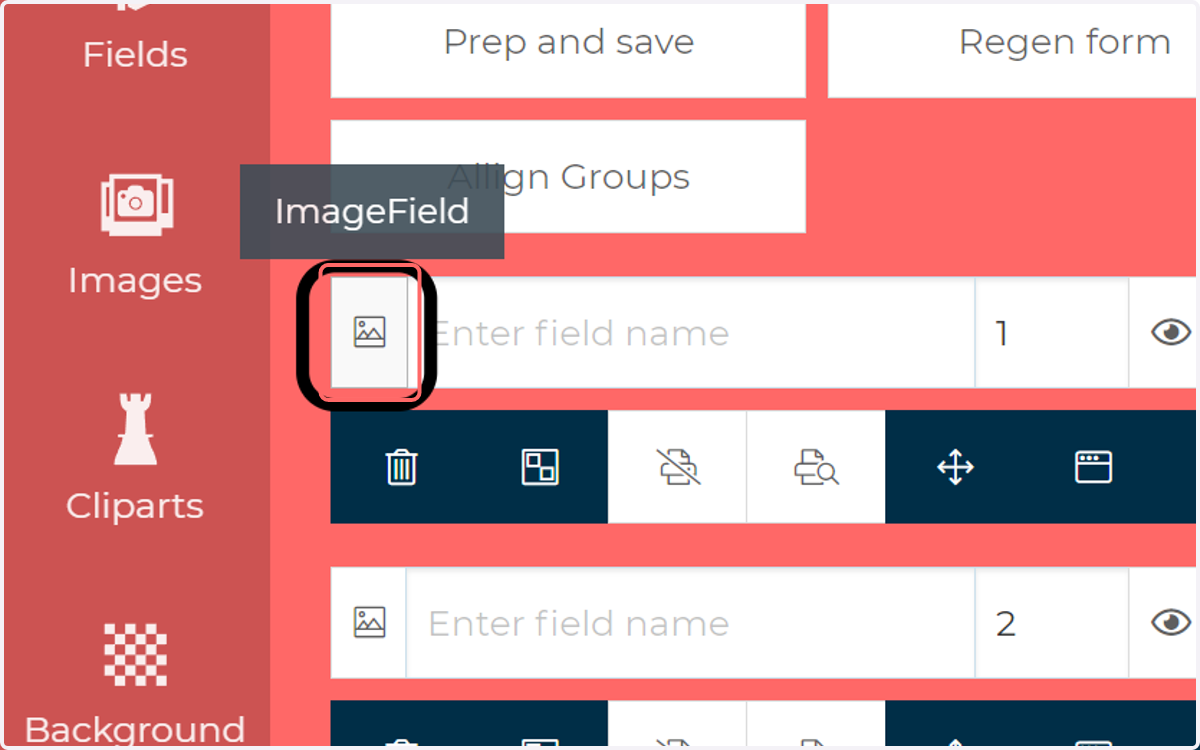
7. Enter a name for the field
This will be displayed as a title on the form itself.
If you do NOT wish for a form field to have a displayed title, ensure the text in this field is preceded by "***". For example "***Crop Mark".
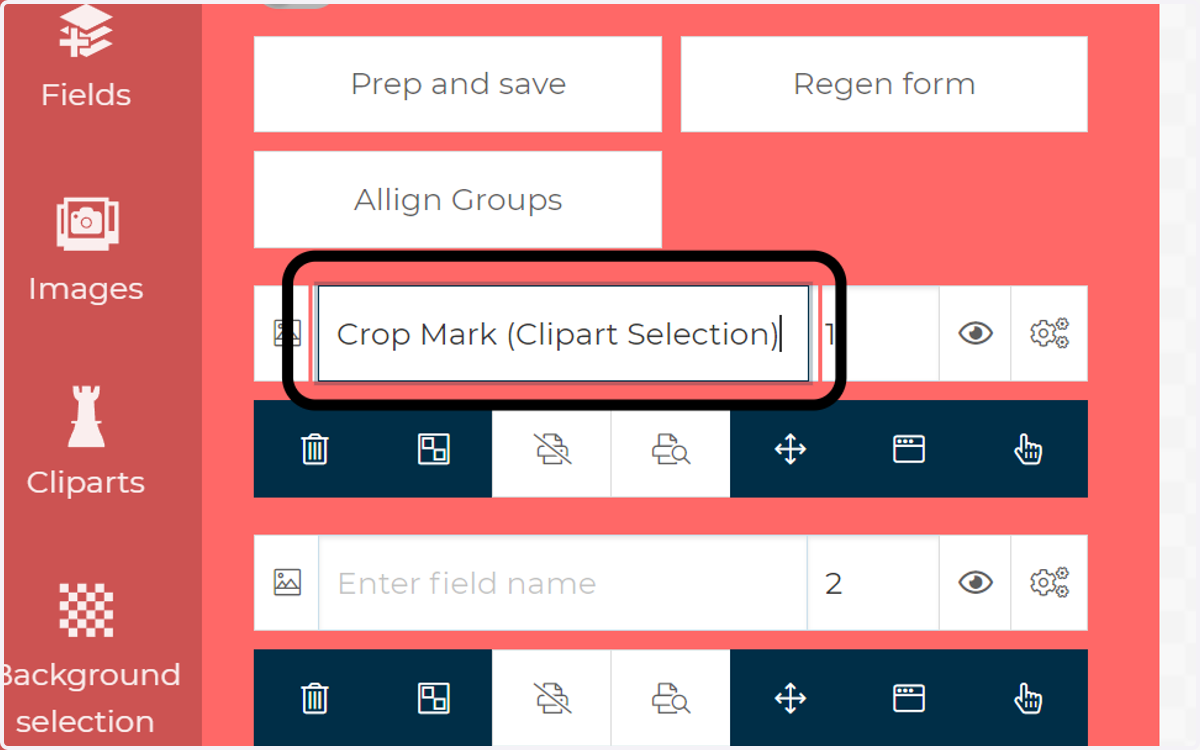
8. Specify a position on the form
This number represents a position on the form. The lower the number, the higher up the form that field will appear.
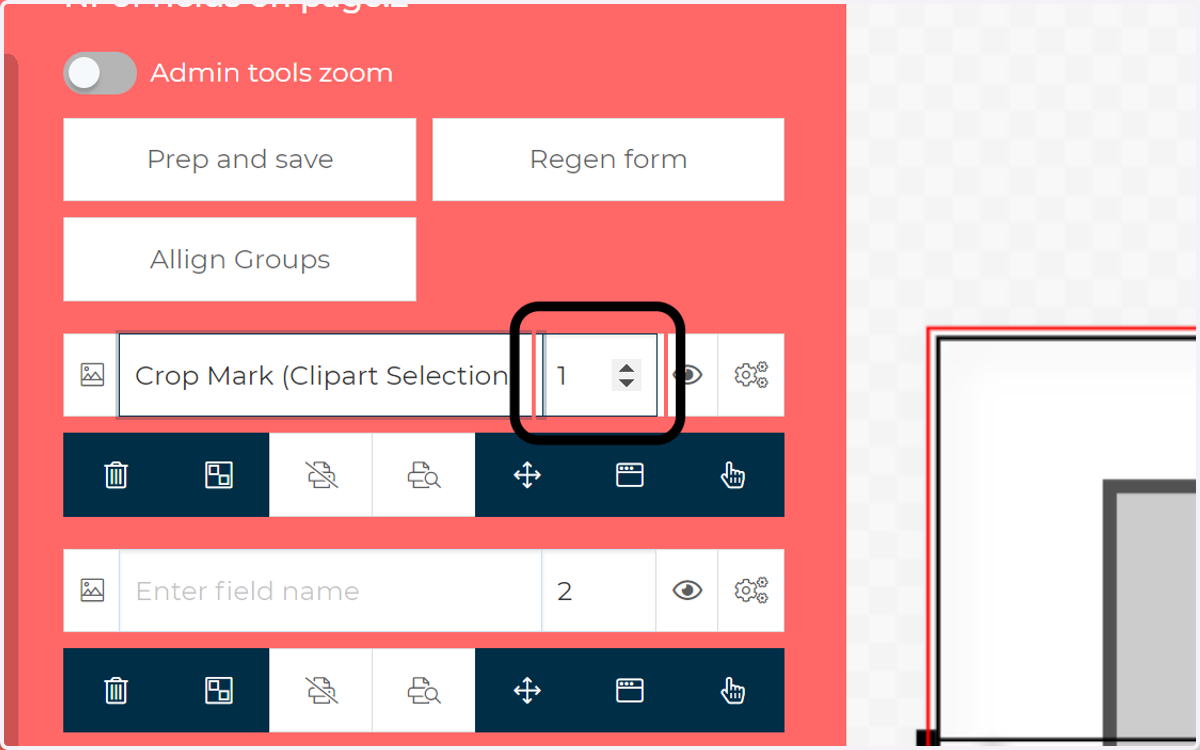
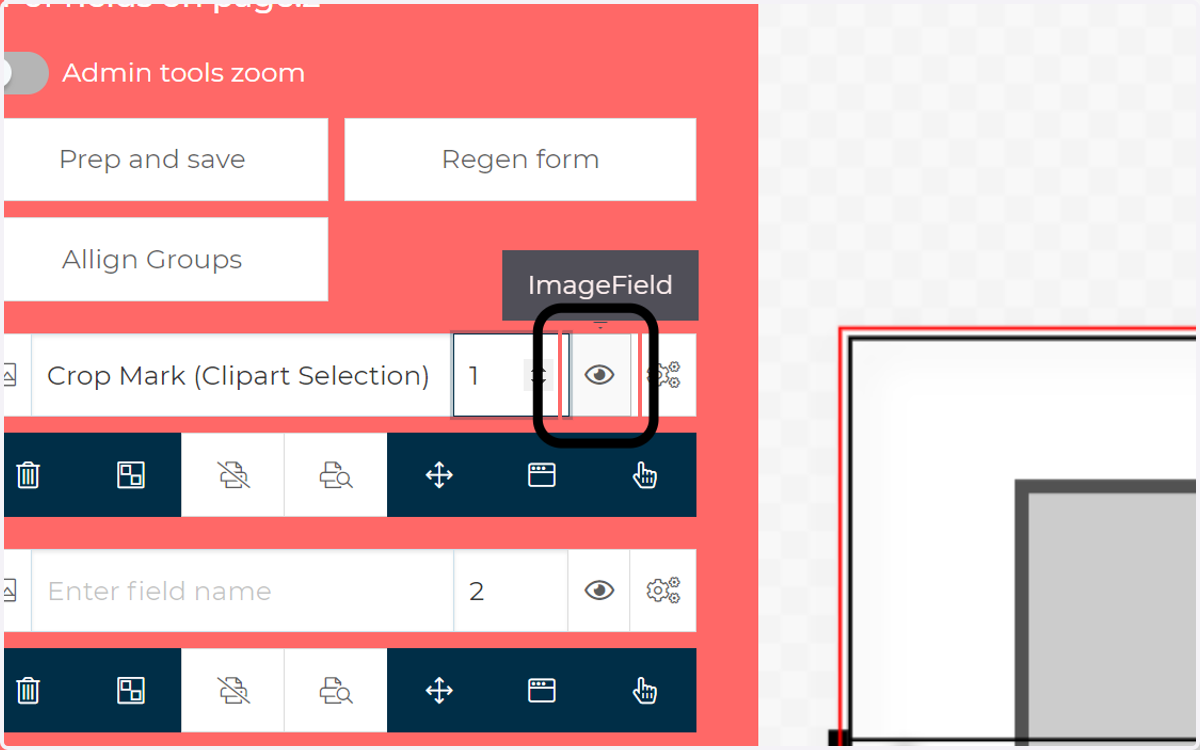
9. Change field visibility
This toggle allows you to select whether a field is visible on the canvas. This is useful if you wish to temporarily remove a field, without deleting it completely.
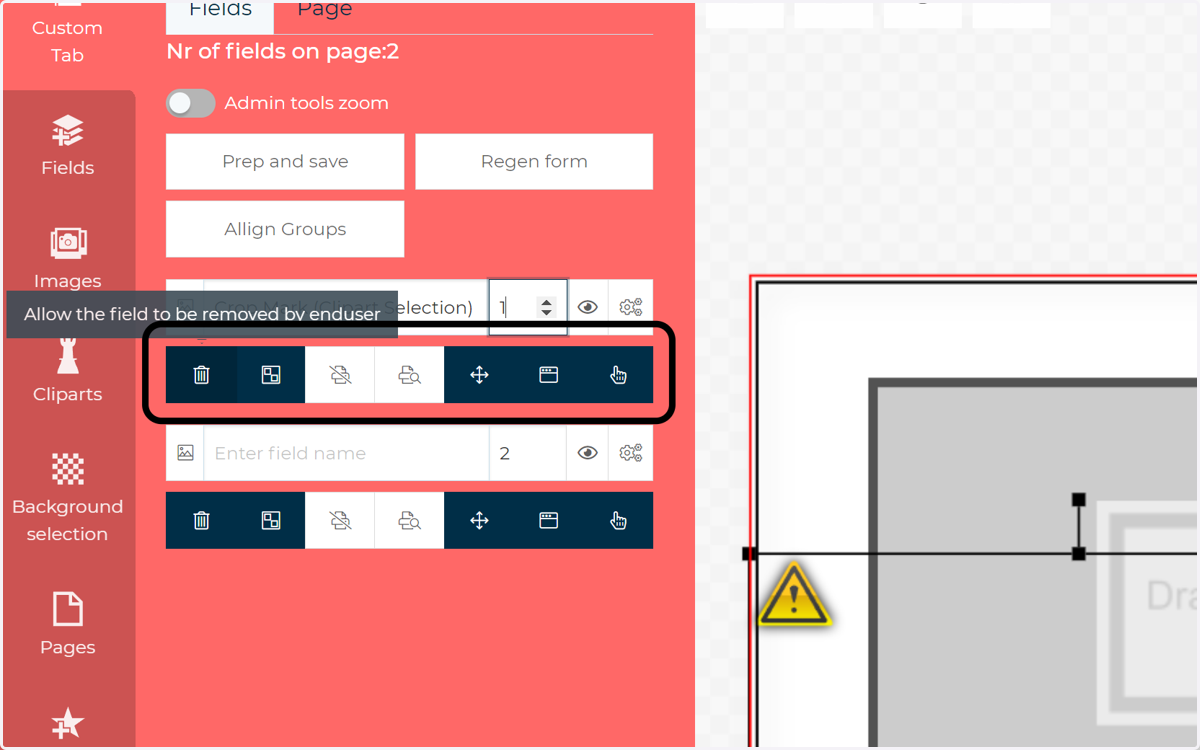
10. Interactivity toggles
These various toggles allow you to easily control how your end user can interact with the field on the canvas. These controls cover things such as limiting field movement, limiting the ability to select or delete and limiting the ability to bring up the pop up window with additional options.
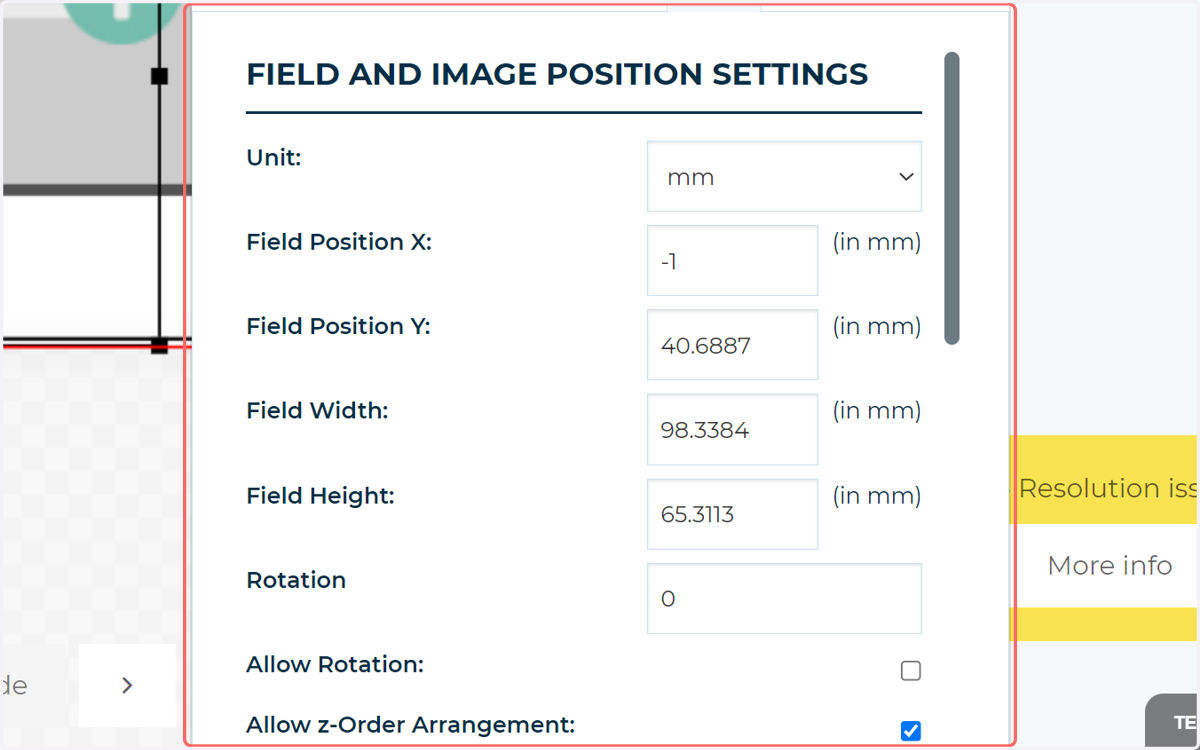
These do not cover ALL options related to interactivity, just the primary ones. Remember, you as the admin have additional control over how end users can interact with this field by going to the Details tab on the pop up.
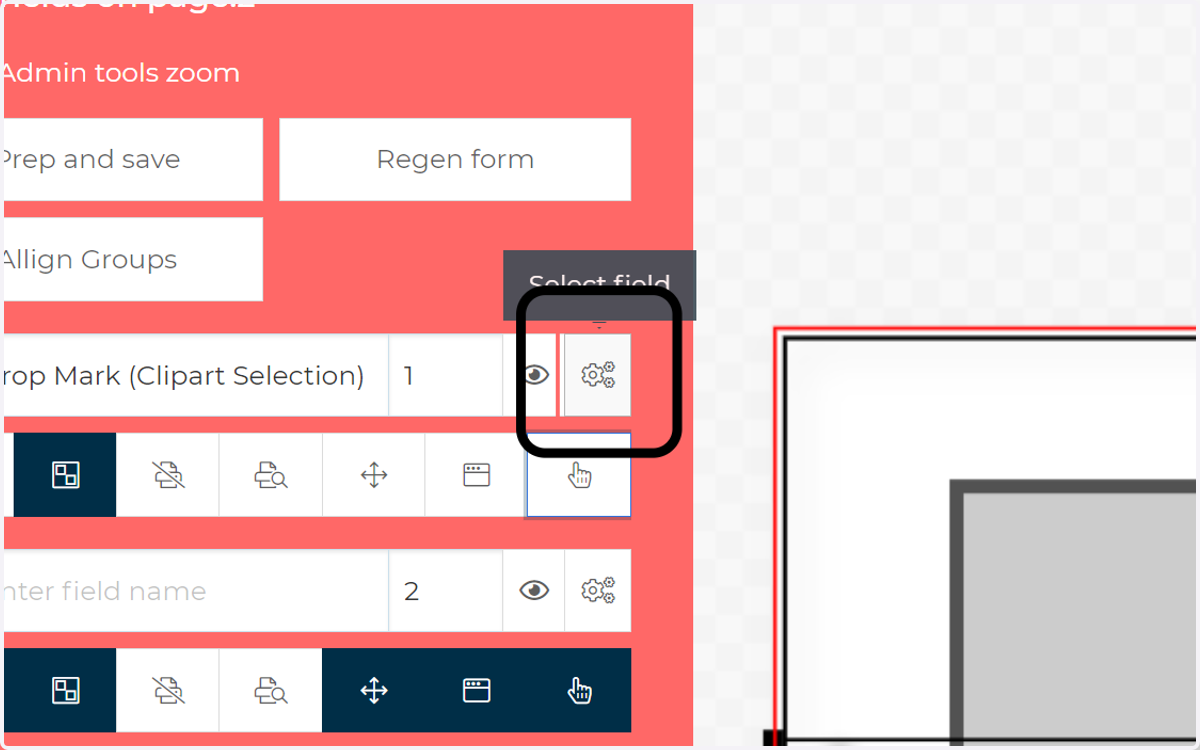
11. Click to access additional options for this field
This icon takes you to an additional menu where extra elements on the field can be controlled.
12. Additional specifications for an image field
This menu allows you primarily to define what type of input the image field allows. These can be cliparts, uploaded (or preuploaded) imagery, or both.
You also have the options controlling the use of masks and borders.
We'll take a look at configuring this to allow for clipart
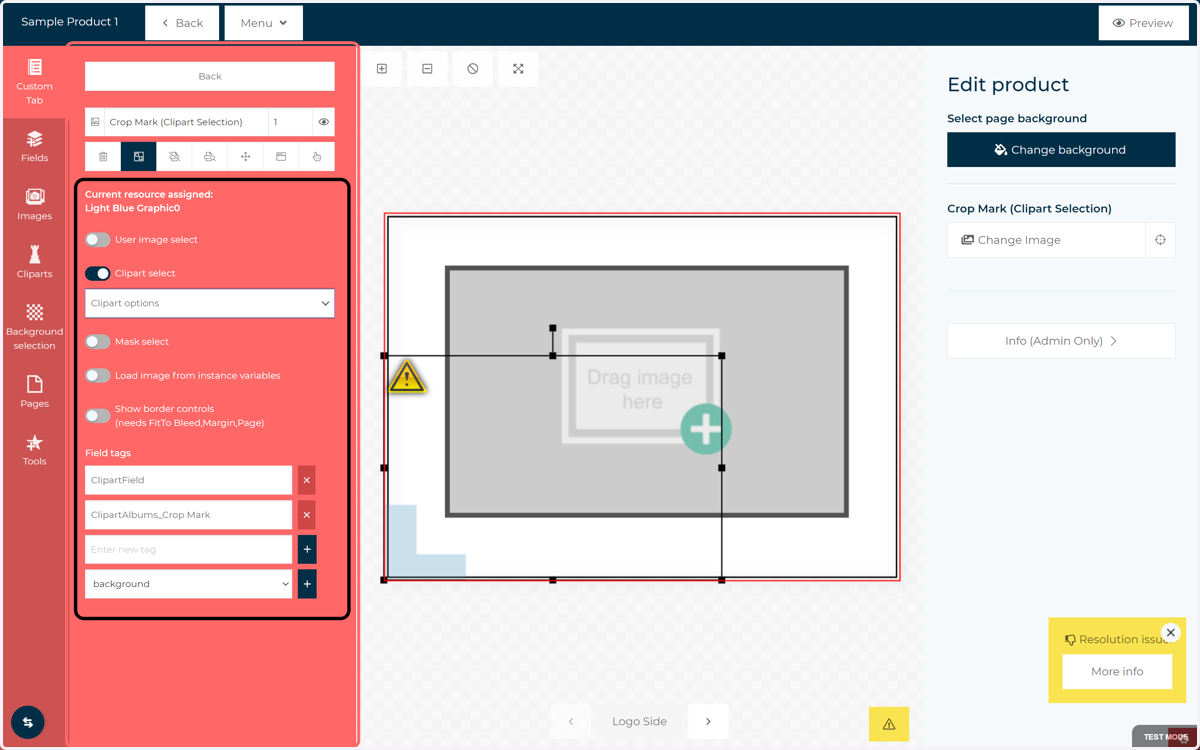
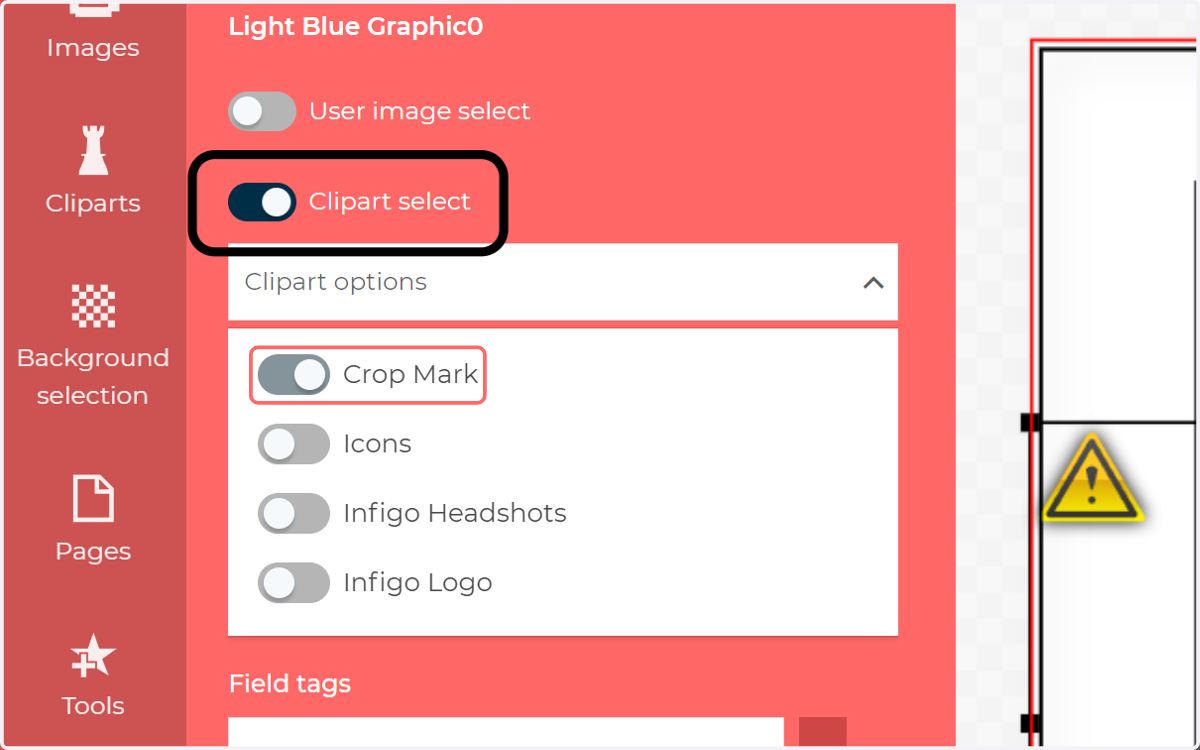
13. Click Clipart Select to define this field as accepting Clipart as an input, then select the relevant clipart categories from the dropdown
Only clipart categories available to this product will be shown.
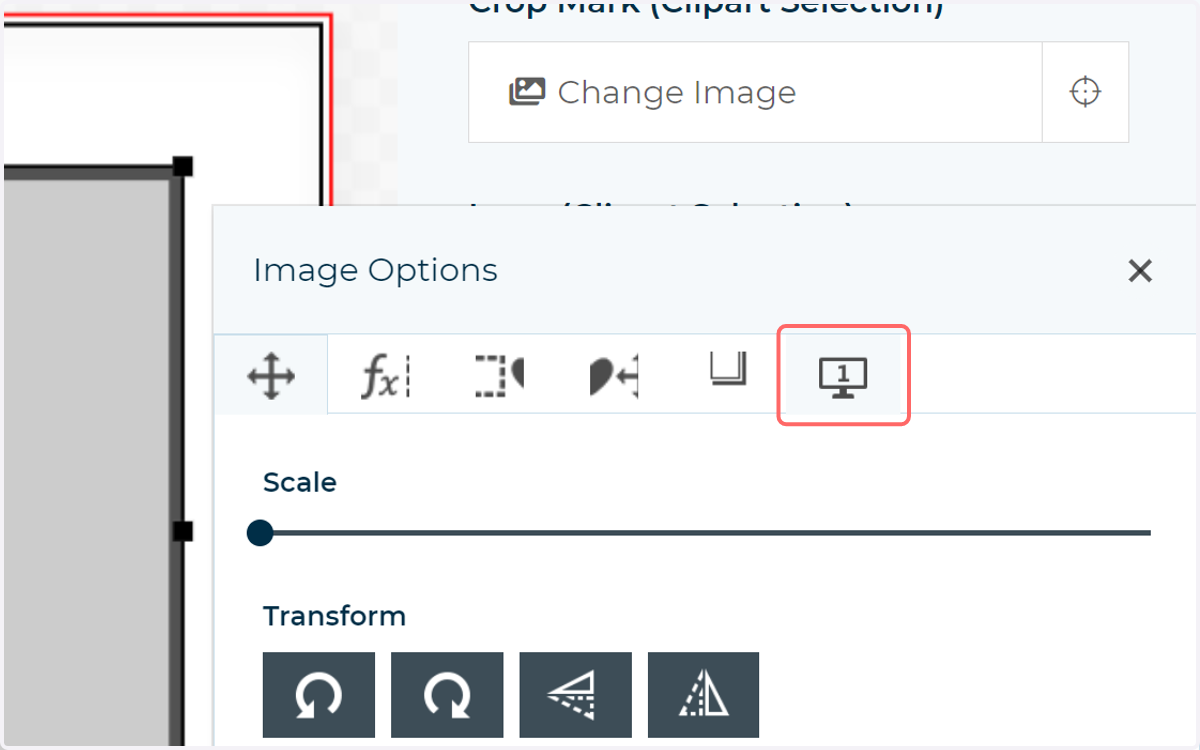
14. Remember, you an apply additional controls on user interactivity with the field by double clicking the field and going to the Details tab
15. With all of this configured, you will be able to see and interact with the field via the form on the right. Click to access available clipart
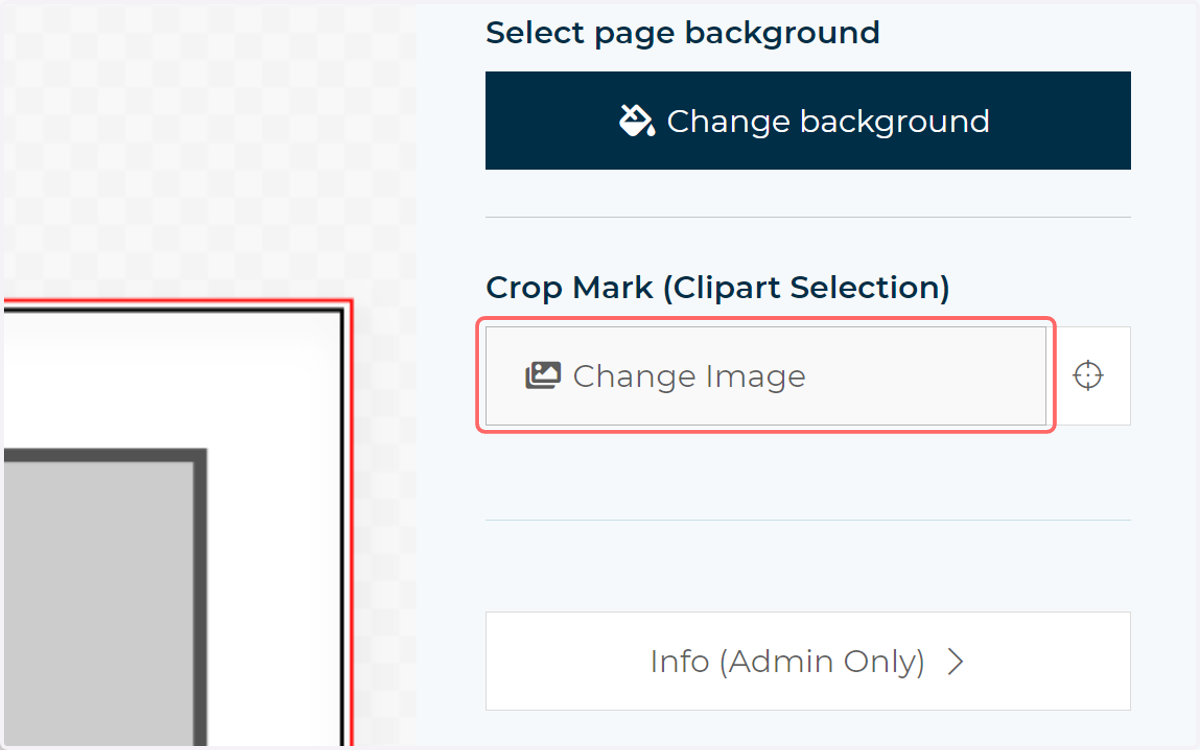
16. Select from available clipart
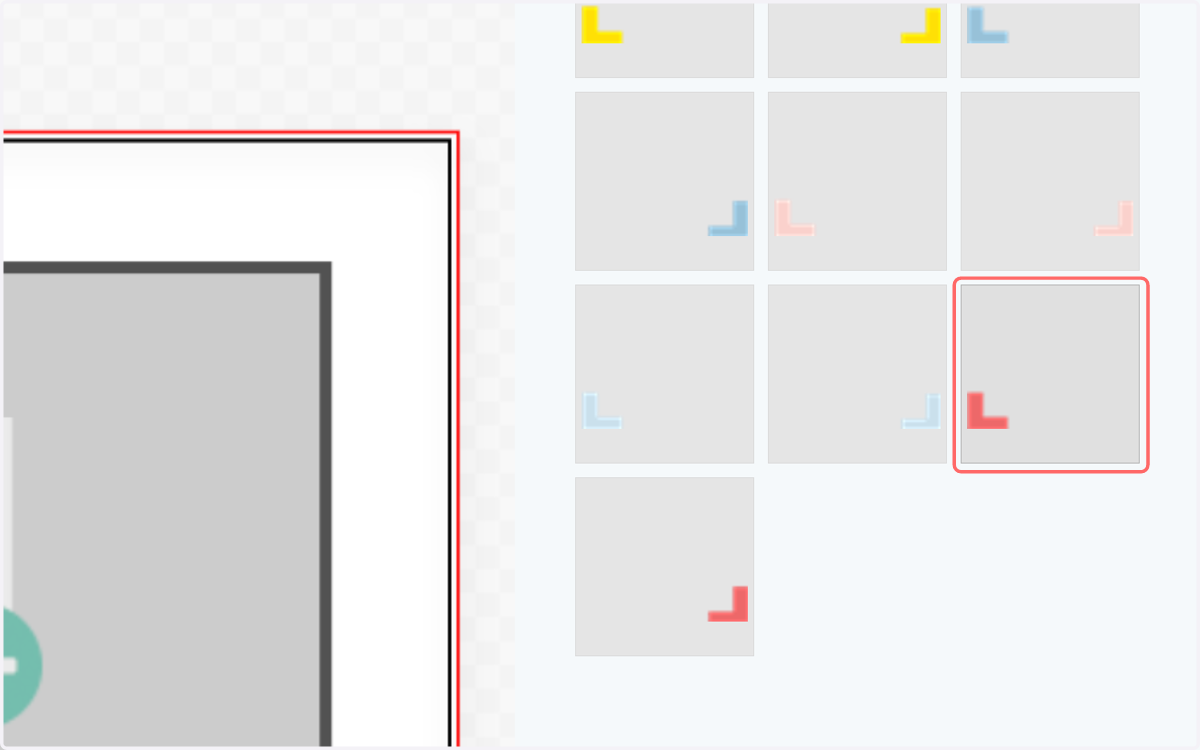
17. The field on the canvas will be updated with your selection
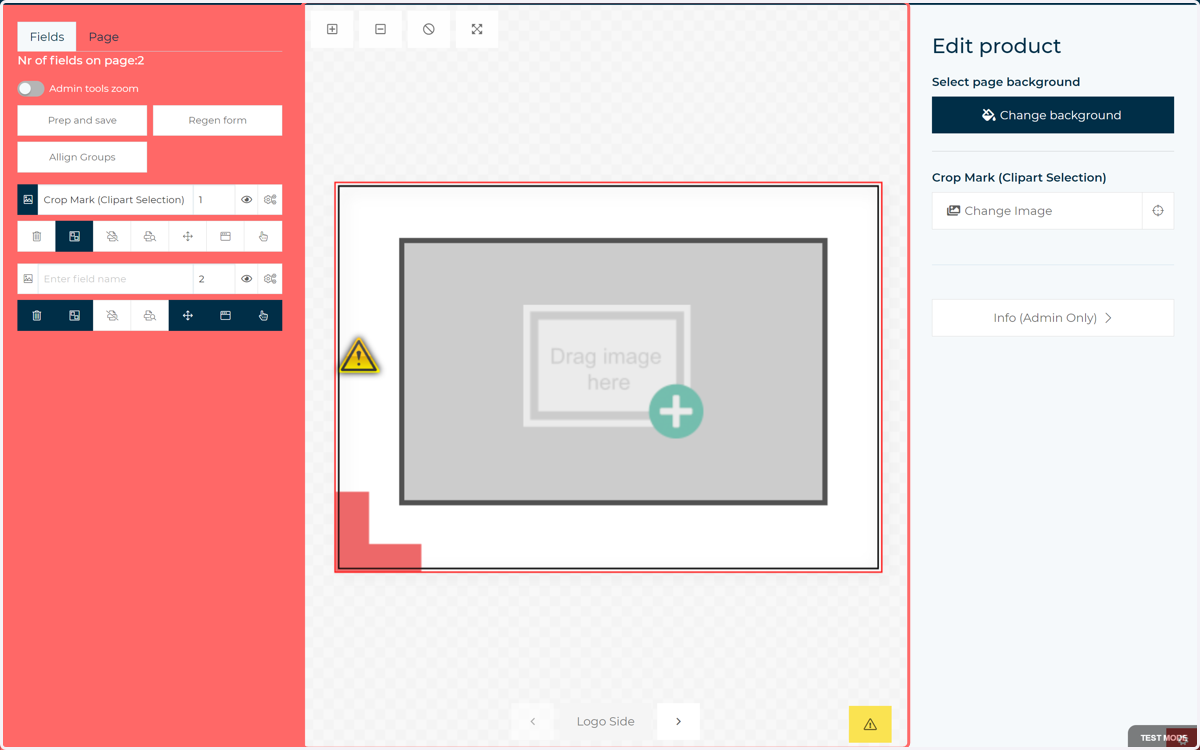
18. Repeat this process for any other fields requiring clipart inputs
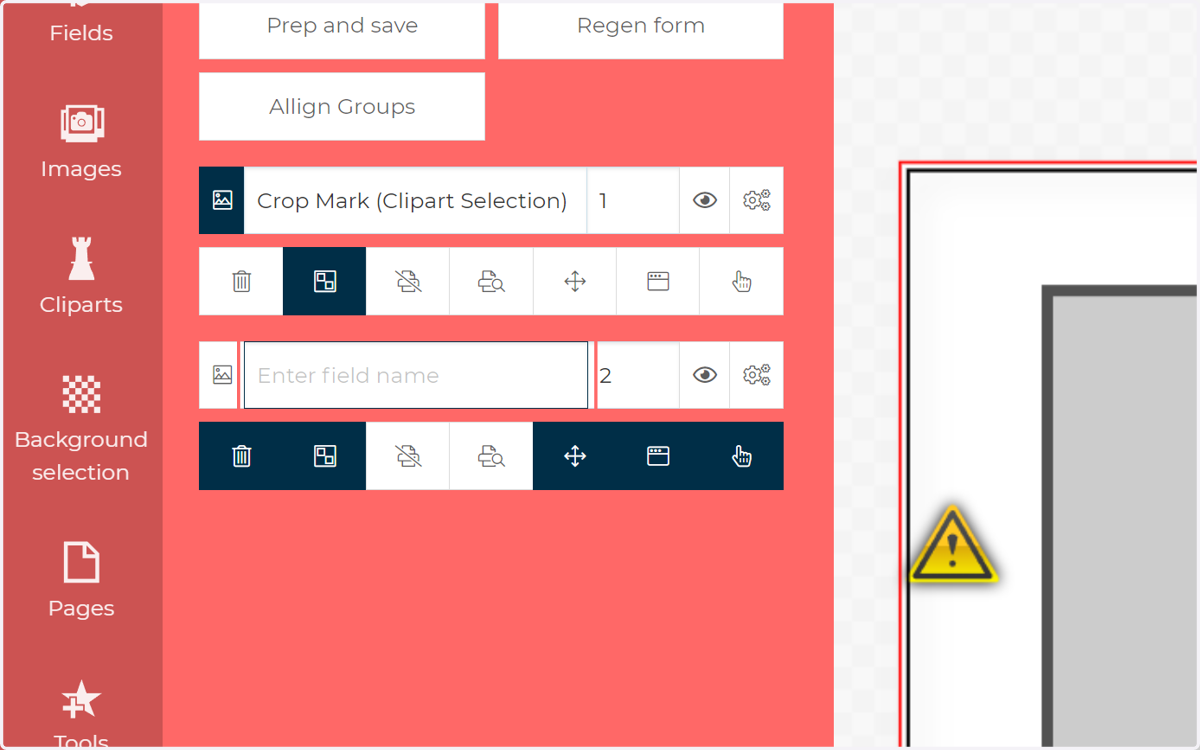
19. Once again remember, additional configuration and interactivity options are available on the Details tab of the pop up
20. In our example, we now have a form which allows us to change the background colour and the content of two image frames based on appropriate clipart