Generic Pricing Script | Tiered Pricing | GT_PR_£_Pricing Scripts_002
This example demonstrates the tiered pricing capability of the generic pricing script.
By enabling tier pricing, the administrator can ensure that different prices can be utilised depending on the quantity of a product ordered.
For example, purchasing 1 of a product configuration may be a different price per unit than purchasing 10 or 50.
Tier pricing allows us to factor in this change in price based on quantity.
1. Sample Product
You can an example of this in action by navigating to the following Infigo storefront and selecting product "2 _ Tier Pricing Script Example".
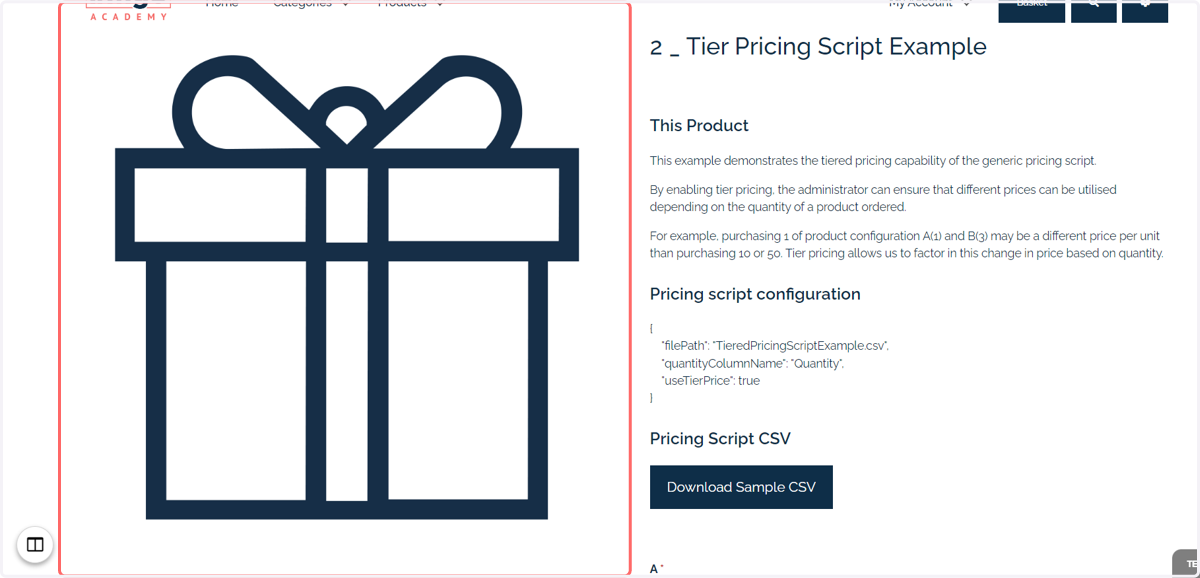
2. Example details
This sample product contains:
Description of its purpose
The configuration of the pricing script
A downloadable version of the pricing CSV for this product
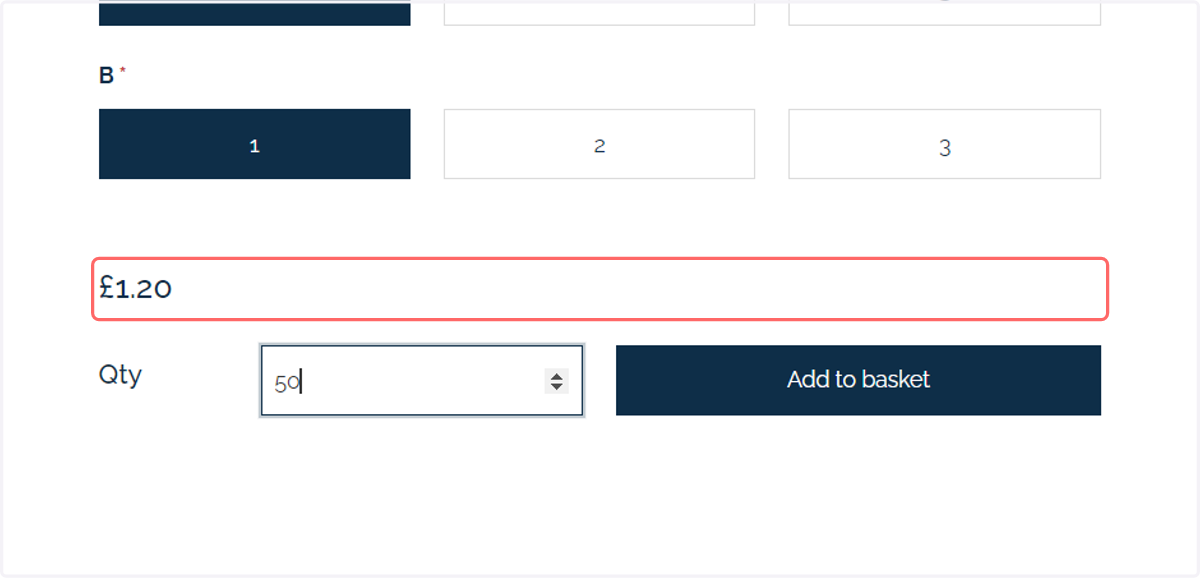
Functional for use as a pricing script | Select relevant attributes and quantities to see the price update.
3. Type "50"
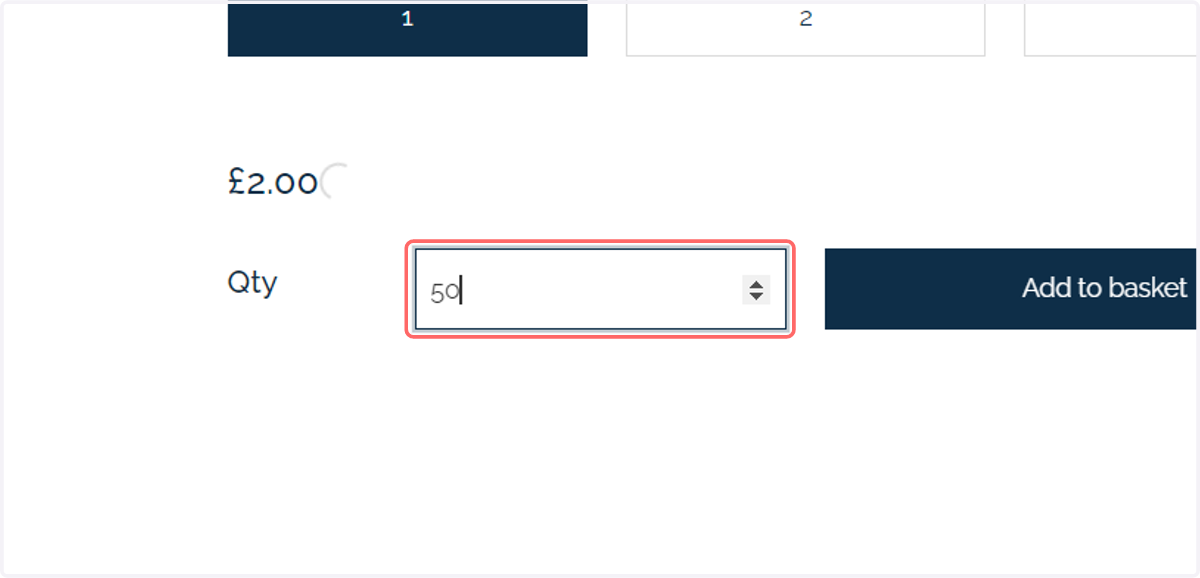
4. Click on £1.20
5. CSV format
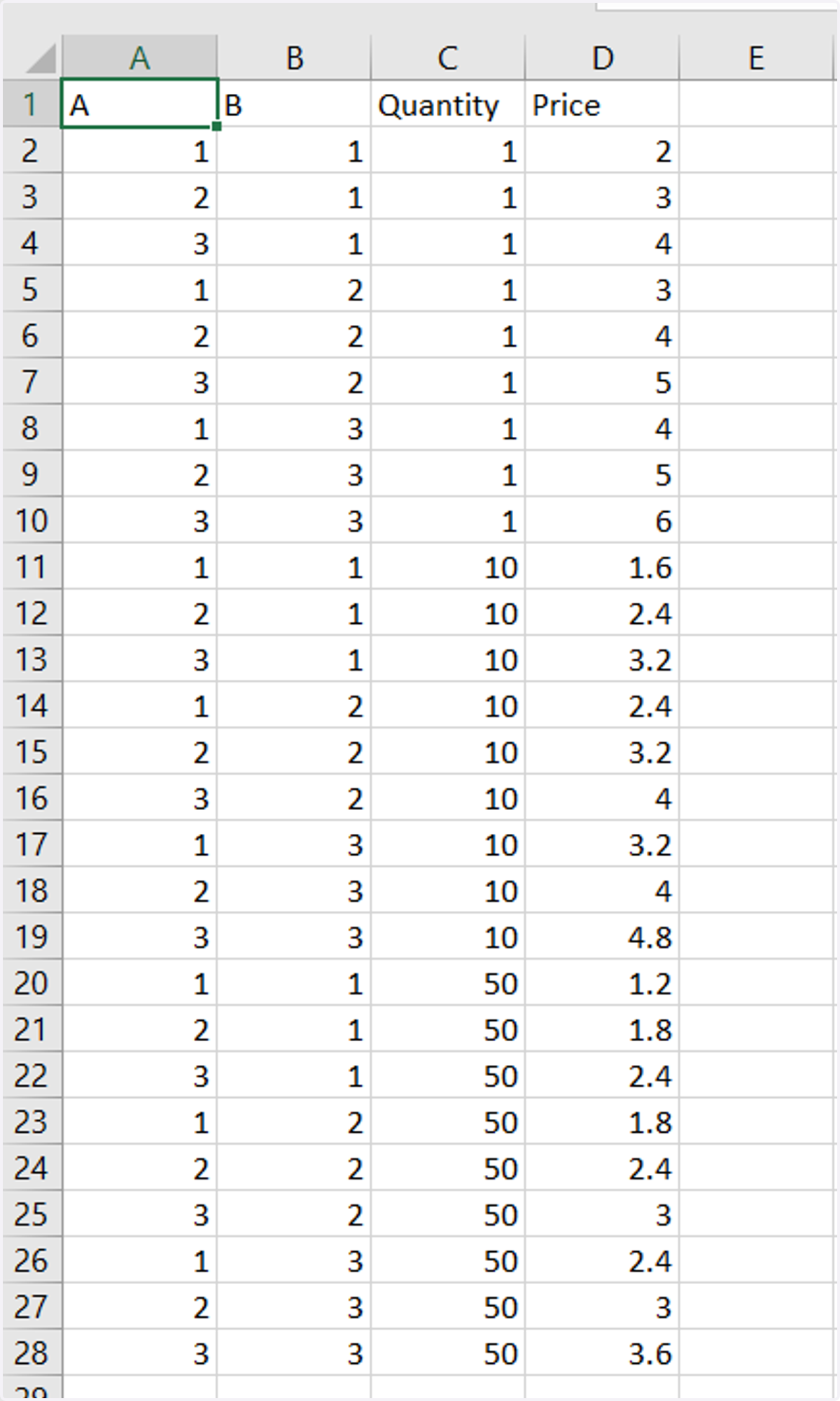
The CSV has been formatted with multiple rows for each attribute combination. The quantity value changes for each of these duplicated combinations, which could mean a change in the unit price.
Once we eventually activate tier pricing, the system knows that any quantity requested by the customer will sit within one of these defined brackets. So, using the data below as an example:
Calling a price for A(1) & B(1):
Quantity 8: £2 per unit
Quantity 25: £1.60 per unit
Quantity 70: £1.20 per unit
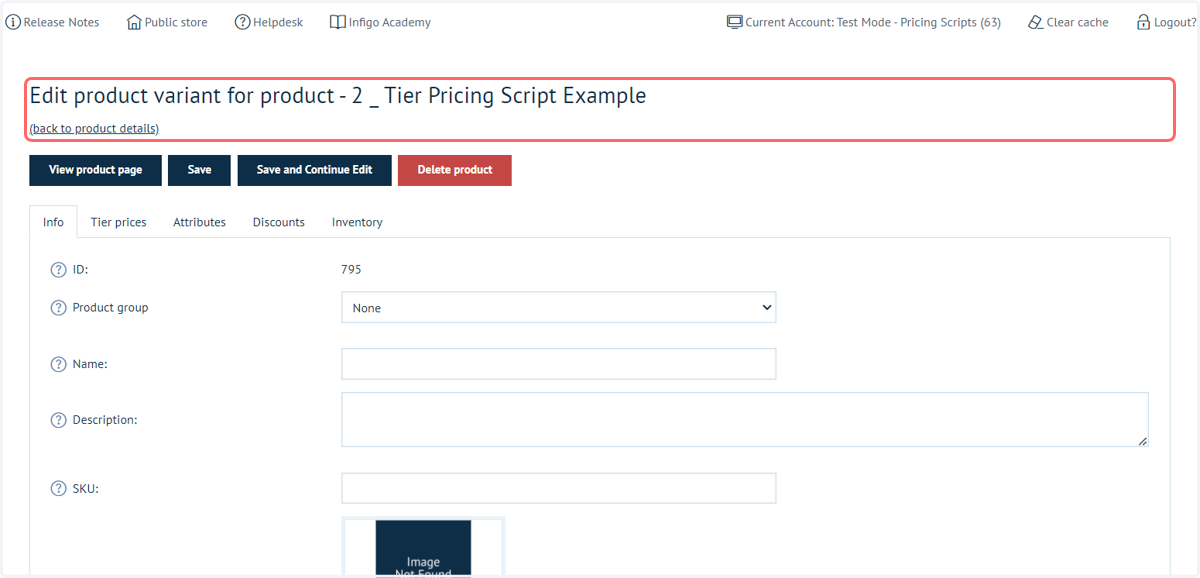
6. To configure this capability, navigate to the product variant settings of the product requiring this capability.
We are assuming that the basic pricing script configuration has been completed, as demonstrated in an earlier tutorial. This includes:
Uploading the CSV to Global Additional Data
Instruct the product to use the GenericPricingScript
7. Configure the pricing script
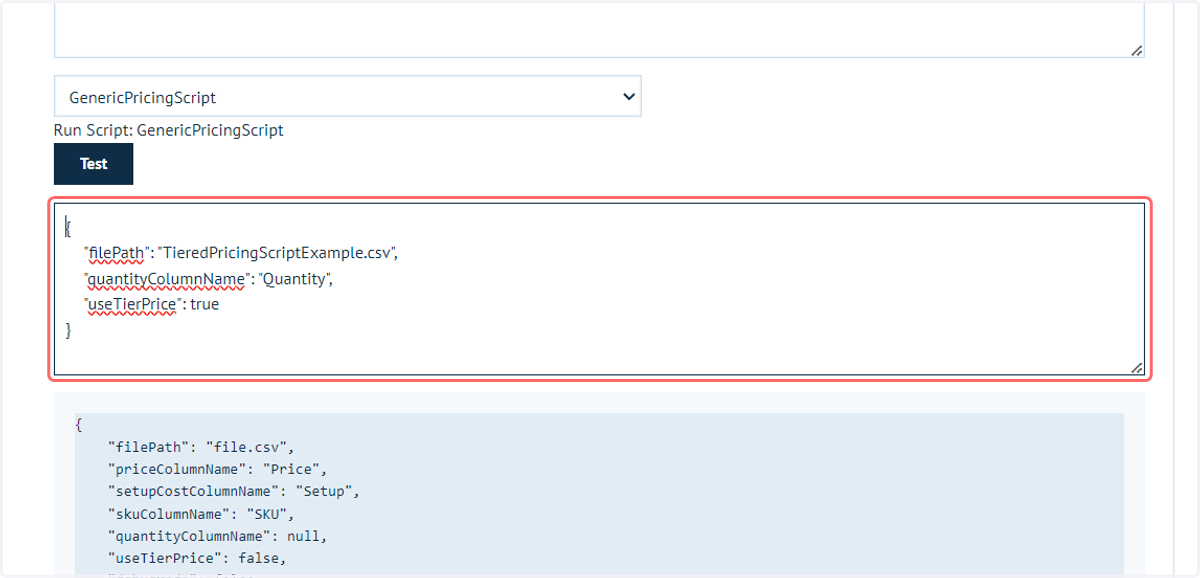
As a reminder, we only need to enter lines within the script configuration box which we wish to change from the default script configuration shown in the blue box.
In this example, 3 entries are required:
filePath | Needs to identify the CSV to use from Global Additional Data
quantityColumnName | Identifies the column containing quantity data within the CSV via the column header name
useTierPrice | A true or false value specifying how to utilise the data from the CSV
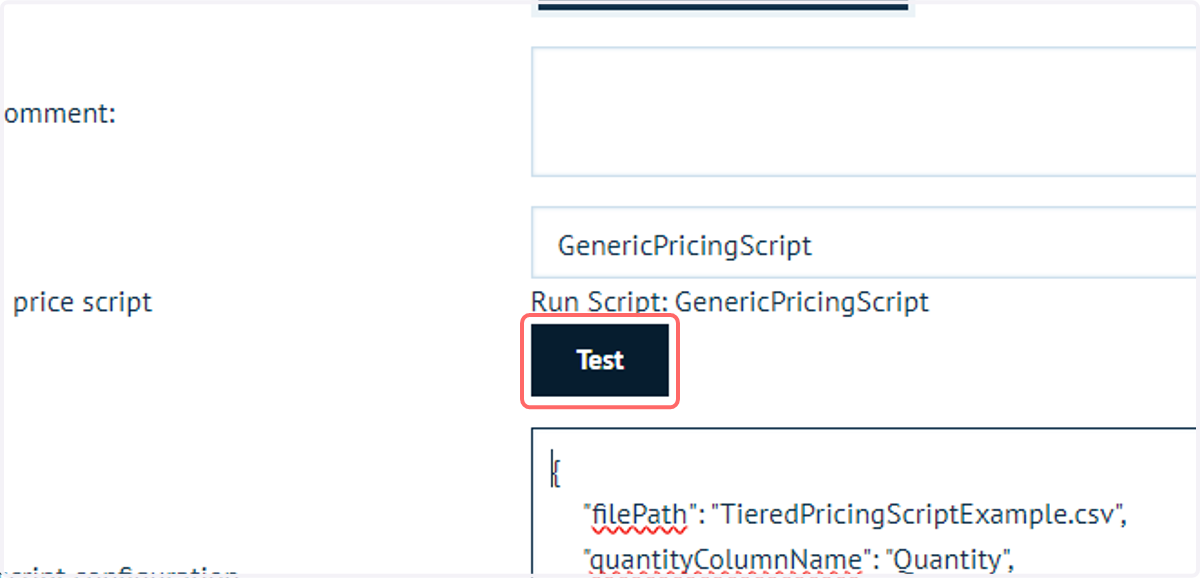
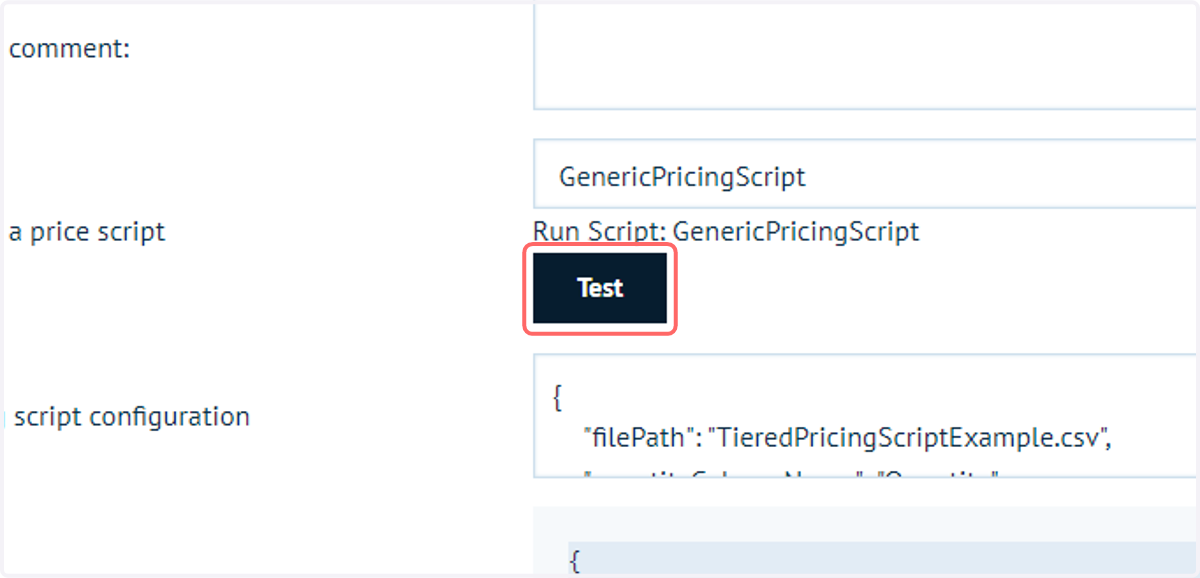
8. Click on Test
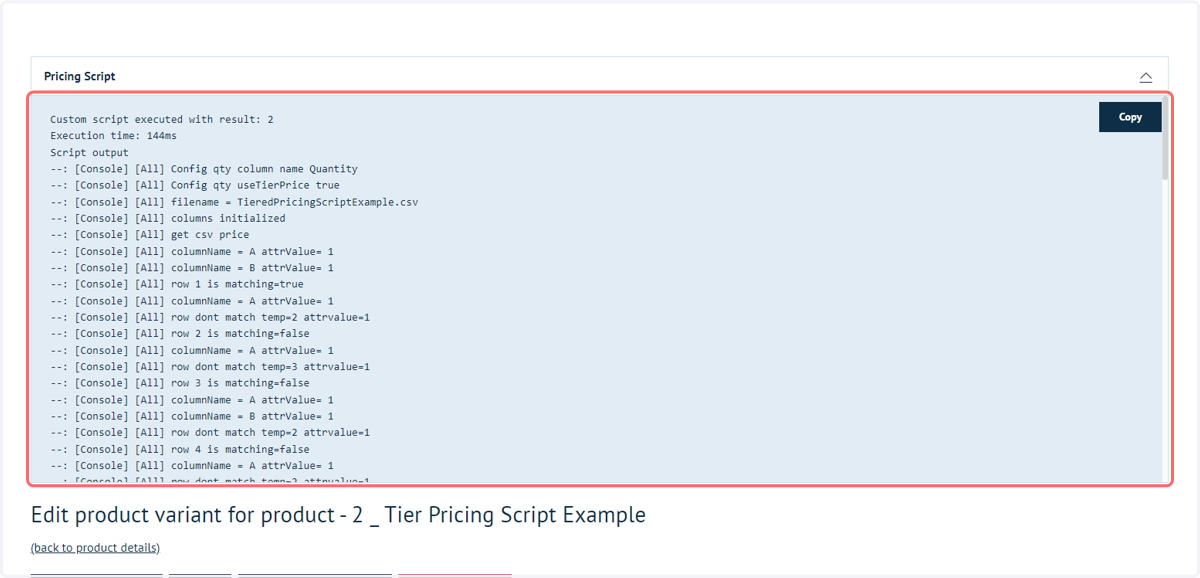
Test mode runs the default configuration of the product within the admin area, and provides feedback on the data returned.
In order to utilise this, you will need a default configuration which is expected to return a price. For example, you may have to specify pre-selected attribute values.
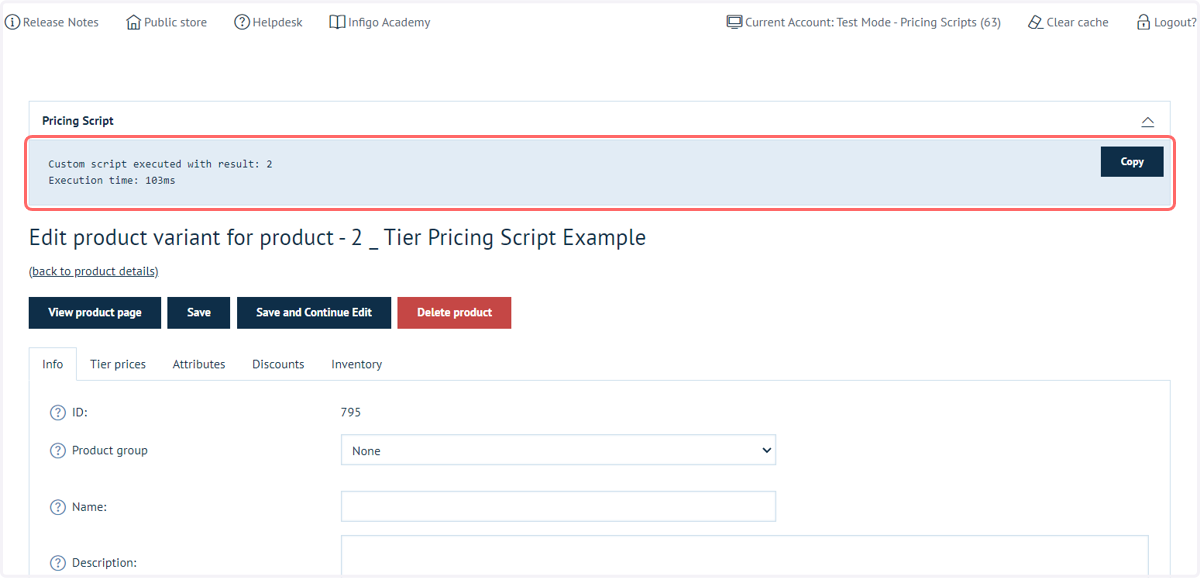
9. Basic feedback will be displayed within this same screen
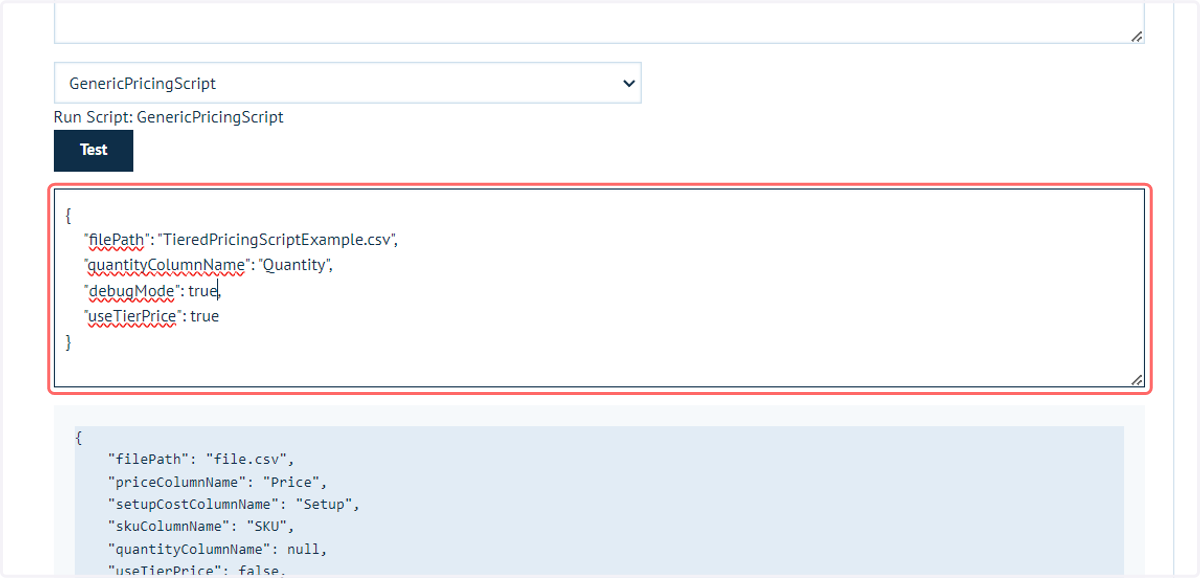
10. Additional log data can be obtained from test mode with the activation of debug mode.
This can be accomplished with an additional line in the script configuration:
"debugMode": true,
This is again a true/false value. It is set to false in the default script.
11. Click on Save and Continue Edit
12. Click on Test
13. Much greater feedback selection of the price is now shown