GT_GEN_007
Here, we will learn how to set up and utilise functionality allowing the automatic updating of customer budgets.
Once configured, this functionality allows CSV files uploaded to a Hotfolder to be read and then automatically update customer budgets via a MegaScript.
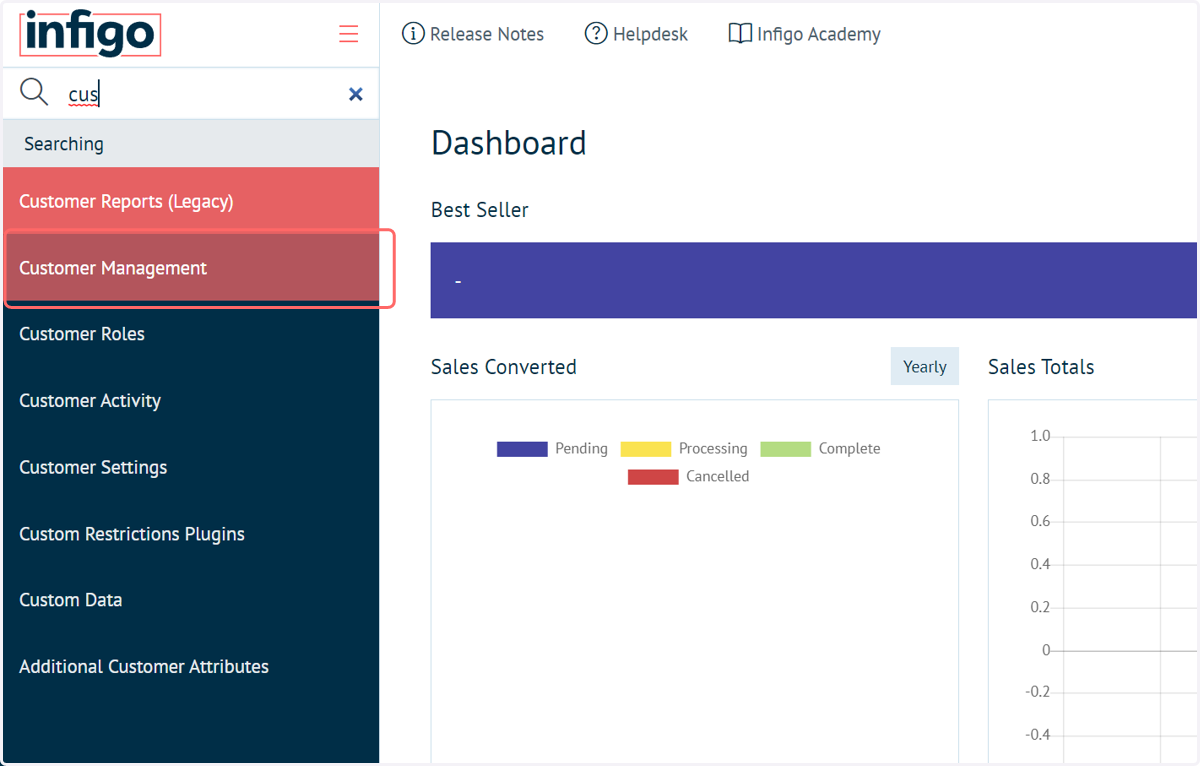
1. Navigate to Customer Management
To begin, we will take a look at our customers.
2. Customer data
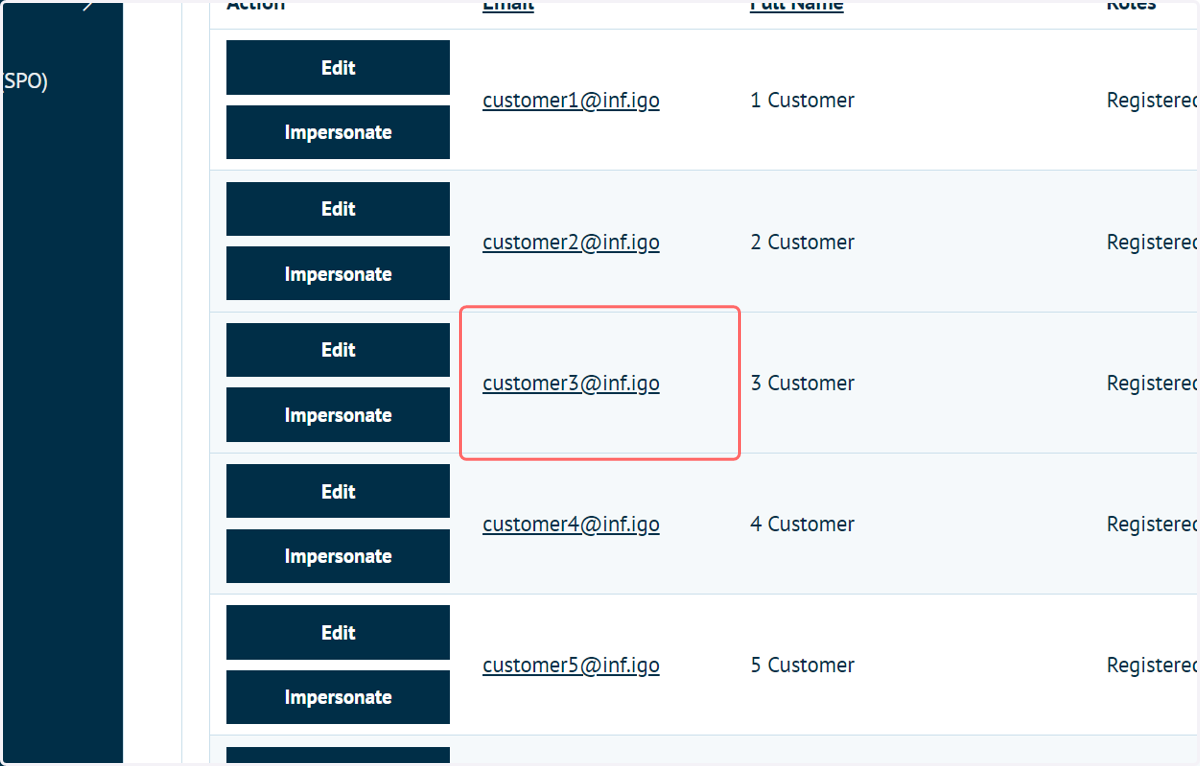
The MegaScript (seen later) can be configured to check for various customer identifiers, such as "id", "email" or "username".
Ensure that your customer accounts have the required data included.
In our example, we will reference the email identifier.
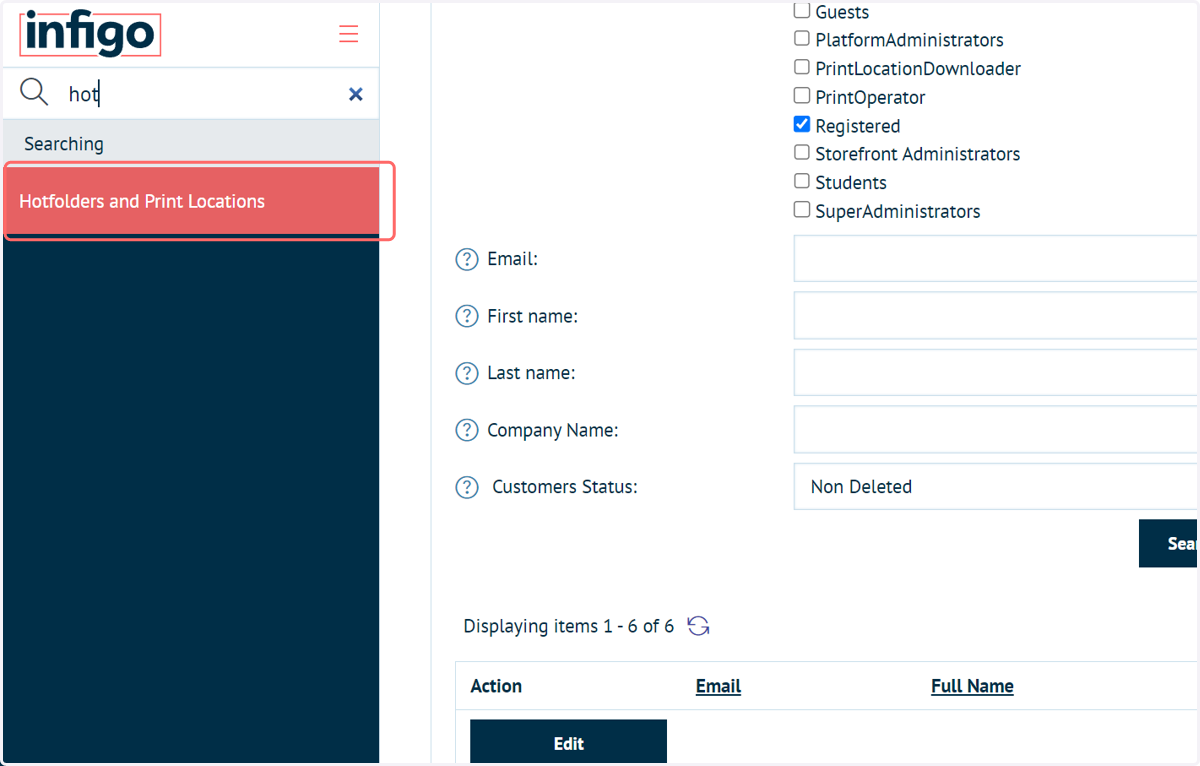
3. Navigate to Hotfolders and Print Locations
Next we will ensure the required Hotfolders are configured.
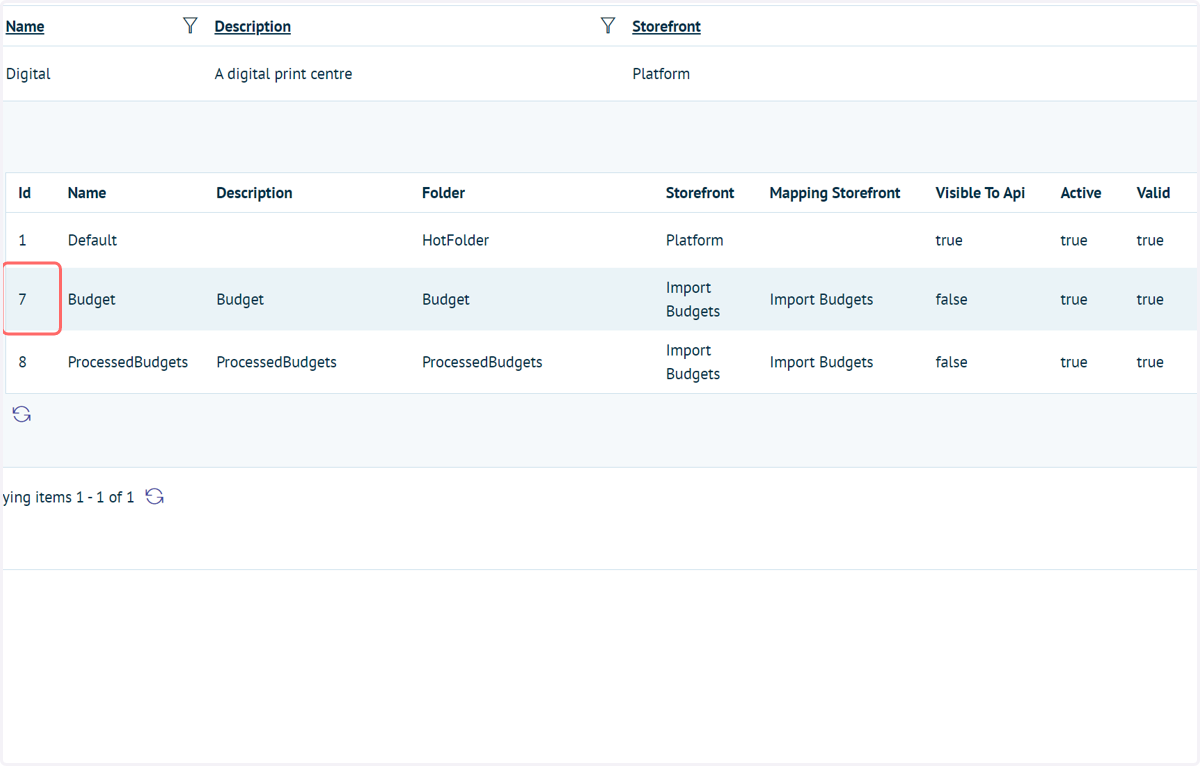
4. Create Hotfolders and note their Ids
Two Hotfolders are required for this functionality.
One will be the upload location for our budget CSV files, the other will store processed files once the MegaScript has run (for reference purposes).
Whilst "Budget" and "ProcessedBudgets" are appropriate names, you can name these Hotfolders as you wish.
Note down the Ids for the two Hotfolders, as these need to be input into the MegaScript.
In our example, we have Ids of 7 and 8.
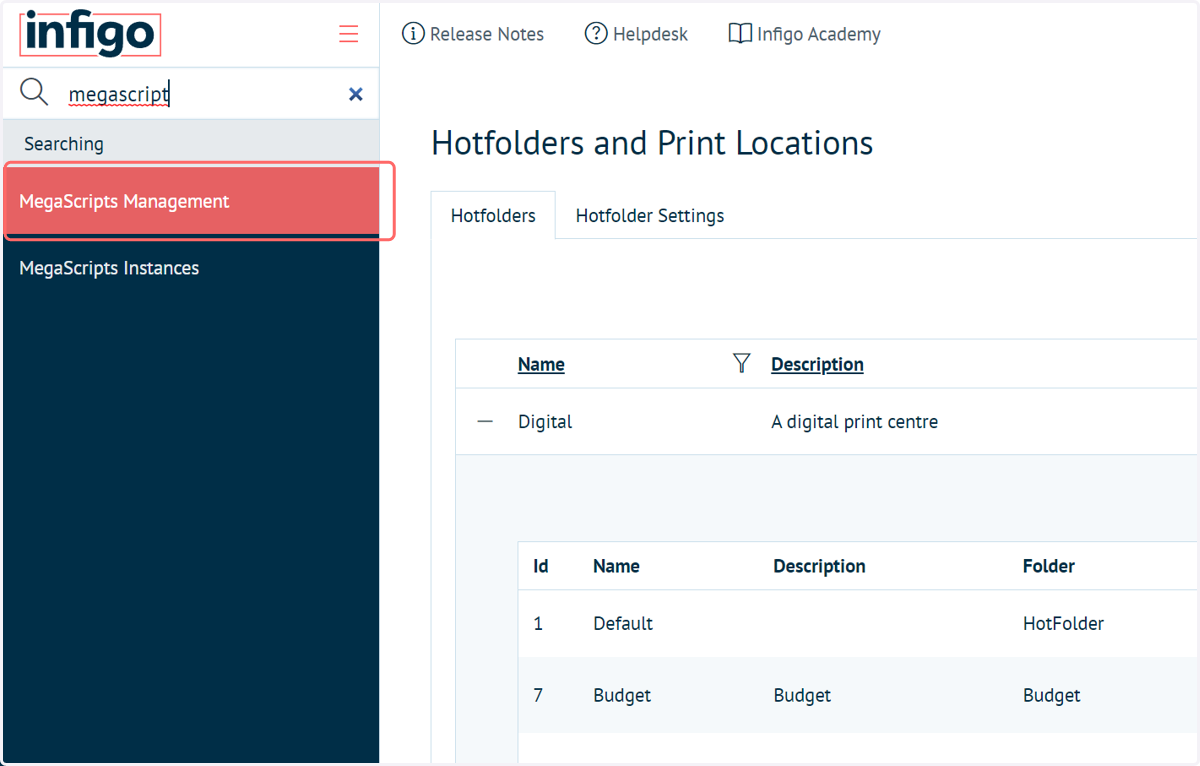
5. Navigate to MegaScripts Management
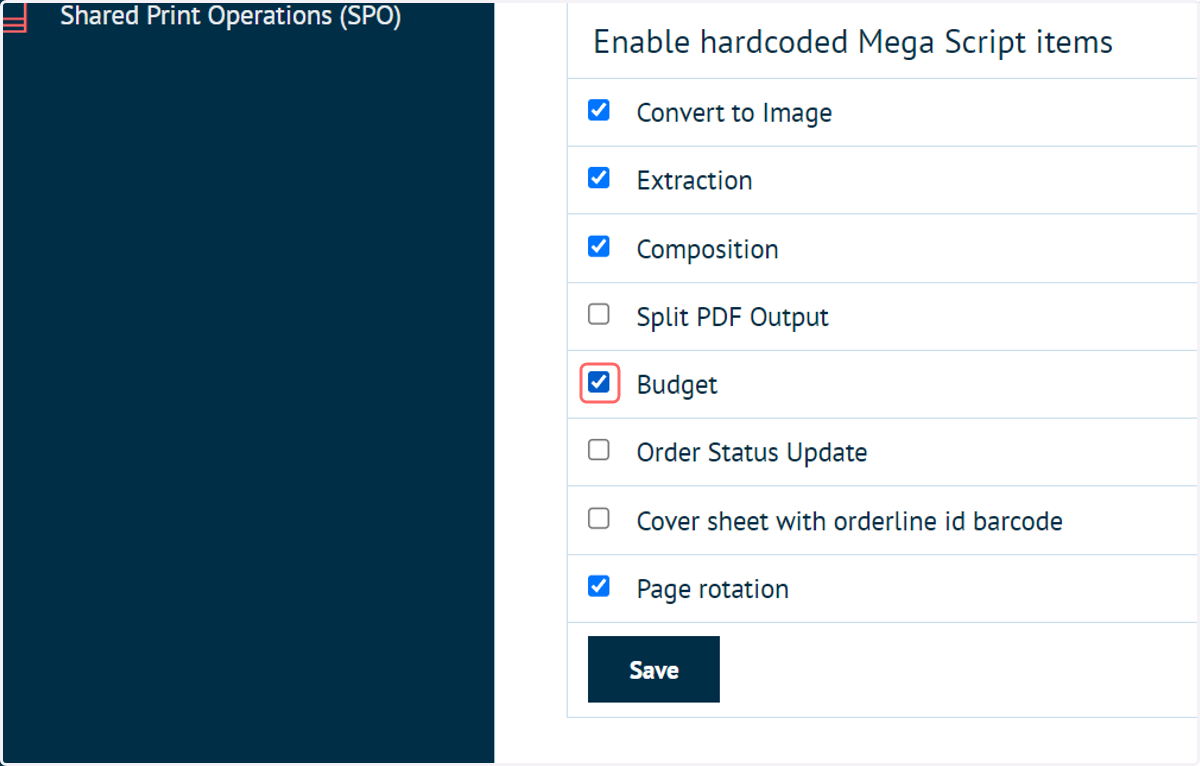
6. Enable Budget
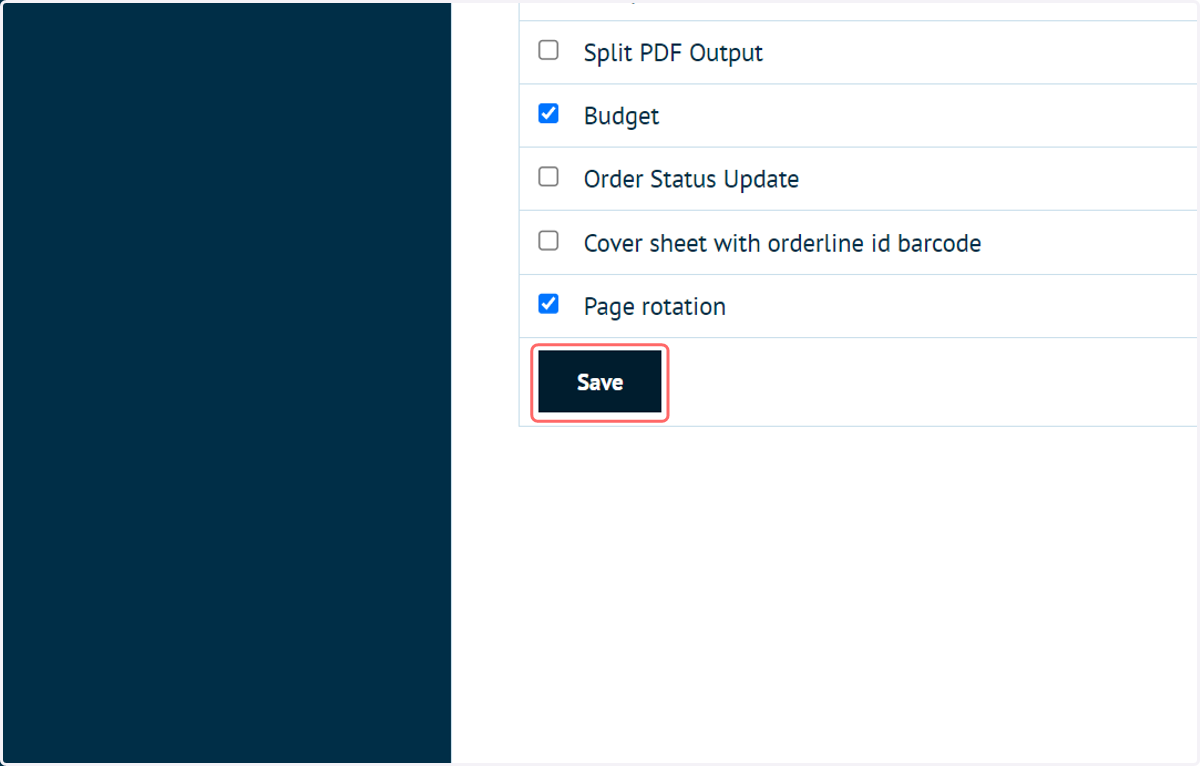
7. Click on Save
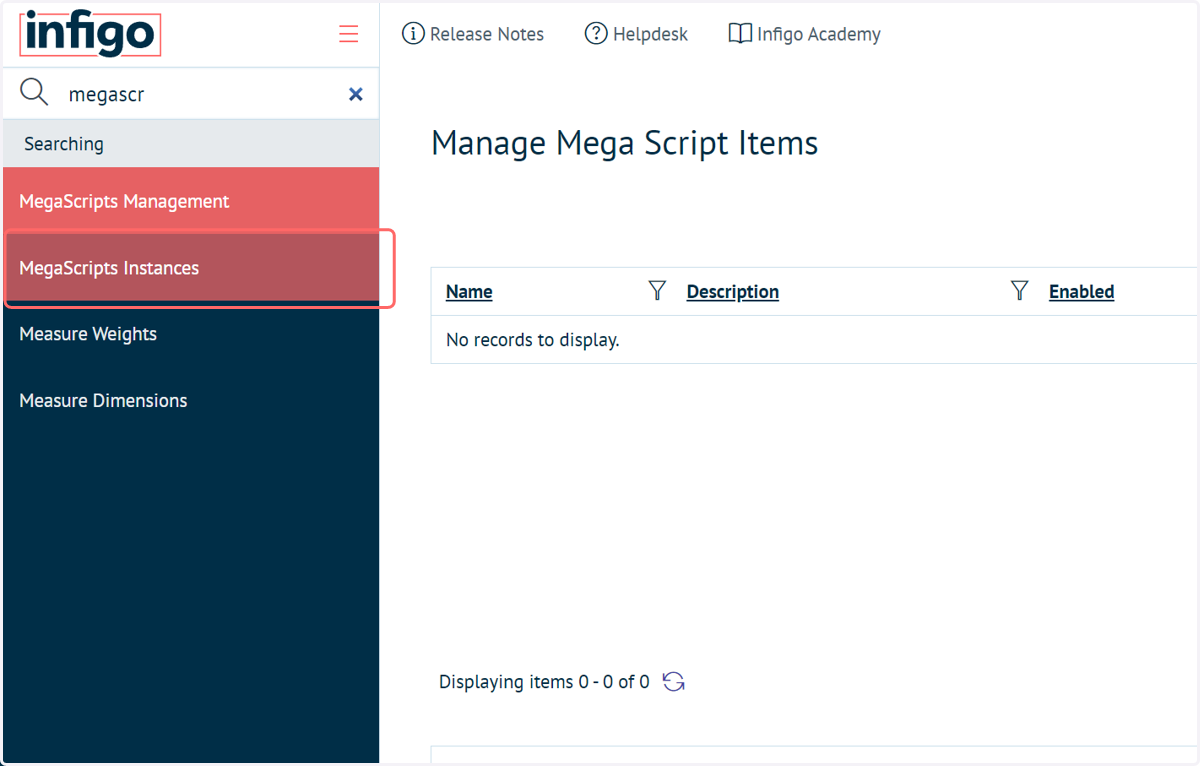
8. Navigate to MegaScripts Instances
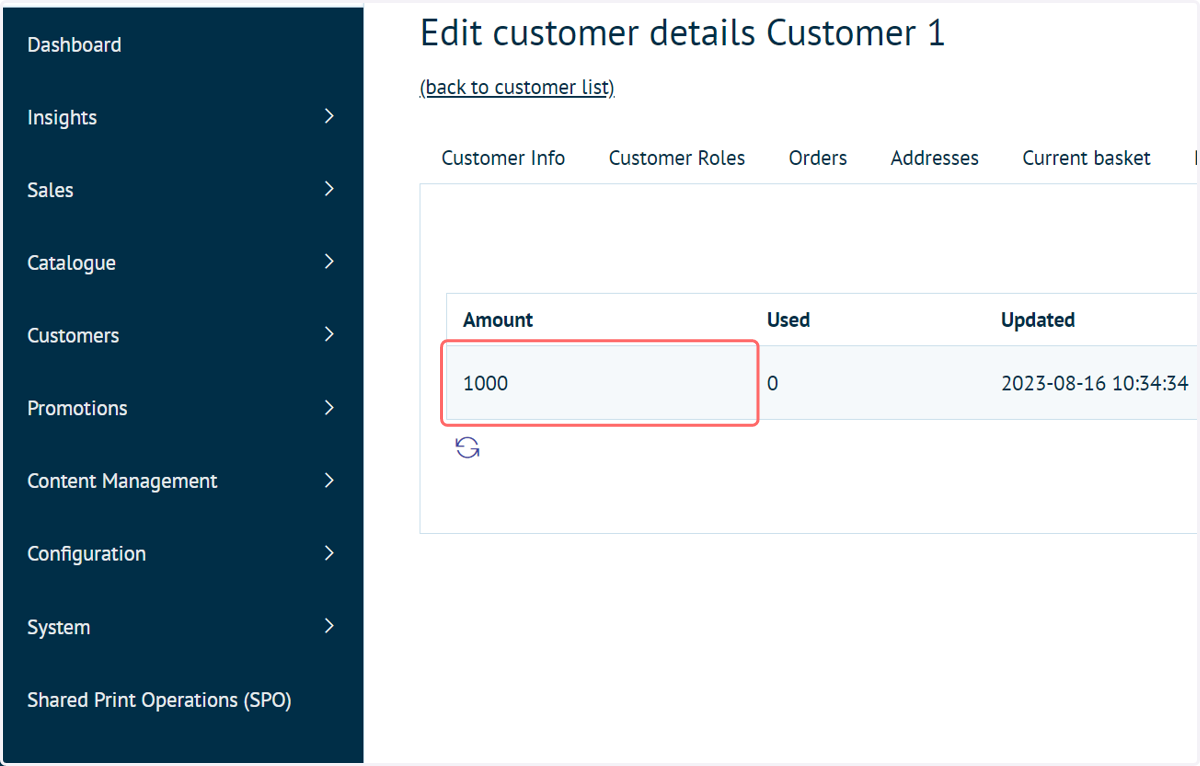
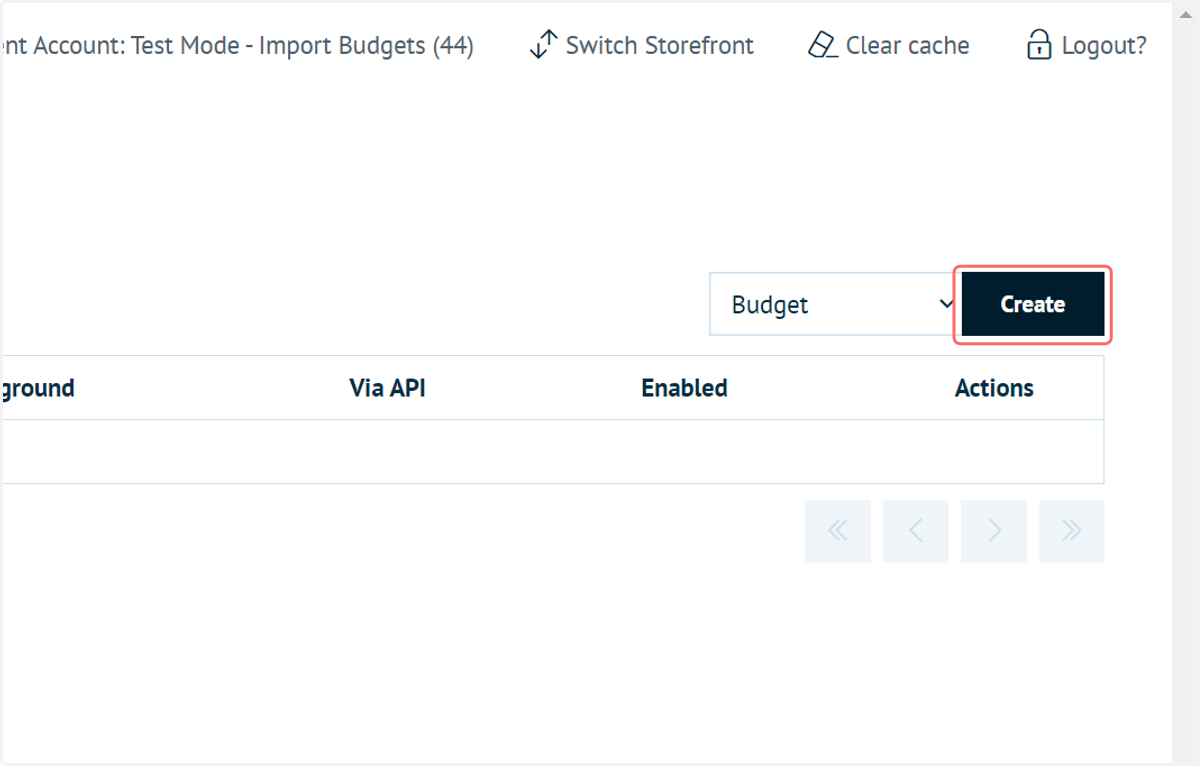
9. Select Budget from the dropdown and click Create
10. Click on Create
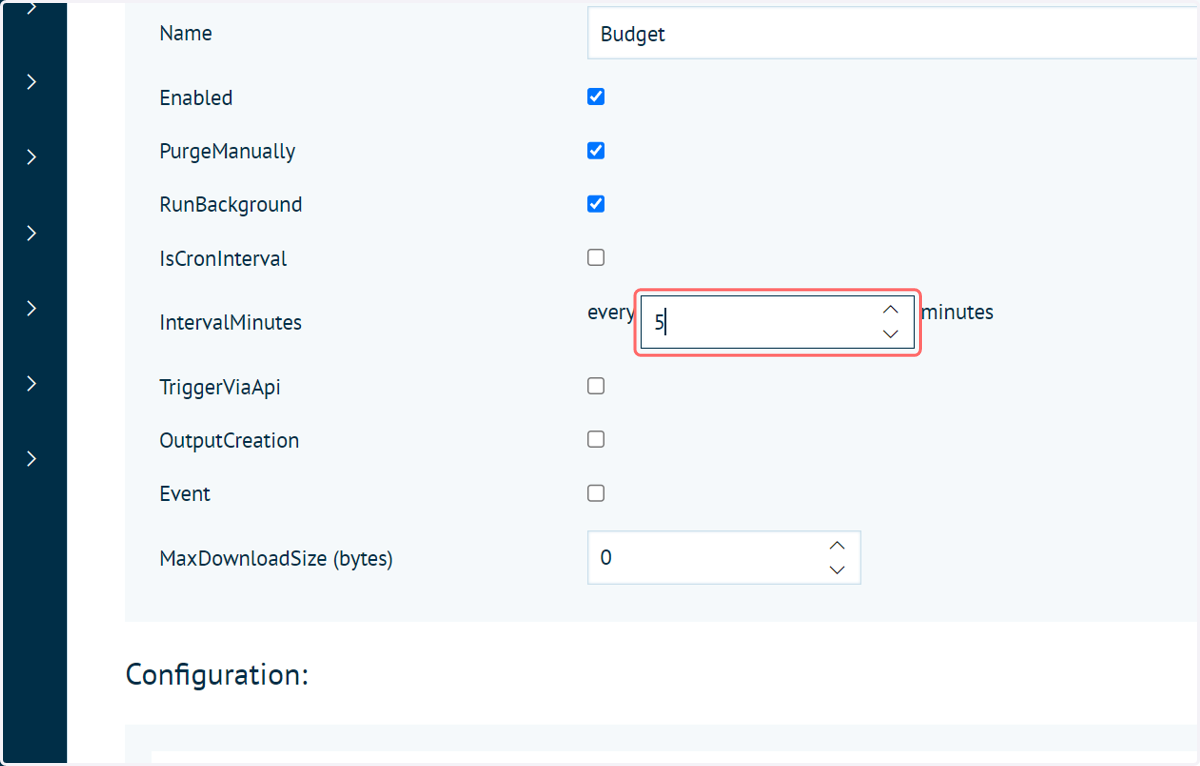
11. Complete the MegaScript selection options
Give the instance a name and ensure it is enabled. Also allow PurgeManually i.
Please note, if your Megascript fails for whatever reason then it will automatically disable. You will need to navigate back here and Enable again to retry.
If you wish to trigger the script manually, select PurgeManually.
If you wish for the script to run automatically in the background, enable RunBackground and specify an interval in which this script will run.
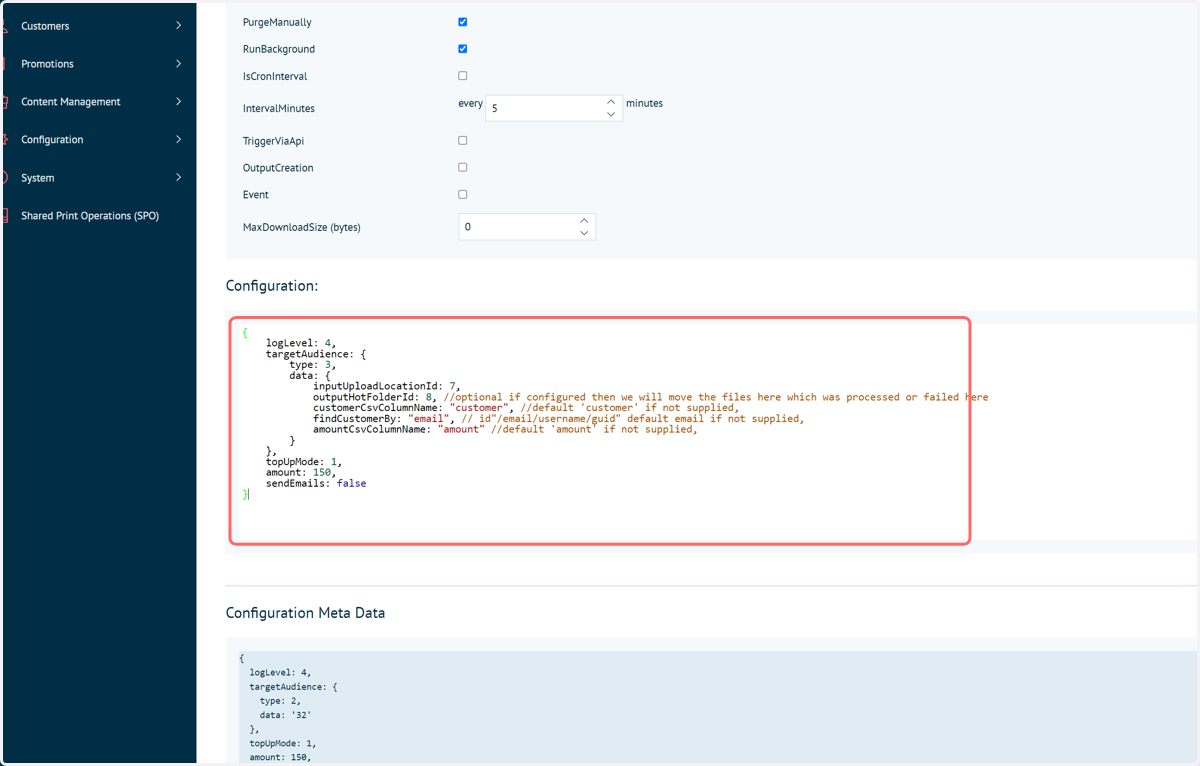
12. Input the MegaScript configuration into the Configuration input
Copy the code below into the Configuration input box.
This code should be amended to suit your specific setup / requirements.
Values are as follows:
inputUploadLocationId | Input the Id of your upload Hotfolder
outputHotFolderId | Input the Id of your "processed" Hotfolder. This is optional. If configured, Infigo will move processed budget files here with the relevant suffix of "processed" or "failed".
customerCsvColumnName | Specifies the column containing customer identifier in your CSV file. This defaults to 'customer' if no entry is supplied.
findCustomerBy | Specifies the identifier you wish to use to locate specific customers. You can use "id", "email", "username" or "guid". This defaults to 'email' if no entry is supplied.
amountCsvColumnName | Specifies the column containing the new budget amount in your CSV file. This defaults to 'amount' if no entry is supplied.
topUpMode | Can be set between 1 and 3, with each performing different actions.
1 | All valid customers will get amount from the csv specific to him to the budget, regardless of the budget they already have.
2 | If the customer's budget is greater than or equal to that specified in the CSV, the update for that customer will be skipped. I.e. the minimum budget for that customer is the amount listed in the CSV.
3 | Regardless of their current budget, the customer budget will be updated to match that shown in the CSV.
sendEmails | Send email notifications to a customer once their budget has been updated.
{
    logLevel: 4,
    targetAudience: {
        type: 3,
        data: {
		    inputUploadLocationId: 7,
		    outputHotFolderId: 8,
		    customerCsvColumnName: "customer",
		    findCustomerBy: "email",
		    amountCsvColumnName: "amount",
		}
    },
    topUpMode: 1,
    amount: 150,
    sendEmails: false
}
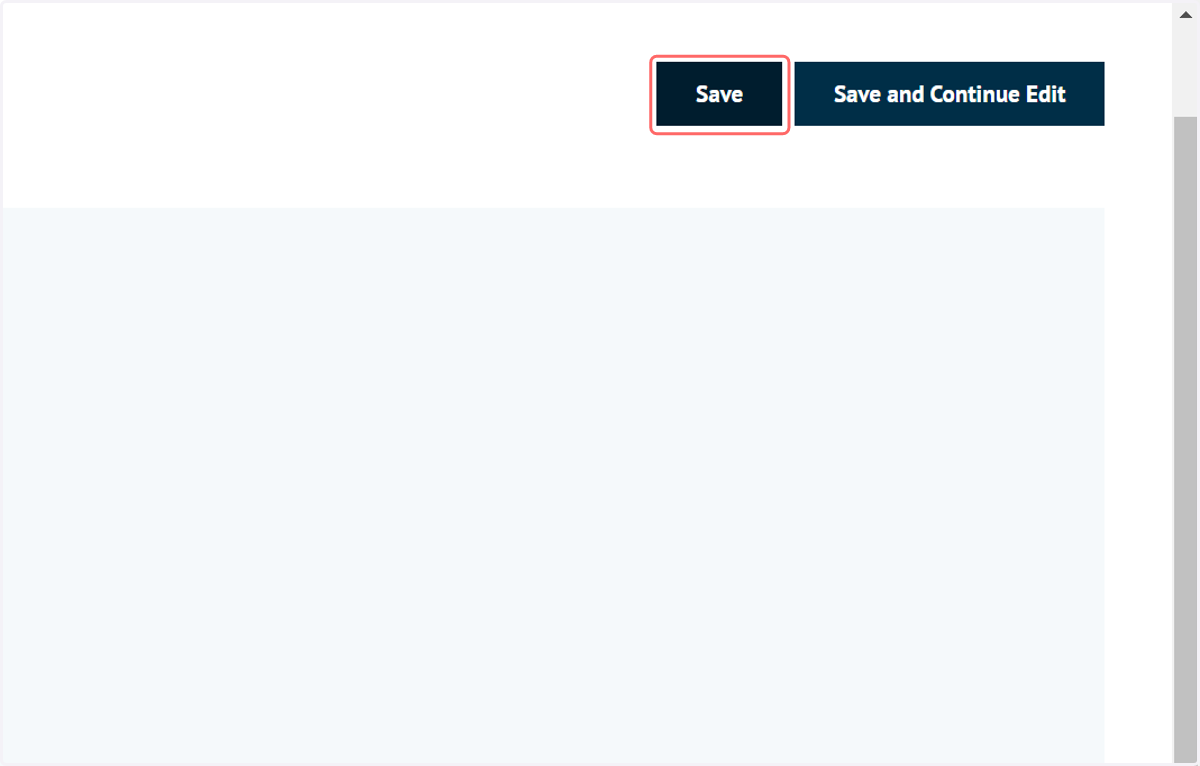
13. Click on Save
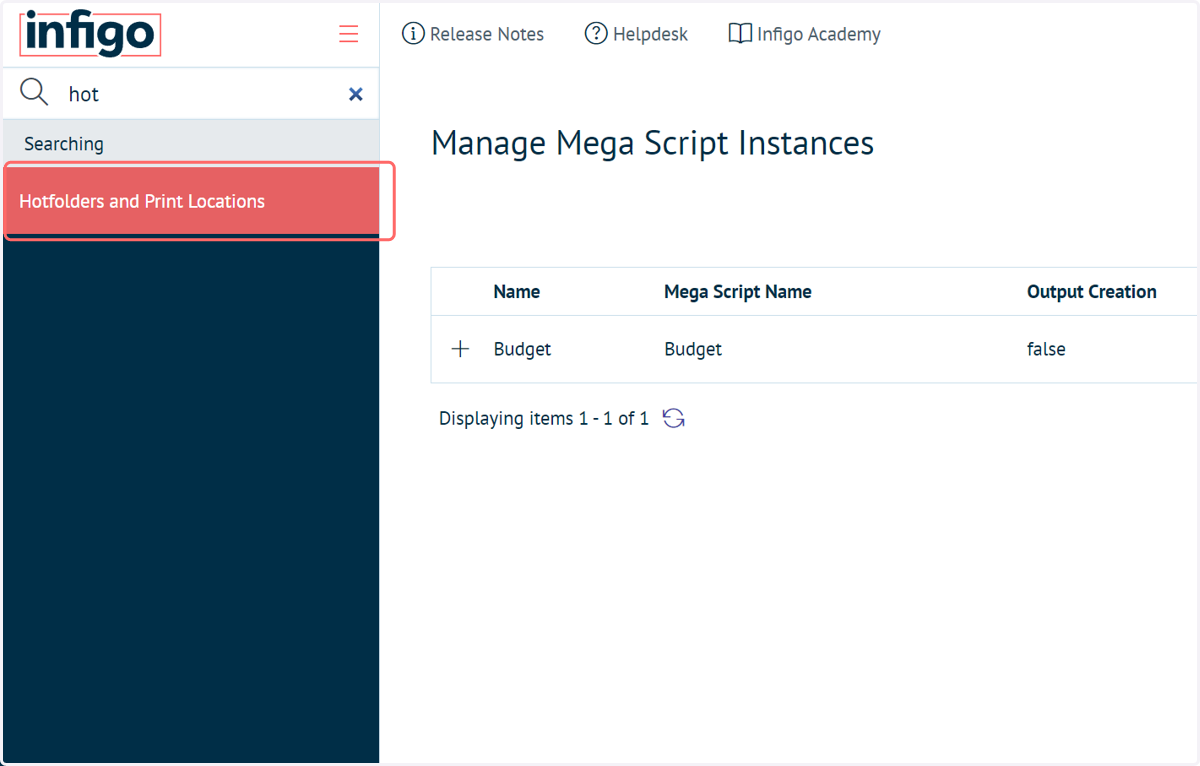
14. Navigate to Hotfolders and Print Locations
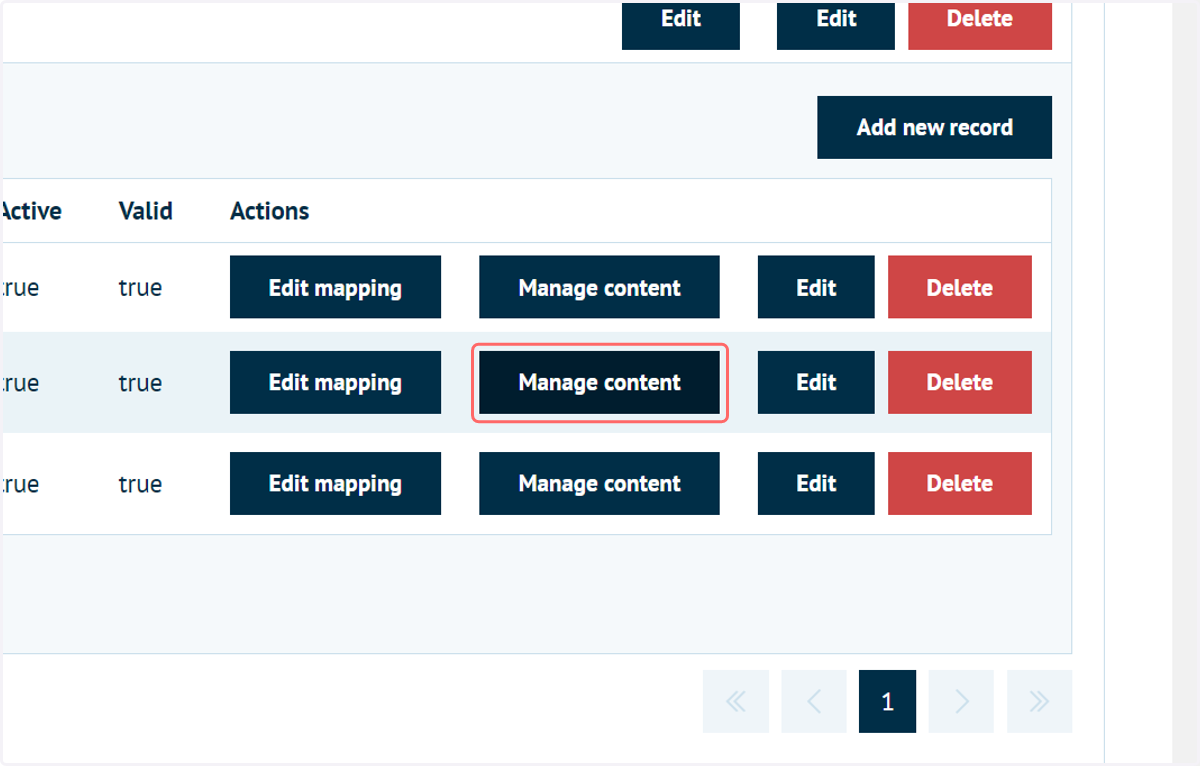
15. Click on Manage content for your Budget folder
16. CSV format
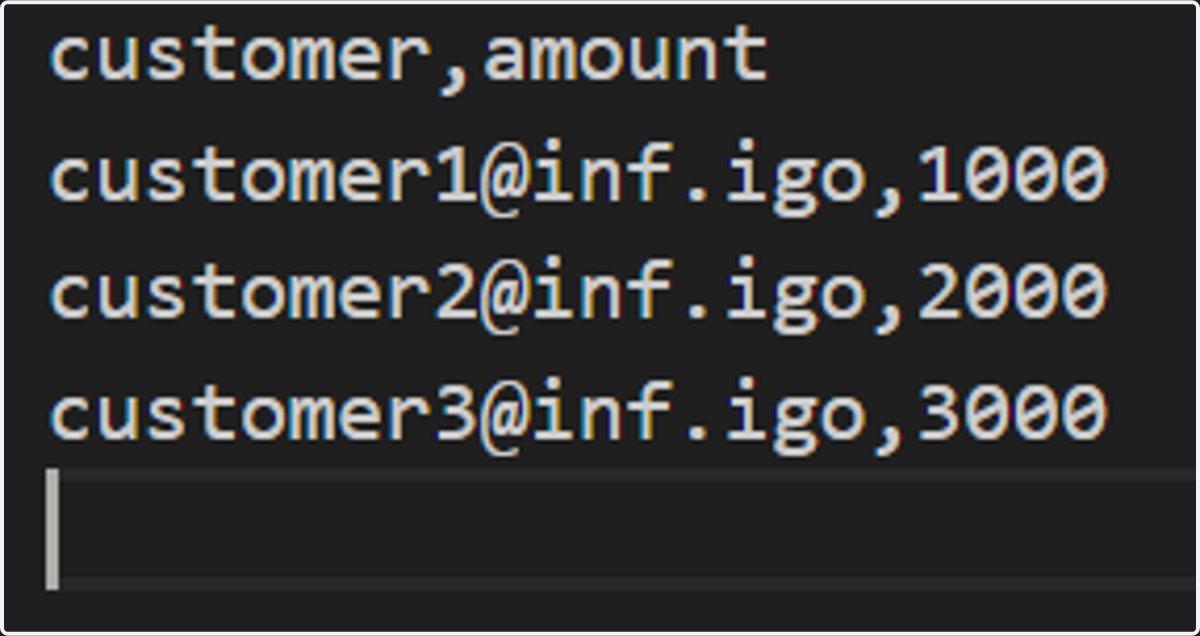
Your CSV format should be as shown in the screenshot below.
The first row should be your headers for the customer and corresponding budget amount.
Subsequent rows should contain the relevant customer identifier and the budget amount.
For example:
customer,amount
customer1@inf.igo,1000
customer2@inf.igo,2000
customer3@inf.igo,3000
Save these files as CSV's.
17. Return to your Hotfolder "Manage Content" screen
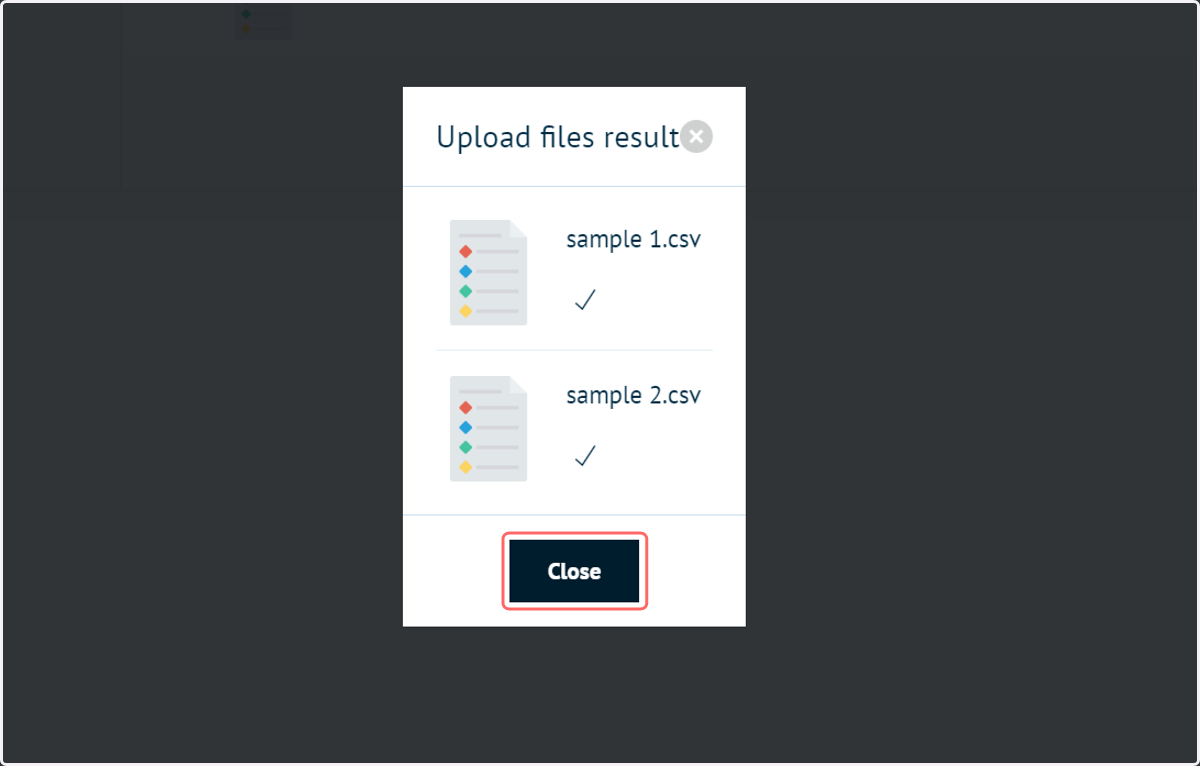
Drag and drop the CSV files into the upload area.
A pop up will display their successful upload.
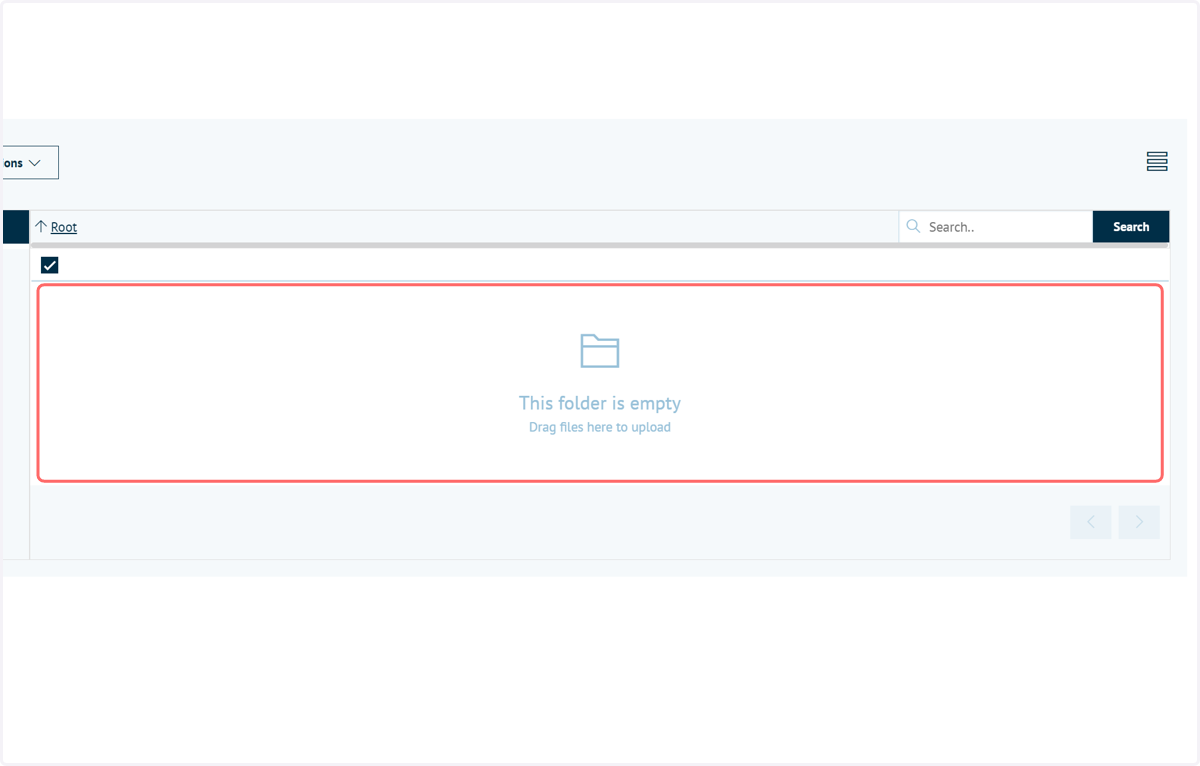
18. When your MegaScript runs, the Budget folder should show as empty
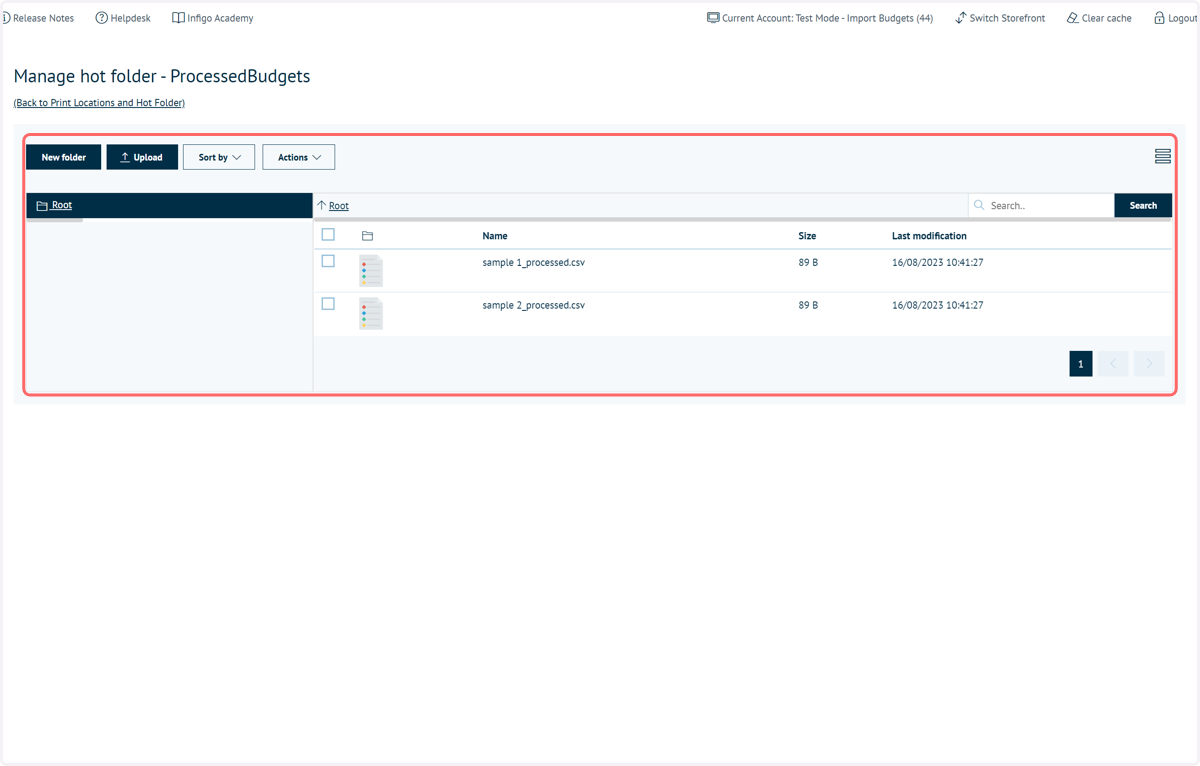
19. The uploaded CSV files will instead be shown in the Processed Hotfolder with the relevant suffix.
20. Navigate to one of your customer accounts and click Budgets
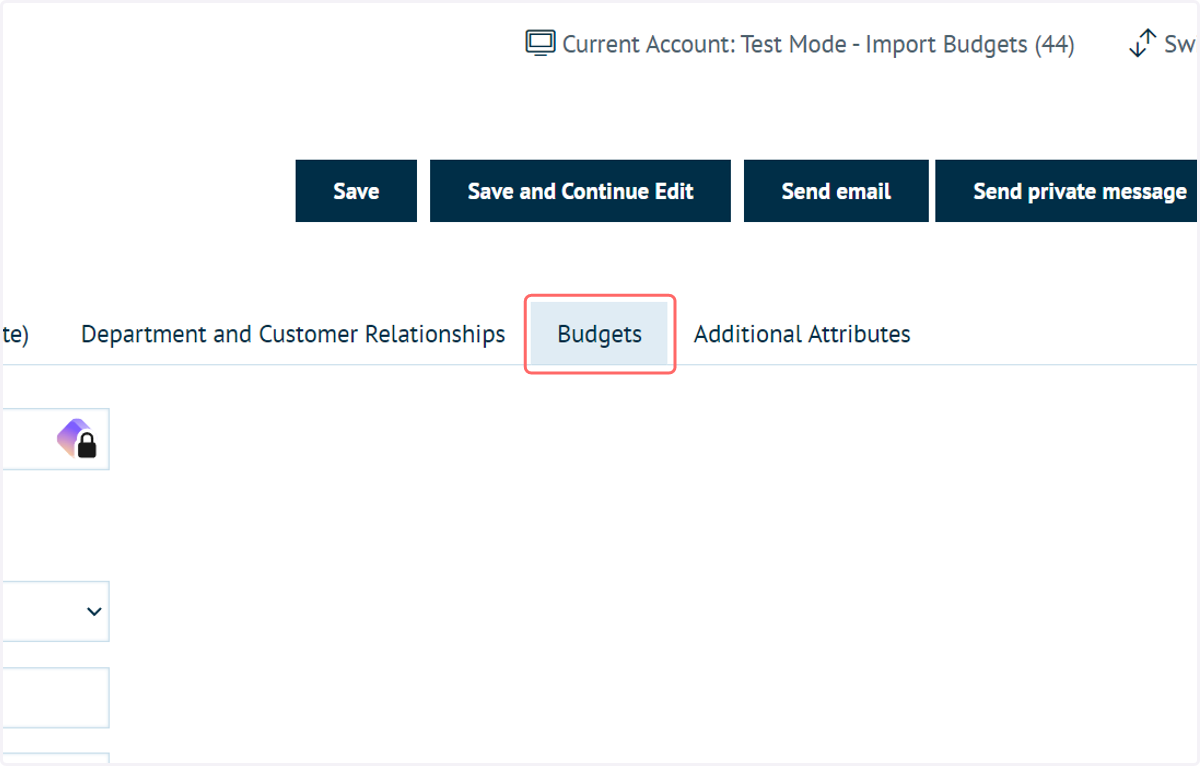
21. The customer budget from the CSV will now be displayed and applied.