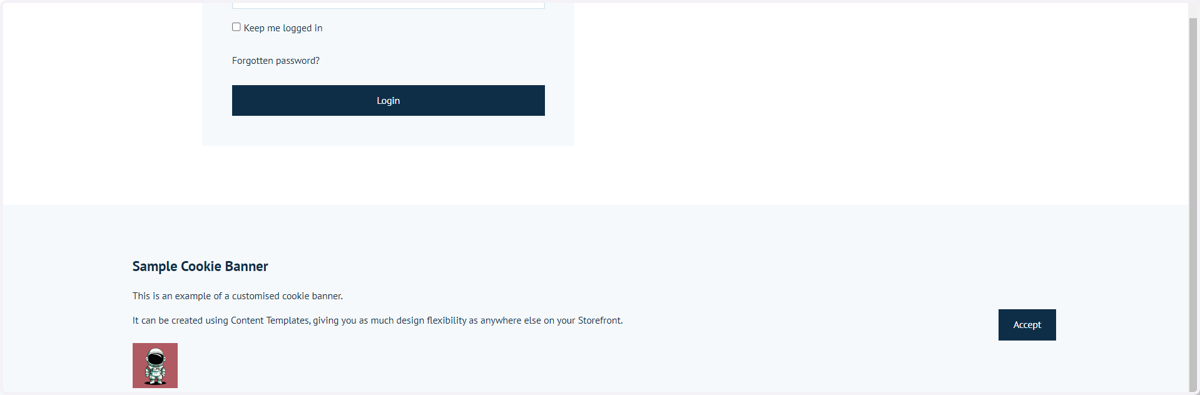
Cookie Banner | SEO_006
Here, we'll take a look at how to activate and customise the content of a cookie banner on your site.
A cookie banner is a pop-up notification displayed on a website that informs visitors about the use of cookies, seeking their consent to store or access information on their devices, in compliance with privacy regulations and policies.
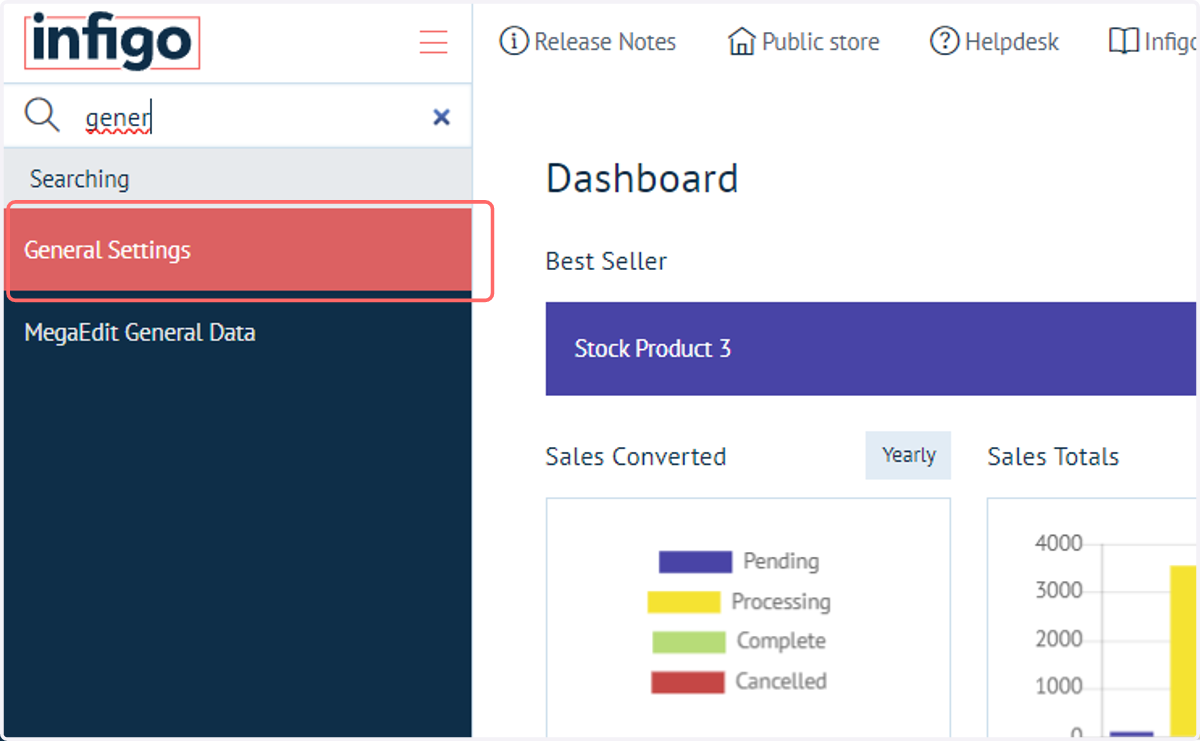
1. Click on General Settings
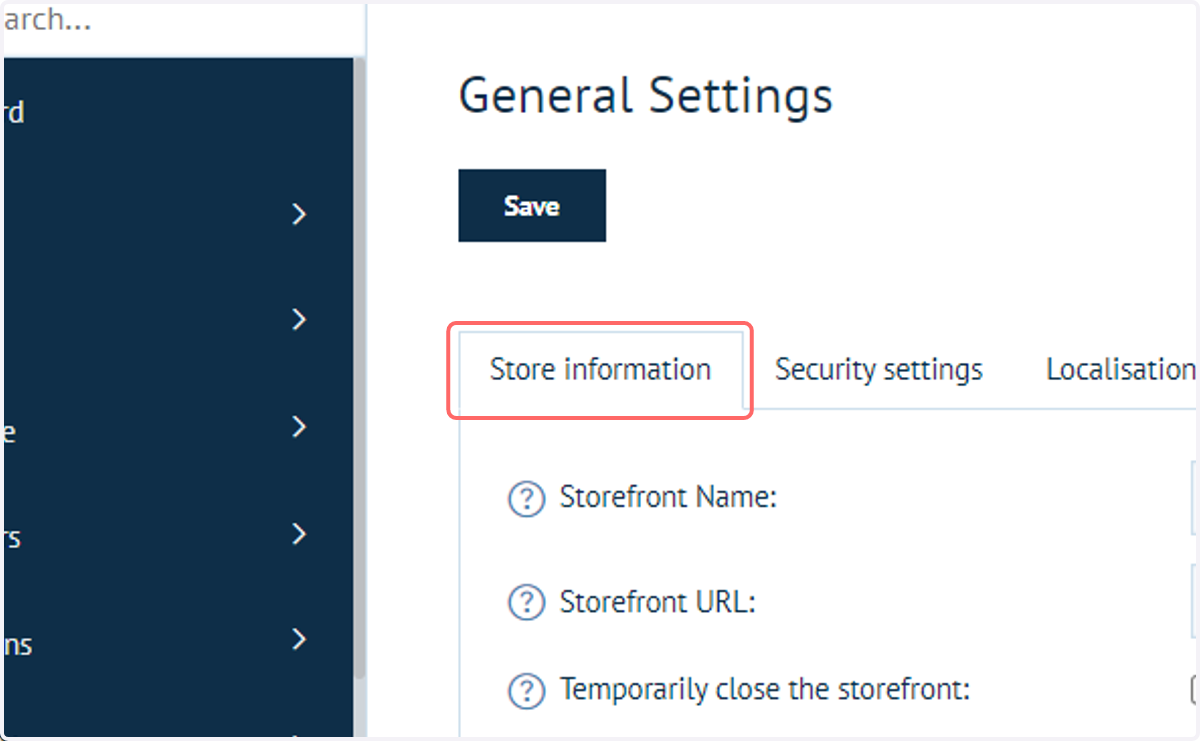
2. Click on Store information
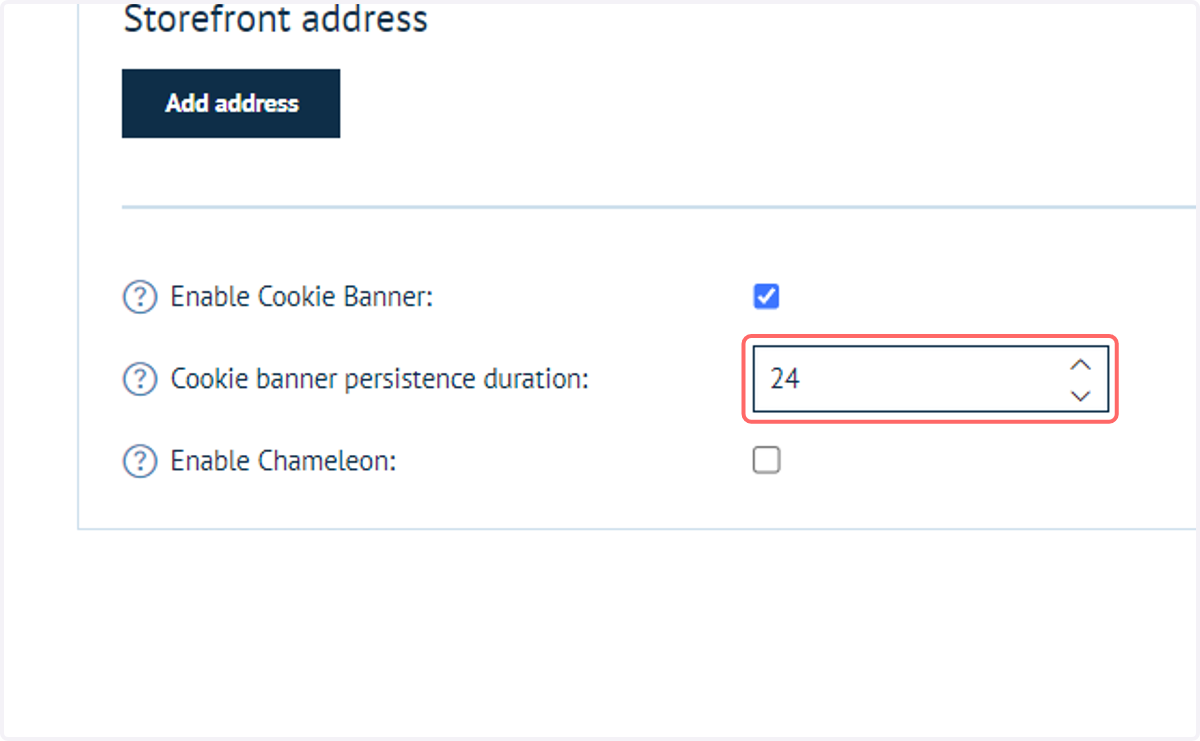
3. Check Enable Cookie Banner
This will activate the cookie banner on your site, containing default, generic text (unless previously modified)
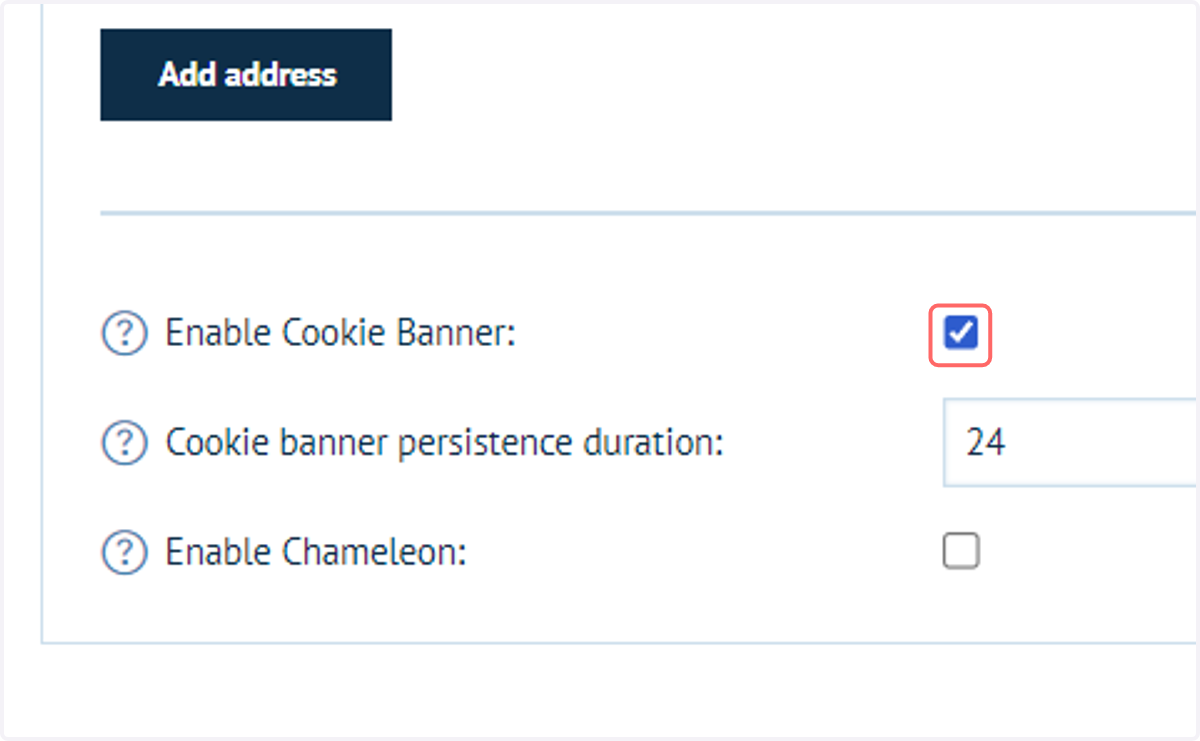
4. Modify the cookie banner persistence duration
This option controls the quantity of hours for which cookie acceptance is stored. After this period, acceptance must be reconfirmed.
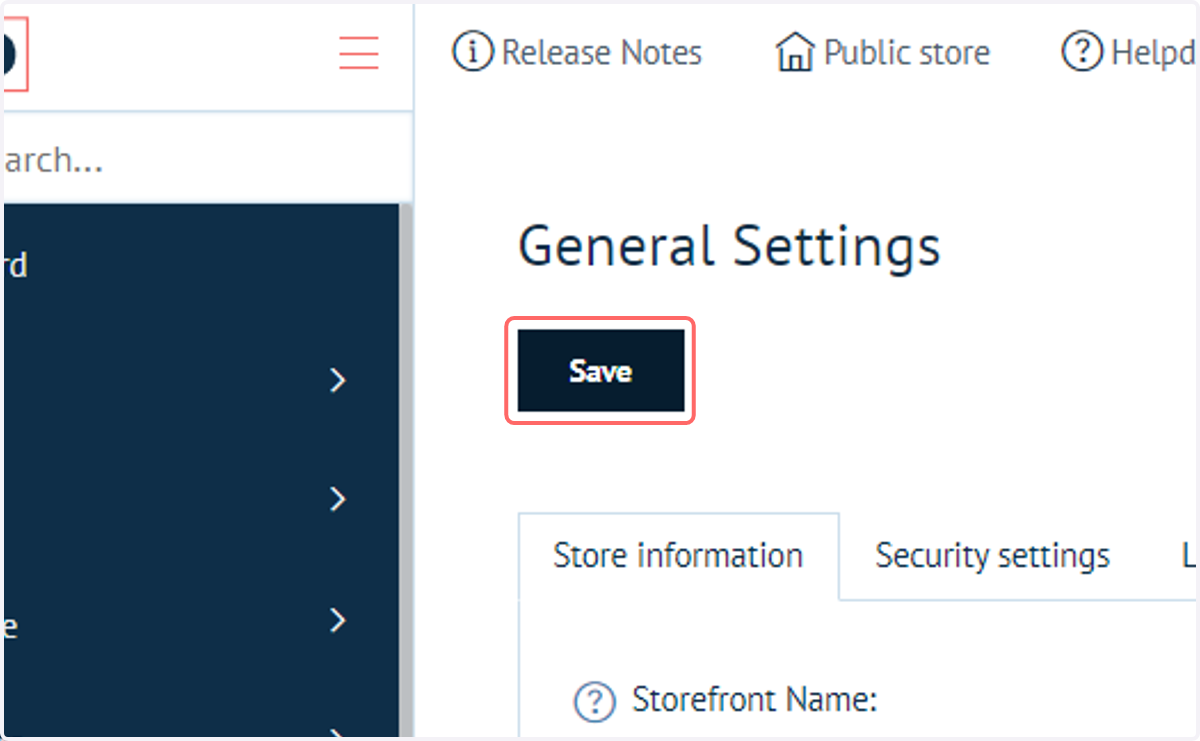
5. Click on Save
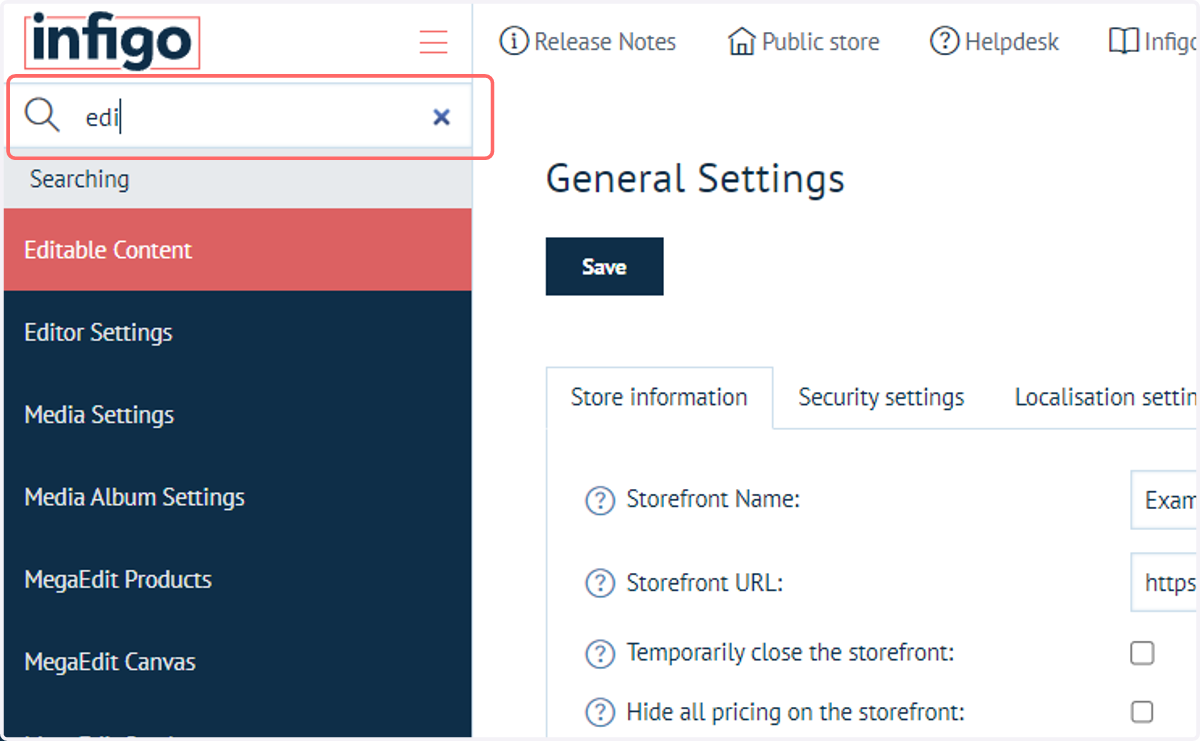
6. Navigate to the Editable Content page
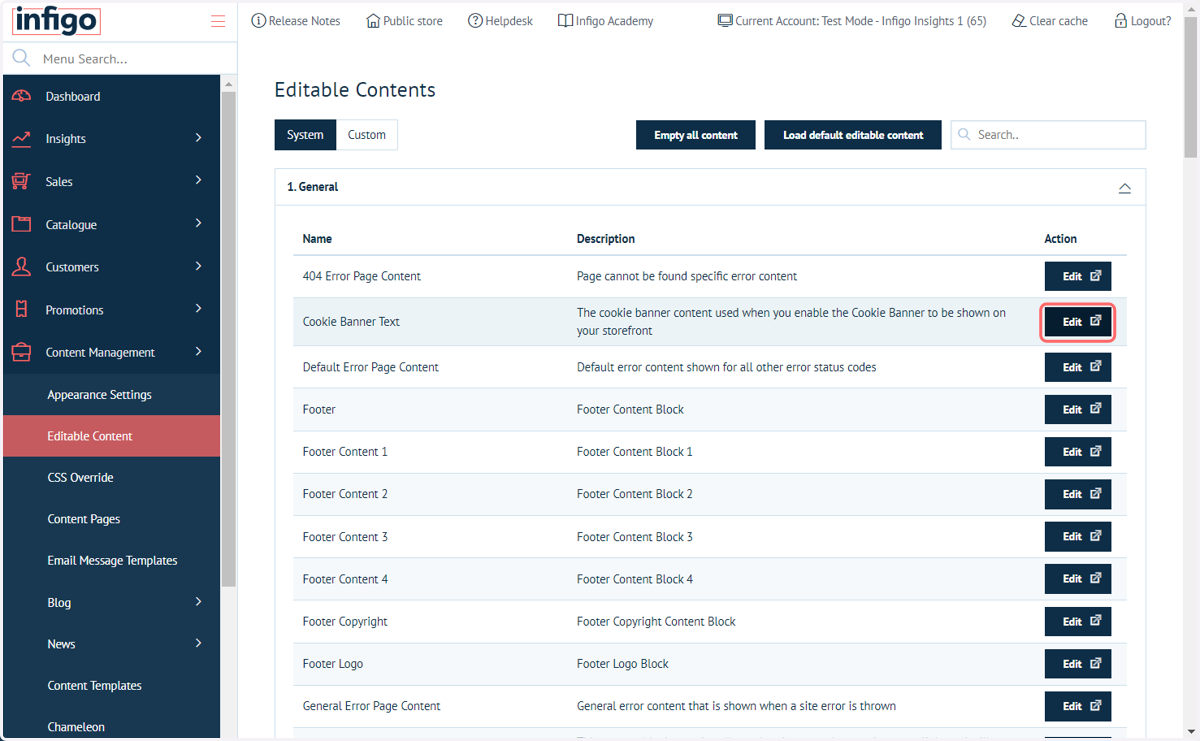
Next, we will look at modifying the content contained within our cookie banner. This is controlled by a dedicated Editable Content block.
7. Click on Edit on the Cookie Banner Text block
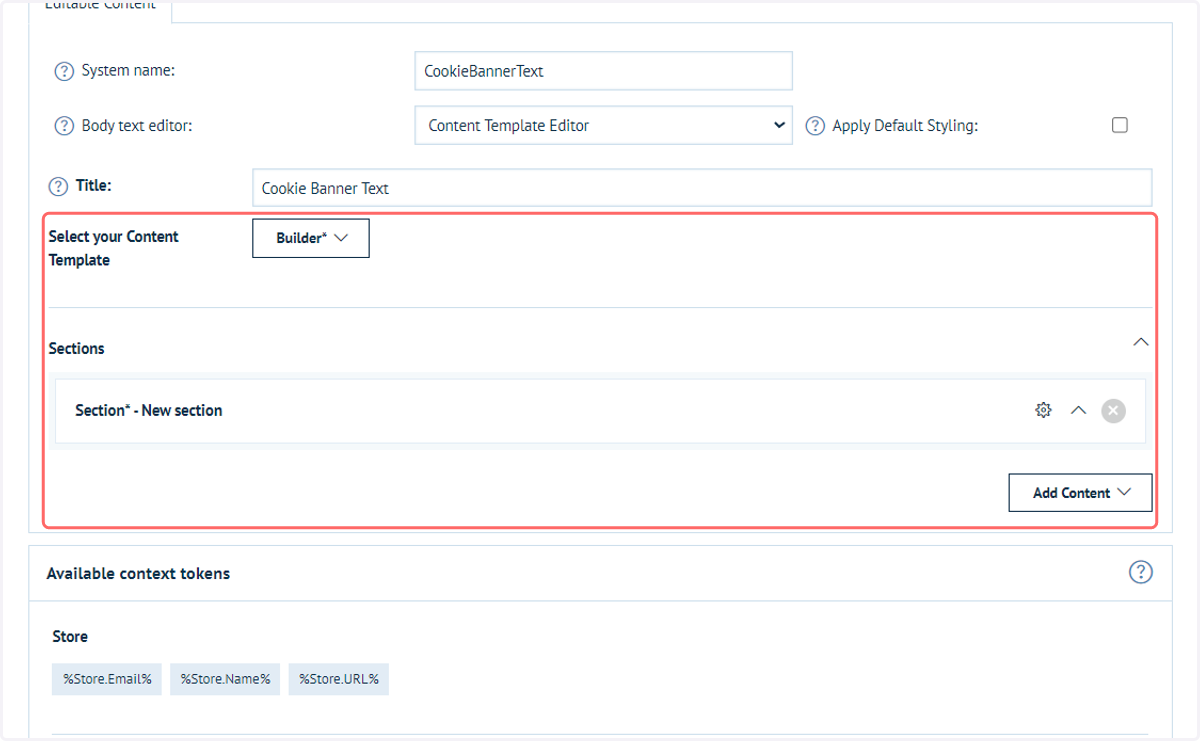
8. Form your content
You can utilise all of the usual methods of content input, including Content Templates.
Generate fully customised content for your cookie banner, including images, text and much more.
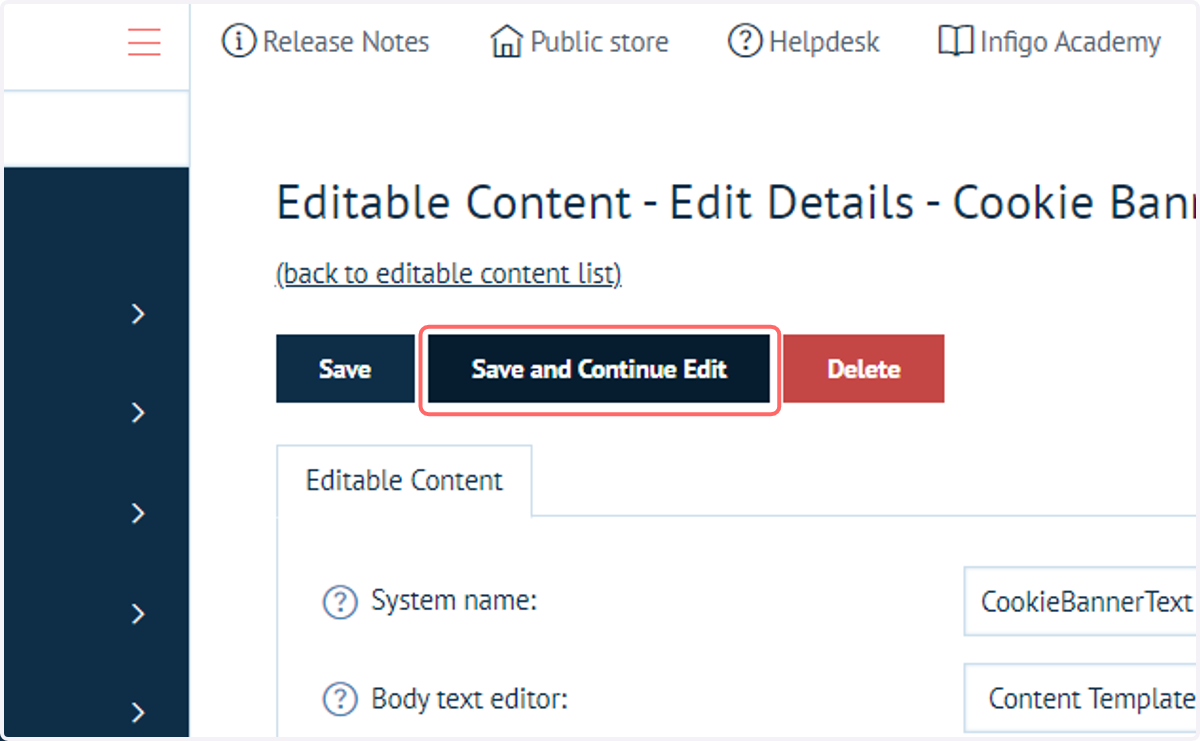
9. Click on Save and Continue Edit
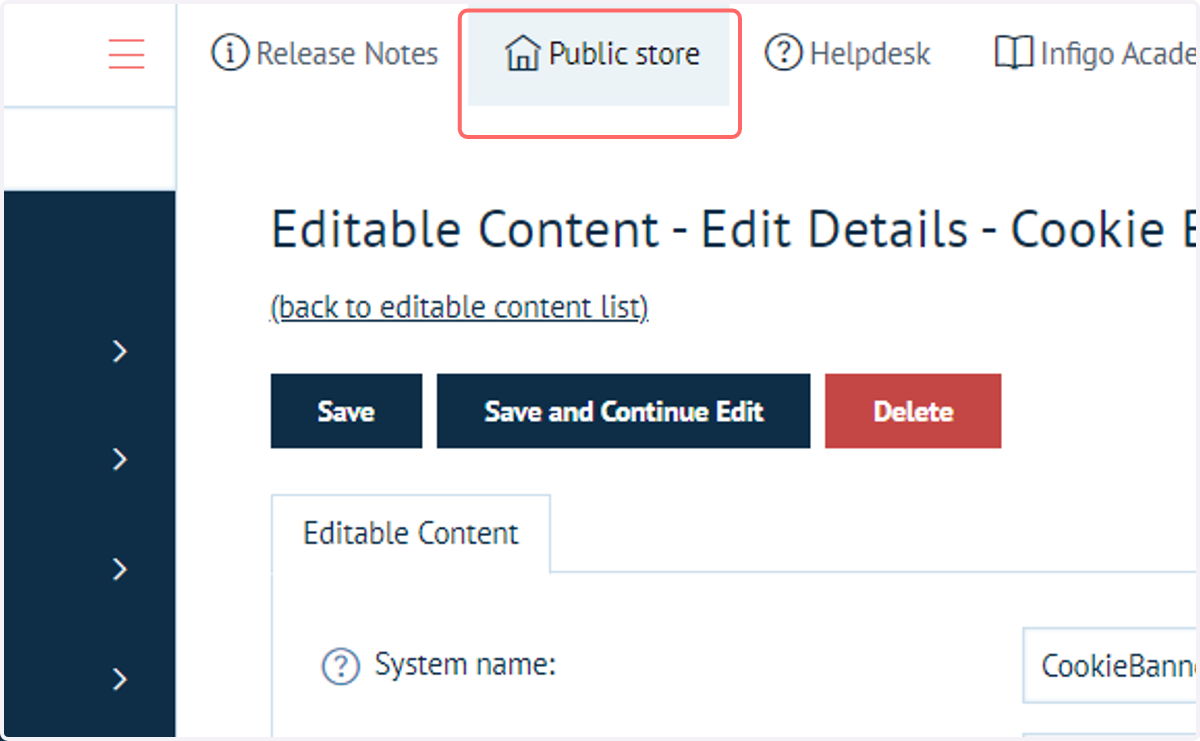
10. Click on Public store
Let's take a look at our cookie banner on the front end.
11. Cookie Banner