How to work in the Go Live Checklist in Airtable
The Go Live checklist should be used throughout a website build to stay on top of the invisible tasks needed to launch the website.
Airtable
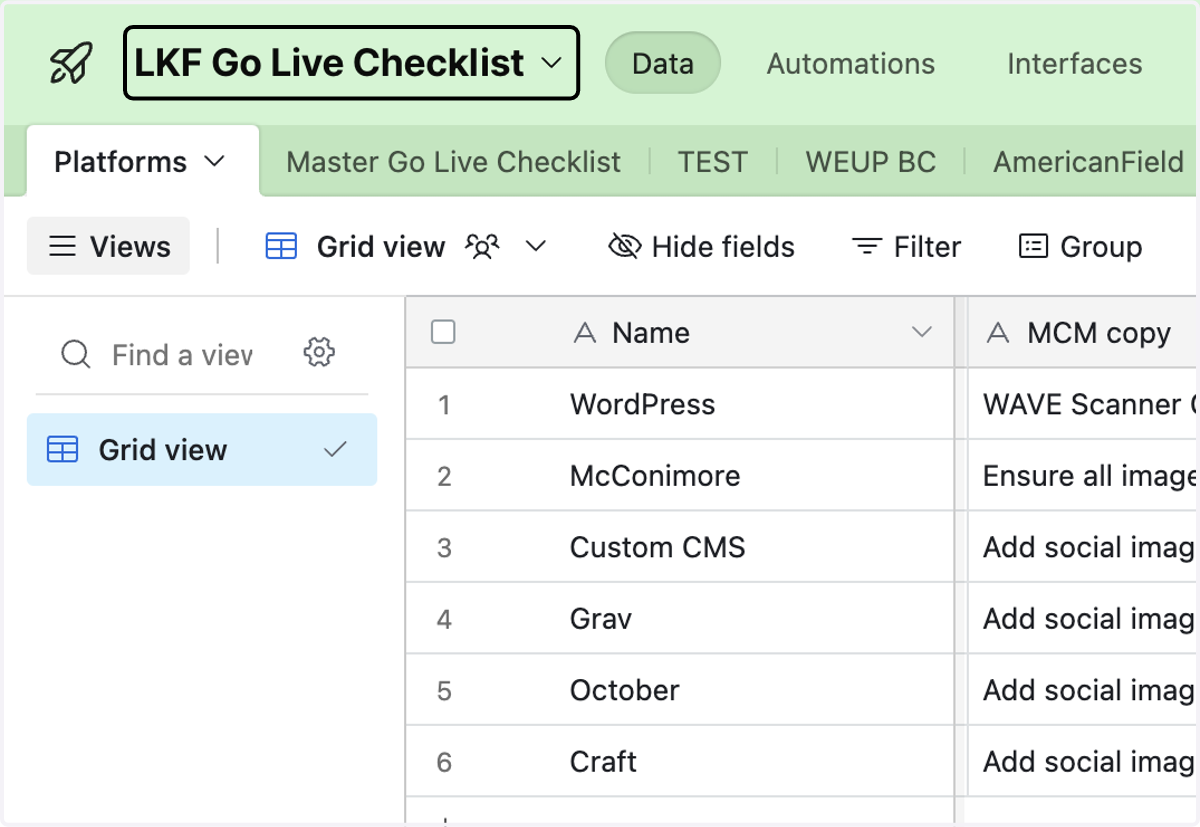
1. Open the LKF Go Live Checklist
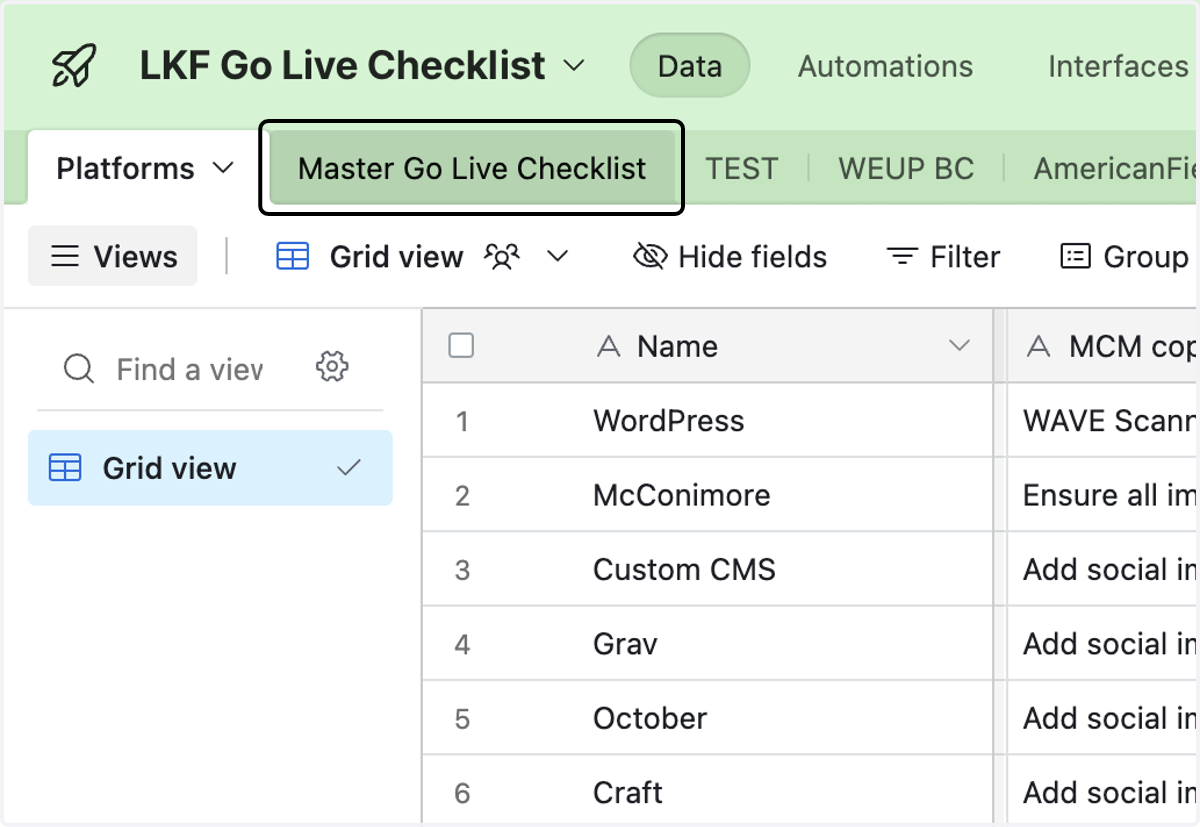
2. To create a new Go Live checklist for a new website, click on Master Go Live Checklist
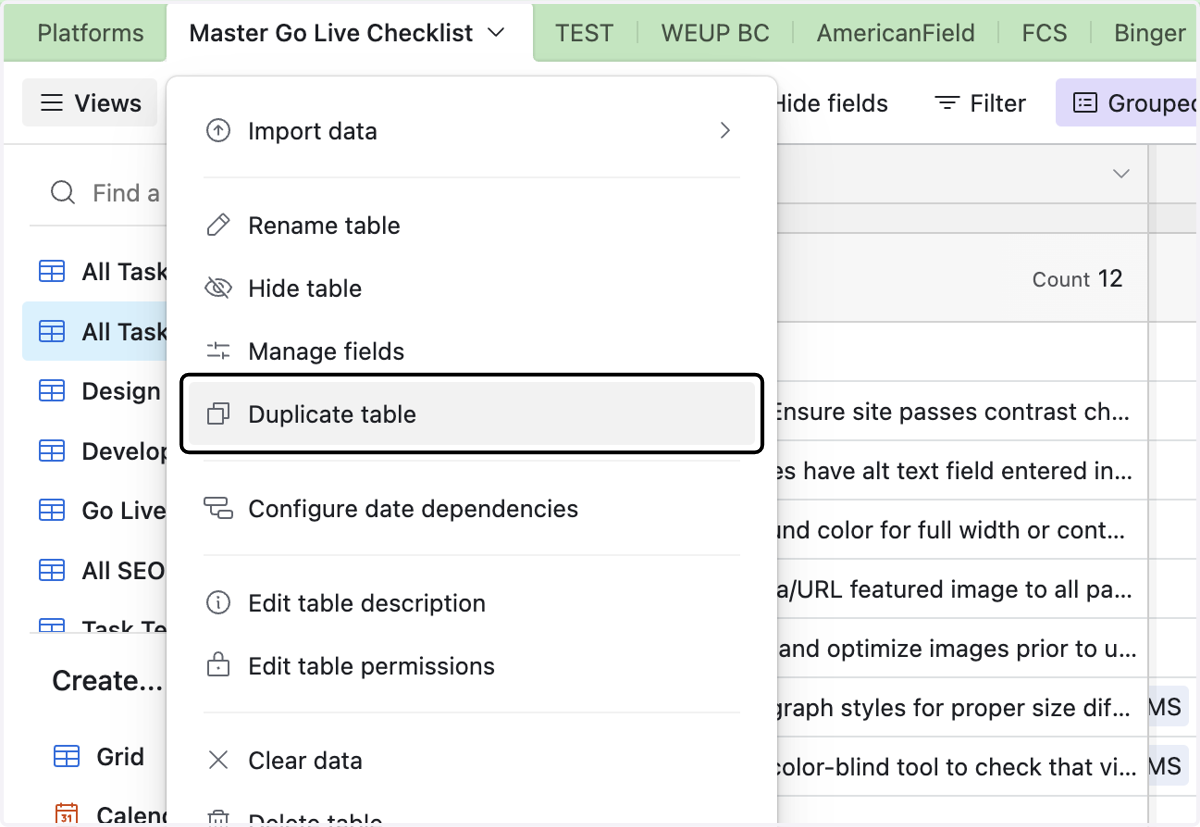
3. Right click on Master Go Live Checklist table options
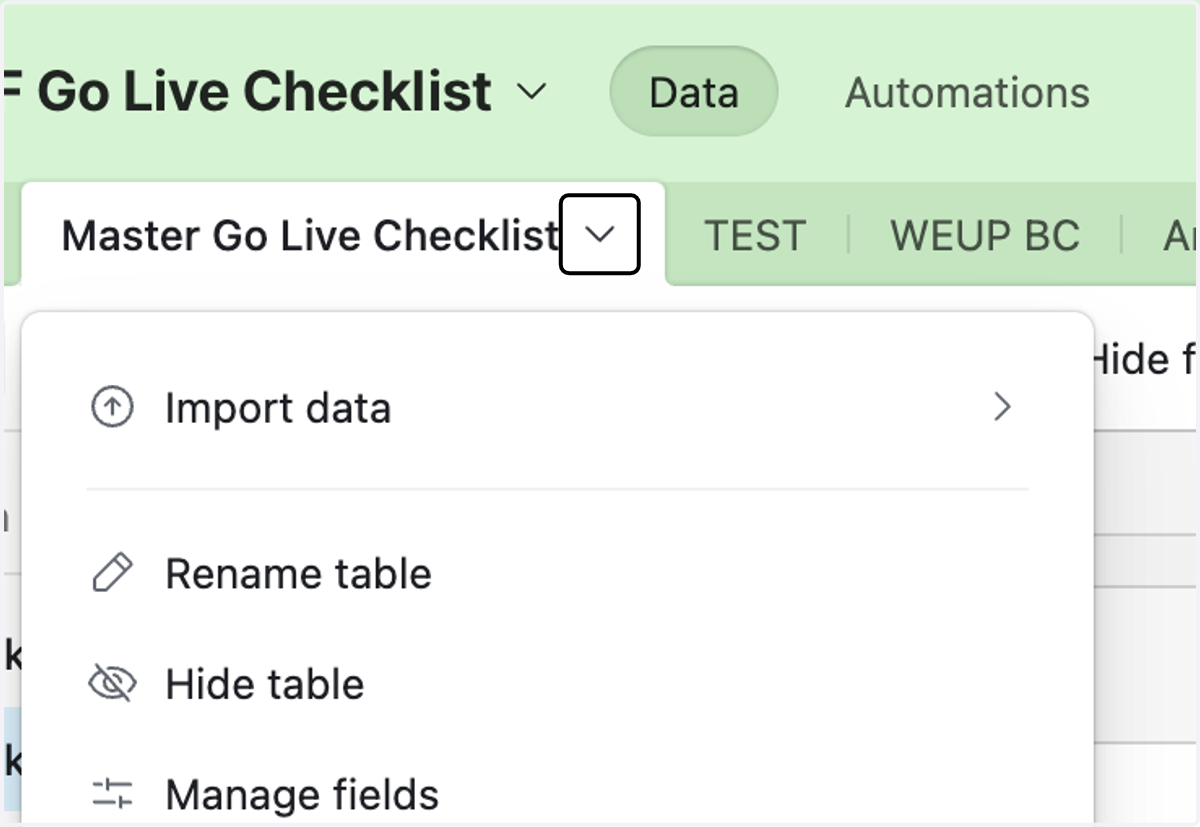
4. Click on Duplicate table
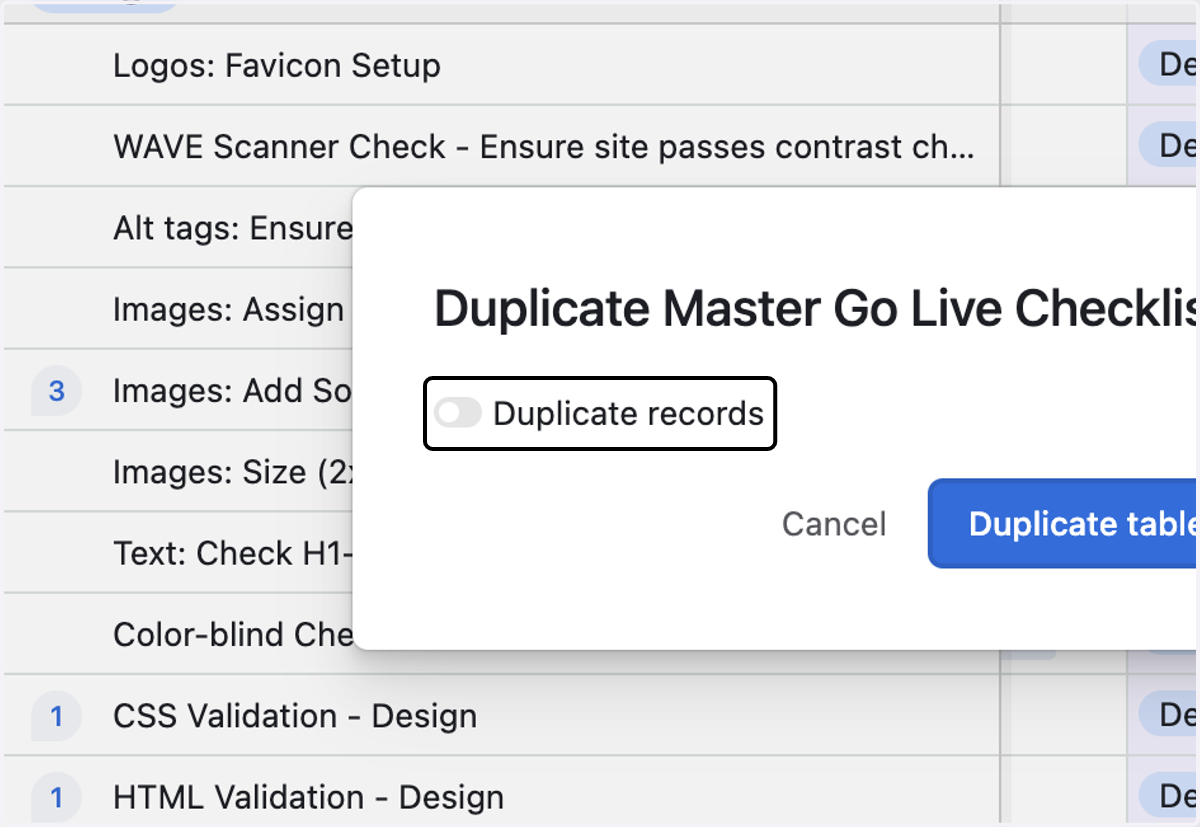
5. Be sure to turn on Duplicate records
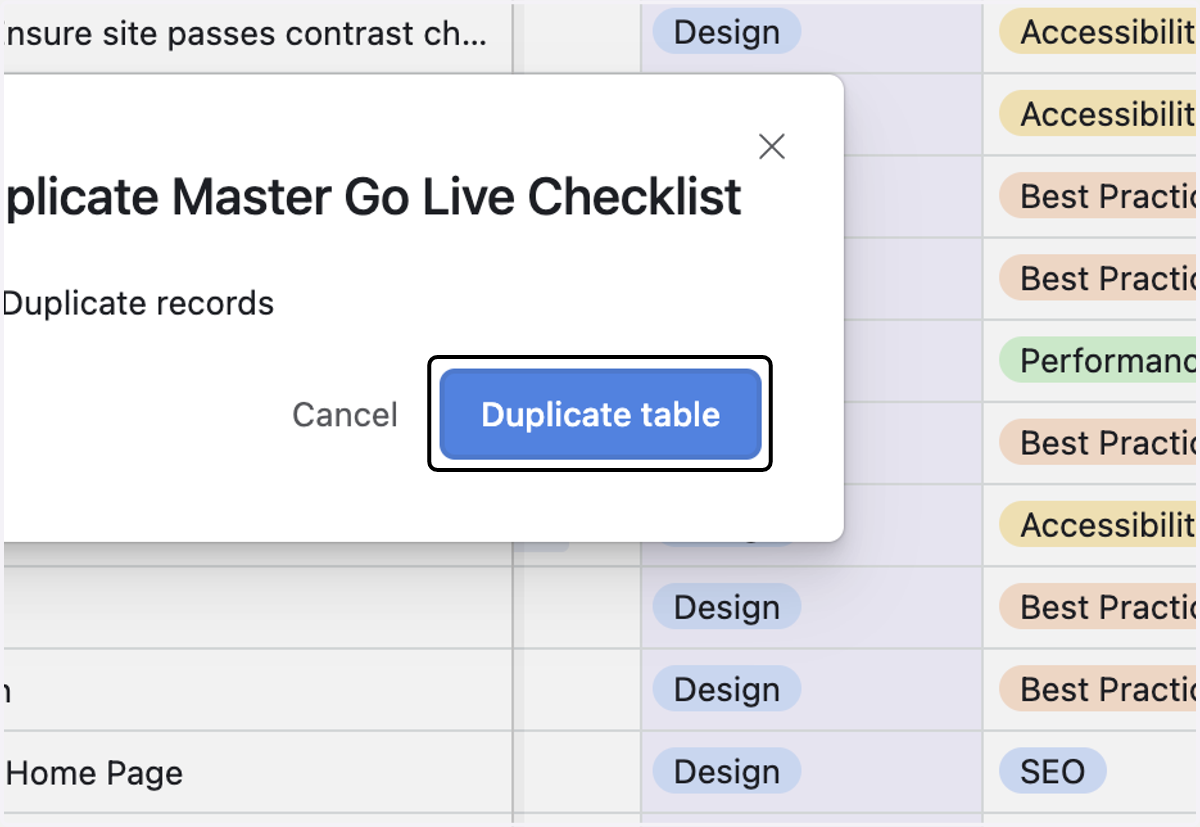
6. Click on Duplicate table
7. Right click on the options for the new Master Go Live Checklist copy table
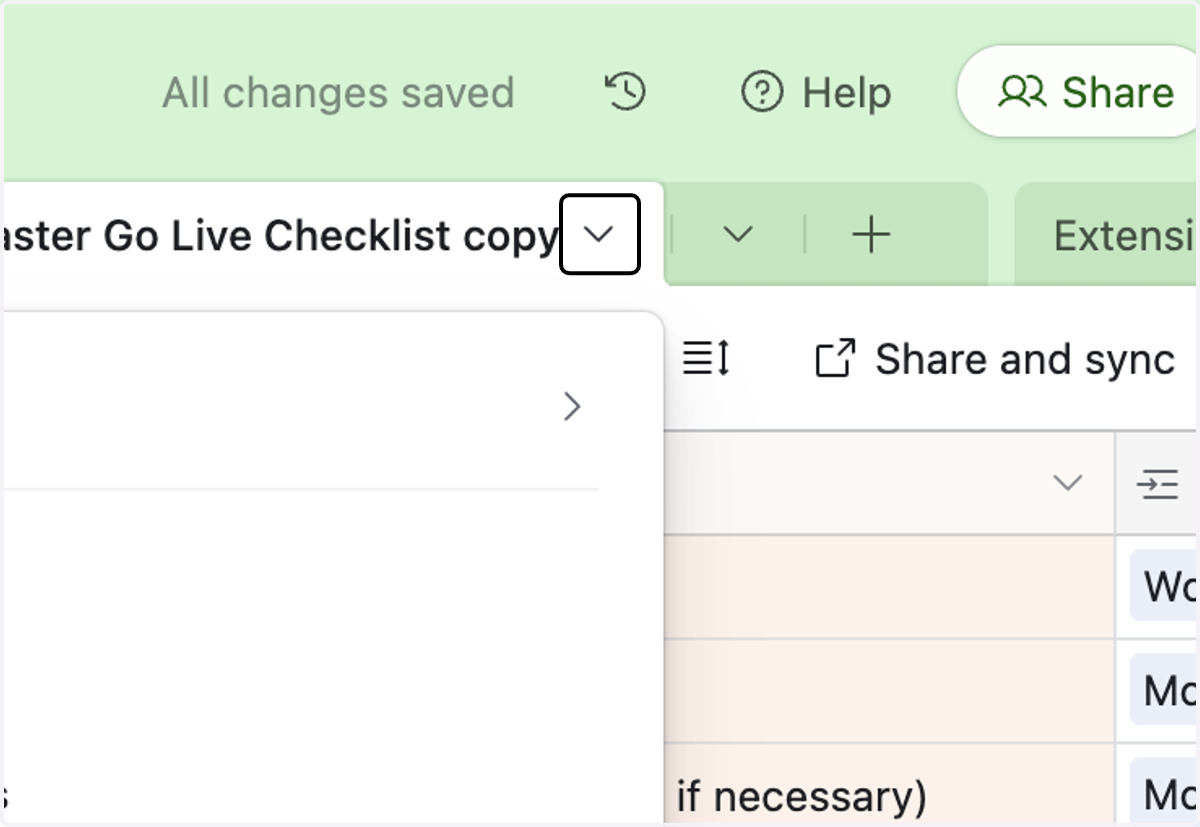
8. Click on Rename table
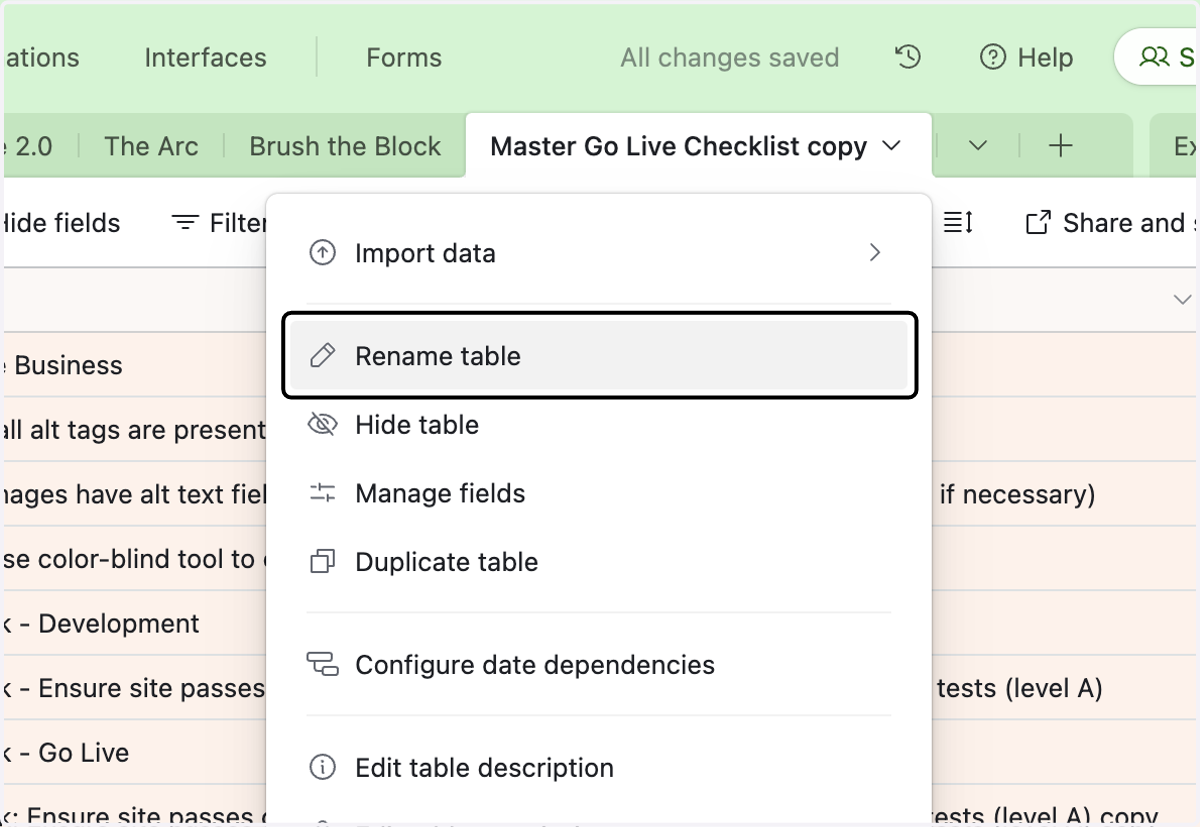
9. Rename the table for the website you are working on
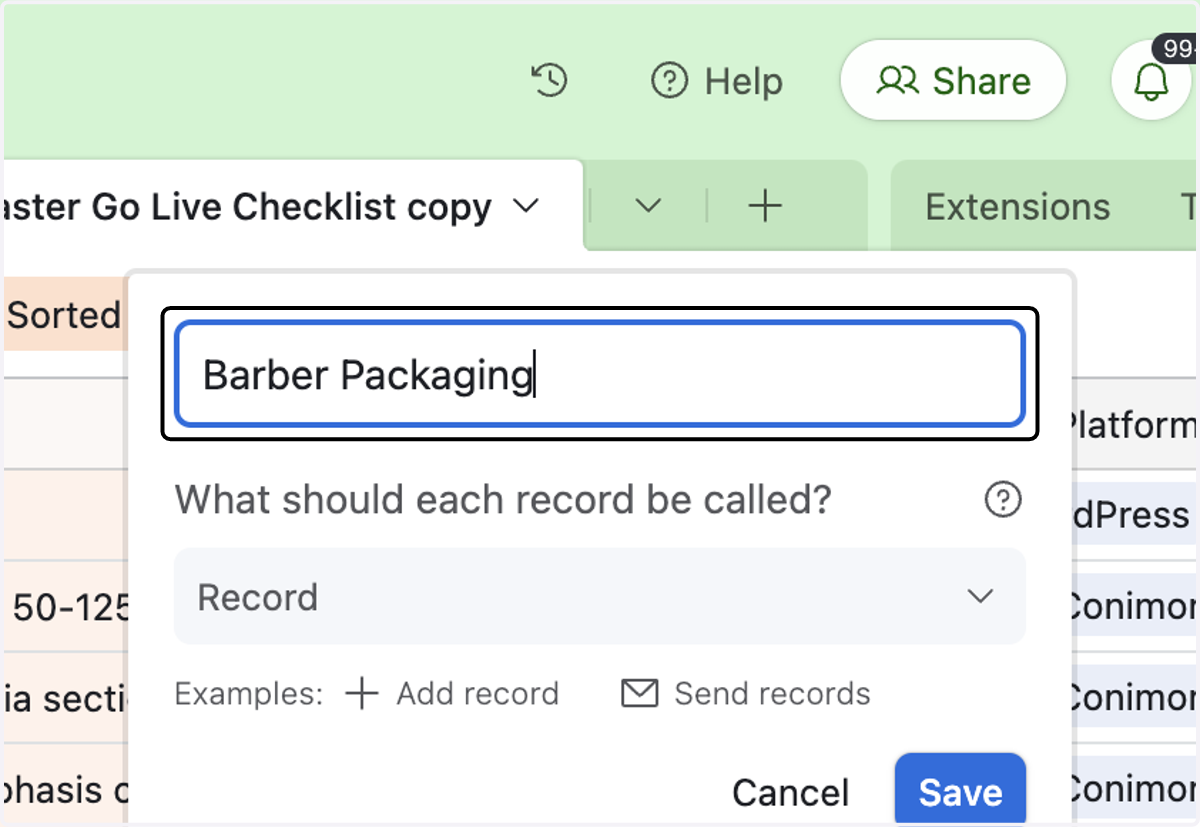
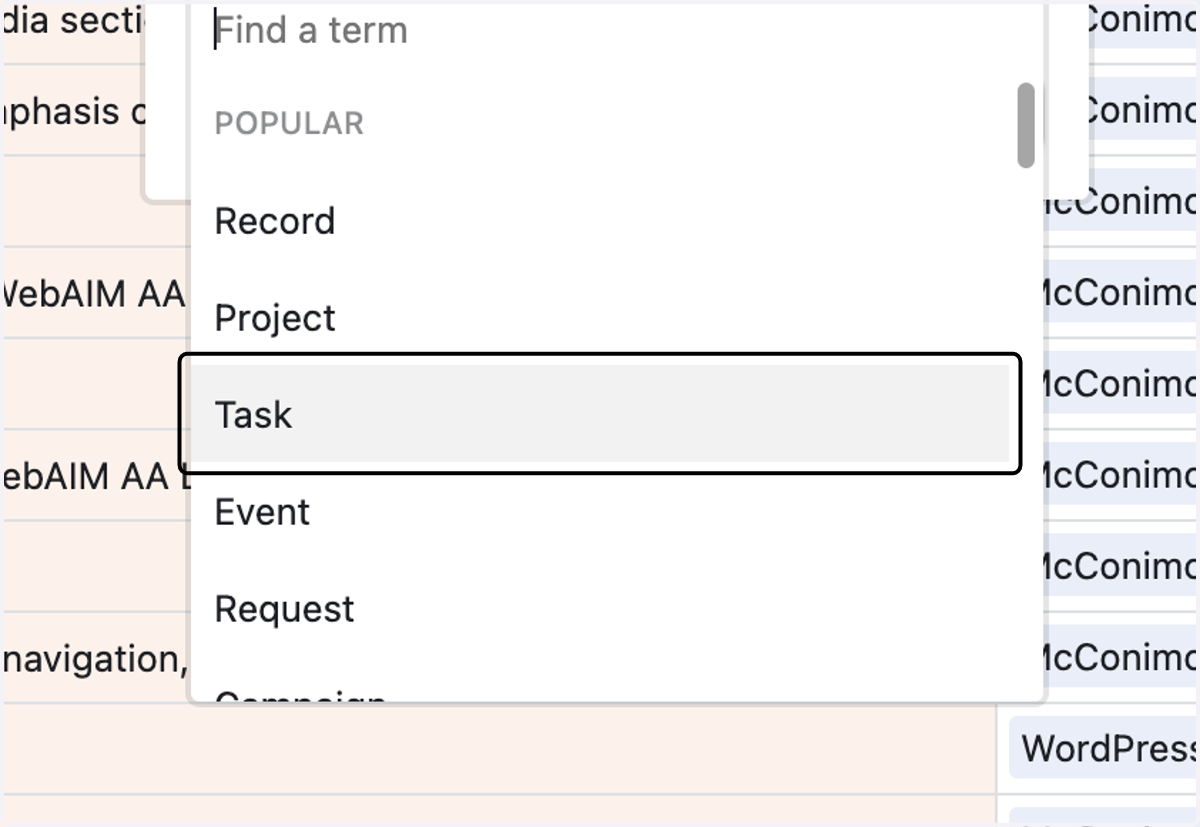
10. Each record should be called a Task, change from Record to Task in the dropdown list
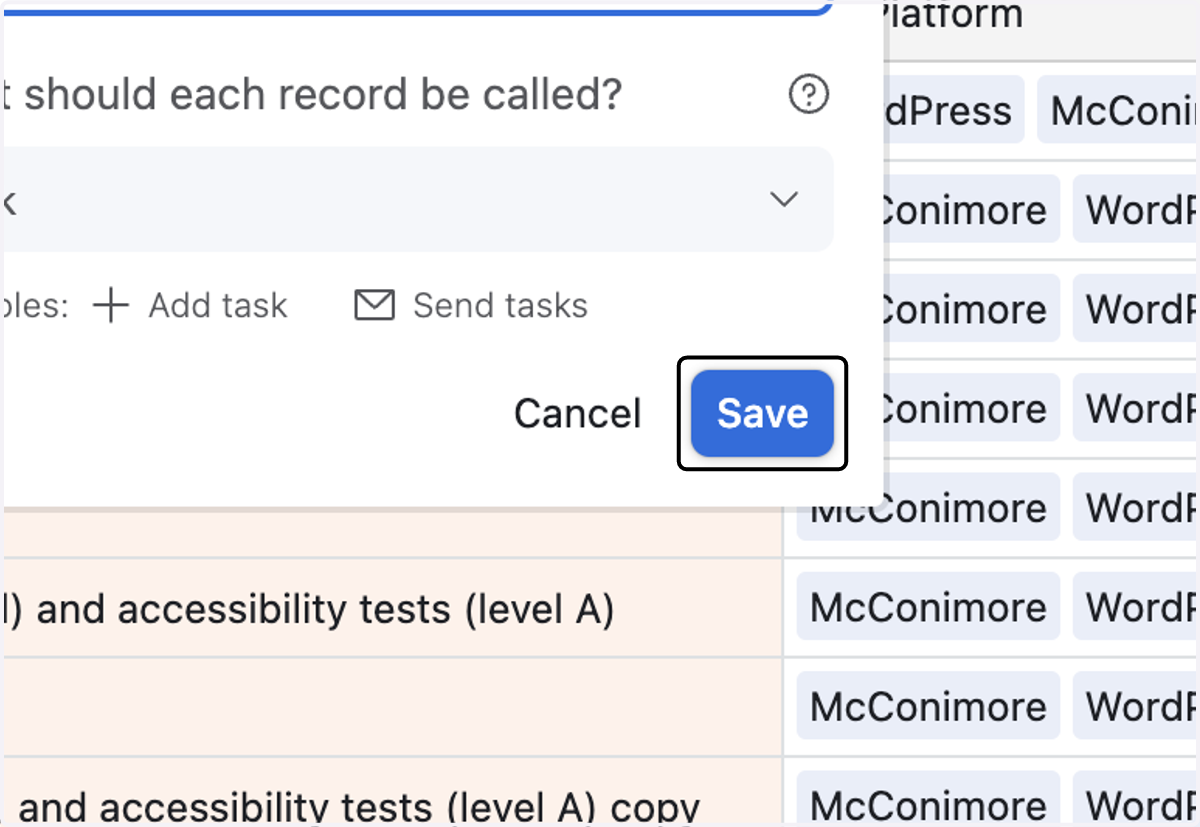
11. Click on Save
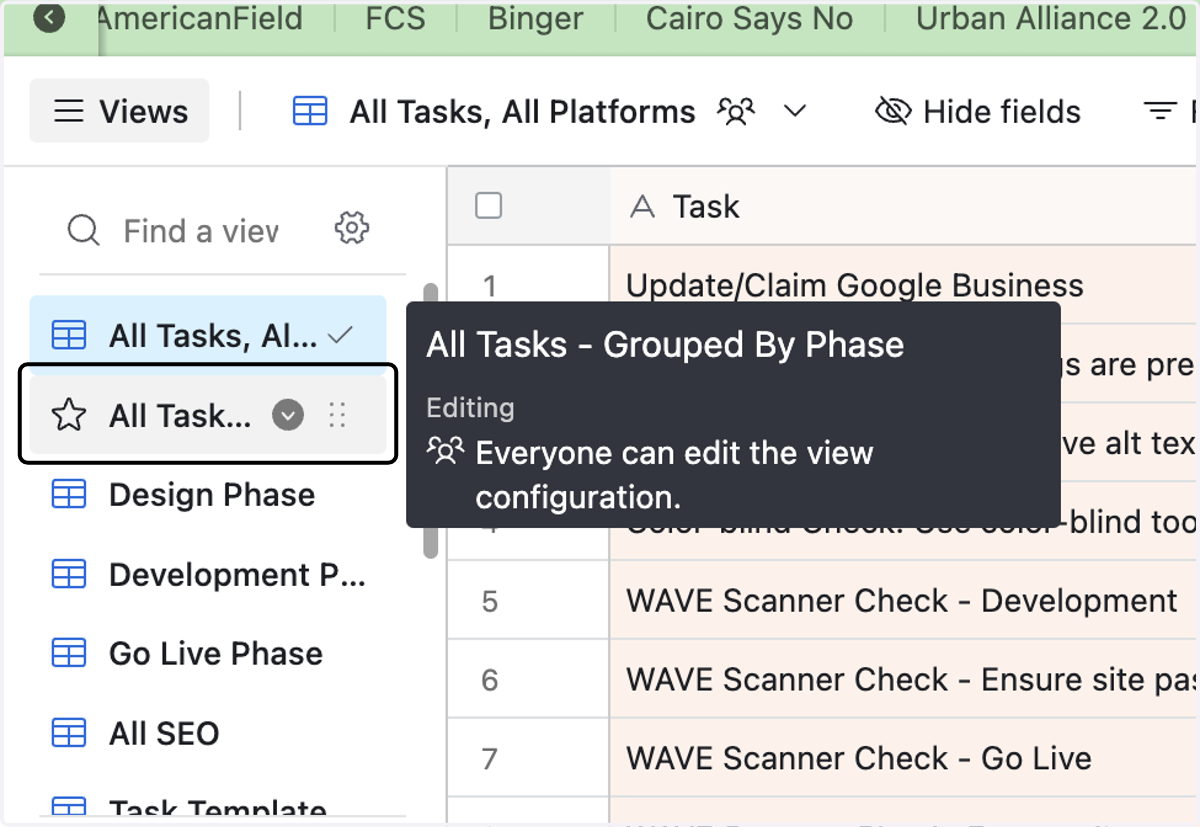
12. There are several ways to view this table. By clicking on All Tasks - Grouped By Phase…, you'll be able to see the tasks grouped by phase of the project.
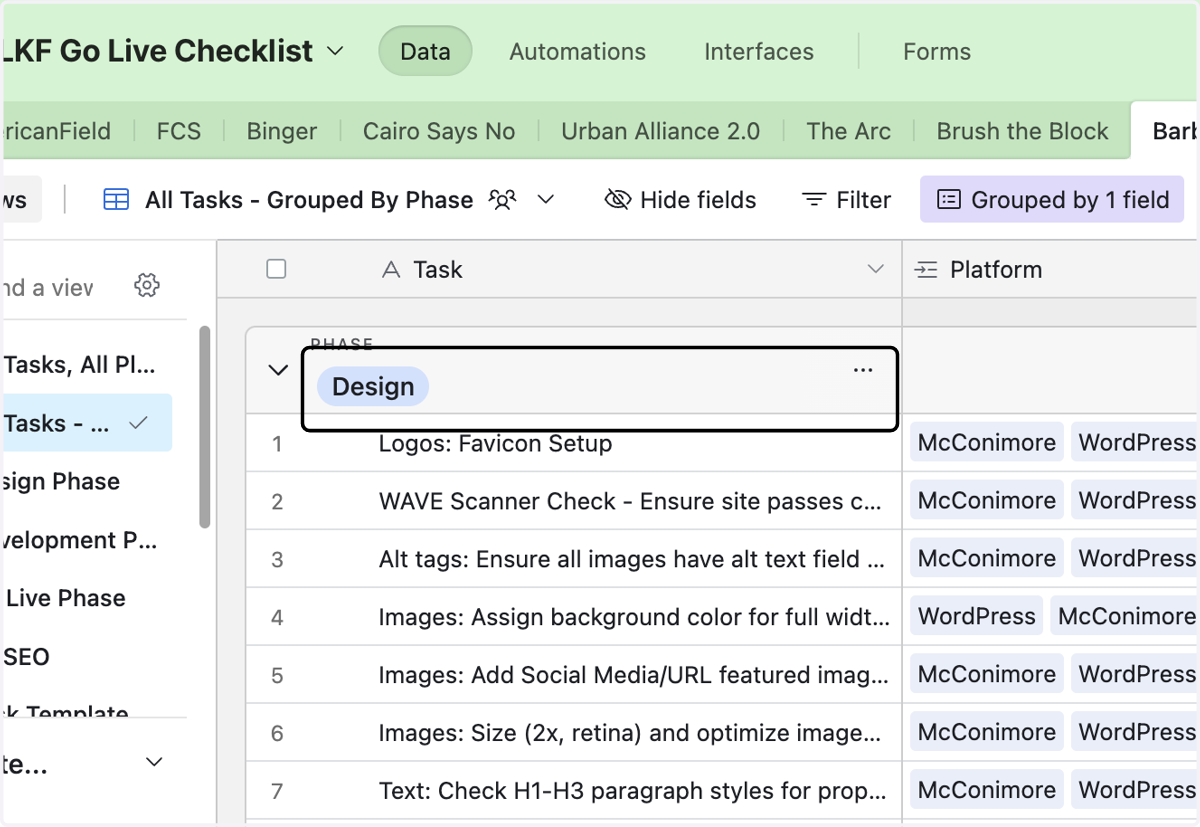
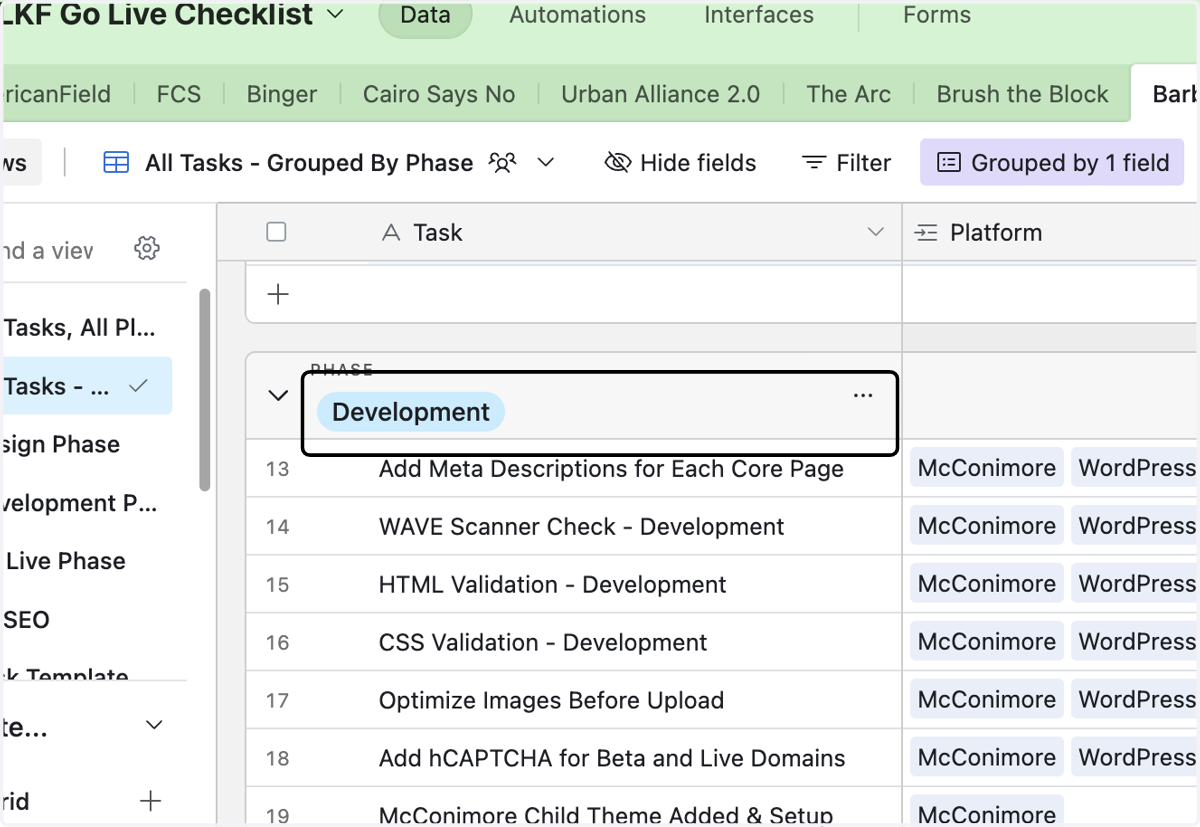
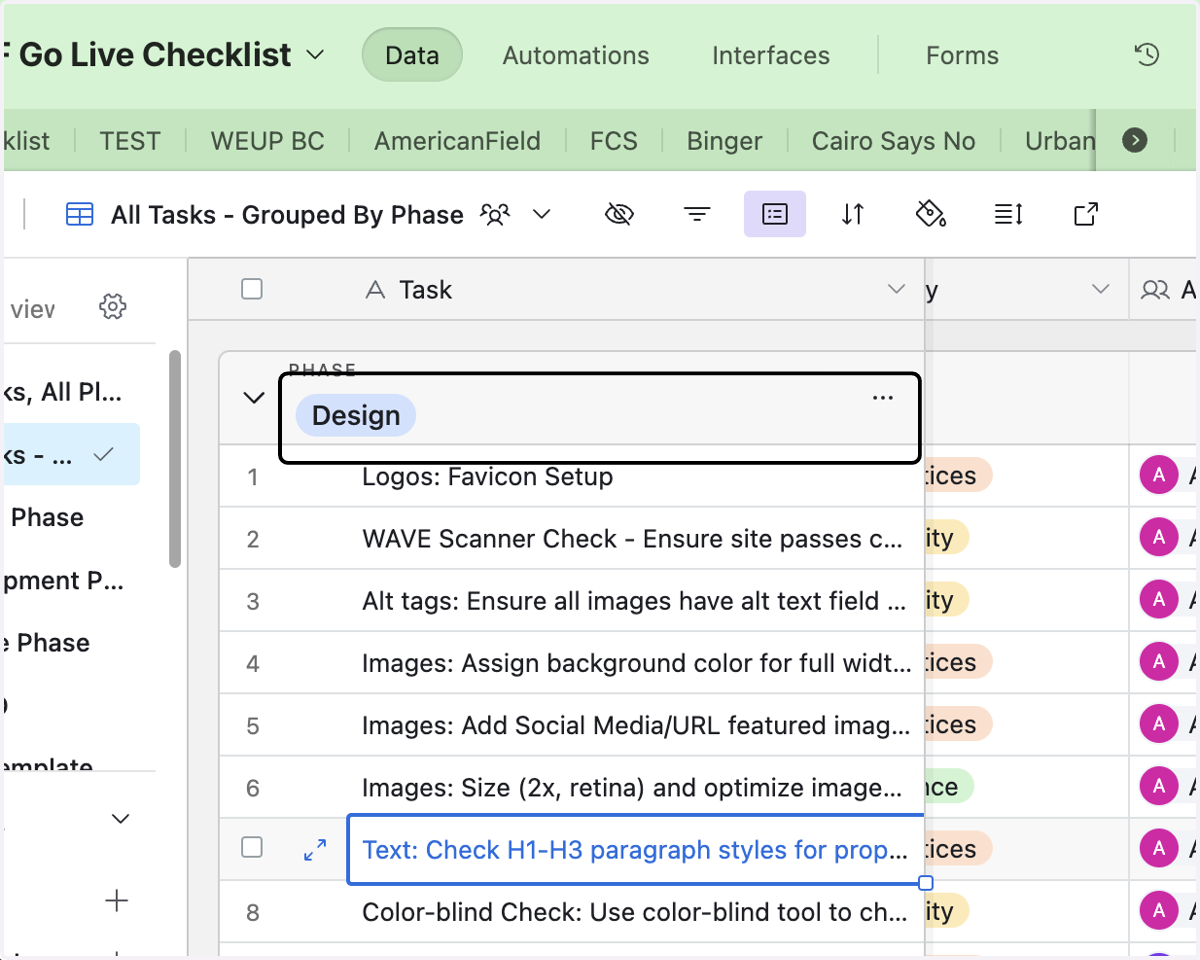
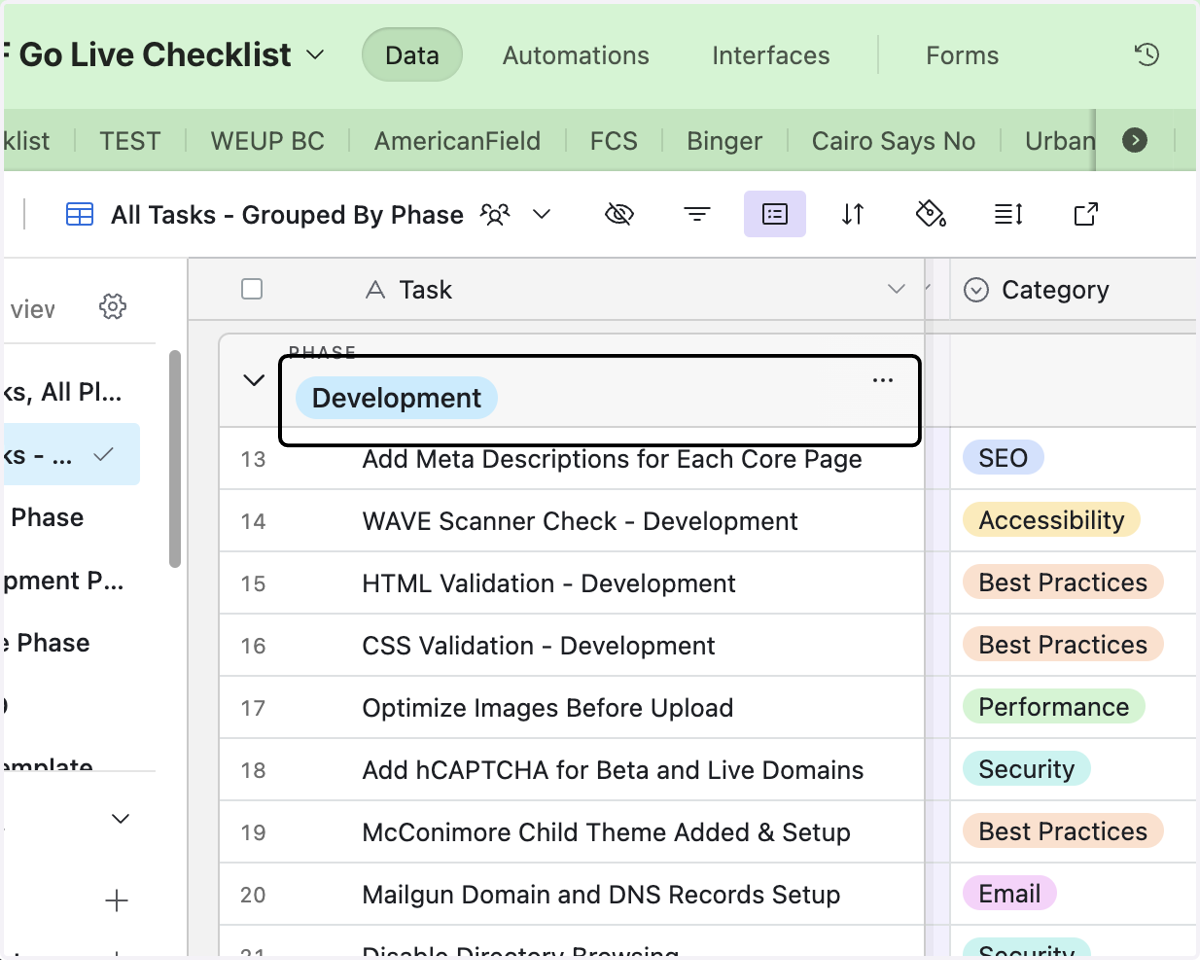
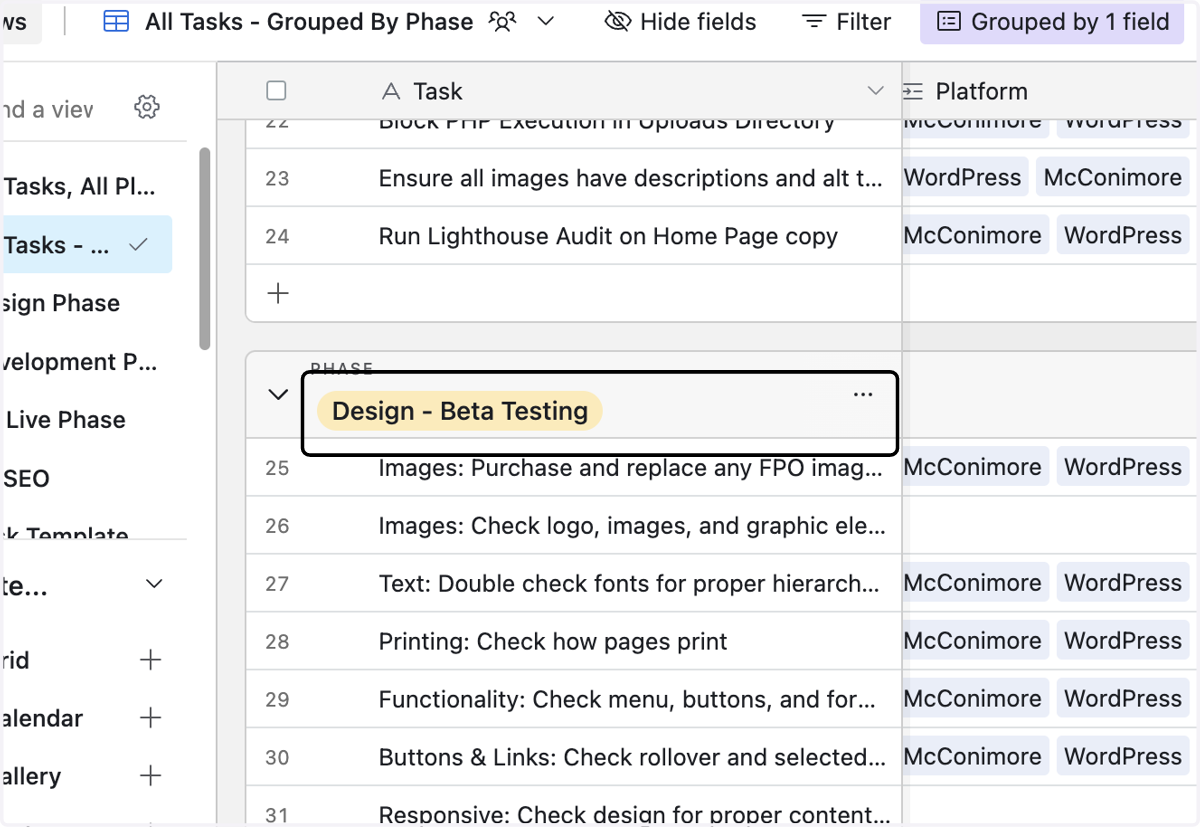
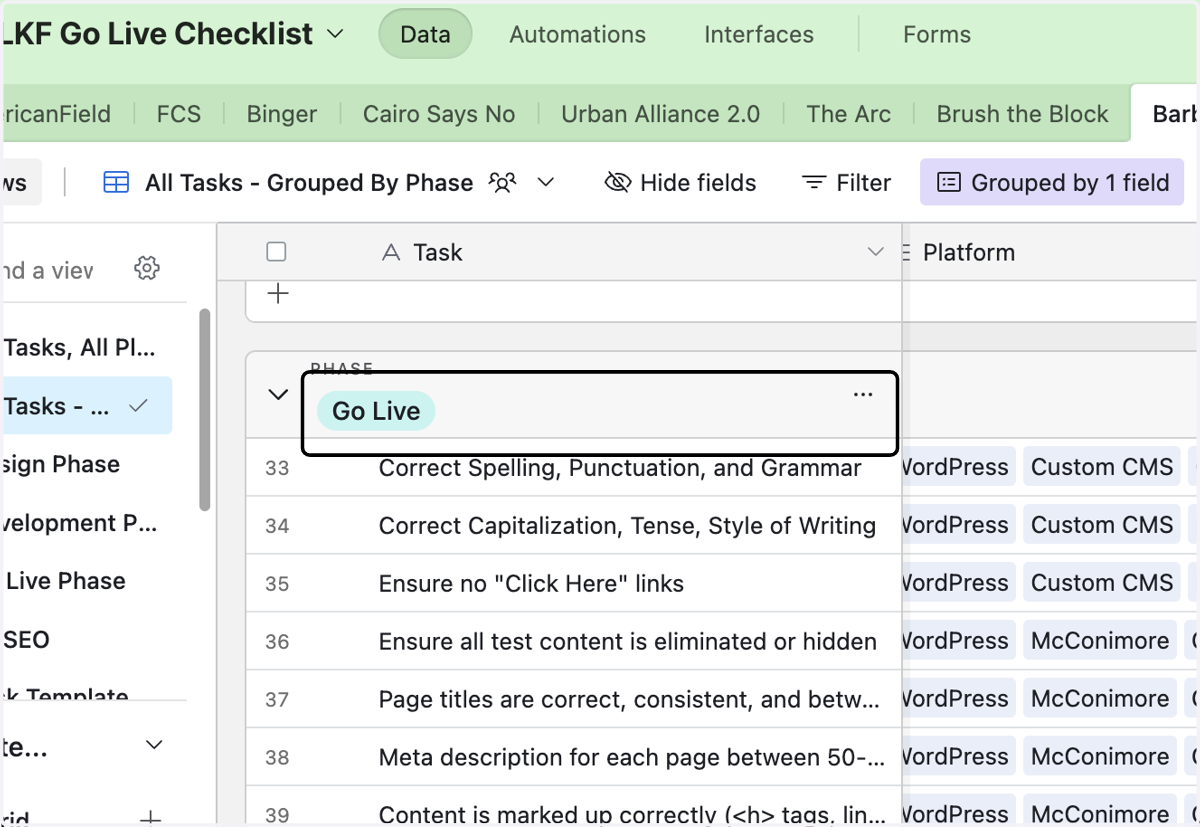
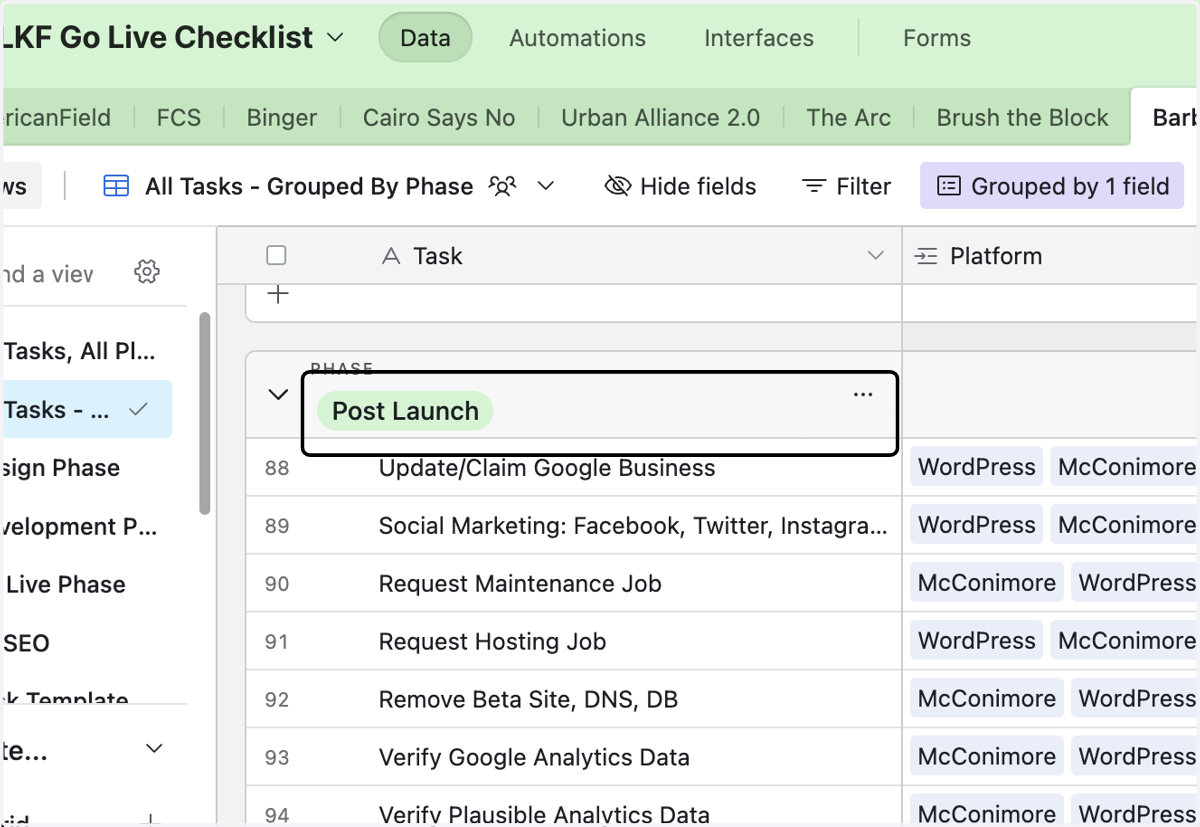
13. All Go Live tasks are organized by Phase - Design | Development | Design beta-testing | Go Live | Post Launch
14. While Go Live tasks are organized by Phase, there are some tasks that repeat across different phases. It is important to repeat the tasks to ensure quality assurance.
15. To see the details of a specific task...
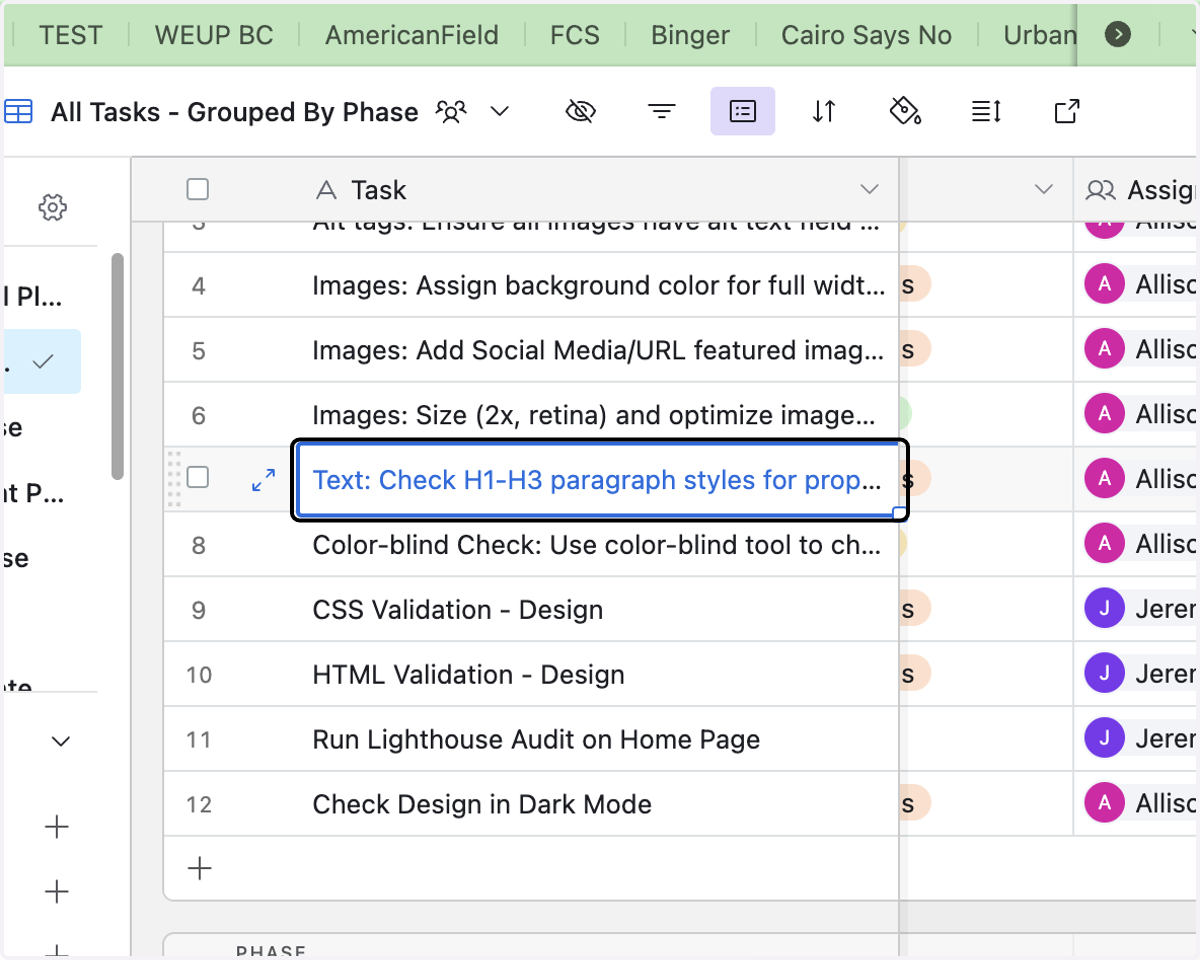
16. Click on Expand
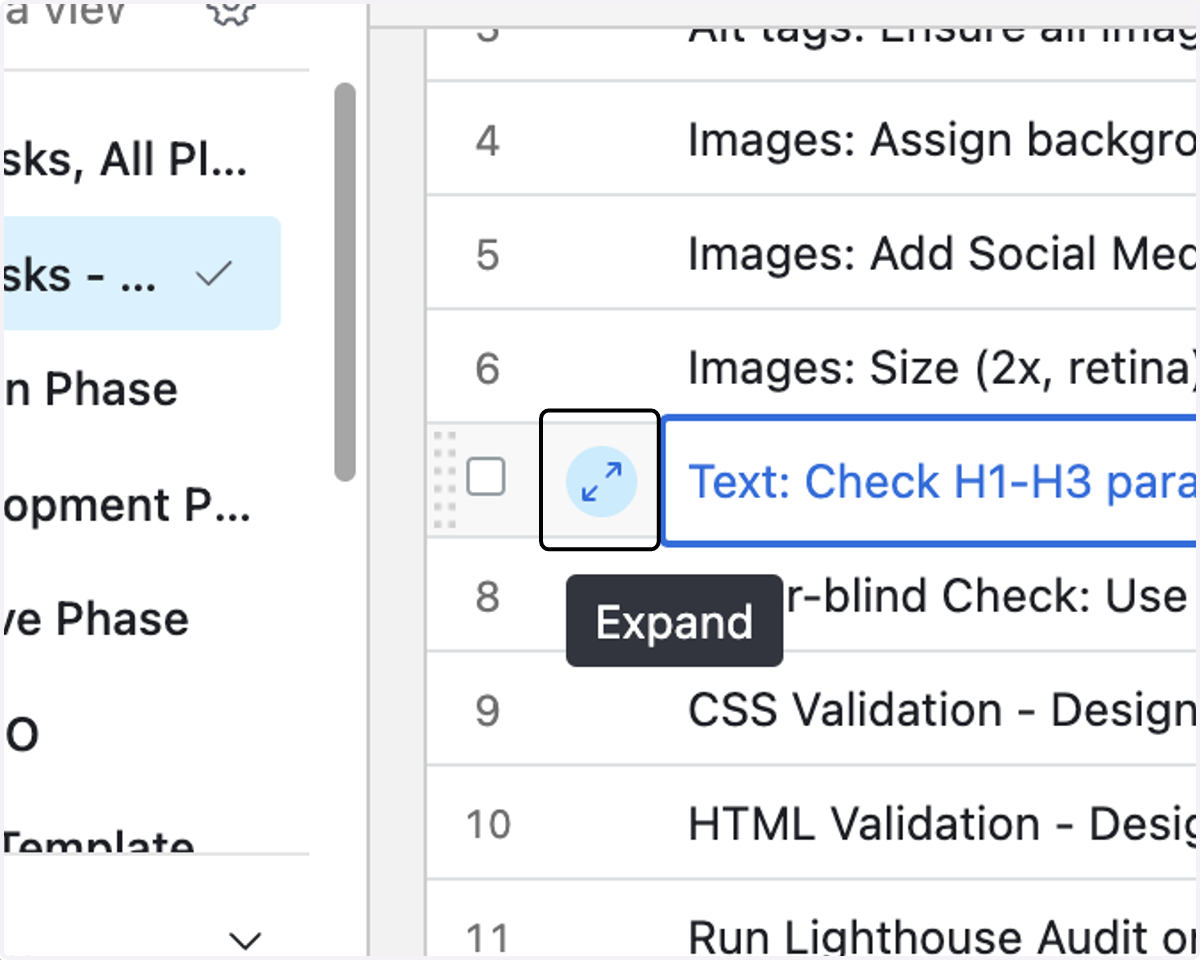
17. A task pane will expand open and allow you to see all the details and status of a specific task
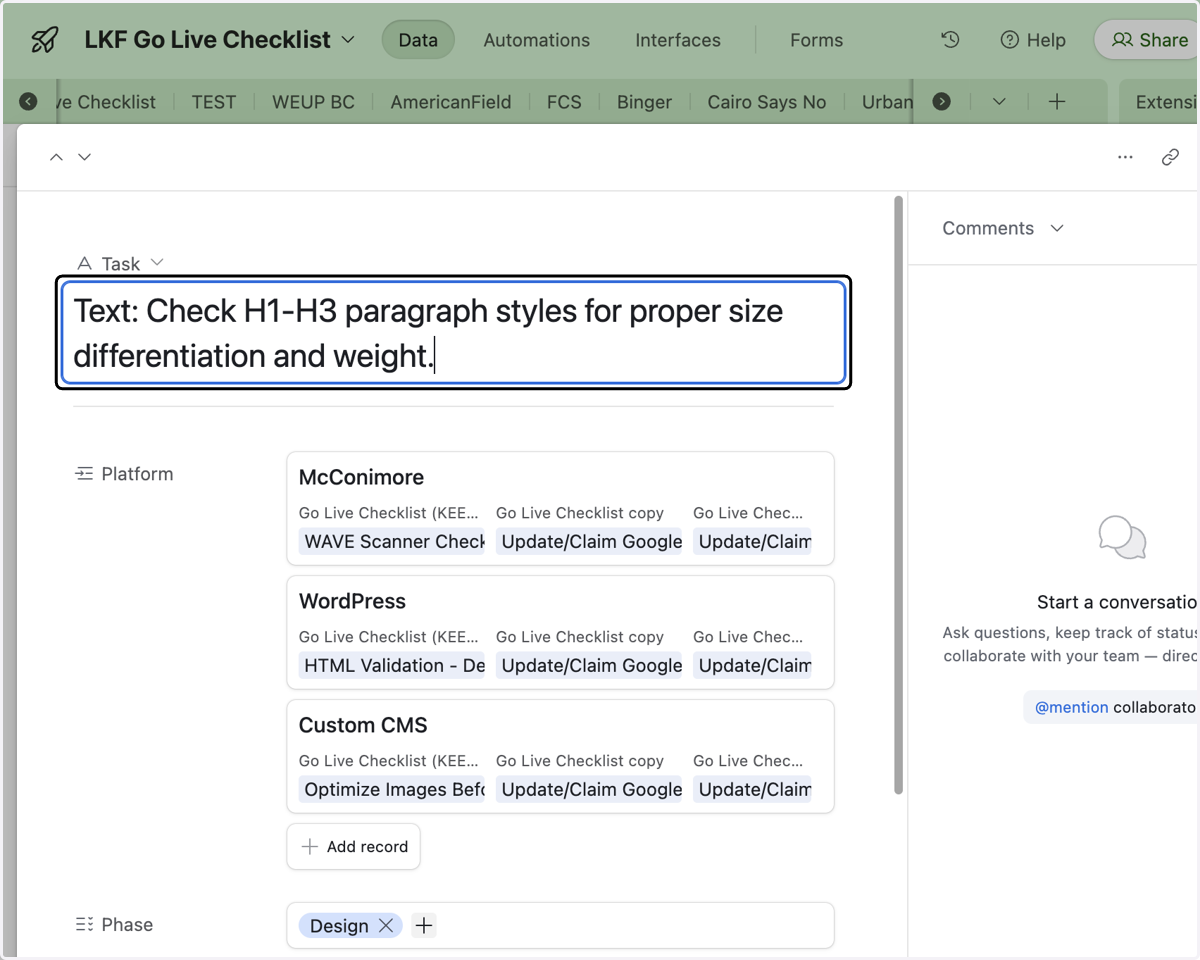
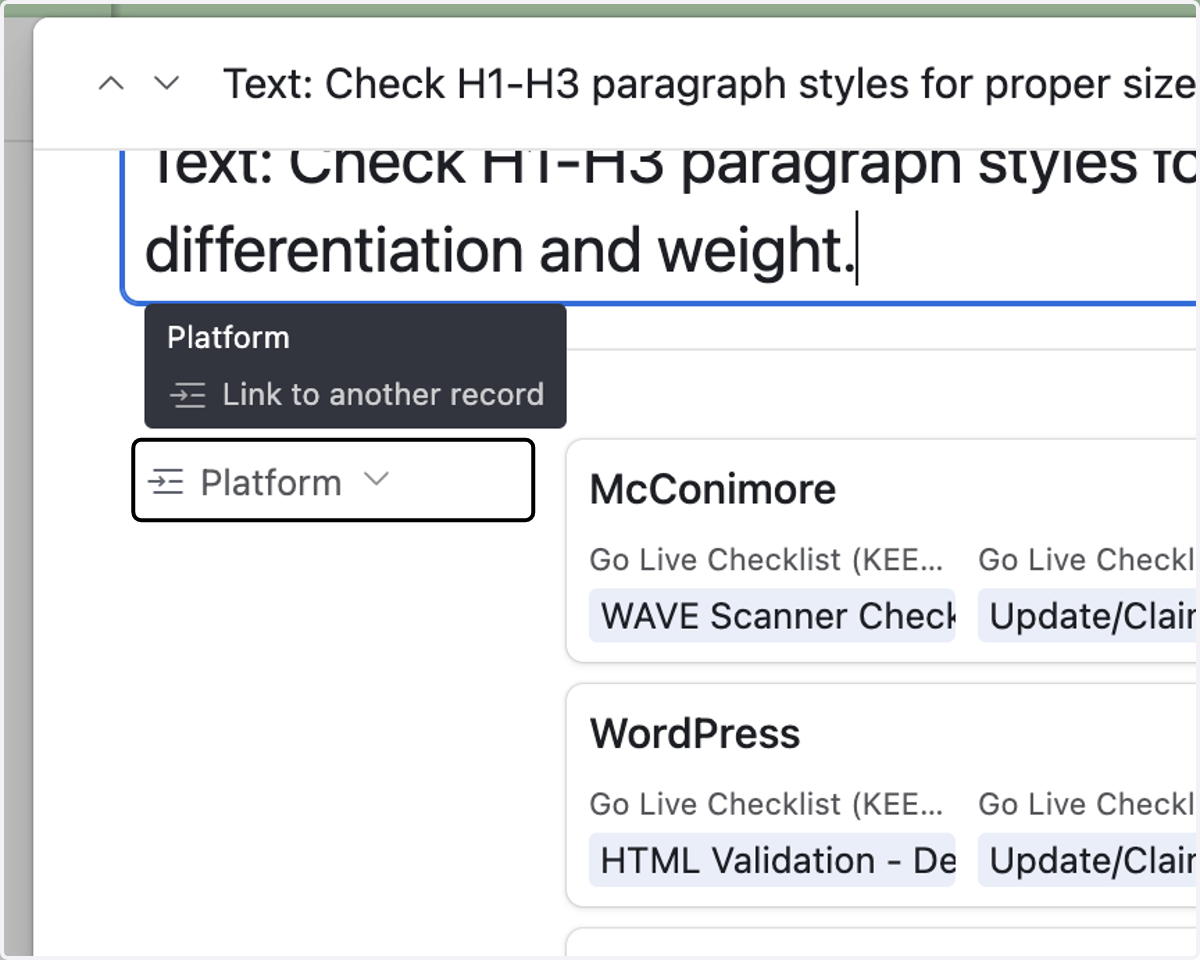
18. The tasks for Go Live can vary based on the type of platform the website is being built on.
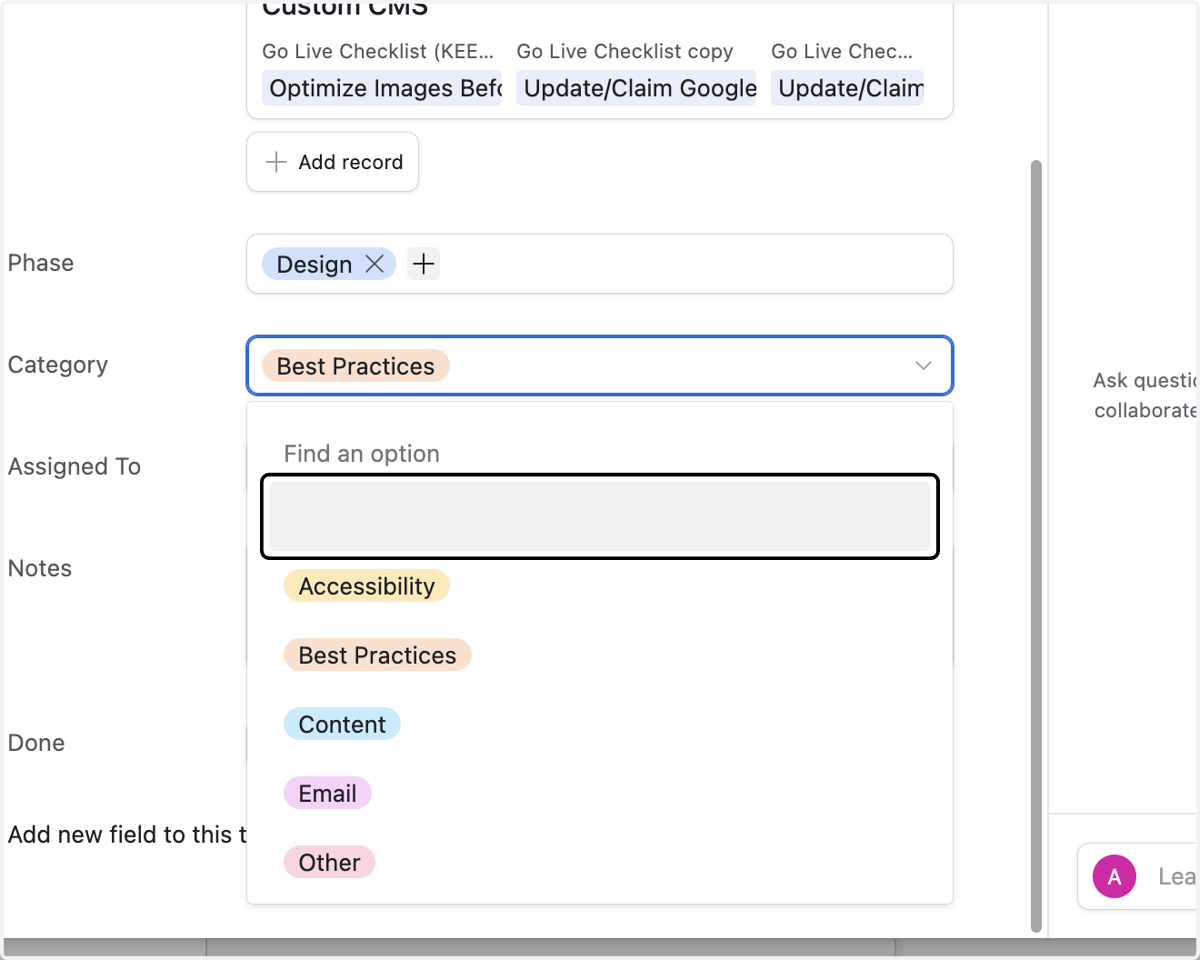
19. All tasks are categorized by type of task
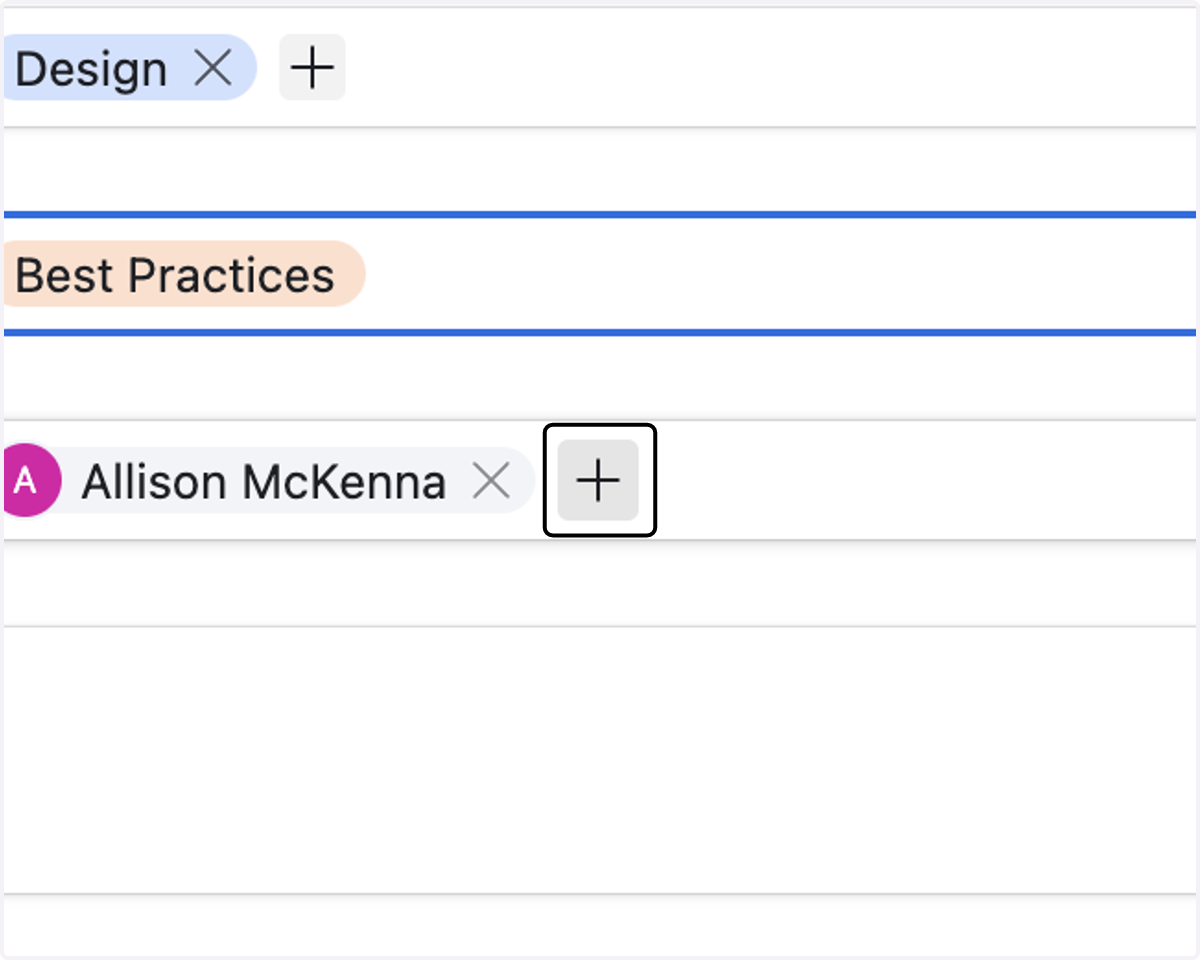
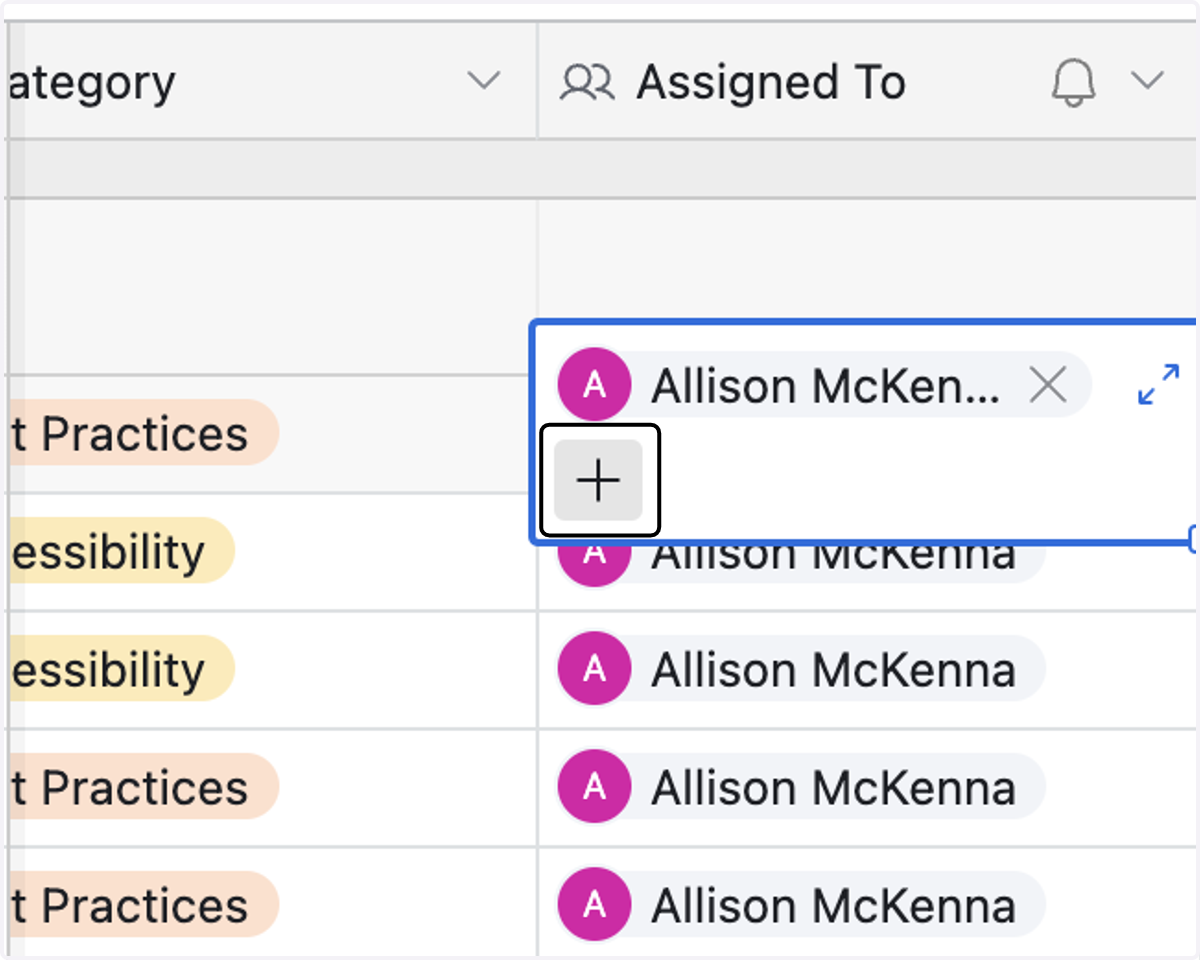
20. You can add more people to a task if necessary
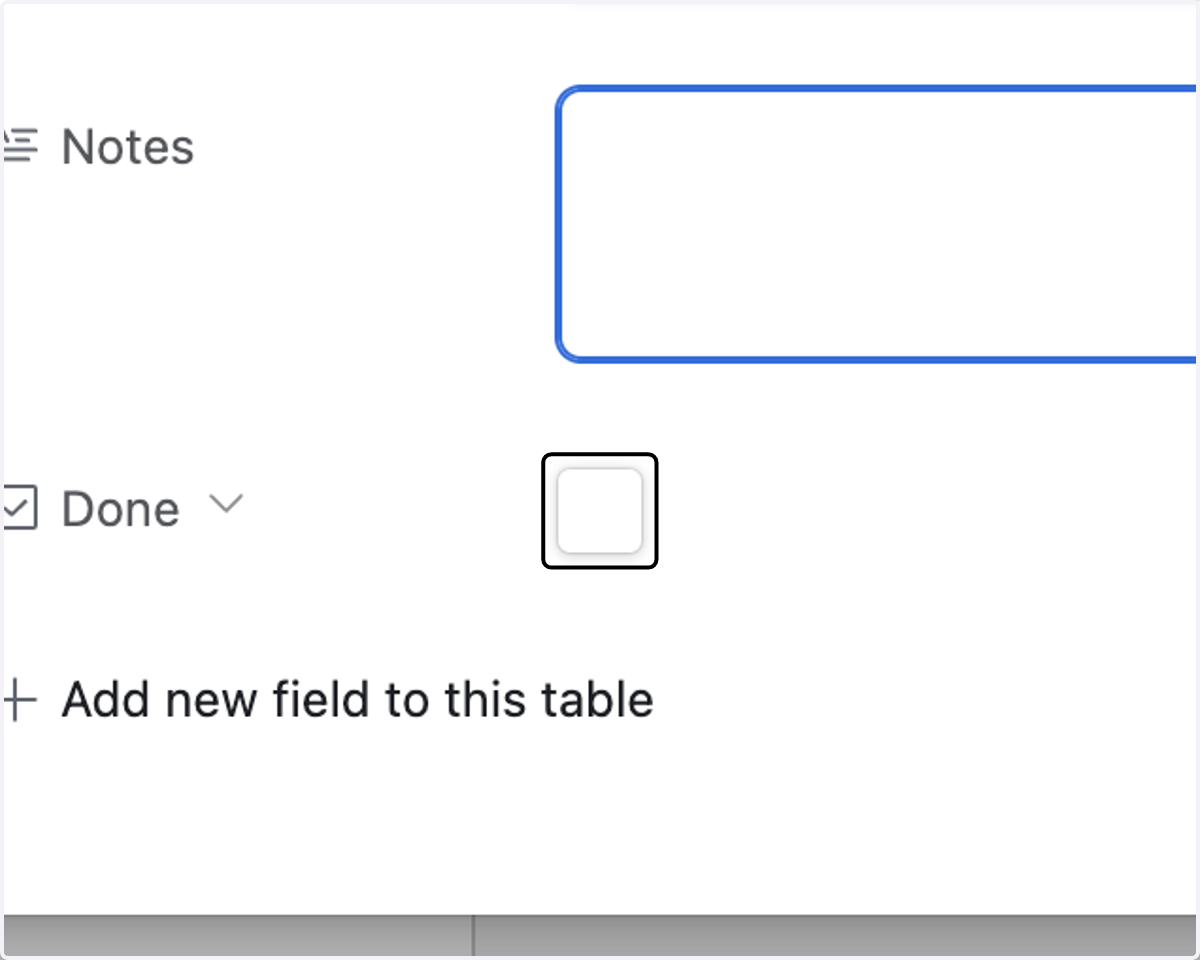
21. You can add notes about the task and check done when the task is complete
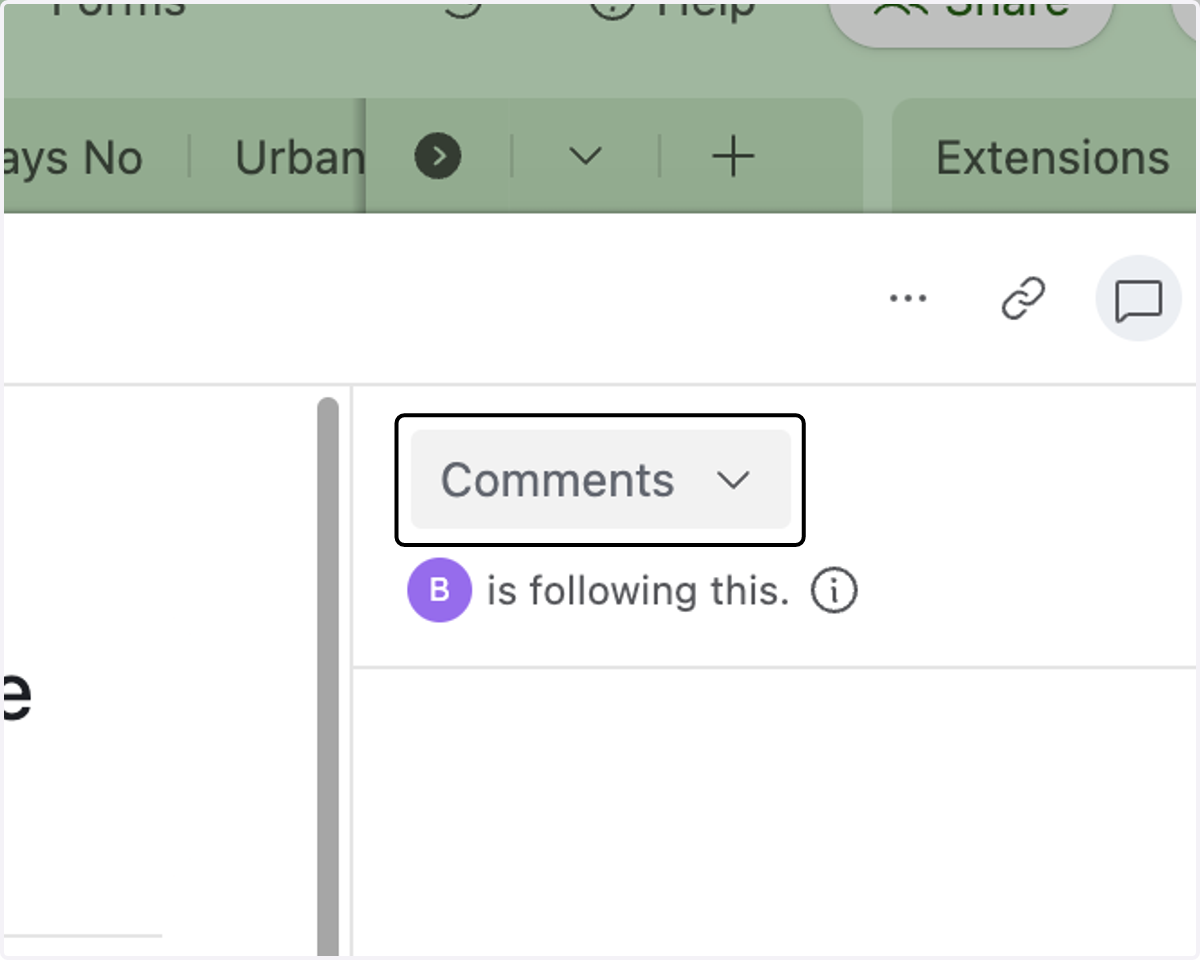
22. You can also add comments in the task to keep the team up to date on issues or status
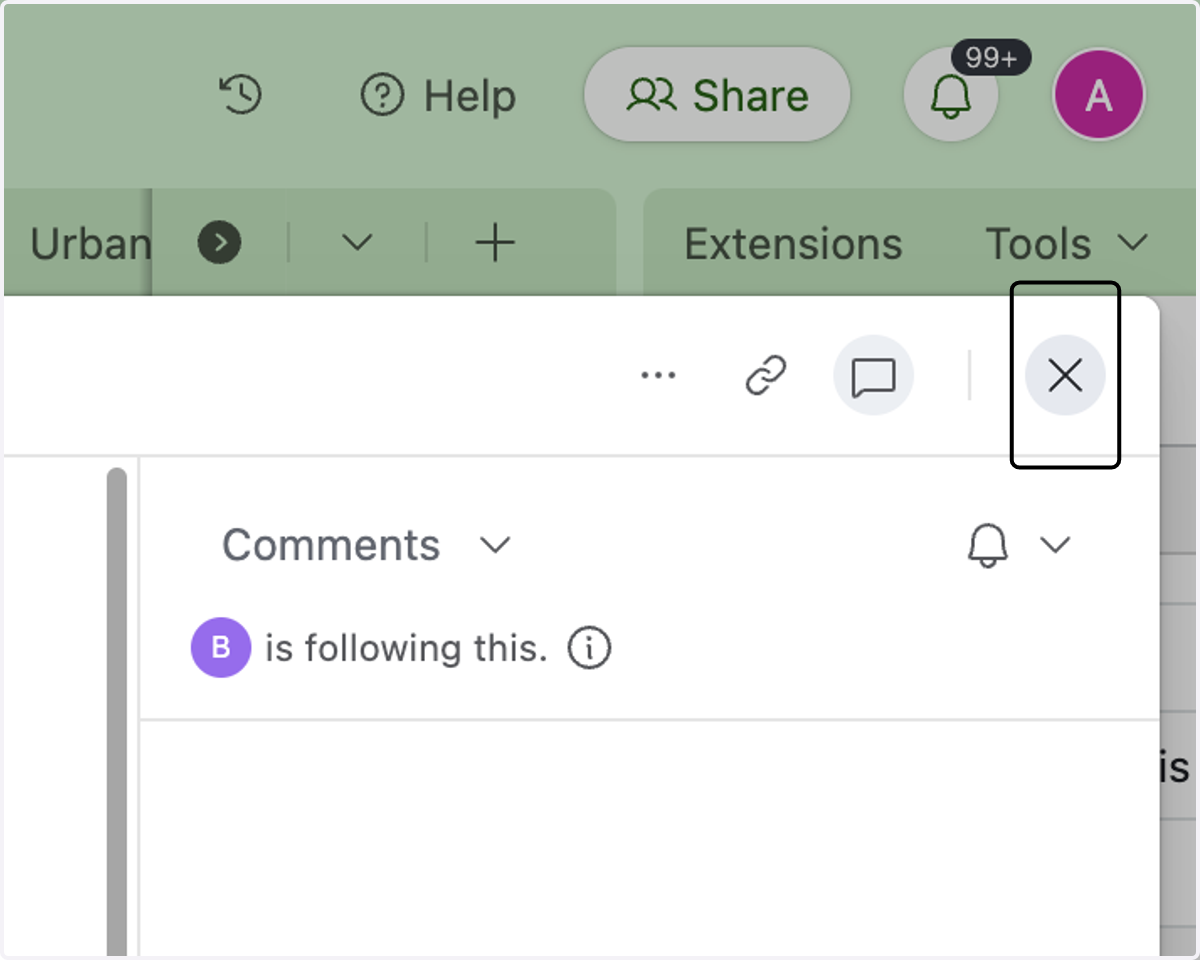
23. Click on Close dialog to close the task pane
24. All tasks have either a designer or developer preassigned to the specific task.
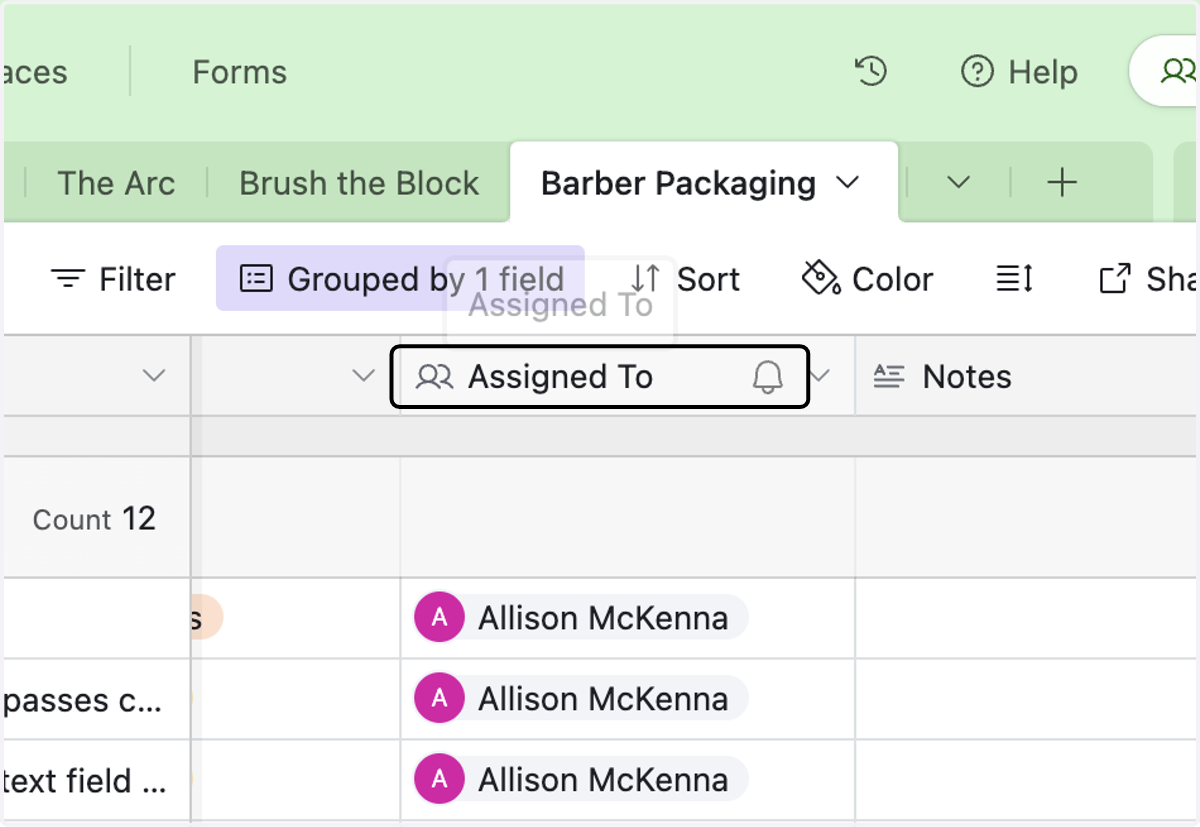
25. You can add a specific person to the task by clicking on +
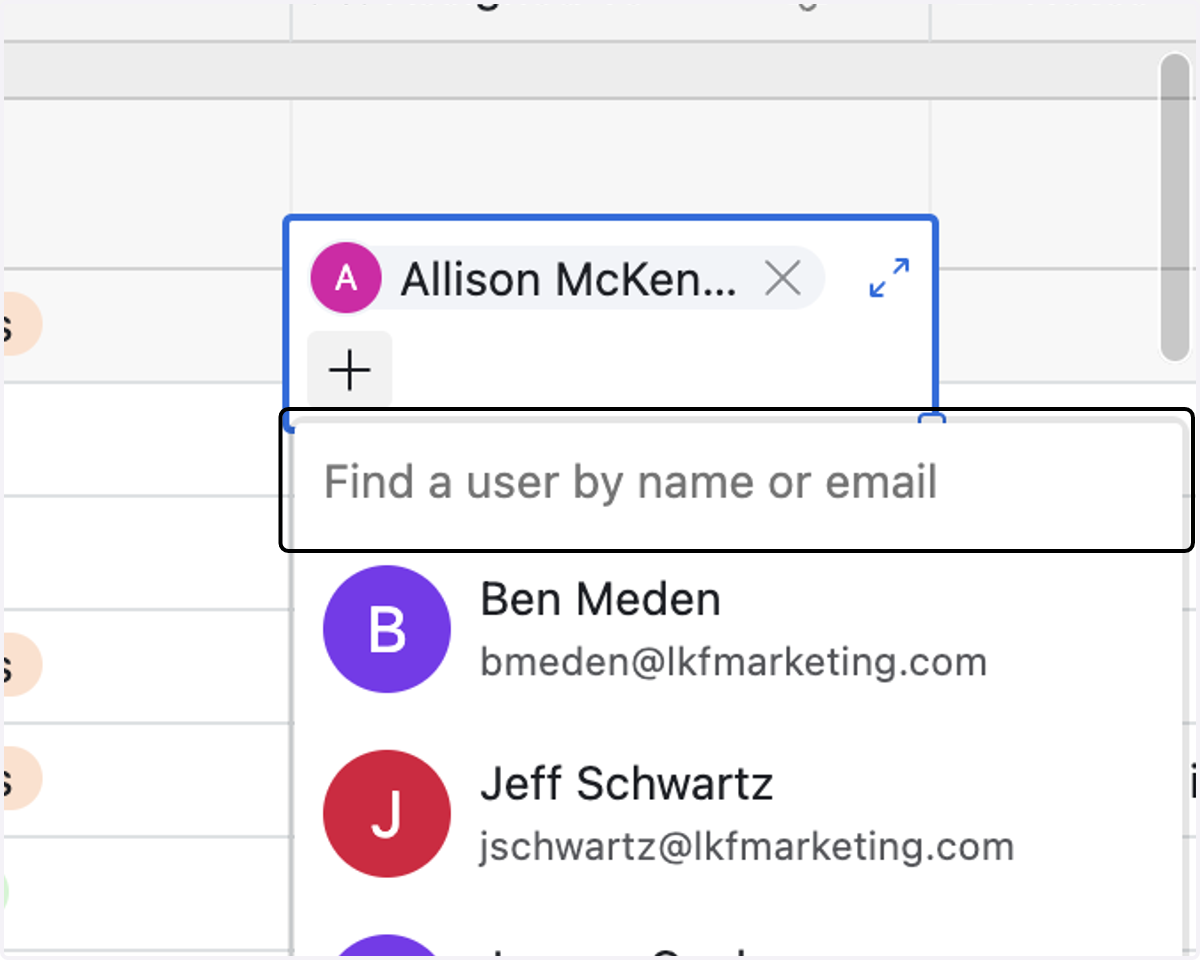
26. Type in the person's name to select from the list of people assigned to the Go Live Airtable base
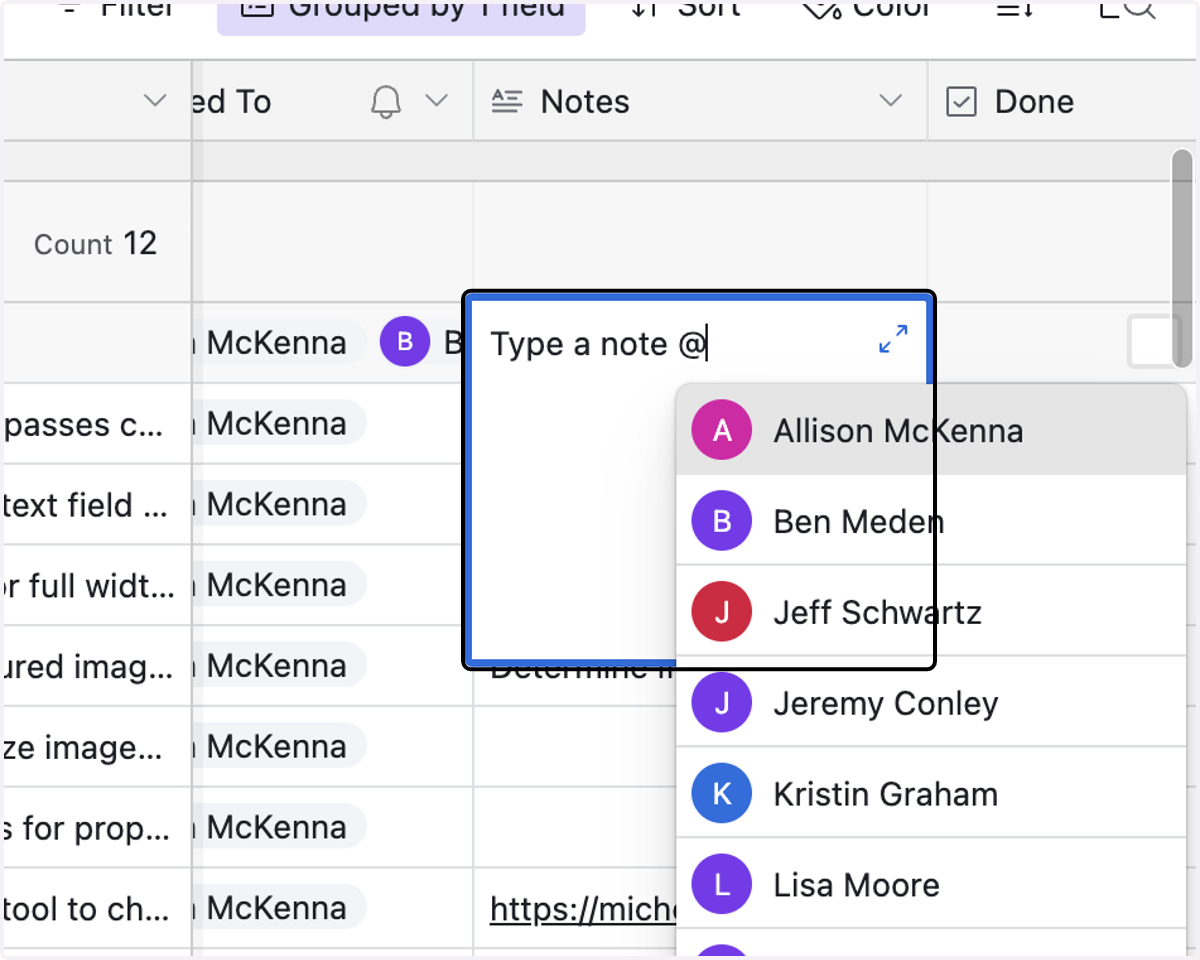
27. You can also direct a note to a specific person using "@" symbol in the list view
28. Design Phase
29. Development Phase
30. Design - Beta Testing: Design and Development phases should be completed before client beta testing occurs. Design - Beta Testing occurs after all beta edits are made but must be complete prior to launch
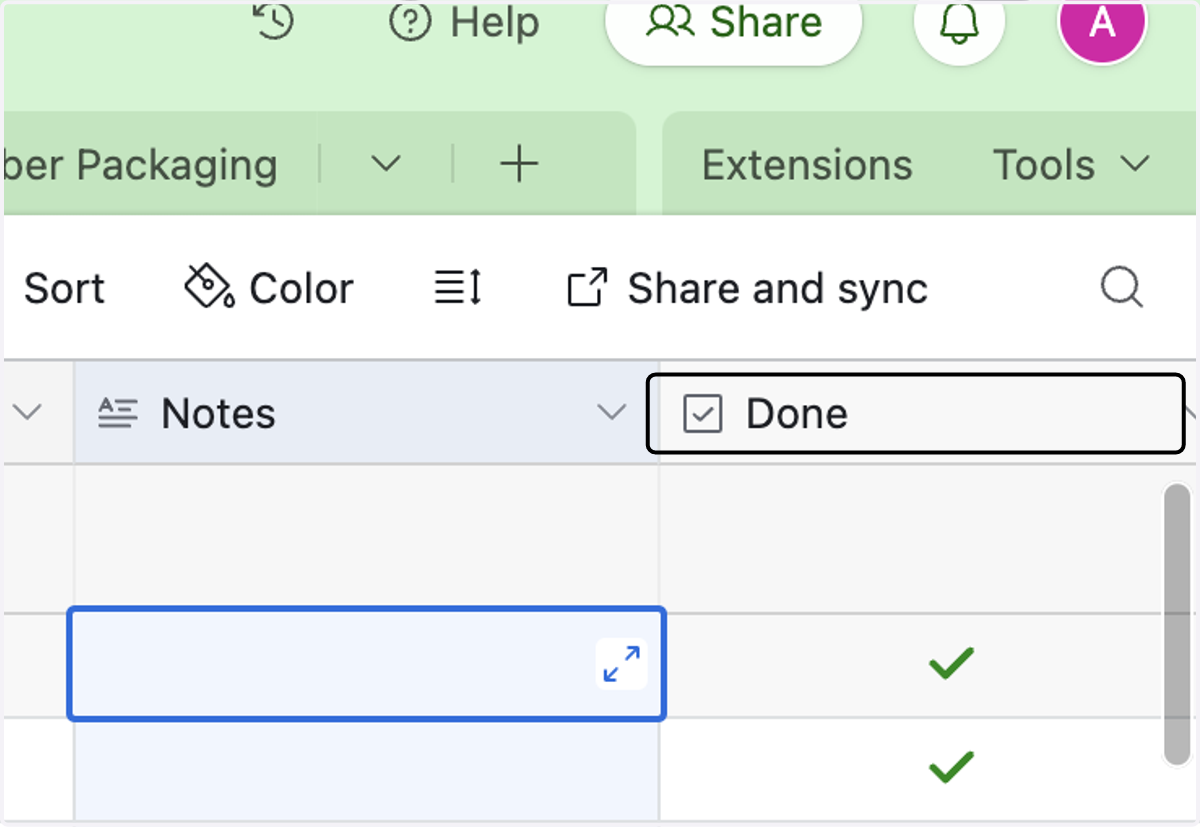
31. Go Live Phase should also be completed before launch
32. Post Launch are tasks completed by the developers after the website is launched
33. Once a task is complete click on Done column header (Checkbox field)