Discounts | Example - Applying a 10% discount on a product | BG_DISC_003
In this tutorial, we'll take a look at how to create discounts for use by your customers on your storefronts.
In this specific example, we'll create a discount which applies a 10% discount to a specific product.
Infigo Admin - Dashboard
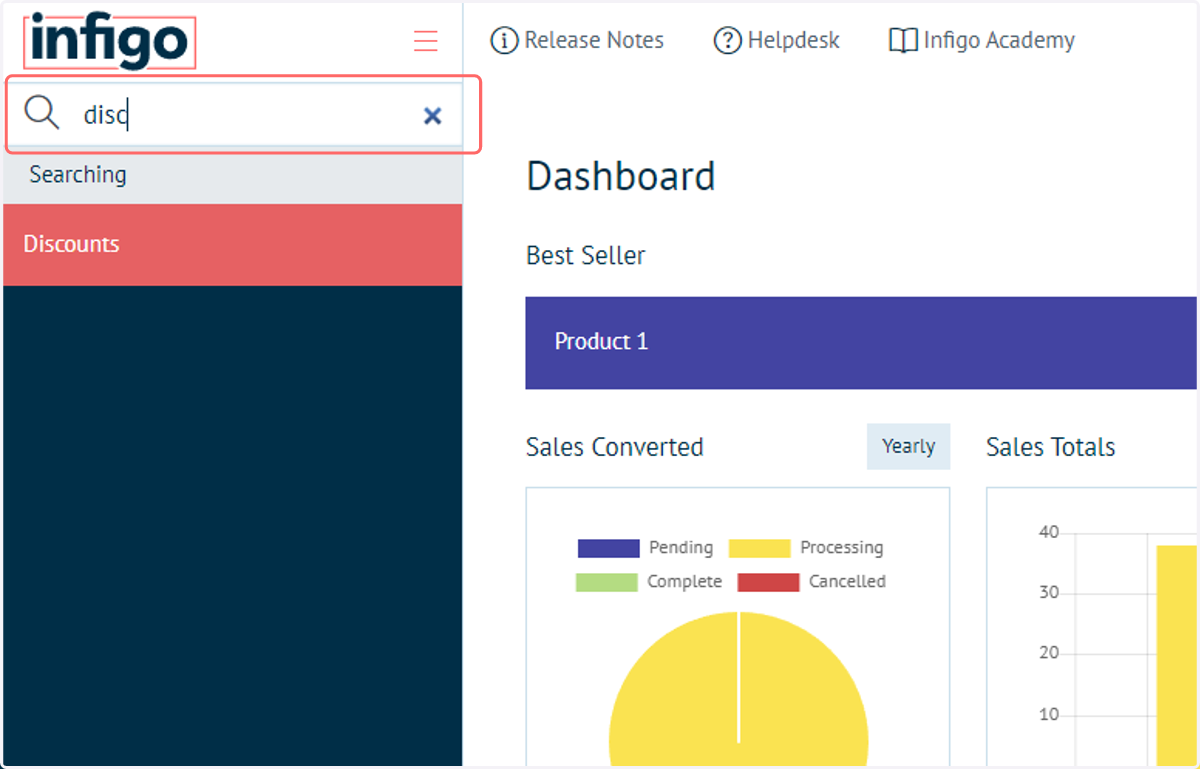
1. Navigate to Discounts
The discounts area is where you can create multiple types of discount for use on your storefronts. These discounts can take many different forms and have many different restrictions, such as using or not using coupon codes, date limits, usage limits and more.
2. Click on Add new
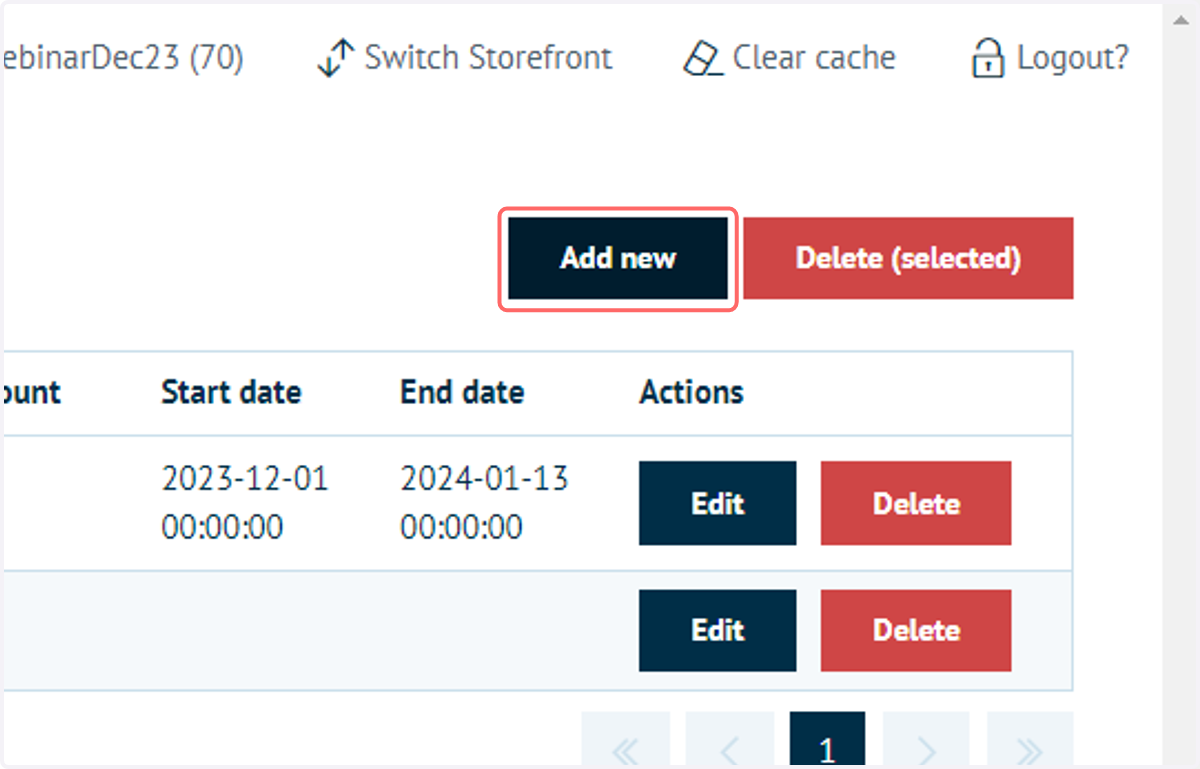
You will be taken to a separate screen where your specific discount can be configured.
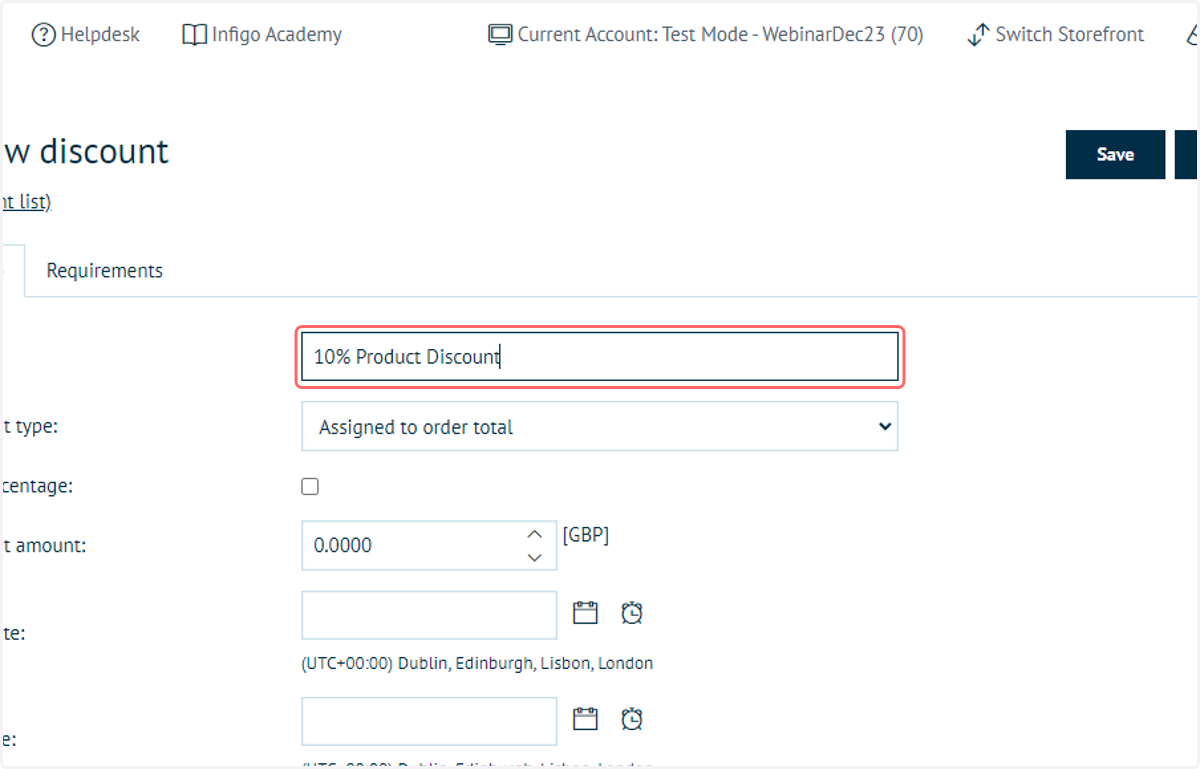
3. Type "10% Product Discount"
Type a name for your discount. This is used for reference purposes and will not be seen by the customer
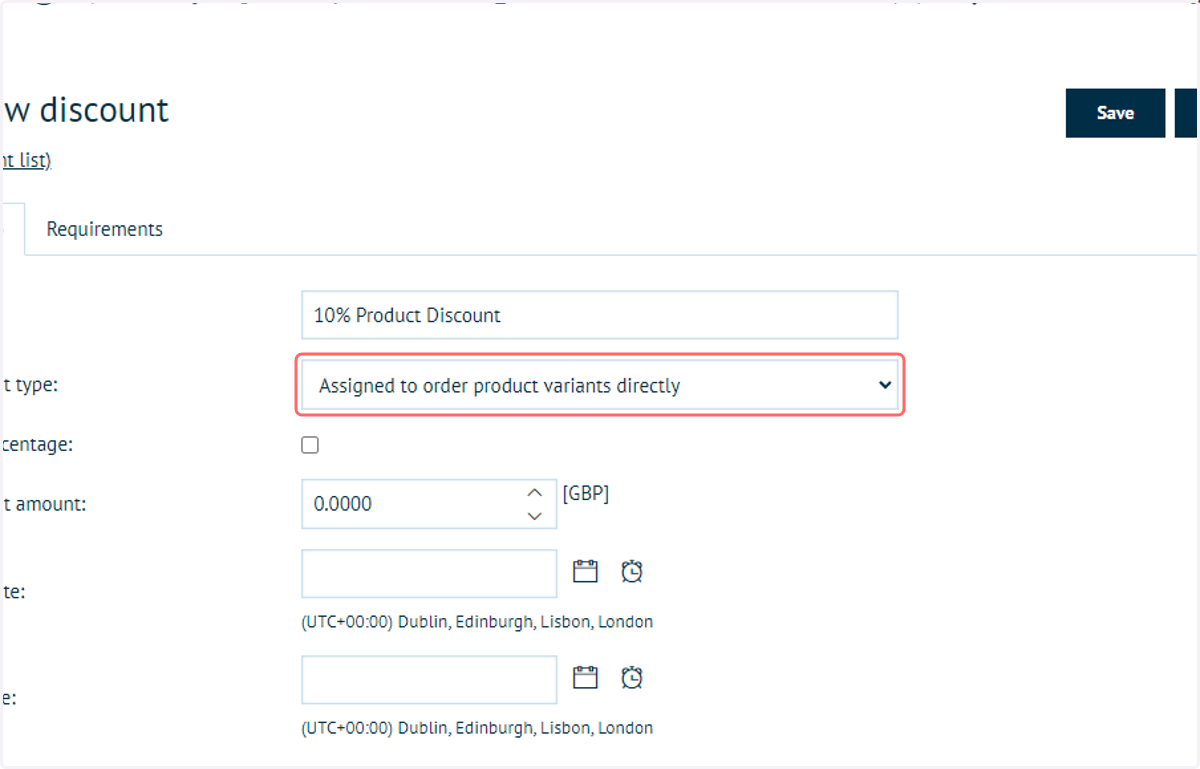
4. Select Assigned to order product variants directly from Discount type
Discounts can be applied in numerous different ways, which can be selected from the Discount type dropdown.
Some examples include:
Assigning discounts to order totals or subtotals
Assigning discounts directly to product groups or product variants
Assigning discounts on delivery
In this example, we'll choose the option to apply this discount directly to product variants. That will mean this discount needs to be individually applied to each product on which it is to be used.
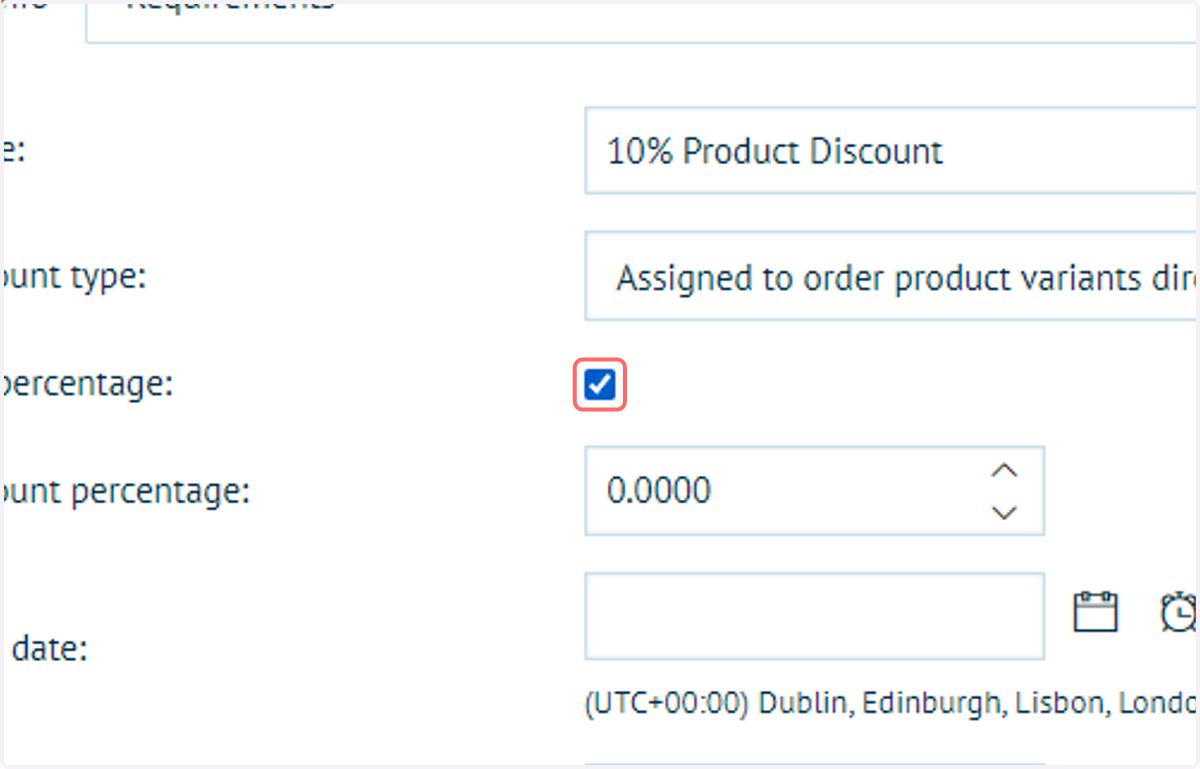
5. Check Use percentage
Discounts can be applied either in monetary value, or as a percentage of the price covered by that discount.
In this example, we'll input a 10% discount. Based on our Discount Type selection, this will be applied to specific products.
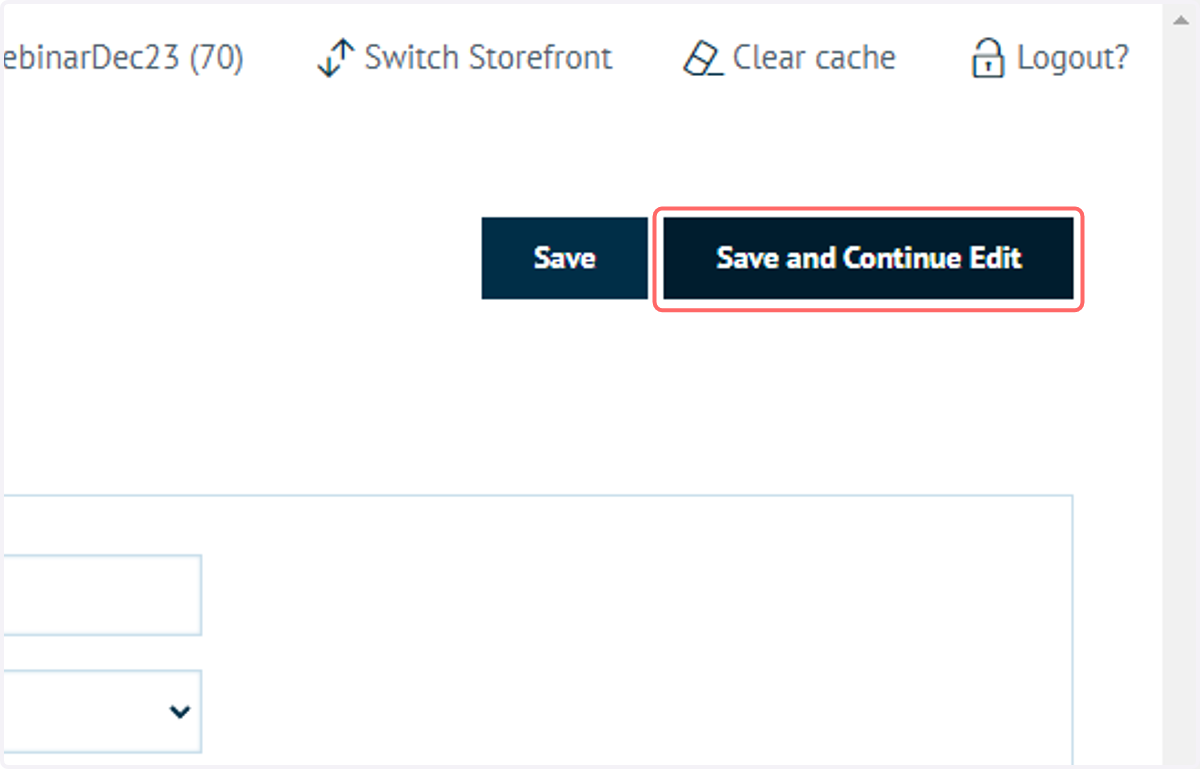
6. Click on Save and Continue Edit
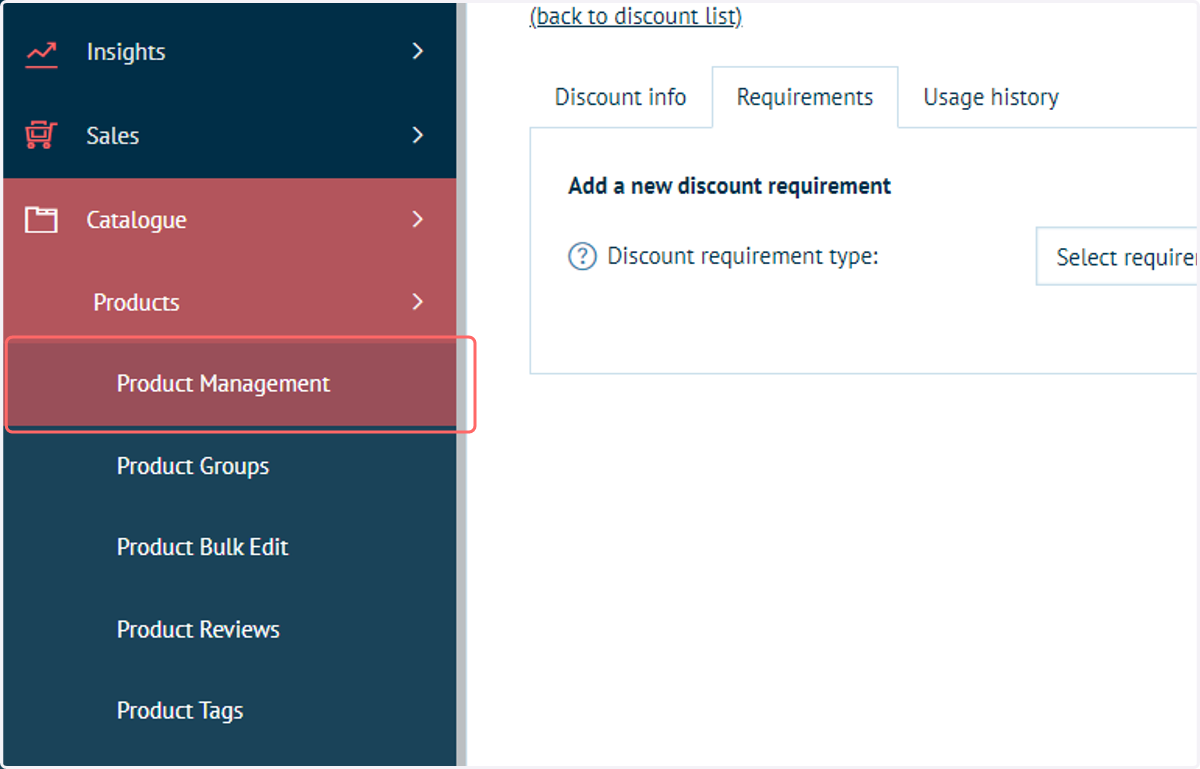
7. Click on Product Management
Next, we need to apply this discount code to be used on specific products.
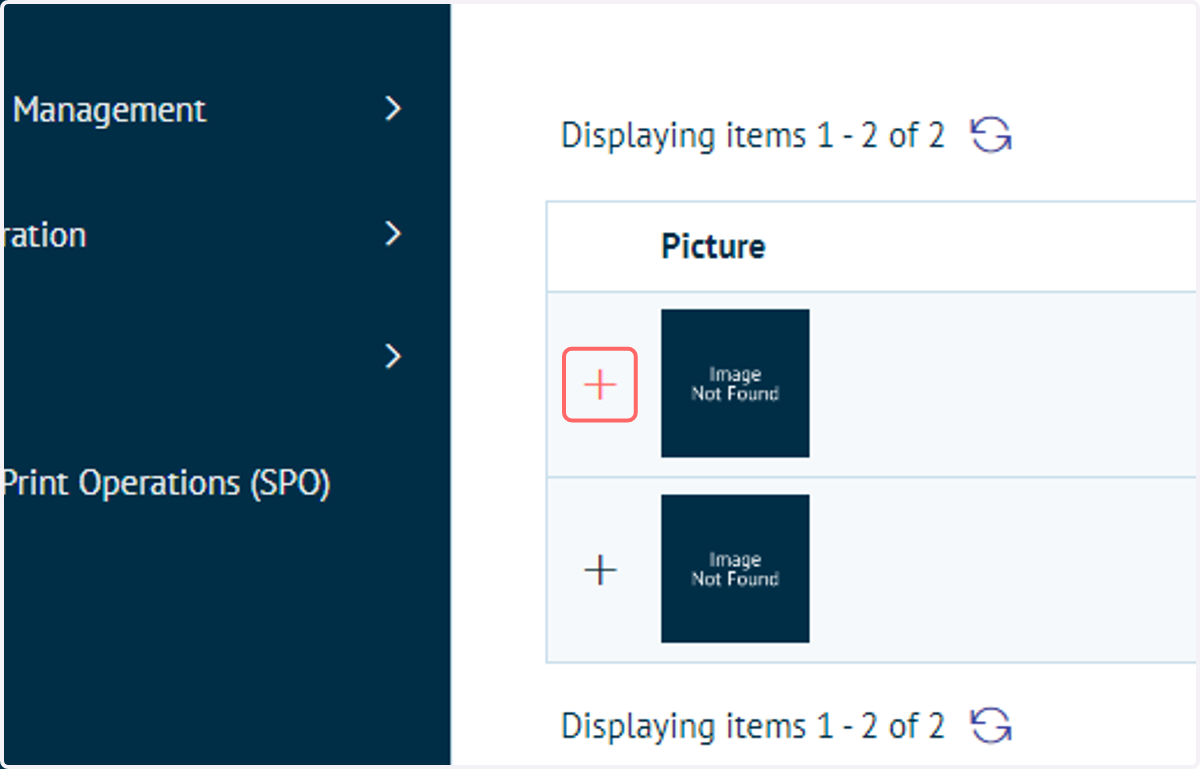
8. Locate your product and click the '+' icon
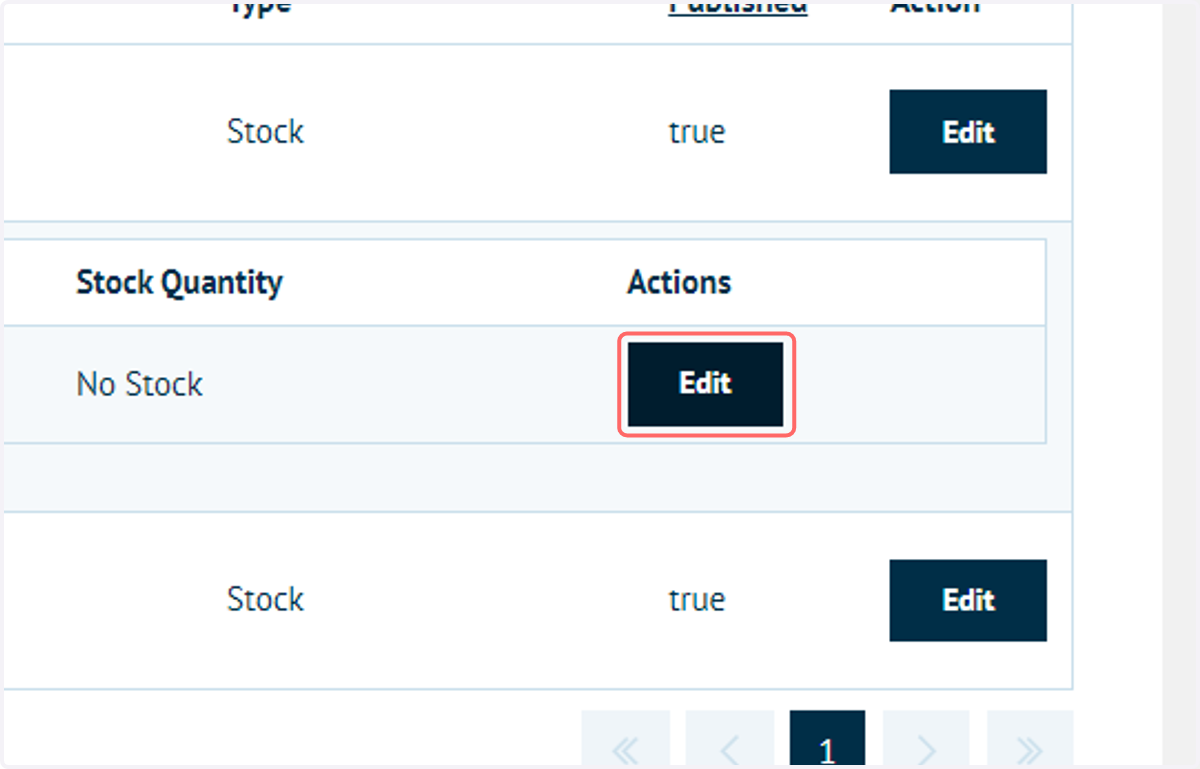
9. Click on Edit to access the product variant settings
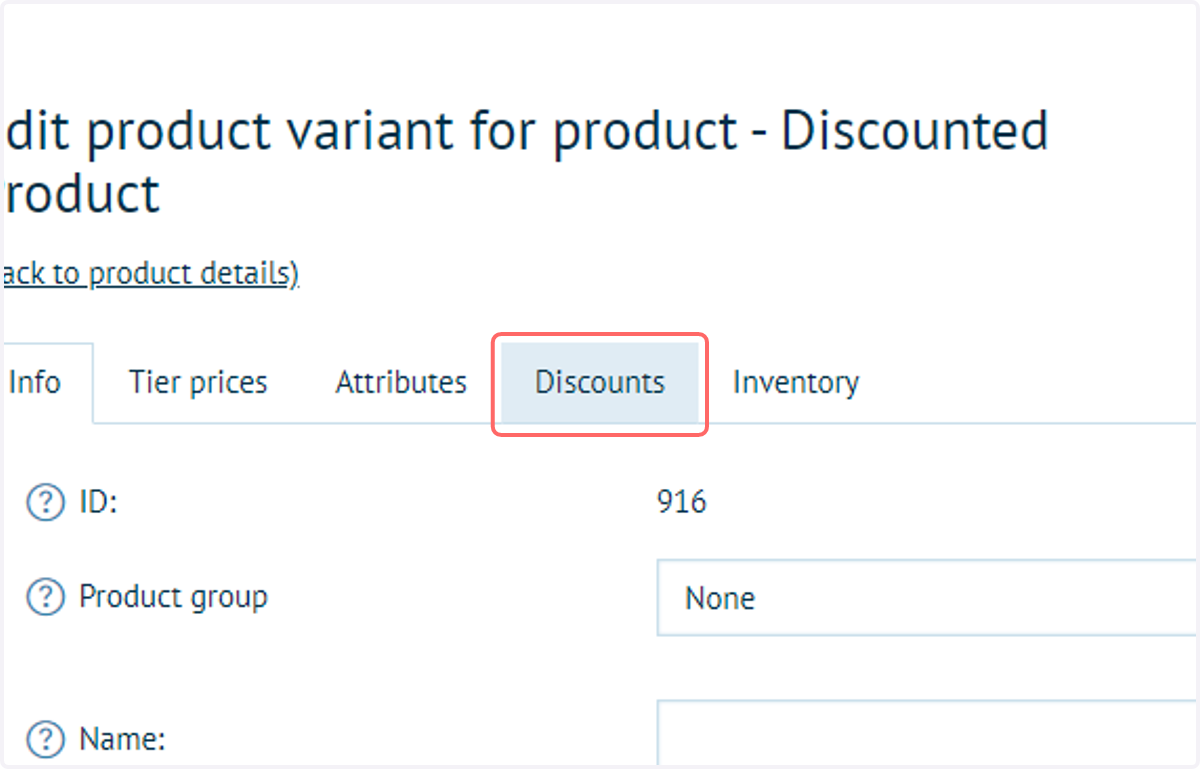
10. Click on the Discounts tab
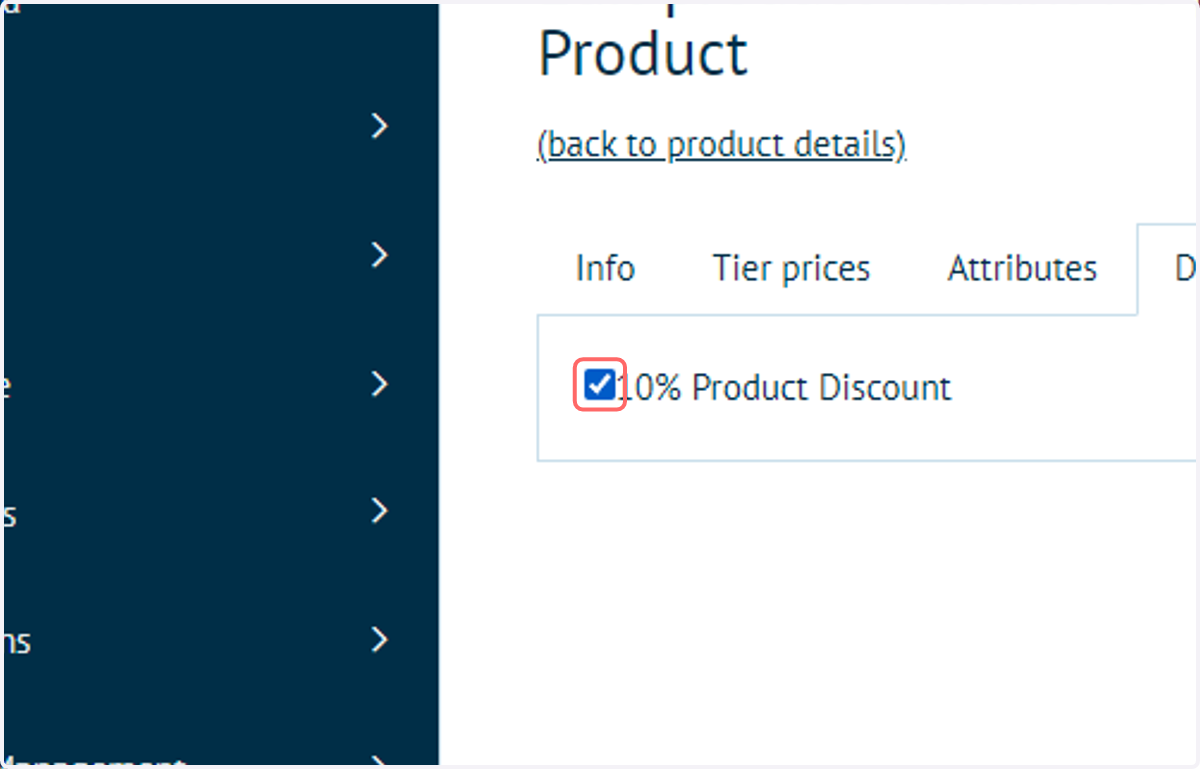
11. Select the discount(s) to use on this product
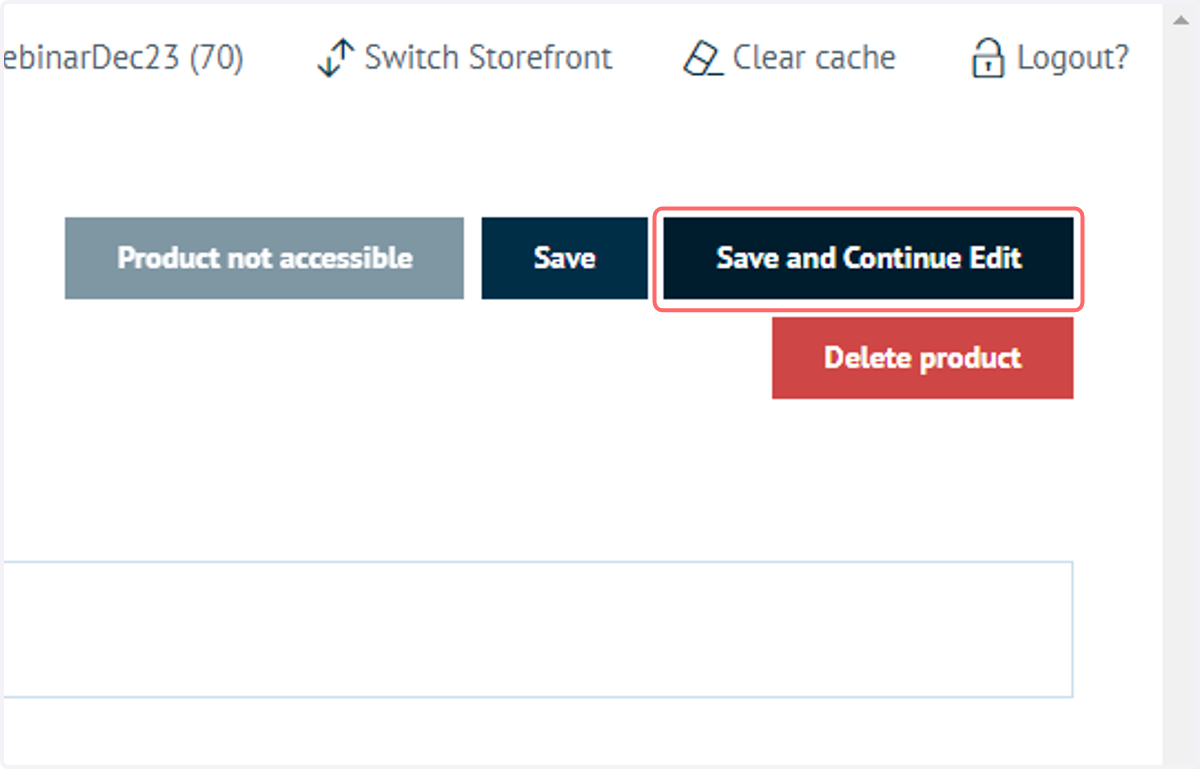
12. Click on Save and Continue Edit
13. View the results on the front end
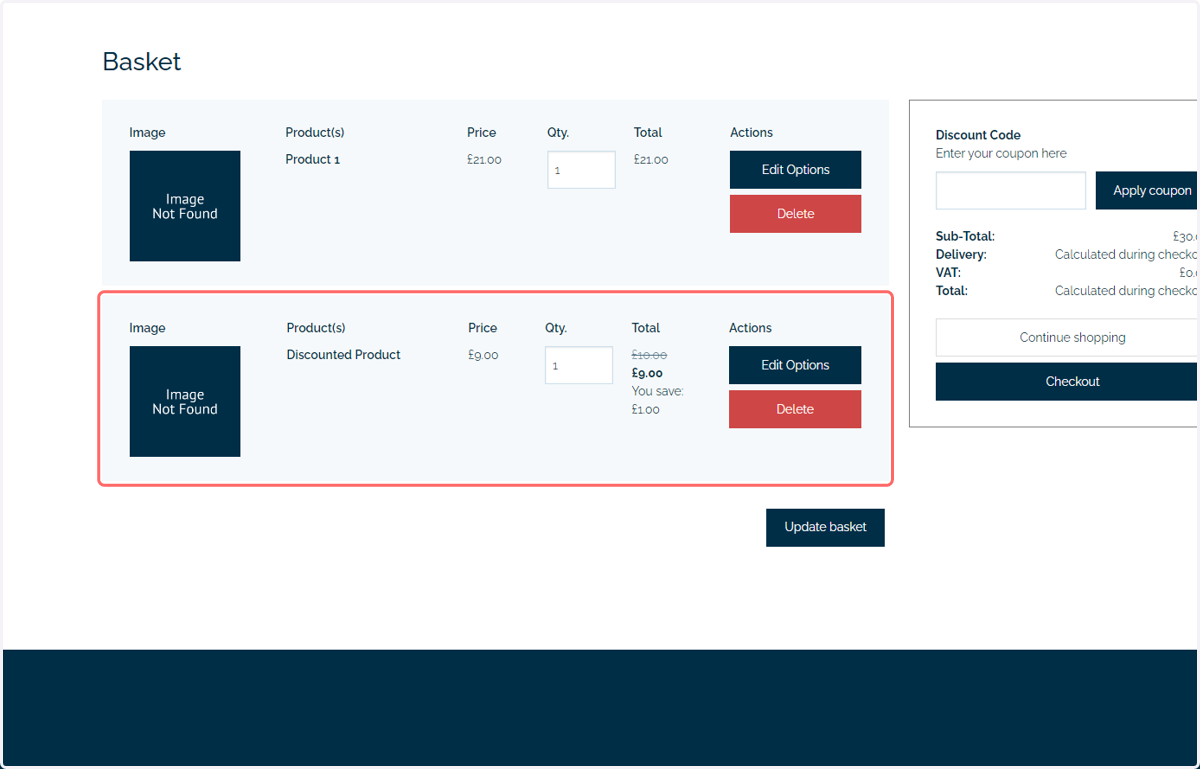
Discounts on specific products will be displayed on both the product pages and on the basket pages.