eKeystone Login and Price Adjustment Guide
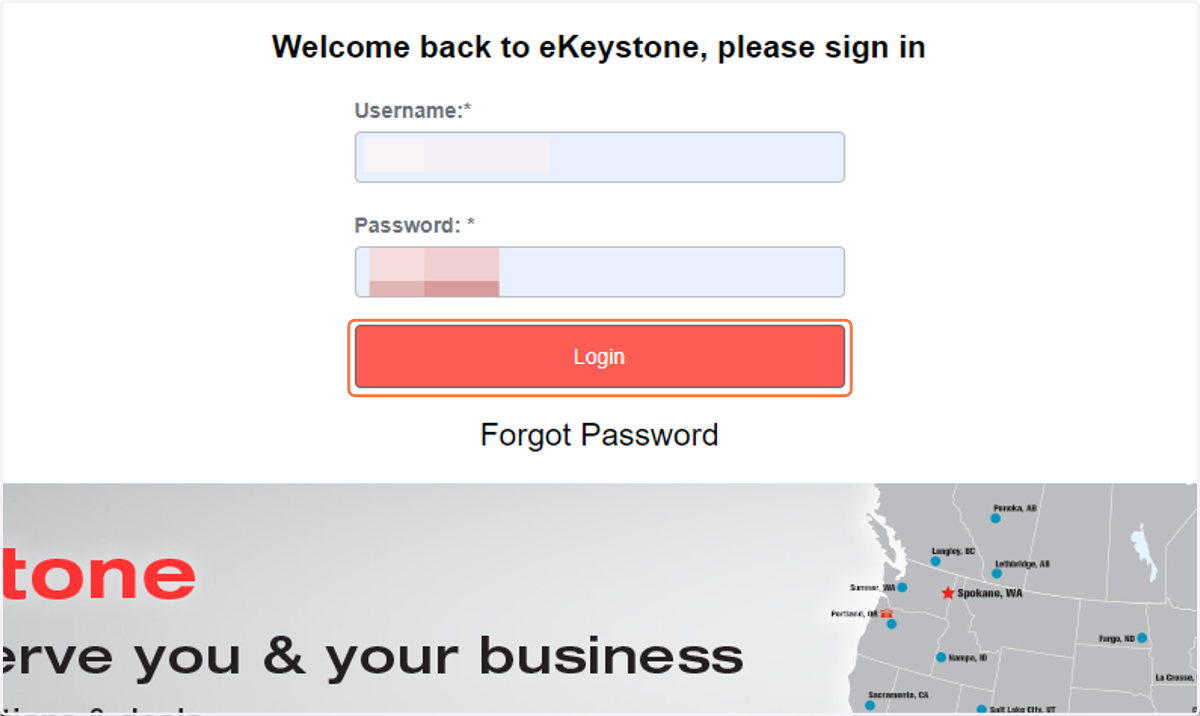
eKeystone - Login
1. Enter your Unique Keystone Username and Password, then Click on Login
If you cannot remember or have lost your Username (UN) and/or Password (PW), please click FORGOT PASSWORD.
Your UN is NOT your Keystone Id number. Your UN is your unique Turnkey eshop account number that was provided to you in your terms and conditions email.The email address is the one you provided to receive all communication from your cart.
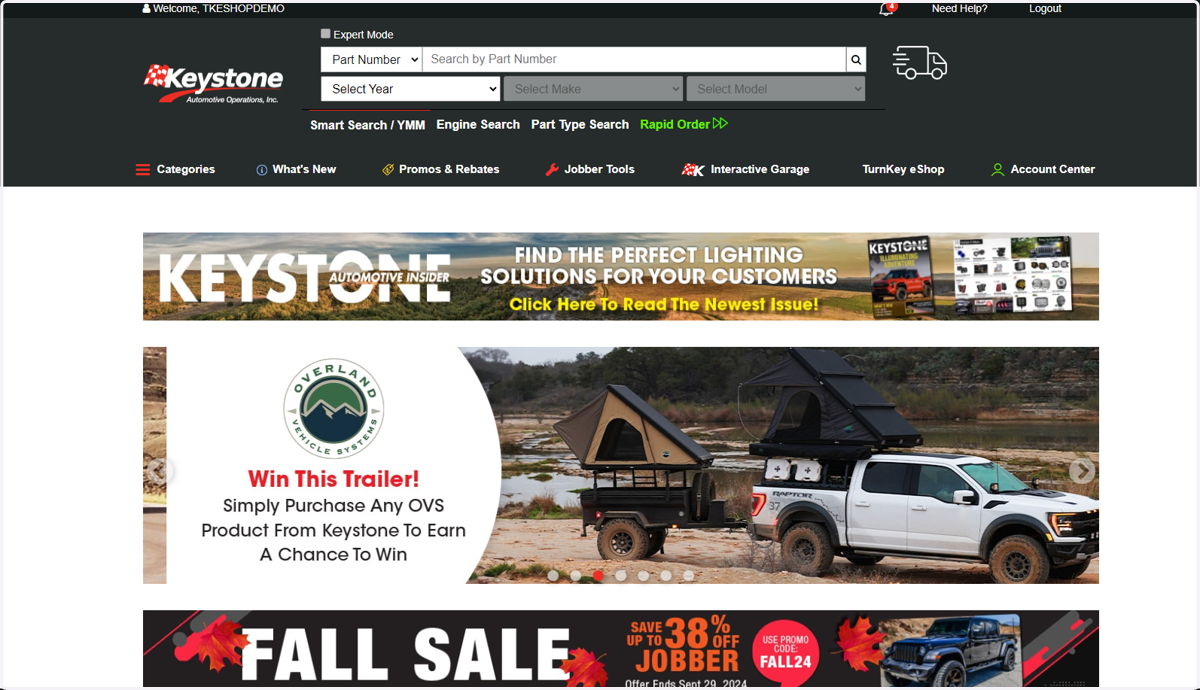
2. This is your back-end Turnkey Eshop home page
3. Click on TurnKey eShop
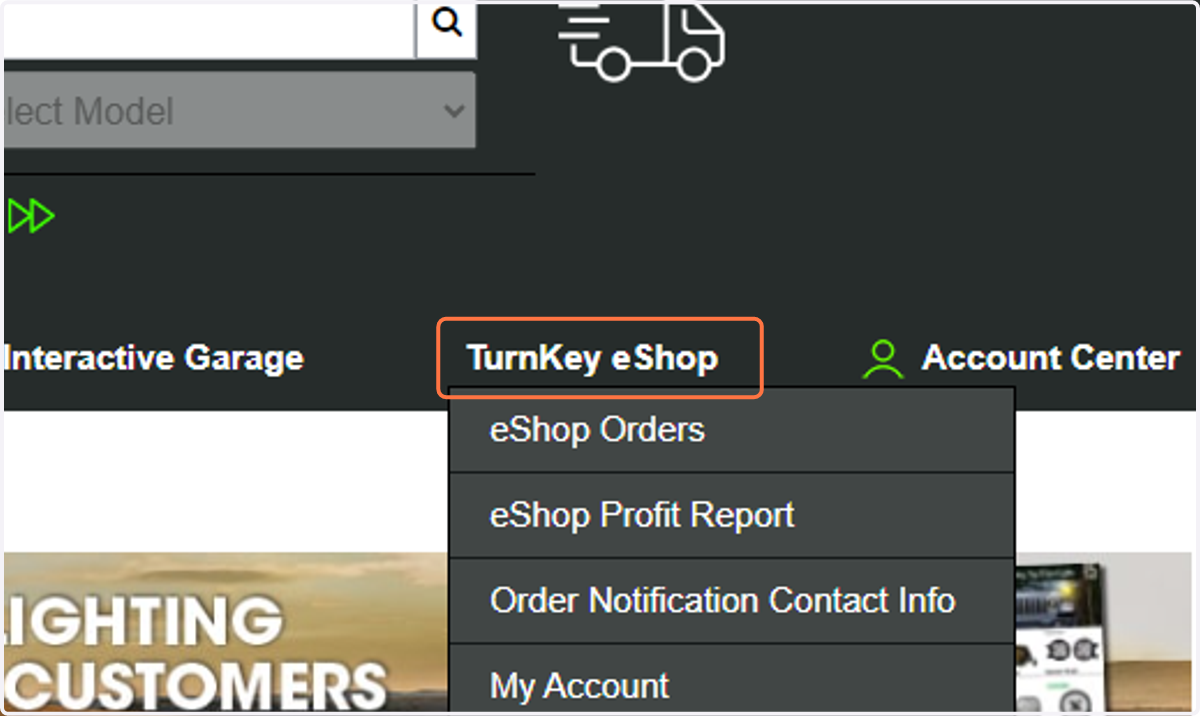
4. Click on Adjust Retail Price
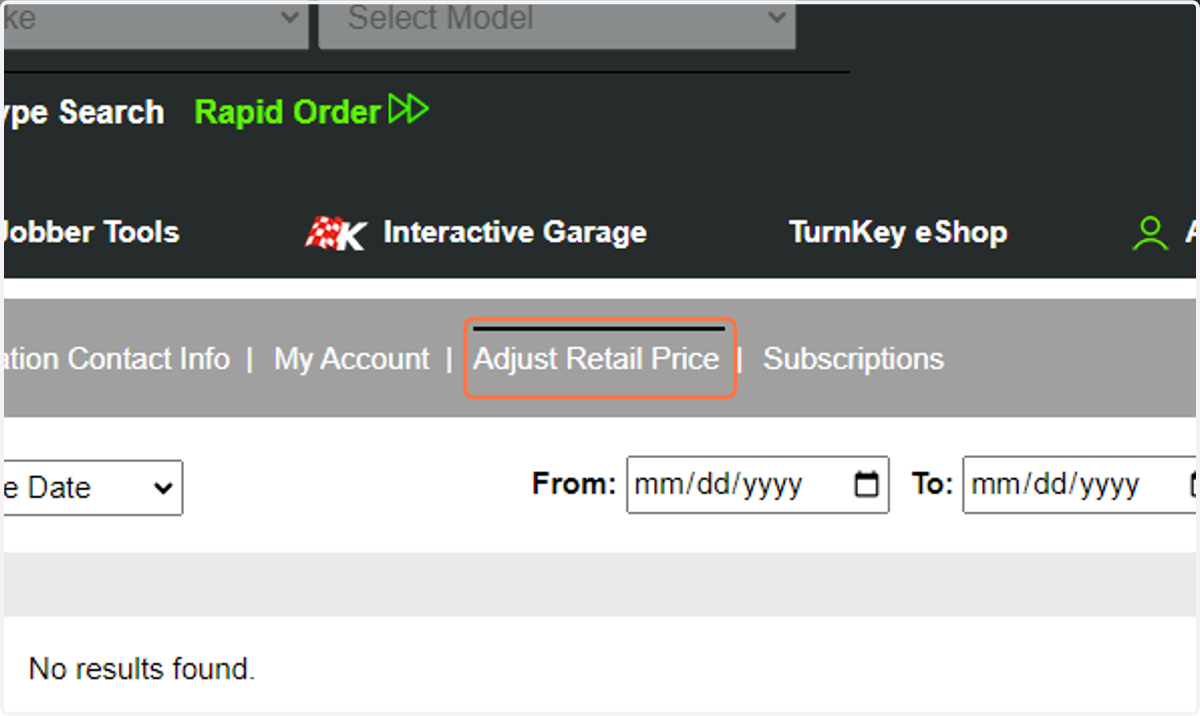
5. Choose your method of adjustment. Currently there are five options available: BLANKET, SUPPLIER, SERIES, PART, AND MAP. It is critical you complete the MAP step first before setting any pricing
User Guide - eKeystone - Set Retail Price Online
This Adjust Retail Pricing tool does not account for any MAPP (Minimum Advertised Price Policies) set by manufacturers.
Default retail pricing is set to 40% over cost and can be adjusted below at any time.
Each section shown overrides the previous section:
Supplier section overrides Blanket section.
Series section overrides Blanket and Supplier sections.
Part section overrides Blanket, Supplier, and Series sections.
All retail price settings below are live once "Update" is clicked.
Changes are not saved unless "Update" is clicked.
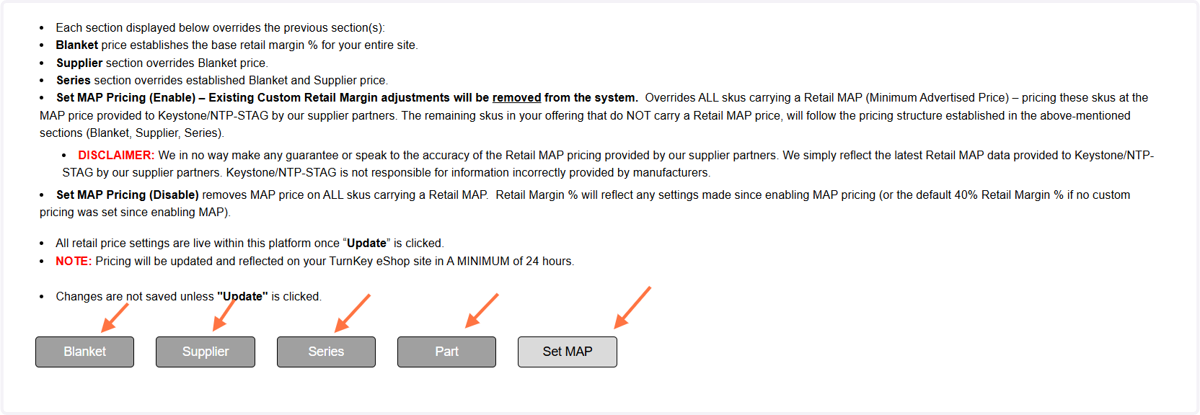
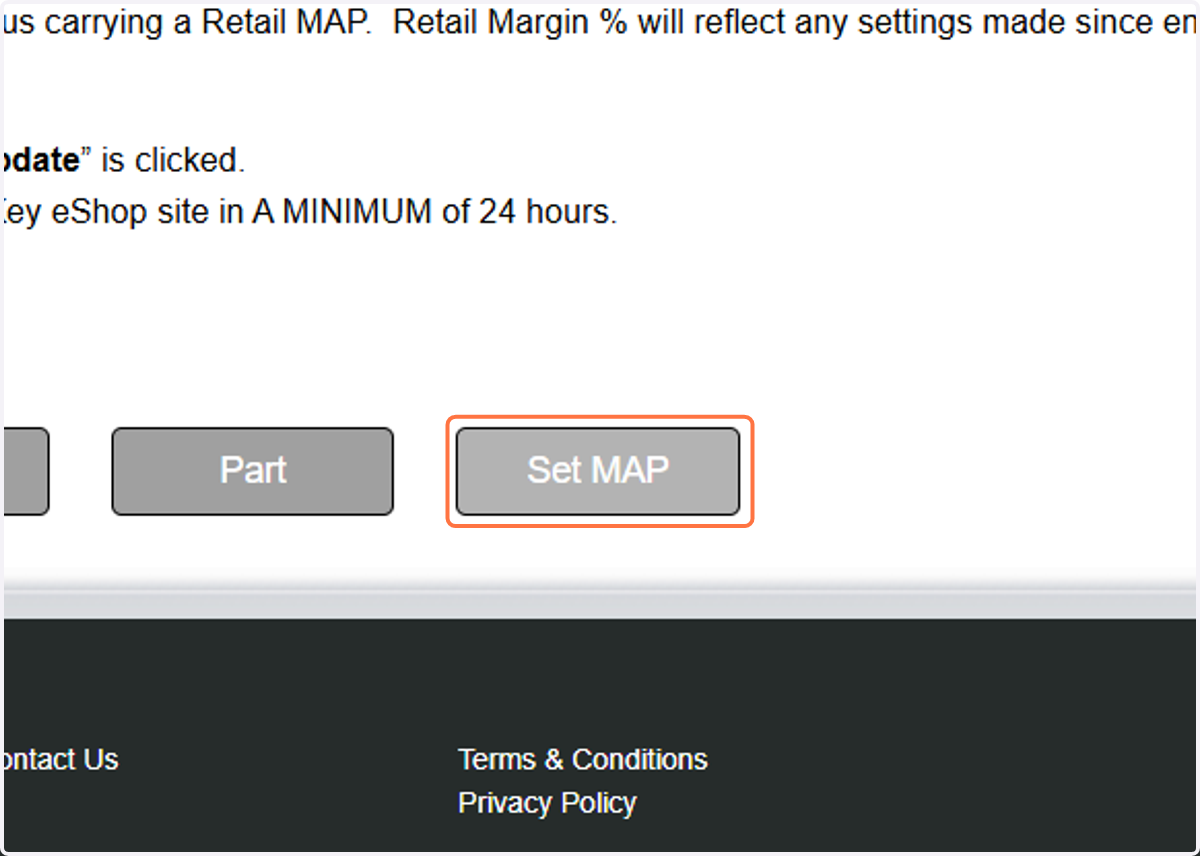
6. Click on Set MAP
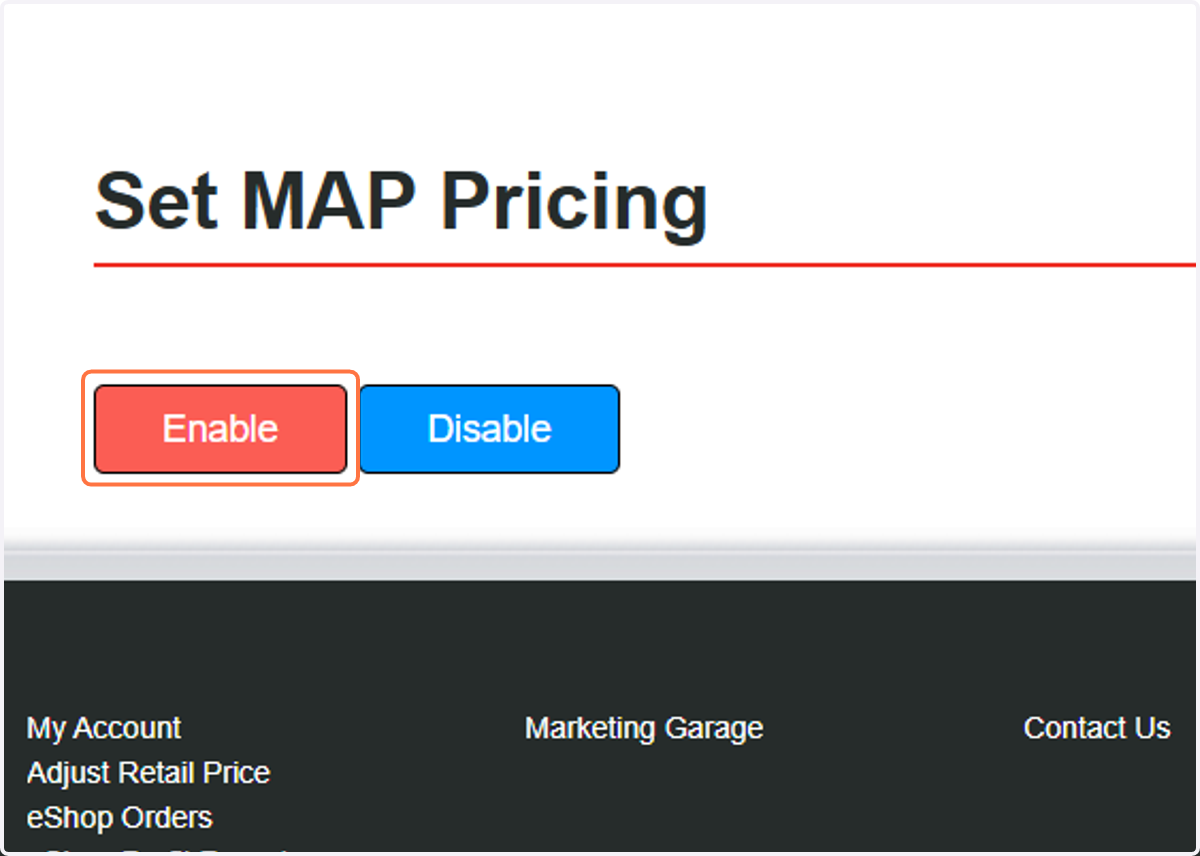
7. Click on Enable
8. Select OK
You have successfully applied MAP to your EKeystone catalog!
eKeystone - Adjust Retail Price - BLANKET
How to BLANKET adjust your Retail pricing
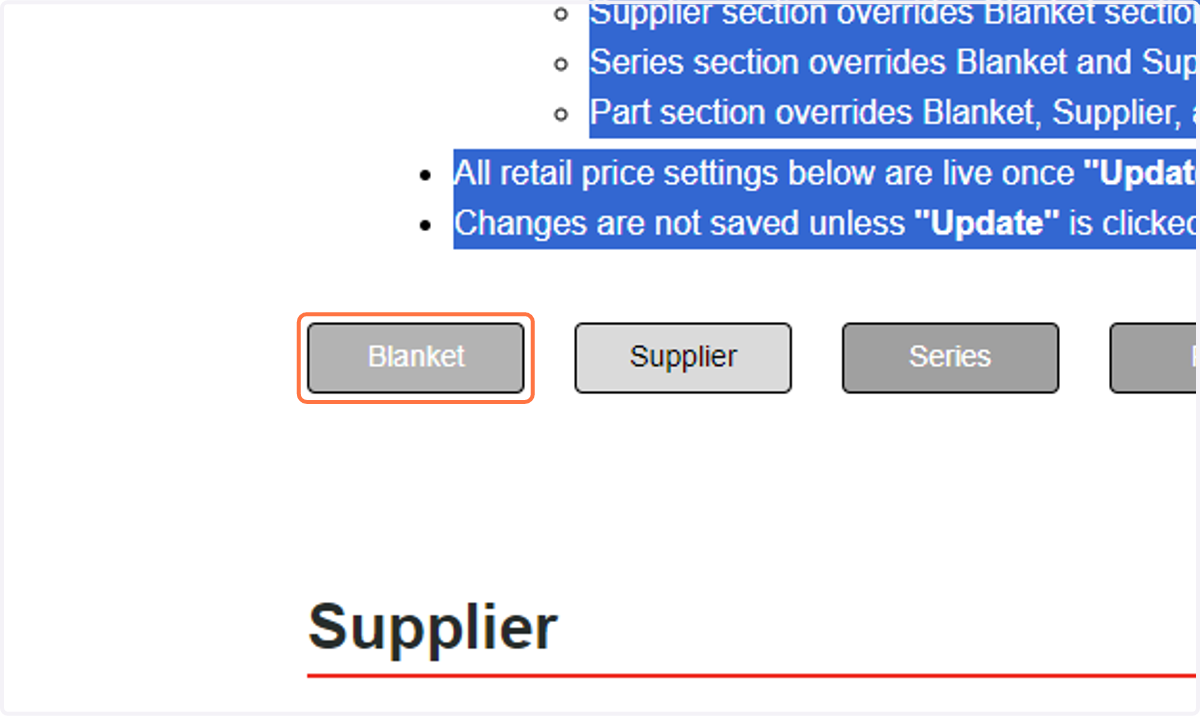
9. Click on Blanket
10. Select your price range and retail margin
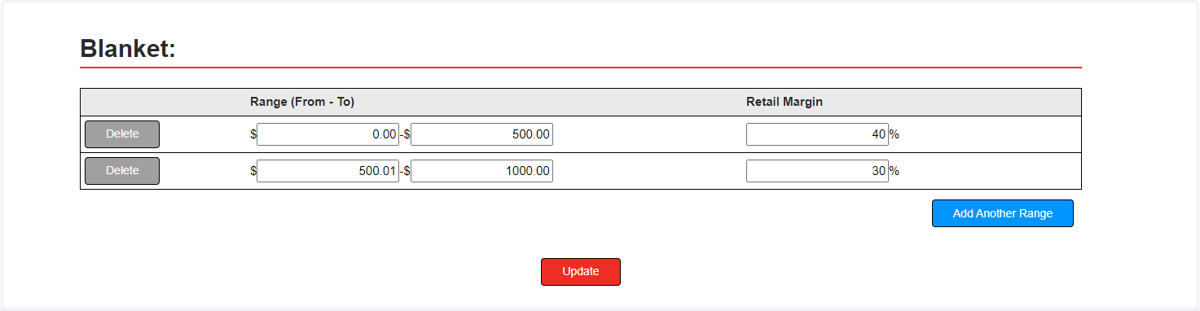
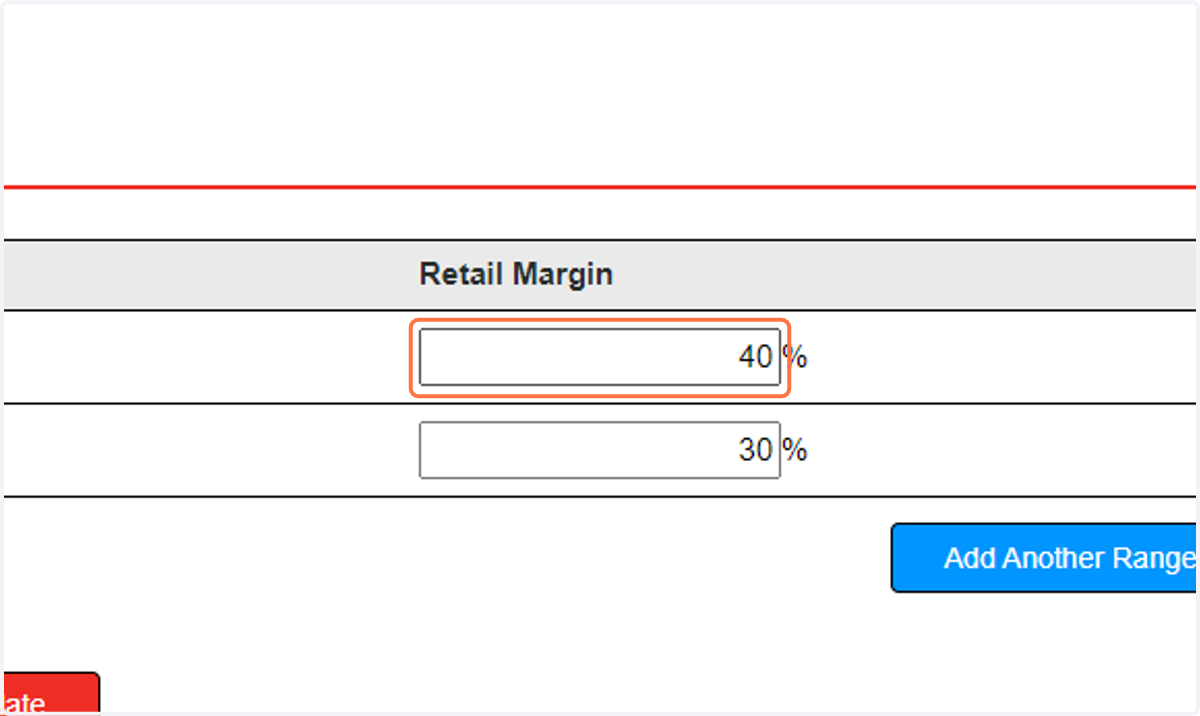
11. Click on Margin Percentage
Enter your Margin Percentage markup for the first price range
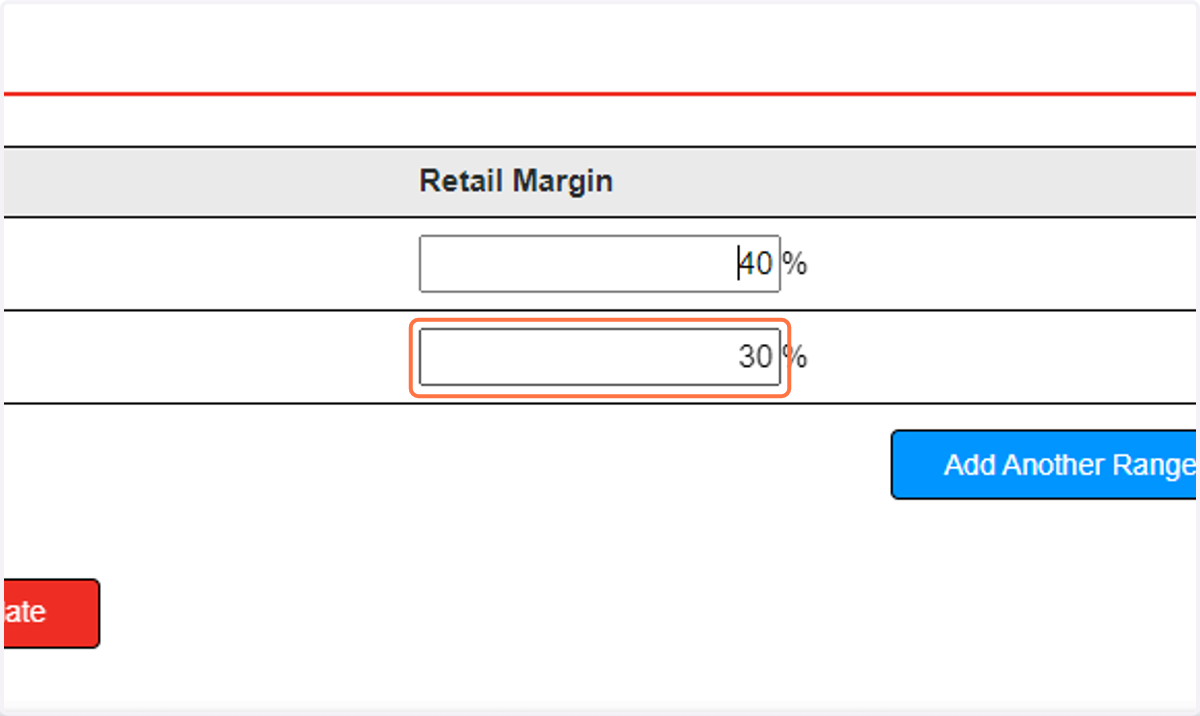
12. Click on MarginPercentage
Enter your margin percentage markup for the second price range
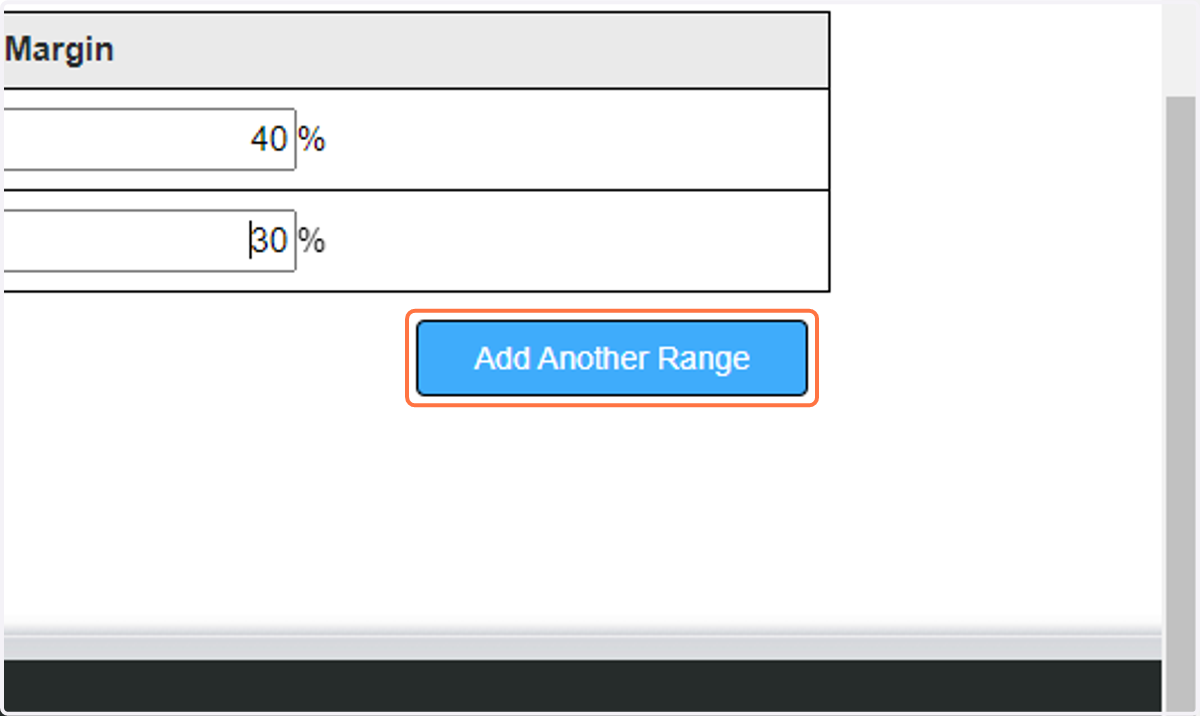
13. if you need additional price ranges, you can add more by clicking on Add Another Range
once the range has been added you can set the price range manually. Price ranges cannot overlap.
14. Click on Update
update will push these edits live
eKeystone - Adjust Retail Price - SUPPLIER
Adjusting your Retail Pricing by SUPPLIER
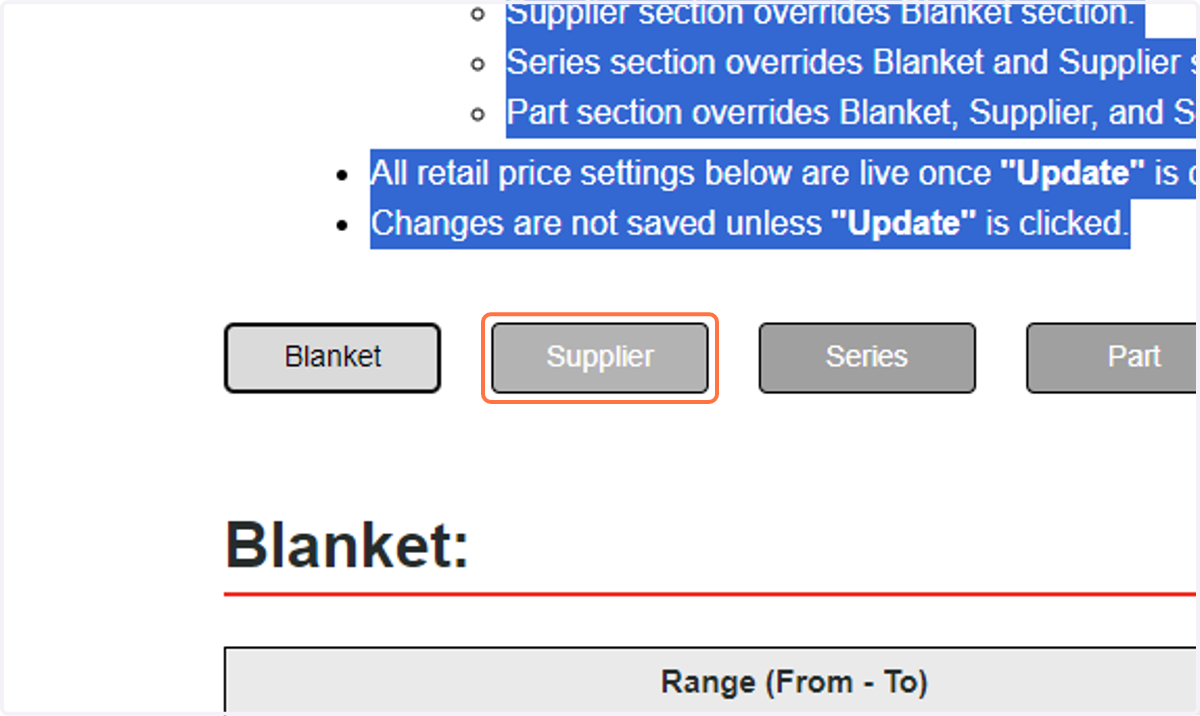
15. Click on Supplier
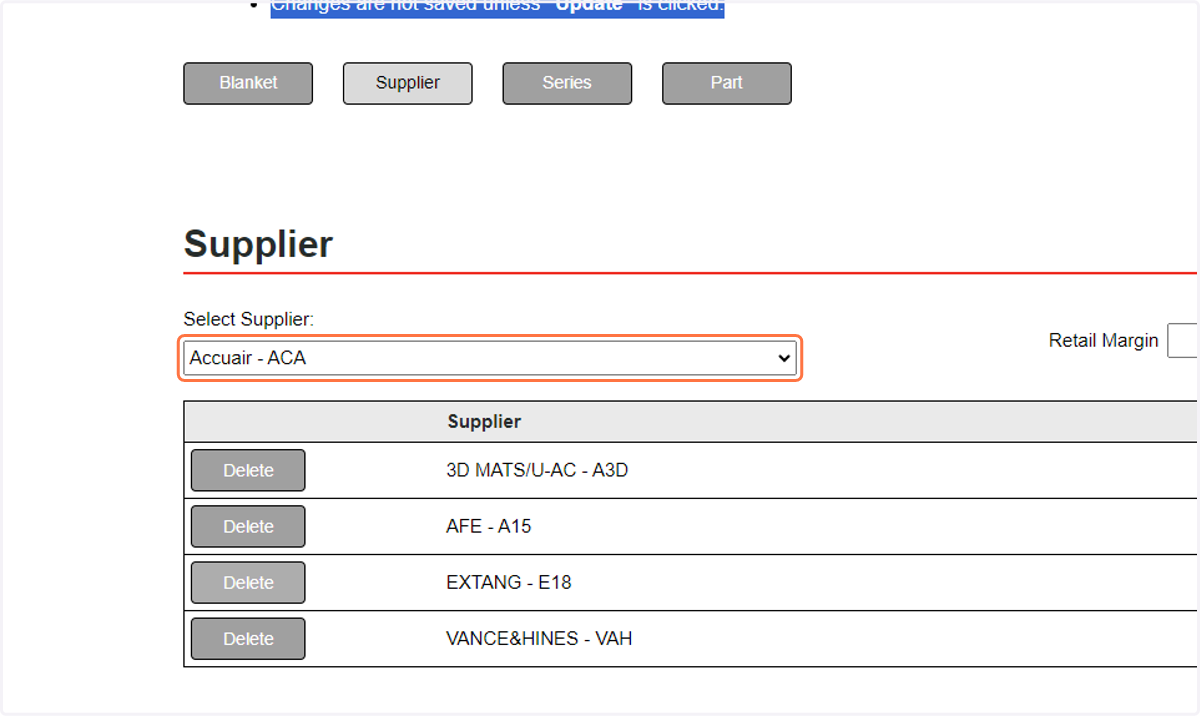
16. Select Your Supplier
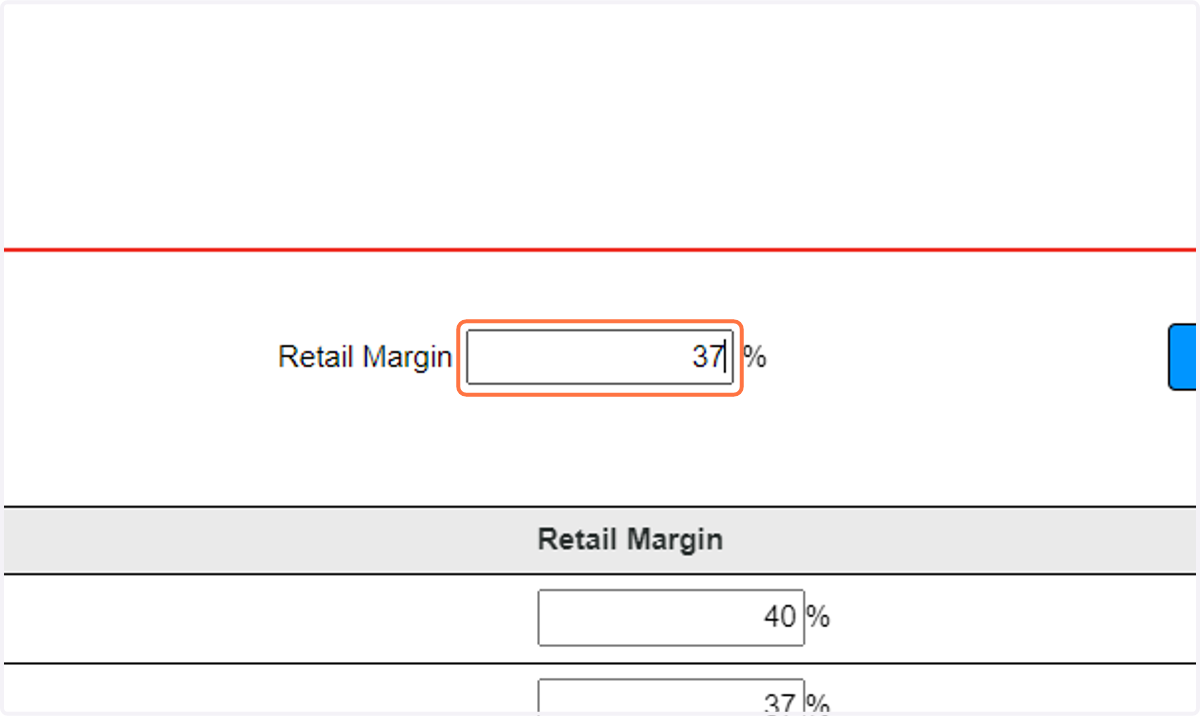
17. add your Retail Margin percentage
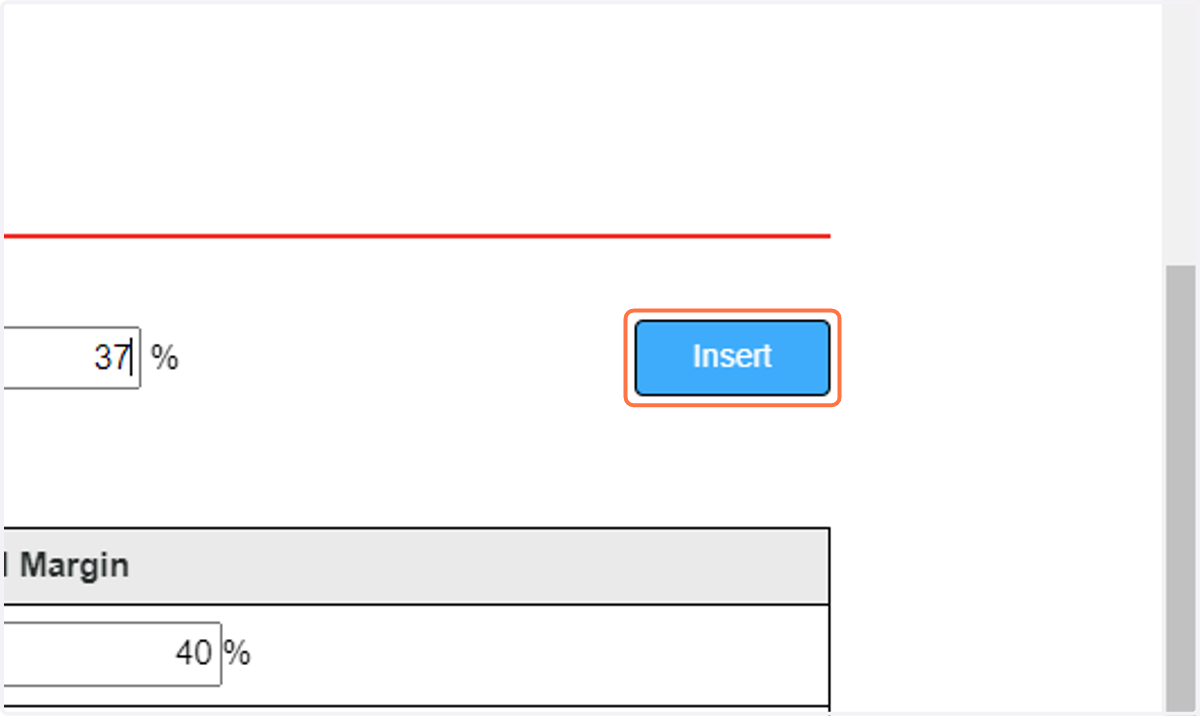
18. Click on Insert
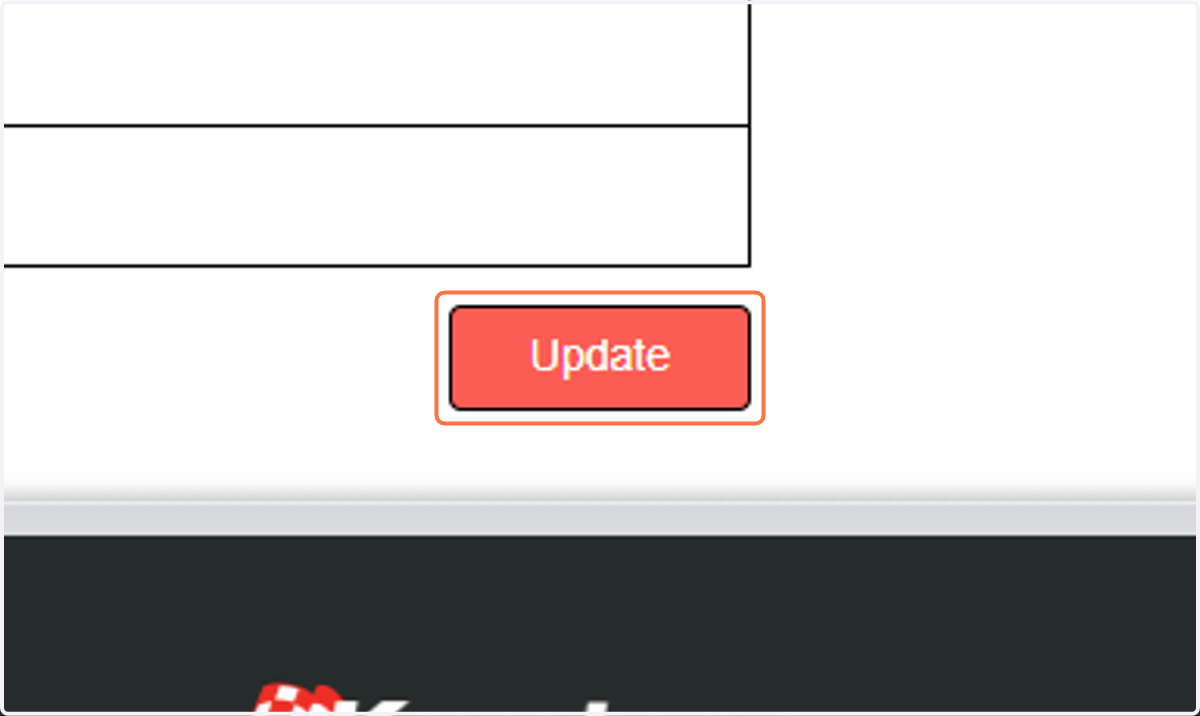
19. Click on Update
eKeystone - Adjust Retail Price - SERIES
How to Adjust your Retail Pricing by supplier SERIES
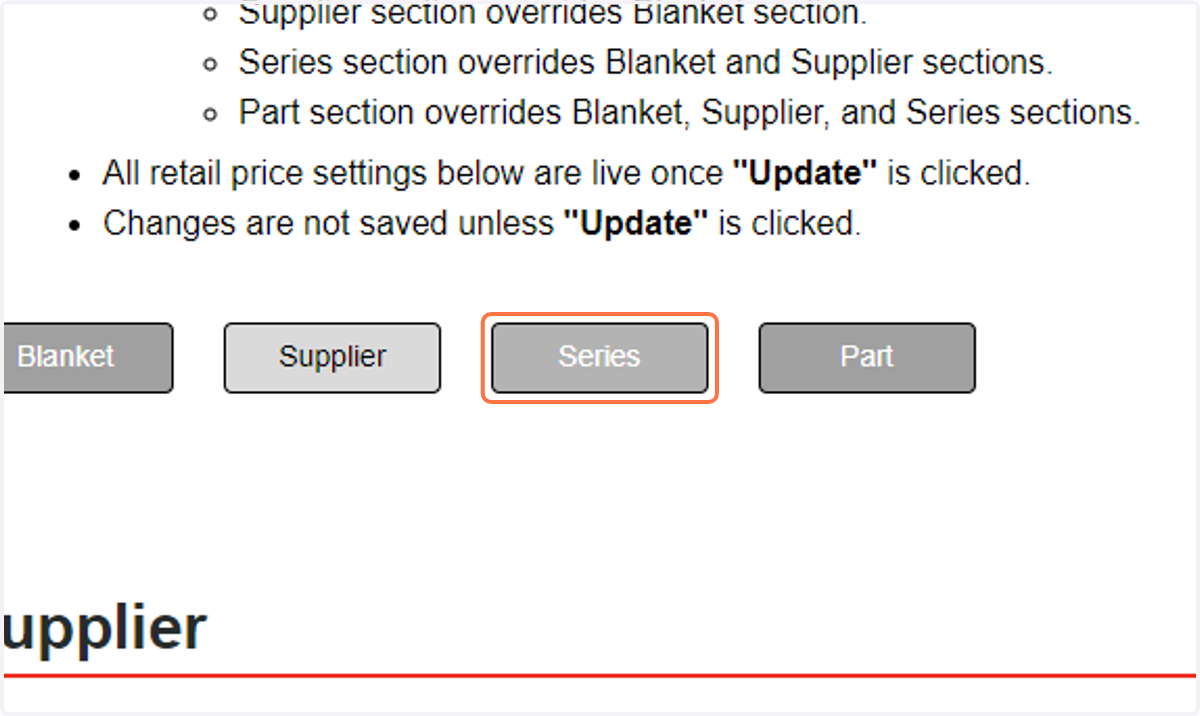
20. Click on Series
21. Select your desired brand from Select Supplier:
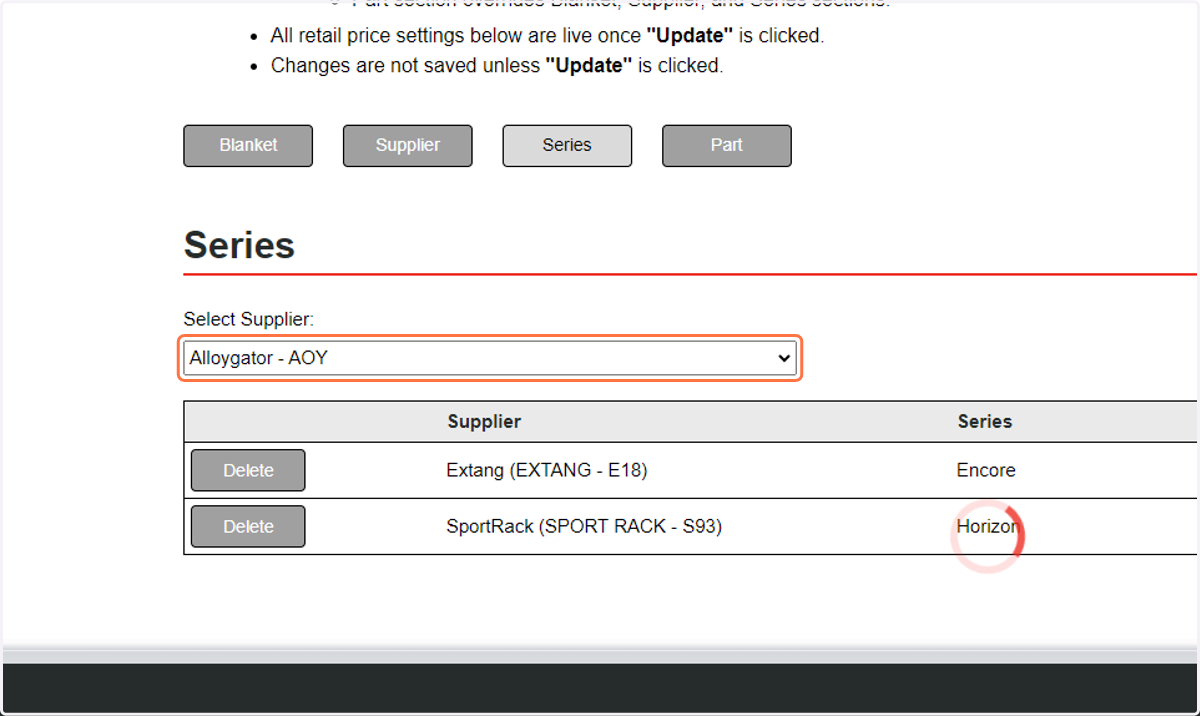
22. Select desired Series from provider
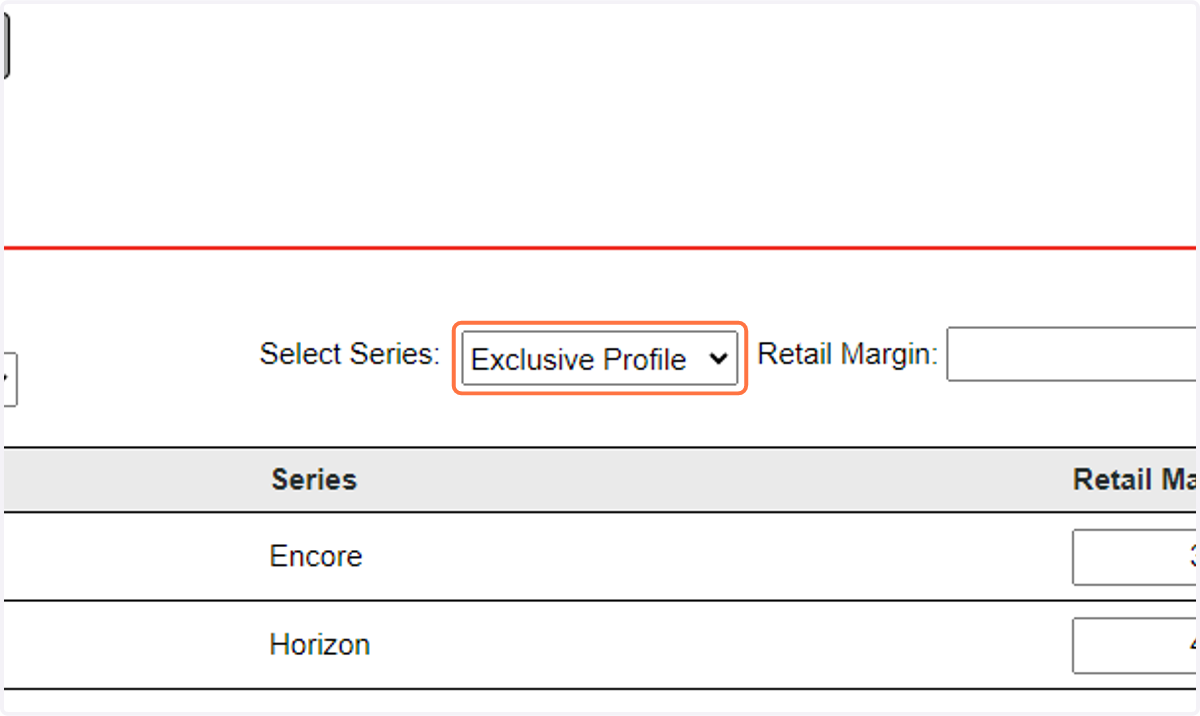
23. Enter your Retail Margin Percentage
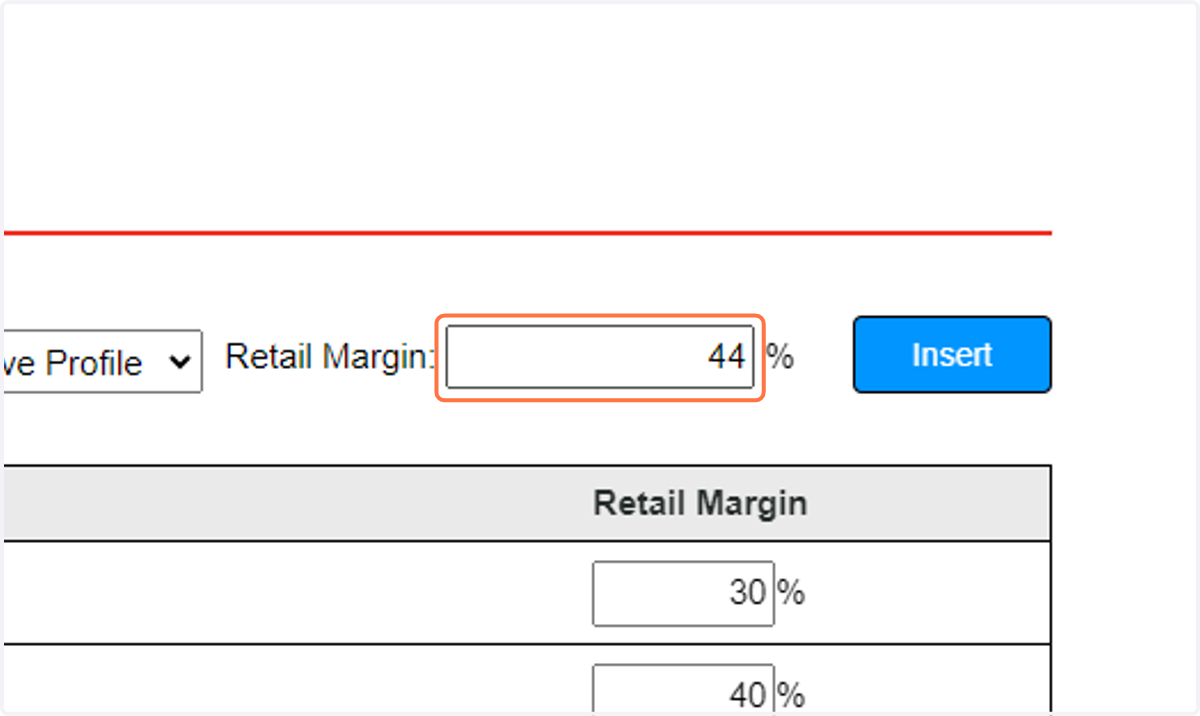
24. Click on Insert
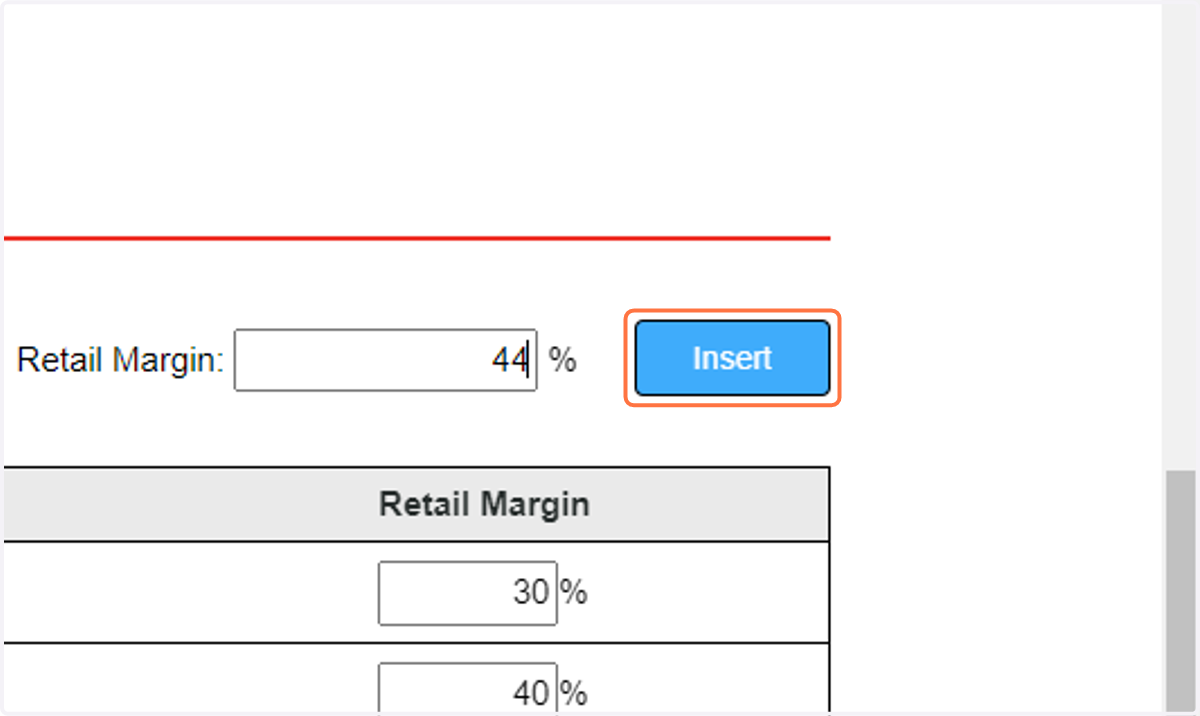
25. Click on Update
eKeystone - Adjust Retail Price - PART
How to adjust your Retail Pricing by Part
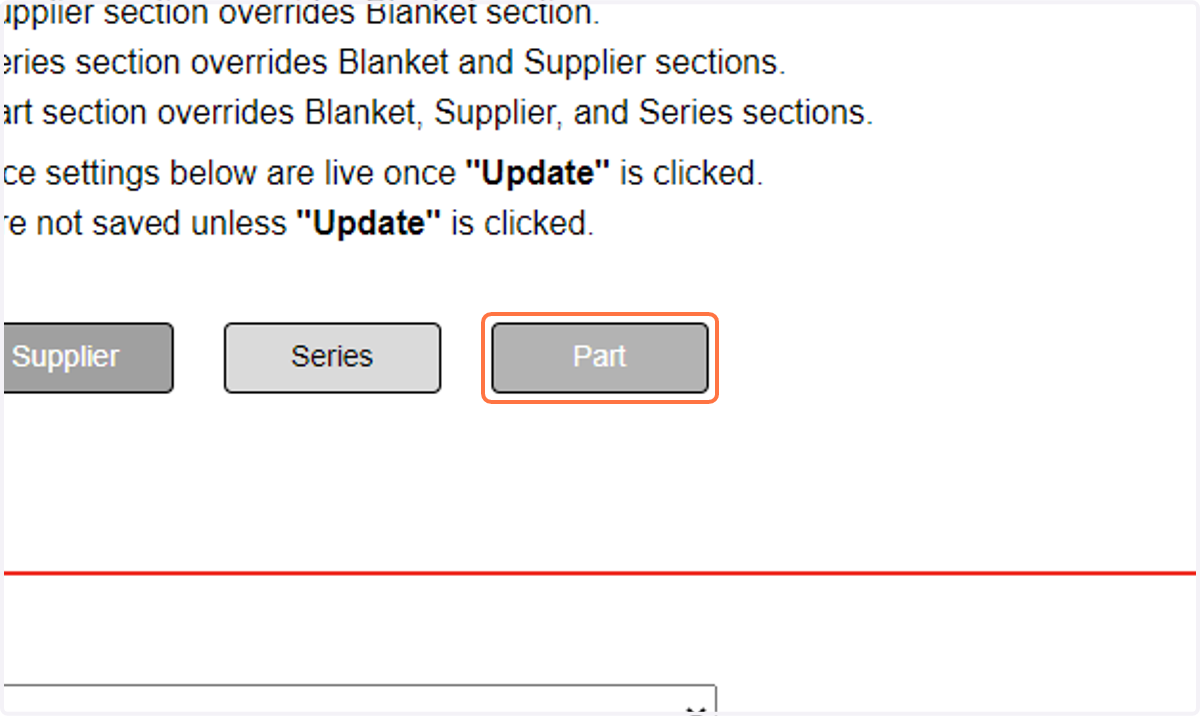
26. Click on Part
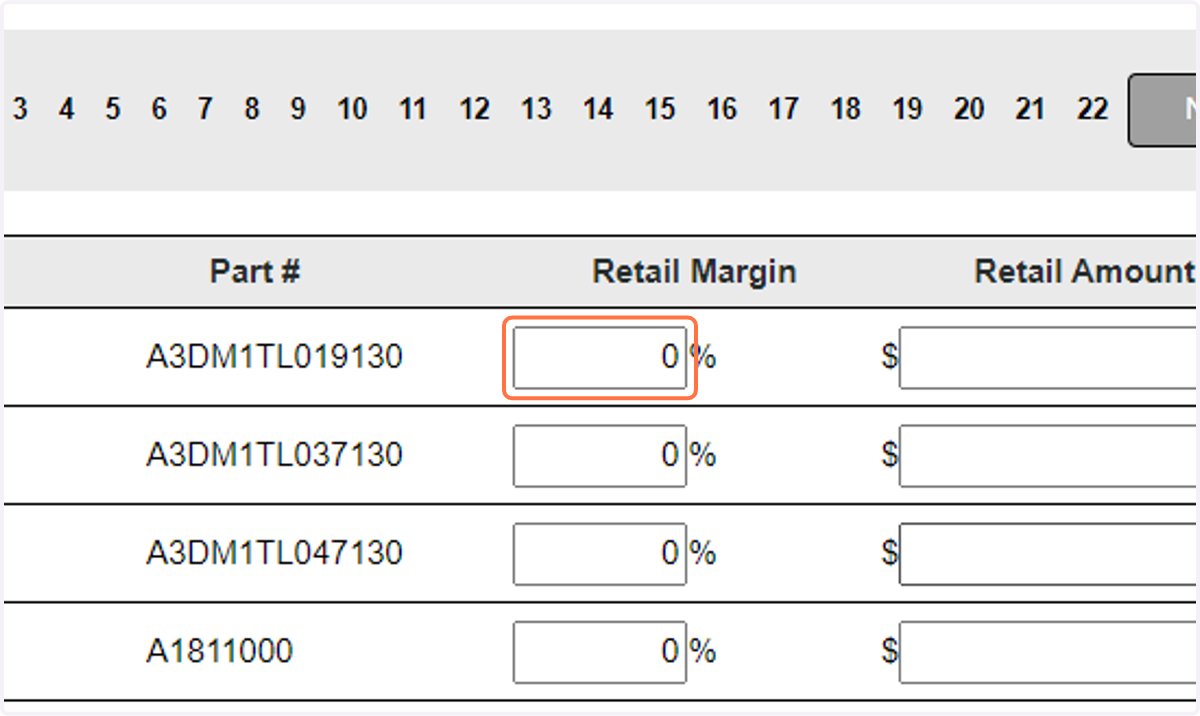
27. Click on the Part # Retail Margin you wish to set
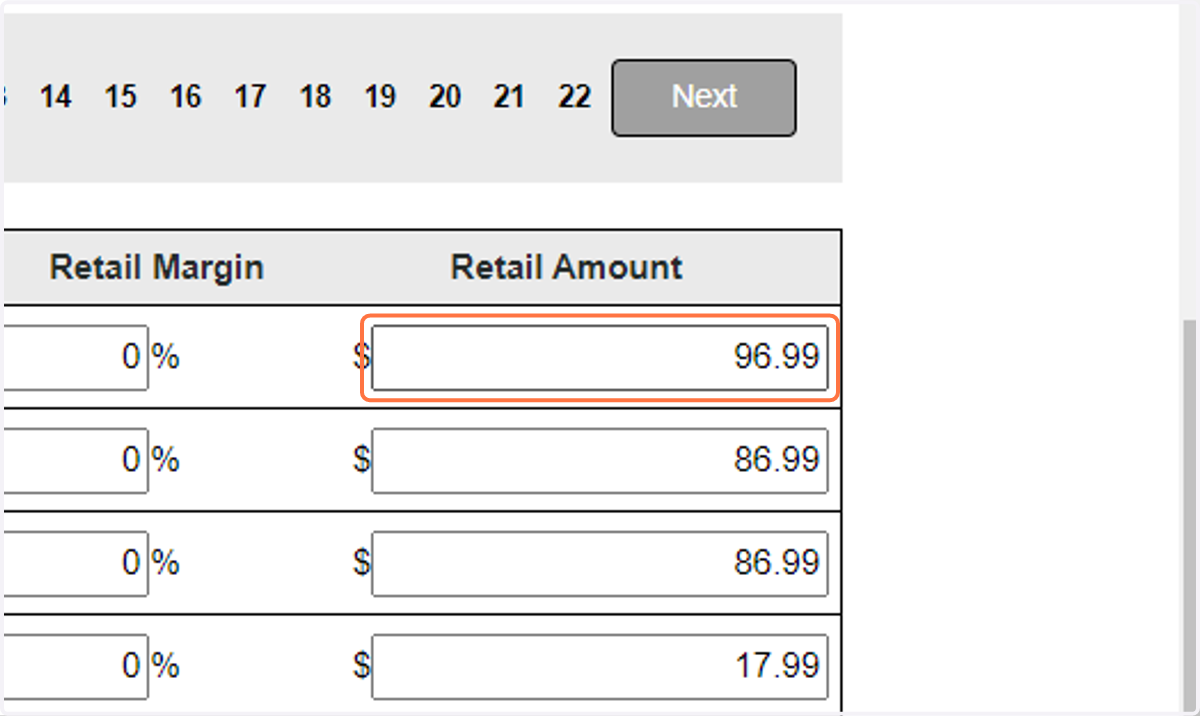
28. Click on Retail Amount and add desired price
29. Scroll down to the bottom of the page
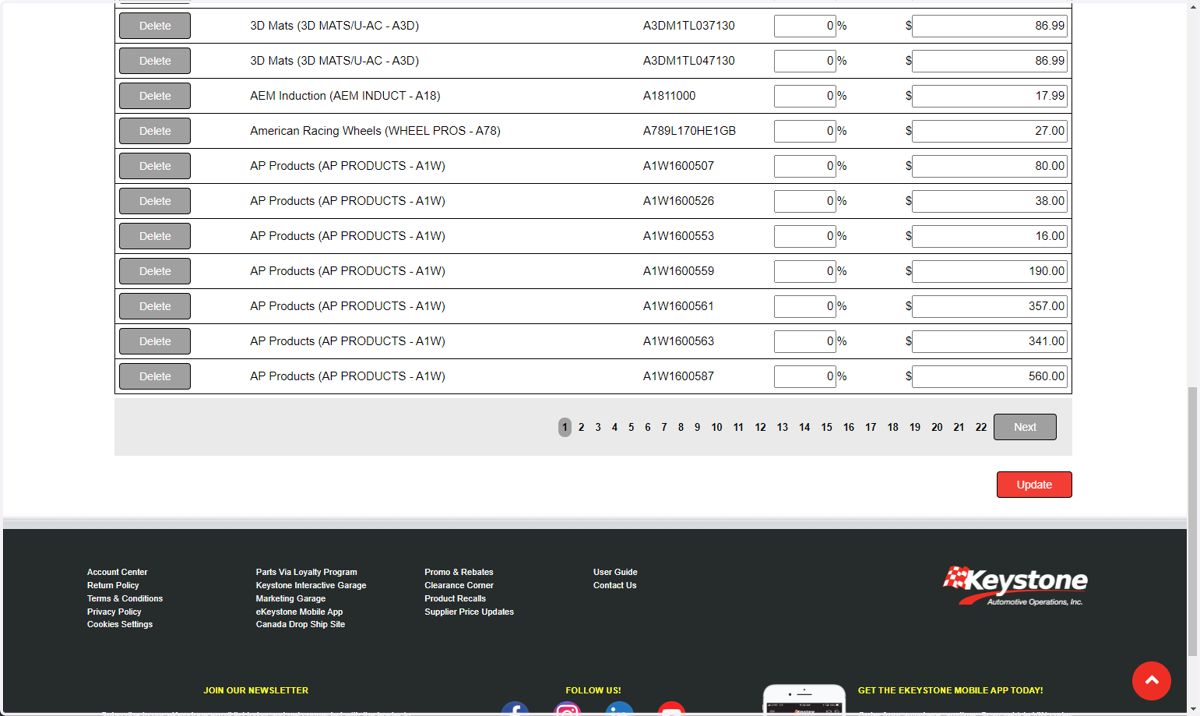
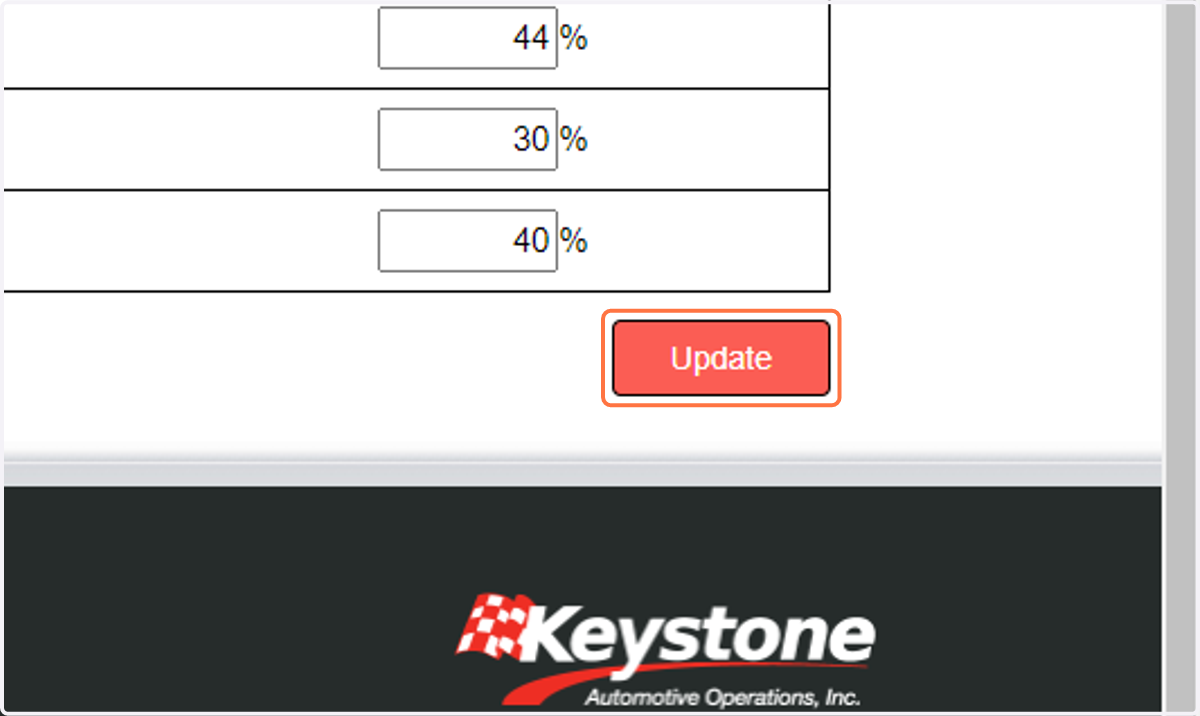
30. Click on Update