Multi-version product ordering with Multipart (Upload) products | BG_050
In this tutorial, we'll learn how to utilise functionality within Infigo allowing for multiple versions of the same Multipart type product to be created and placed into the basket at once.
In the world of labels, it's common for customers to need multiple versions of the same label, such as different designs for various types of wine.
Currently, in Infigo, you can achieve this by adding individual jobs to the basket for each label version. However, this process can be tedious when dealing with numerous labels.
Moreover, it may end up costing the customer more. For instance, if you're ordering 1000 labels, the unit cost is often lower than ordering 250 labels. So, if you want 250 labels for four different wine types, it's more cost-effective to order 1000 labels and specify the different versions rather than ordering four sets of 250 labels individually. This approach not only streamlines the ordering process but also offers potential cost savings for our customers.
Here, we'll see how to enable and utilise this functionality.
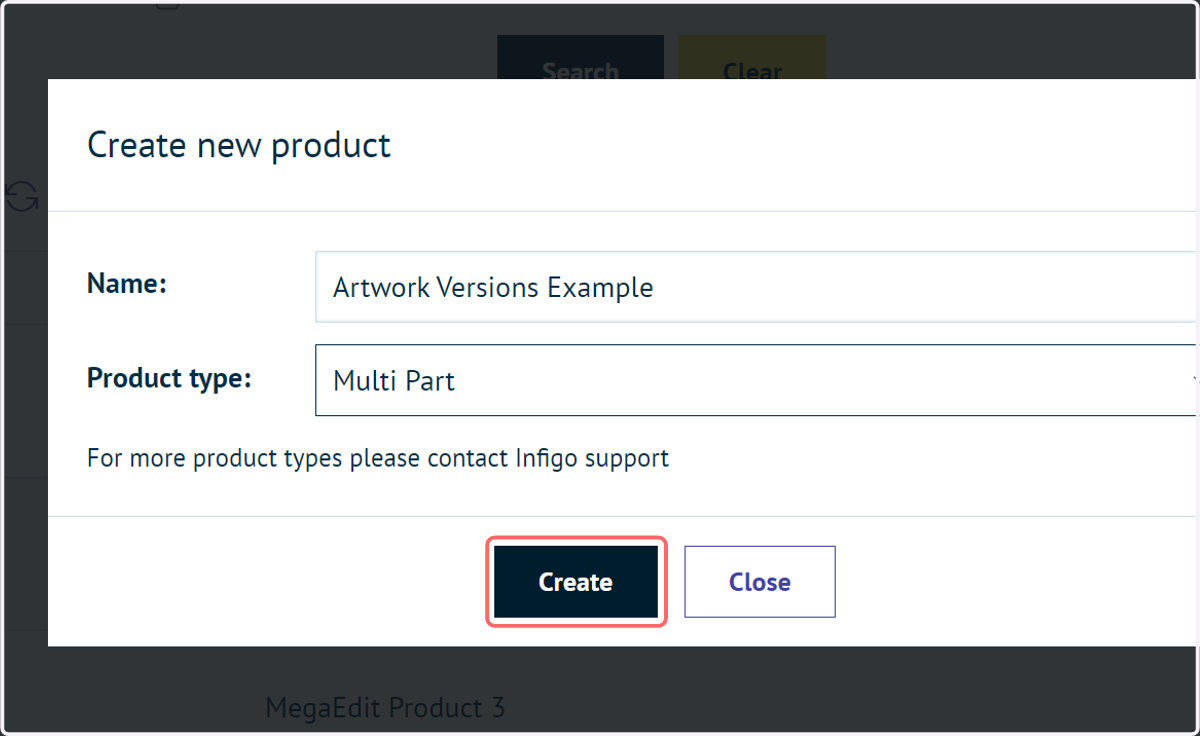
1. Begin by creating a new Multi Part type product
At the time this content was created, Multi Part is the only product type to support this feature.
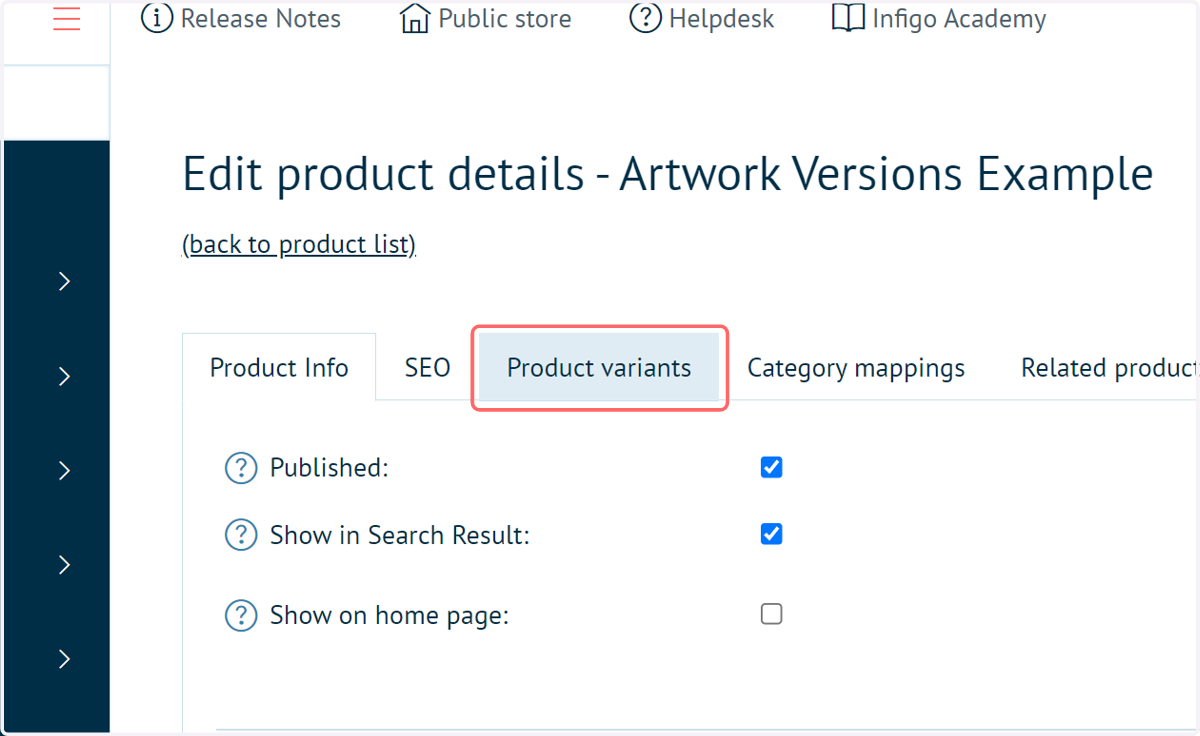
2. Click on Product variants
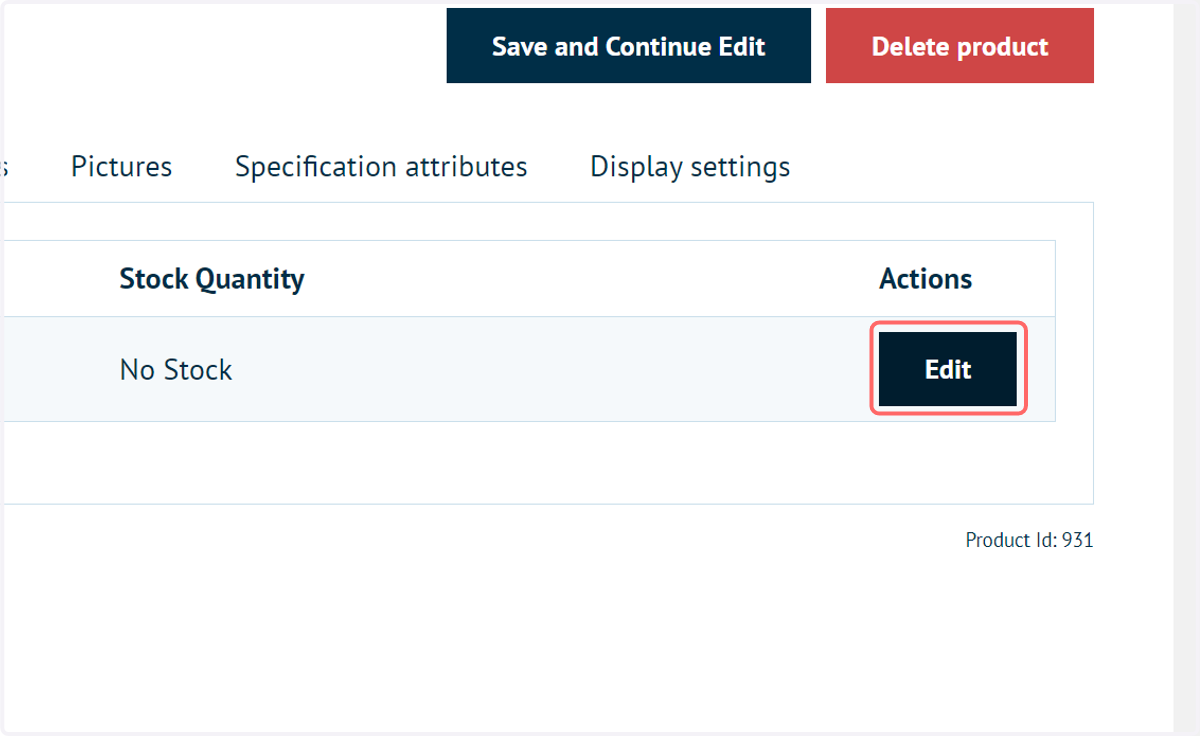
3. Click on Edit
This will direct you to the Product Variant settings for the newly created Multi Part product.
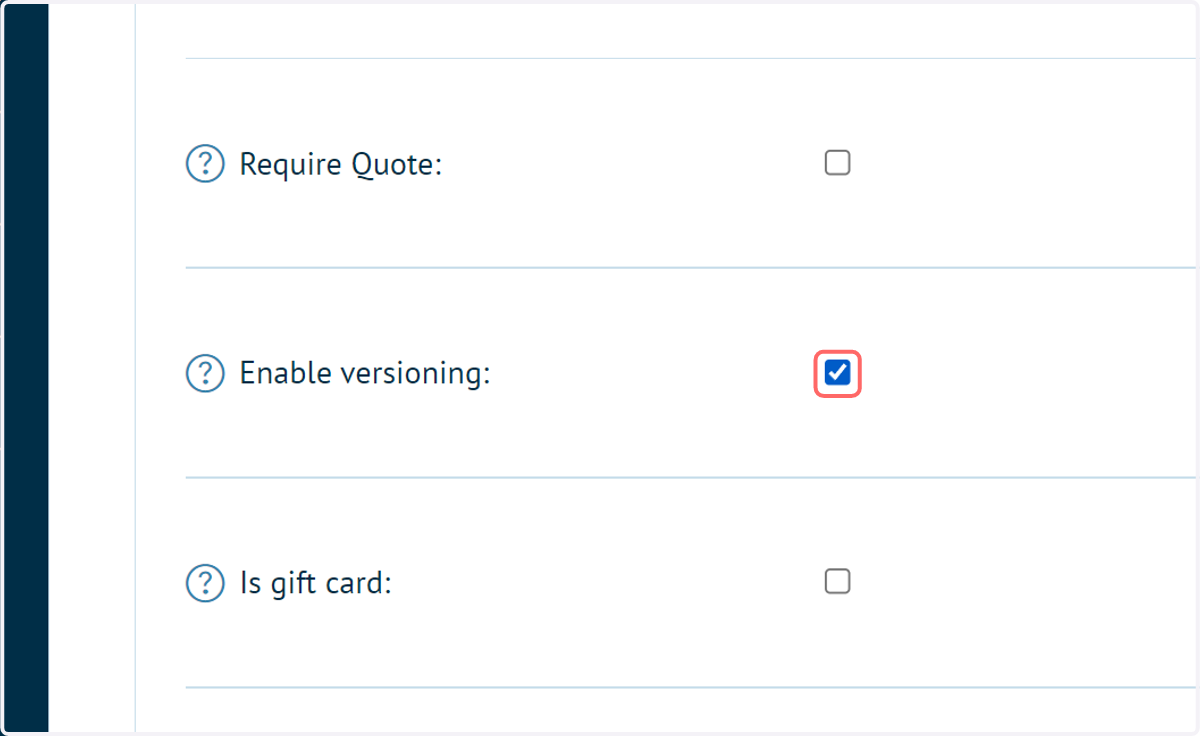
4. Check Enable versioning
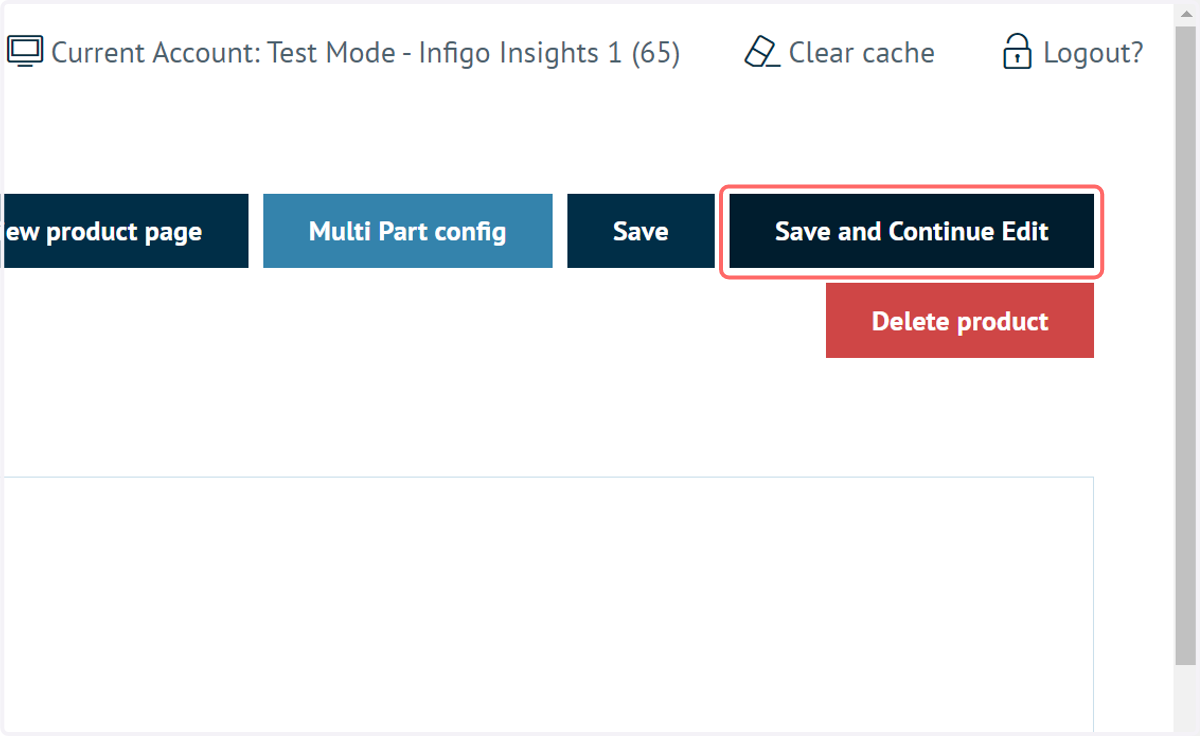
5. Click on Save and Continue Edit
In terms of configuring the functionality, that's all we need to do!
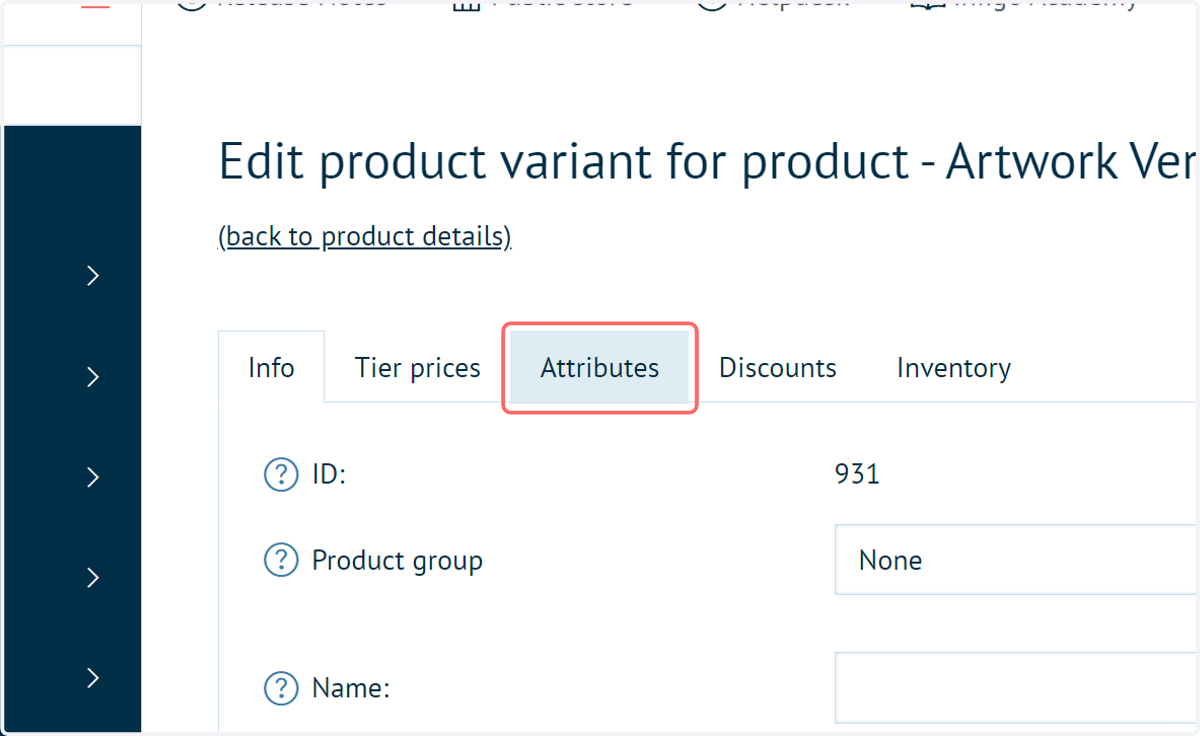
6. Click on Attributes
Remember, you can still apply additional details to the product such as attributes.
For each product version you create as a Storefront user, these attributes will remain the same. It is only the specified artwork that will change.
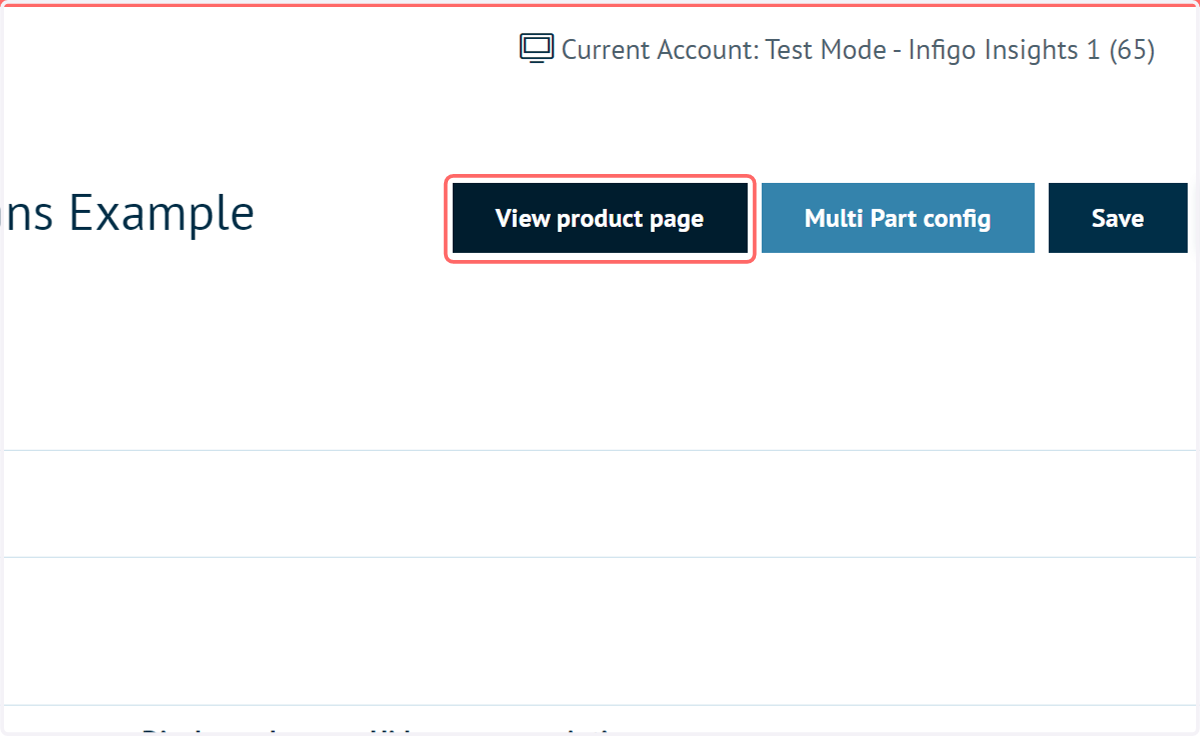
7. Click on View product page
Navigate to the front end of your Storefront to see this functionality in action.
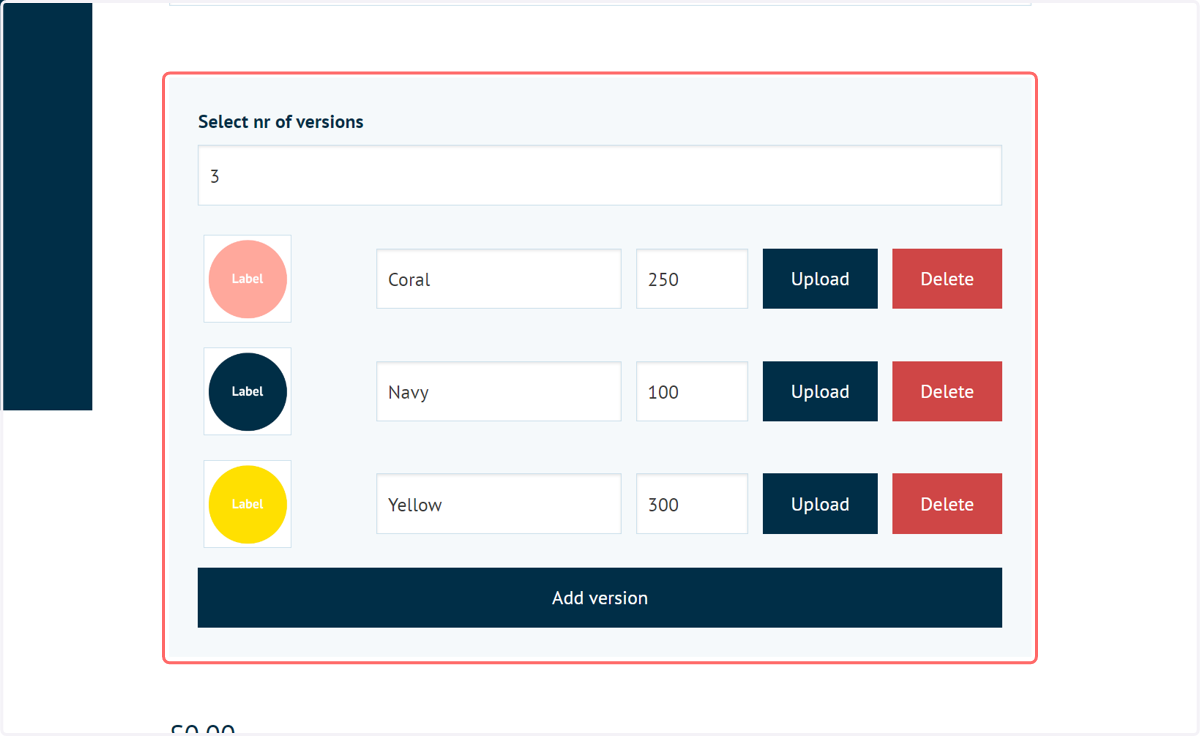
8. Type a number of versions
A box is now available on your product landing page with several additional options. First, select how many versions you wish to create. You can always add more or remove some later
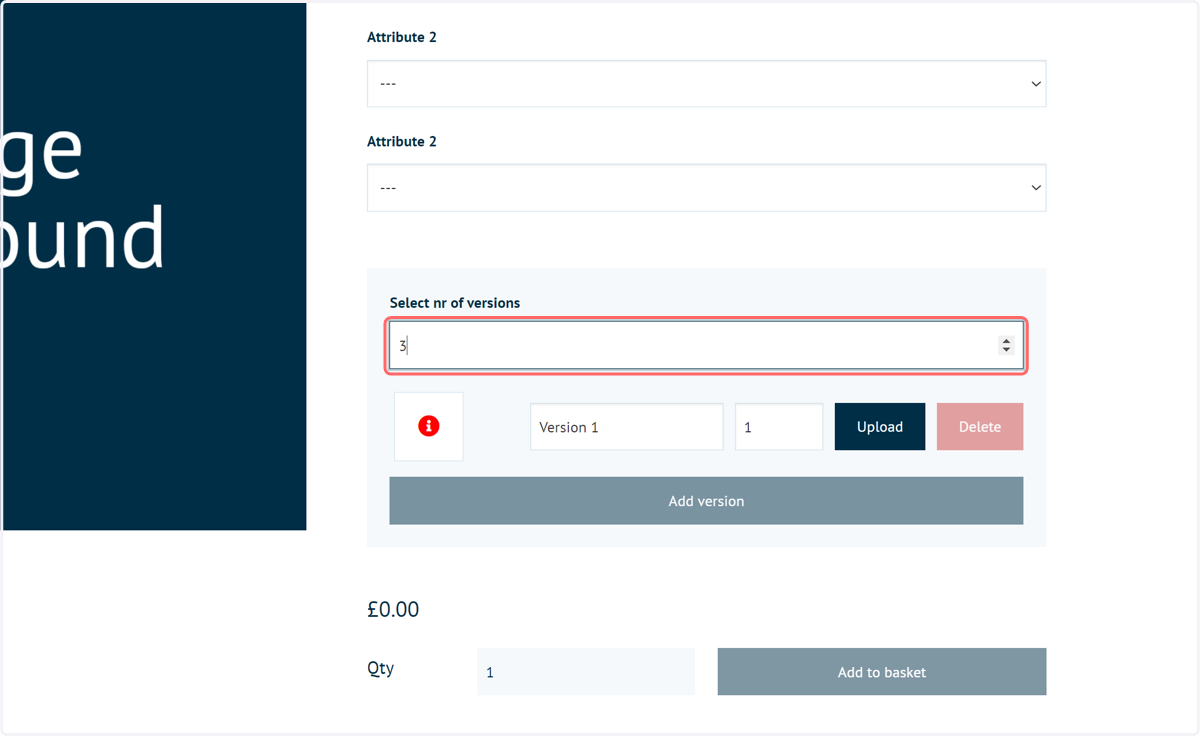
9. The new versions are created and awaiting data input
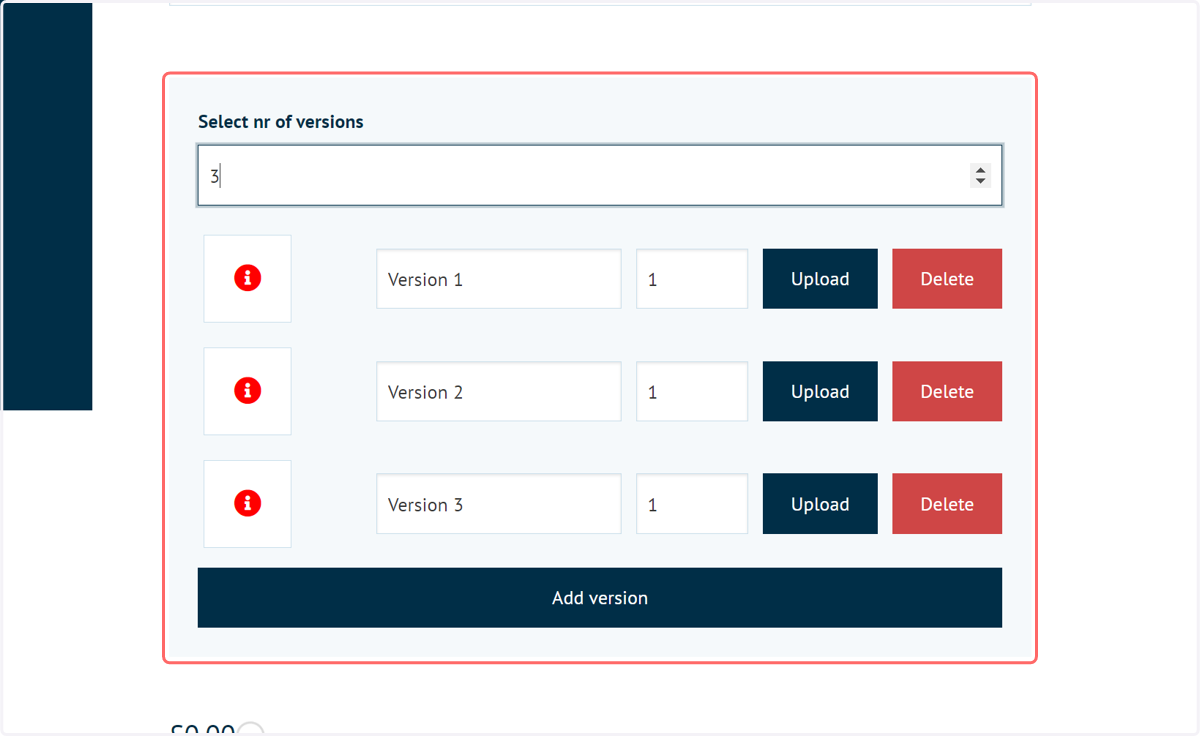
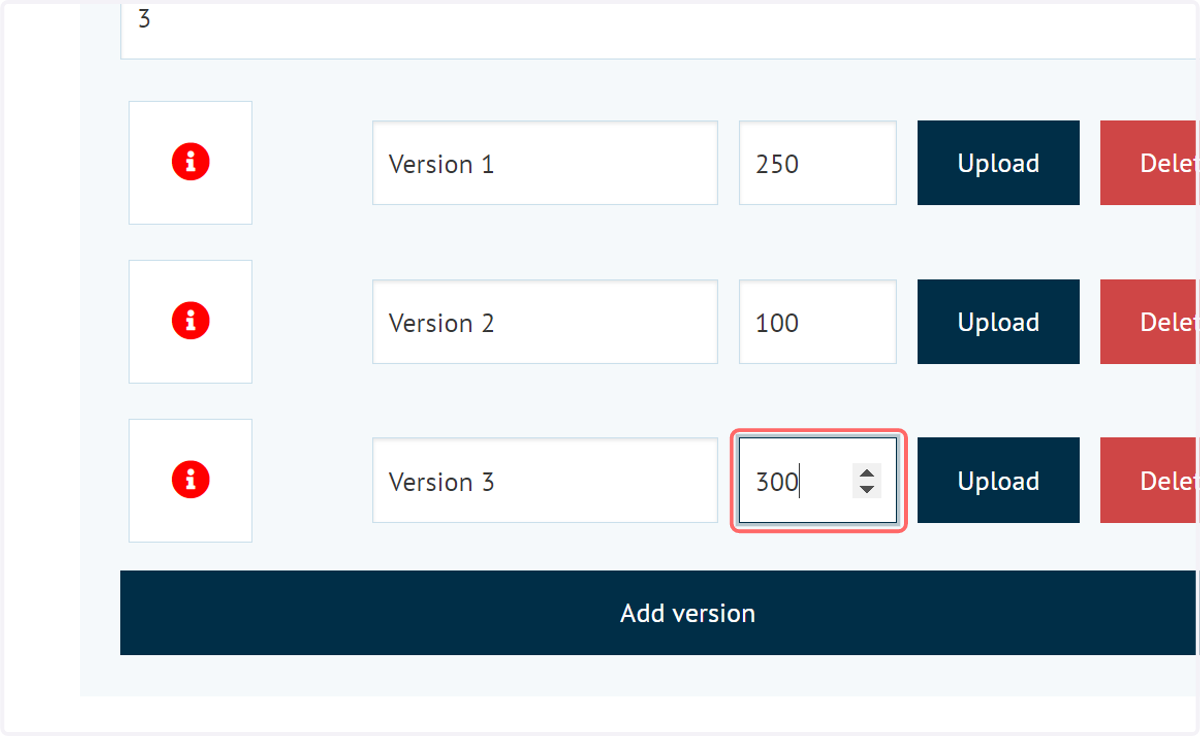
10. Input required quantities and names
Your customer can specify the quantity of each version they wish to order. In addition, a custom name can be given to each version.
11. Click on Upload
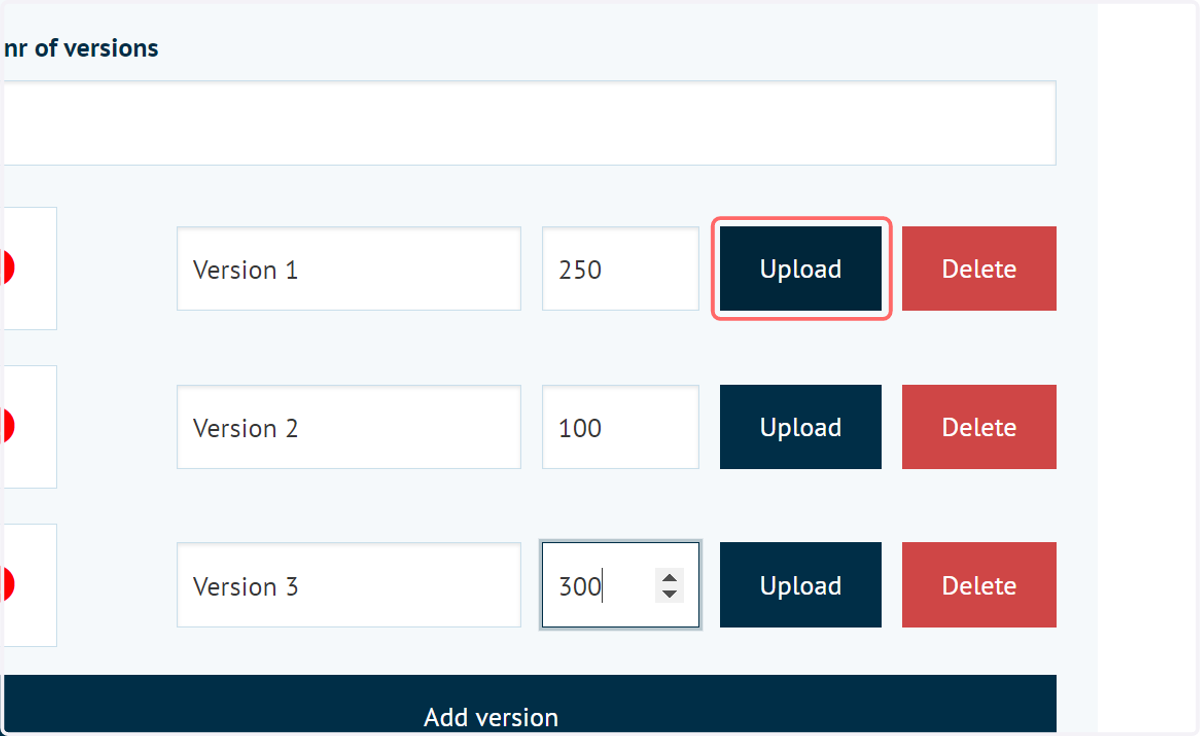
12. Versioning screen
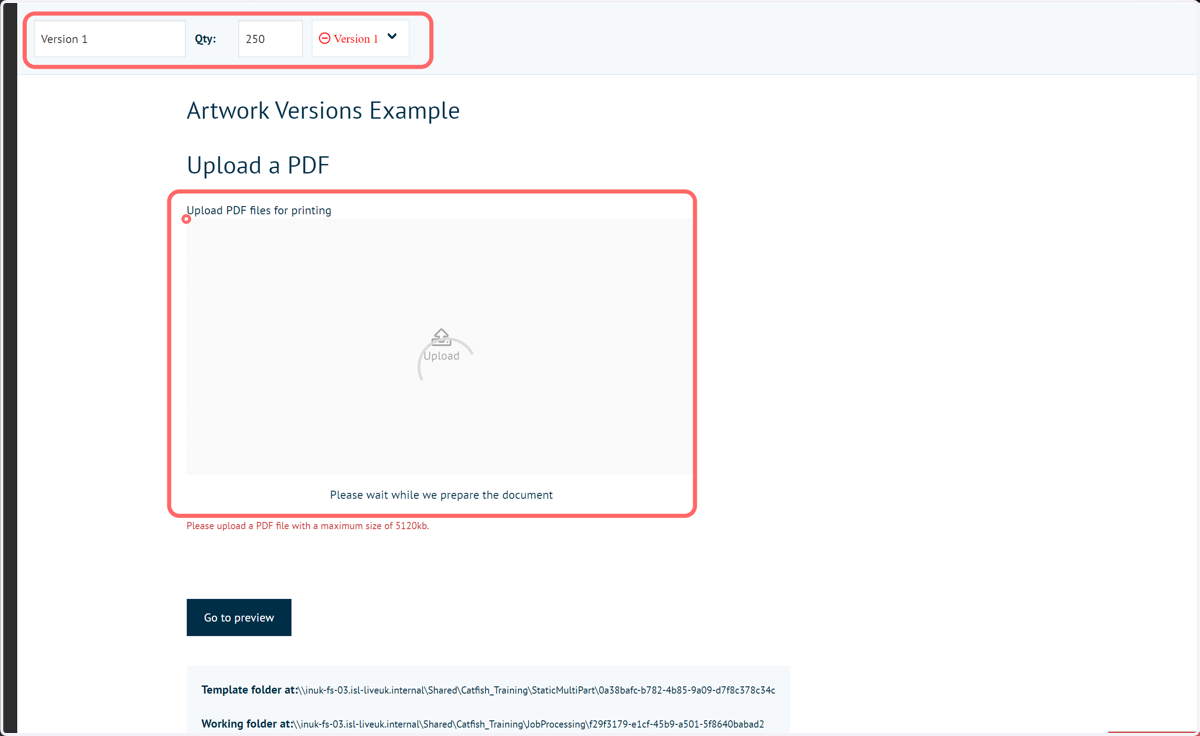
A new window will appear allowing you to specify the details for each version.
At the top of the screen, you can again modify the name and required quantity, in addition to switching between versions.
This screen also allows you to upload the required PDF for the currently selected version.
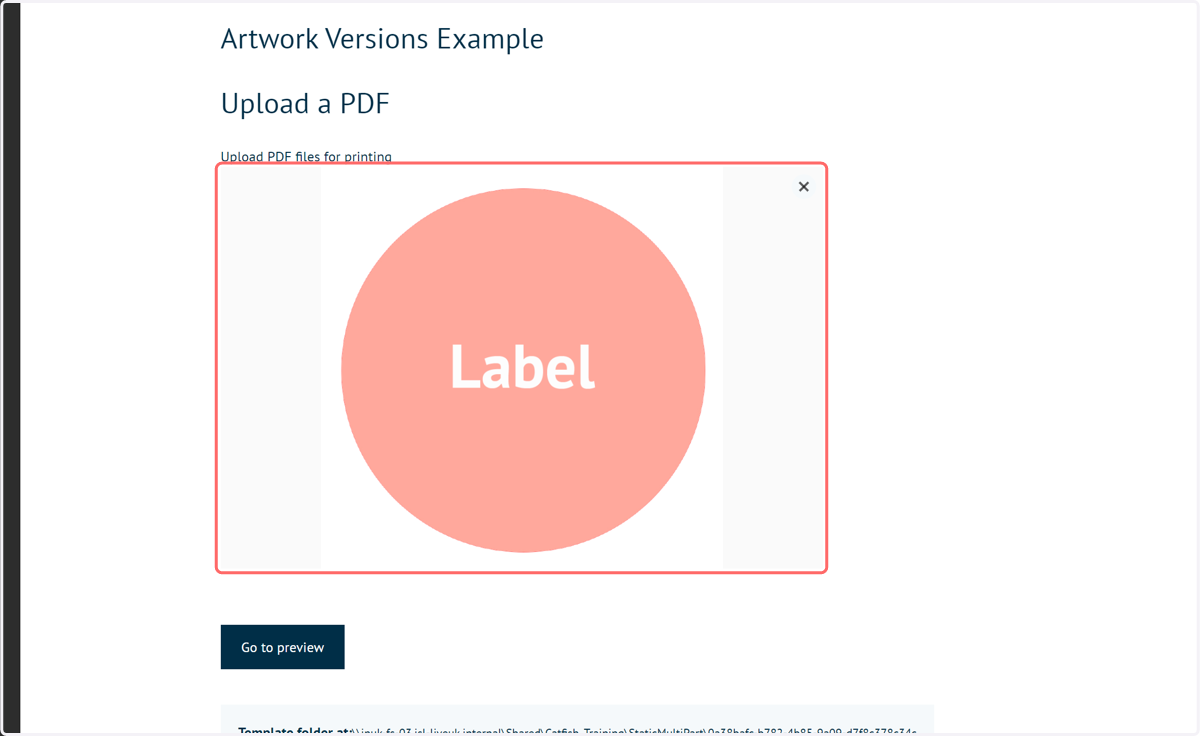
13. Uploaded artwork
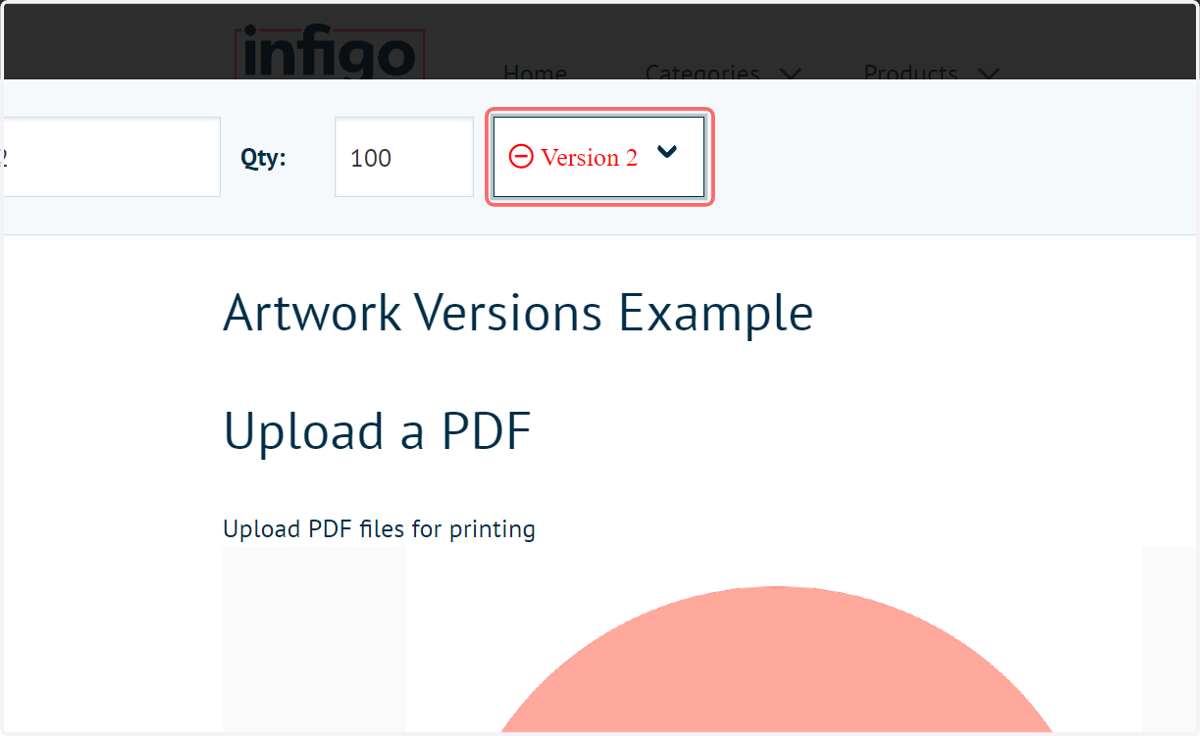
14. Switch version
Each version can have its own PDF uploaded.
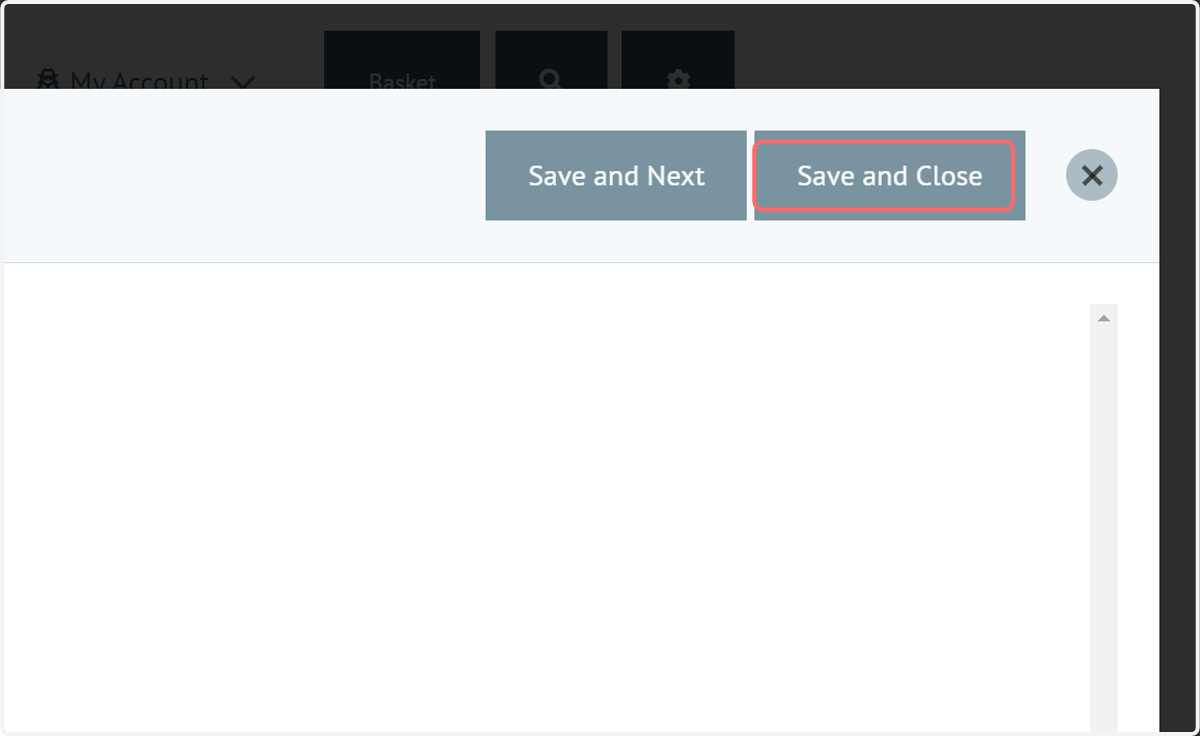
15. Click Save and Close
16. The completed versions will be displayed on the product landing page
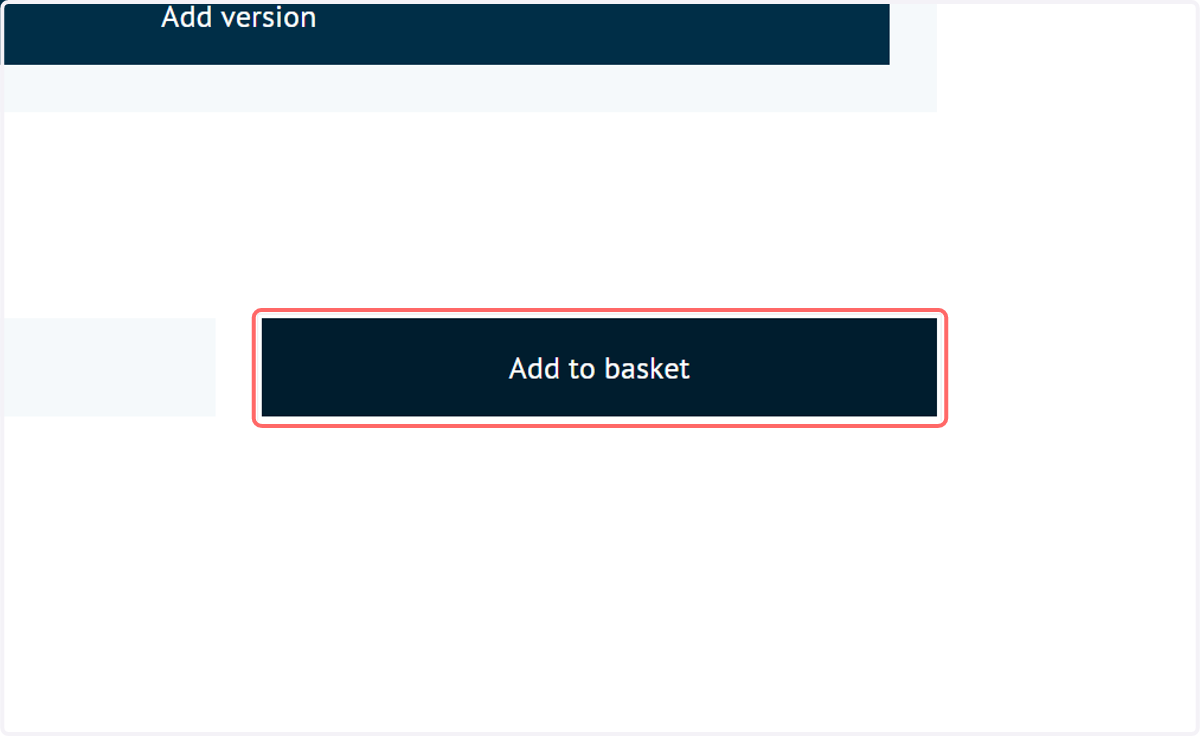
17. Click Add to Basket once the specification is complete
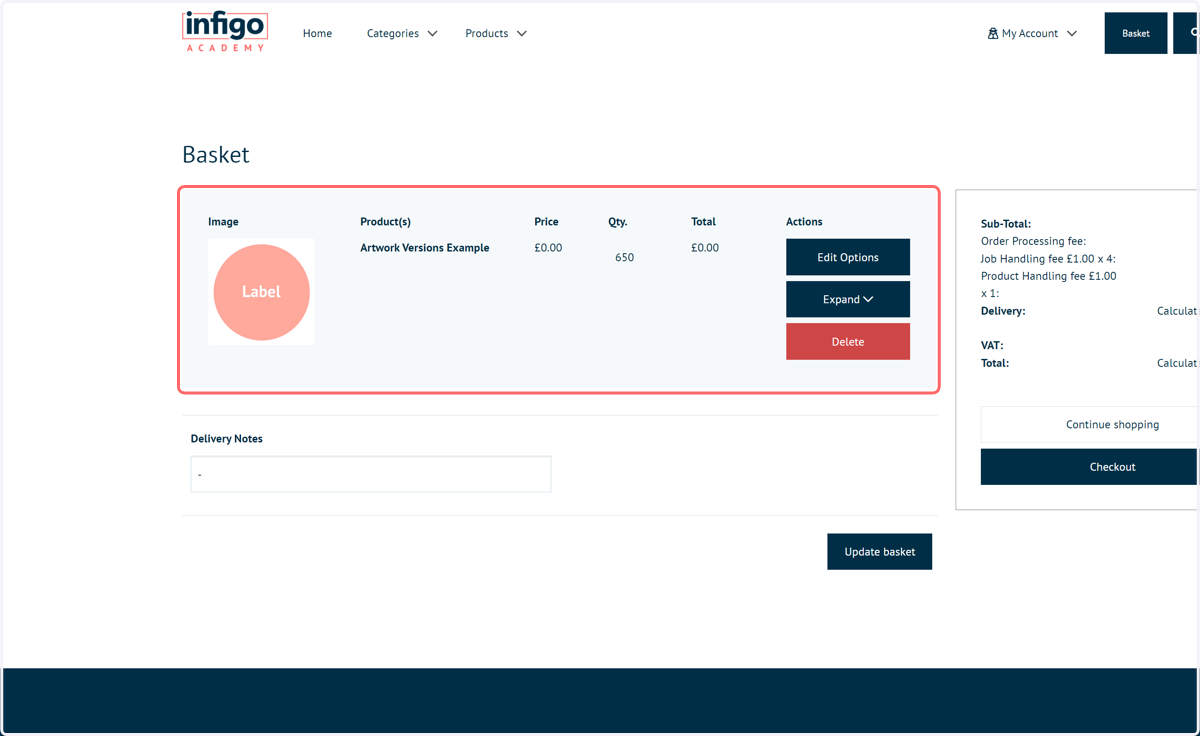
18. A summary of the product is displayed in the basket
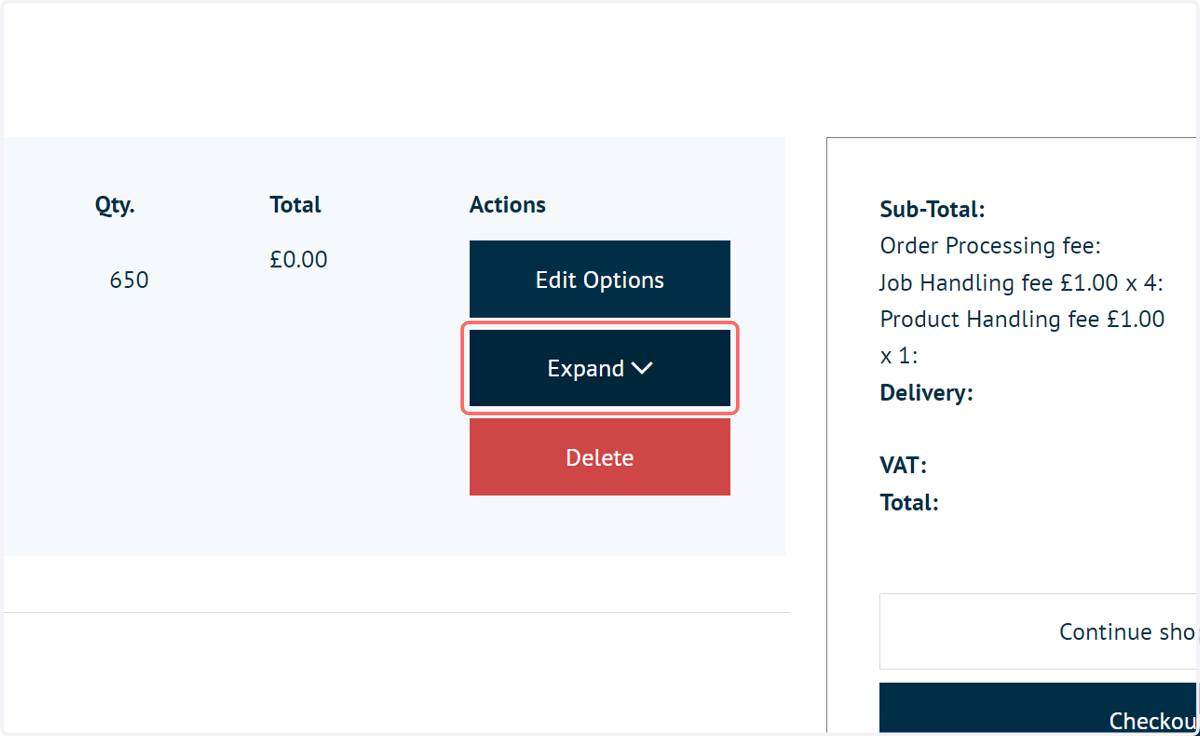
19. Click on Expand
This will show details on all of the product versions specified
20. Detail
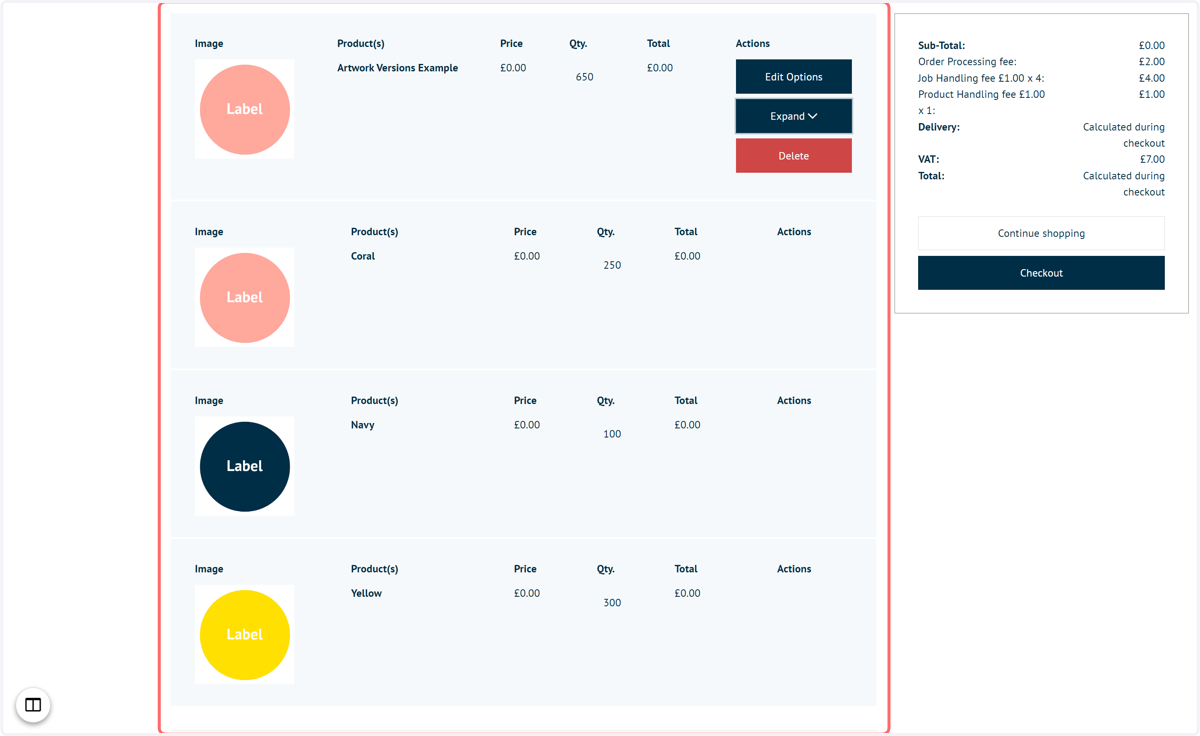
21. Proceed through the checkout process
We'll now take a look at what your customer and you as the administrator see when an order is placed in this fashion.
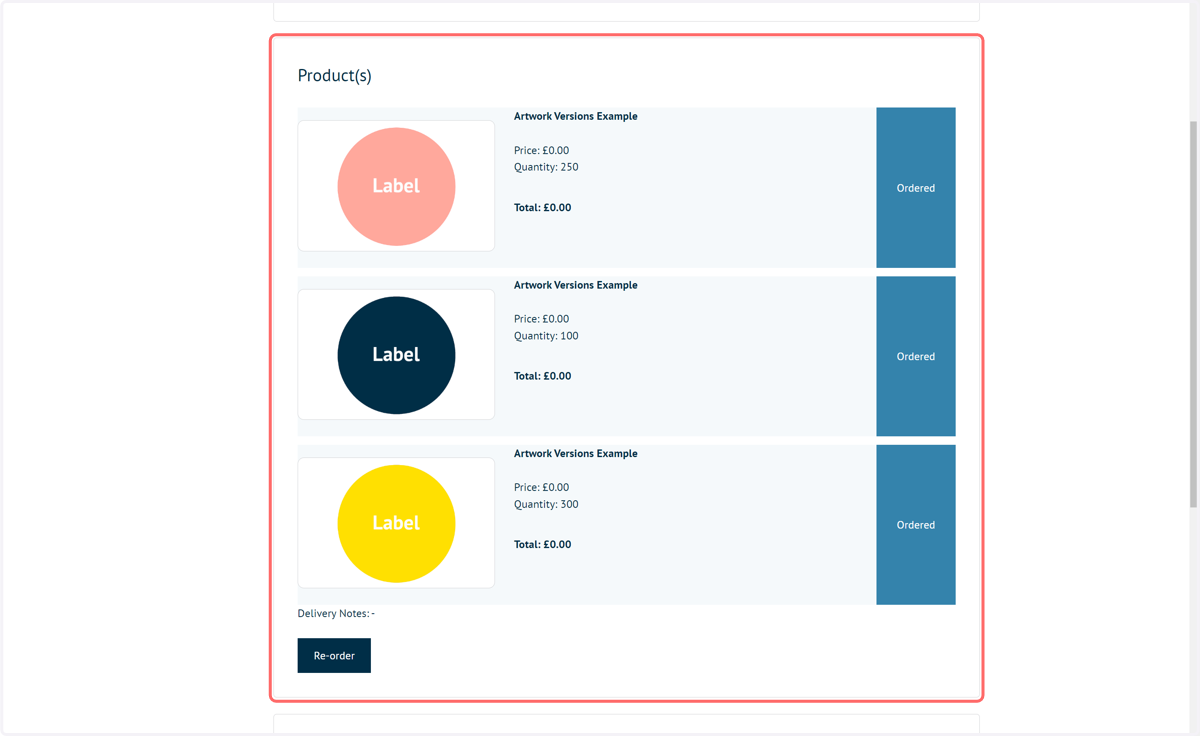
22. On their My Orders page, the customer will see each version detailed.
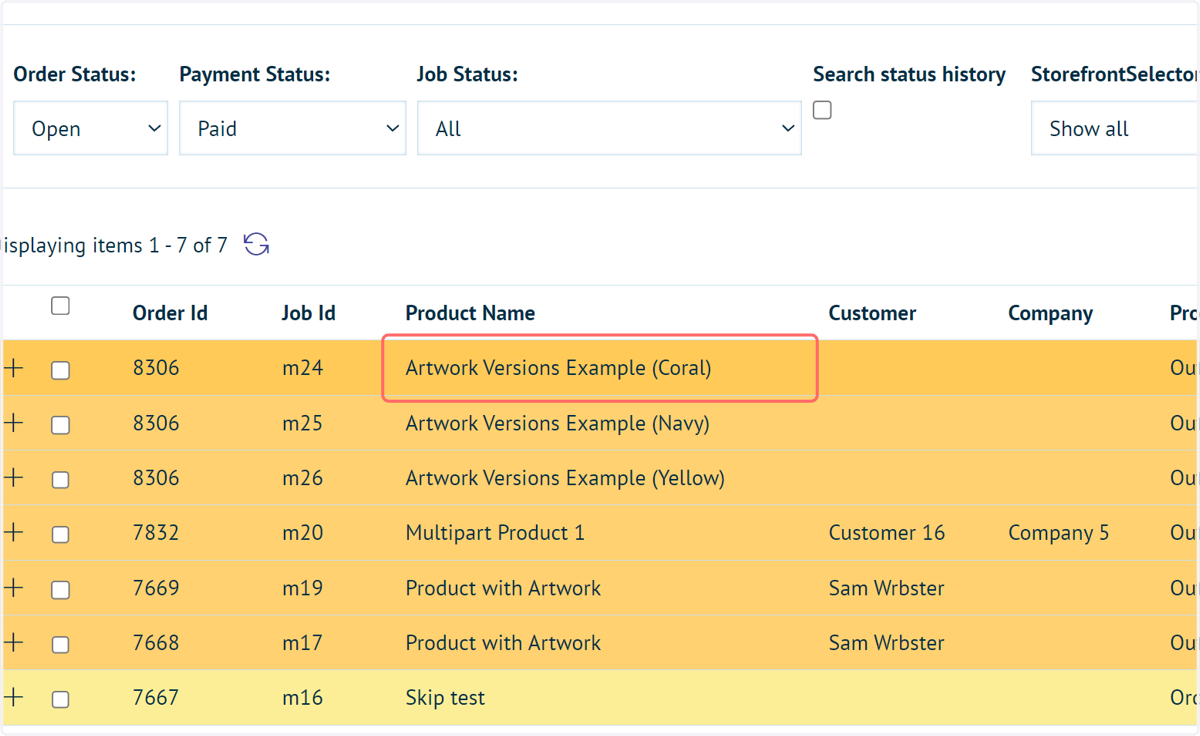
23. In SPO, the administrator will see a separate job for each version