Exporting templates with spreads using Invent | IV_020
In this tutorial, we will learn how to export Invent templates which utilise spreads.
Various configurations of page spreads are available for export from Invent, covering a range of scenarios including covers, differently sized pages and editable inside cover pages.
This guide will show you where to configure and export these templates. The associated page on the Infigo Academy portal will give you access to downloadable sample resources, showing you the different scenarios in which these page configurations can be used.
1. To begin, set up your product template as normal
This tutorial assumes you already have the ability to set up Invent templates within InDesign. This includes the specification of:
Resources
Variables
Field properties
etc
If your InDesign file utilises page spreads and you wish for this to be replicated in your MegaEdit product, there are a couple of additional steps required prior to exporting the template as a MEX file, ready for import to MegaEdit.
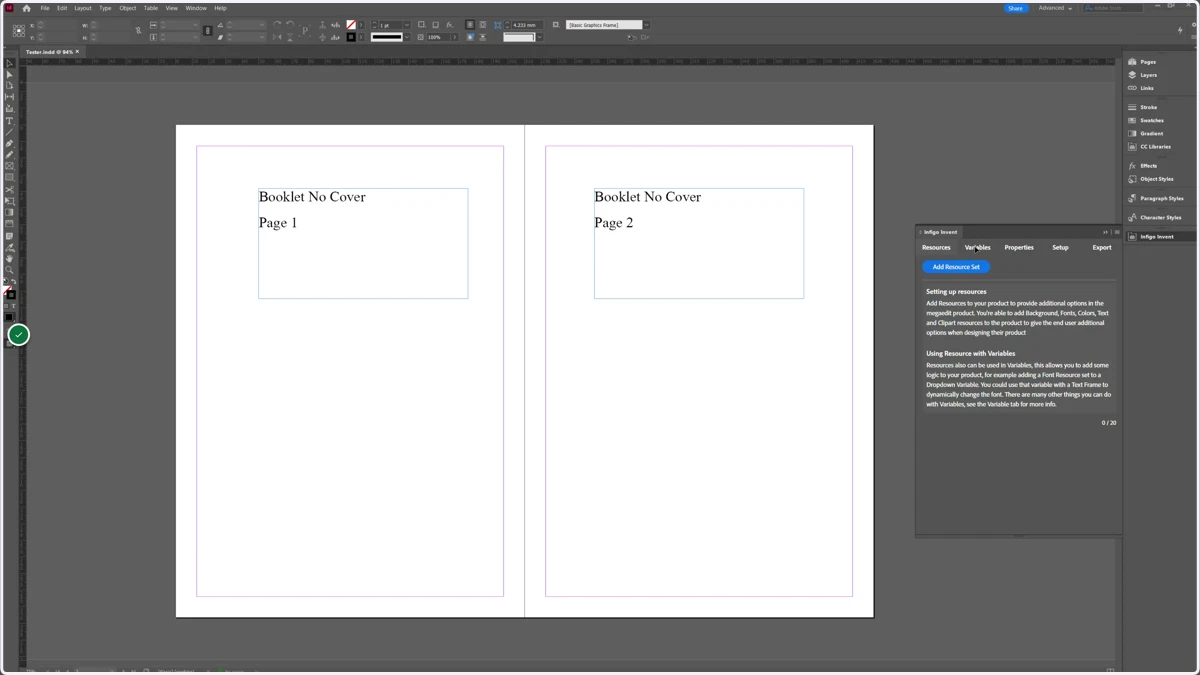
2. Navigate to the Setup tab
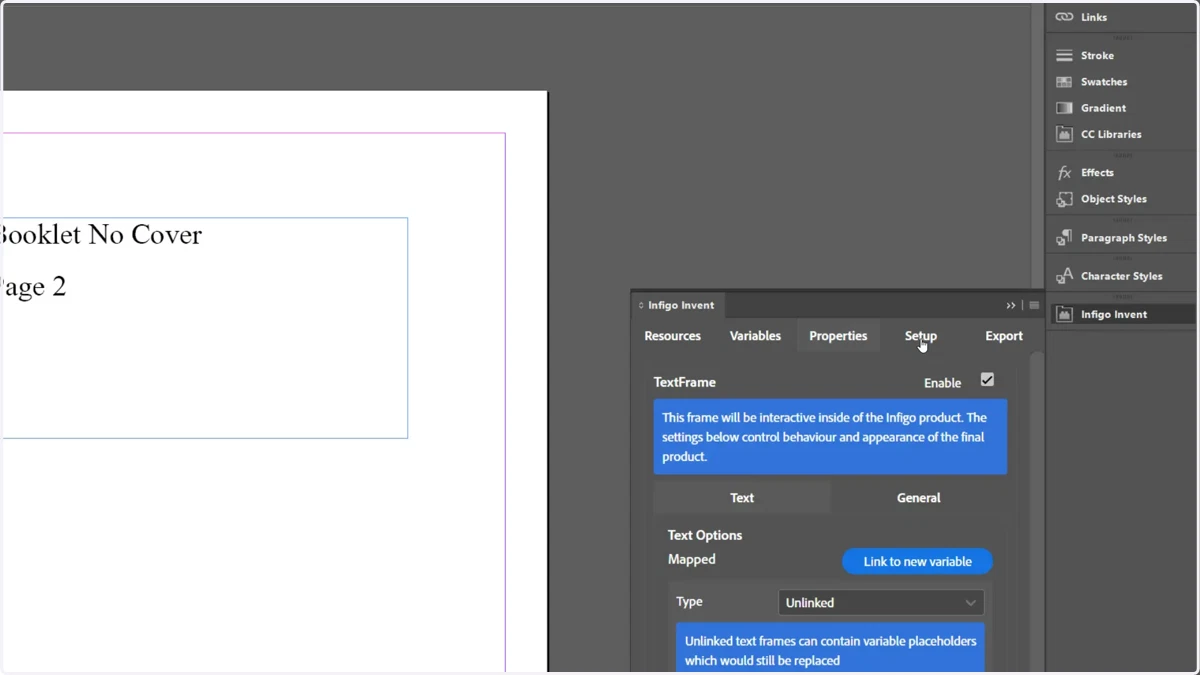
3. Navigate to the Other/MIS sub-tab
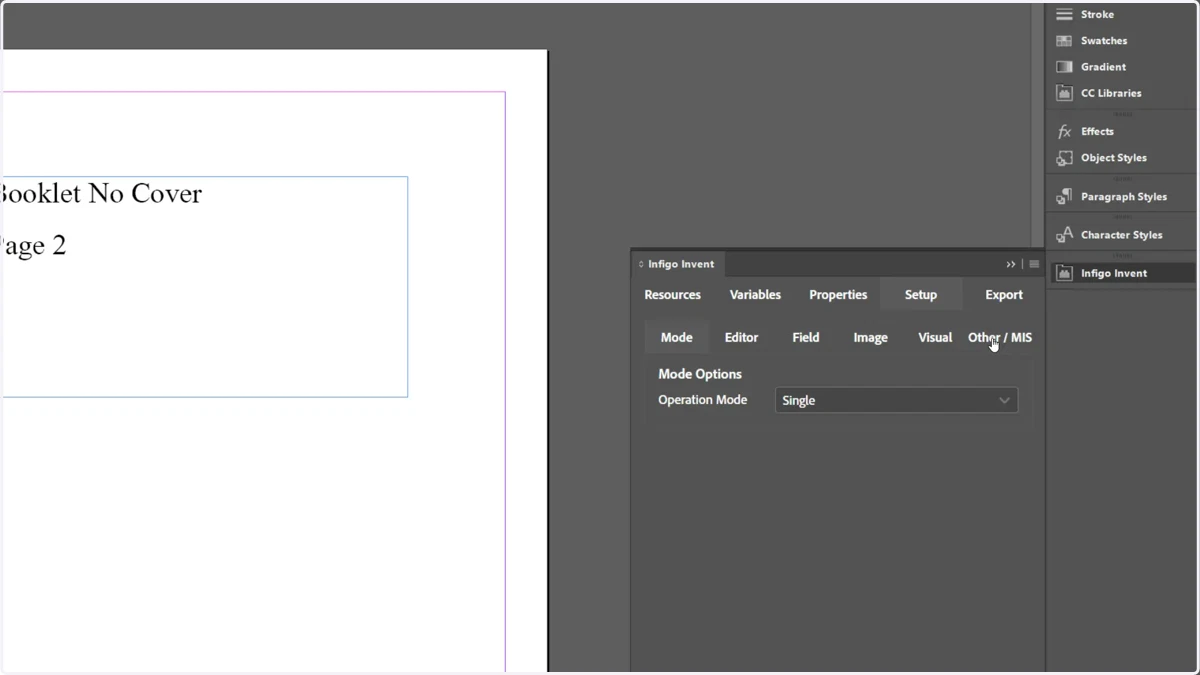
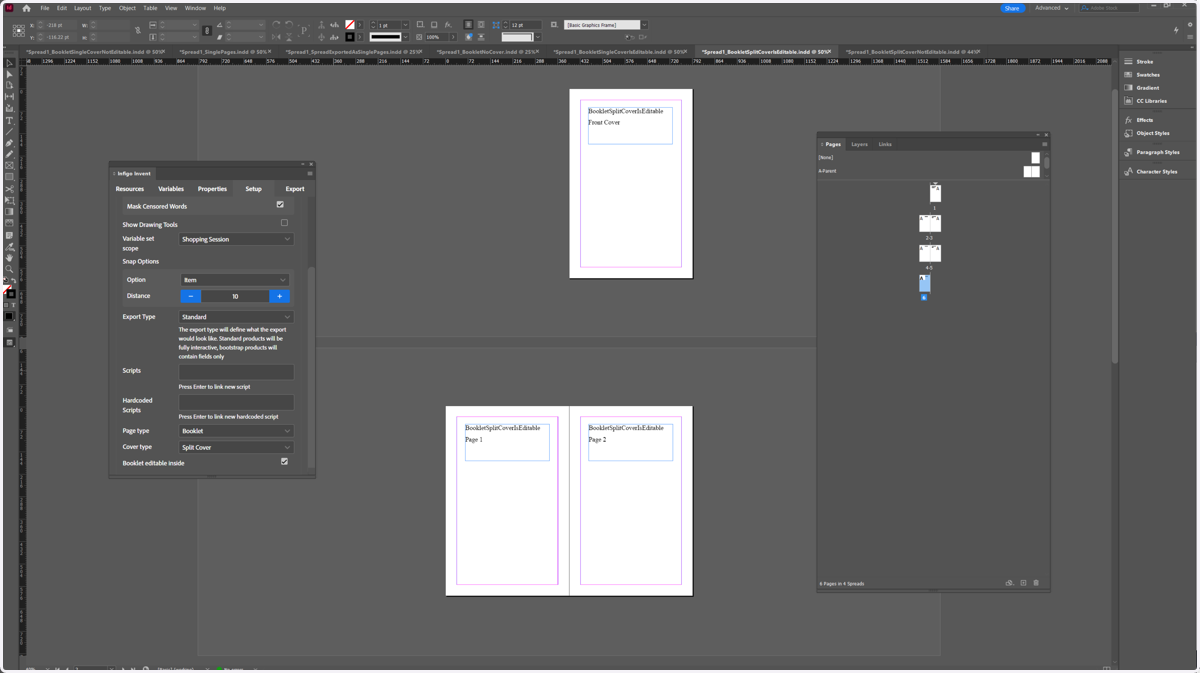
4. Locate the Page Type dropdown
This option allows you to select whether this template should be exported as a Single or Booklet format. This controls whether spreads are desired in the exported MEX file.
Even if a spread is used in the InDesign file, selecting Single under the Page type dropdown will provide a template consisting of individual pages.
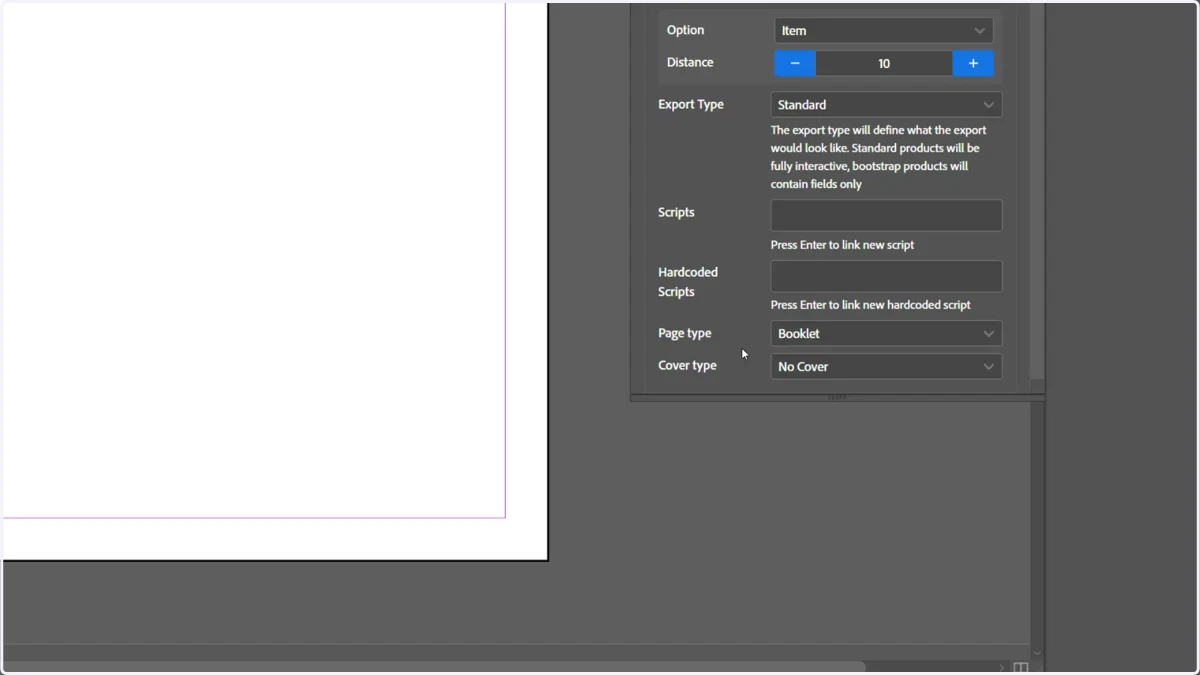
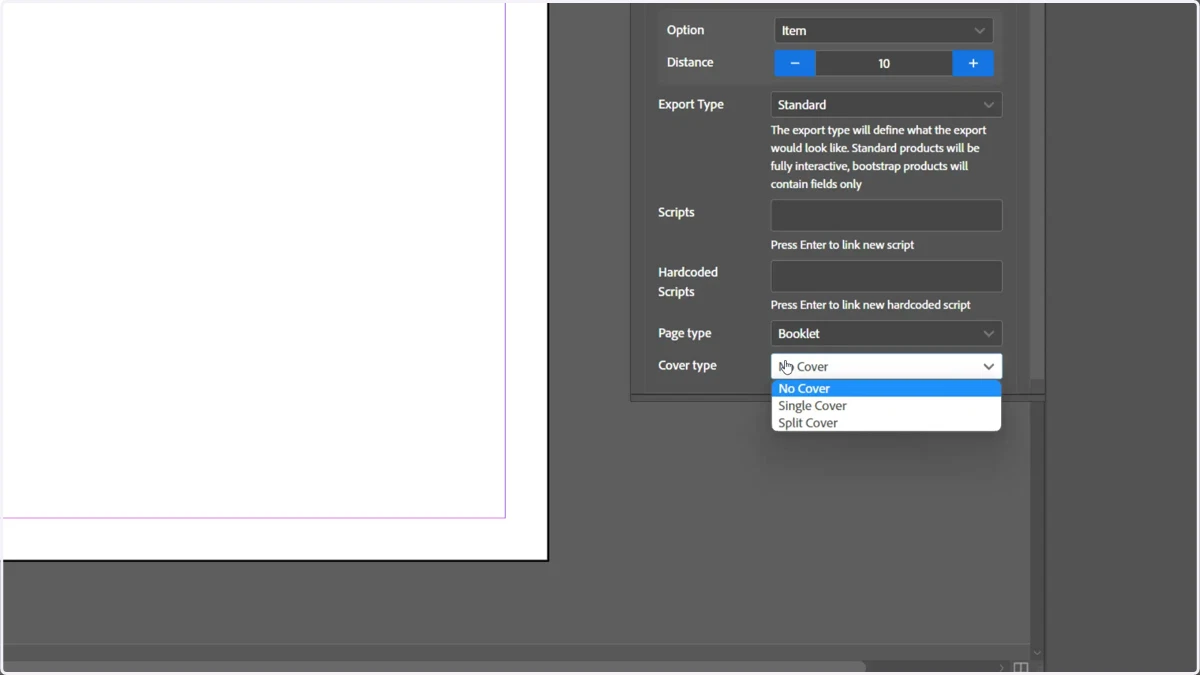
5. If a booklet is desired, configure the Cover type dropdown
You can select between:
No Cover
Single Cover | The front and rear cover handled by a single spread
Split Cover | The front and rear cover handled by separate pages at either end of the document
For some selections, you will be prompted to confirm whether you wish for the inside pages of the cover to be editable.
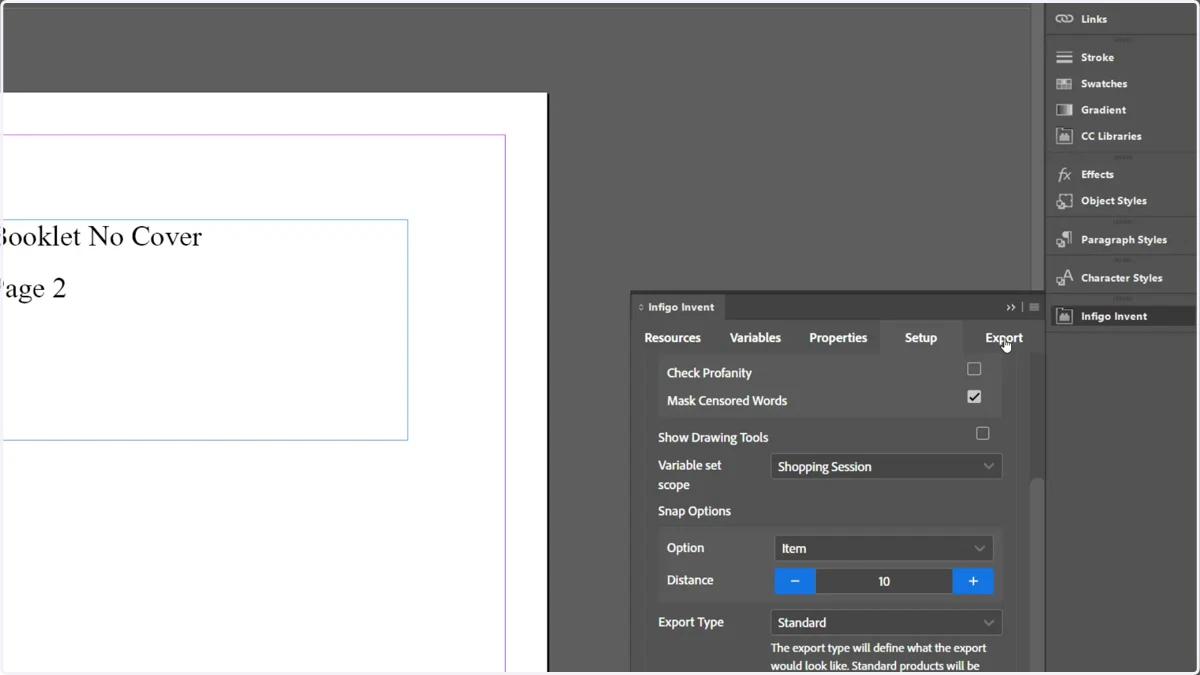
6. When ready, proceed to the Export tab and export the MEX template as normal
There are some additional validation checks carried out when spreads are to be utilised. When attempting to export the MEX, you may see additional messages prompting you to alter the layout or configuration.
The sample templates attached to the Infigo Academy Portal entry for this topic should provide you with an understanding of the different configurations.
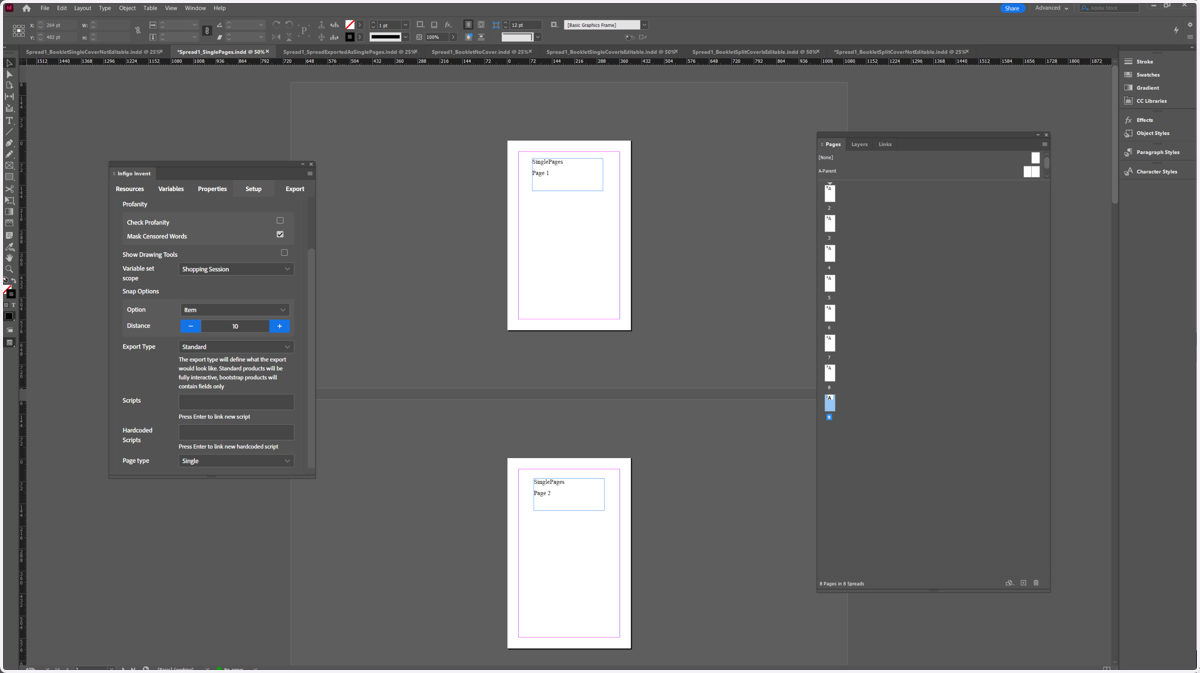
7. Sample: Single Pages
8. Sample: Spread exported as Single pages
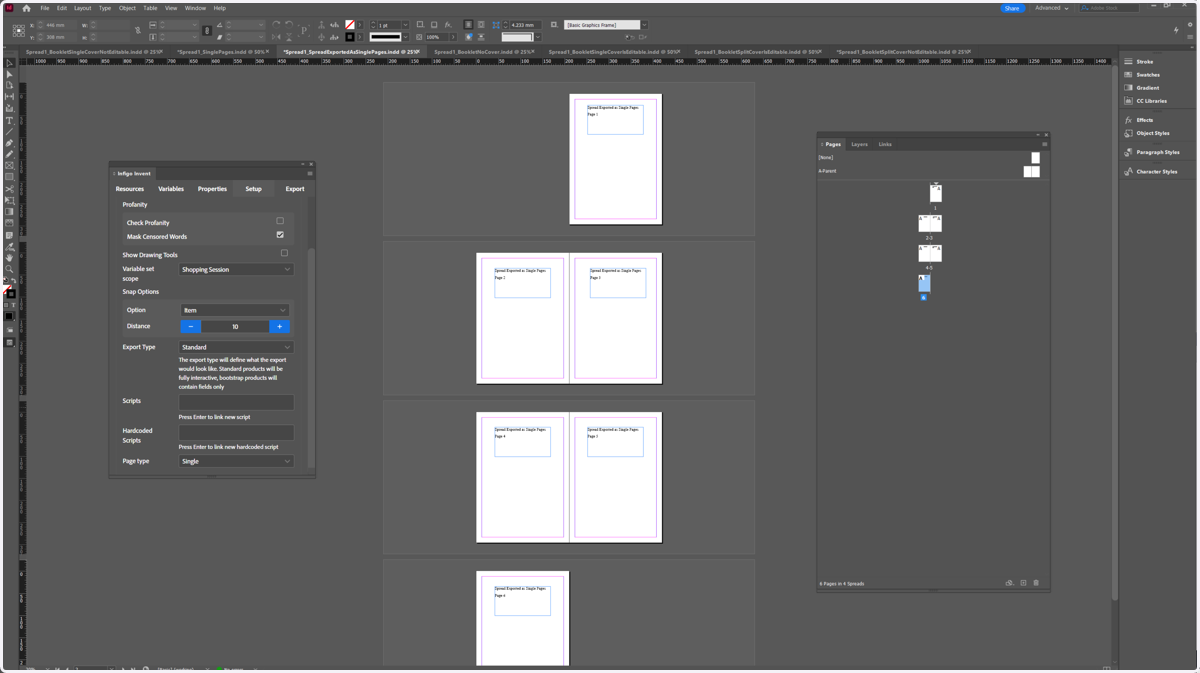
9. Sample: Booklet No Cover
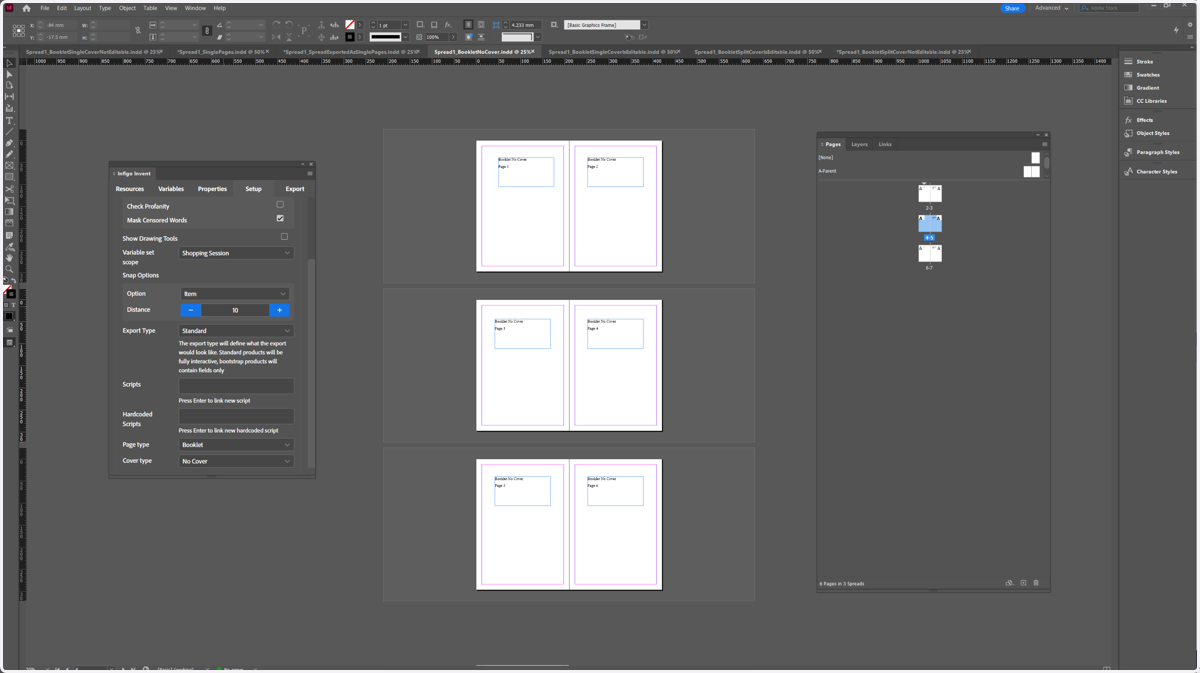
10. Sample: Booklet Single Cover (Not Editable)
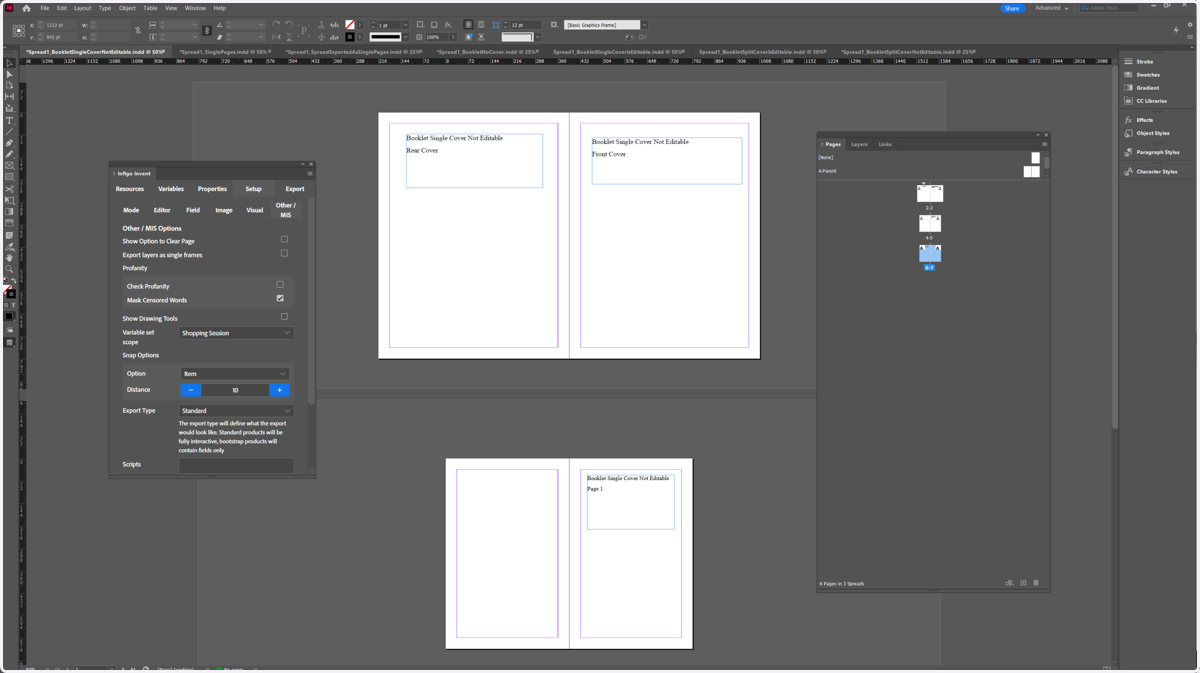
11. Sample: Booklet Single Cover (Is Editable)
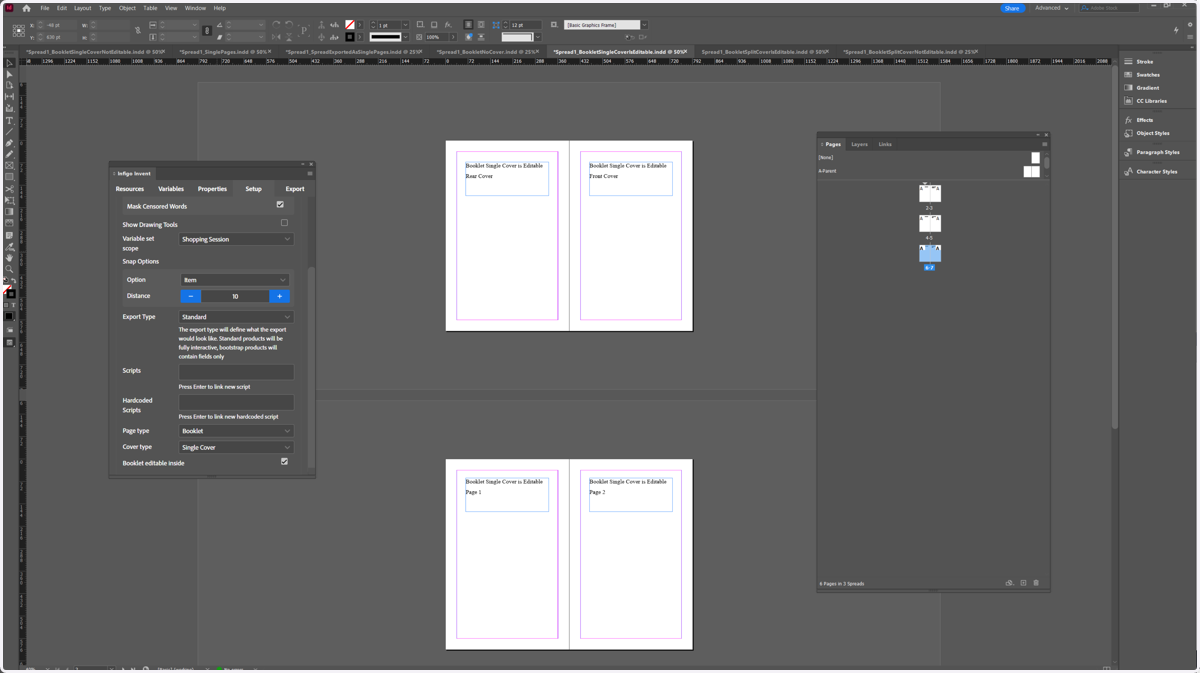
12. Sample: Booklet Split Cover (Not Editable)
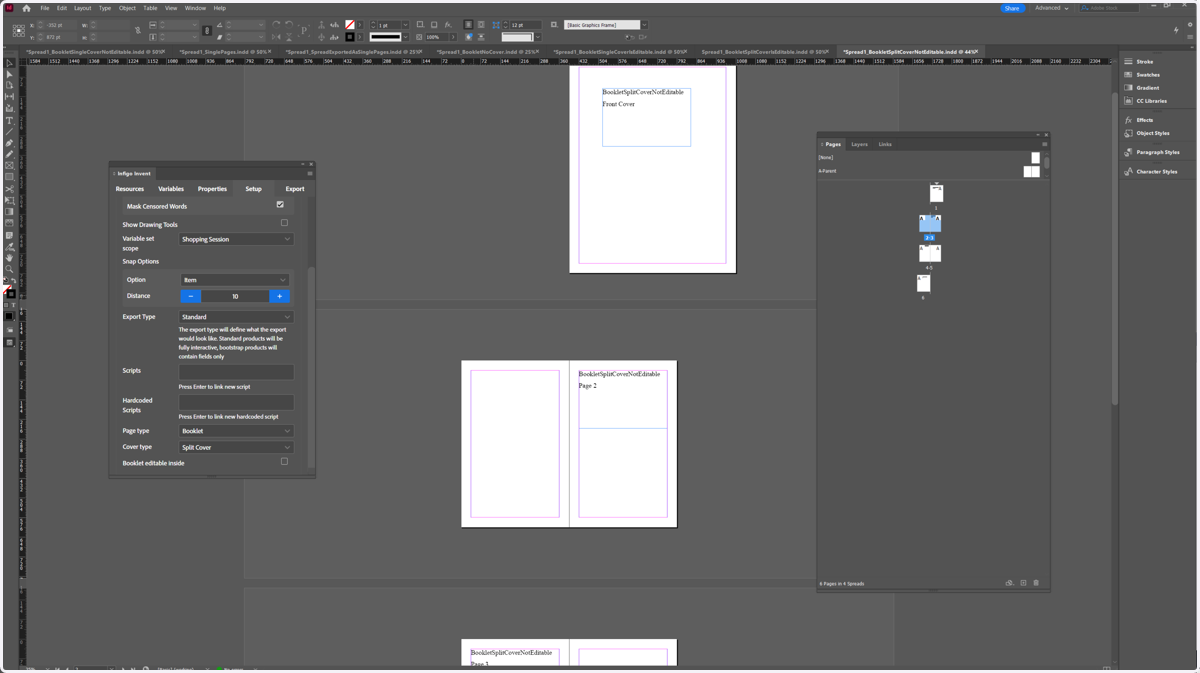
13. Booklet Split Cover (Is Editable)