Reward Points | BG_DISC_005
In this tutorial, we'll take a look at the Rewards Points capabilities of Infigo. This functionality allows you to to apply points to a customer account for various actions (such as registration and purchases). These points can then be applied to future purchases, at an exchange rate of your choosing.
Infigo Admin - Dashboard
1. Navigate to Reward Points
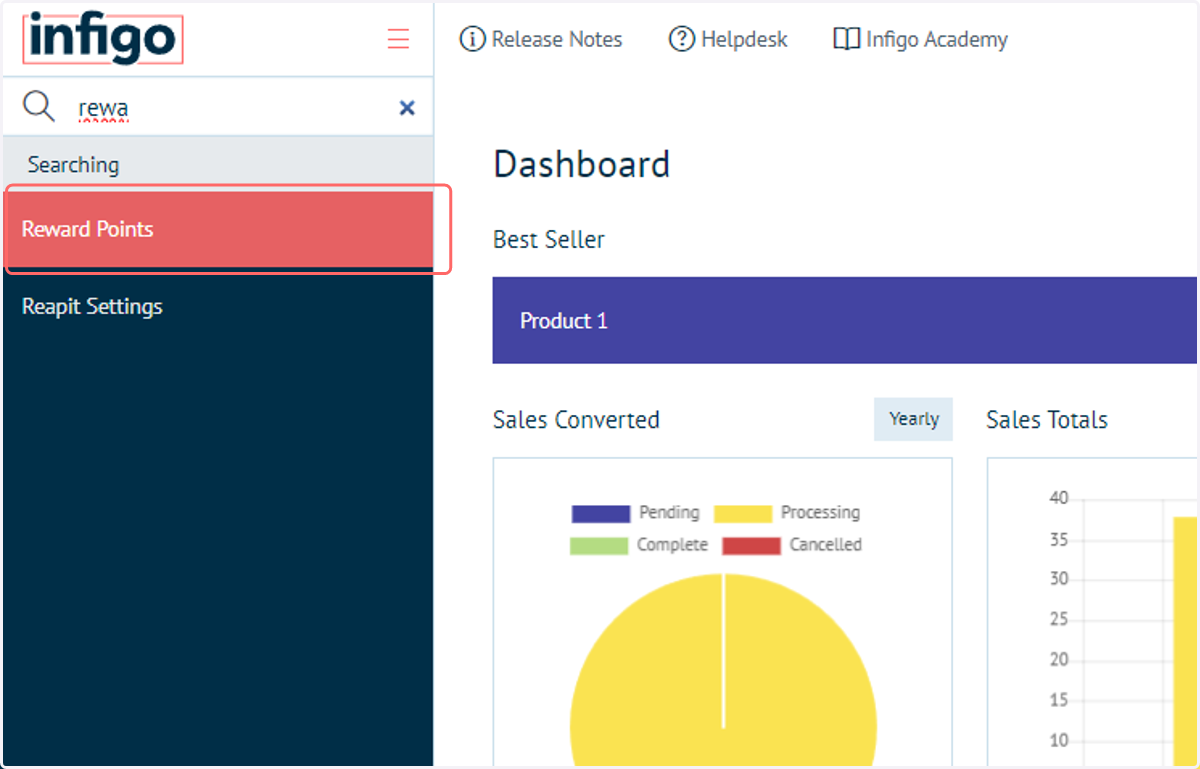
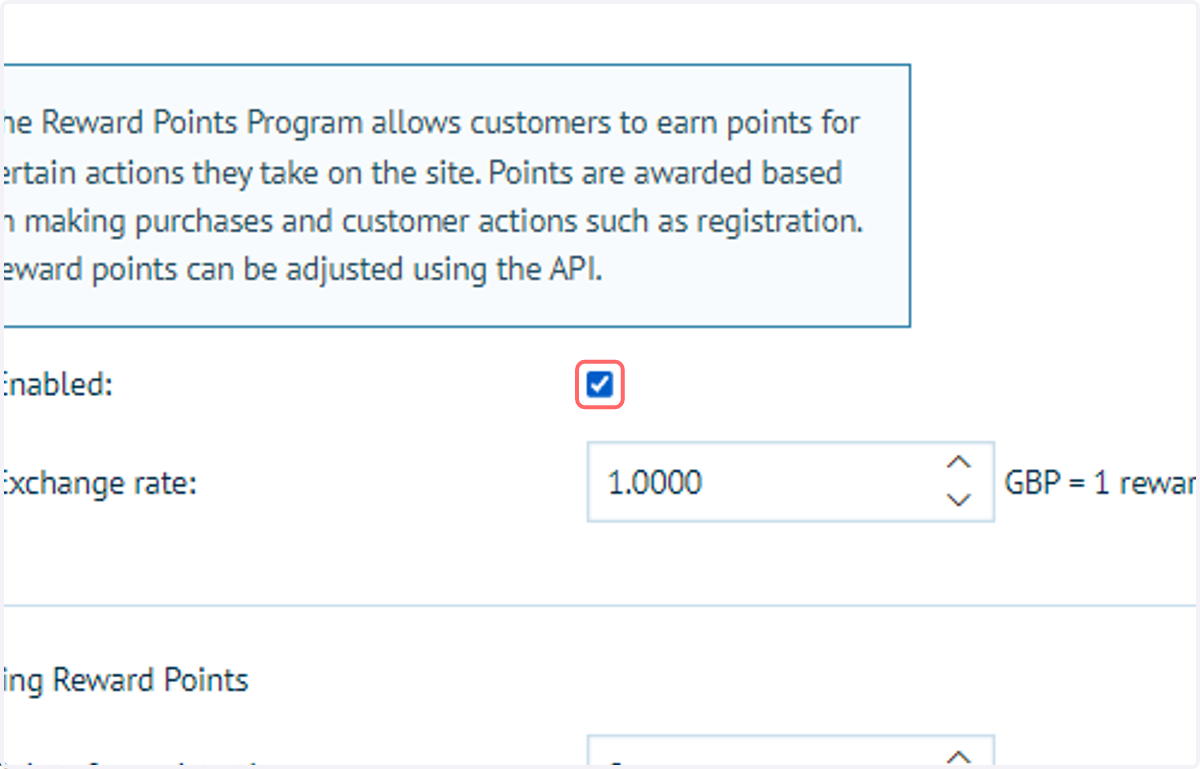
2. Check Enabled
Reward points are disabled by default, unless this check box is enabled. This will activate the use of reward points across this storefront.
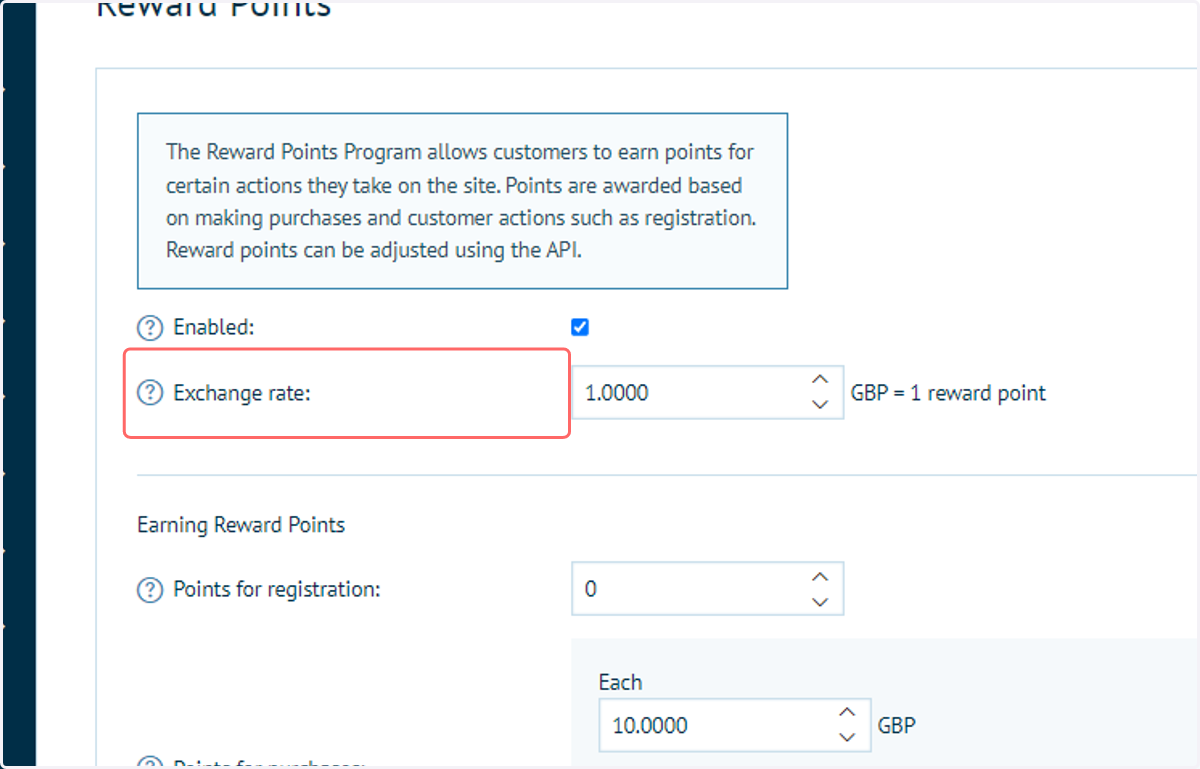
3. Enter an exchange rate
Specify how much reward points are worth in monetary value
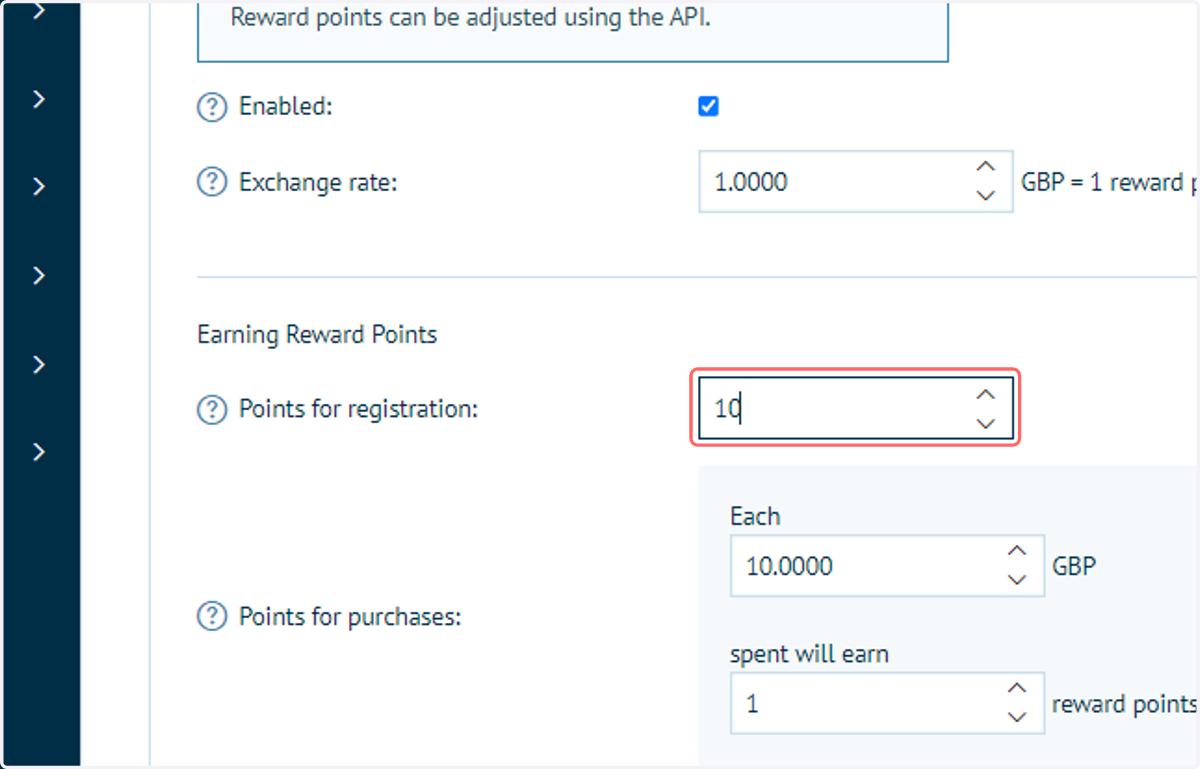
4. If required, specify how many reward points customers receive upon registering for the site
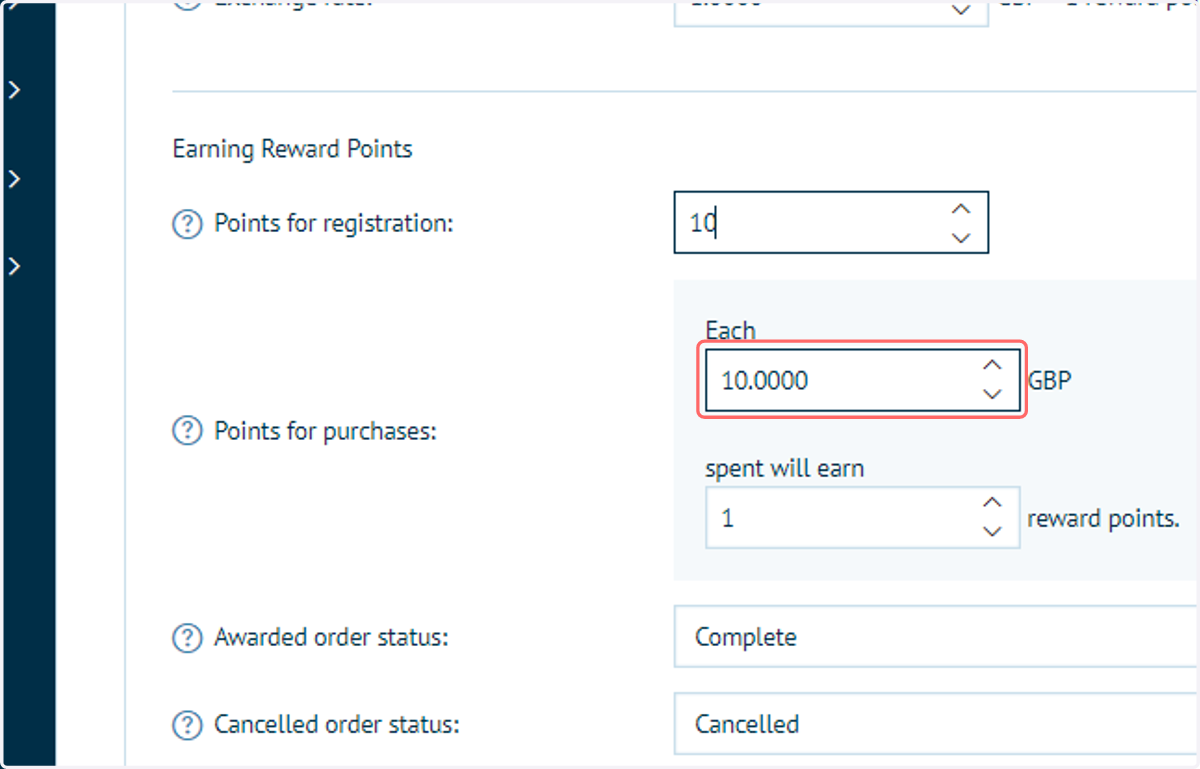
5. Specify how many reward points customers receive per set amount of spend
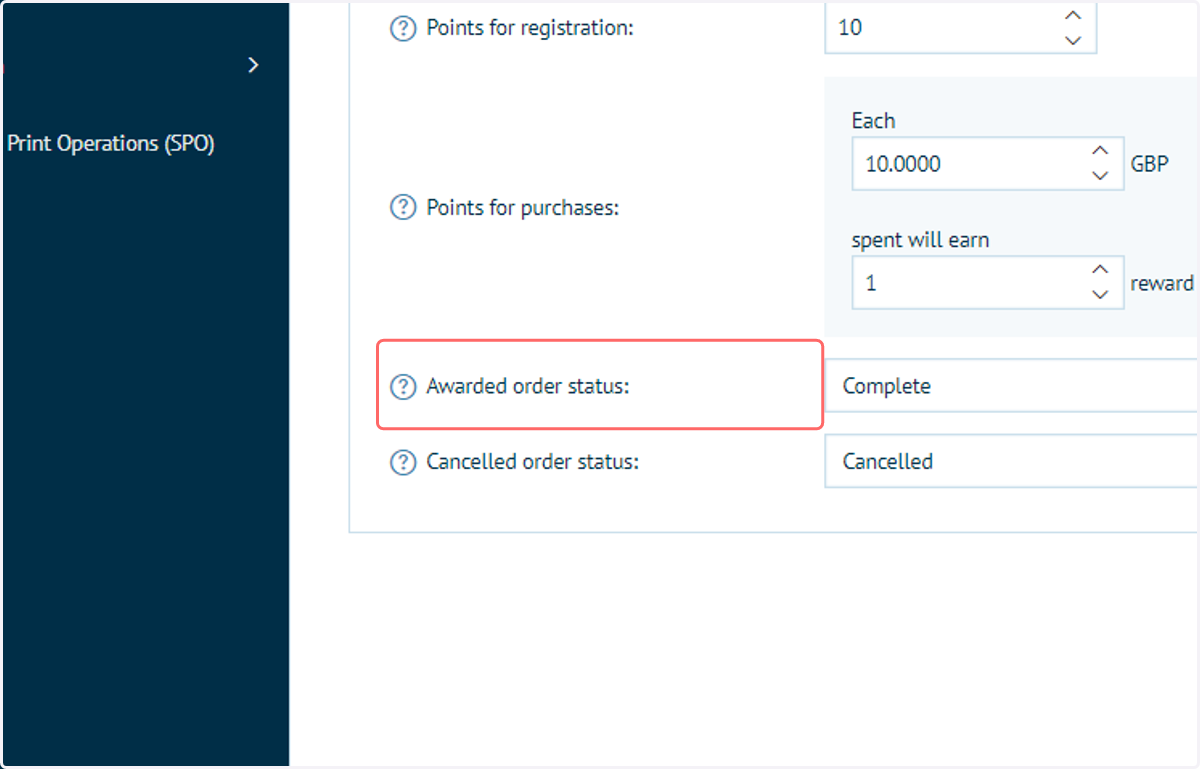
6. Specify at which point of the ordering and fulfilment process the reward points are applied to the customer account
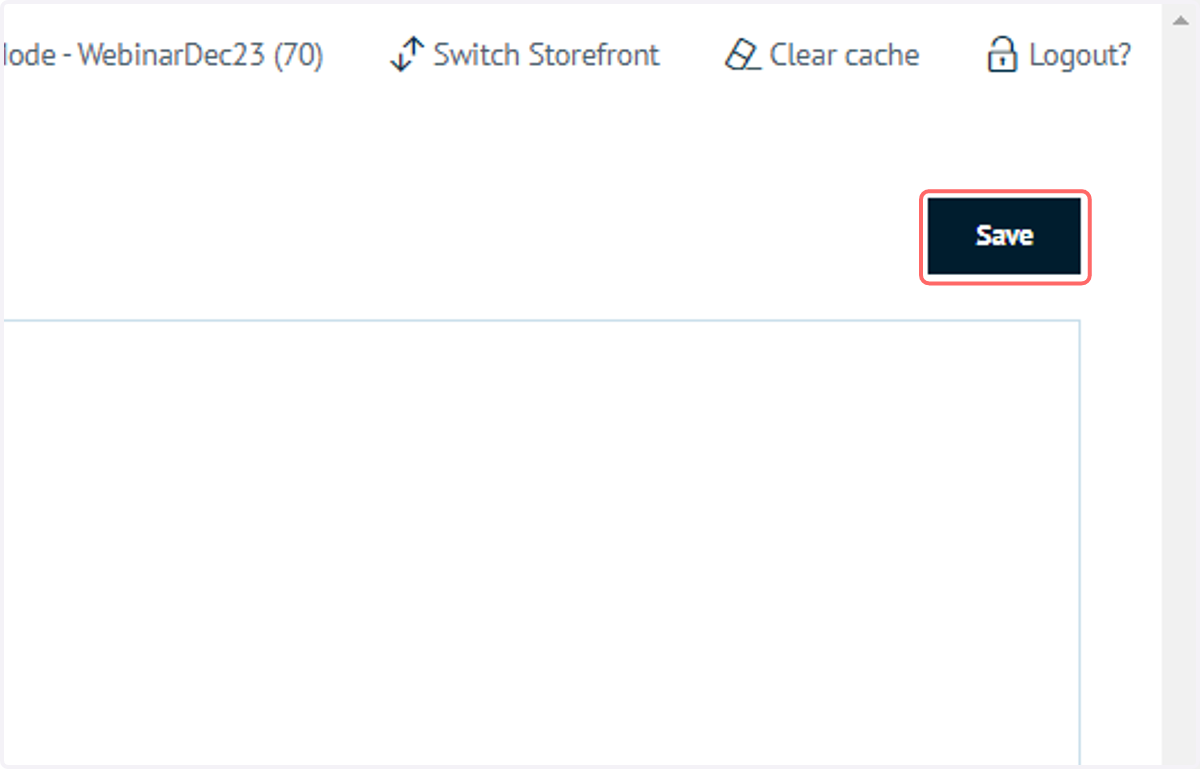
7. Click on Save
Next, we'll take a look at how to manually change the number of reward points a customer has.
8. Navigate to Customer Management
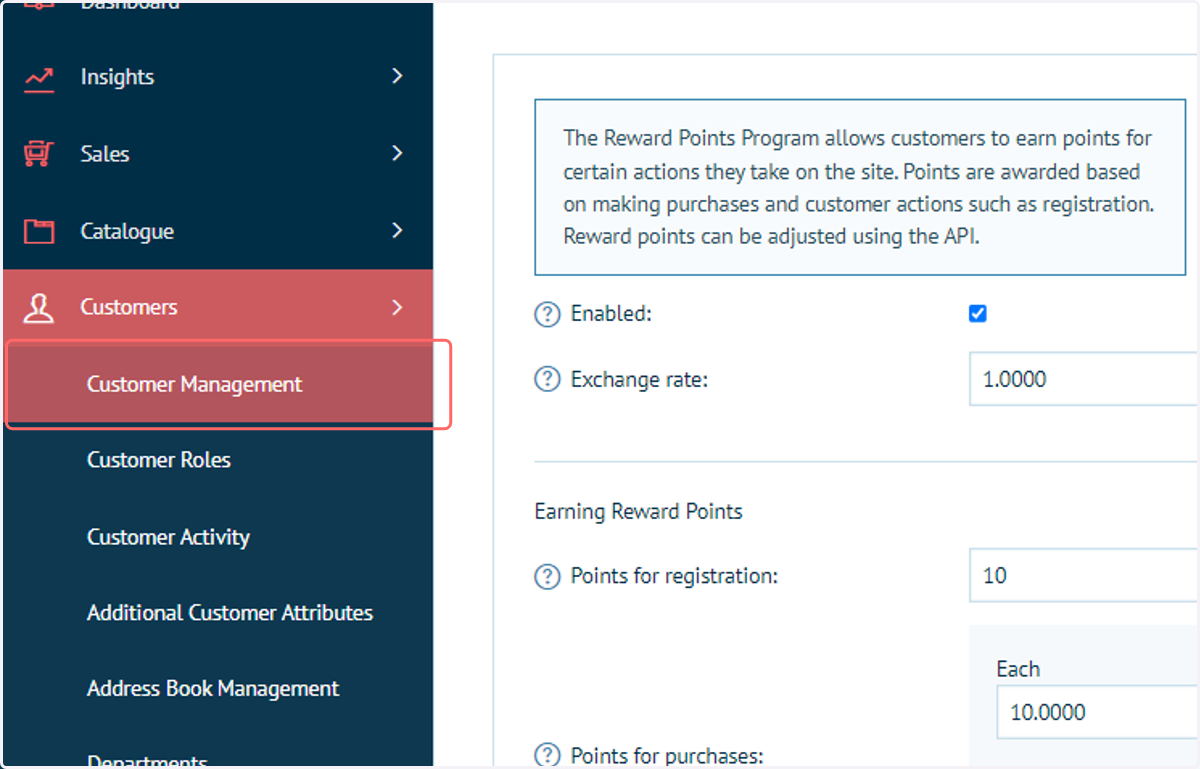
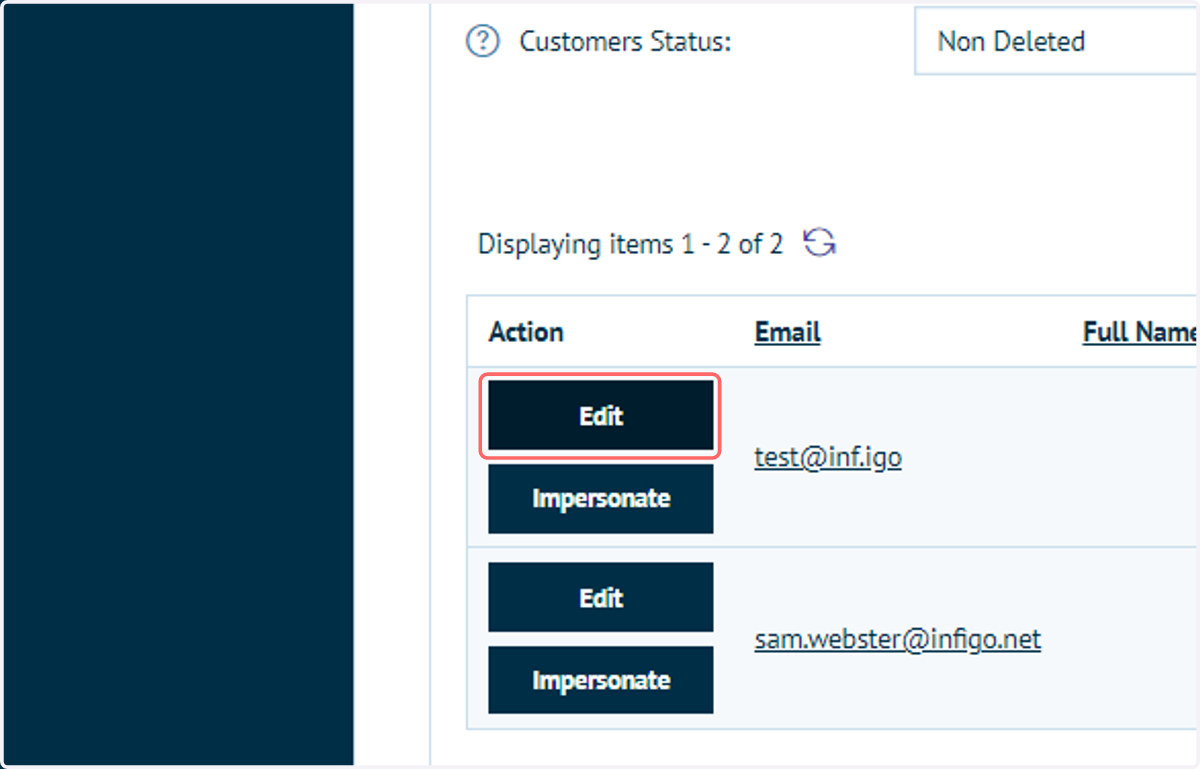
9. Click on Edit next to a Customer entry
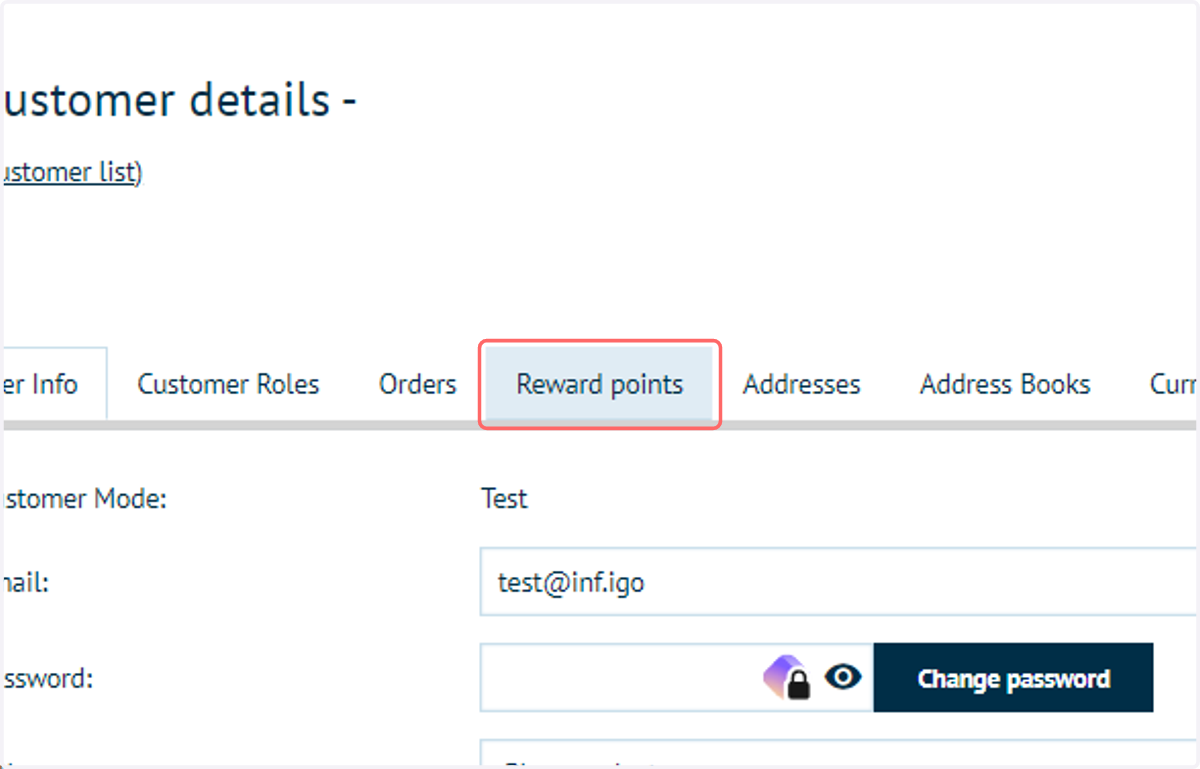
10. Click on the Reward points tab
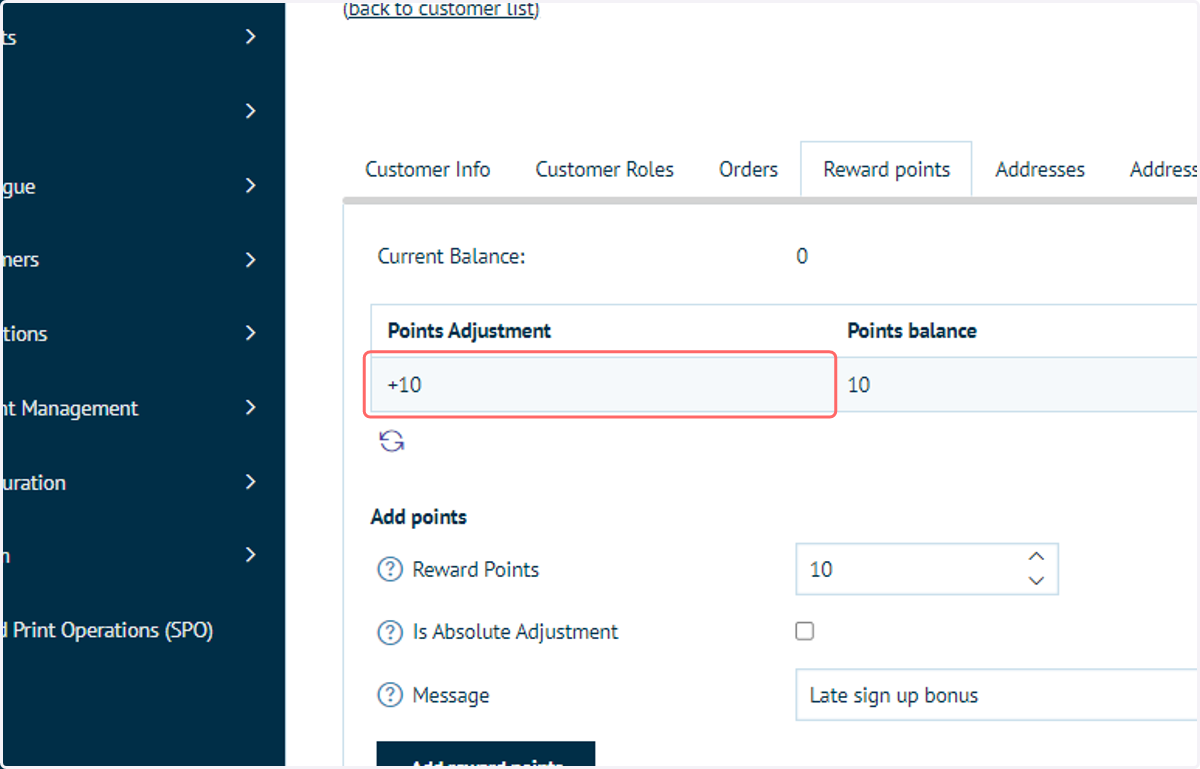
Here, you will see details on the reward points currently accumulated by that customer.
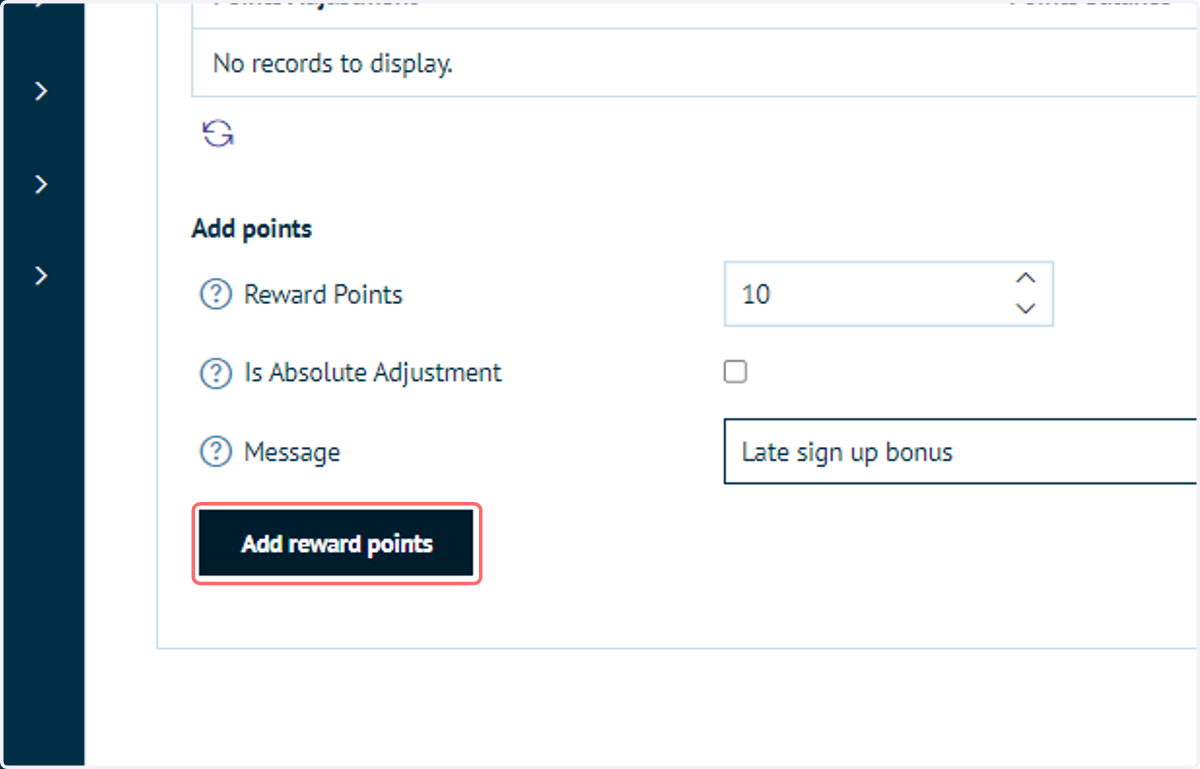
11. Manually add or modify reward points
Specify the amount of points to award. Specify whether this is an amendment to the existing points, or a replacement.
Optionally enter a message as to why these points were awarded.
Click Add reward points.
12. Details on amended reward points are displayed
Next, let's take a look at how our customers interact with and utilise their reward points in the front-end experience
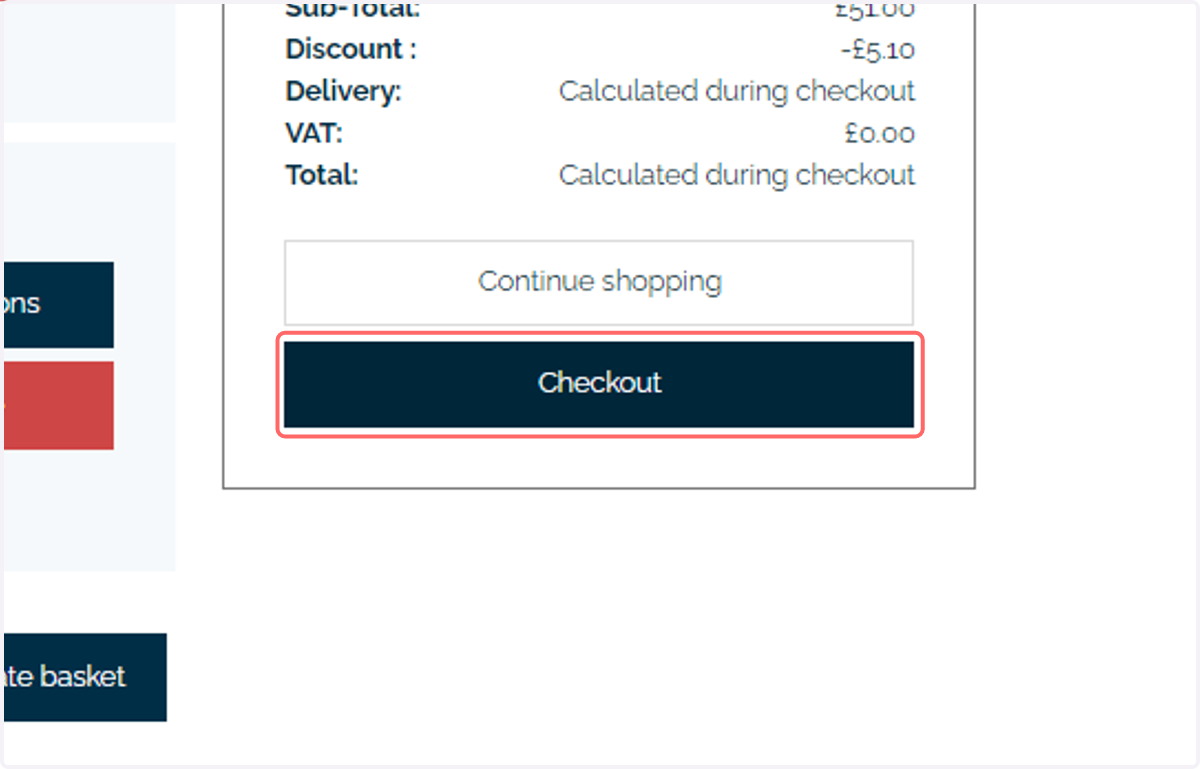
13. With items in the basket, proceed through the checkout
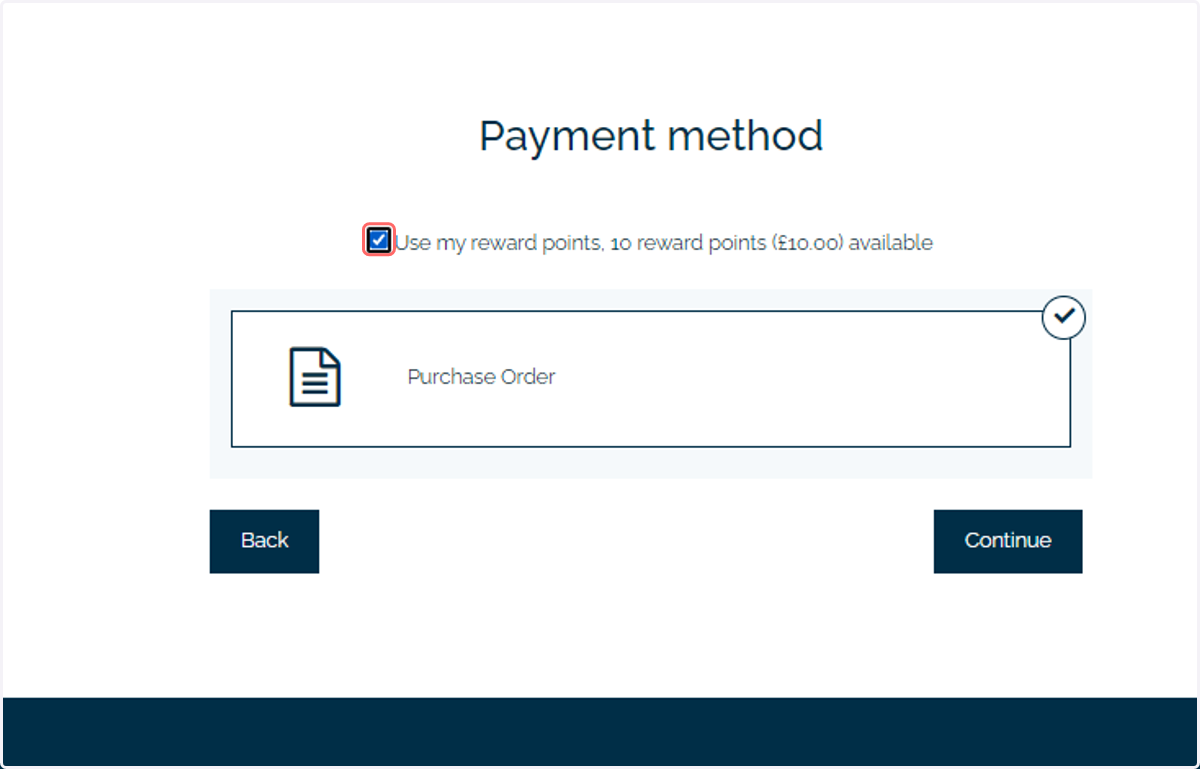
14. On the payment method screen, your customers will have the option to utilise their accrued reward points.
Select and proceed through the checkout process
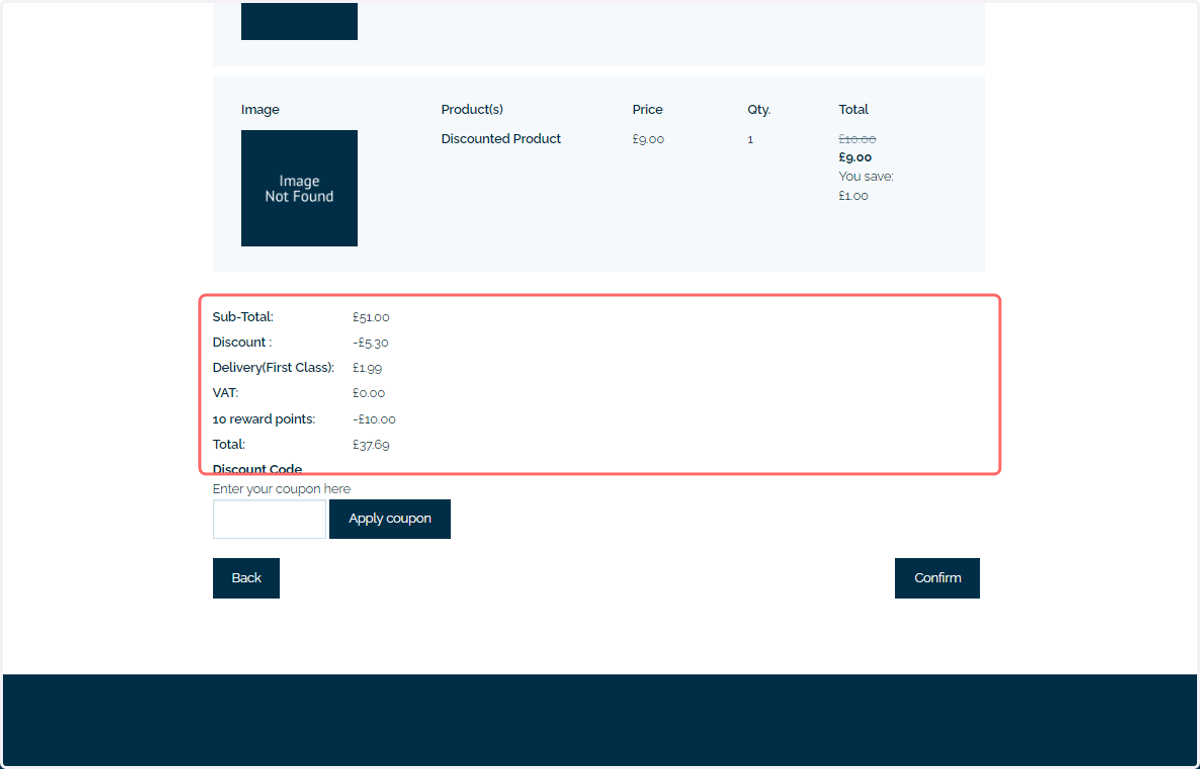
15. The use of reward points is detailed in the order summary page, prior to the order being placed.
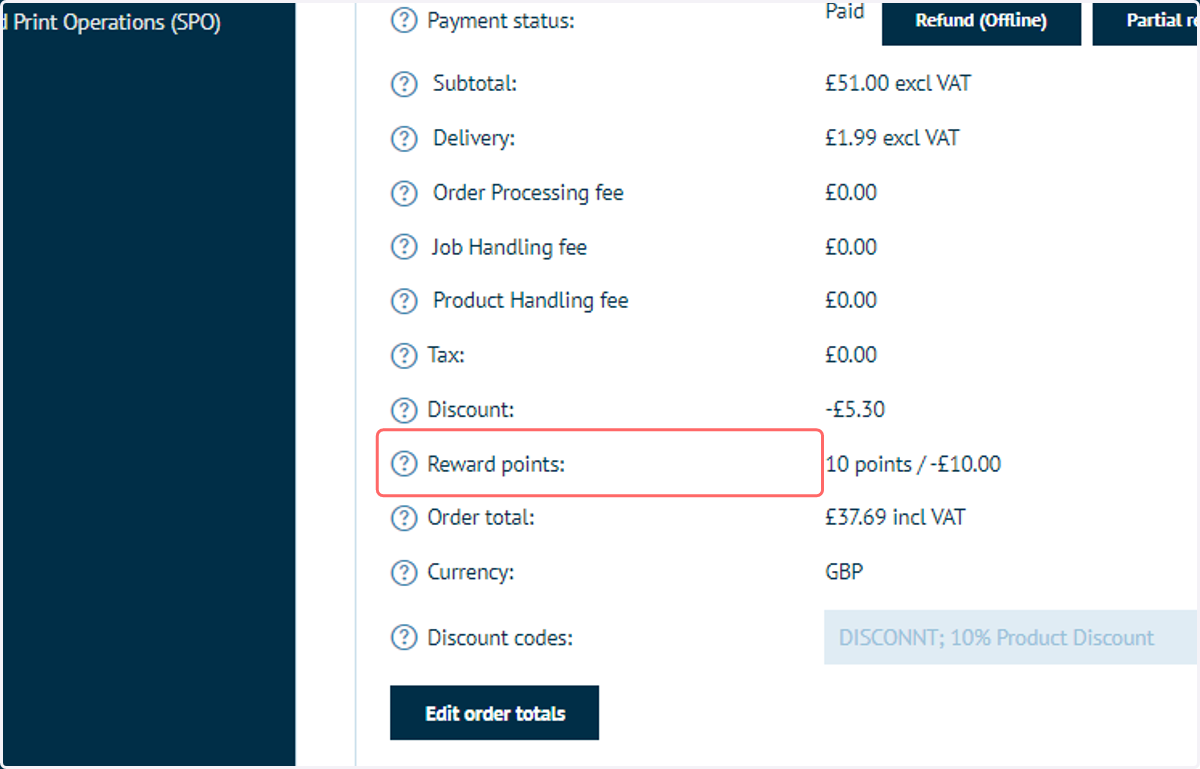
16. The use of reward points is also noted in the sales admin area