How to Approve payments
Elitesuiteke

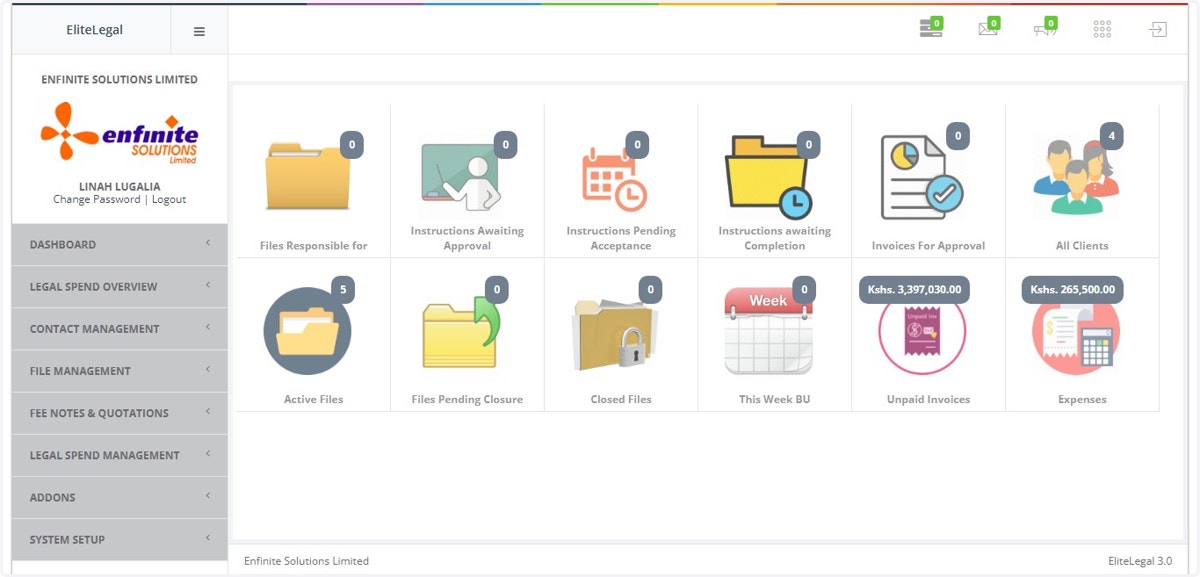
  1. 1. Log into the system

    Log into the system
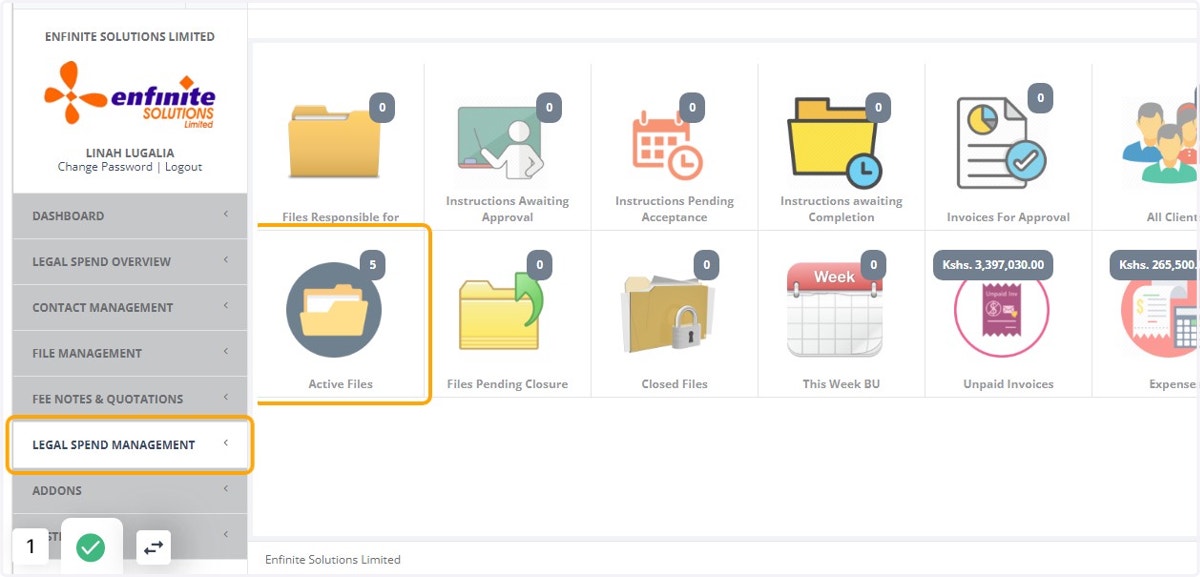
  2. 2. Go Legal Spend Management

    Go Legal Spend Management
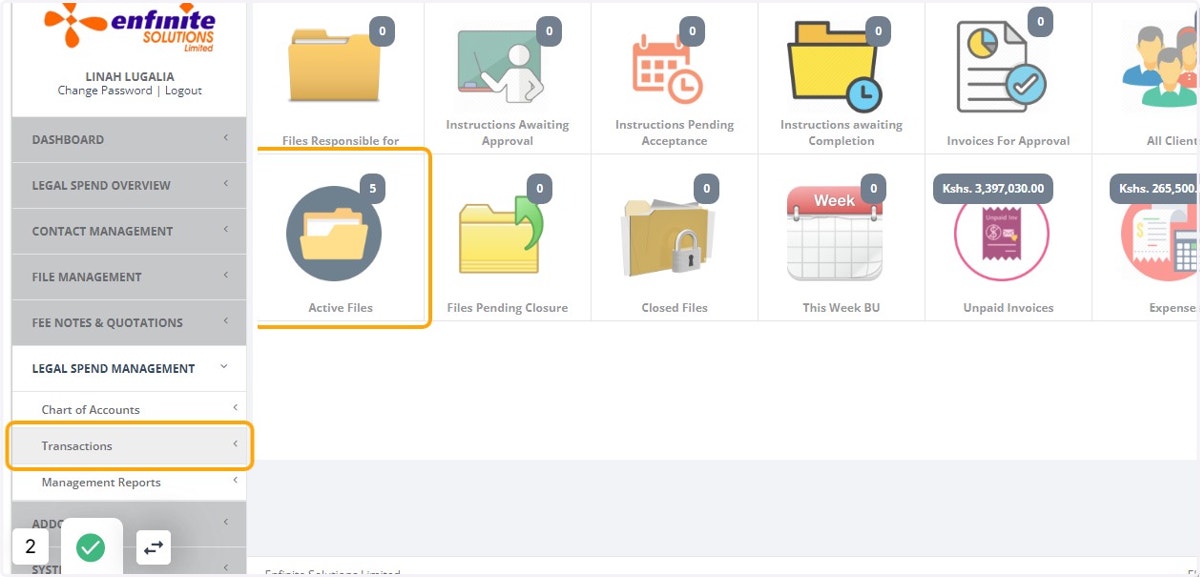
  3. 3. Click on Transactions link

    Click on Transactions link
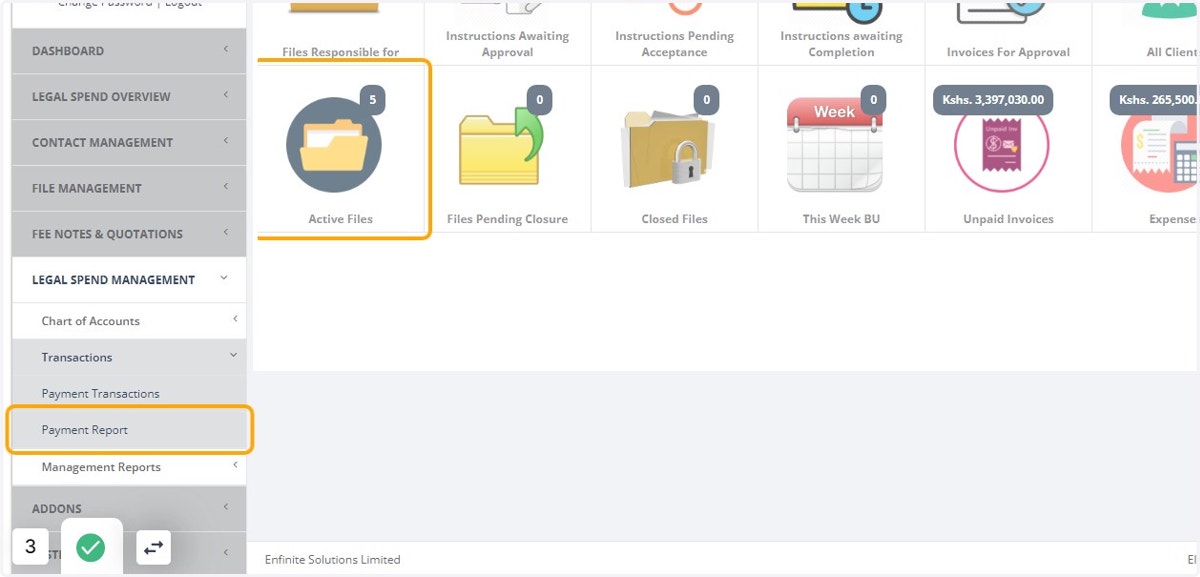
  4. 4. Click on Payment Report option

    Click on Payment Report option
  5. 5. Fill in the details in the pop out Payment Report form i.e. Transaction period
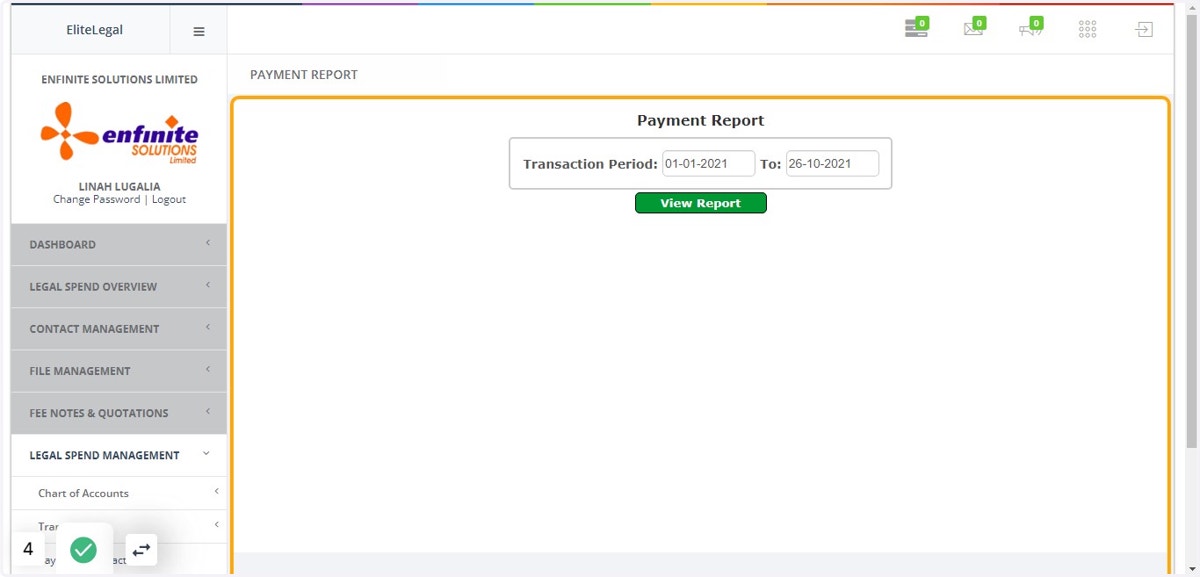
    Fill in the details in the pop out Payment Report form i.e. Transaction period
  6. 6. Once done click on the View Report button
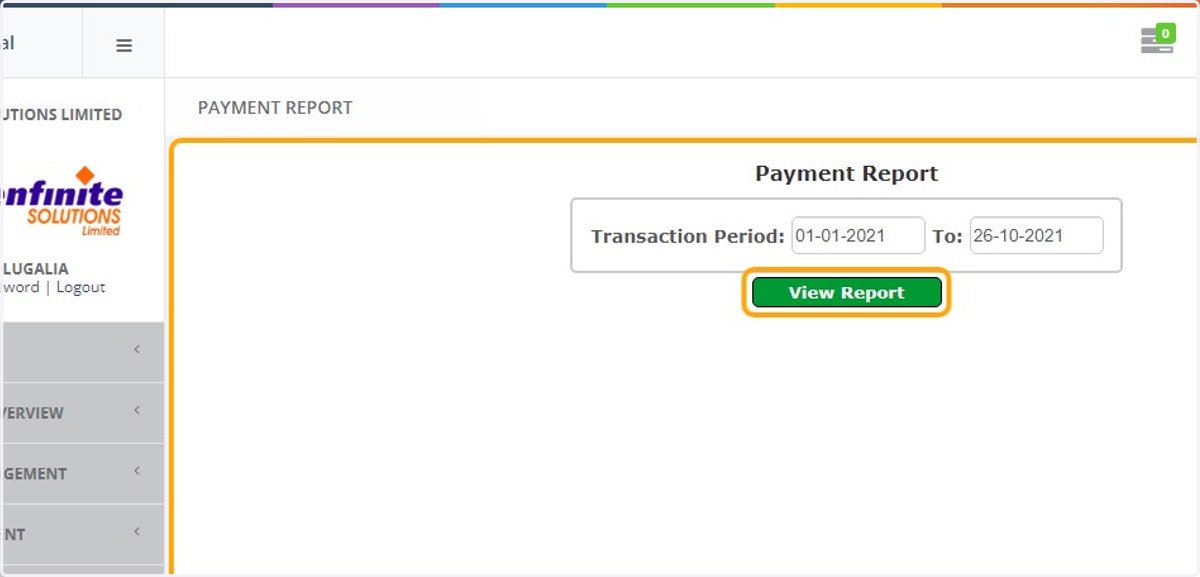
    Once done click on the View Report button
  7. 7. This shows a report of all the payments done, amount and the status
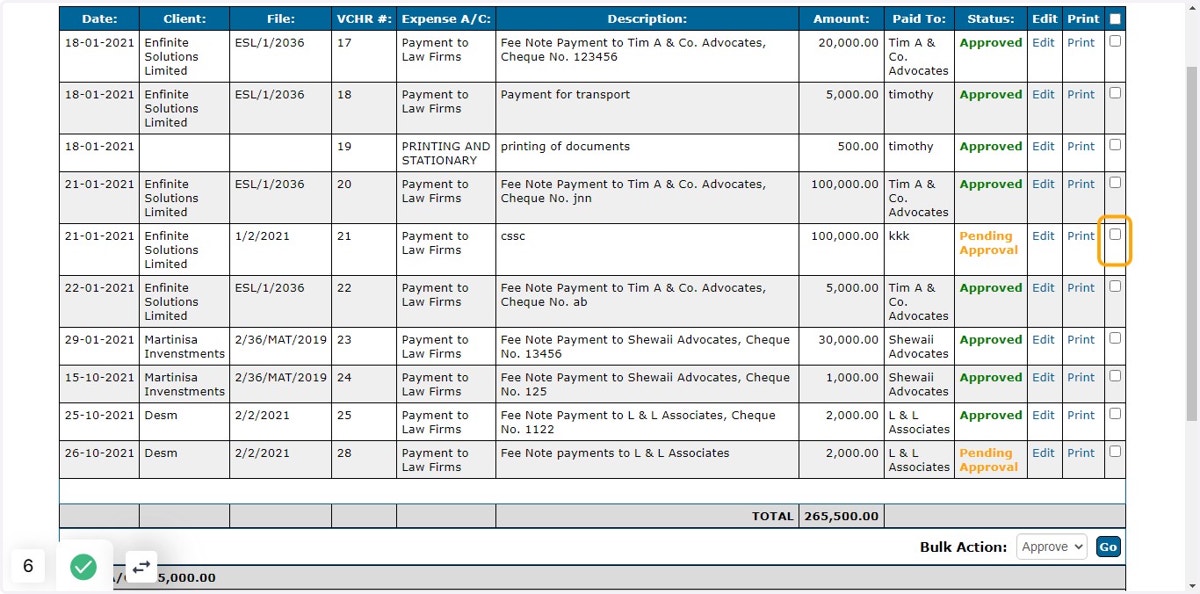
    This shows a report of all the payments done, amount and the status
  8. 8. Go to the specific payment you wish to Approve and click on the Check Box against it
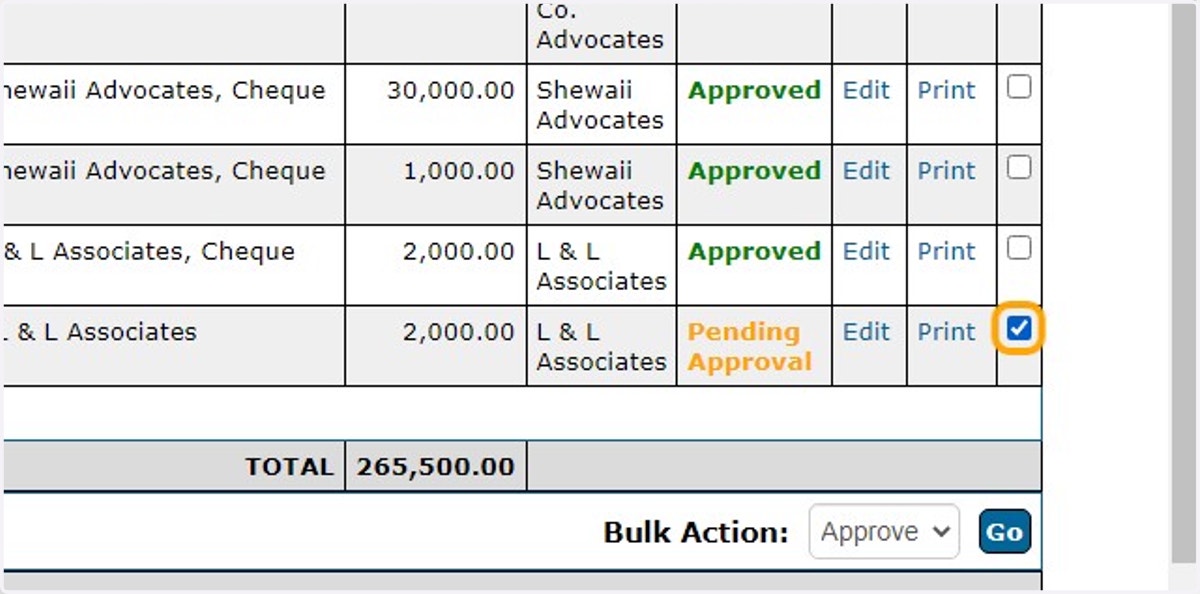
    Go to the specific payment you wish to Approve and click on the Check Box against it
  9. 9. Scroll down to the Bulk Action and select Approve on the dropdown
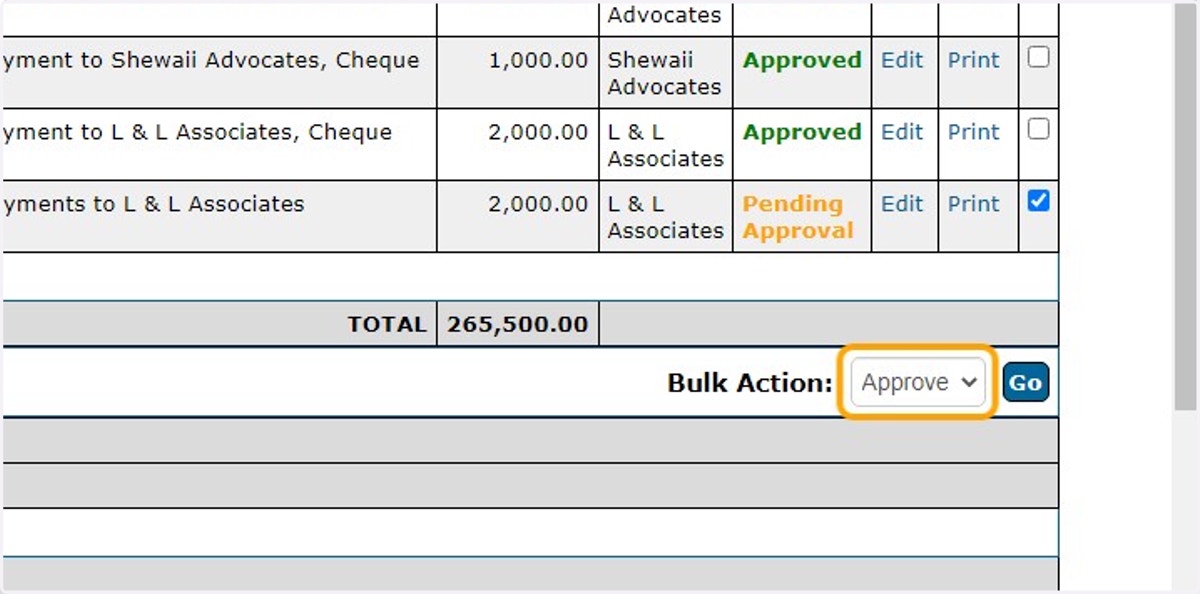
    Scroll down to the Bulk Action and select Approve on the dropdown
  10. 10. Click on the Go button to submit and the payment status will change to approved
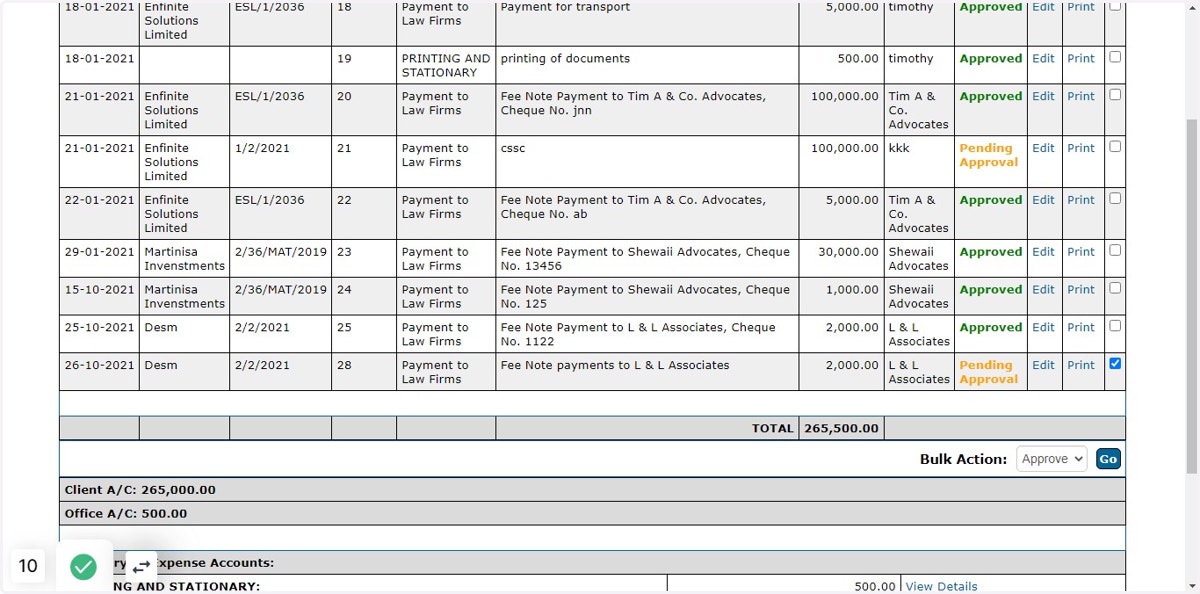
    Click on the Go button to submit and the payment status will change to approved