Creating Promo Codes & Attaching to Event Registration

Dynamics

  1. 1. Log into Protech

  2. 2. Scroll down and click on Promotions
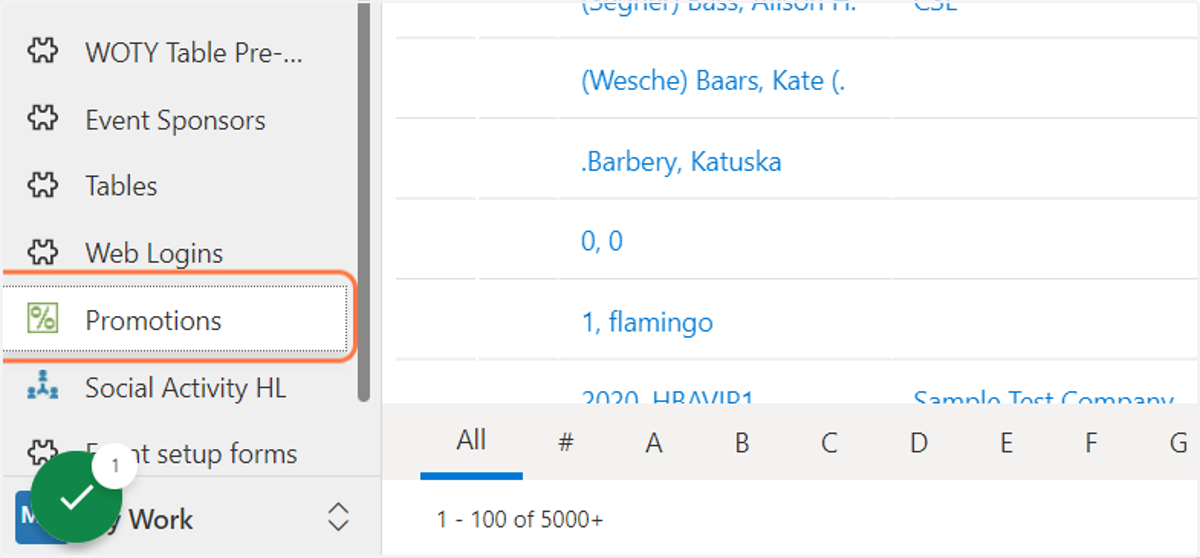
    Scroll down and click on Promotions
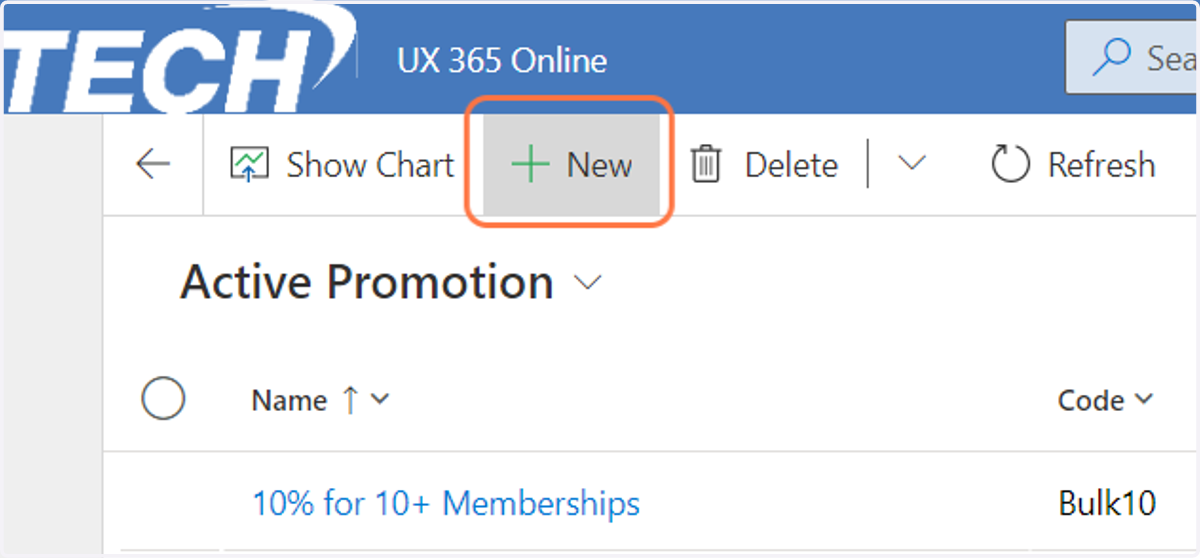
  3. 3. Click on New

    Click on New
  4. 4. Type in the name/short description of the code
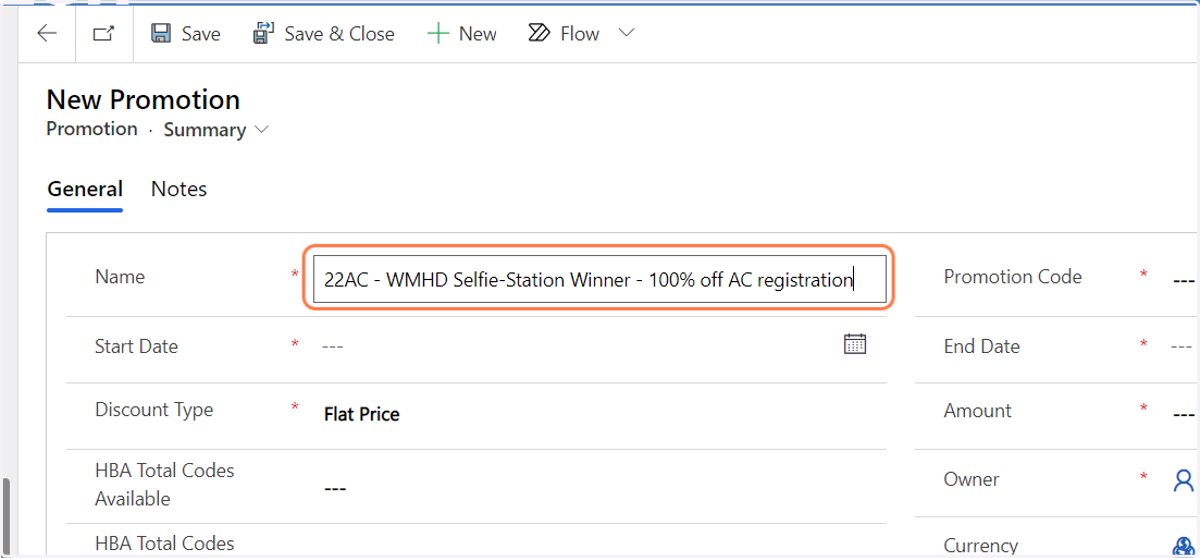
    Type in the name/short description of the code
  5. 5. Click on the calendar icon next to Start Date
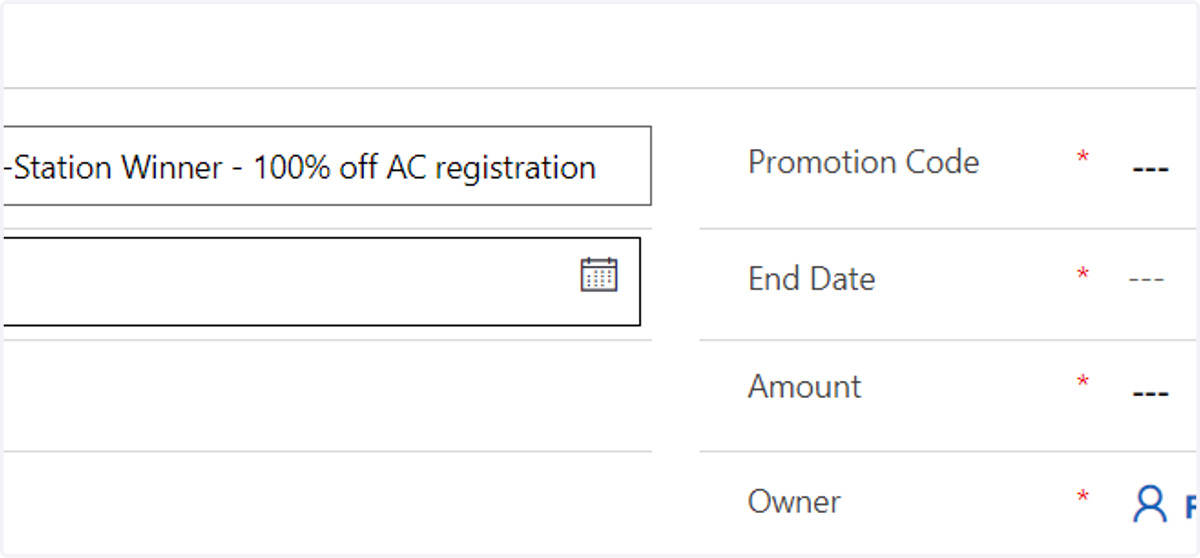
    Click on the calendar icon next to Start Date
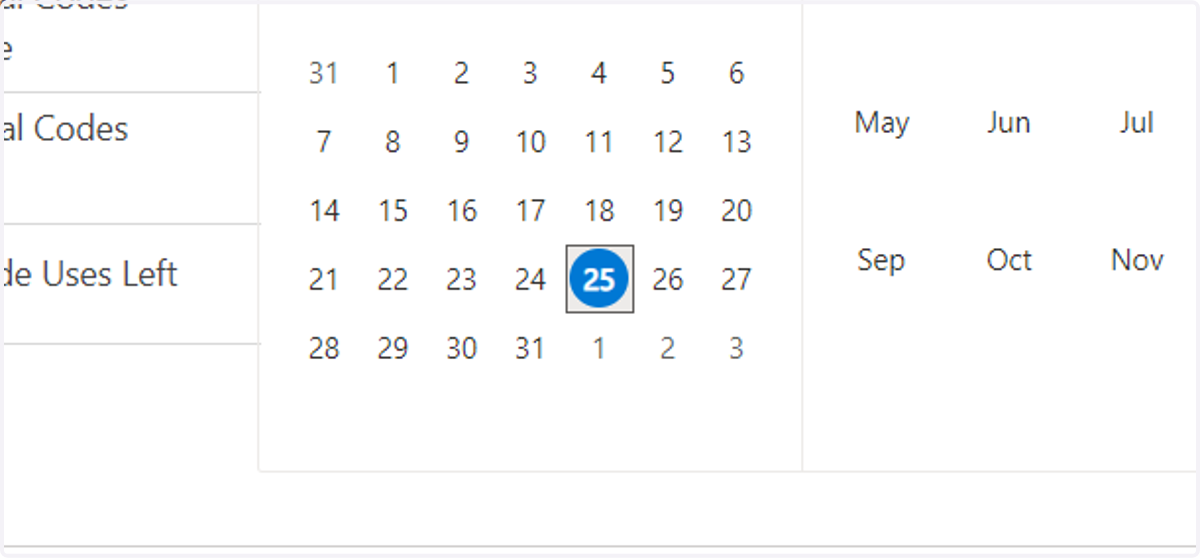
  6. 6. Select the start date

    Select the start date
  7. 7. Create the Promotion code that you want they to use (in this example we are using: 22ACWMHD
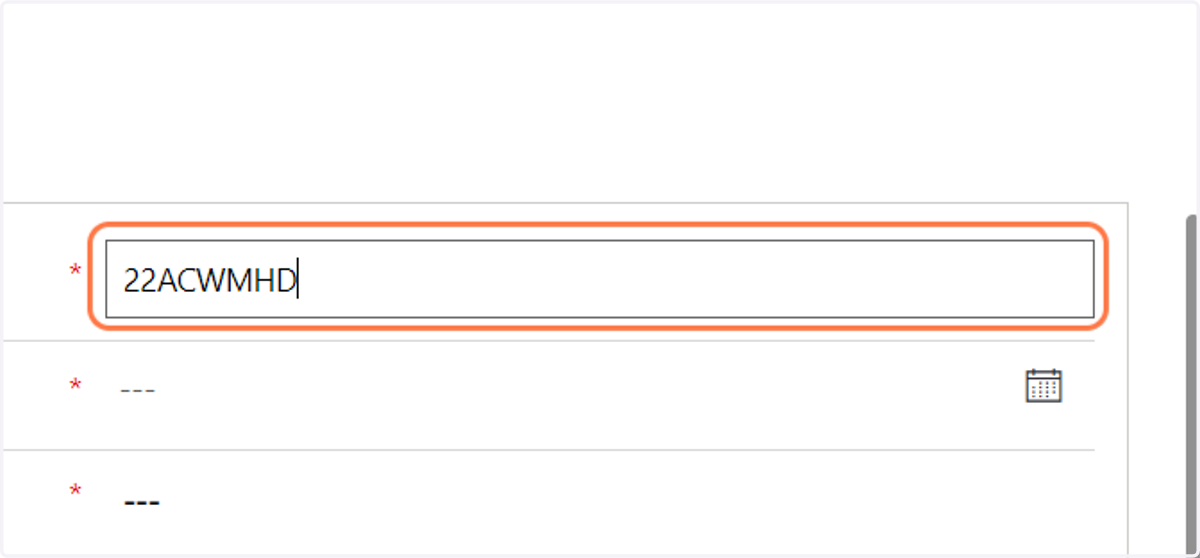
    Create the Promotion code that you want they to use (in this example we are using: 22ACWMHD
  8. 8. Select the expiration date of the code
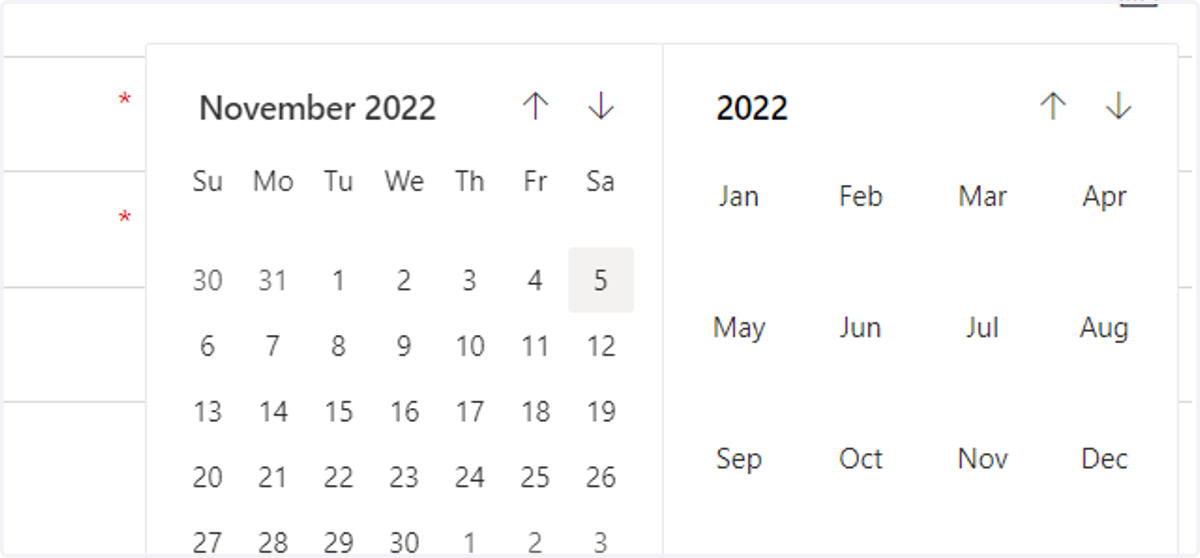
    Select the expiration date of the code
  9. 9. In the Discount type field change it to: Percent
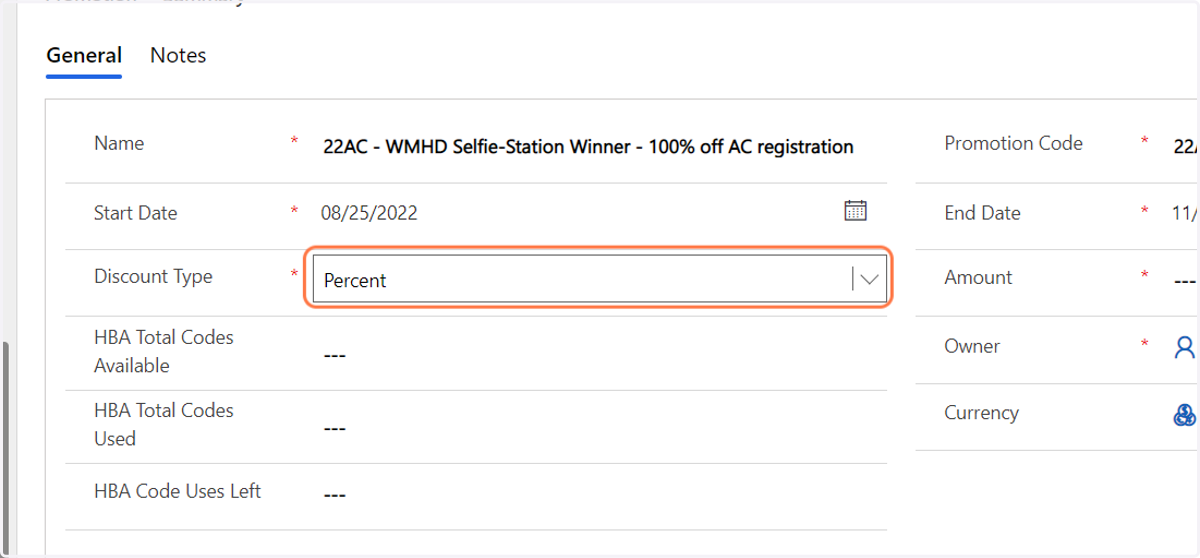
    In the Discount type field change it to: Percent
  10. 10. In the amount field type: 100 (this will give them a 100% off discount)
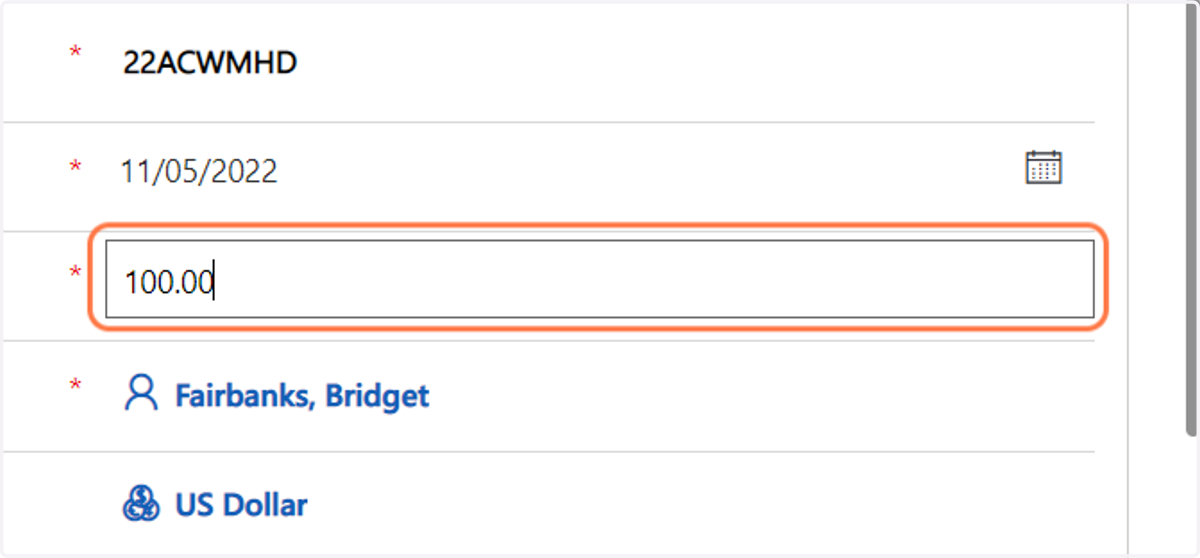
    In the amount field type: 100 (this will give them a 100% off discount)
  11. 11. In this field type how many codes are allowed to be used.
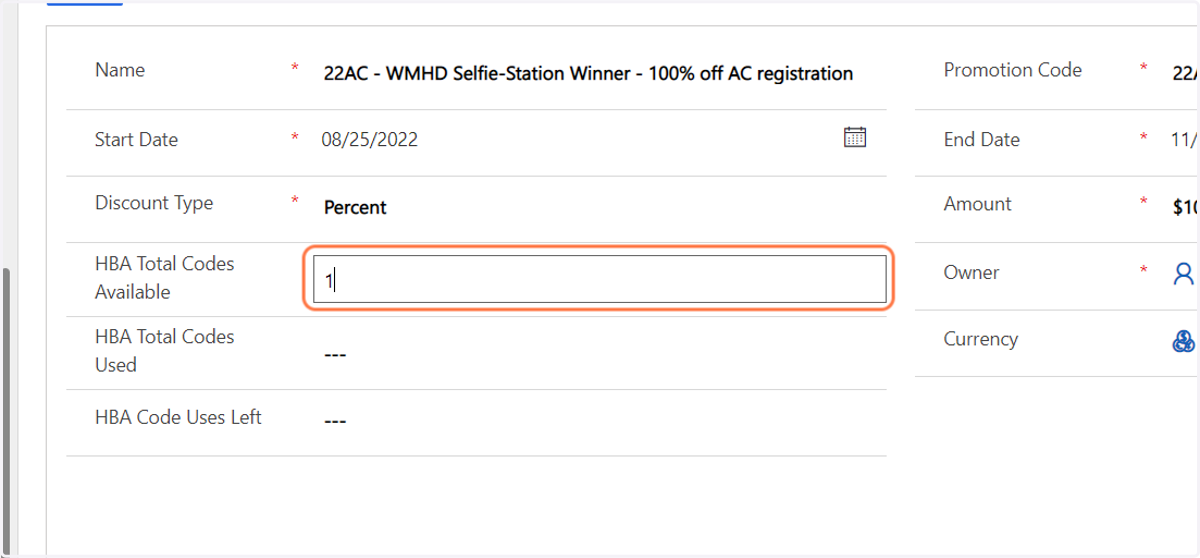
    In this field type how many codes are allowed to be used.
  12. 12. In this field always start the counter at 0
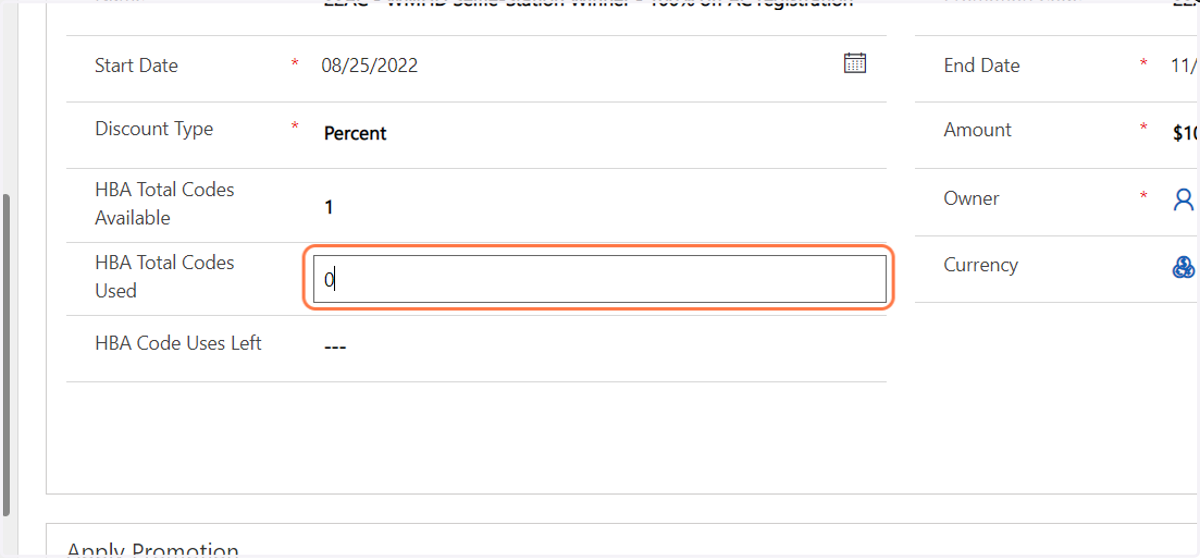
    In this field always start the counter at 0
  13. 13. In this field type the remaining codes available
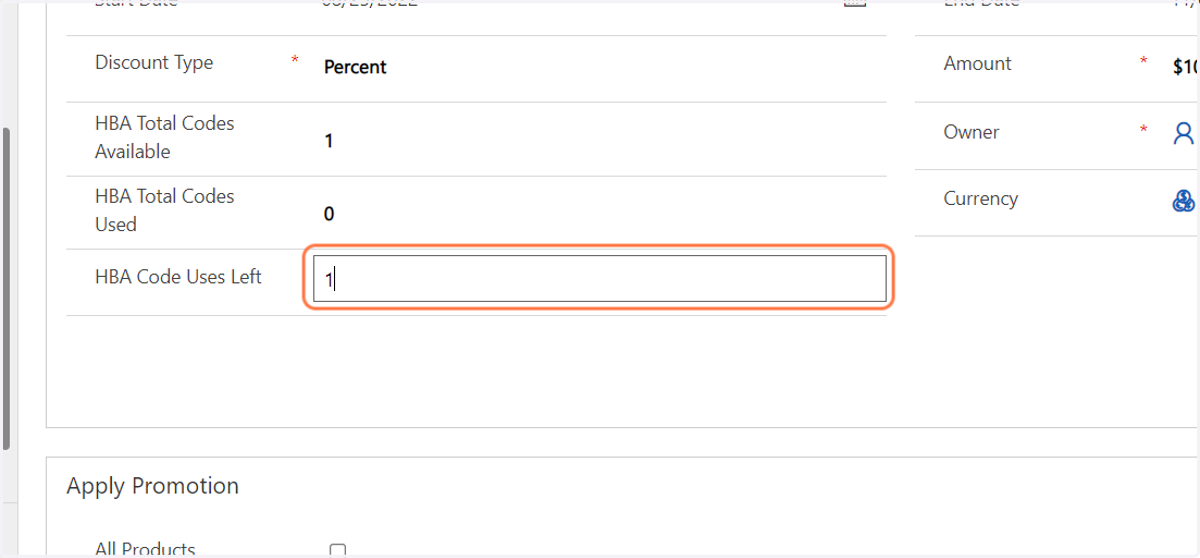
    In this field type the remaining codes available
  14. 14. Check Meetings (20) - this means that the code can only be used on event registrations
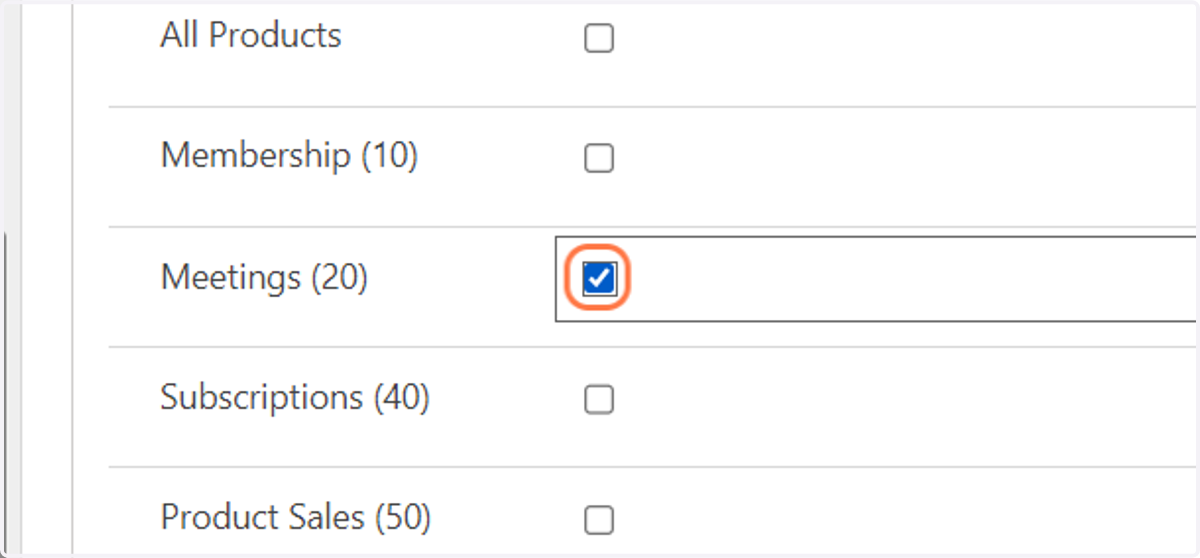
    Check Meetings (20) - this means that the code can only be used on event registrations
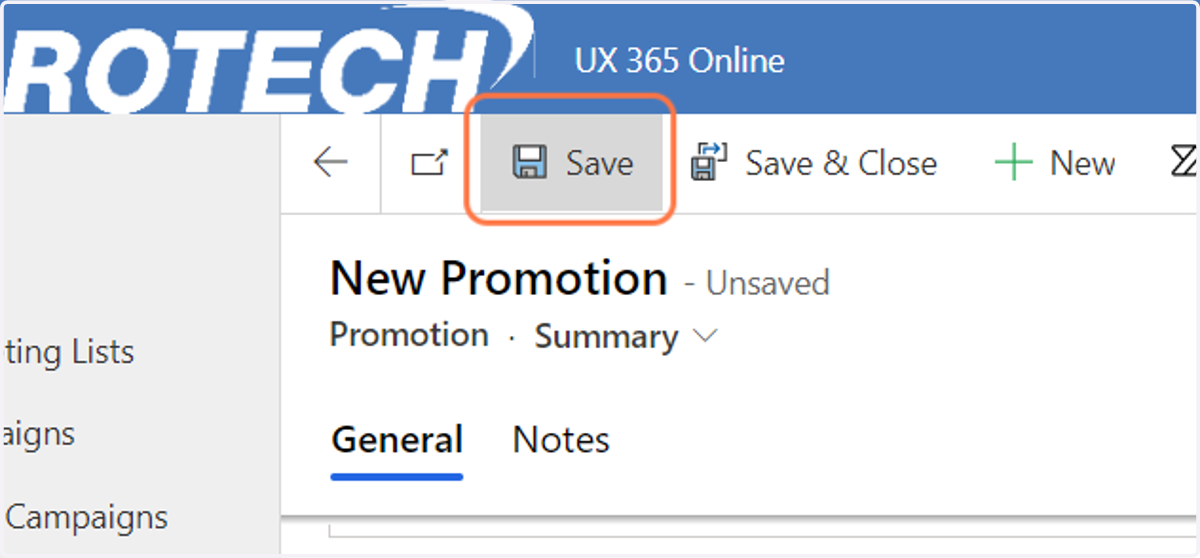
  15. 15. Click on Save

    Click on Save
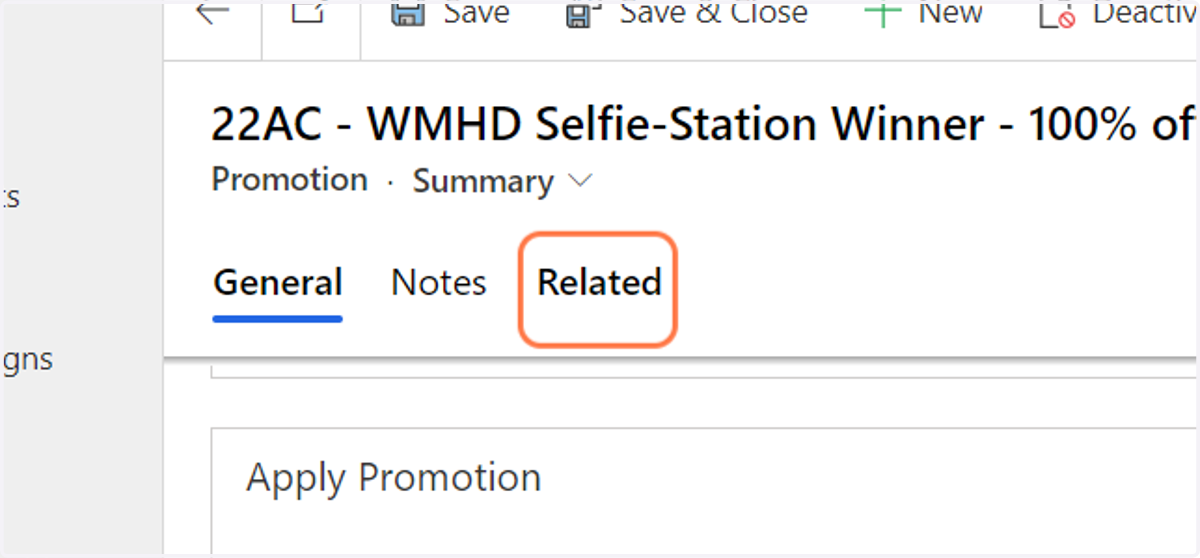
  16. 16. Click on Related

    Click on Related
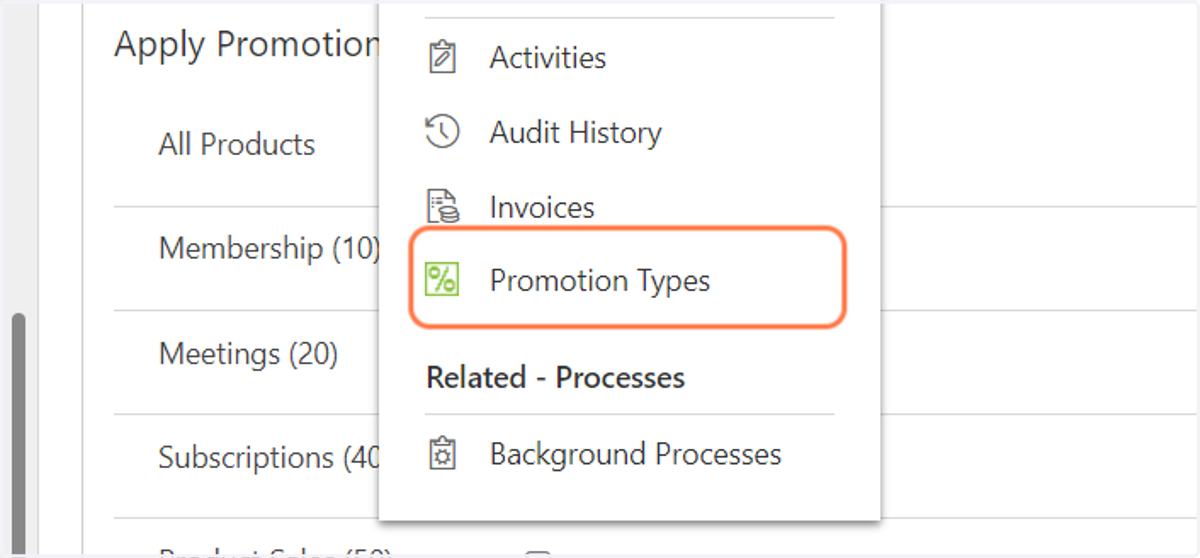
  17. 17. Click on Promotion Types

    Click on Promotion Types
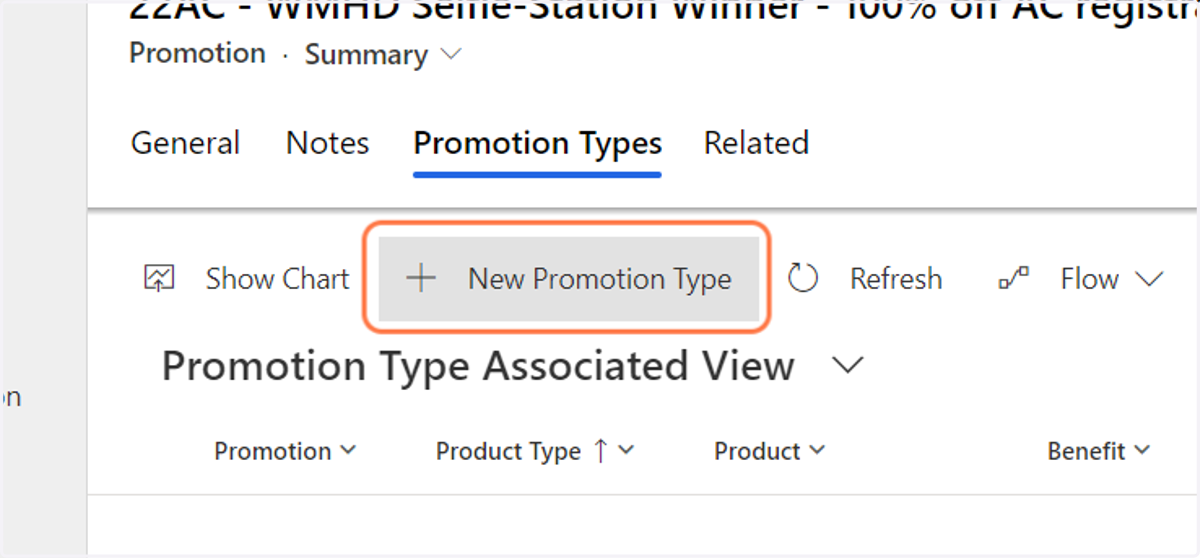
  18. 18. Click on New Promotion Type

    Click on New Promotion Type
  19. 19. Click on Meeting Registration from Product Type
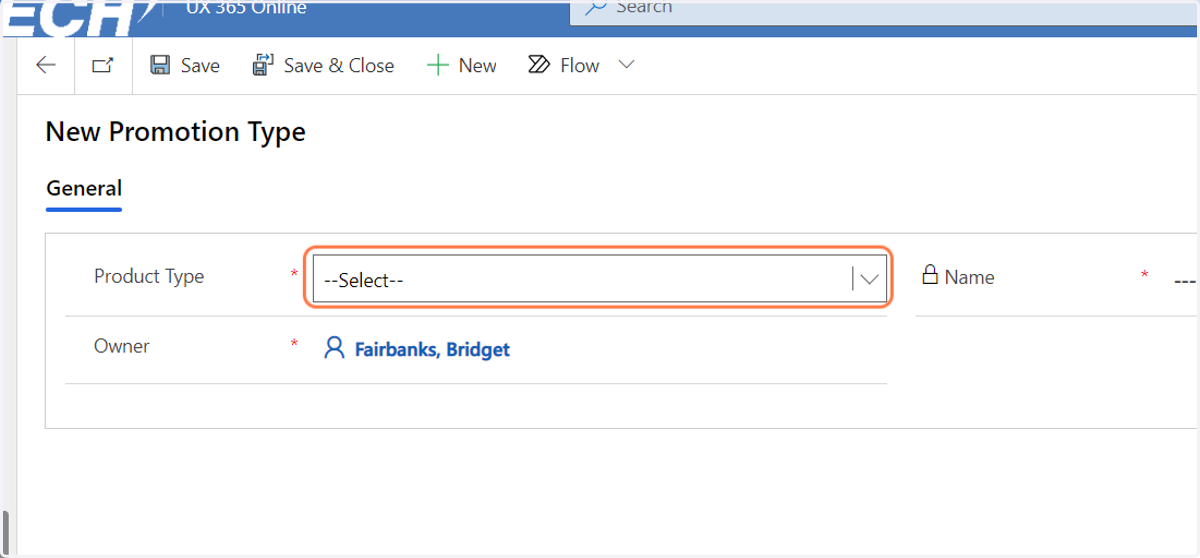
    Click on Meeting Registration from Product Type
  20. 20. Type the name of the event you want to attach the code to
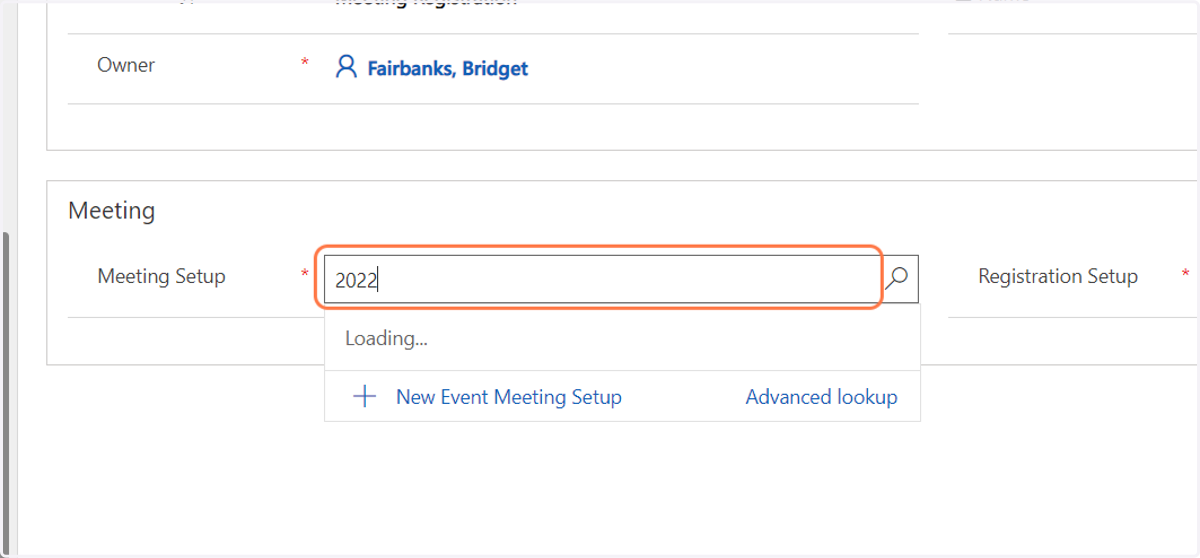
    Type the name of the event you want to attach the code to
  21. 21. In this example we are selecting 2022 HBA Annual Conference
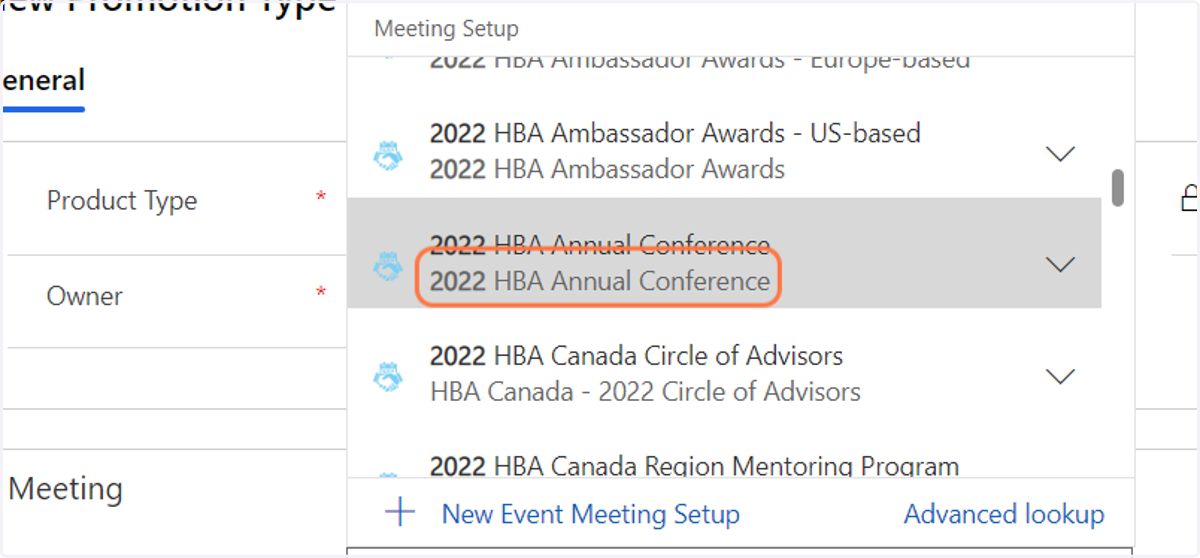
    In this example we are selecting 2022 HBA Annual Conference
  22. 22. Click on Search records for Registration Setup, Lookup field
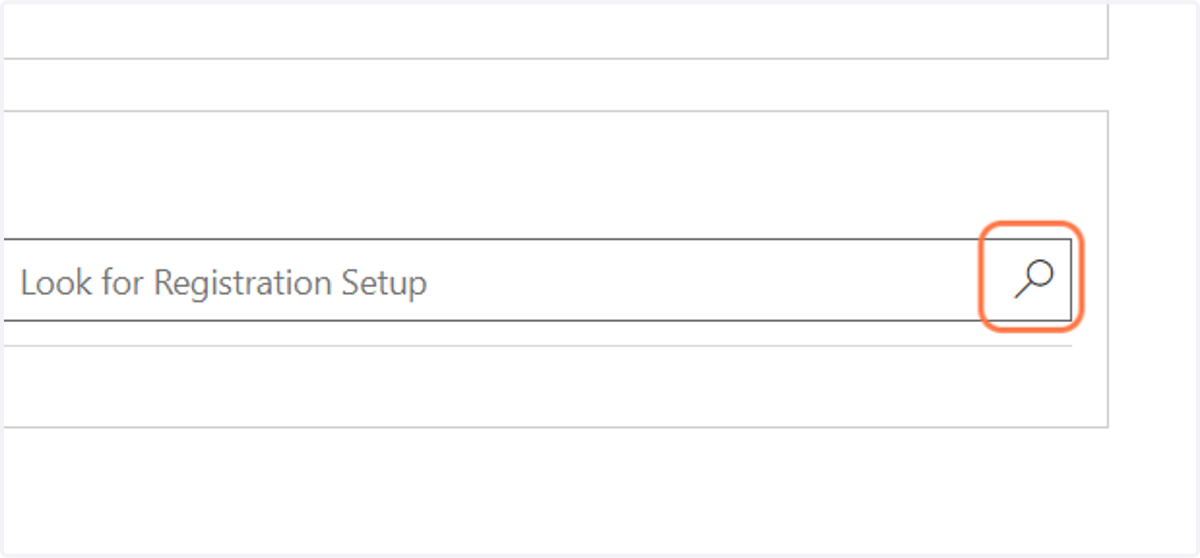
    Click on Search records for Registration Setup, Lookup field
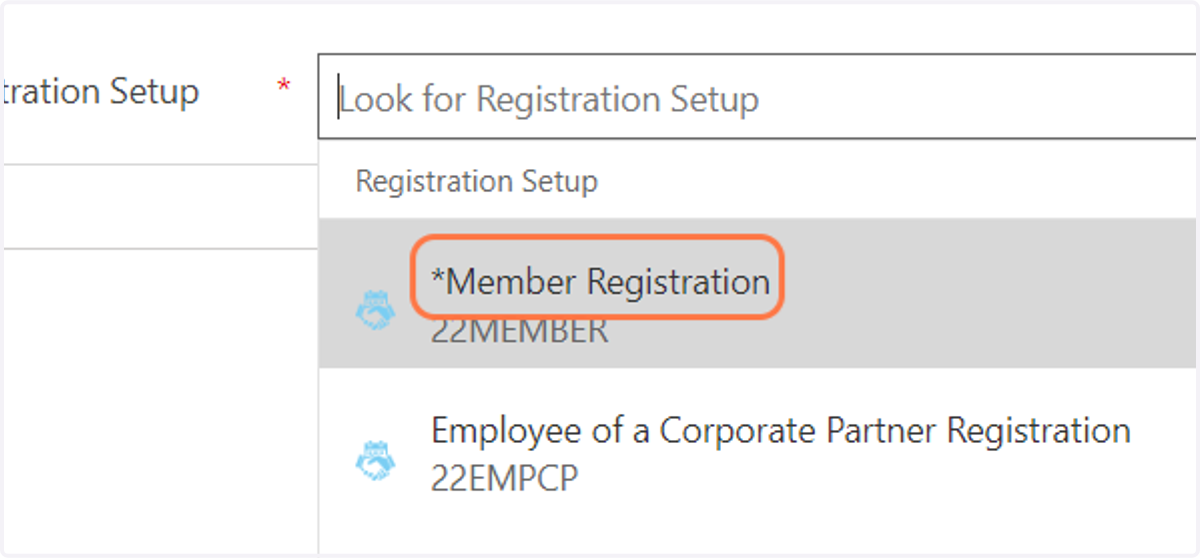
  23. 23. Click on *Member Registration

    Click on *Member Registration
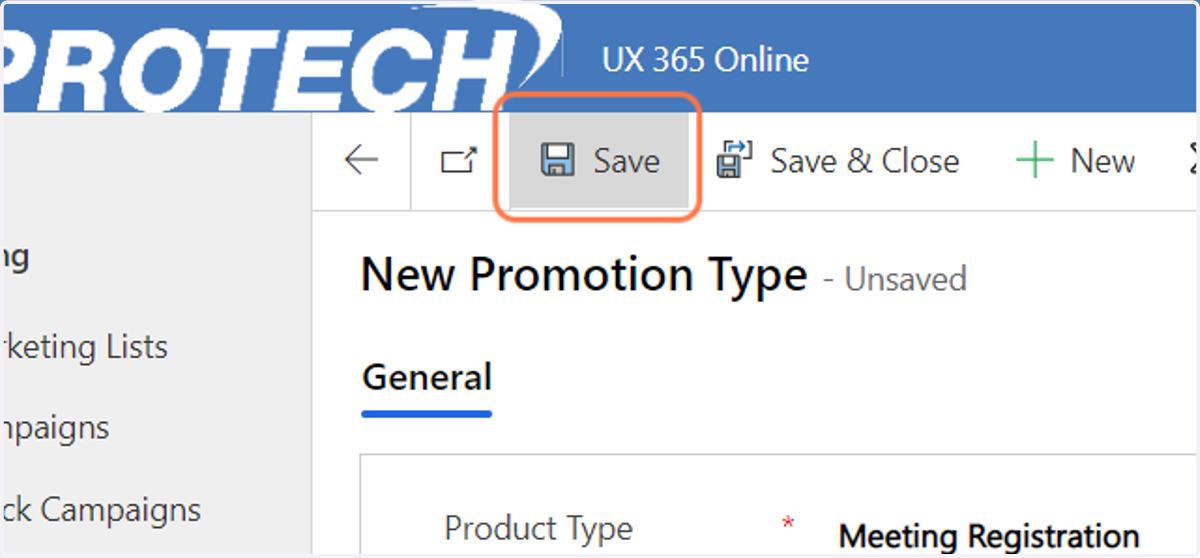
  24. 24. Click on Save

    Click on Save
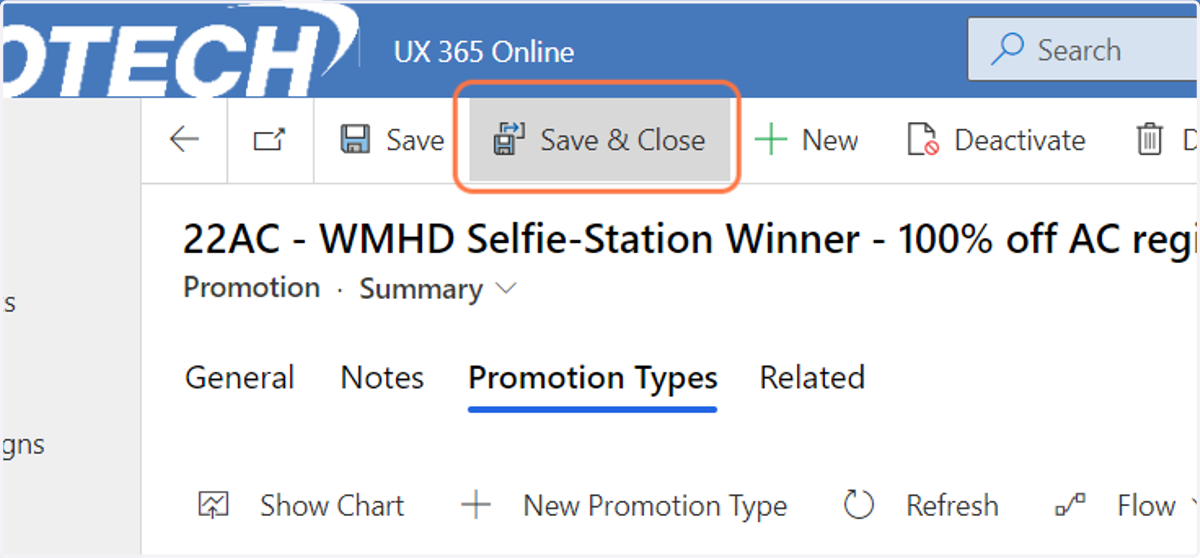
  25. 25. Click on Save & Close

    Click on Save & Close