Speaker Agreement Form - updating the drop down with the new year

  1. 1. Log into Protech. Click on the Advanced Find. Click on the drop down arrow next to Settings
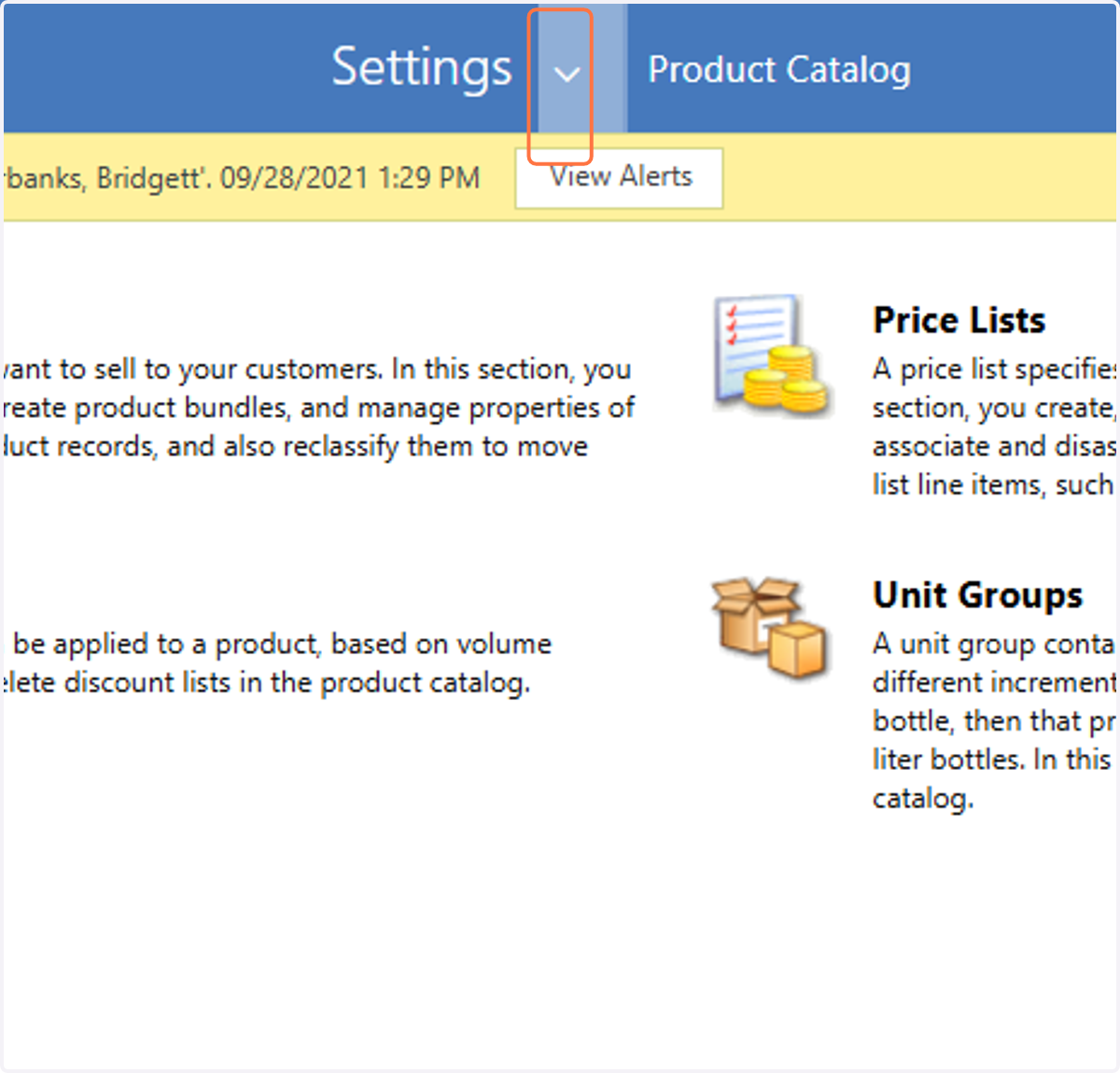
    Log into Protech. Click on the Advanced Find. Click on the drop down arrow next to Settings
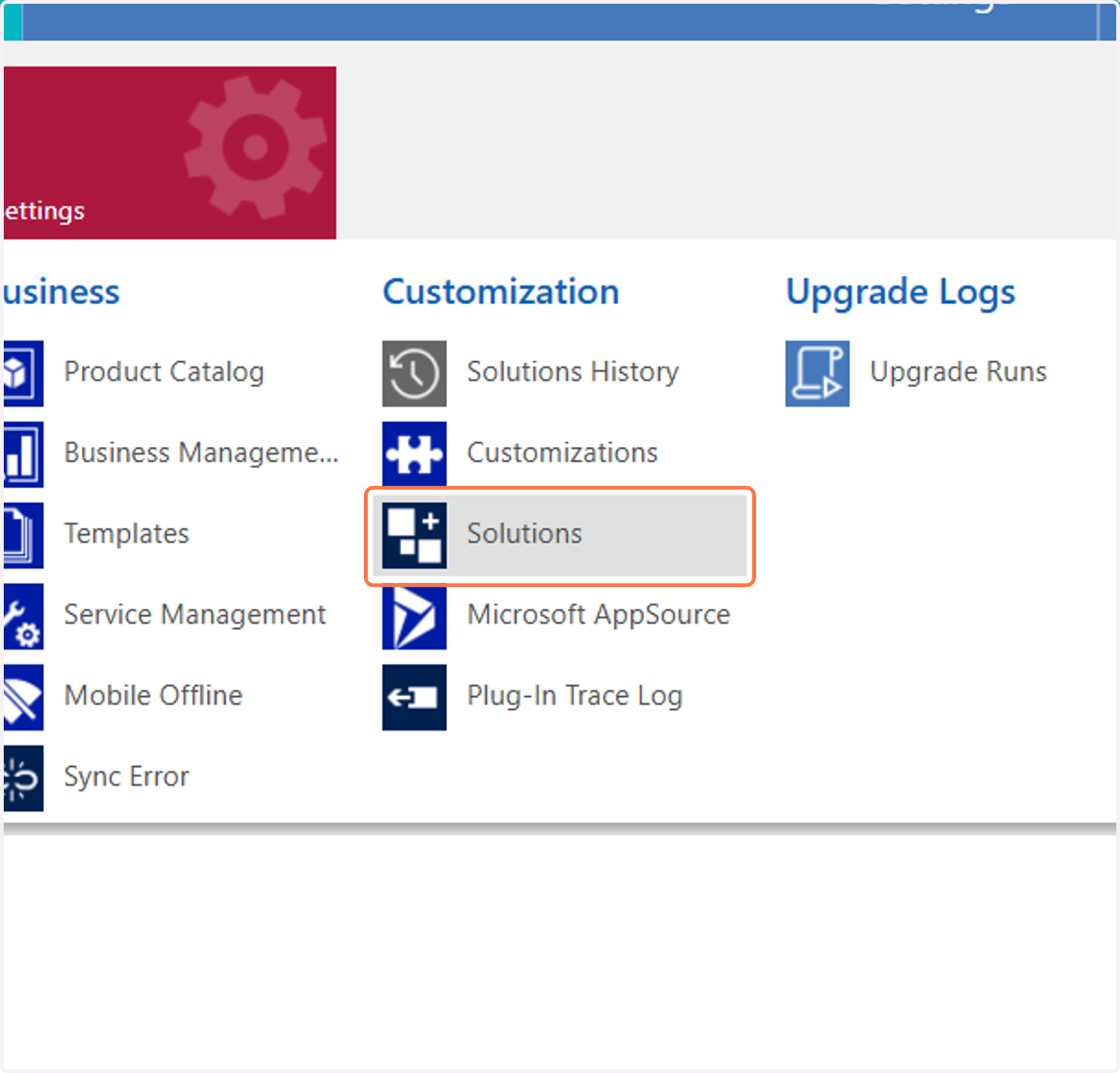
  2. 2. Click on Solutions

    Click on Solutions
  3. 3. Double click on the area next to HBA_UX365Customizations
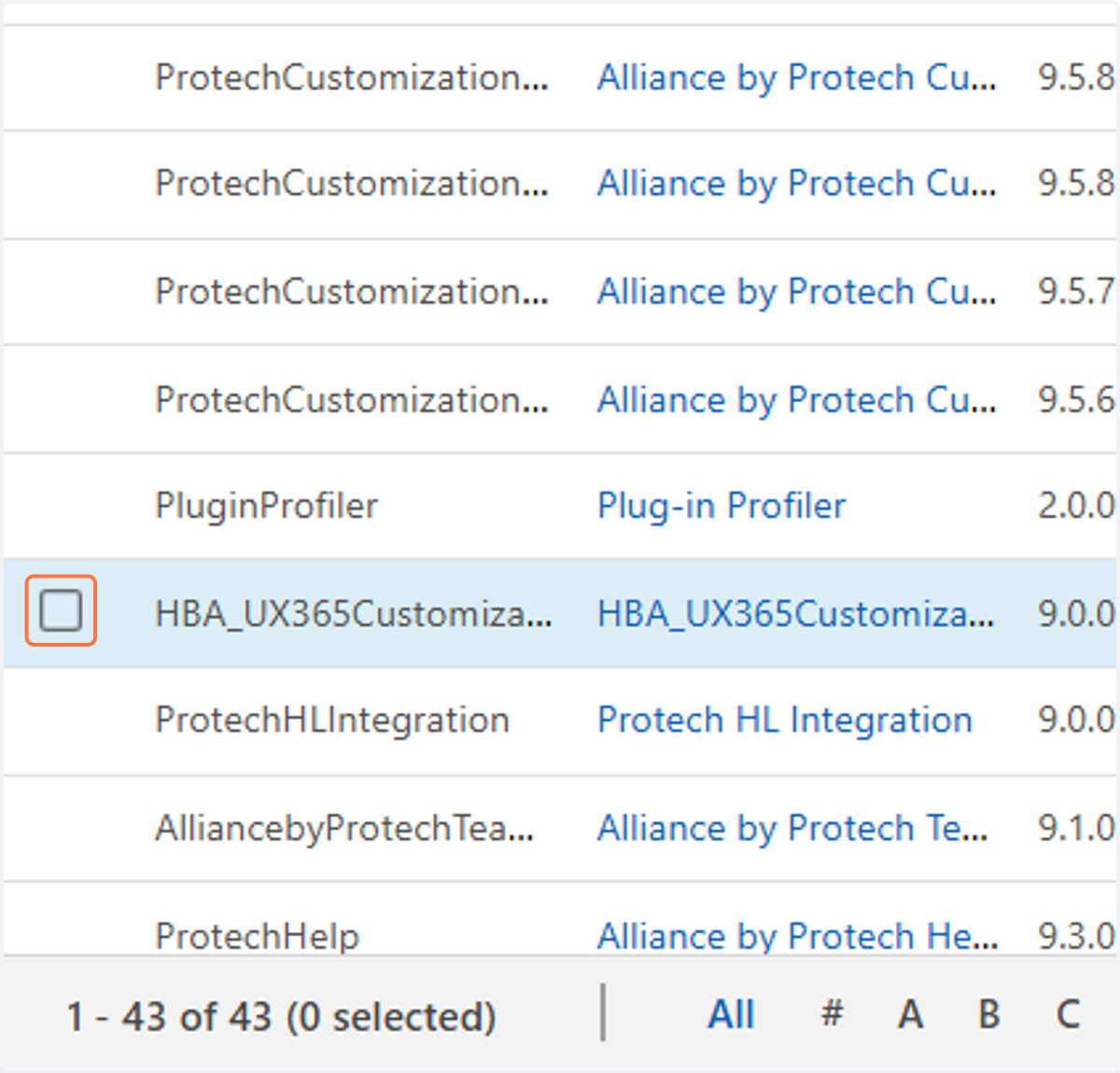
    Double click on the area next to HBA_UX365Customizations
  4. 4. Click on drop down arrow next to Entities
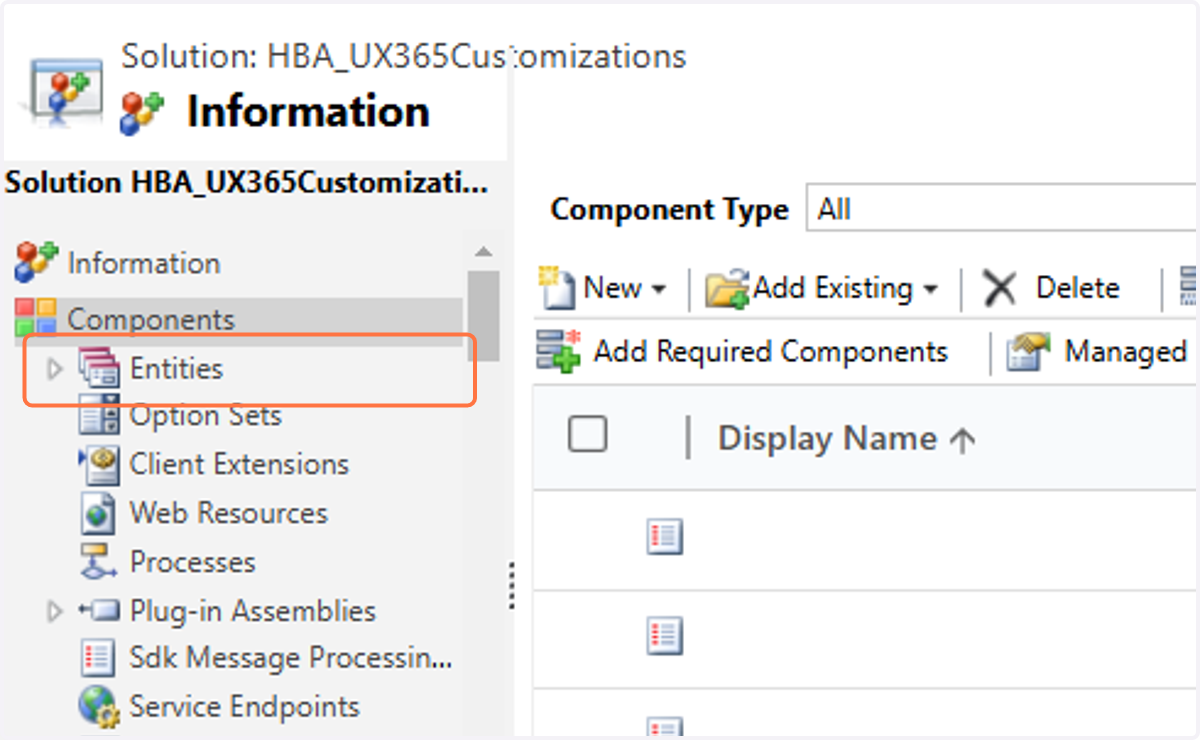
    Click on drop down arrow next to Entities
  5. 5. Click on the drop down arrow next to Speaker Agreement Form
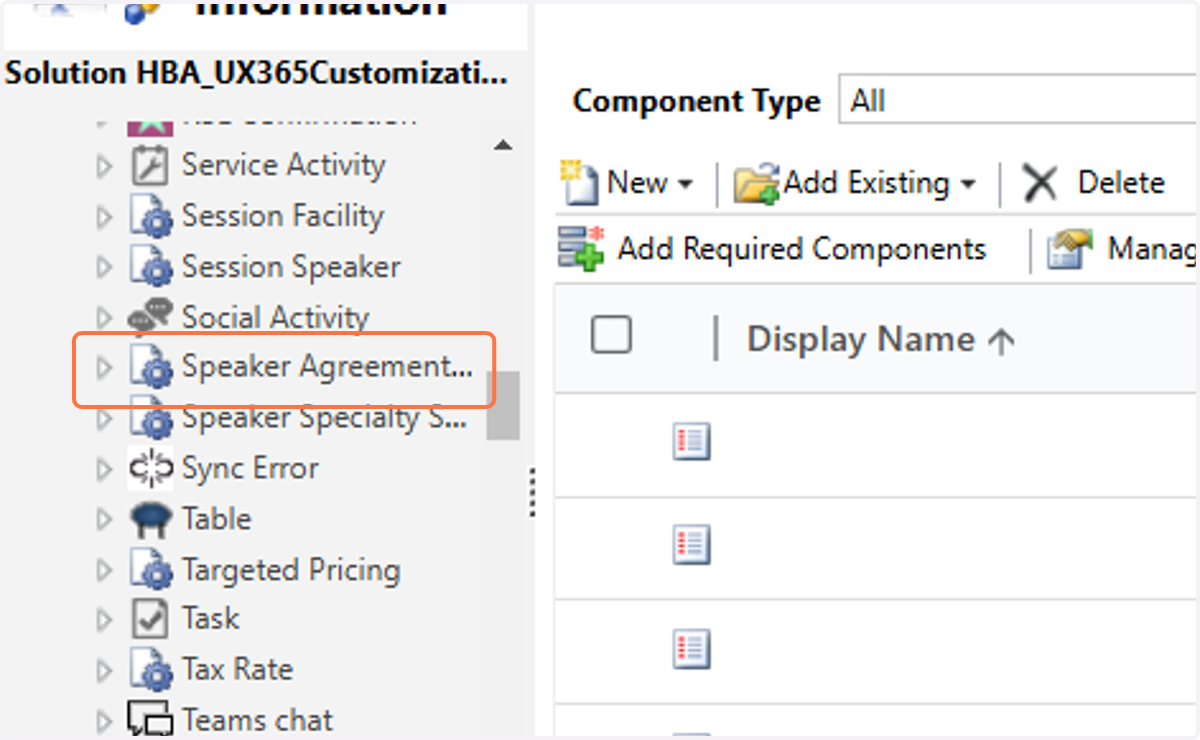
    Click on the drop down arrow next to Speaker Agreement Form
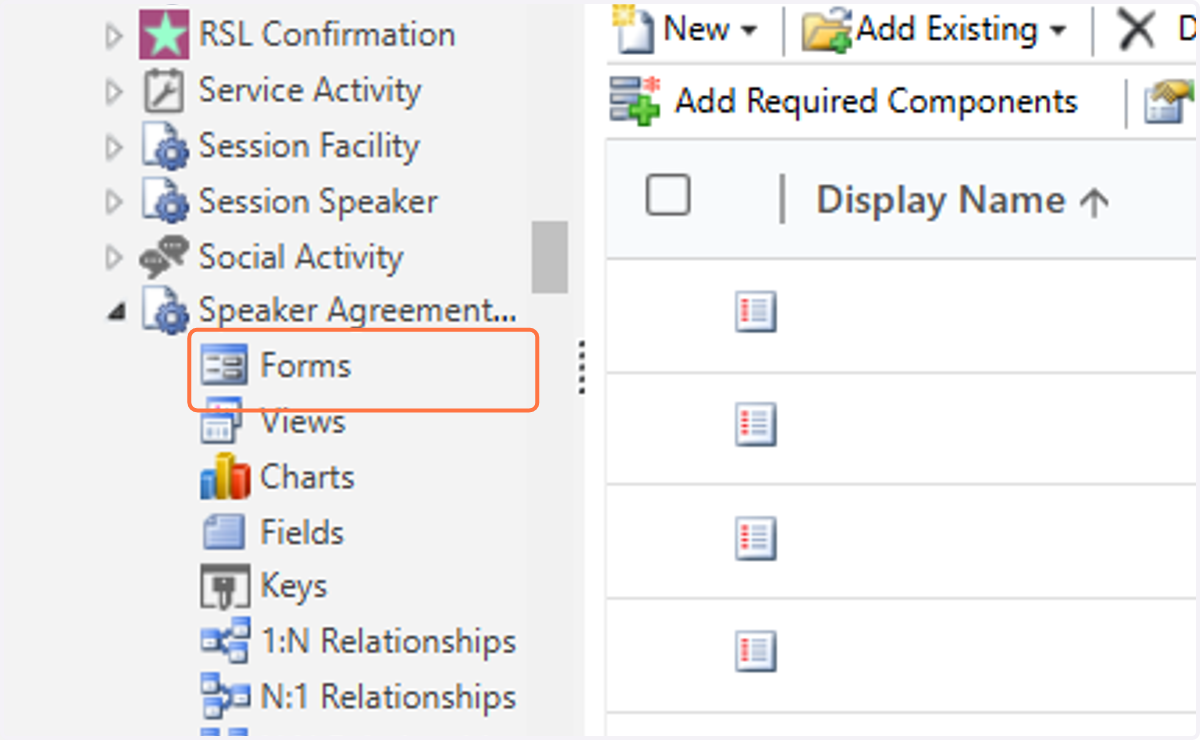
  6. 6. Click on Forms

    Click on Forms
  7. 7. Double click on the blank area next to HBA Information
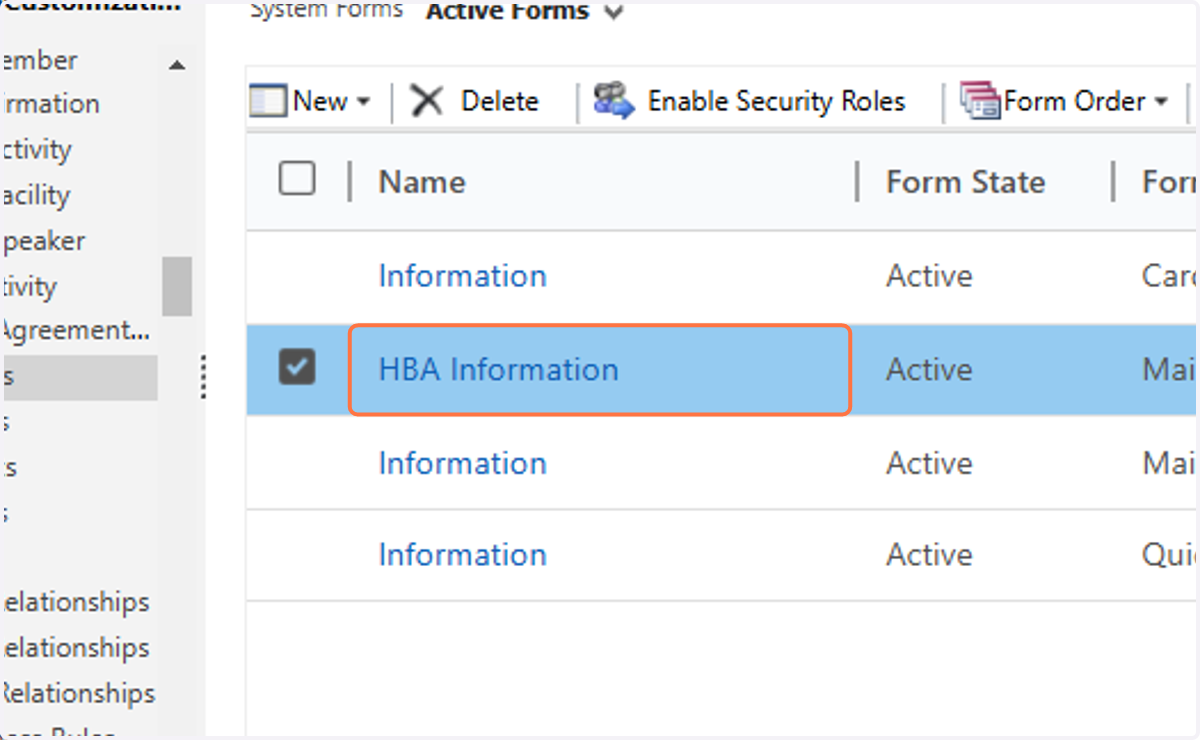
    Double click on the blank area next to HBA Information
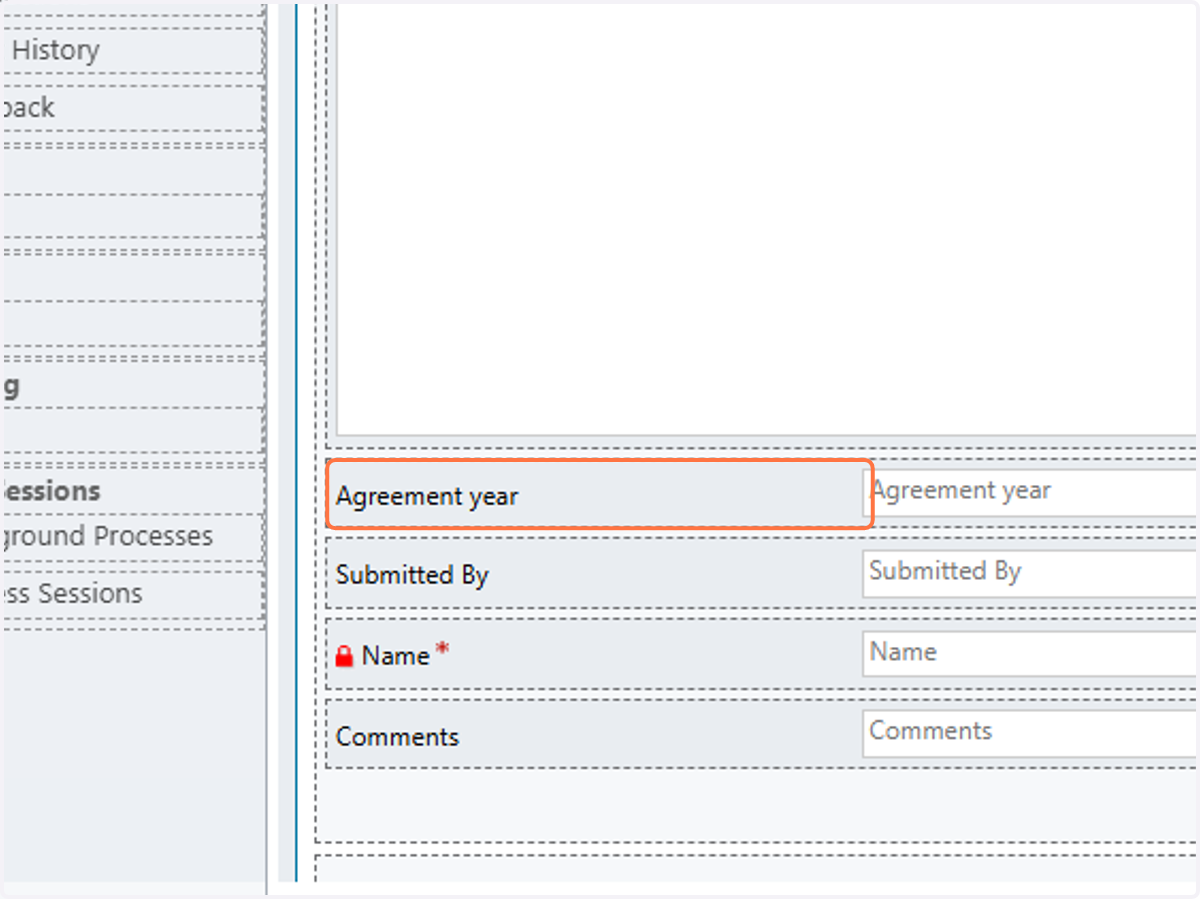
  8. 8. Double click on Agreement year

    Double click on Agreement year
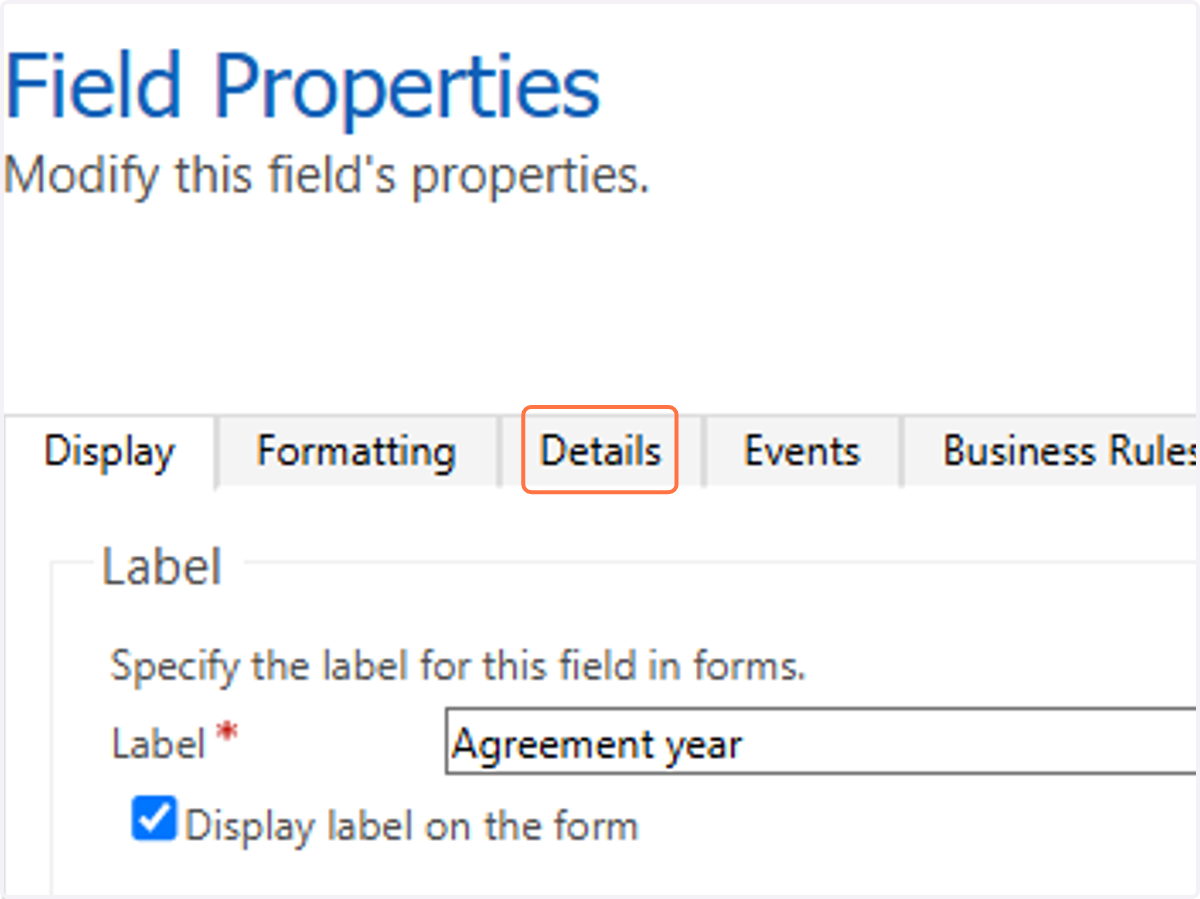
  9. 9. Click on Details

    Click on Details
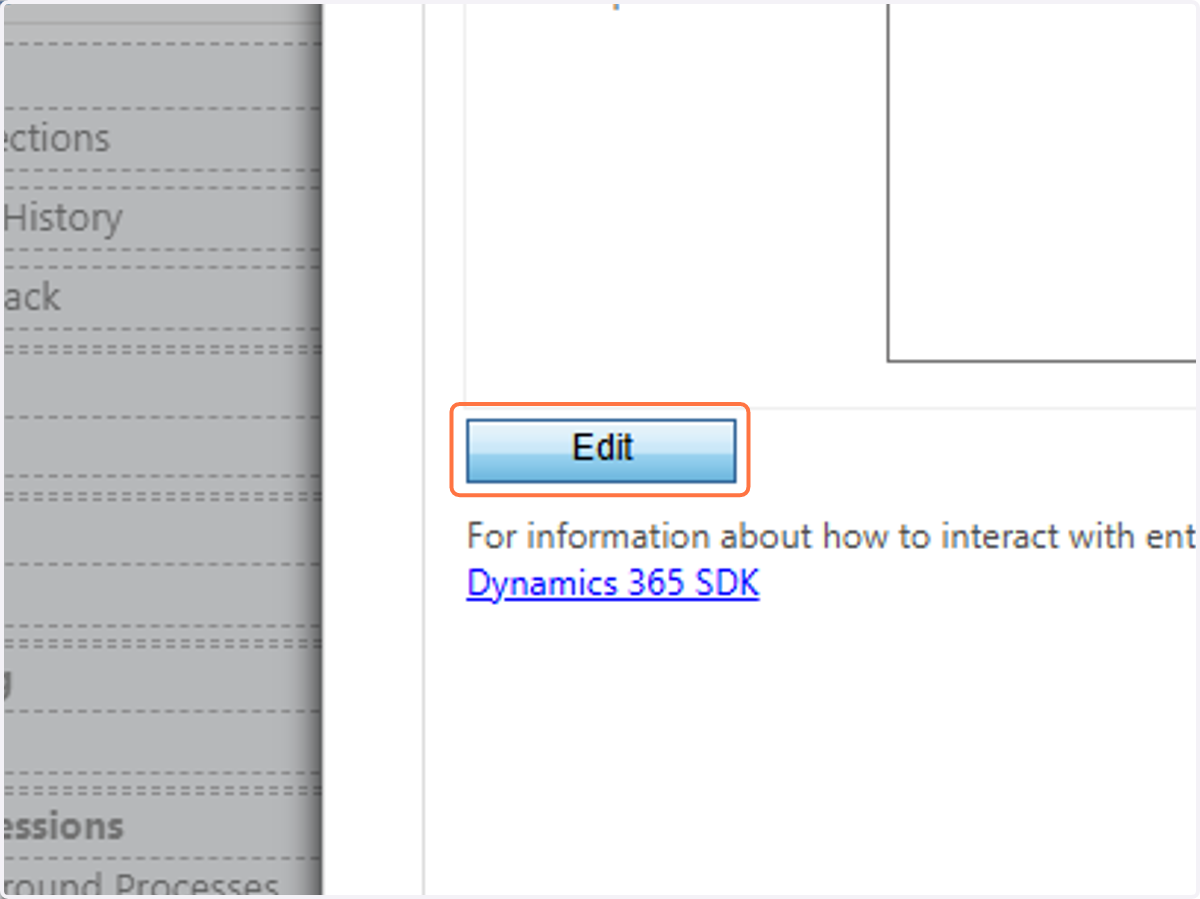
  10. 10. Click on Edit

    Click on Edit
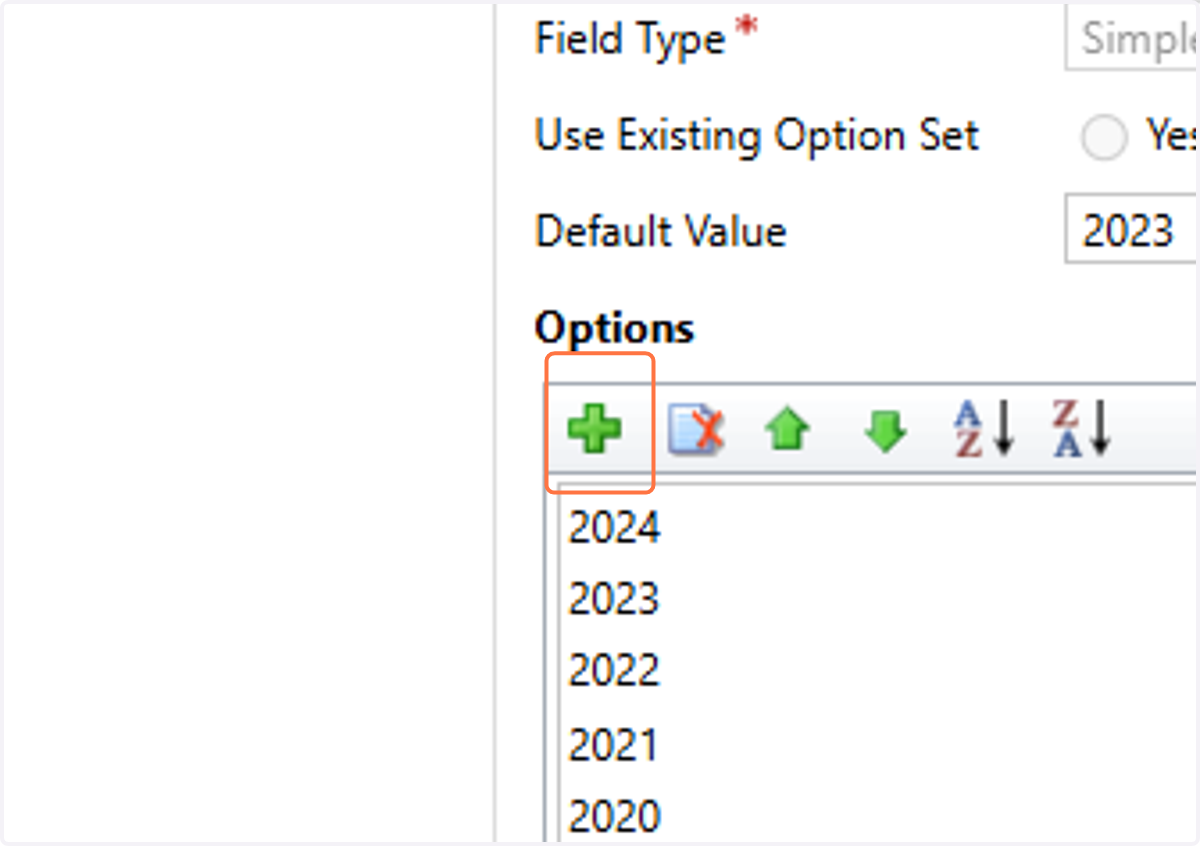
  11. 11. Click on Add

    Click on Add
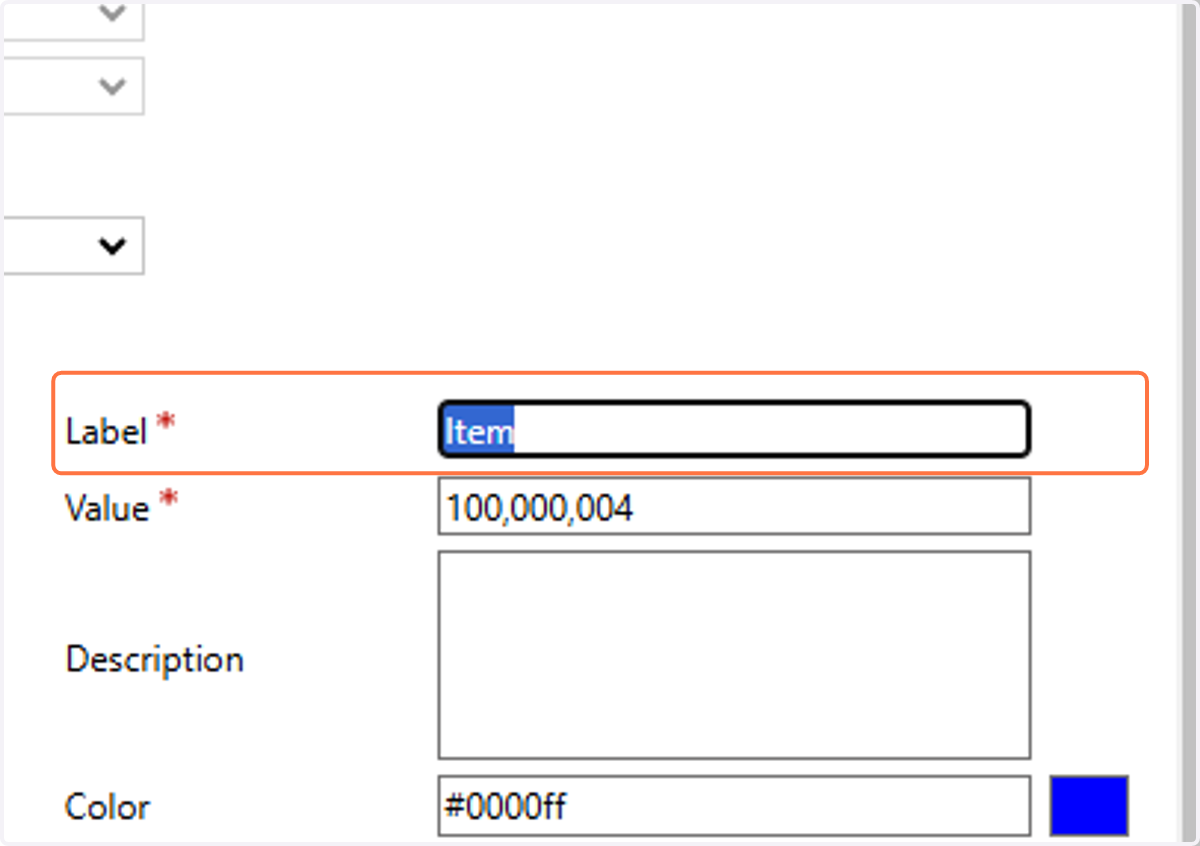
  12. 12. Remove the text that says Item

    Remove the text that says Item
  13. 13. Type in the year you want to add to the option list and click "enter" on your keyboard
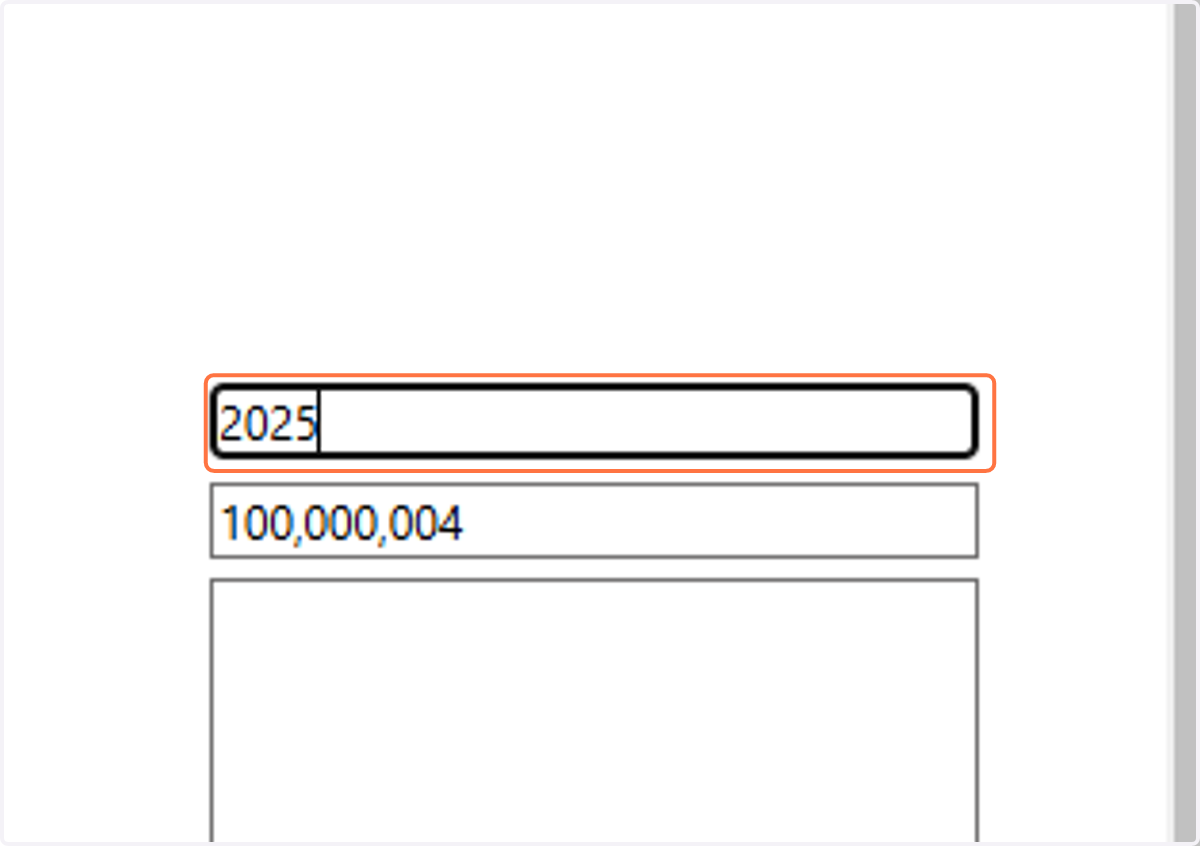
    Type in the year you want to add to the option list and click "enter" on your keyboard
  14. 14. In the Default Value field, select the year you want to show as the default
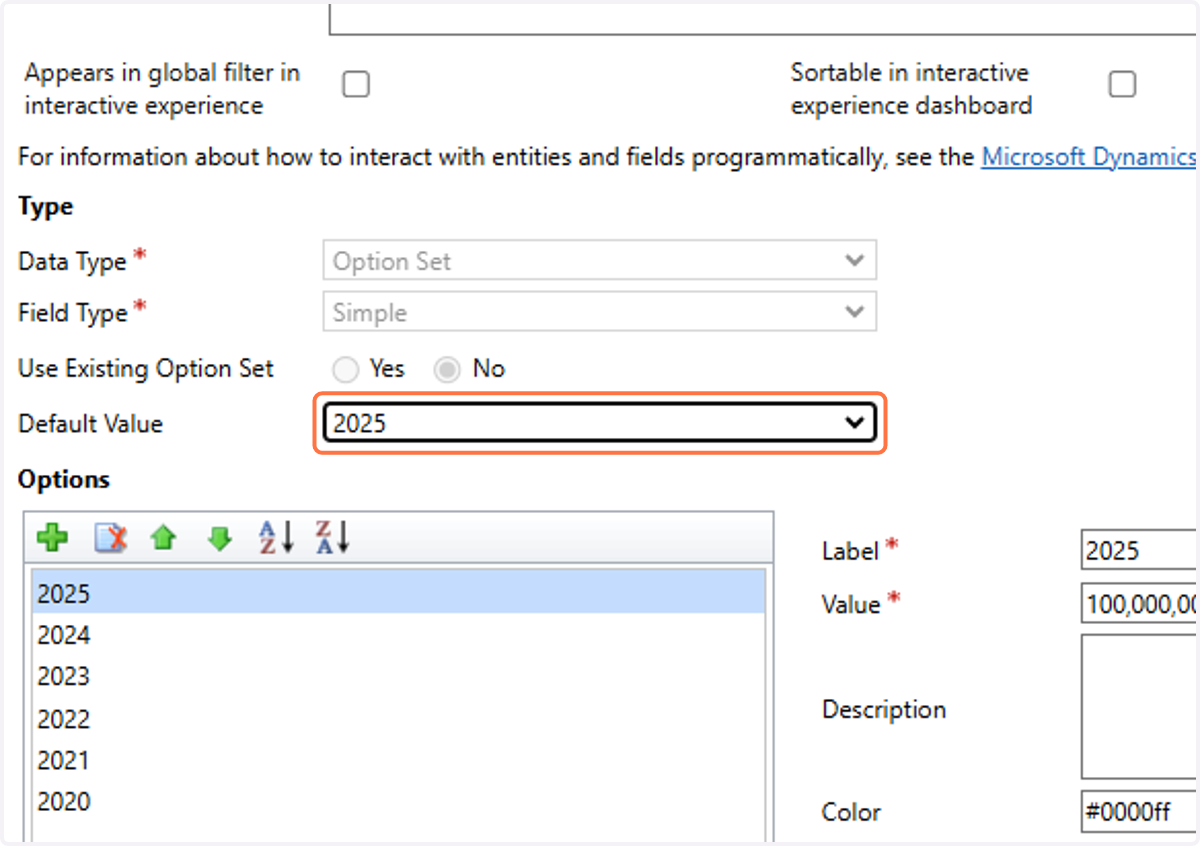
    In the Default Value field, select the year you want to show as the default
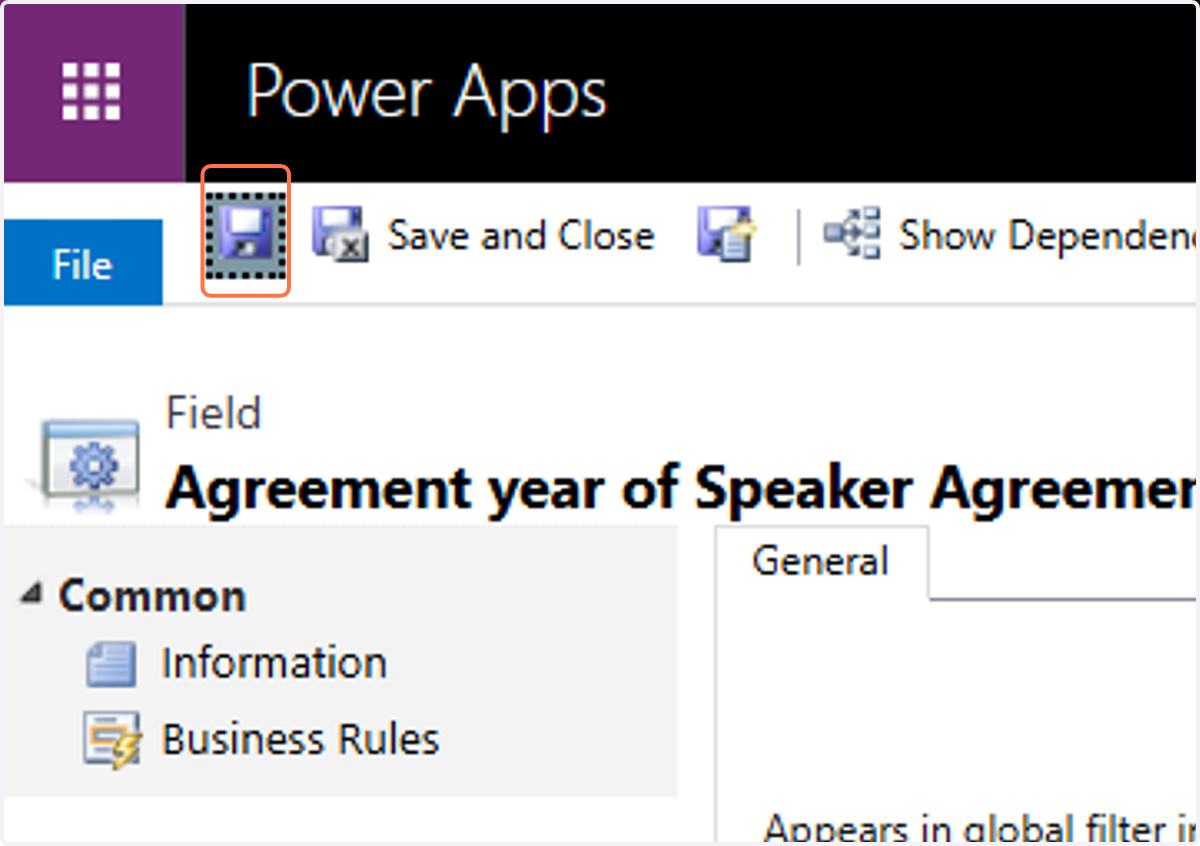
  15. 15. Click on Save

    Click on Save
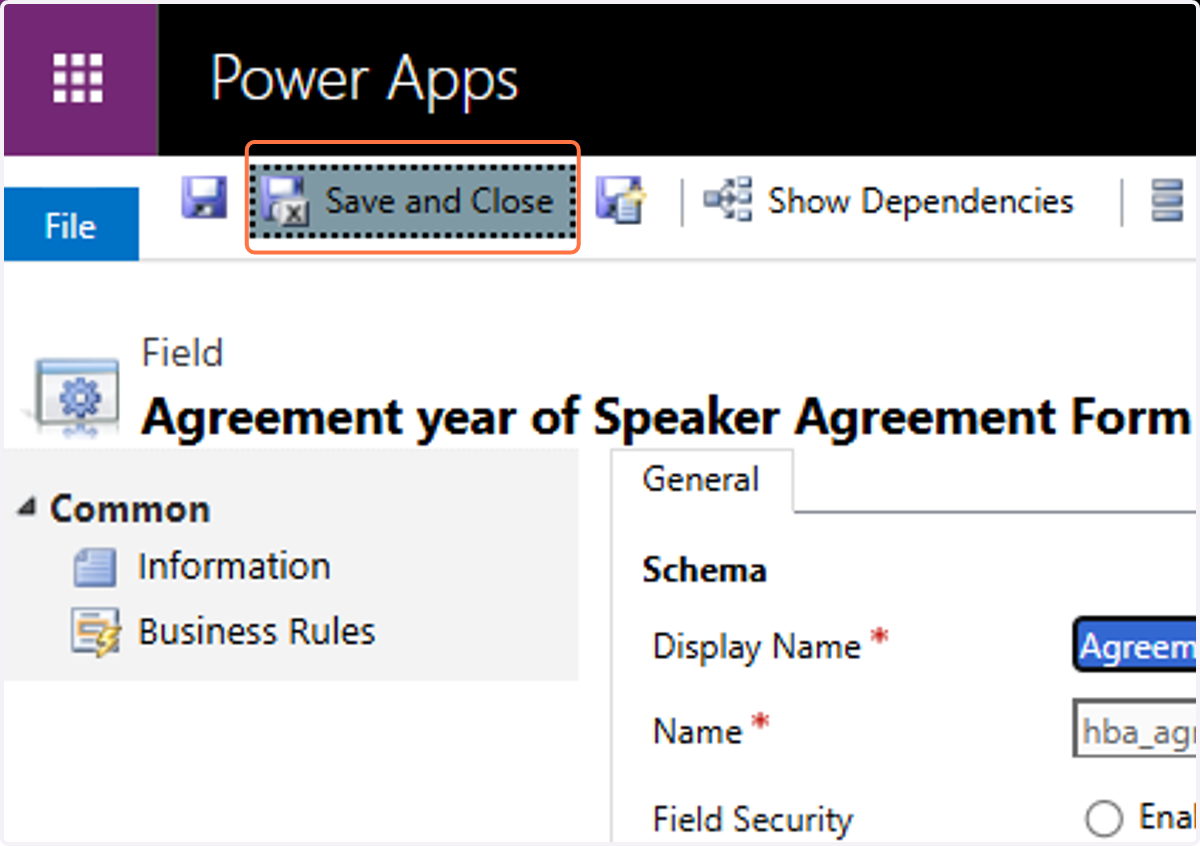
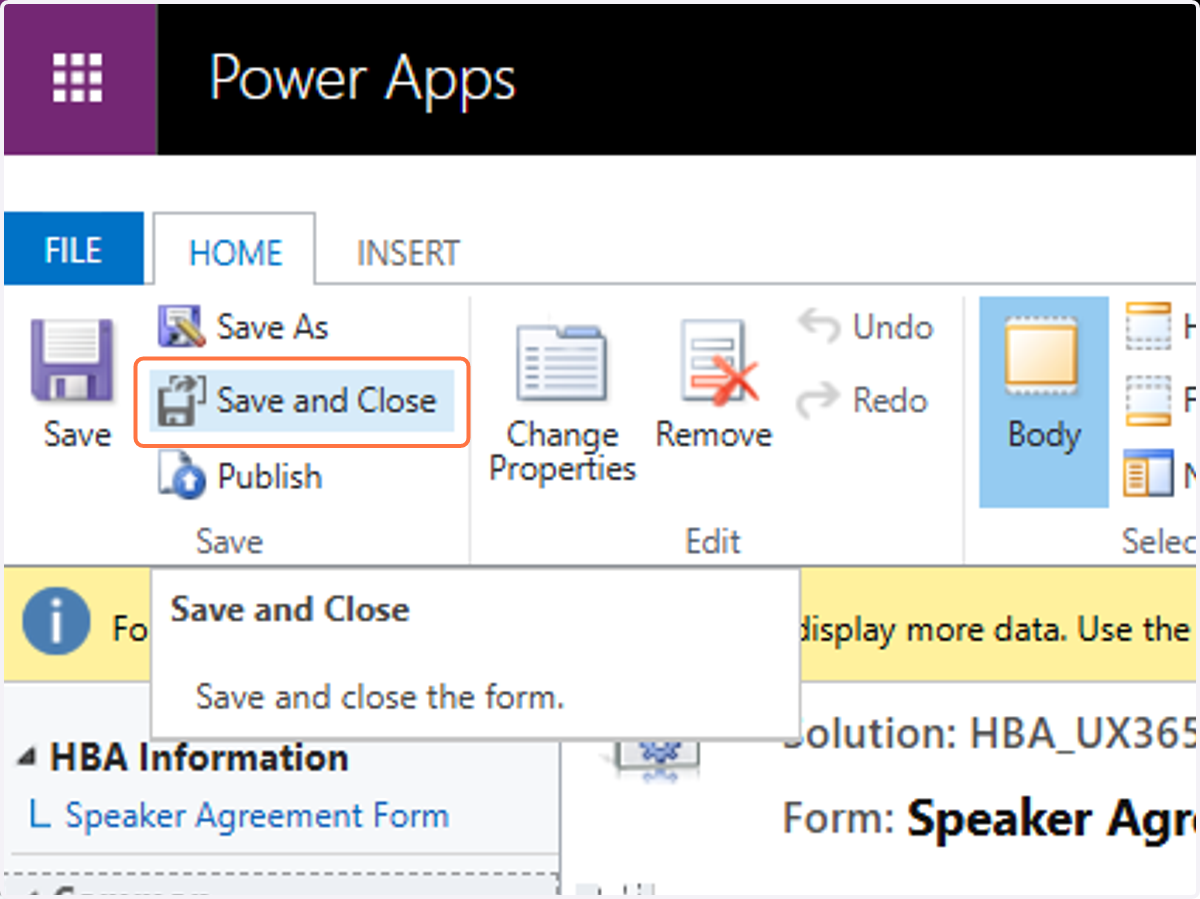
  16. 16. Click on Save and Close

    Click on Save and Close
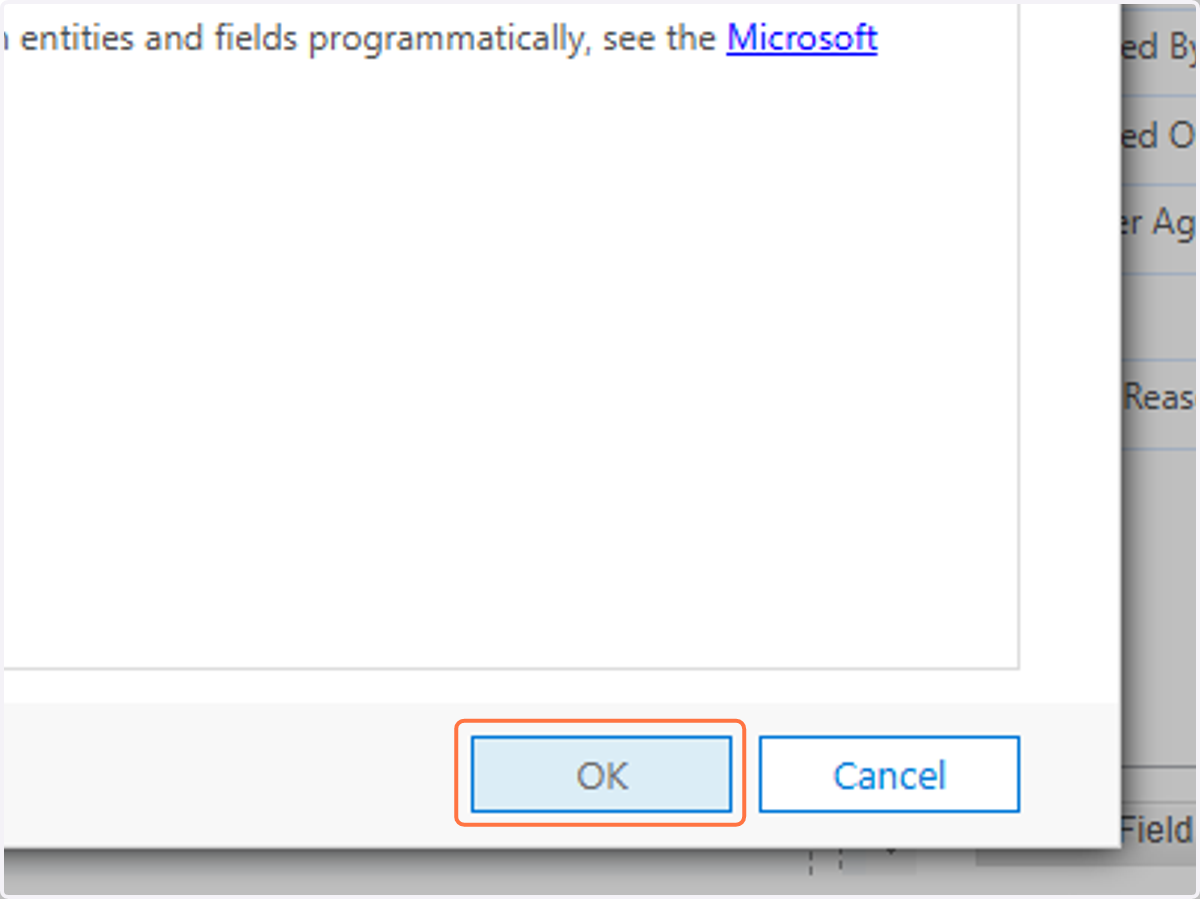
  17. 17. Click on OK

    Click on OK
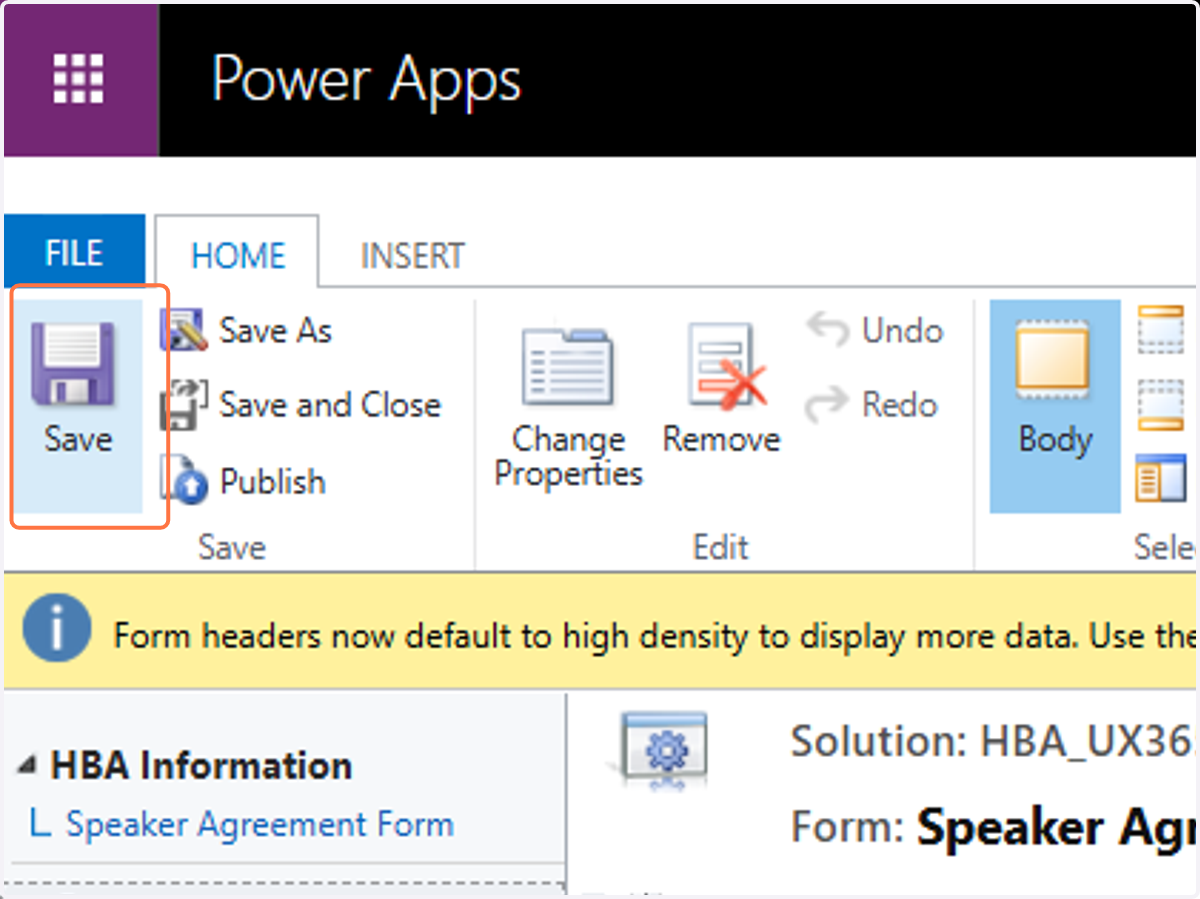
  18. 18. Click on Save…

    Click on Save…
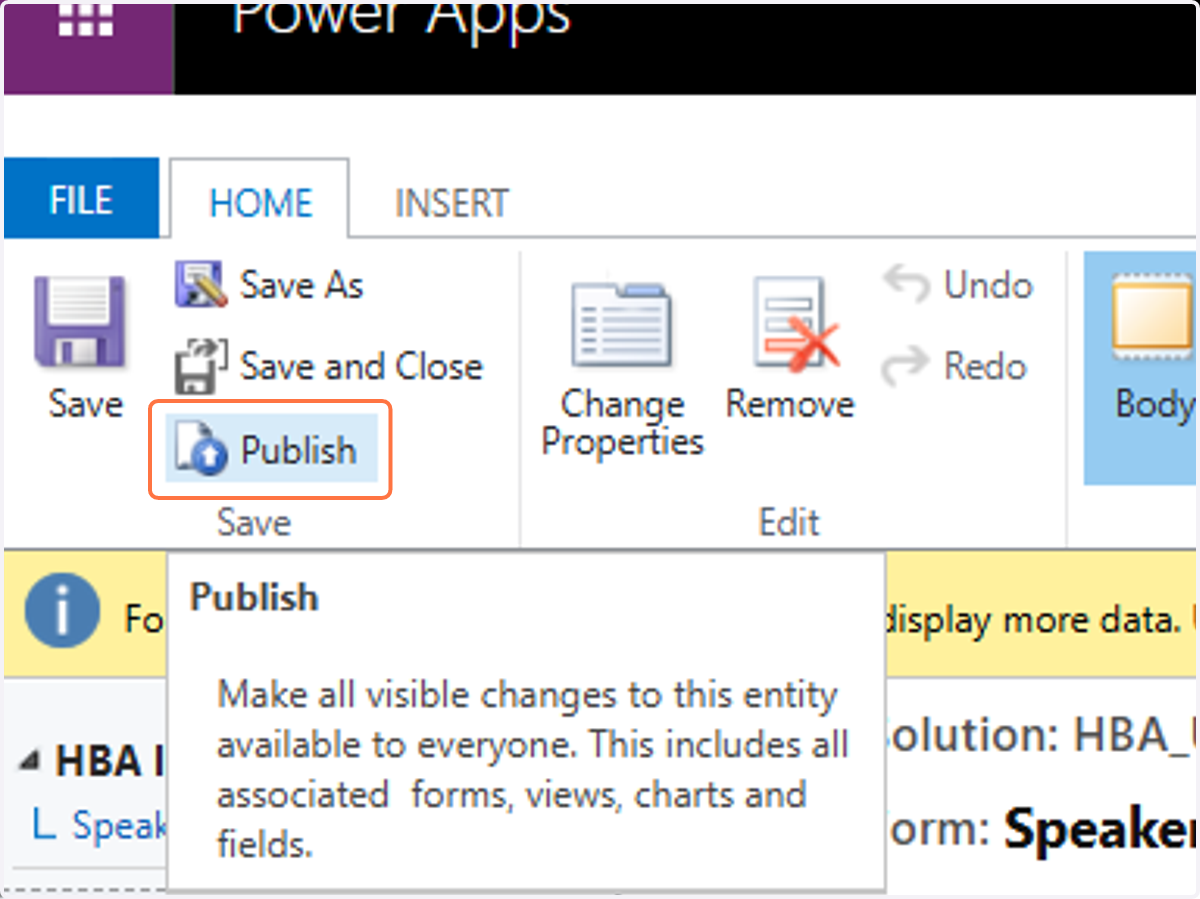
  19. 19. Click on Publish

    Click on Publish
  20. 20. Click on Save and Close…

    Click on Save and Close…