Creating dynamic templates using Invent and MegaEdit | The basics | SRBG_004
In this part of the rapid build series, we'll take a look at Infigo Invent for Indesign, along with MegaEdit products.
MegaEdit products are variable products, with templates configured to allow customisation of products on a vast array of levels. Using MegaEdit, a customer can have complete control over the design of their products.
We'll create a very simple example to demonstrate the fundamental capabilities, but remember this is only scratching the surface! The Infigo Academy contains separate learning pathways, going into much greater detail on both MegaEdit and Infigo Invent for InDesign.
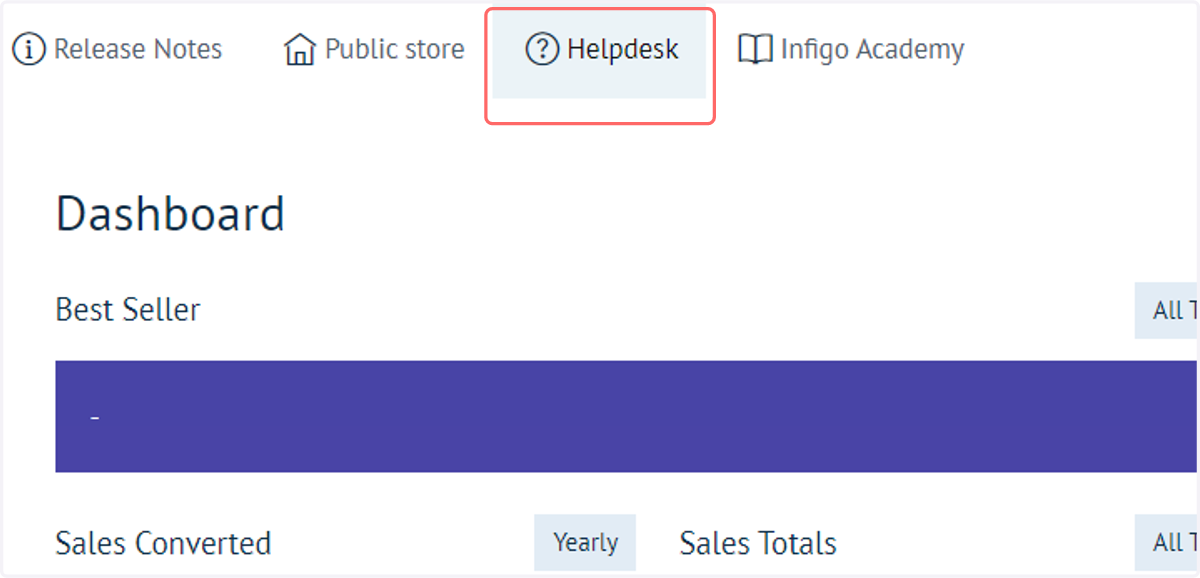
1. Click on Helpdesk
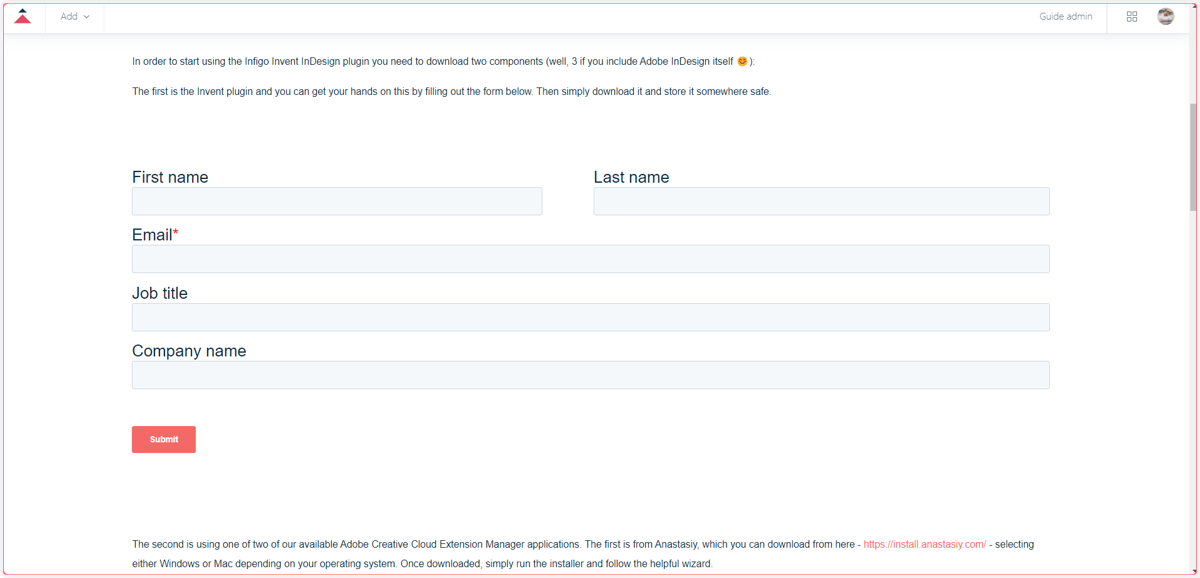
To begin, we will download and install Infigo Invent for InDesign.
You can download it from the Infigo Helpdesk
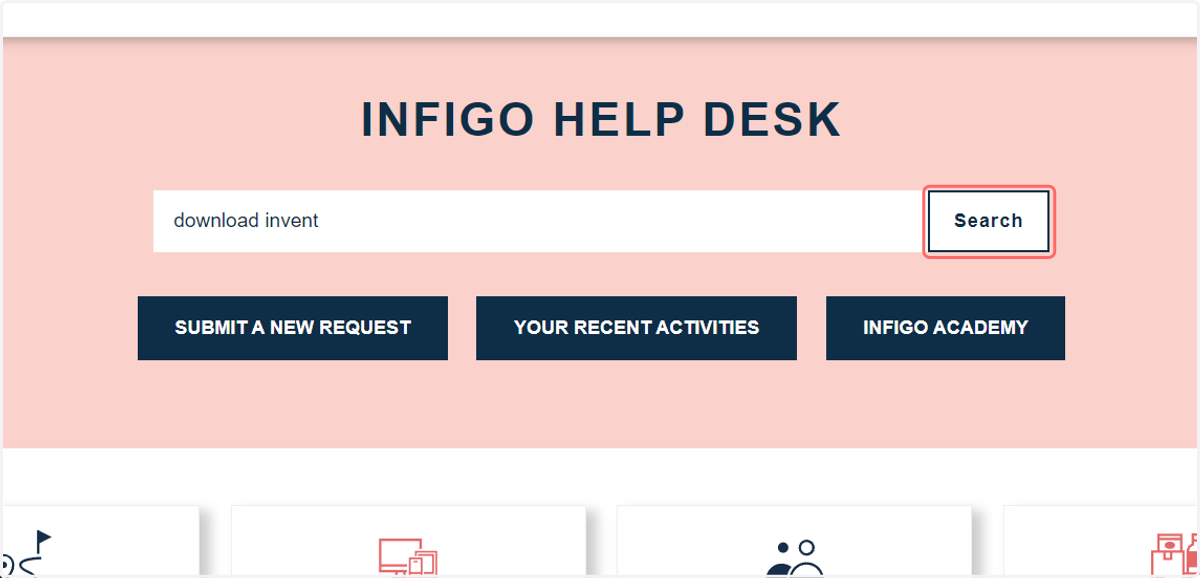
2. Search for the term "download invent"
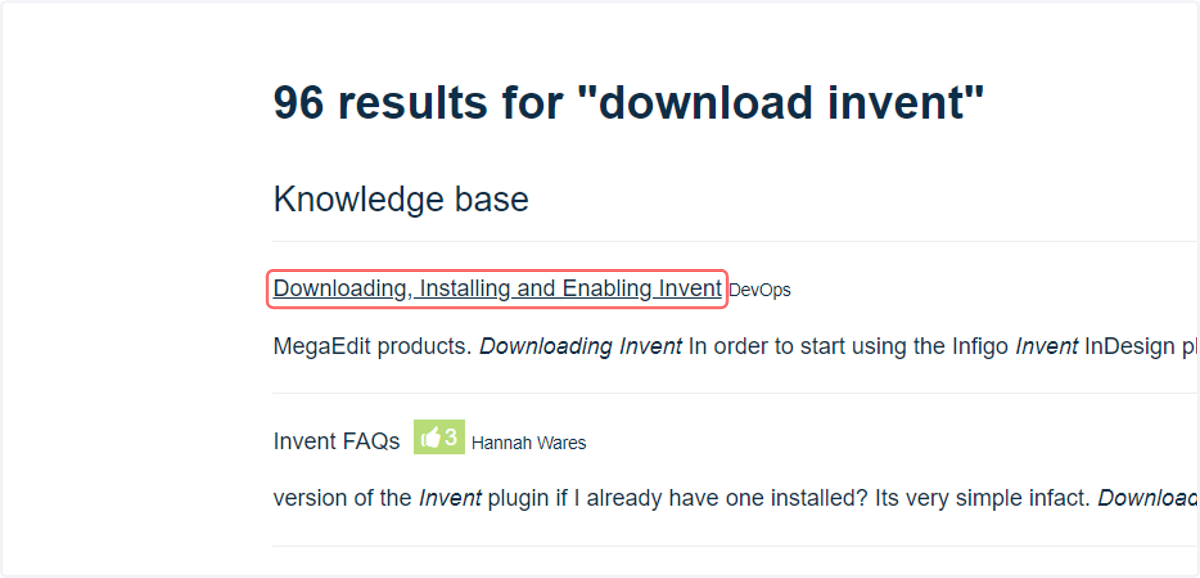
3. Click on Downloading, Installing and Enabling Invent
4. Download Invent
Before being granted instant download access, you will need to provide some information. This is simply so we are aware of who is using our Invent plugin.
Once downloaded, installation is simple. Just follow the steps detailed on the Helpdesk article.
The process consists of:
Download the Invent installation package
Download and install a recommended Adobe extension manager
Install the Invent package via the extension manager
Open Adobe InDesign
Enable the Infigo InDesign extension.
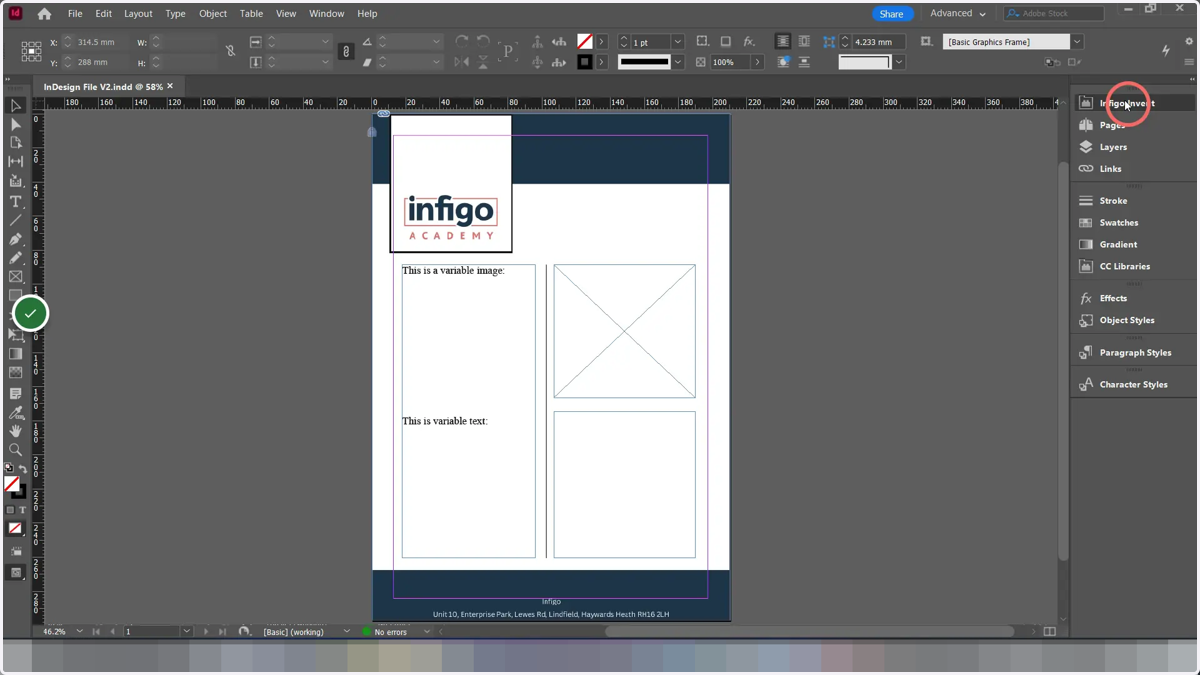
5. We resume with the Infigo Invent package enabled inside our InDesign window
Click below to download a sample InDesign file, to start your Invent and MegaEdit learning!
We will take a look at the fundamentals of configuring a template inside Infigo Invent, followed by a look at how we convert this into a product within our Infigo Storefront.
In our example, we are simply aiming to create one variable image field and one variable text field, to get a general feel for the functionality.
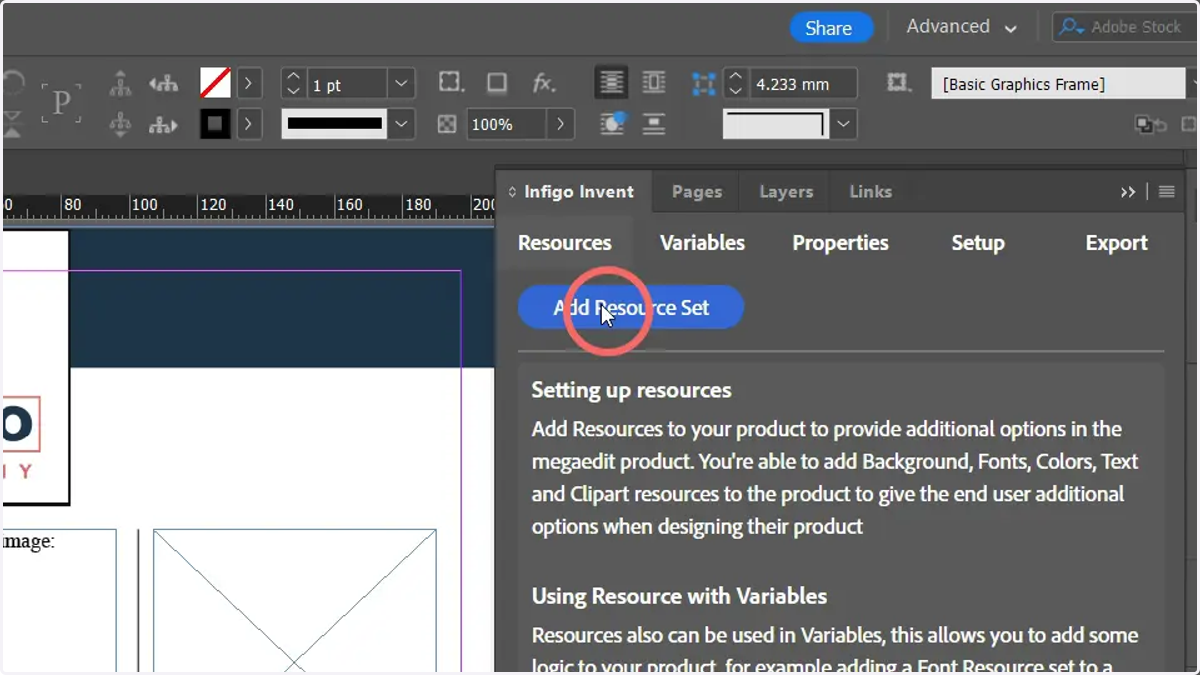
6. Invent Resources
Resources can be uploaded to Infigo Invent for use in your dynamic product templates.
Resources can take numerous forms, consisting of groups such as:
Clipart
Text libraries
Backgrounds
These resources can be linked to other areas of your Invent template, as we'll discover later.
When you eventually export your Invent file for use in MegaEdit, these resources will be taken with it.
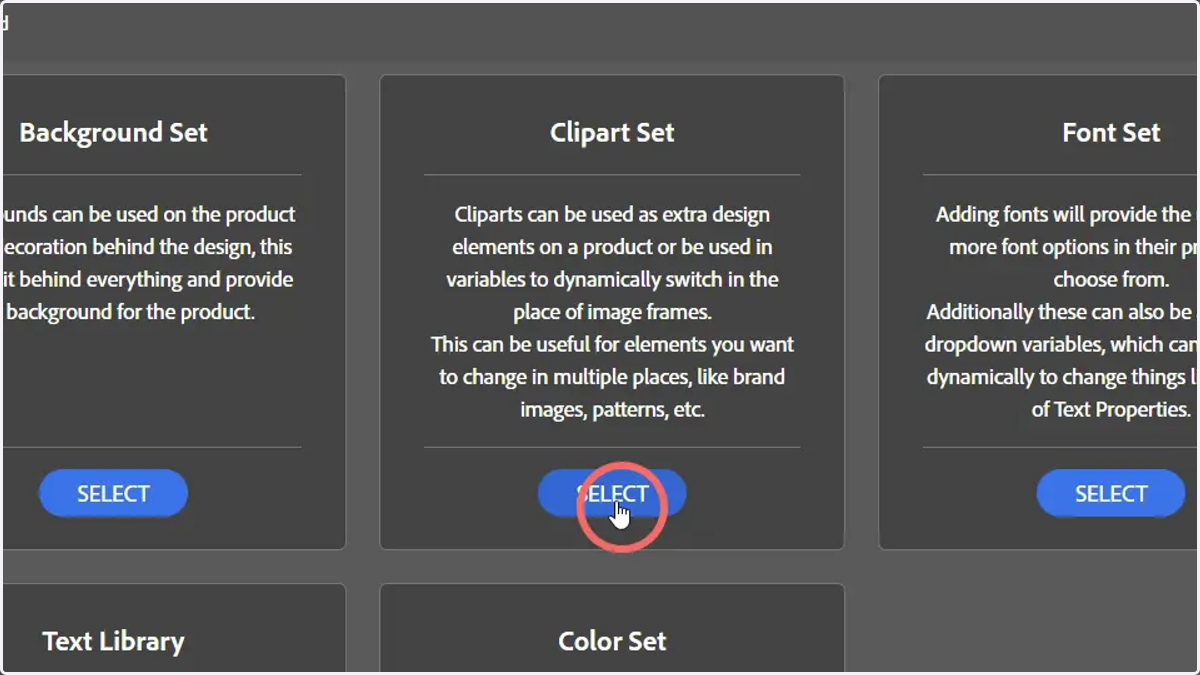
7. Create a clipart set
Each resource set will have a different configuration of options, however they are all essentially doing the same thing. Resource sets are providing you with a location to upload a selection of items which you will subsequently be able to use on your variable template.
8. Enter a name for the resource set
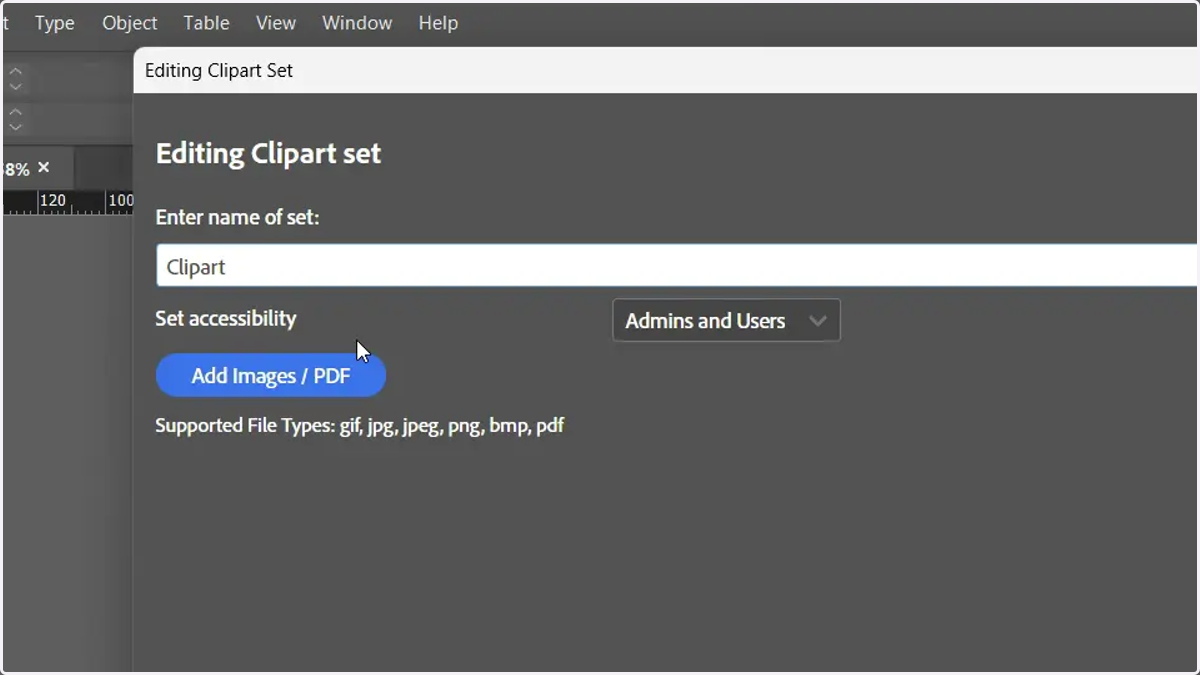
9. Upload clipart images
For this example, upload a selection of imagery from your computer. The choice of images doesn't matter at this stage.
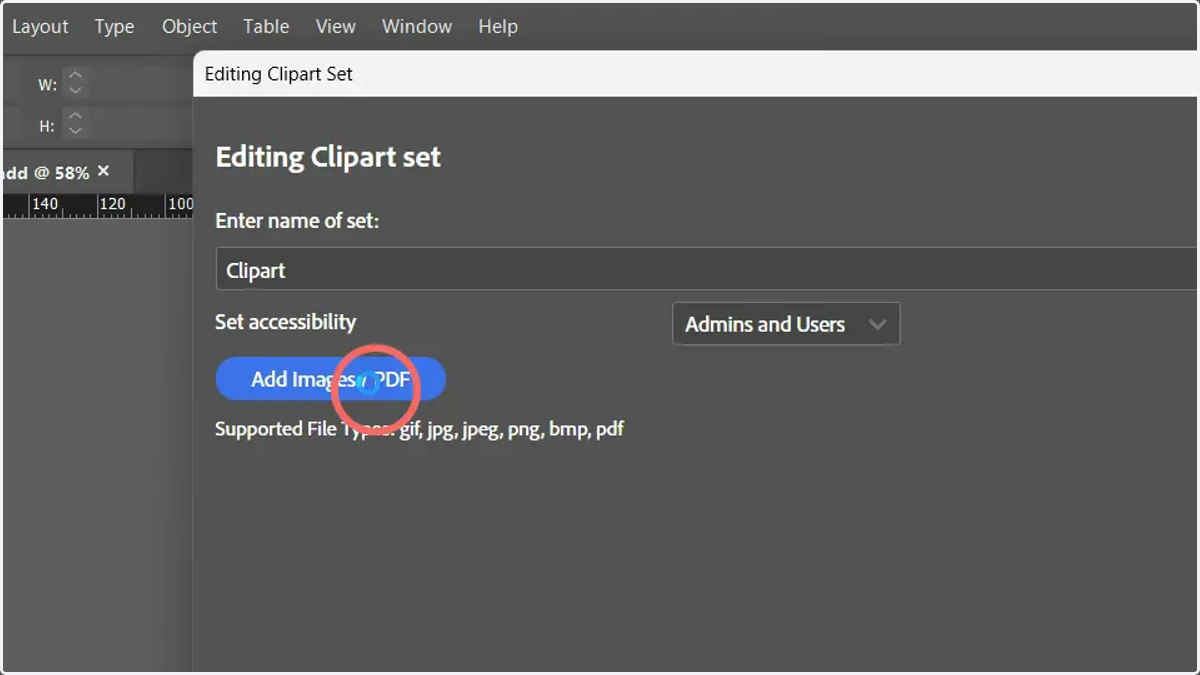
10. Click the create dropdown checkbox and confirm
Variables are a means of allowing users to interact with our templates. With a product template from Invent, they will usually take the shape of a form which appears to the right of your screen when configuring the product on your Storefront. We will see this later.
Variables come in a number of different forms, depending on the format of the data they hold. They can be manually created, as we will see later, or a simple dropdown variable (where users can select from a dropdown list of options) can be created directly from a resource set.
In this case, for example, it will create a dropdown list on our eventual form which allows us to switch between our uploaded images.
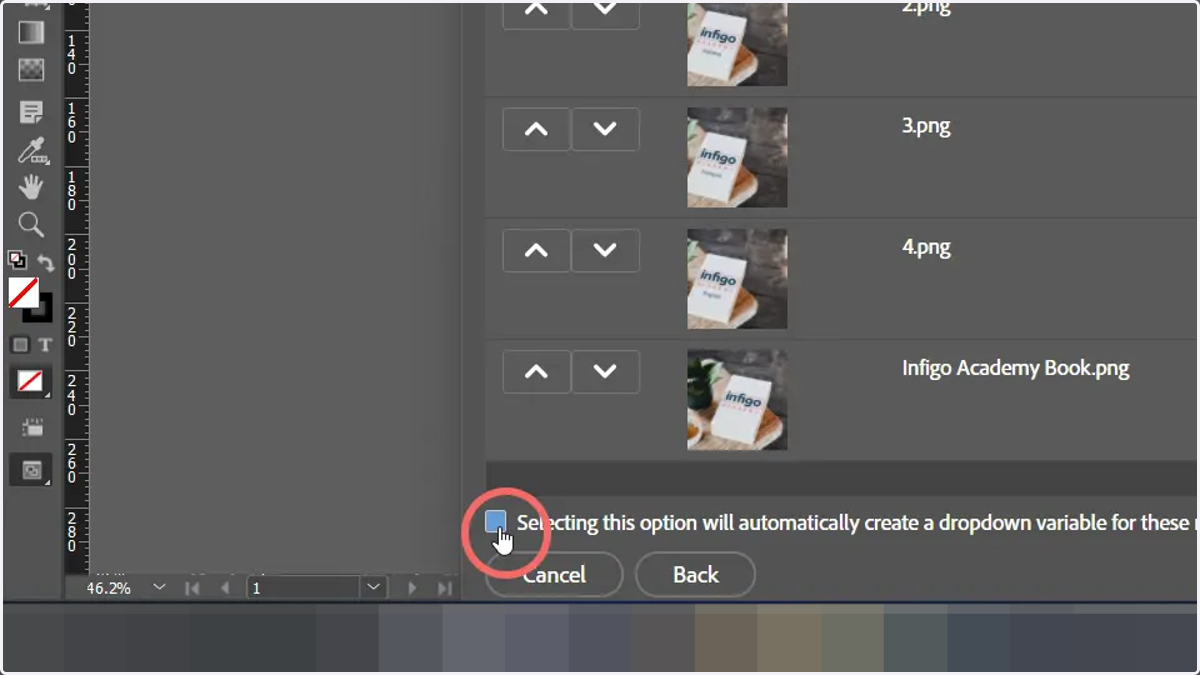
11. Navigate to the Variables tab
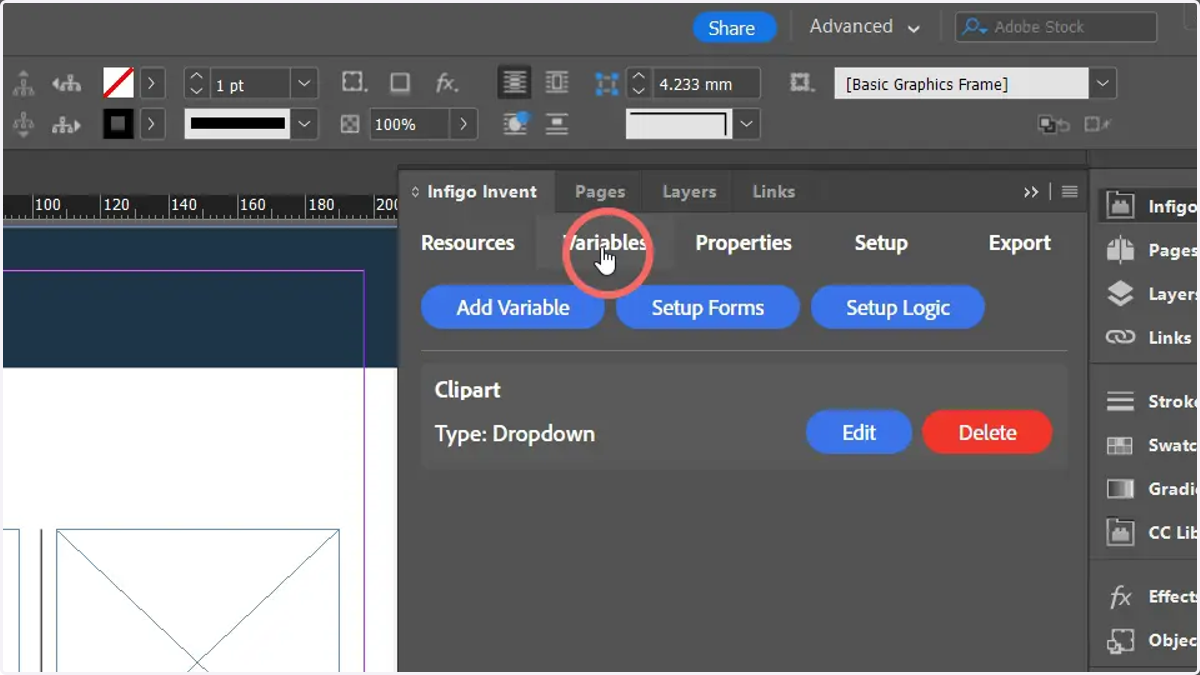
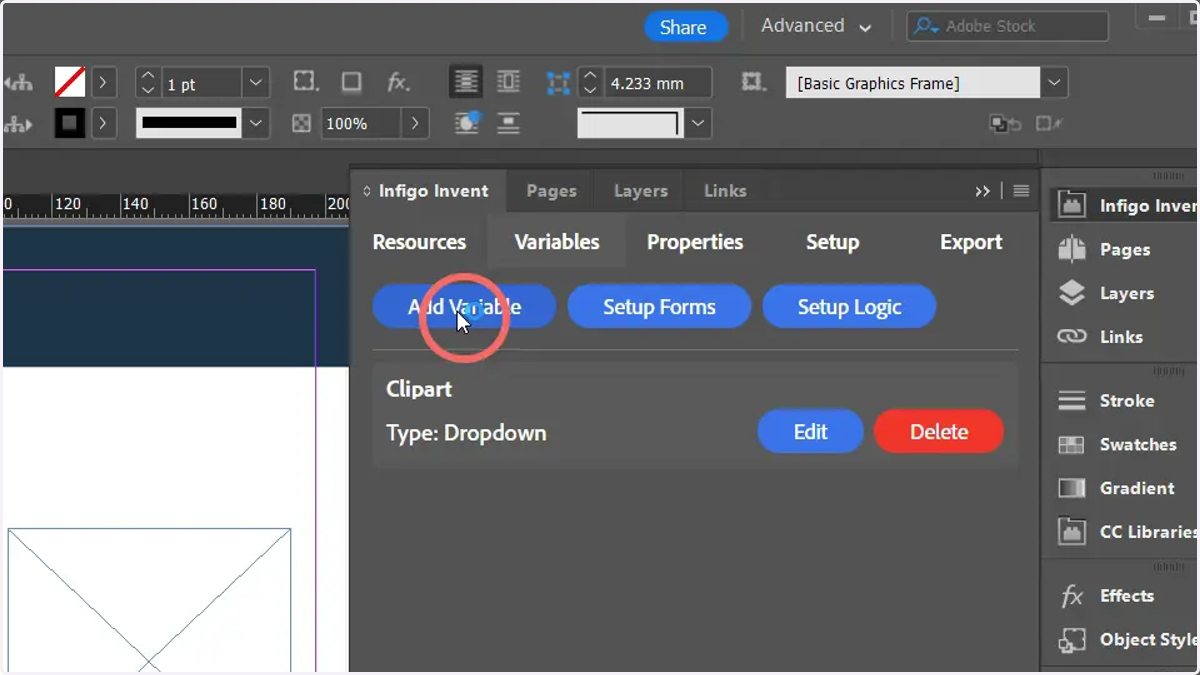
12. Click Add Variabe
We have already created one dropdown variable directly from our resource set.
Now, we will manually create a second variable. In this case it will be a text input, where users can enter a text string to appear in a specific location on the template.
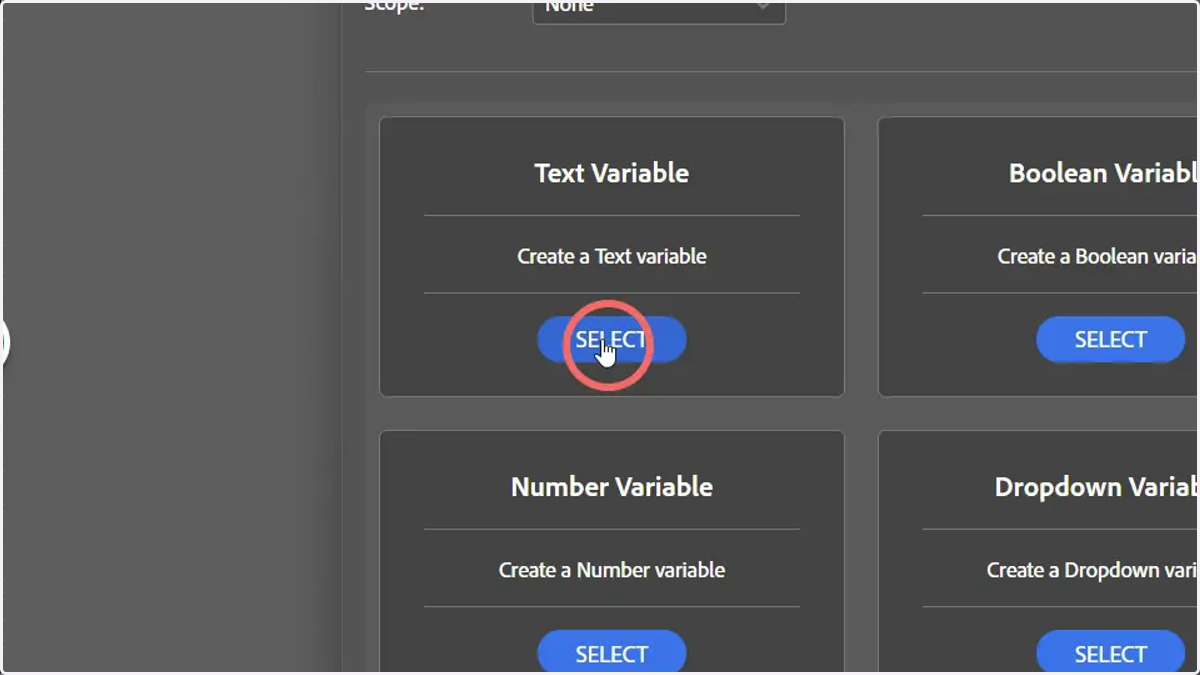
13. Click Select on a Text Variable
Numerous variable types are available based on the data you wish them to hold. For this example we wish users to enter a text string to appear on the template, so a Text variable is applicable.
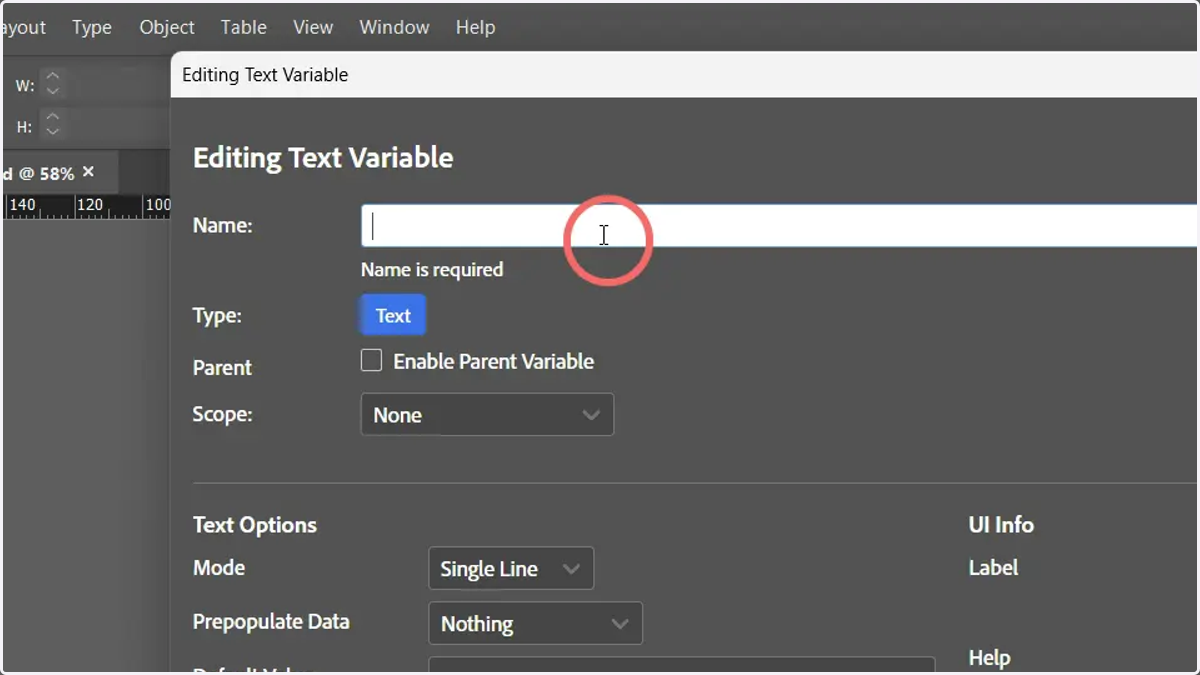
14. Enter a name for the variable
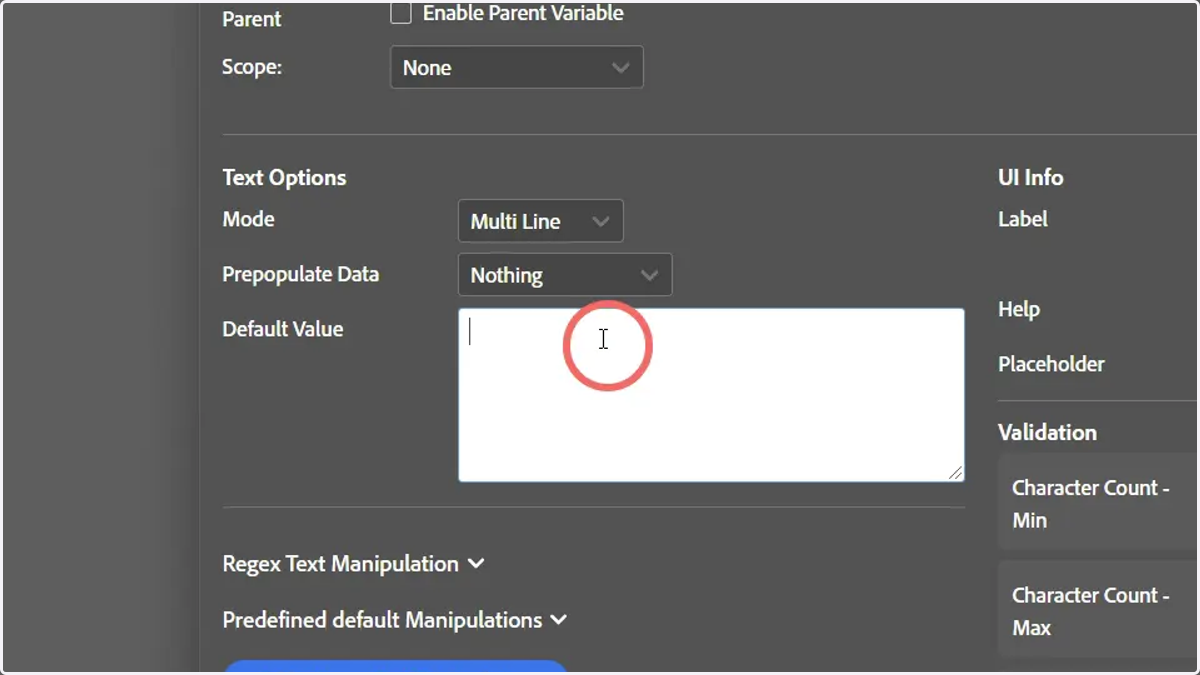
15. Enter a default value.
We will soon be linking this variable to a text frame on our template.
Setting a default value is not a necessity, however it will ensure that we don't automatically end up with an empty text box. This will ensure that when this template is loaded and viewed as a MegaEdit product, text is present.
Other options on this screen allow you to input validation and various formatting options.
Each variable type will also have its own set of options. The Infigo Academy contains detailed tutorial learning pathways on both Infigo Invent and MegaEdit.
16. Click on the image frame within the InDesign file
We have now created resource sets, and linked those resource sets to variables that our end users will be able to control.
Our next step is to link those variables to our artwork, so the system knows what needs to change on the artwork itself when a user changes the variable.
Begin by selecting the image frame located on the provided InDesign file.
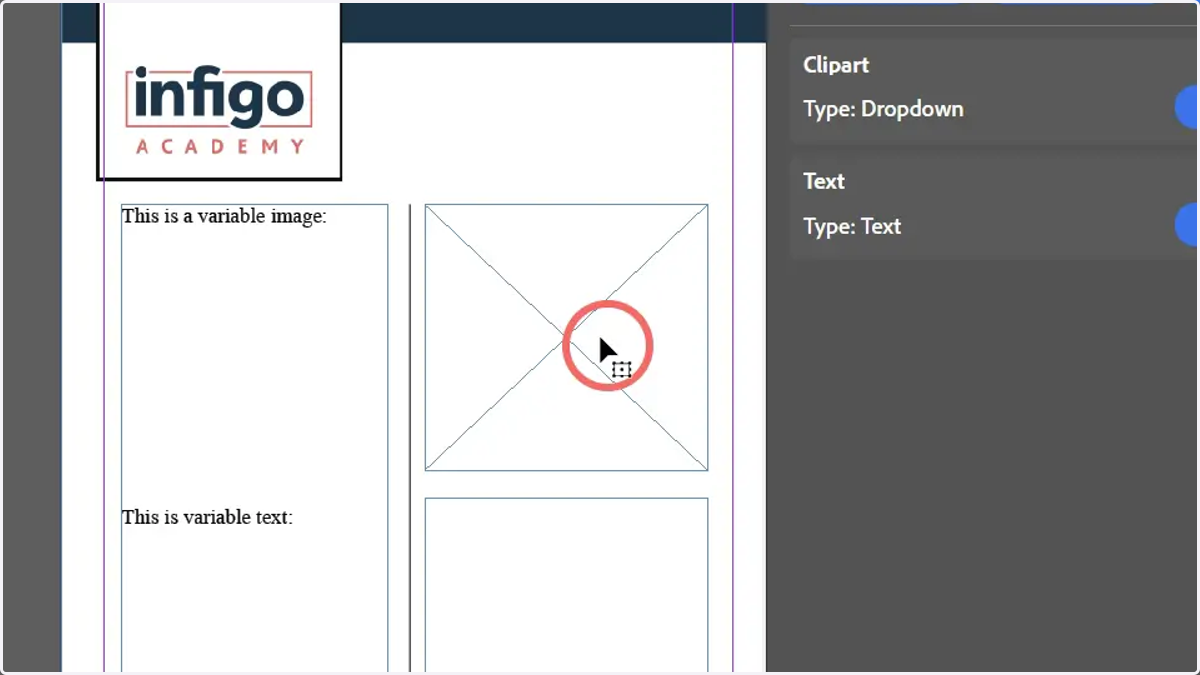
17. Click the Properties tab
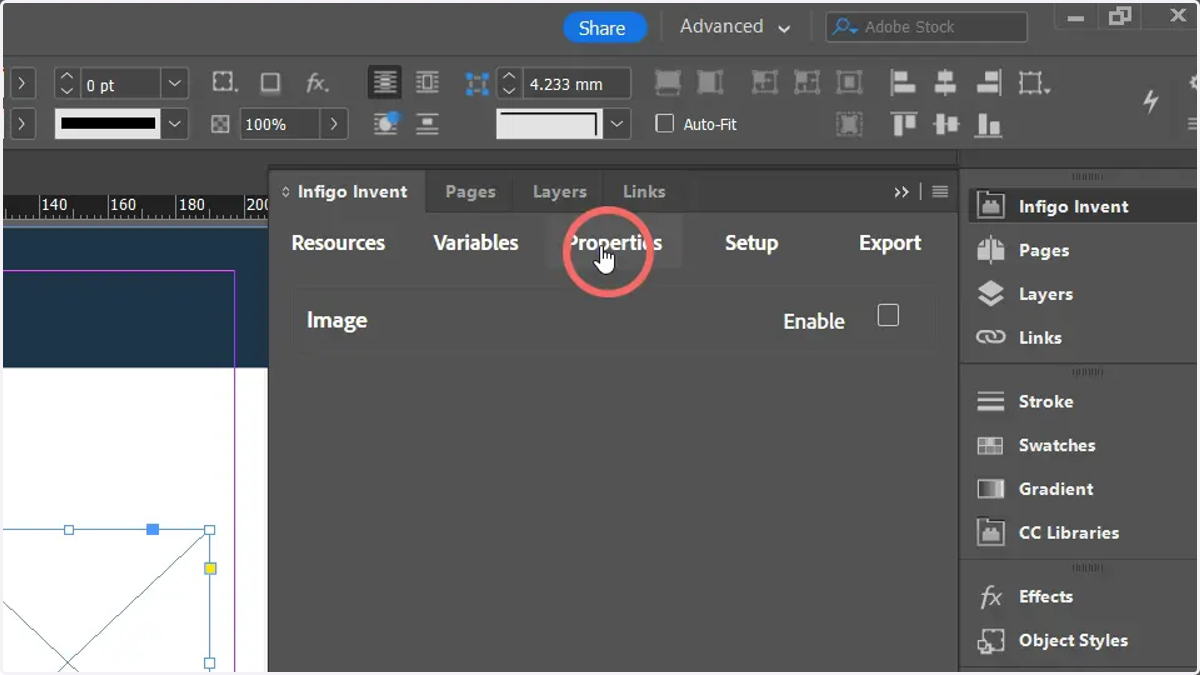
18. Click Enable
All existing elements of the InDesign file are set NOT to be controlled by Infigo Invent by default.
This means that if the template were to be imported into MegaEdit at this stage, the template would be completely static and nothing would be variable from within MegaEdit, even if you've already set up resources and variables.
By enabling frames on your template, you are confirming that Invent will see these as a variable field. As such, numerous additional options will be displayed within the Invent tab when a field is enabled.
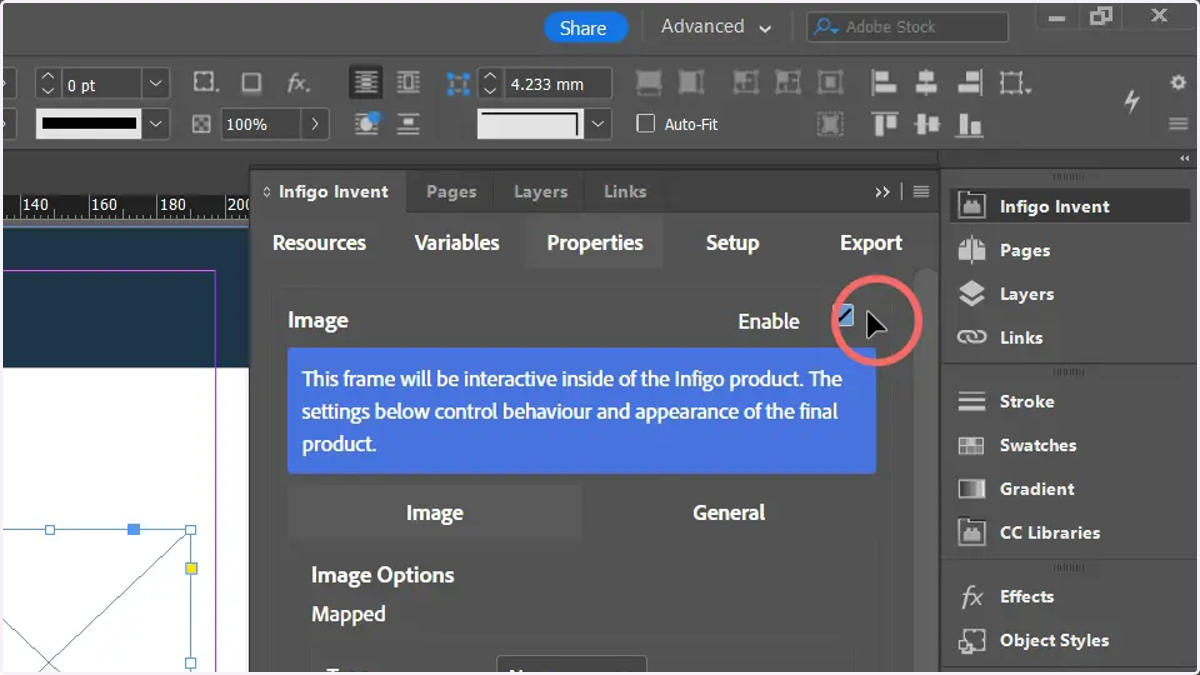
19. Form a link by mapping the image field to your image variable
Locate the mapping options within the Properties tab. Here, you can link the field to a resource or one of your defined variables.
By linking this field to our image variable, it will ensure when the user changes the variable using the MegaEdit form, the image shown on the actual product will also change.
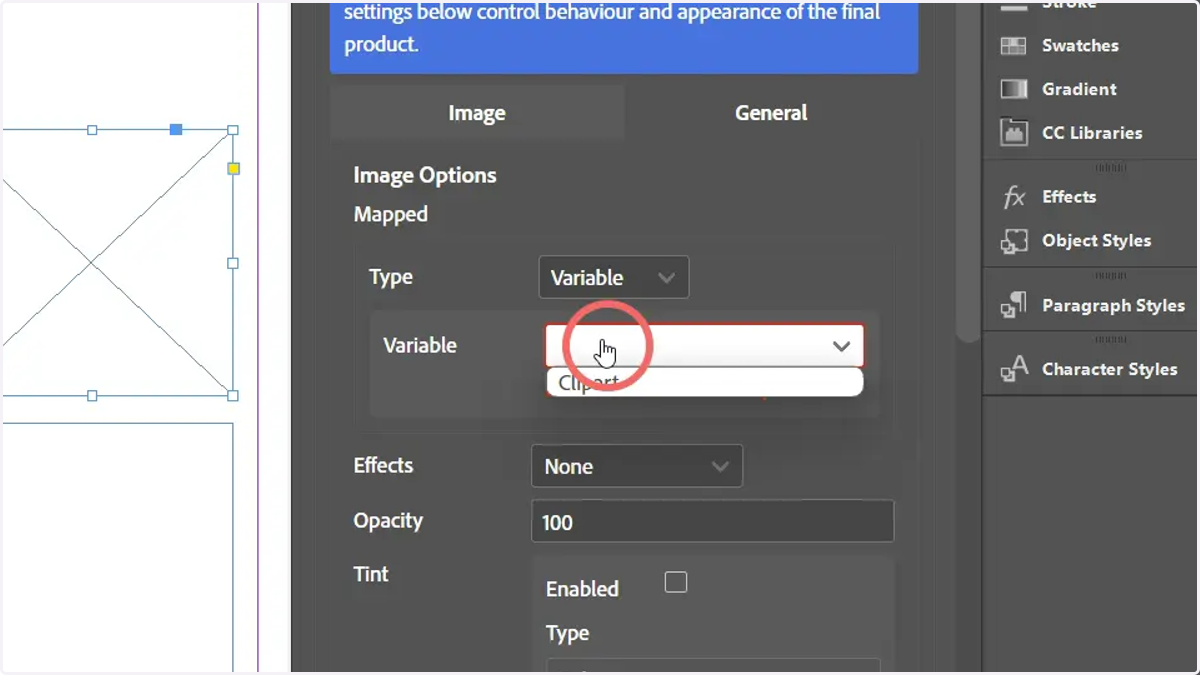
20. Link the text field to the text variable
Next, we will link our text field to our text variable, so that whatever is populated in the text box (which will be shown on the MegaEdit form) will be displayed on the artwork as well.
Click on the text field.
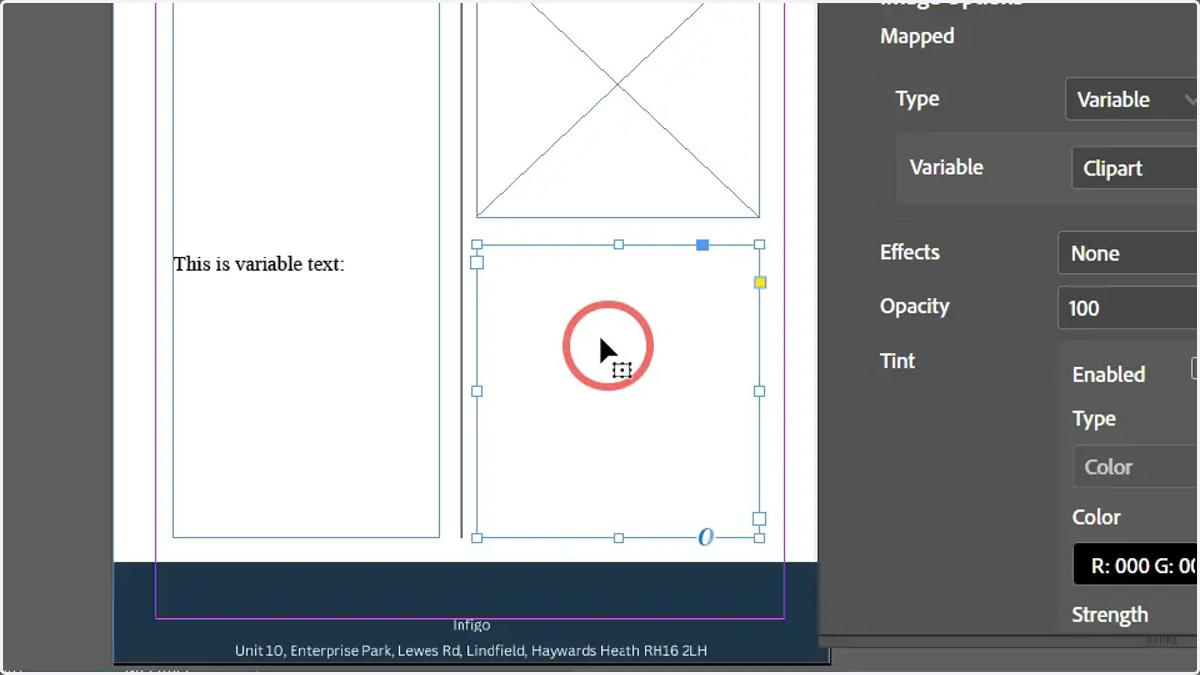
21. Enable the text field under the Properties tab
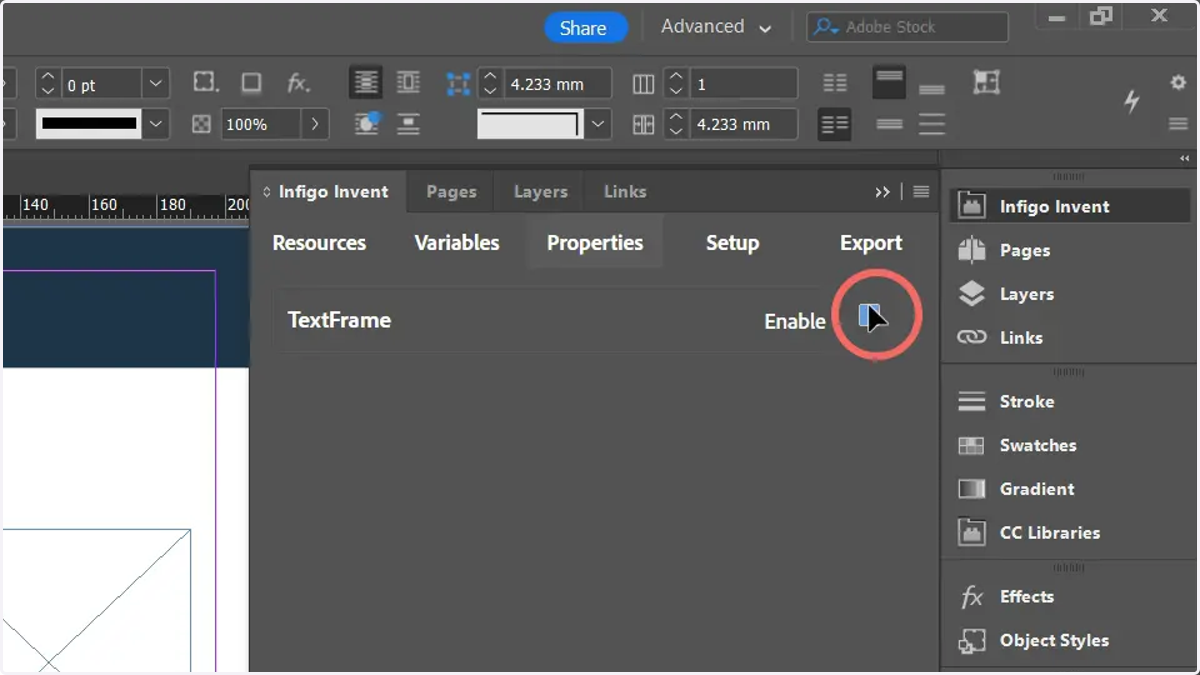
22. Link the field to the text variable you have already created
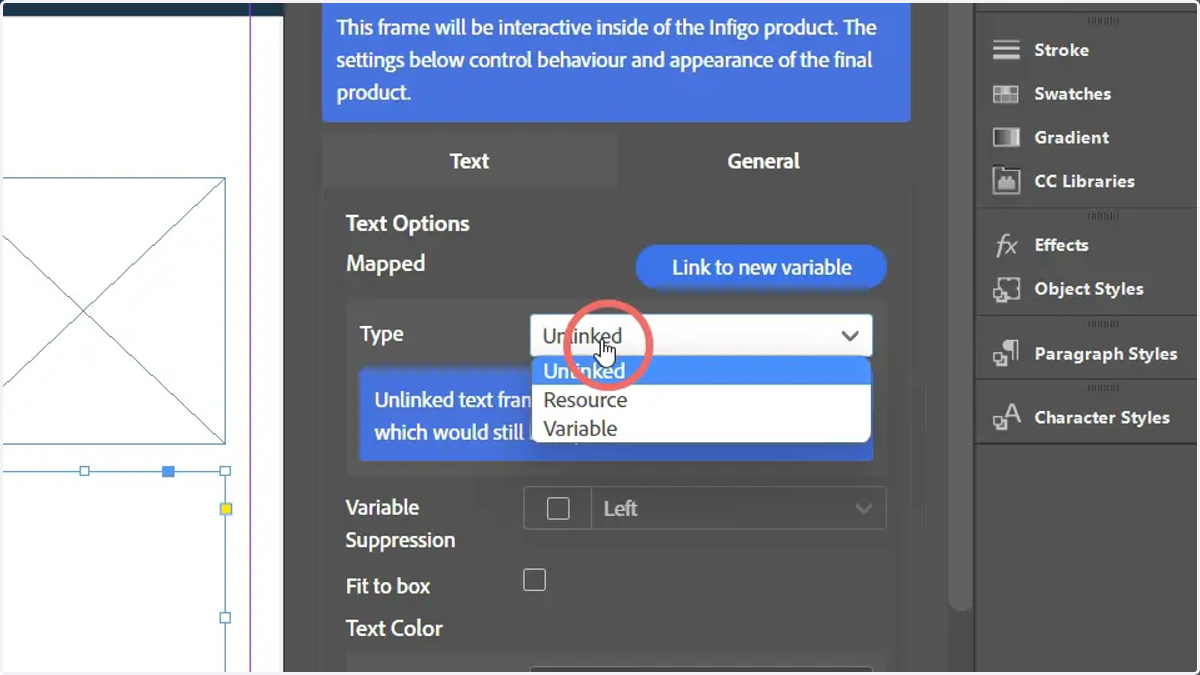
23. Click the Export tab
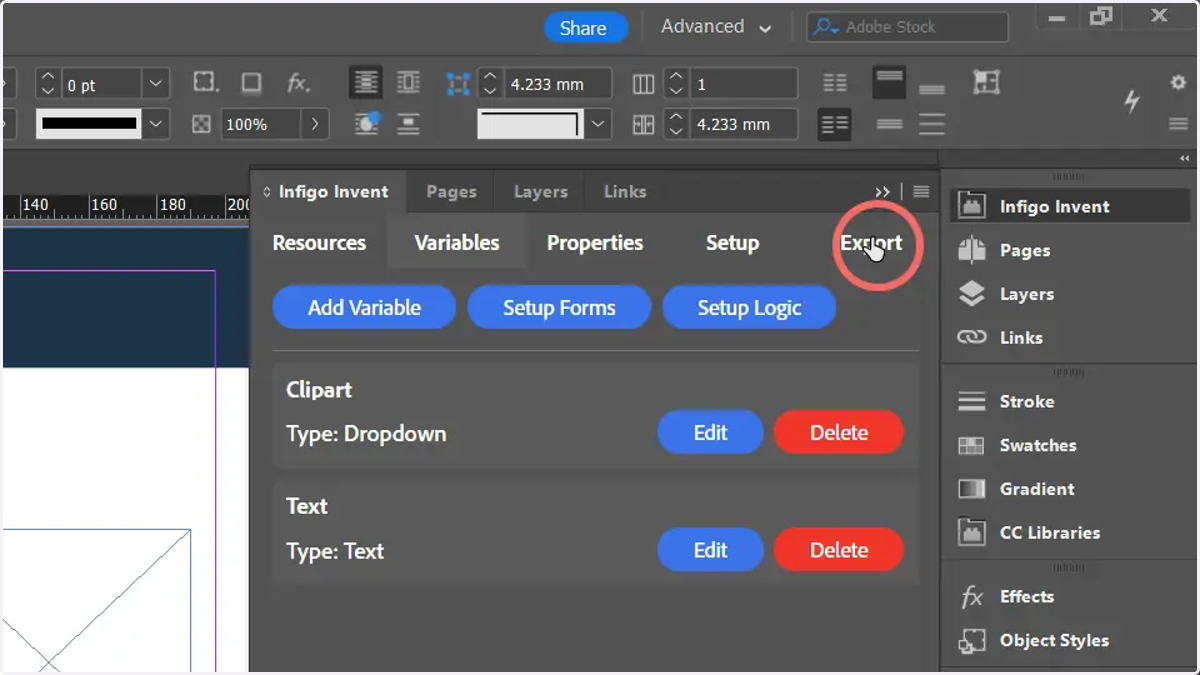
24. Specify an export file name and location
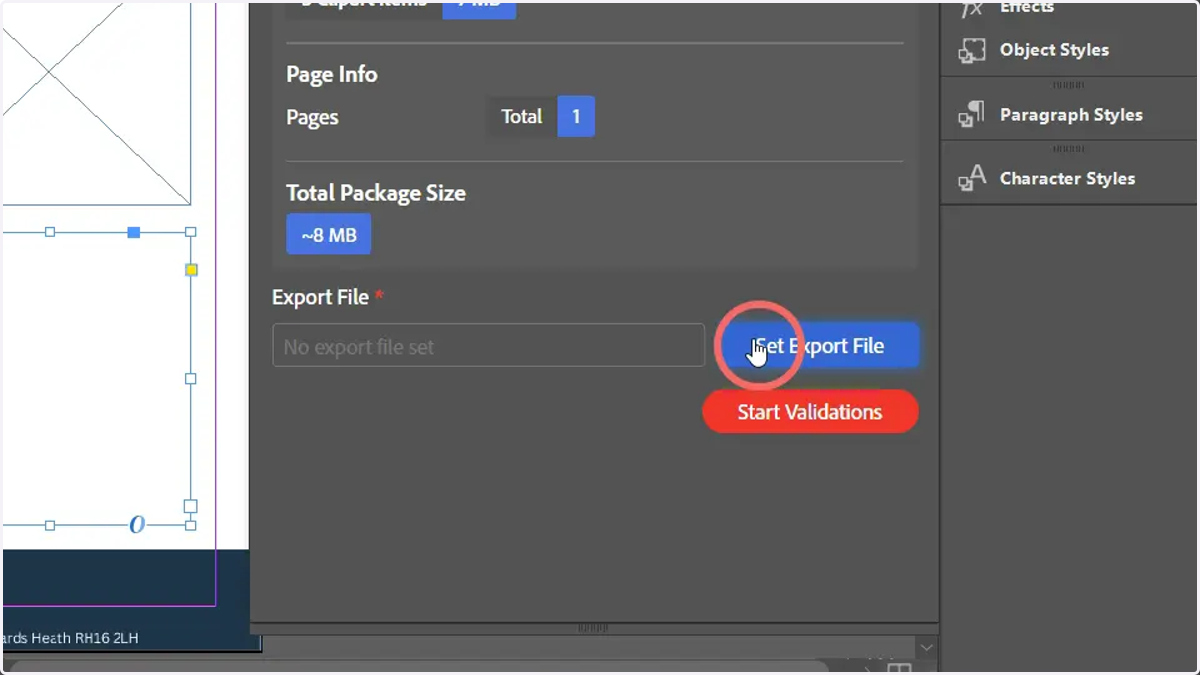
25. Click Start Validations
Invent will begin some validation checks, to ensure there are no discrepancies in your template setup
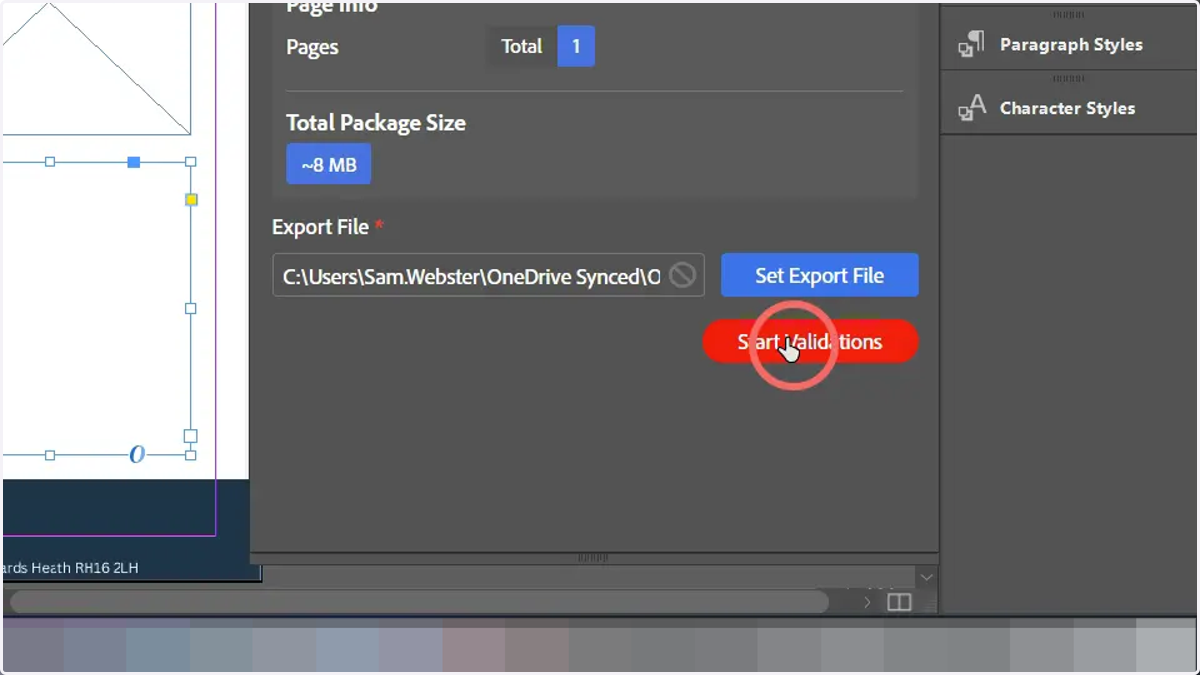
26. Repair any validation problems and Export
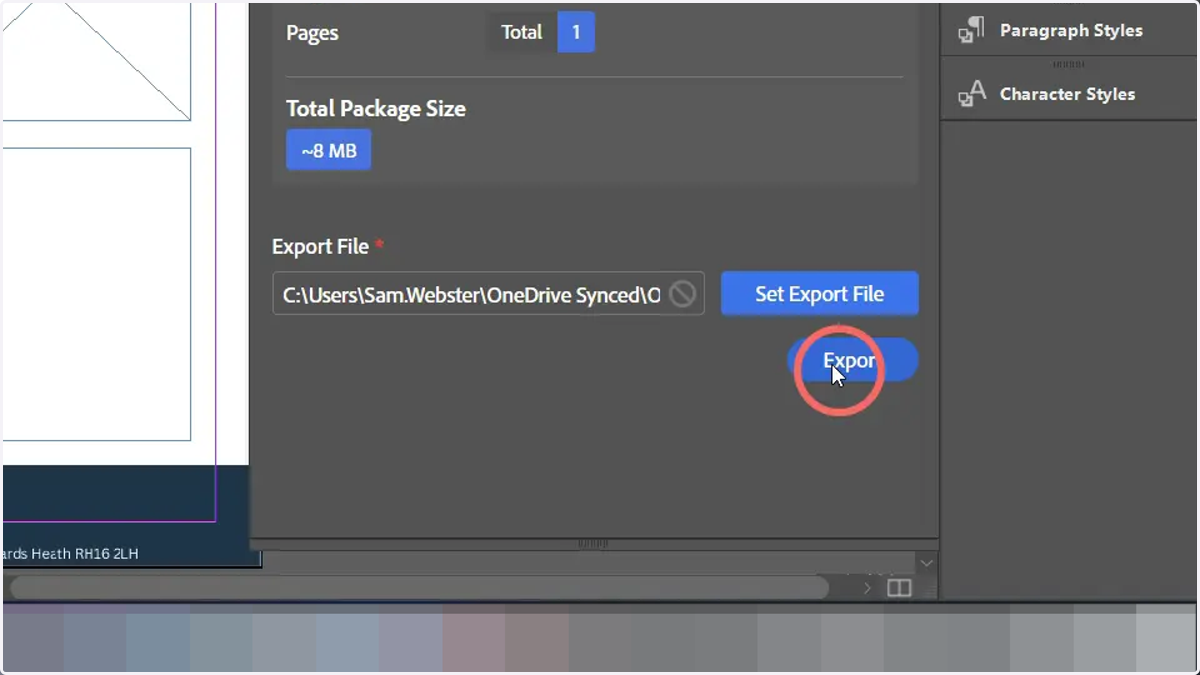
27. A MEX file will be created, ready to be imported into Infigo Storefront and to be used via MegaEdit
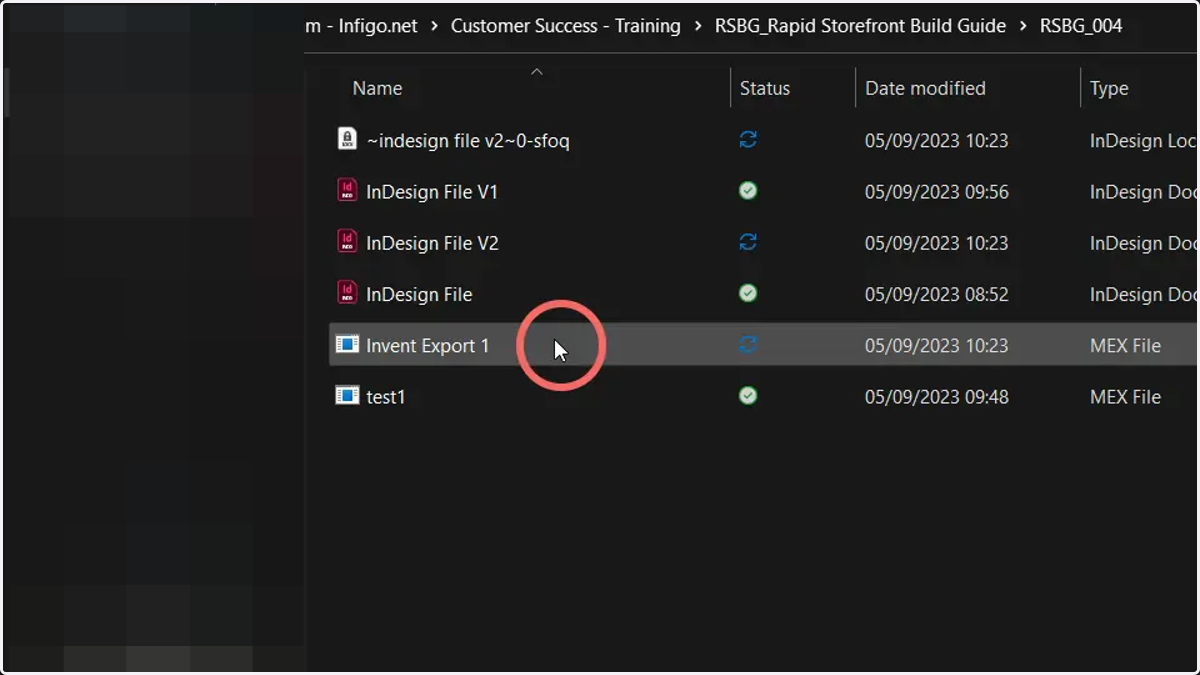
Importing the MEX file into your Infigo Storefront
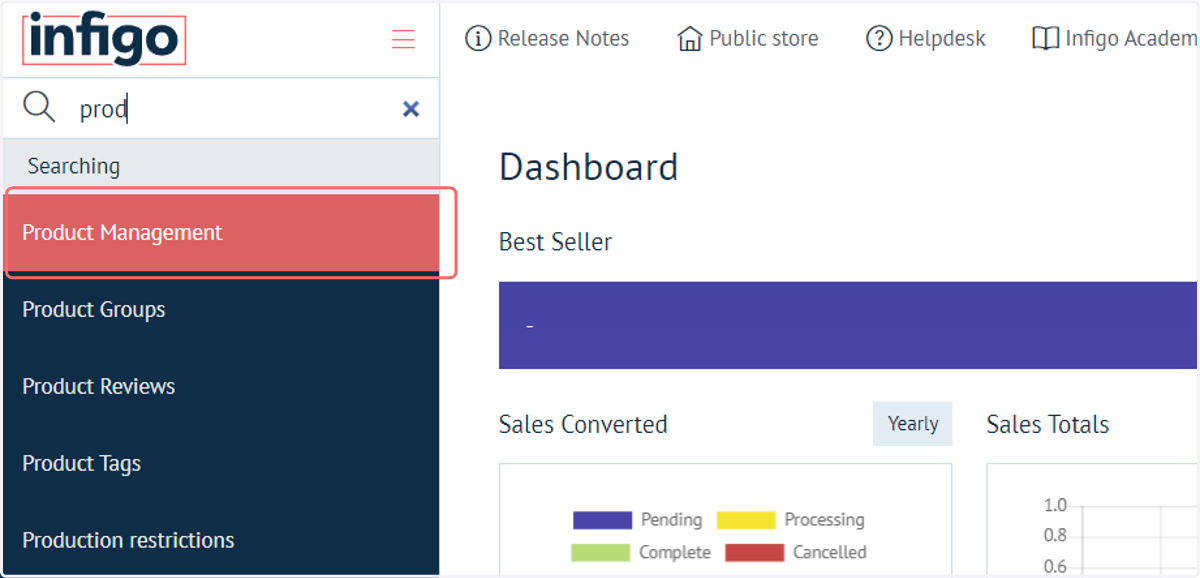
28. Click on Product Management
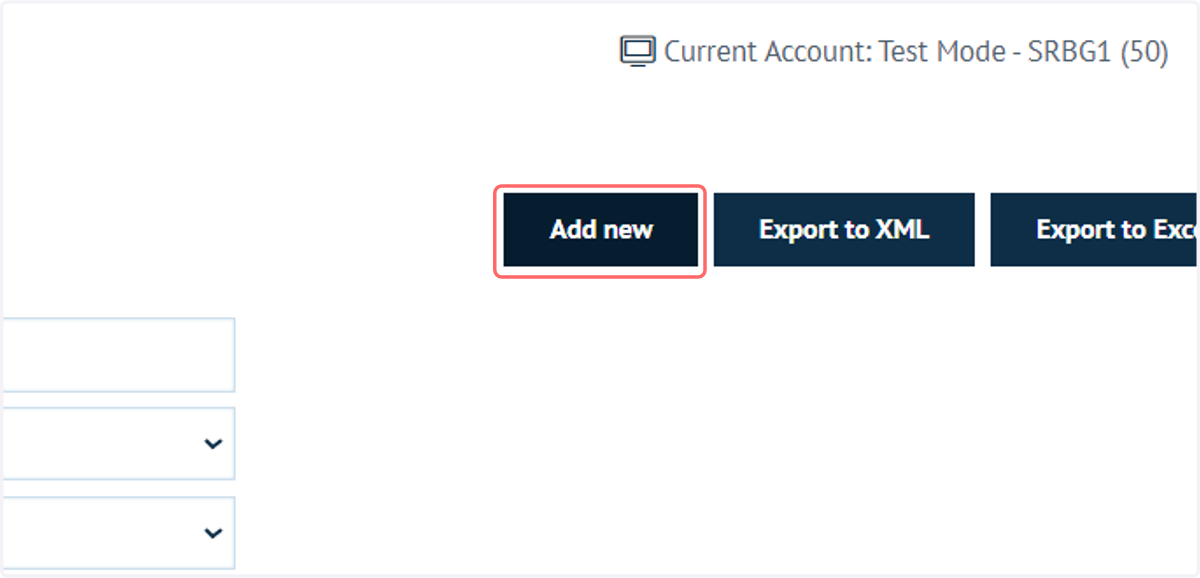
29. Click on Add new
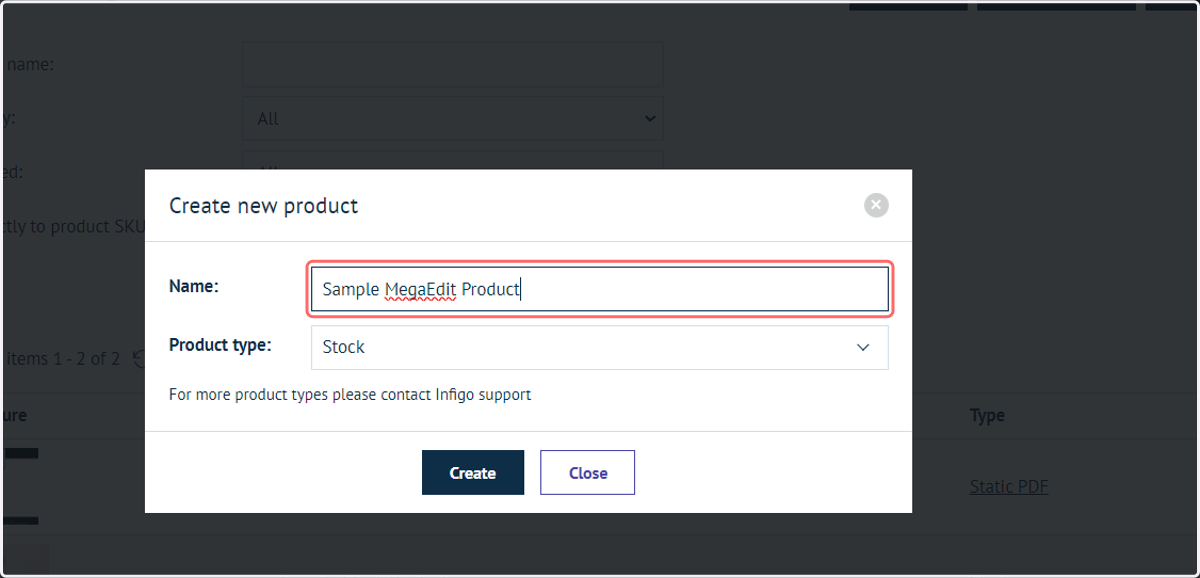
30. Enter a product name
31. Click on MegaEdit
Whether we intend to create a dynamic template from scratch in MegaEdit, or import an Invent file, we select MegaEdit from the product type dropdown.
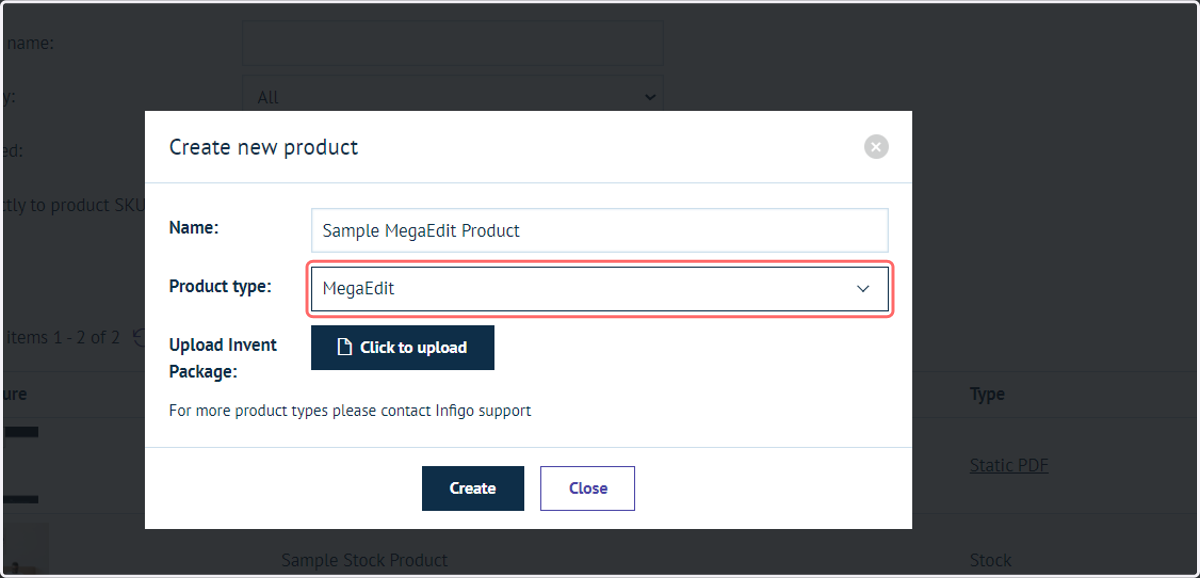
32. If importing an Invent file (MEX) select it using the Invent package uploader
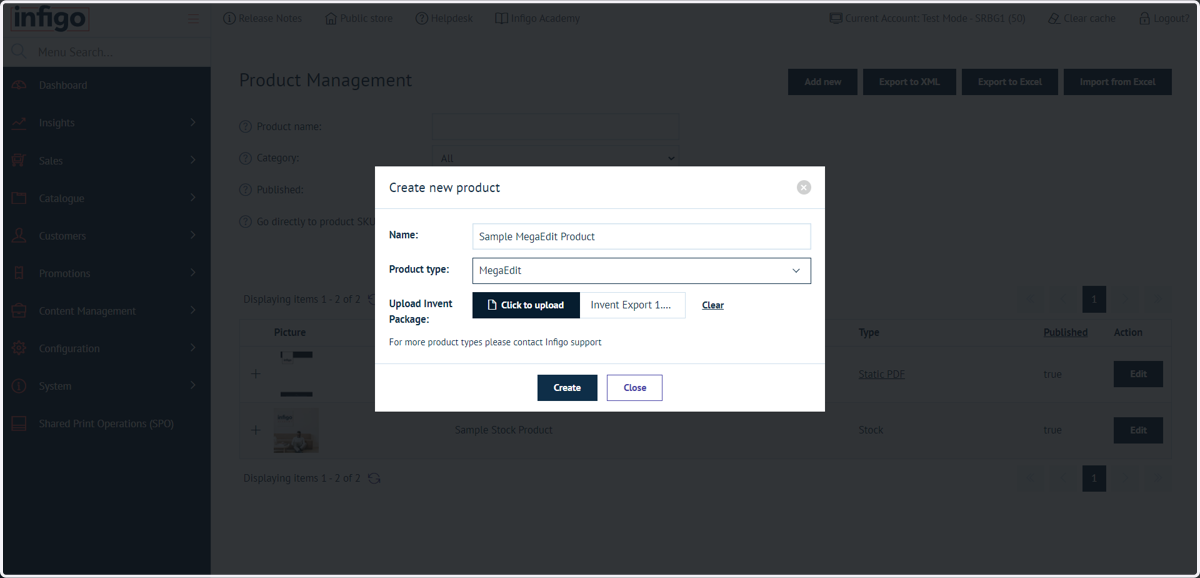
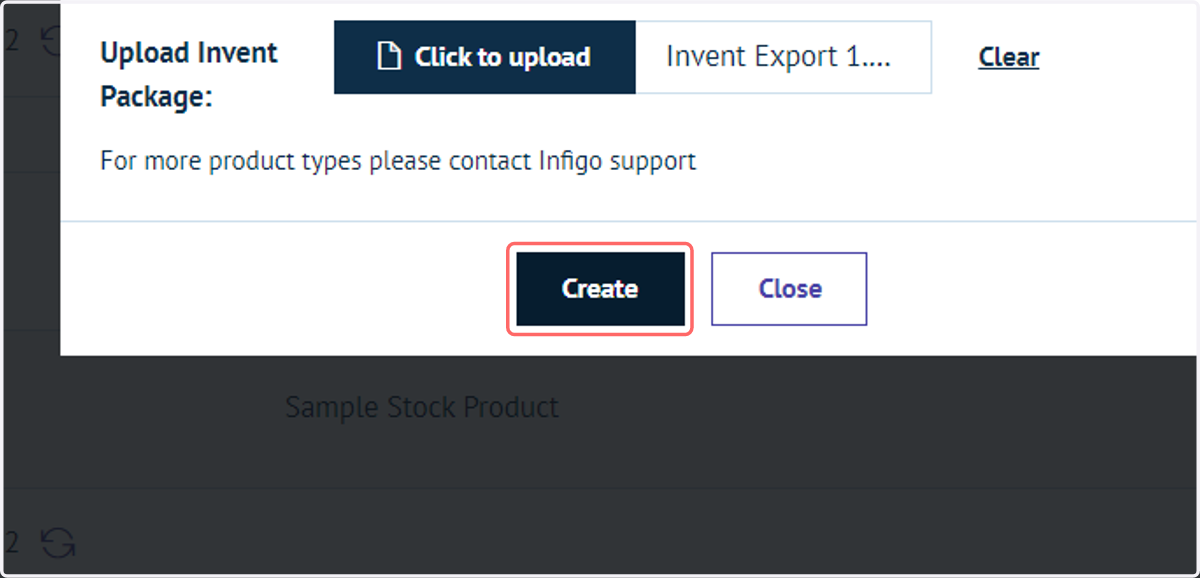
33. Click on Create
This will import and set up your MegaEdit product on your Infigo Storefront.
You will immediately be taken to the product details page, where you can configure the product landing page.
As with Stock and other product types seen in previous tutorials, MegaEdit products have a fully configurable landing page.
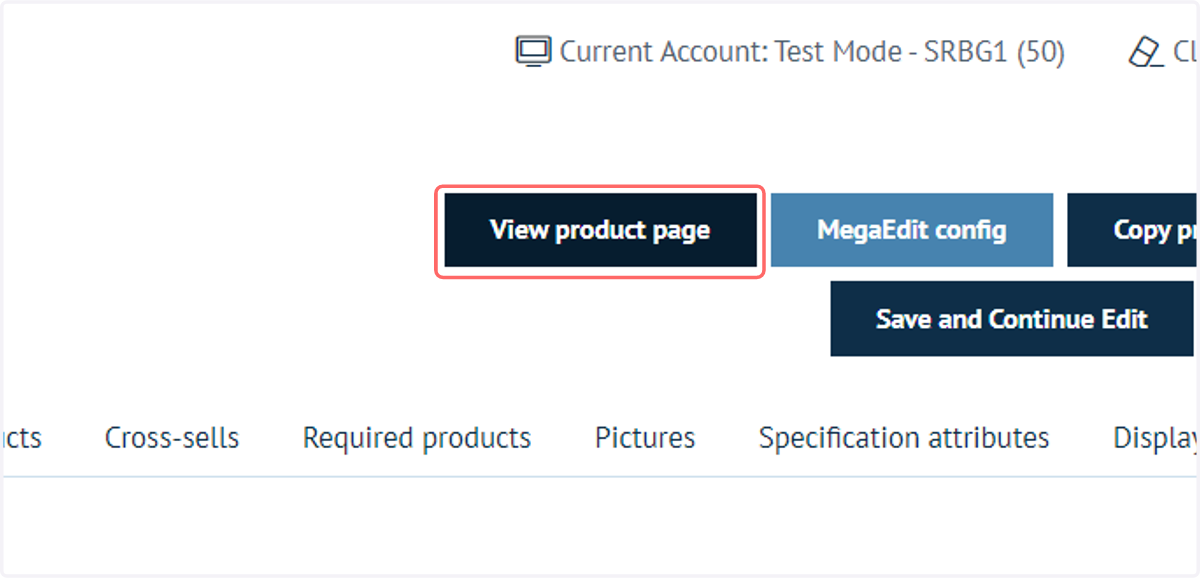
34. Click on View product page
Your product template can be viewed and further developed inside the MegaEdit editor.
This is accessed from the front-end of your storefront. Directly access the product landing page for this product by clicking on View product page.
35. Click Start
The primary difference between MegaEdit product landing pages and other product types, is these landing pages will have a "Start" button, which then launches the MegaEdit editor showing your product template.
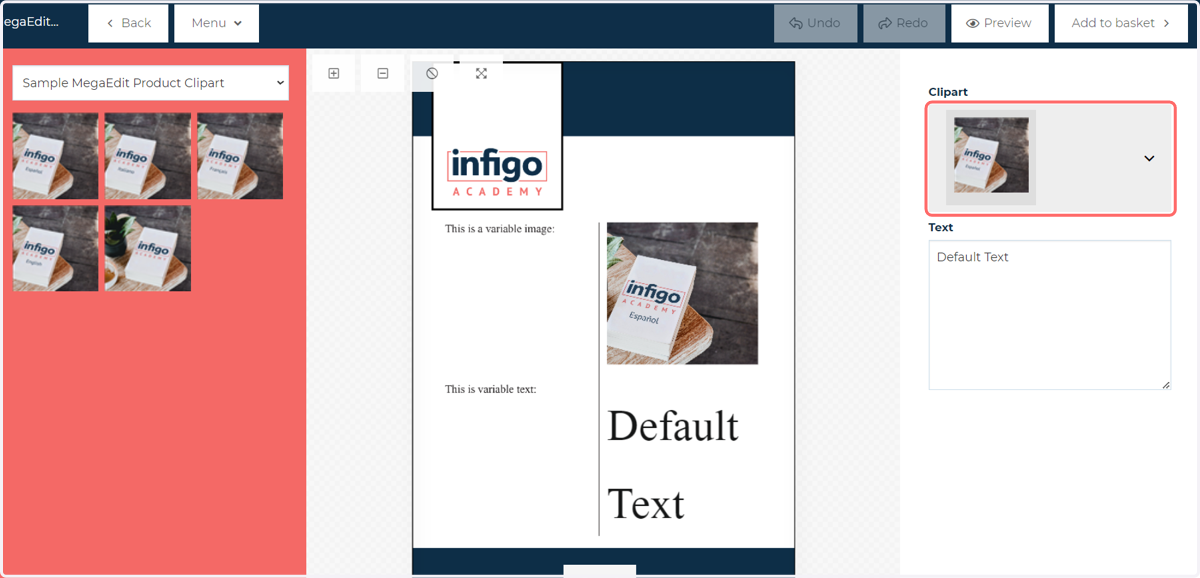
36. The MegaEdit editor is loaded
Further configuration of the product can be performed within MegaEdit.
However, from our Invent file, we can see a form over to the right with two variables.
Changing the image variable will change the image displayed on the product.
Changing the text variable will also update the text displayed on the product.
MegaEdit contains many features that we will not detail in this Rapid Build series. Check the Infio Academy for more detailed tutorials on the use of MegaEdit or Invent.
37. Click on Actions…