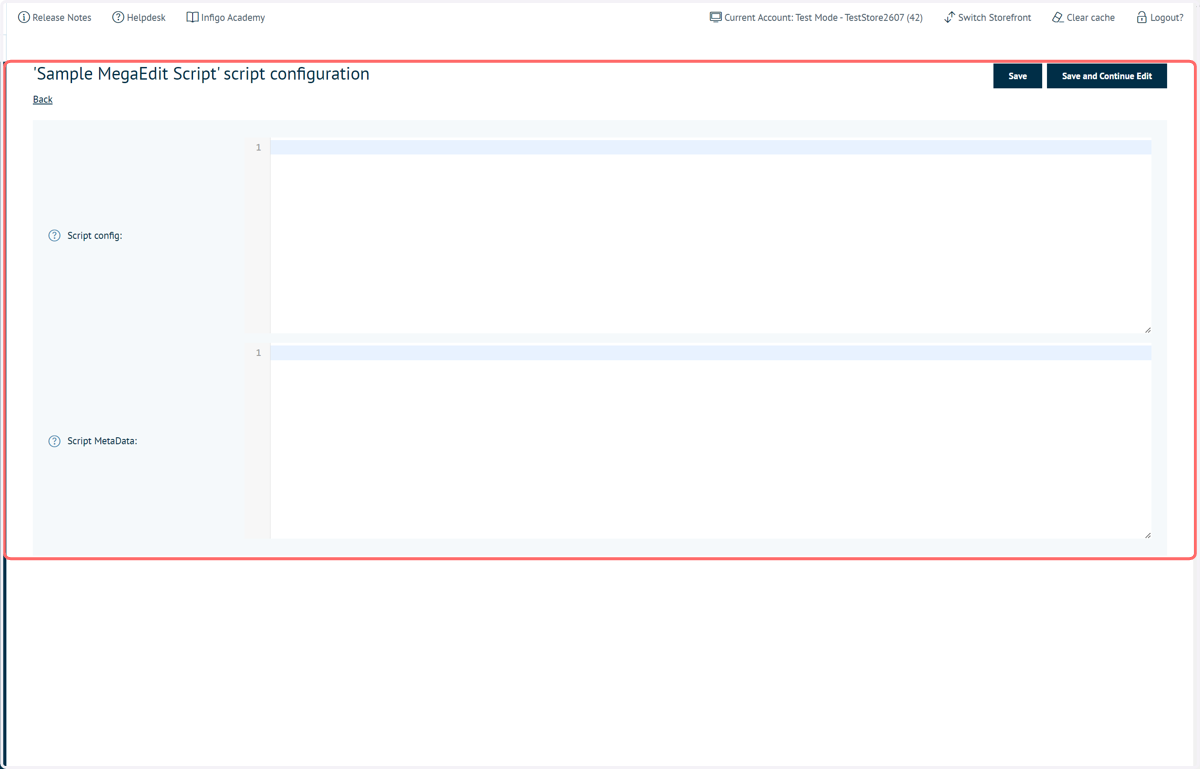
Configuring MegaEdit scripts on a product or global level
Here, we will learn how we can control the configuration of MegaEdit scripts either on a product or global level.
Controlling scripts at a product level allows you to define a different script configuration per-product.
Controlling script configuration at a global level allows you to implement changes to all products on a storefront using that particular script.
This tutorial will not detail how to write your own MegaEdit scripts, nor discuss any of the hard-coded scripts that Infigo provide for you. Future tutorials will focus on these topics, however at the time of writing these are yet to be created.
For guidance or assistance with hard-coded or custom MegaEdit scripts, please contact our Customer Support team, who can point you in the right direction.
Here, we will focus on custom MegaEdit scripts. Hard-coded scripts can also be modified, however access to this functionality needs to be requested. If you would like this, please contact our Customer Support team.
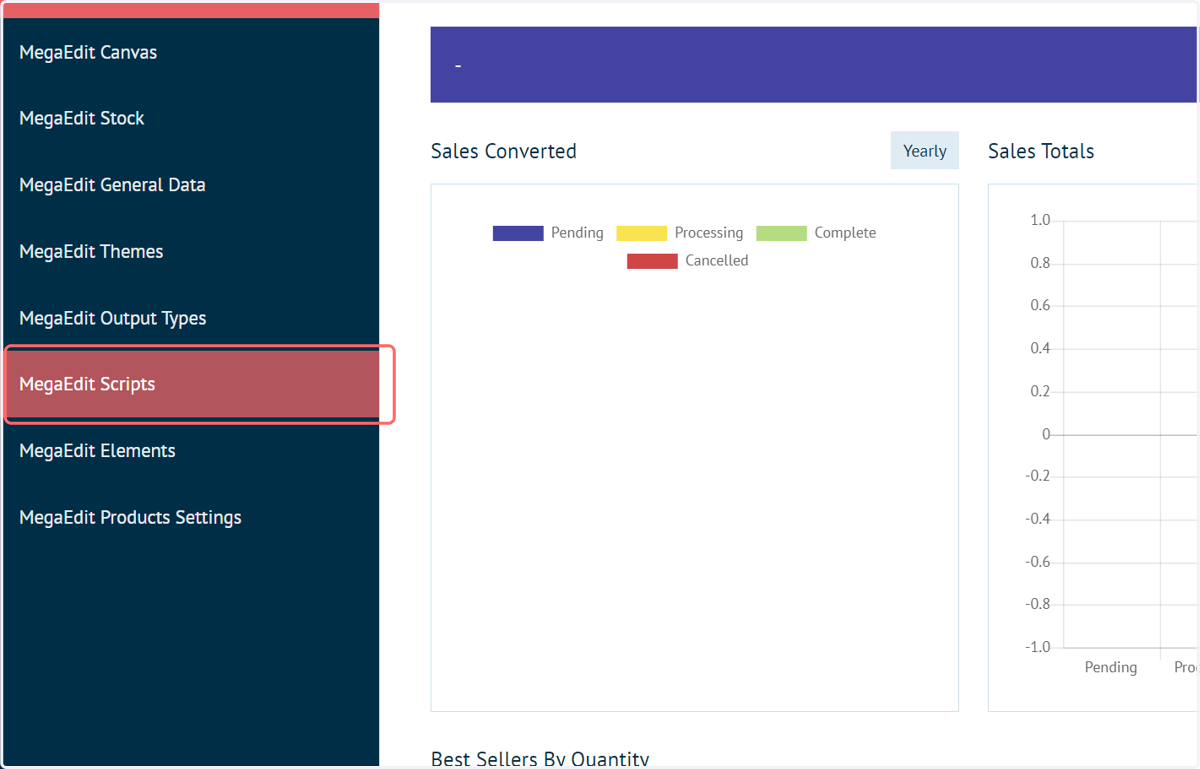
1. Navigate to MegaEdit Scripts
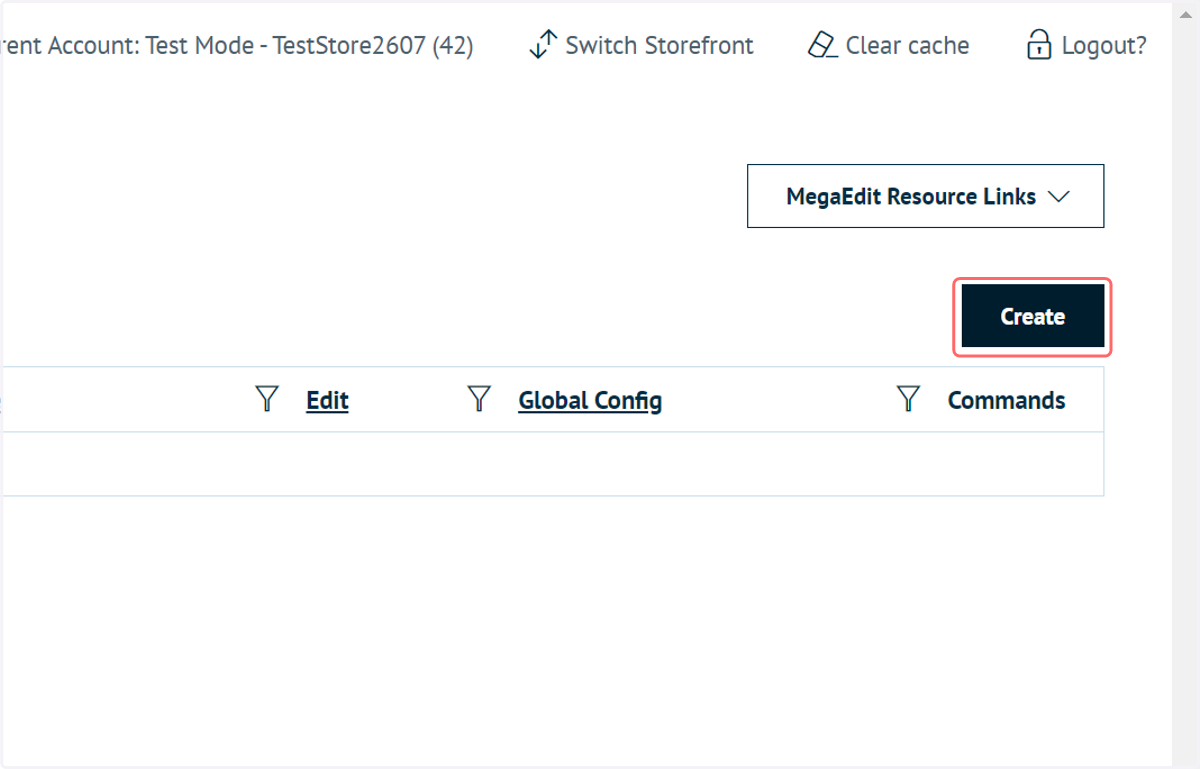
2. Click on Create
This allows the creation of a custom MegaEdit script
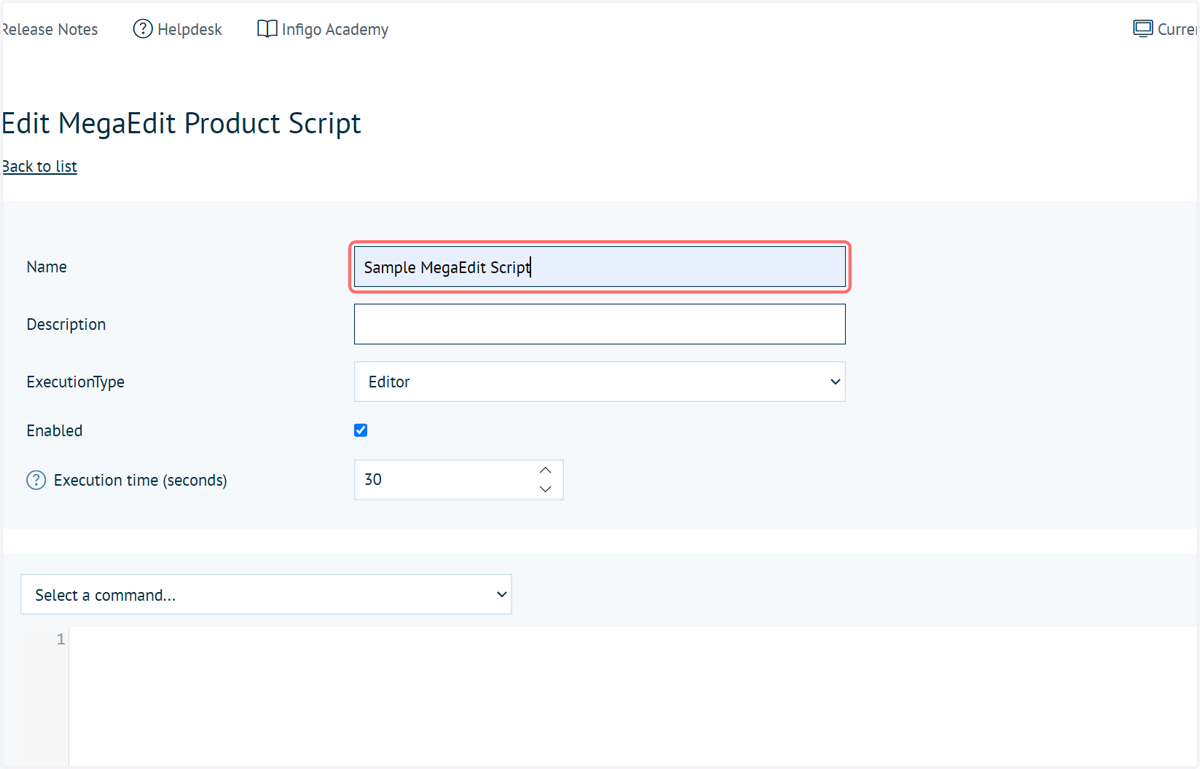
3. Type "Sample MegaEdit Script"
Here, we are only creating an empty script for representative purposes.
This script, once created, can be applied to any of your MegaEdit products.
4. Click on Save
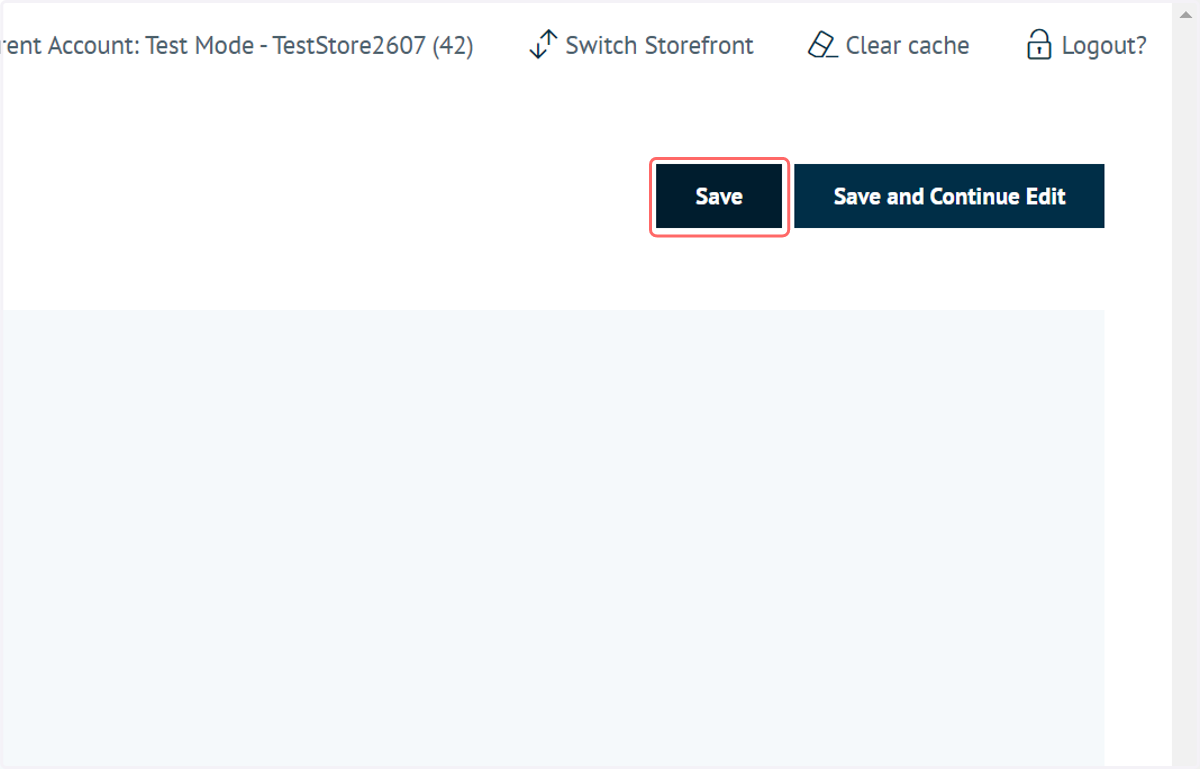
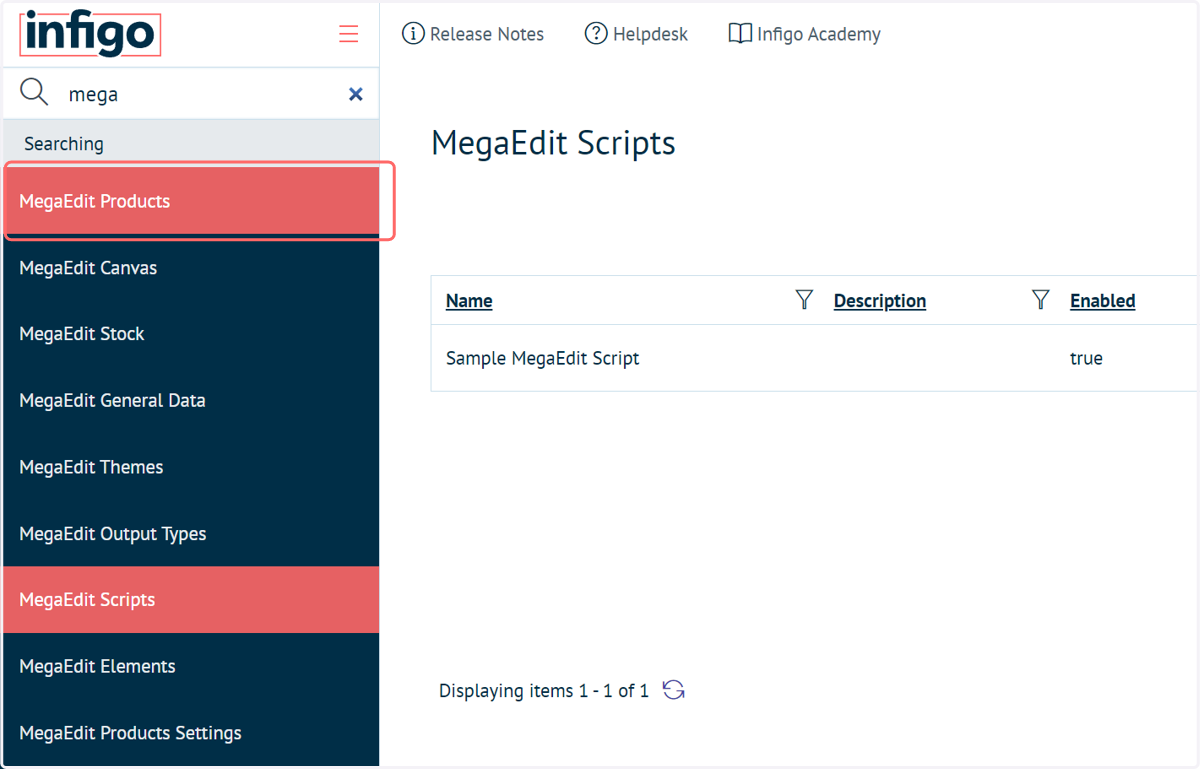
5. Next, we will assign this script to a MegaEdit product. Navigate to MegaEdit Products.
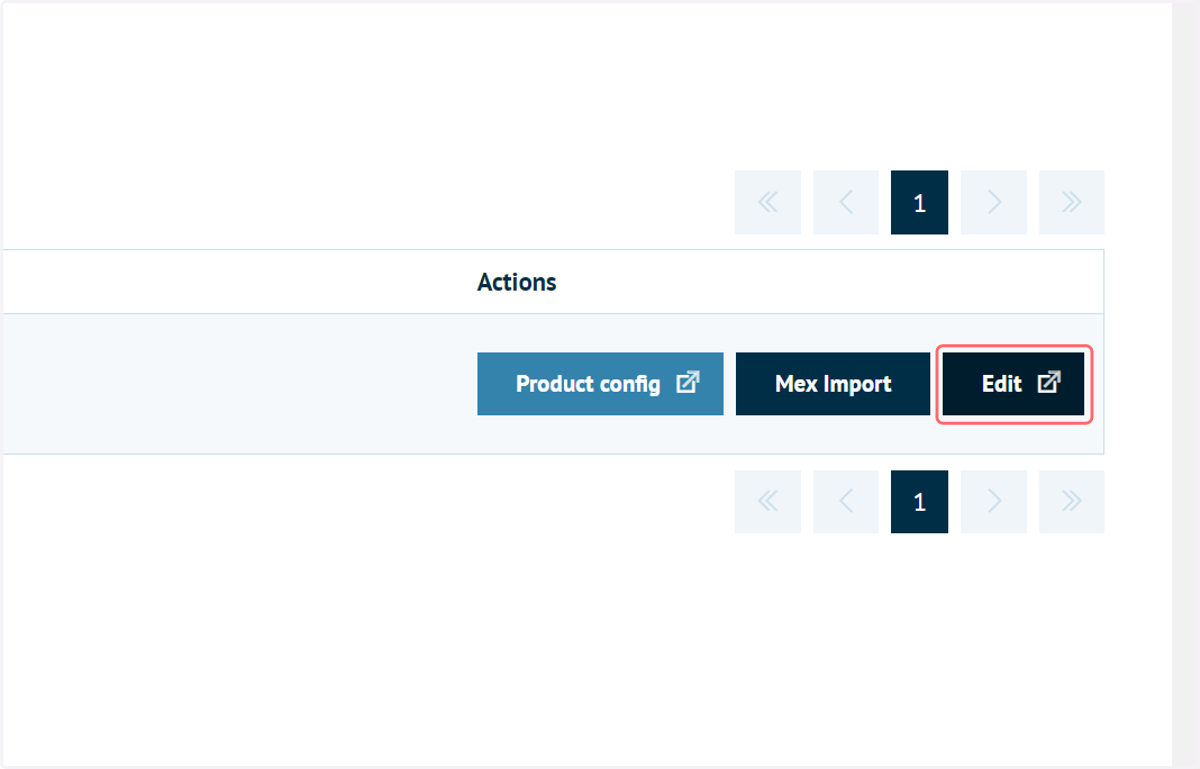
6. Click on Edit next to your MegaEdit product of interest
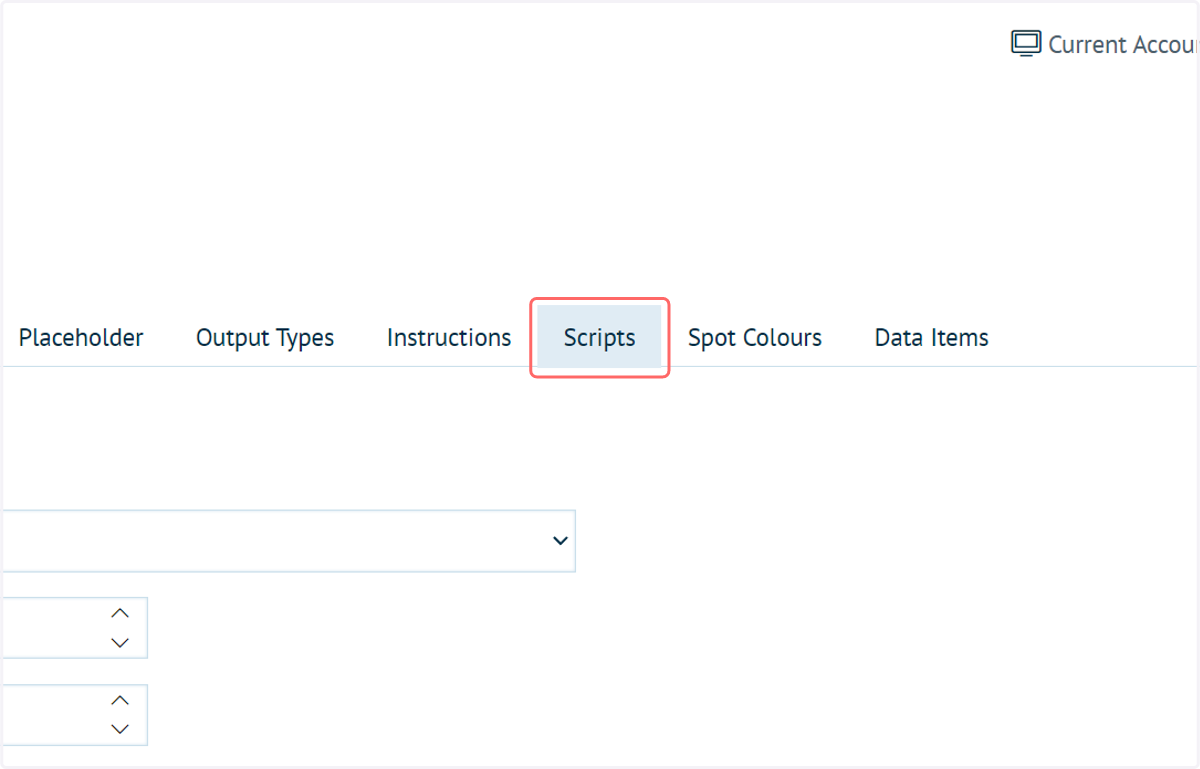
7. Click on Scripts
8. Check your newly created custom script
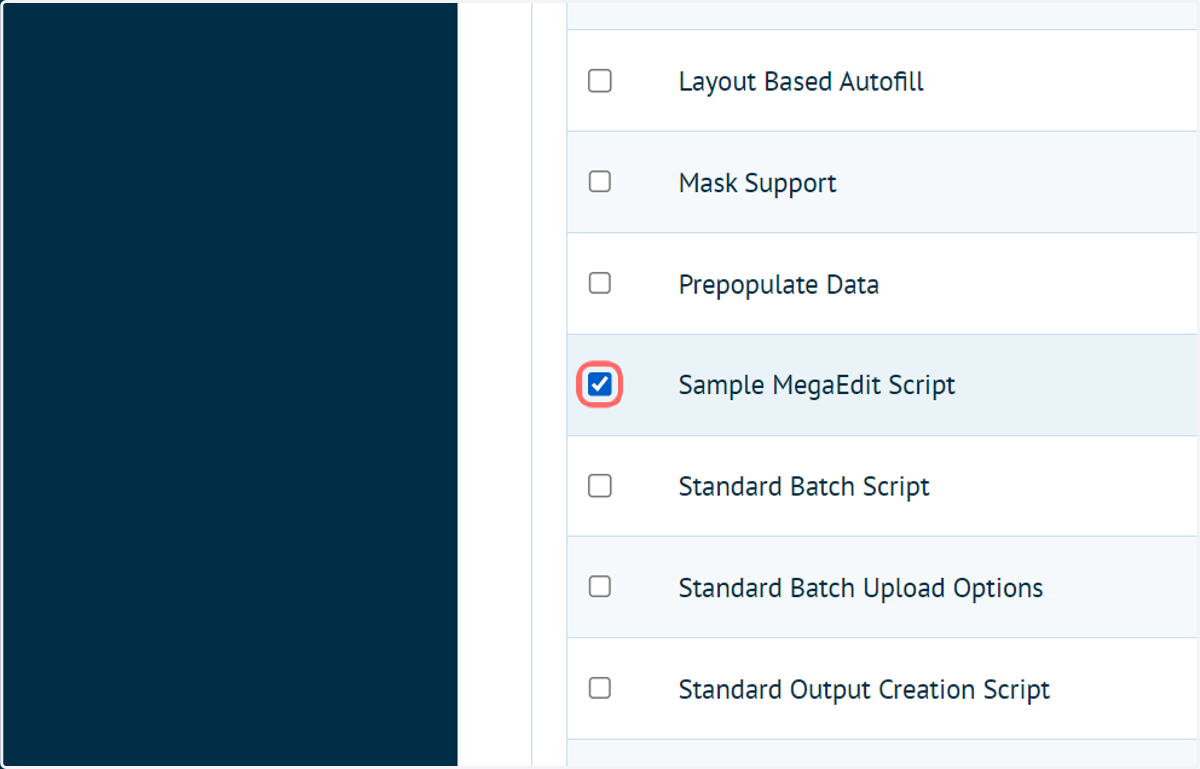
9. Click on Save changes
This product is now using your custom script.
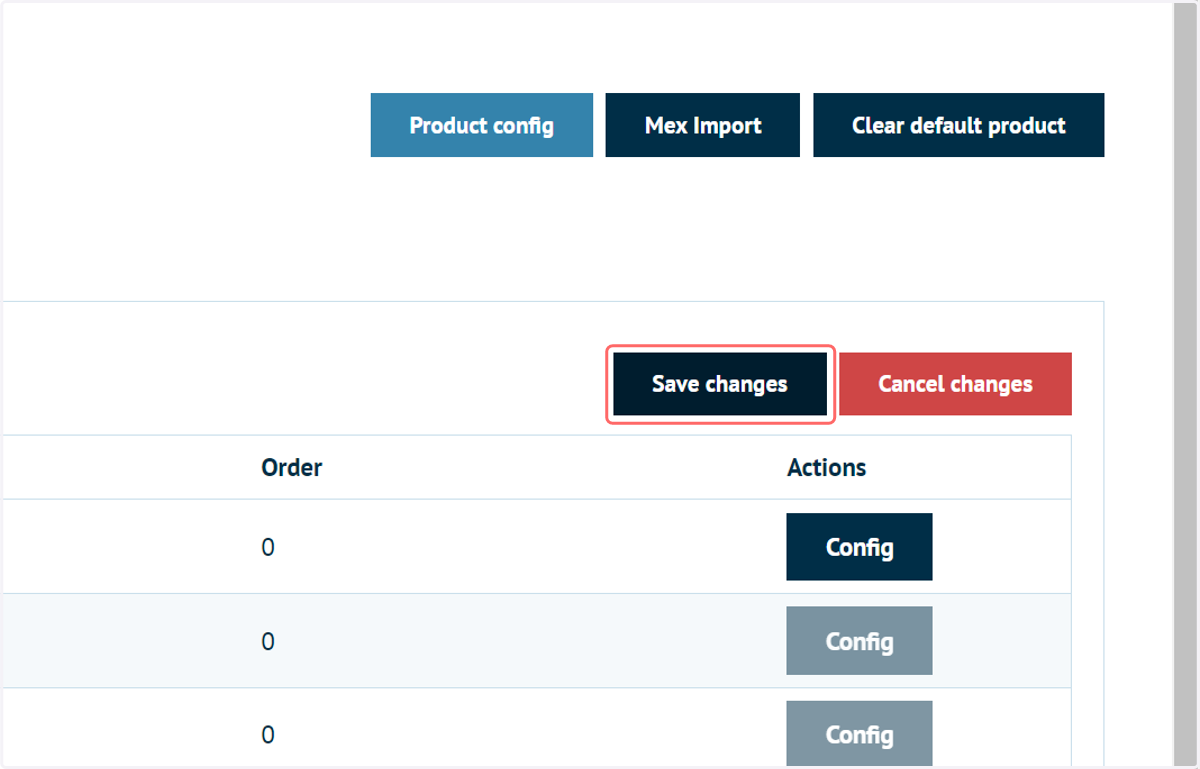
10. Click the Config button
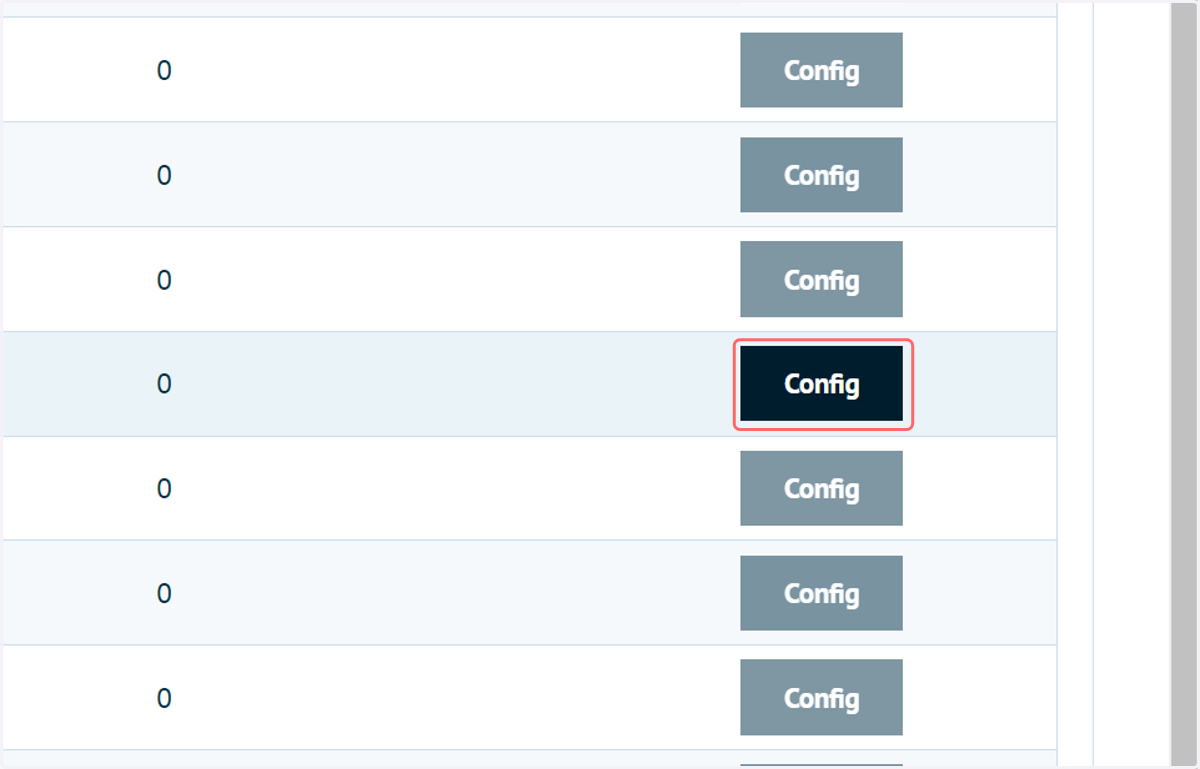
11. This screen allows you to change the script configuration on a Product level.
Changes made here will only impact the selected MegaEdit product. No others will be affected.
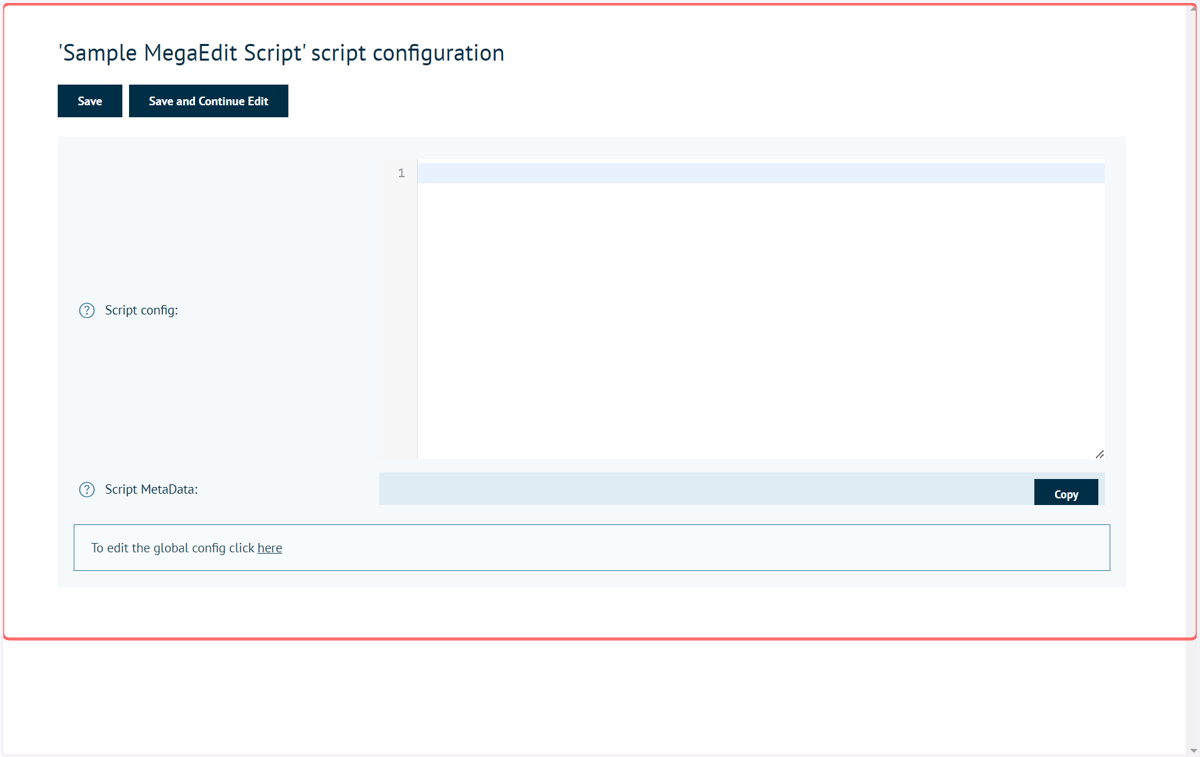
12. Next, we will learn how to globally modify the MegaEdit script configuration. Navigate back to the MegaEdit Scripts screen
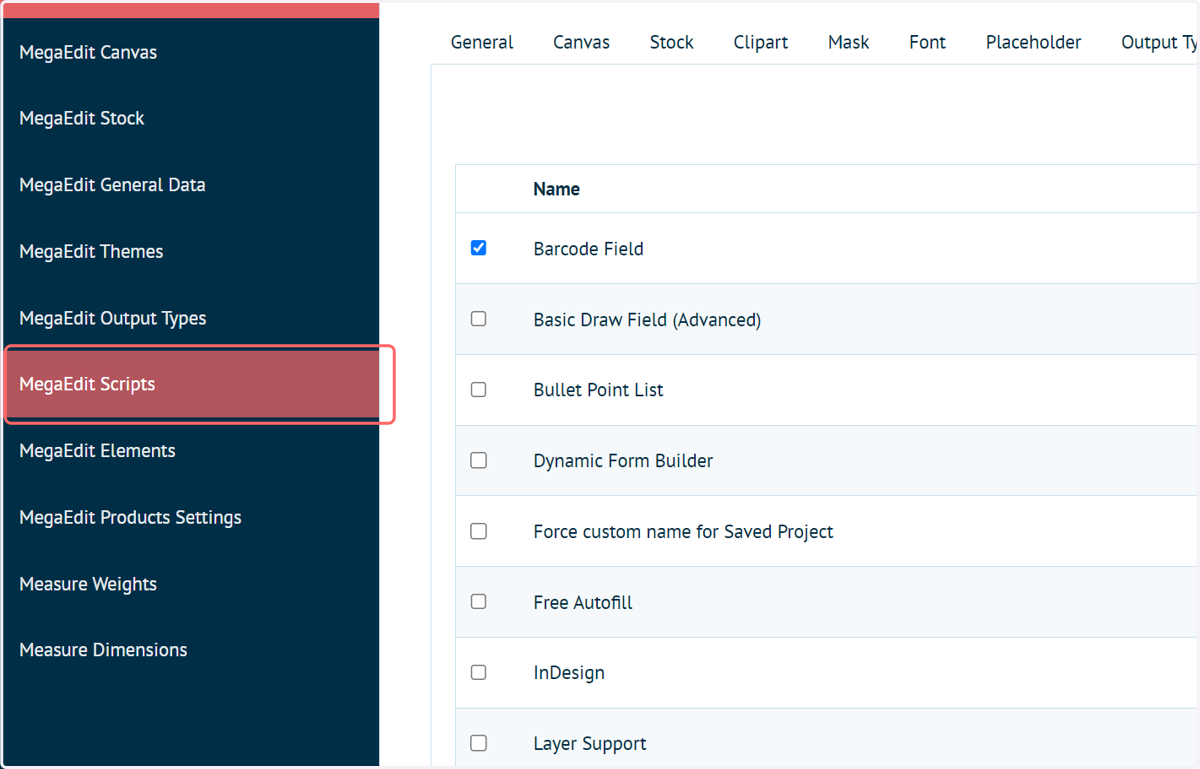
13. Click on Global Config next to your script of interest
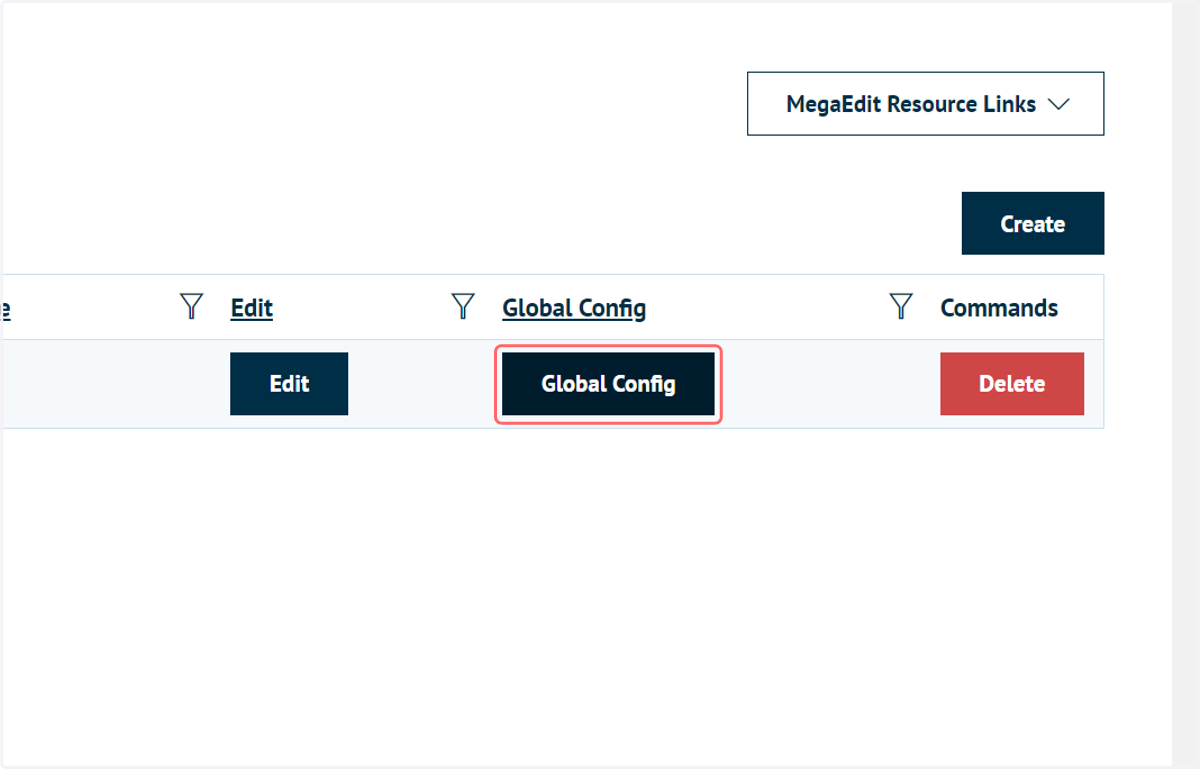
14. Changes made here are global and will impact all products using that script on the active storefront.
Click save to confirm the changes.