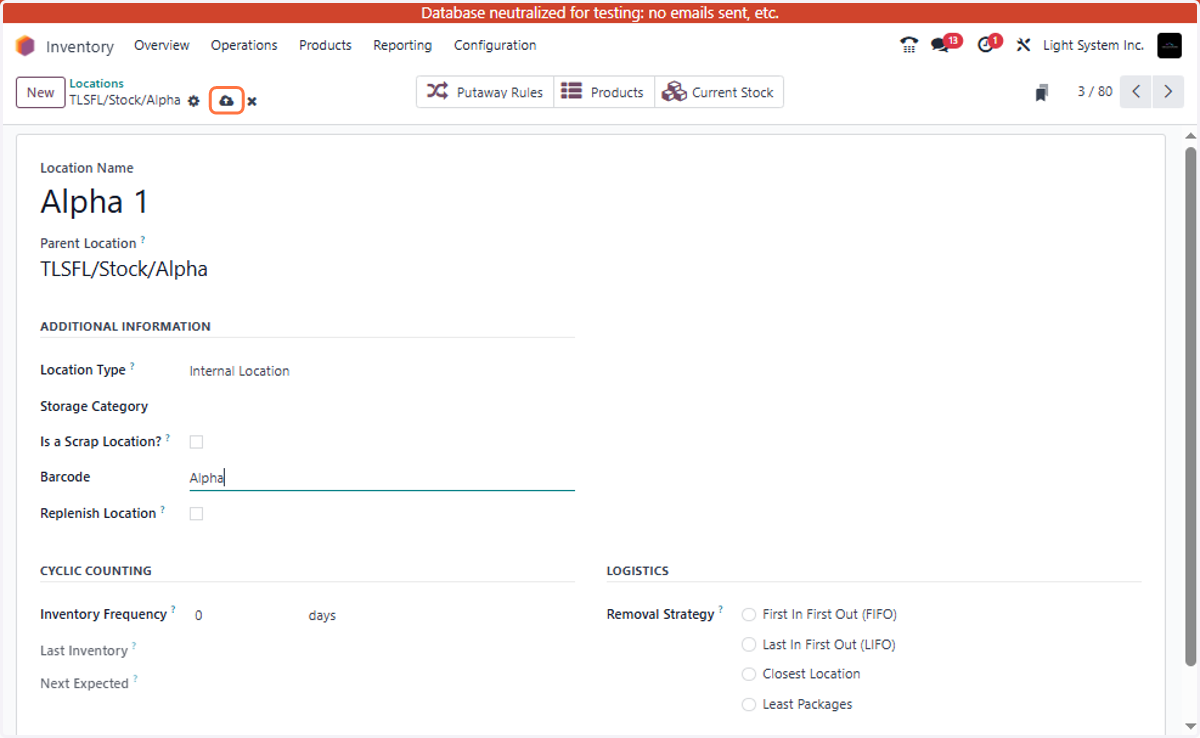
Add and Edit Location in Odoo Inventory
Odoo
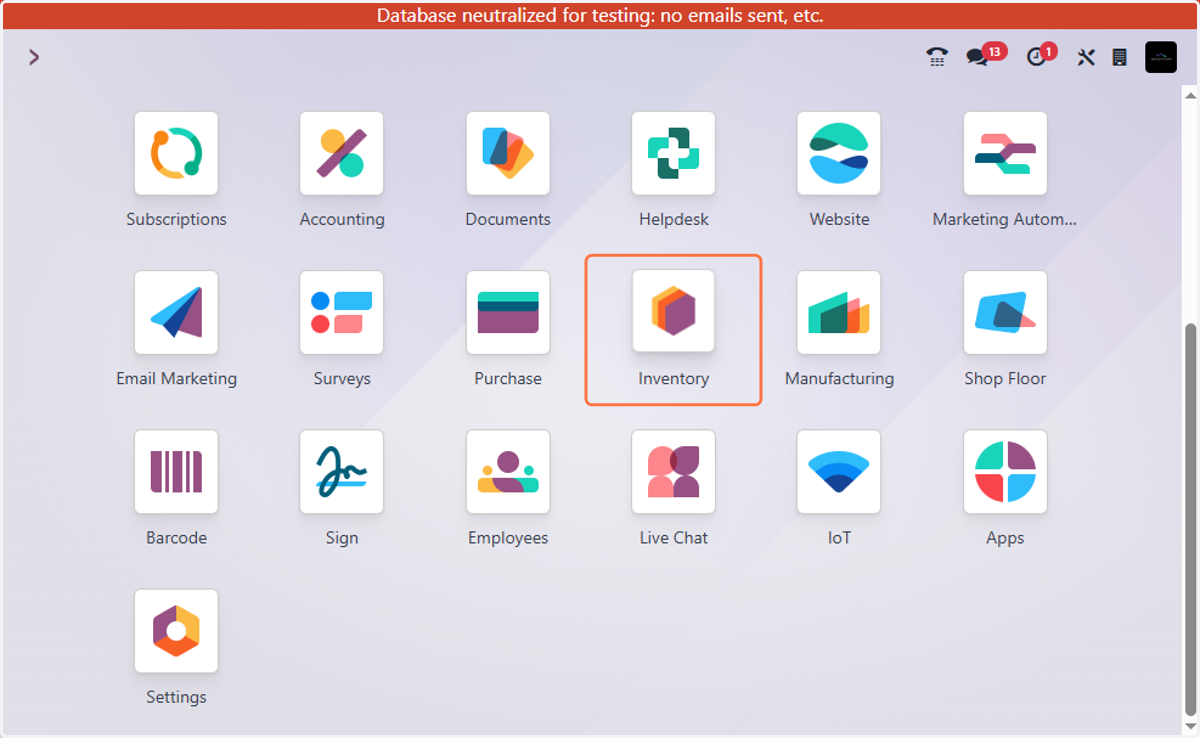
1. Open Inventory Module
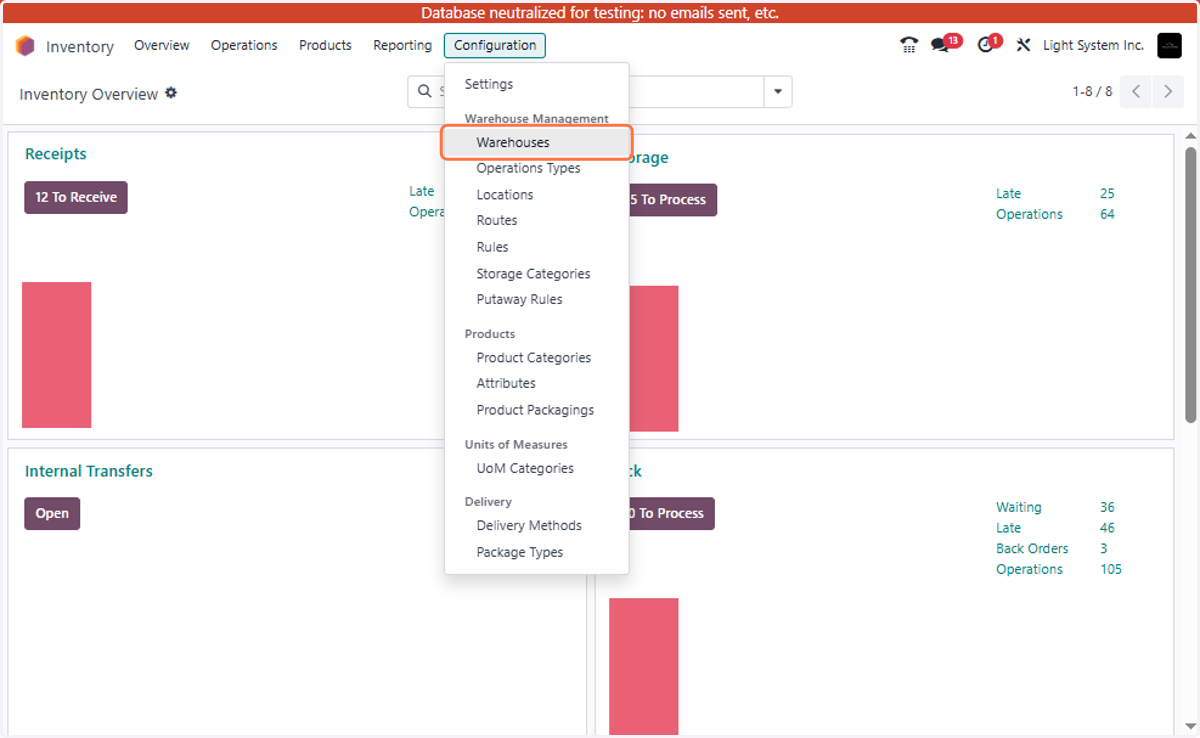
2. Navigate to: Configuration → Warehouses
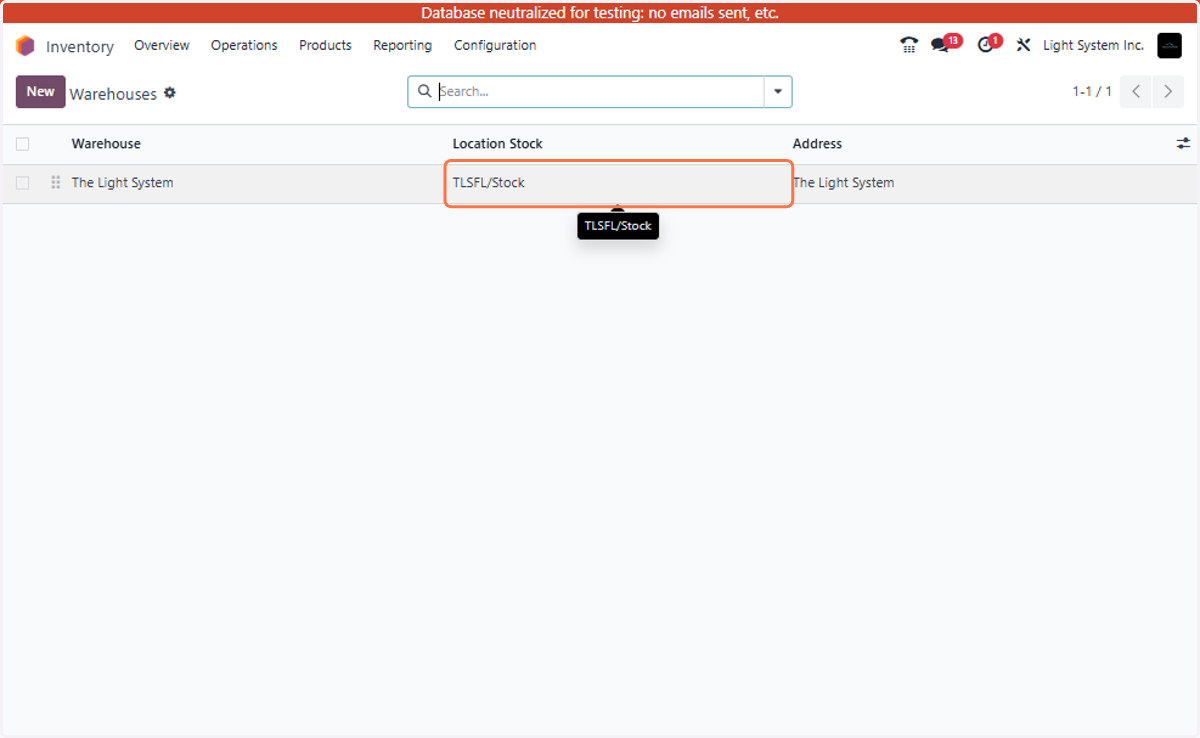
3. View Default Stock Location.
By Default, this is the stock location that is created in our system
4. Identify Location Short Name
Each location has a Short Name, which helps in identifying it within the warehouse hierarchy.
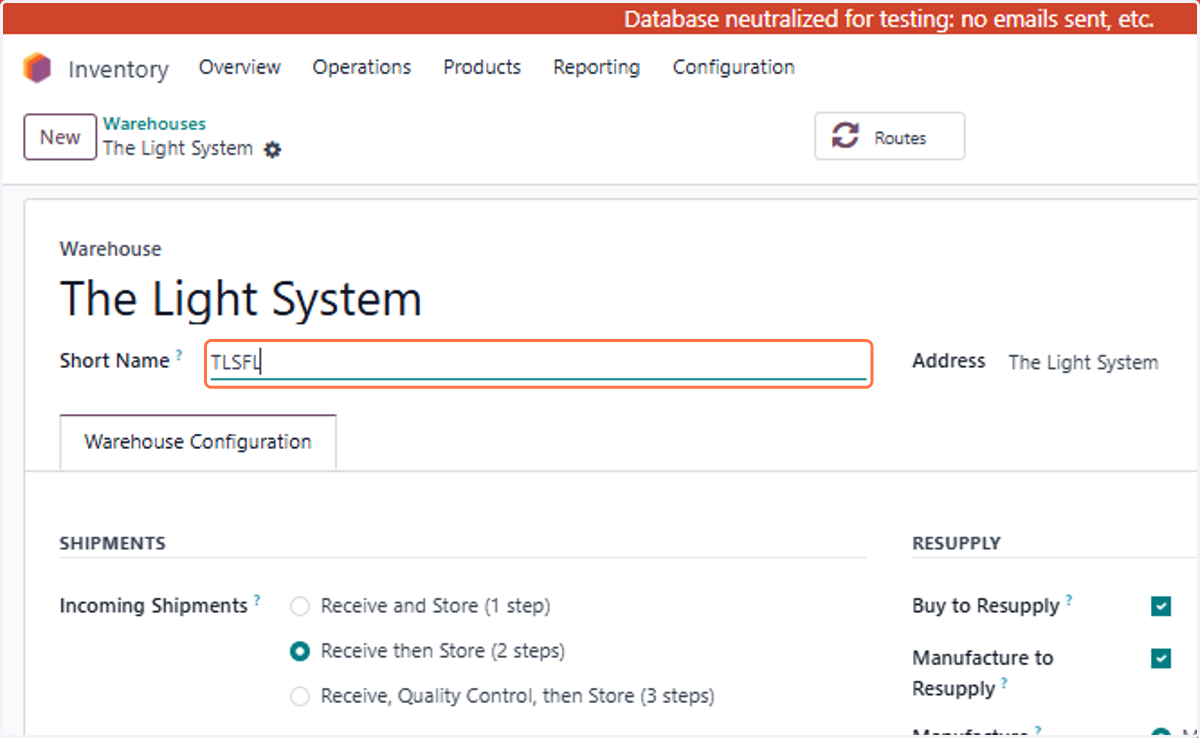
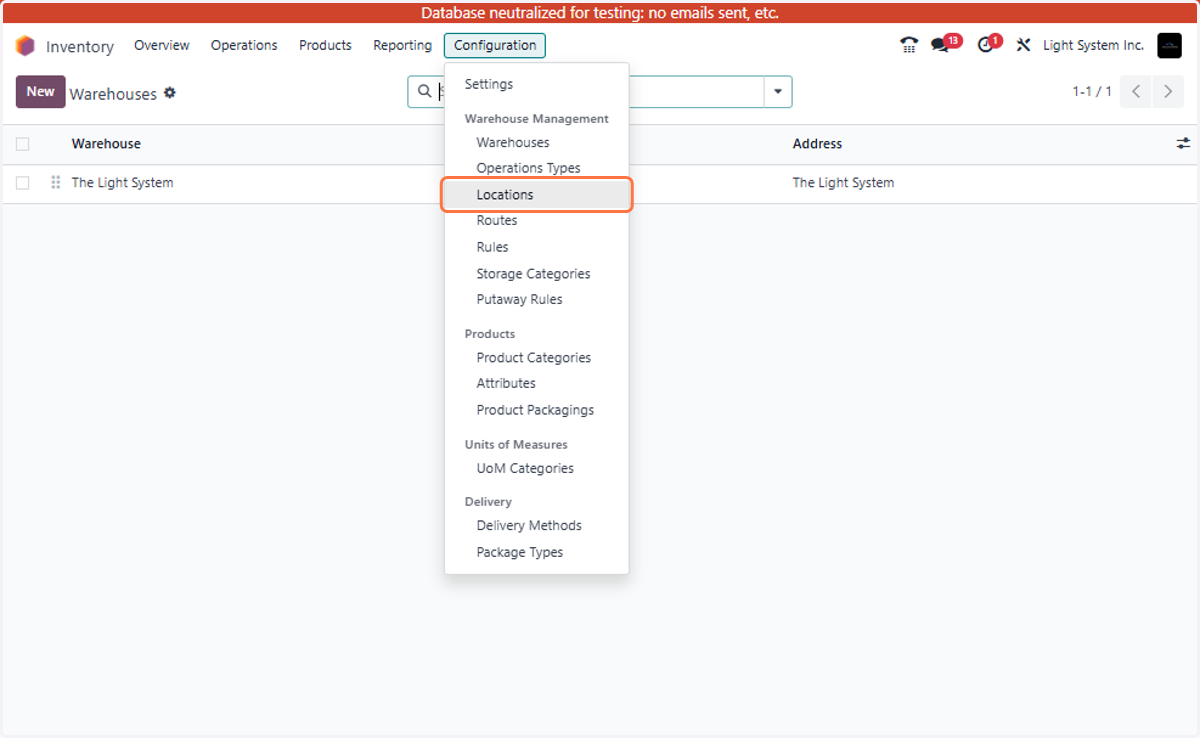
5. Navigate to: Configuration → Locations
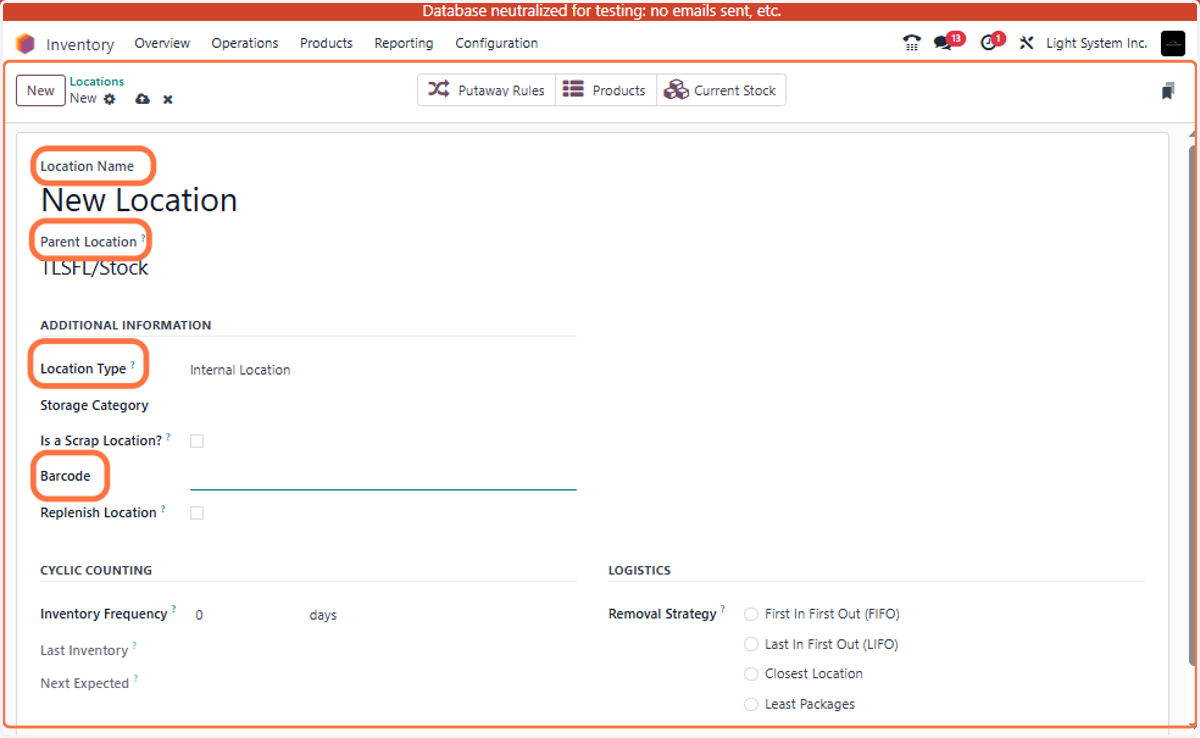
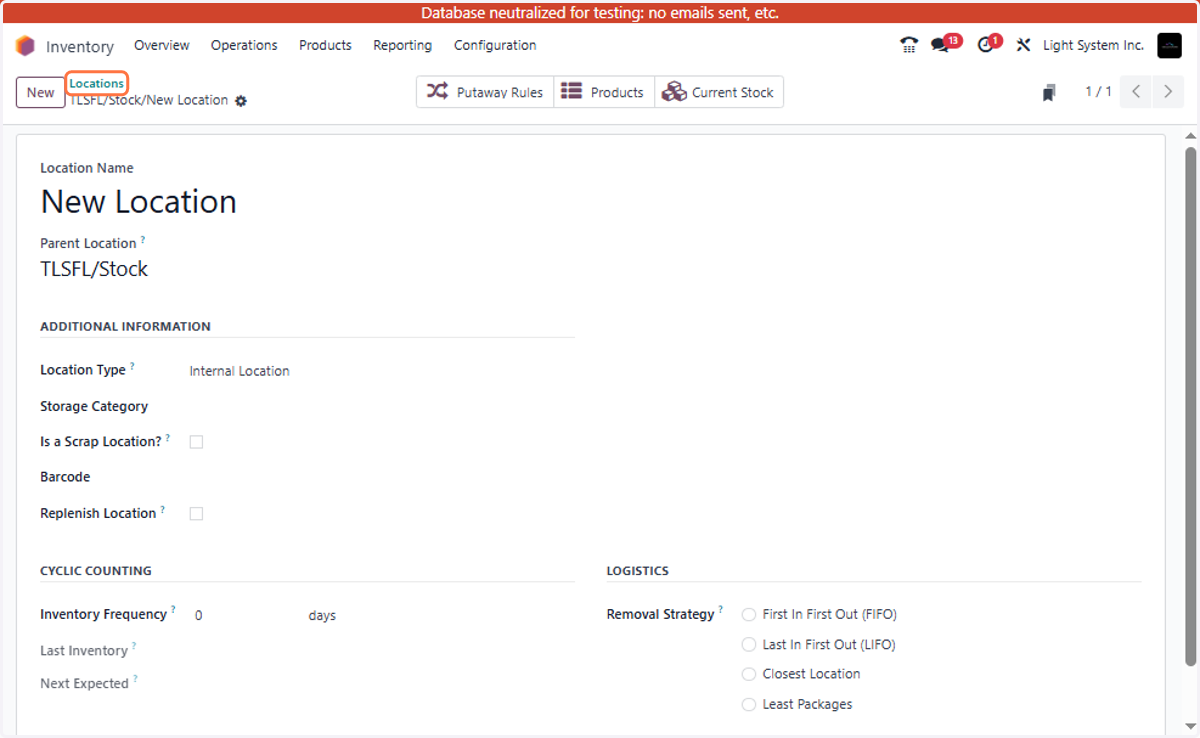
6. Here create a new location and fill the related fields. Barcode of related location can be added in barcode field. To hold
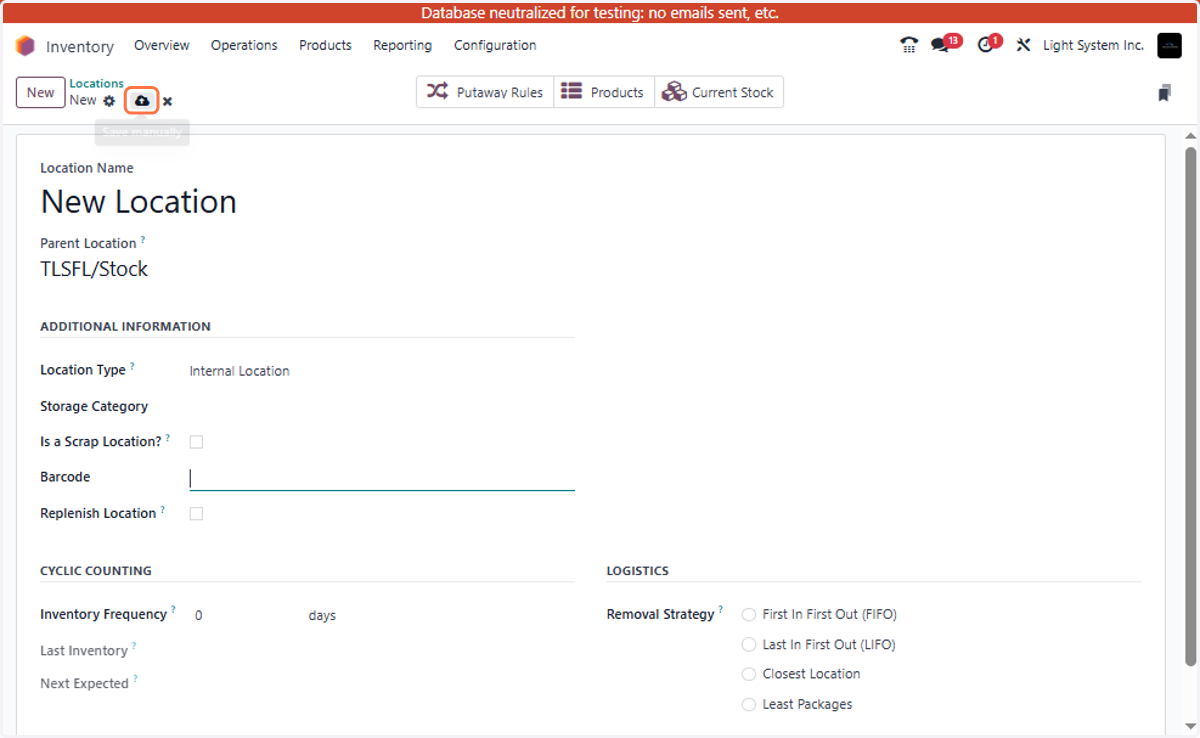
7. Save the Location
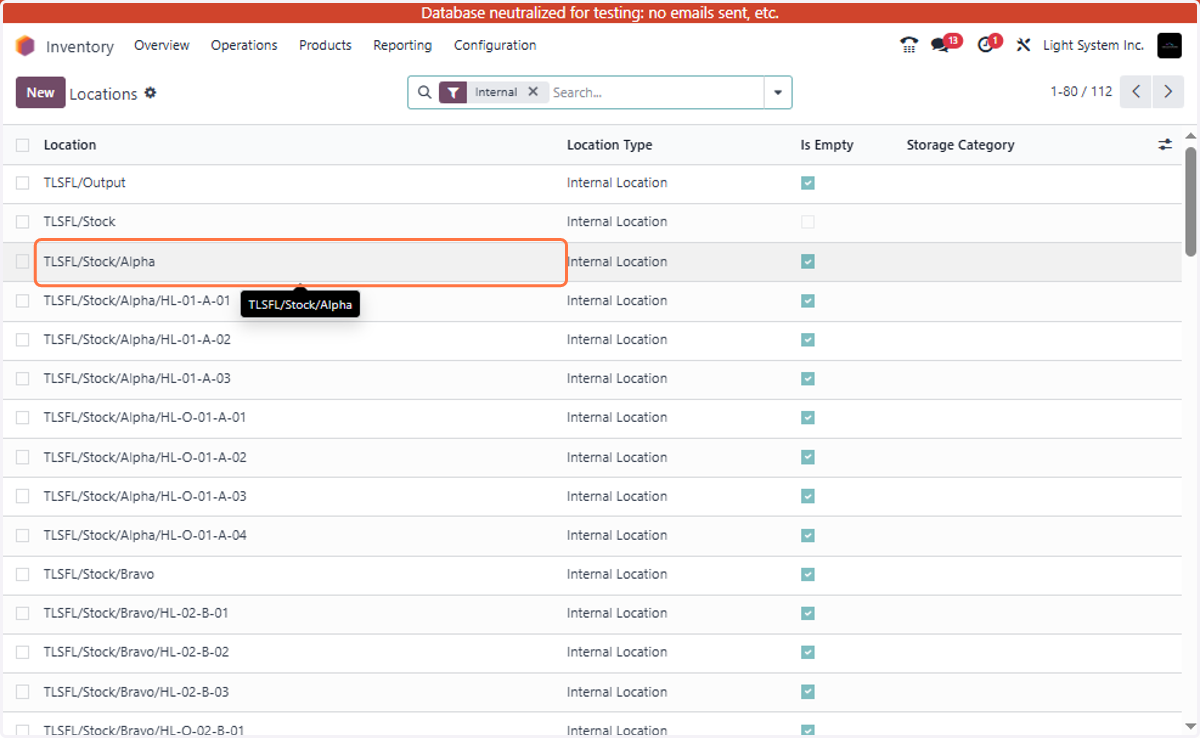
8. To edit any existing location, go back to location and open any existing one
9. Select an Existing Location
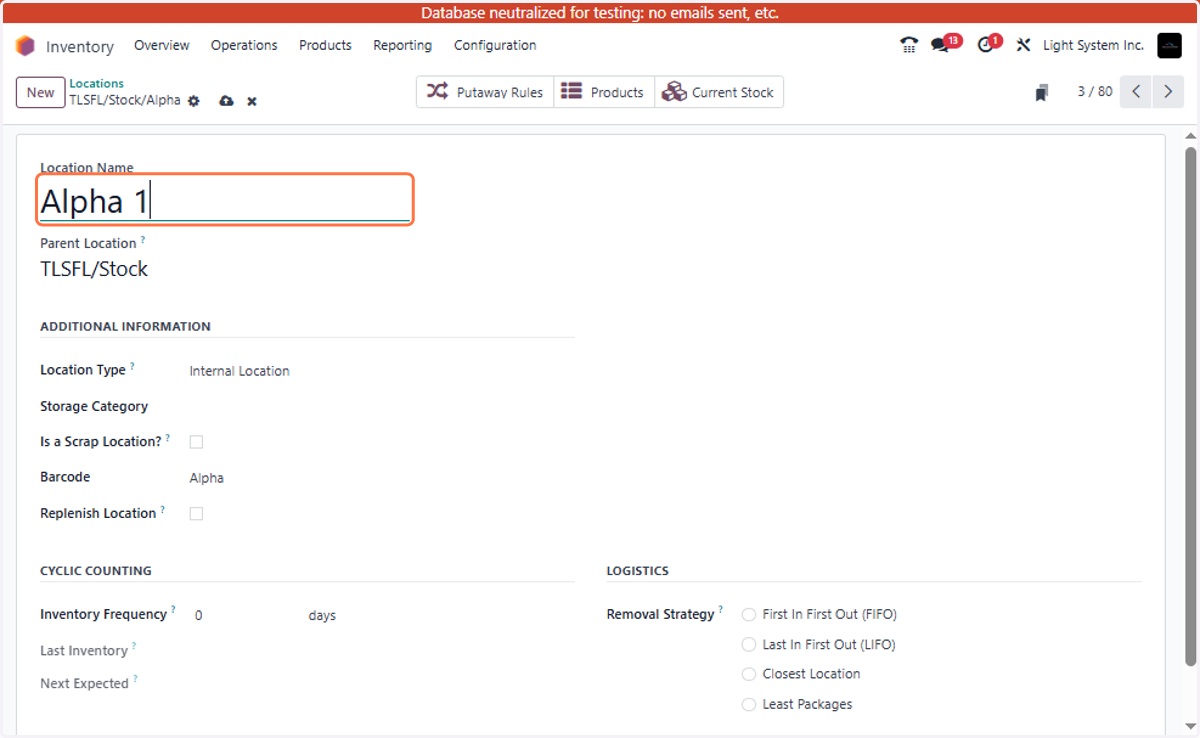
10. Edit fields as per your requirements
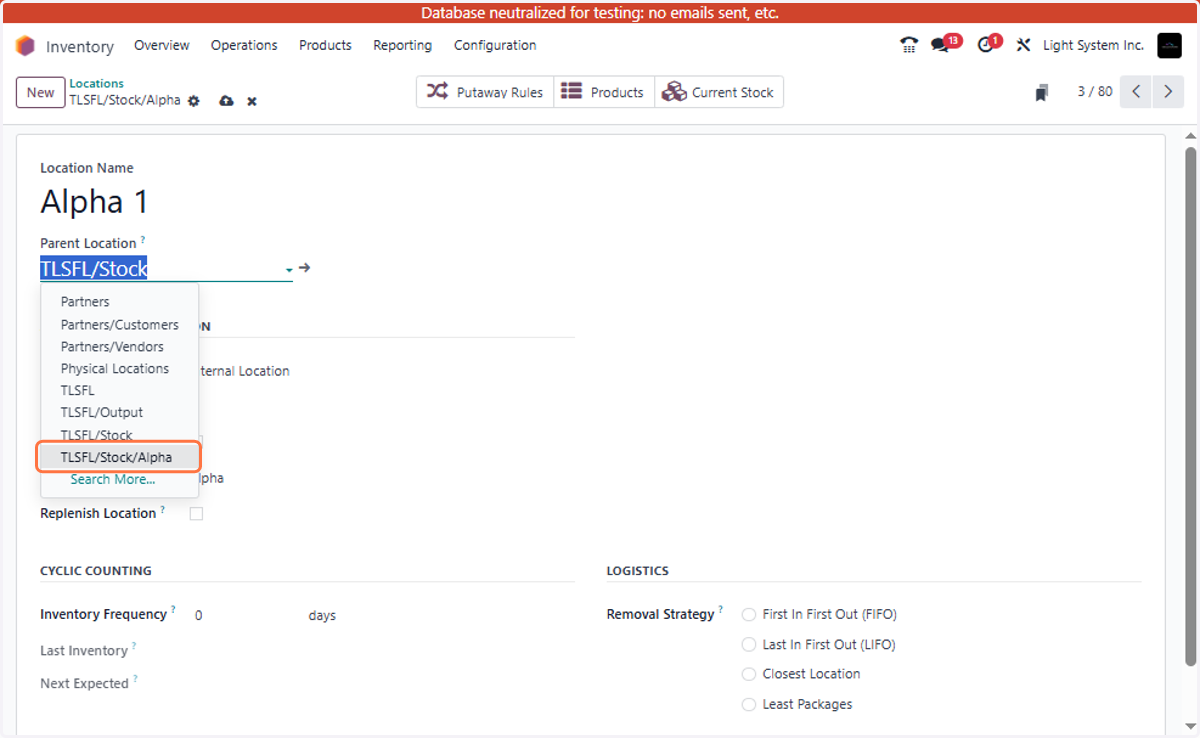
11. Update Parent Location (If Required)
12. Update Barcode (f needed)
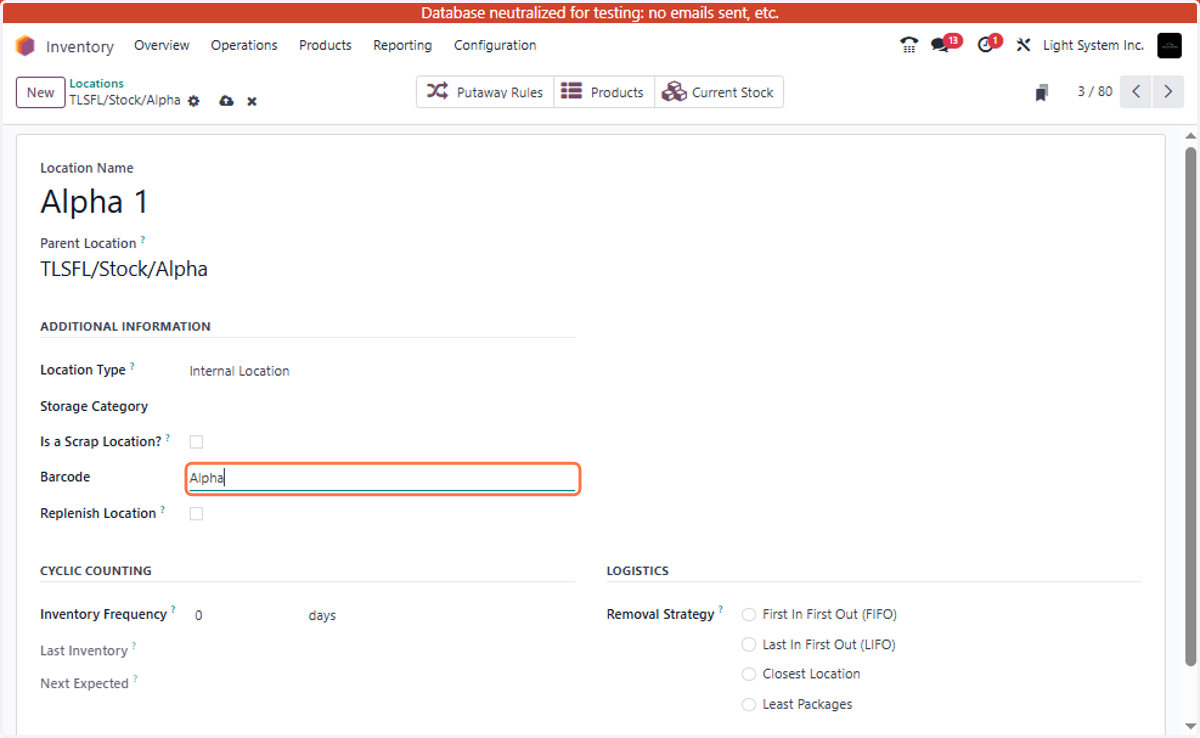
13. Save Changes