Quick ordering from Category pages | GT_PR_014
In this tutorial, we'll take a look at how to enable the Quick Ordering feature, which allows the selection of multiple items within a Category page and allows them to be added to the basket (or cart) in one operation.
Enabling this feature is quick and simple. It can also be assisted by the ability to select quantities from the Category pages themselves.
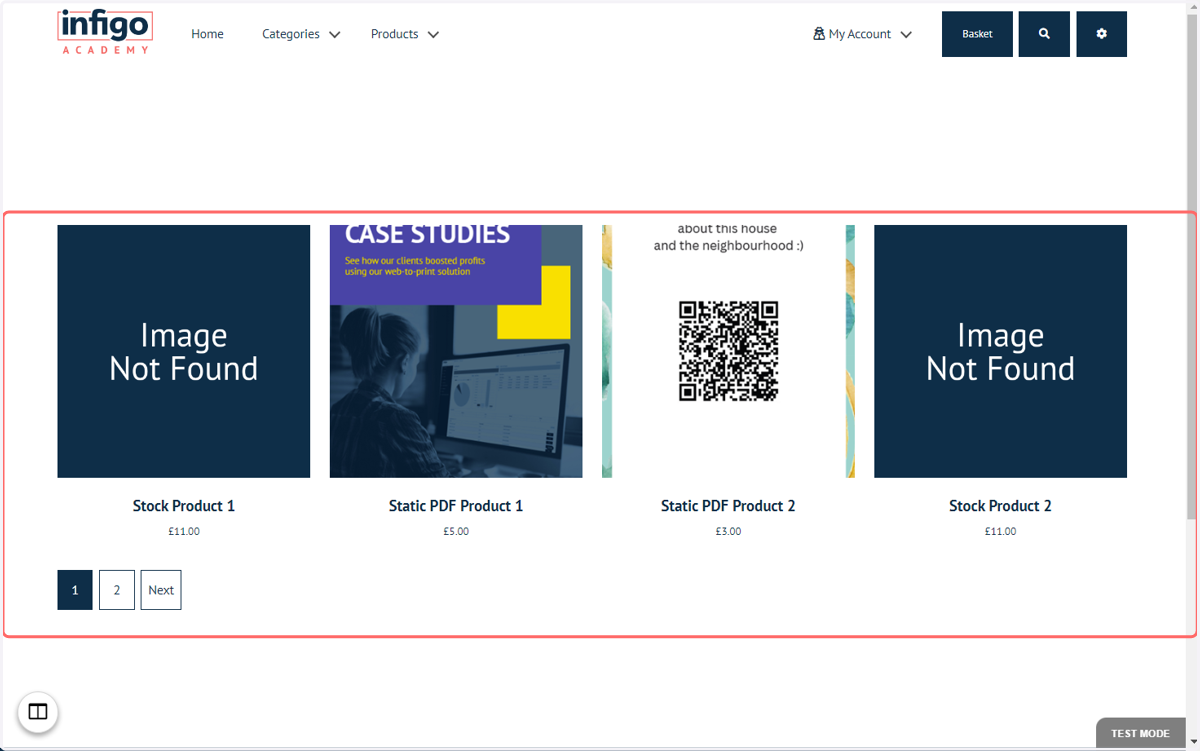
1. Our standard Category
This is an example of our standard Category view, where we can access any of the product pages from within the category screen.
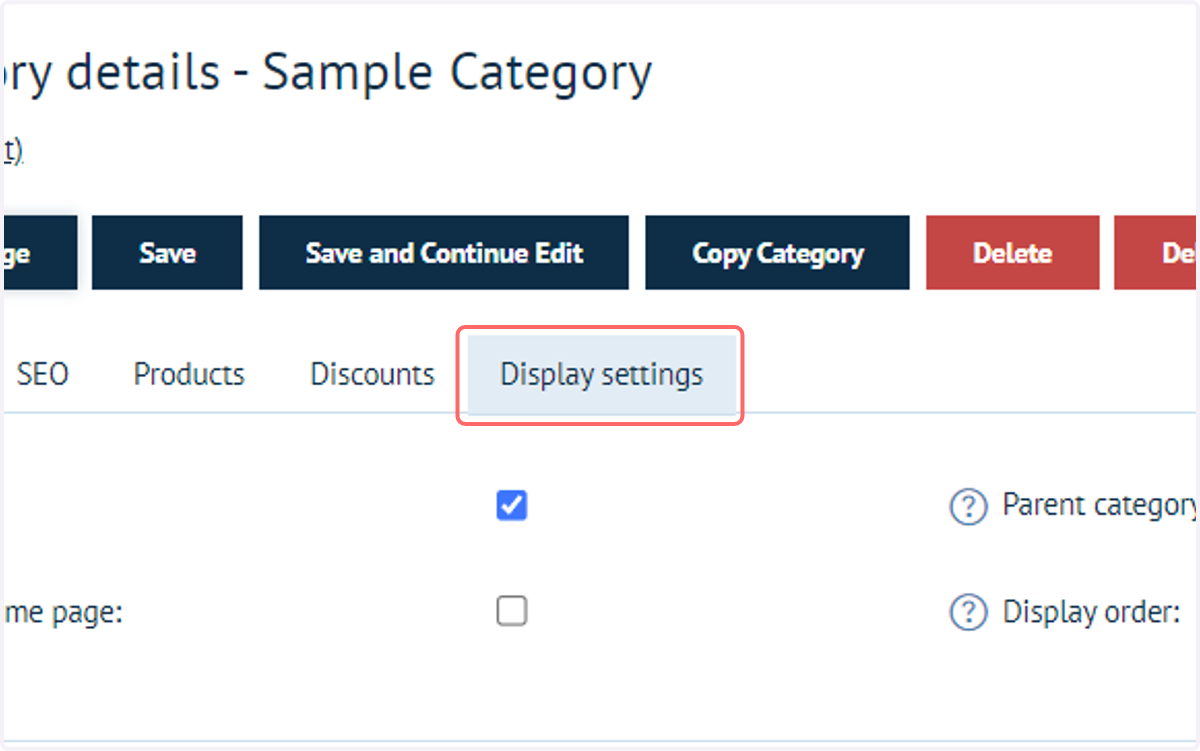
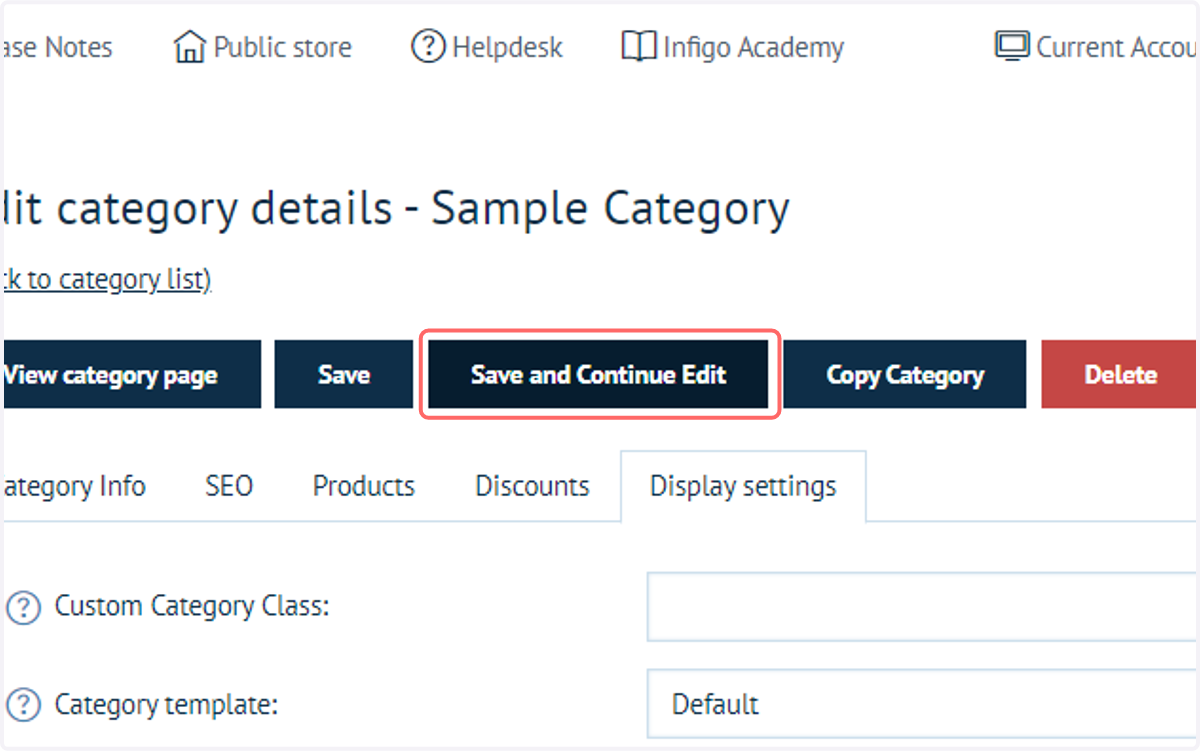
2. Click on Display settings within the Category page
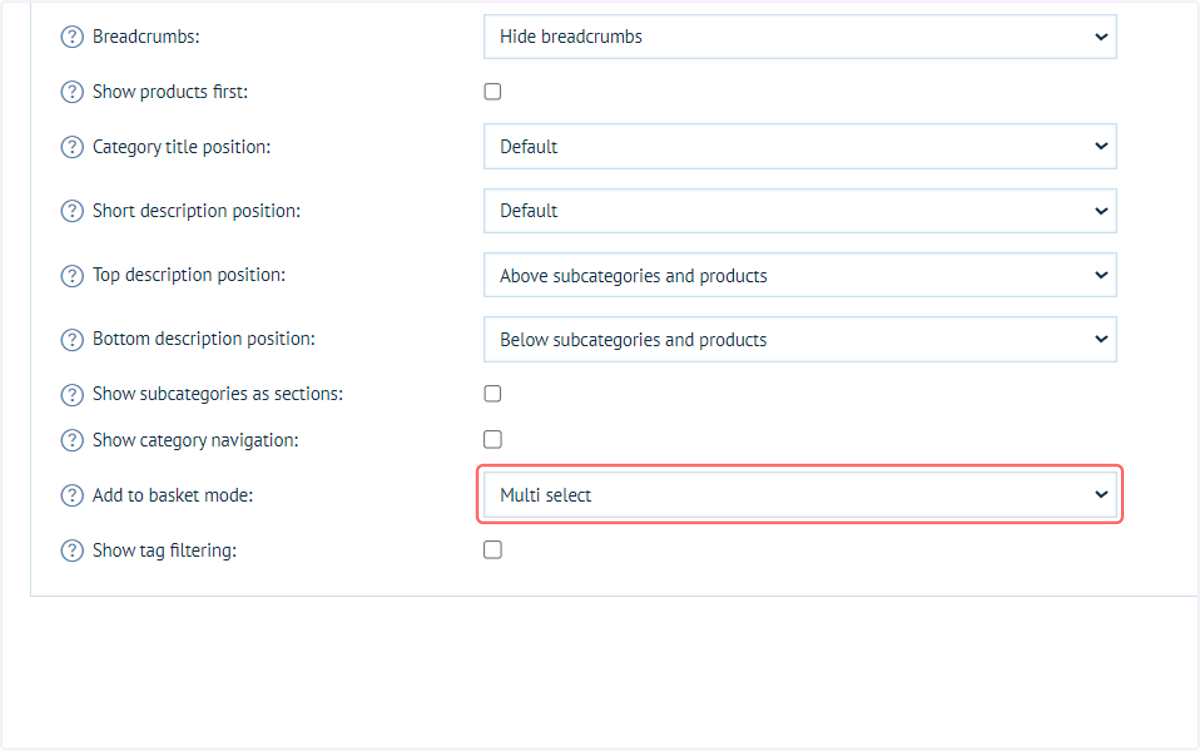
3. Select Multi select from Add to basket mode
This switches the Category UI, to enable a multi-select icon on each Category tile.
This will need to be done for each category on which you would like this feature.
4. Click on Save and Continue Edit
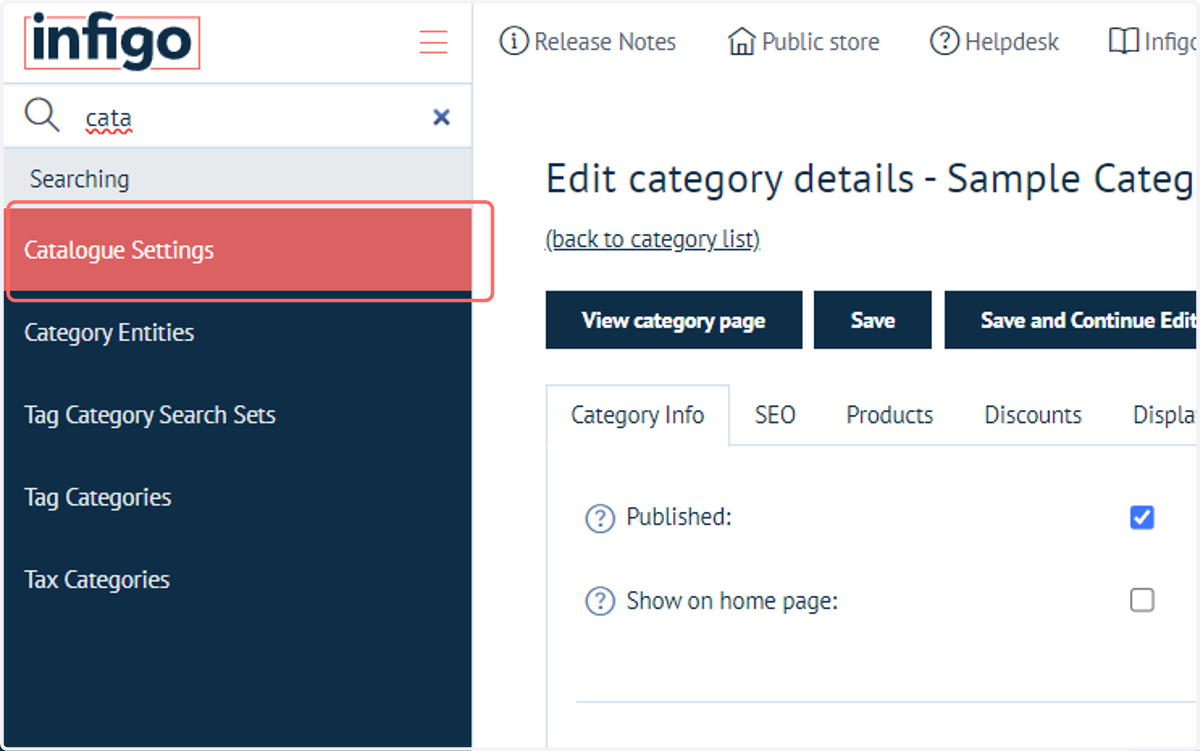
5. Click on Catalogue Settings
Next, navigate to your Catalogue Settings. Next, we will enable the ability to specify a quantity on the main Category page.
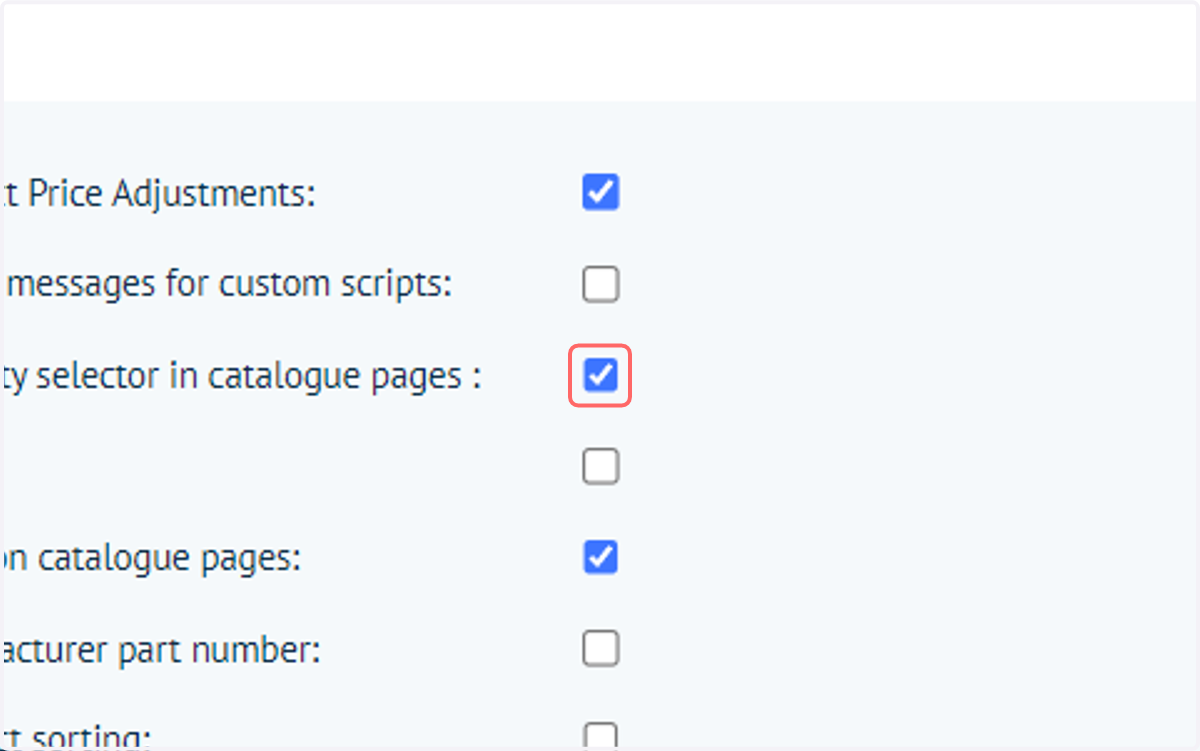
6. Check Show quantity selector in catalogue pages
This only needs to be enabled once for all Categories.
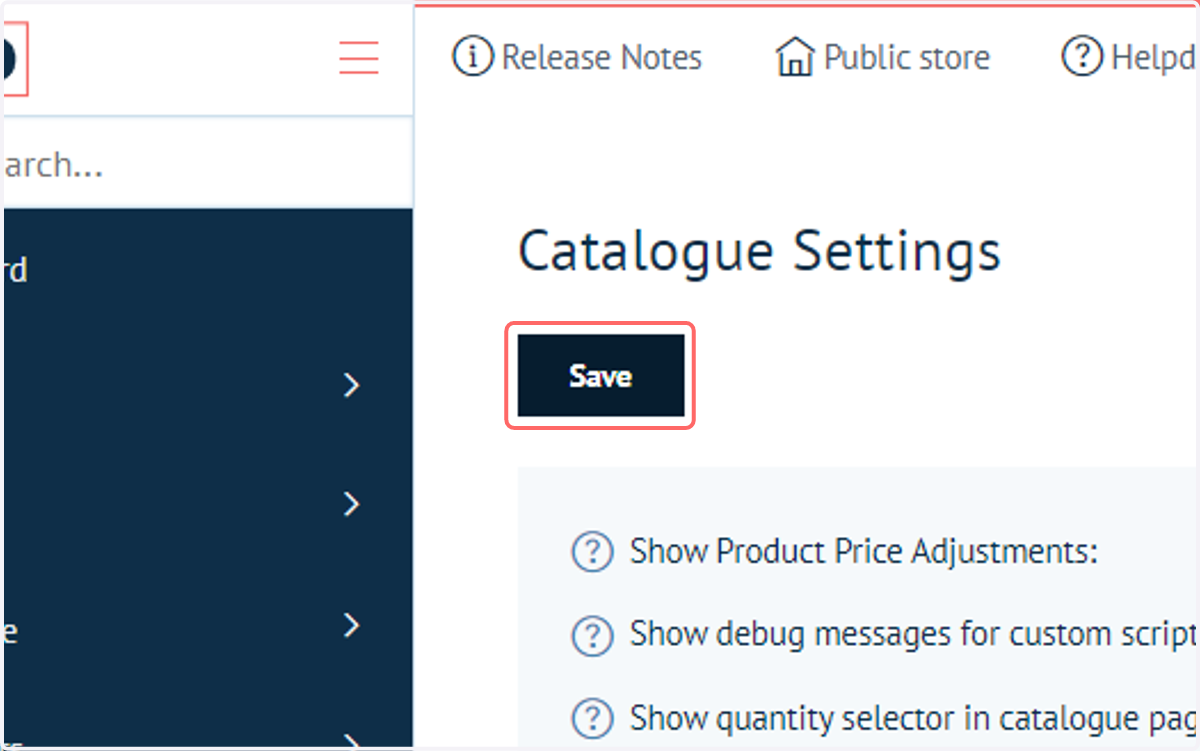
7. Click on Save
8. Navigate to the Category page on the Storefront front-end. Select the check-boxes on the bottom left of the Product tiles.
This allows Products to be multi-selected. Note, additional "Select All", "Clear All" and "Add to Basket" icons which also appear.
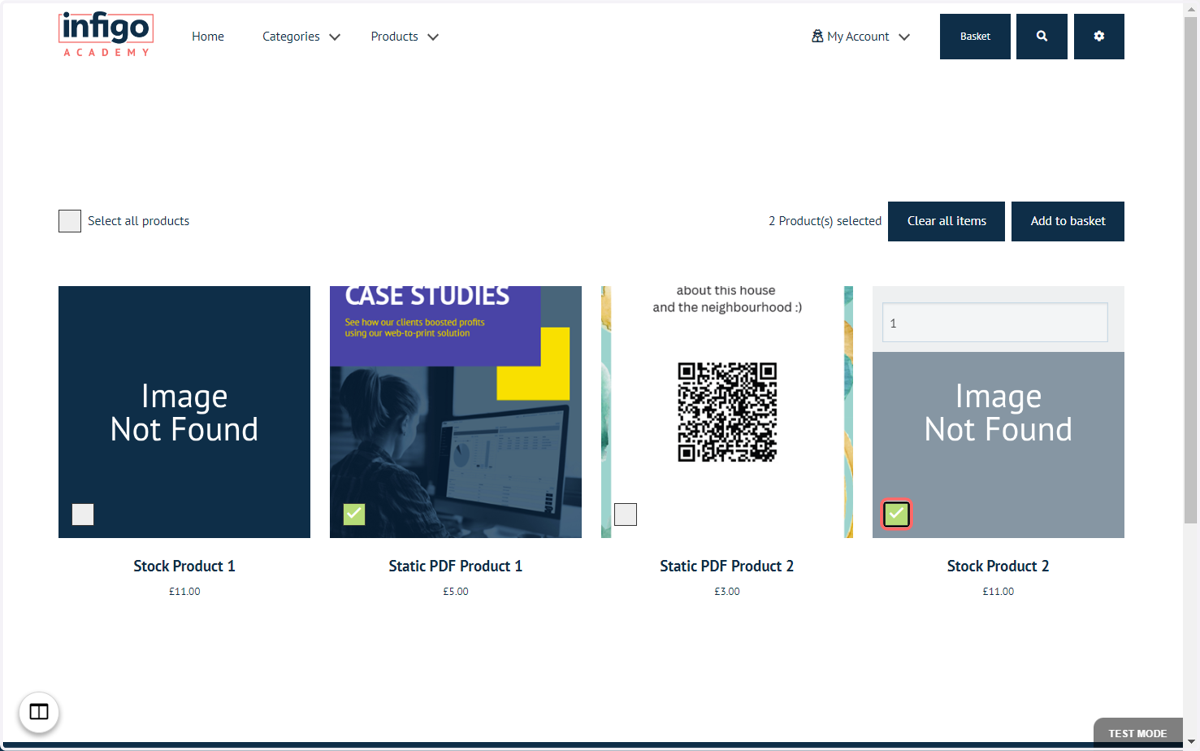
9. Hovering over the tile allows you to amend the quantity to add
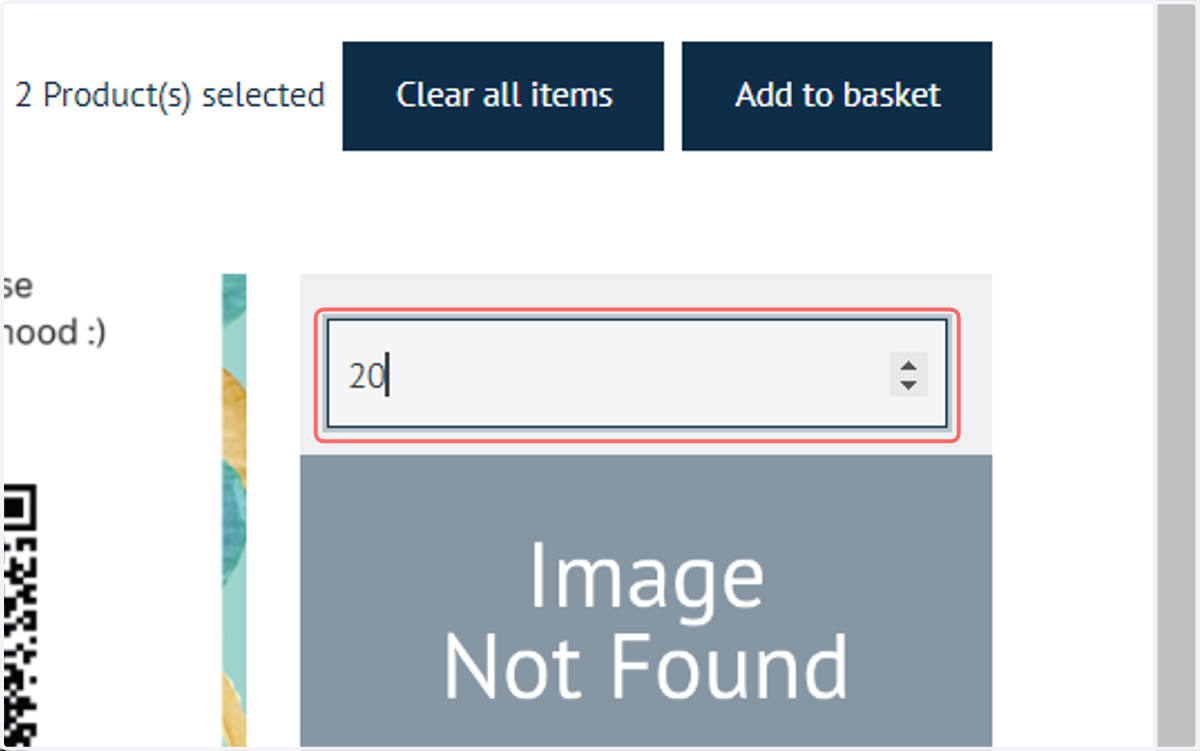
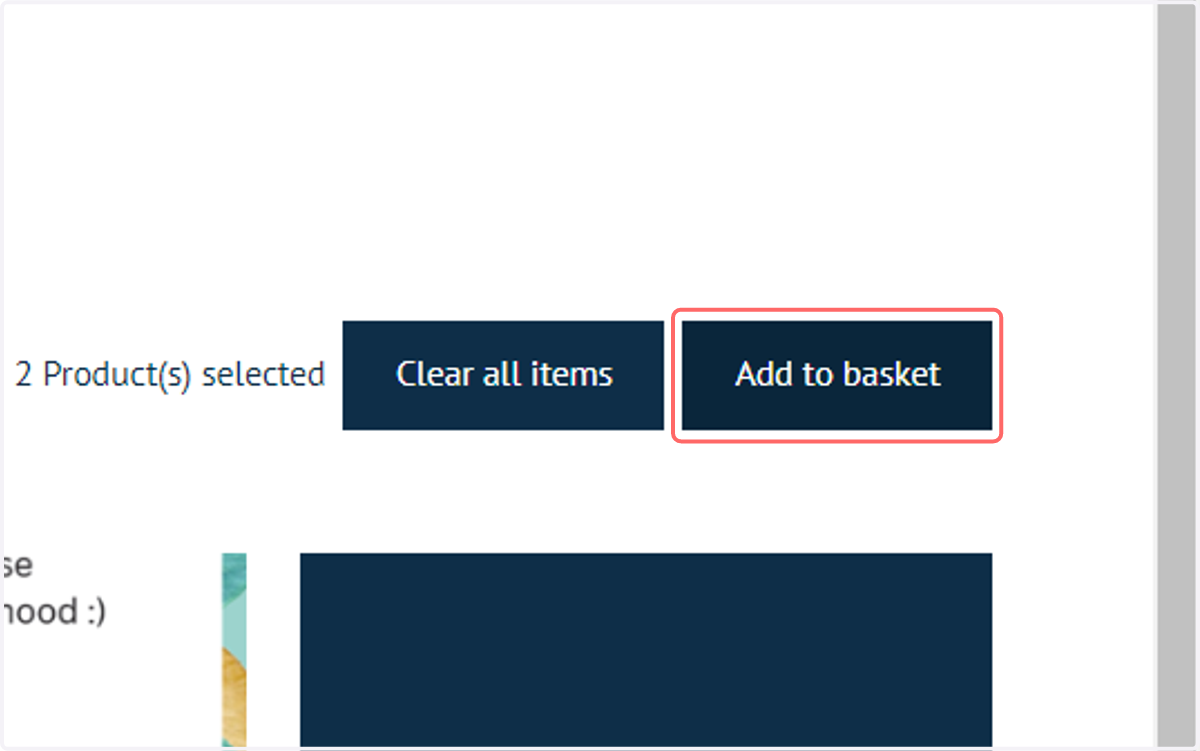
10. Click on Add to basket
11. Click on Basket
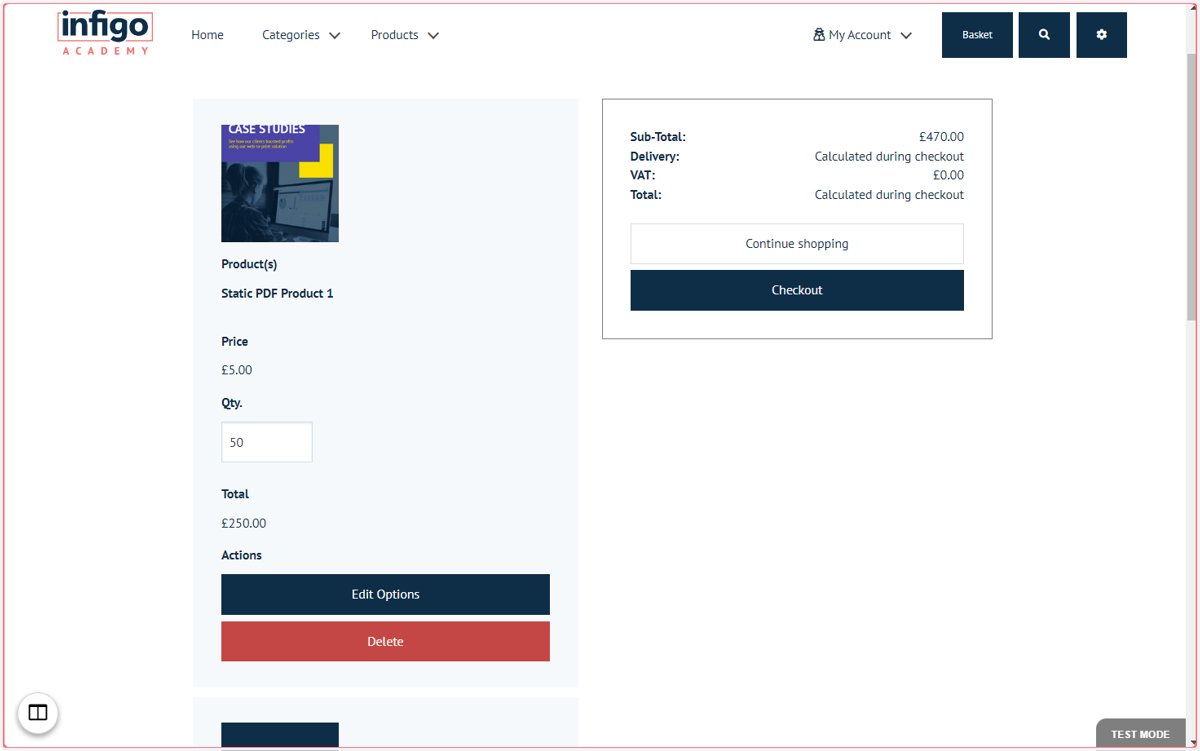
12. All Products with correct quantities added to basket