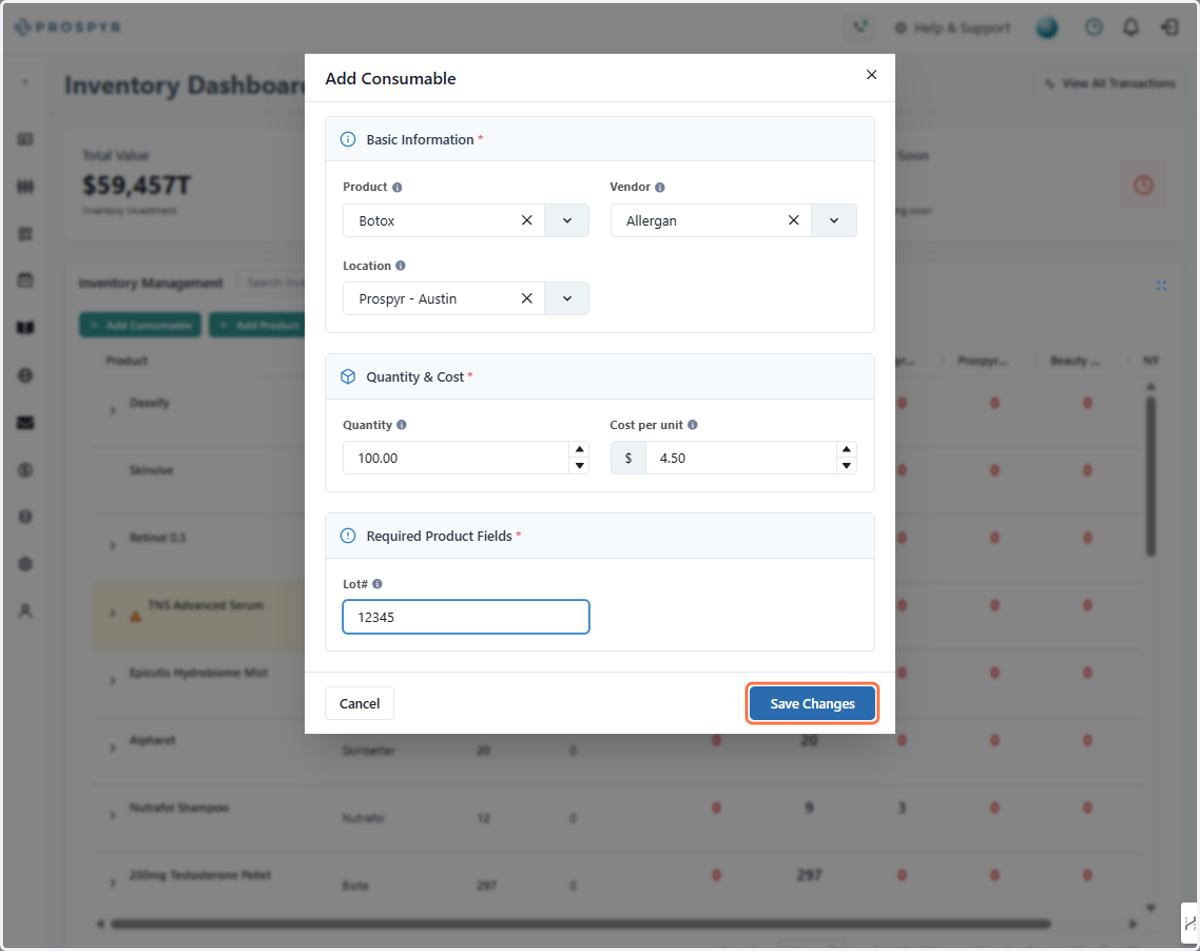
How to Add a Consumable to Your Inventory
Consumable refers to the actual inventory lots you have on hand
Prospyr - Welcome, Danielle Standage
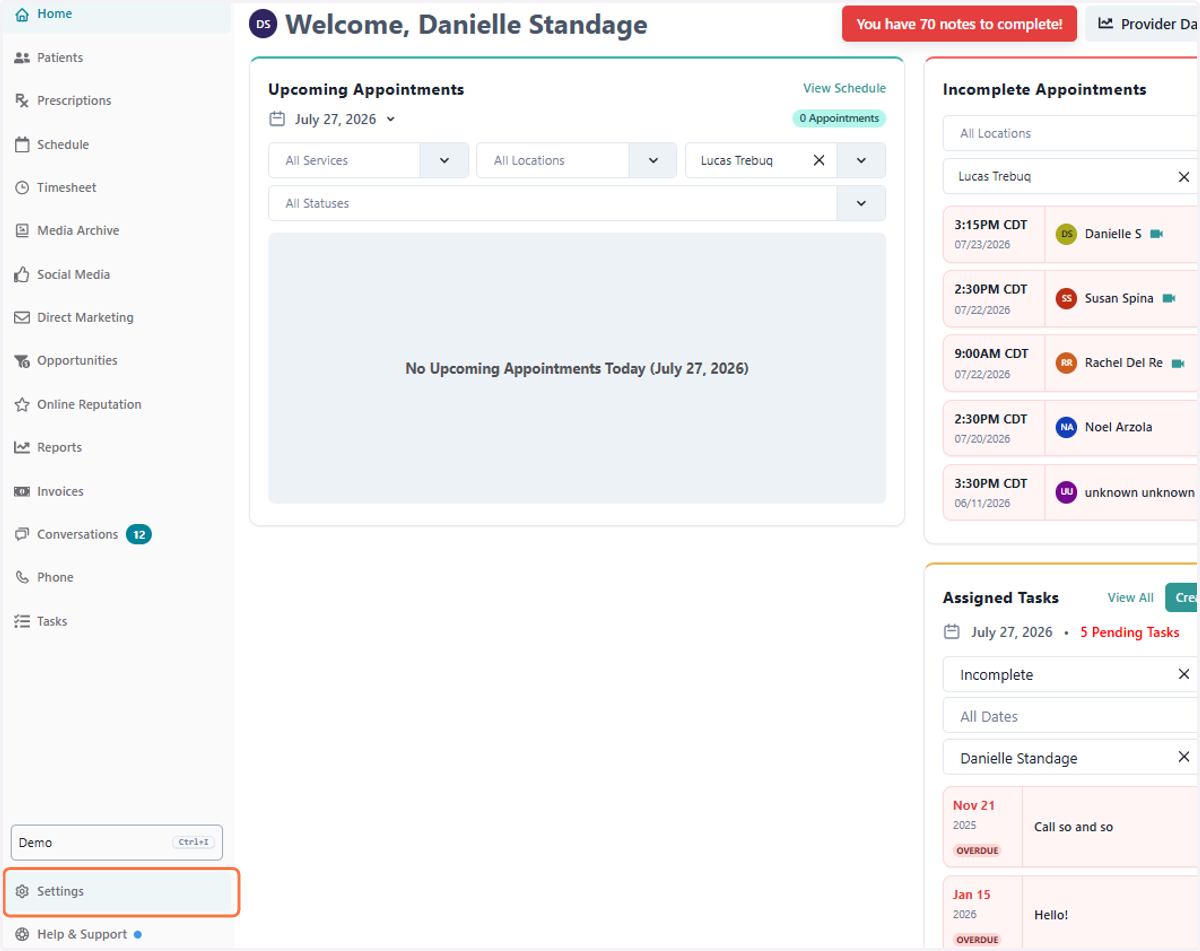
1. Click on Settings
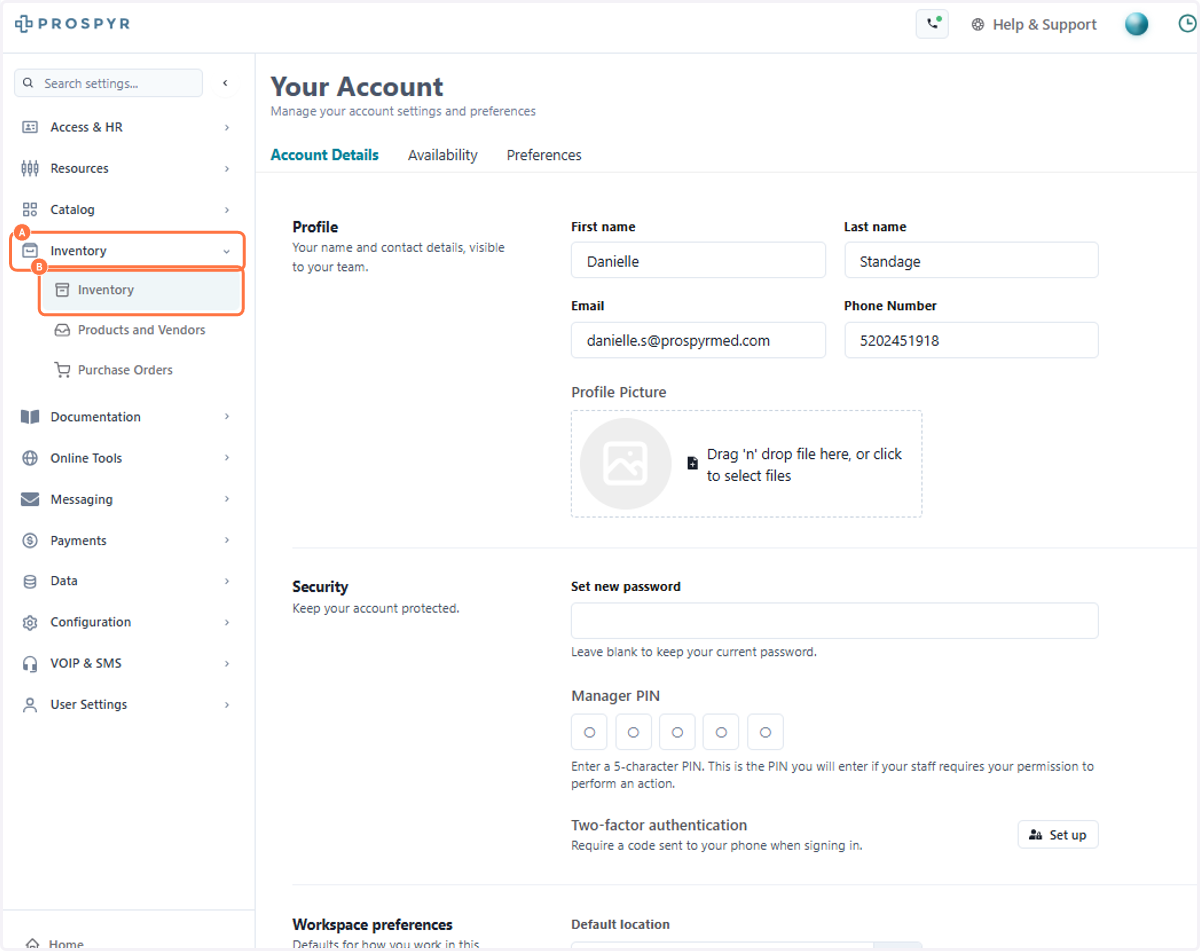
2. A. Click on Inventory
2. B. Click on Inventory
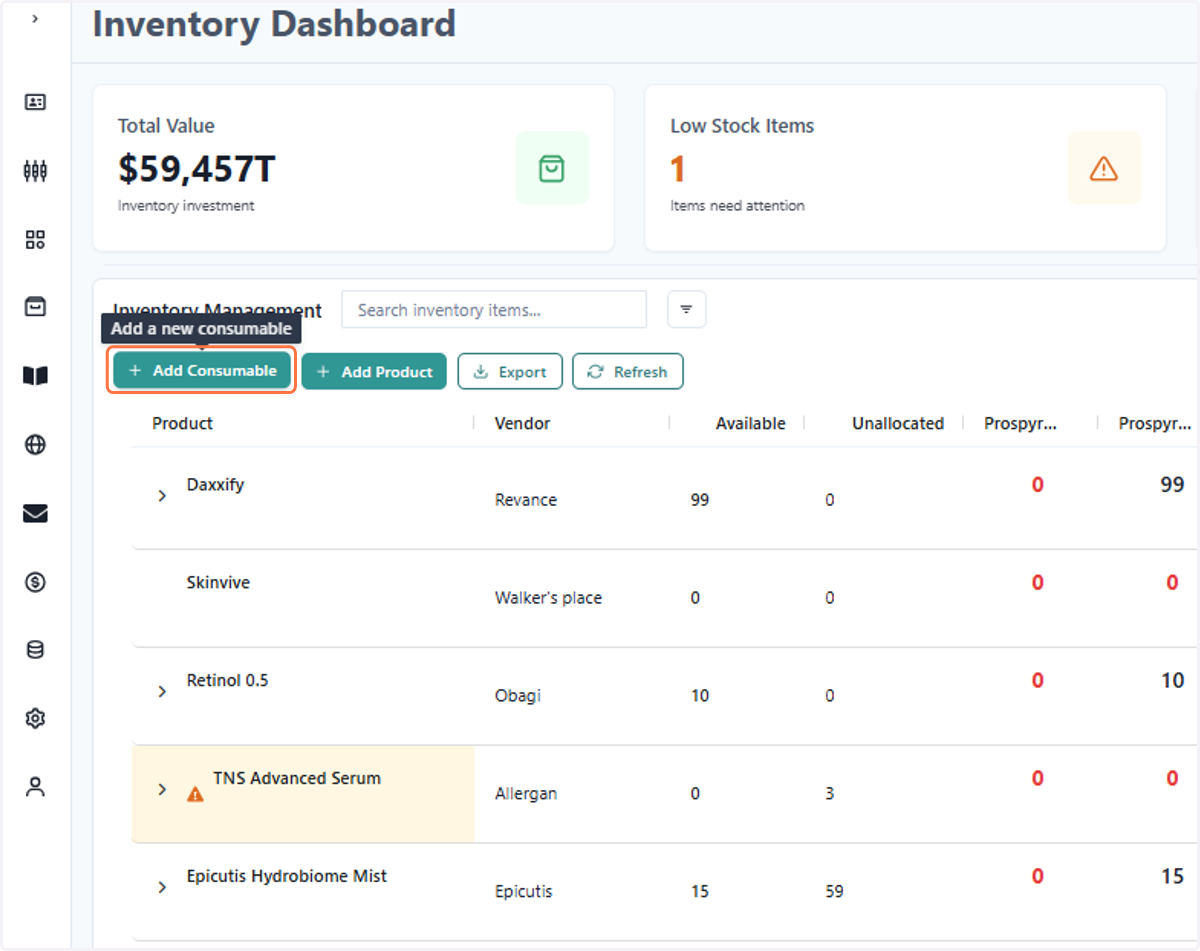
3. Click on Add Consumable
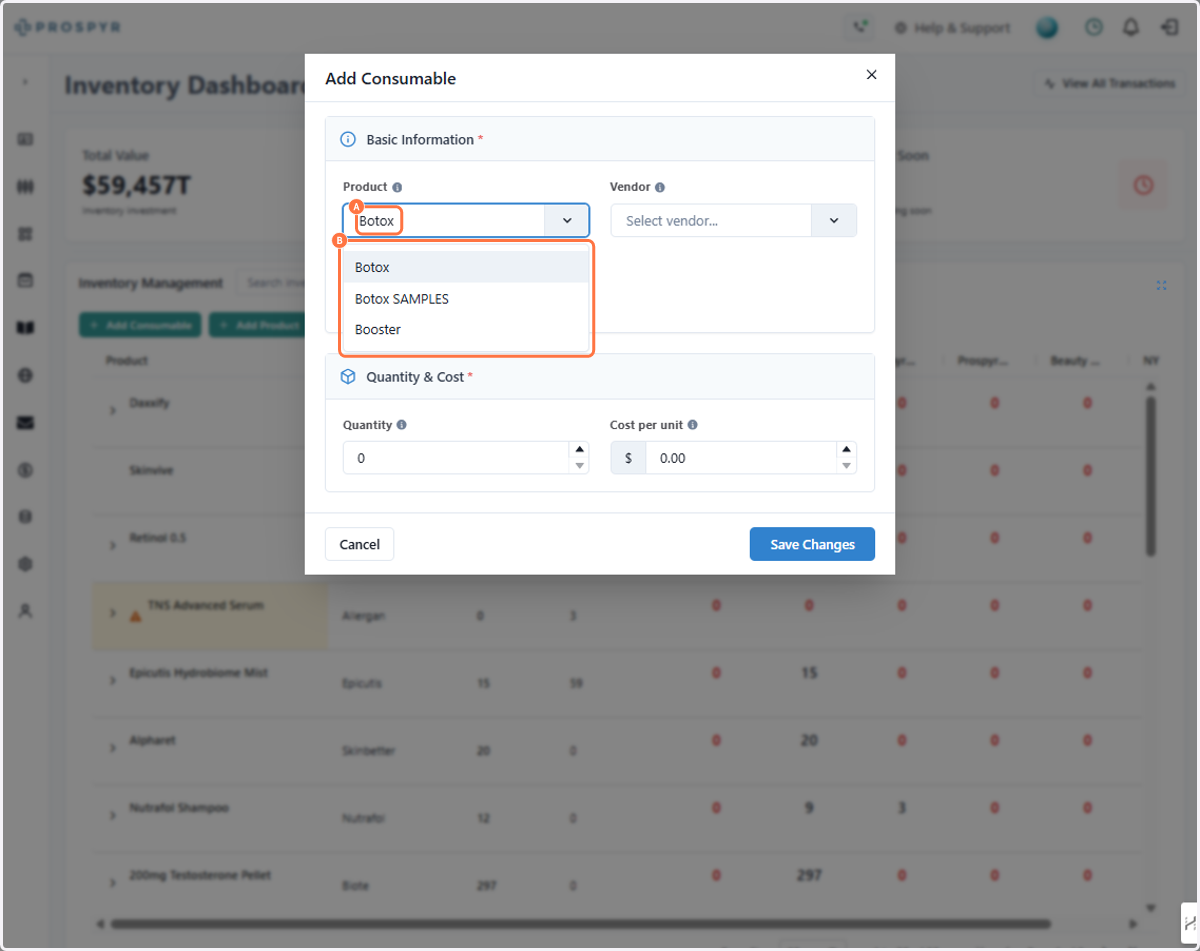
4. A. Type the product you're looking for
4. B. Select an option
If the product does not appear in the list, that means that it hasn't been added yet. Before continuing, add the product.
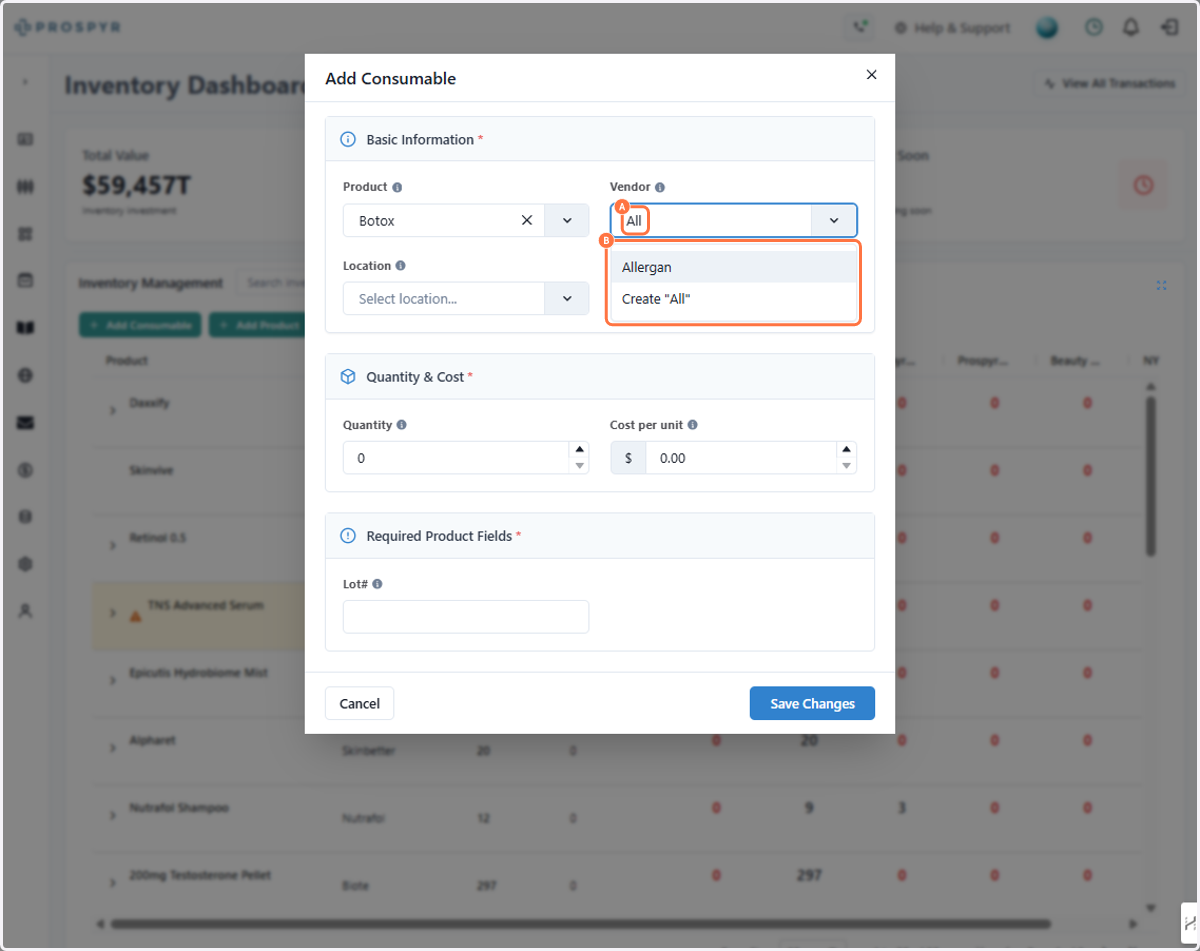
5. A. Type T
5. B. Select an option
If the vendor doesn't exist yet, you can click the create button once you've typed the name
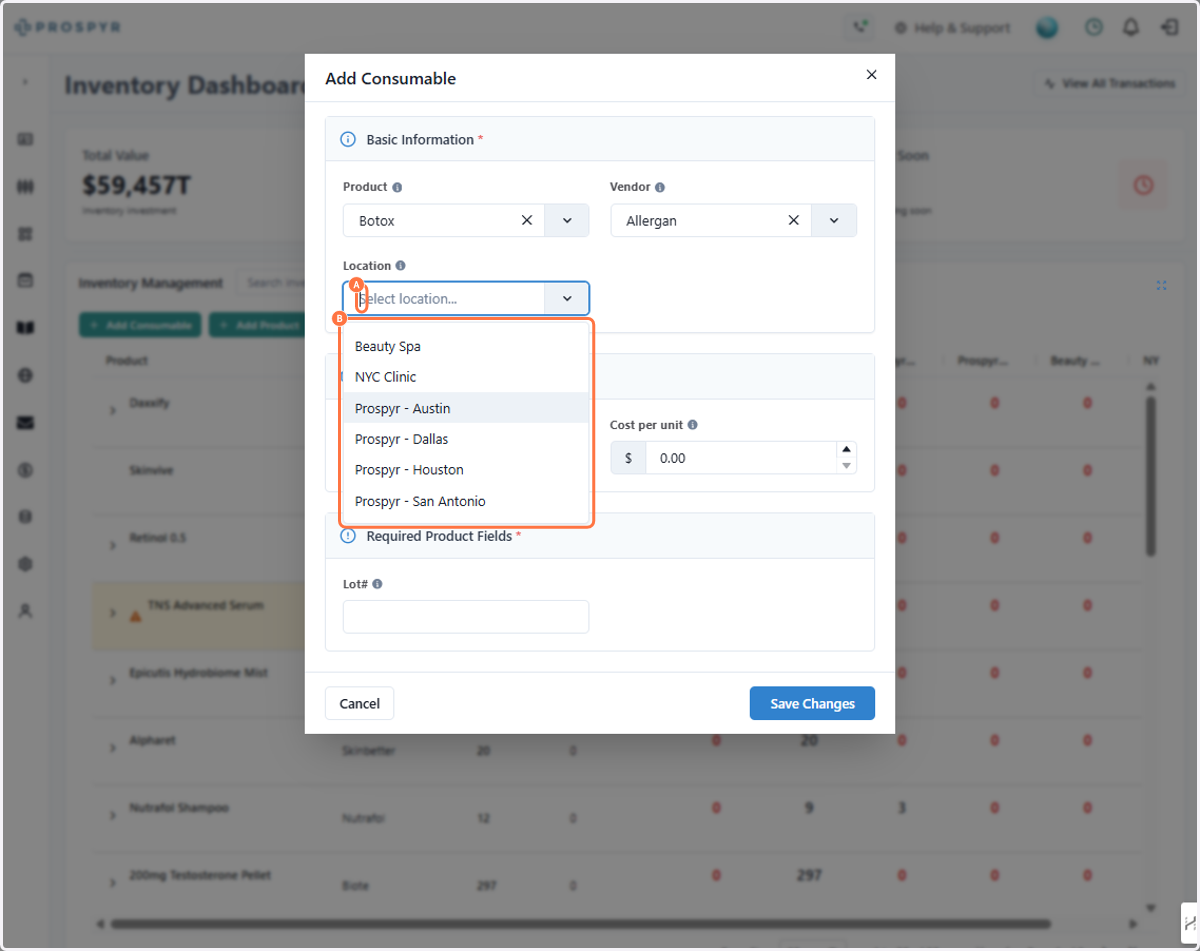
6. A. Click on Select location...
6. B. Select the location at which the inventory consumable will be available
7. A. Type Quantity on hand for this lot
7. B. Enter cost per unit for this lot
Each lot of a product must be added as its own consumable. For example, if you have a total of 200 units of Botox split across lot 123 and lot 456, you would enter two separate consumables—one for each lot, each with 100 units.
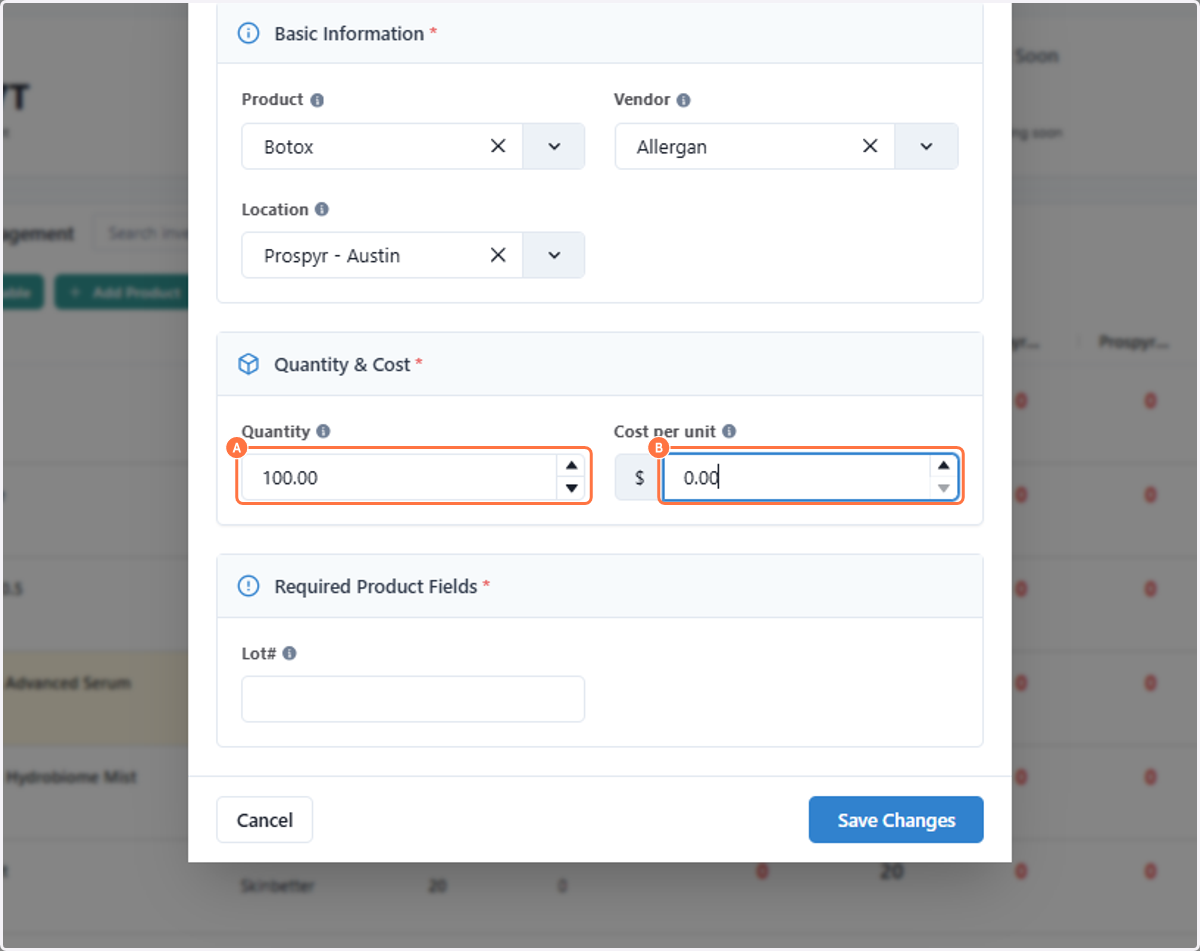
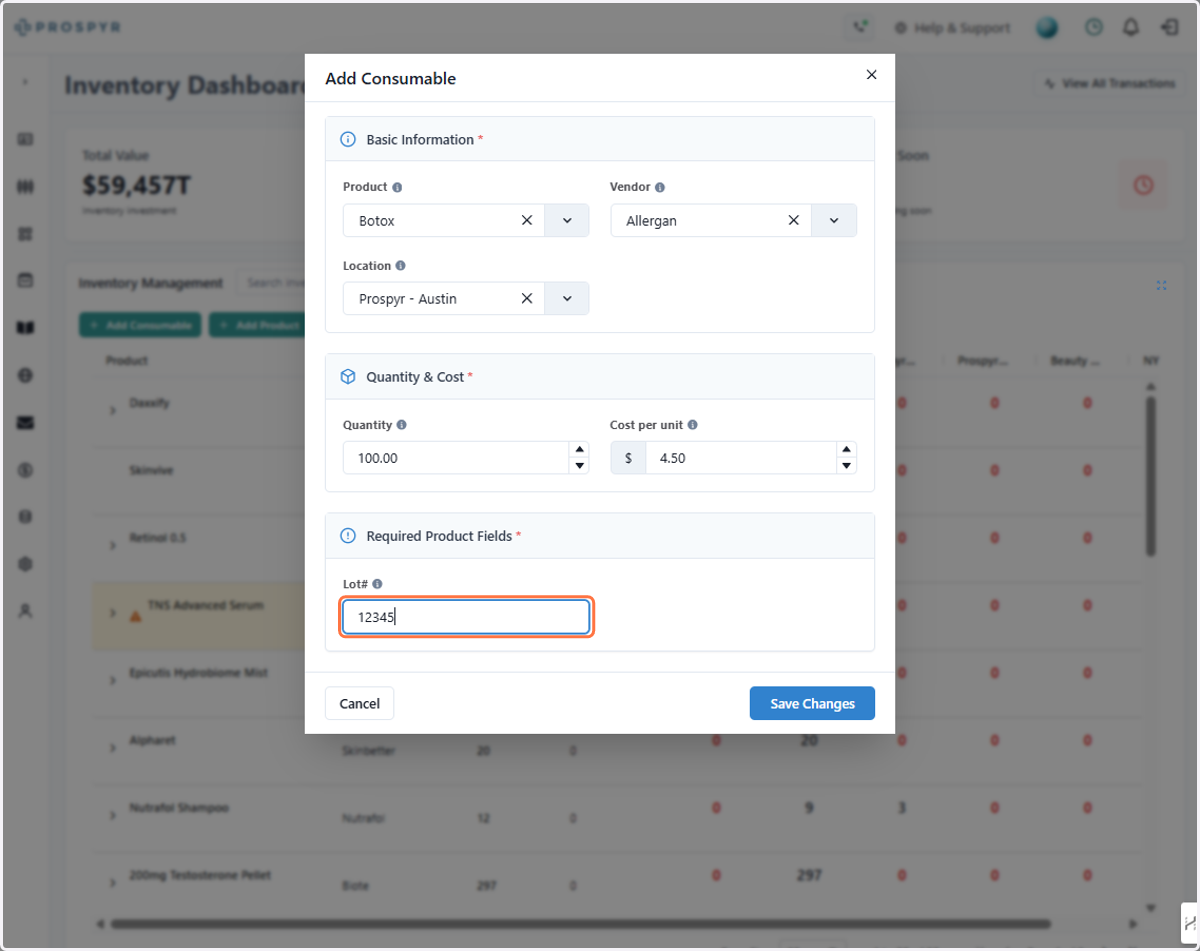
8. Type Lot#, if required
9. Click on Save Changes