Example of Custom Quoting Configuration in Connect: printIQ | CI_printiq_013
In this tutorial, we'll take a look at an example of an Infigo product which has been configured utilising the Connect: printIQ Custom Quoting capabilities. We will see that the product has several attributes configured, which in turn have slightly altered mappings to attributes and operations in the linked printIQ system. This ensures that the correct quote is returned from printIQ when requested from Infigo, as the chosen specifications of the product are being utilised to create the quote.
1. Our product
Our product is a simple Multipart product within Infigo. Several attributes have been created and assigned, giving the end user the ability to select between:
Sizes
Materials
Embellishments
The front end of this product is accessible to all should you wish to view it:
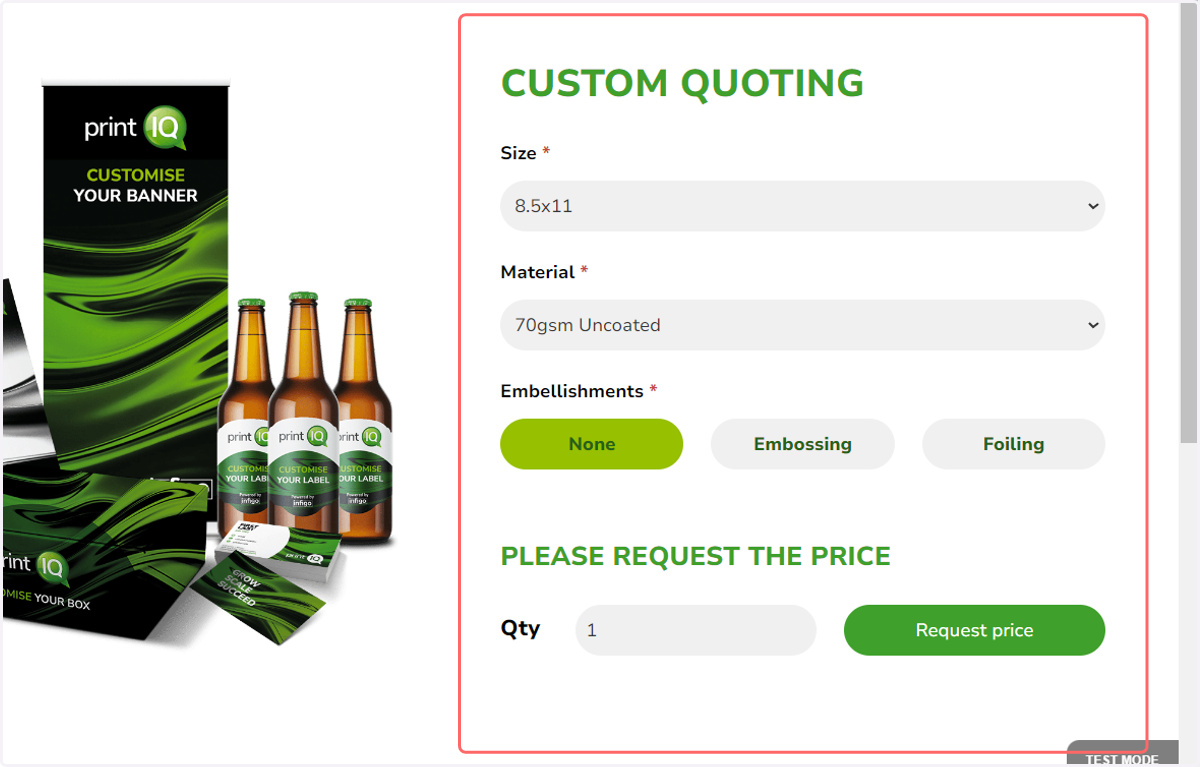
2. Once these selections have been made and a quantity input, Request Price can be used to directly request the price for this specific product configuration from the linked printIQ system.
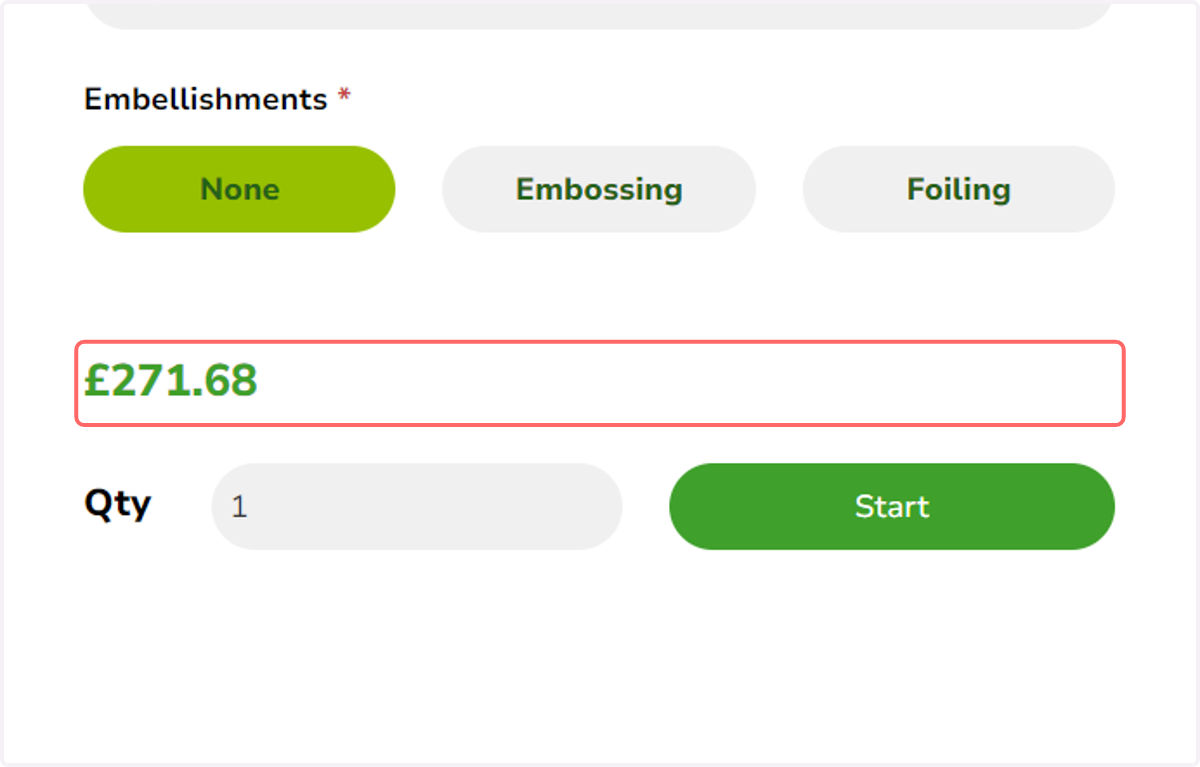
3. If successful, the returned price will be displayed to the end user
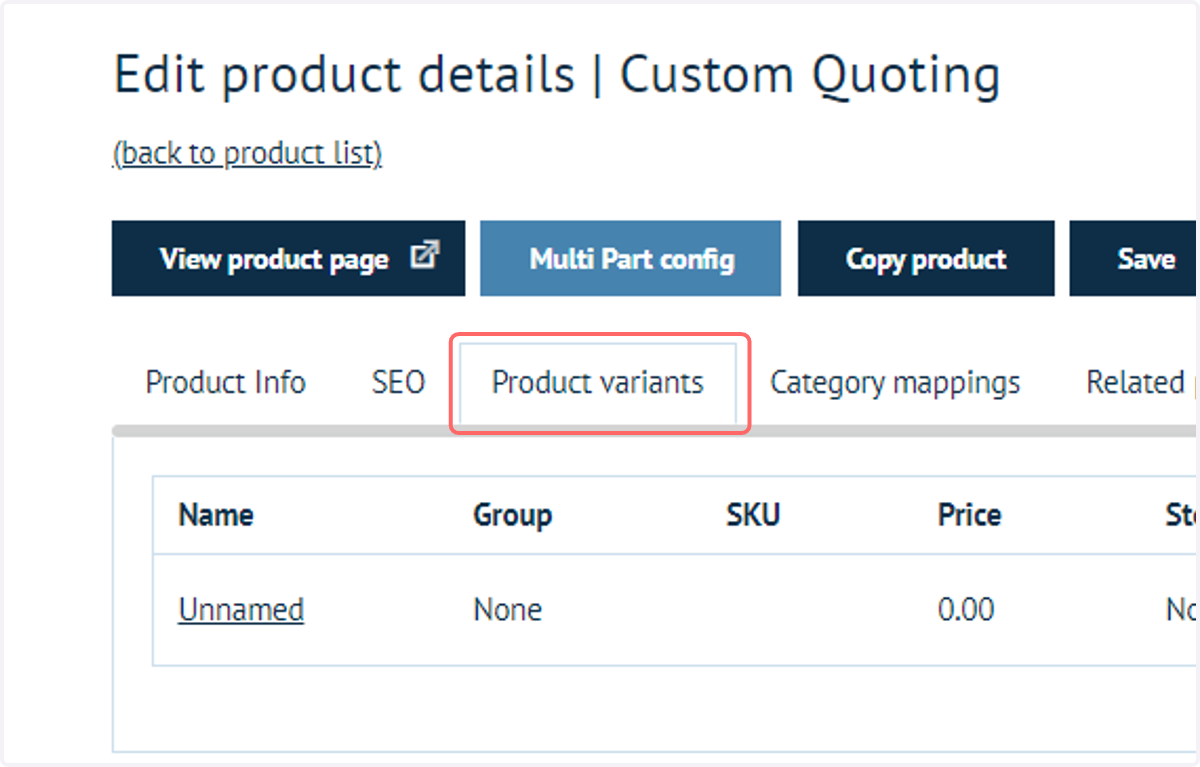
4. Navigate to the admin side of this product and navigate to Product variants
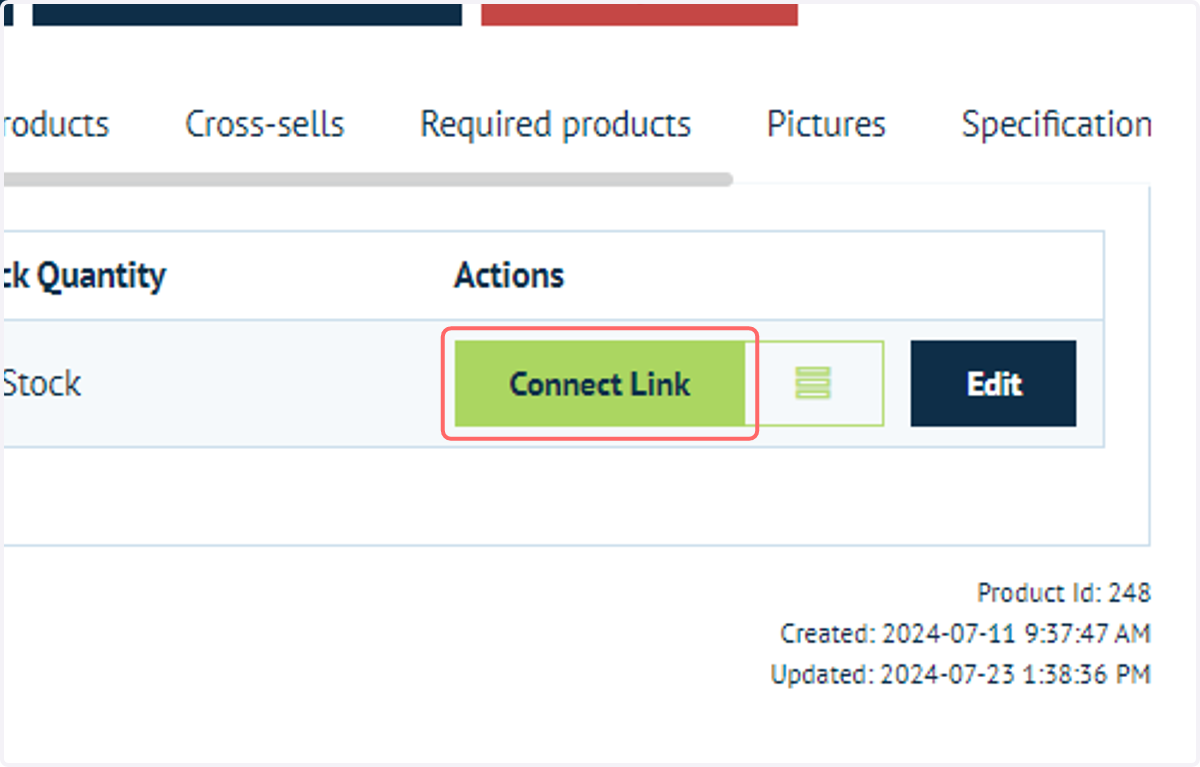
5. Click on Connect Link
This is where we will define the base specification of our product's mapping to our printIQ system. We can then overwrite parts of this specification as necessary for the different attribute values such as size or material, to ensure we are retrieving a correct quote.
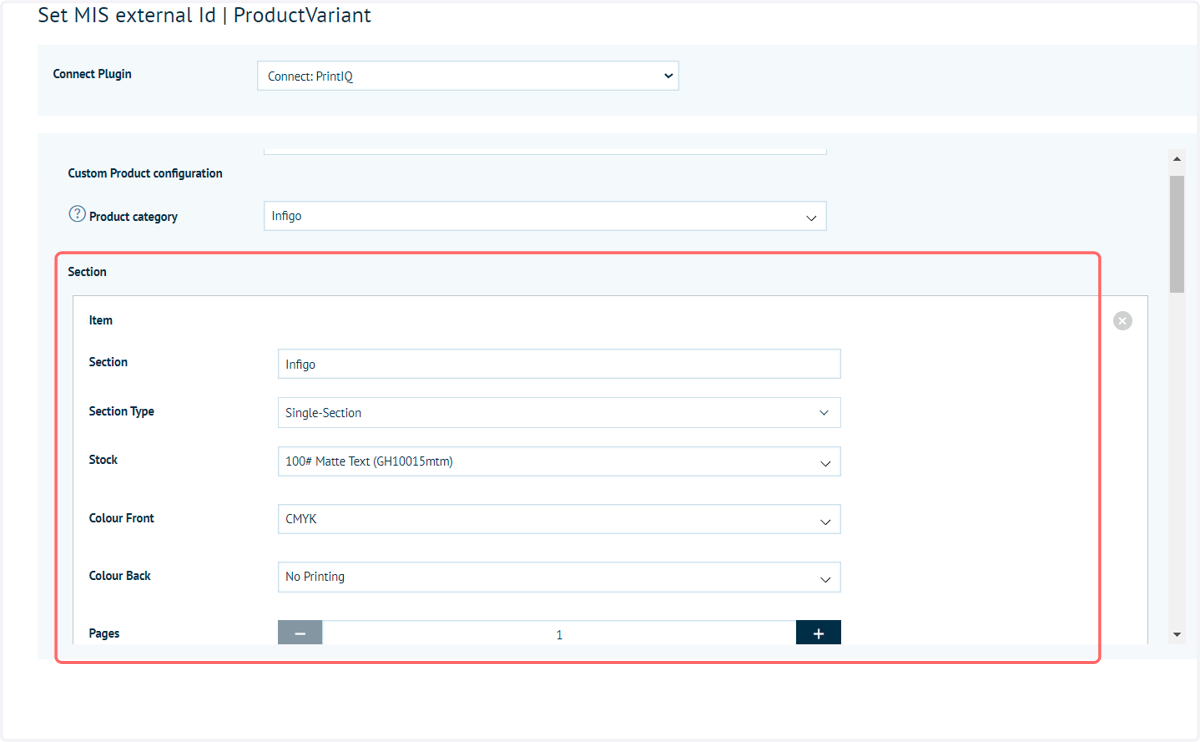
6. A pop up appears allowing us to input the mappings
In this example, we can see a range of mappings have already been carried out, including stock selection, colour and more.
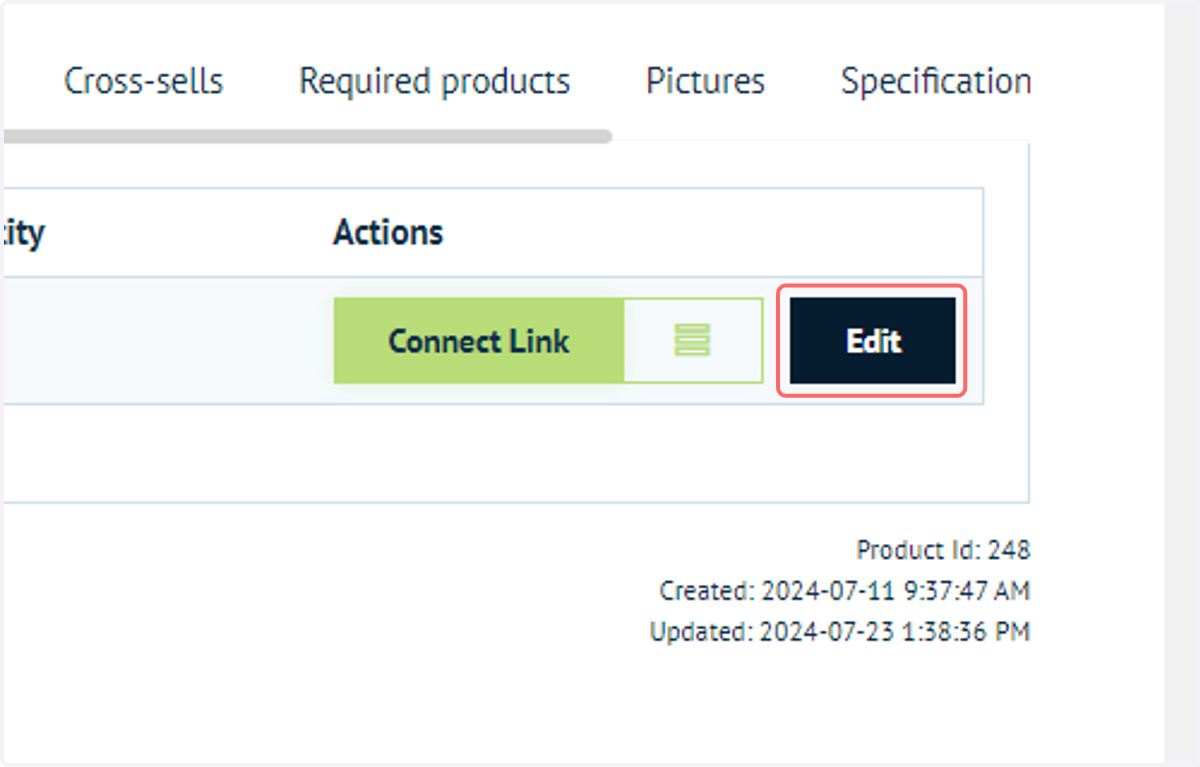
7. Next, we will look at how the specification varies for the different values of our attributes (such as size and material) Navigate to Product Variant tab and click Edit.
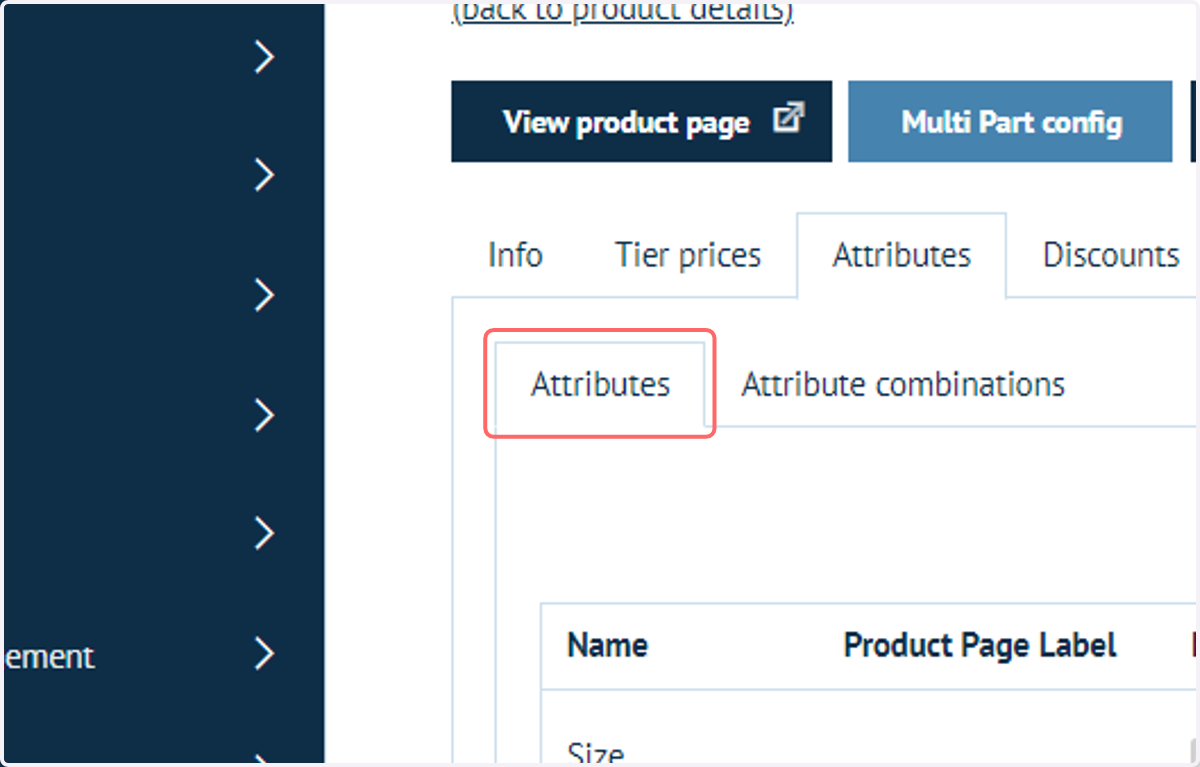
8. Navigate to the Attributes area
This functionality also works with Attribute Combinations, however these are not set up on this particular example.
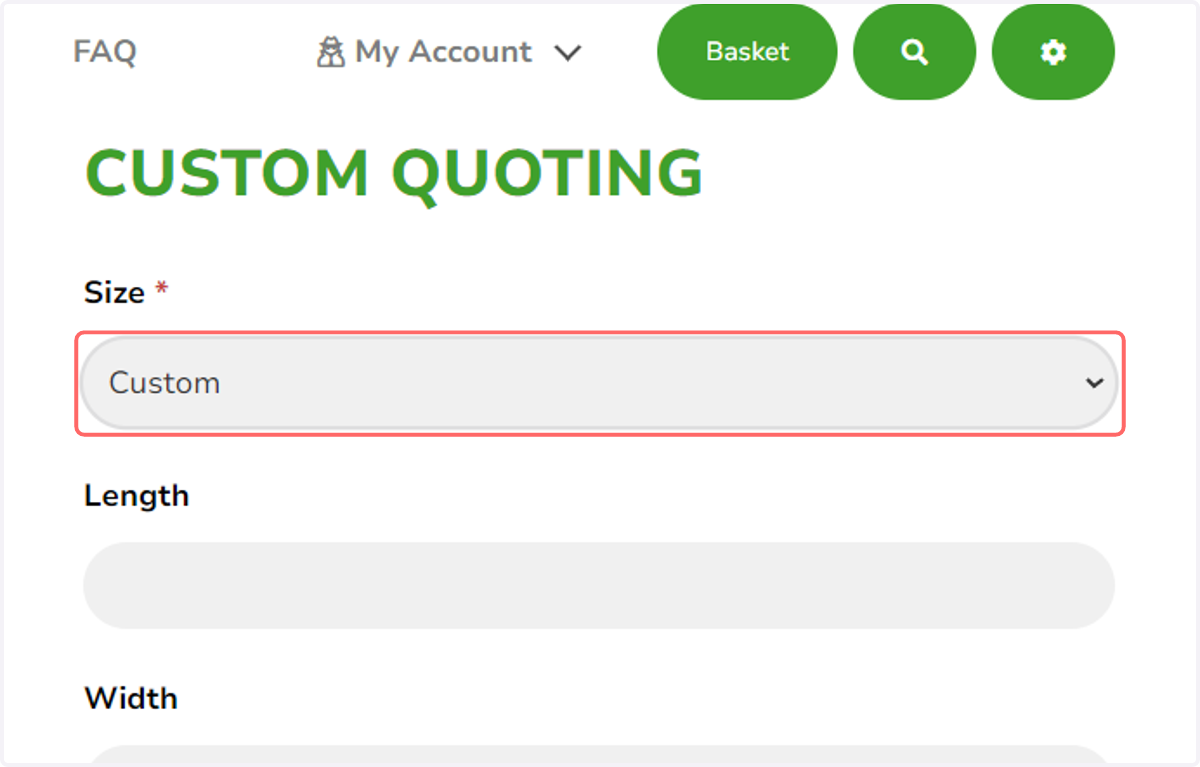
9. We will begin by taking a look at our Size attribute options
In addition to three fixed sizes, this product also includes a "Custom" option, which in turn reveals two additional "Length" and "Width" attributes
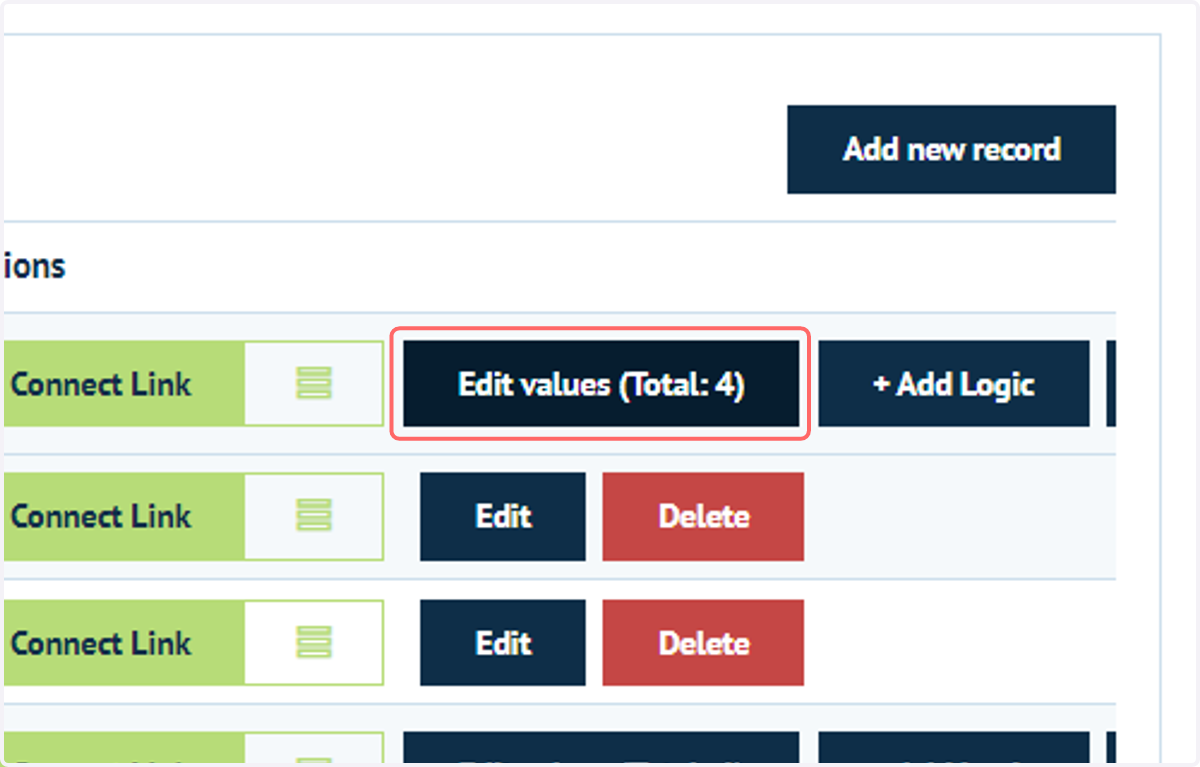
10. In the product's admin area, navigate to the attribute values
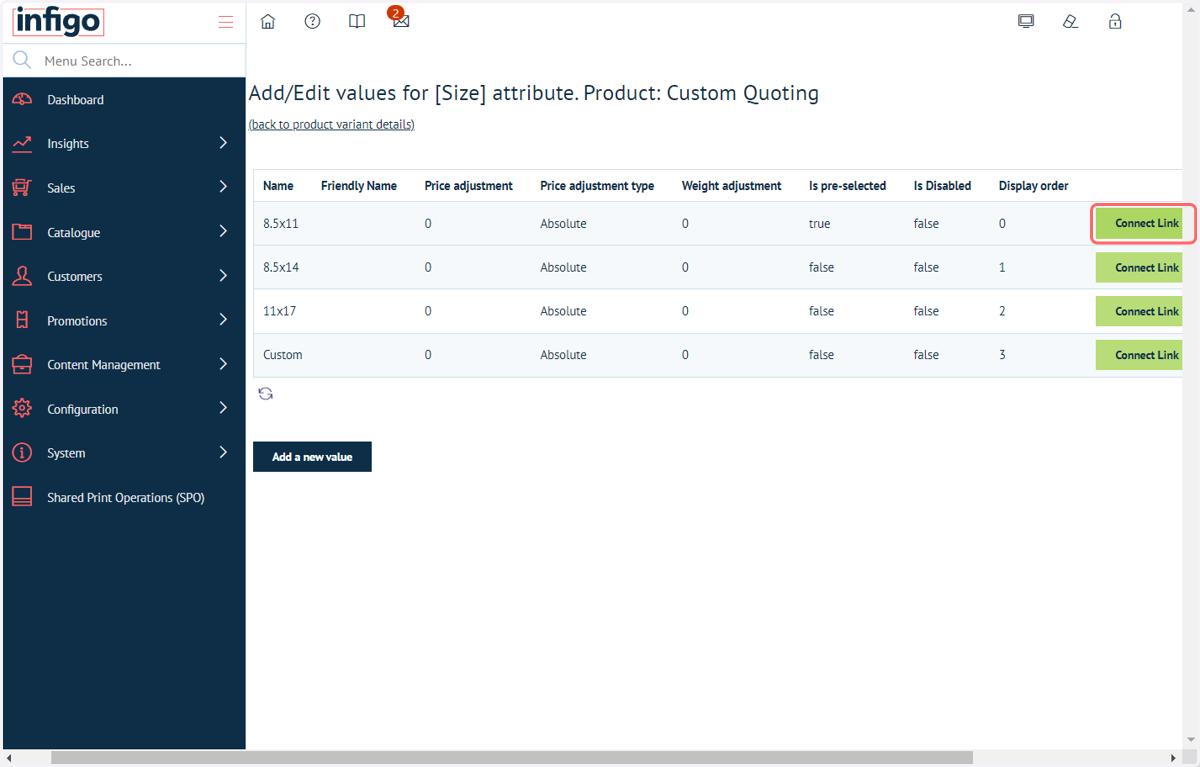
11. Click on Connect Link next to the relevant attribute values
In this example, we'll start with one of the fixed size selections.
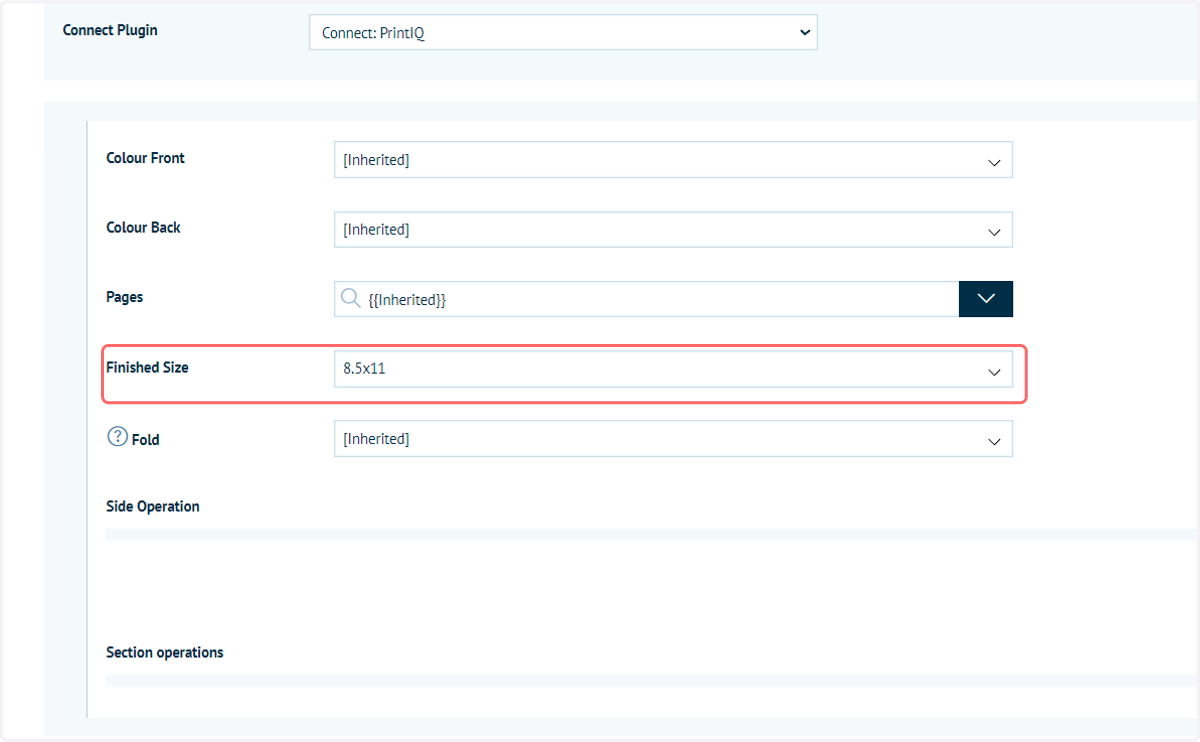
12. Size specification
We can see that the majority of the options are using the [Inherited] option, meaning their value is being taken from the higher level specification we saw earlier.
However, we can see in this case that "Finished Size" has been mapped to a different, specific value. This will ensure the correct product specifications are used to quote if this value is selected within the Size attribute by the end user.
13. Next, we'll take a look at our "Custom" size option
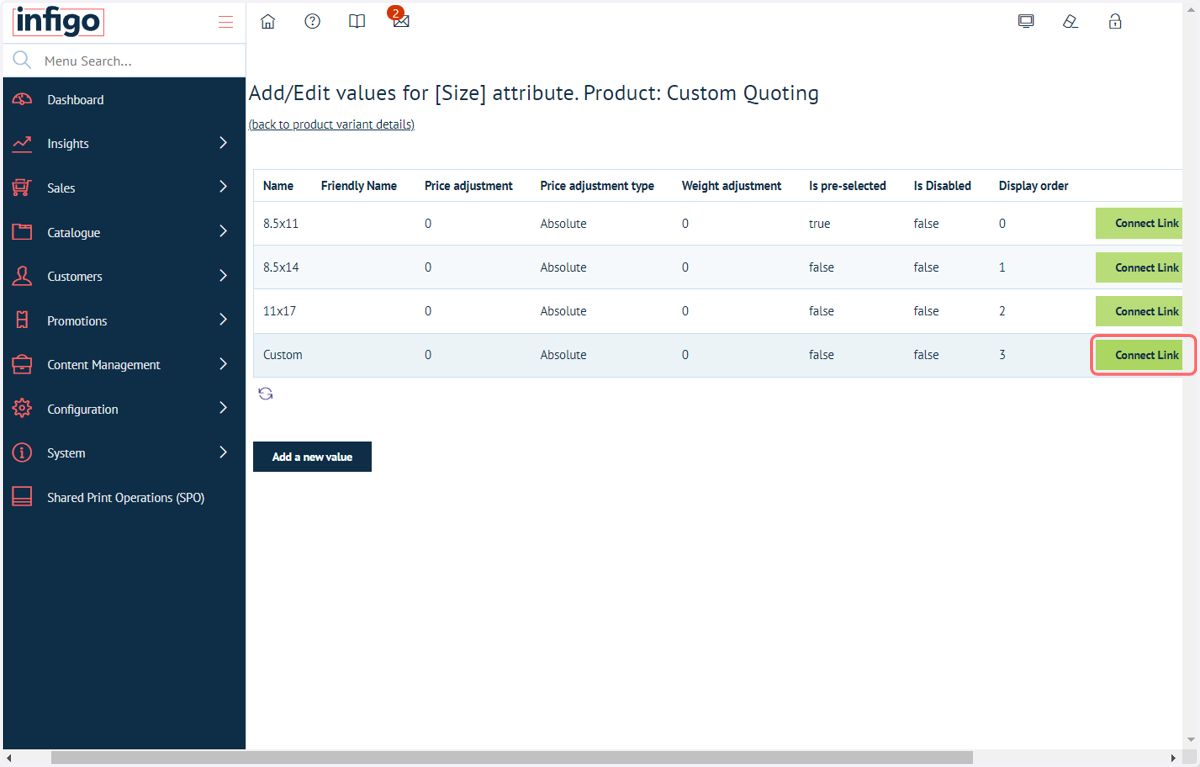
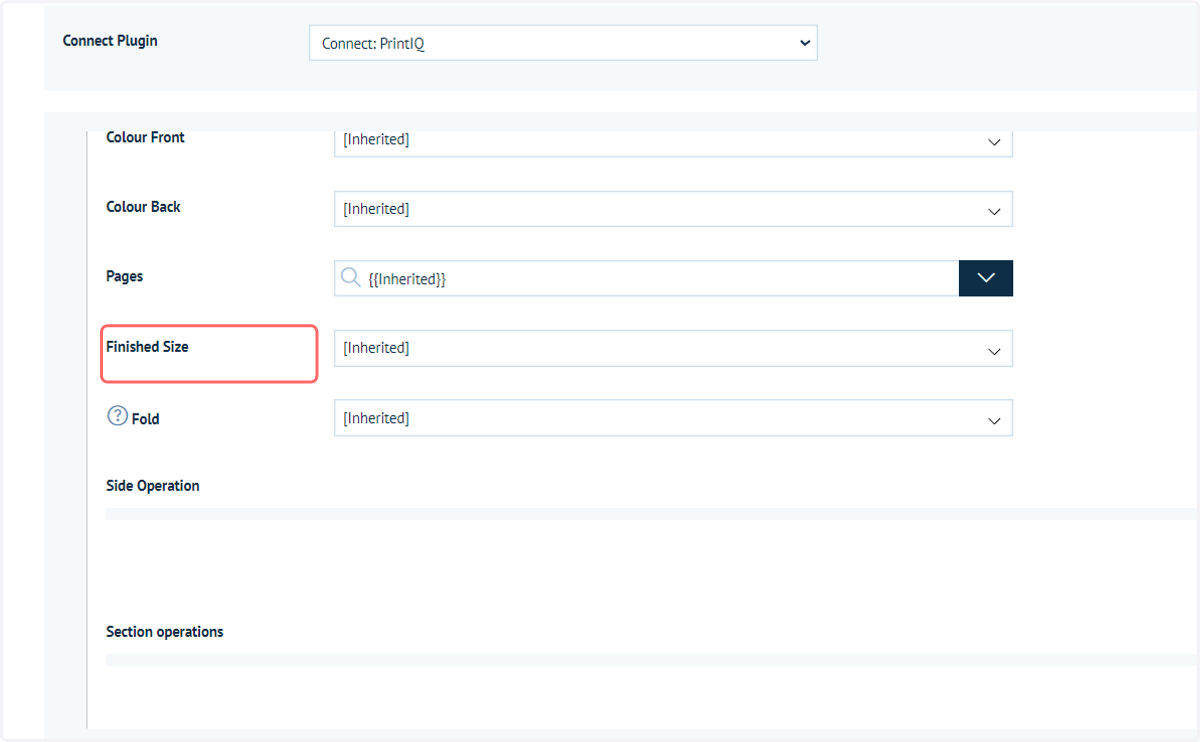
14. We can see this time that our Finished Size is not being amended from the base specification.
That is because we wish for the specification to now by altered by the two additional "Length" and "Width" attributes that have become available to our end users.
The "Custom" option is purely being used to control the "Length" and "Width" attributes.
15. Navigate back to the product's specified attributes and select Connect Link on the Length or Width attributes.
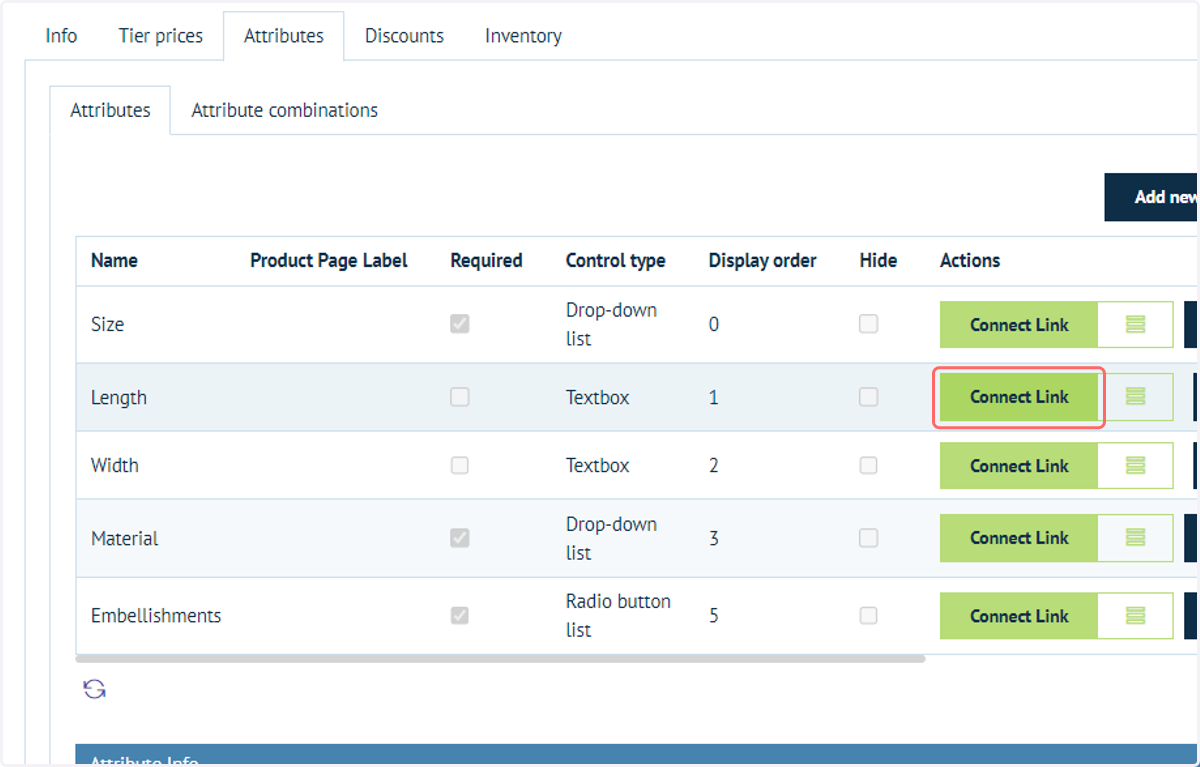
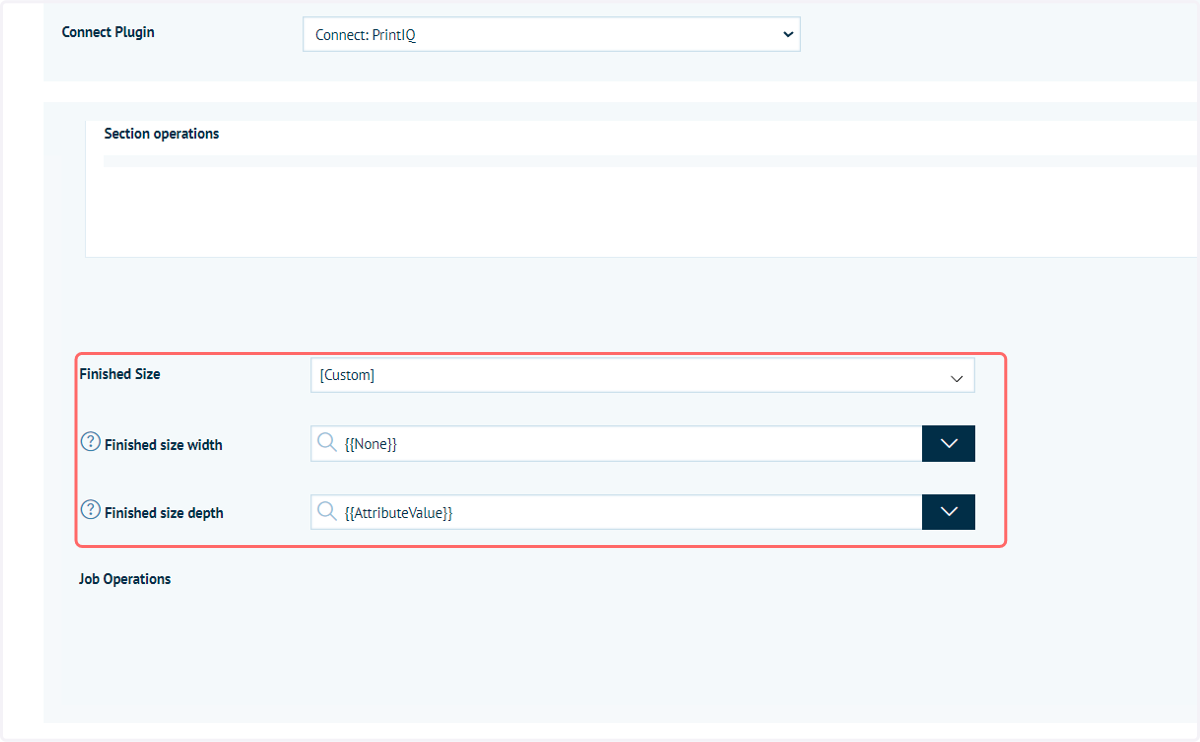
16. We see these attributes are modifying our finished size mapping
They are set to a custom sizing, with the corresponding width or depth being driven to the value input into the attribute.
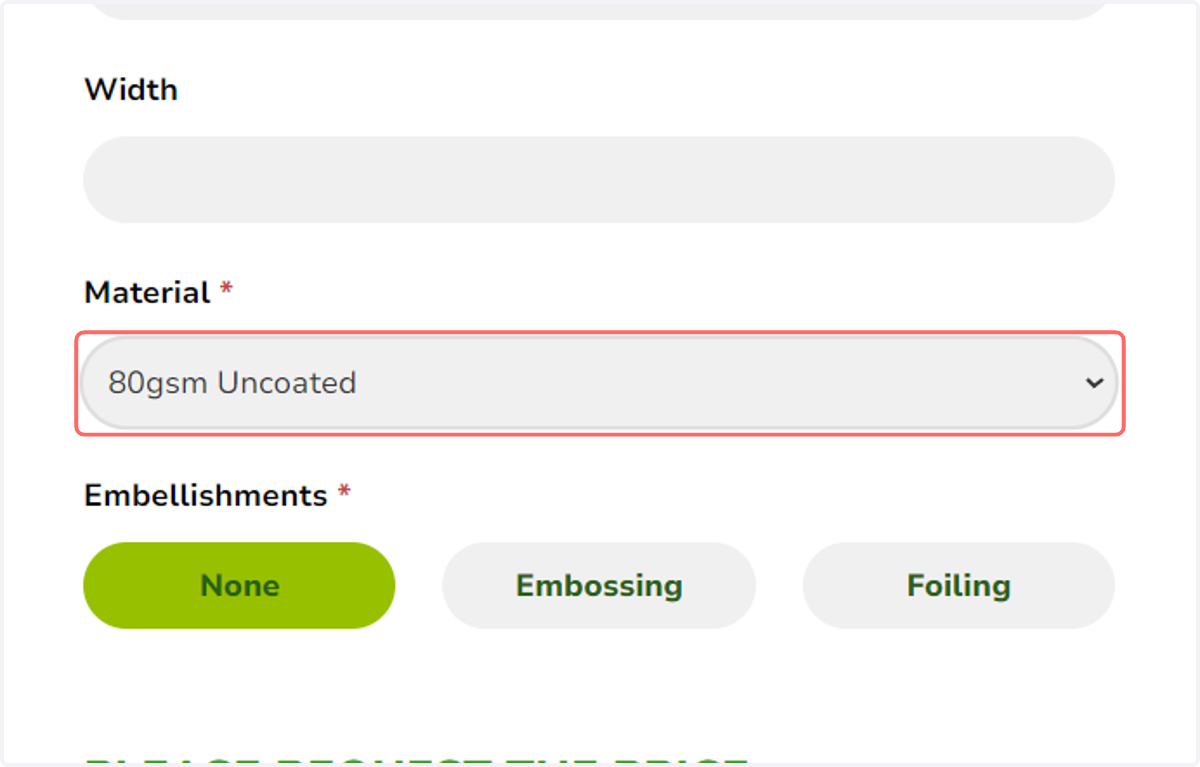
17. Next, we'll take a look at the material selection
This again is giving us the option to select between four static values
18. Navigate to the attribute in the admin area and click Edit Values
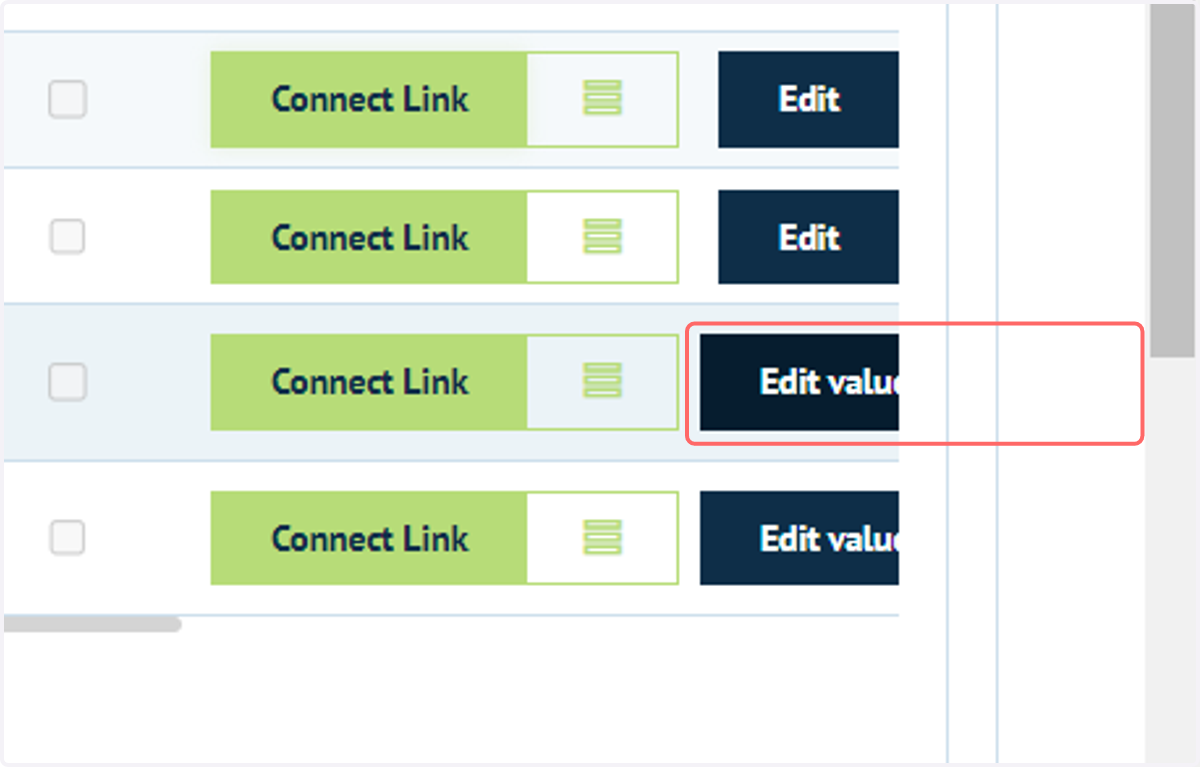
19. Click on Connect Link next to one of the attribute values
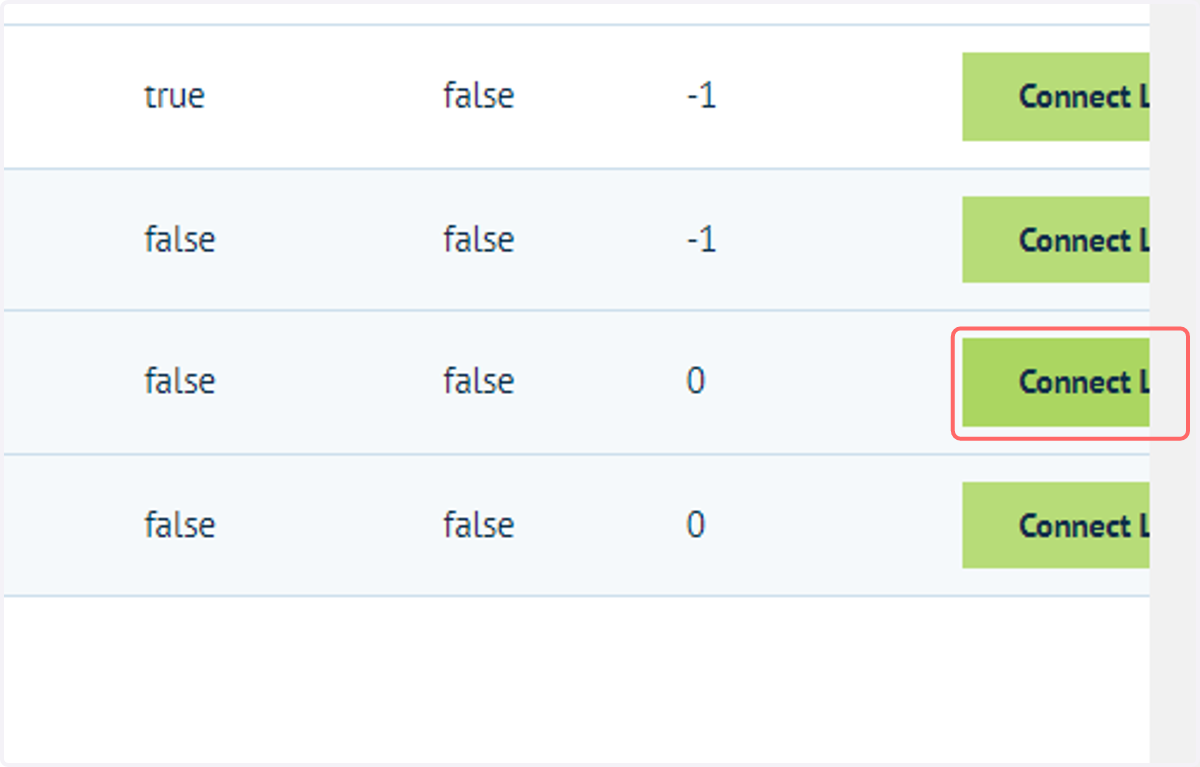
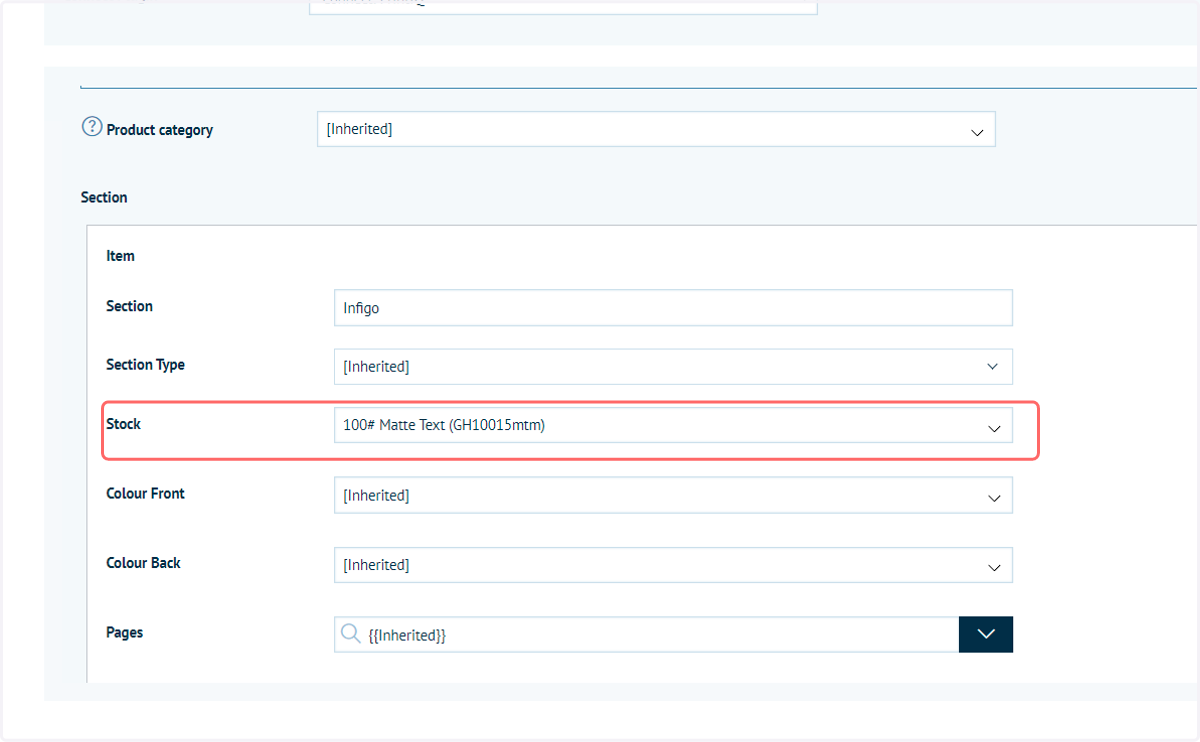
20. With this option we can again see the majority of options are set to be inherited from the higher level mapping, however the stock has been specifically set to one of the values drawn from our linked printIQ instance.
21. Whilst visually different, our Embellishments attribute works in a similar way. We have three static values to choose between.
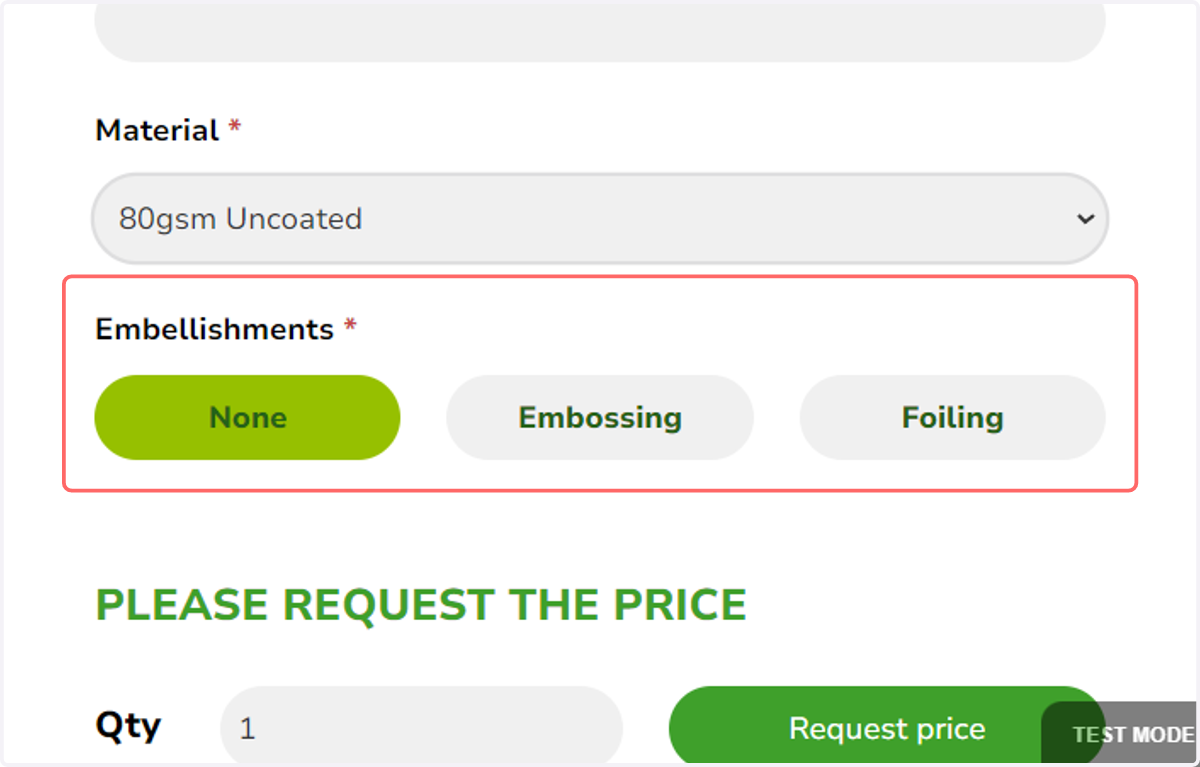
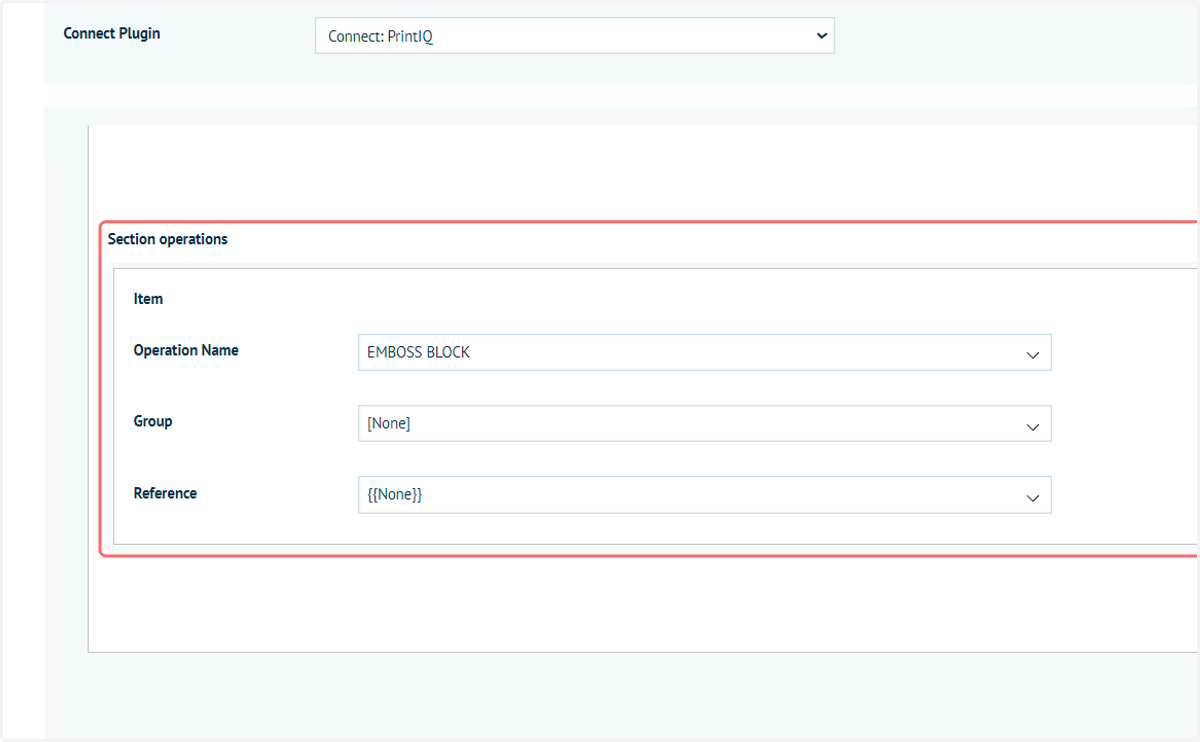
22. Navigating to our Connect Link settings for these attribute values, we can see that an additional Section Operation has been specified to map the embossing
The EMBOSS BLOCK value that has been selected is again drawn from the printIQ instance linked to this Storefront.