Tracking CLASS Usage with the Amira Admin Dashboard
Amira
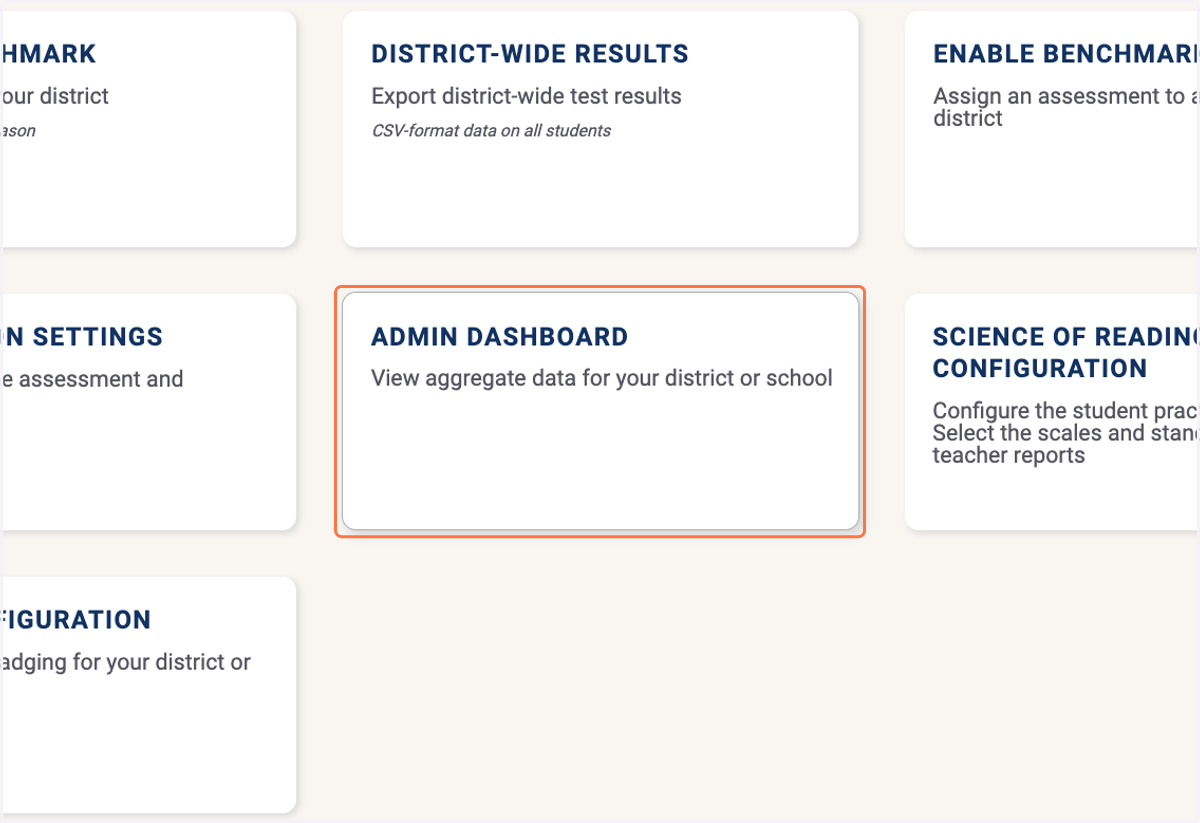
1. Click on ADMIN DASHBOARD…
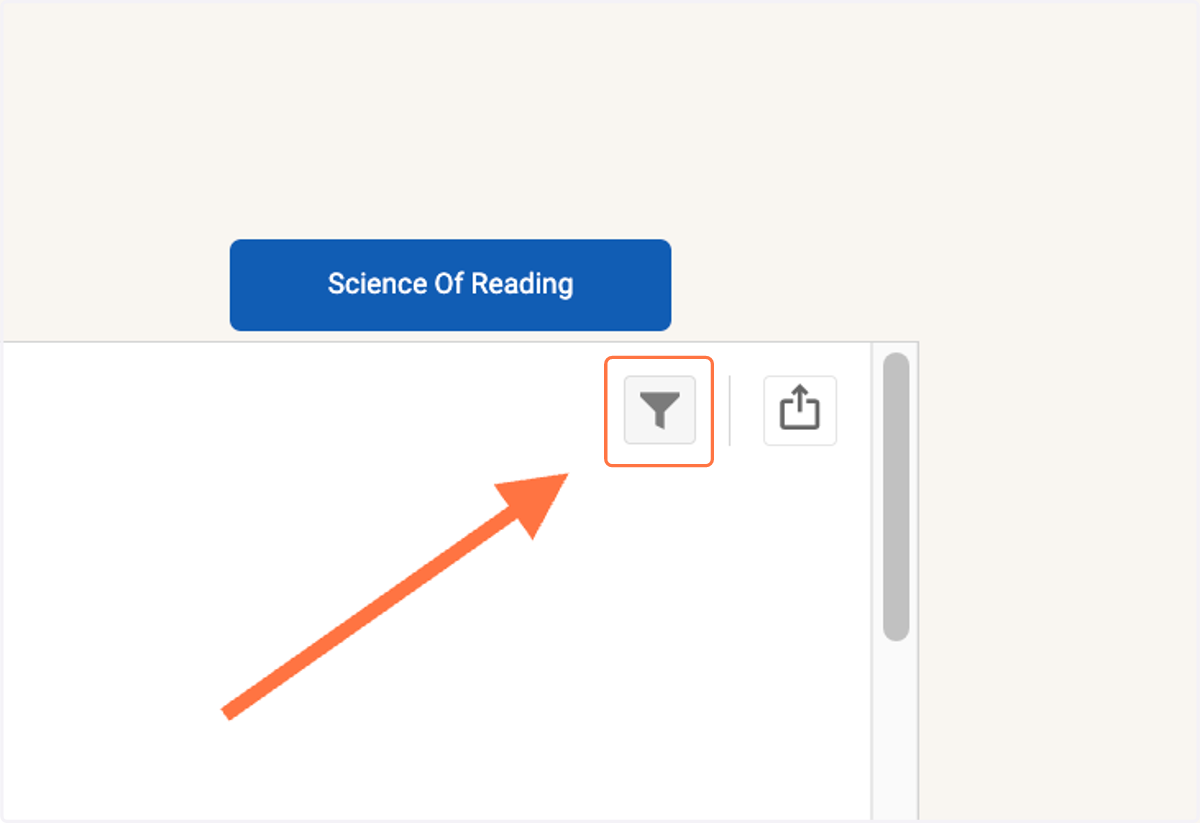
2. The Tracking Dashboard will default to the District or School that is connected to your Admin permissions. If you have district access and want to look at a specific school (or schools), click on the FILTER icon.
Reminder: If you have school-level access, you won't need to follow these couple of steps...You can skip to step 6.
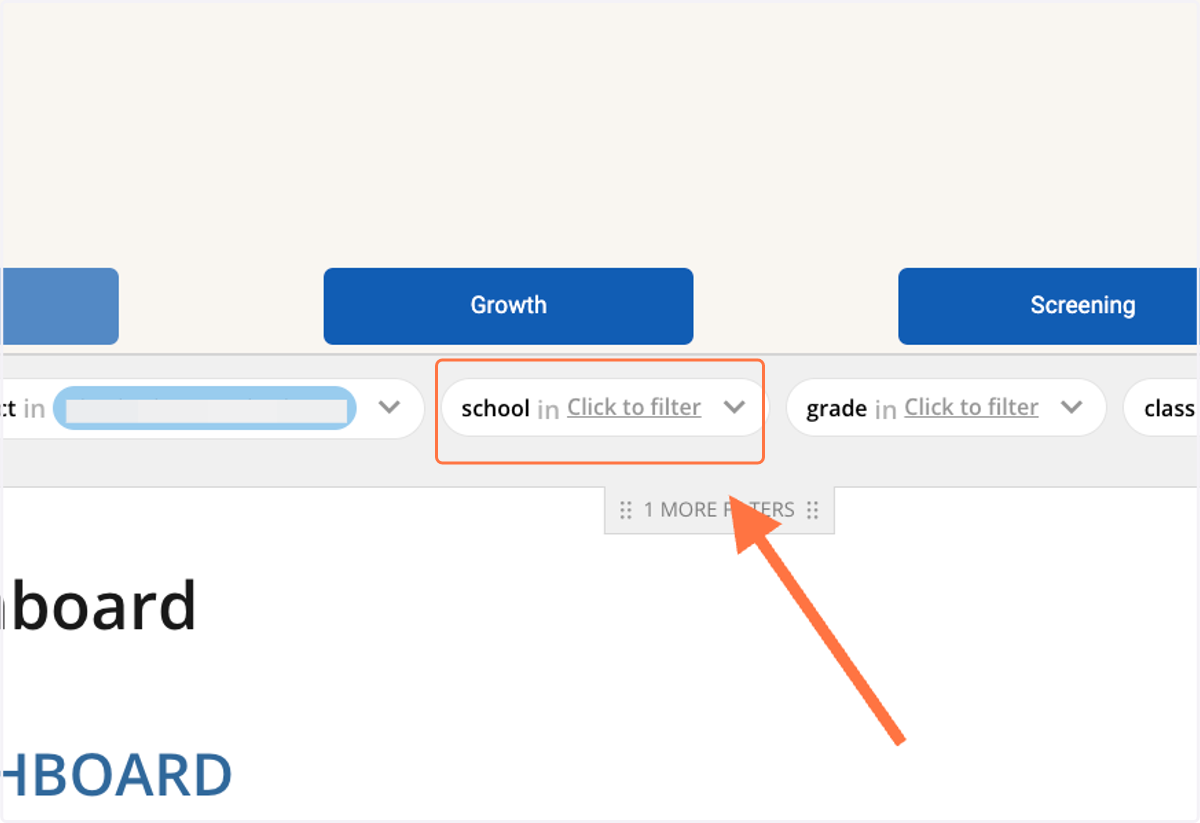
3. Click on SCHOOL - Click to filter
4. Type the name of the school that you wish to filter for
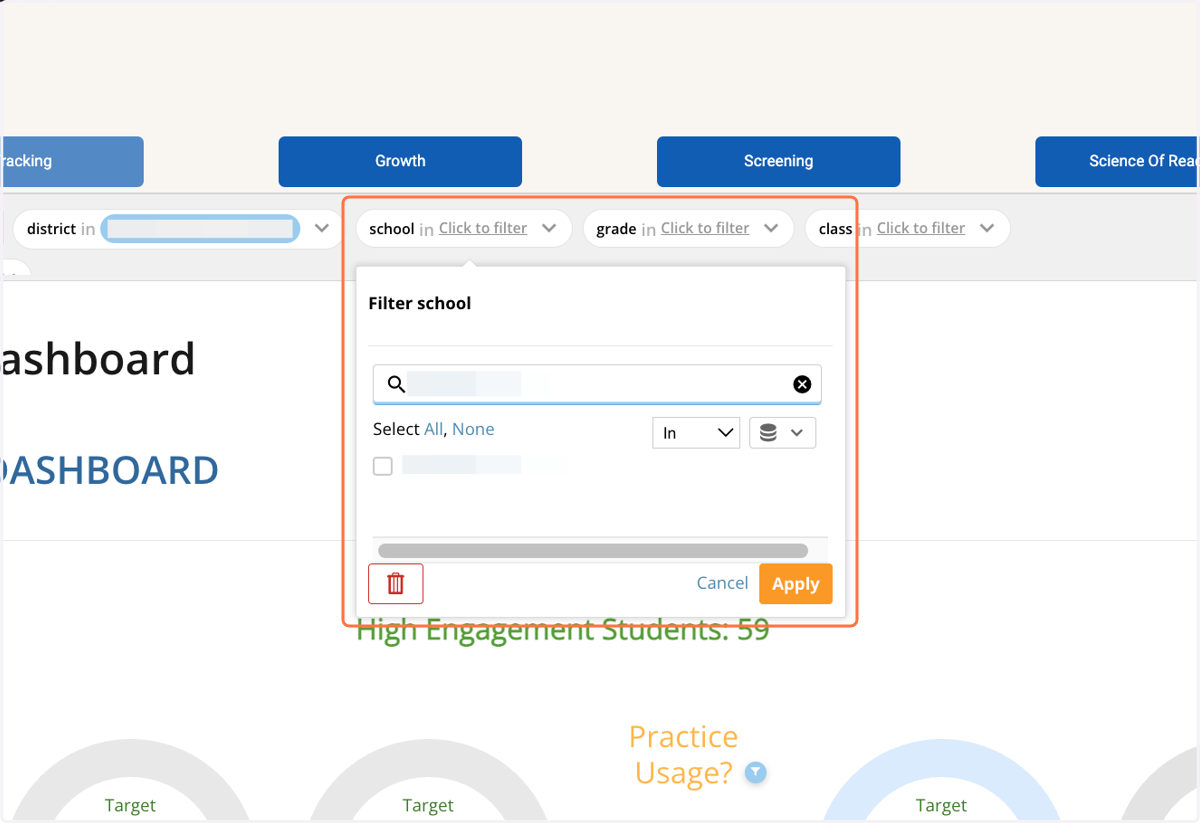
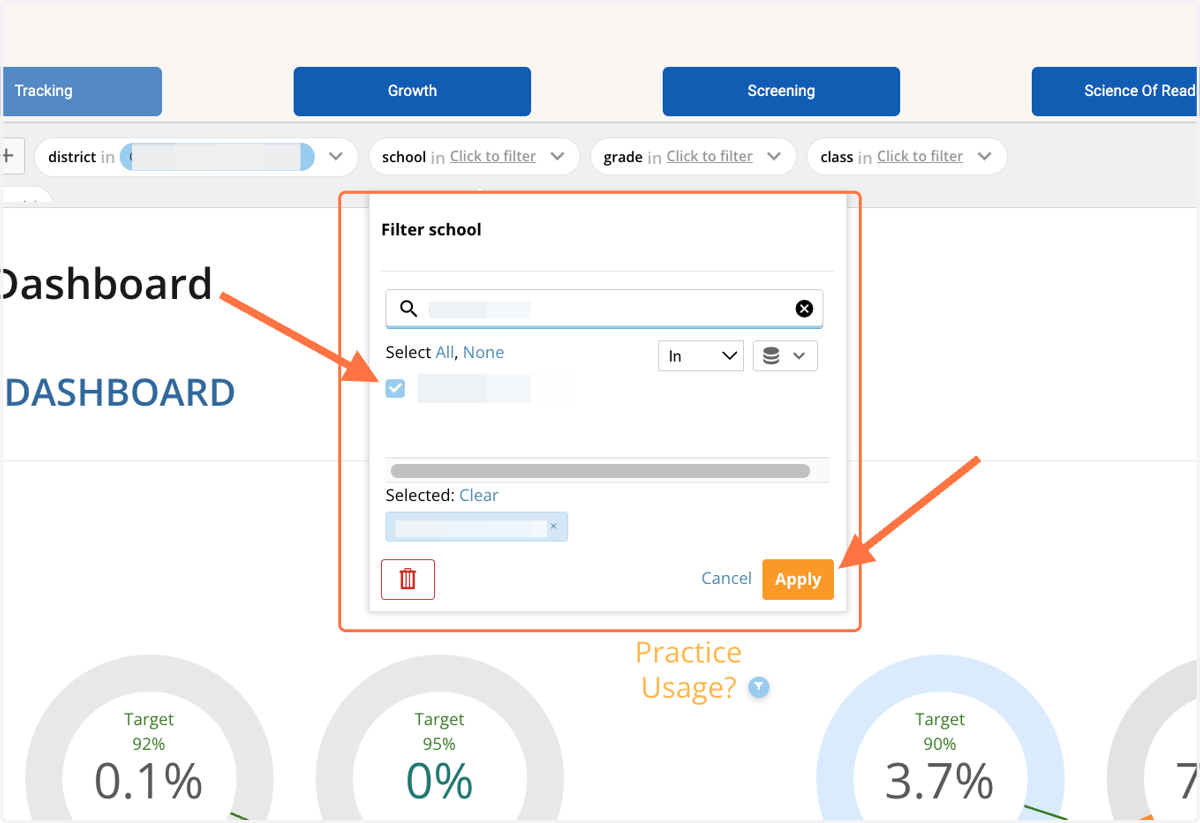
5. Check the name of the school, repeat as needed and click APPLY
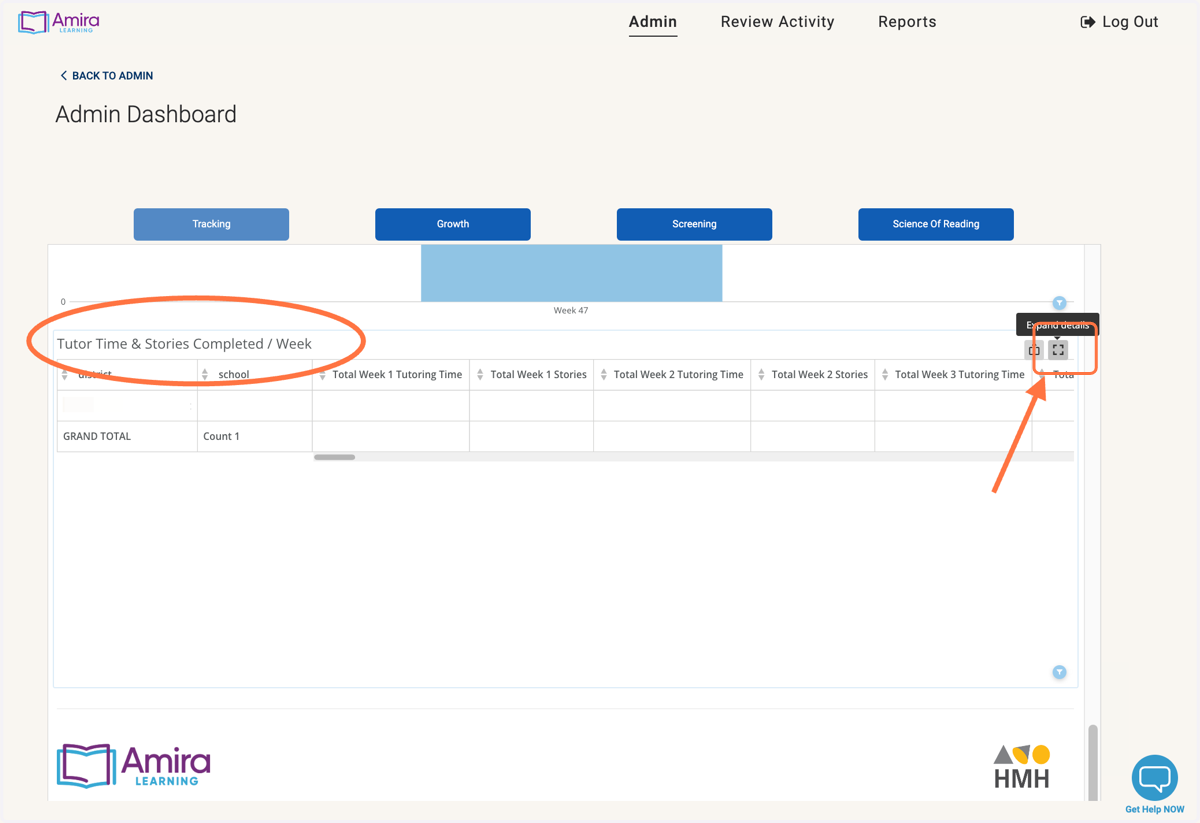
6. To track CLASS usage, scroll to the bottom to Tutor Time & Stories Completed / Week & click on Expand details
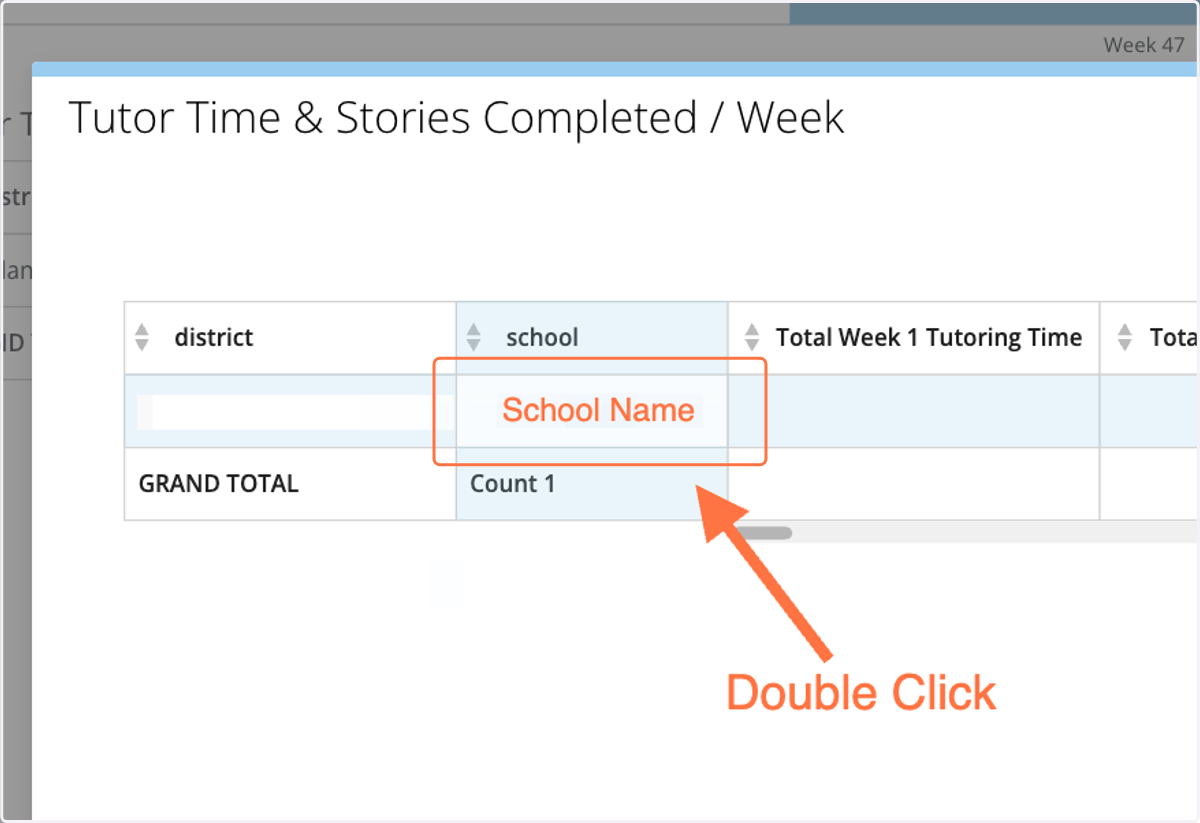
7. Double click on a School to see the Class Usage there
8. To see CLASS USAGE at this school, scroll to the right to see week over week usage, last week usage, & total usage
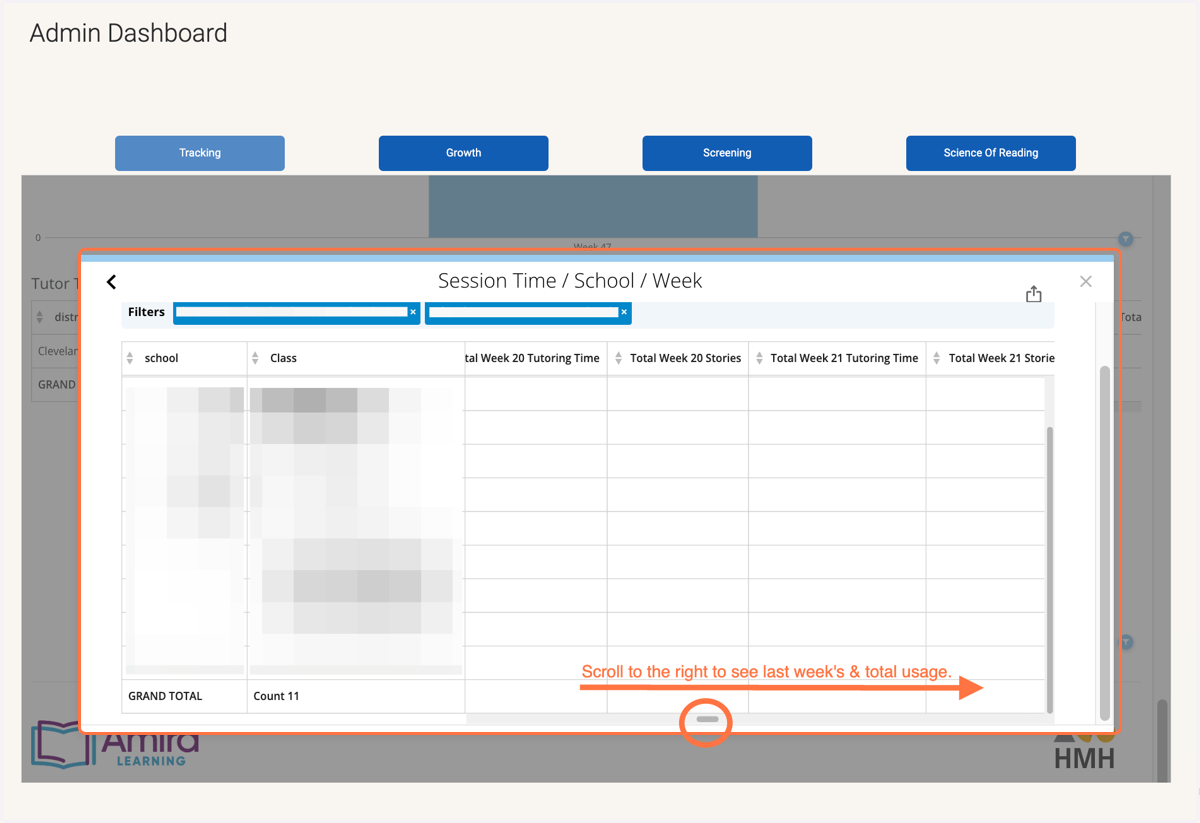
9. To see usage at the STUDENT LEVEL, double click on the name of the class to drill down to see the students in that class.
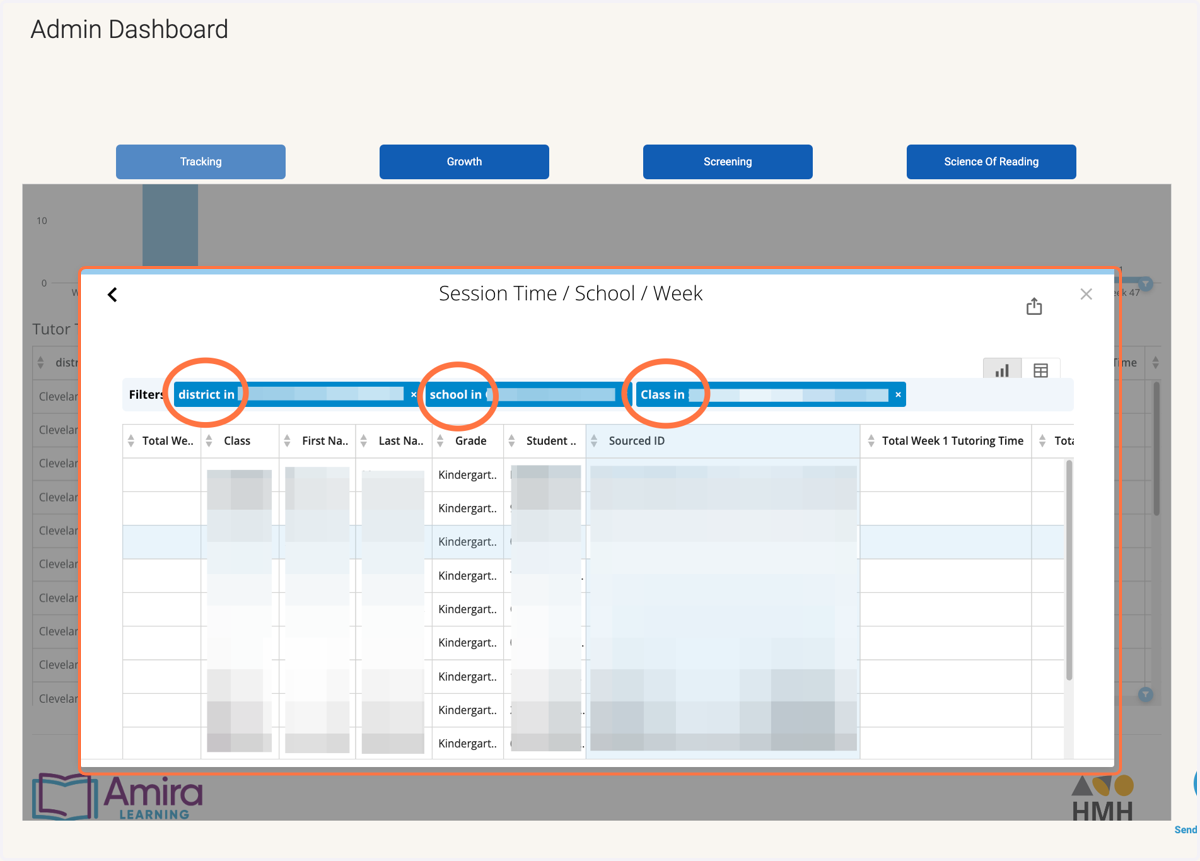
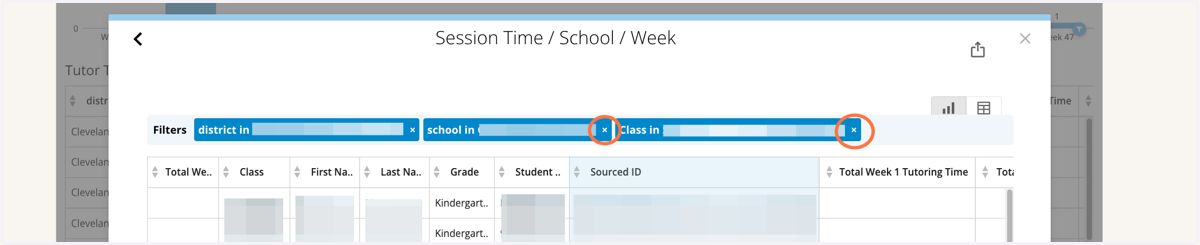
10. To see usage at the STUDENT LEVEL for the entire school, close out the CLASS filter that you created. (To see usage at the STUDENT LEVEL for the entire district, close out both the CLASS and SCHOOL filters that you created.)
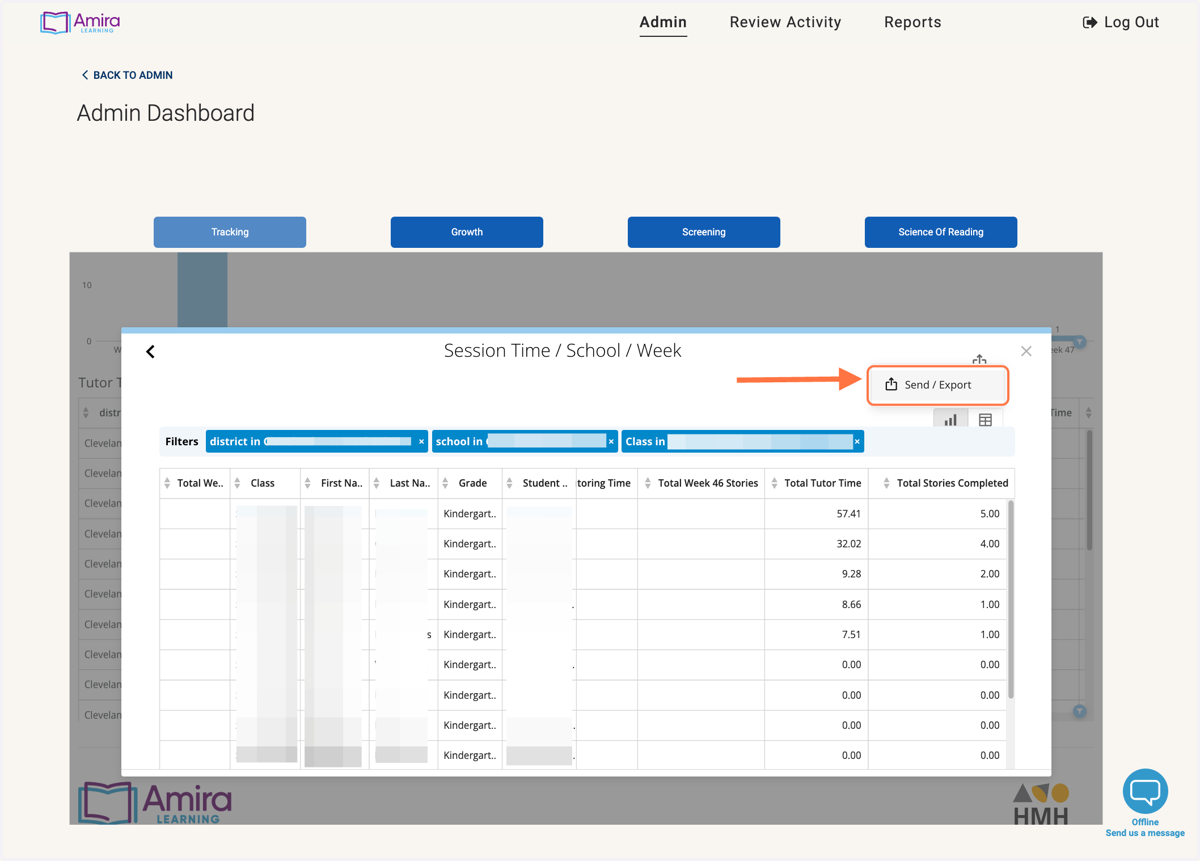
11. To export this data, click on the SHARE icon
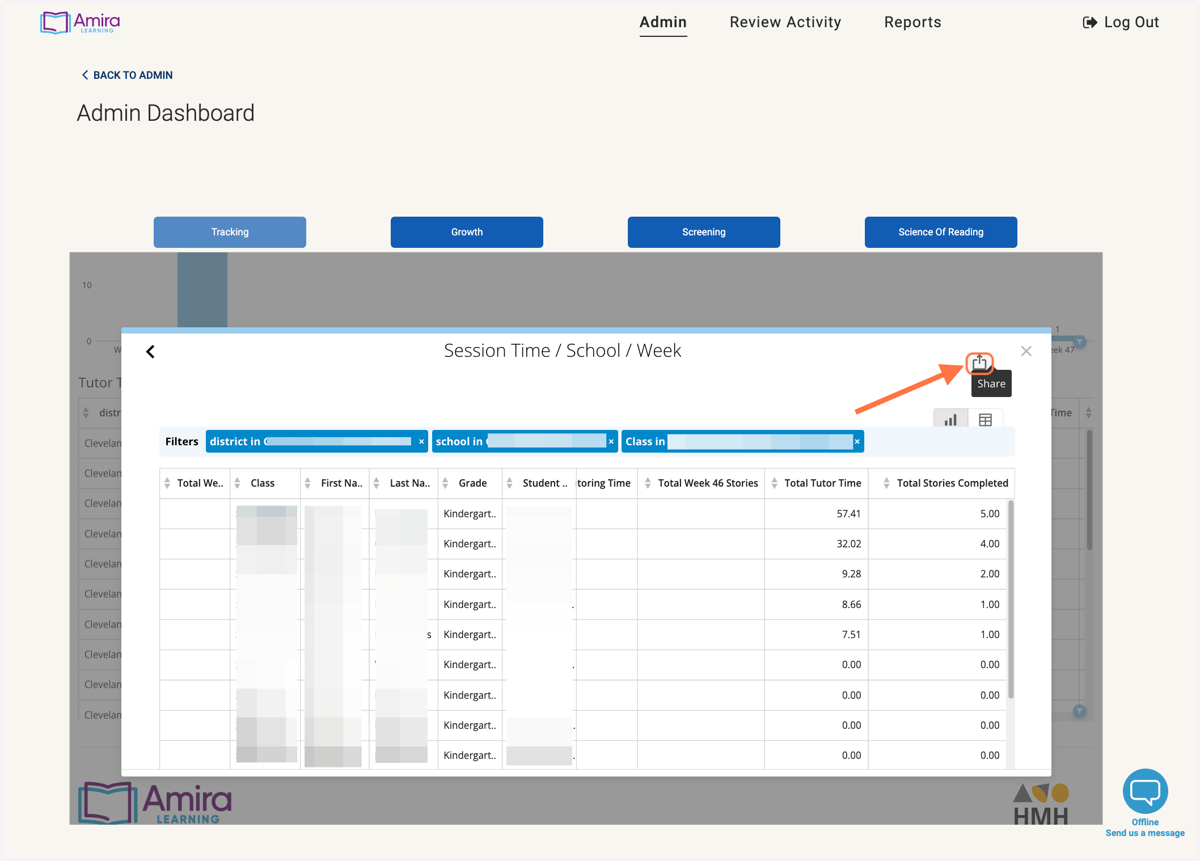
12. Click on Send / Export
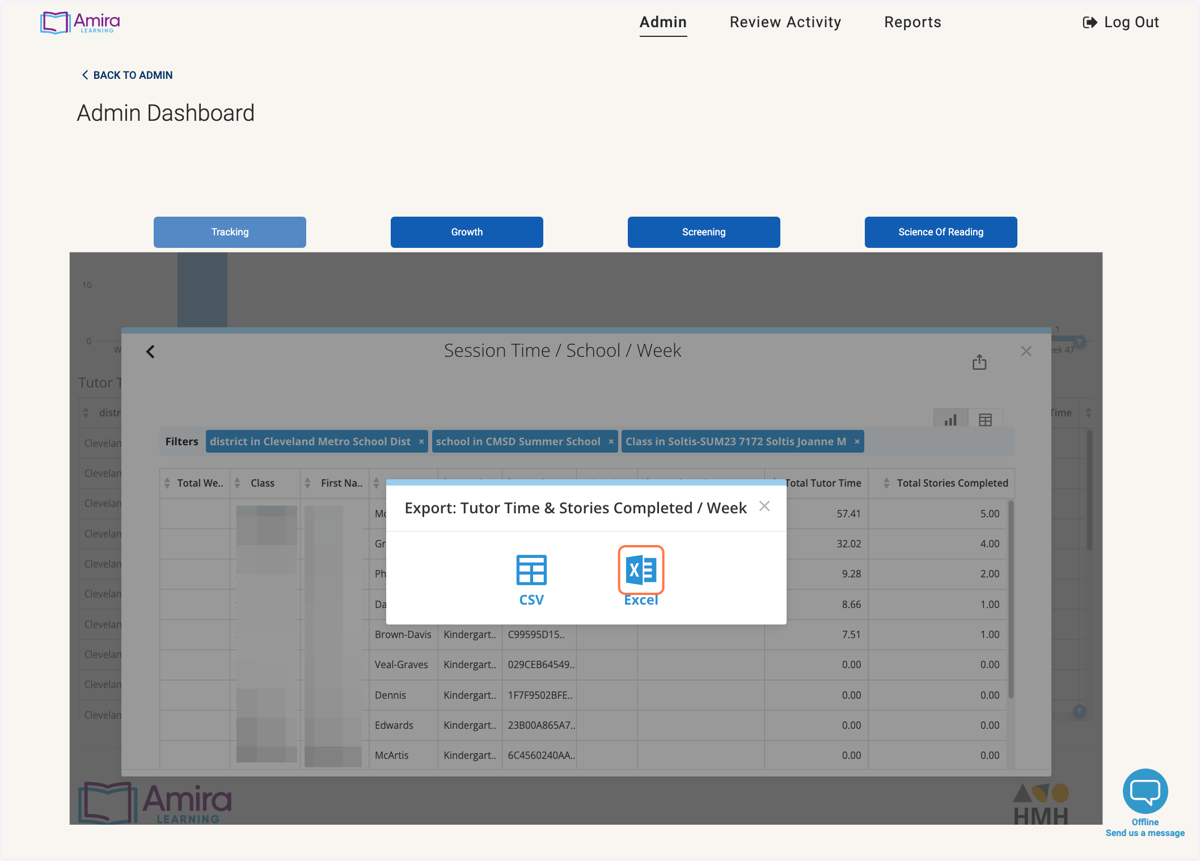
13. Determine how you want to export the data and the download will begin
14. If you need support or have any questions, please reach out! Click on the Get Help Now button in the bottom right corner (screenshot says "offline"!)
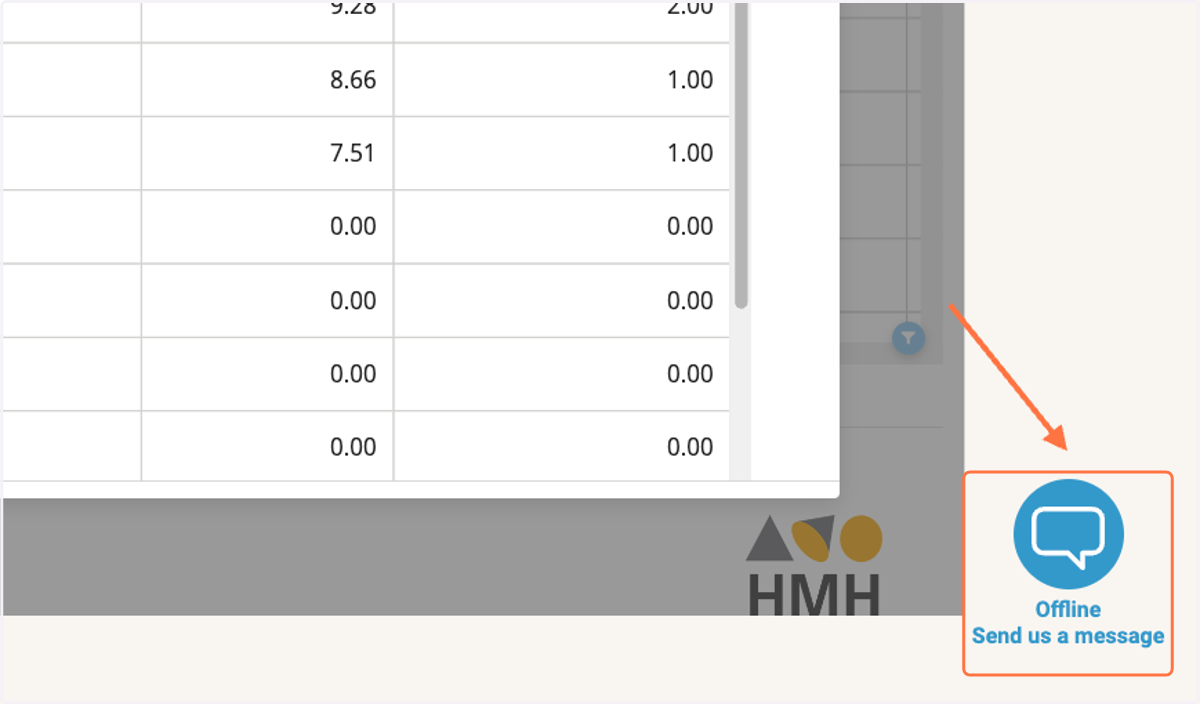
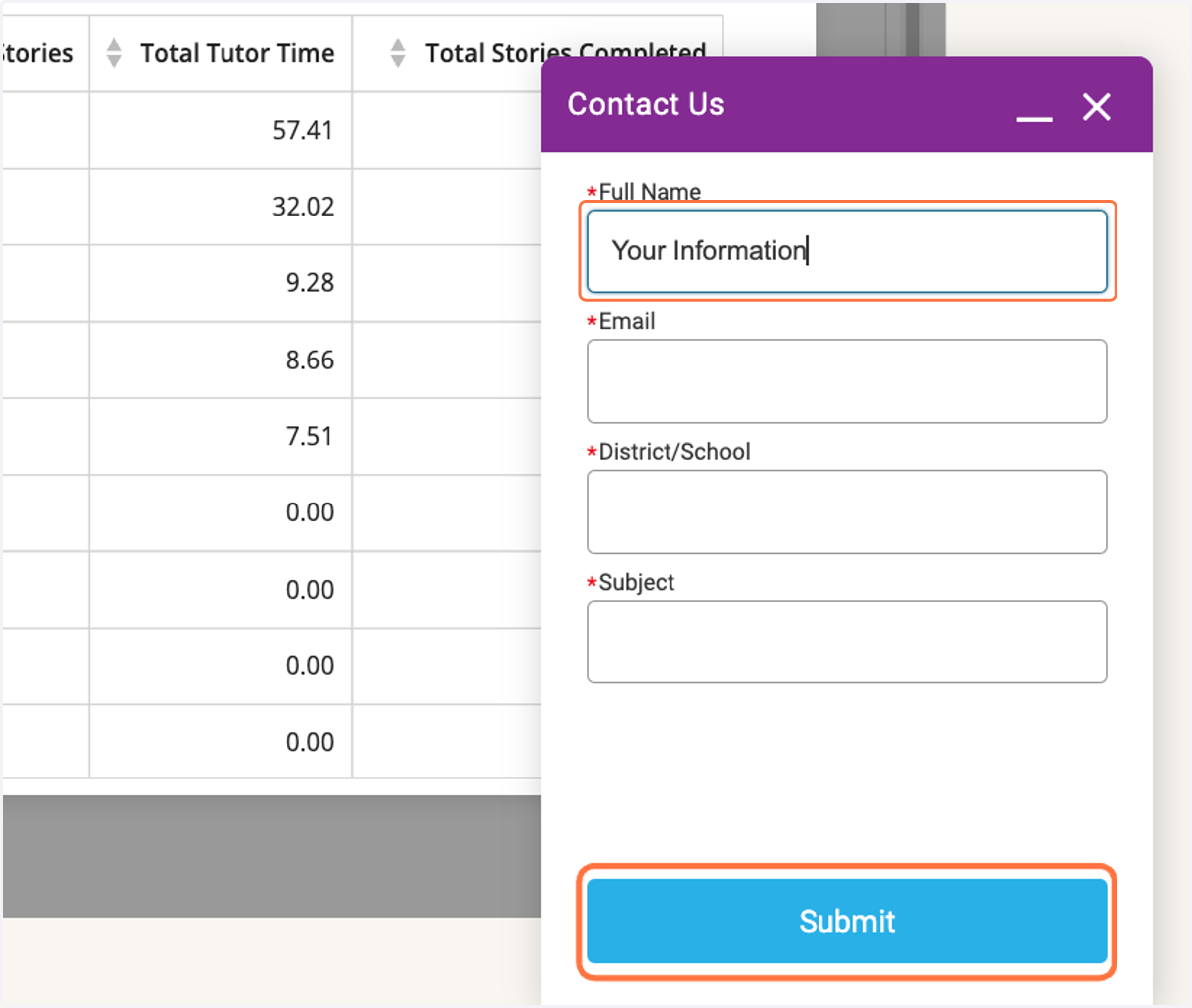
15. Type in your information, click Submit, and our incredible Support Team will get back to you!