ConnectWise Manage
ConnectWise Manage
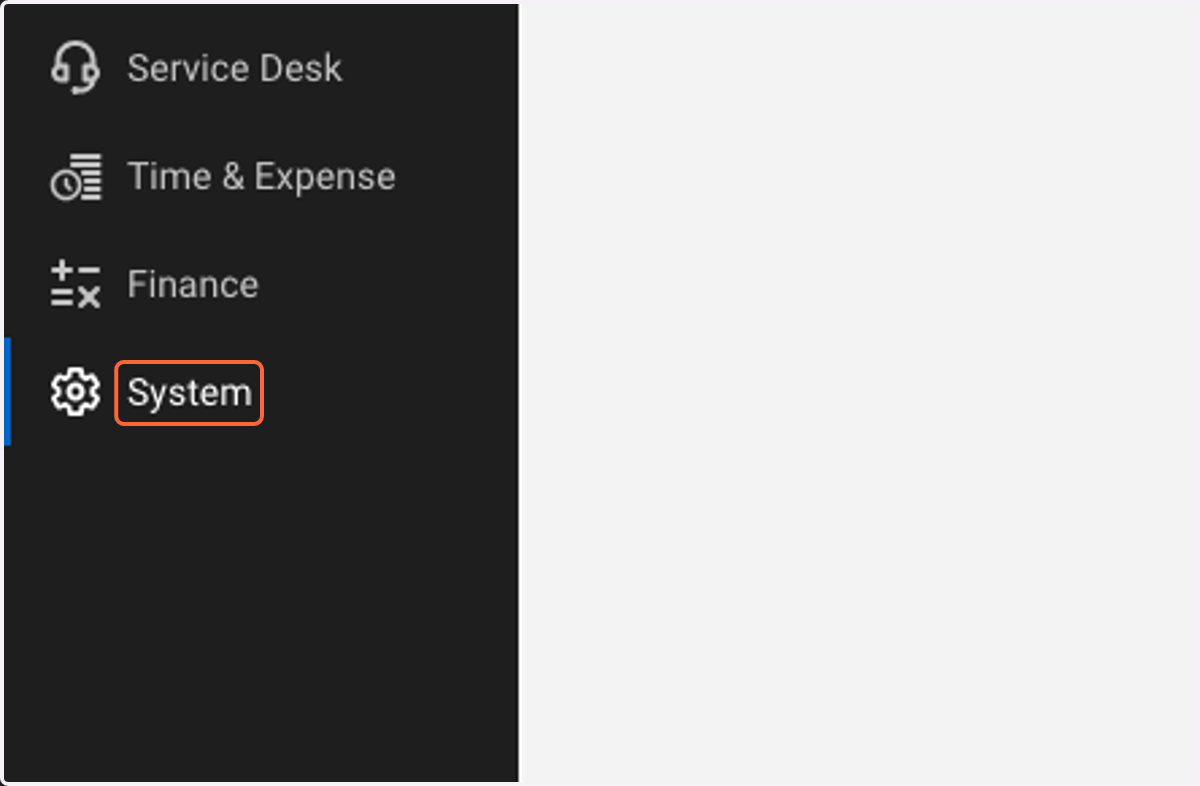
1. Click on System
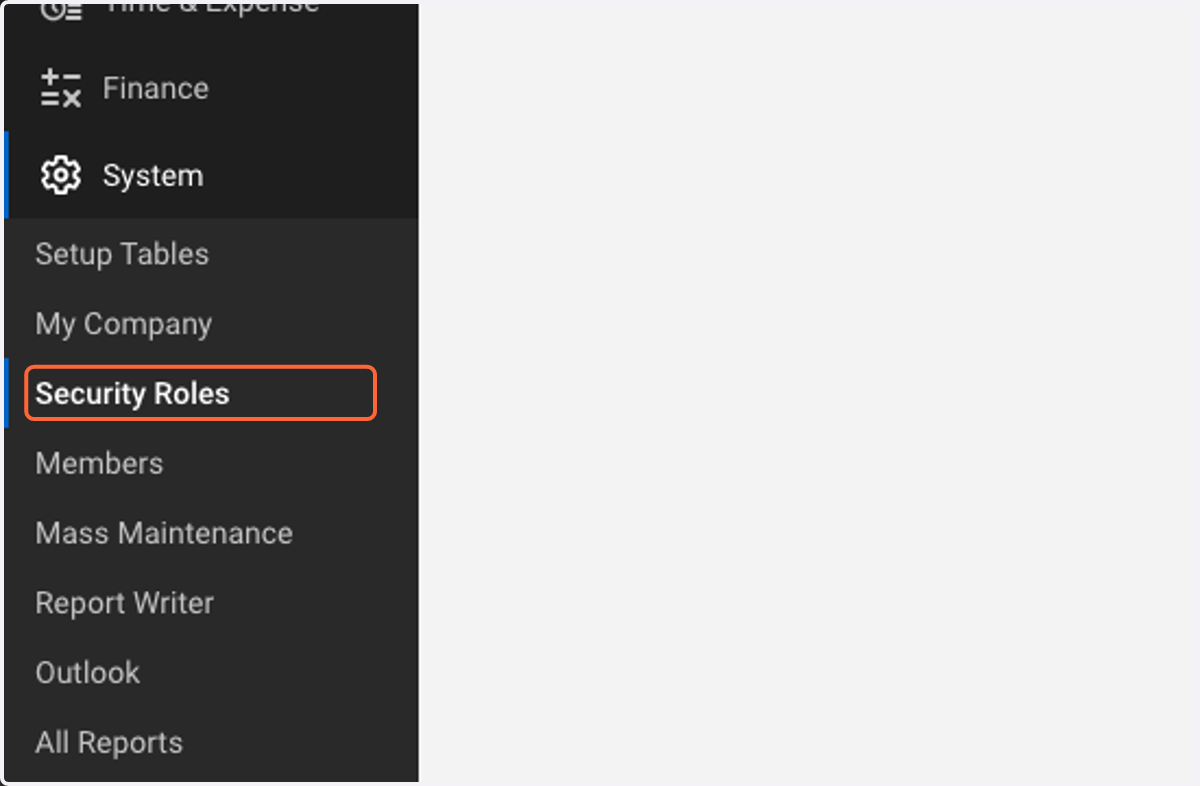
2. Click on Security Roles
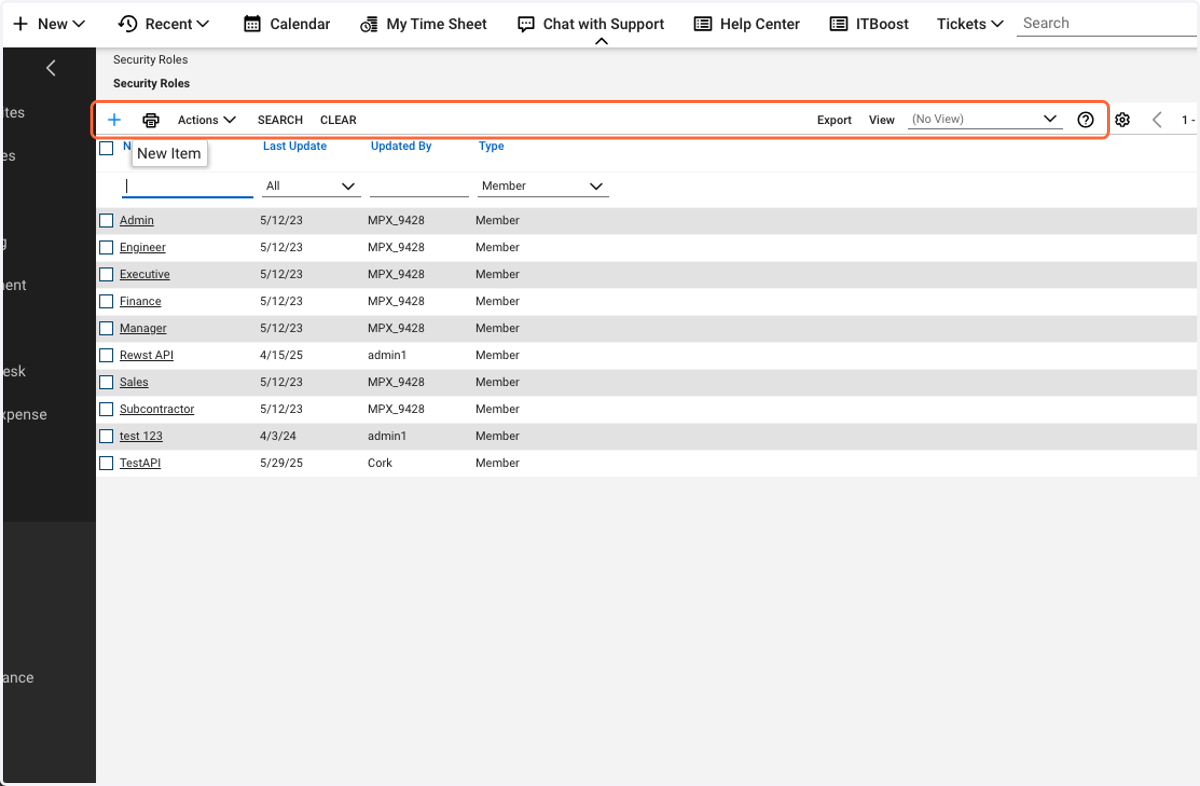
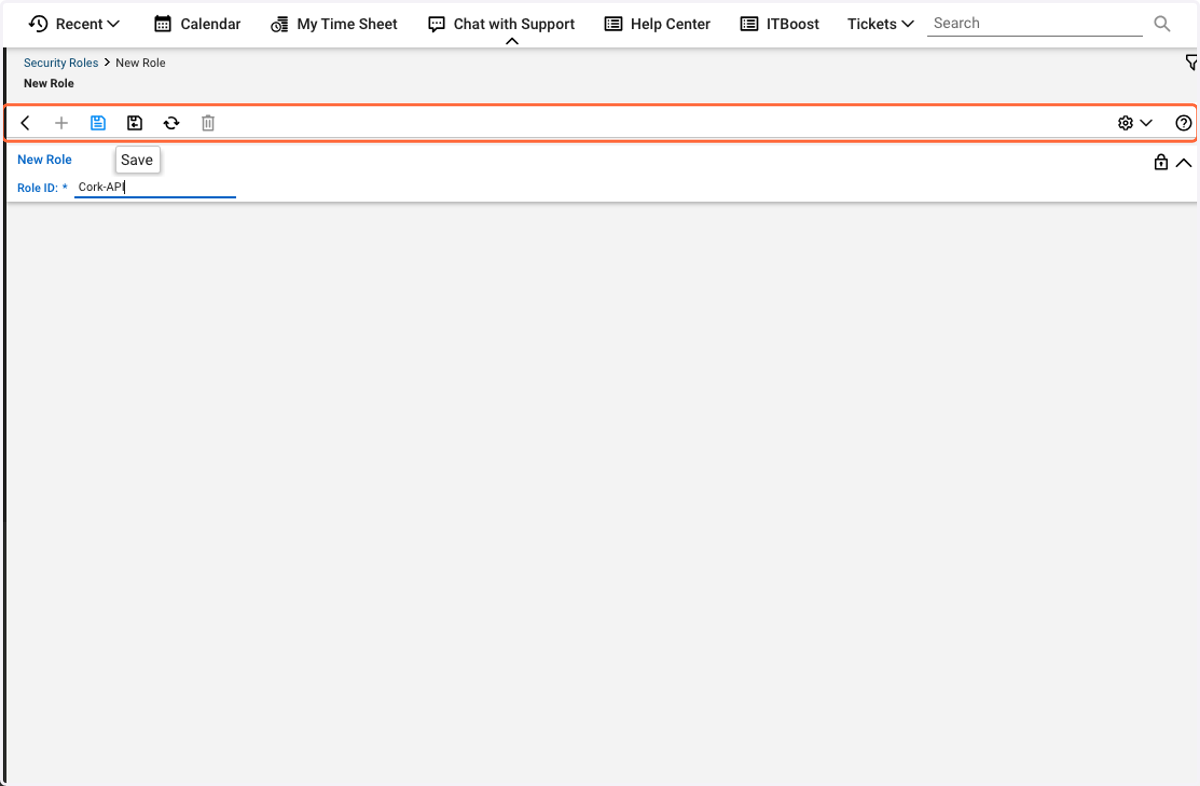
3. Click on "+"
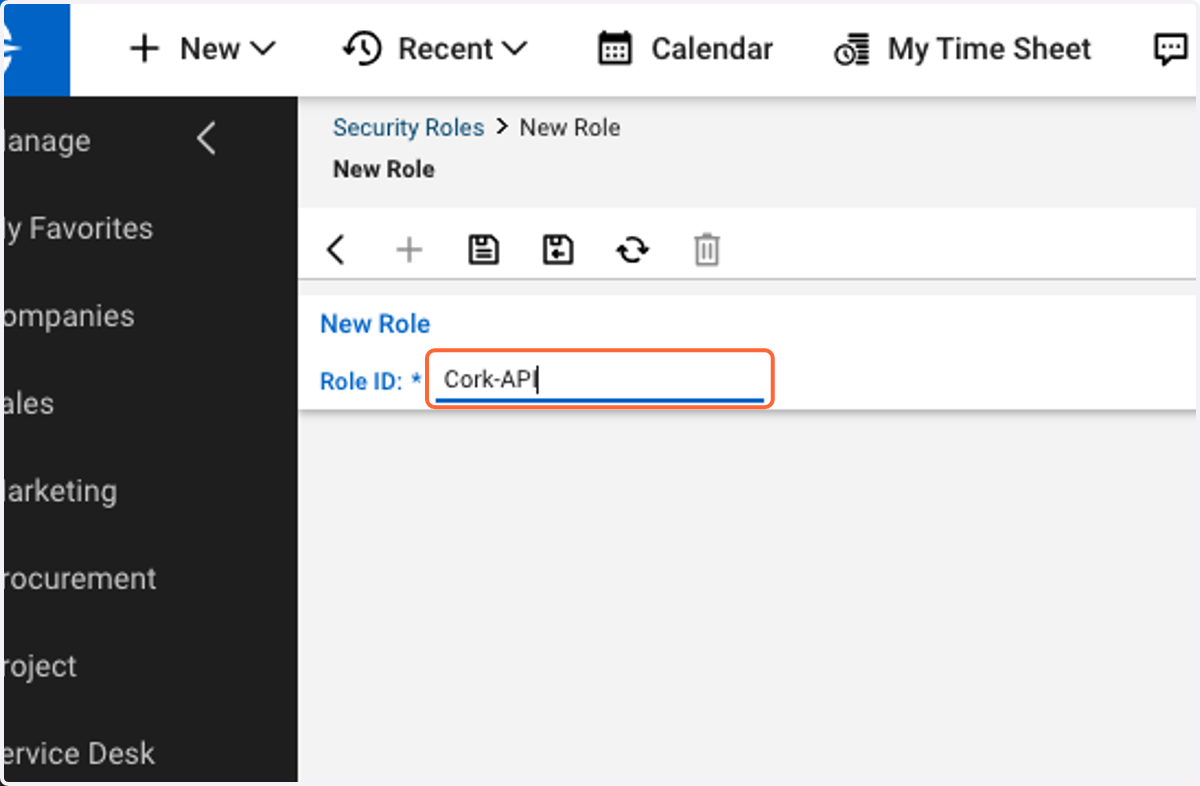
4. Type "Cork-API"
5. Click Save
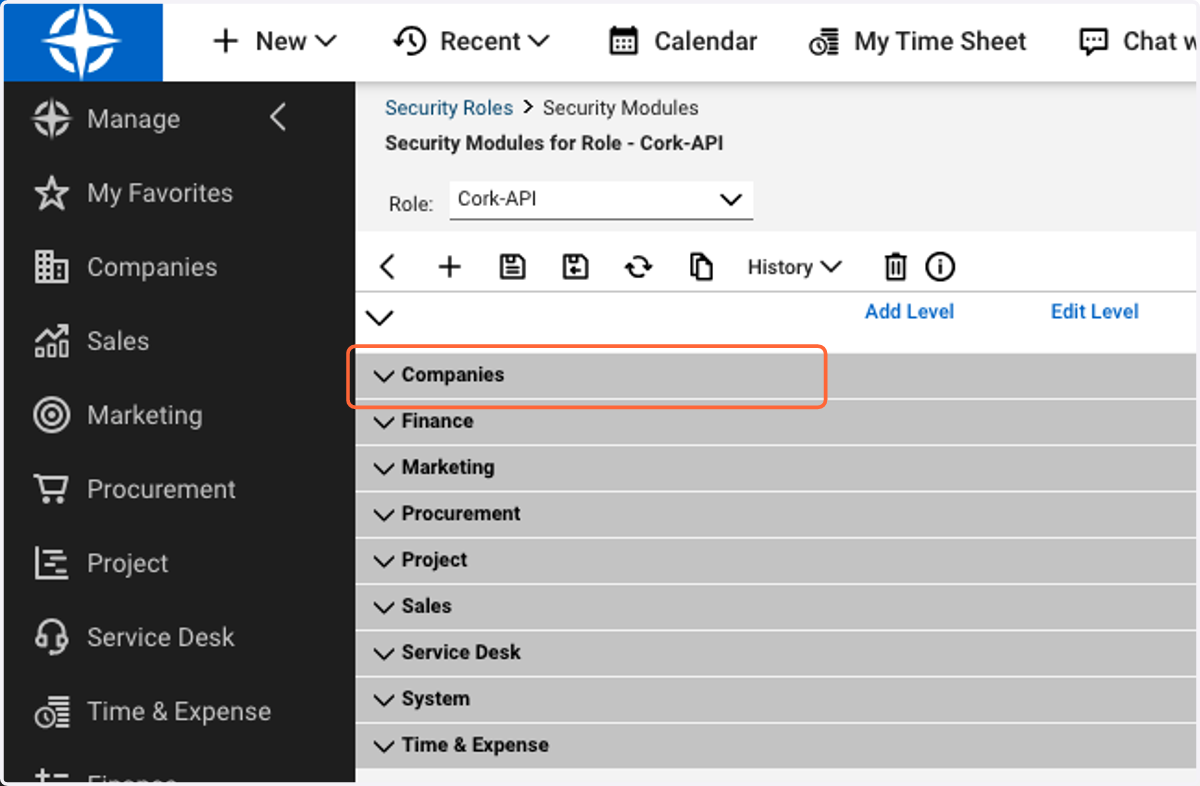
6. Click on Companies
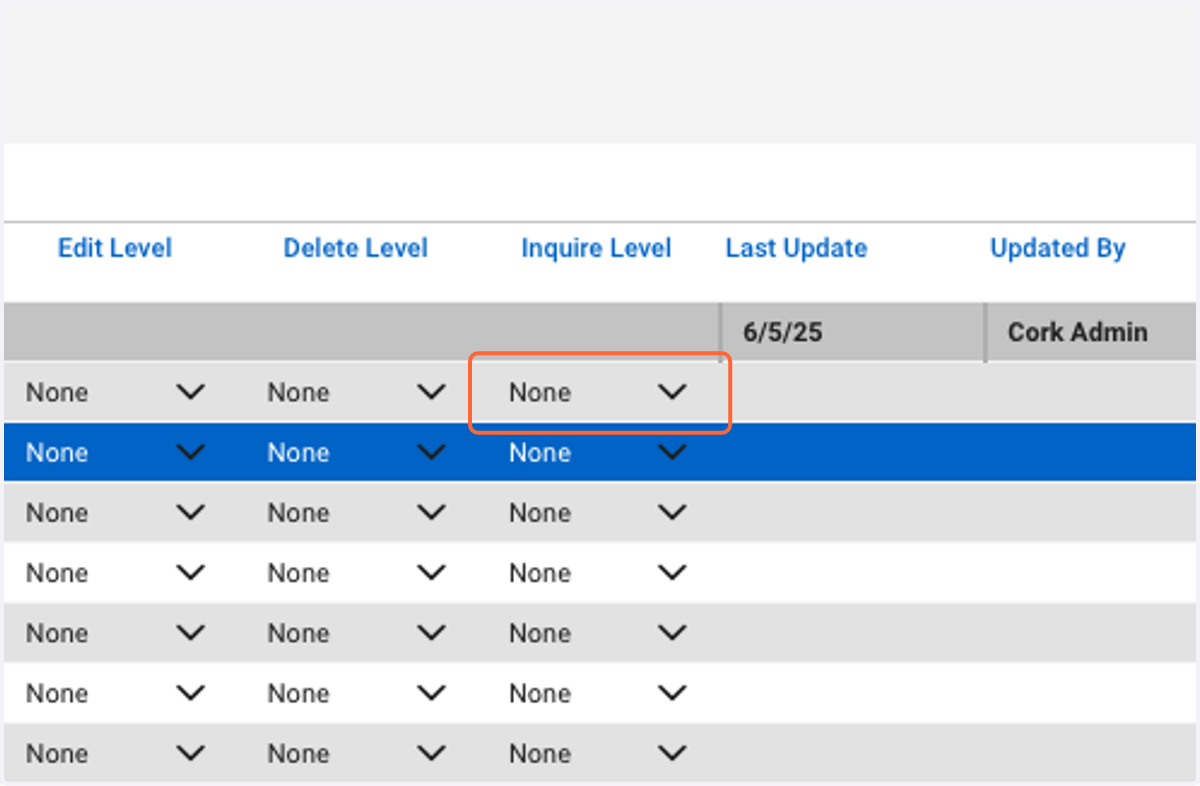
7. Click on Company Maintenance
Select "All" for Inquire Level
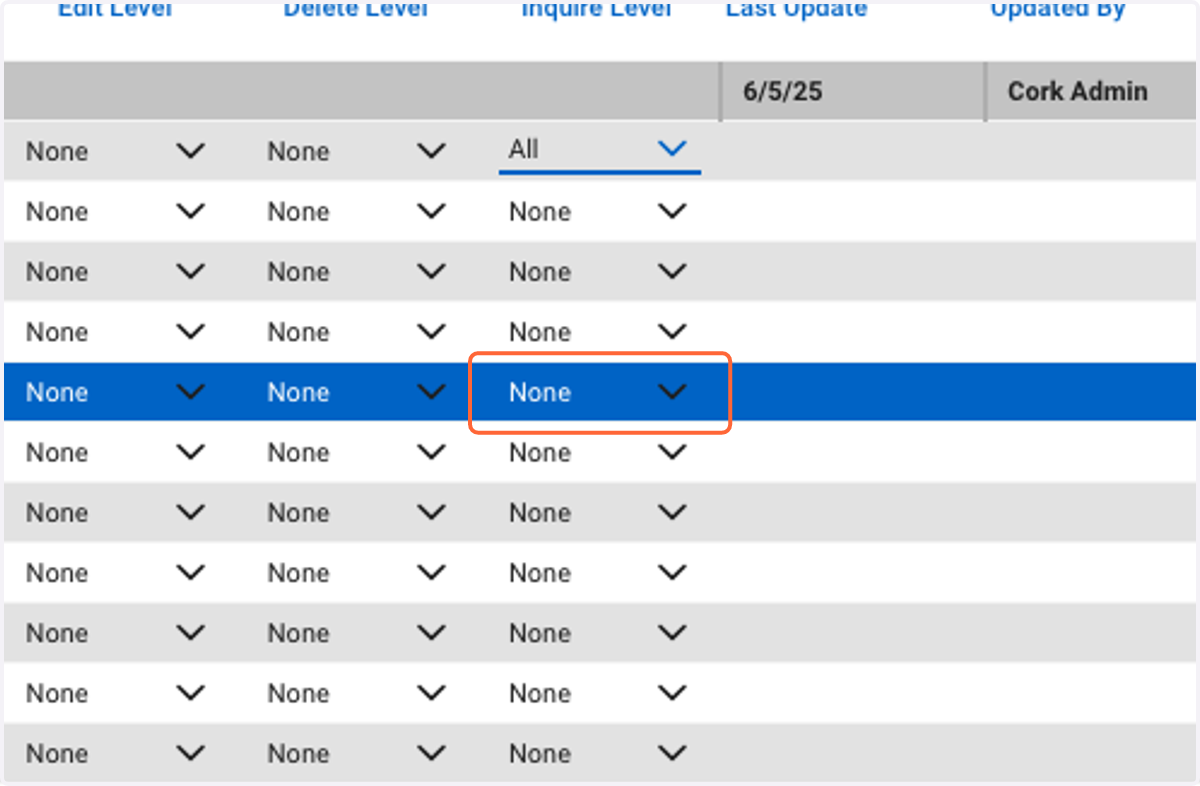
8. Click on Contacts
Select "All" for Inquire Level
9. Click on Service Desk
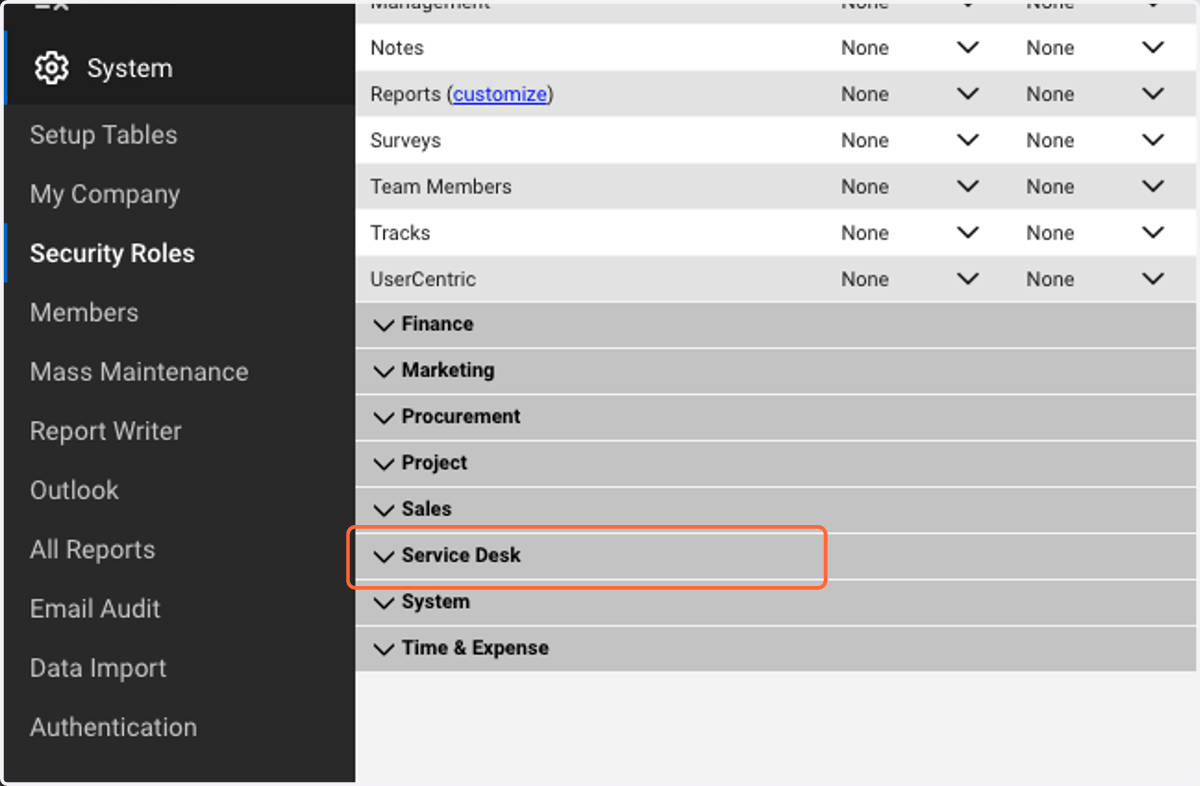
10. Select "All" for Close Service Tickets Edit Level
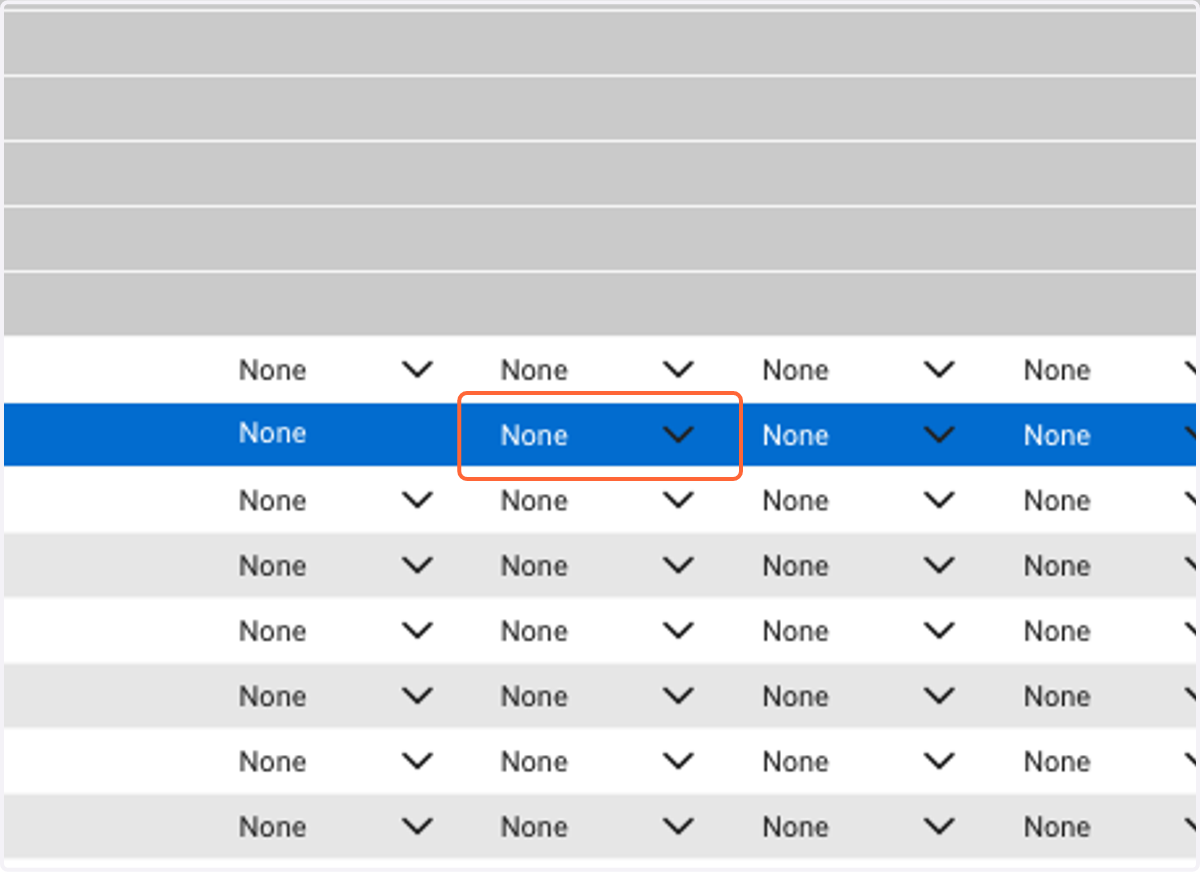
11. Select "All" for Close Service Tickets Inquire Level
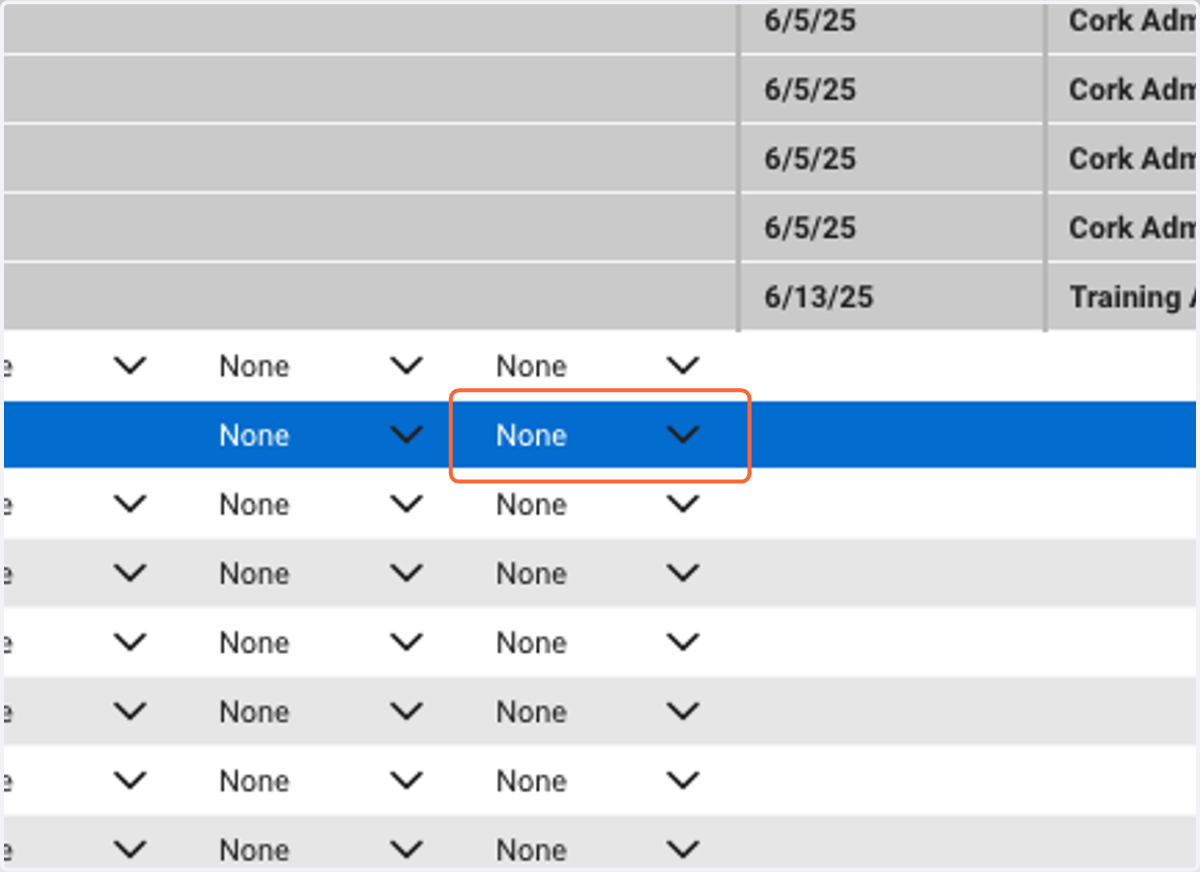
12. Select "All" for Service Tickets Add Level
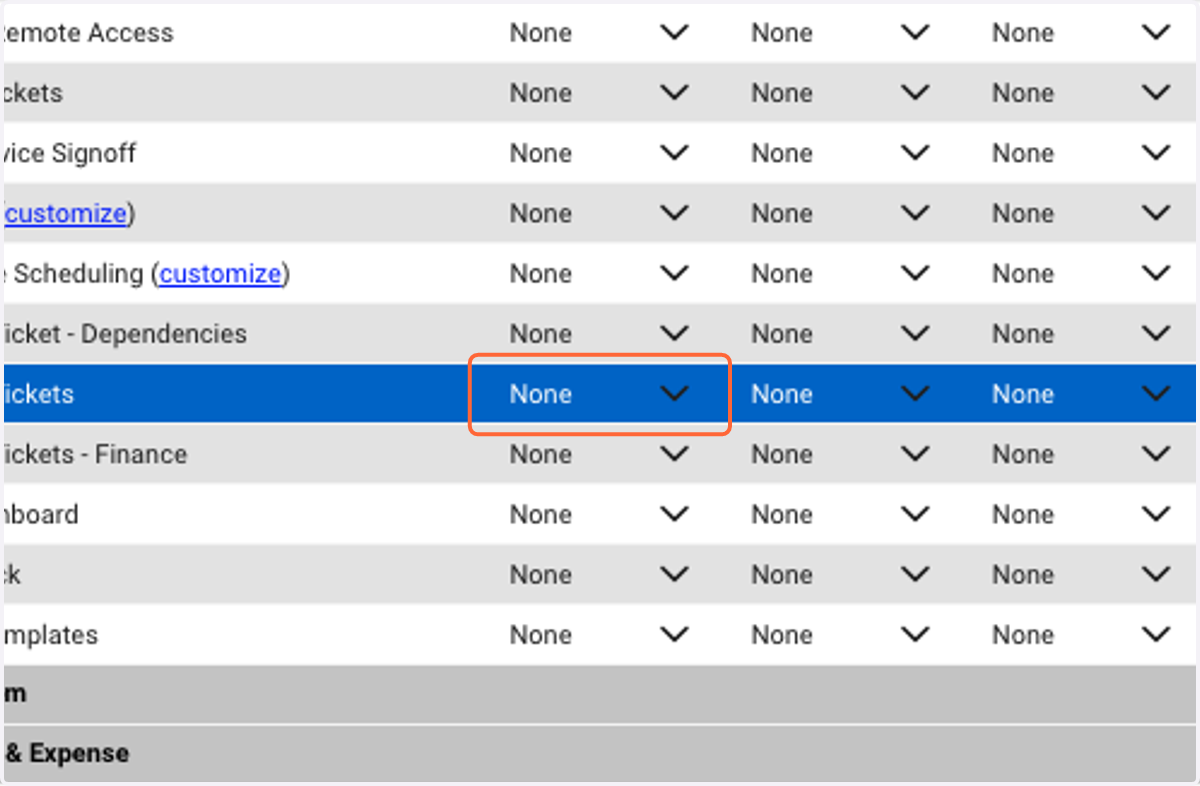
13. Select "All" for Service Tickets Edit Level
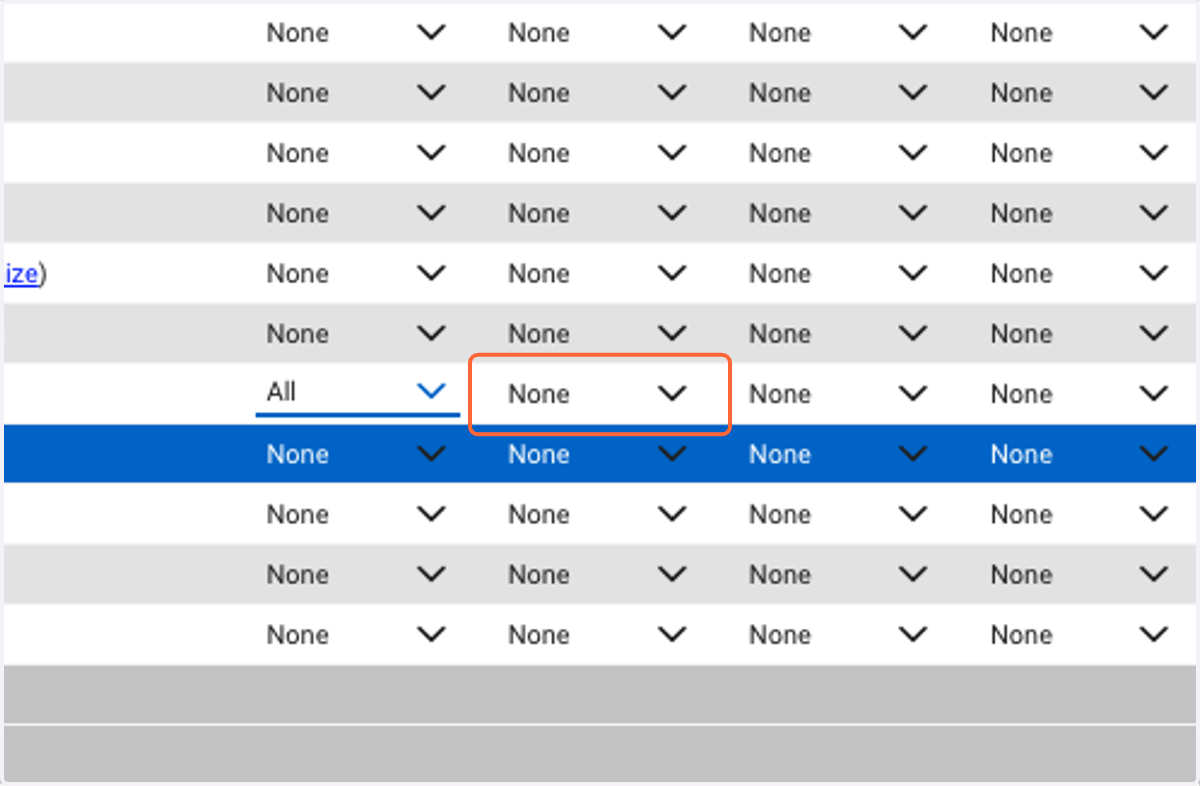
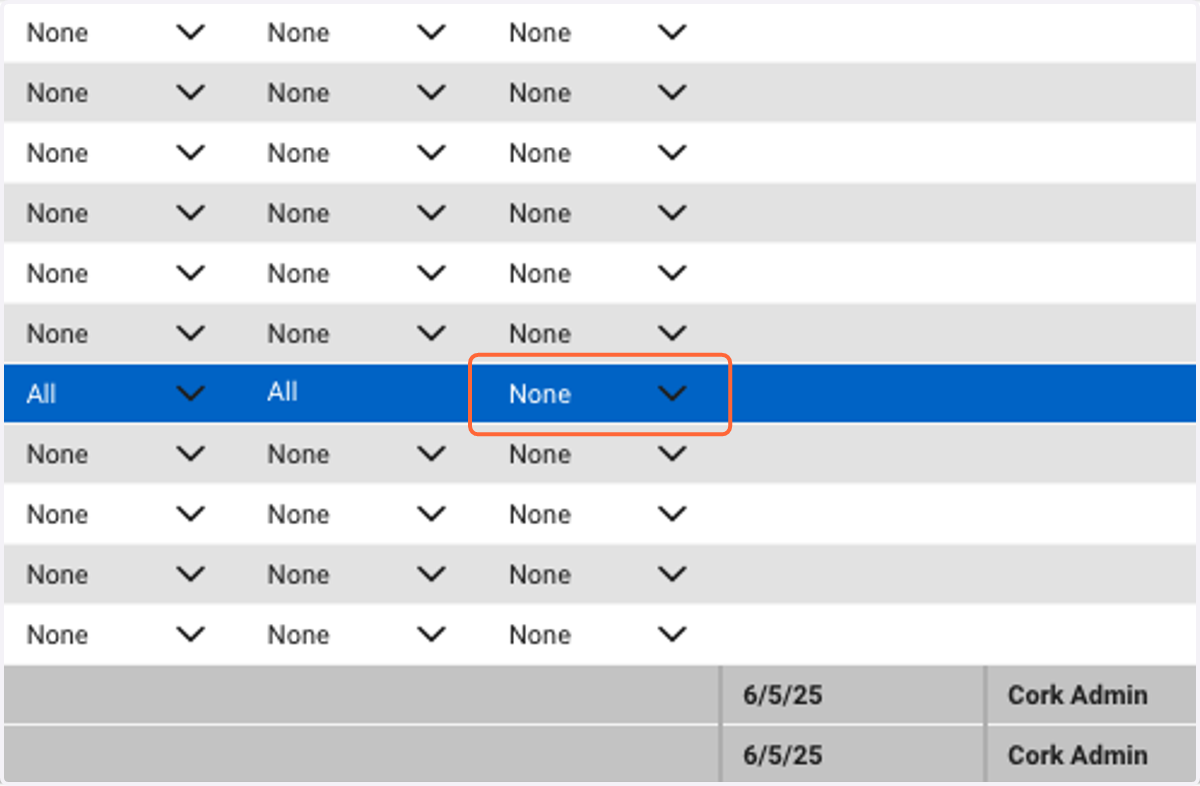
14. Select "All" for Service Tickets Inquire Level
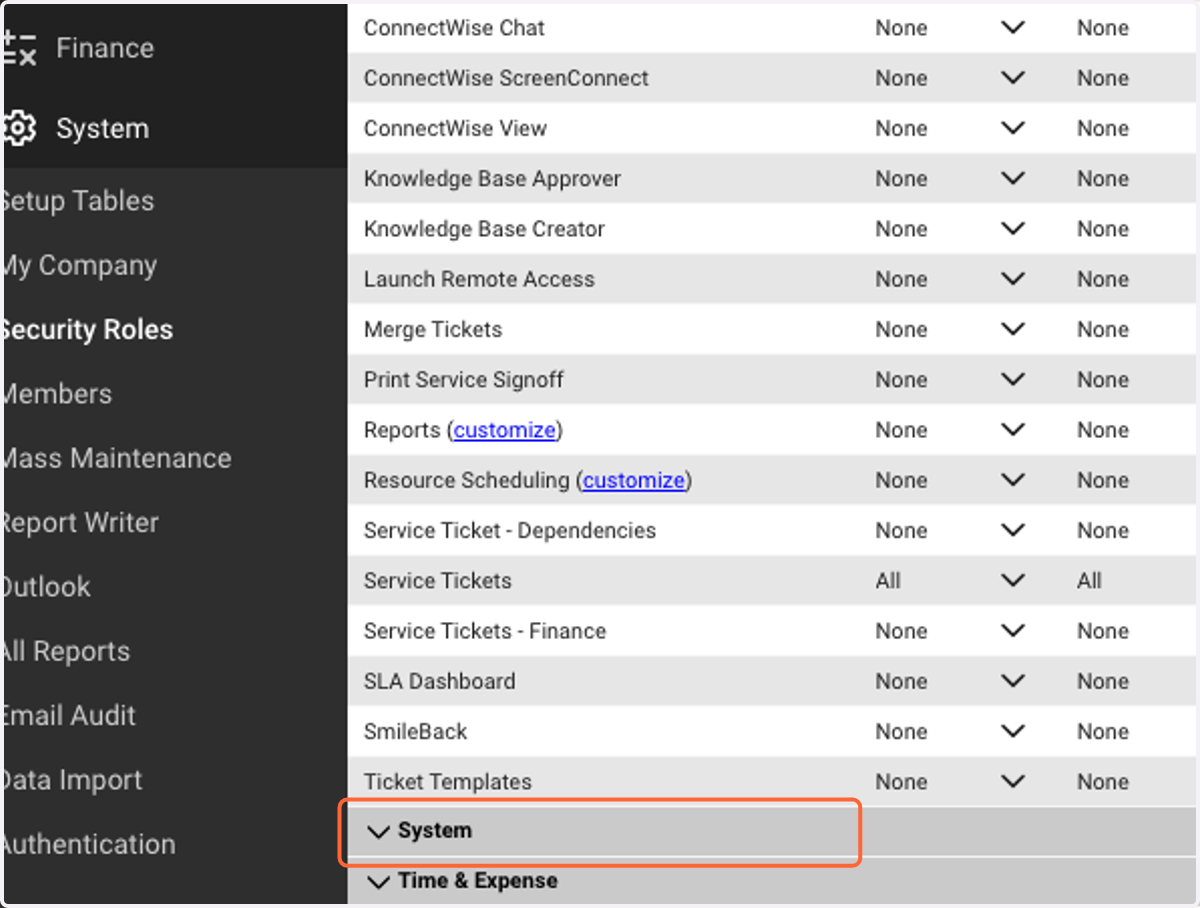
15. Click on System
16. Click on Table Setup (customize)
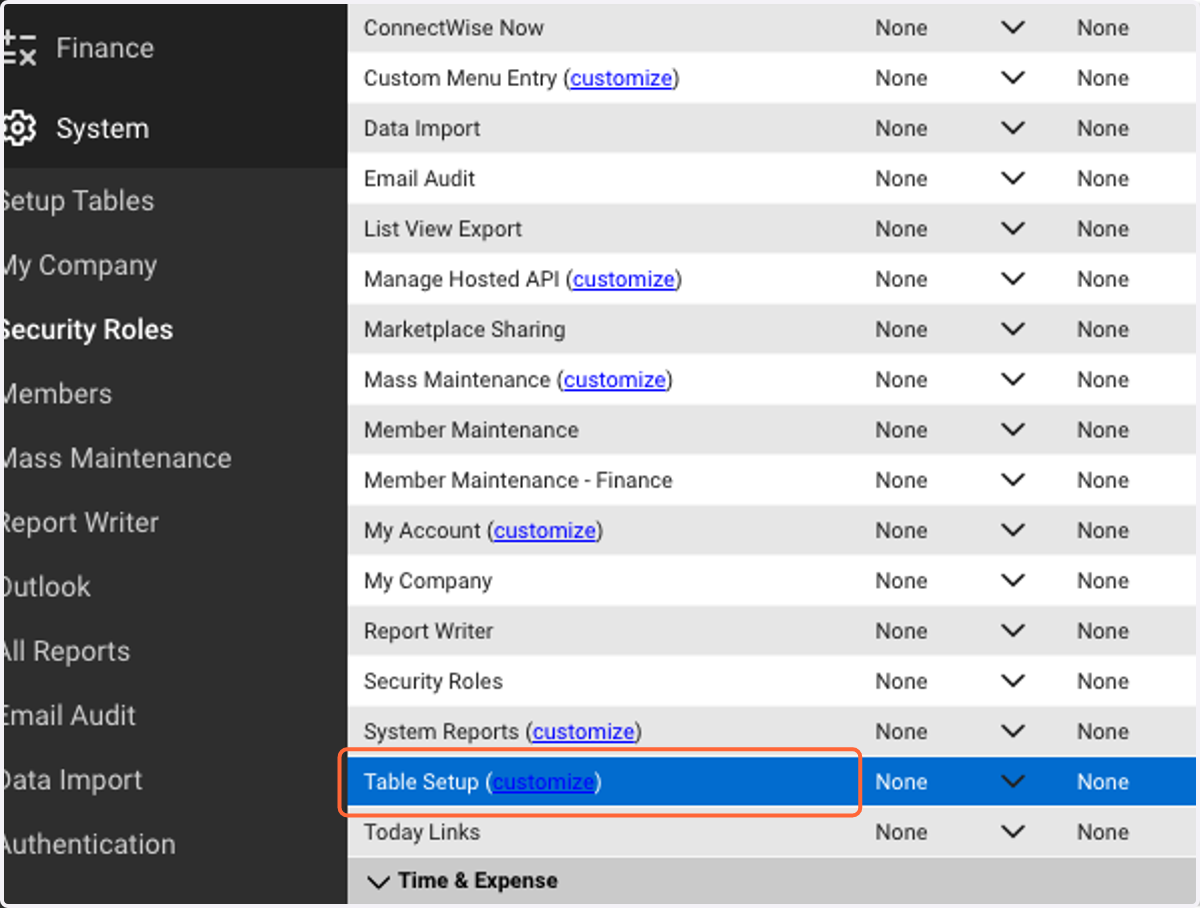
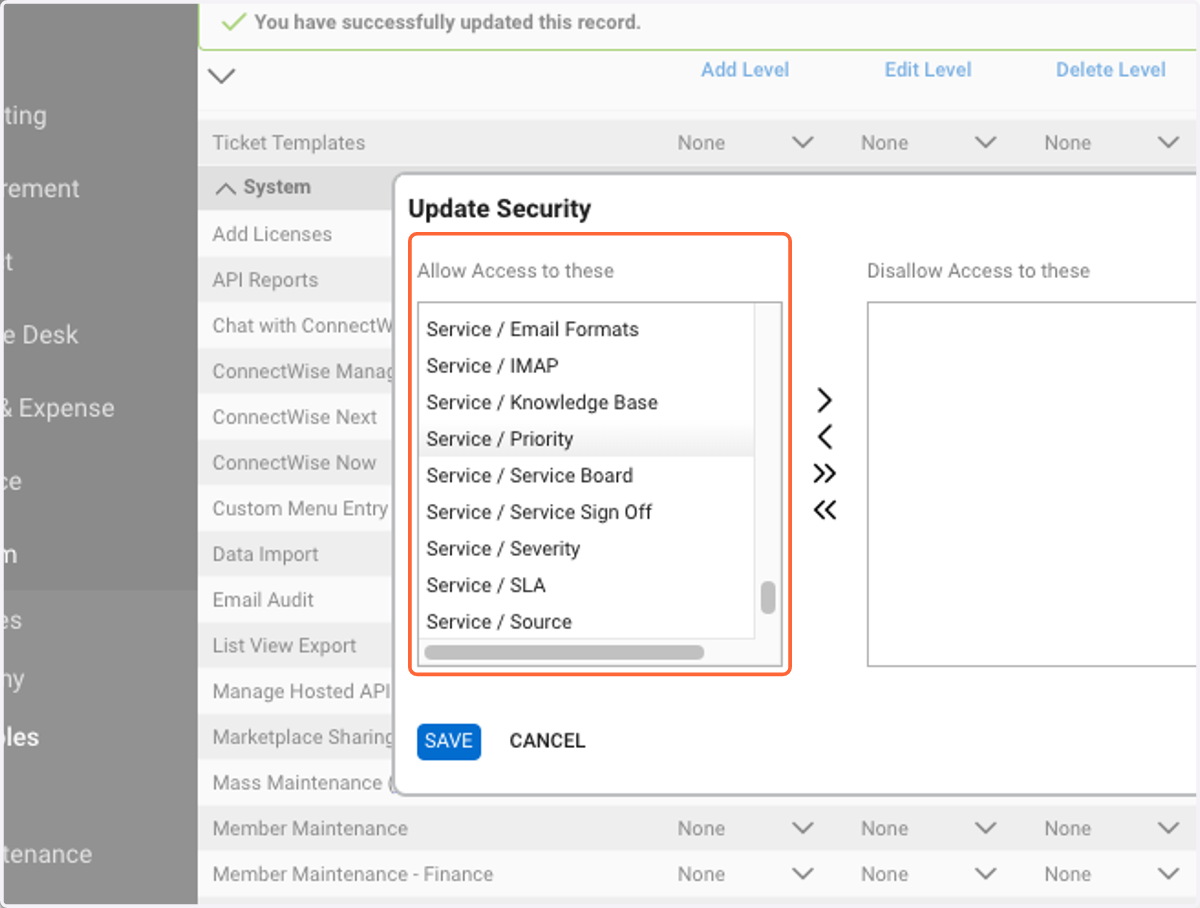
17. Ensure that Service / Priority, Service / Service Board, Service / Severity, and Service / Source are all "Allowed"
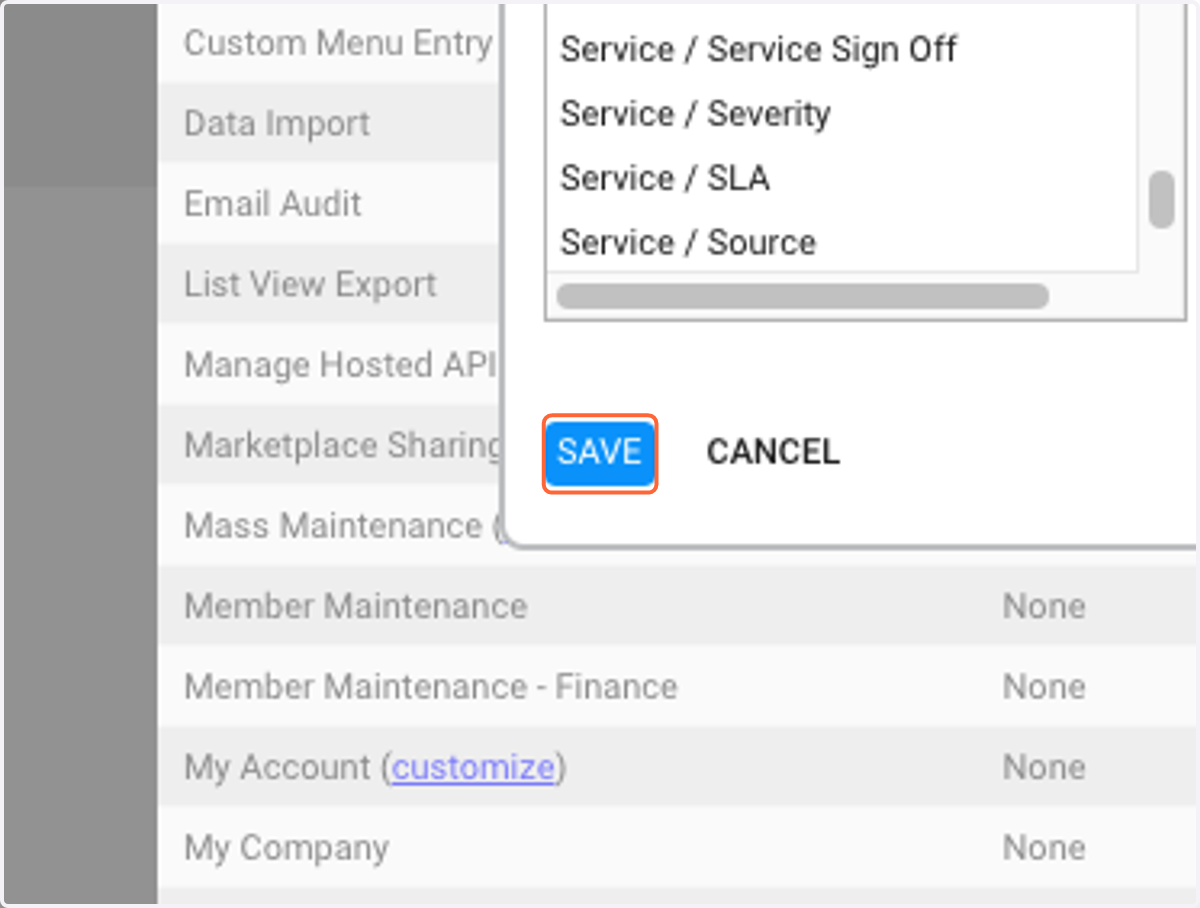
18. Click on SAVE
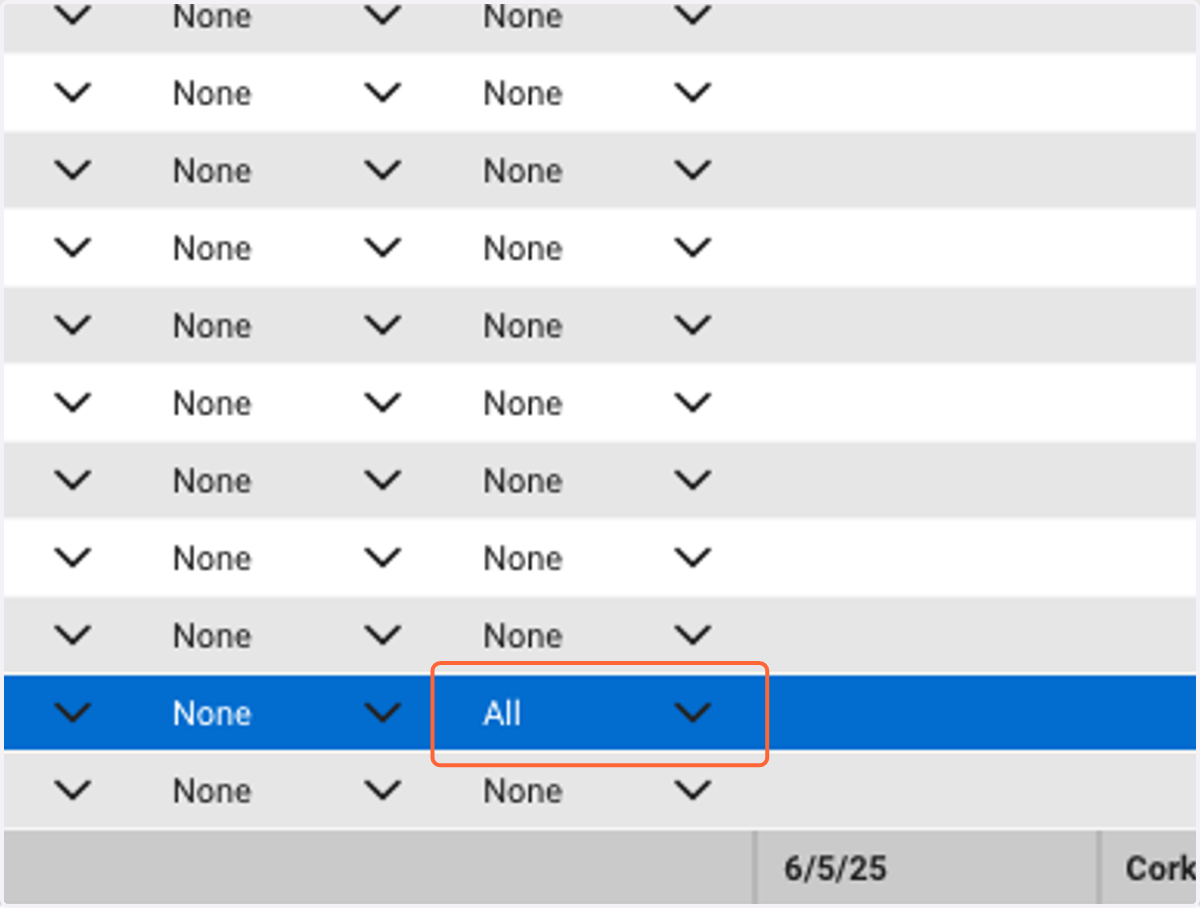
19. Select "All" for Table Setup Inquire Level
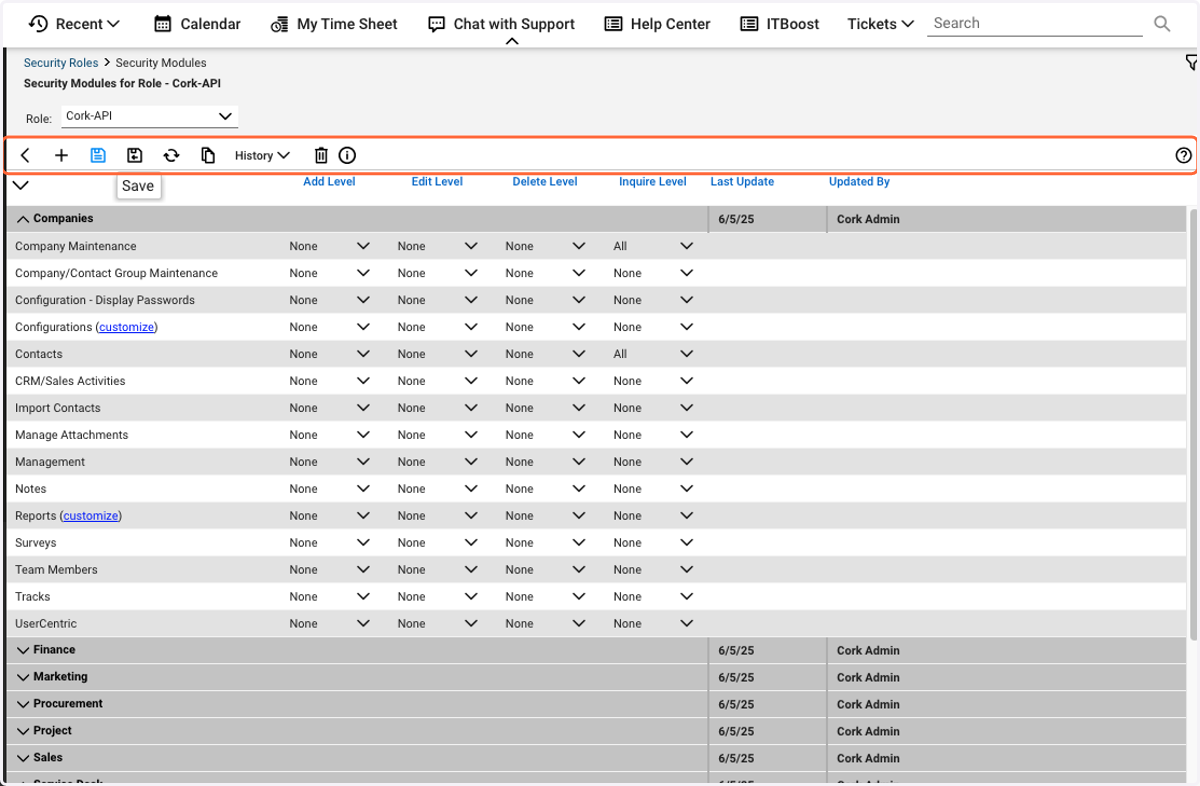
20. Click Save
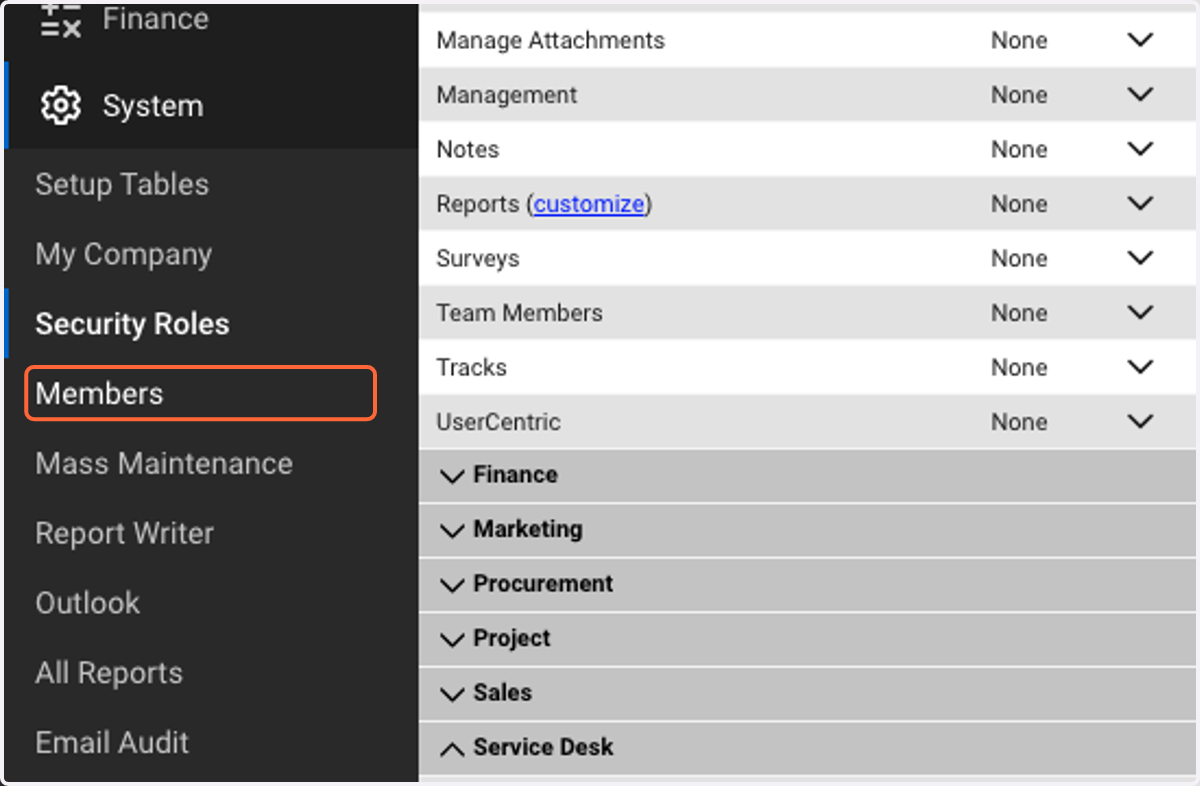
21. Click on Members
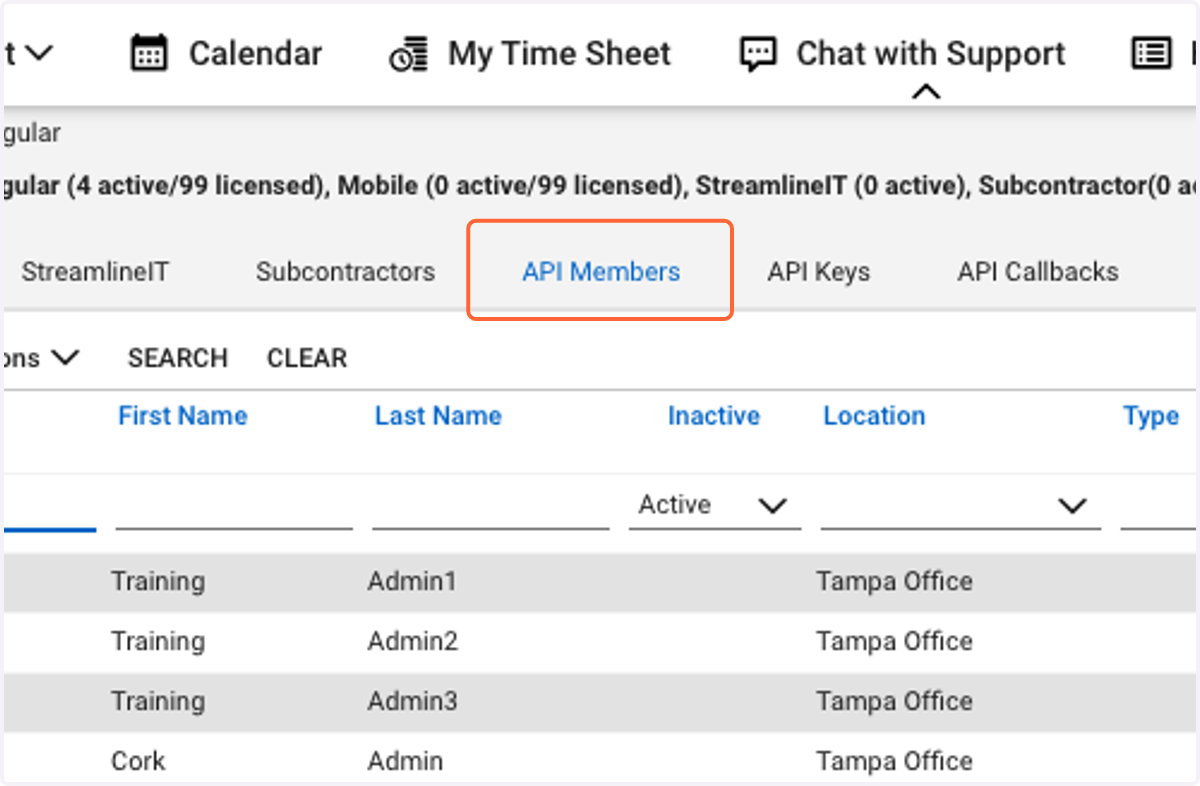
22. Click on API Members
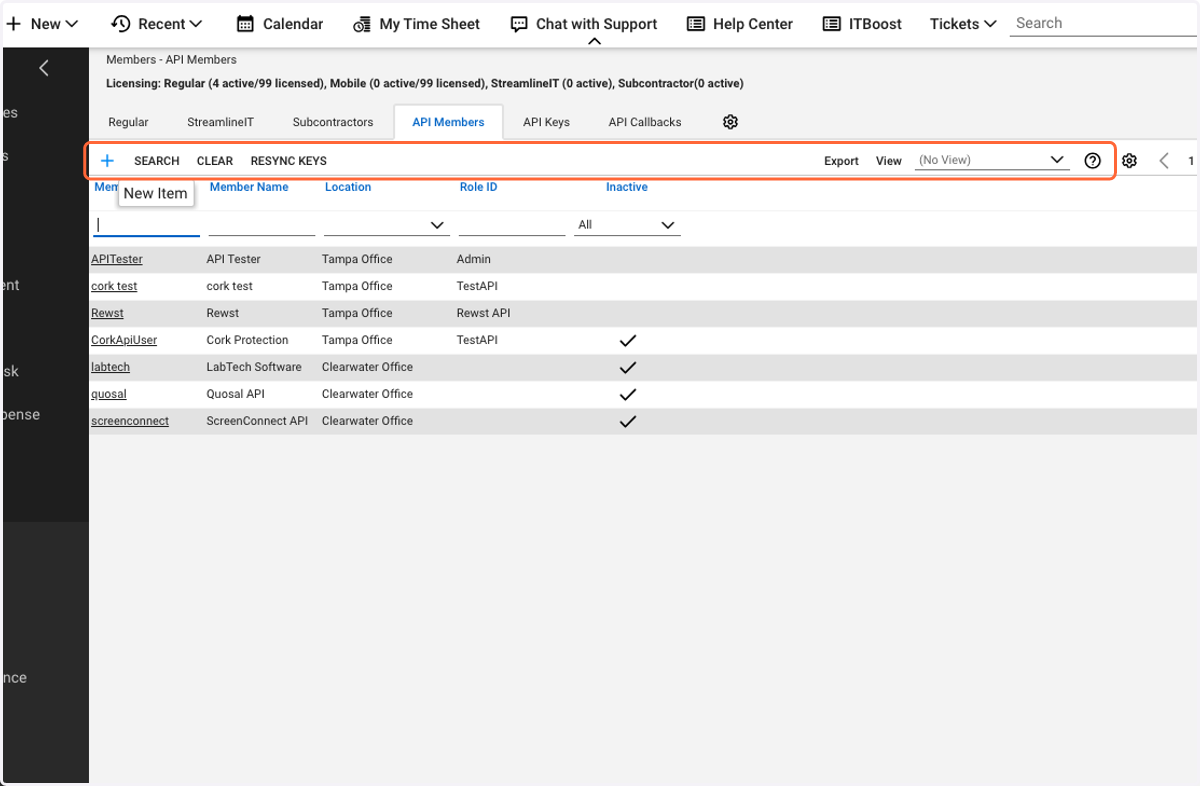
23. Click on "+"
24. Type "CorkApi"
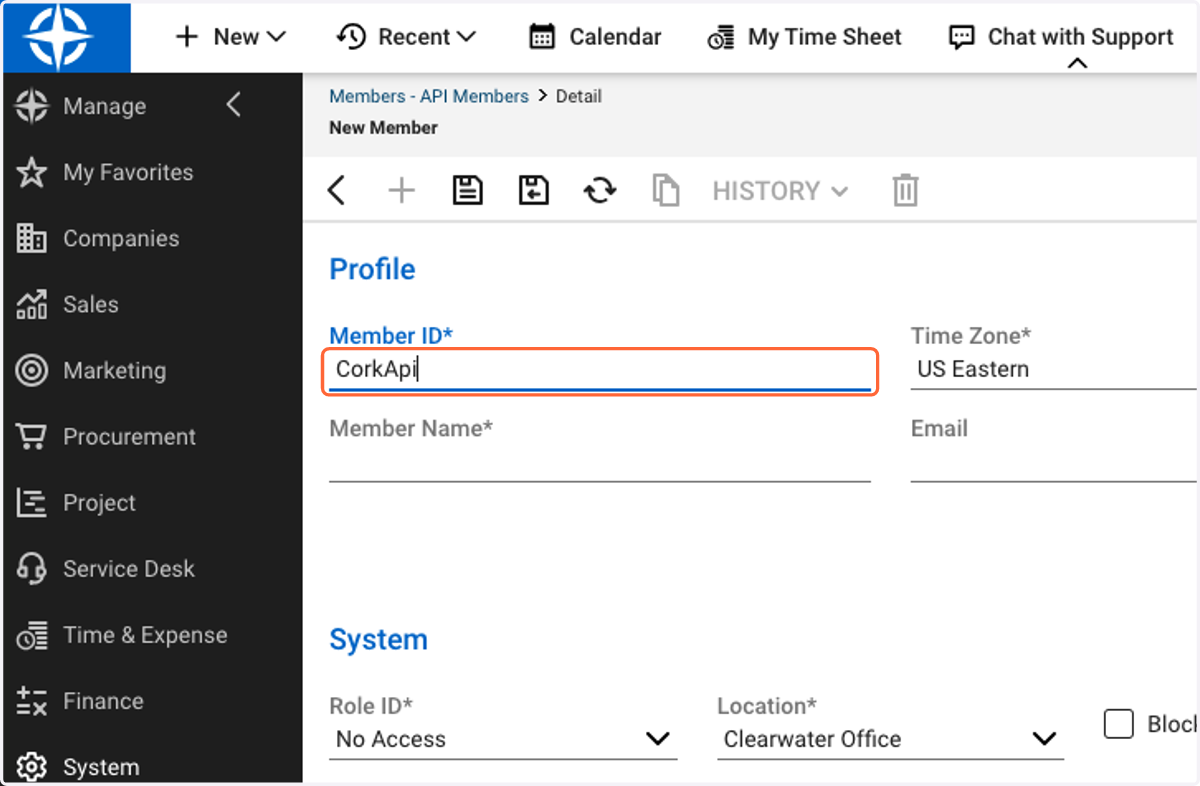
25. Type "Cork Protection"
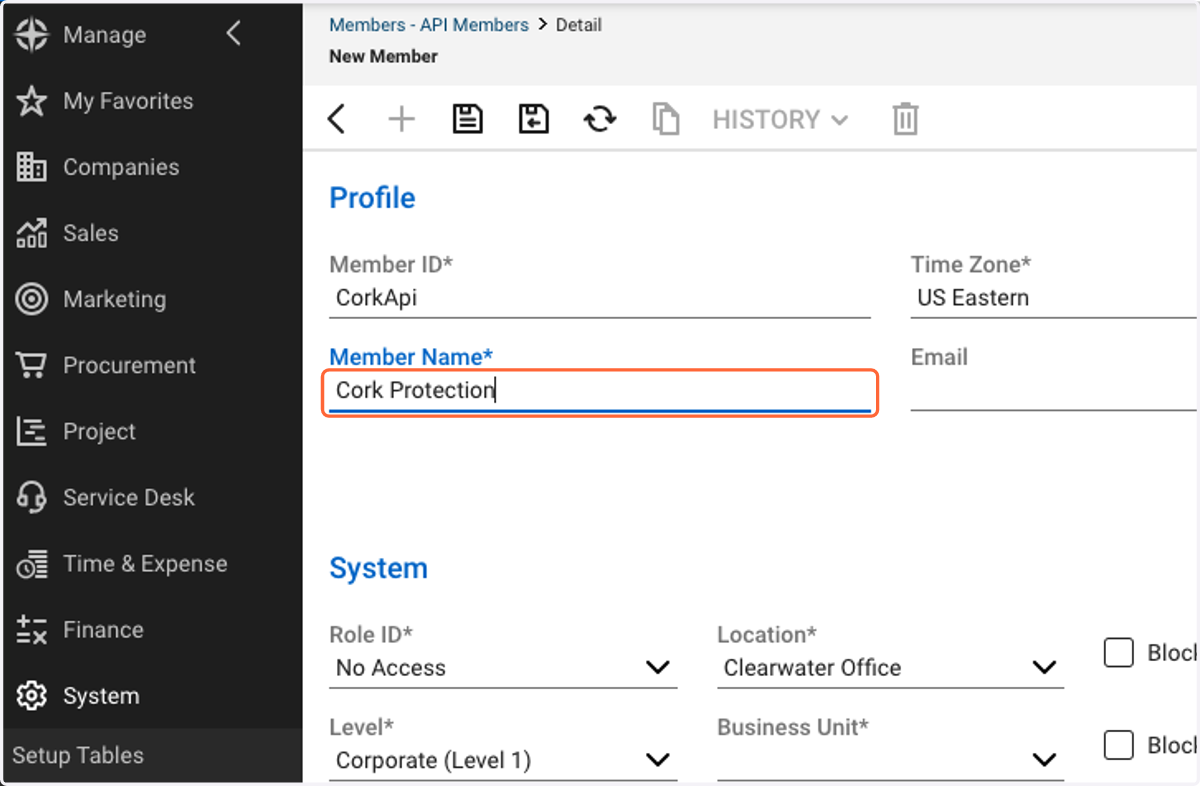
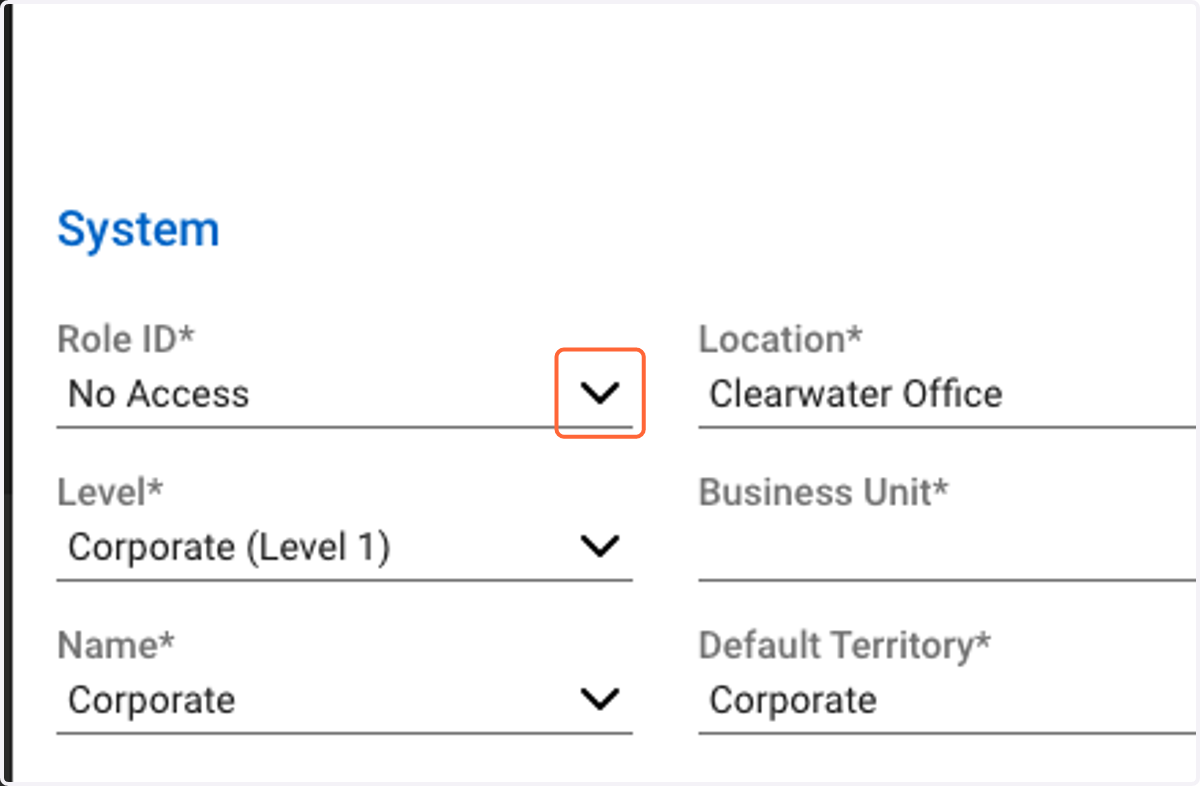
26. Click on Role ID
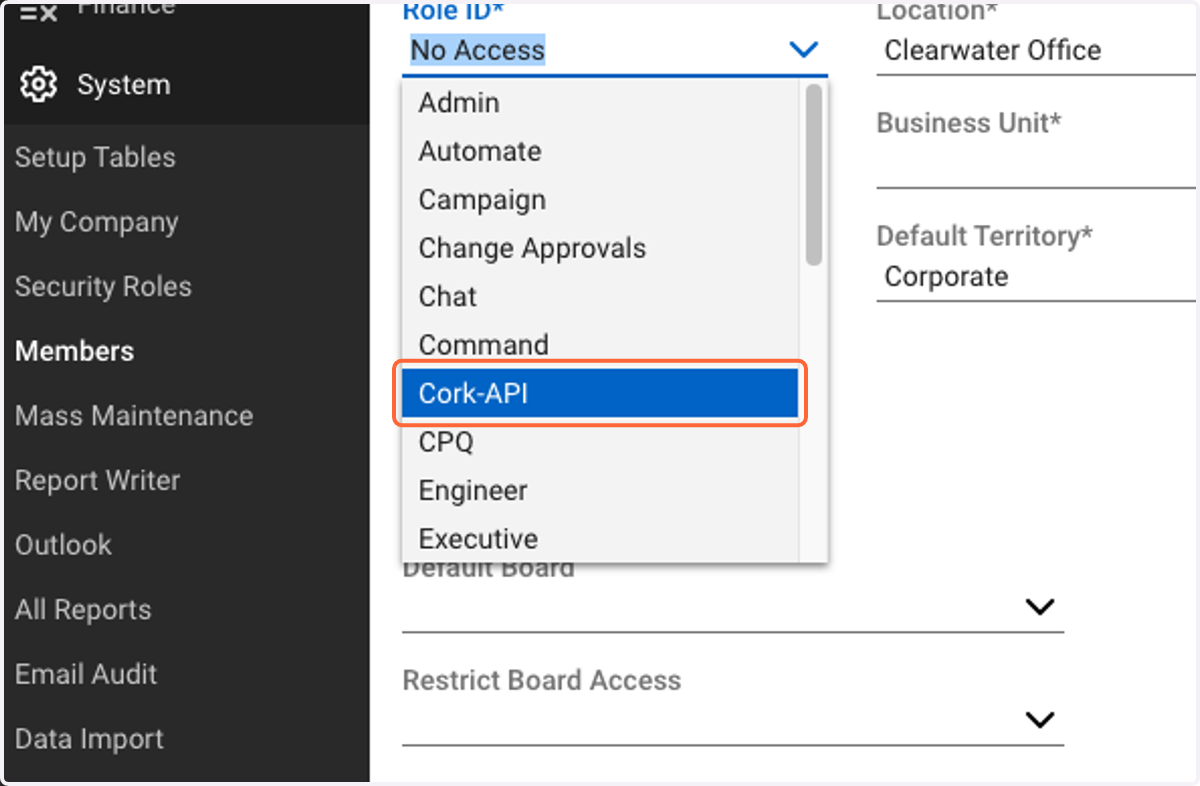
27. Click on Cork-API
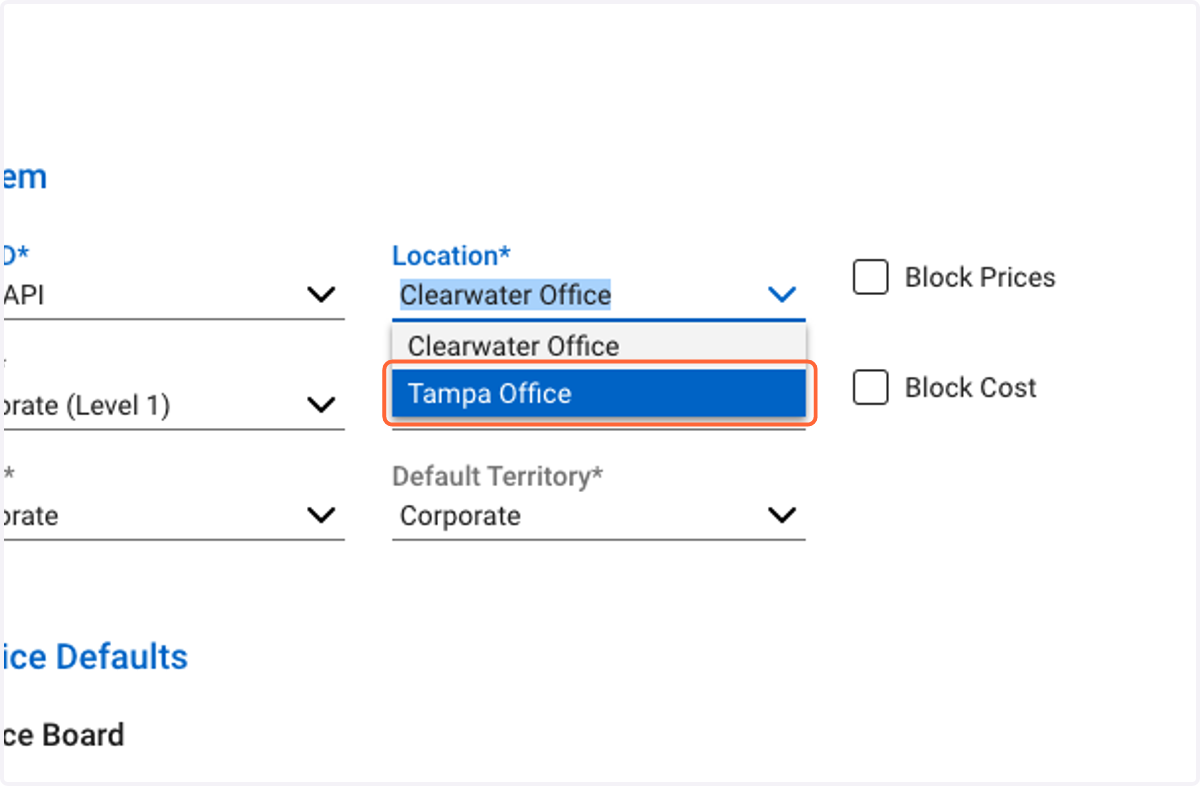
28. Select an appropriate Location
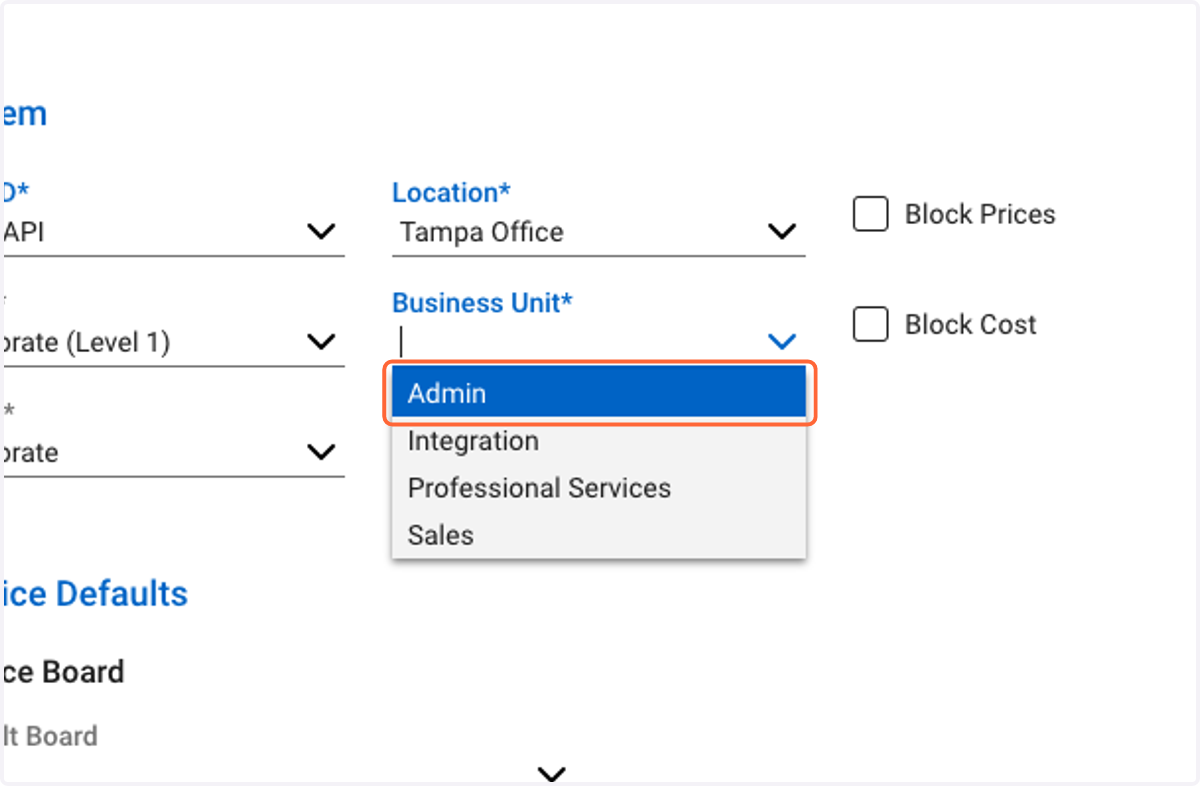
29. Select an appropriate Business Unit
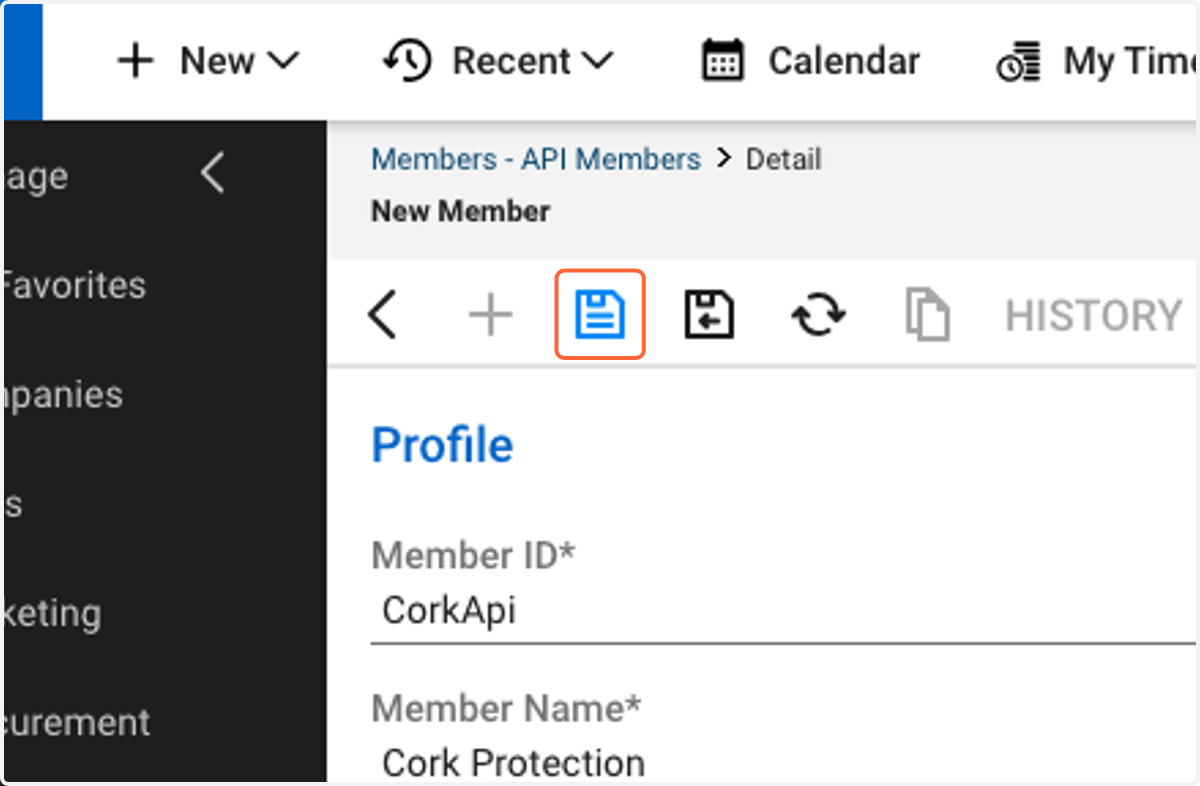
30. Click Save
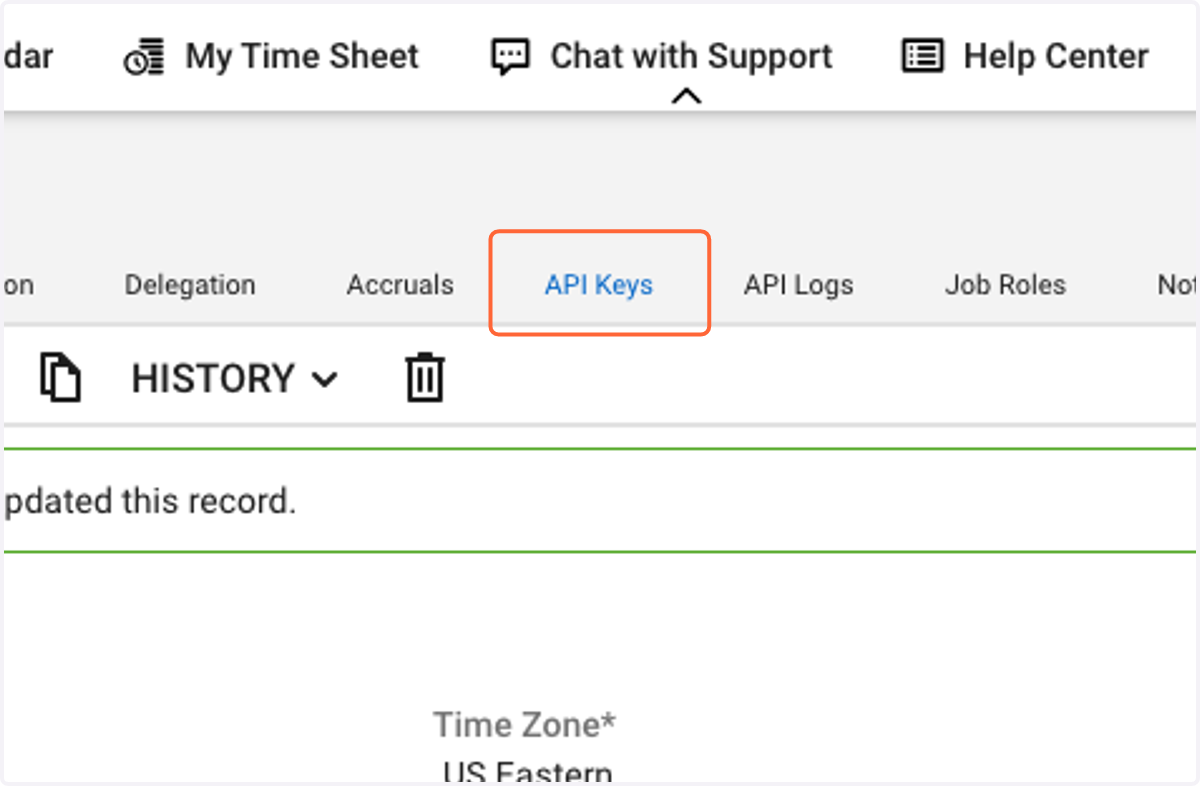
31. Click on API Keys
32. Click on "+"
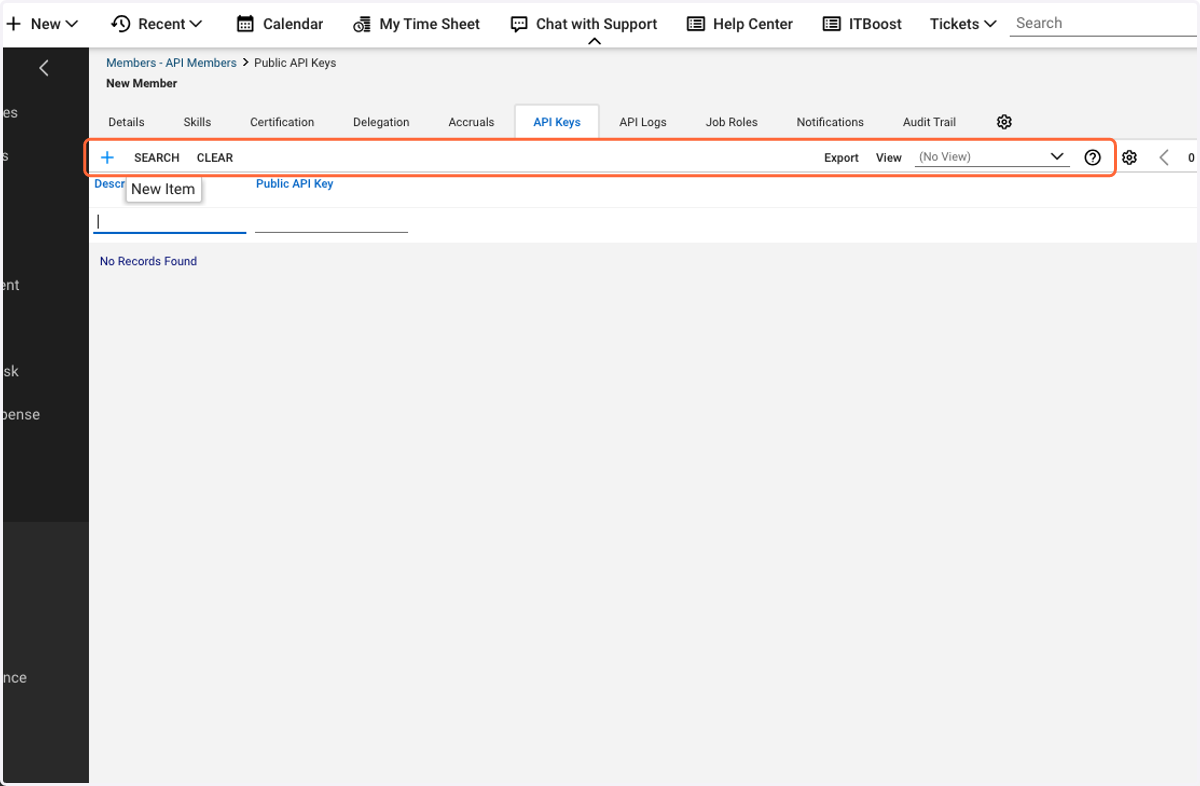
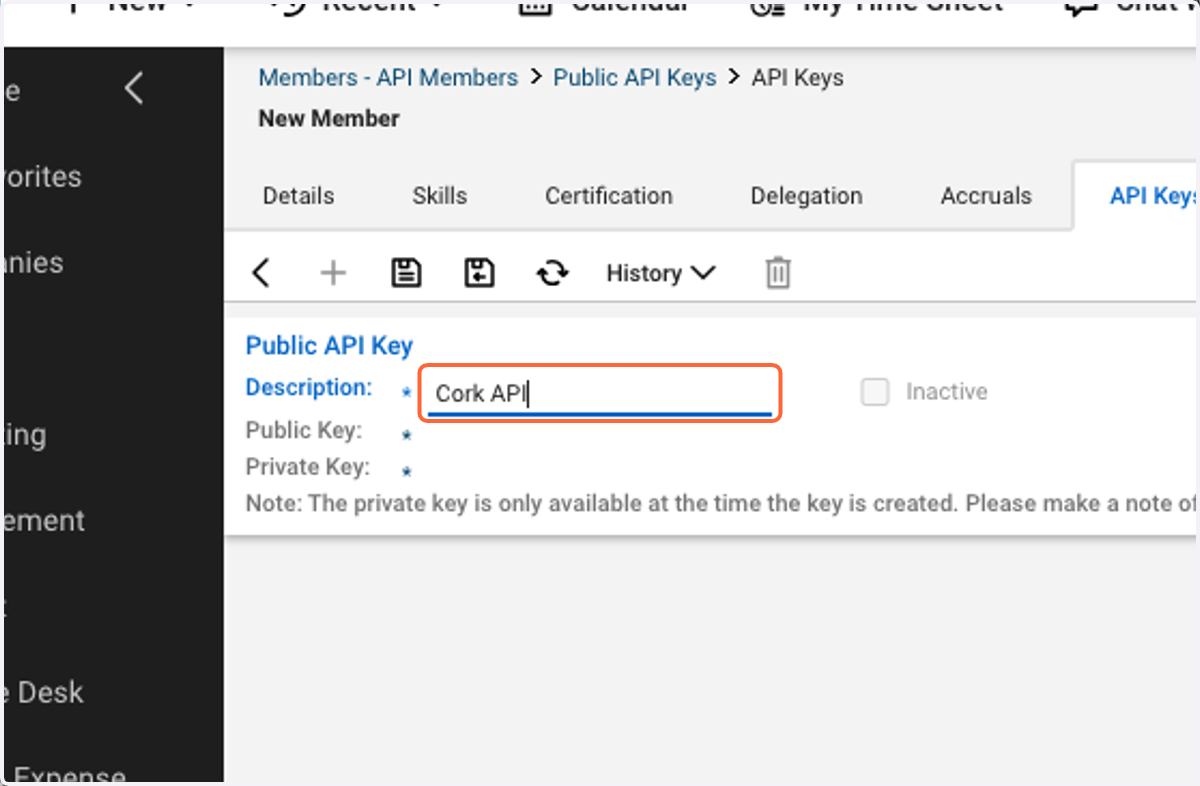
33. Type "Cork API"
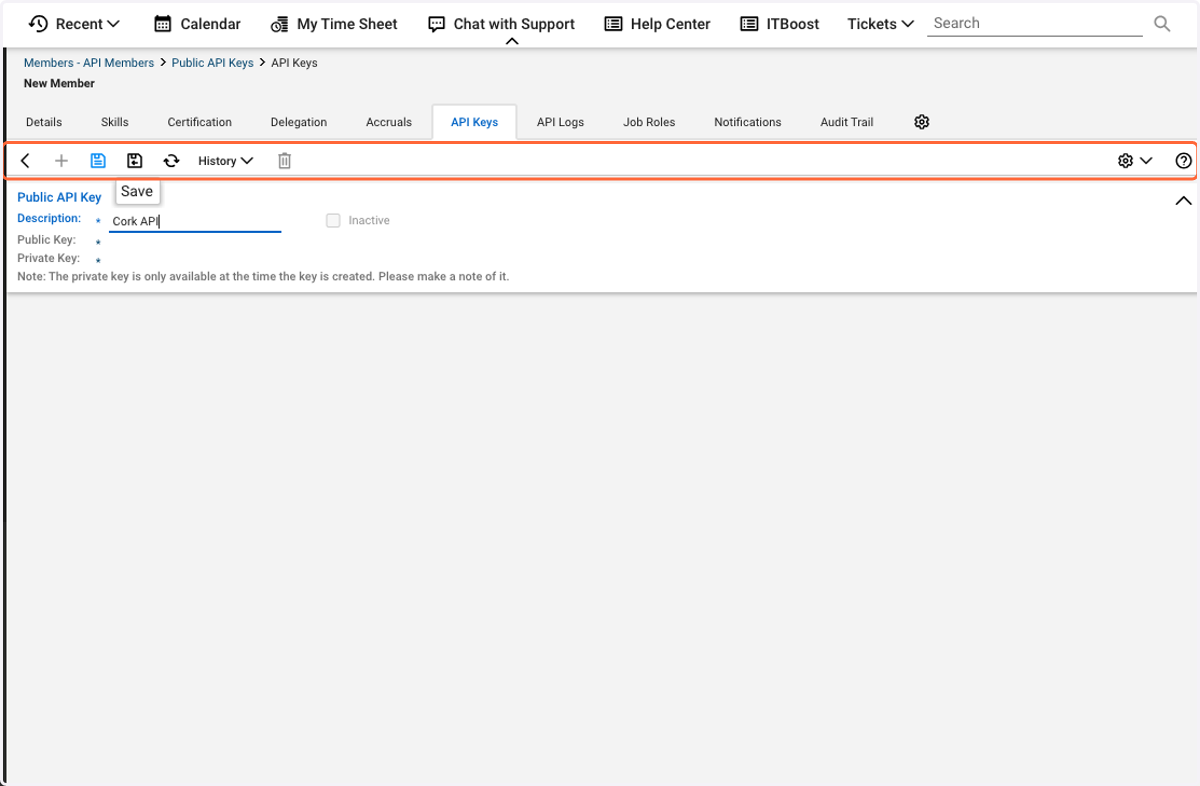
34. Click Save
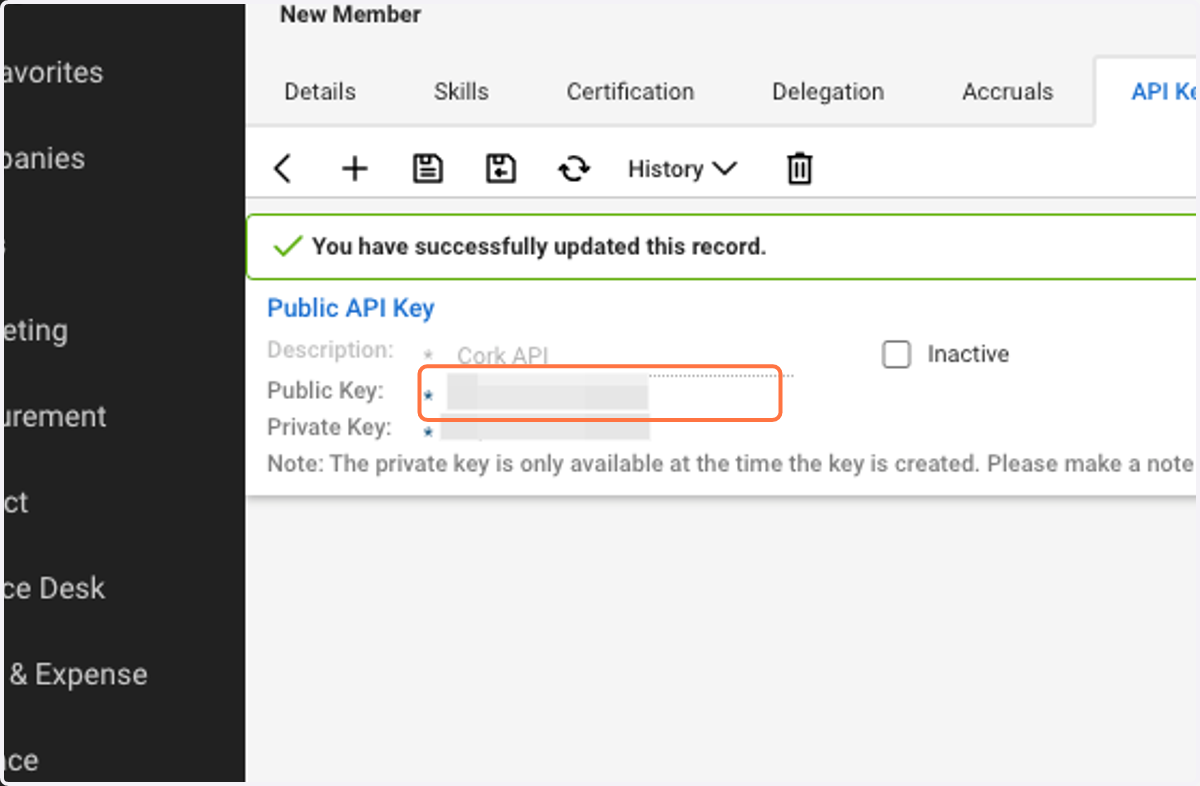
35. Copy "Public Key"
Cork
36. Click on Integrations
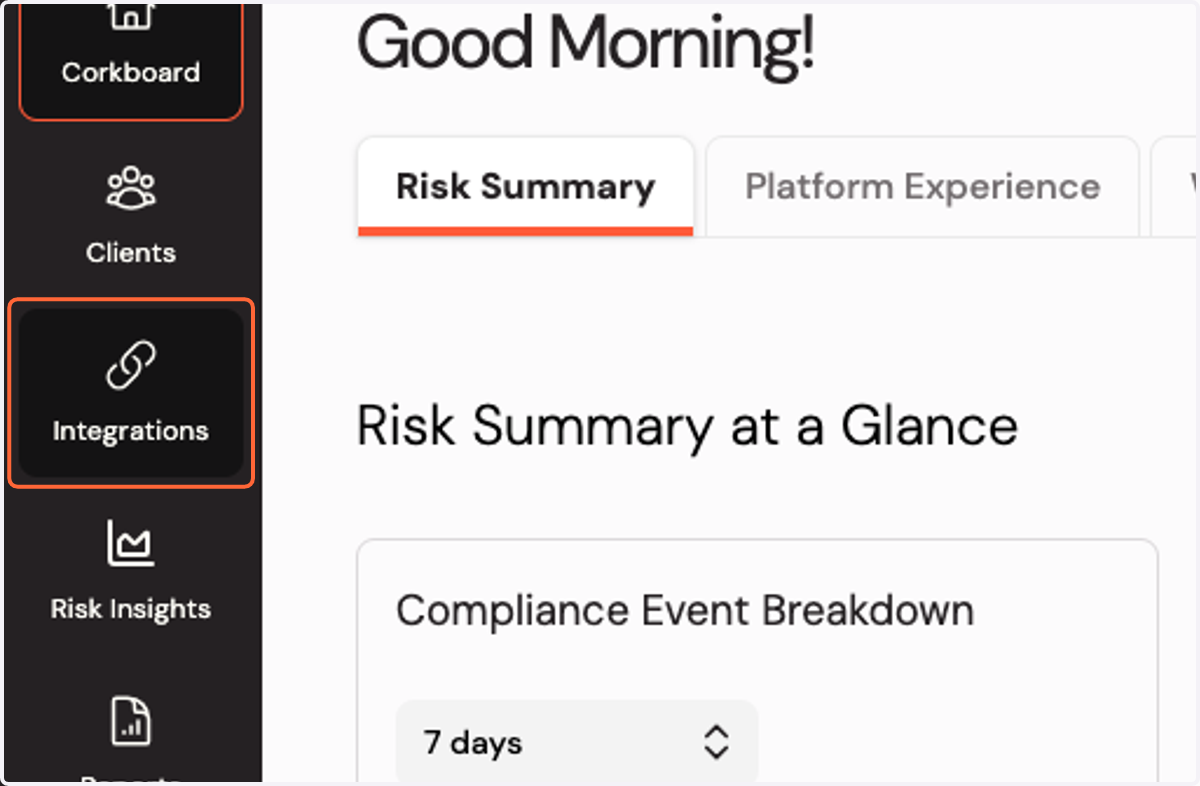
37. Click on Configure ConnectWise Manage integration…
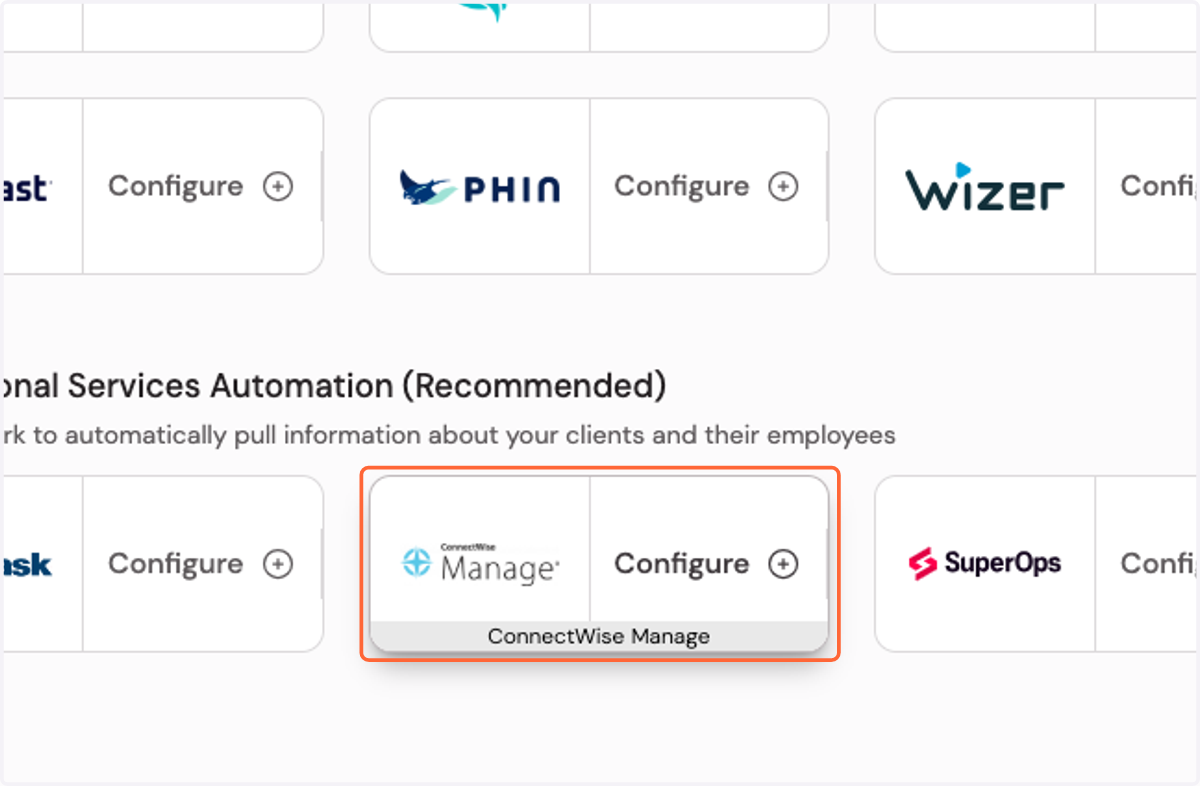
38. Paste "Public Key"
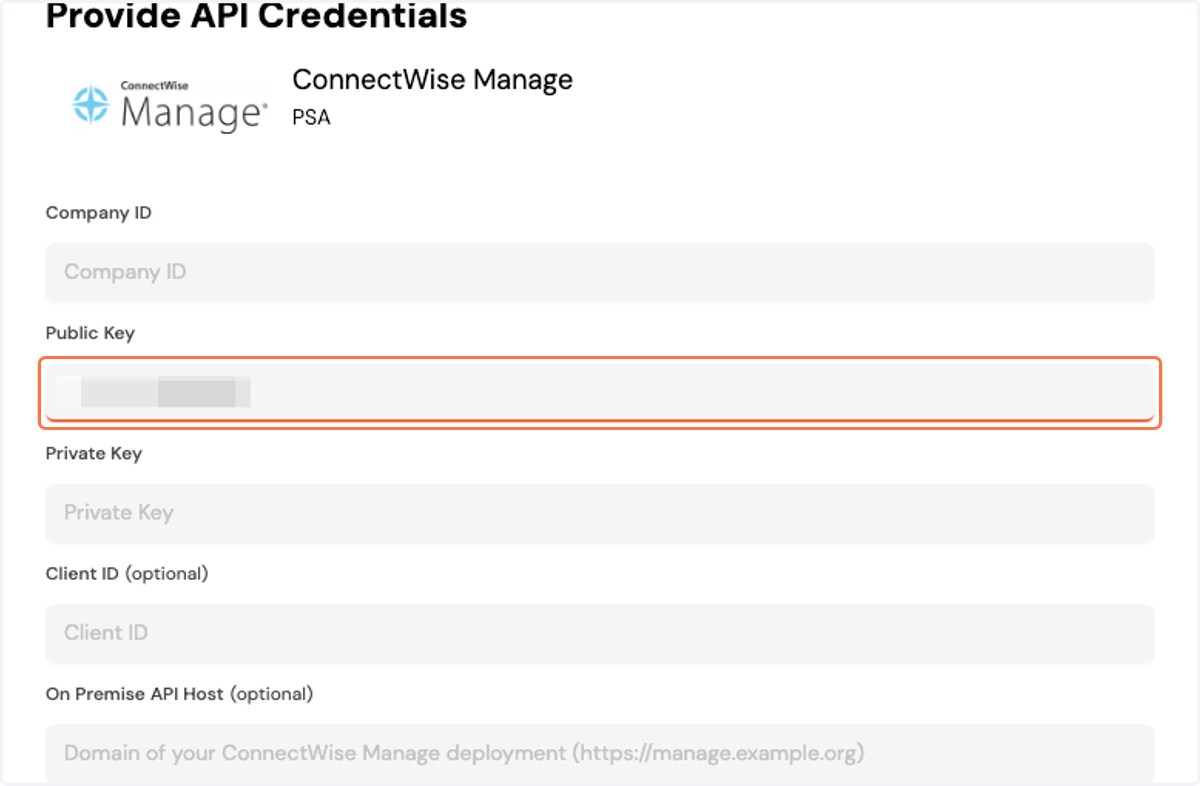
Manage: Members
39. Copy "Private
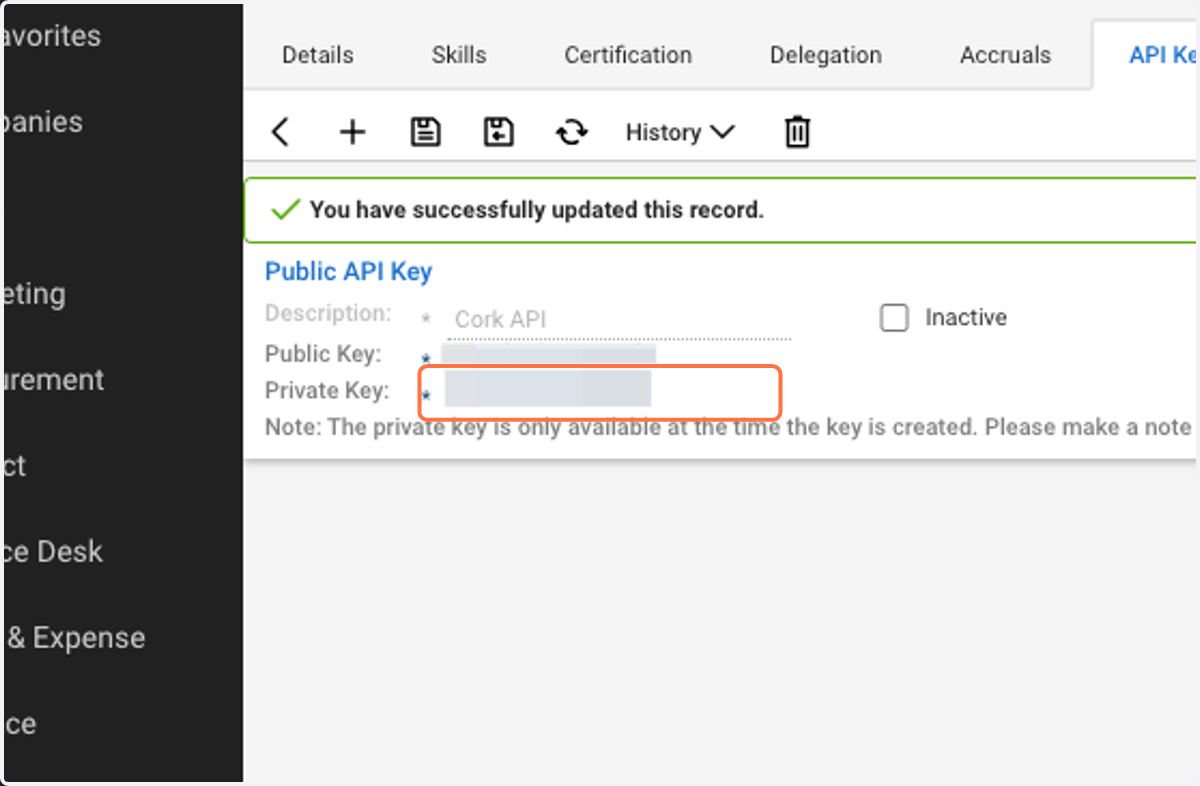
Cork - Integrations
40. Paste "Private Key"
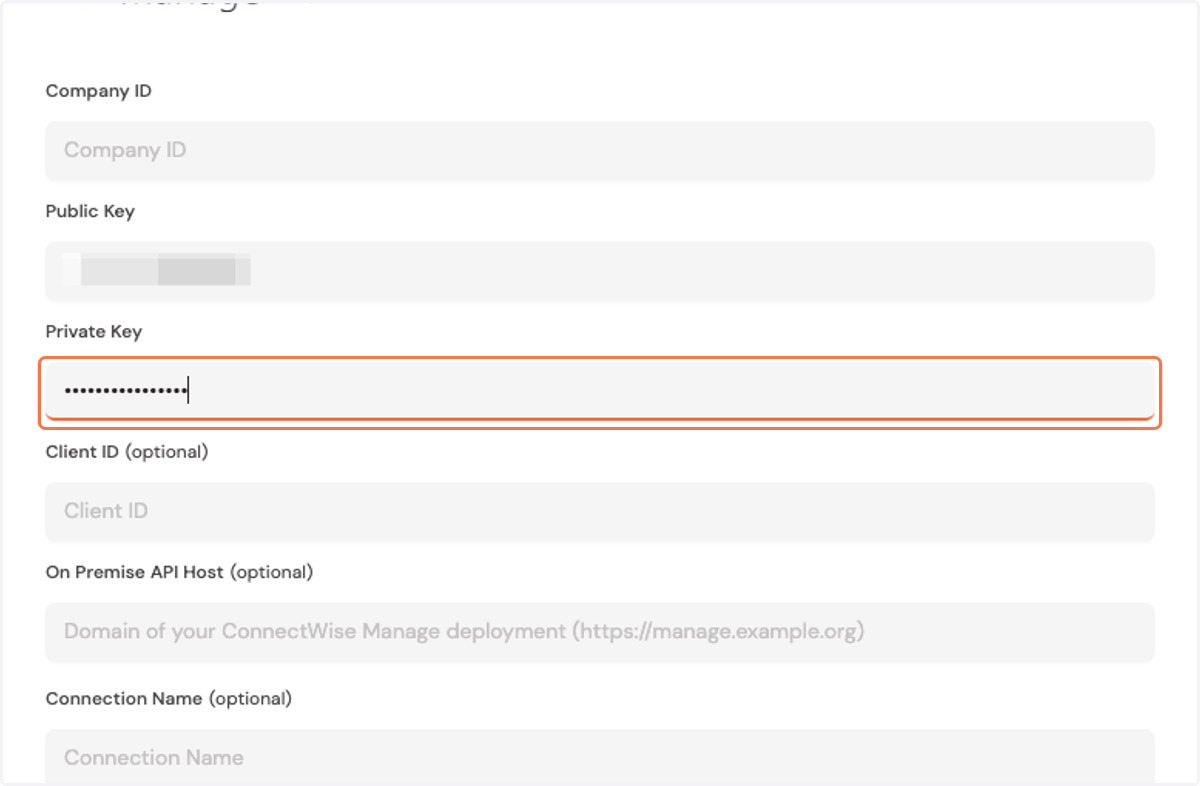
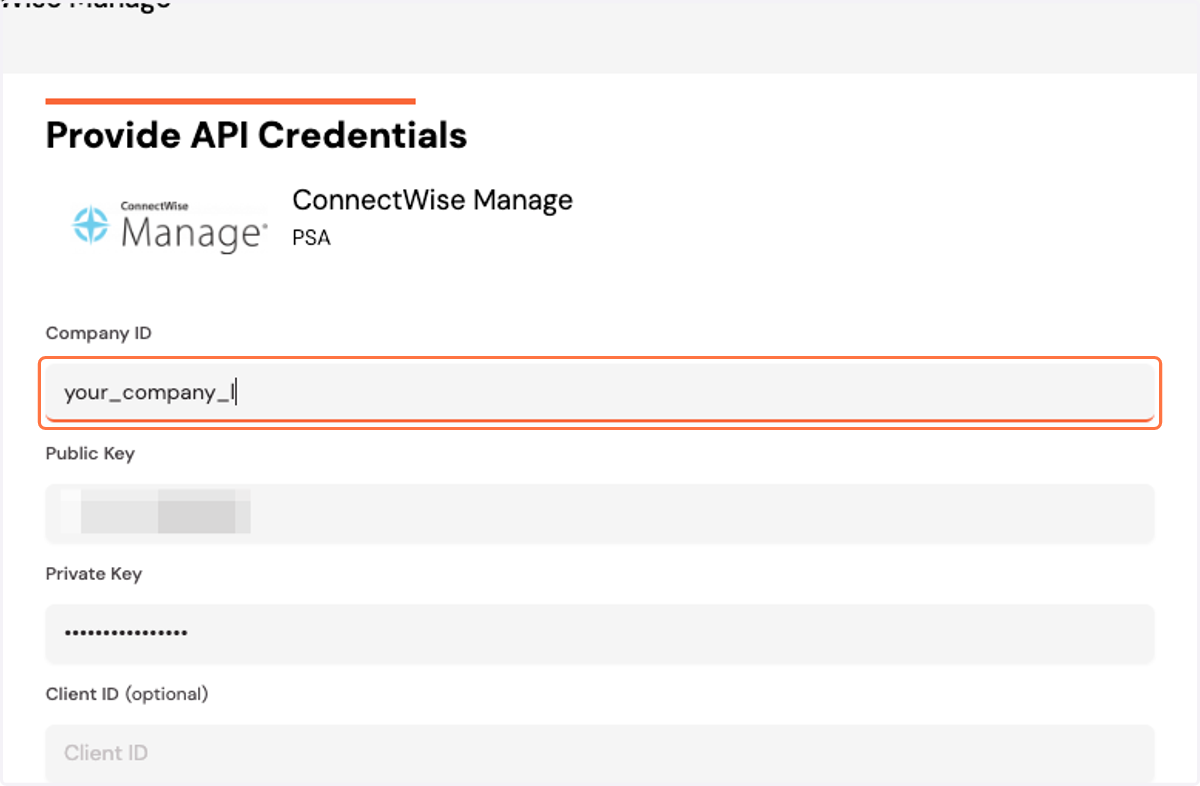
41. Enter your company's login code
You get this when you log into ConnectWise manage, it is usually the first field on the login form.
42. Click "Connect and continue"