Specification Attributes | BG_056
Specification Attributes are essentially placeholders of information that you can present to the user that help to describe the specifics of a product. Unlike Product Attributes, they do not require interaction from the customer but instead are there to simply display some information about the product.
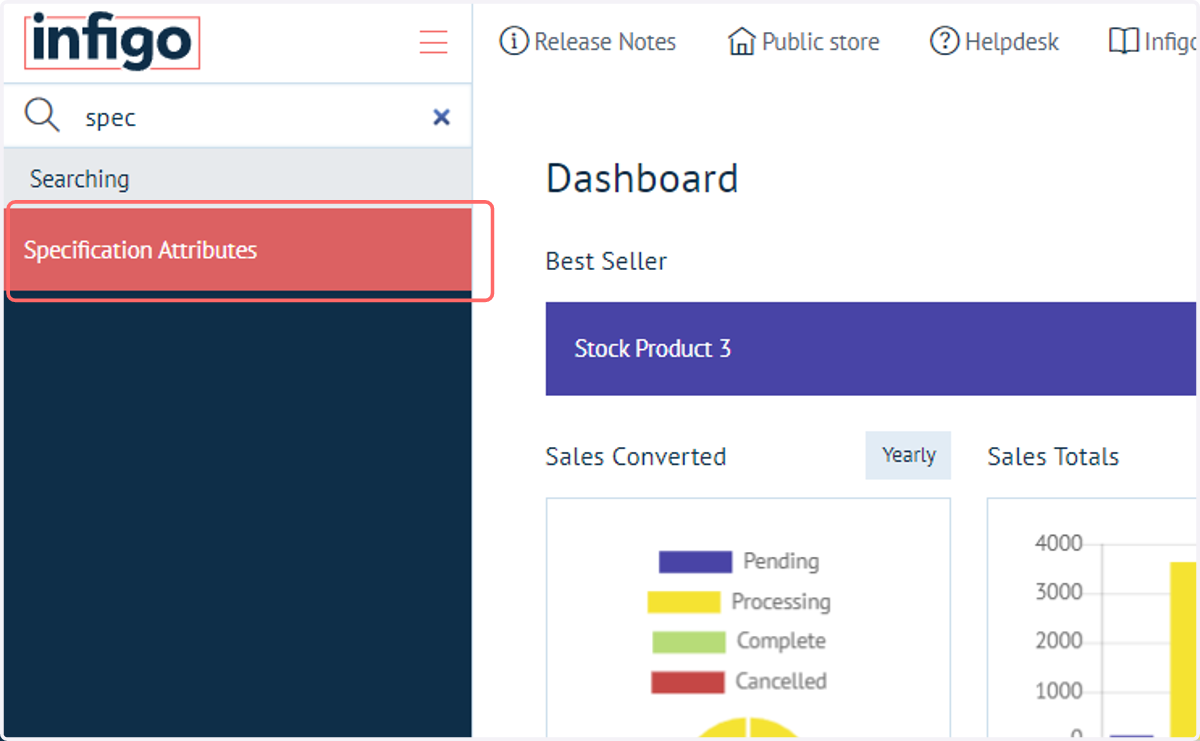
1. Navigate to Specification Attributes
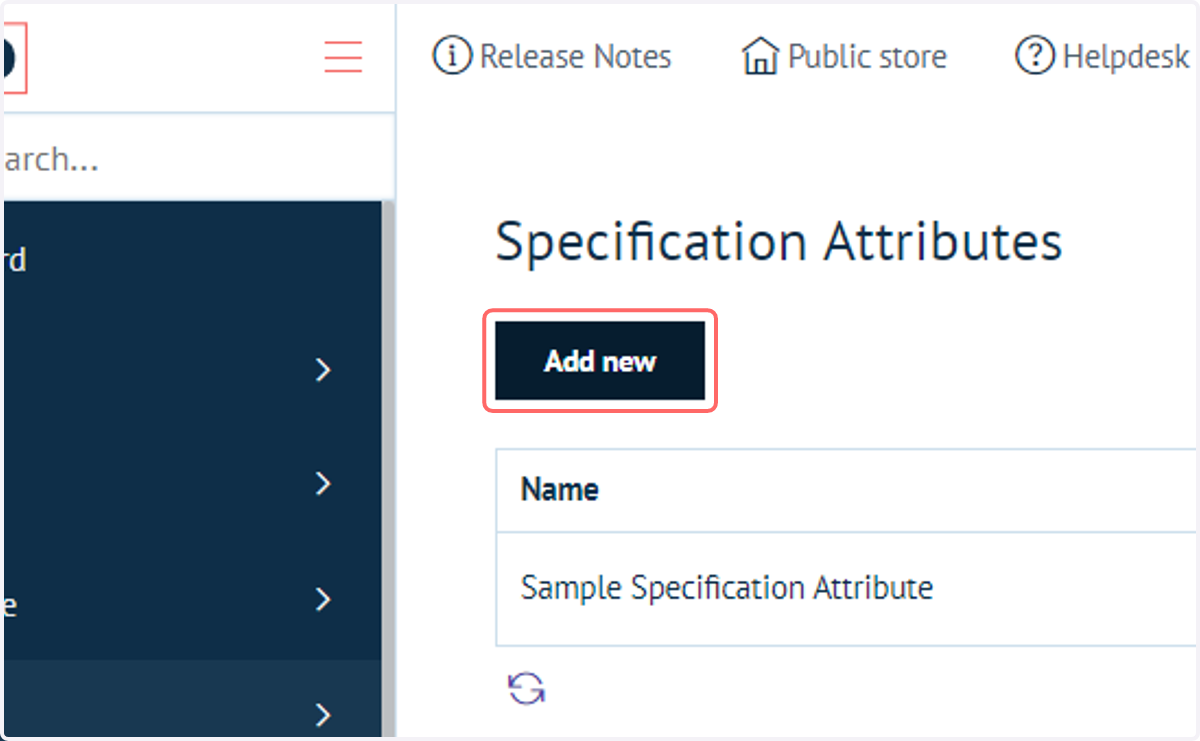
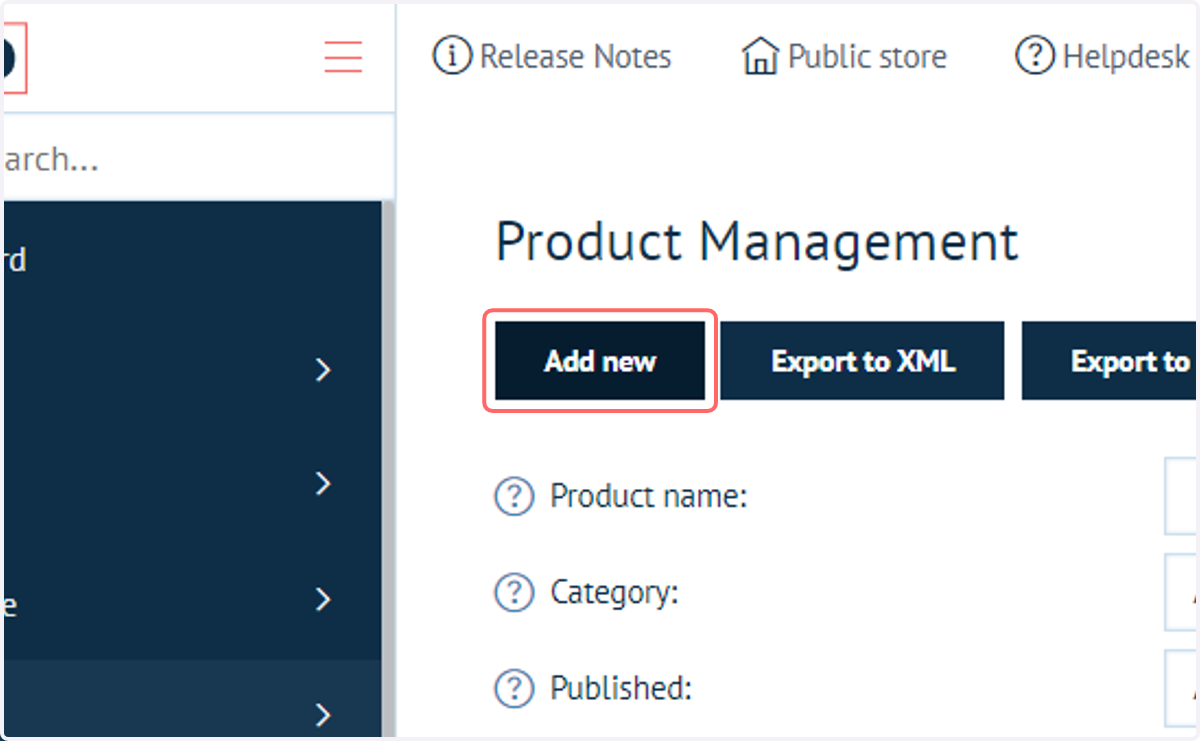
2. Click on Add new
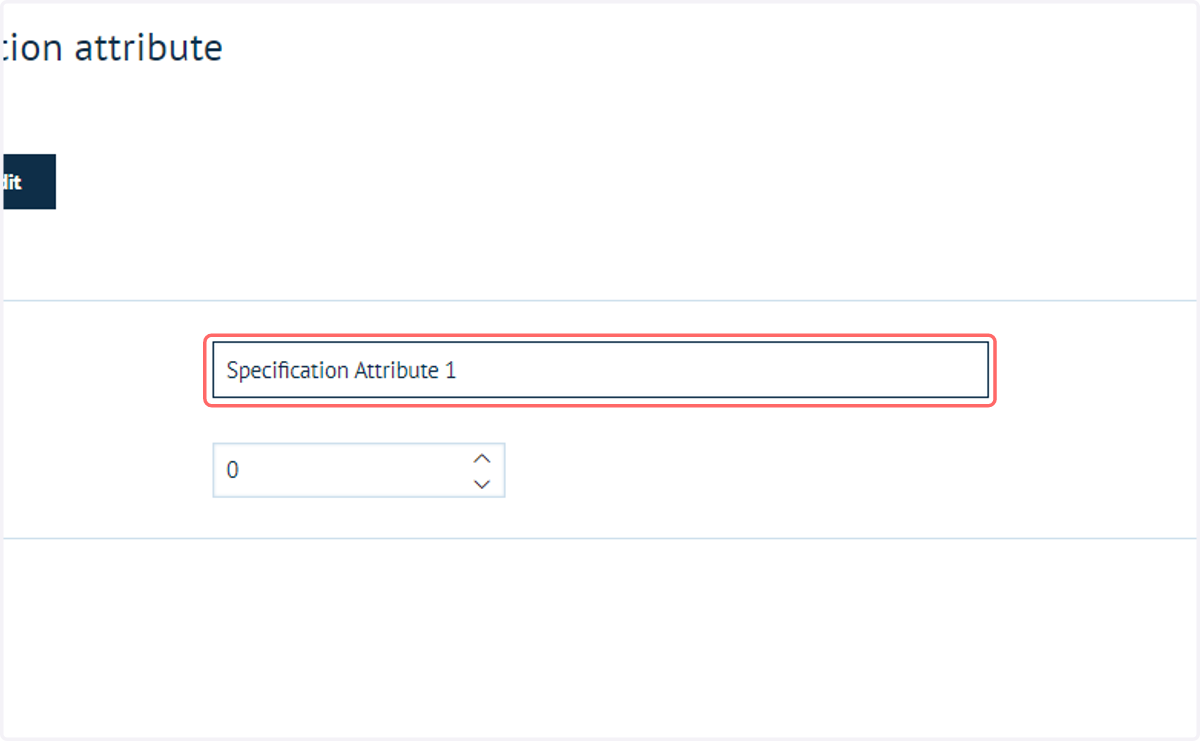
3. Type the name of the attribute
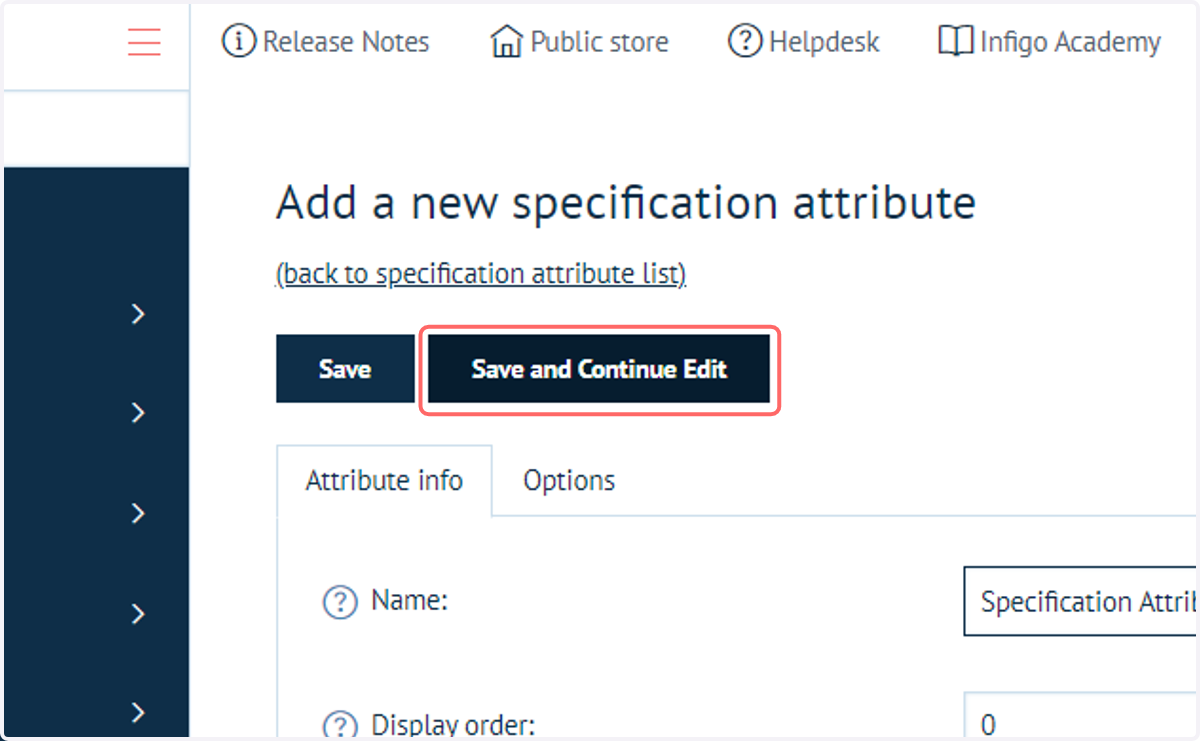
4. Click on Save and Continue Edit
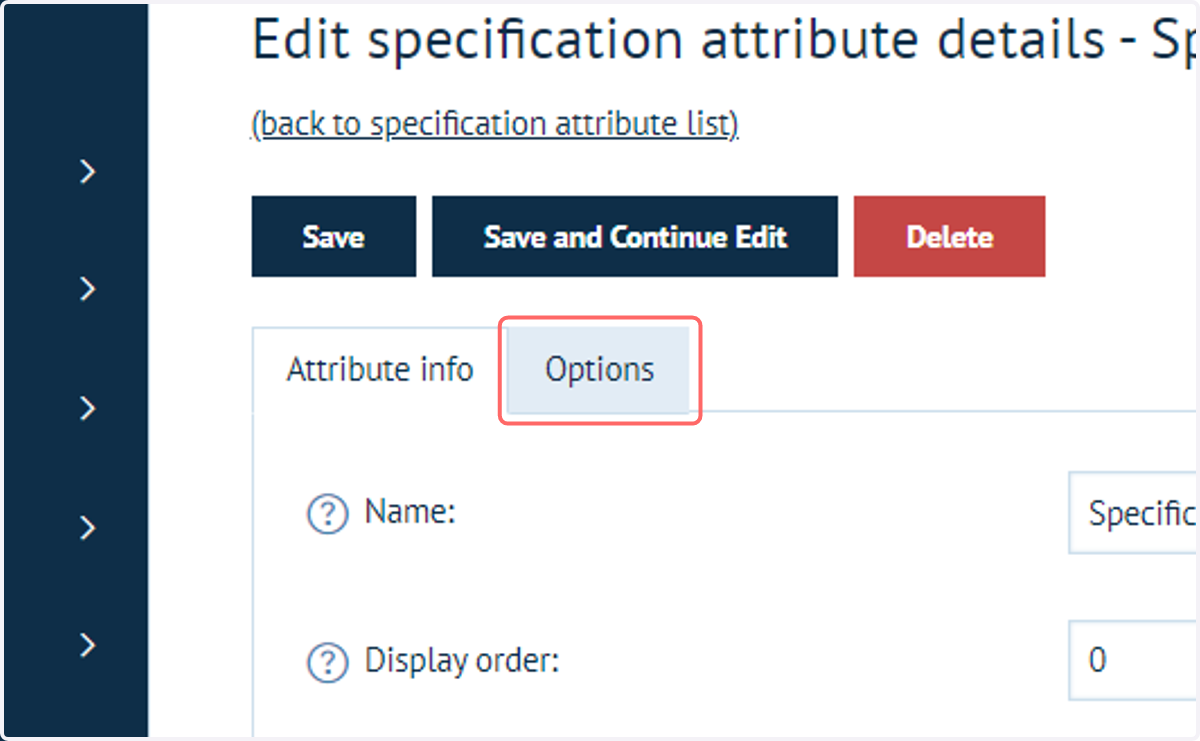
5. Click on Options
On this tab, you can define multiple values this attribute can take. For example, if you had an attribute named "Finish", your options could be "Matte" or "Gloss".
Remember, Specification Attributes are not selectable by the user, so the administrator, when defining one of these attributes on a product, chooses the option.
We will see this later.
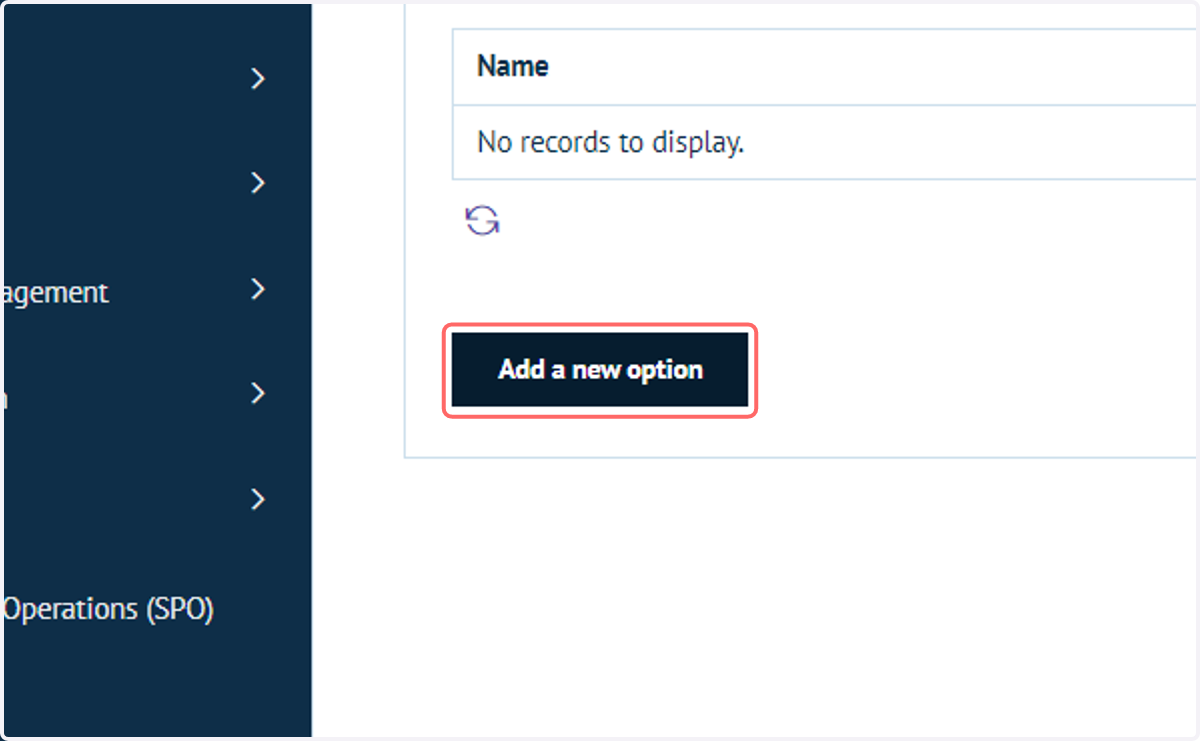
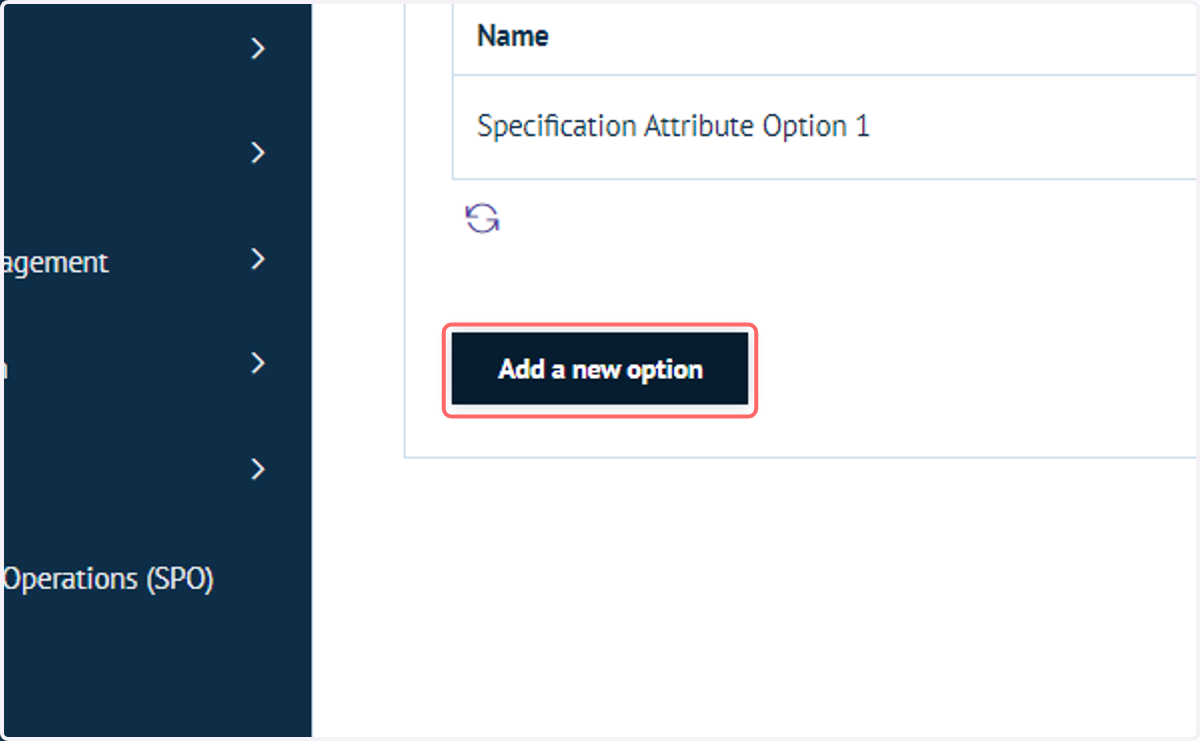
6. Click on Add a new option
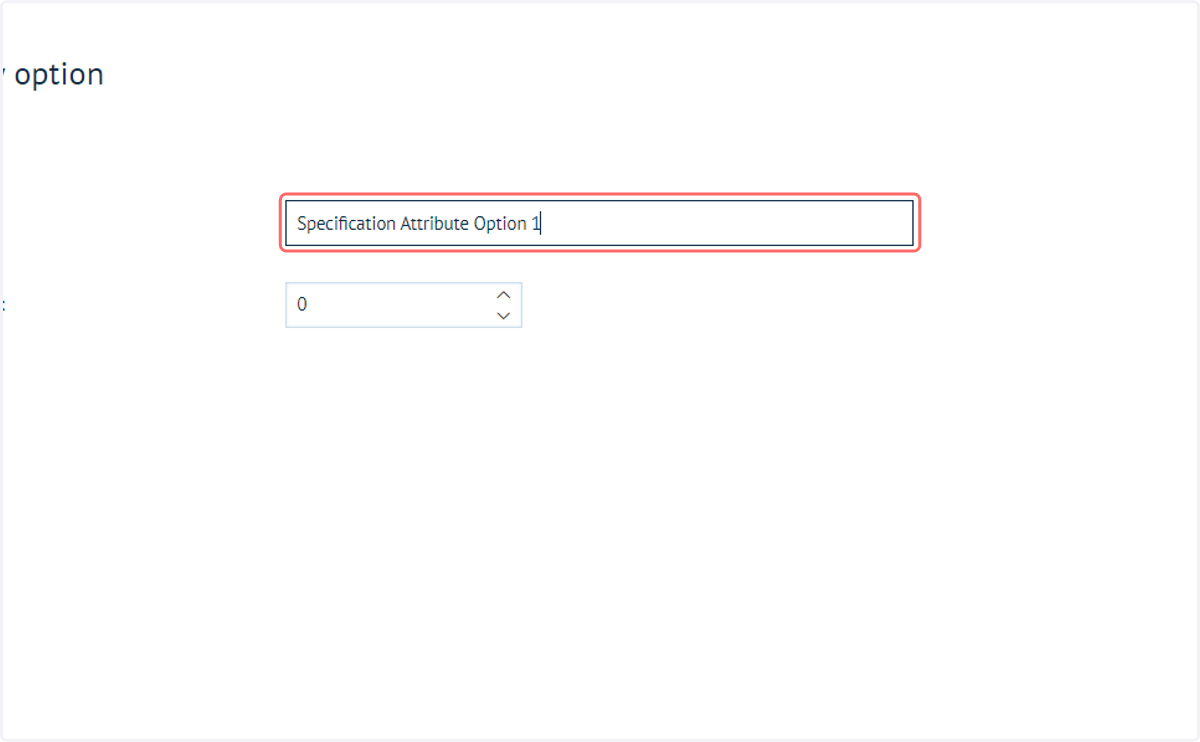
7. Define an option name
8. Click on Save
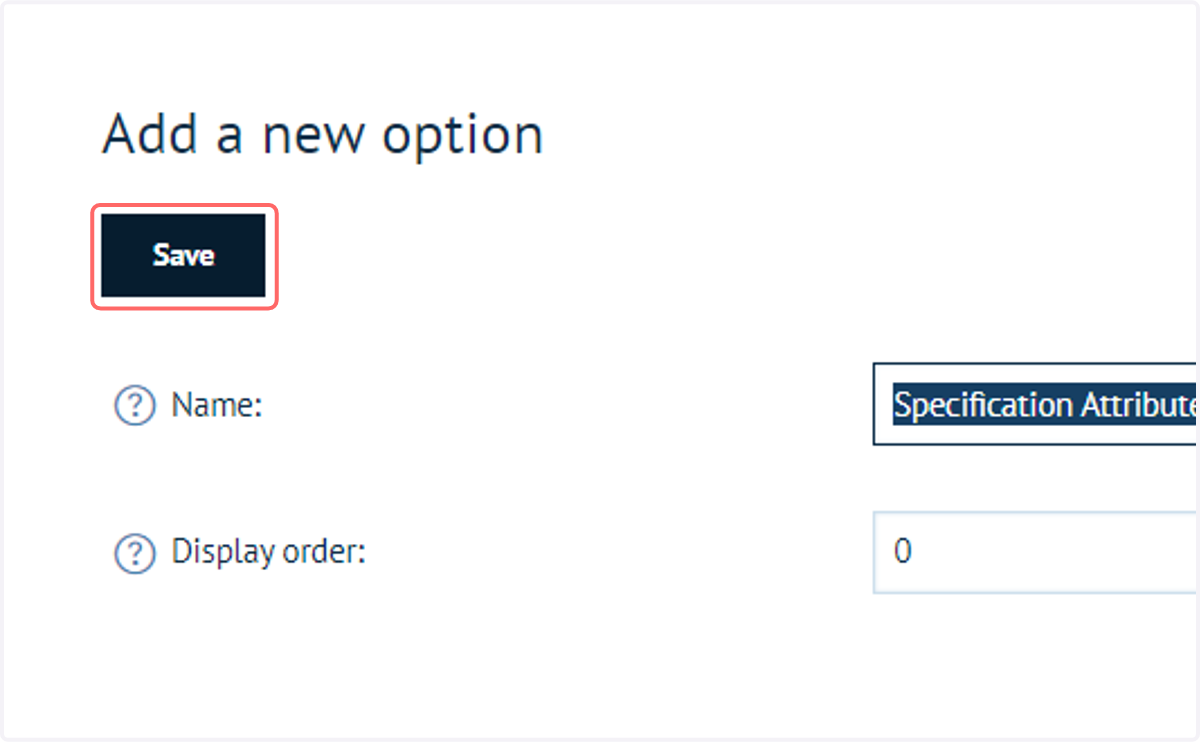
9. Add as many options to the Specification Attribute as is required
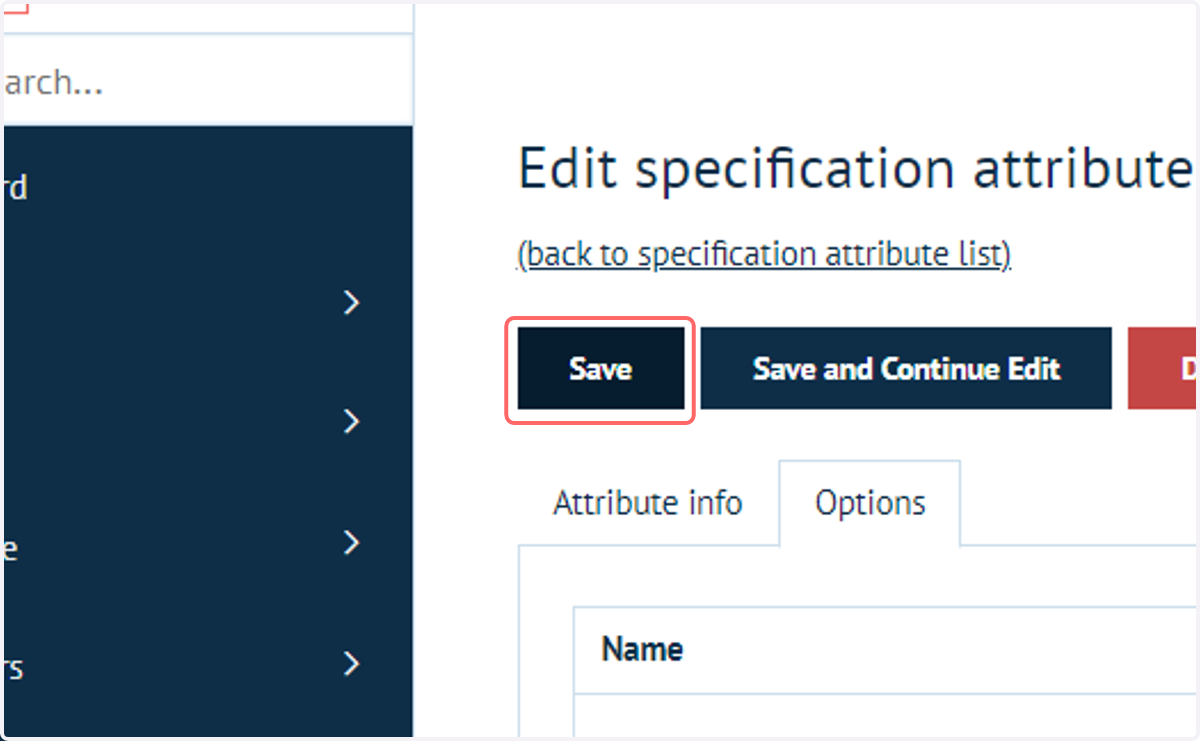
10. Click on Save
Click on Save to confirm the creation of the Specification Attribute and its associated options
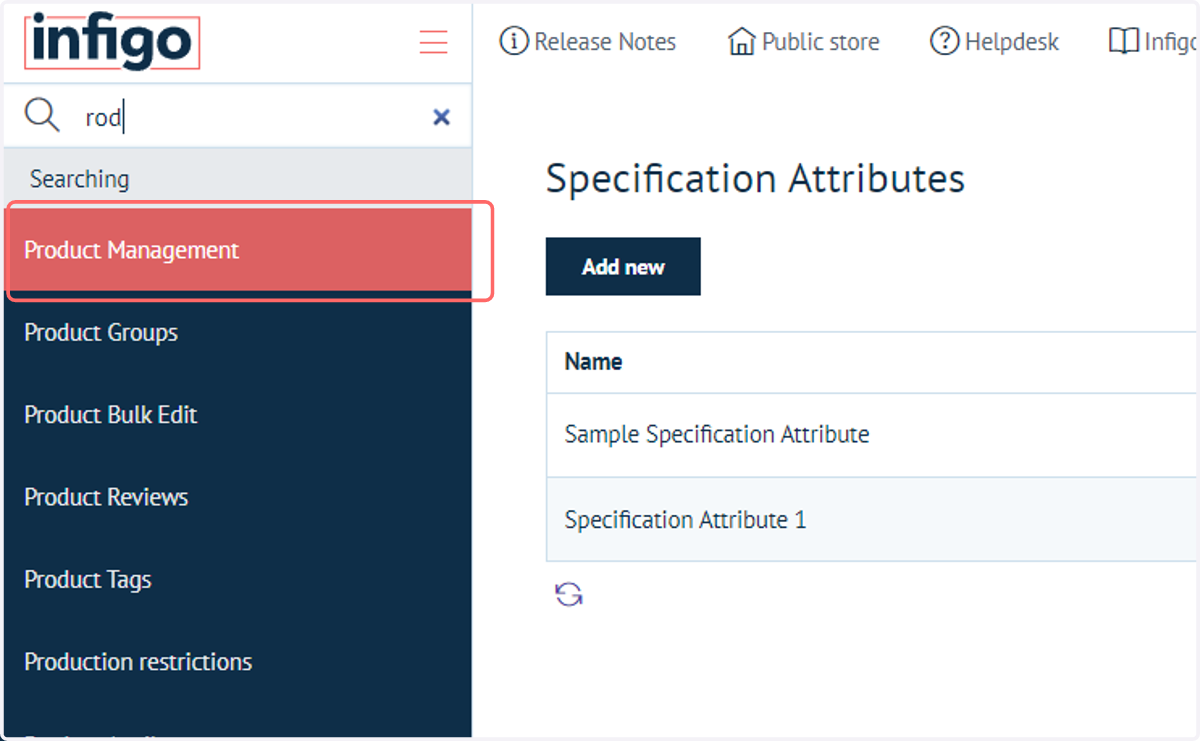
11. Navigate to Product Management
Next, we need to assign this Specification Attribute to any product on which we wish them to appear.
12. Create or navigate to a relevant product
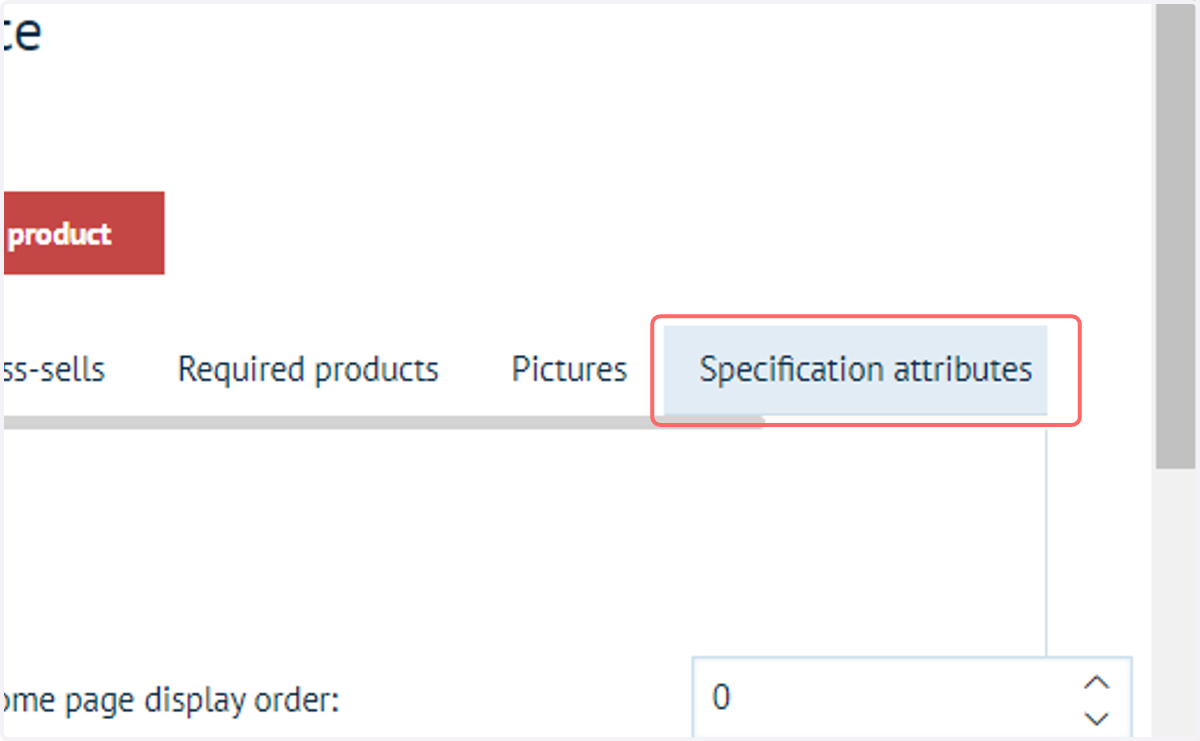
13. Click on Specification attributes
14. Choosing your Specification Attribute
Multiple Specification Attributes can be applied to a single product.
The interface on this screen allows you to define certain options related to a Specification Attribute, then add it to the list of Specification Attributes for this product.
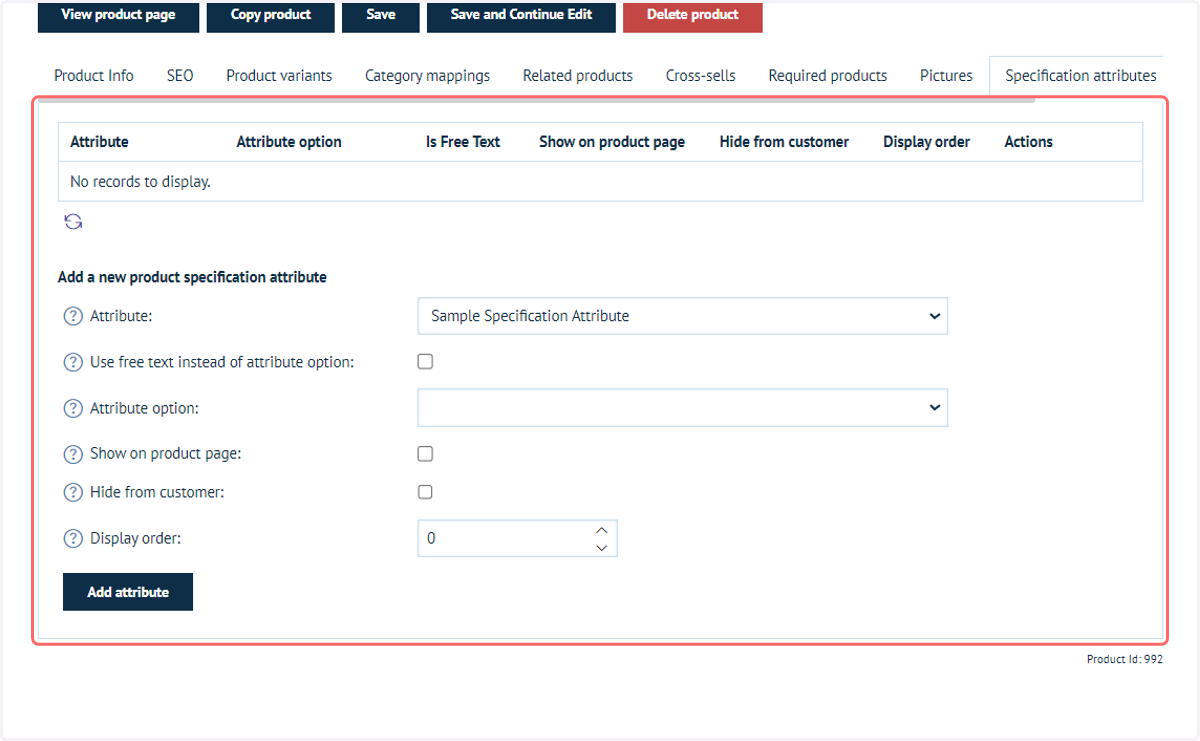
15. Select an attribute
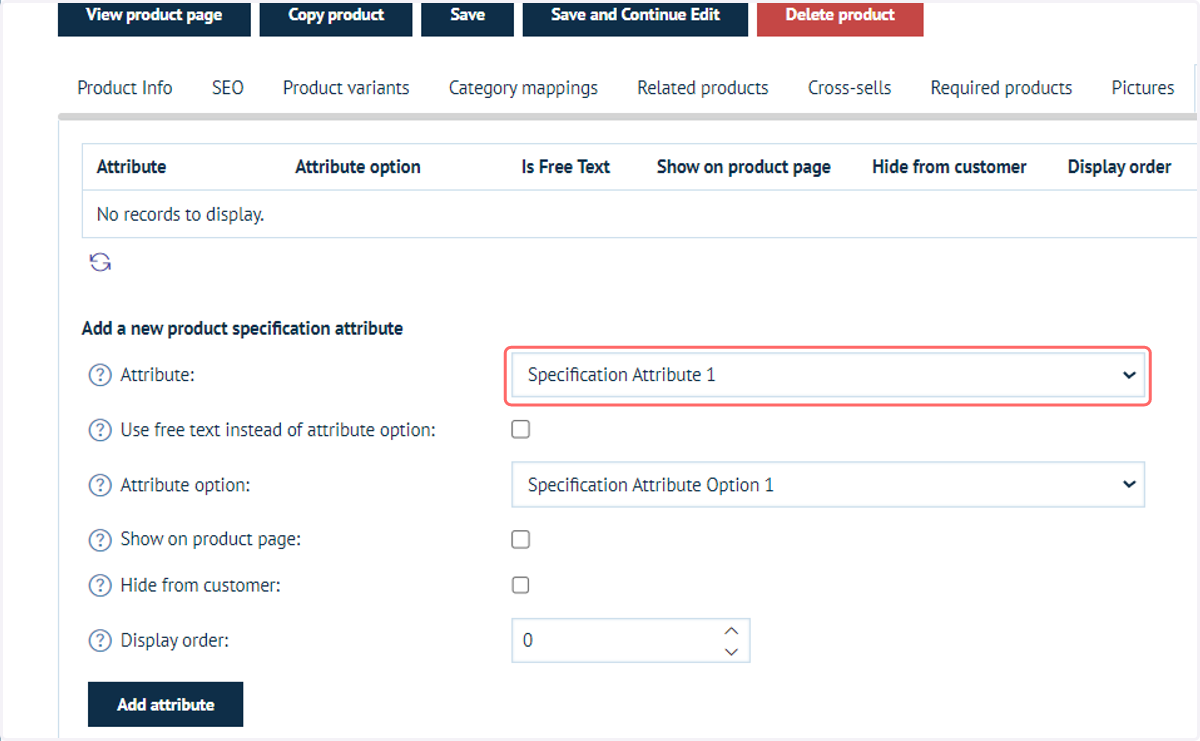
16. Select an option within that attribute
Alternatively, you can select to use free text. This will replace the dropdown list for option selection with a text box, where you can manually specify a value.
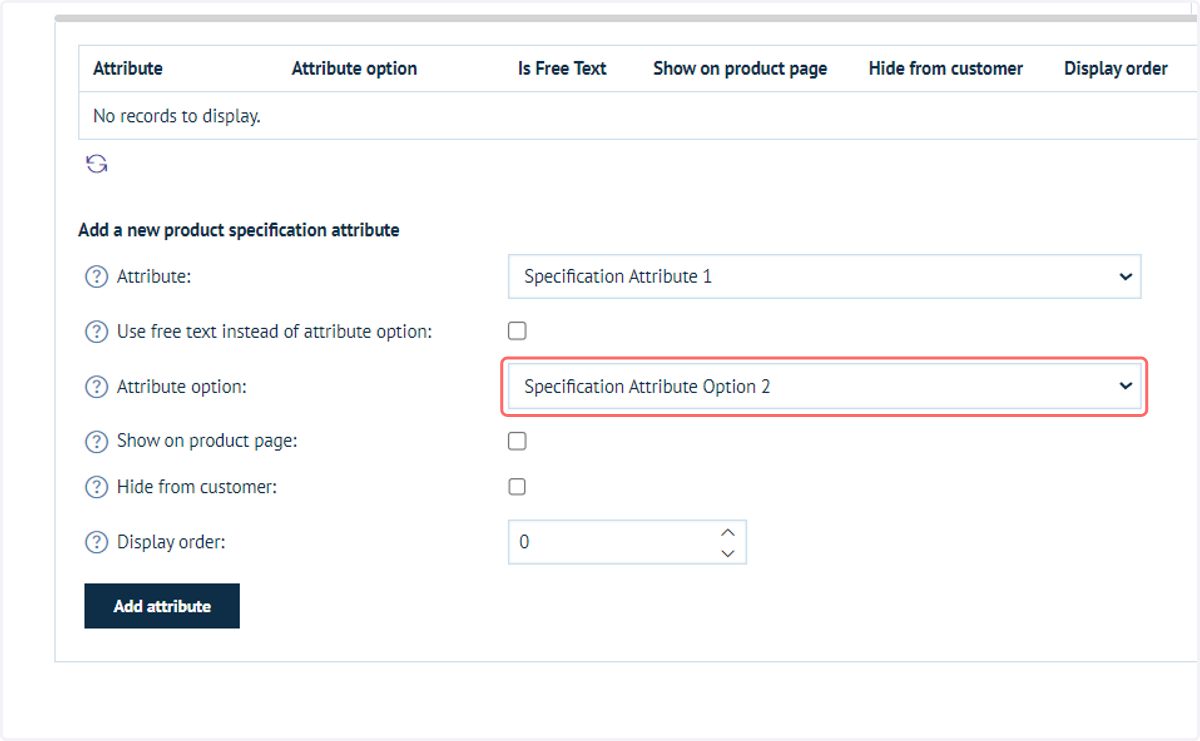
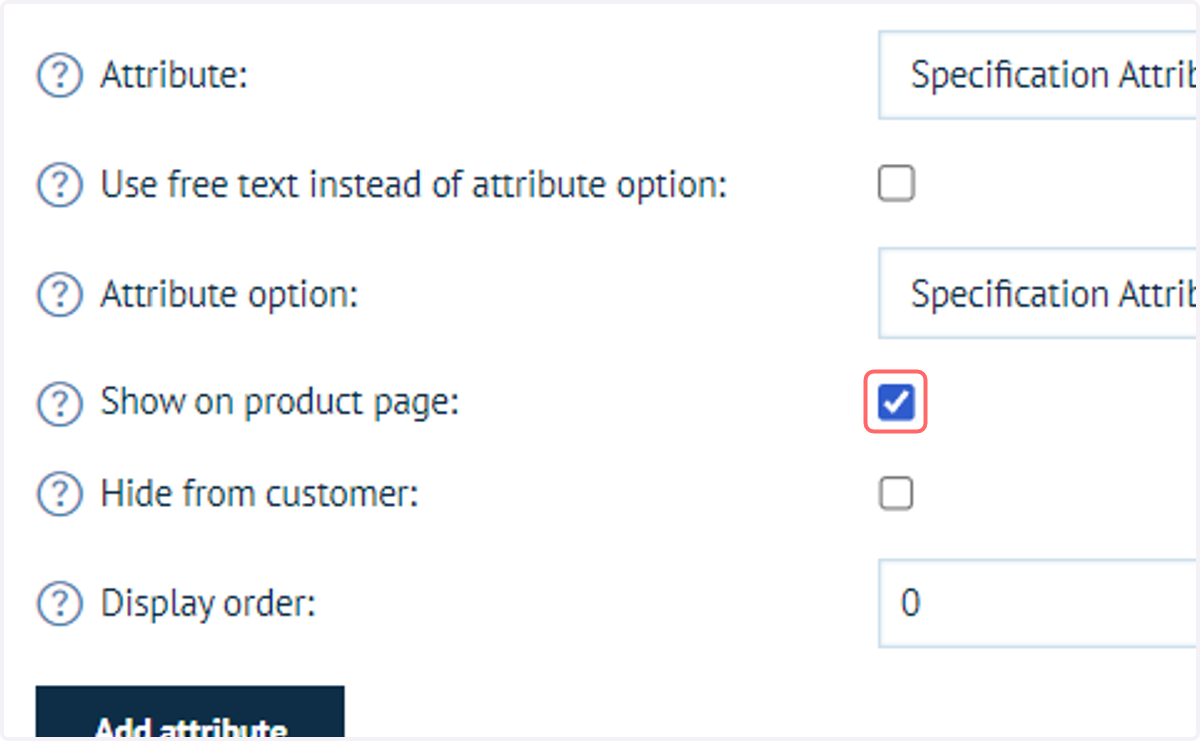
17. Choose whether this value is visible on the product landing page and whether it is completely hidden from the customer (i.e. administrator information only)
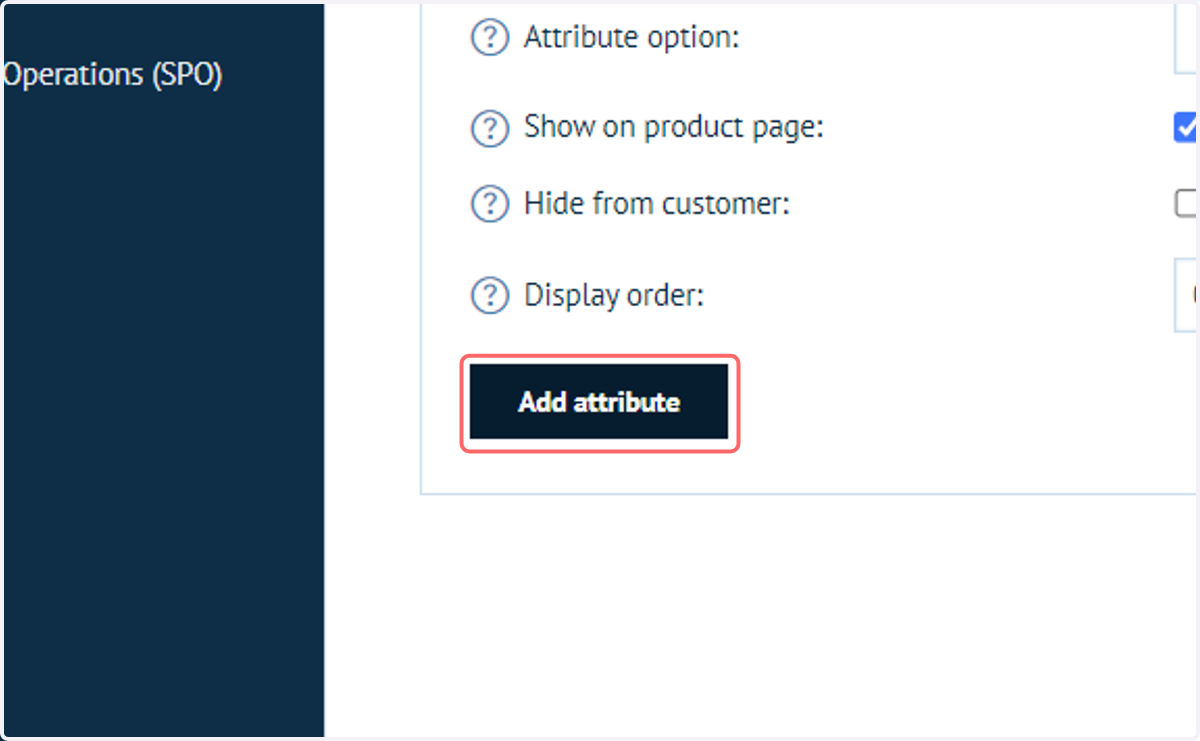
18. Click on Add attribute
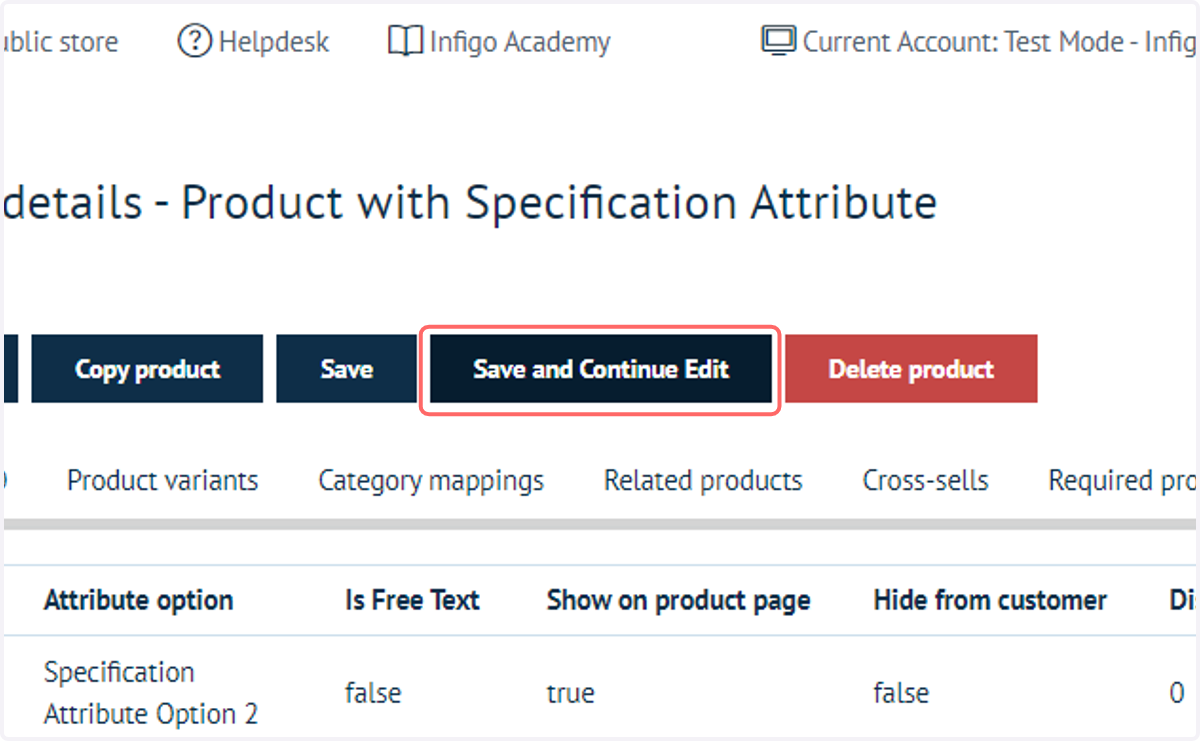
19. Click on Save and Continue Edit
Save the product to store the Specification Attributes
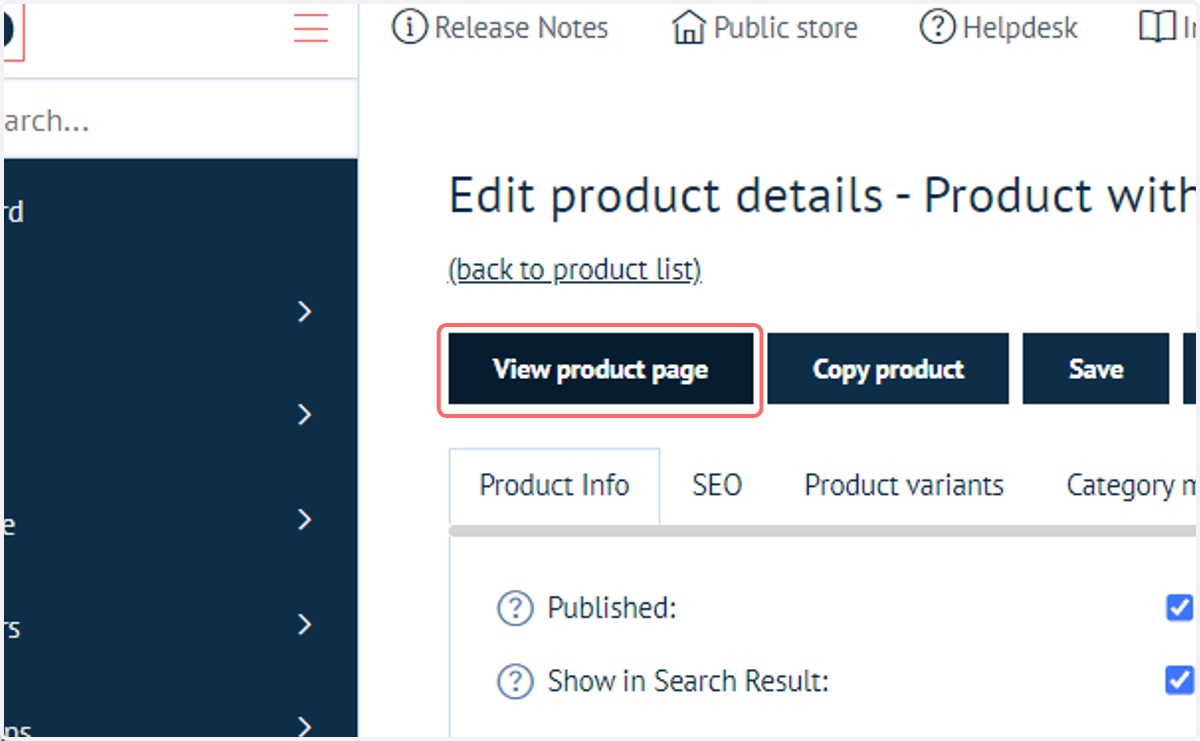
20. Click on View product page
Let's take a look at this product on the front end.
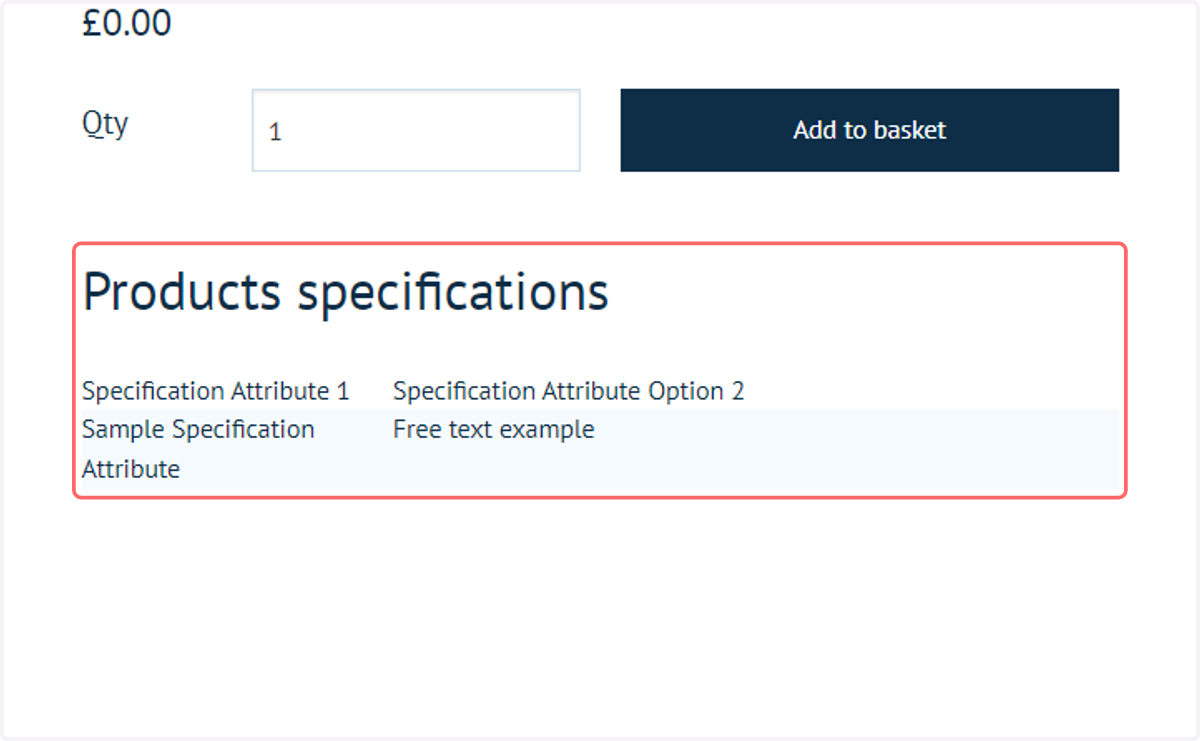
21. Click on Products specifications…
As I have chosen to show the Specification Attributes on the product page, we can see the details listed.