Using MegaEdit Batch Mode to Update Barcodes | ME_029
In this tutorial, we'll take a look at how to update barcodes using MegaEdit's batch capabilities.
This this focus on using batch mode for barcodes. Additional information on MegaEdit's batch mode and barcode capabilities can individually be found on the Infigo Academy:
https://training.infigosoftware.com/academy/p/322/batch-data-in-megaedit-idme_022
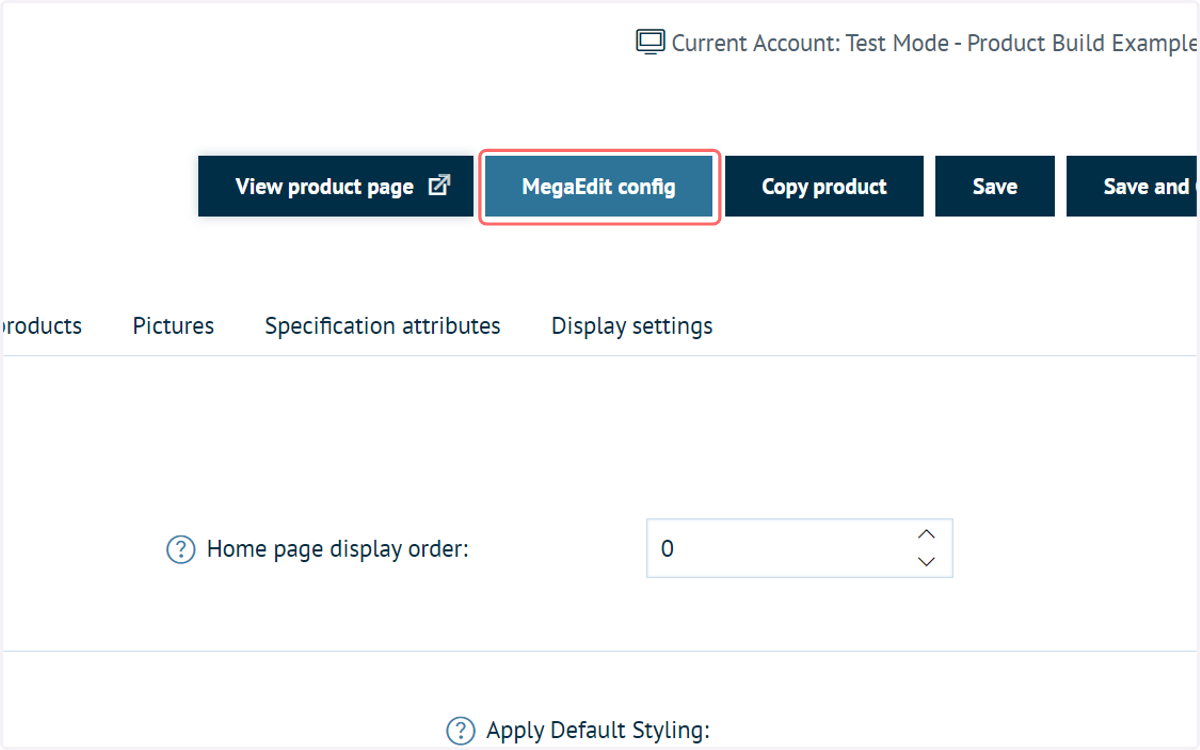
1. Click on MegaEdit config for your MegaEdit product
We will begin by enabling and configuring both the batch and barcode capabilities of MegaEdit
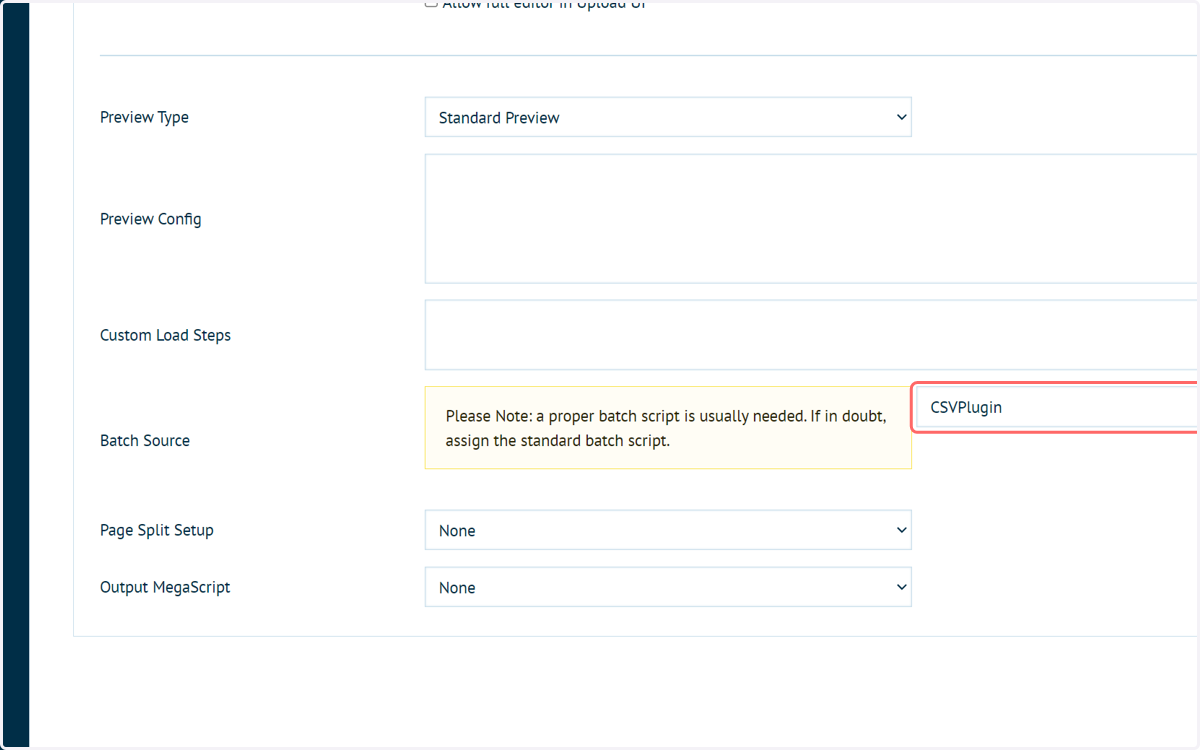
2. For Batch Source, select the CSV plugin
This will enable the batch upload capabilities in CSV format.
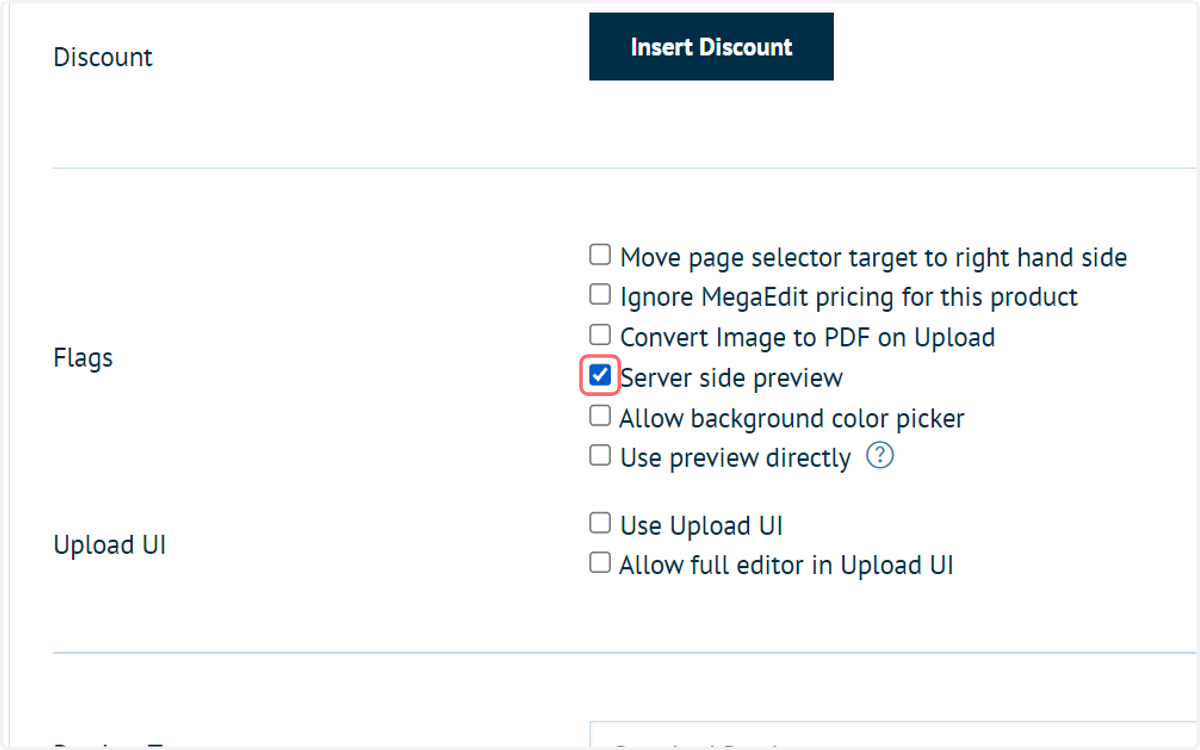
3. Check Server side preview
This is required in order to preview the populated barcode entries.
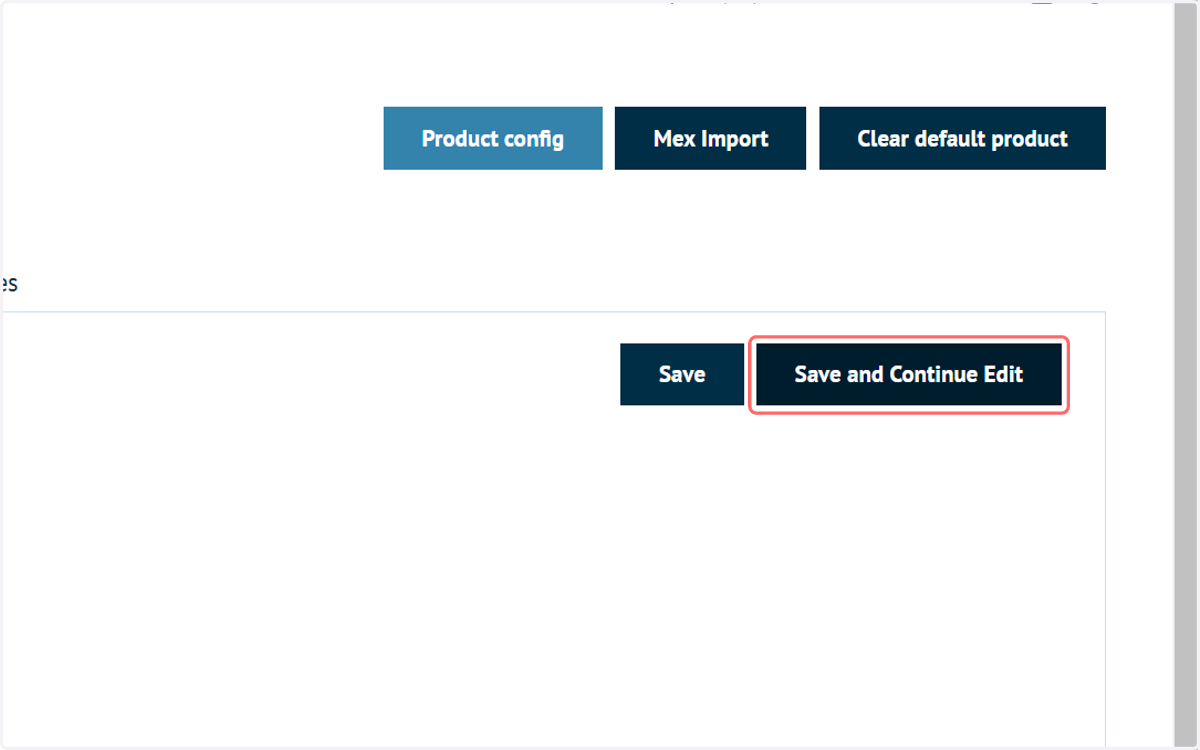
4. Click on Save and Continue Edit
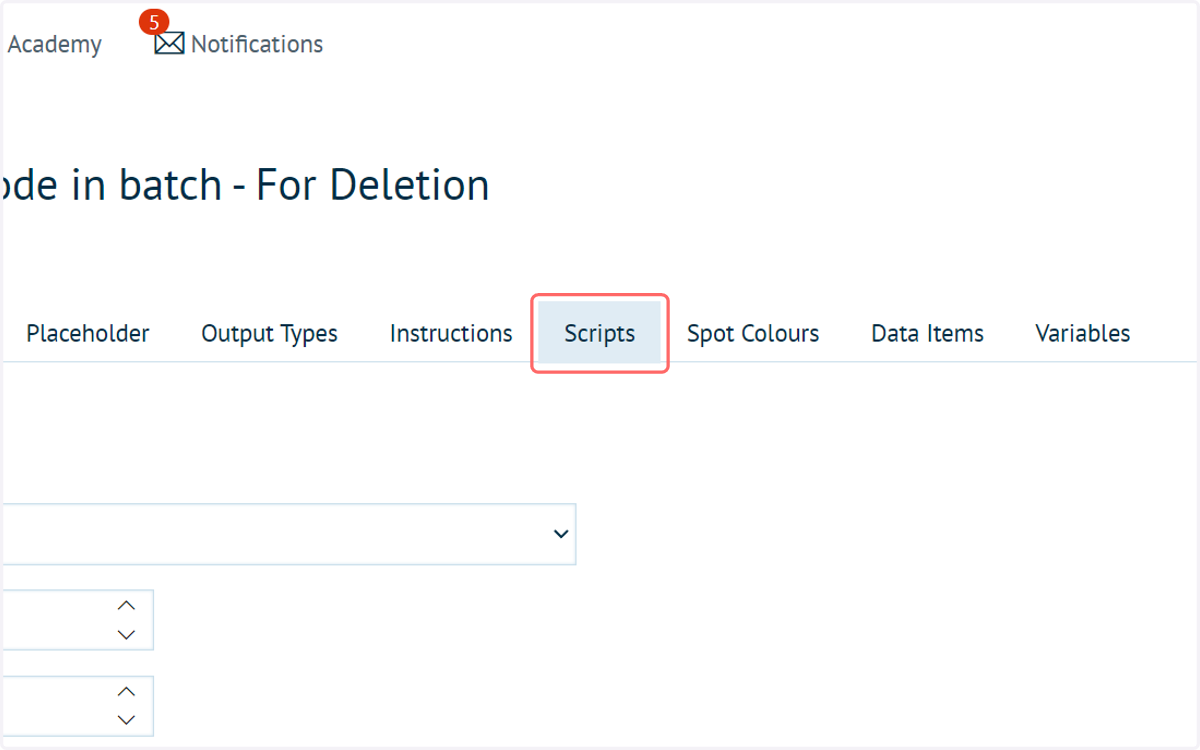
5. Click on Scripts
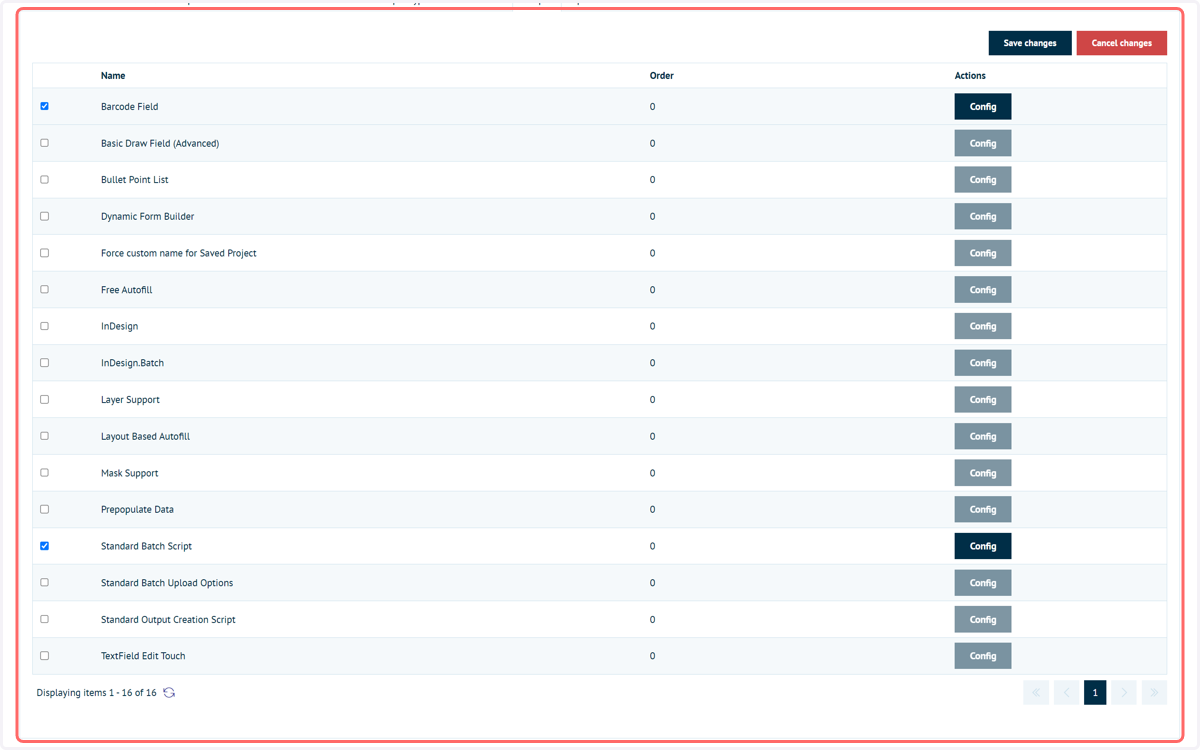
6. Enable the "Barcode Field" and "Standard Batch Script" scripts
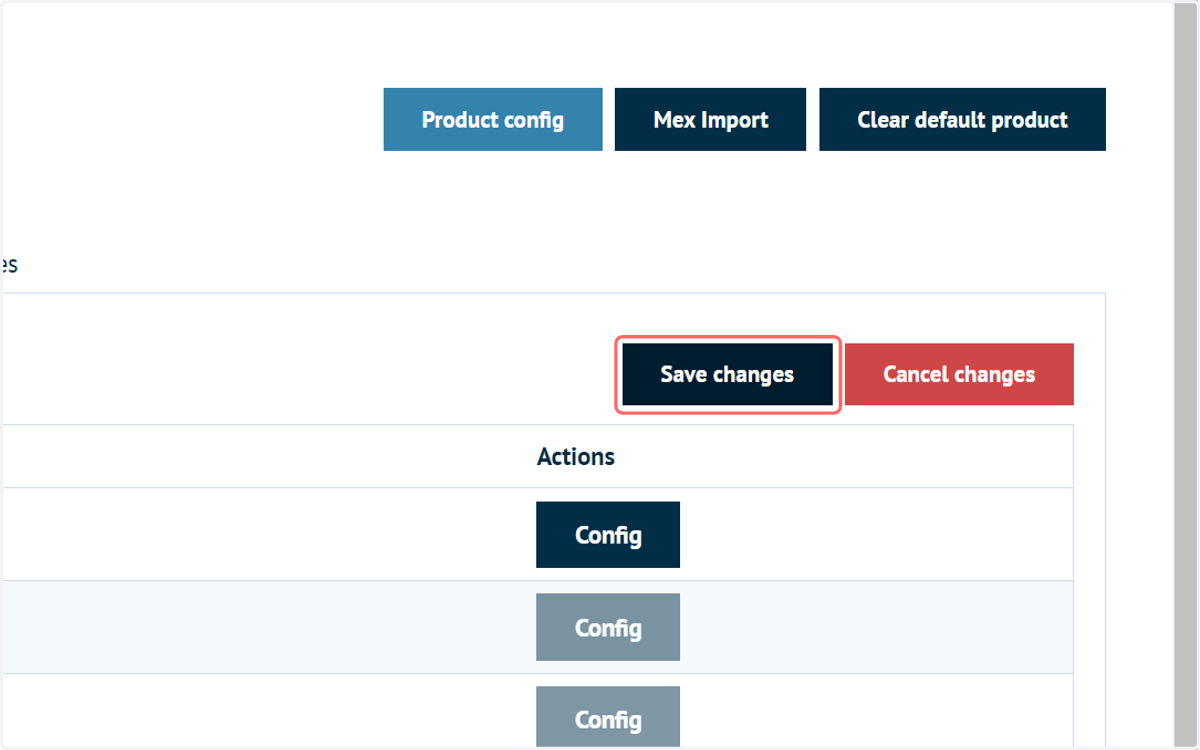
7. Click on Save changes and launch your MegaEdit product
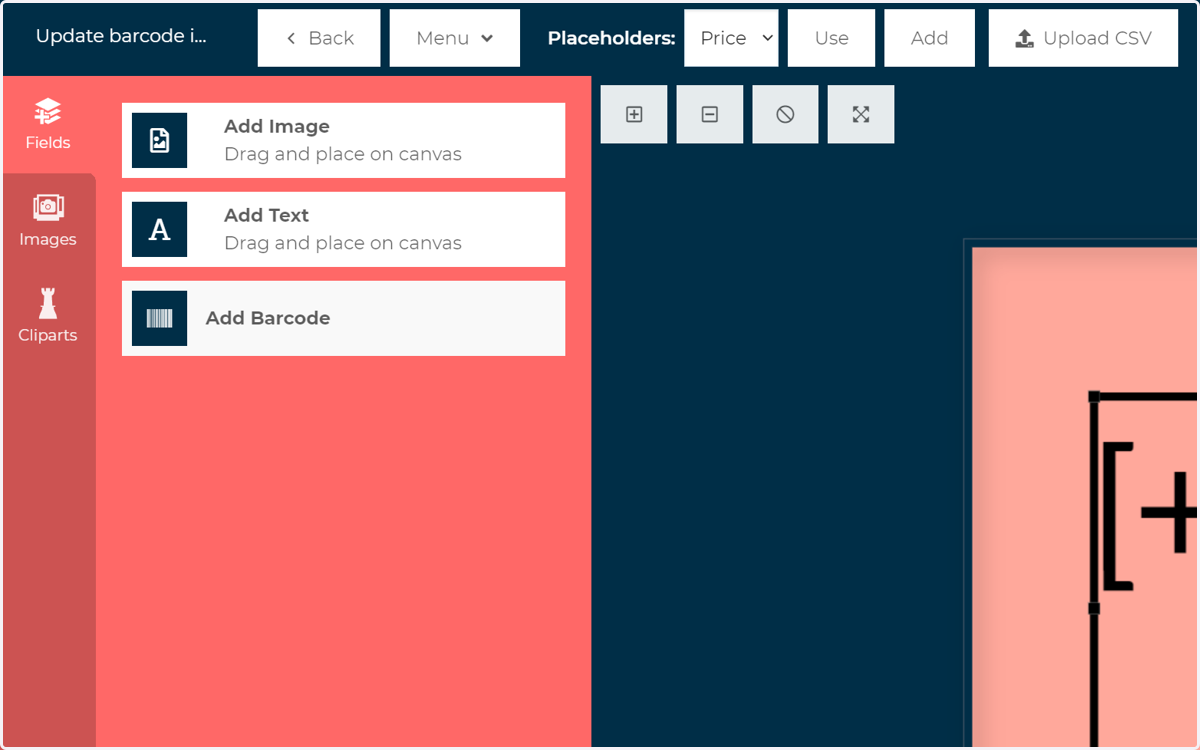
8. Click on Add Barcode
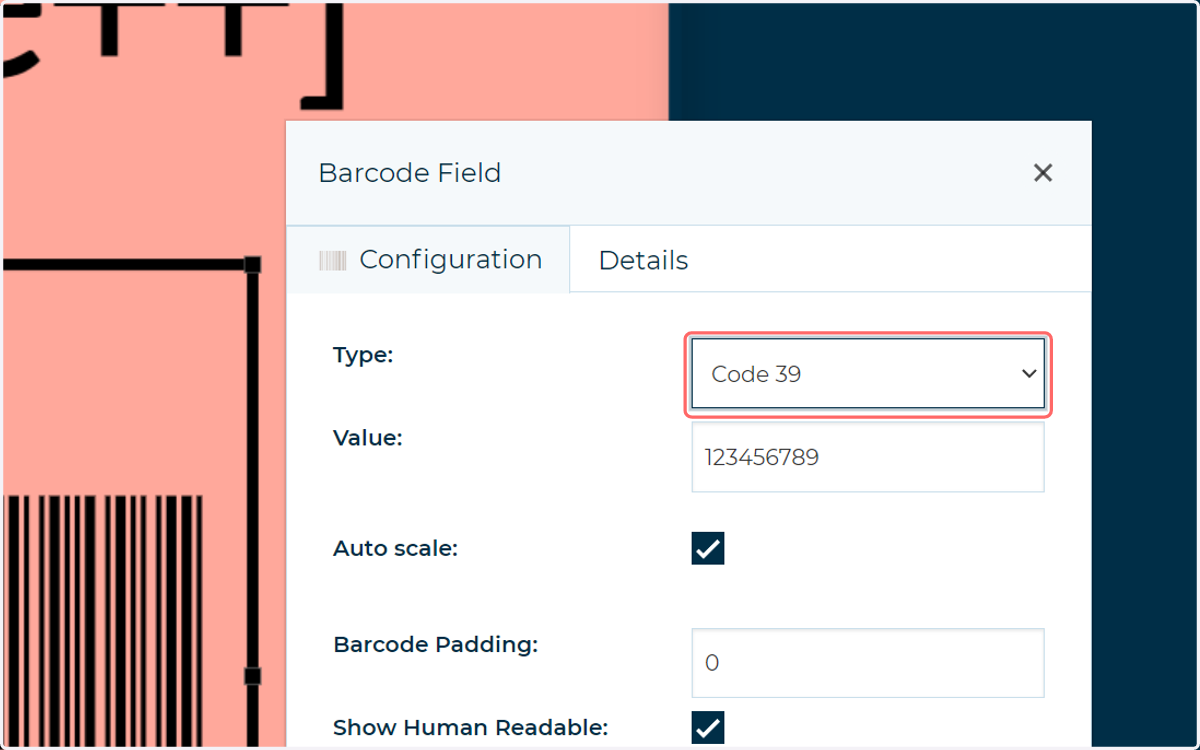
9. Select your required type of barcode
Remember, the type of barcode will need to be able to accept the characters you wish to be uploaded as part of the batch file. For example, some barcodes will not accept letters.
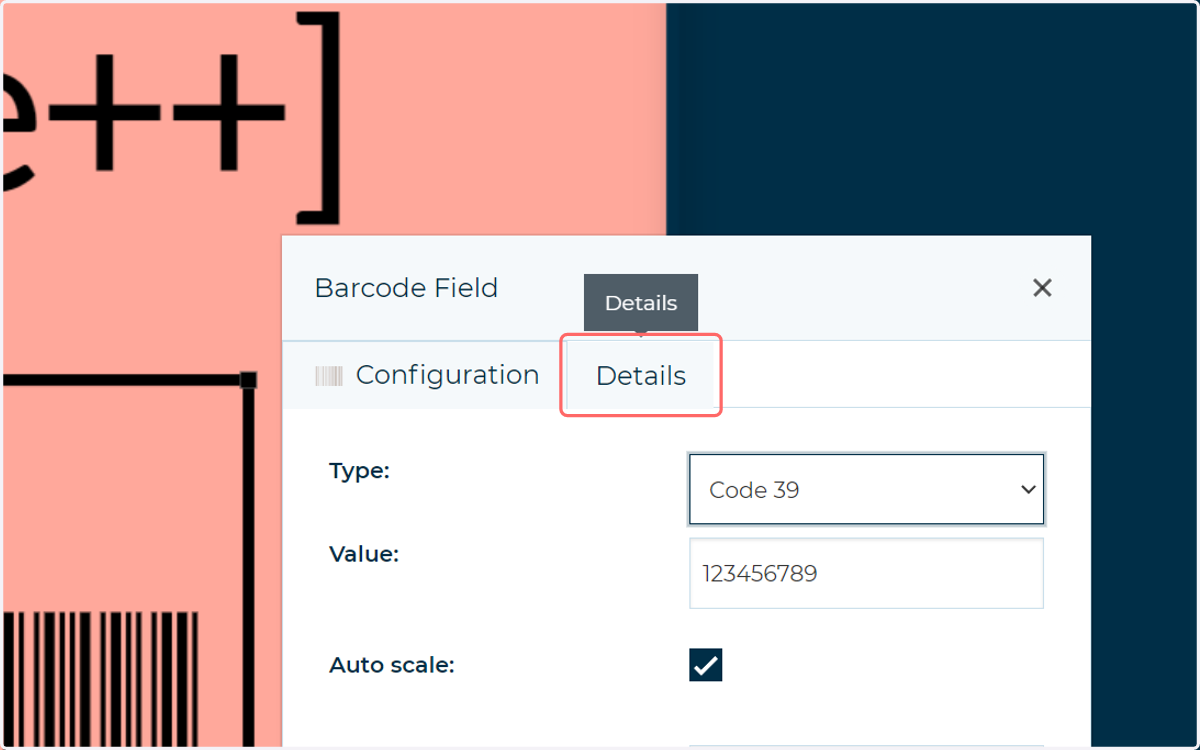
10. Click on Details
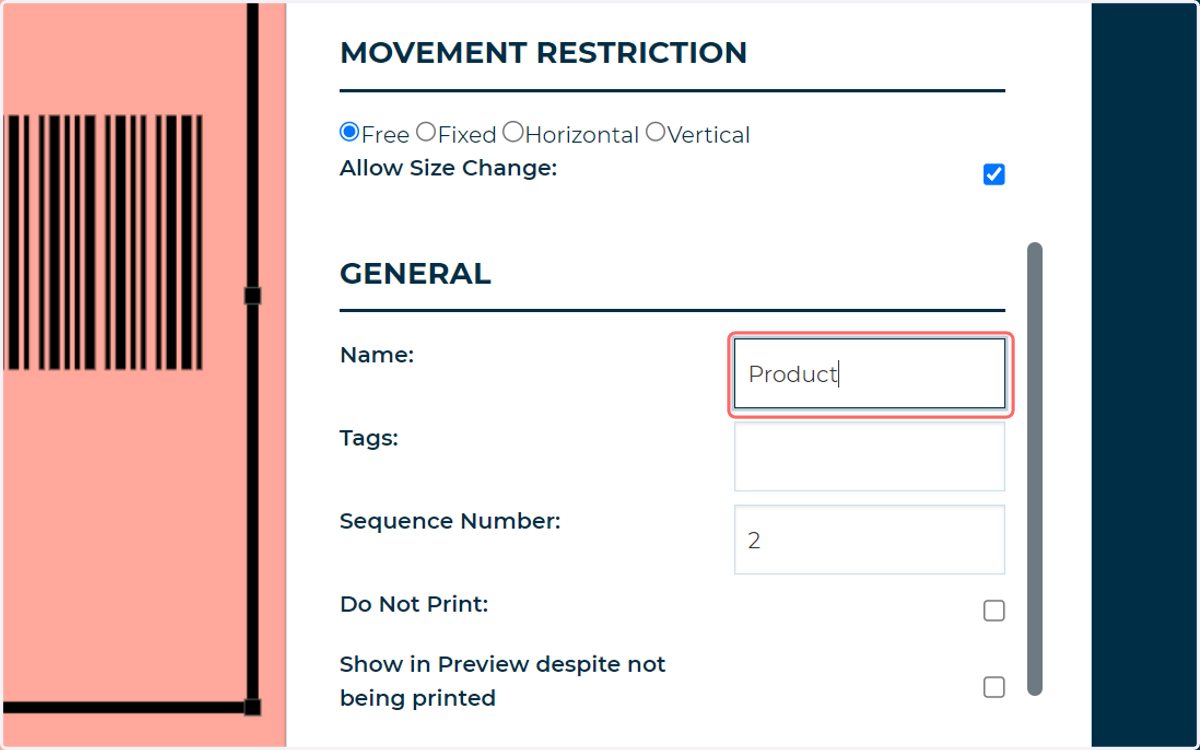
11. Enter a name for the barcode
This name is what will eventually be mapped to a column in your uploaded CSV data file.
Whilst not strictly necessary, making the name of the field and the CSV column identical will allow the system to auto-map the two, simplifying the process.
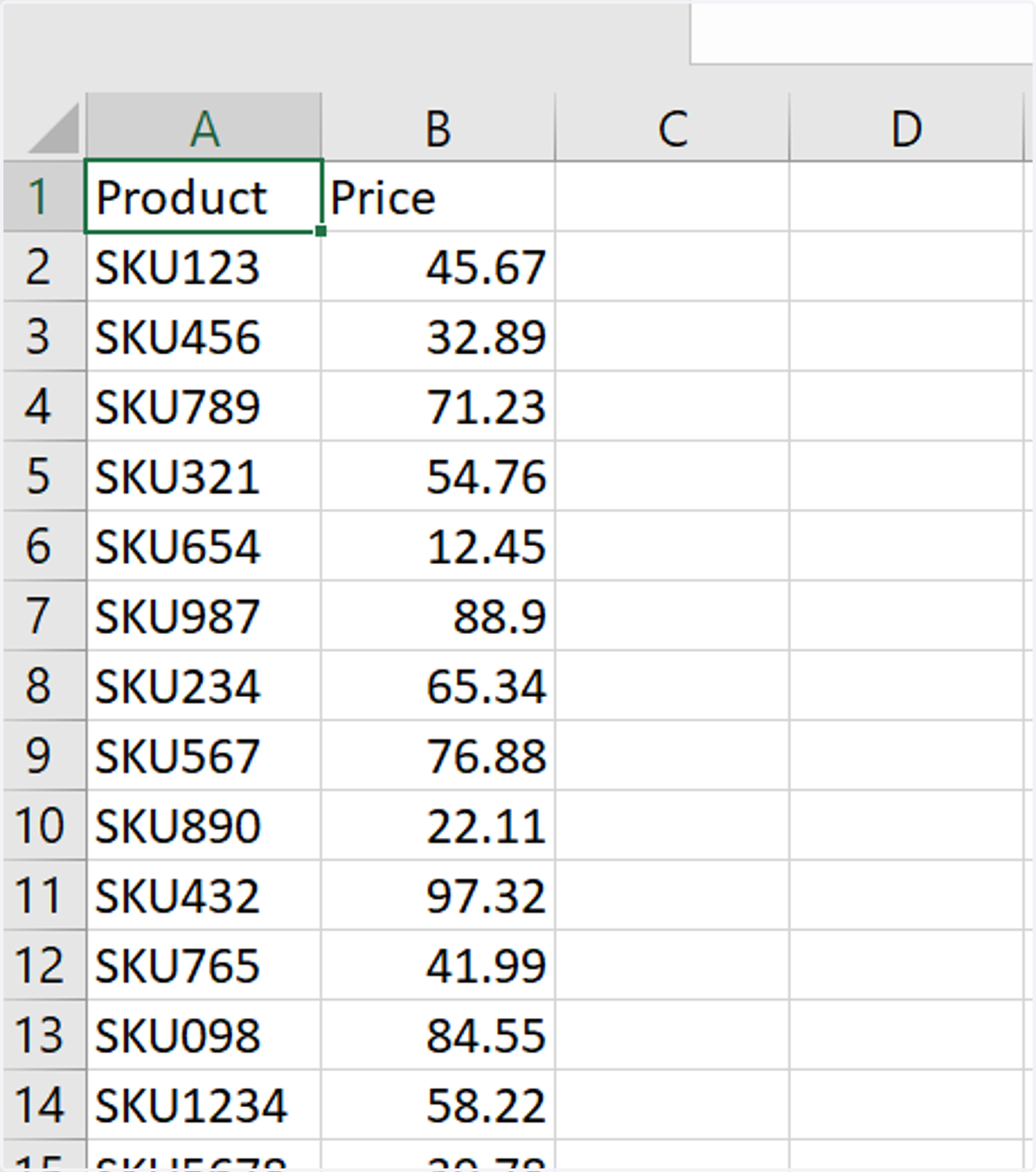
12. Sample CSV
In our sample CSV, we can see two data columns named Product and Price.
We wish to populate our barcodes with the contents of each Product row
13. Upload the CSV
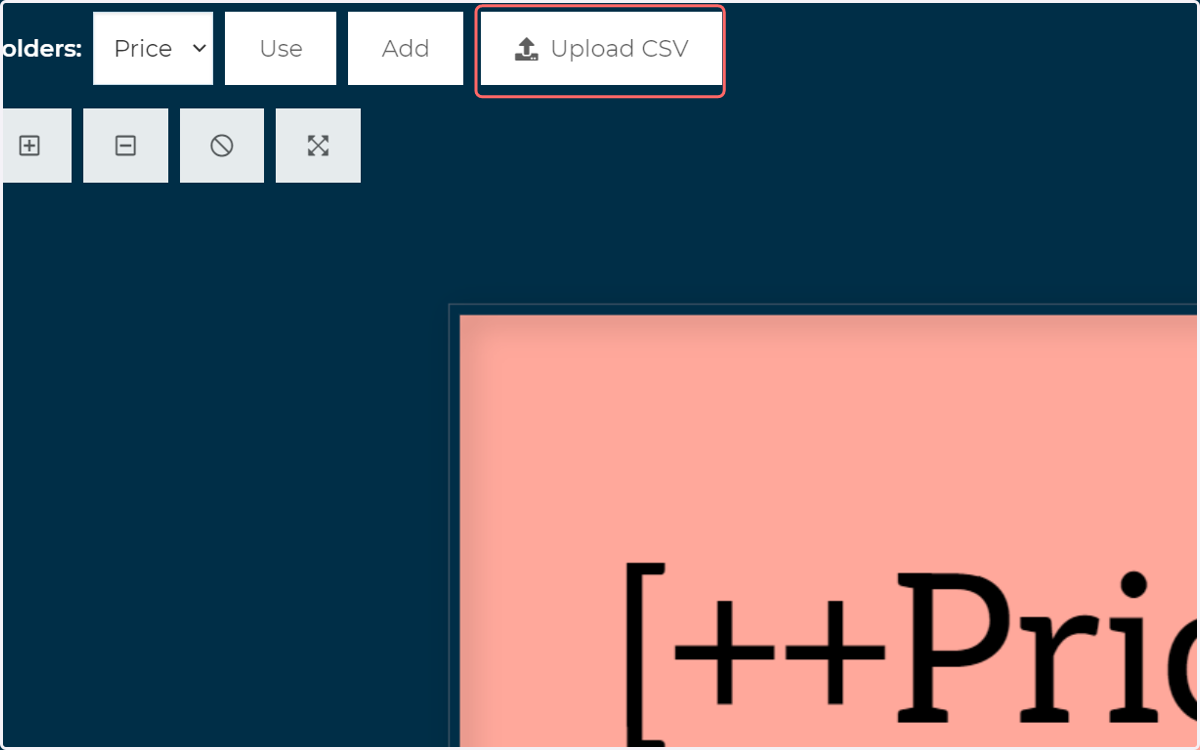
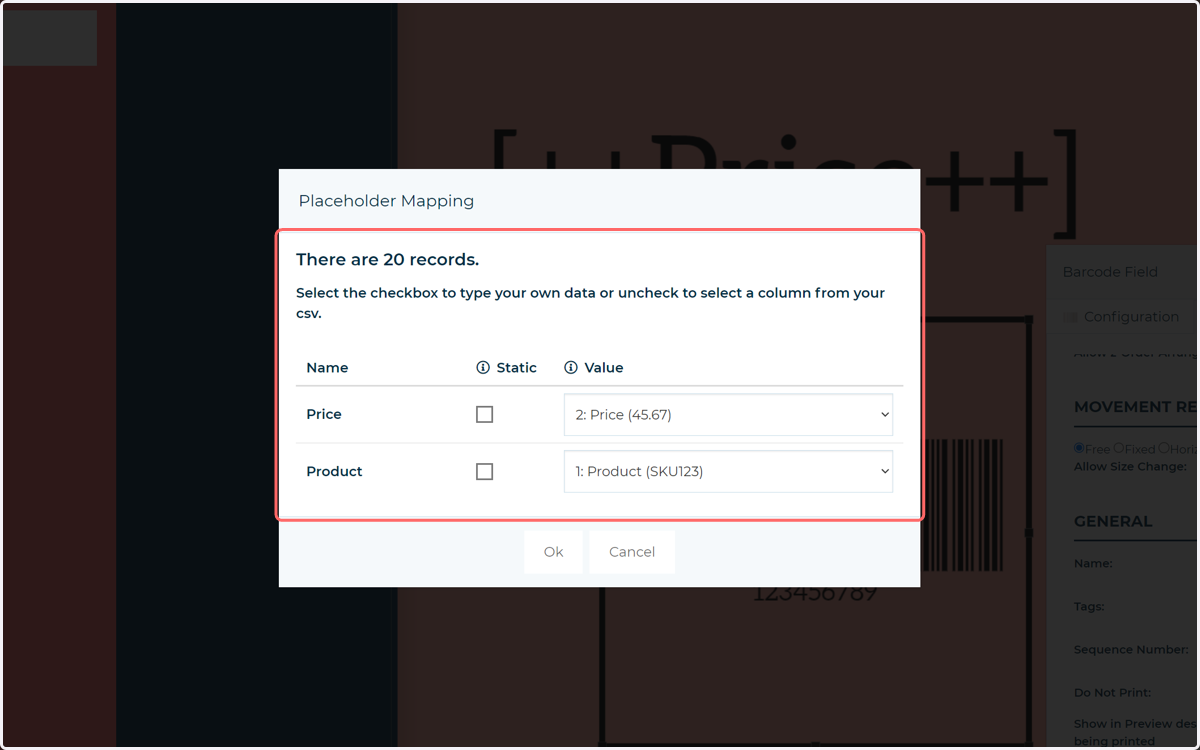
14. Mapping should occur automatically, with the user asked to confirm the configuration
In our example we can see a "Product" mapping. This is taken from the name of the barcode.
Should the mapping be incorrect, or the barcode and column names not be identical, you can manually map the data sets.
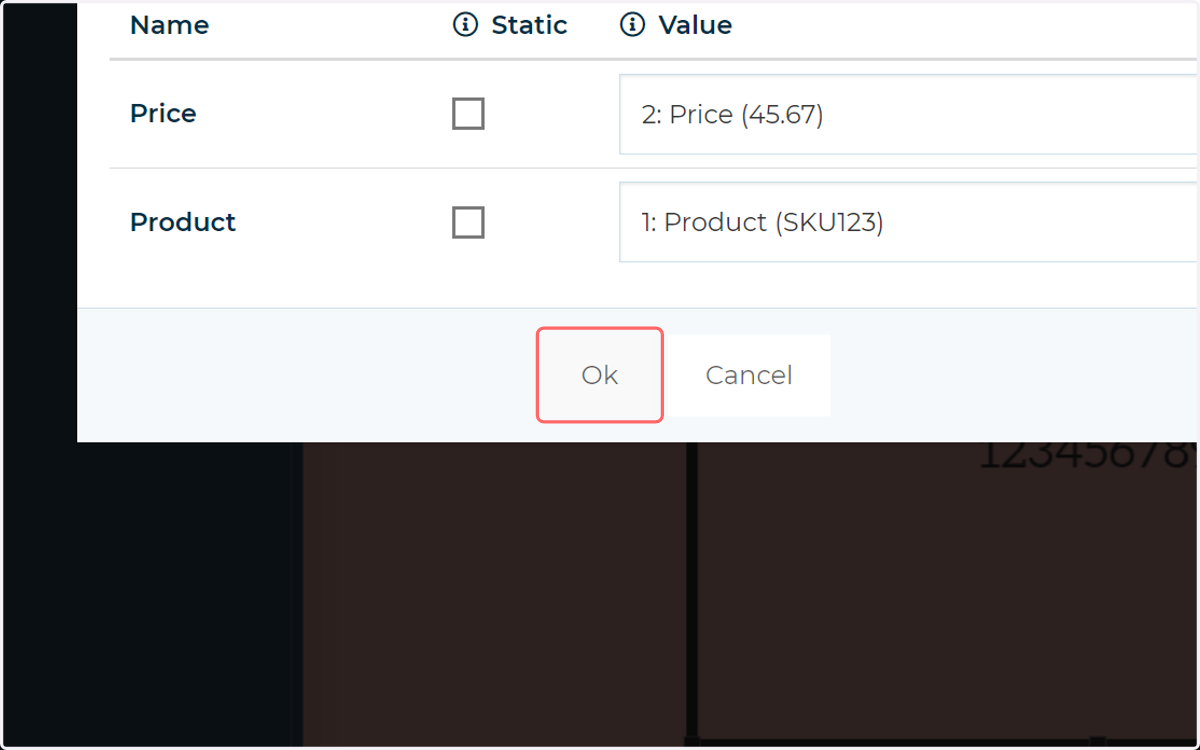
15. Click on Ok
16. Click on Preview
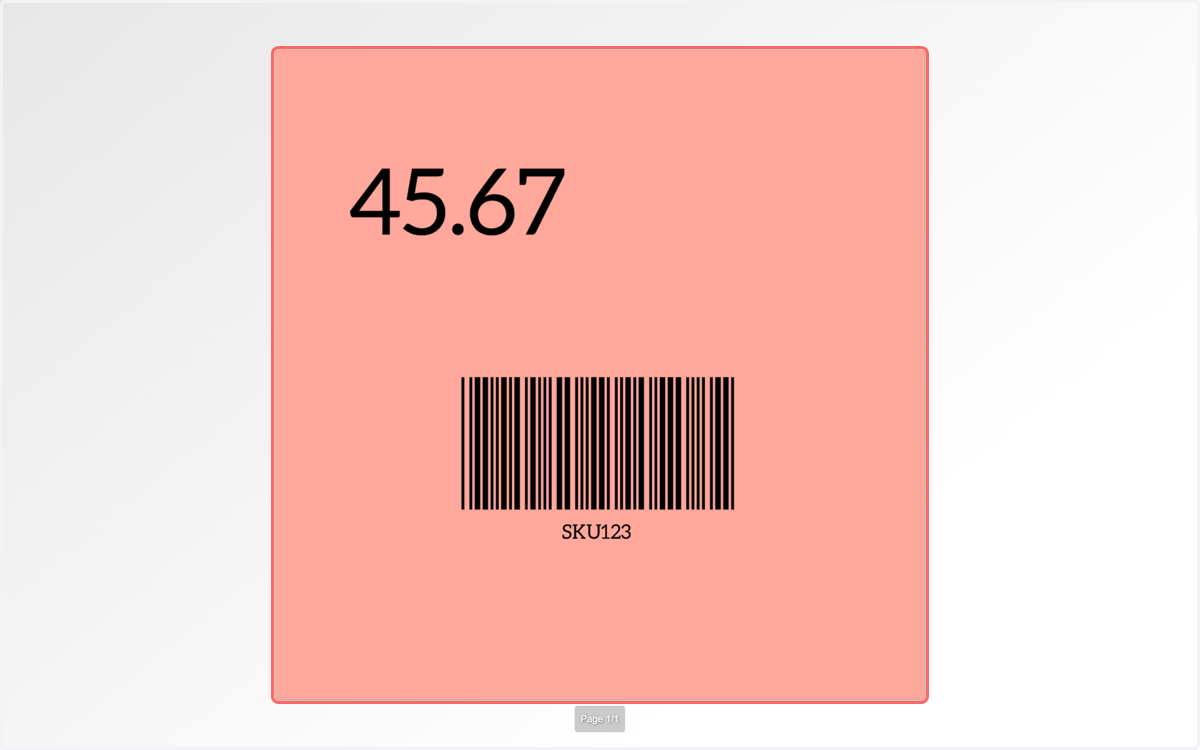
17. The populated barcodes can be seen