Selecting product stock as units or packs of product | BG_044
This tutorial looks at the ability to specify products for purchase as individual units or in packs.
We'll take a look at two side-by-side products, each using a different specification.
We begin in the Product Variant settings of the two products.
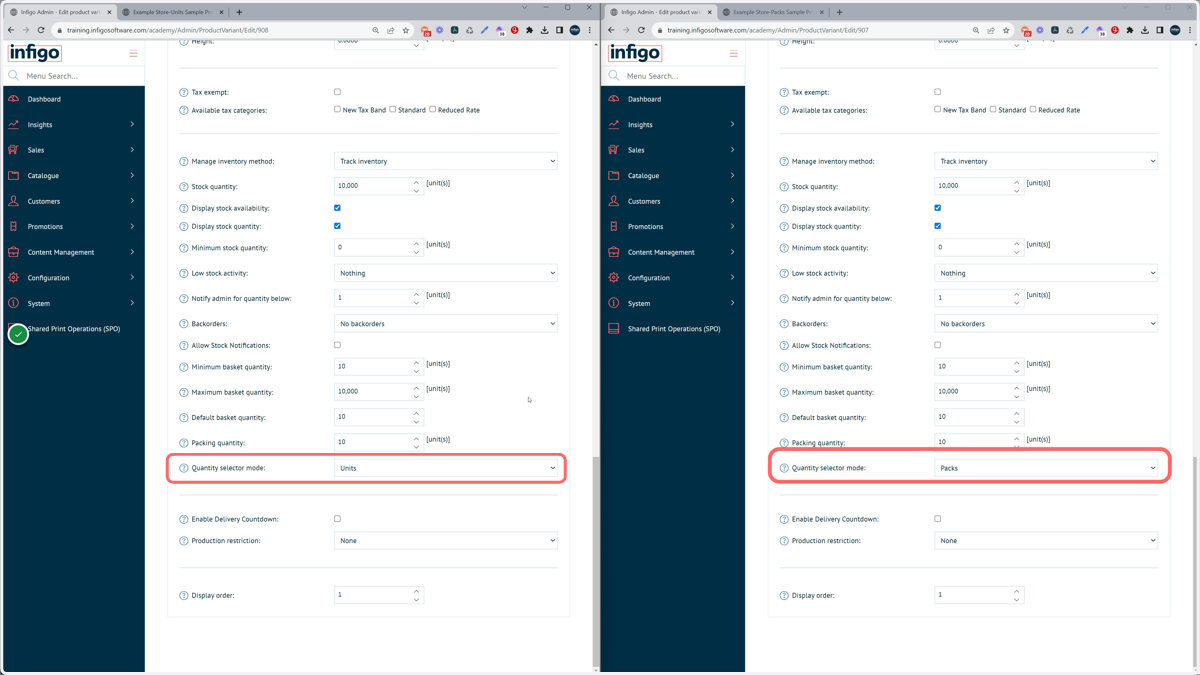
1. Navigate to the inventory section of the Product Variant screen
A setting exists named "Quantity Selector Mode". This option gives the ability to specify:
Units | Customers can specify a desired quantity as individual units.
Packs | Admins specify how many units are within a pack, then customers can specify how many packs they wish to purchase.
2. Additional settings to consider
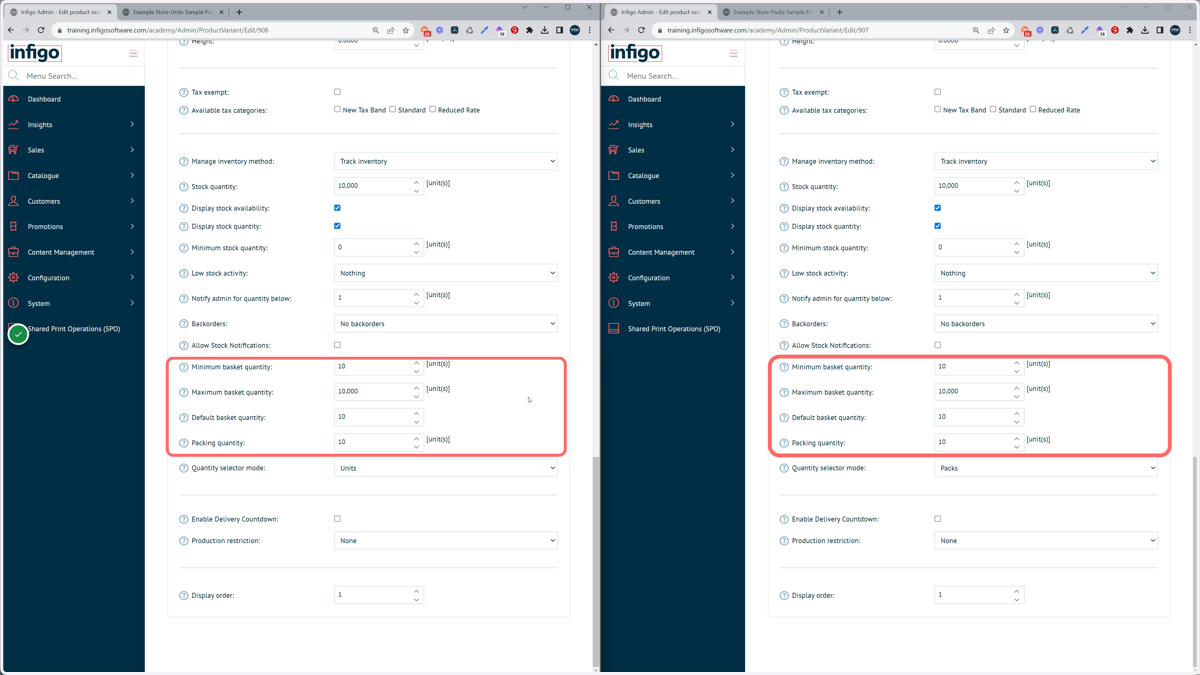
Even with unit selected, admins can still specify whether this product needs to be purchased in specific quantities.
The Packing Quantity field covers this functionality.
With Quantity Selector Mode set to Units, the Packing Quantity field validates that the quantity requested by the user must be in multiples of this number.
With Quantity Selector Mode set to Packs, the Packing Quantity field relates to the number of units within a single pack.
Be mindful of other associated settings such as the Default Basket Quantity, which must agree with the Packing Quantity specifications.
3. Appearance on the Product landing pages
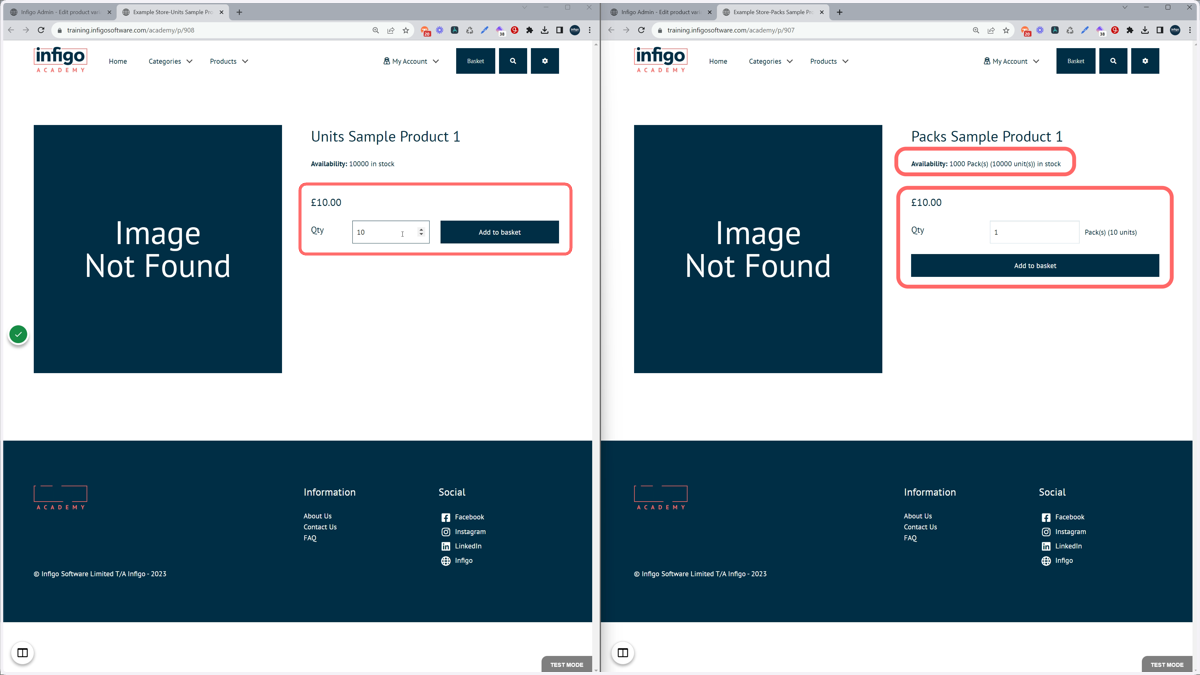
The product with "Units" selected is acting as a traditional Infigo product. Users can directly enter the quantity of units they wish to add to basket.
Based on the specific settings applied, warning messages may be seen if quantity does not apply.
The "Packs" product sees several differences in functionality. The quantity entered now directly relates to the number of purchased packs, with additional information provided on how many units this covers.
In addition, the availability has been updated to display pack related information.
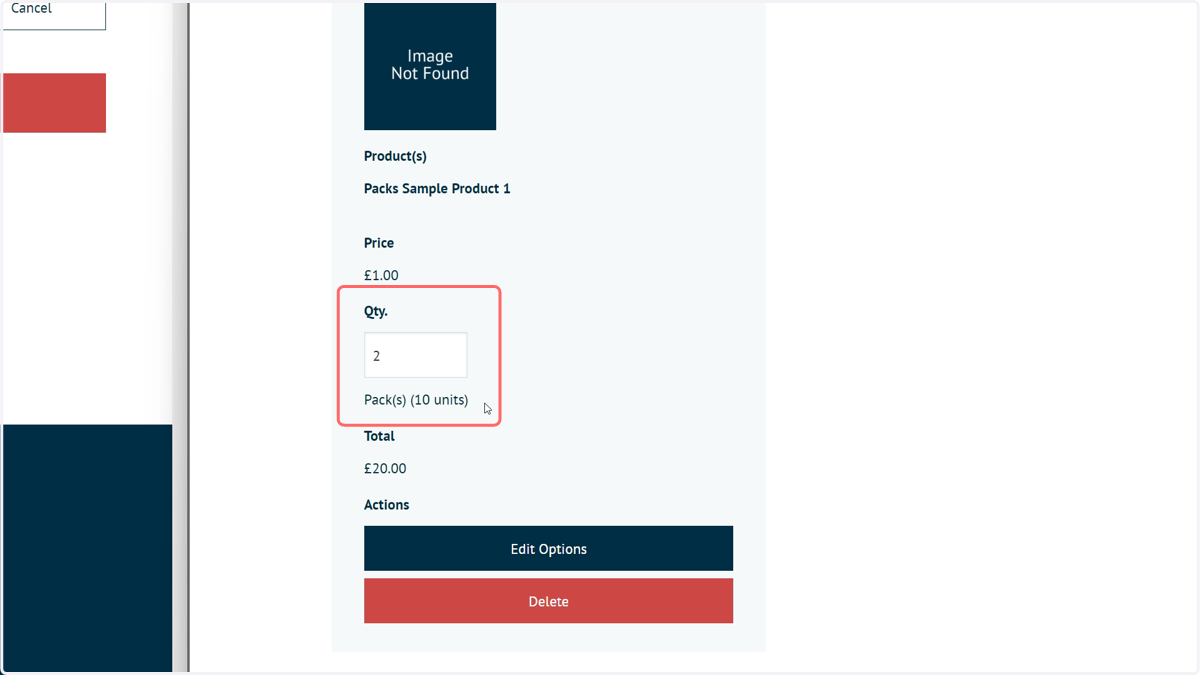
4. The basket will also display pack related information