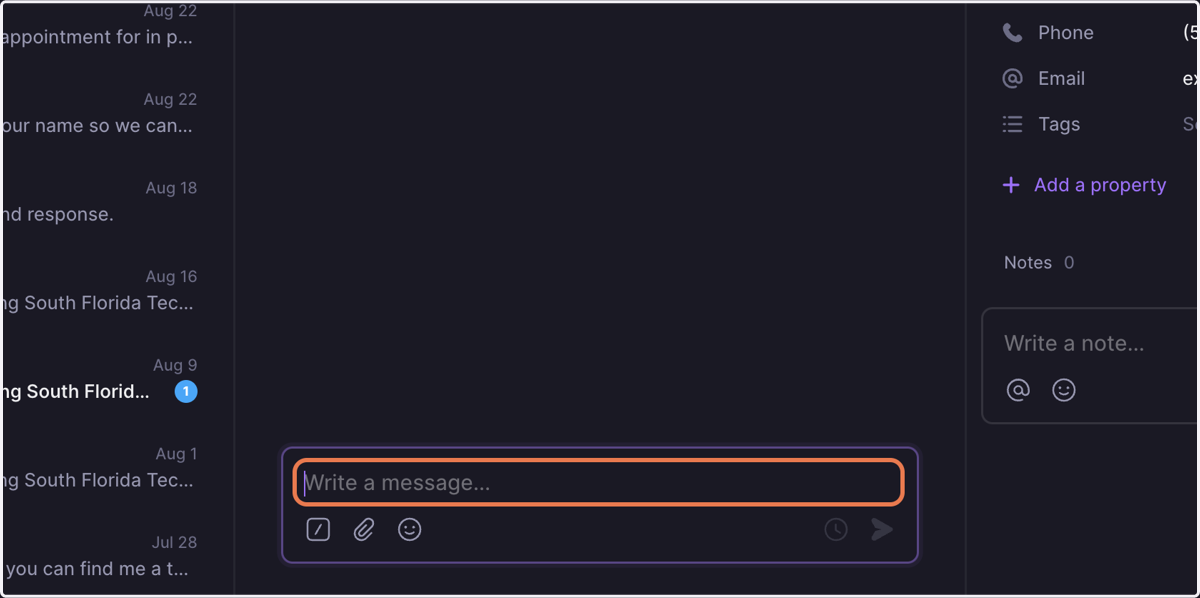
How to Use OpenPhone on the Web
Place phone calls and send text messages from our shared company number
Openphone
1. Go to Log in | OpenPhone
2. Type "phone1@sftfs.org"
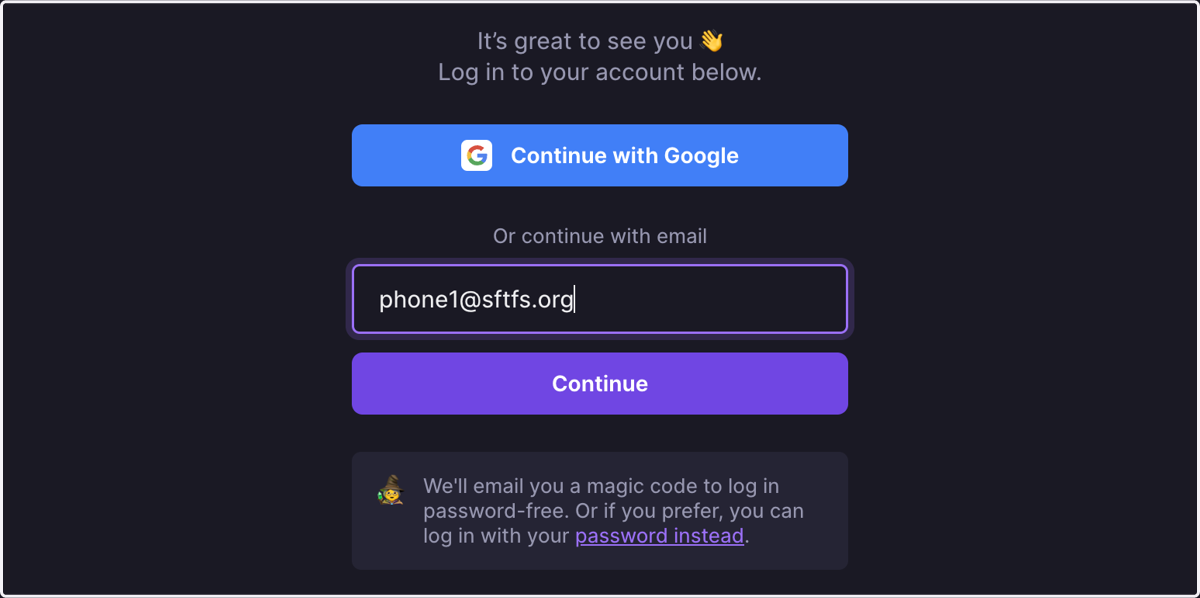
3. Click on Continue
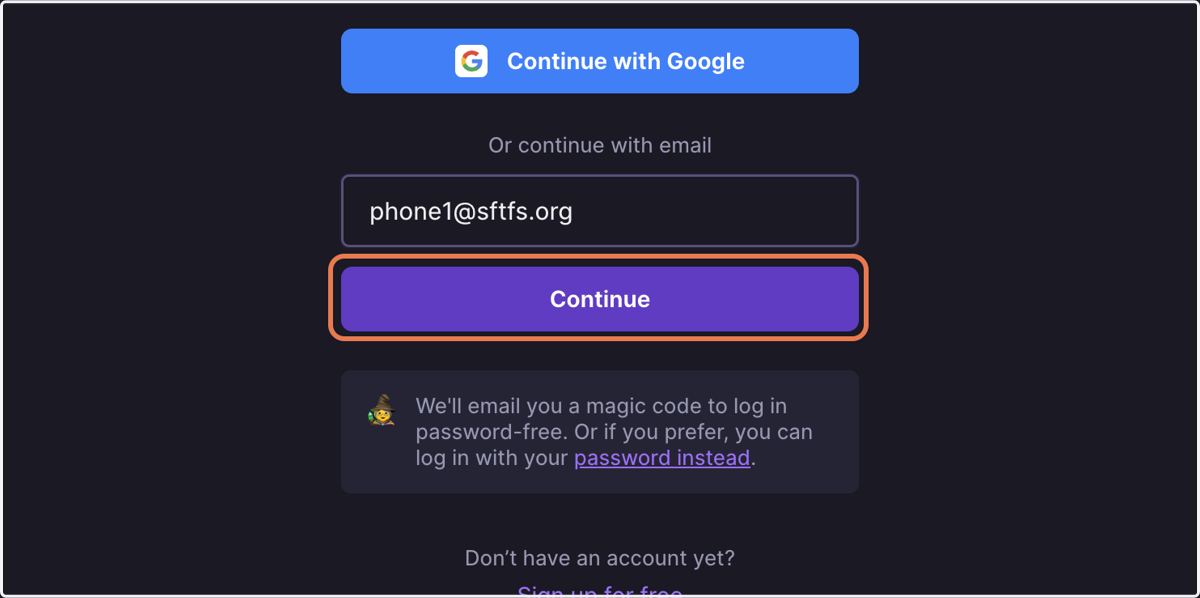
4. Go to Gmail
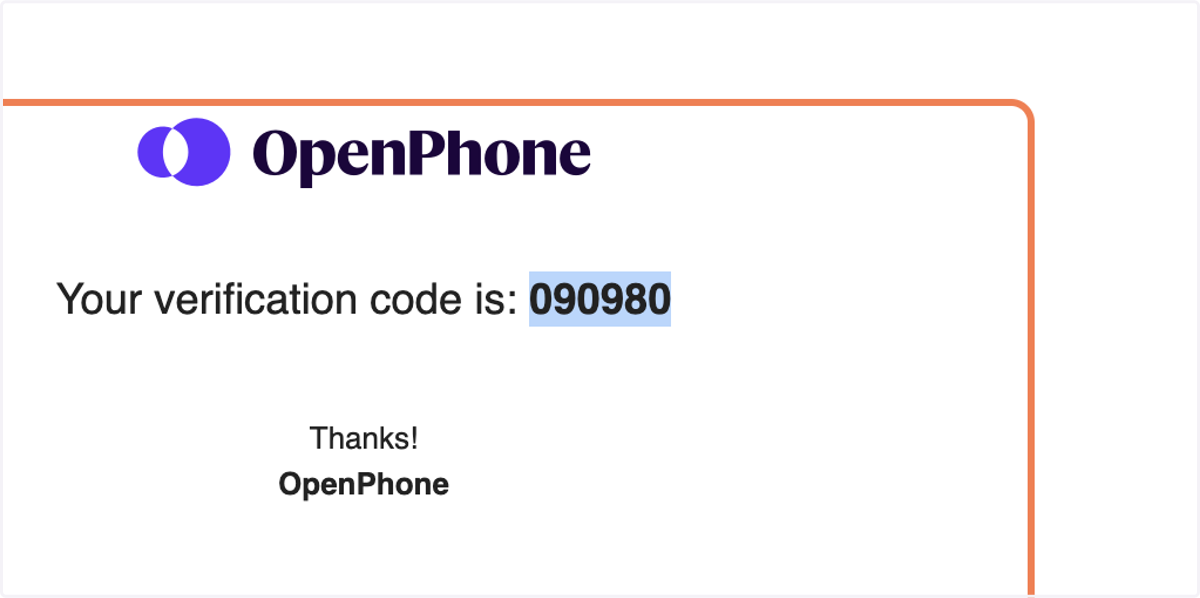
5. Click on Your OpenPhone Code
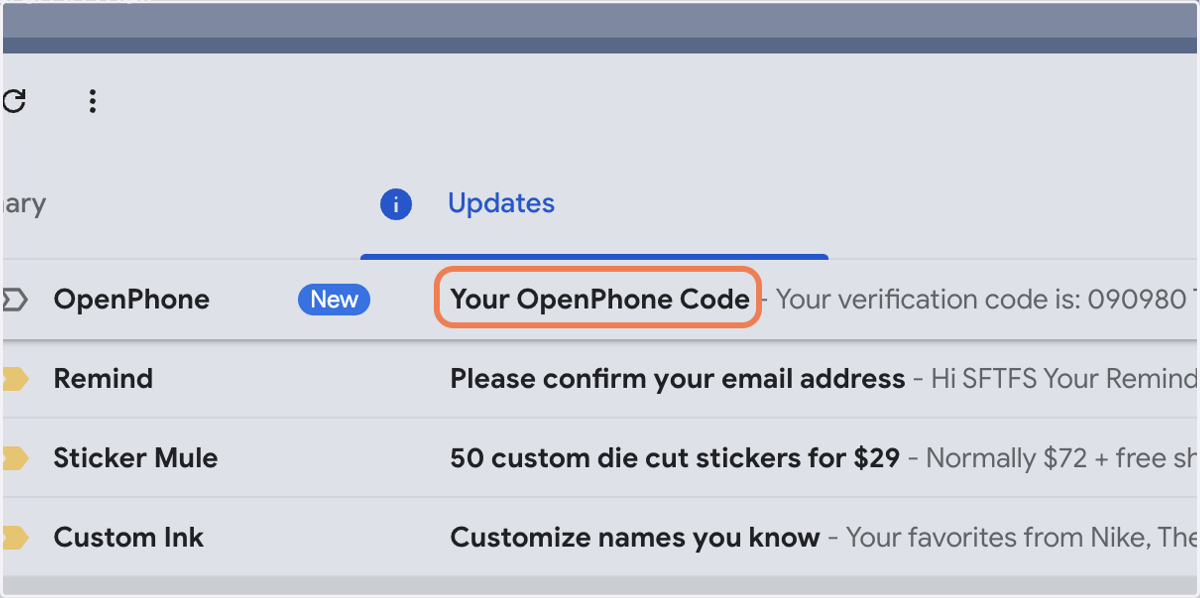
6. Copy the one-time verification code
Openphone
7. Go back to OpenPhone
8. Paste the code into the box
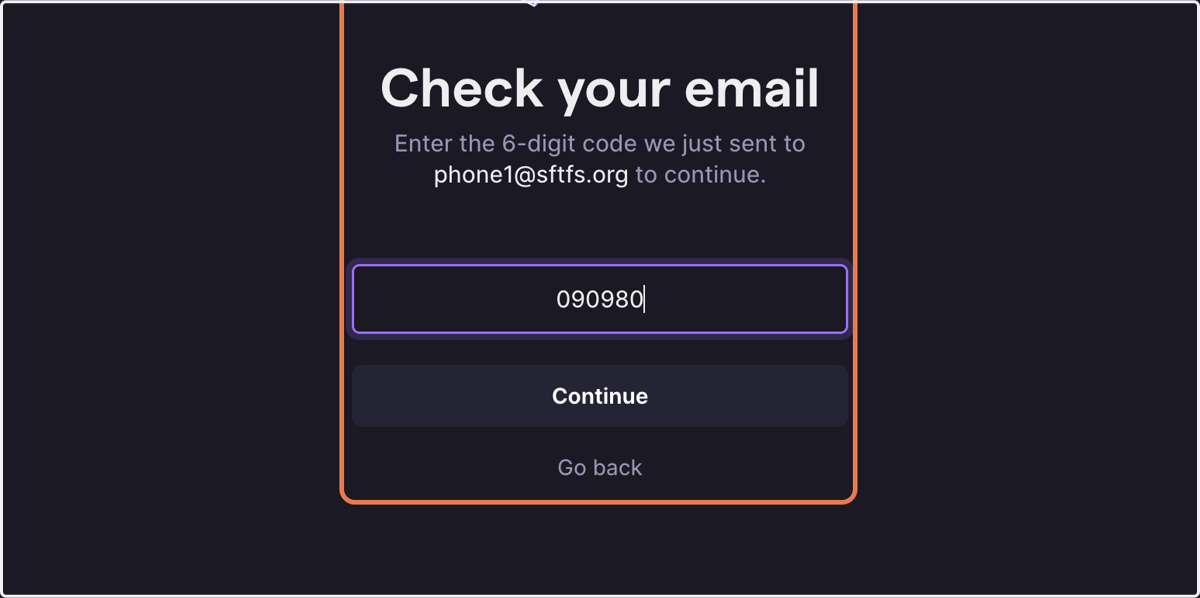
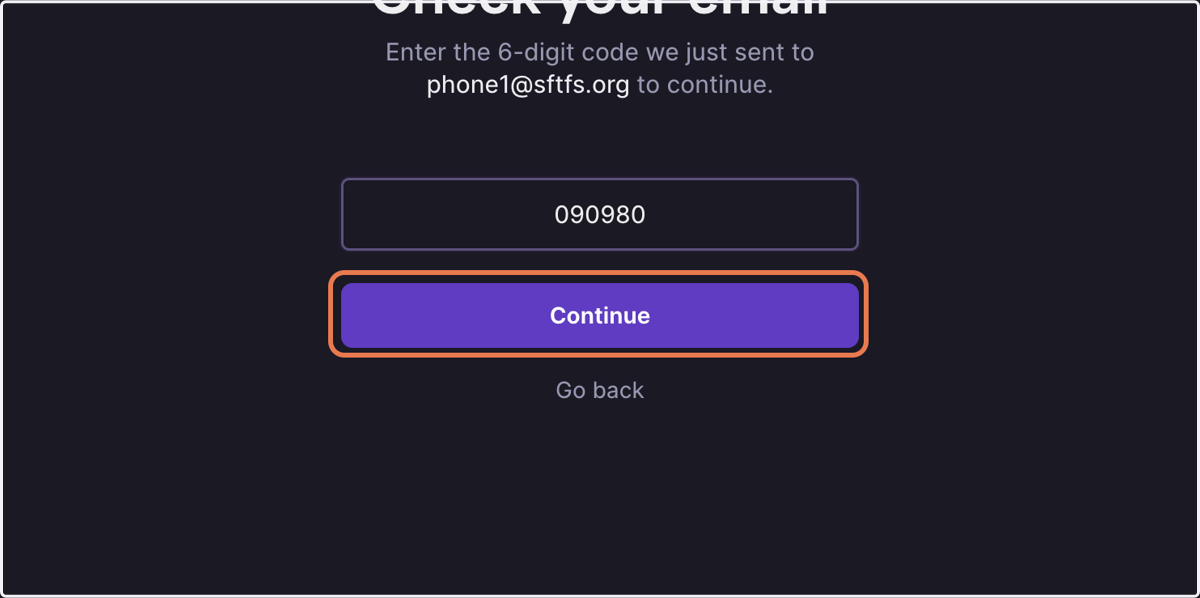
9. Click on Continue
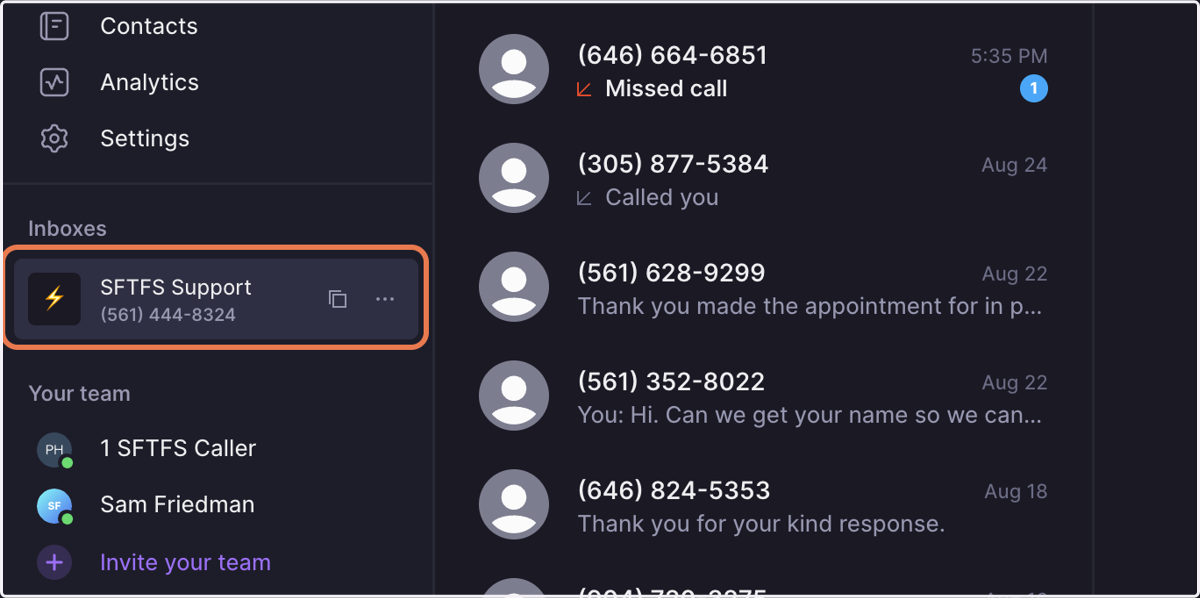
10. Ensure "SFTFS Support" is selected in the left-hand sidebar
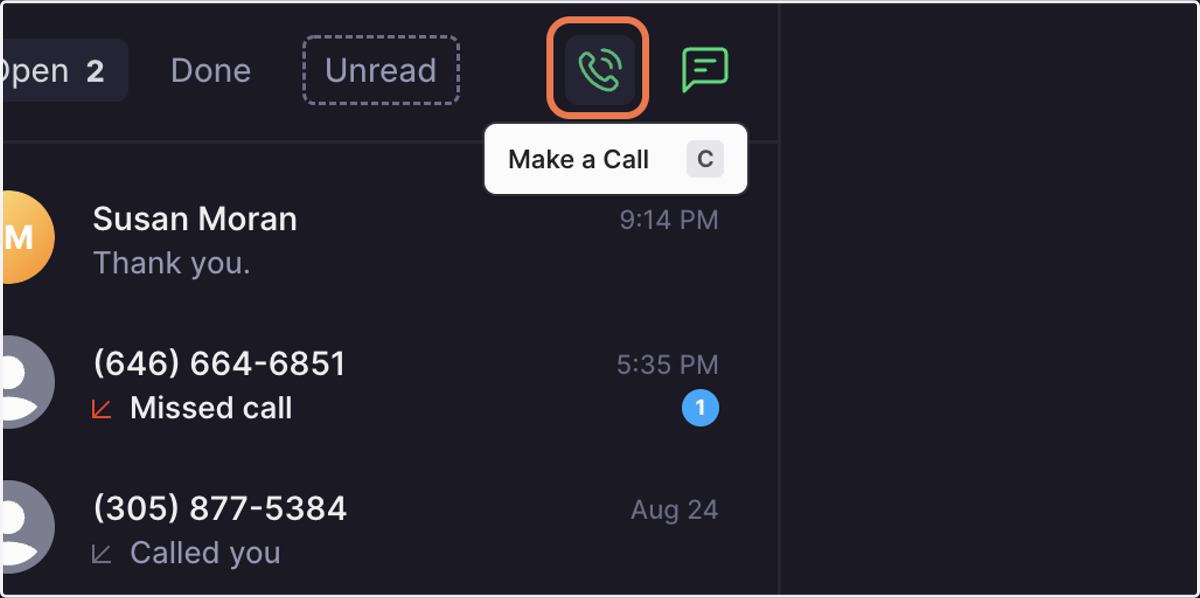
11. To place a call to a new number, click the green phone icon
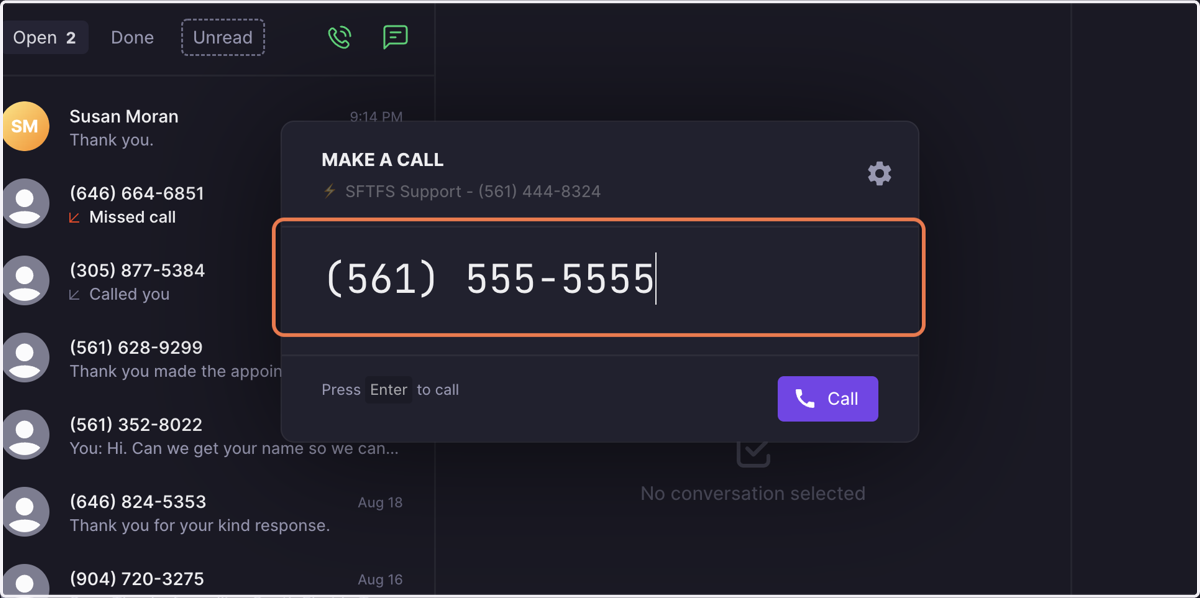
12. Type the phone number
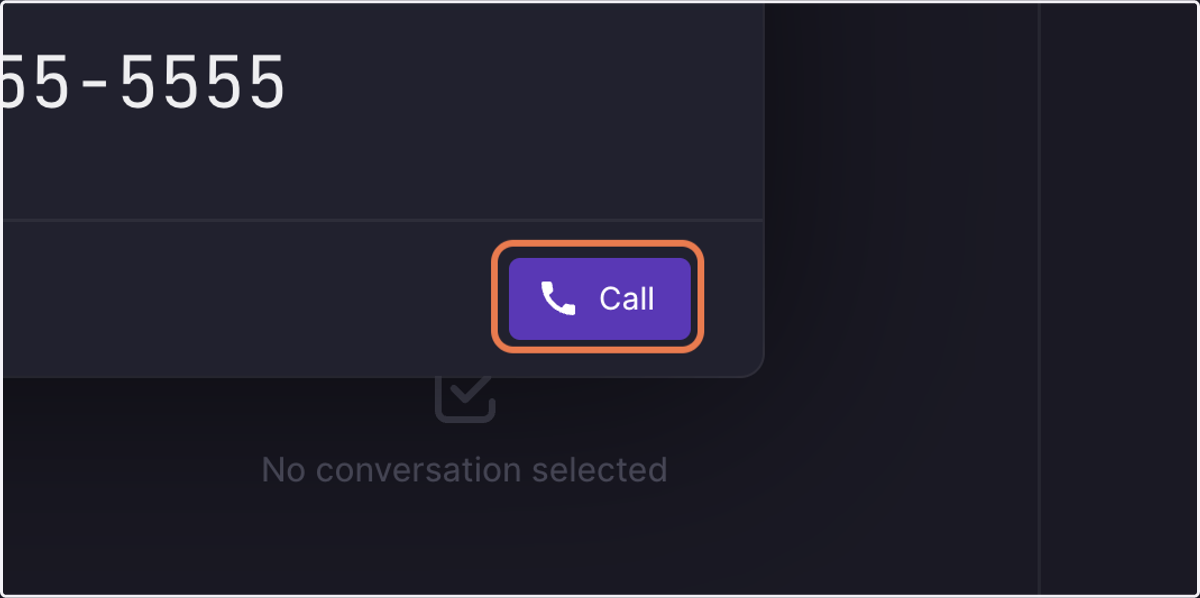
13. Click on Call
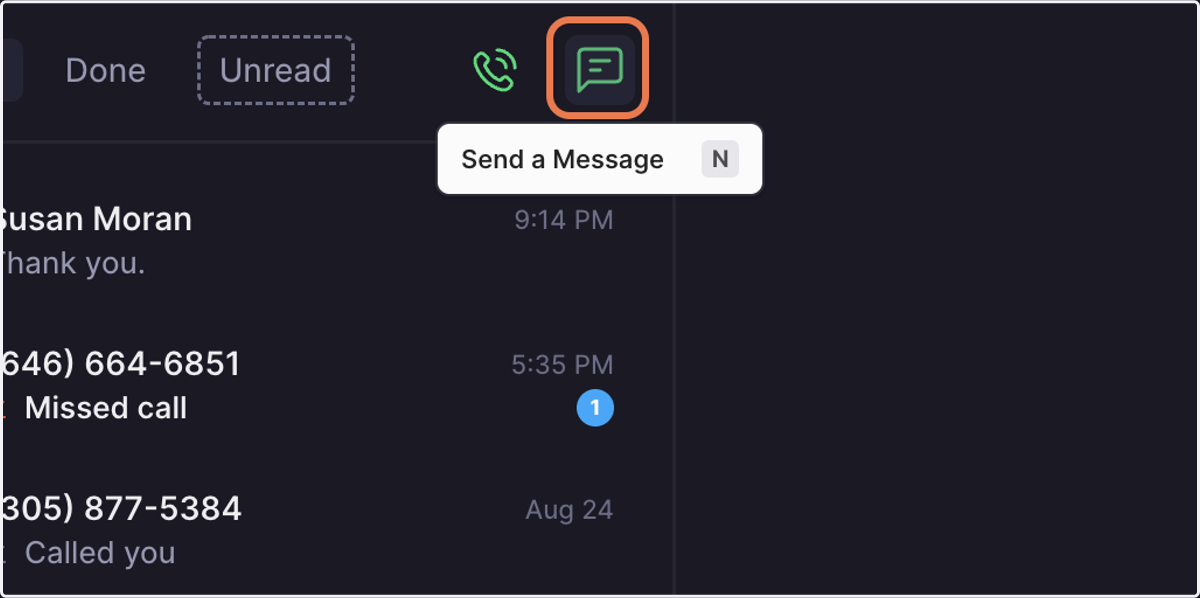
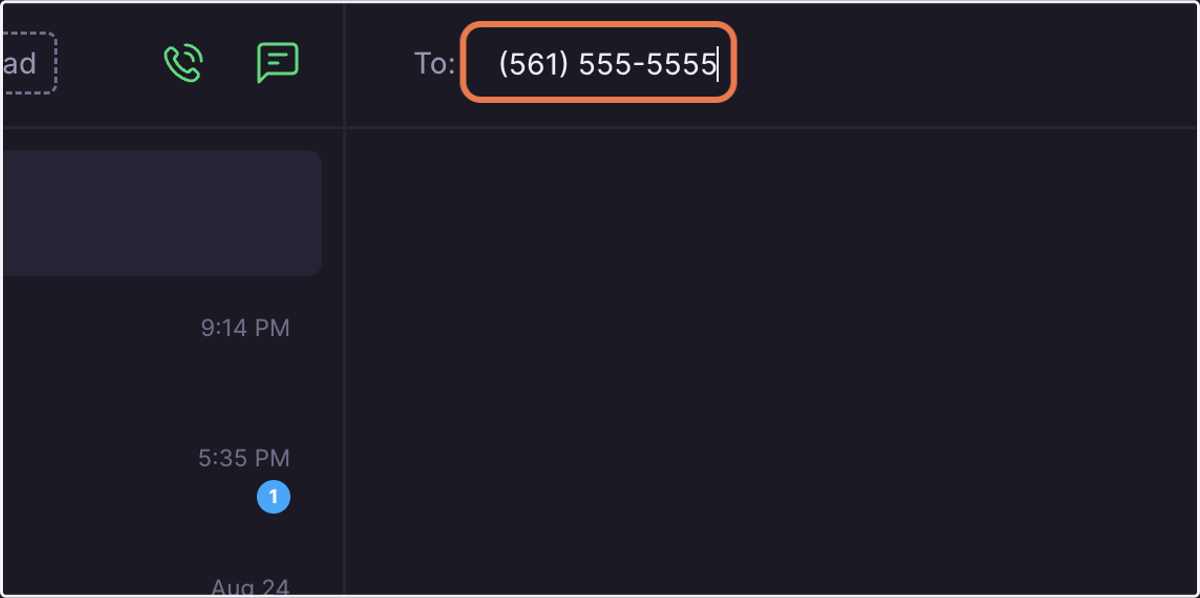
14. To send a text to a new number, click the green message icon
15. Type the number
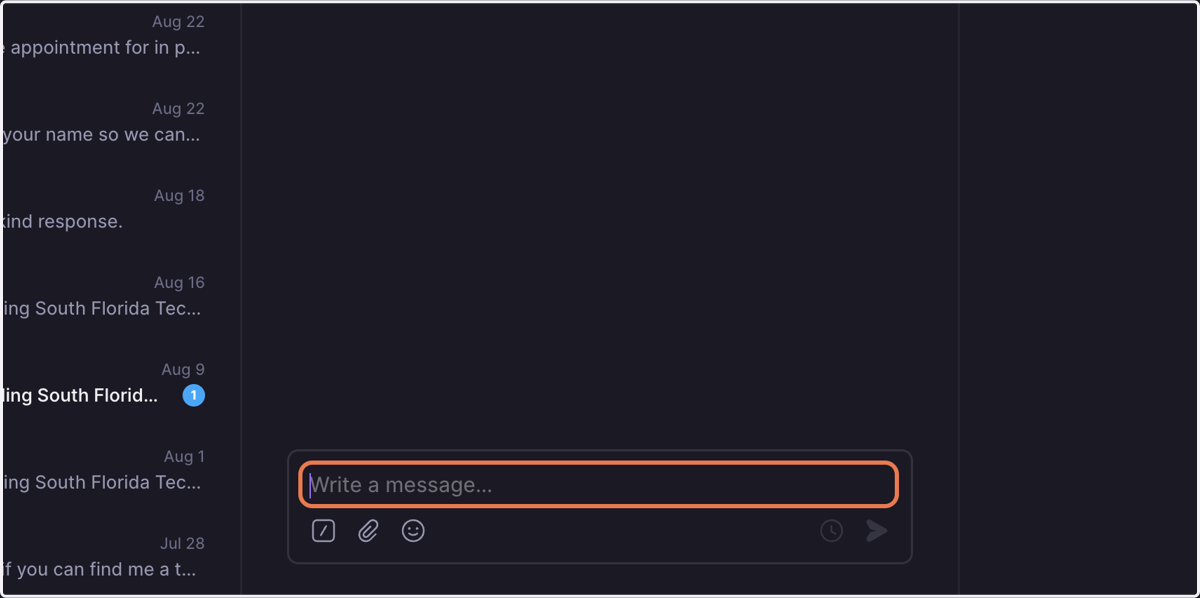
16. Click on Write a message……
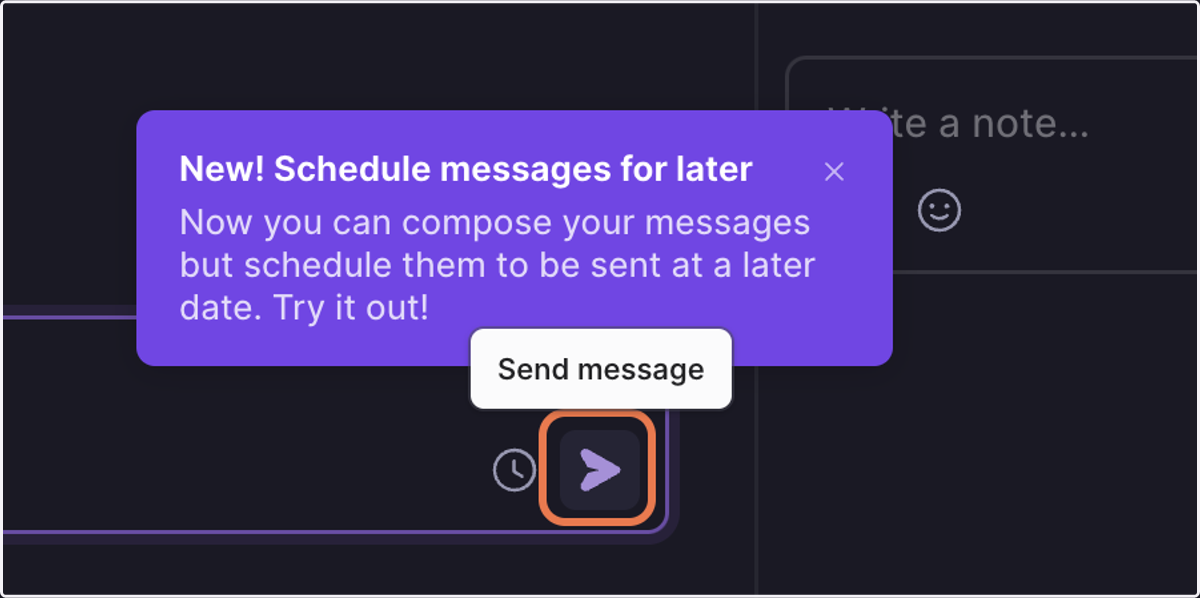
17. Click on Send message
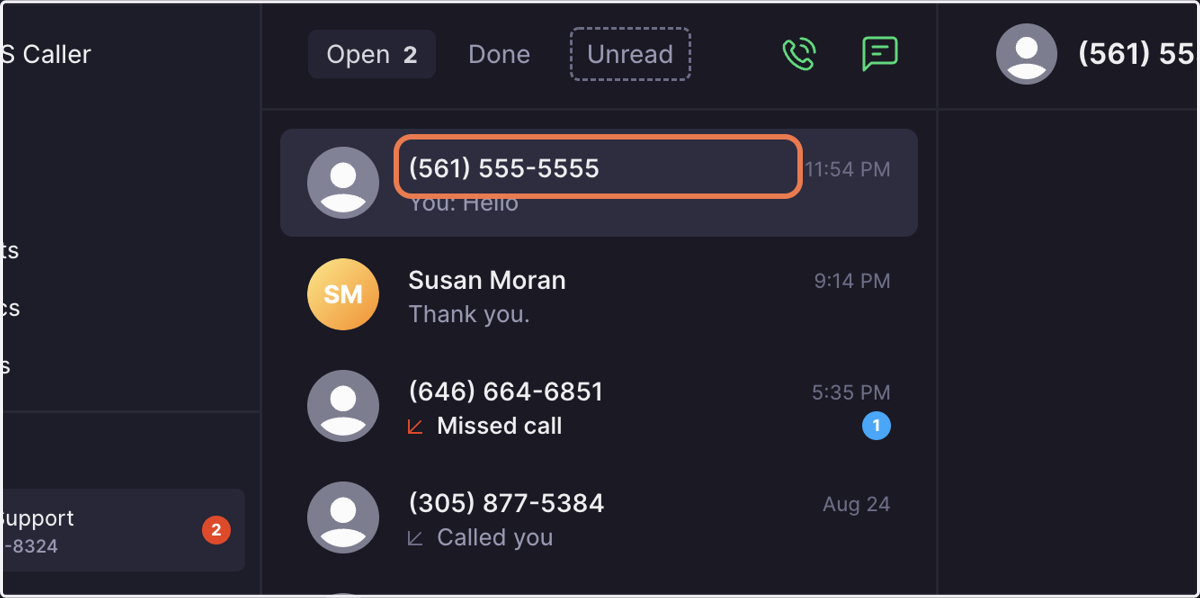
18. To add a name to a phone number, select the number
19. Click on Add a name...
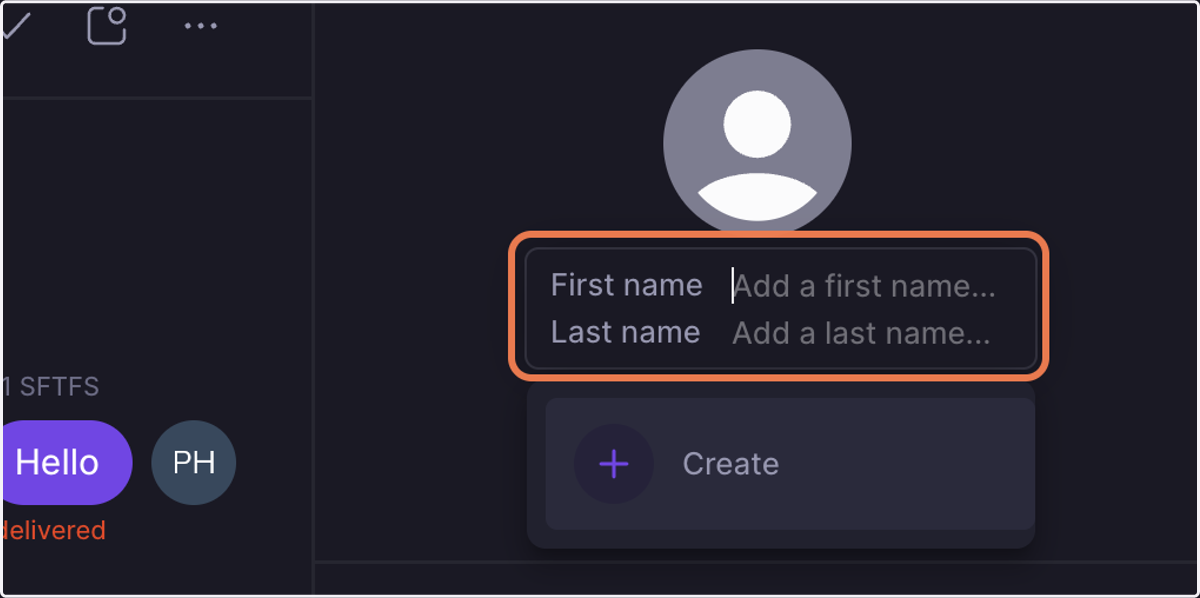
20. Enter their first and last name
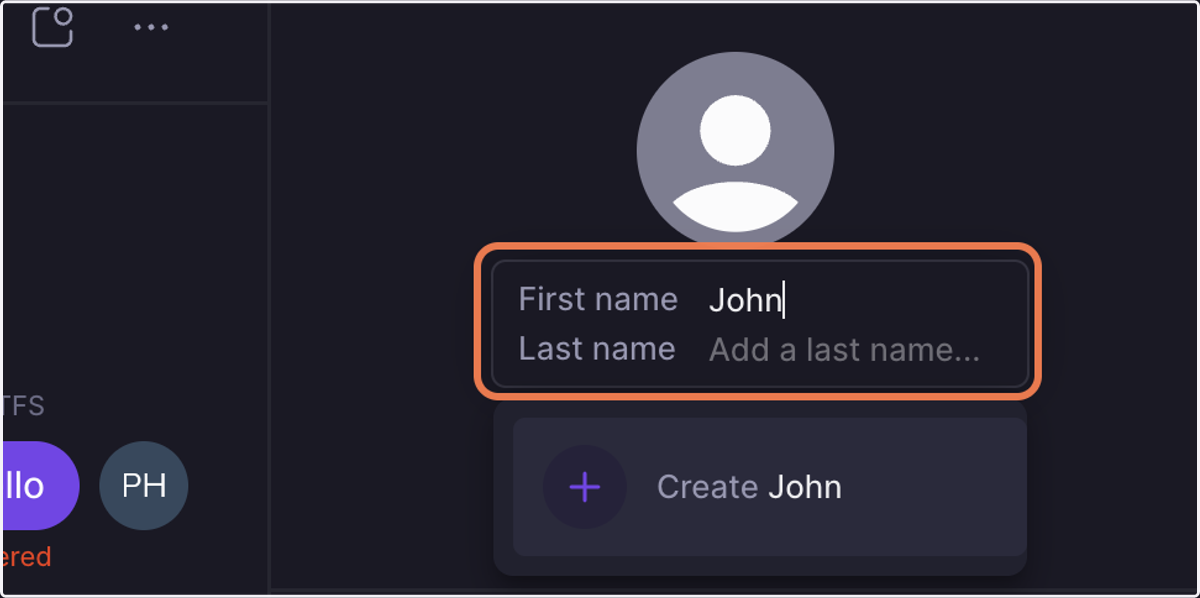
21. Hit enter or click Create [Person Name]
Openphone
22. If you have additional info like an email, click on Set an email...
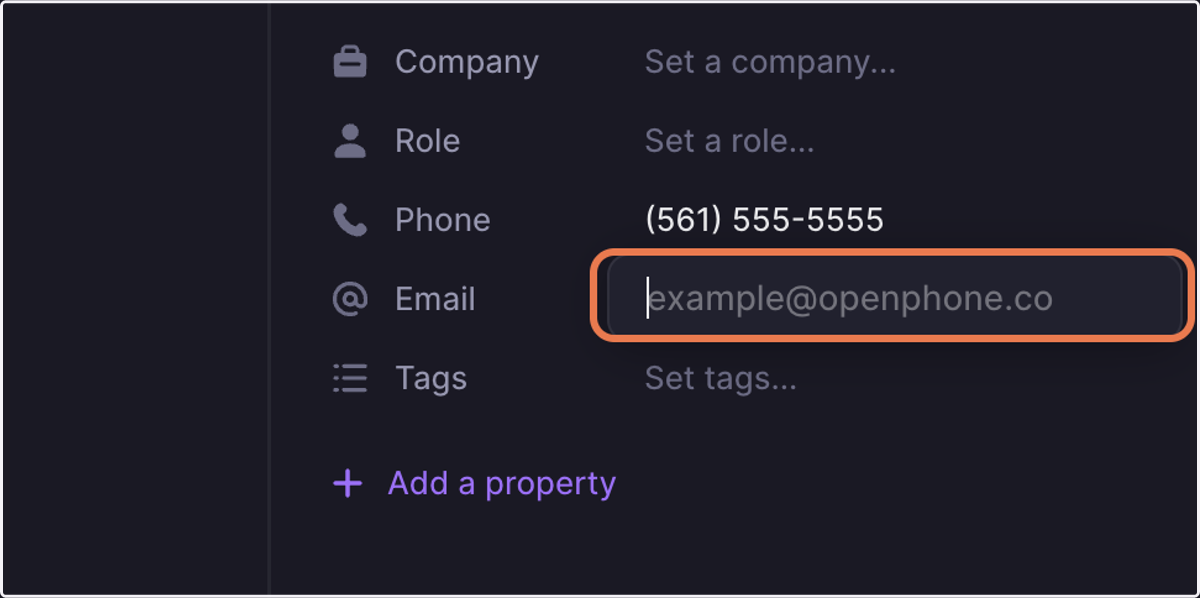
23. Enter the email and hit enter
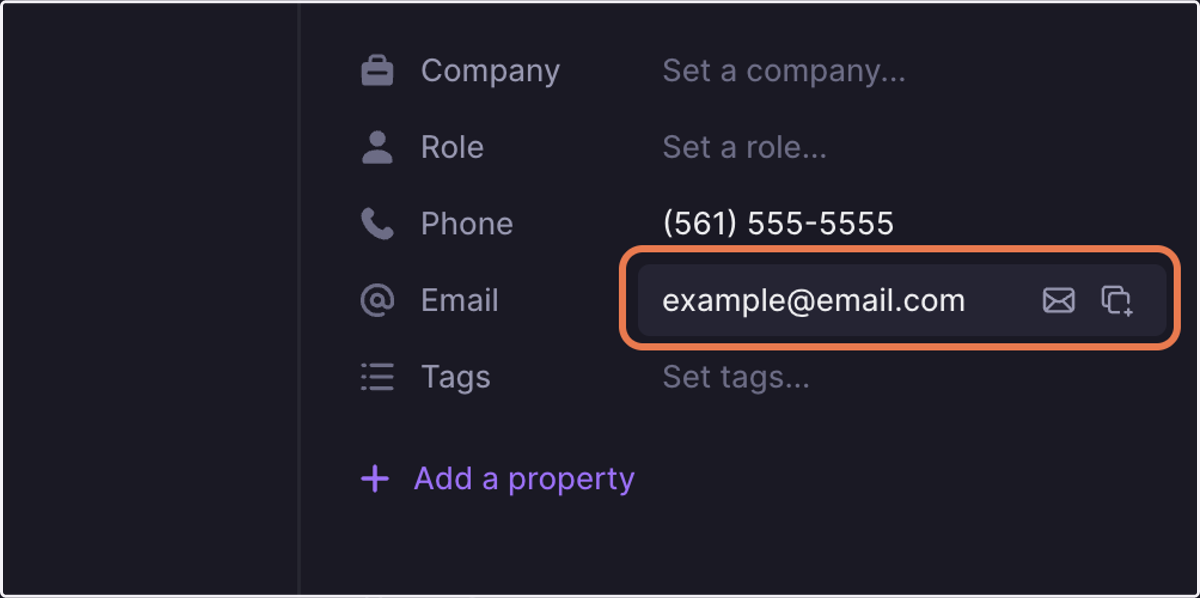
24. Click on textbox