Adding basic product navigation to your storefront
In this tutorial, we will learn how to add basic product navigation to your storefront front-end.
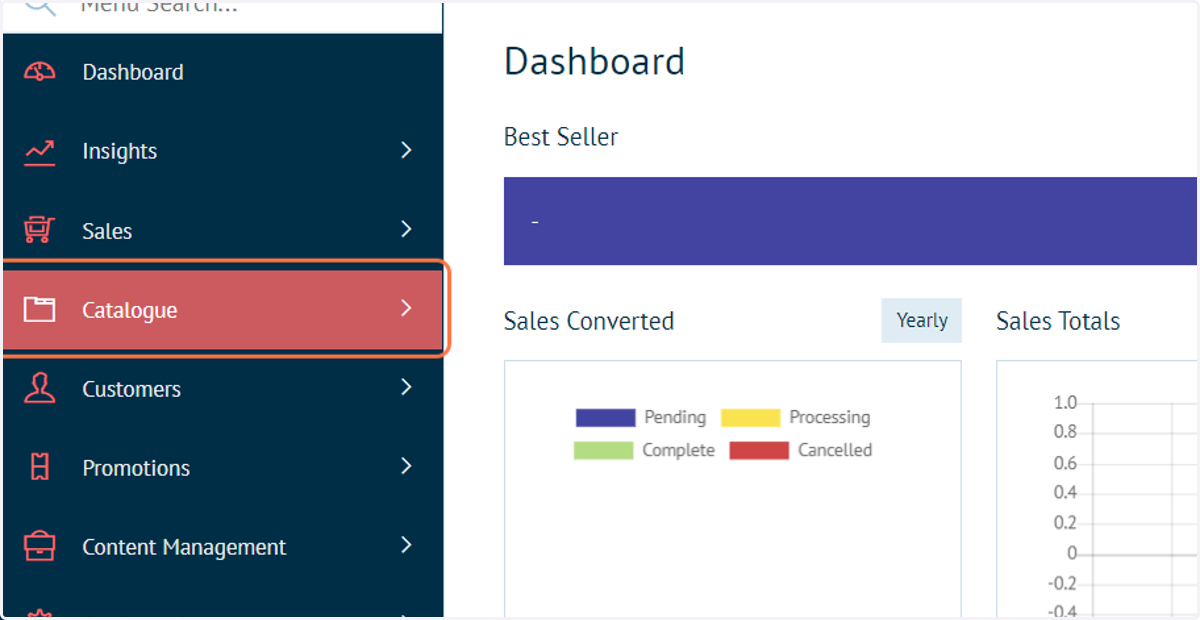
1. Click on Catalogue
First, we must establish the URL for the category page we wish to display.
Start by navigating to the desired category within Admin.
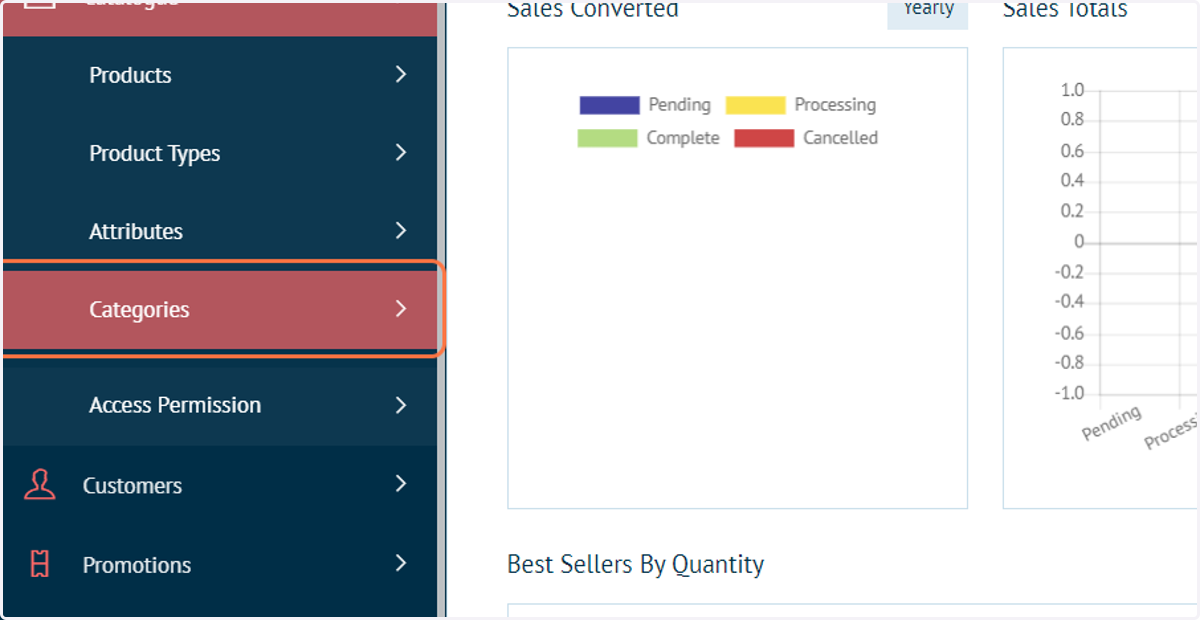
2. Click on Categories
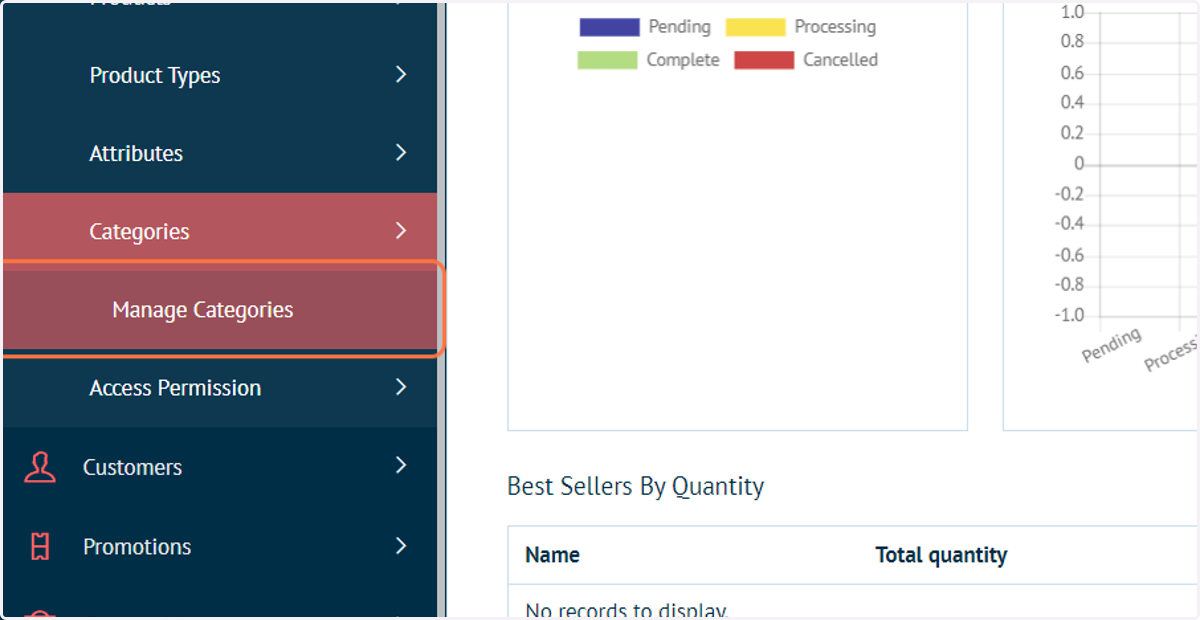
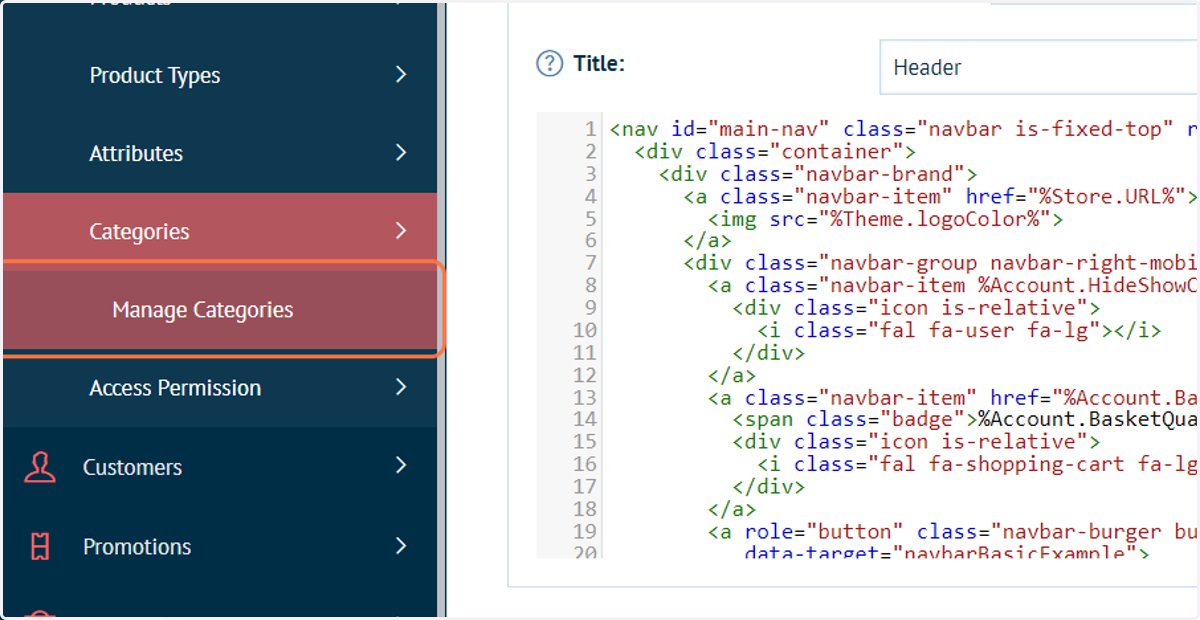
3. Click on Manage Categories
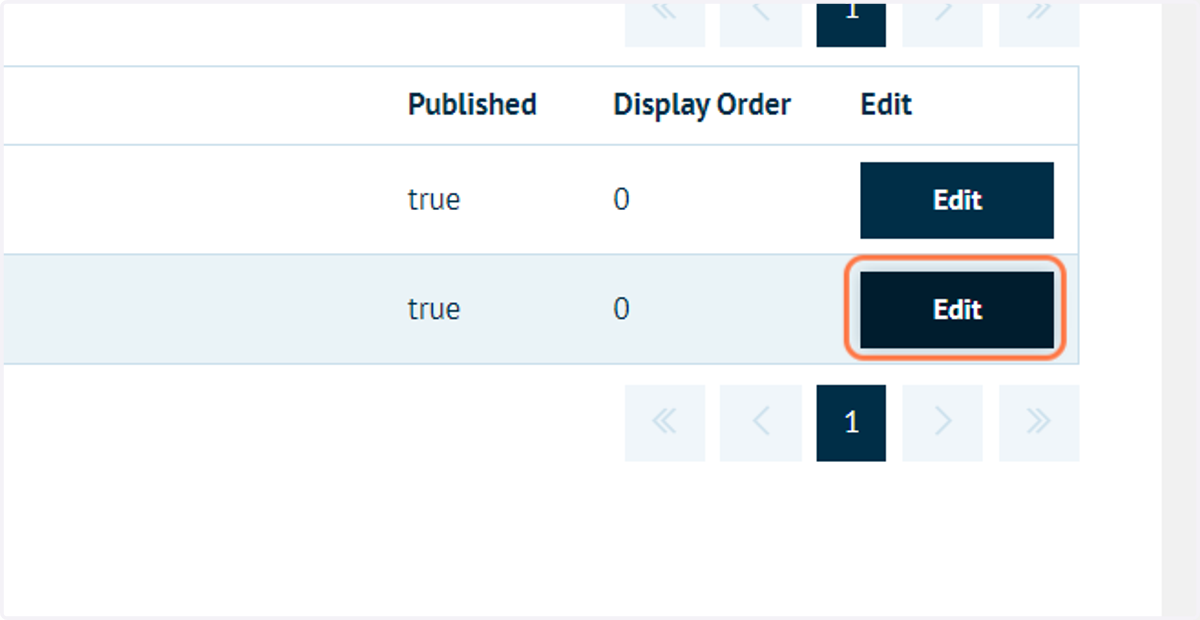
4. Locate the category you wish to display first and click on Edit
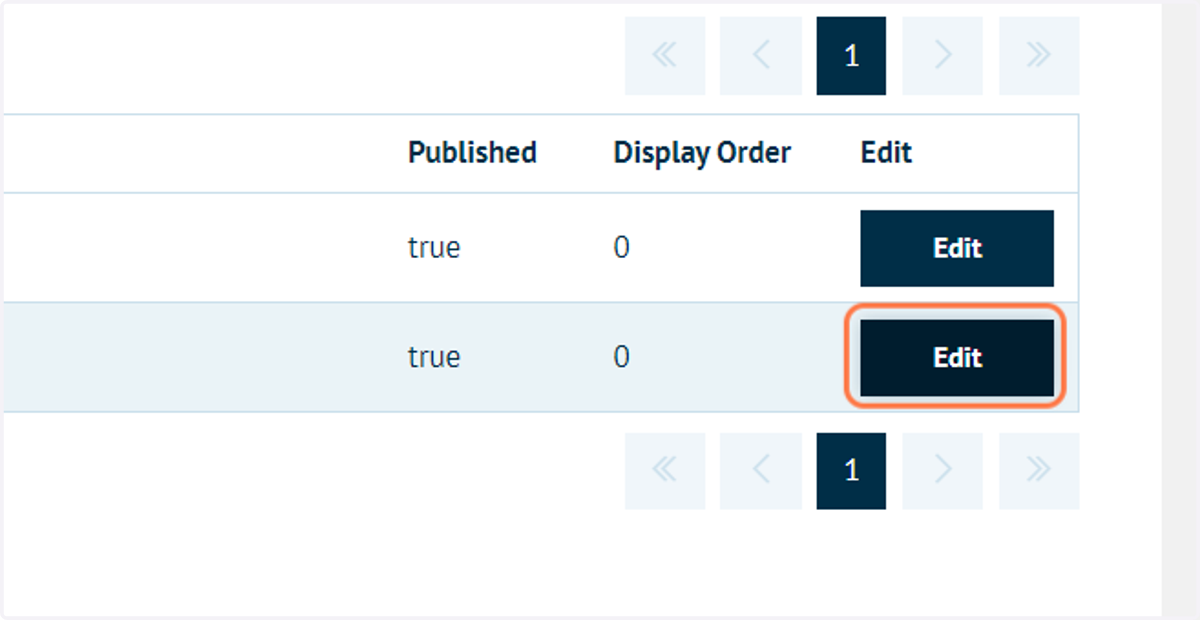
5. Note down the category number in the page URL

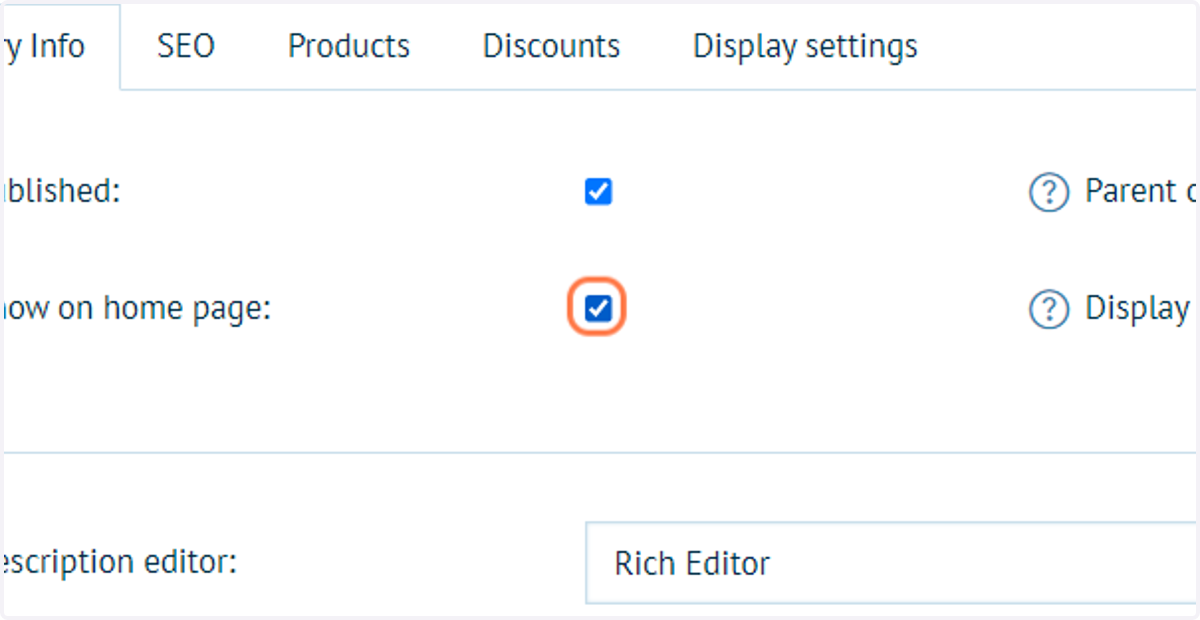
6. Check Show on home page
This will include a direct link to the category as a "Featured Category" on the home page.
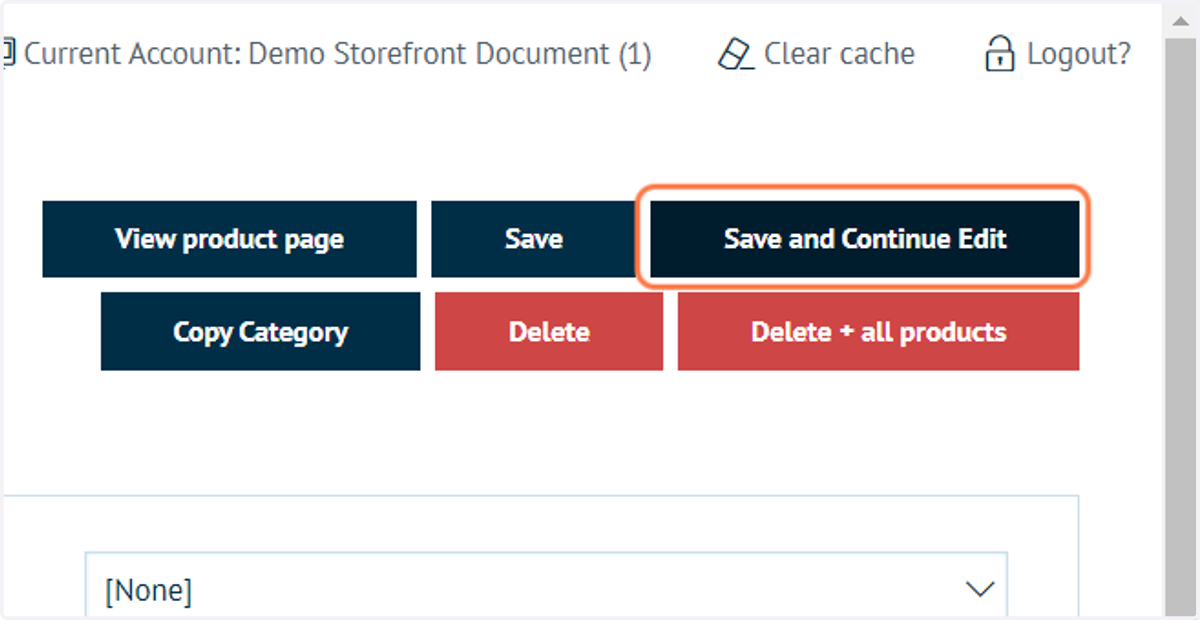
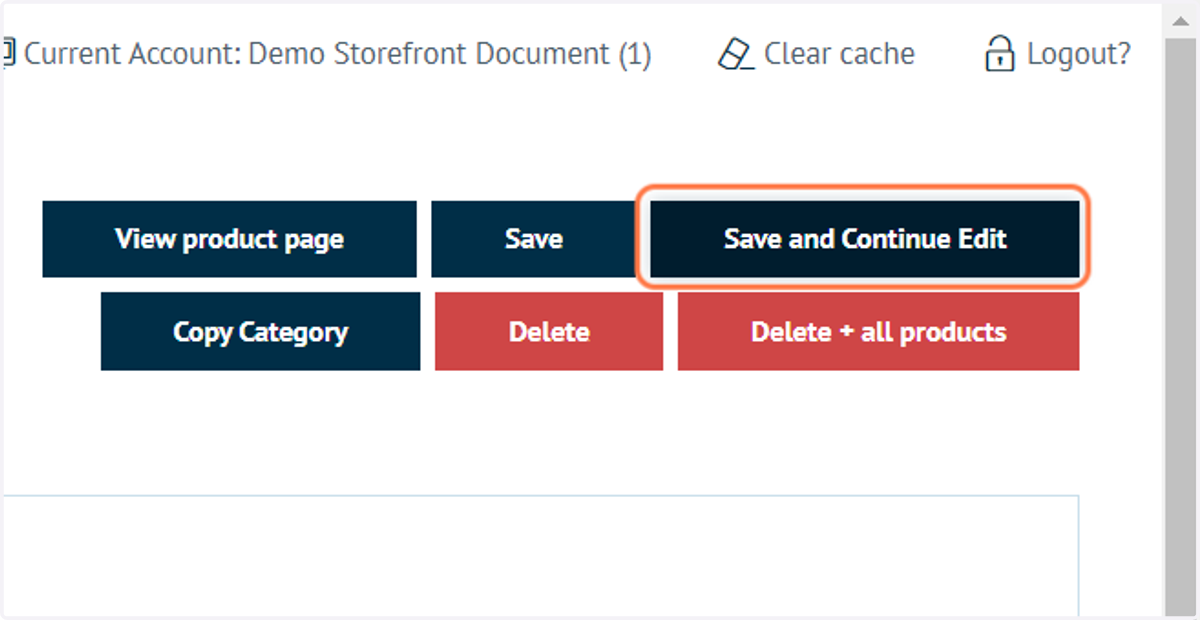
7. Click on Save and Continue Edit
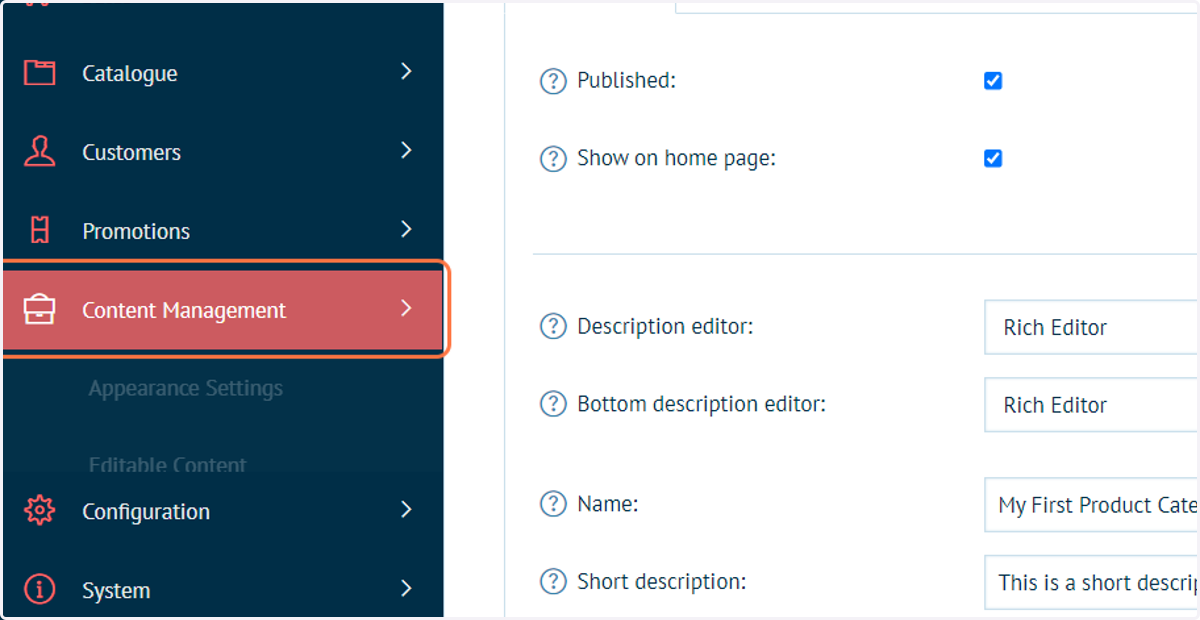
8. Click on Content Management
Next, we will create a direct link to this category page from the page header.
9. Click on Editable Content
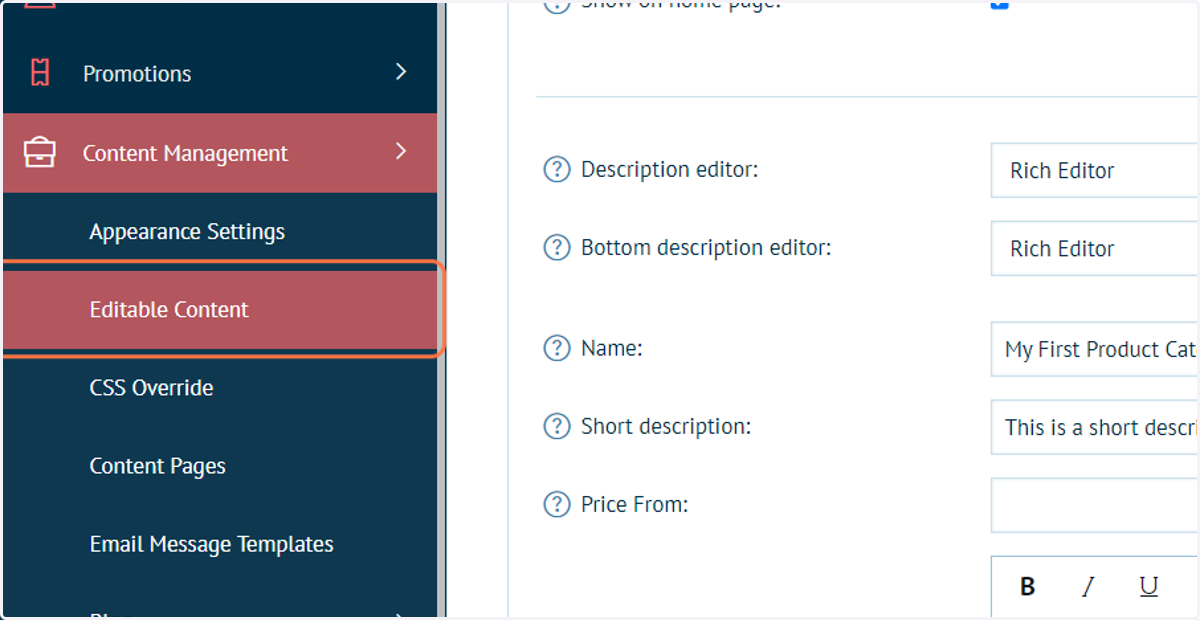
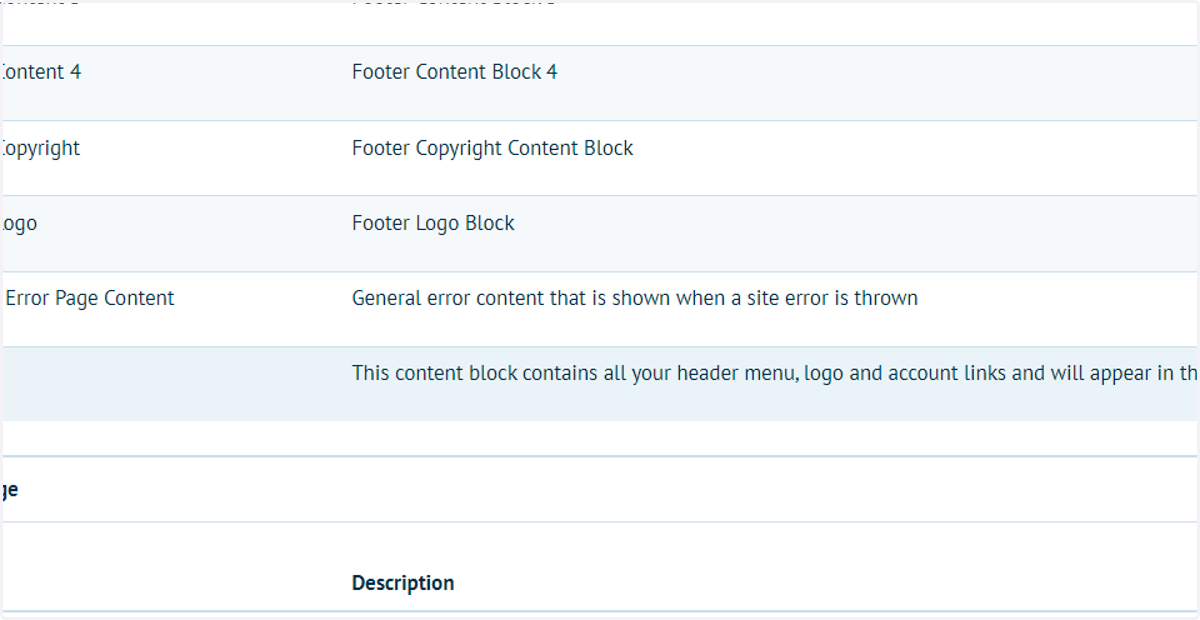
10. Locate the Header entry and click on Edit
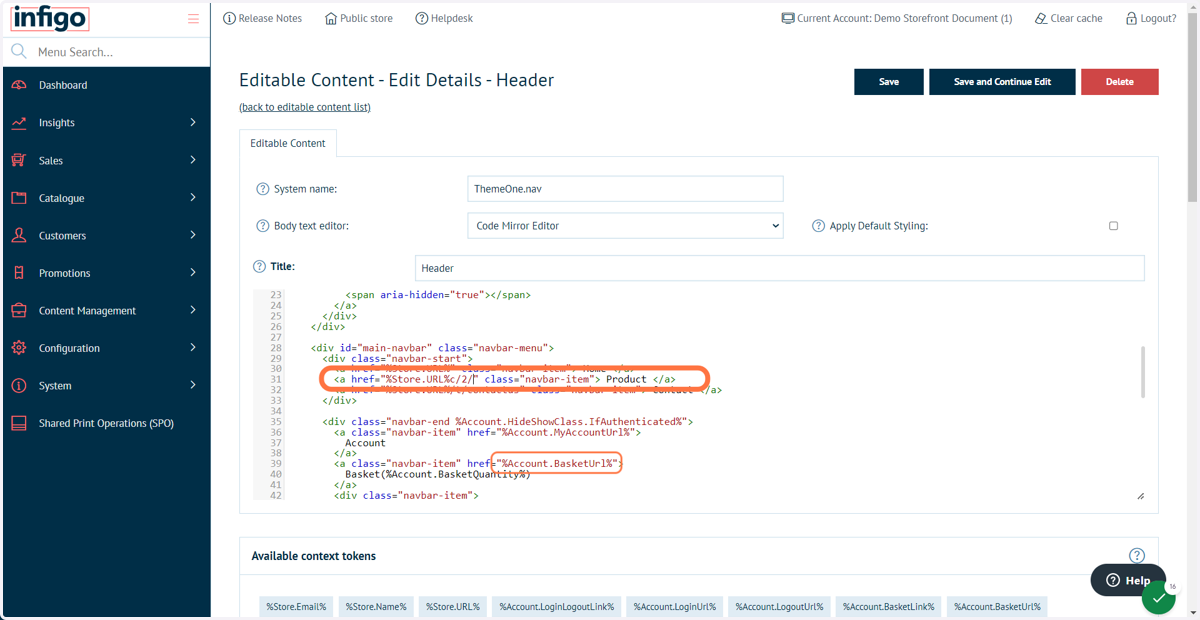
11. Locate or create a link and assign the appropriate URL
In this example, we are using the Product button which is present on the header by default.
The original URL being used by this button is the token %Store.URL%, which is a default URL defined in the Infigo settings. Setting this is covered in a different tutorial.
An amendment has been made to the end of the URL identifying a category 'c' and a category number '2'.
The final URL for this example reads %Store.URL%c/2/
This will link the Products button directly to our desired category.
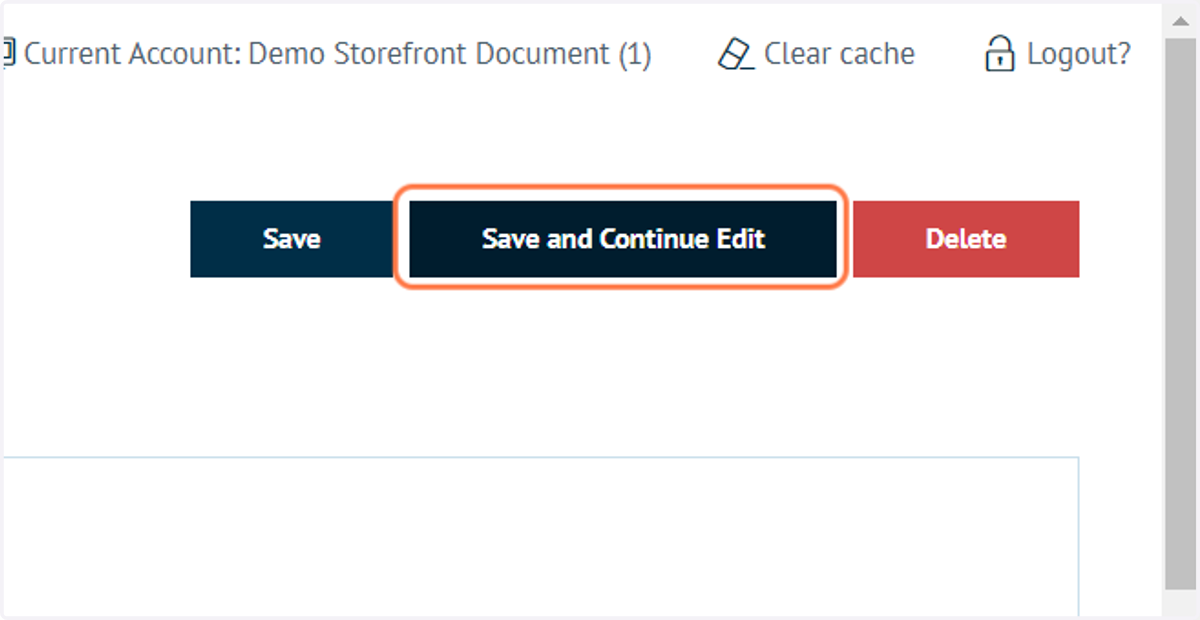
12. Click on Save and Continue Edit
13. Navigate to your storefront and test the Product button
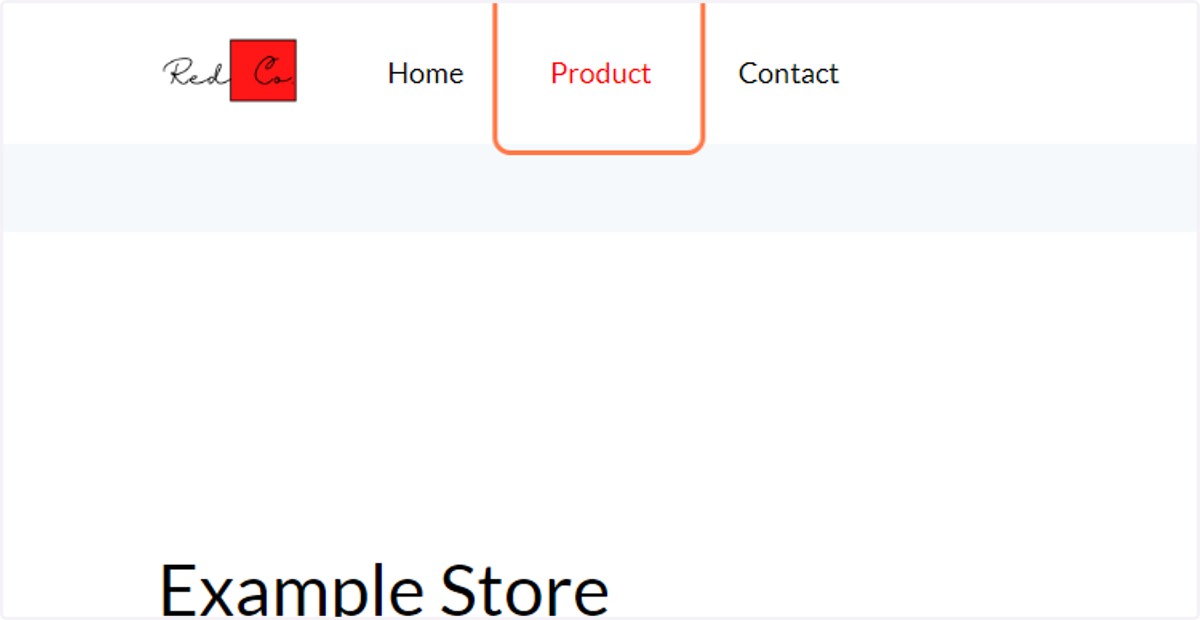
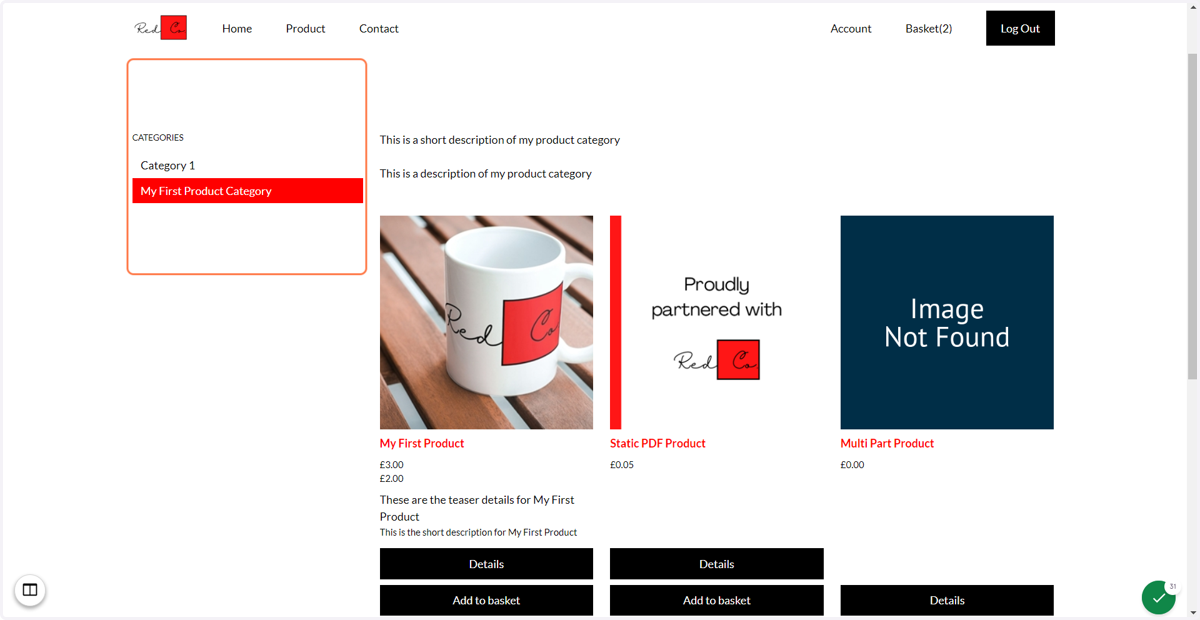
14. Your chosen category and some of its products will now display
At present, there is further navigation to additional categories. We are likely to require a means of directly navigating between products and other categories.
Adjustments can be made to how category pages are displayed within the Infigo admin area.
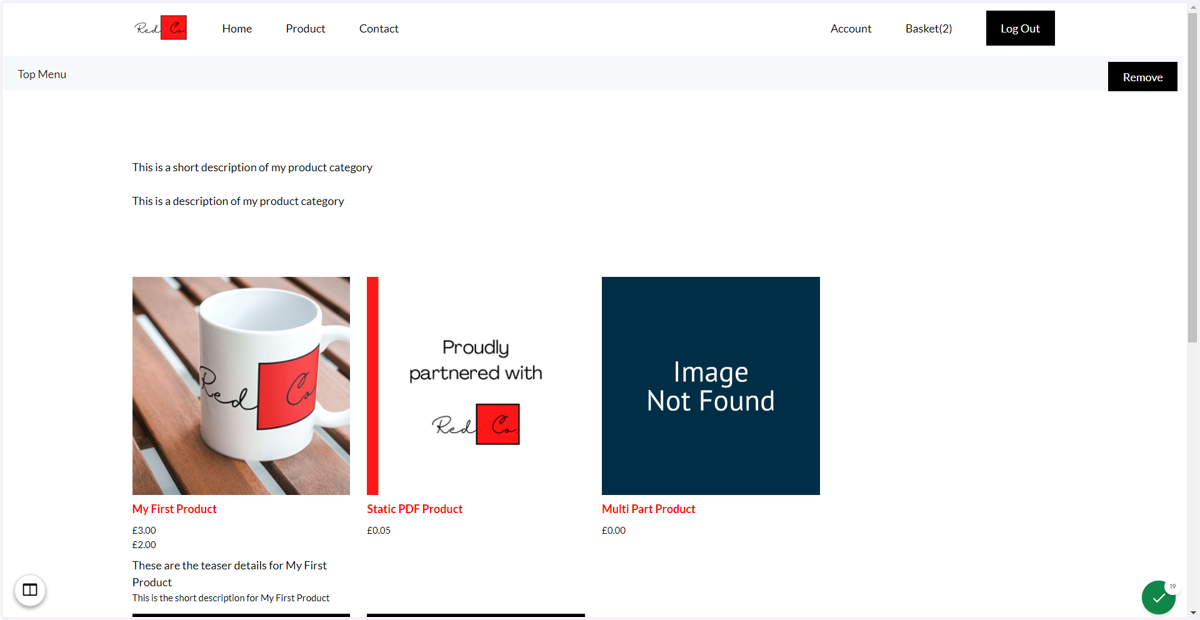
15. Click on Catalogue
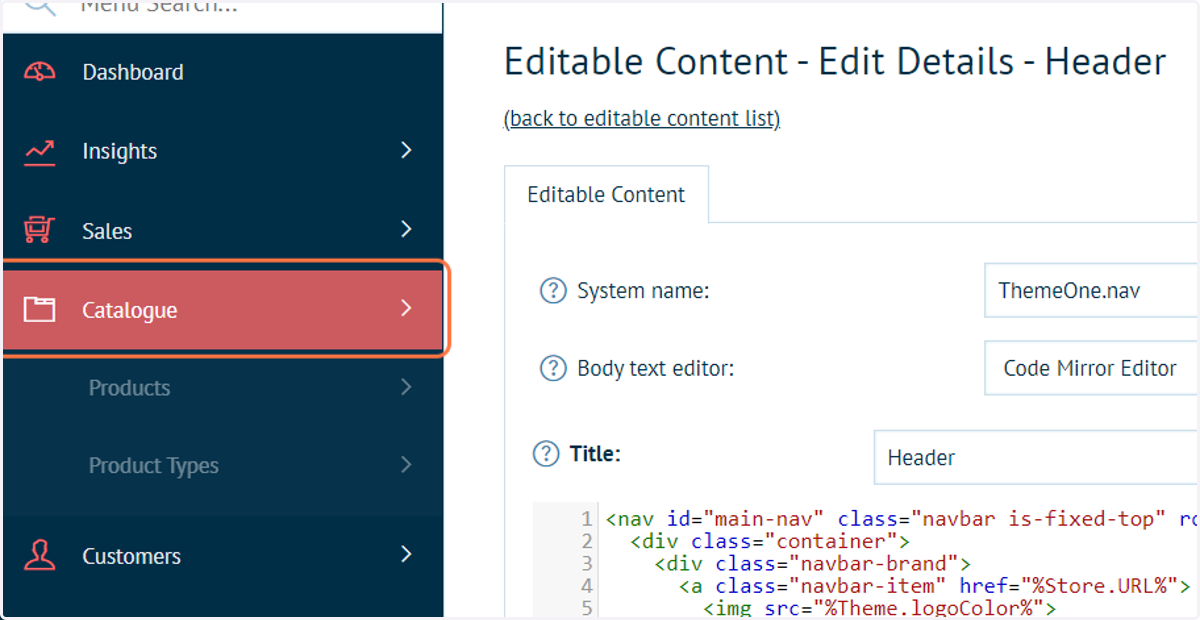
16. Click on Categories
17. Click on Manage Categories
18. Navigate to your chosen category and click on Edit
This process will need to be repeated for each category.
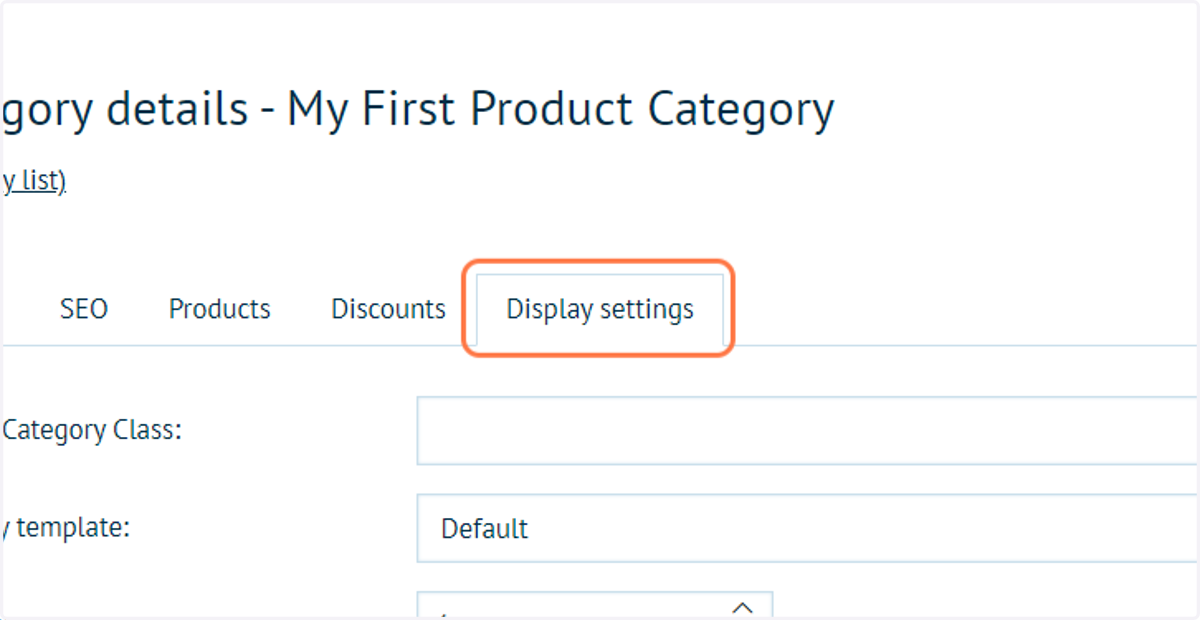
19. Click on Display settings
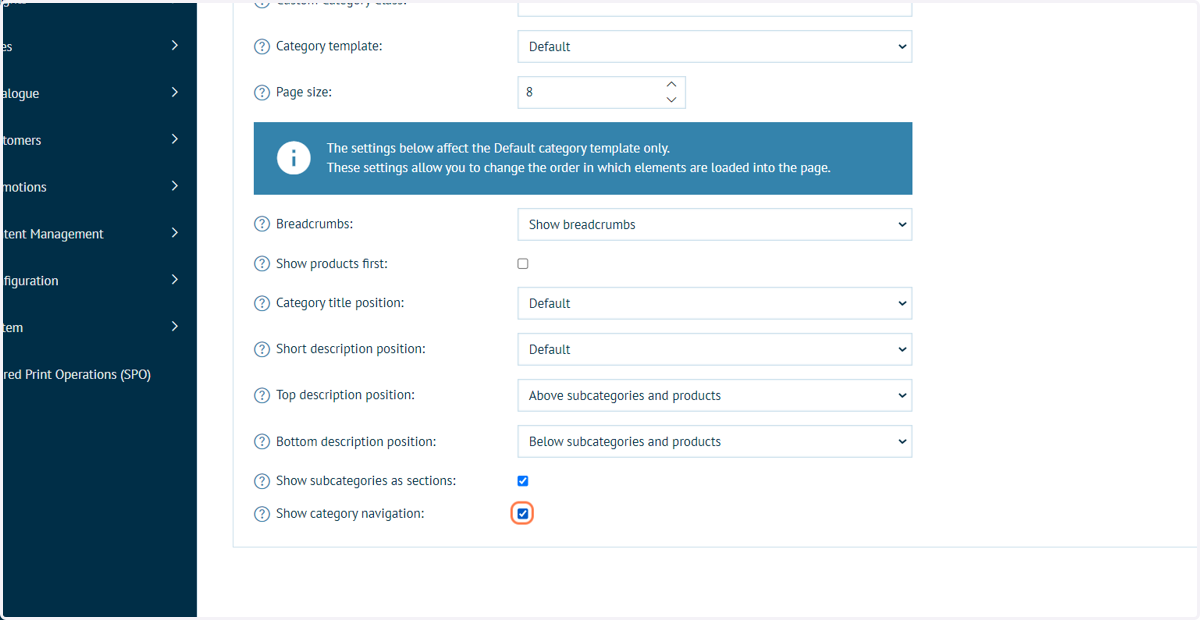
20. Experiment with category display settings
Numerous settings are available to change the visual appearance of category pages. These include settings such as:
Page size - controlling the number of products displayed
Breadcrumbs - Showing a path through the category tree from the home page to your current position
Show category navigation - Displays an additional navigation list when this category page is viewed. Facilitates easy switching between categories.
21. Click on Save and Continue Edit
22. Navigate to your storefront and click on Product
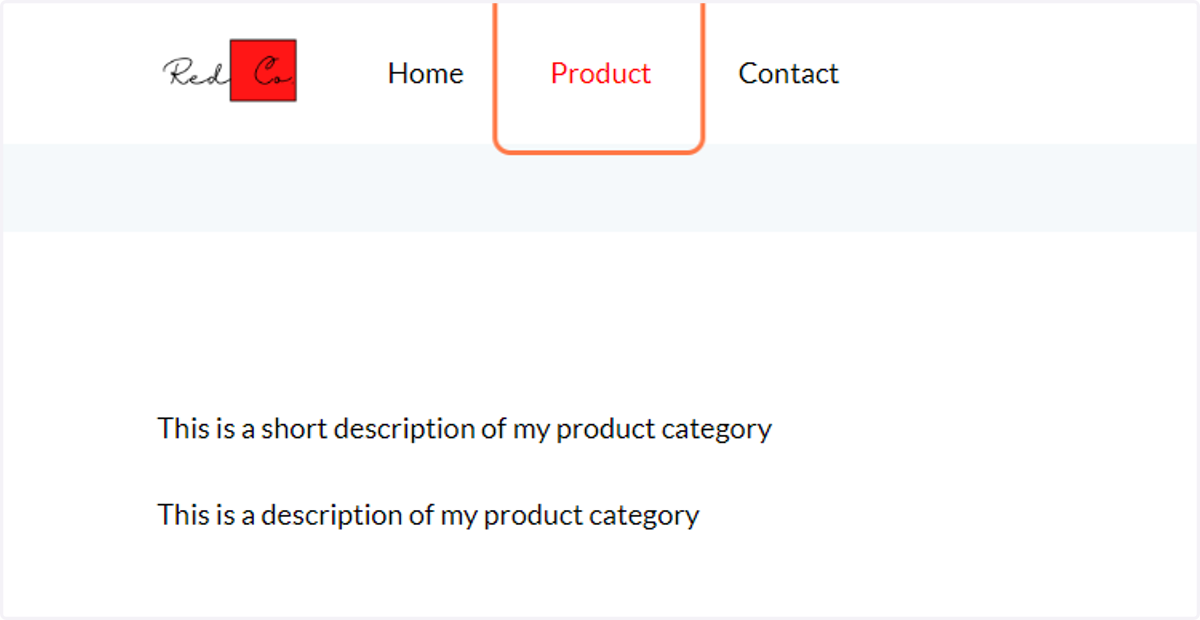
23. Your setting changes will take effect
A category navigation list has been generated on the left of the category page.