How to send Eventbrite Marketing emails for upcoming events
Eventbrite
1. Go to Eventbrite - Discover Great Events or Create Your Own & Sell Tickets
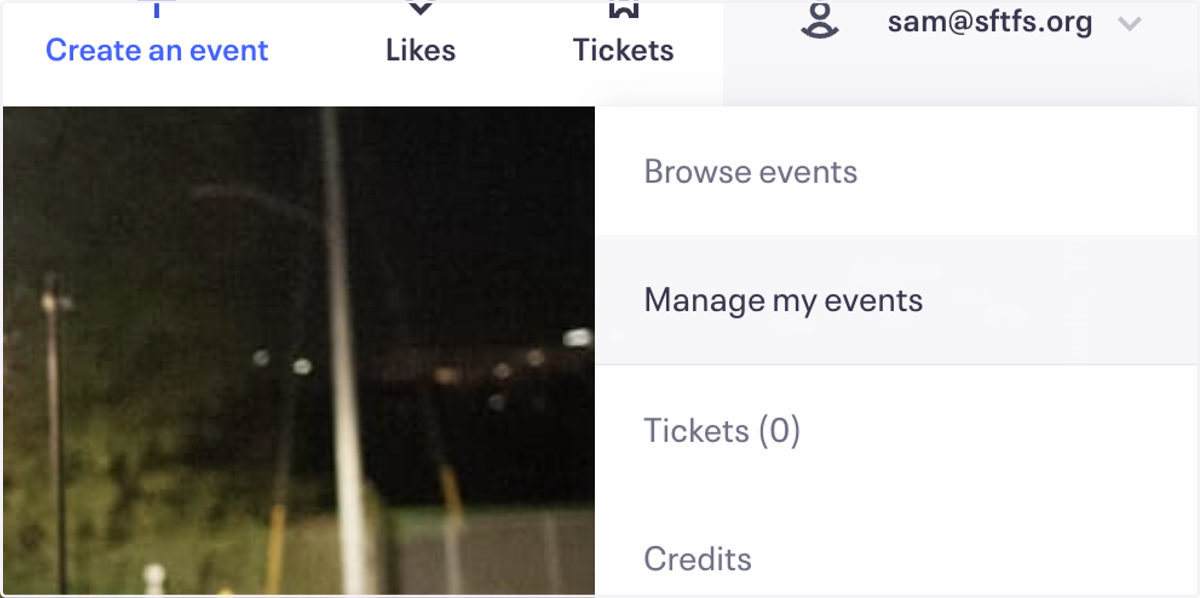
2. Click on Manage my events
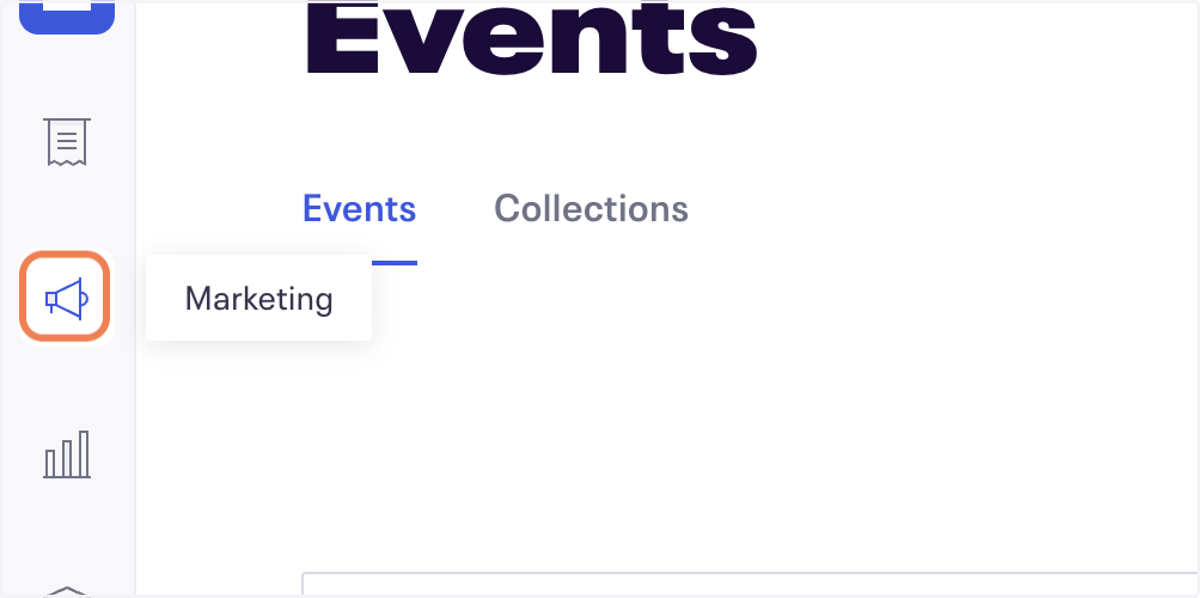
3. Click on Marketing
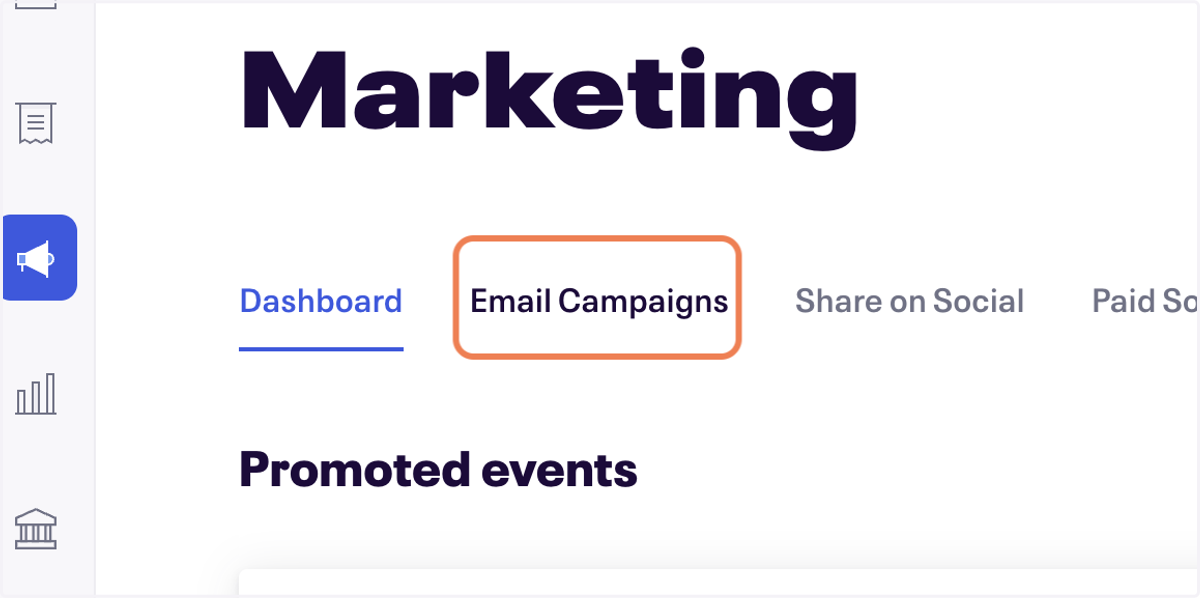
4. Click on Email Campaigns
5. Next to the most recent Send email, click the three dots
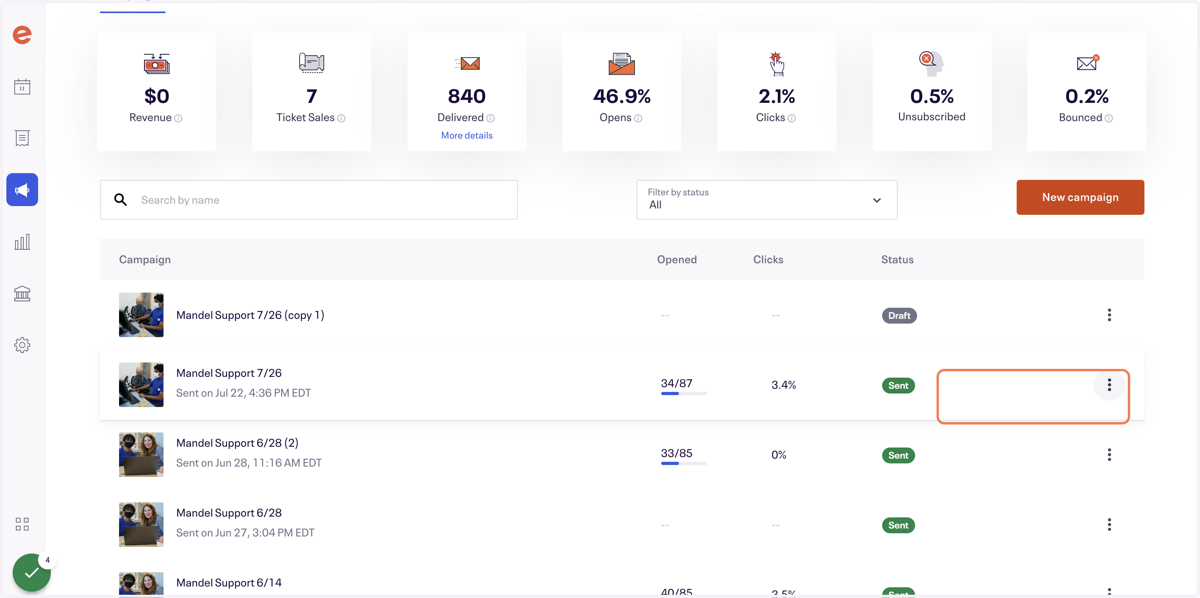
6. Click on Duplicate
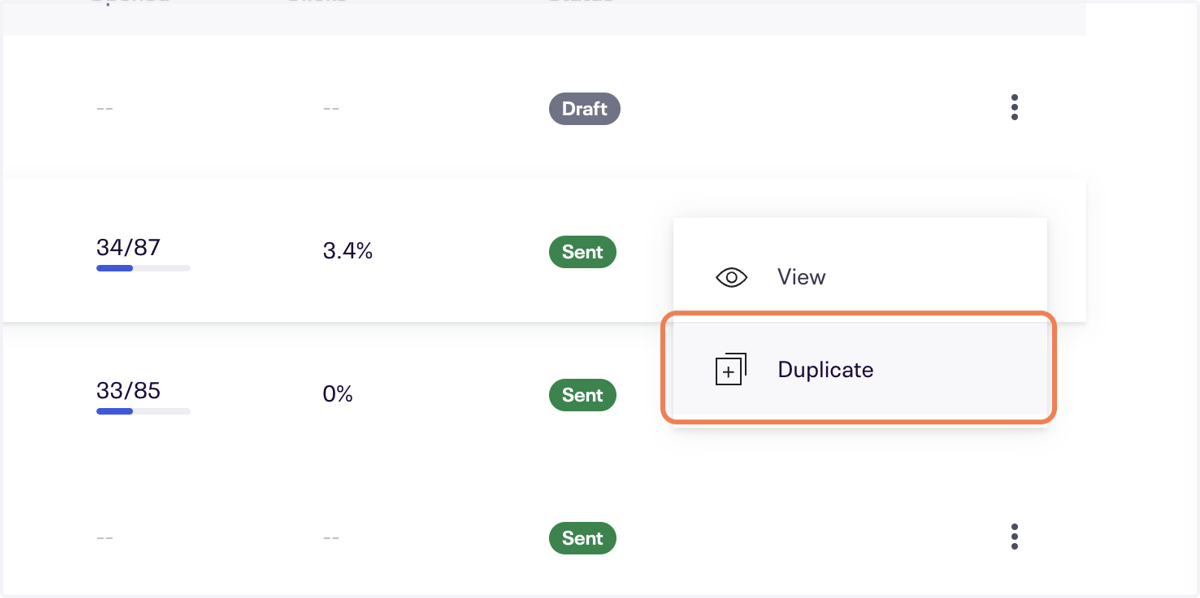
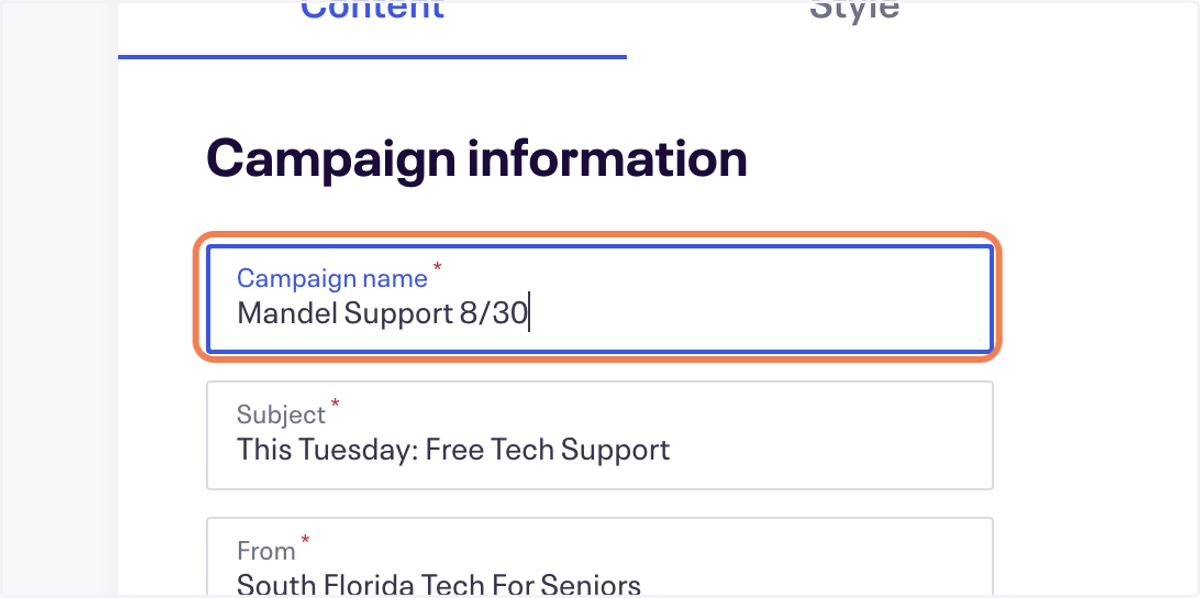
7. Change the title
Type "Mandel Support 8/30"
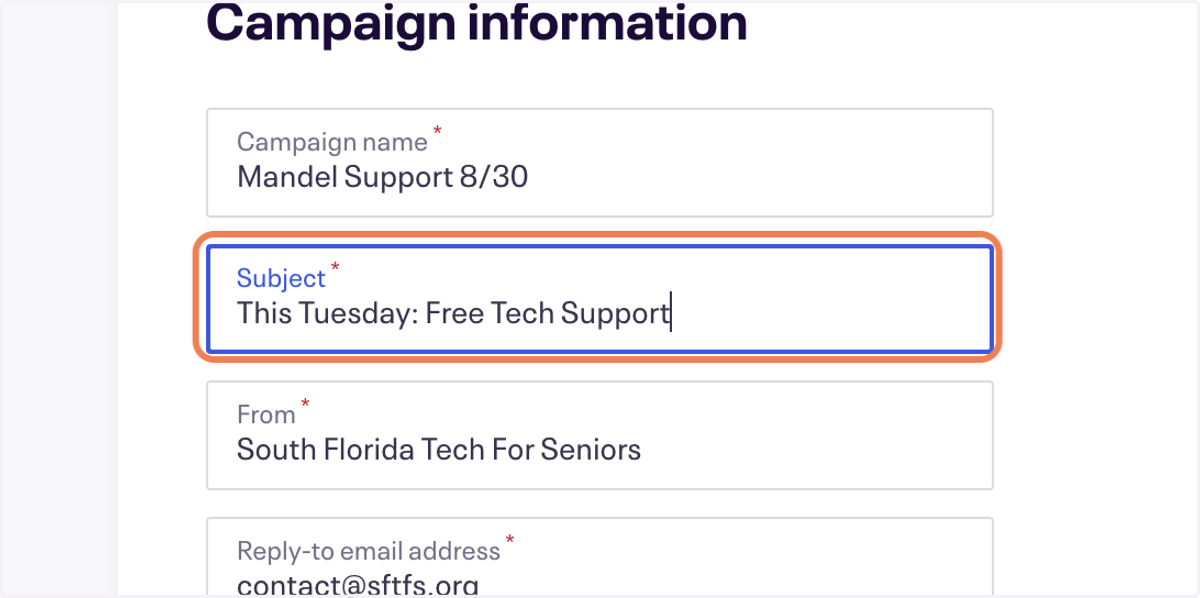
8. Give the email a good subject line
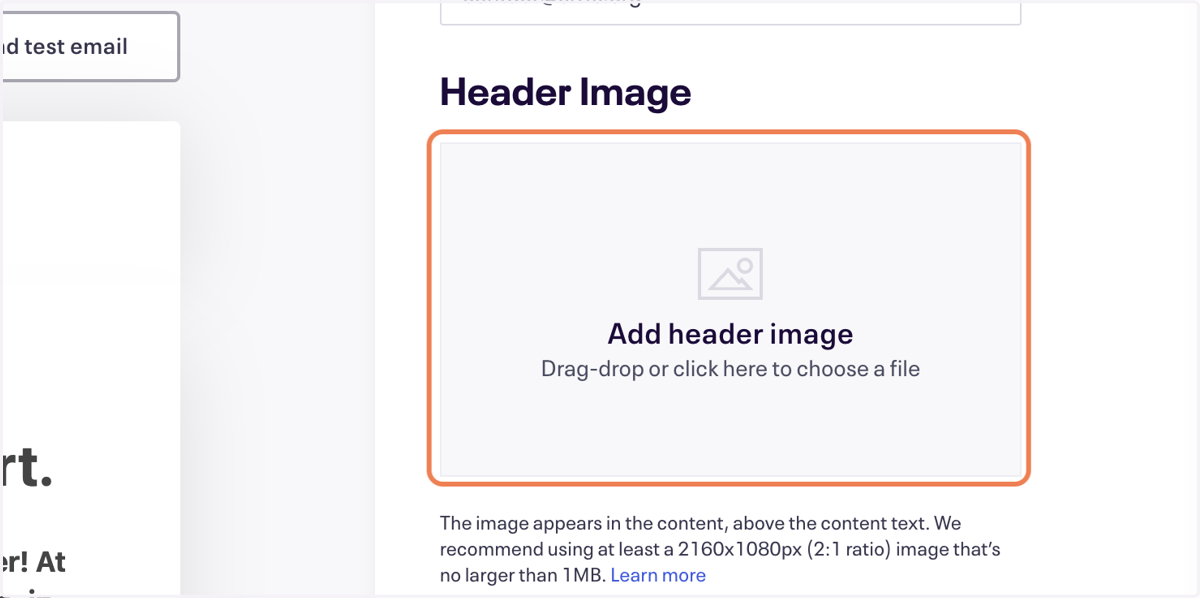
9. Click to delete the header image

10. Click to select a new photo from file upload menu
Eventbrite
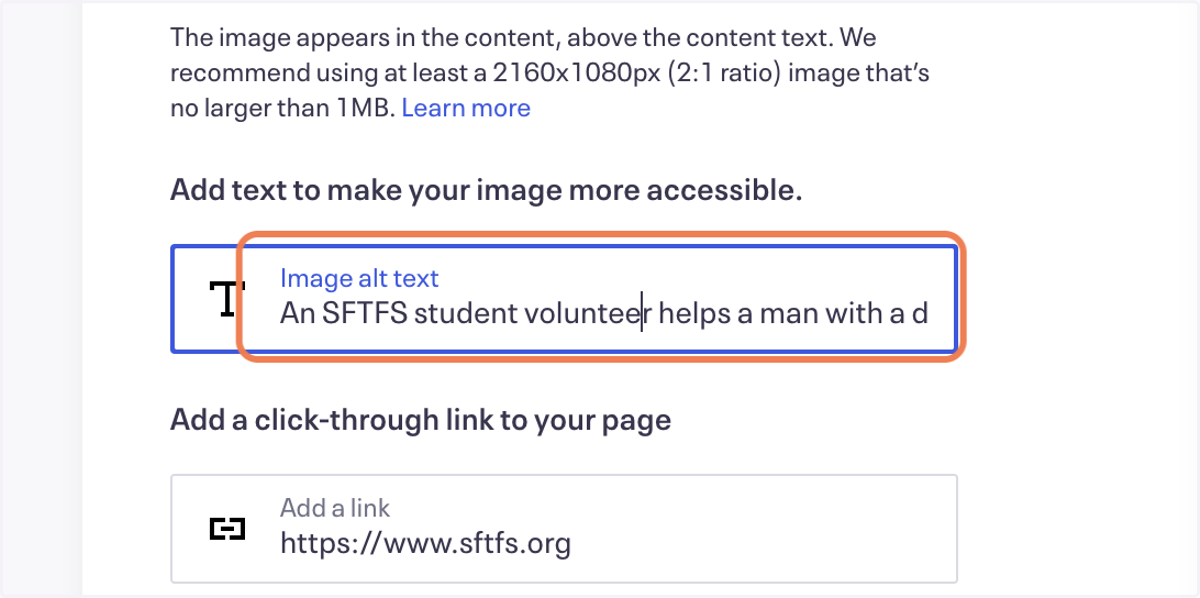
11. Enter appropriate image alt text
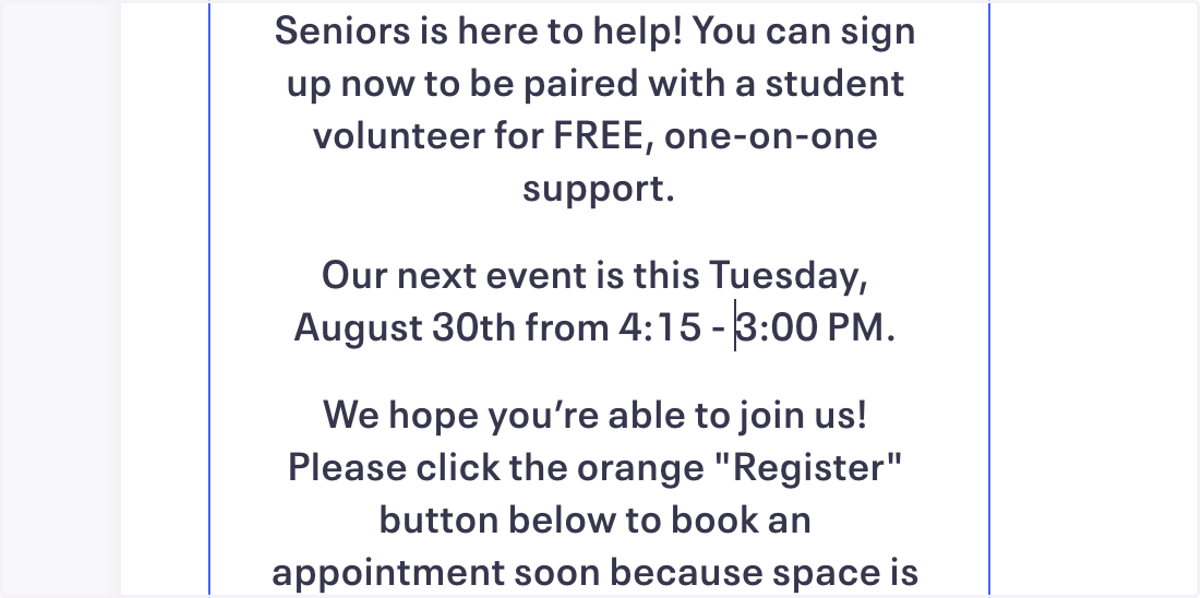
12. Update the body text with the correct information
13. Scroll down on the right sidebar
14. Click on Clear Selected…
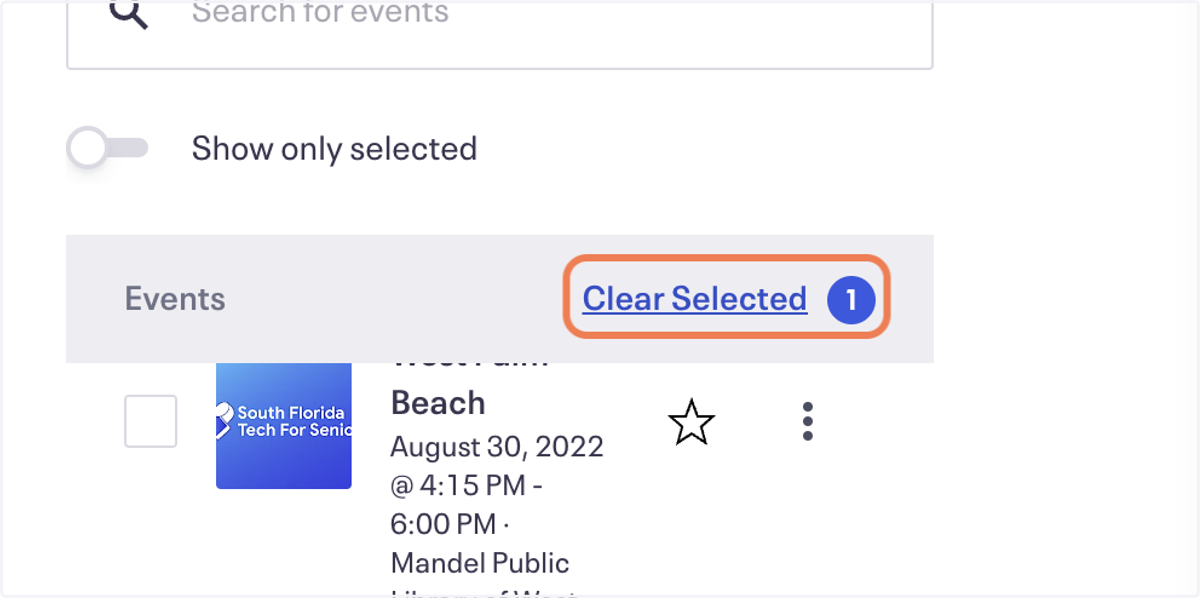
15. Select the appropriate event from the list
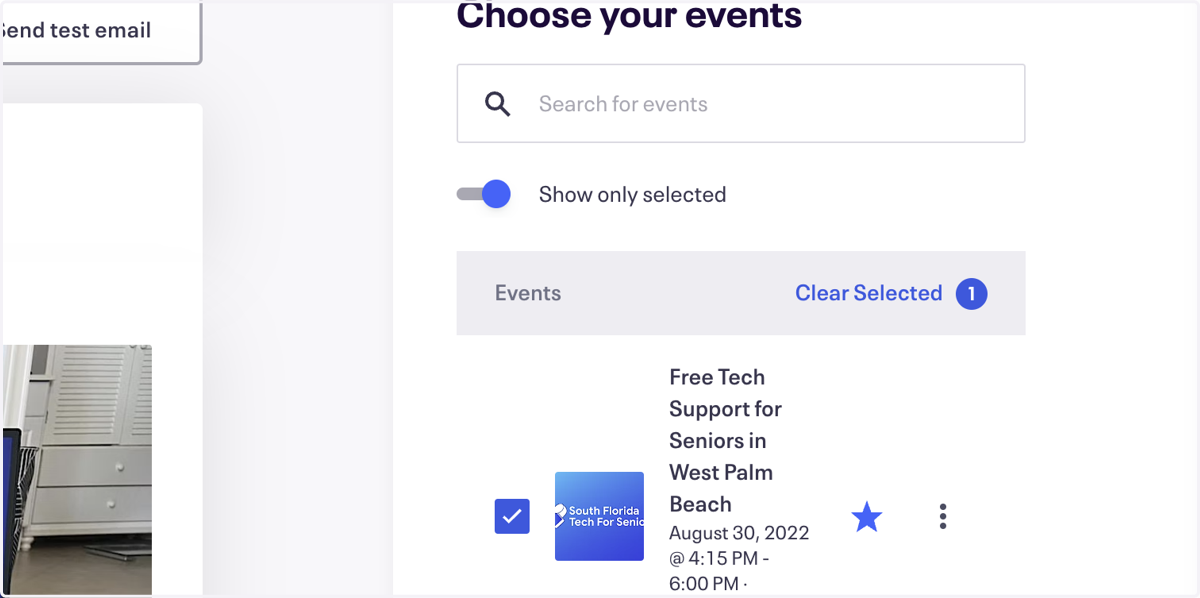
16. Click on Show only selected
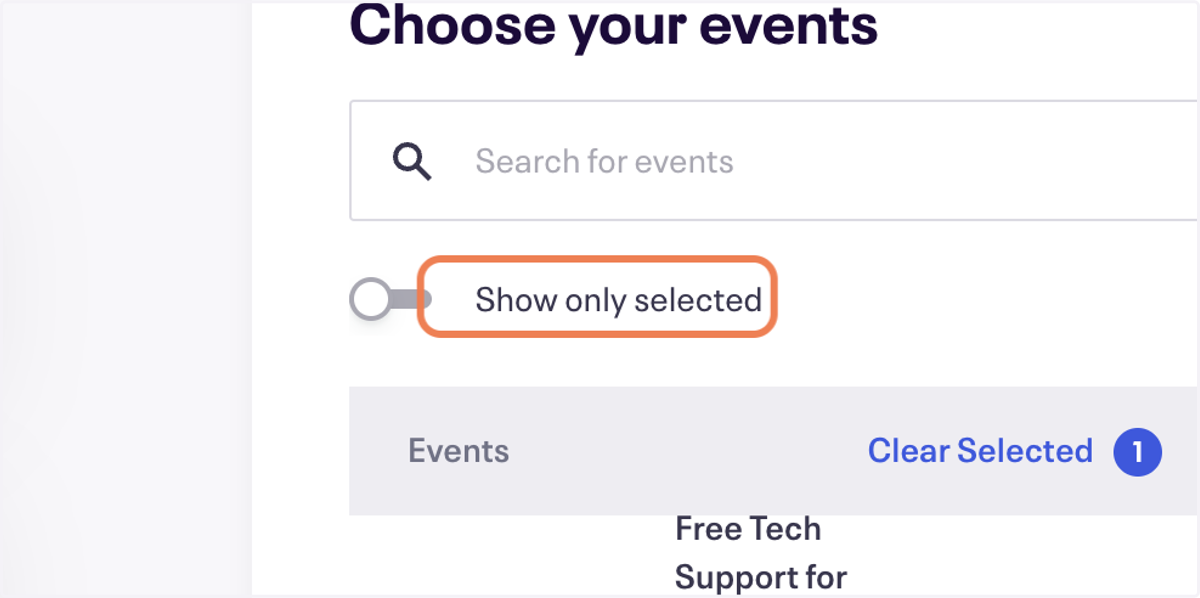
17. Check Show only selected
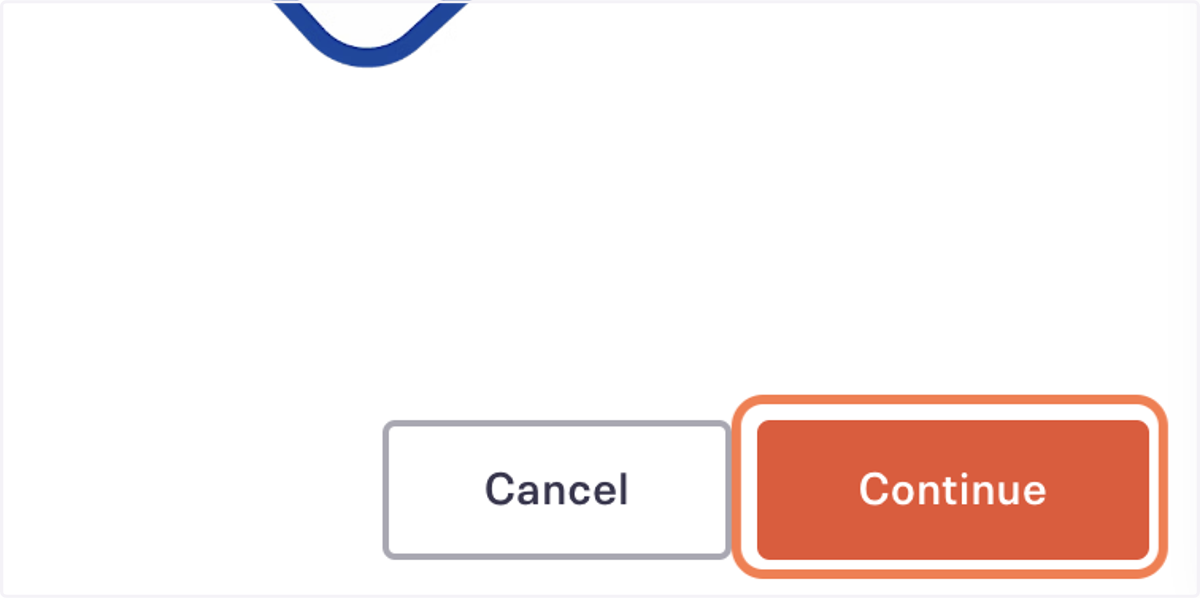
18. Click on Continue
19. Click on Campaign recipients…
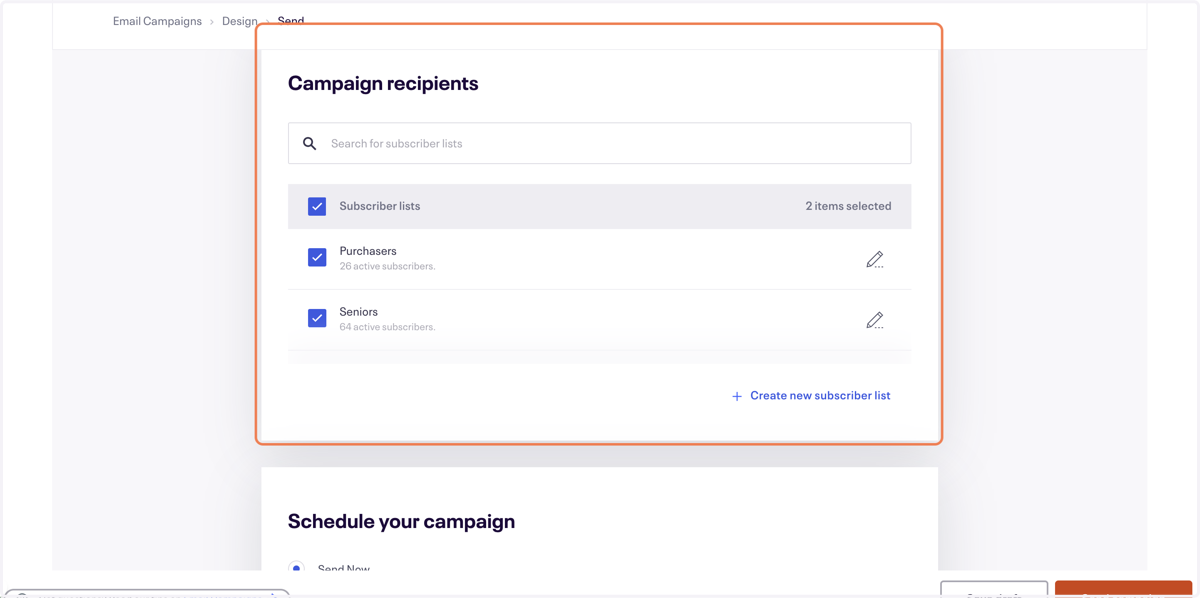
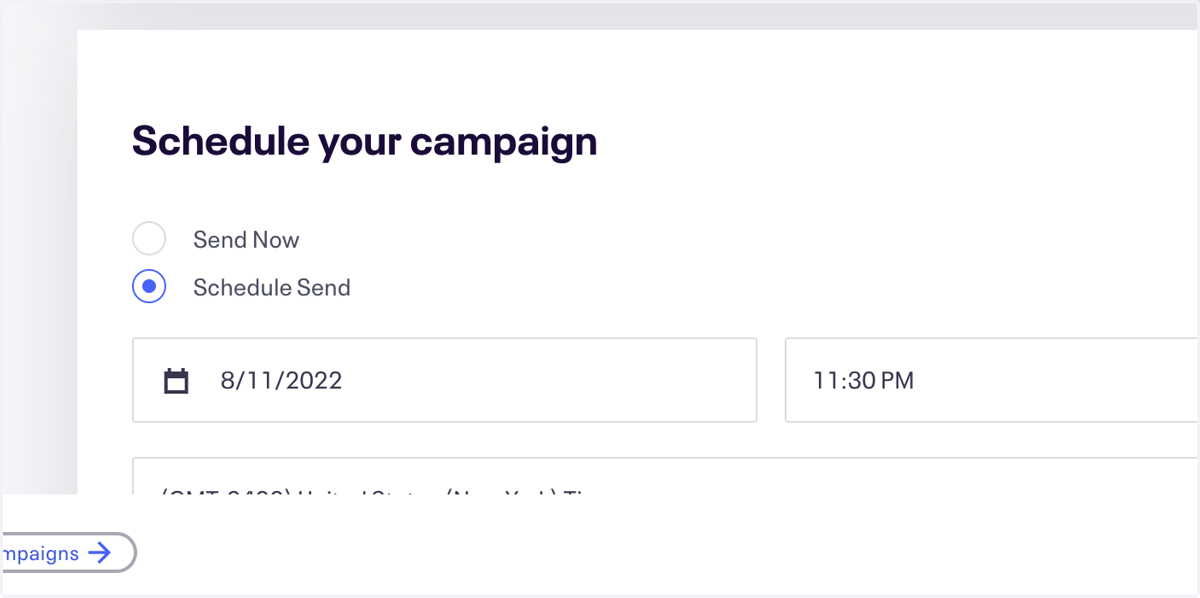
20. Select Schedule Send
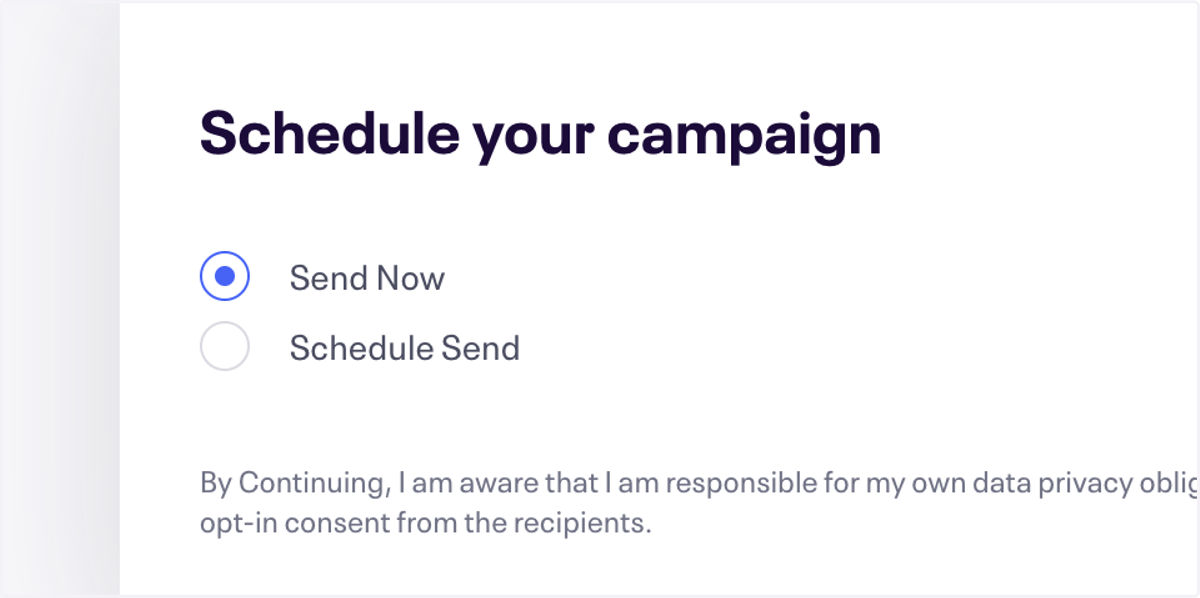
21. ...or Send Now
22. Click on Send campaign