Bullhorn Messaging: Sending a Mass Text
Bullhorn
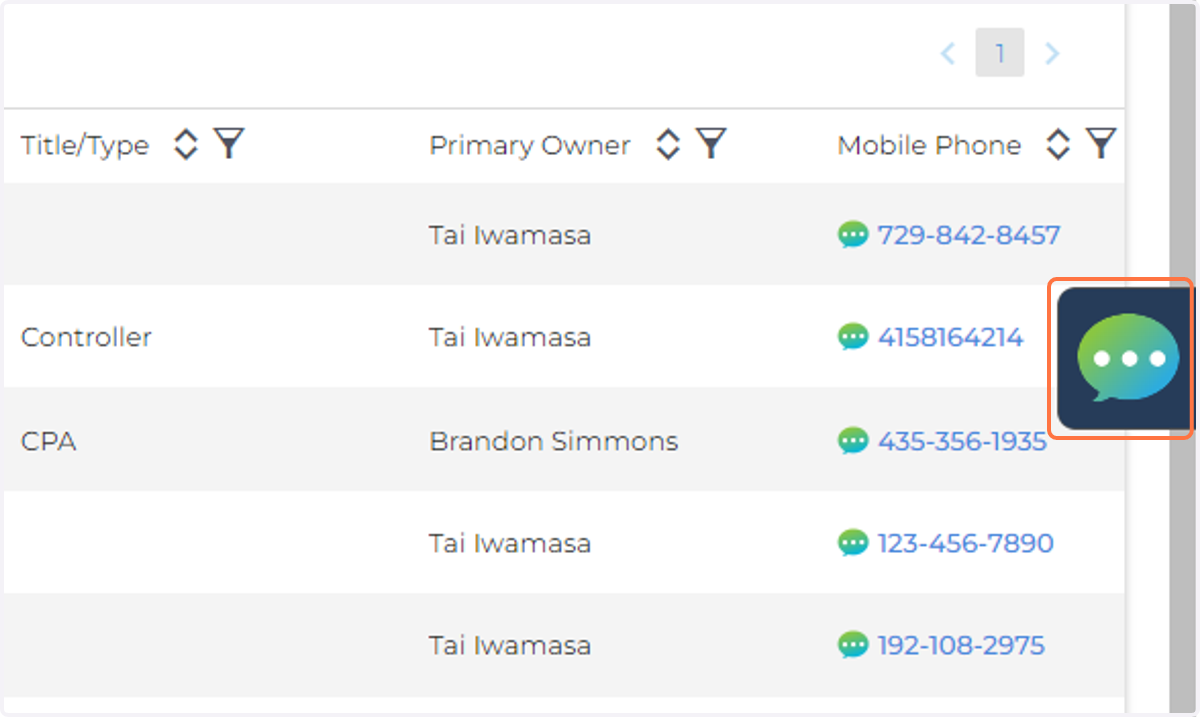
1. Open a tearsheet and hit the extension
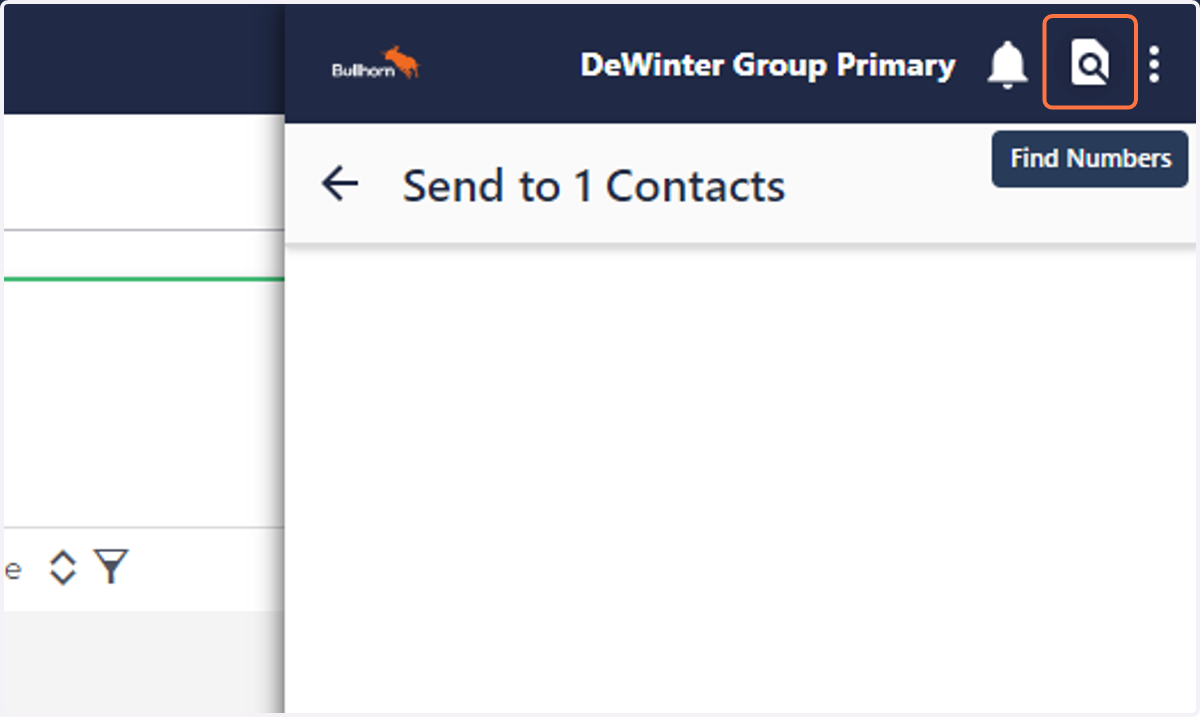
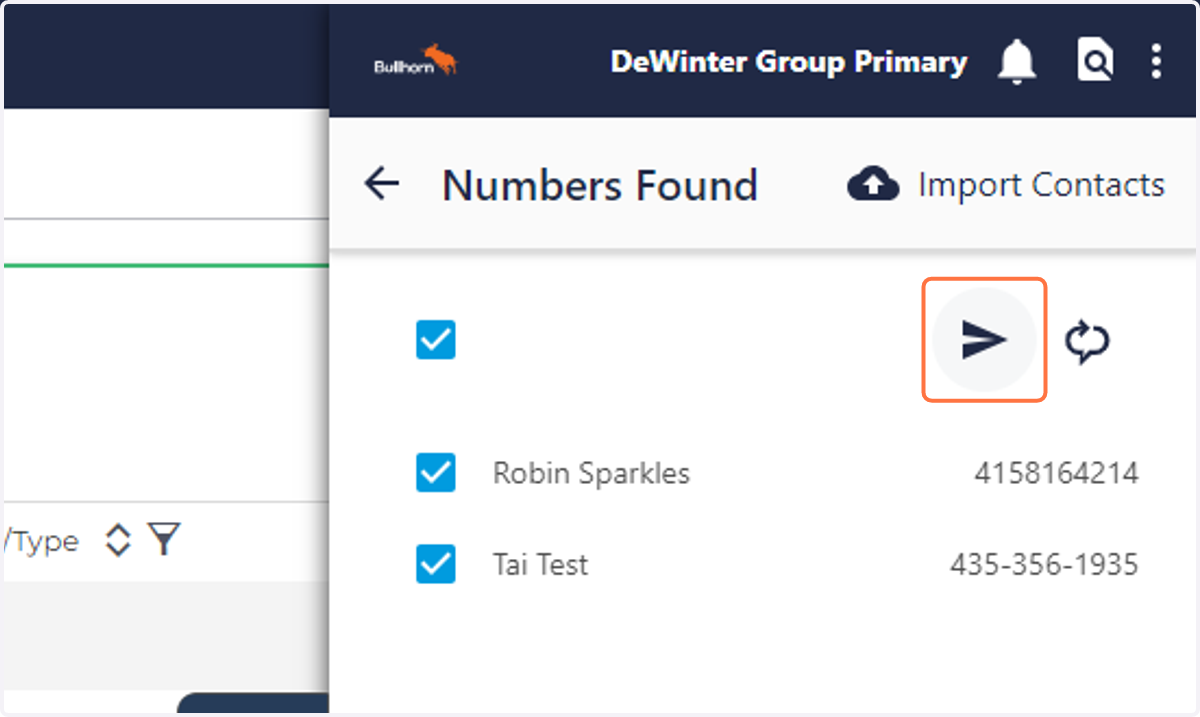
2. Click on Find Numbers
3. It will pull in the contacts that have a textable mobile number
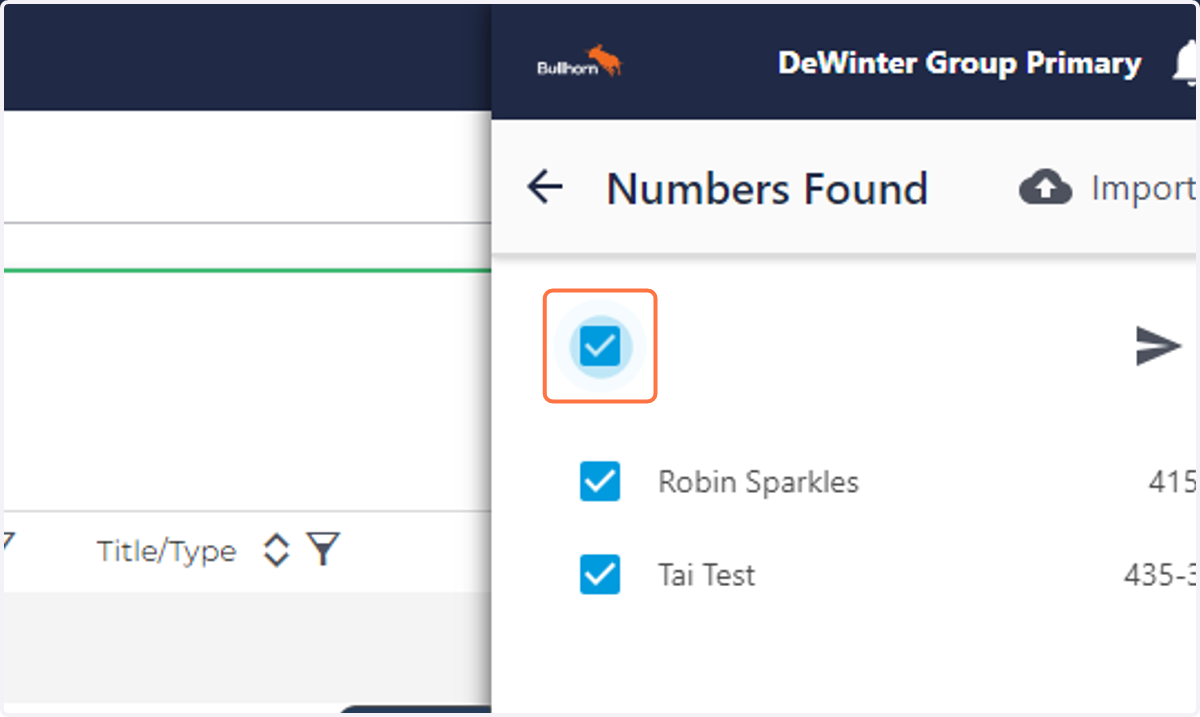
4. Select who you would like to send a message to.
If there are 10 or less contacts, click the paper airplane
If more than 10 contacts, see below for next step
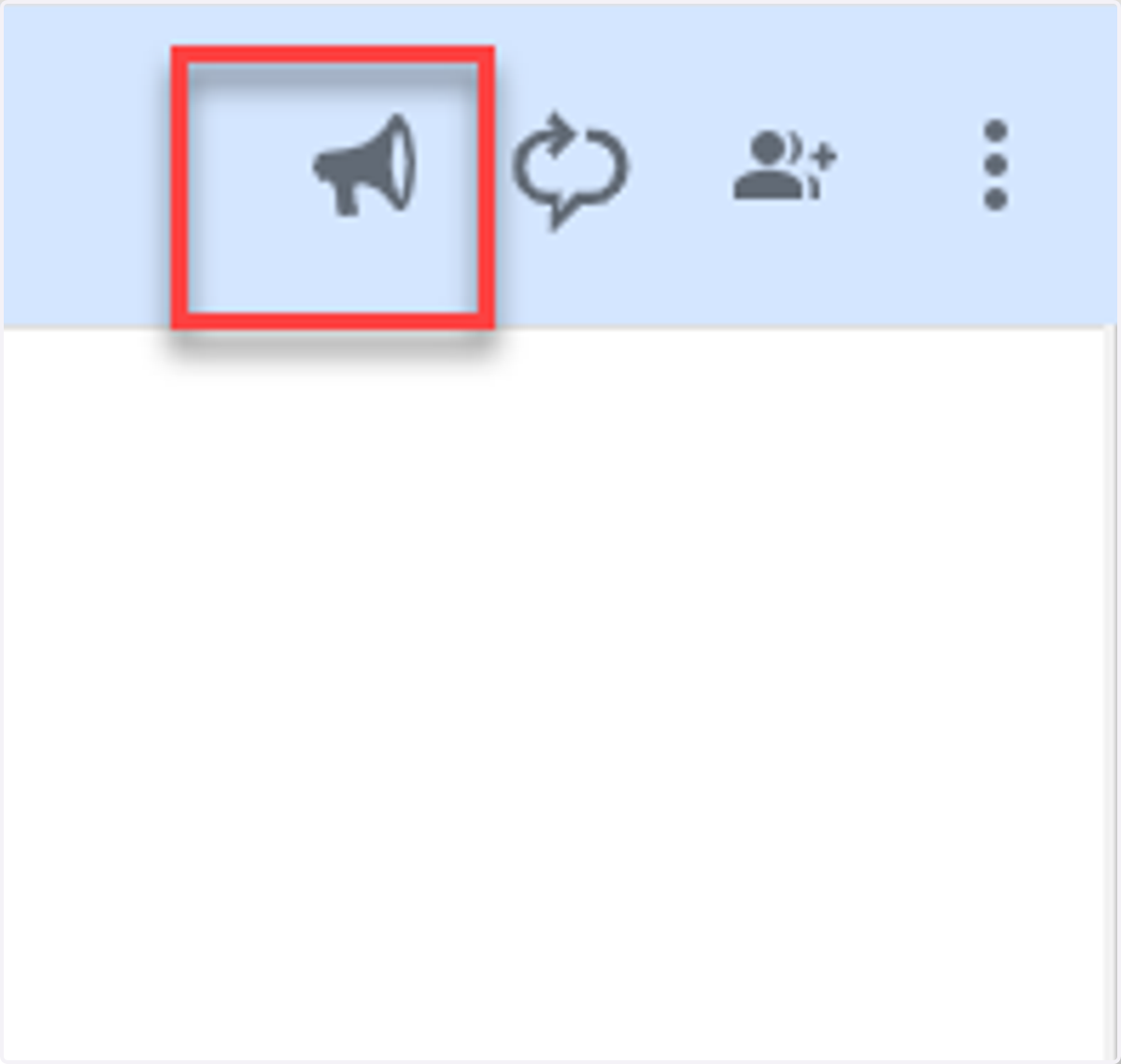
5. If more than 10 contacts, you will use the campaign option (the Megaphone Icon)
When a Campaign goes out, it sends all selected Contacts an individual message and, if they respond, a new one-to-one conversation will be started in Bullhorn Messaging. Contacts will not see responses from other Contacts or know that they are part of a Campaign.
Keep in mind there is a daily limit on the amount of campaign messages sent a day. You can see your daily limit of Campaign messages in the upper left-hand corner of the CAMPAIGNS tab. Any Campaign messages that you send to landline phone numbers will not count towards your daily Campaign allotment.
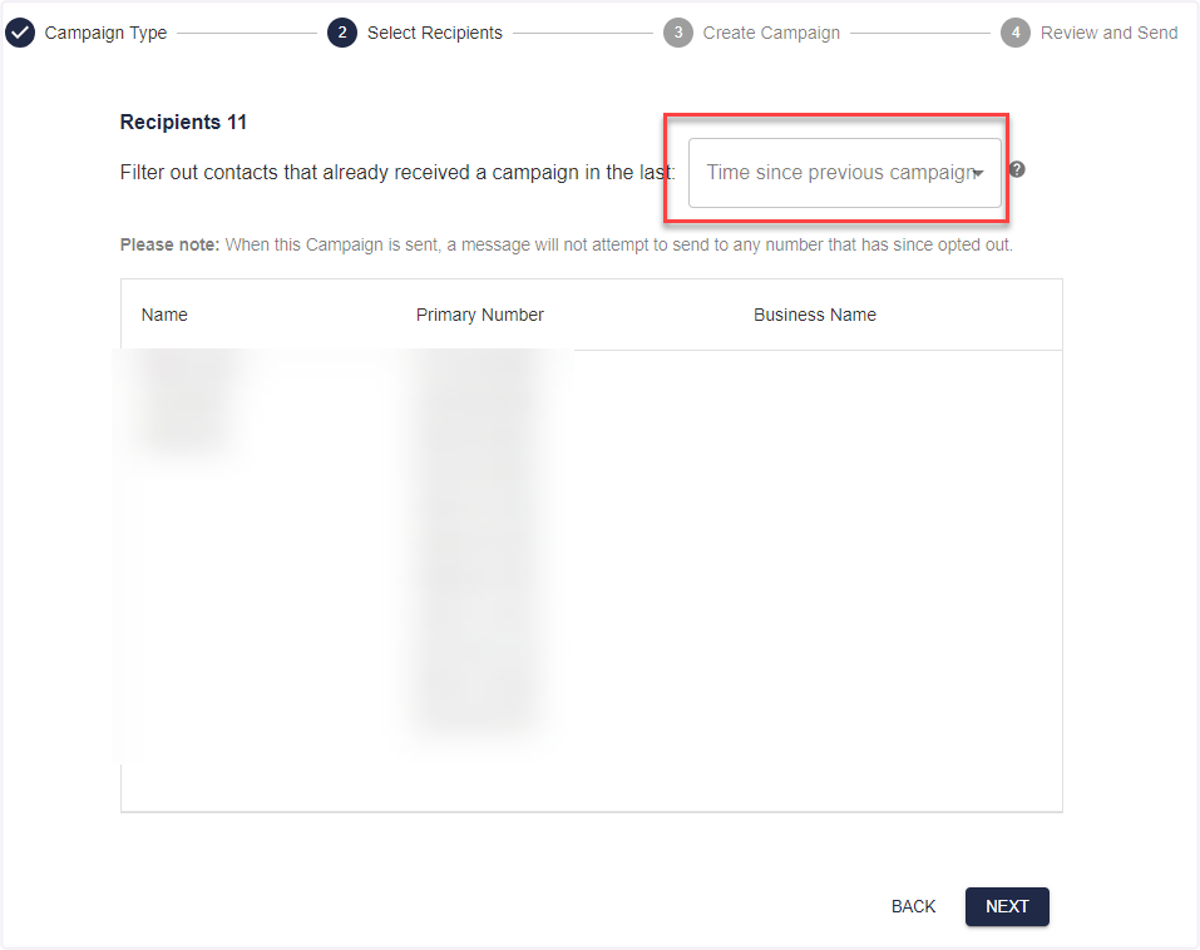
6. CAMPAIGN ONLY After selecting your contacts, it will ask if you would like to filter out anyone that has already received a campaign in the last x amount of time
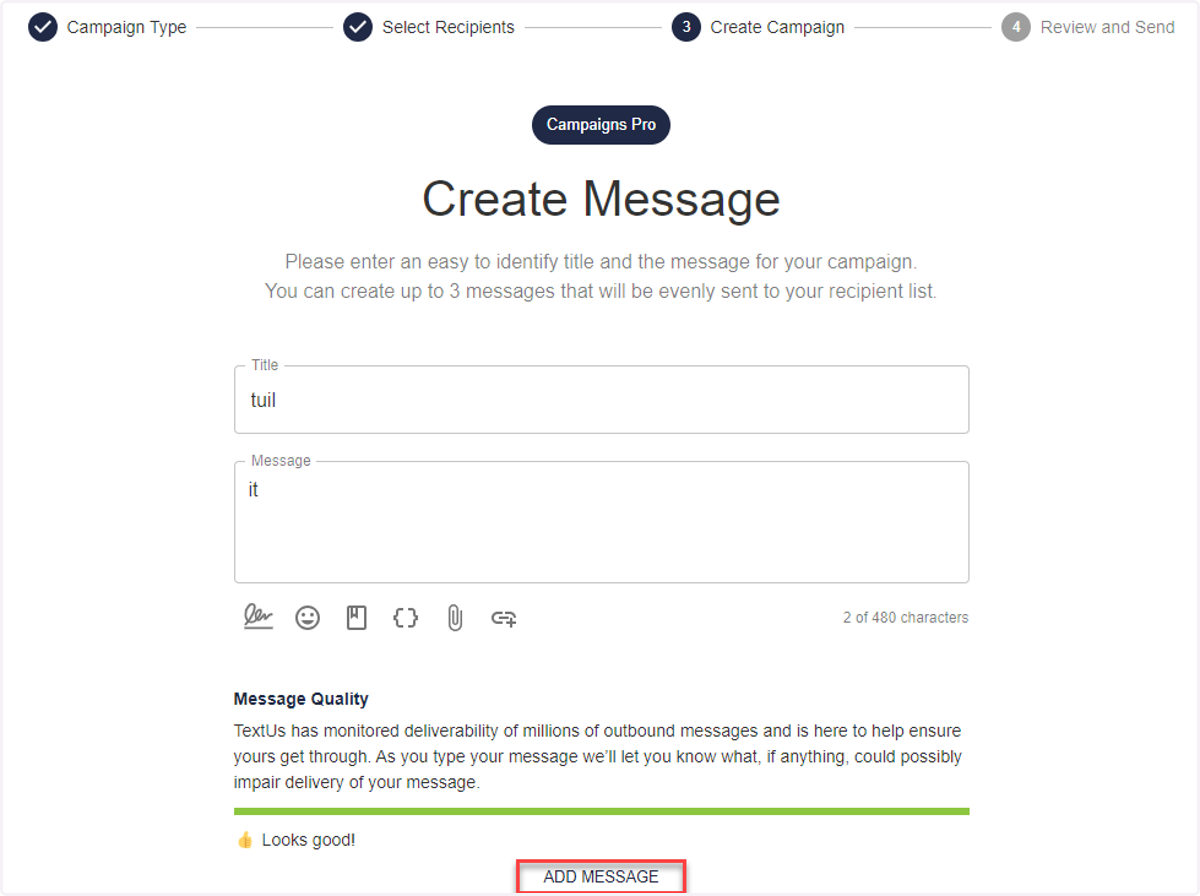
7. Create your campaign
If you would like to add another message, click Add Message
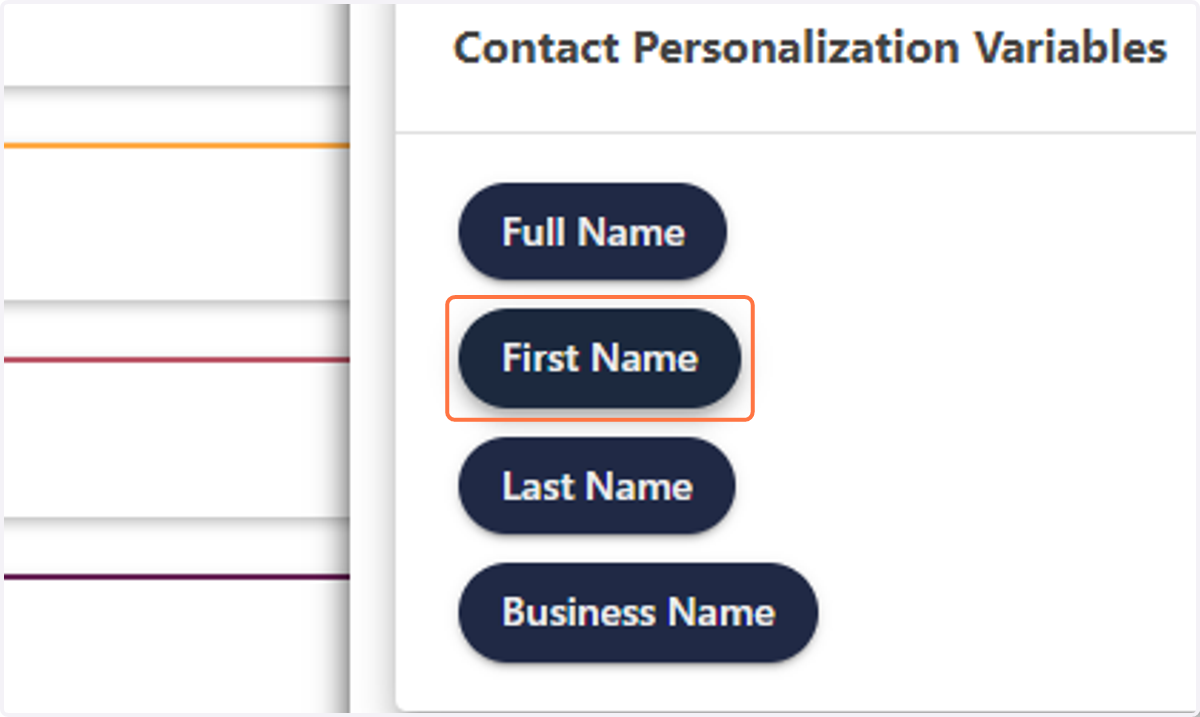
8. When typing in your message, here is a time to utilize the Special Tags
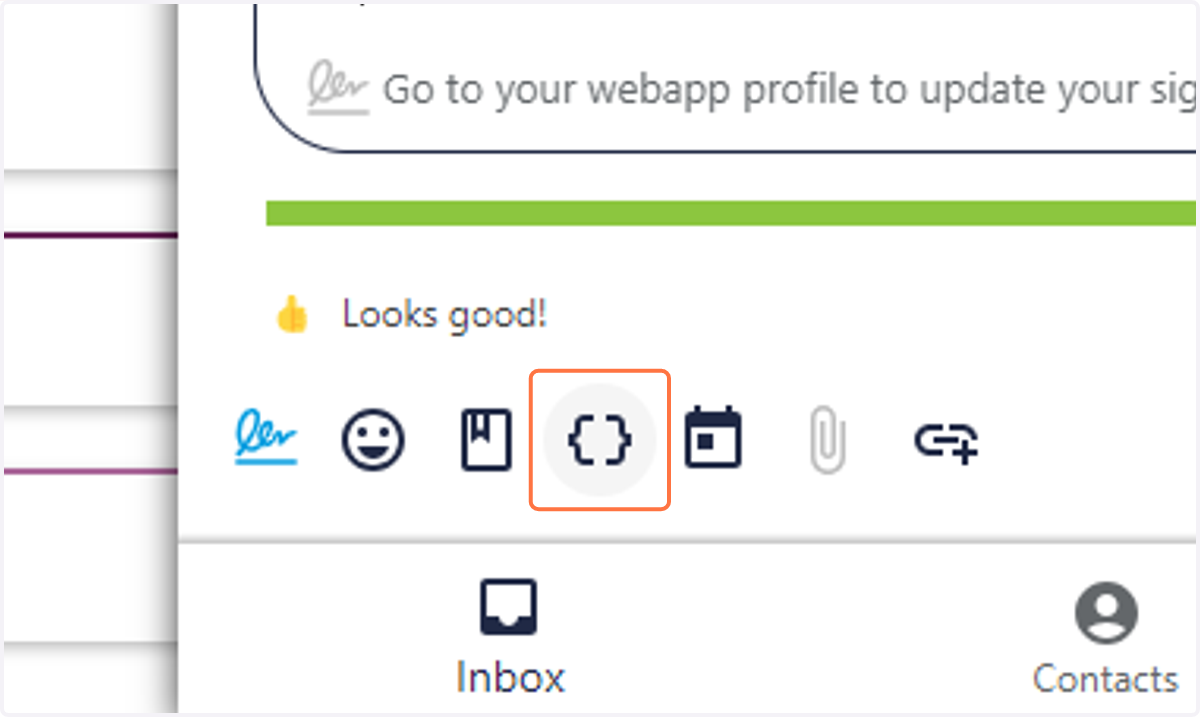
9. Ex. Click on First Name