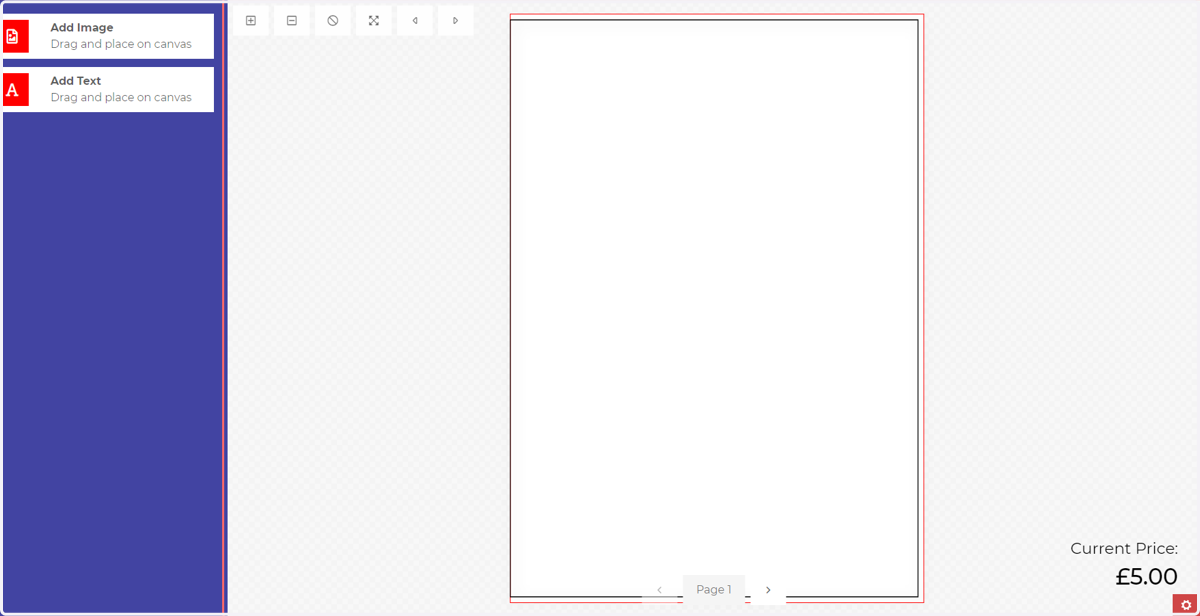
MegaEdit Canvas
One of the key components on MegaEdit is the Canvas. In the design world, canvases represent the dimension of the product.
In this tutorial, we will learn how to create a canvas within our storefront configuration and how to assign it to our MegaEdit product.
A canvas can be set as a fixed size, or can have dynamic sizing controllable by the customer. This tutorial will show where to set up the dynamic sizing option.
Infigosoftware
1. Manage MegaEdit resources
The MegaEdit products page contains a drop down list on the top right, allowing direct access to MegaEdit resource specification on your storefront.
These same options are also available in the main menu list.
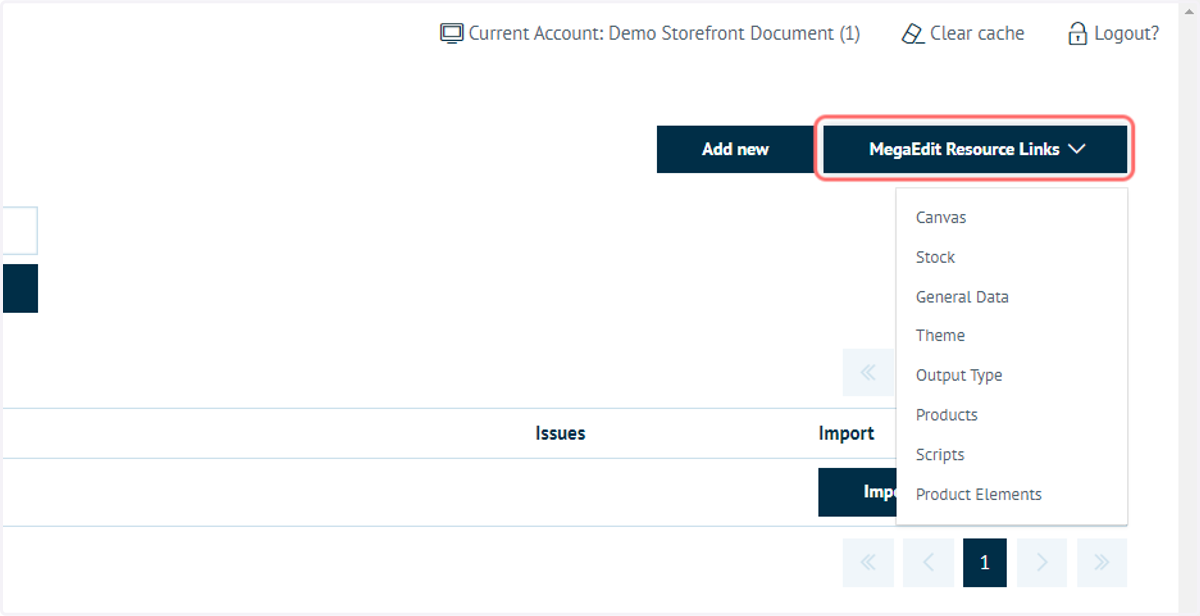
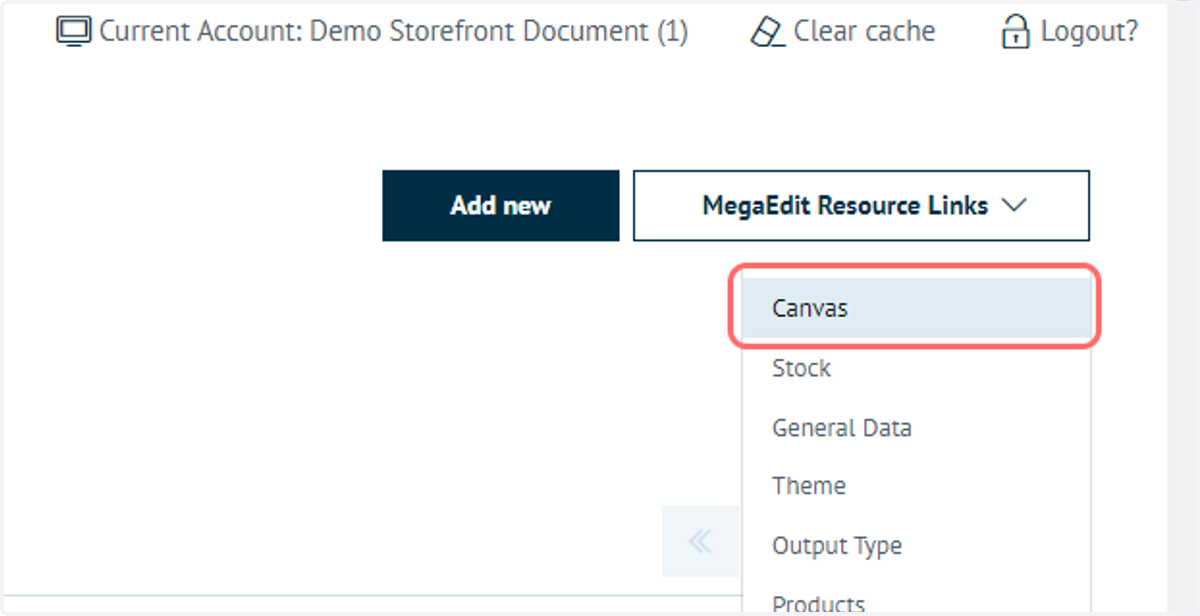
2. Click on Canvas
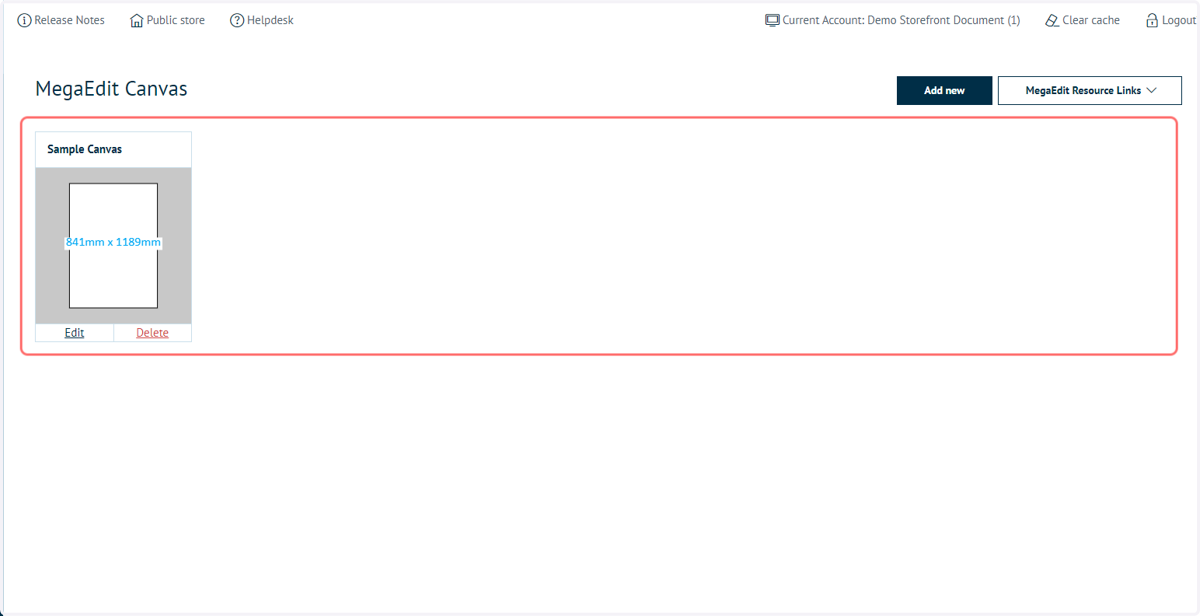
3. Review specified canvas
Any canvas specification already defined on your storefront will be shown here. We can see in this example that three canvas sizes have already been defined. These can be further modified or deleted if necessary.
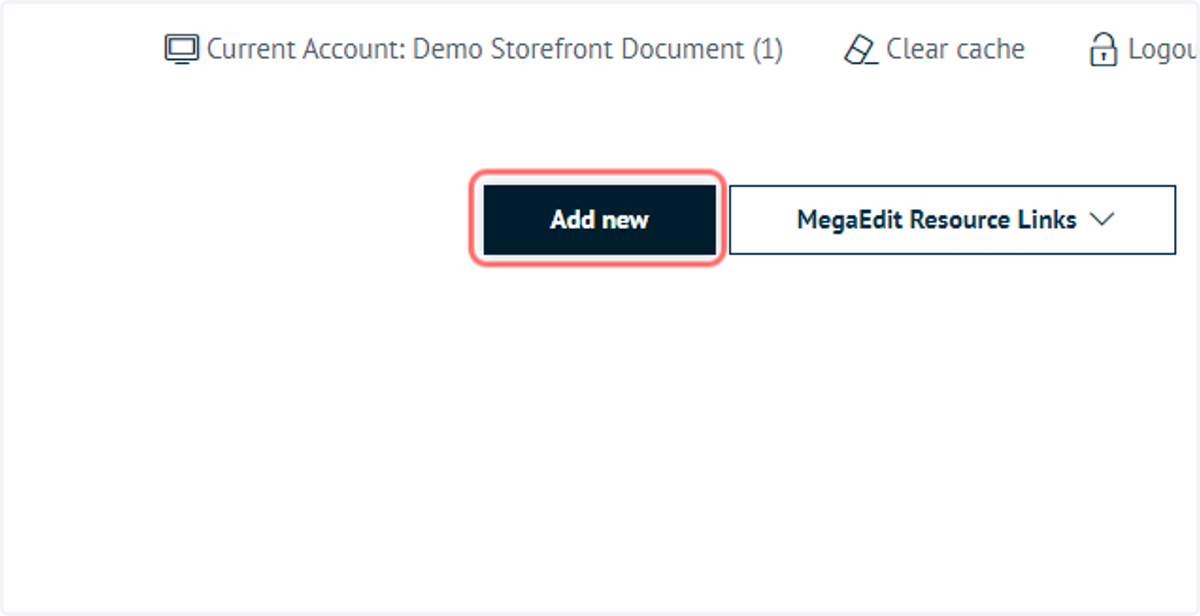
4. Click on Add new
Our first new canvas will be a static A4 portrait size.
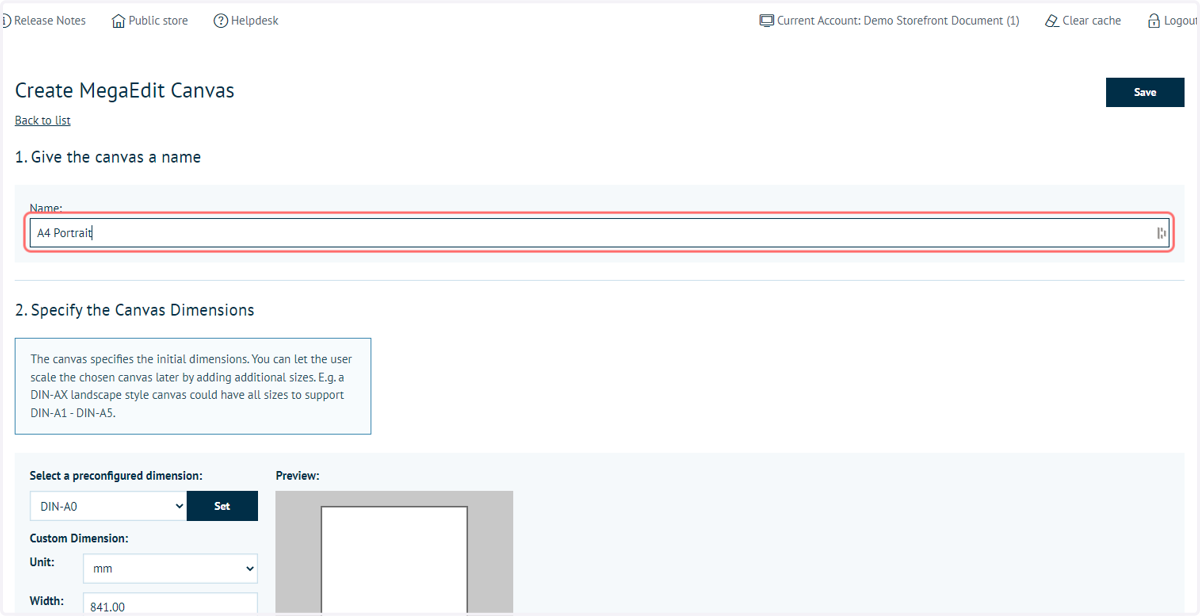
5. Type a canvas name, such as "A4 Portrait"
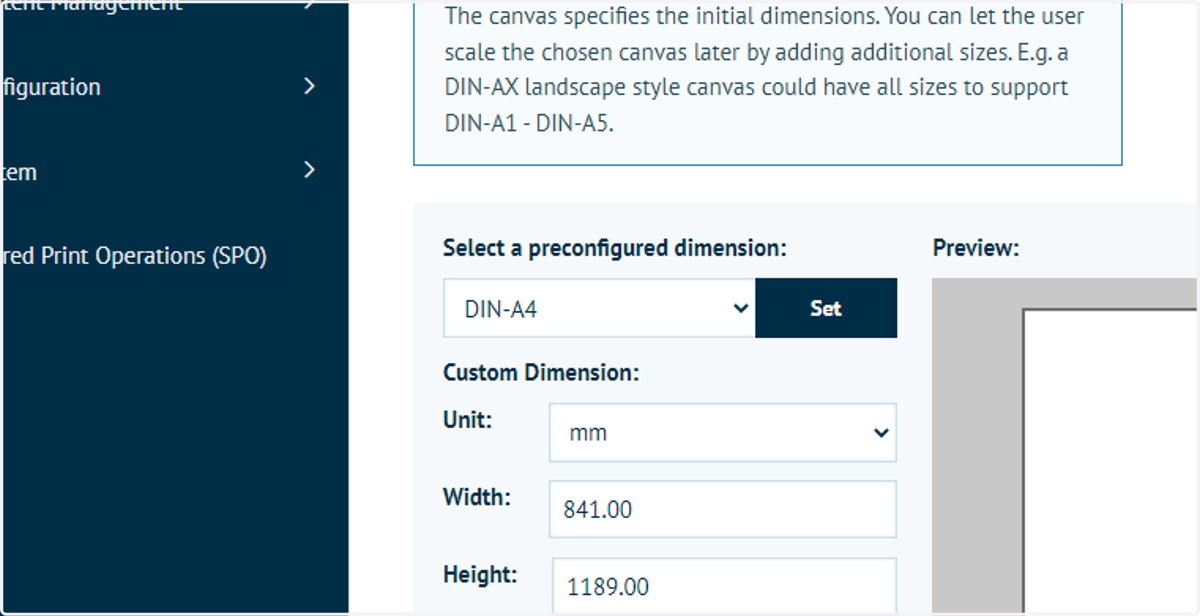
6. Define a canvas size
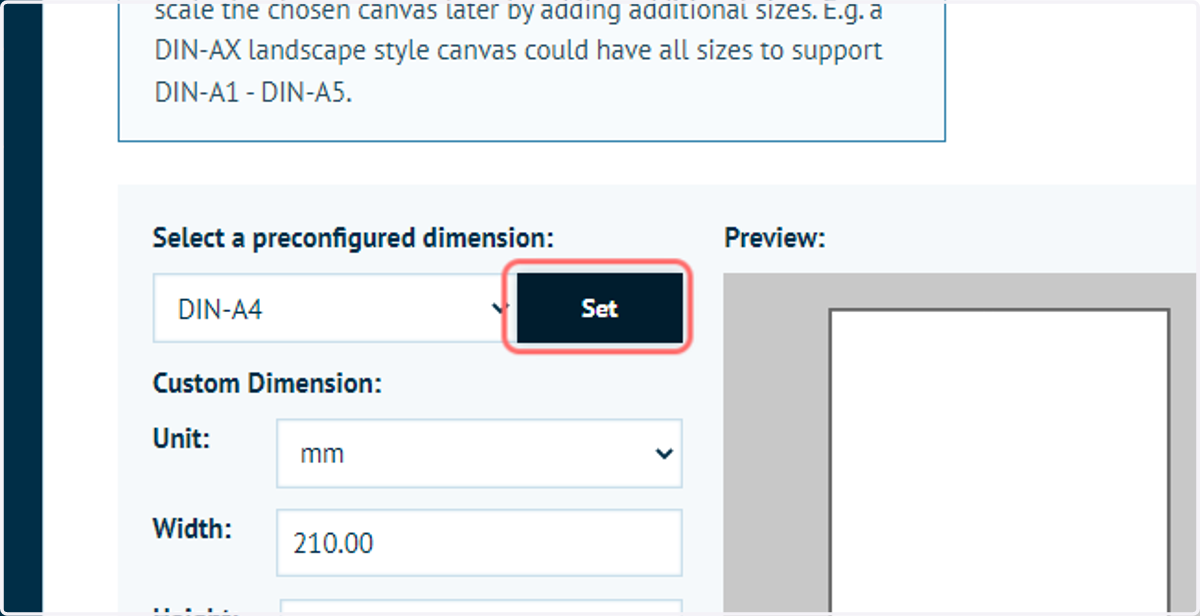
If using a standard canvas size such as A4, locate it in the drop-down list of preconfigured dimensions and click Set.
7. Click on Set
8. Click on Save
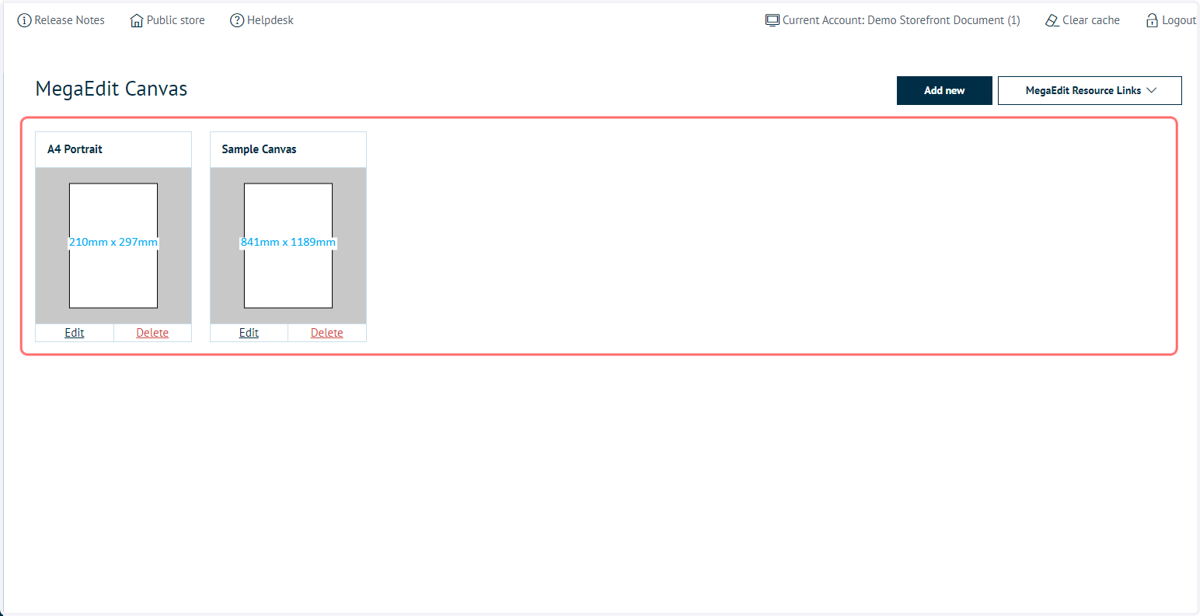
9. Available Canvas specifications
The new canvas will now be added to your list of available canvas options.
10. Click on Add new
Next, we will specify a canvas which allows for dynamic sizing by the storefront customer.
We will begin by creating a canvas using the same steps as above.
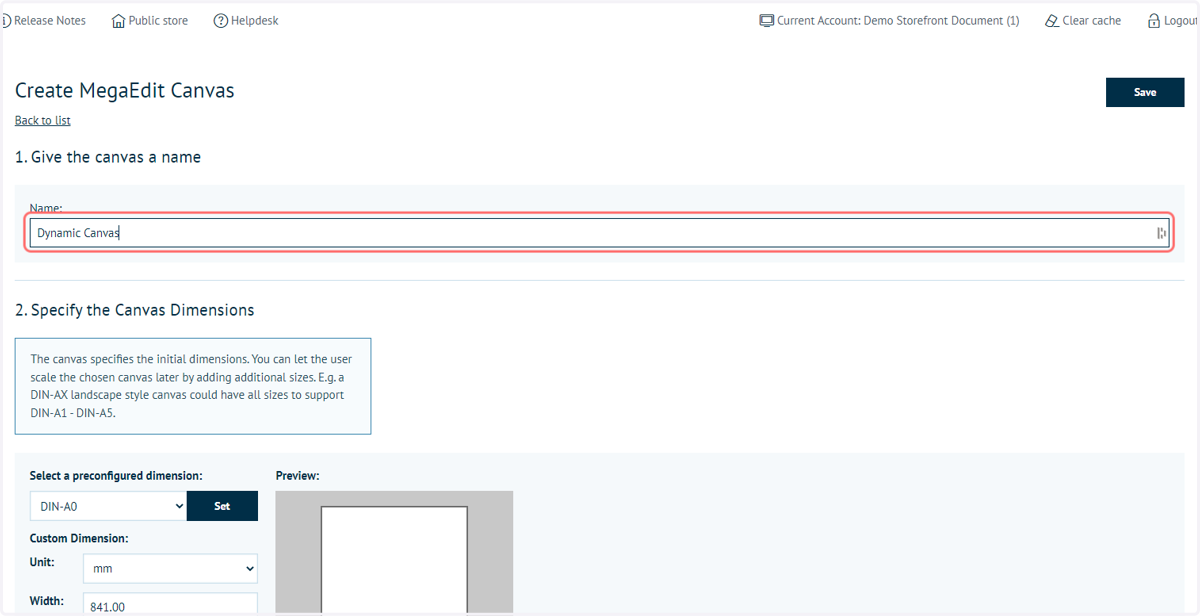
11. Type a canvas name, such as "Dynamic Canvas"
12. Click on Save
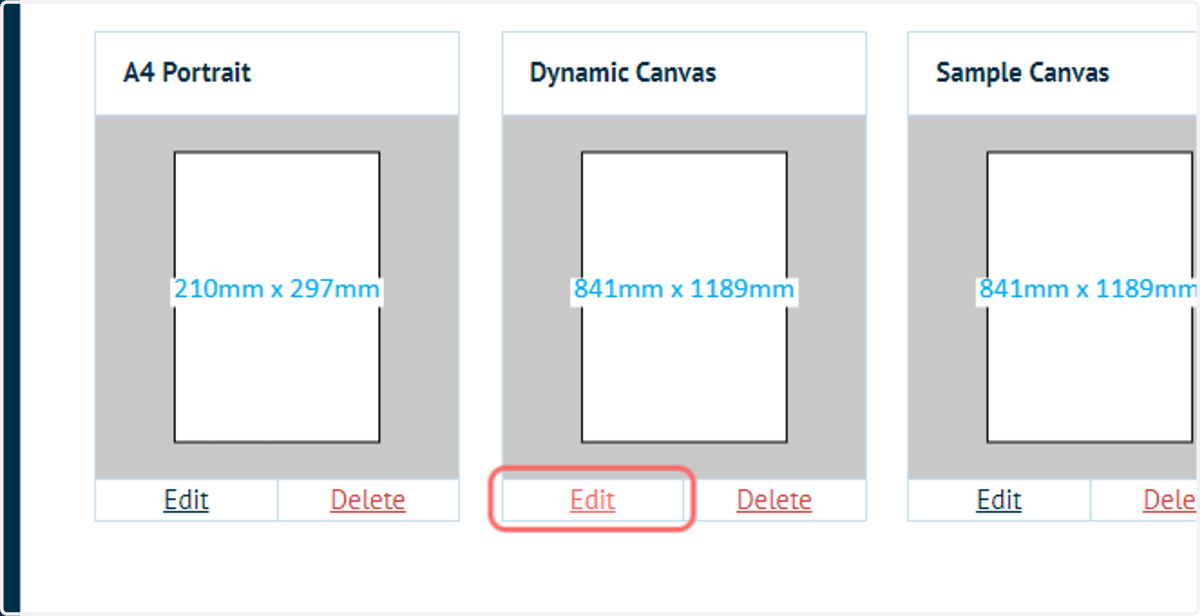
13. Click on Edit
Locate the canvas you wish to add dynamic sizing to and click Edit.
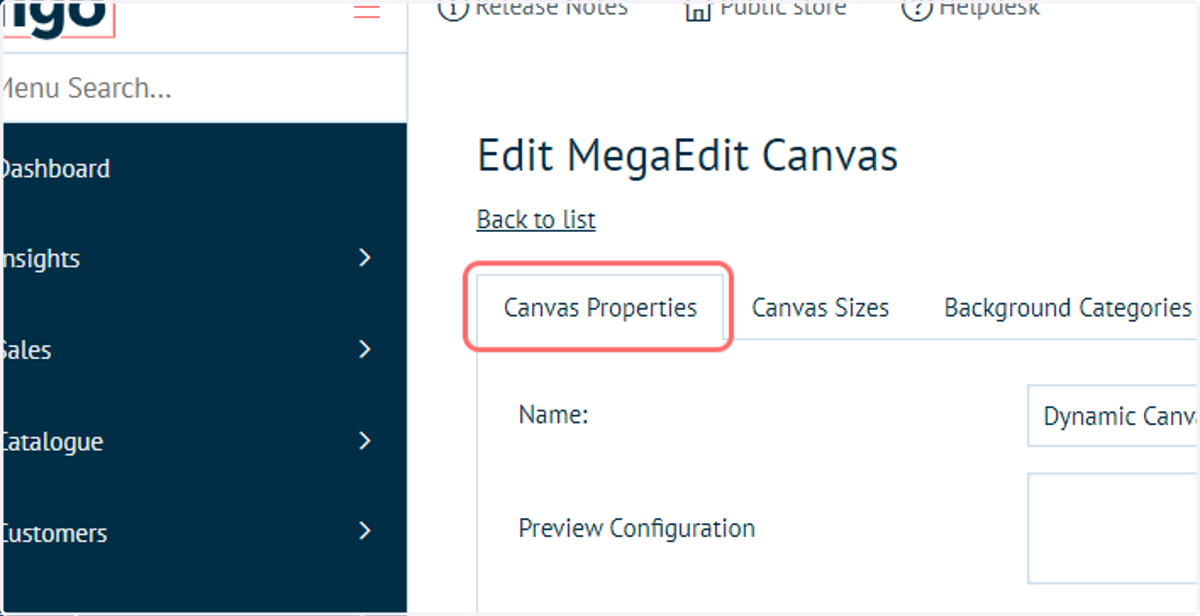
14. Click on Canvas Properties
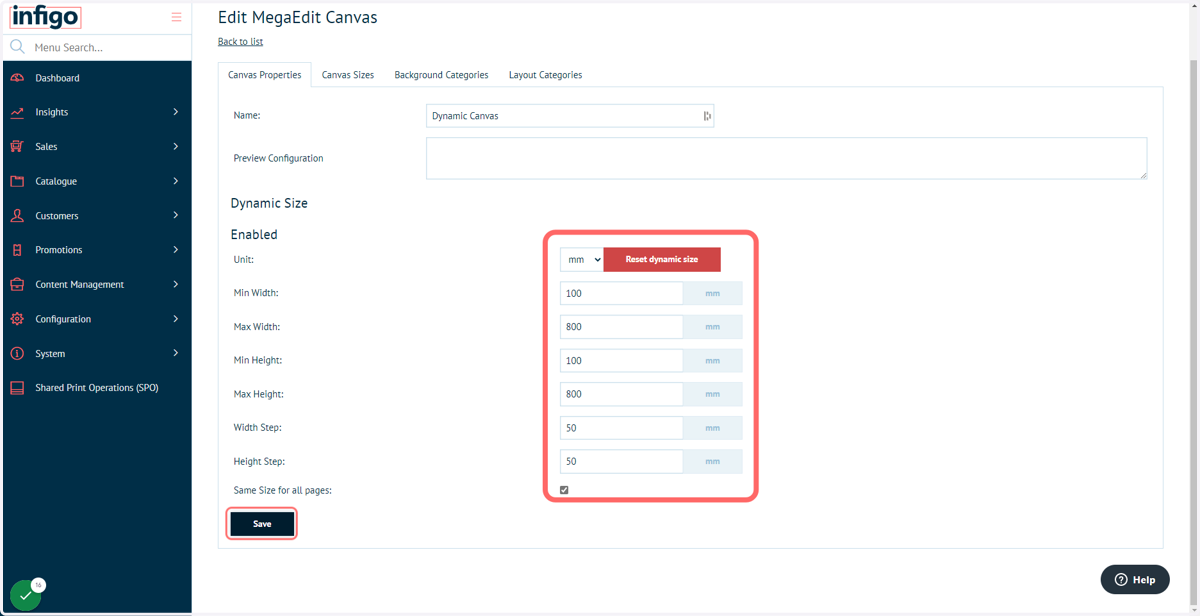
15. Configure dynamic canvas properties
The Canvas Properties tab allows configuration of dynamic canvas sizing.
In order to configure this, all you need to do is fill in the values to set the boundaries for the dimensions of the canvas. This will allow you to set minimum and maximum values for both the width and height, as well as the steps for each of these.
Note: The Step is how many units it will increase or decrease in. For example, if you set the step to 10, the user would only be able to increase or decrease the value by 10 or multiples of 10. This allows you to ensure that your products will only create outputs with dimensions that you can work with, if such a requirement is present.
In this example, we have set the boundaries so that the canvas can be no smaller than 100mm x 100mm, and no larger than 800mm x 800mm, as well as only allowing the user to increase/decrease the width in a step of 50, and the height in steps of 50.
Although I have set these values to be in millimeters, the system will convert these values to whichever measurement the user chooses to use on the landing page. The supported units are: Centimeters, Millimeters, Inches, Points.
Note: If you do not set all of the values to be anything above 0, the feature will not be correctly configured and will not activate.
Users can select whether each page in a MegaEdit product is of the same size. Simply check on uncheck the "Same Size for all pages" option to control this.
16. Create a new canvas
Next, we will generate a canvas with several size options. To begin, create a new canvas.
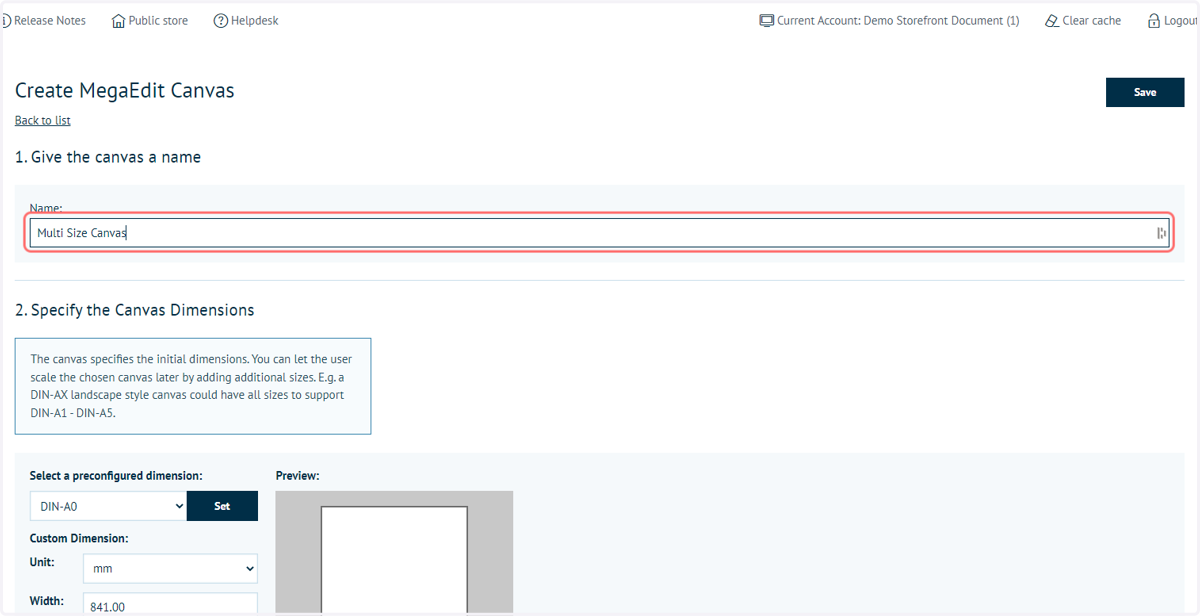
17. Type a canvas name, such as "Multi Size Canvas"
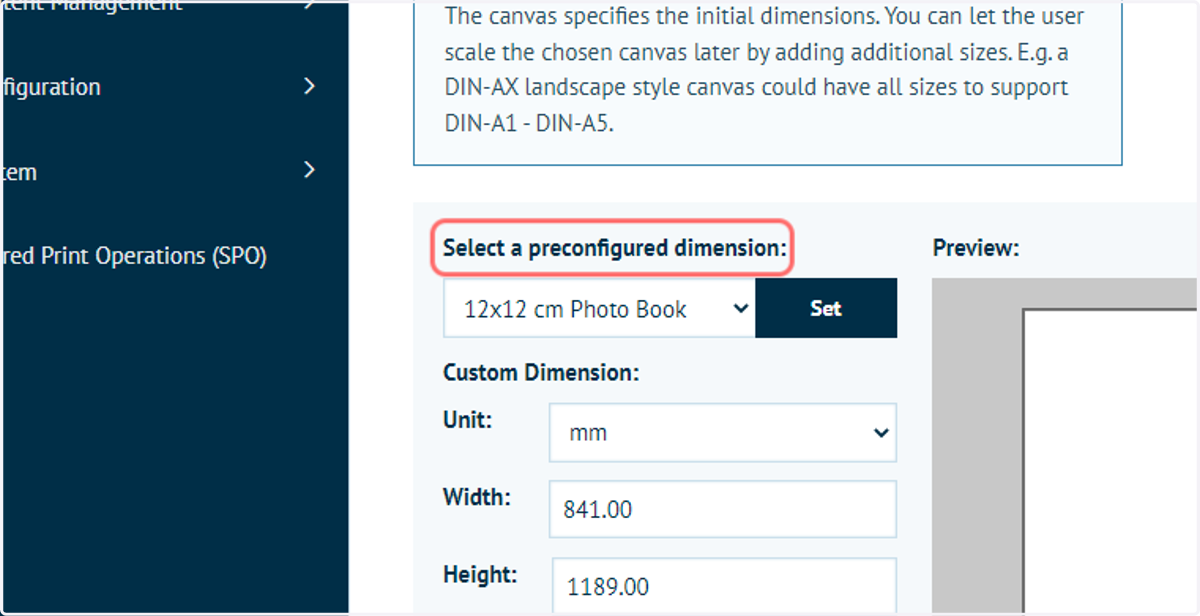
18. Enter canvas dimensions
Although we will be specifying different canvas sizes, we will not be able to alter the aspect ratio.
Ensure that your initial specifications match the ratio of your final canvas requirements.
19. Click on Save
Infigosoftware
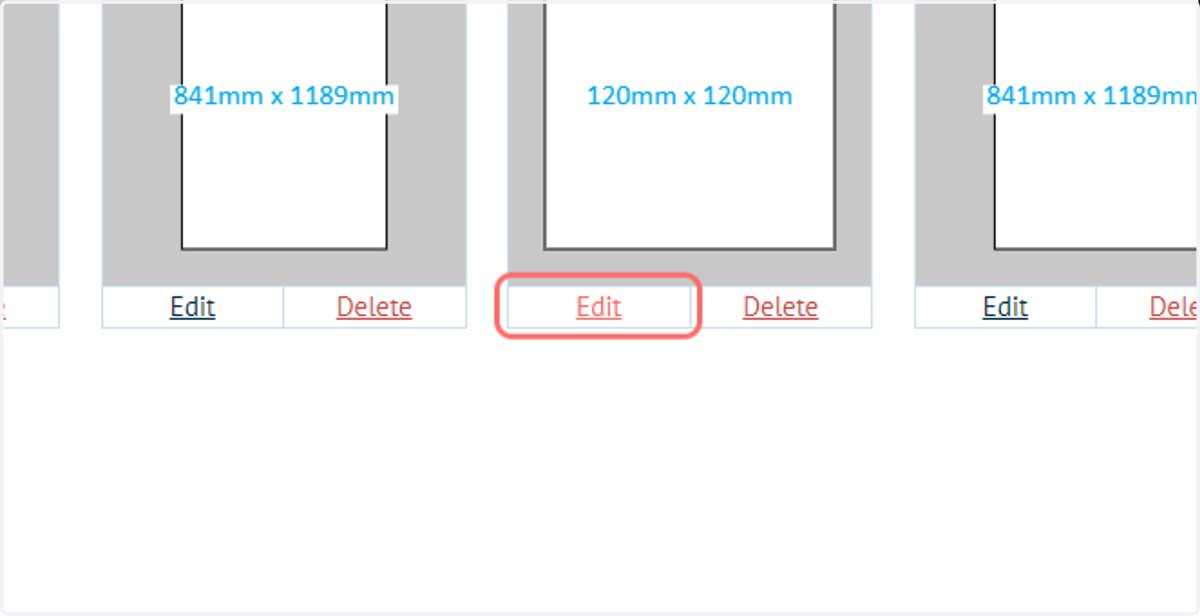
20. Click on Edit
Edit the canvas we have just created.
21. Click on Canvas Sizes
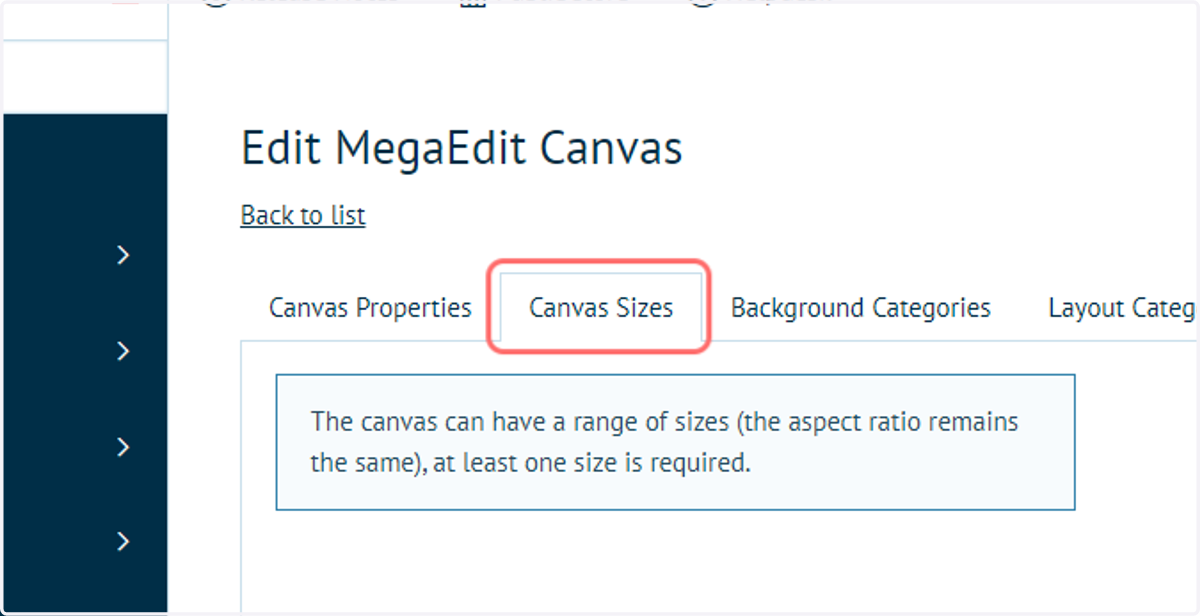
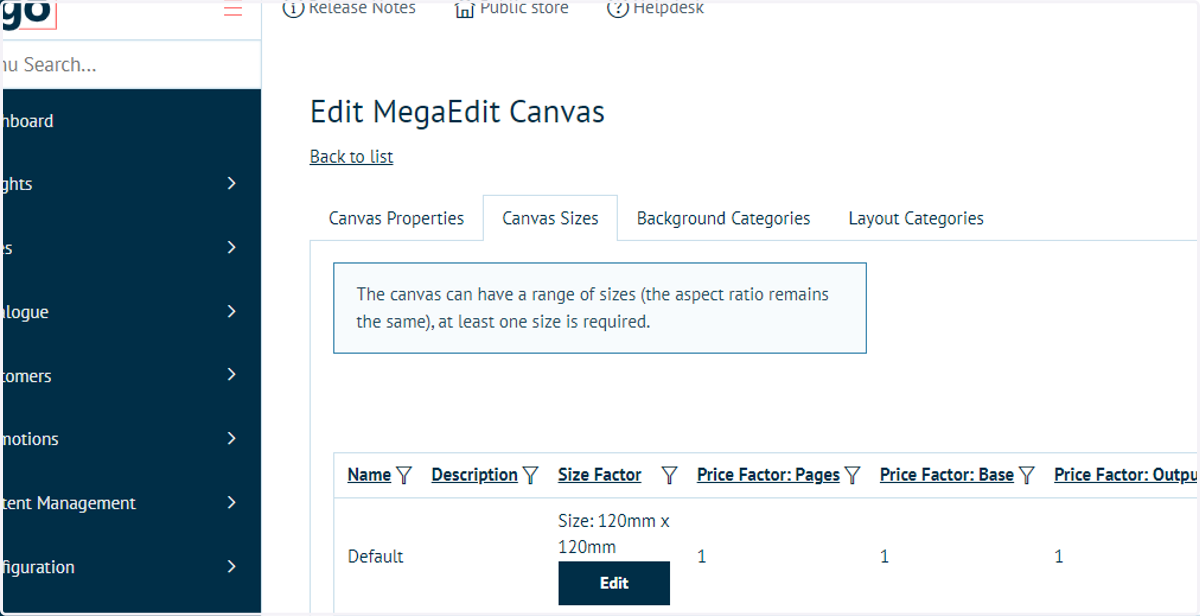
22. Click on Canvas Sizes
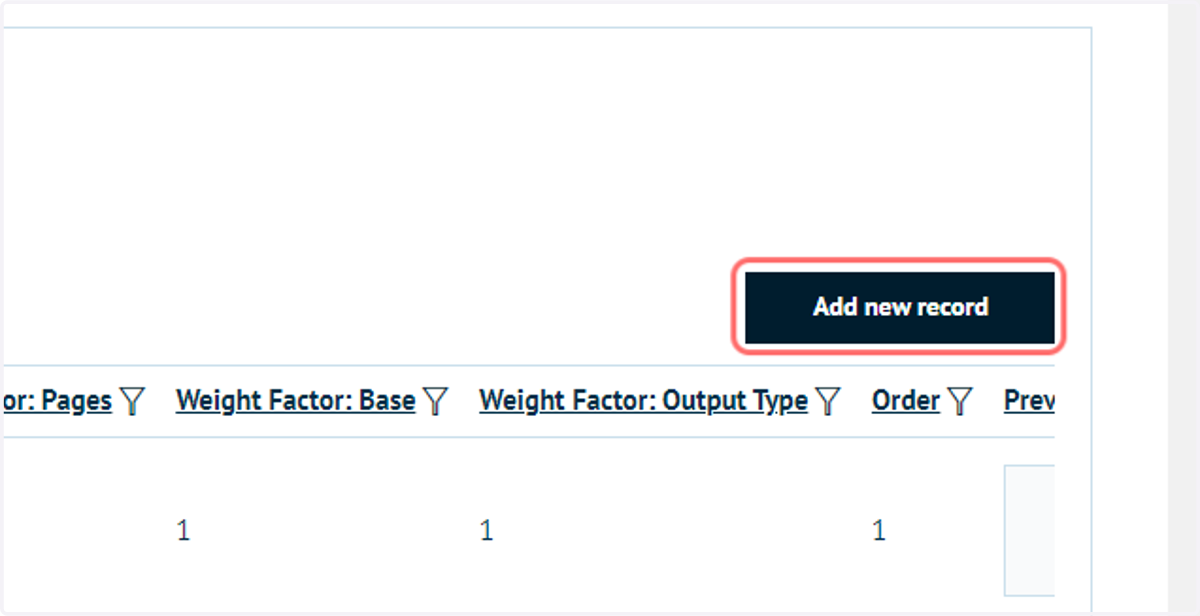
23. Click on Add new record
We can add multiple canvas size records to a single canvas specification. Each record equates to a different canvas size selection.
Click Add new record to begin creating a new canvas size selection.
24. Complete record information
Fill in the required data for this record. We will come back to the Size Factor field shortly.
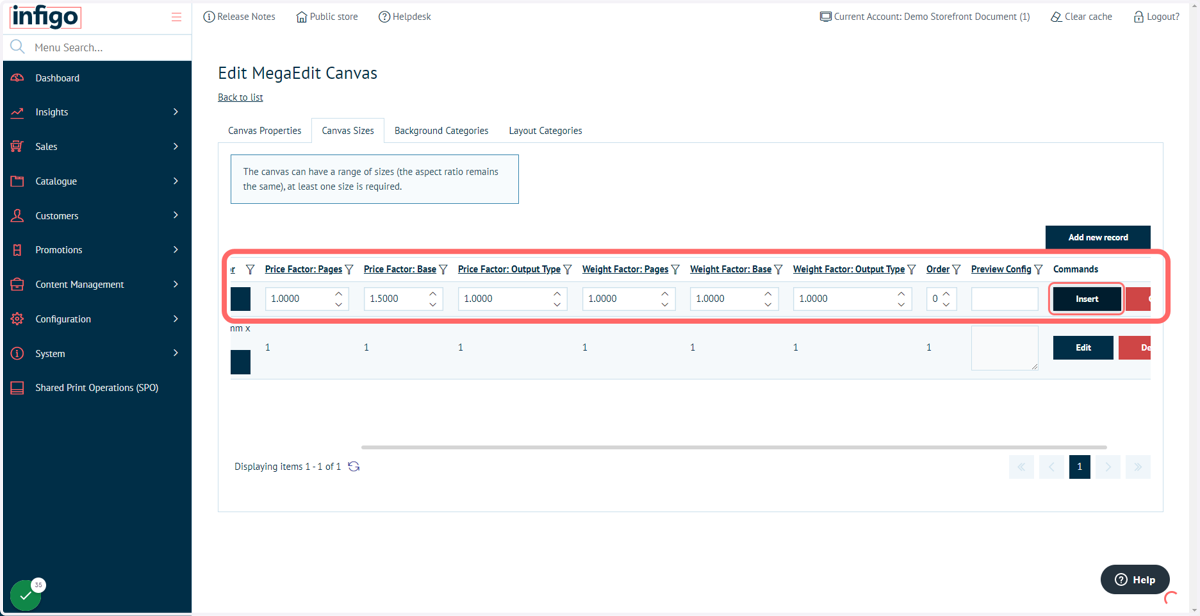
Remember to complete all of the factor fields, allowing you to modify product elements such as price or weight based on the selection of this canvas.
MegaEdit allows you to assign a price factor to your canvas, allowing you to modify the price depending on the canvas chosen.
The price factor will be how much the product's base price is multiplied by, meaning that if you were to leave the price factor at its default of 1, then the base price will be unaffected. If you were to change it to 1.5, then the base price would be multiplied by 1.5.
For example, if your product had a base price of £4, and you had a canvas price factor of 1.5, then the product will end up with a final price of £6 (£4 * 1.5).
Remember to update the other price factor options to 1, then click Update.
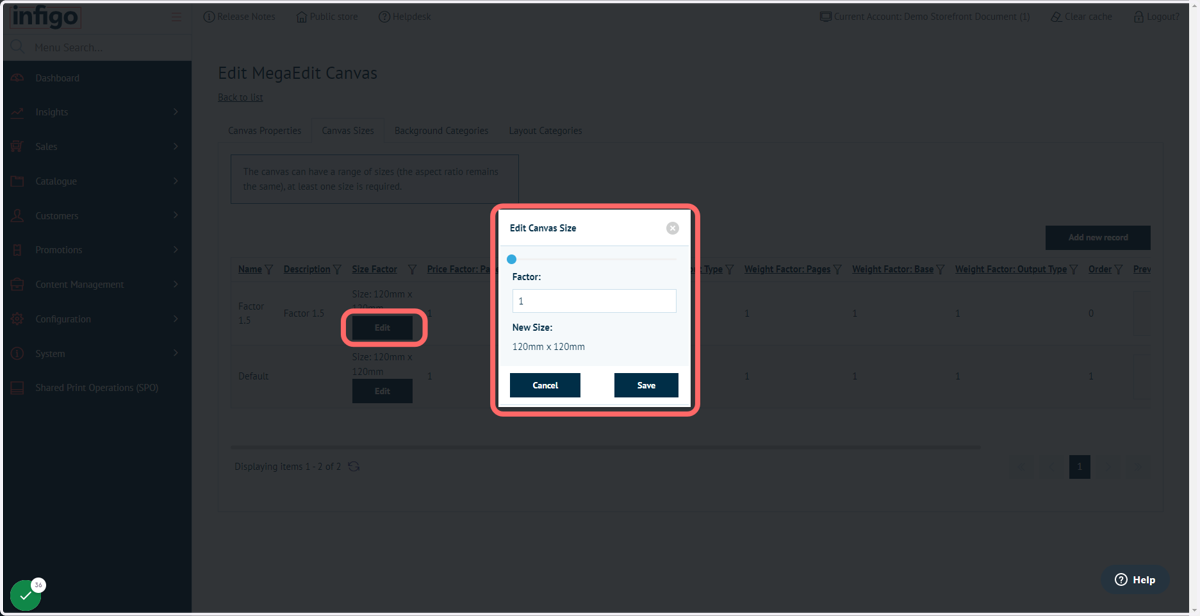
25. Edit the new canvas size record
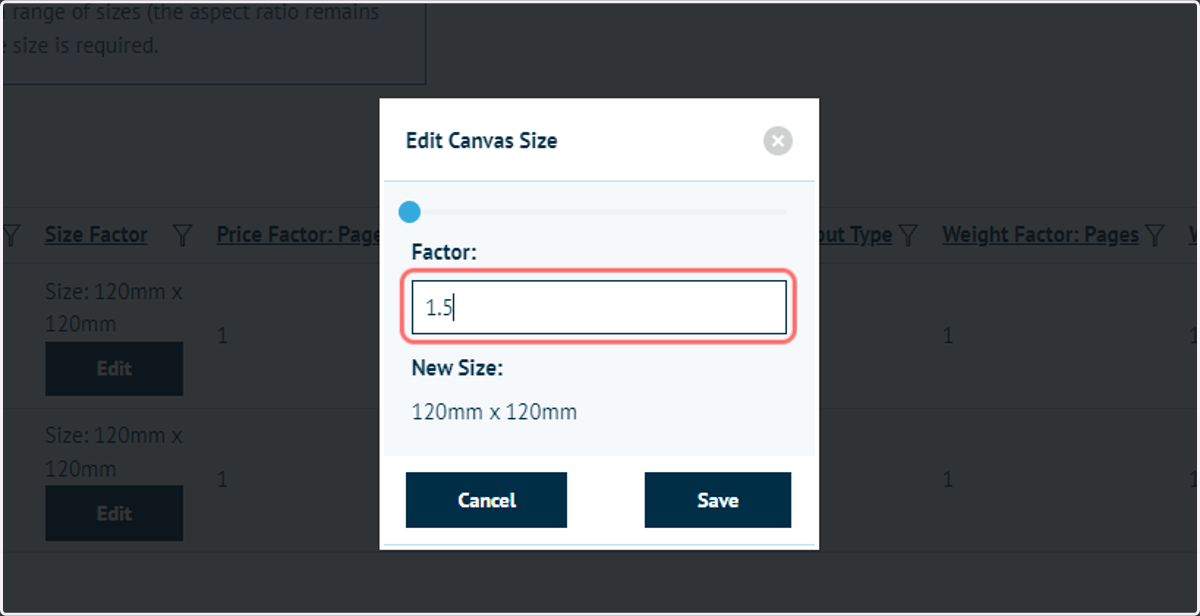
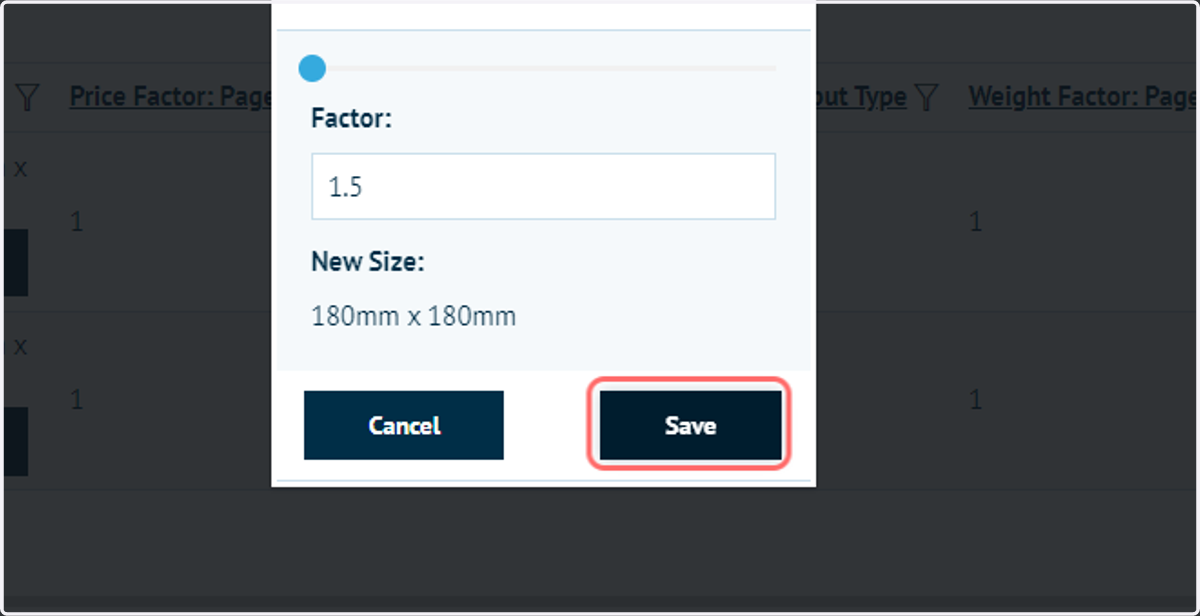
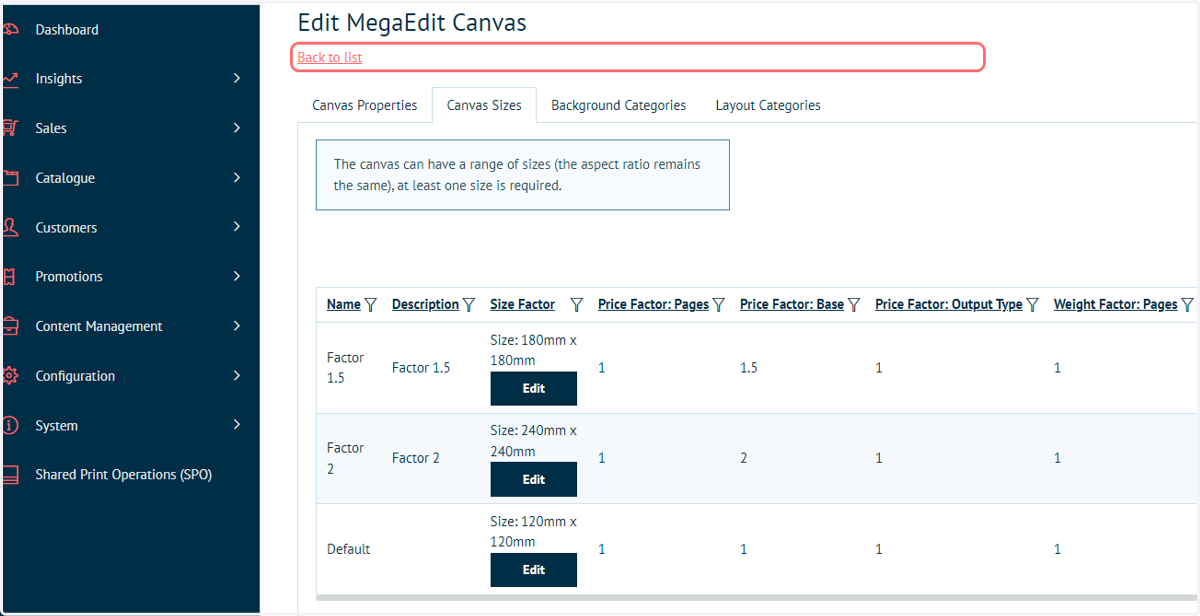
The administrator can now amend the dimensions of the new canvas size record. This must remain in the same aspect ratio as the default size, meaning the size is controlled via scale factor.
Infigosoftware
26. Enter a new scale factor
27. Click on Save
28. Add additional records as necessary, then click Back to list
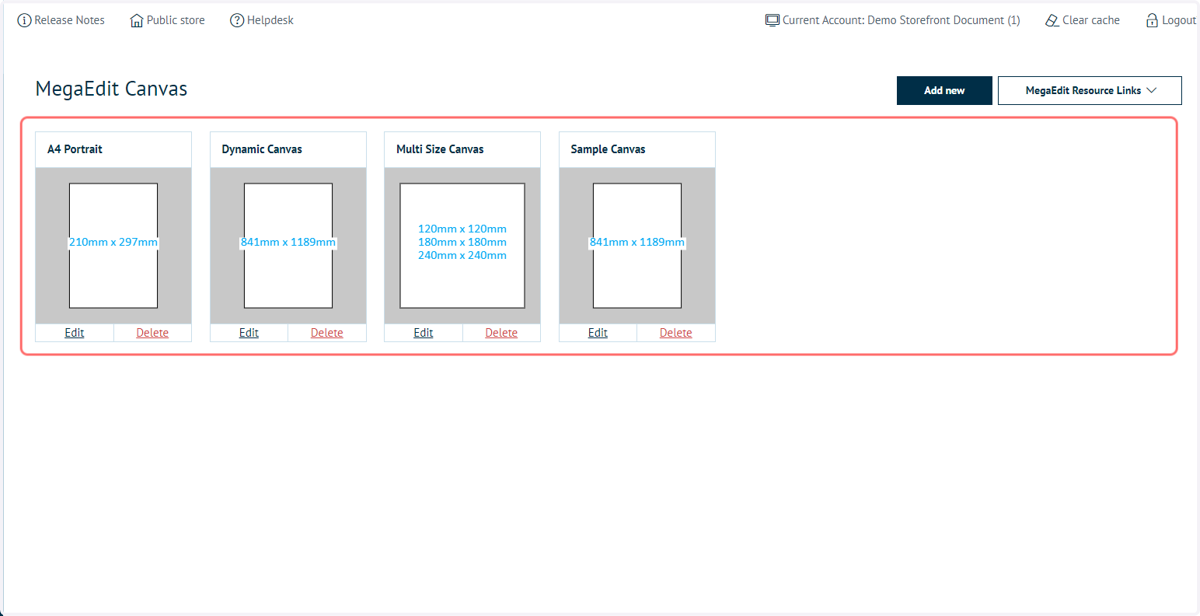
29. Review canvas options
All of your canvas specifications will now be available.
Where different canvas sizes have been specified, multiple dimension entries will appear on the associated image.
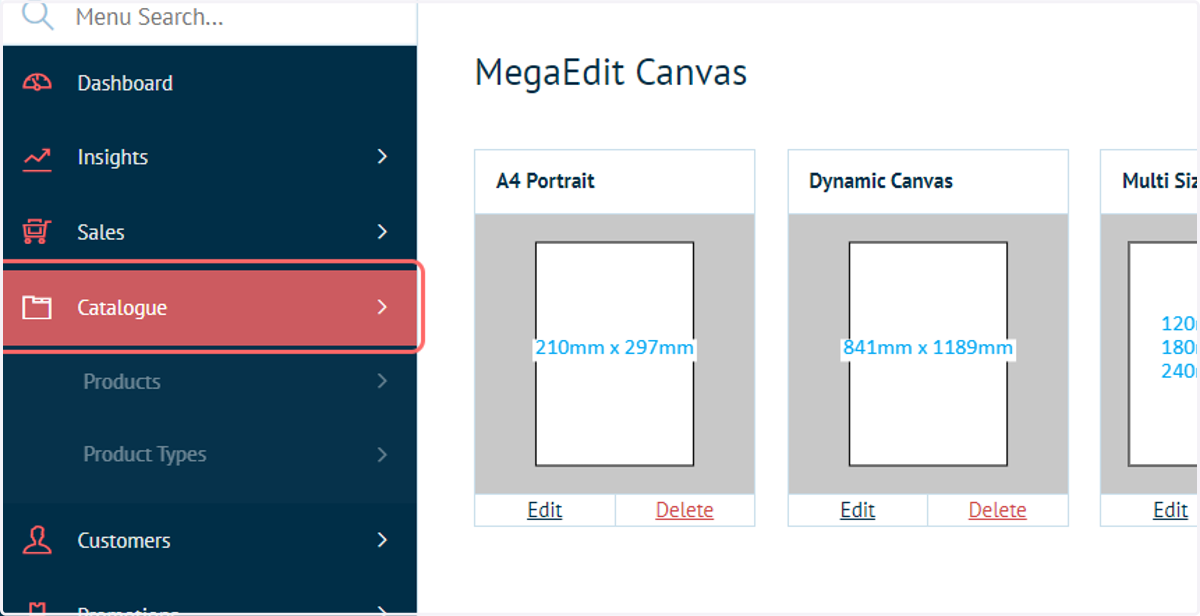
30. Click on Catalogue
Next, we will specify which of these MegaEdit Canvas specifications are in use on different MegaEdit products.
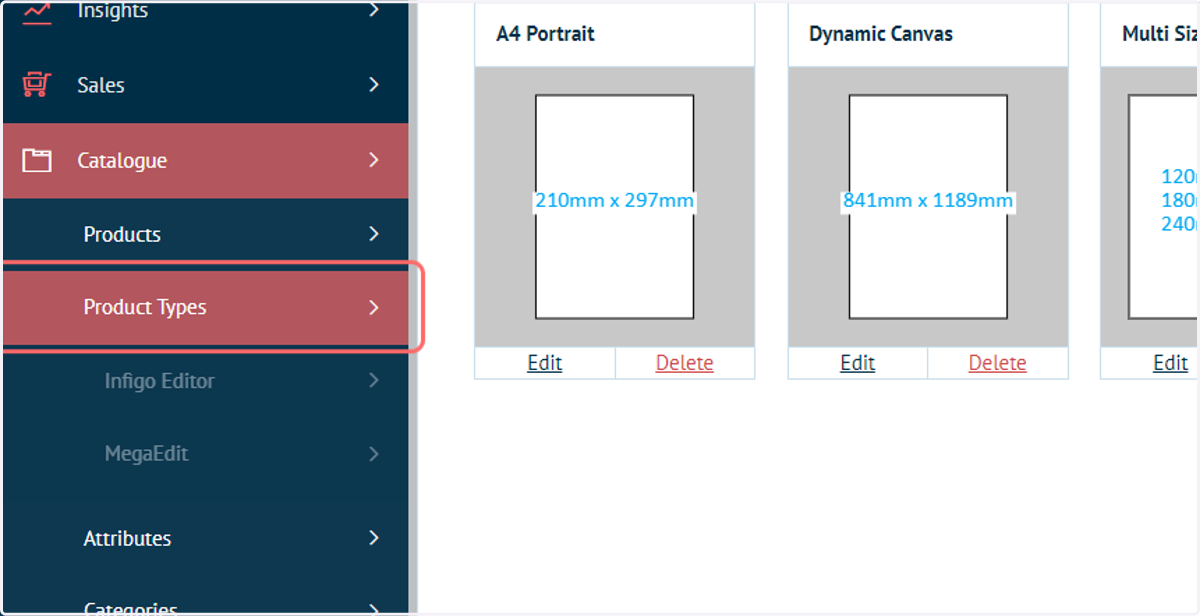
31. Click on Product Types
32. Click on MegaEdit
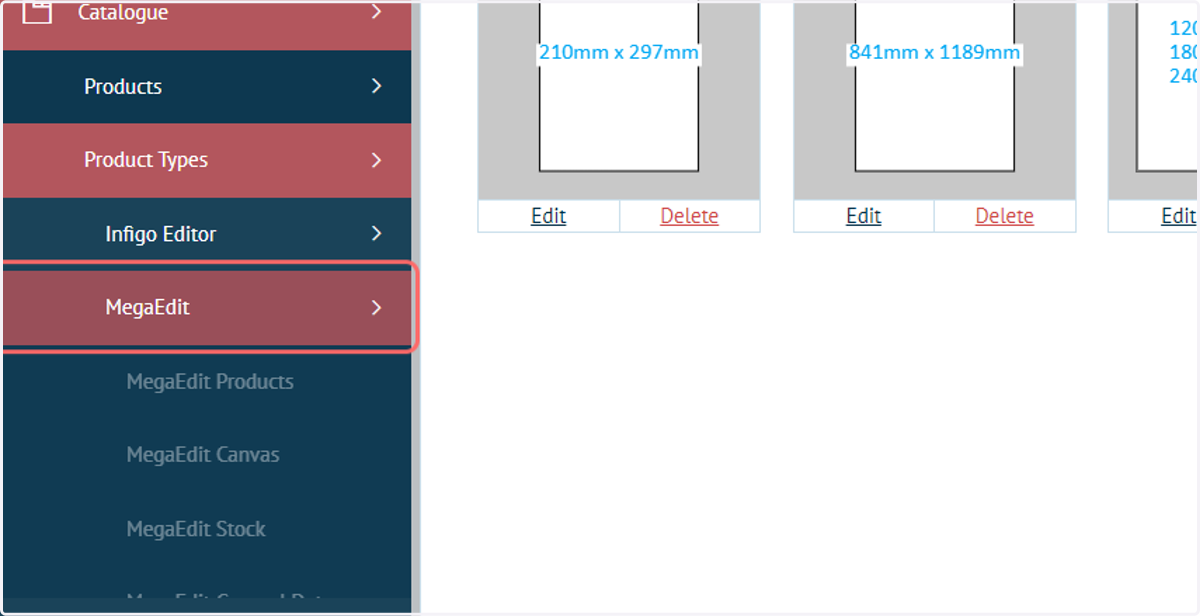
33. Click on MegaEdit Products
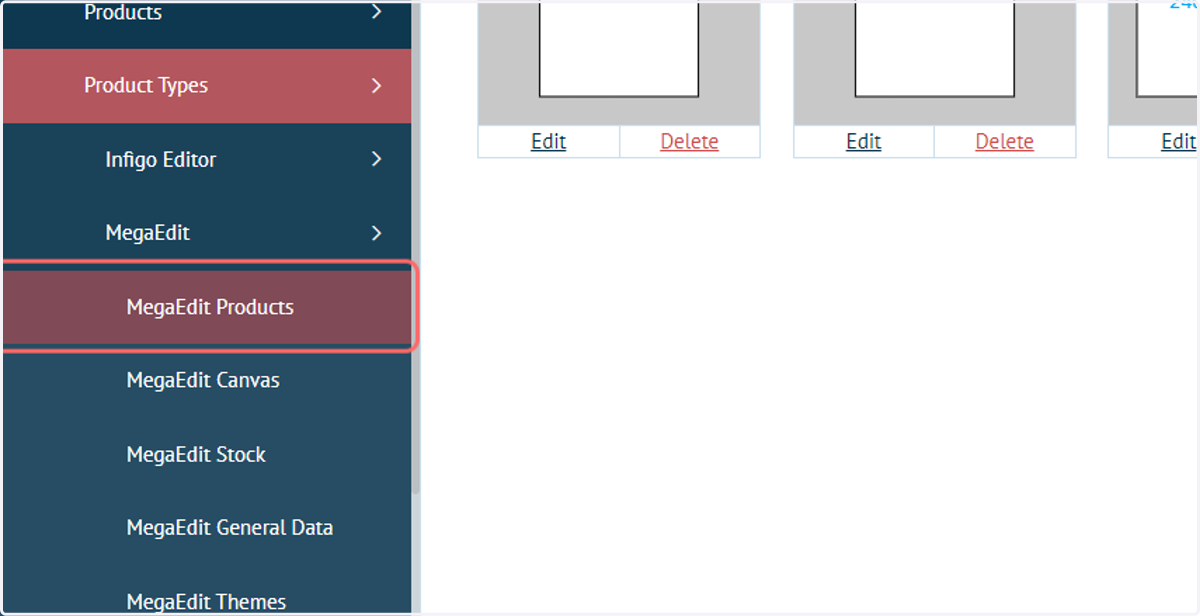
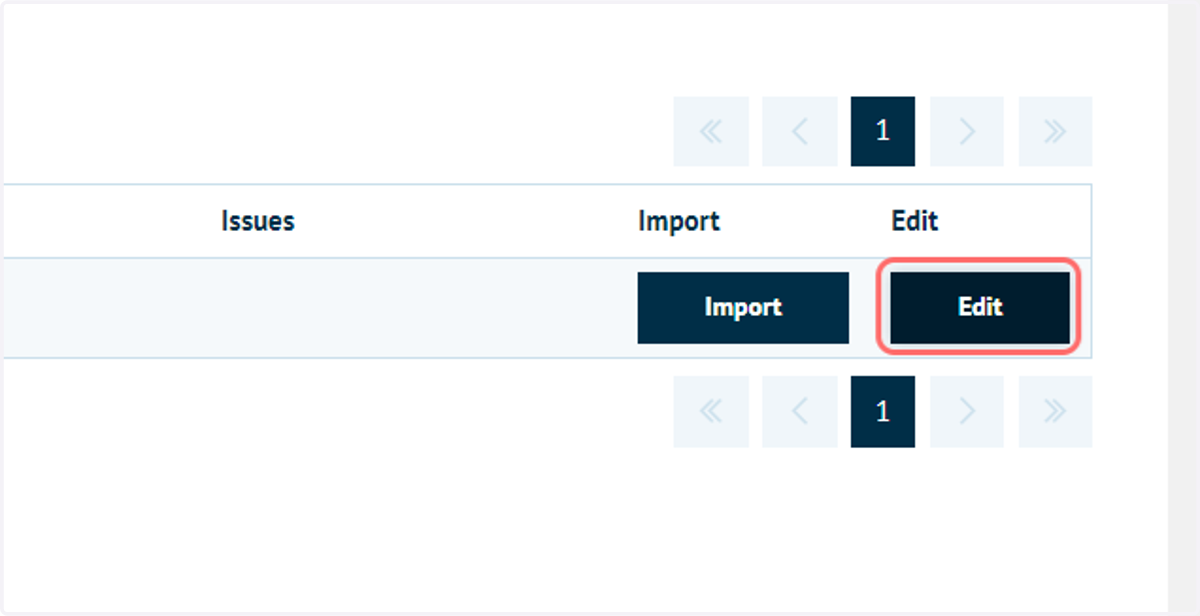
34. Next to the MegaEdit product of interest, click on Edit
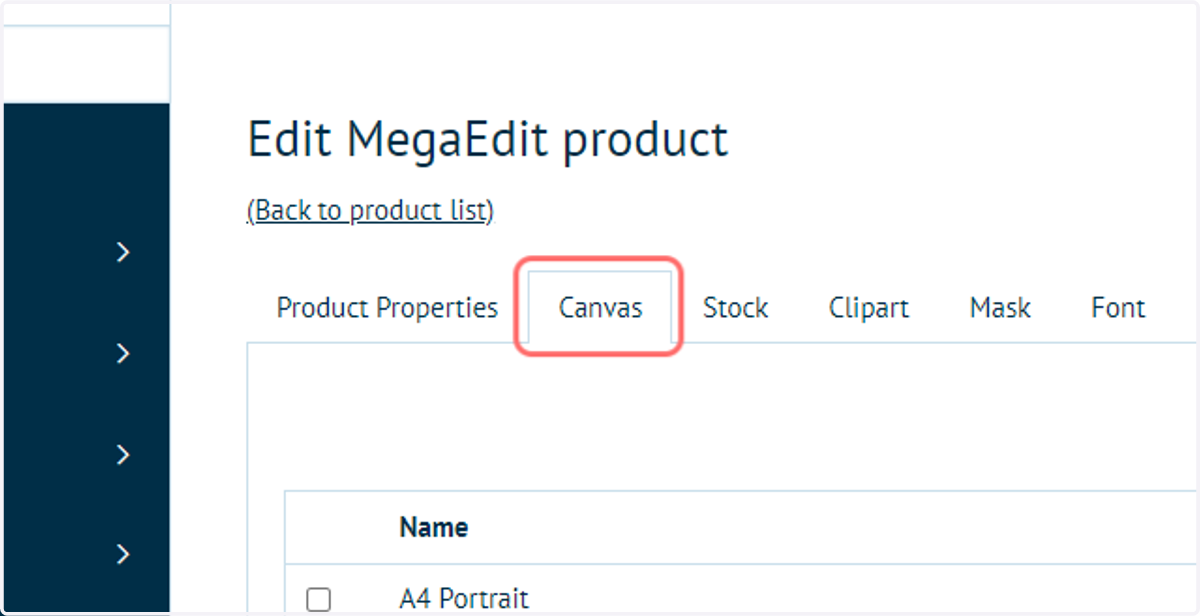
35. Click on Canvas
Infigosoftware
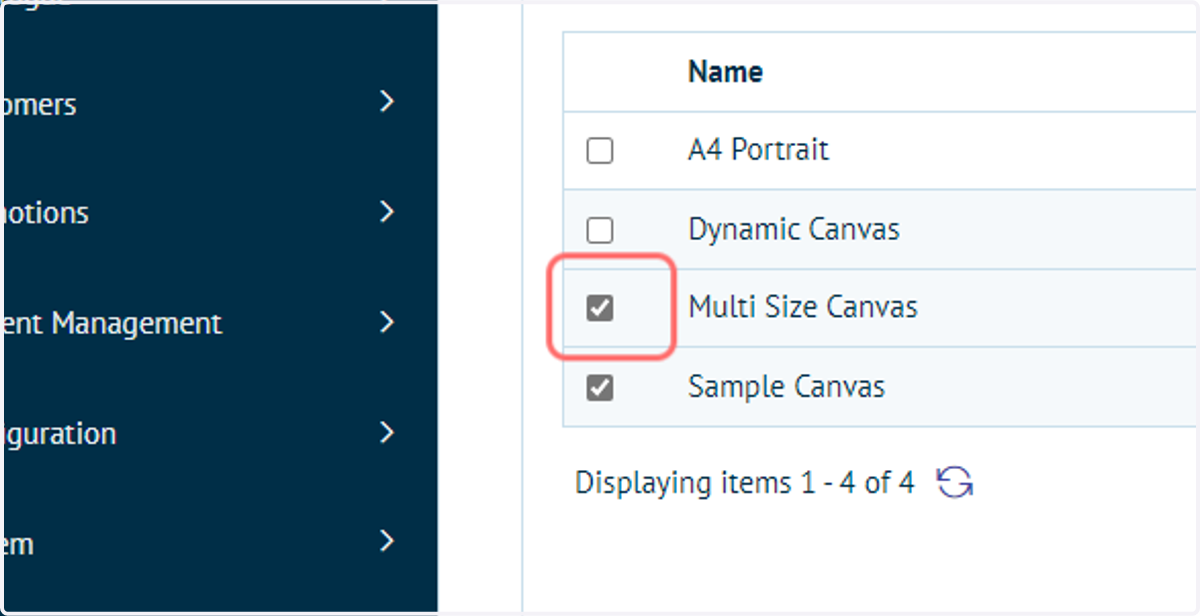
36. Select the canvas options you wish to utilise
If you wish to use a dynamic canvas size, where the customer select the canvas size, then this must be the only canvas specification selected.
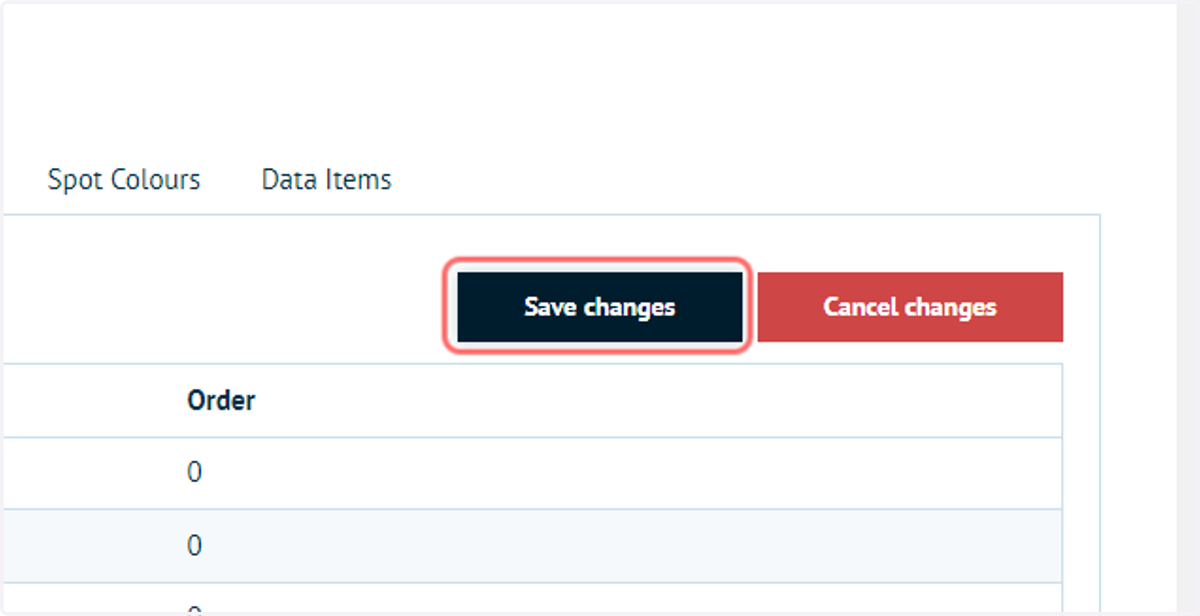
37. Click on Save changes
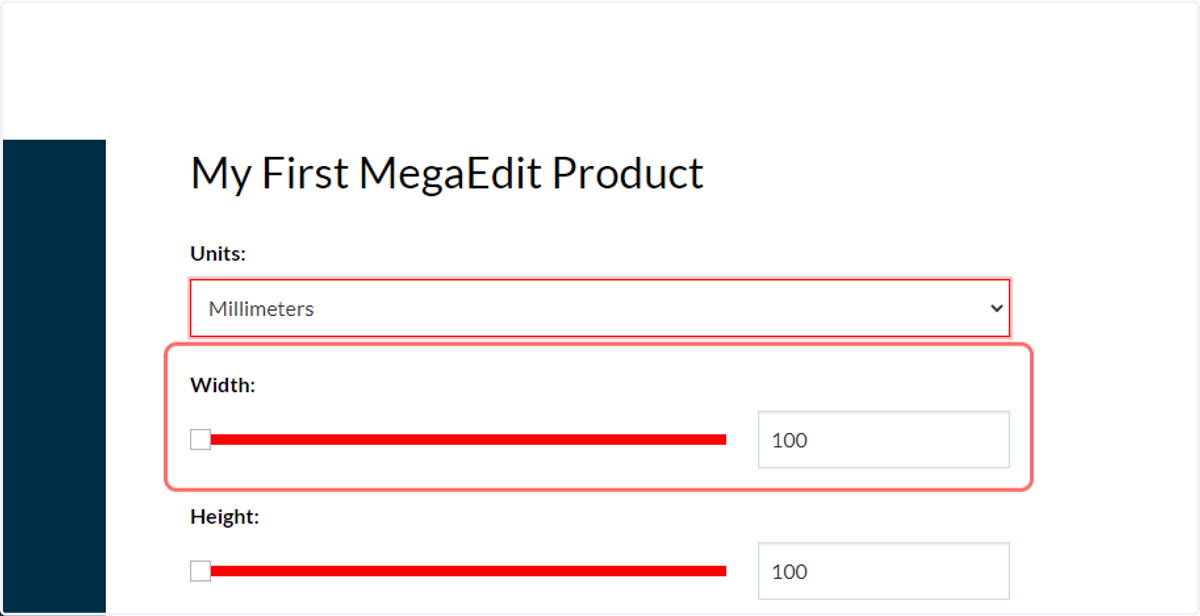
38. Dynamic canvas size specification
When a dynamic canvas size is the only selected option, selector options will be displayed on the product landing page.
These can be defined prior to hitting the "Start" button, which will launch the MegaEdit editor with your chosen canvas size.
Infigosoftware
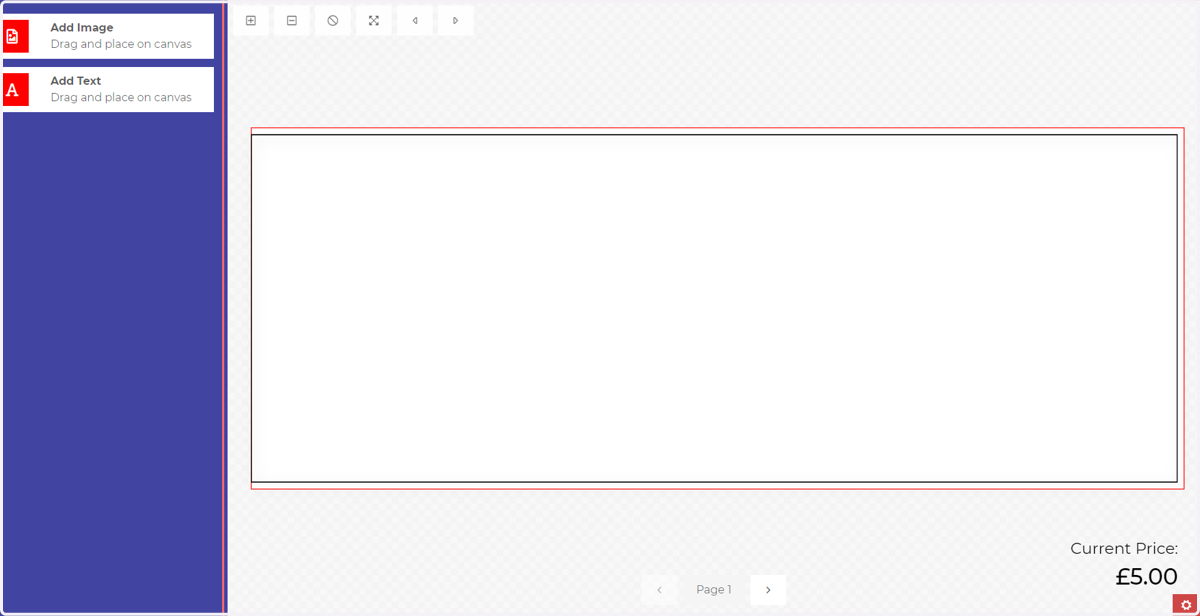
39. Selected canvas launched in MegaEdit
40. Explore other canvas types
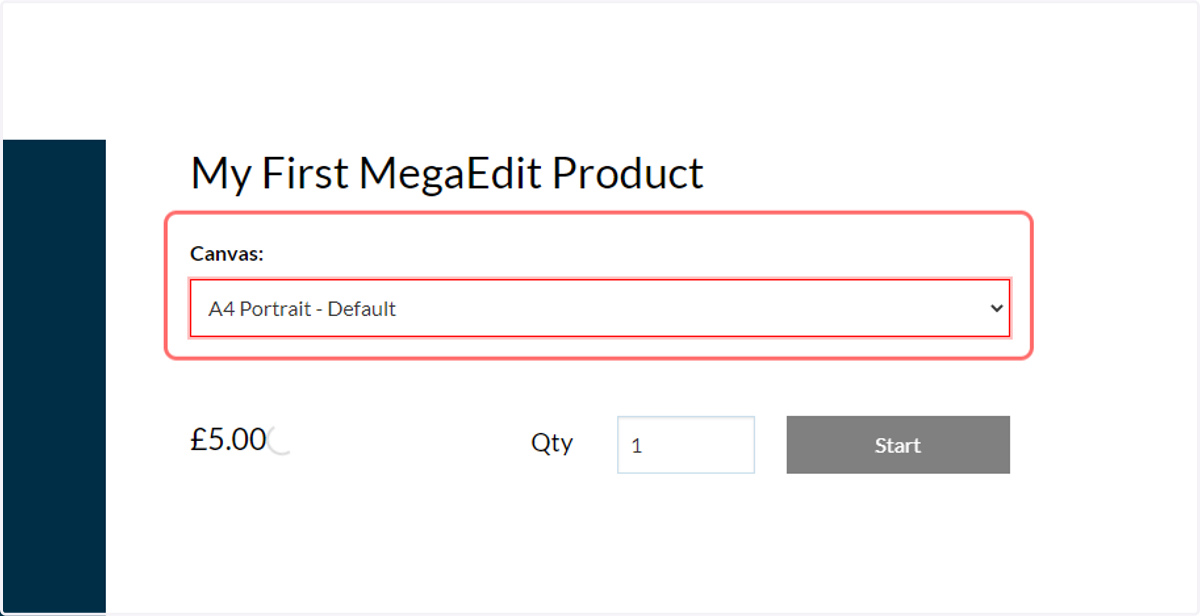
For fixed size canvas options, multiple can be selected for a single product.
These are selectable in a drop-down list format on your product landing page.
Infigosoftware
41. Start the MegaEdit editor
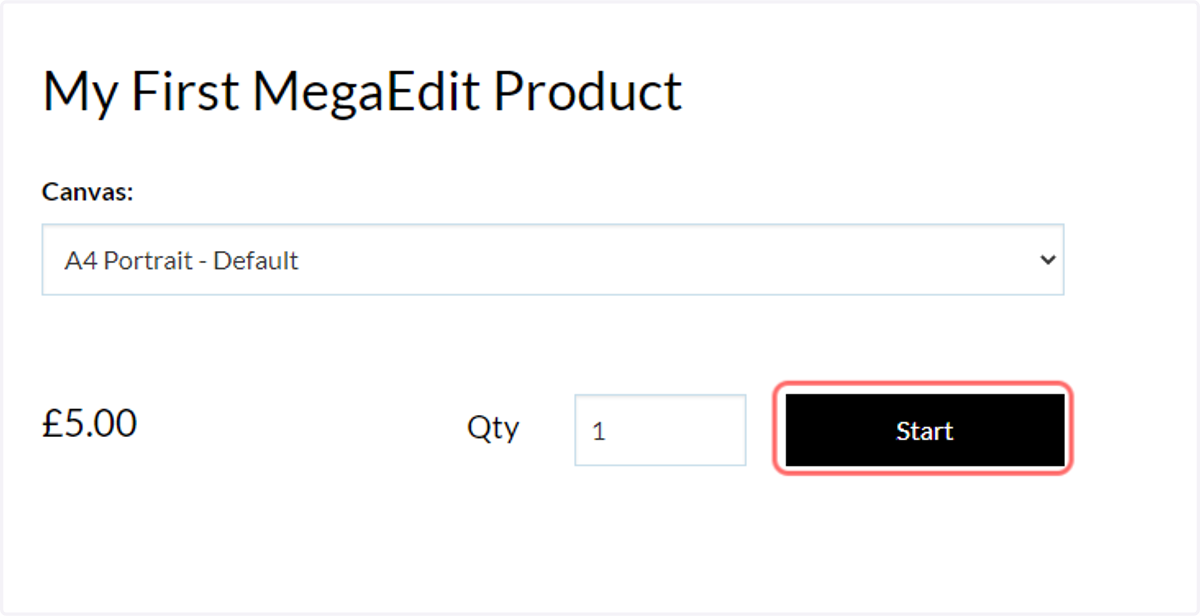
The user selects their required canvas size and presses the "Start" button to launch the MegaEdit editor
42. MegaEdit editor