Mapping Products
Very similar to the process of mapping customer, every product needs to have a printIQ product code or SKU assigned to it.
In this tutorial, we will learn how to apply a mapping to our products. This can be achieved in several ways.
Infigosoftware
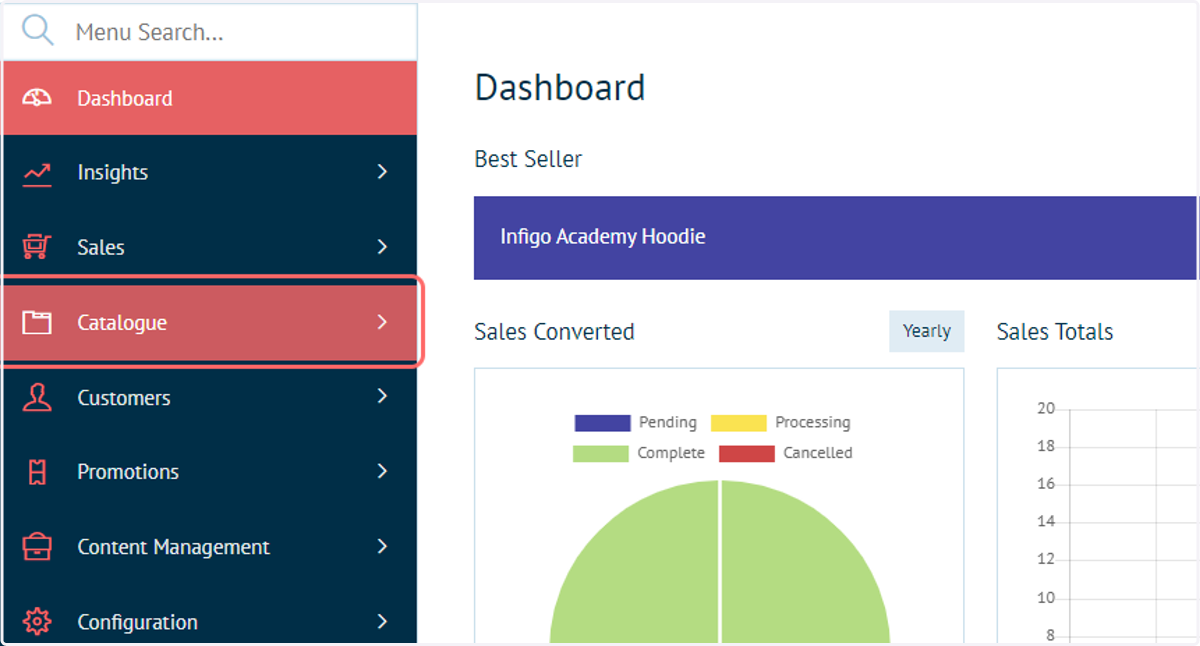
1. Click on Catalogue
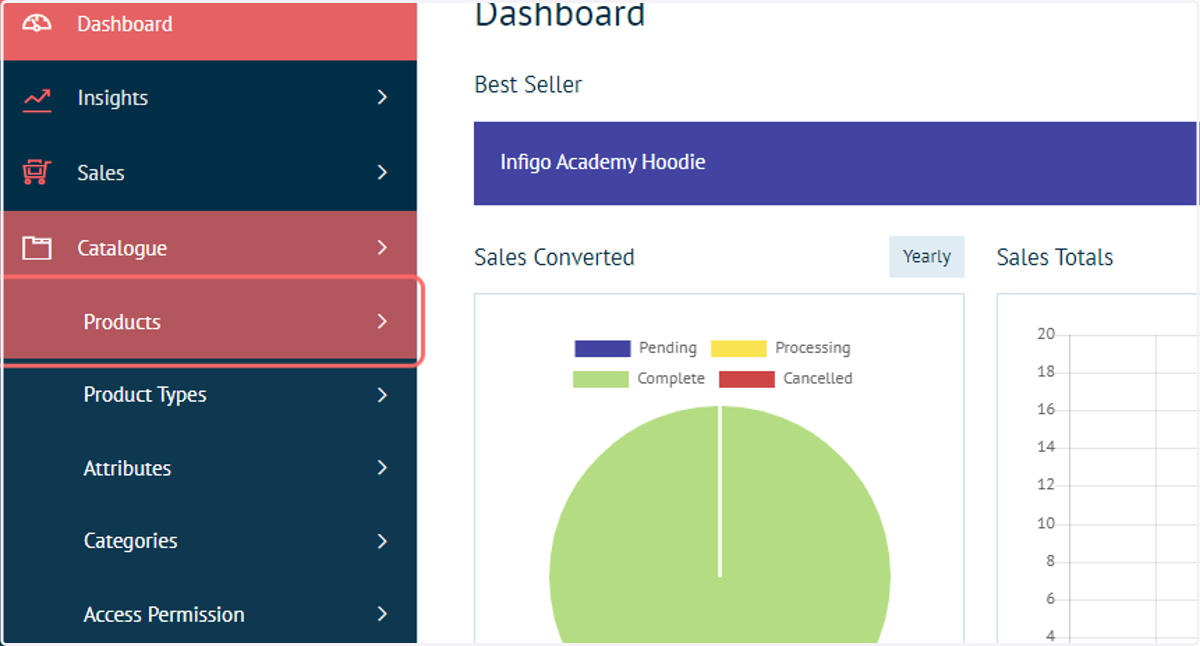
2. Click on Products
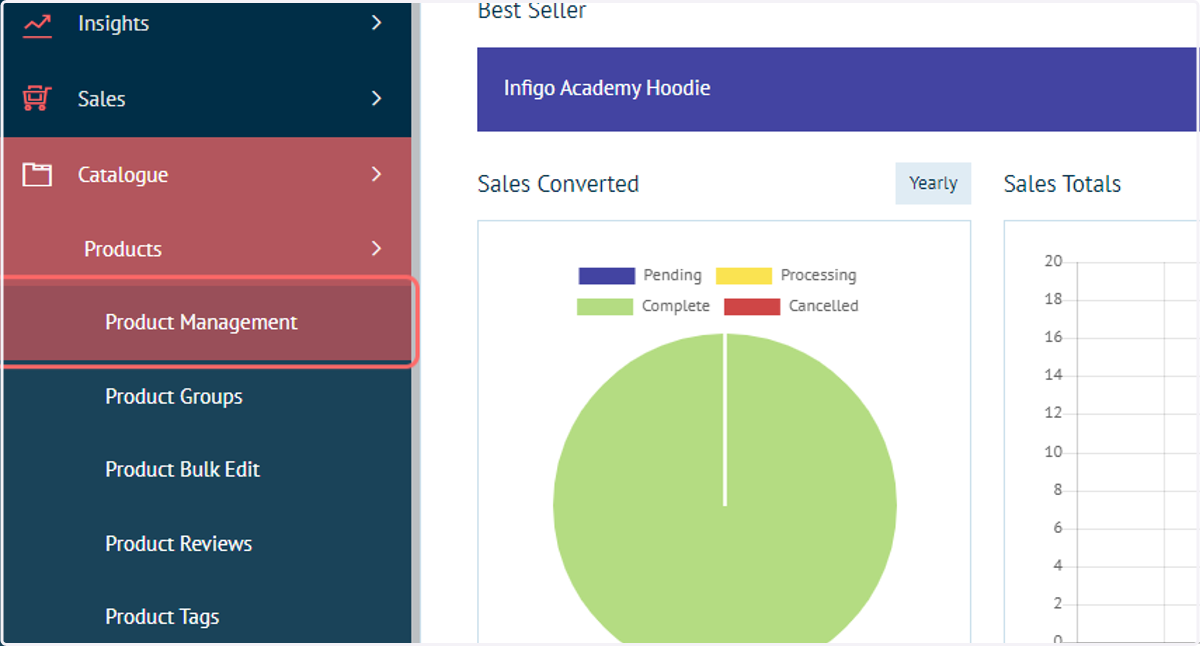
3. Click on Product Management
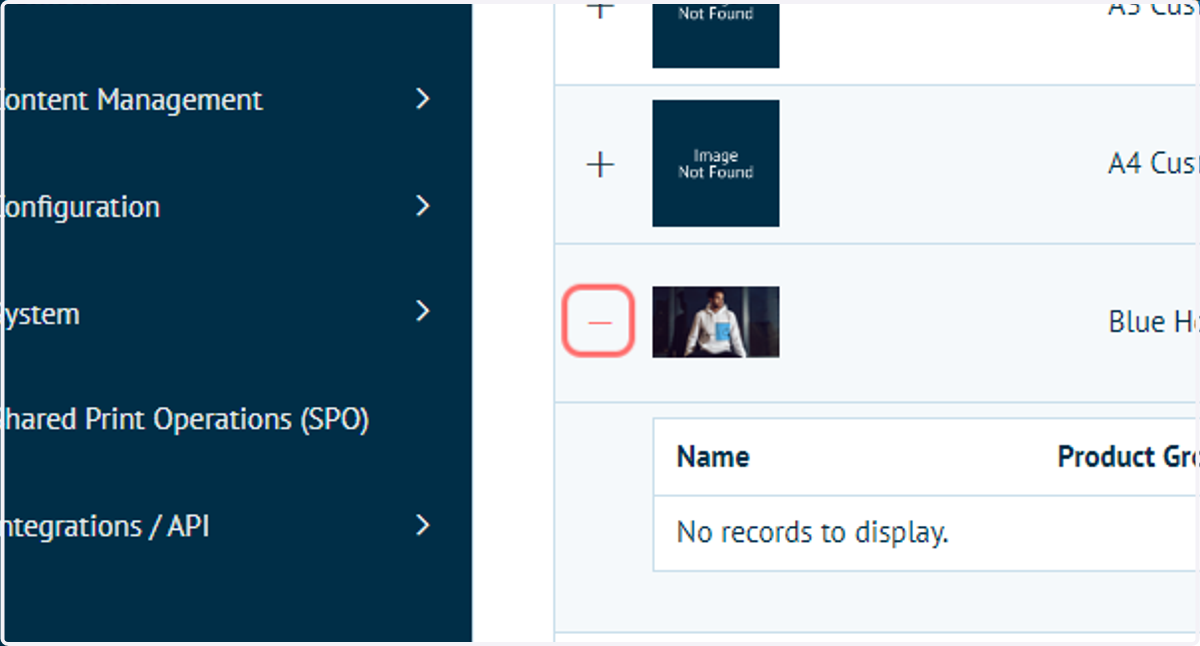
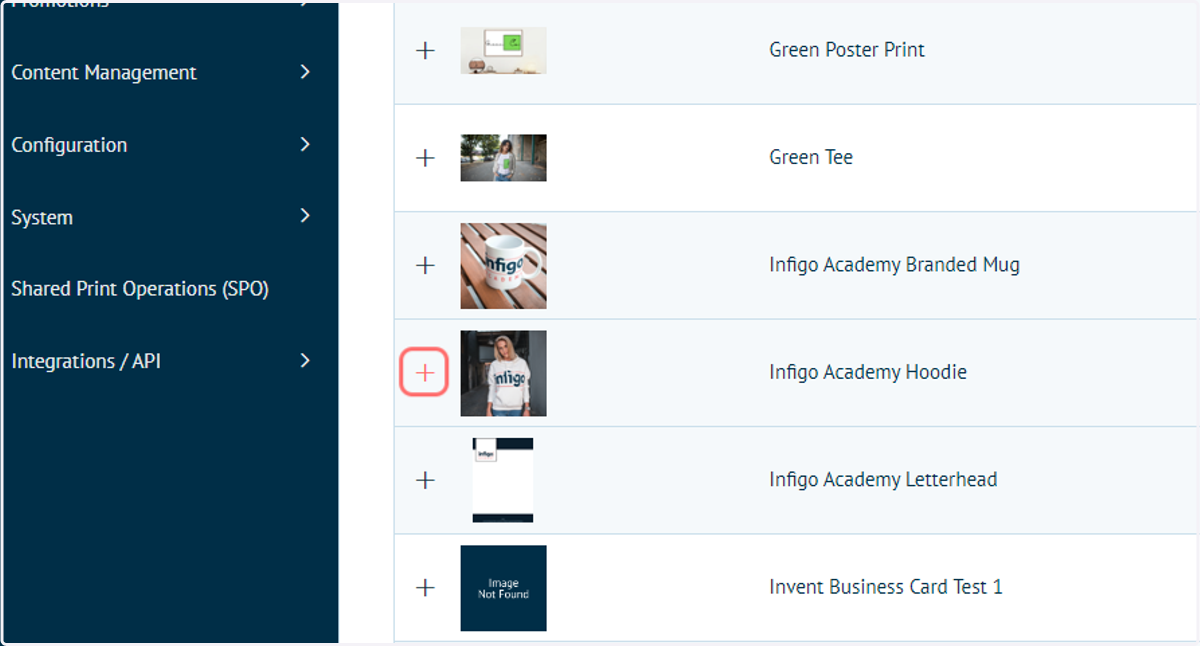
4. Click on '+' next to your chosen product to access the Product Variant table
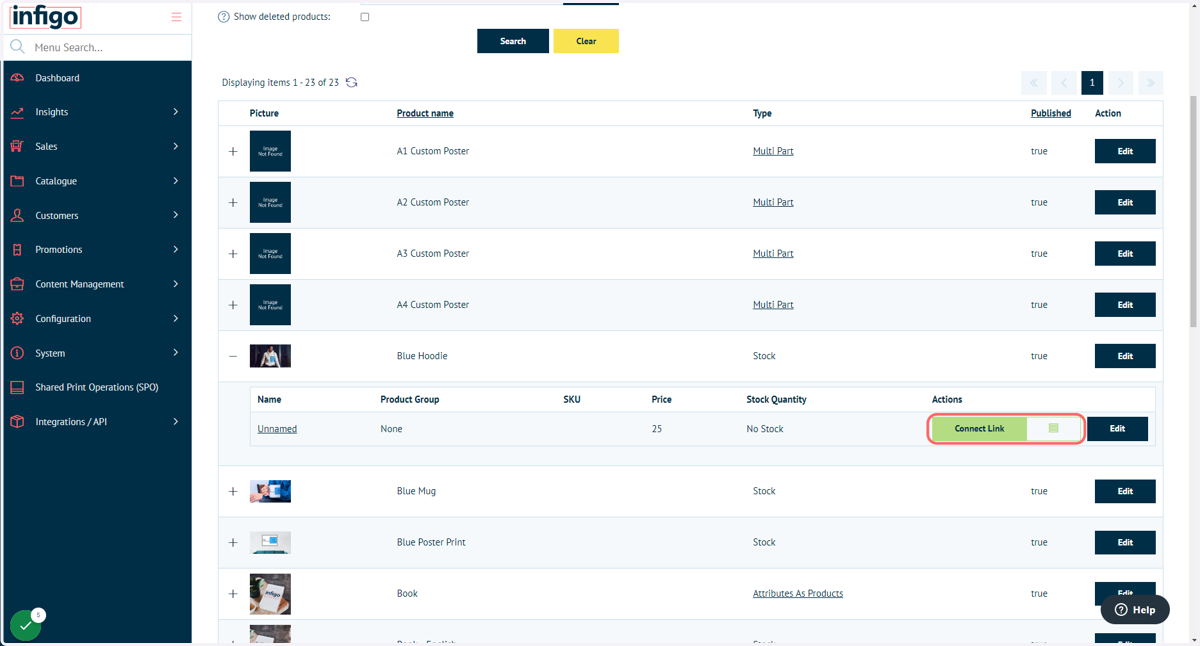
5. Click on Connect Link
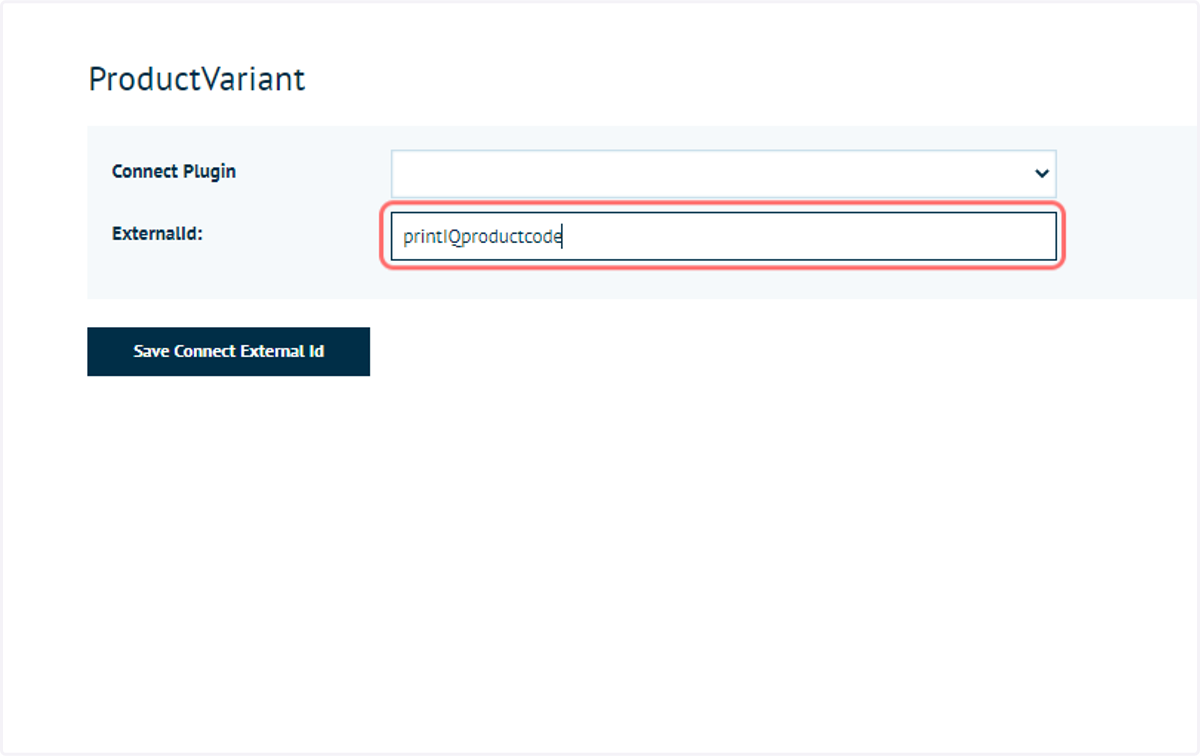
6. Enter ExternalId
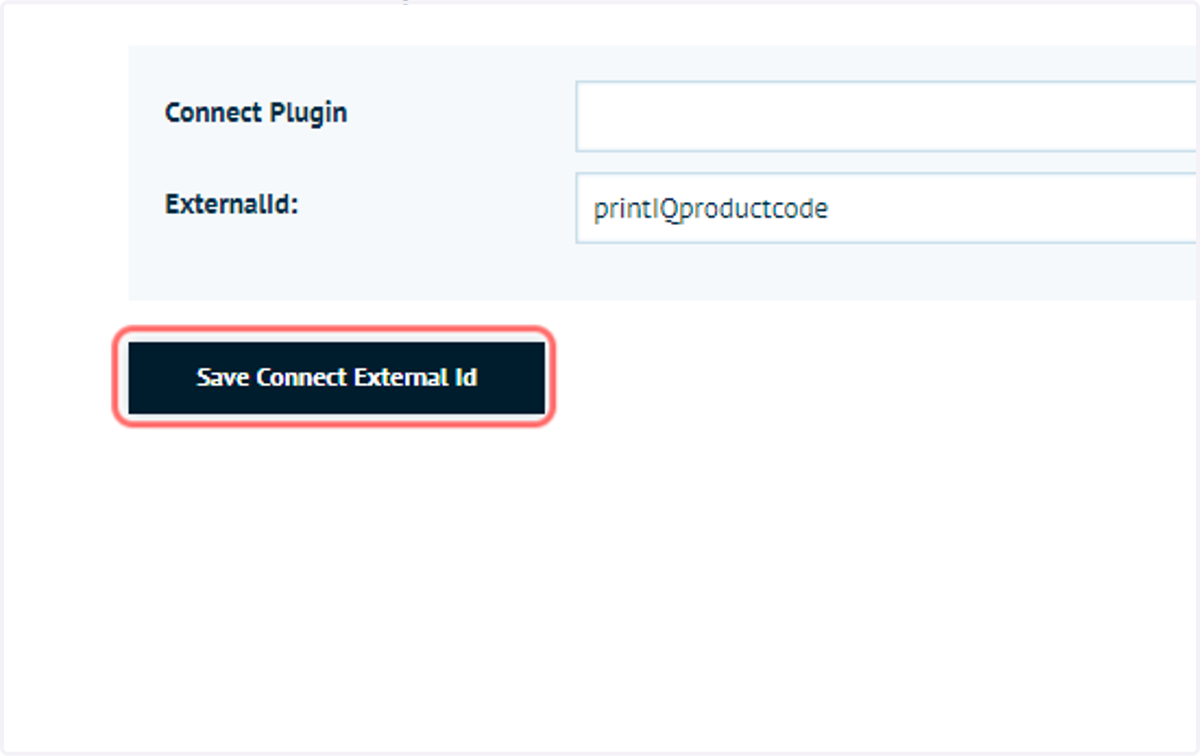
Enter your printIQ product code to directly map one product from Infigo onto a product in printIQ.
Infigosoftware
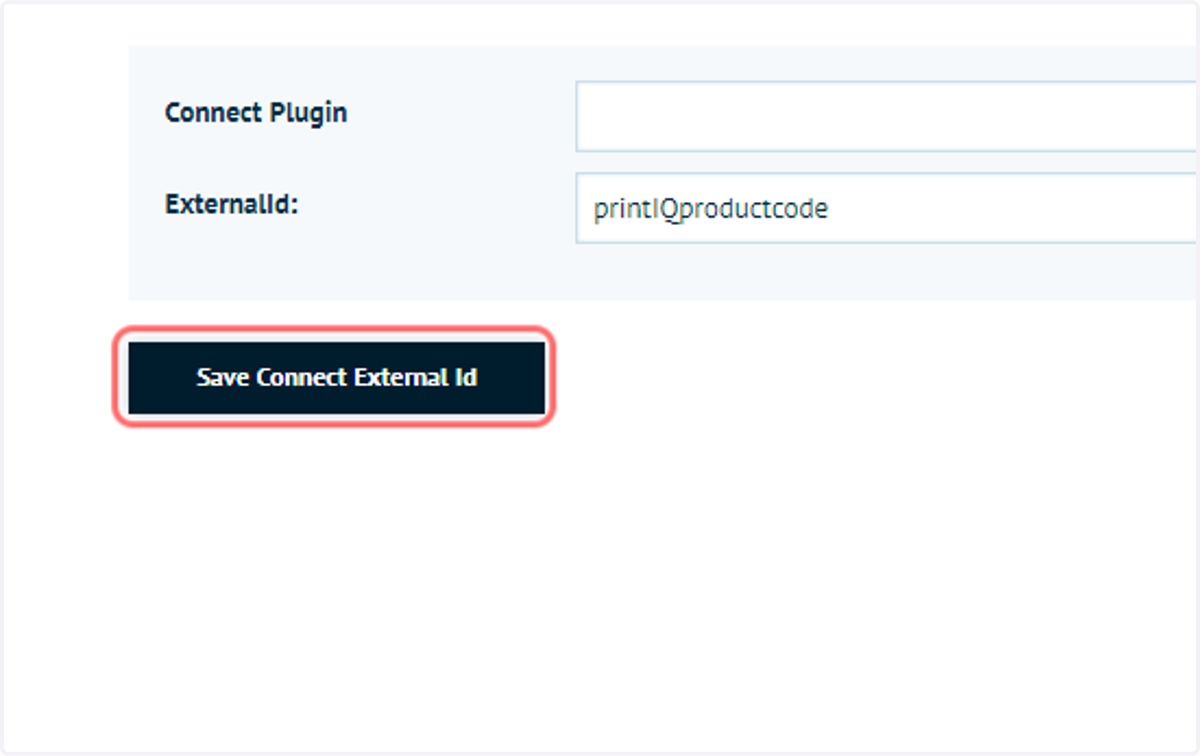
7. Click on Save Connect External Id
8. Create attributes, assign them to the product and then create Attribute Combinations and assign a printIQ product code to the Attribute Combination.
9. Click on '+' next to your chosen product
We begin by navigating to the Product Variant settings.
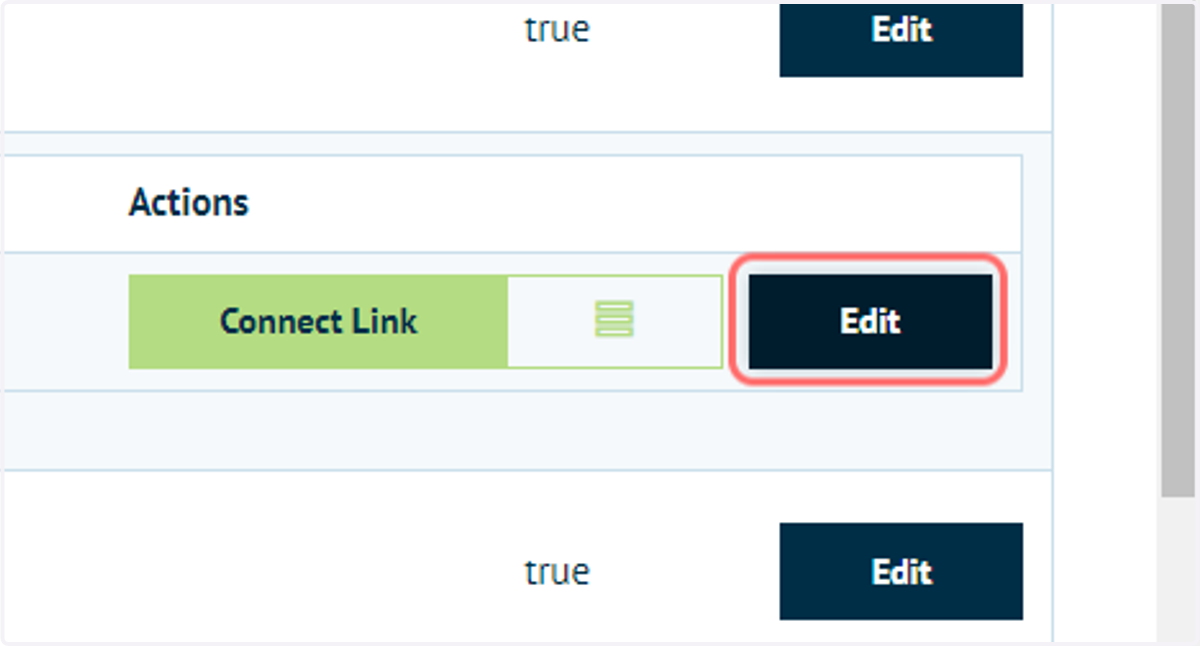
10. Click on Edit
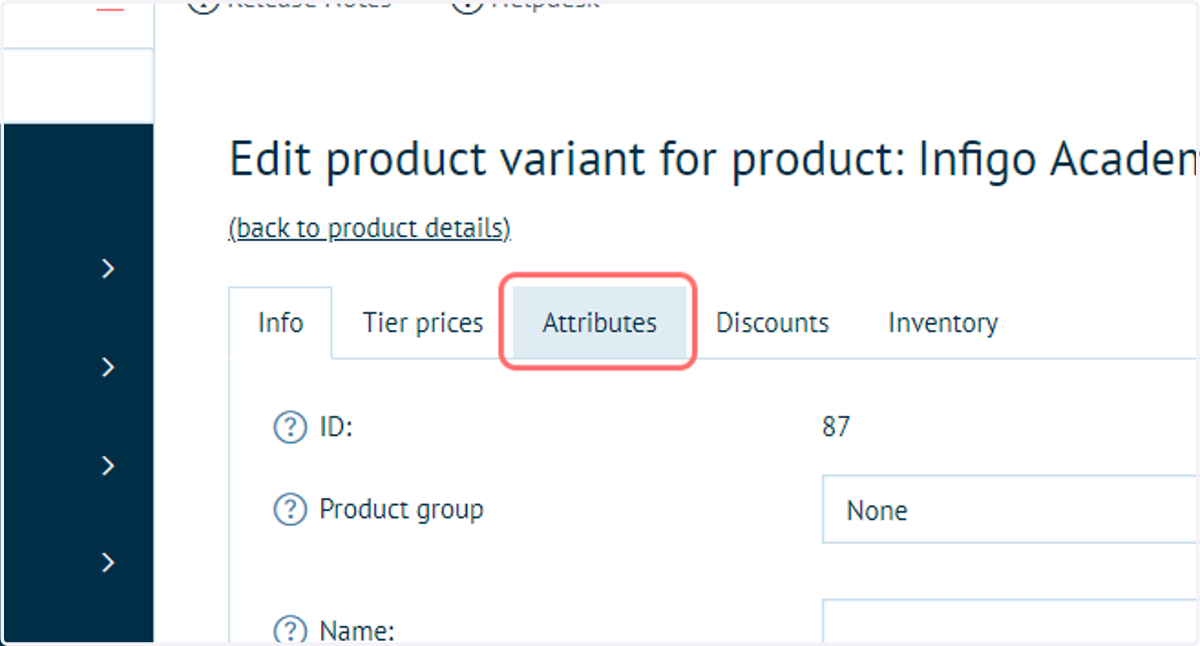
11. Click on Attributes
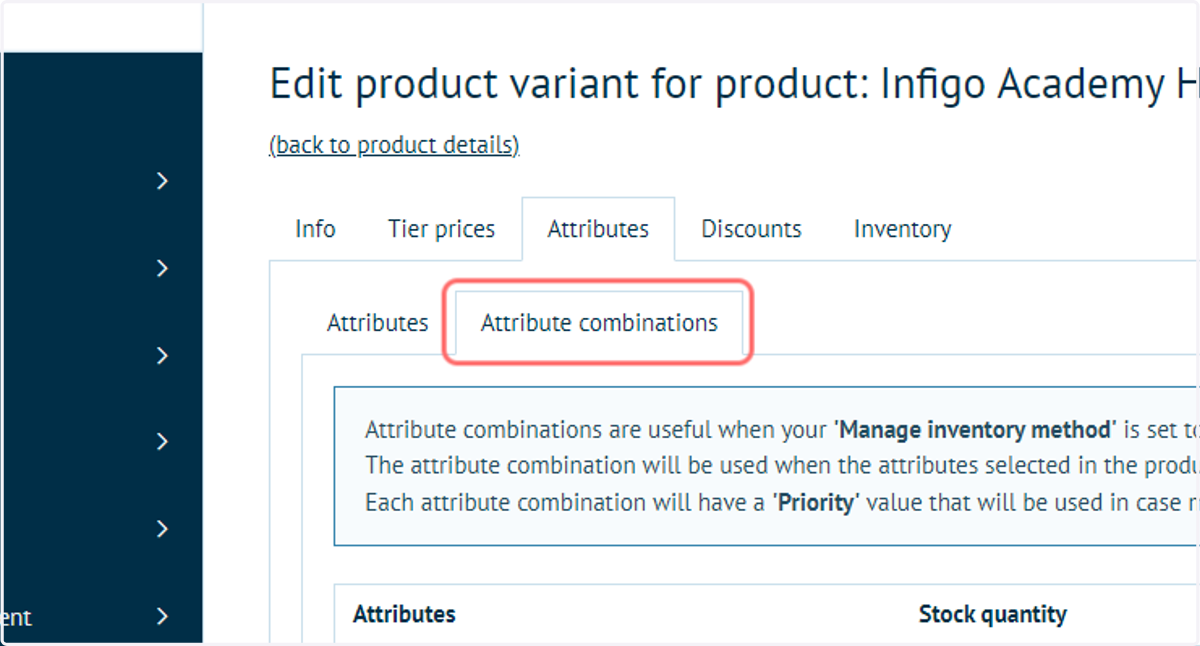
12. Click on Attribute combinations
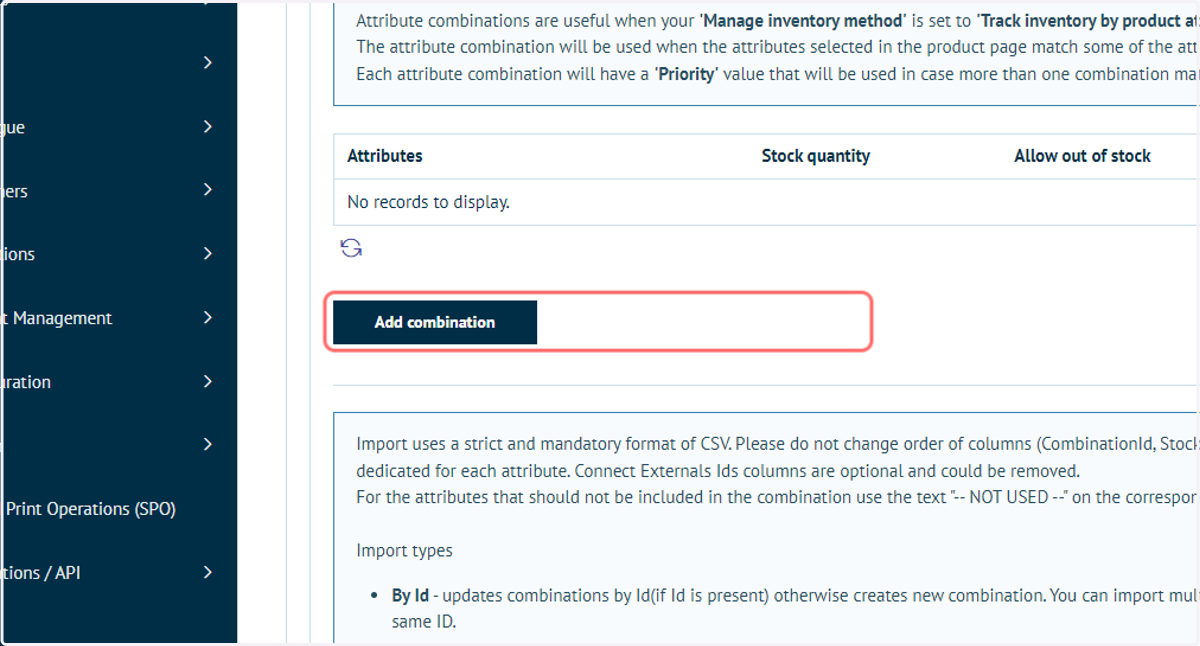
13. Add or select an existing Attribute Combination
Infigosoftware
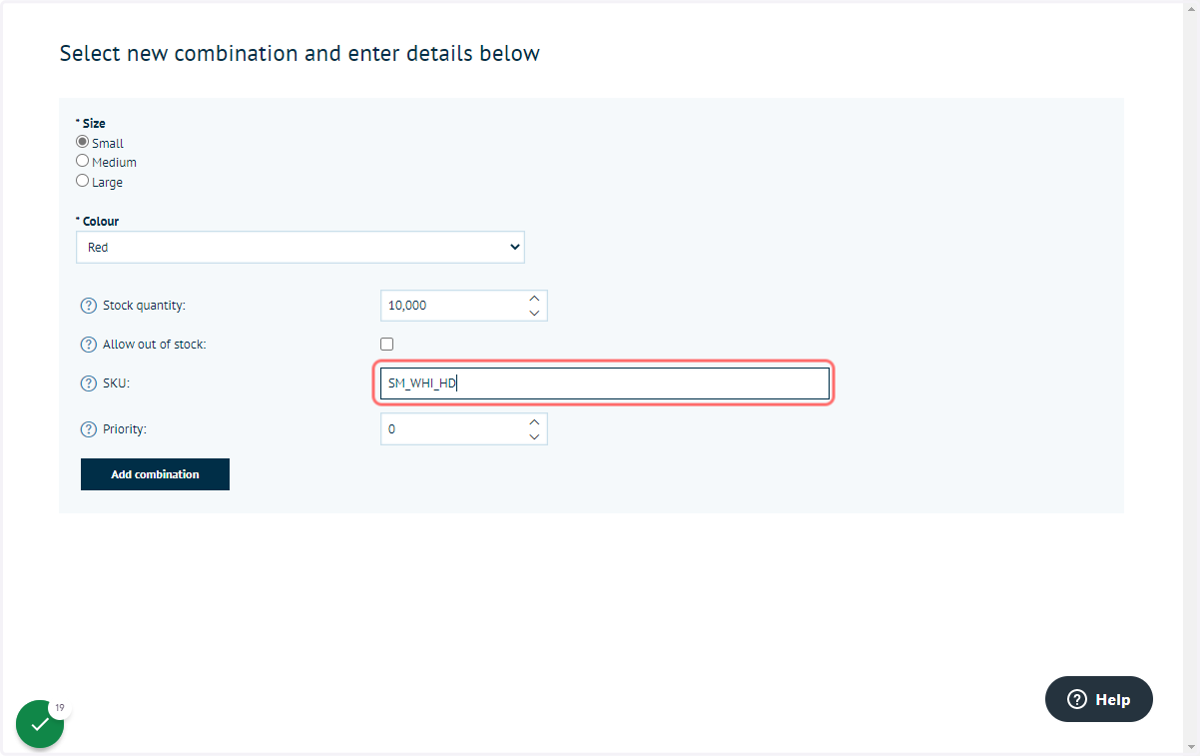
14. If adding a new Attribute Combination, complete the required inputs
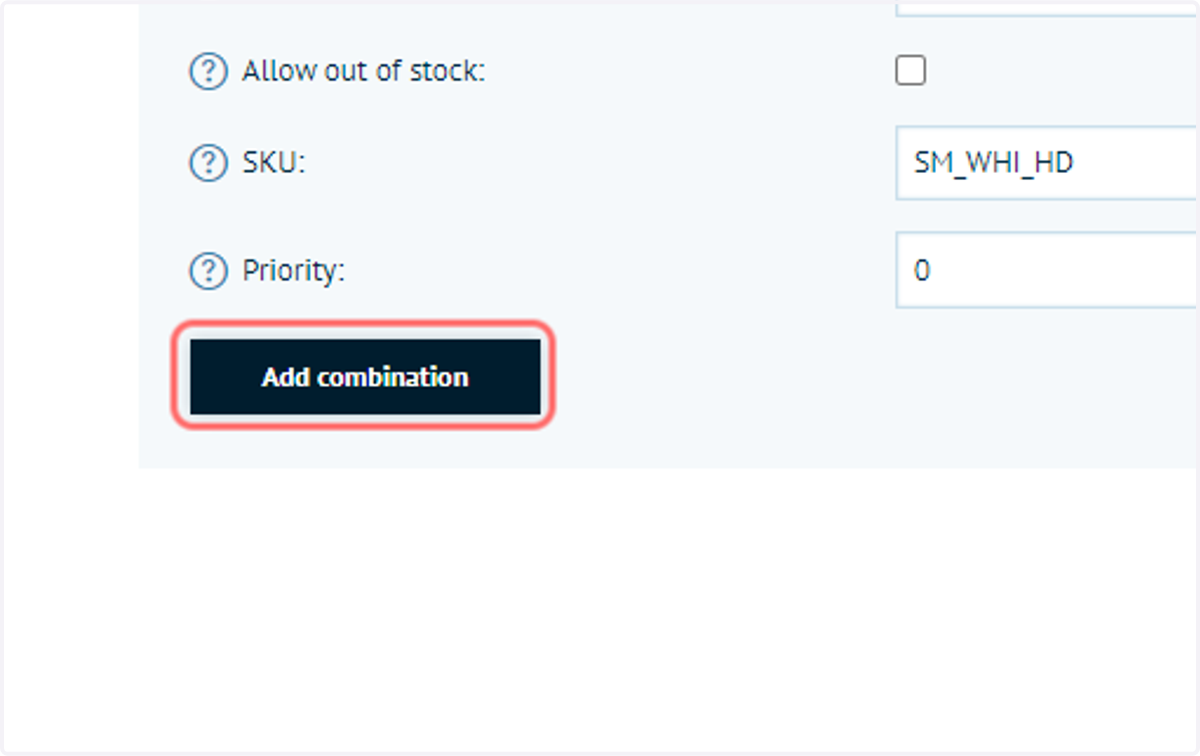
15. Click on Add combination
Infigosoftware
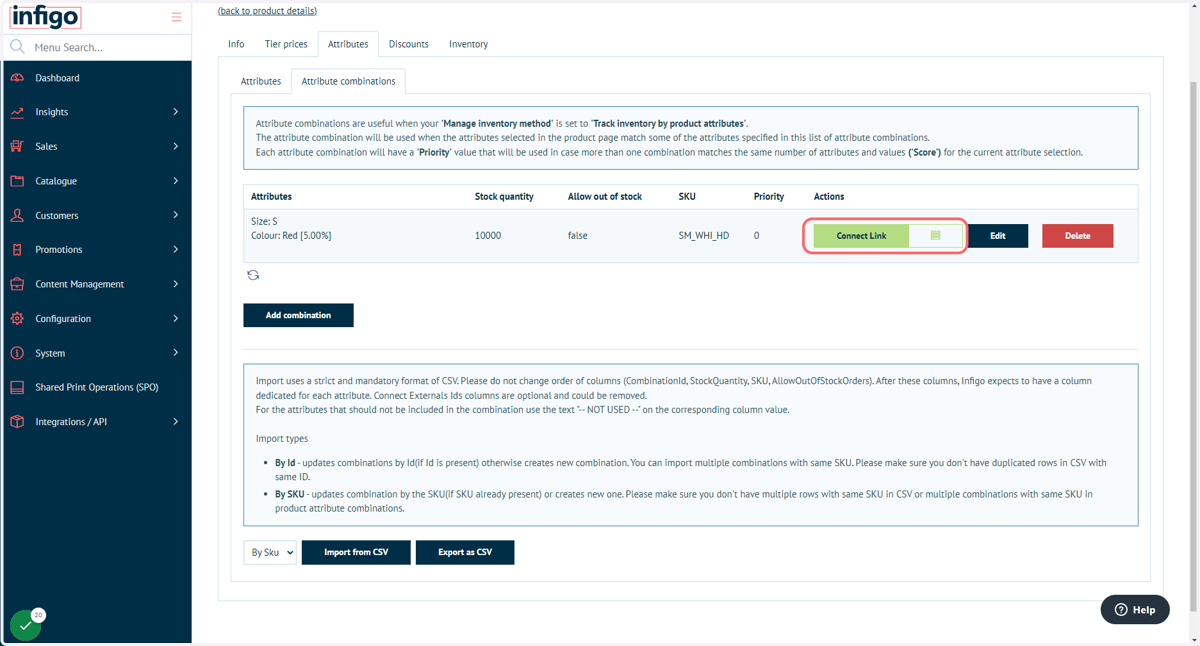
16. Click on Connect Link next to your newly created Attribute Combination
17. Enter an ExternalId
Assign a printIQ product code to the Attribute Combination.
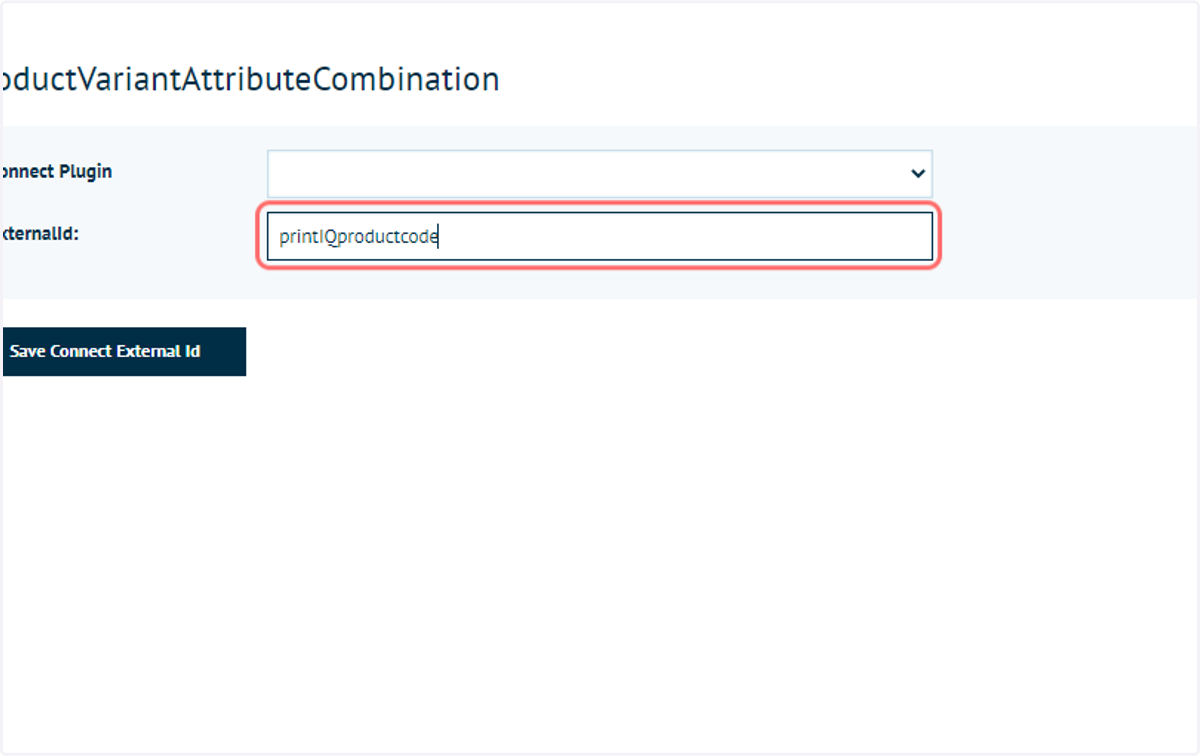
18. Click on Save Connect External Id
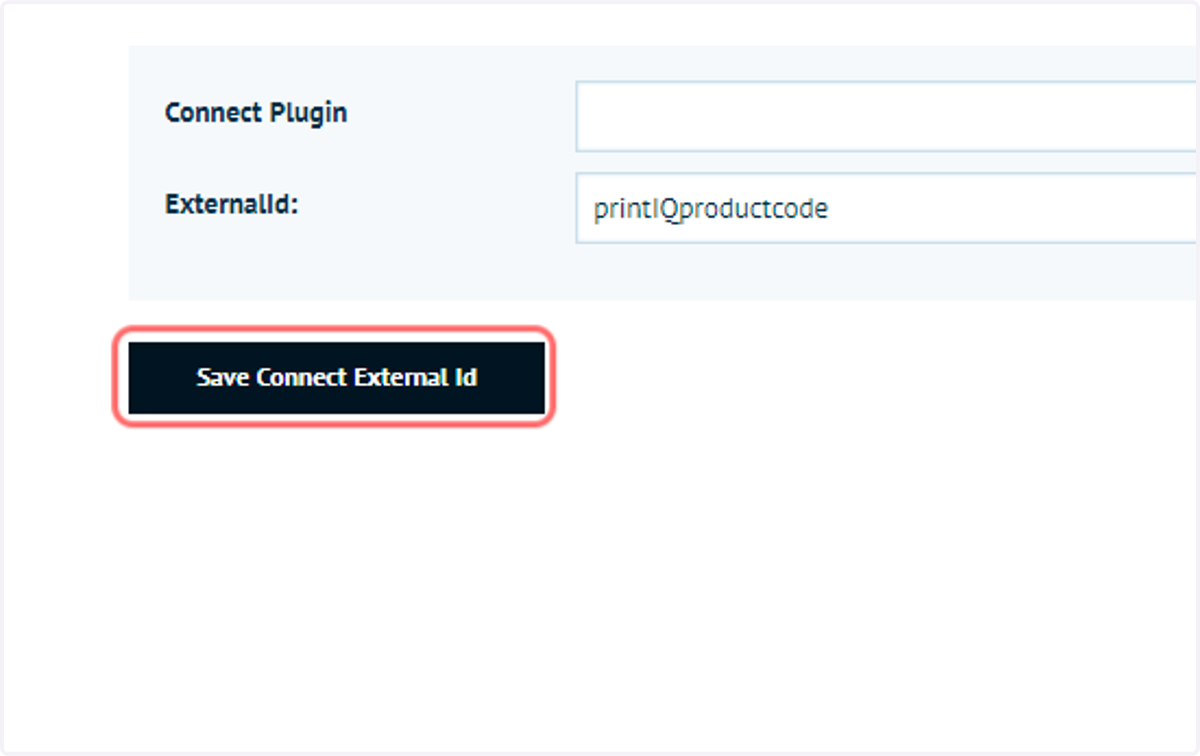
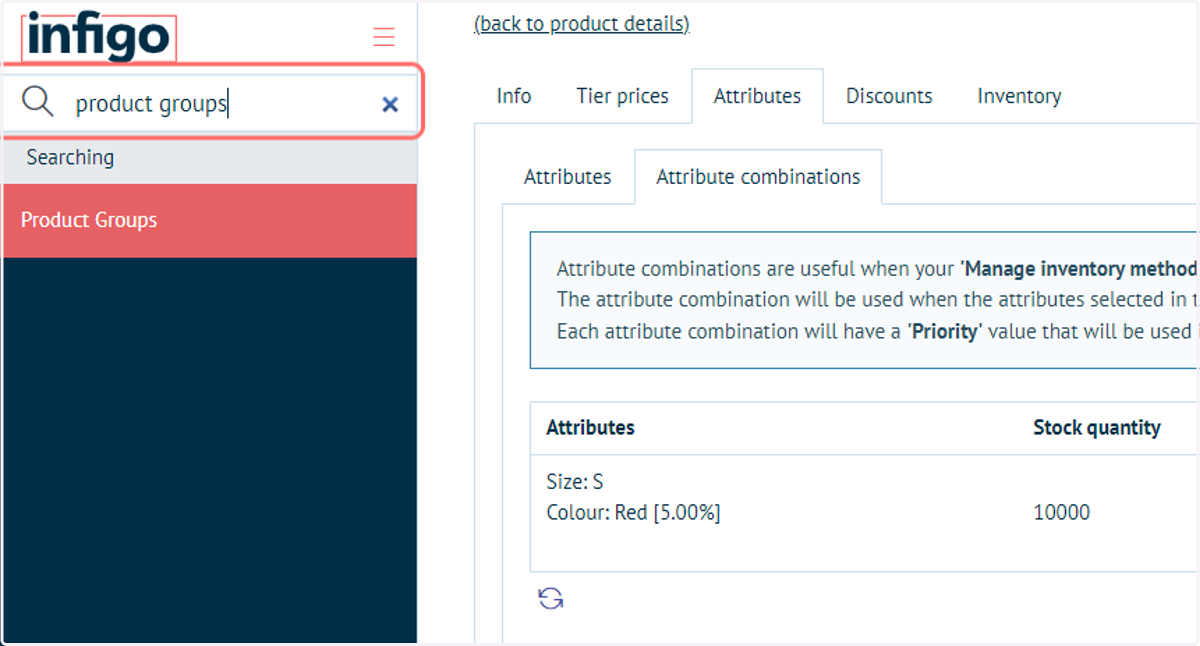
19. You can add your products to a Product Group and assign the Product Group to a printIQ product code, therefore every product in that Product Group will inherit that printIQ product code.
20. Type "product groups"
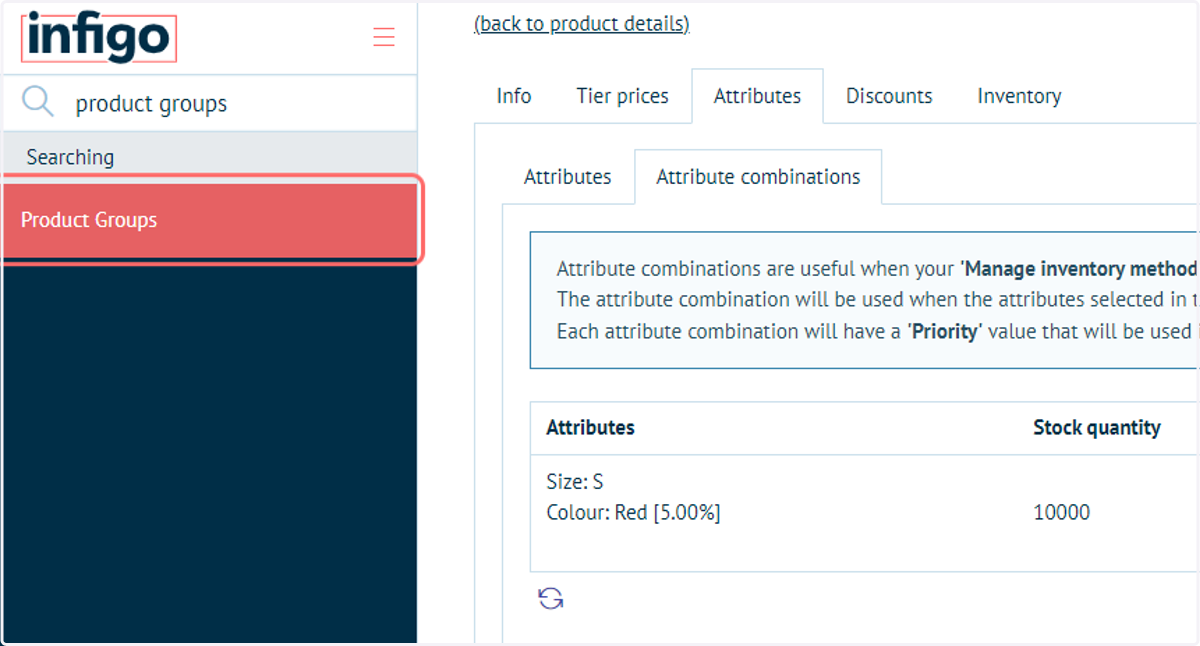
21. Click on Product Groups
Infigosoftware
22. Create or Edit an existing product group
Product Groups link the Product Variant settings for all products contained within the group.
Placing products within a Product Group and adding a Connect Link reference to that product group will assign it for all contained products.
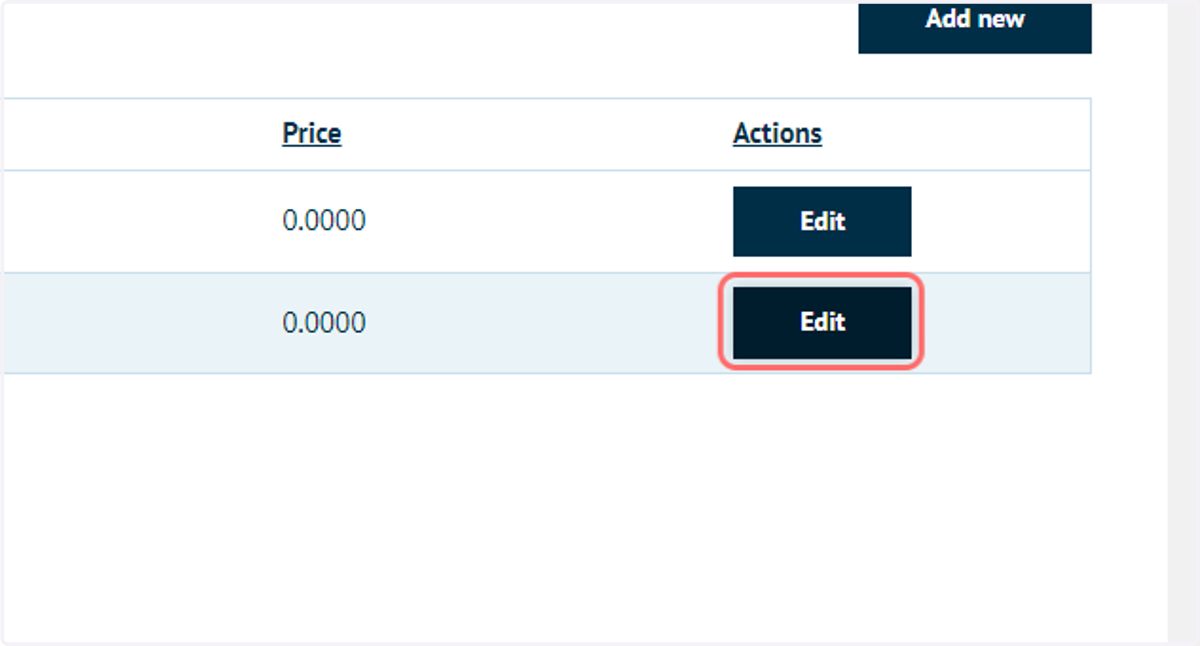
23. Click on Connect Link
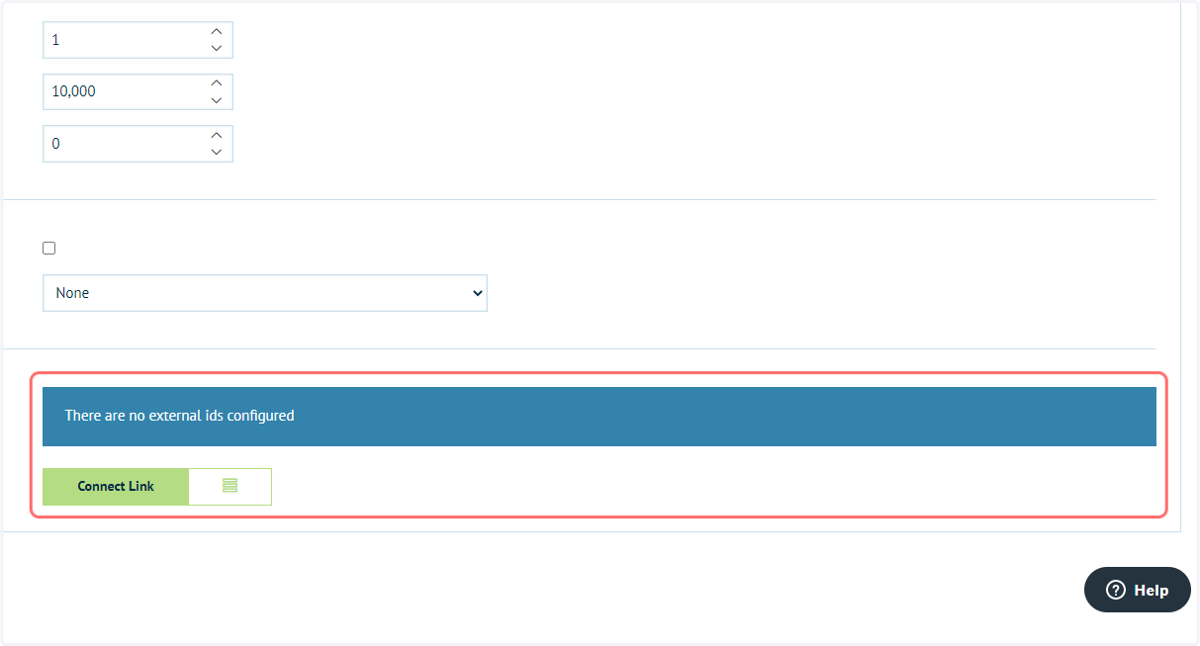
24. Enter an ExternalId
Every product in that Product Group will inherit this printIQ product code.
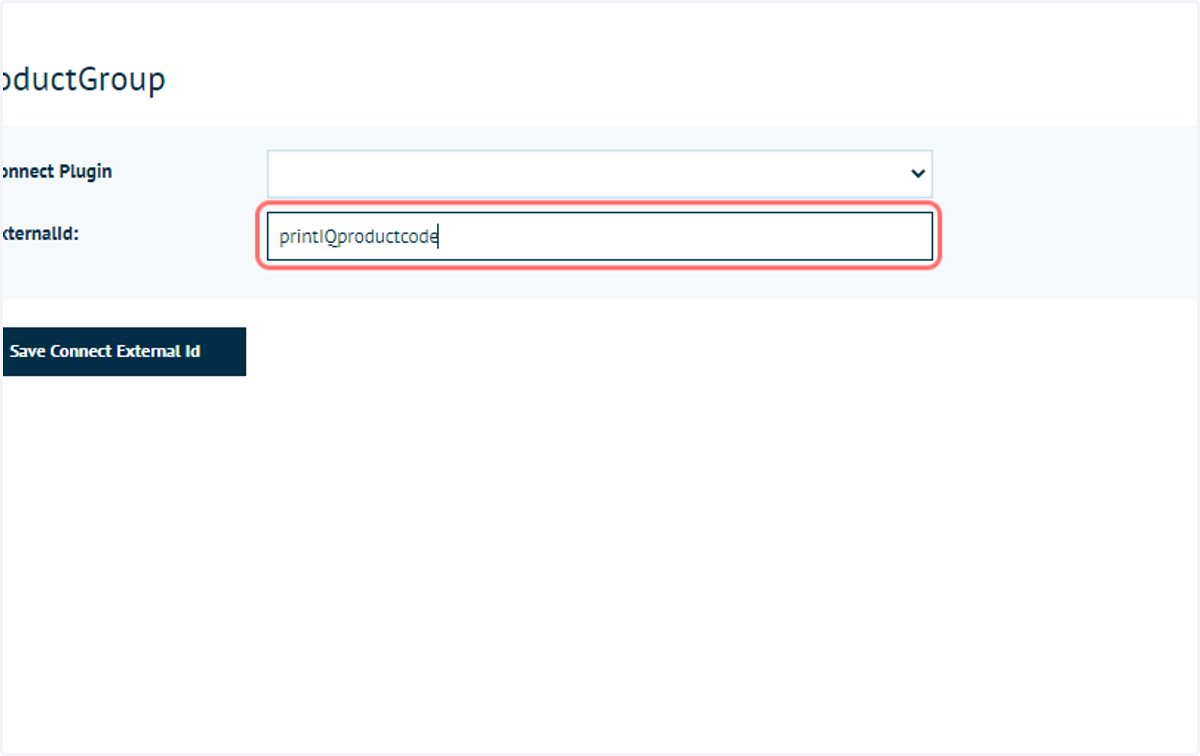
25. Click on Save Connect External Id