Creating a Video Embed
1. Open the Share modal
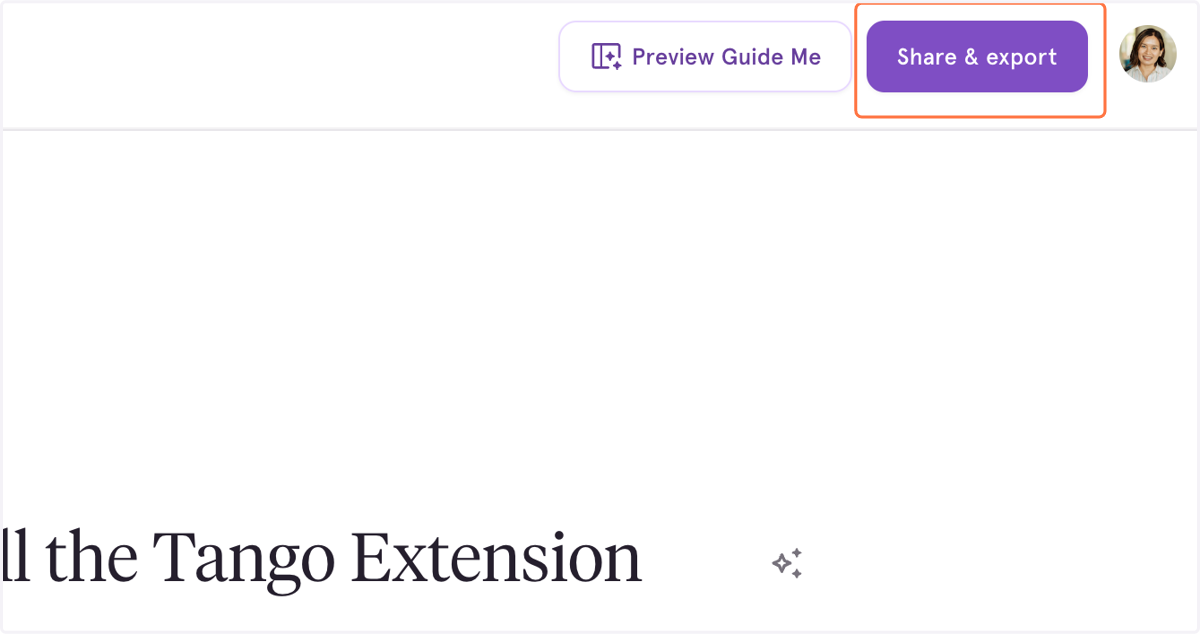
Navigate to the workflow you want to share as a video, and click Share & Export in the top right.
2. Select Embed
Once the Embed tab is selected, you'll see separate options for Interactive and Video embeds.
You can either Preview and customize your video embed or Copy Embed code straight from here. Be sure to select the right platform to generate the correct embed code.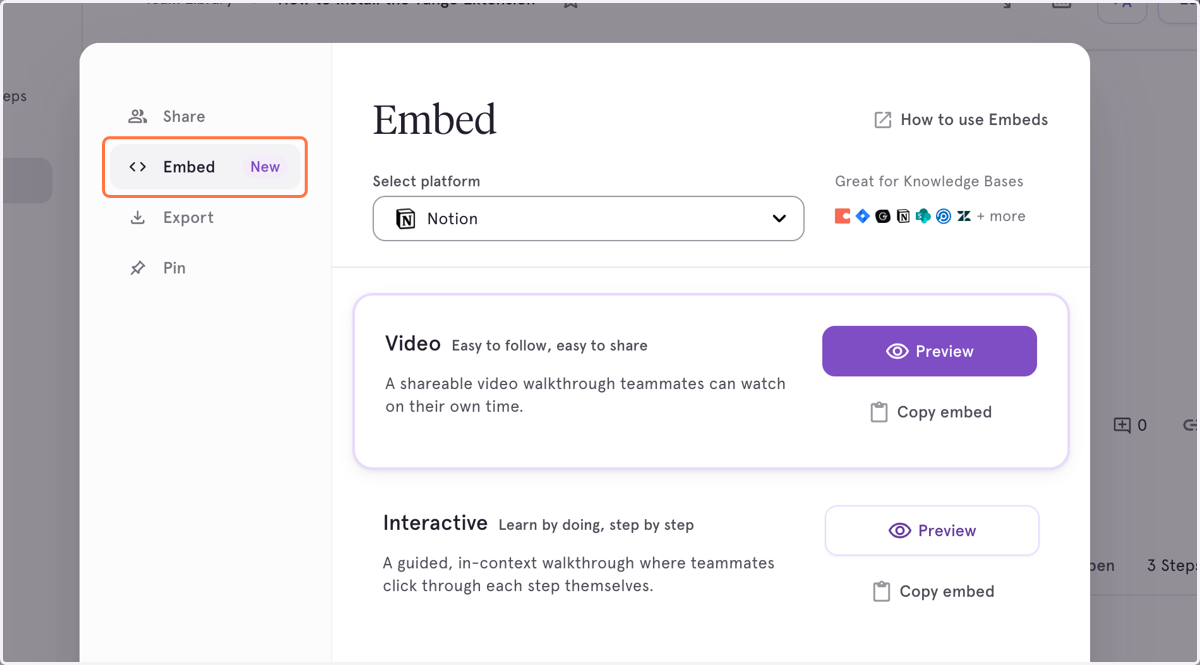
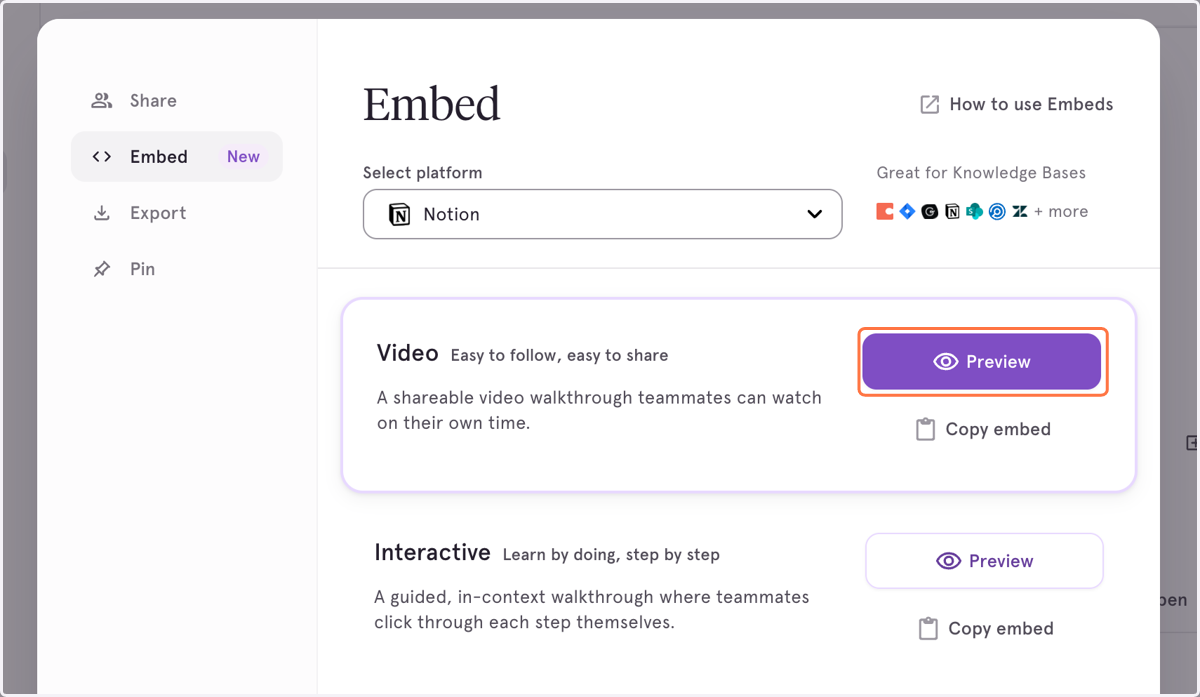
3. To customized your video embed, Select Preview.
4. Customize your video.
On the video customization page, you can configure:
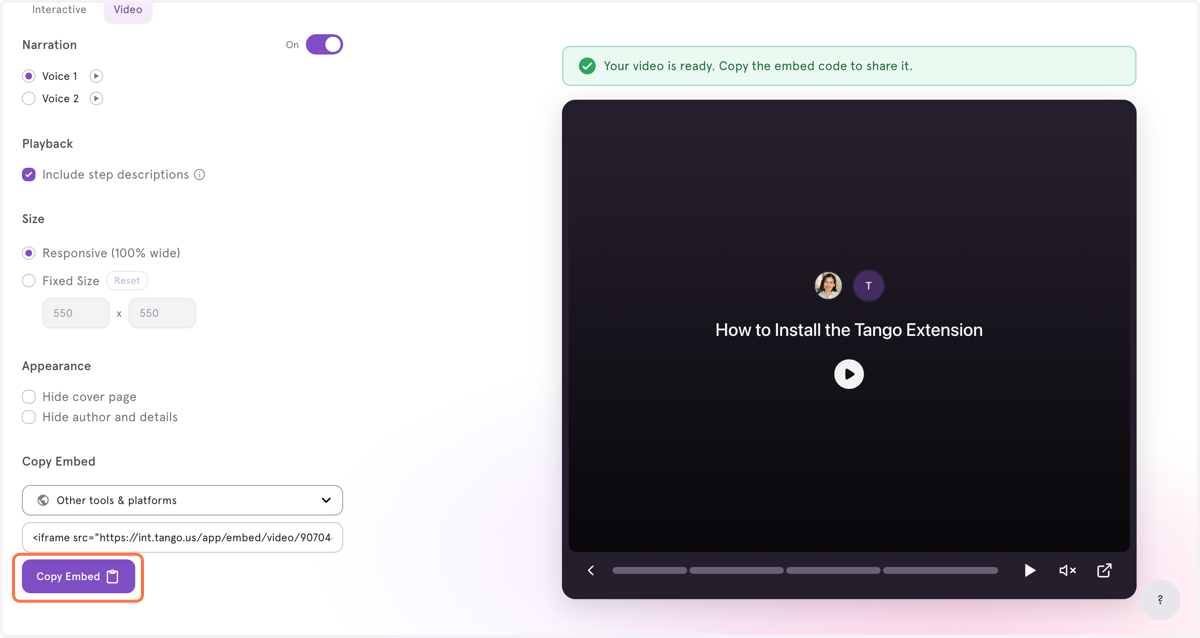
Narration: Toggle AI narration on or off. When enabled, Tango automatically generates a voiceover from your step titles and descriptions.
Voice: Choose between two AI voice options.
Appearance: Adjust sizing and layout to fit your target embed location.
A real-time preview on the right side of the page shows you exactly what your video will look and sound like.
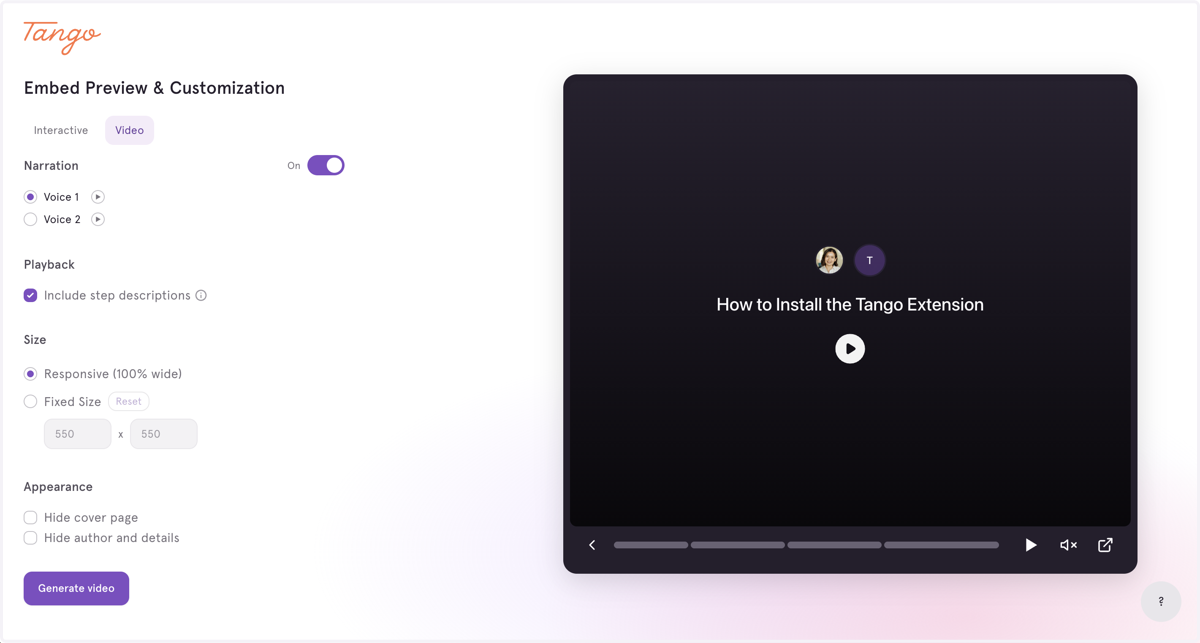
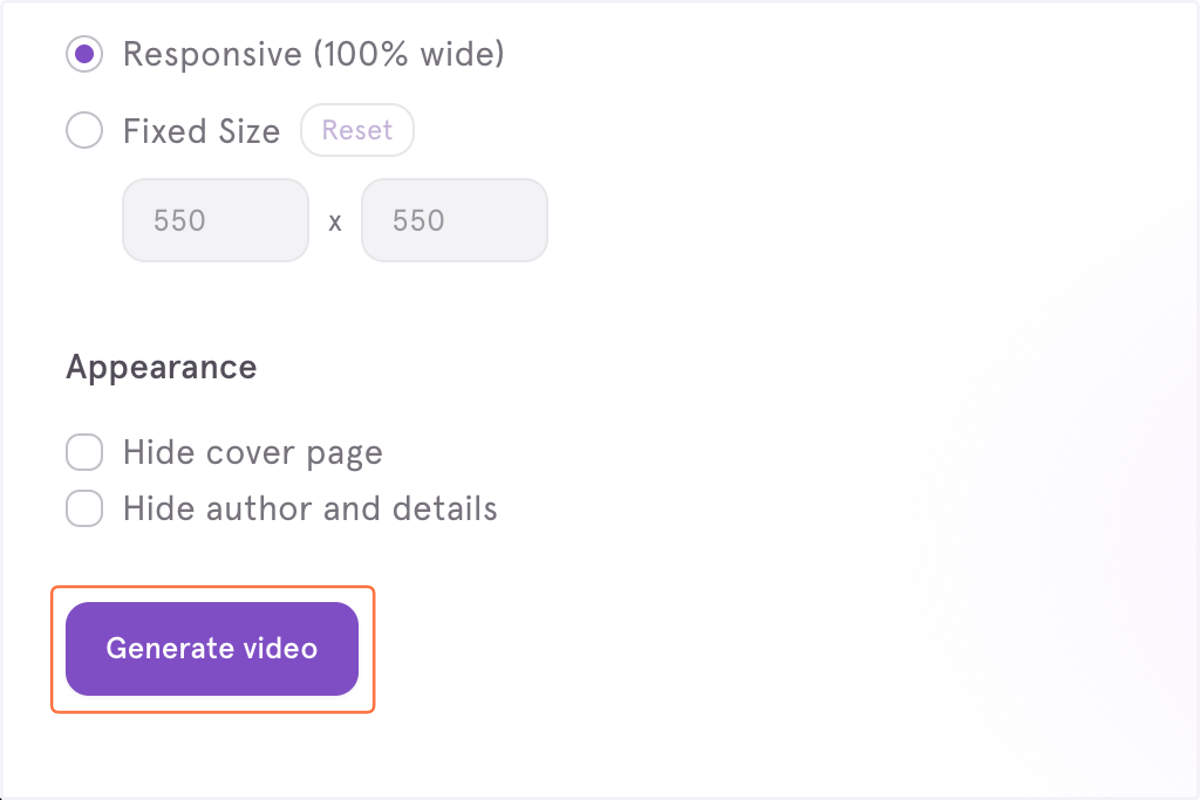
5. When your done, click Generate Video.
Tango renders a video from your workflow. This typically takes a couple of minutes depending on the number of steps.
6. Copy and paste the embed code
Once the video is ready, select the platform and copy the embed code and paste it into any tool that supports iframes.