Getting Started
Thank you for joining us at One Guy Consulting! This guide is intended to get you up to speed fast. If you have any trouble with it, please drop us a line at hello@oneguyconsulting.com. It will be our pleasure to help you out!
Signing In and First Steps
After signing in for the first time it is essential to visit Settings and follow what is laid out below.
1. Navigate to URL: https://portal.oneguyconsulting.com
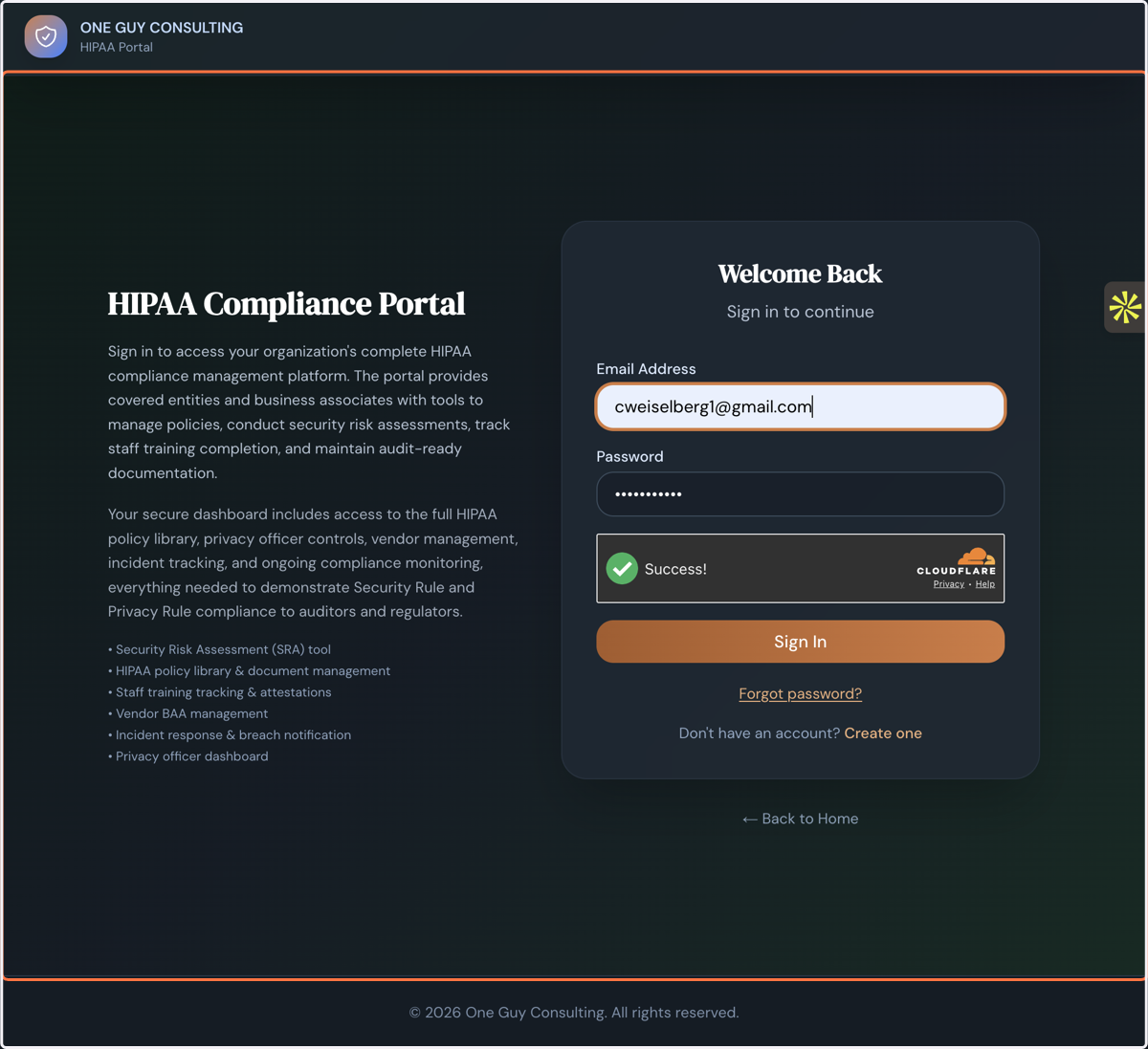
2. Signing In
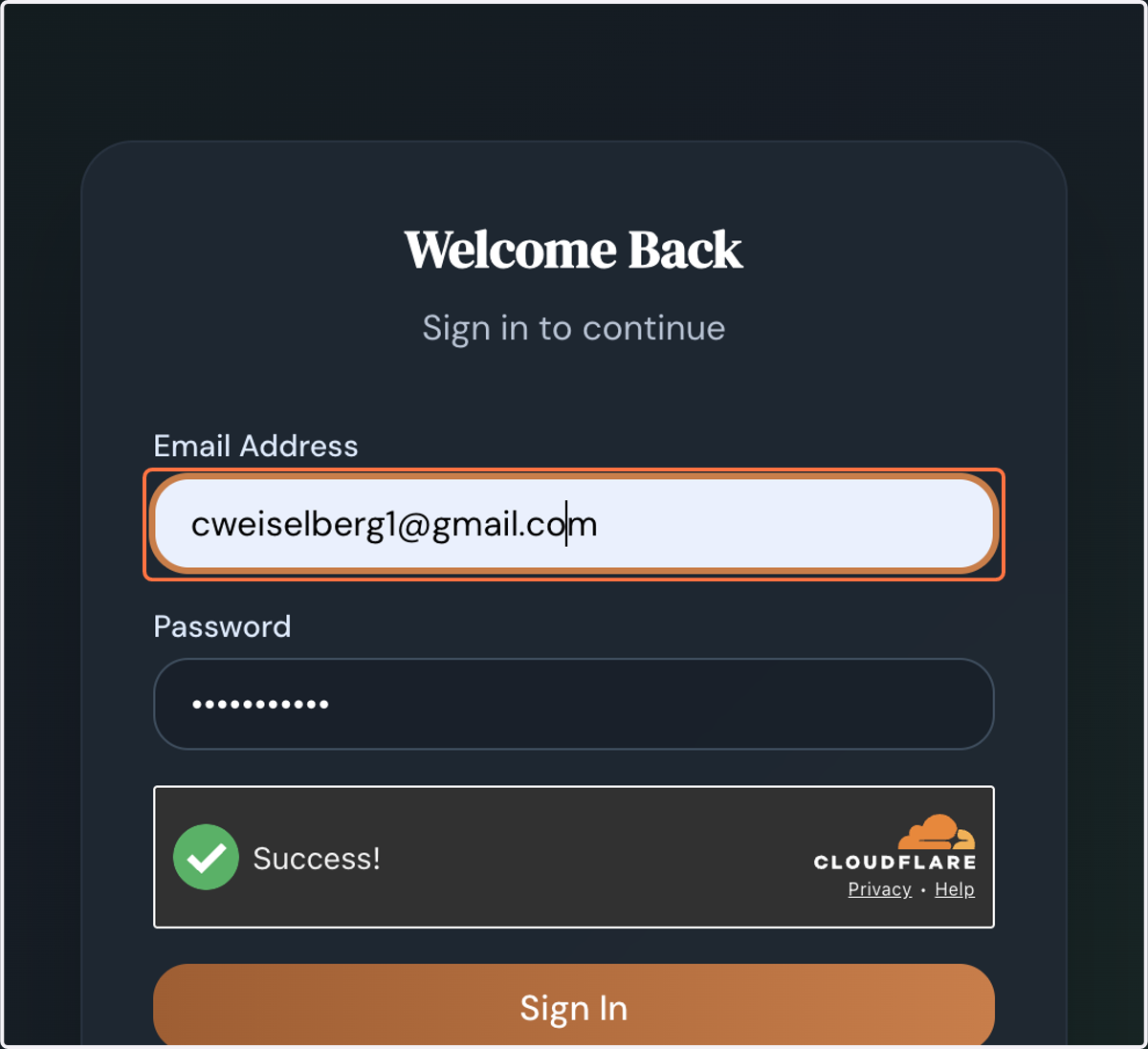
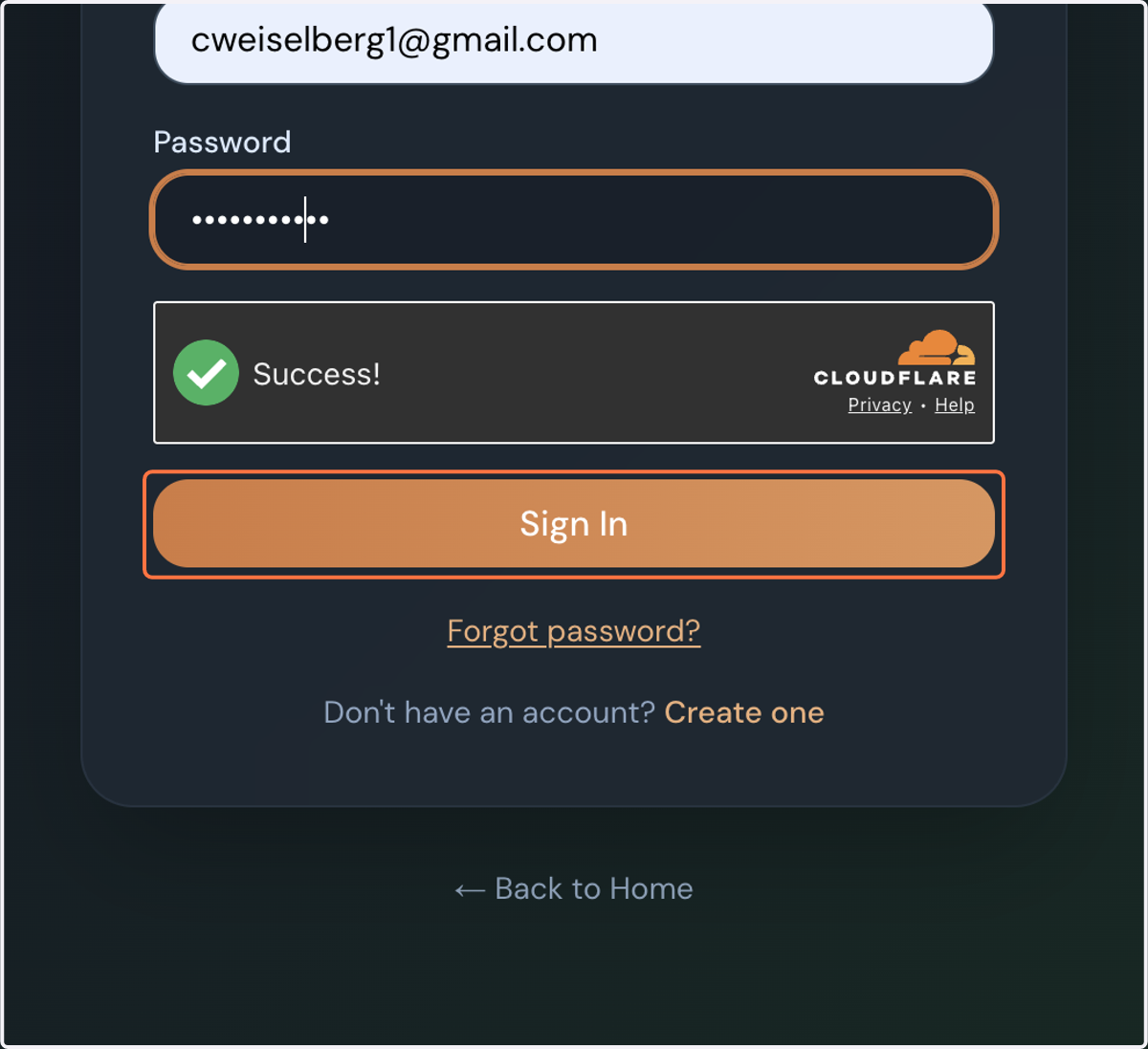
Click on Email Address and enter yours, as seen in the picture below.
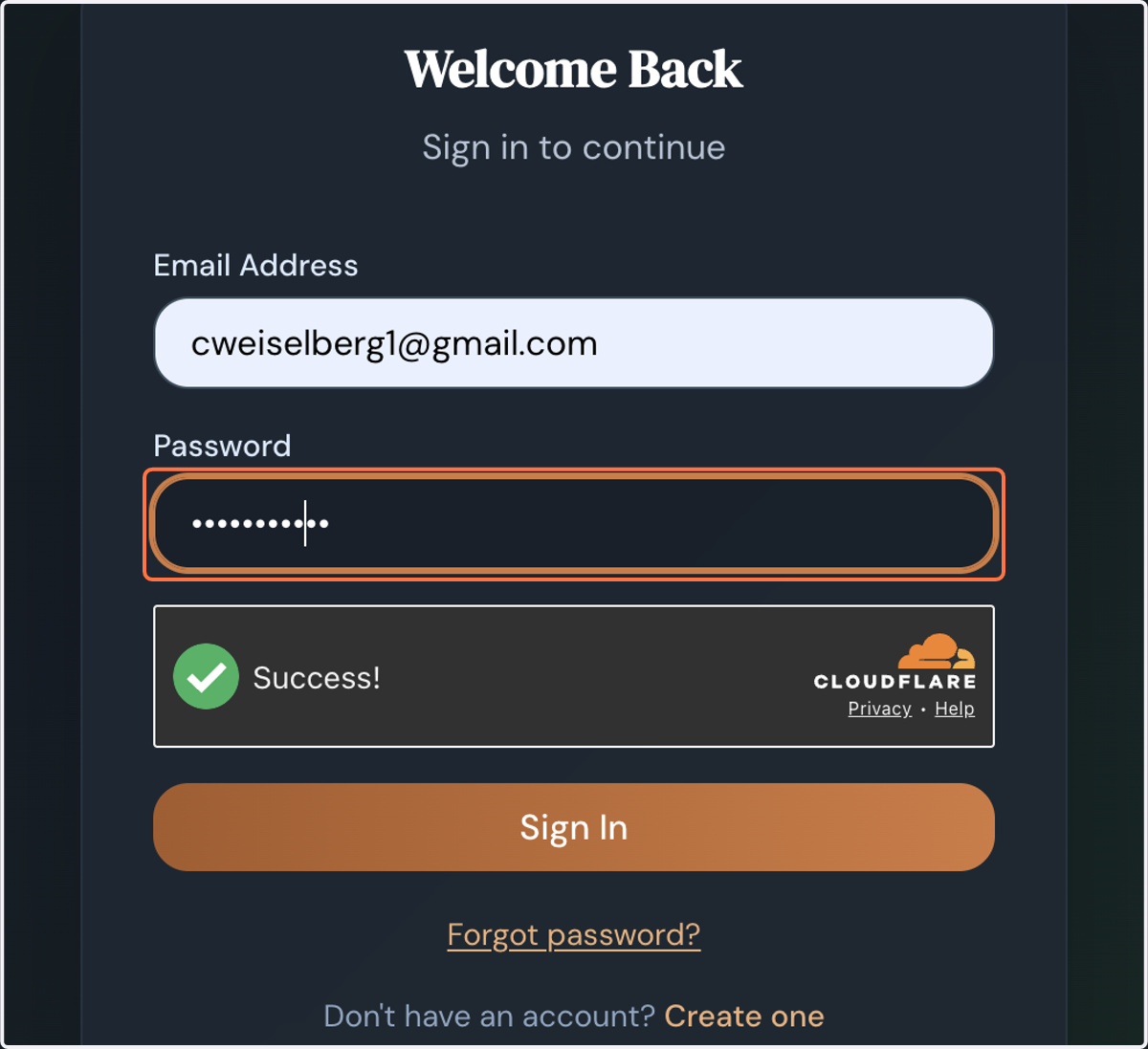
3. Click on password field
Enter password in password field.
4. Click on Sign In
To sign into your Dashboard, click Sign In after entering your credentials.
5. After hitting Sign In
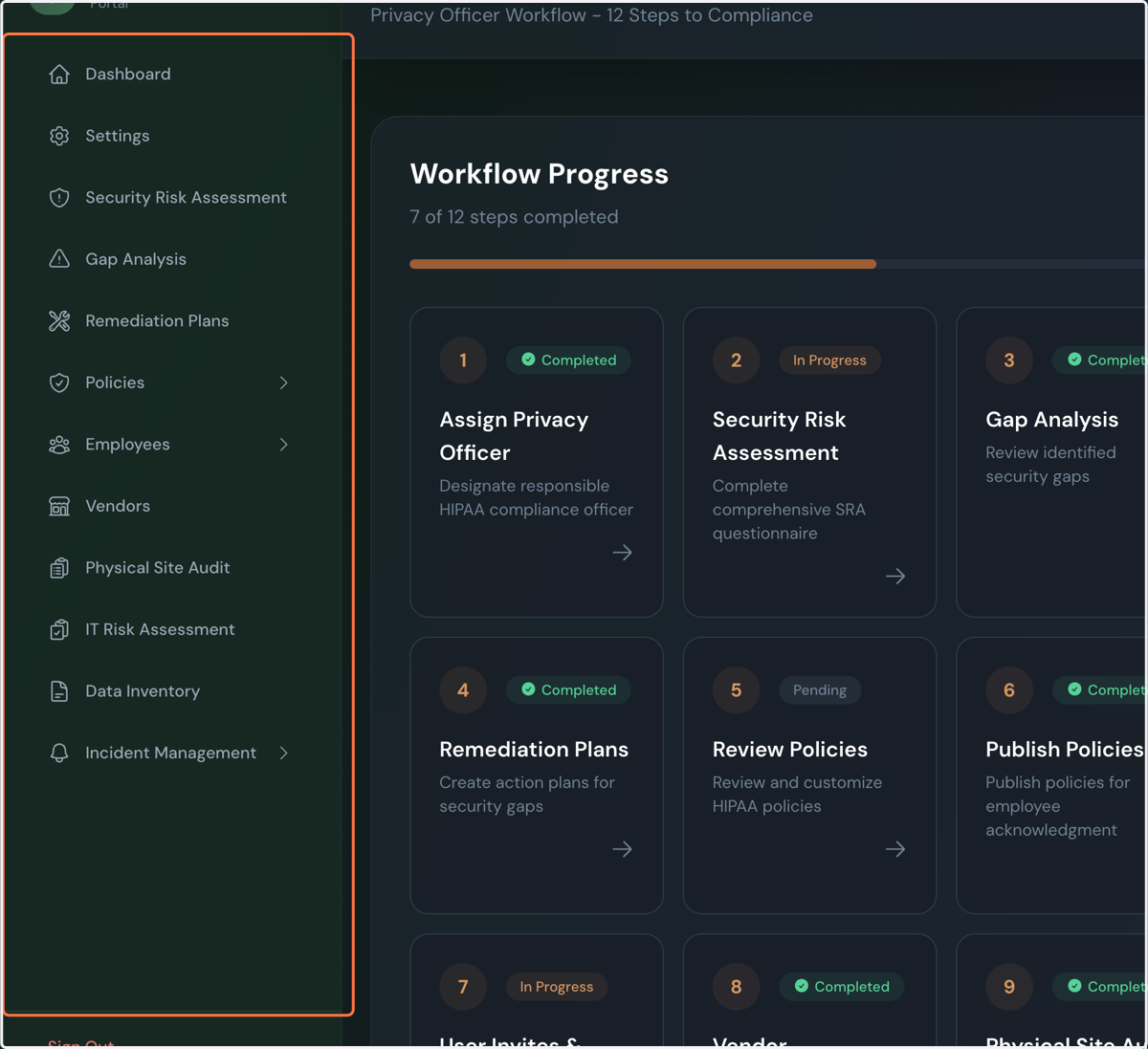
You will see the Dashboard. To make important Settings changes look first to the left-hand side of the page for the navigation bar shown below.
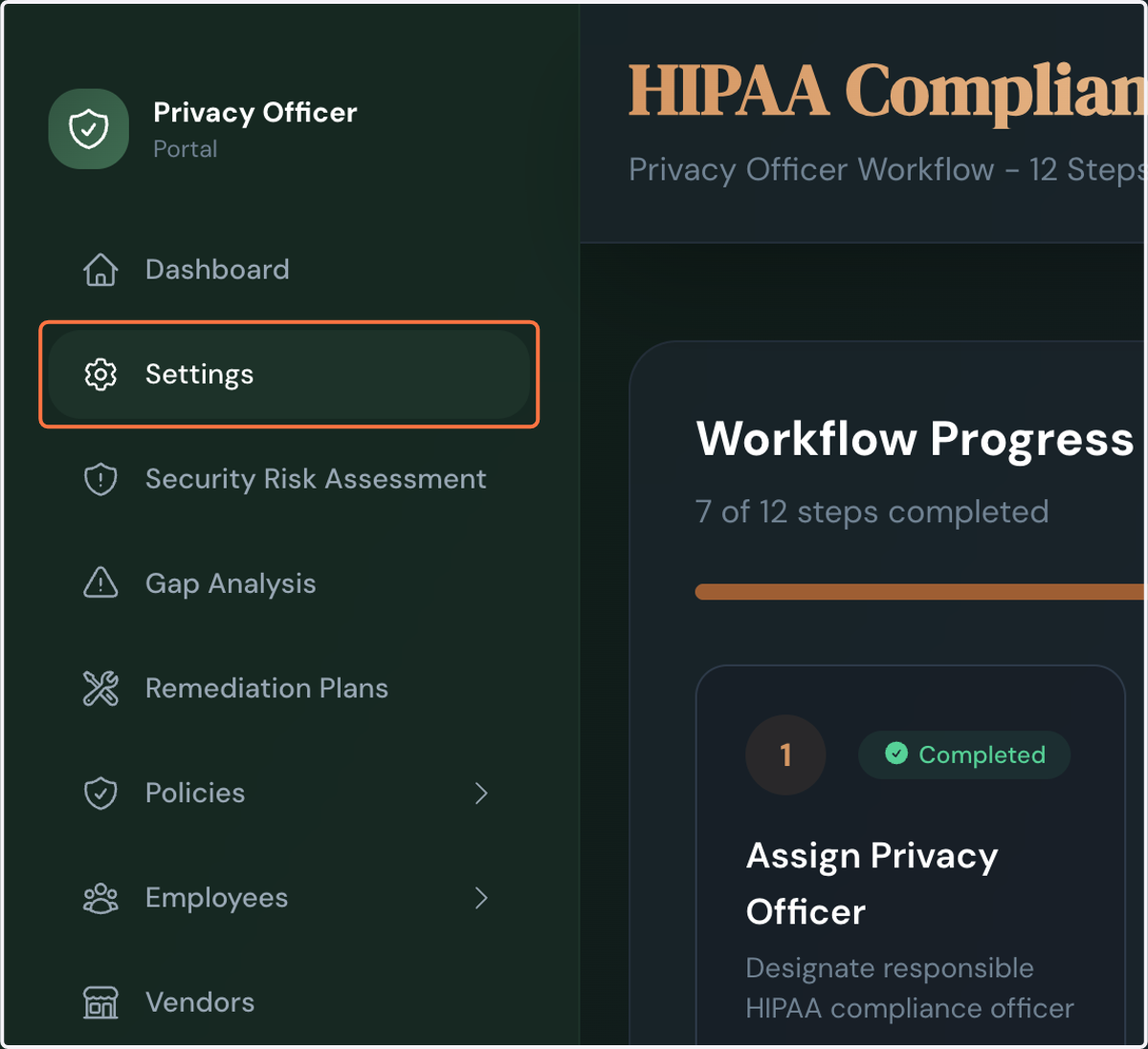
6. Click on Settings
7. Important Note!…
There is a bug requiring submissions of Company Name and Privacy Officer or your PROGRESS WILL NOT SAVE! Be sure to address the fields below as discussed in the rest of this guide.
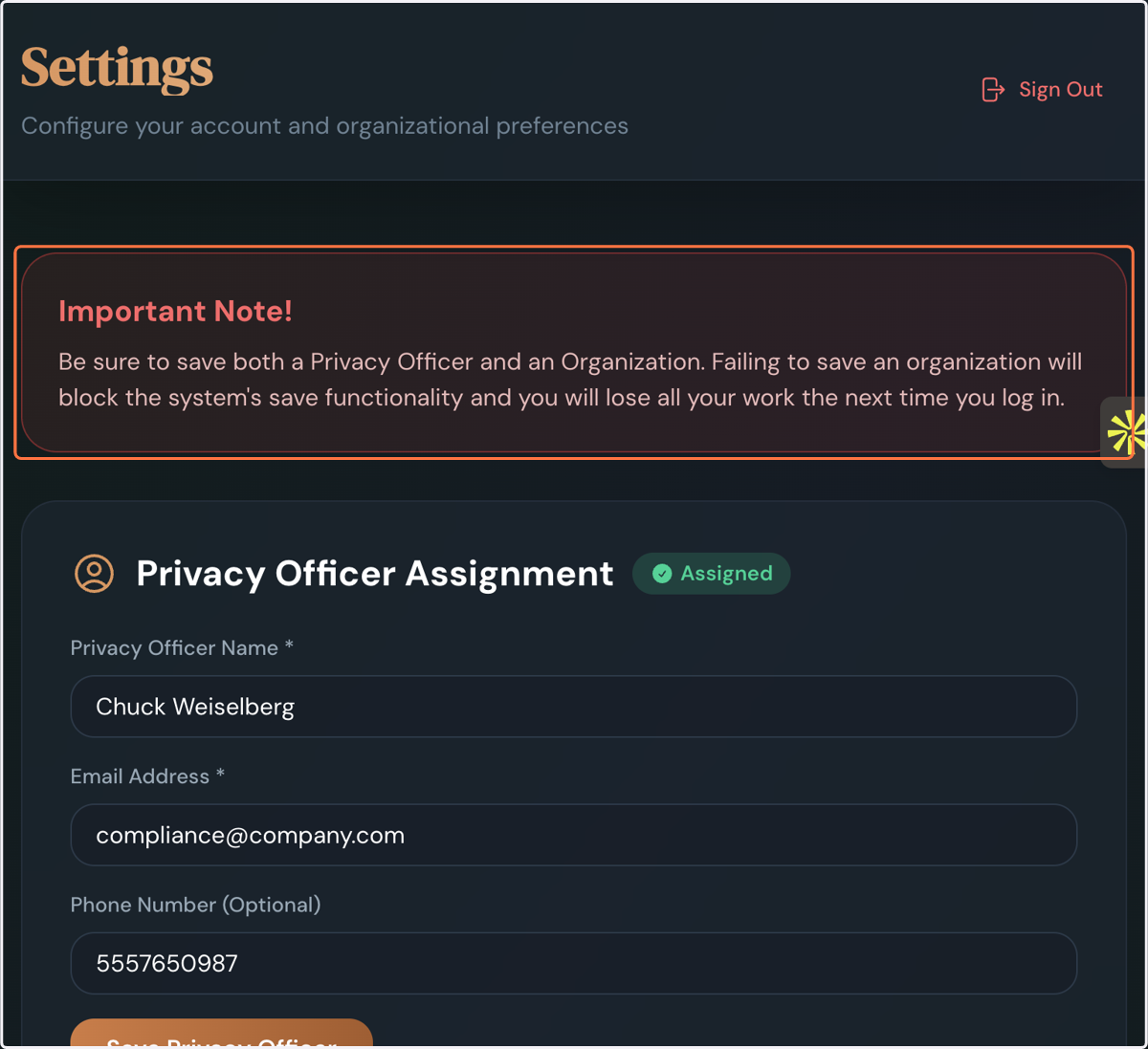
8. To assign your Privacy Officer
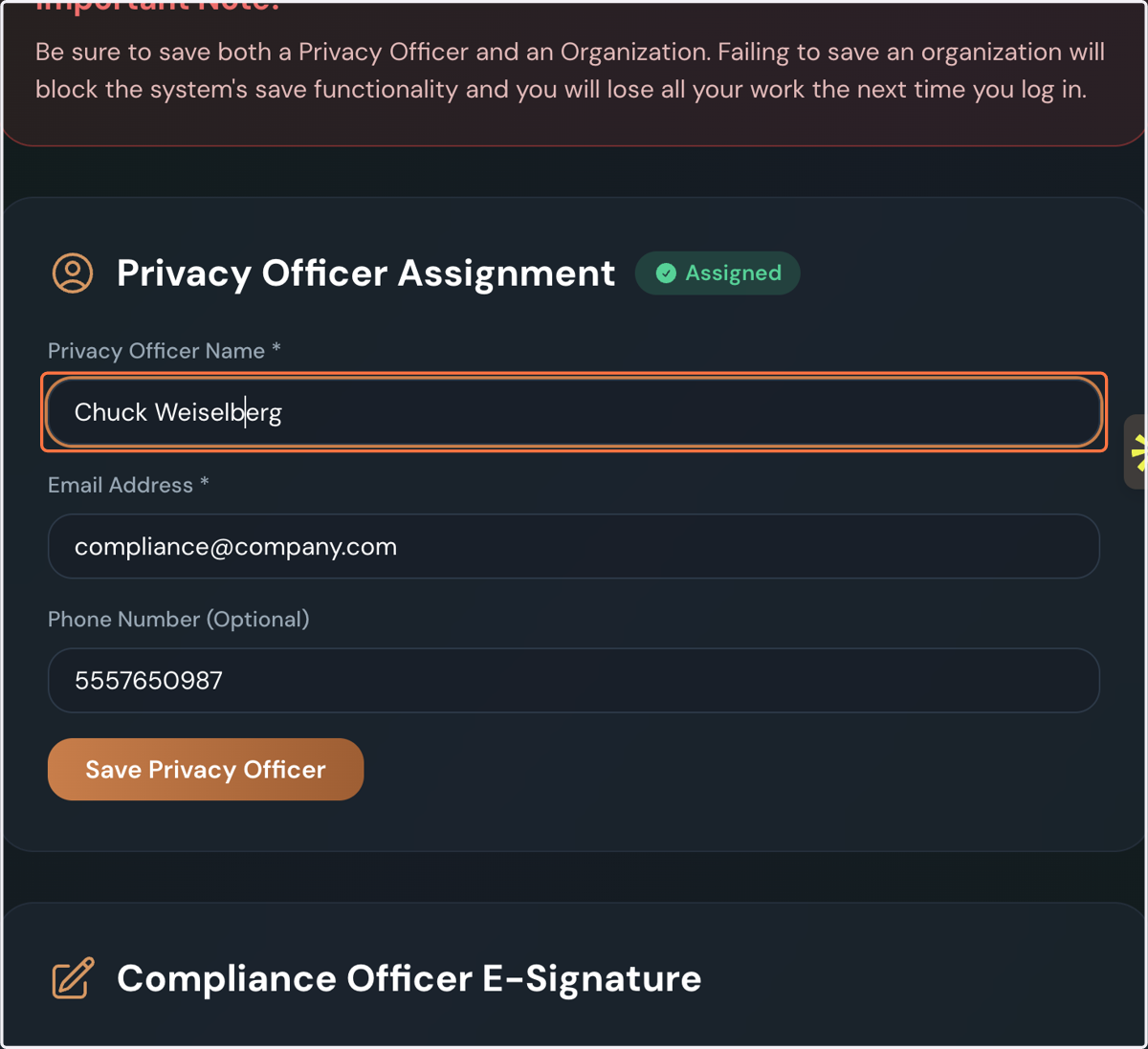
Click on the Privacy Officer Name field and fill the first and last name of the person responsible for your HIPAA compliance.
9. Click on Email Address
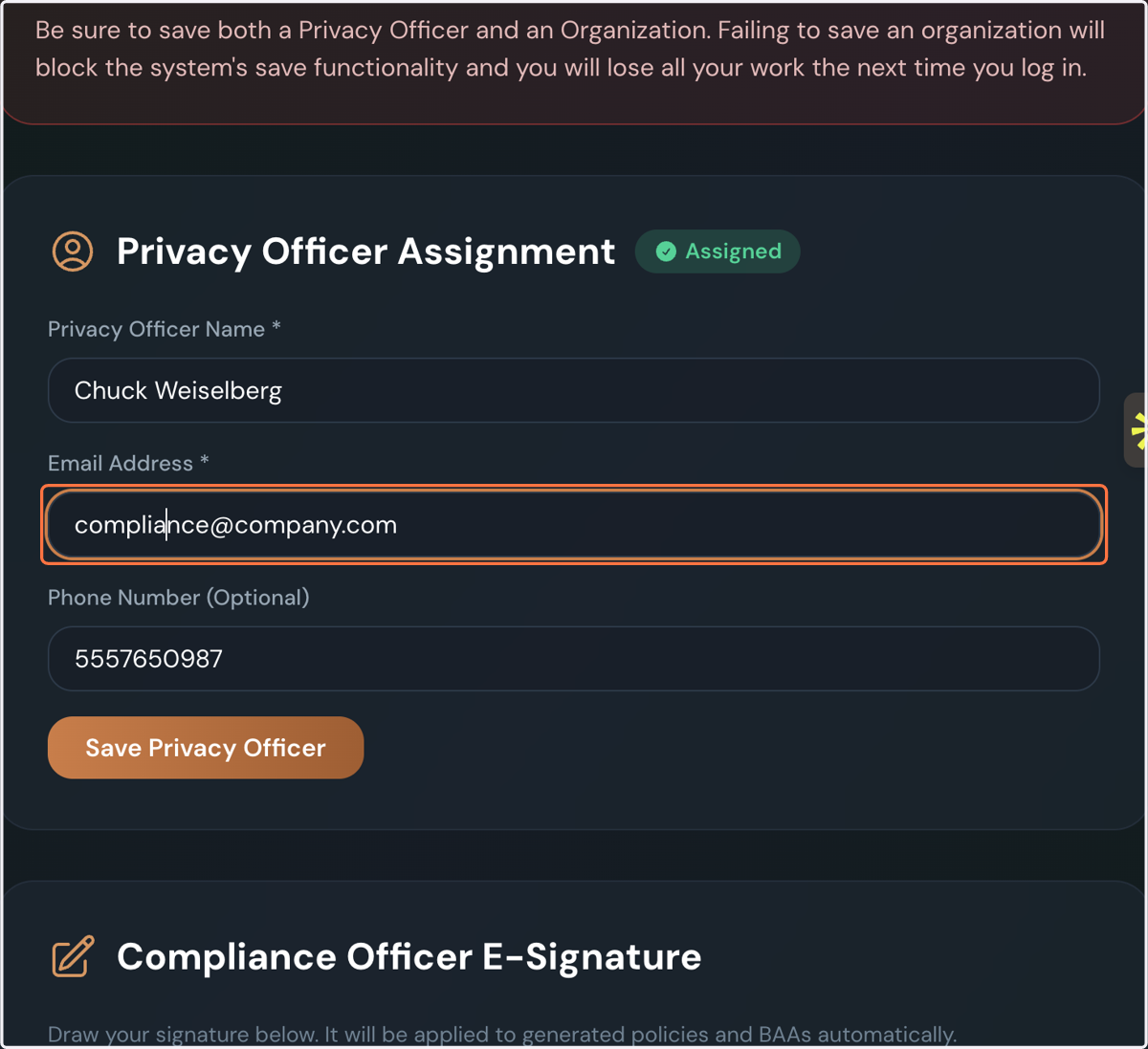
In the Email Address field, enter the Email address of the individual who will serve as Privacy Officer for your Organization.
10. Click on Save Privacy Officer
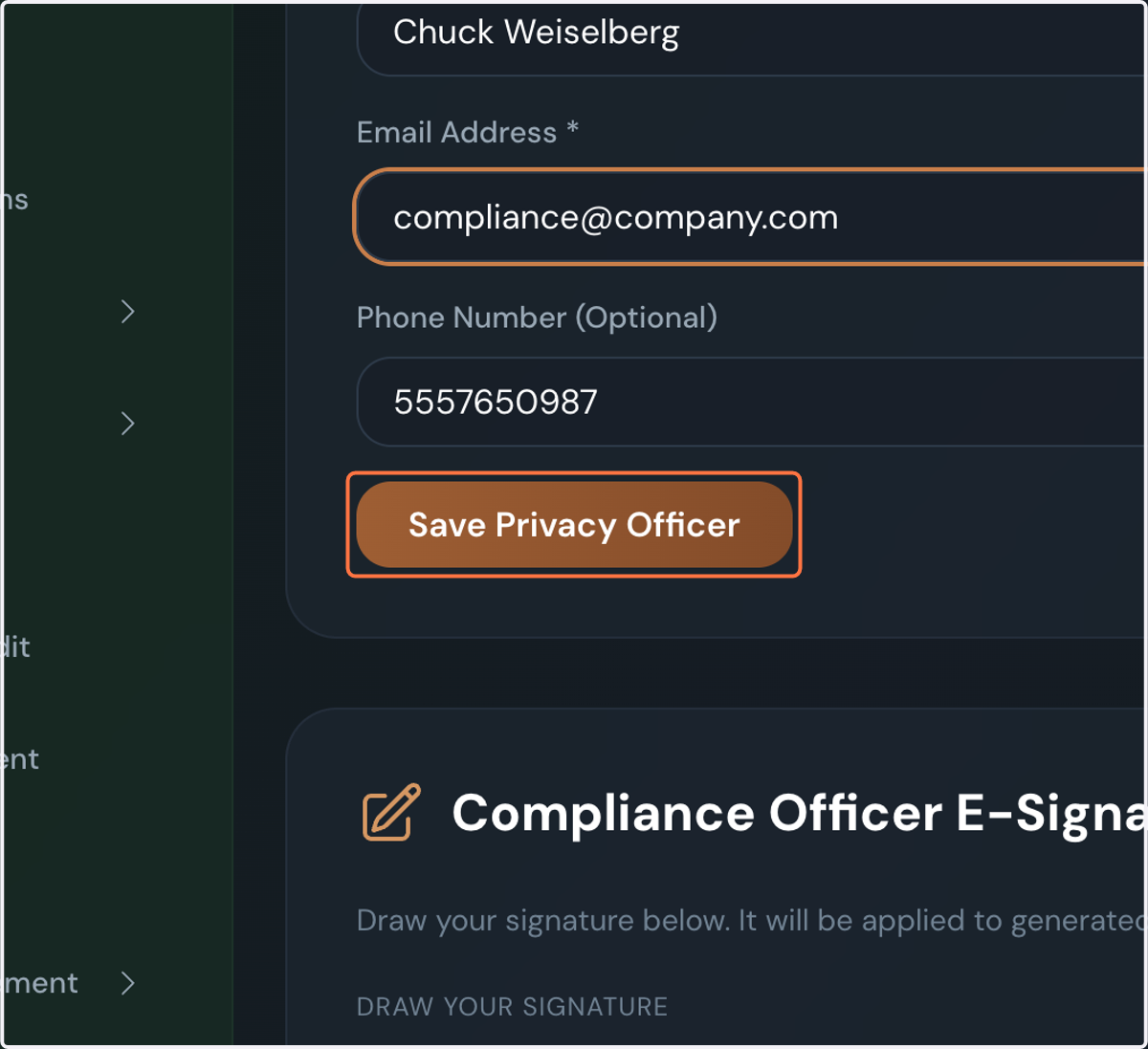
Phone number is optional, but make sure to hit the Save Privacy Officer button when done adding in the information for the fields mentioned above.
11. Confirmation of Privacy Officer Assignation
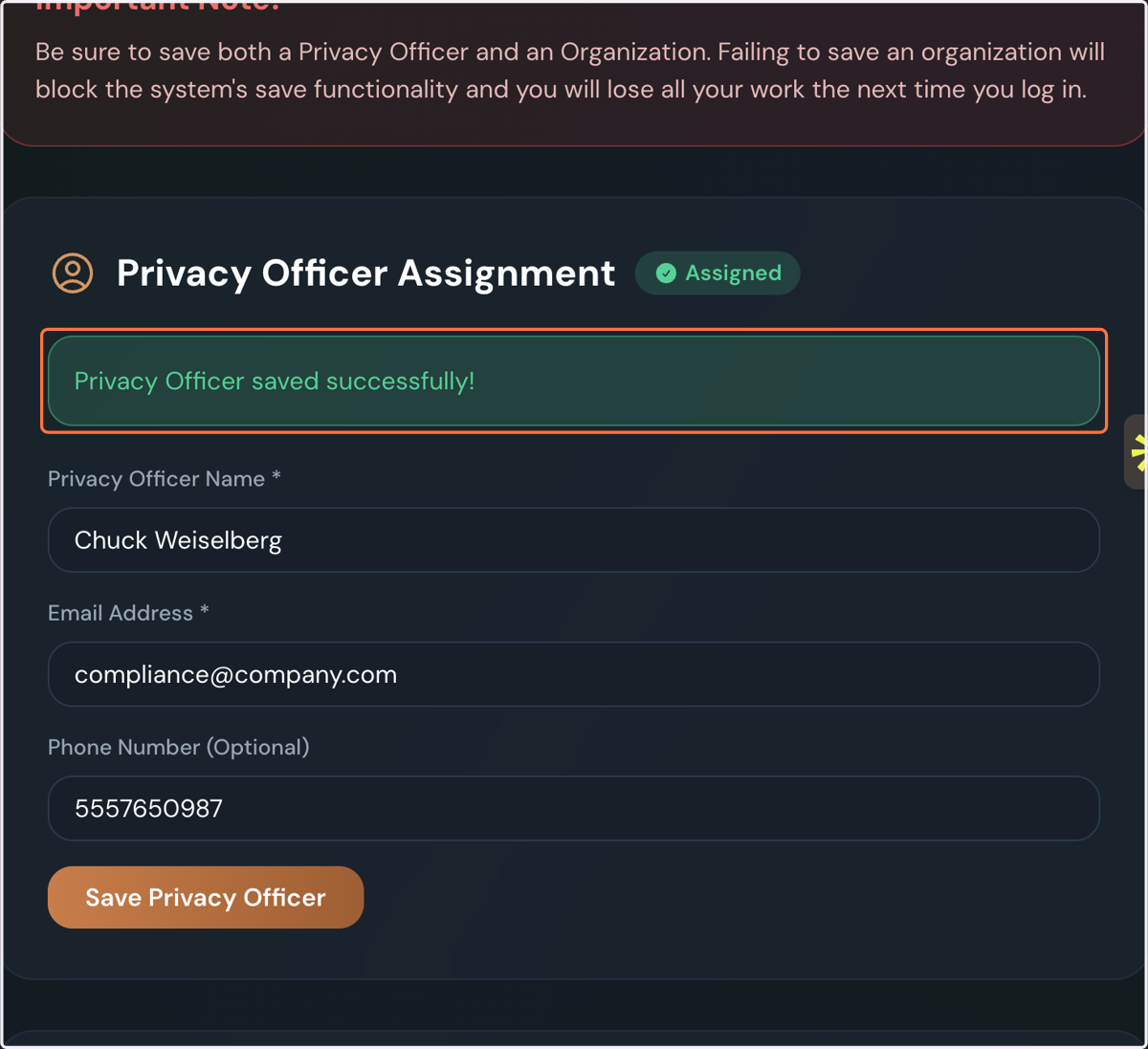
You will see this success message to confirm you got it right, "Privacy Officer saved successfully!"
12. Draw your signature
This will be used on policy documents, BAAs, and anywhere else requiring Privacy Officer signature.
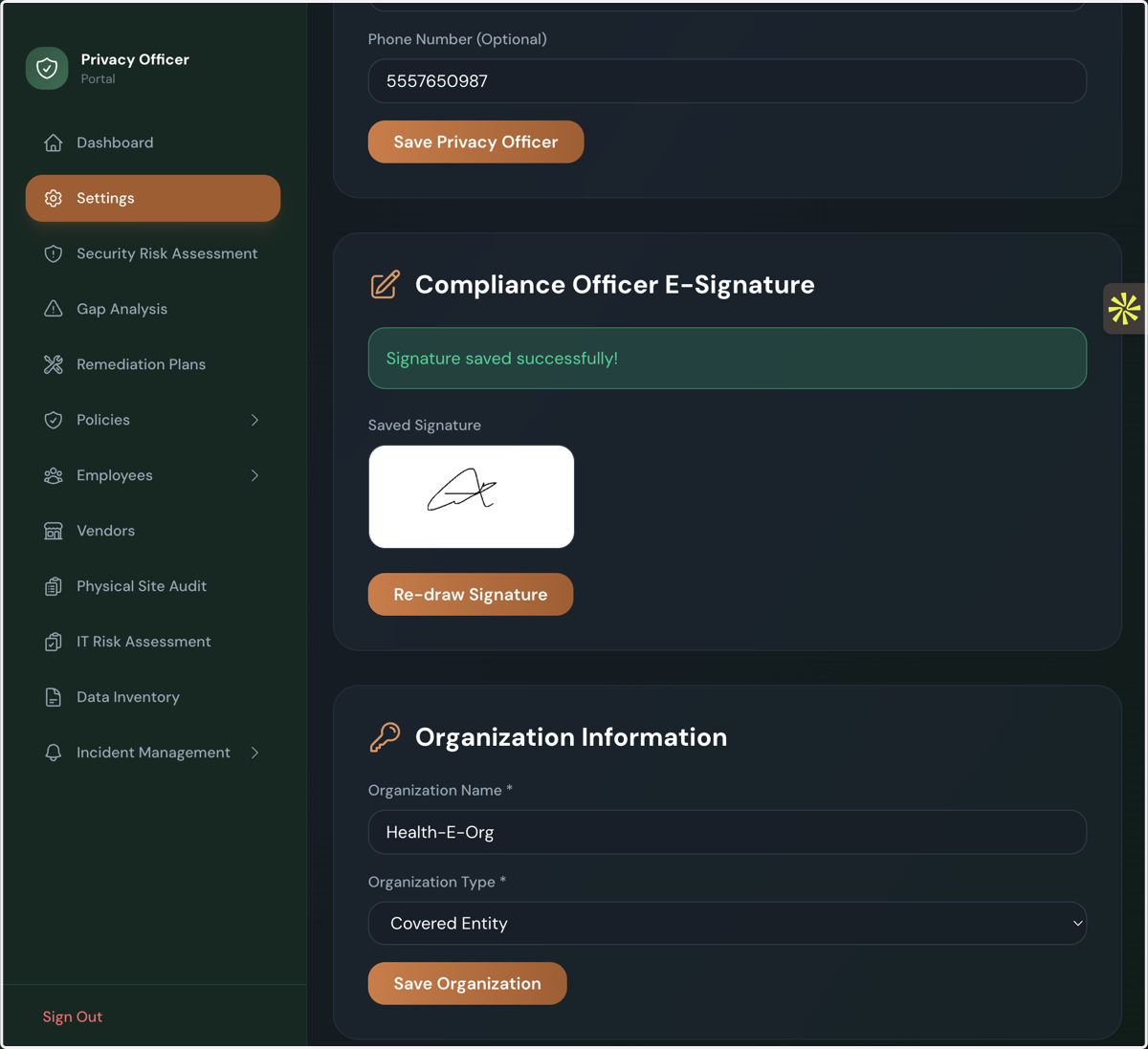
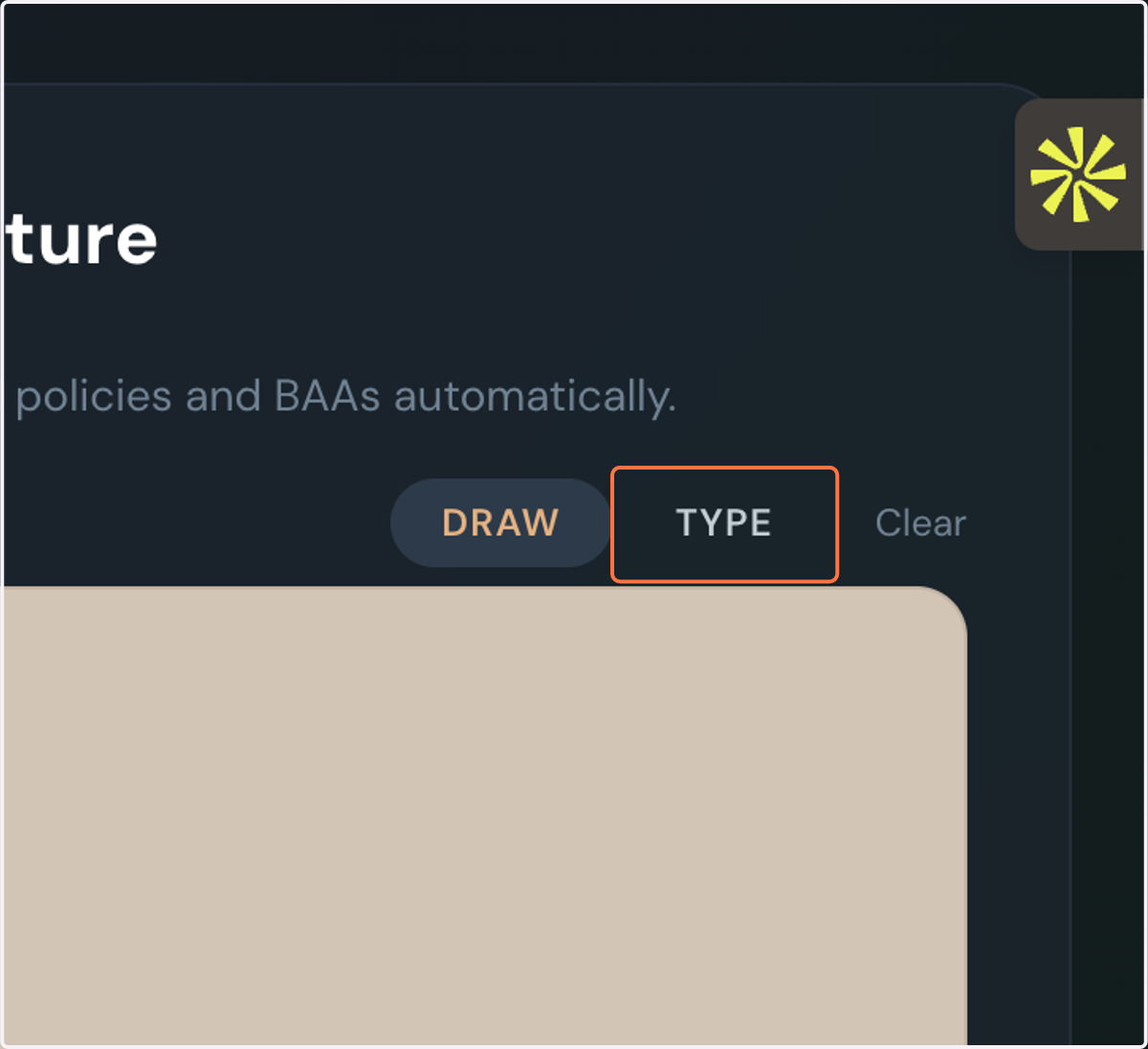
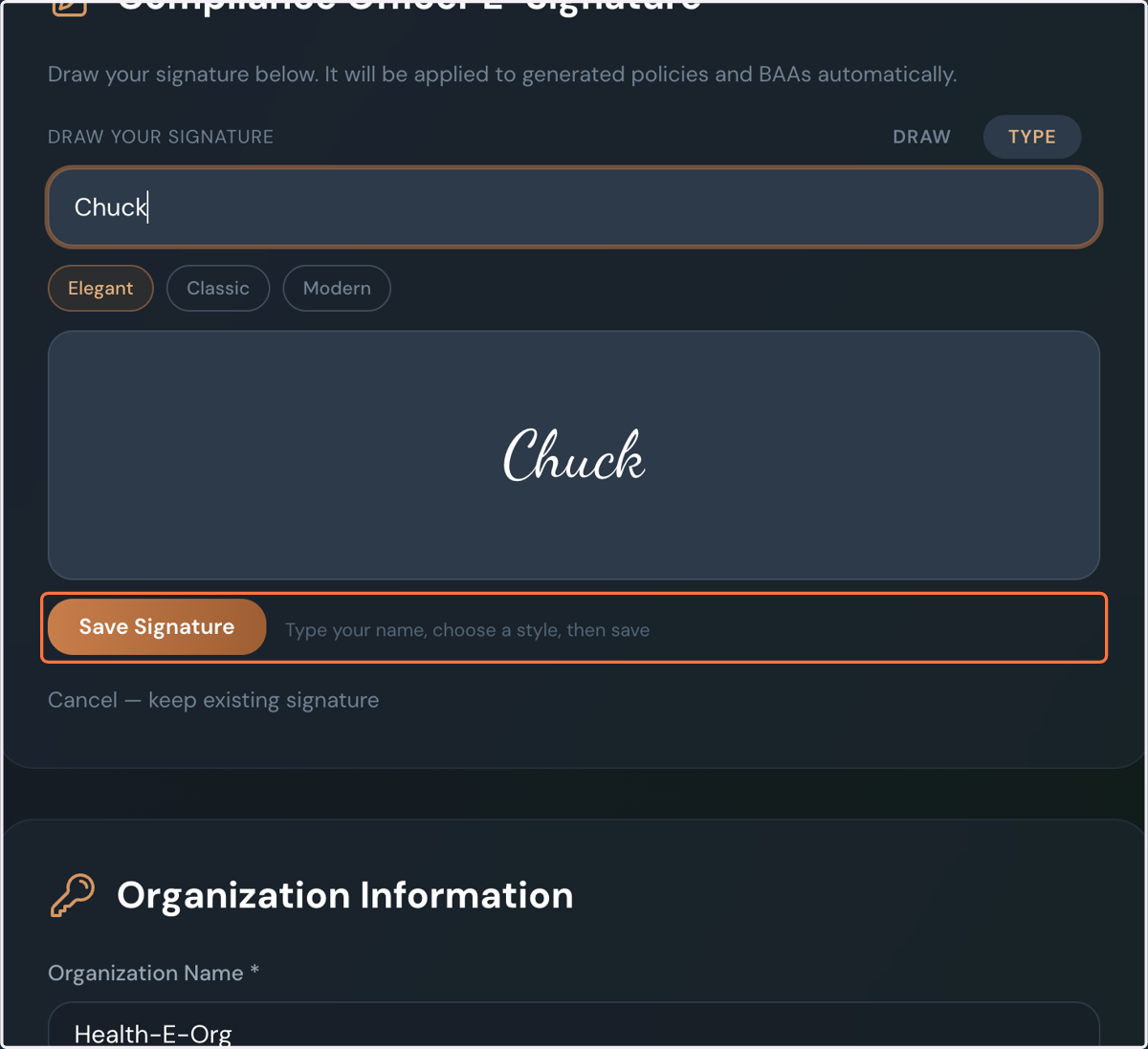
13. If you do not want to draw your signature
Click Type to type in your signature
14. This screen will follow
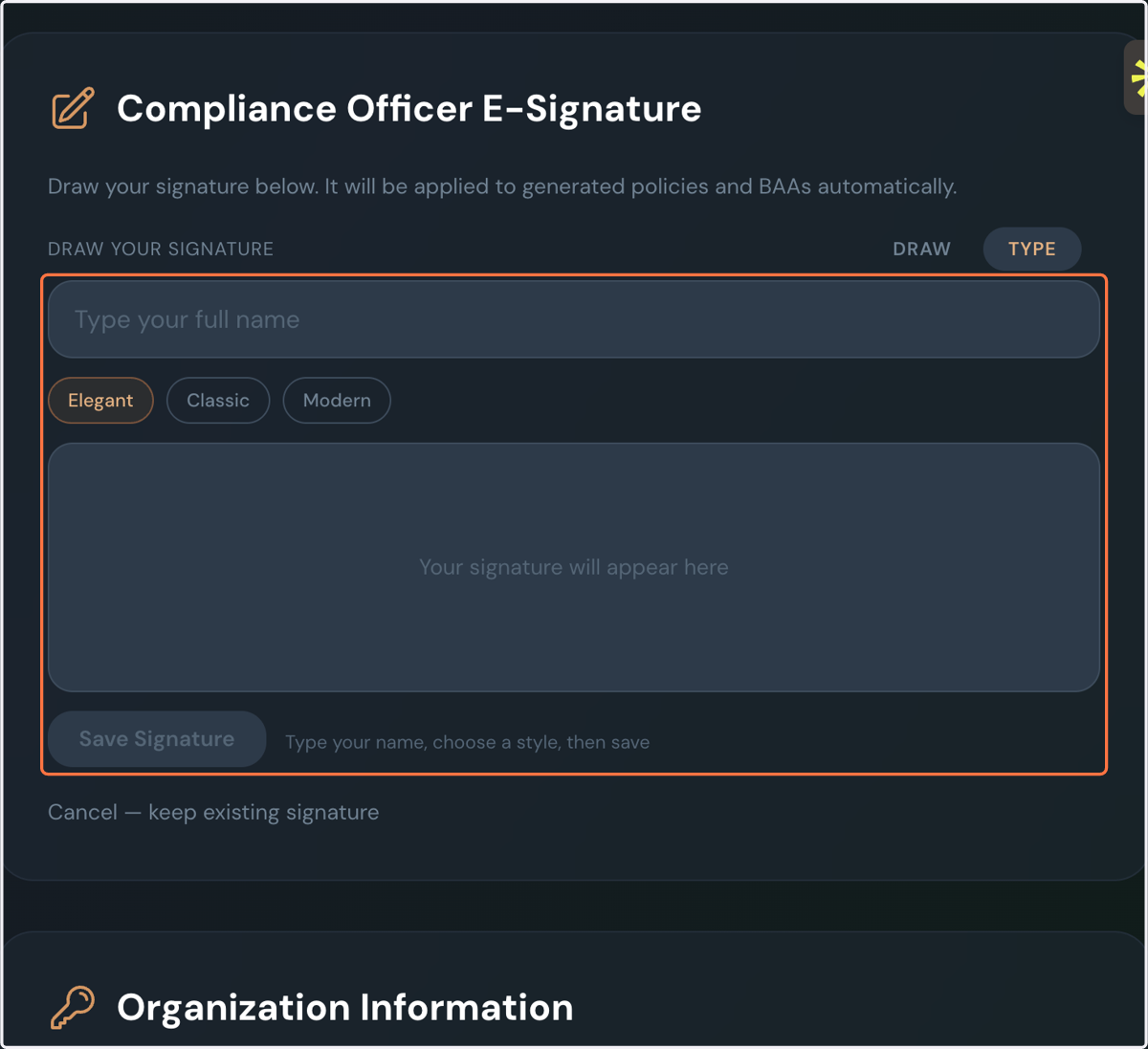
15. Type your name
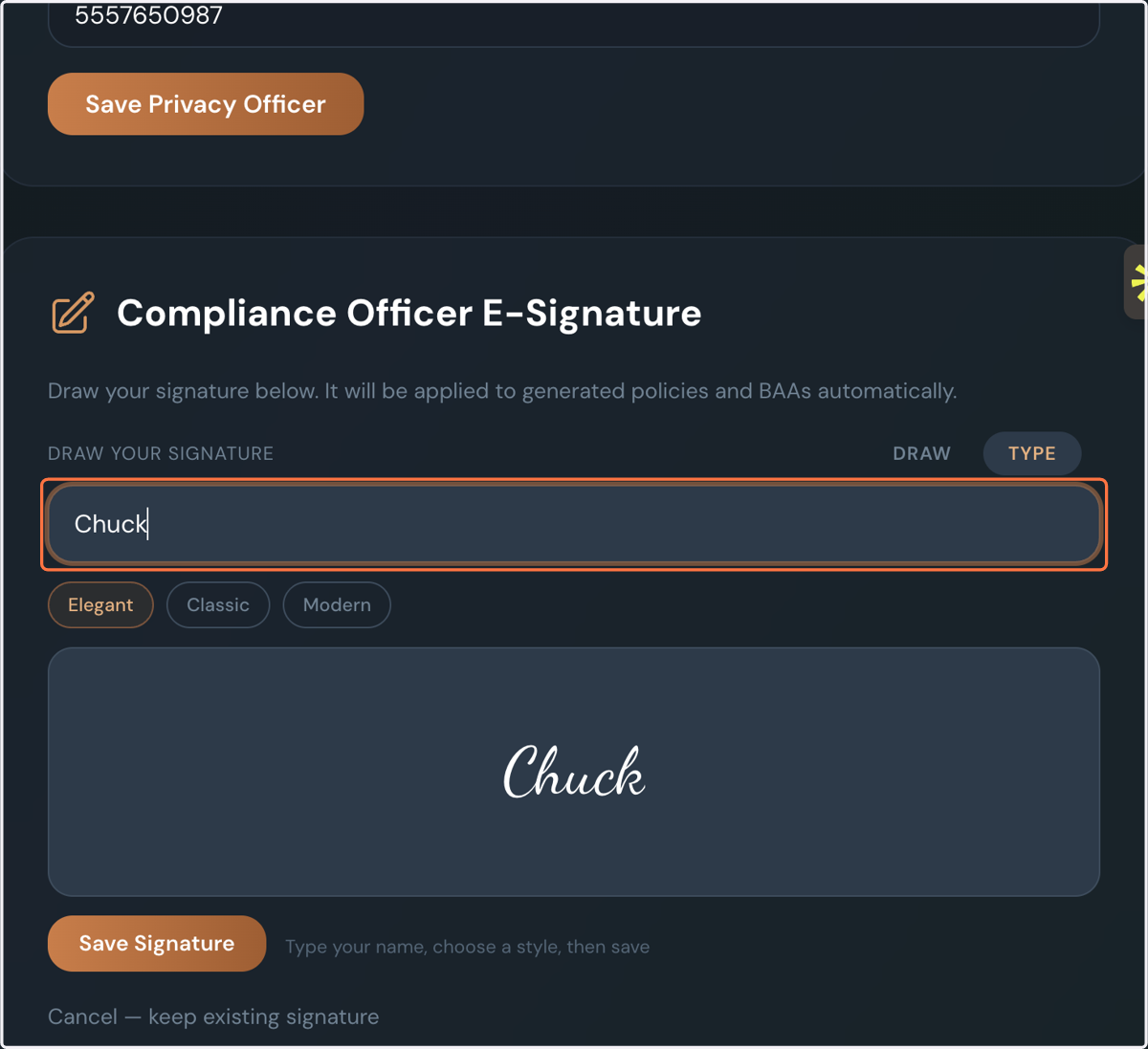
16. Click on Save Signature
to use the typed version.
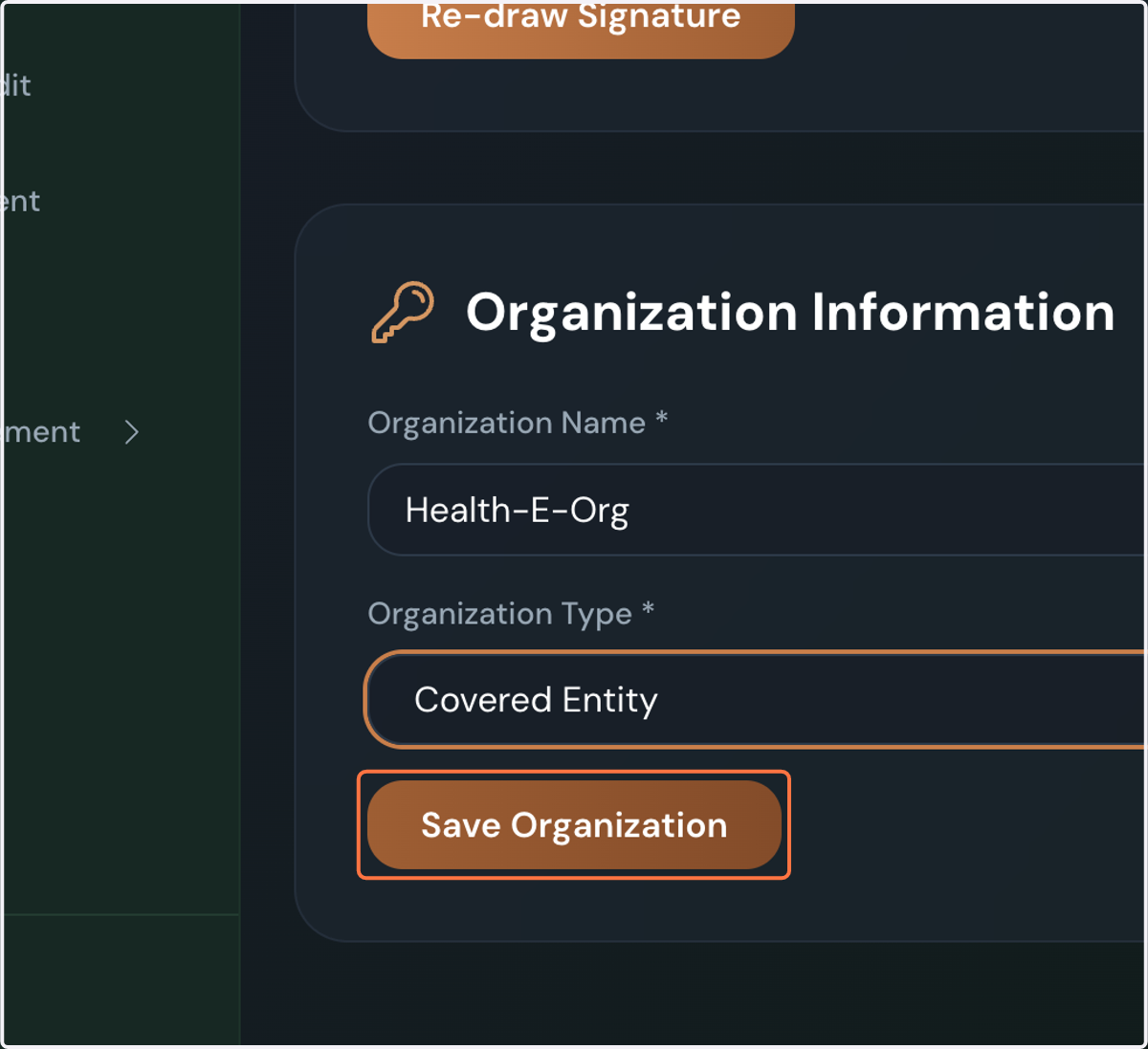
17. Click on Organization Name
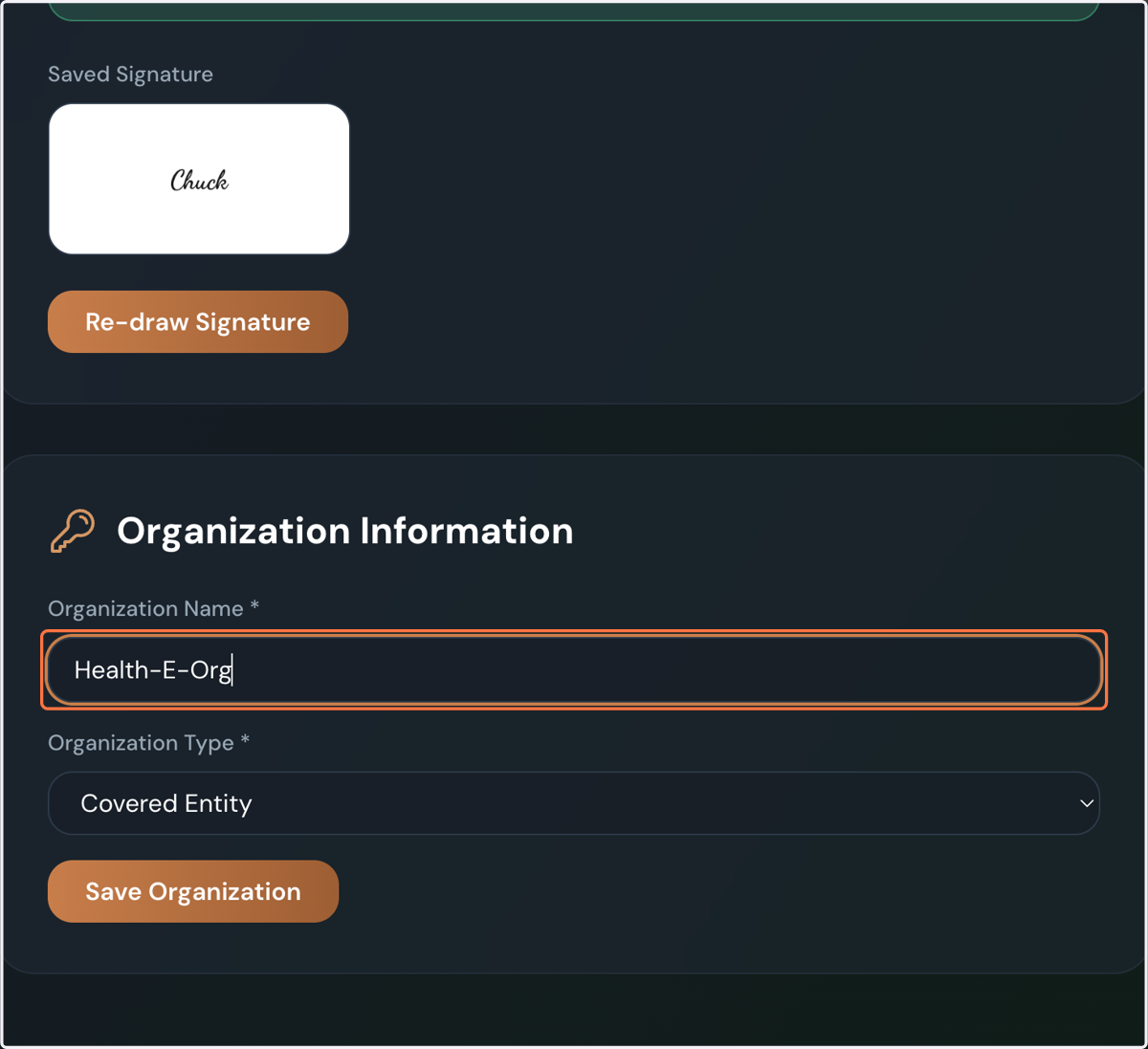
18. Click on Save Organization
You're now ALL SET to begin the Security Risk Assessment and your work WILL save with no trouble from here.