Boolean Variables
In this tutorial, we will learn how to utilise the Boolean variable type.
This variable allows for a true or false value, and has a number of uses.
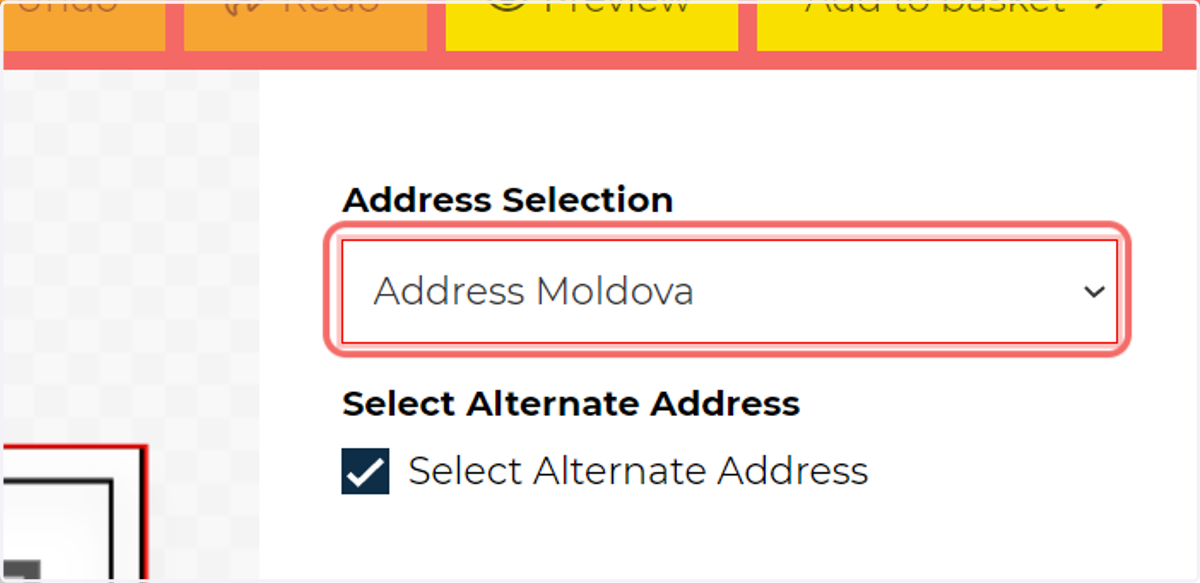
In our example, we will see how we can link our Boolean Variable to another variable, in order to show or hide it.
adobe
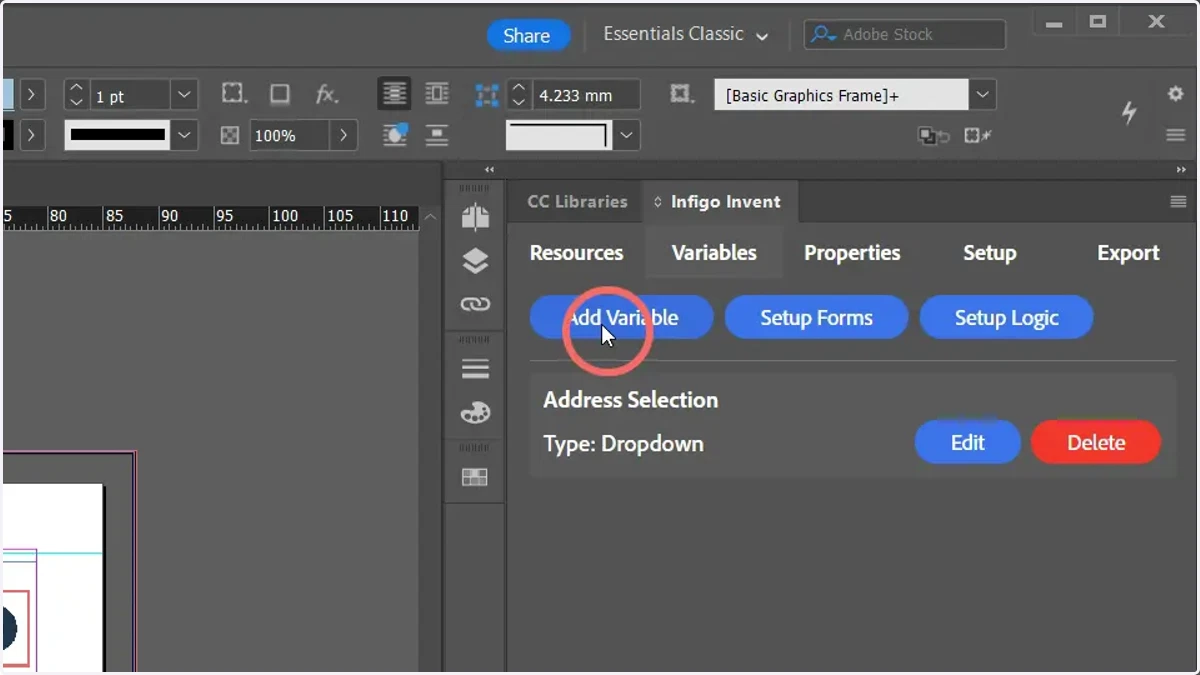
1. To begin, navigate to the Variables tab in the Invent plugin and click Add Variable
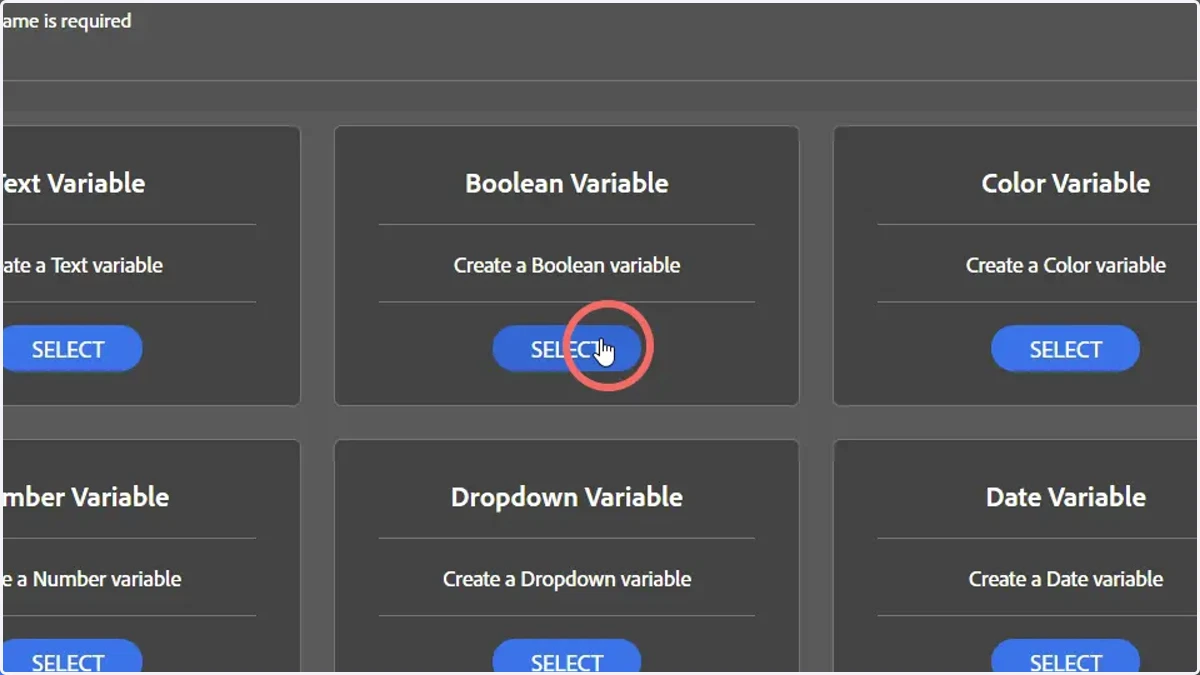
2. Select a Boolean Variable
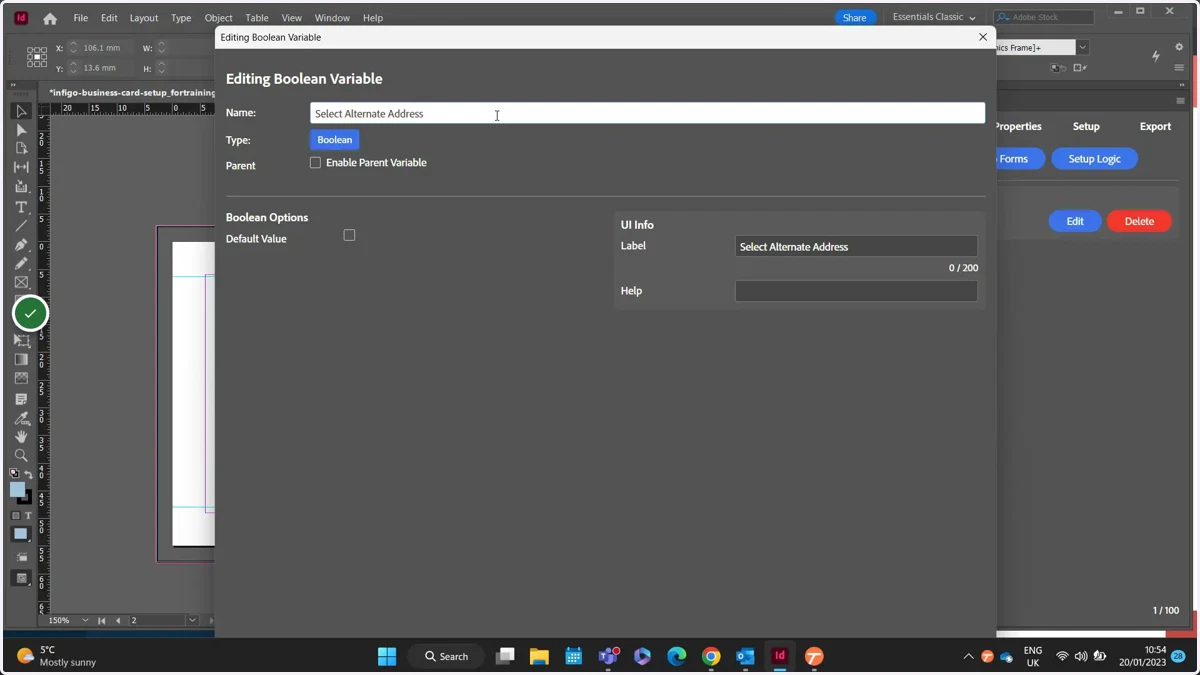
3. Enter a variable name and select the variable default value
In our example, we will be using our Boolean Variable to show or hide a dropdown variable containing address options.
The Default value will control whether this variable is checked (TRUE) or unchecked (FALSE) by default.
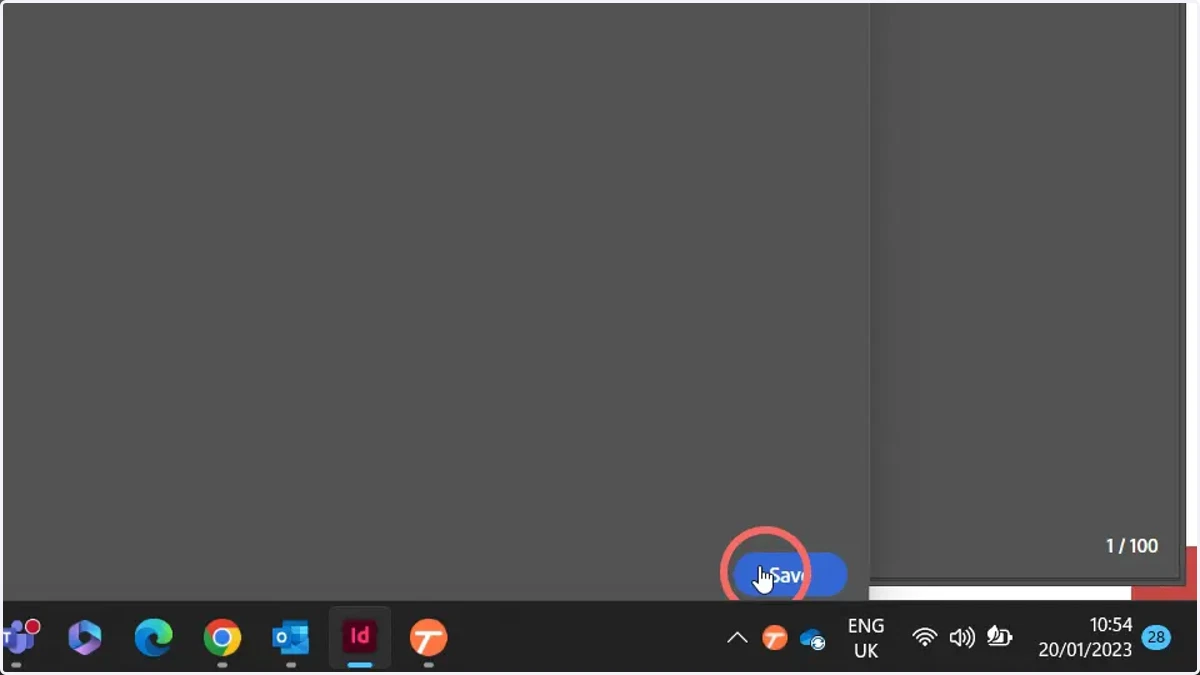
4. Click Save to confirm the variable
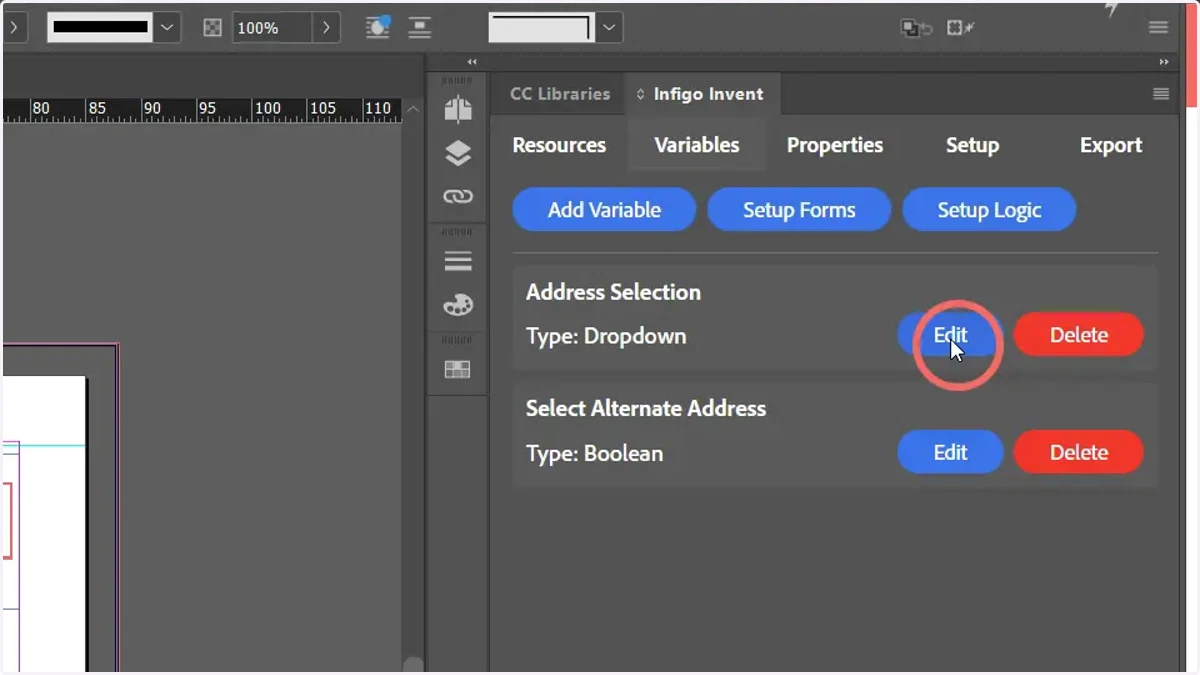
5. To link our Boolean Variable so that it controls the visibility of another variable, click Edit on the variable to be controlled
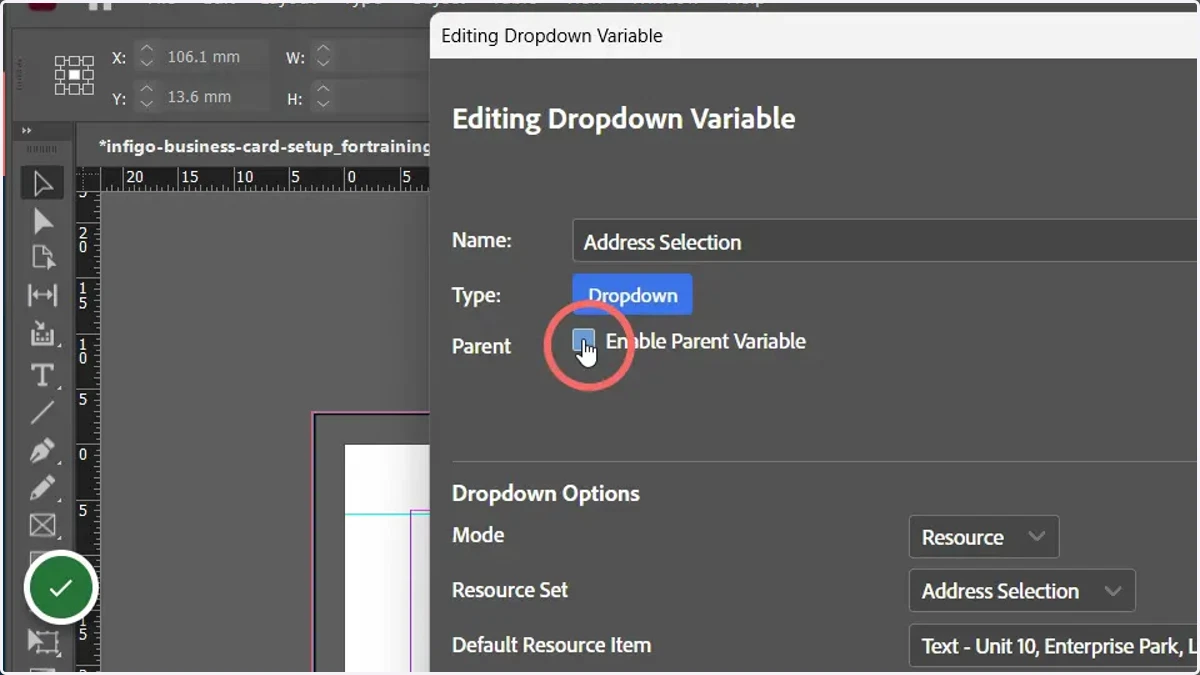
6. Click Enable Parent Variable
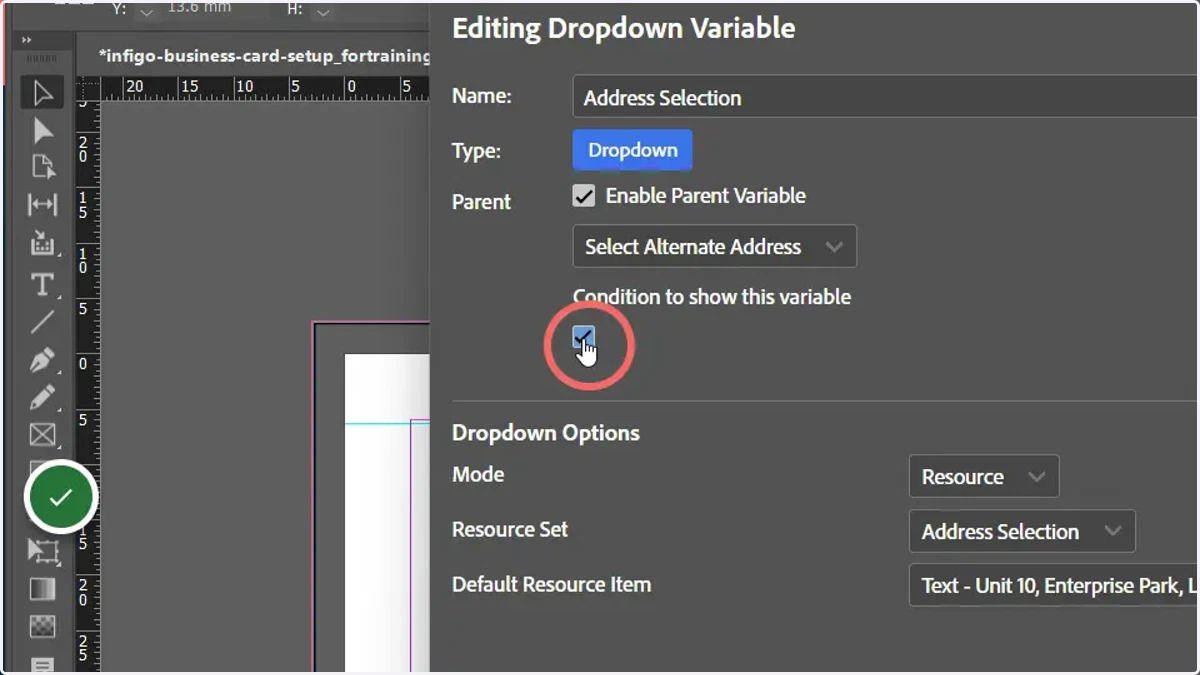
7. Select our Boolean Variable as the parent variable, and select whether a TRUE or FALSE condition is required to display this variable.
8. Click Save to update the variable
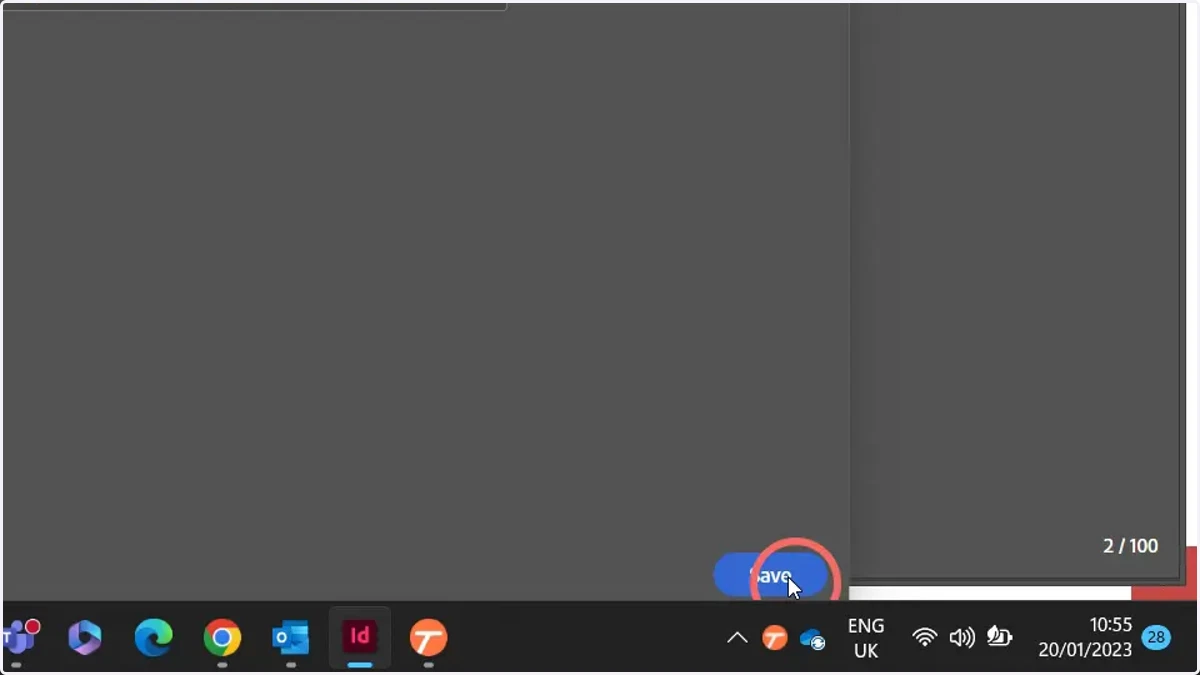
9. Export our Invent template as an MEX file
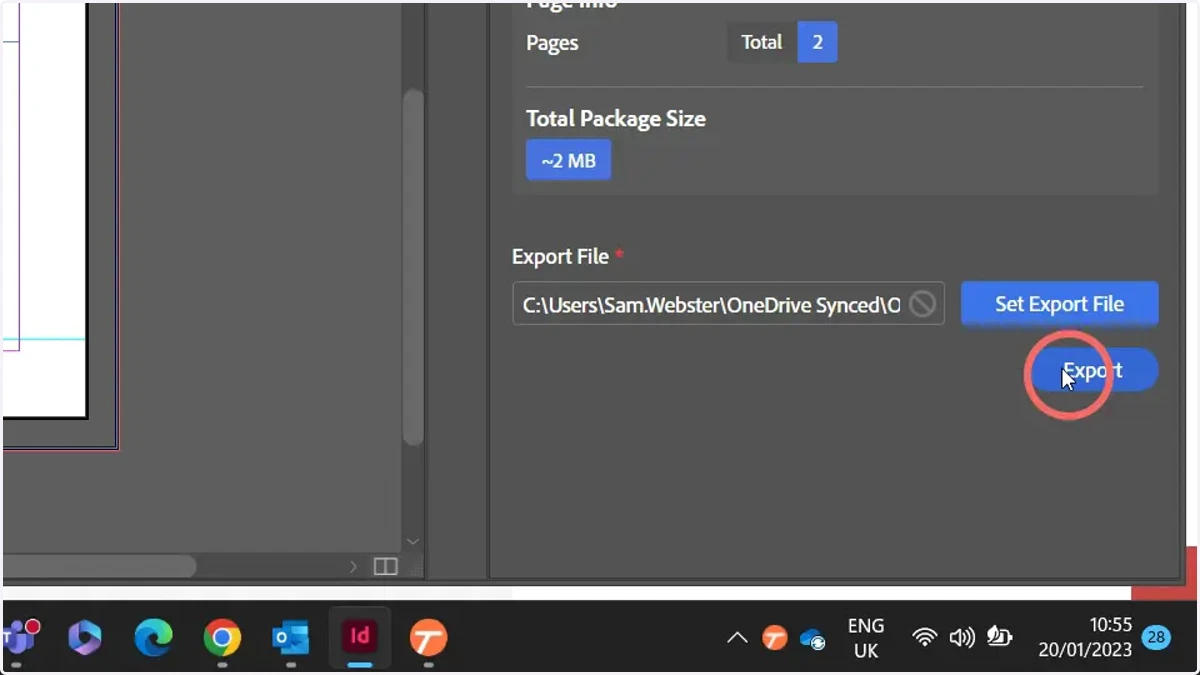
10. Import the MEX file into your MegaEdit product and Launch the product in the MegaEdit editor
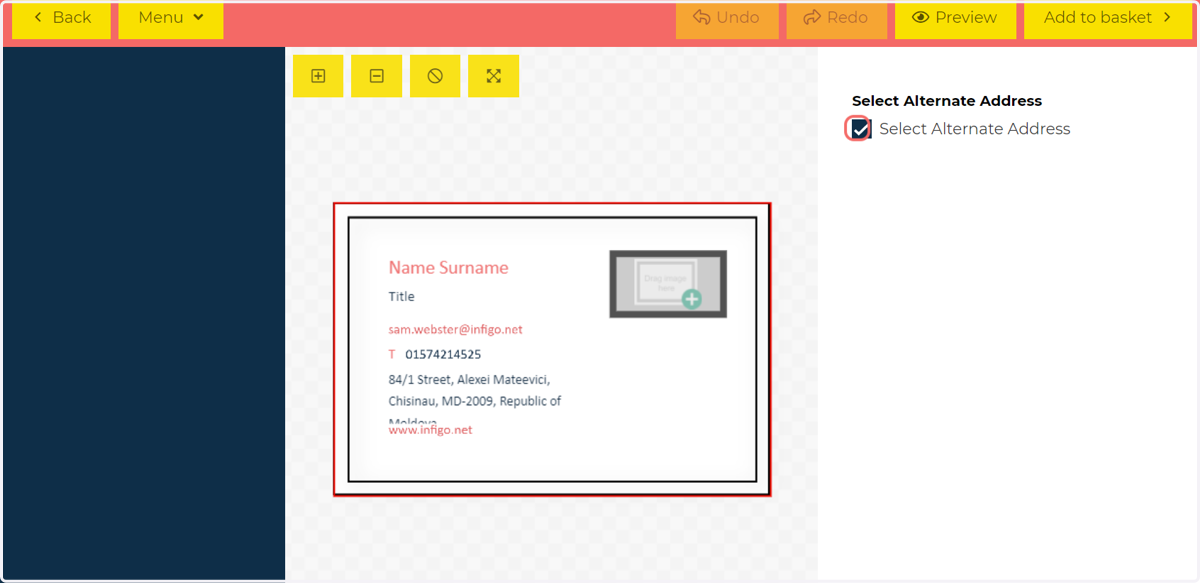
11. Select the Boolean Variable in the form
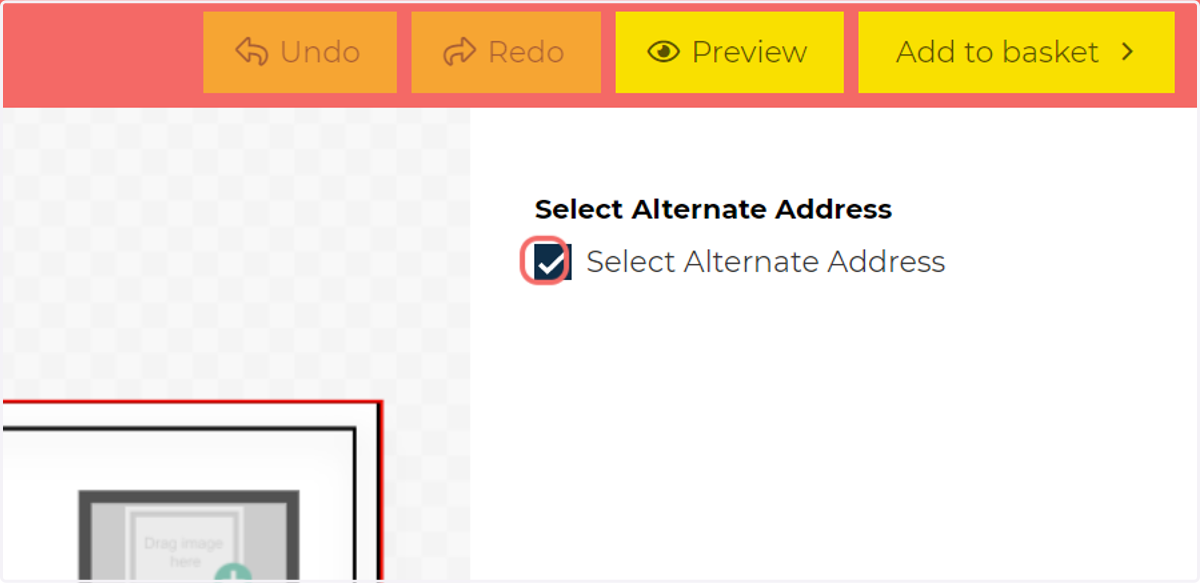
12. When set as TRUE, our second variable will be visible and selectable