Tango: How to Invite Teammates and Manage Invites
Tango
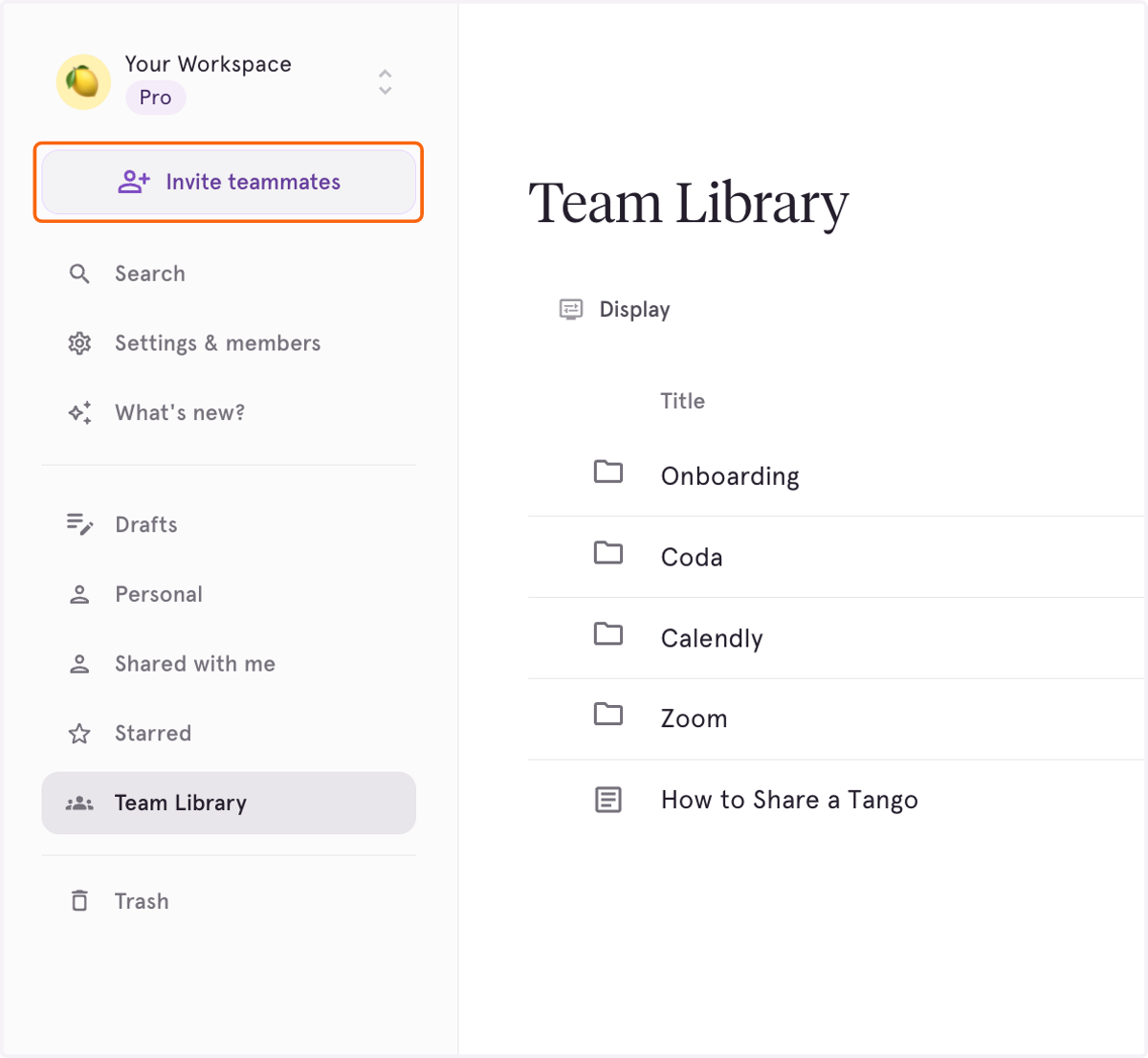
1. Click on Invite teammates
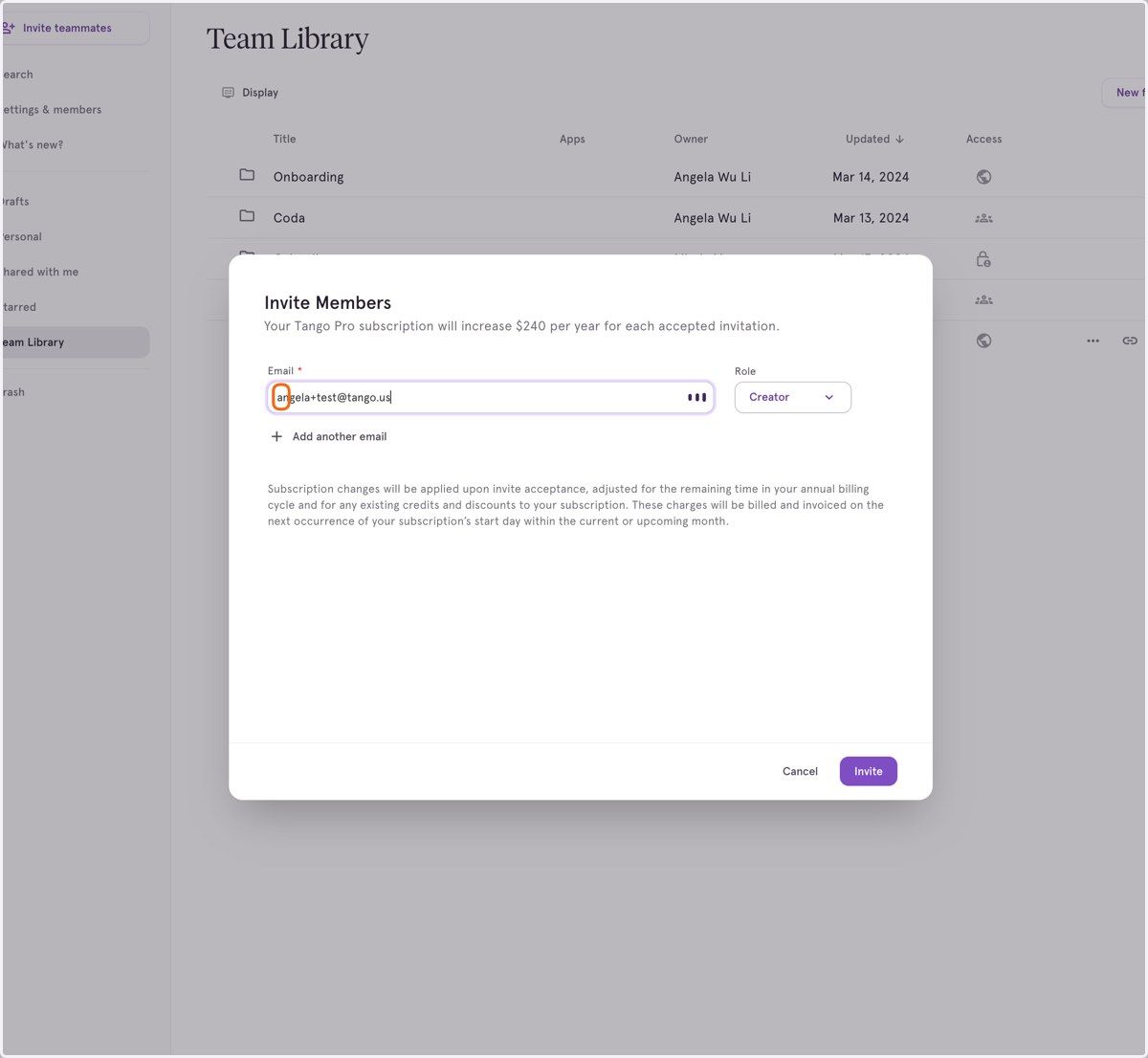
2. Type the email address for anyone you want to invite
Please note that Pro Workspaces are billed per seat, based on the number of members in your Workspace. Read more here: How does billing work for Tango Workspaces?
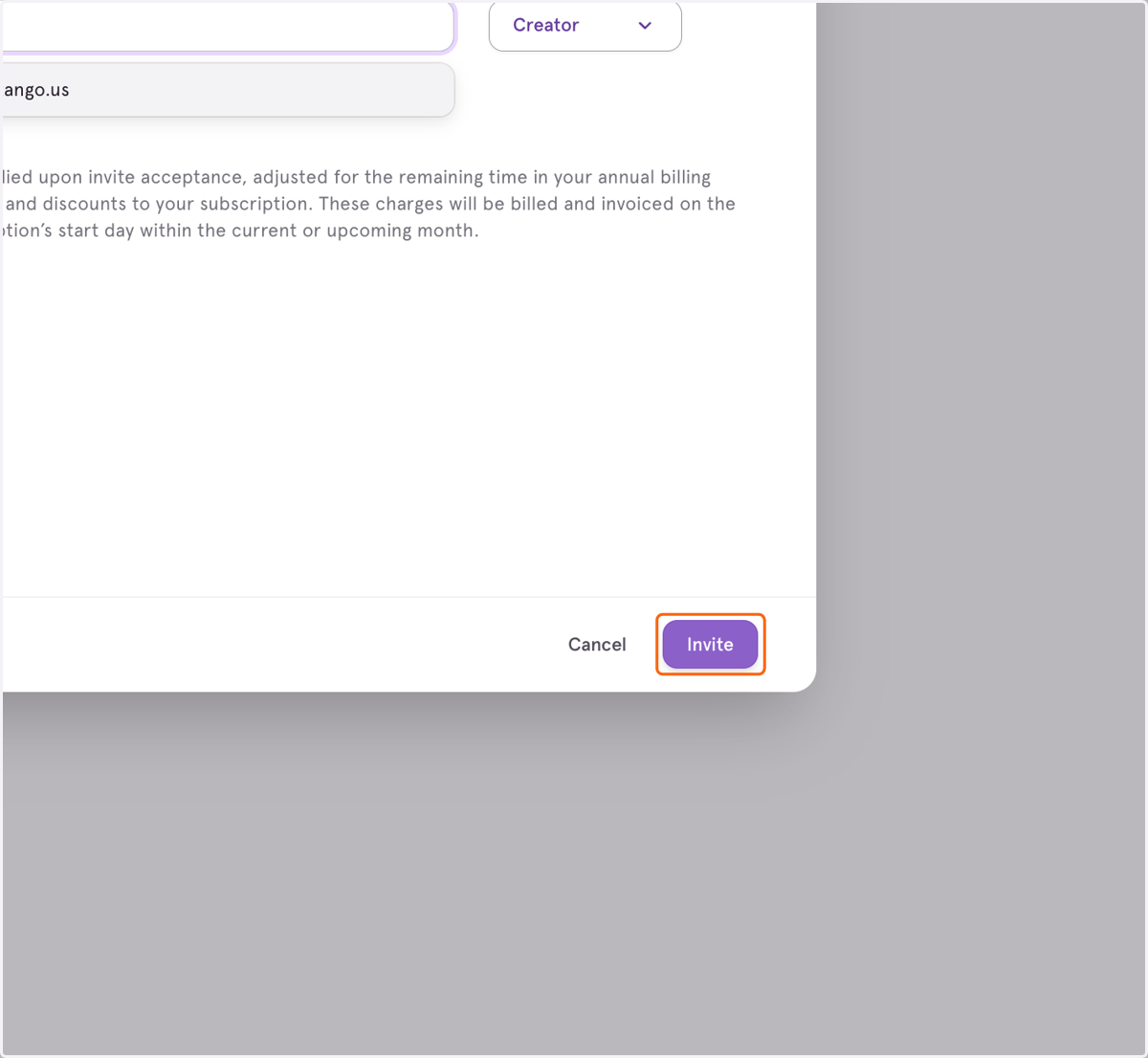
3. Click on Invite
Subscription changes will be applied upon invite acceptance, adjusted for the remaining time in your annual billing cycle and for any existing credits and discounts to your subscription. These charges will be billed and invoiced on the next occurrence of your subscription’s start day within the current or upcoming month.
4. Select the user's role from the dropdown menu
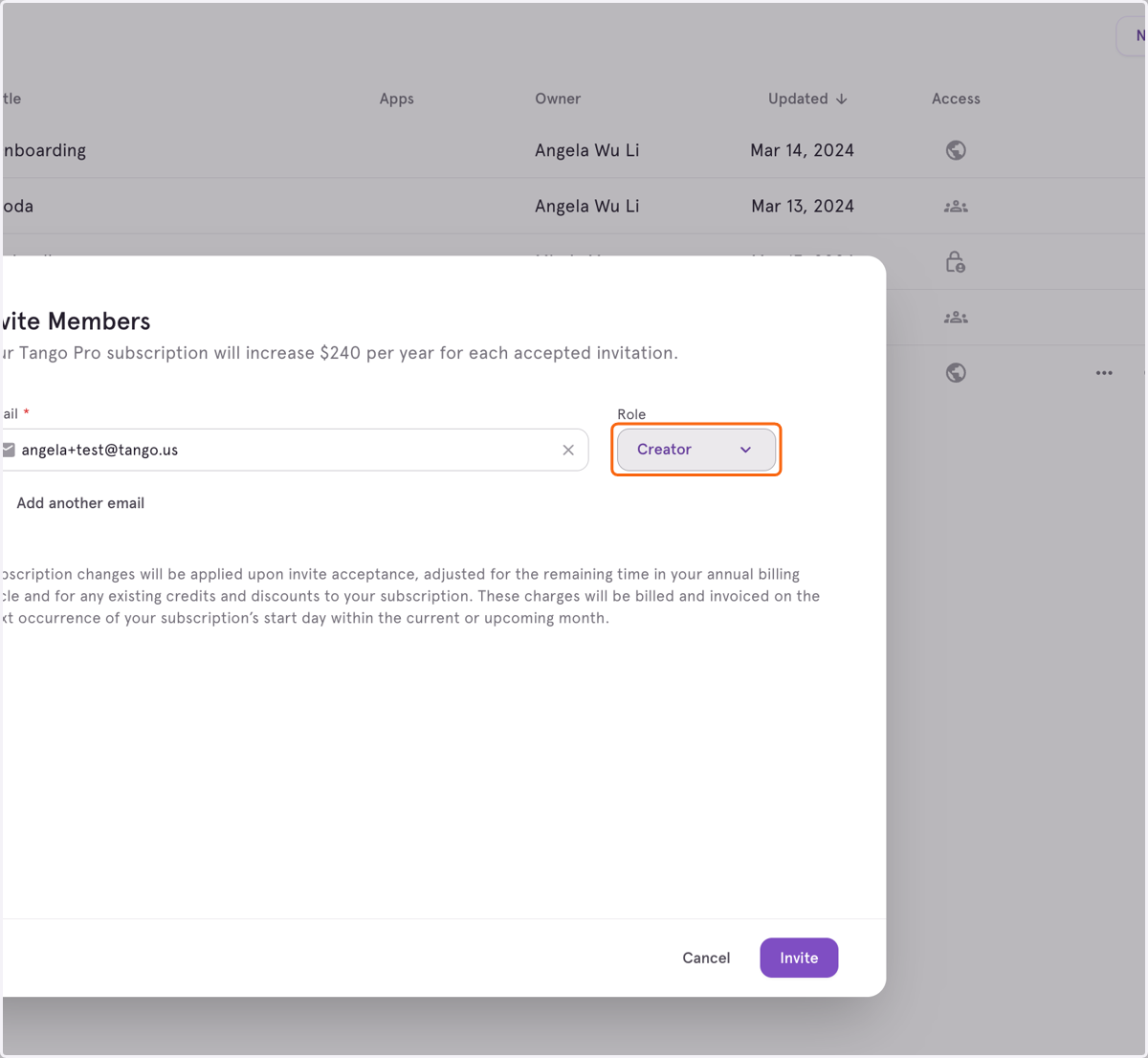
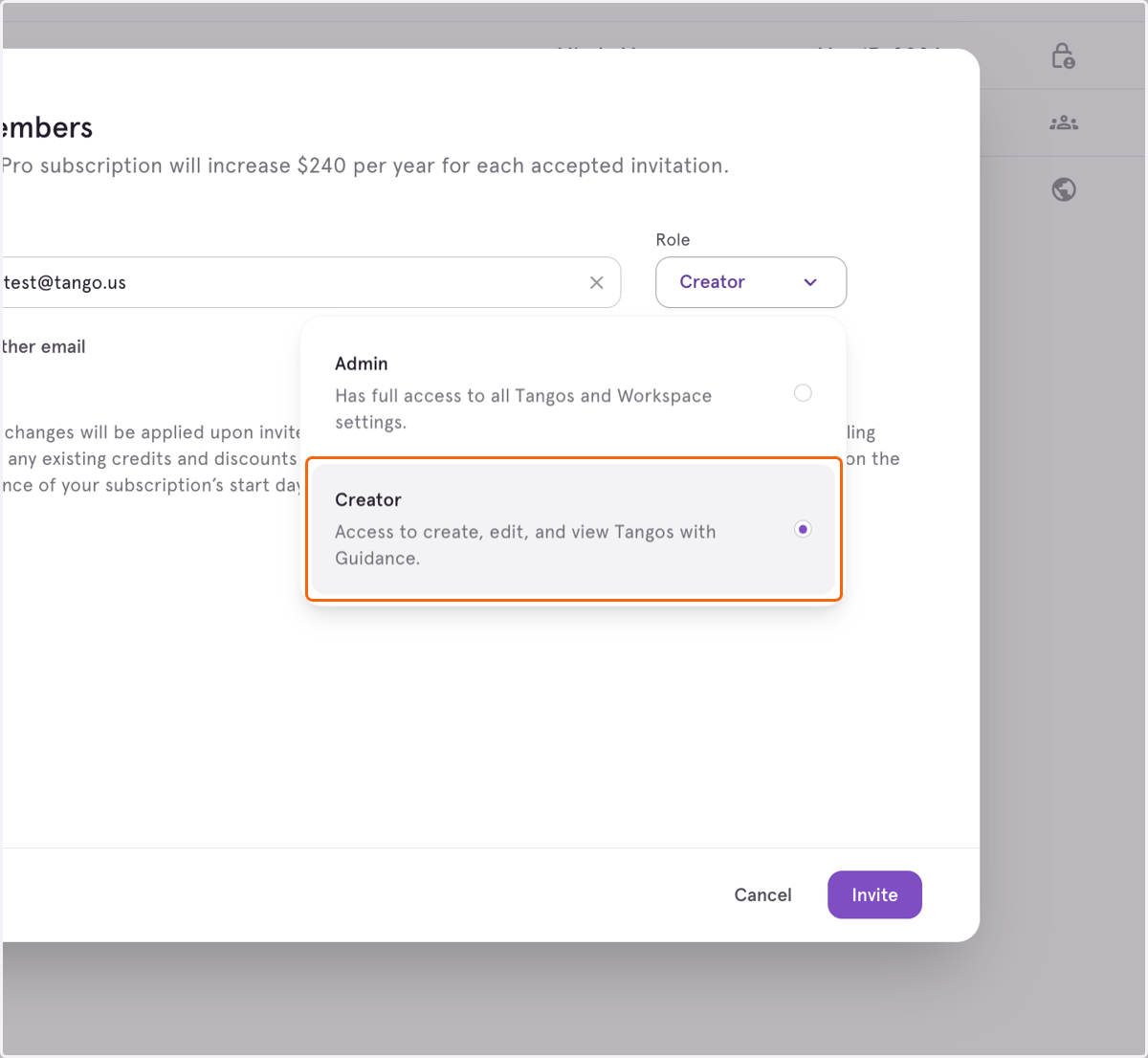
5. Select the role type from the dropdown
This example shows the options available in a Pro Workspace. In a Free Workspace, all users are Admins.
Managing Invites
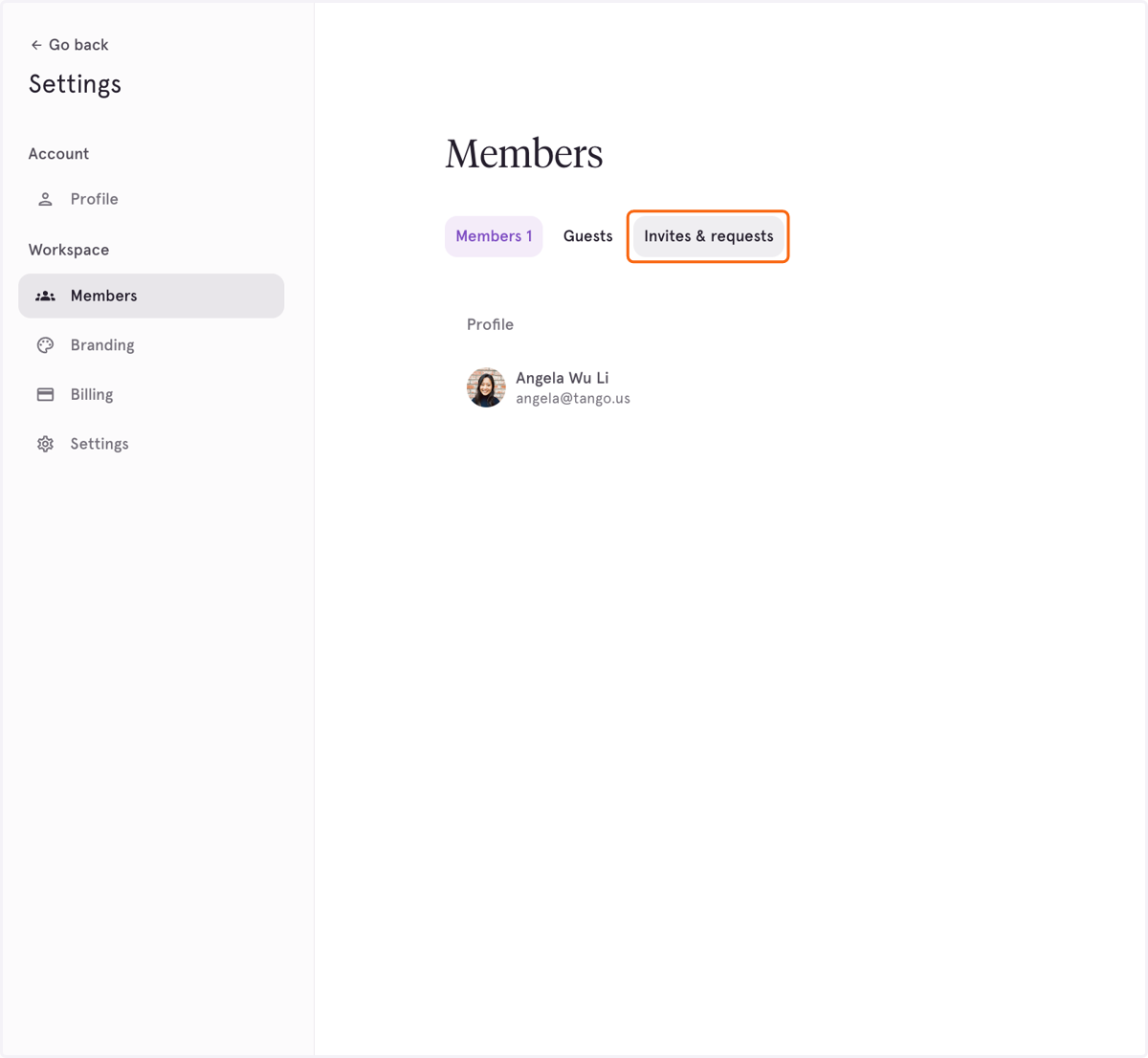
6. Click on Invites & requests to see who hasn't yet accepted their invite, and their role.
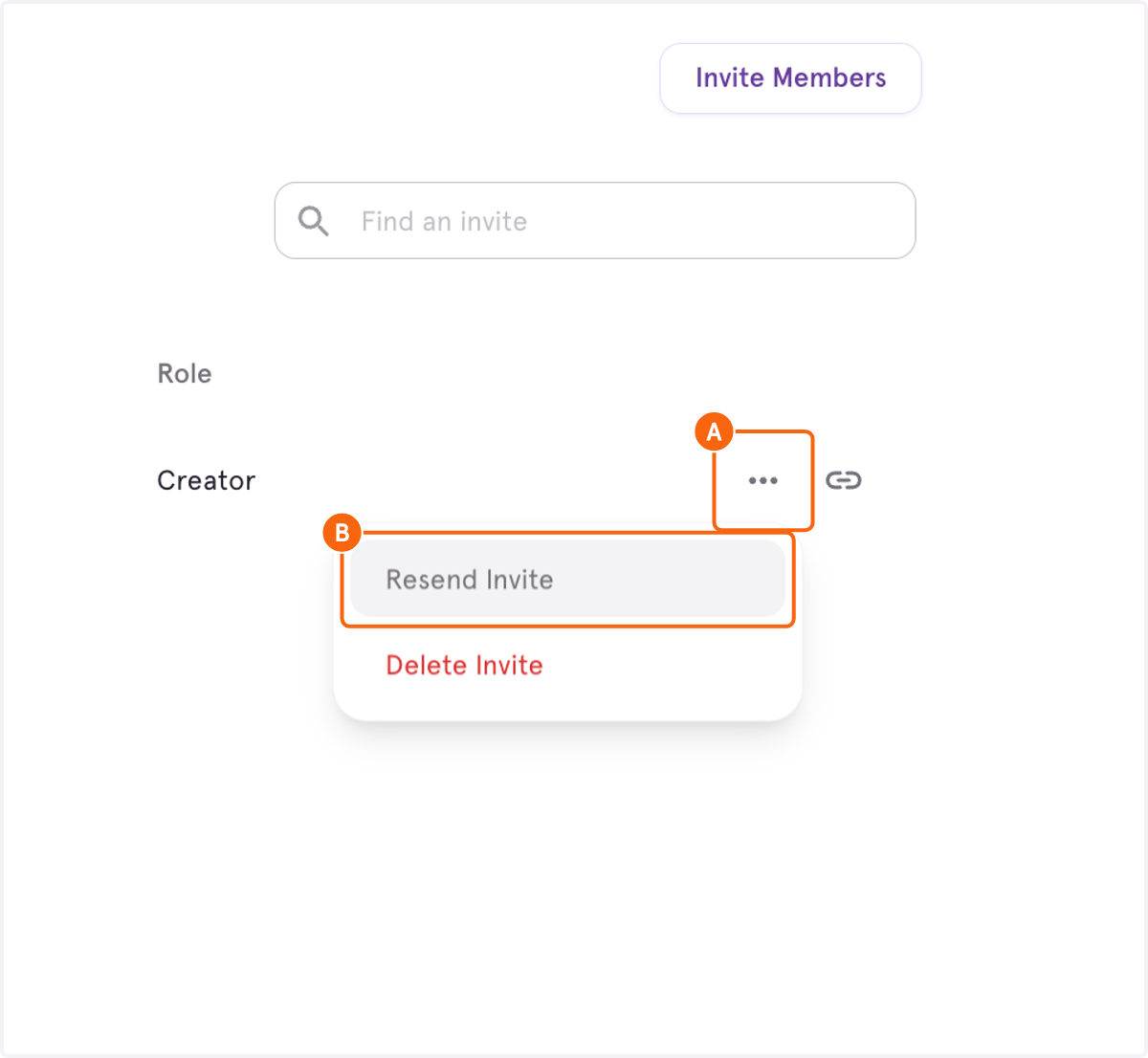
7. A. Click on Open option menu
7. B. Click on Resend Invite to resend the invite to the Workspace. You can also delete the invite.