coreILLA - Workflows - 'Set Event Start Date' Action in Workflows
How to Use the 'Set Event Start Date' Action in coreILLA Workflows
Scheduling events automatically based on user actions can streamline your business processes and ensure timely communications. In coreILLA, the Set Event Start Date action allows you to schedule events dynamically within workflows. This guide will walk you through setting up this action and integrating it into your automation, using a real-world example of scheduling webinar reminders.
What Does 'Set Event Start Date' Do?
The Set Event Start Date action enables you to schedule an event automatically within a workflow. You can set the date based on custom fields, specific dates, or dynamically, depending on other workflow actions. It’s particularly useful for webinars, appointments, or any event where timely notifications and follow-ups are crucial.
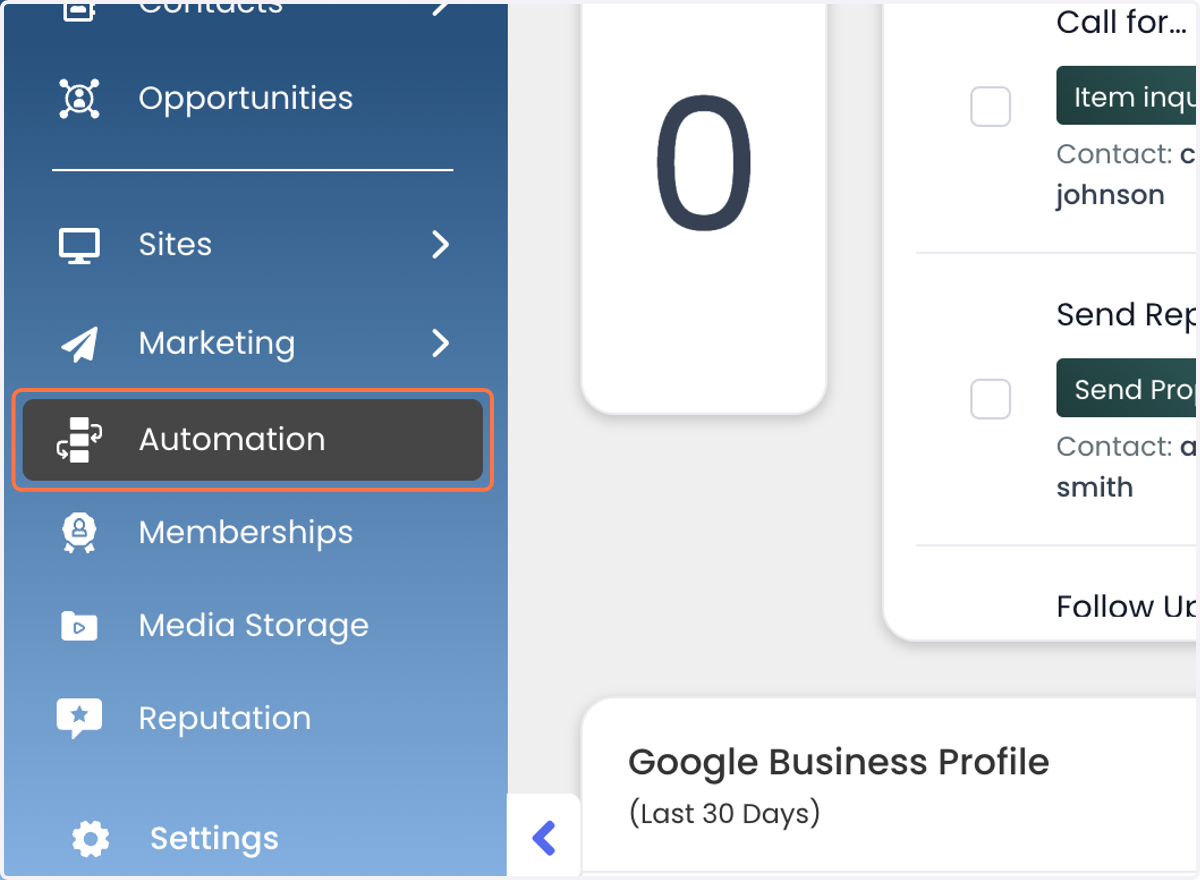
1. Log in to coreILLA and navigate to the Automations section.
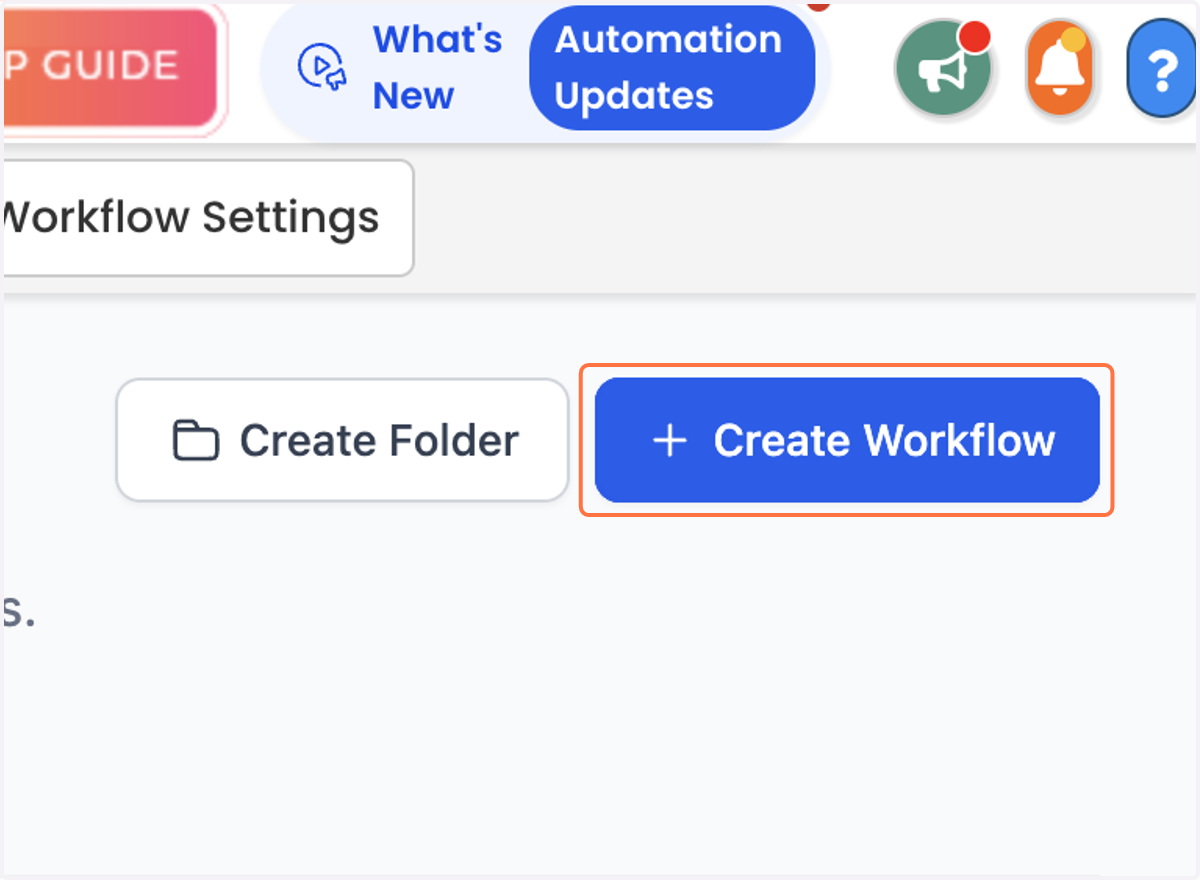
2. Create a new workflow by clicking the Create Workflow button.
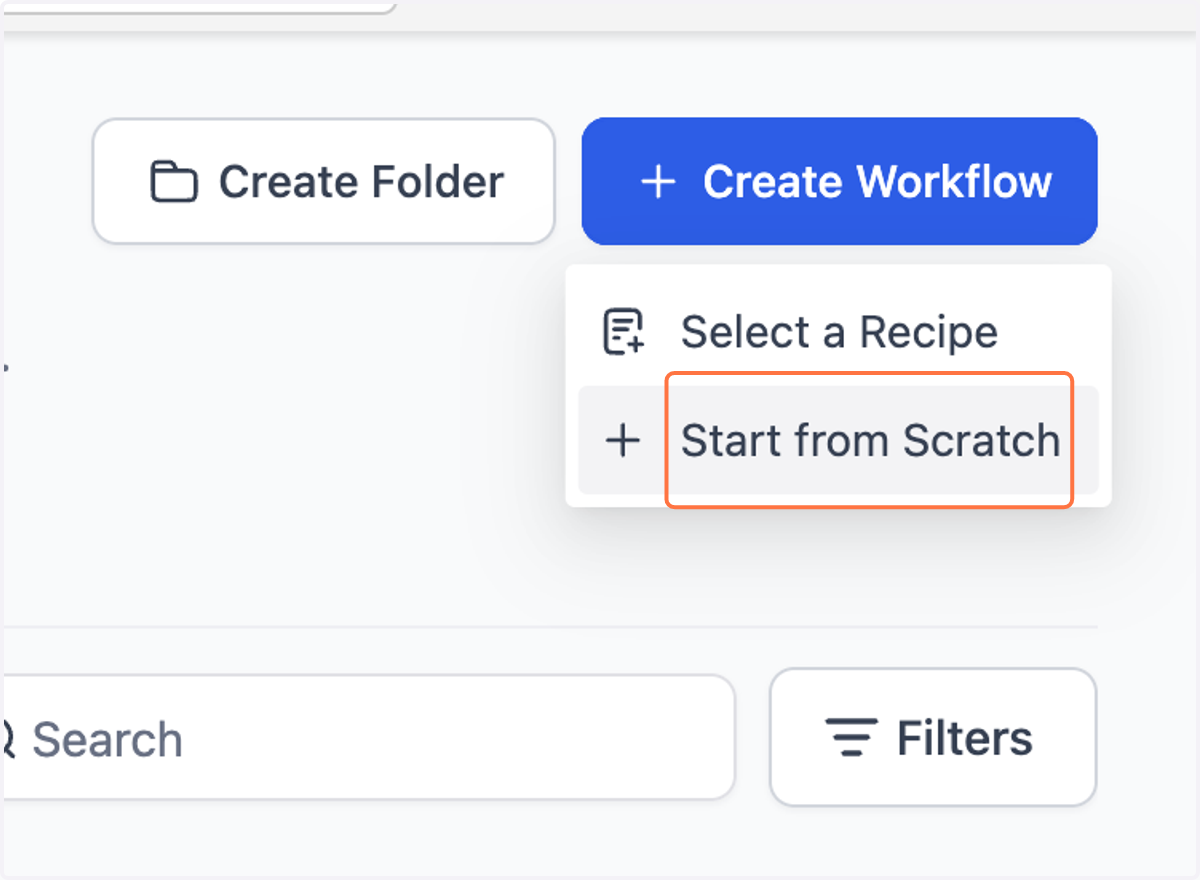
3. Click on Start from Scratch
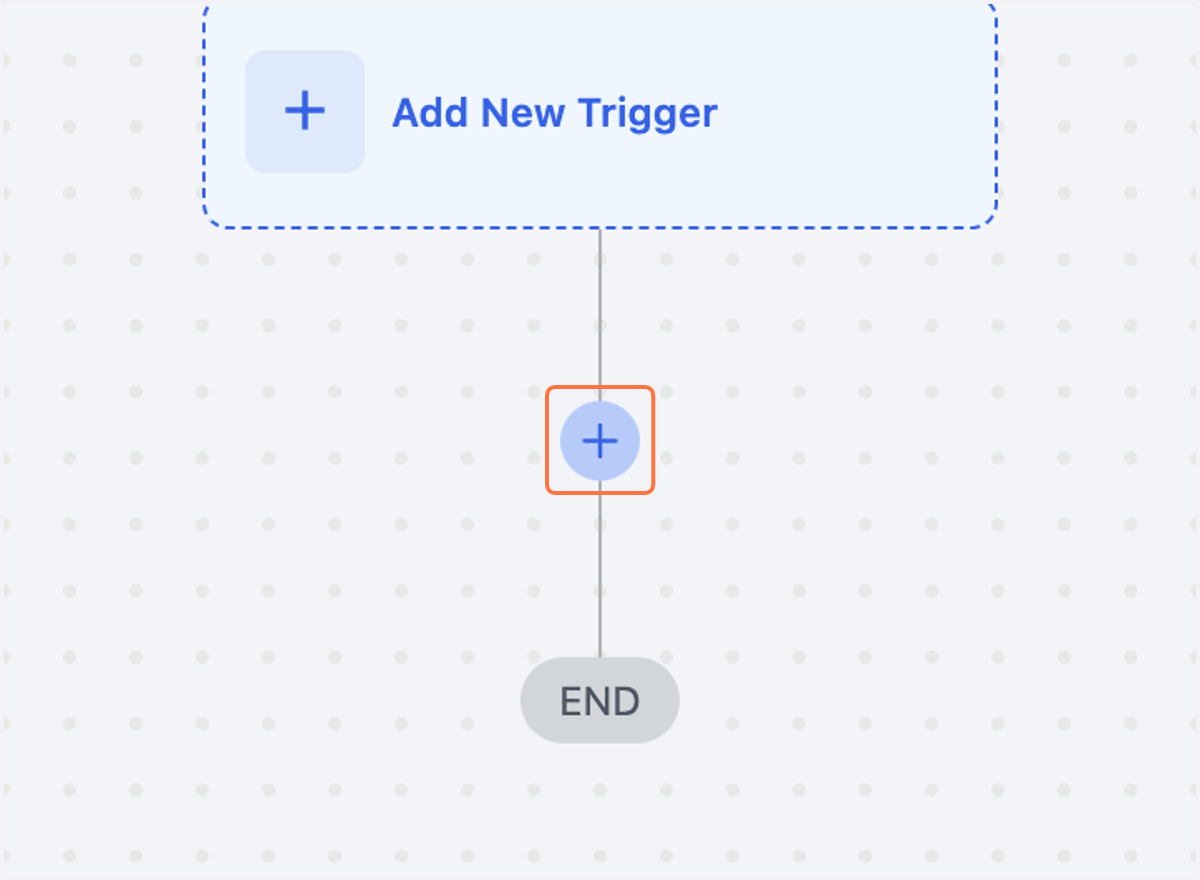
4. Once inside the workflow editor, decide where in the sequence you want to add the 'Set Event Start Date' action. Within the workflow editor, click the ‘+ Add Action’ button where you want to schedule the event start.
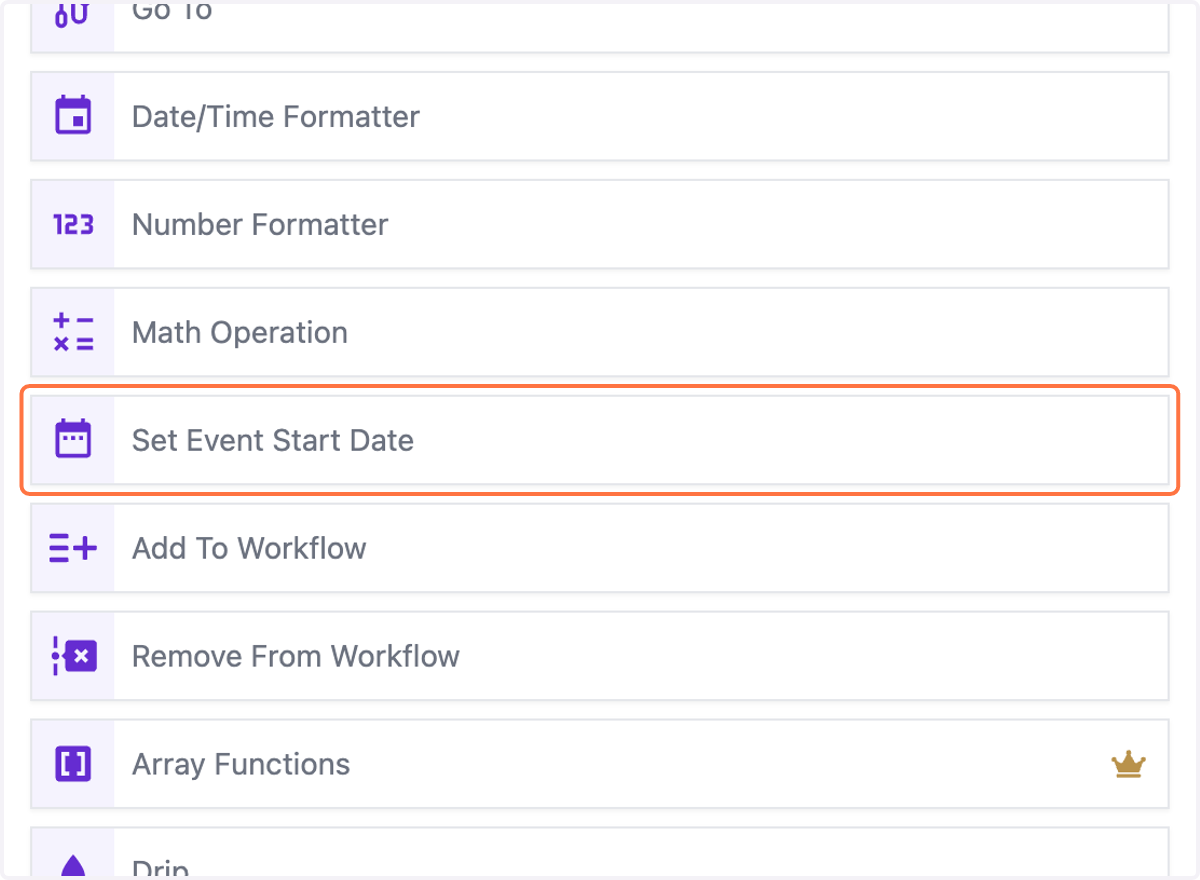
5. From the action menu, select ‘Set Event Start Date’. This will open a configuration panel where you can set up the event's date parameters.
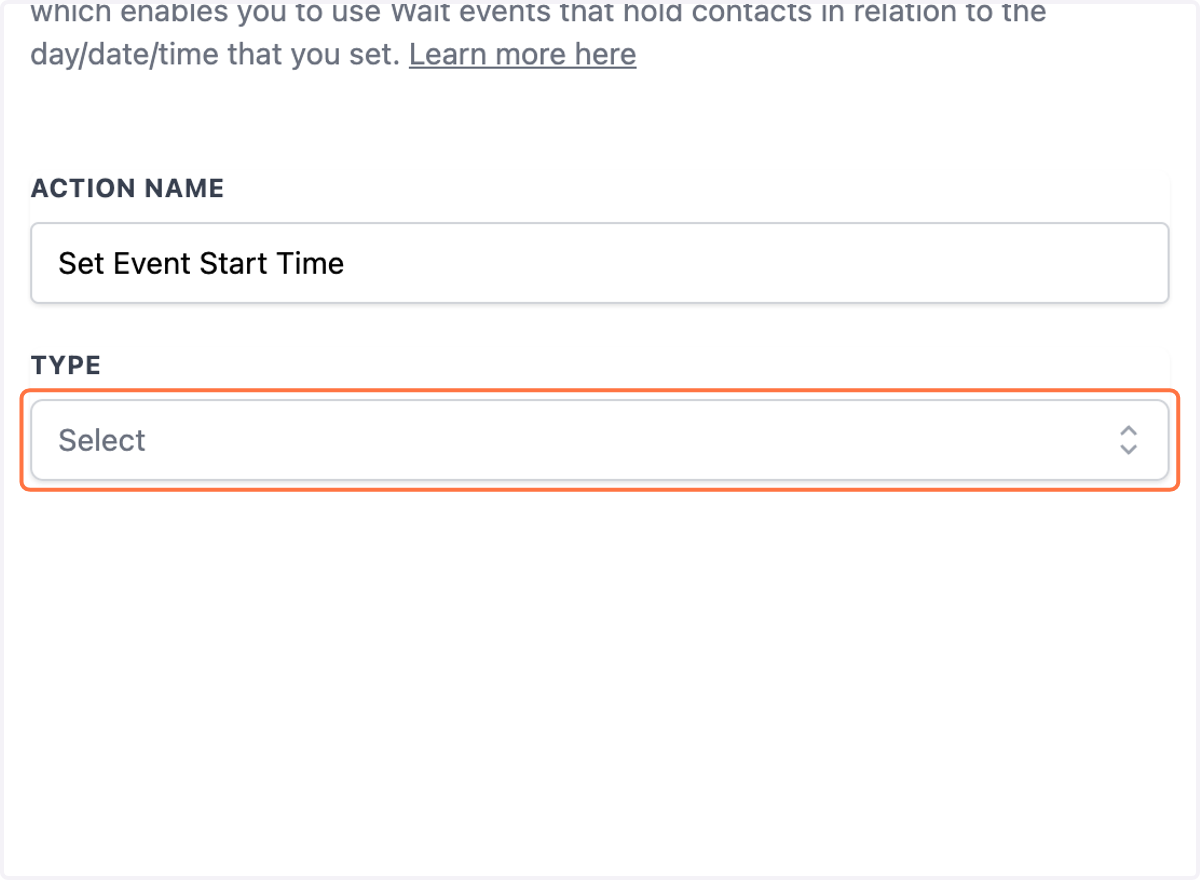
6. Customize the Event Start Date/Time
7. Click on Custom Field…
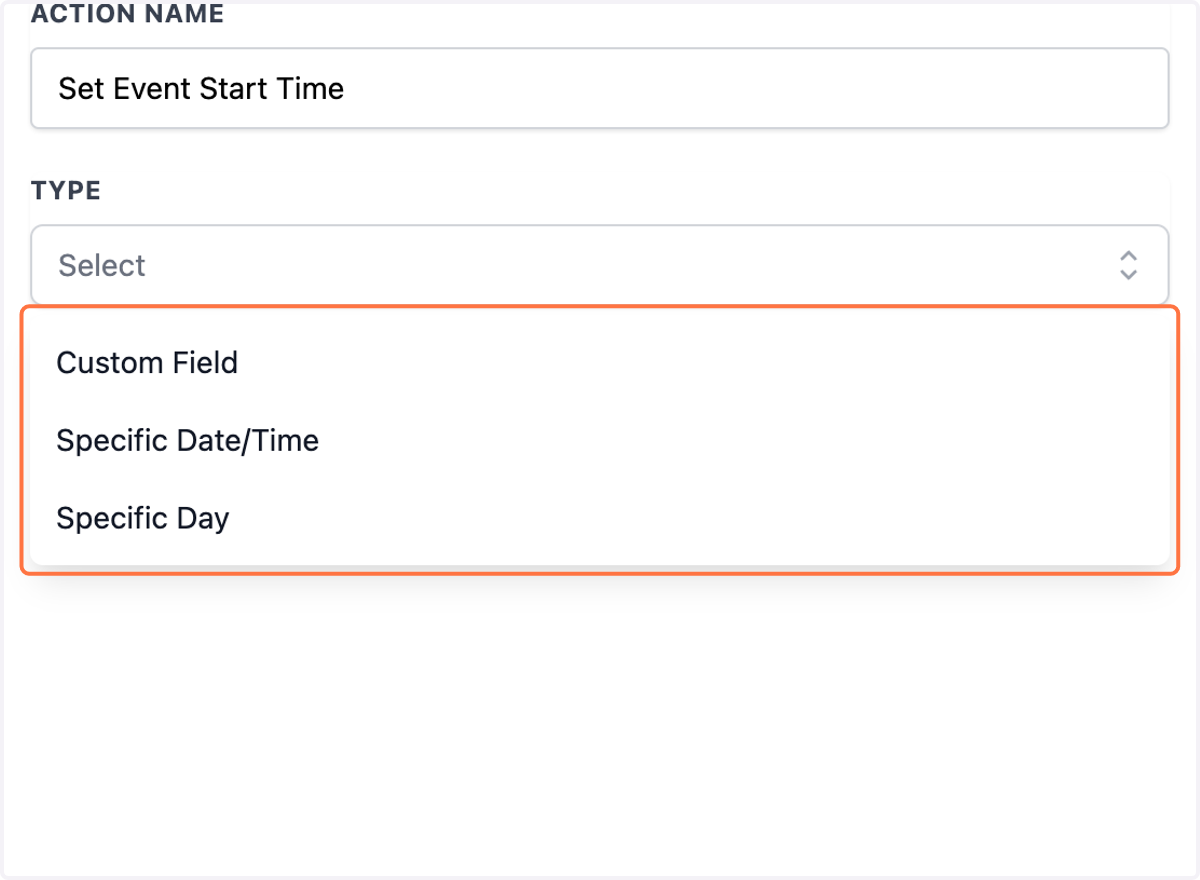
8. Click on Specific Date/Time
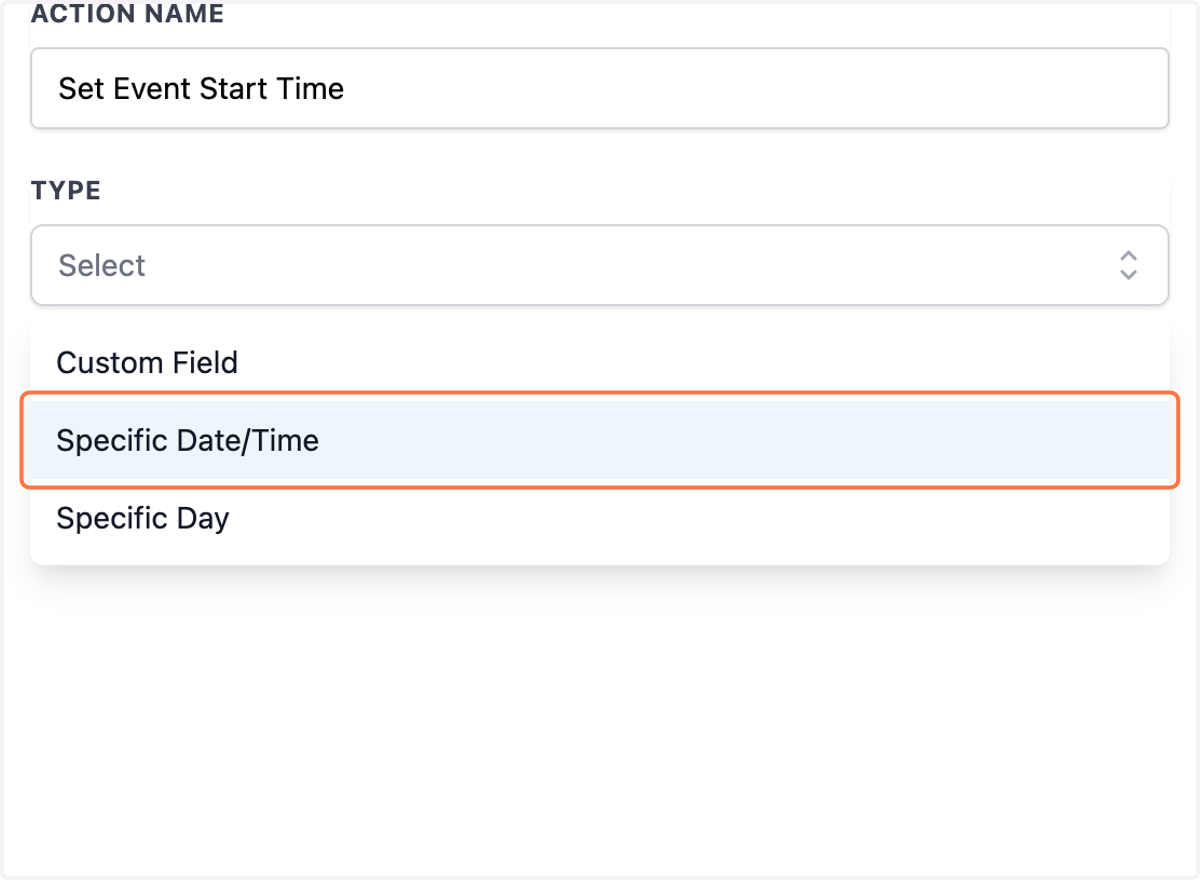
9. The "Set Event Start Date/Time" action often allows you to use a variety of date and time formats. Here are some formats that are commonly accepted:
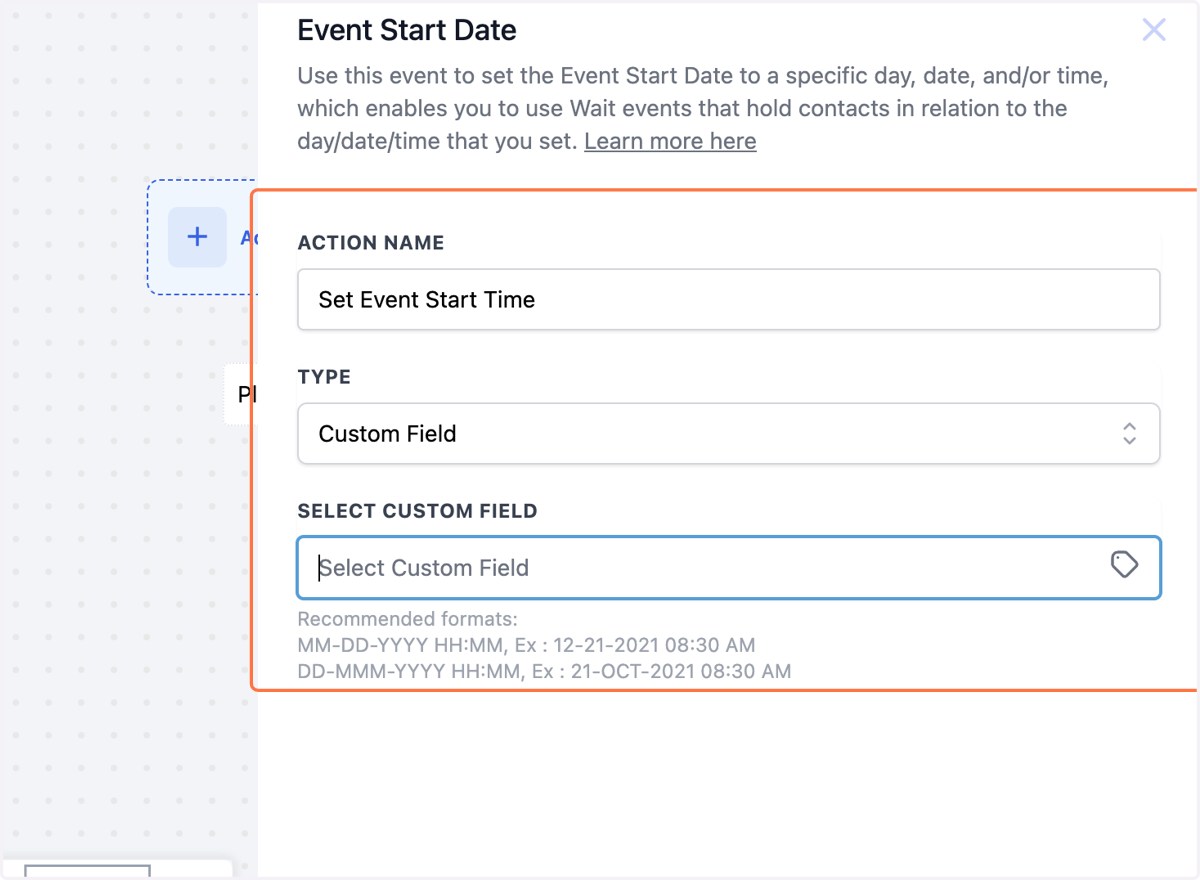
MM-DD-YYYY HH:MM: This format includes the month (MM), day (DD), and year (YYYY), followed by the time in 24-hour format (HH:MM). For example, December 21st, 2021 at 8:30 AM would be written as 12-21-2021 08:30.

DD-MMM-YYYY HH:MM: This format includes the day (DD), the abbreviated month (MMM), and the year (YYYY), followed by the time in 24-hour format (HH:MM). For example, October 21st, 2021 at 8:30 AM would be written as 21-OCT-2021 08:30.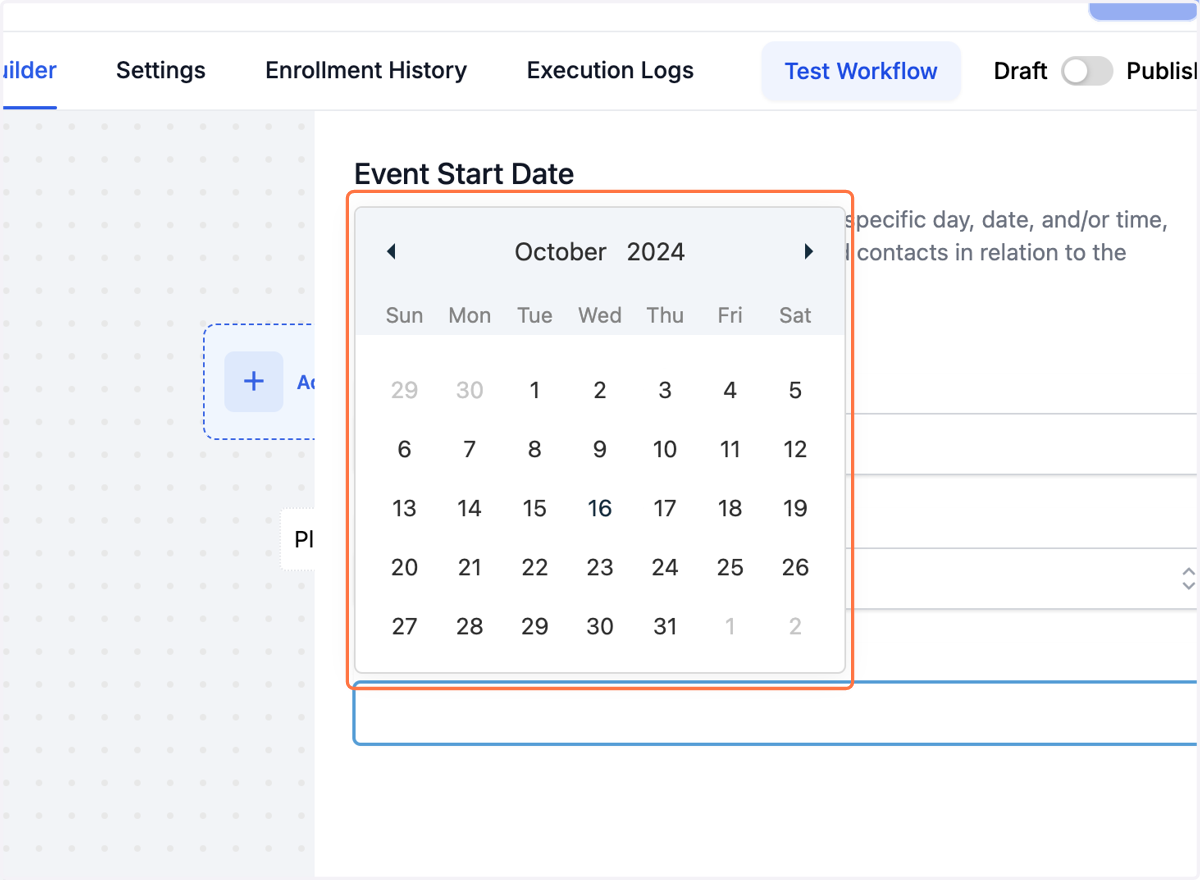
10. For Custom Fields, you can use pre-created Custom Date Field custom values to tell the workflow what event date you want to specify.
11. Add a Wait for Event/Appointment Time Action
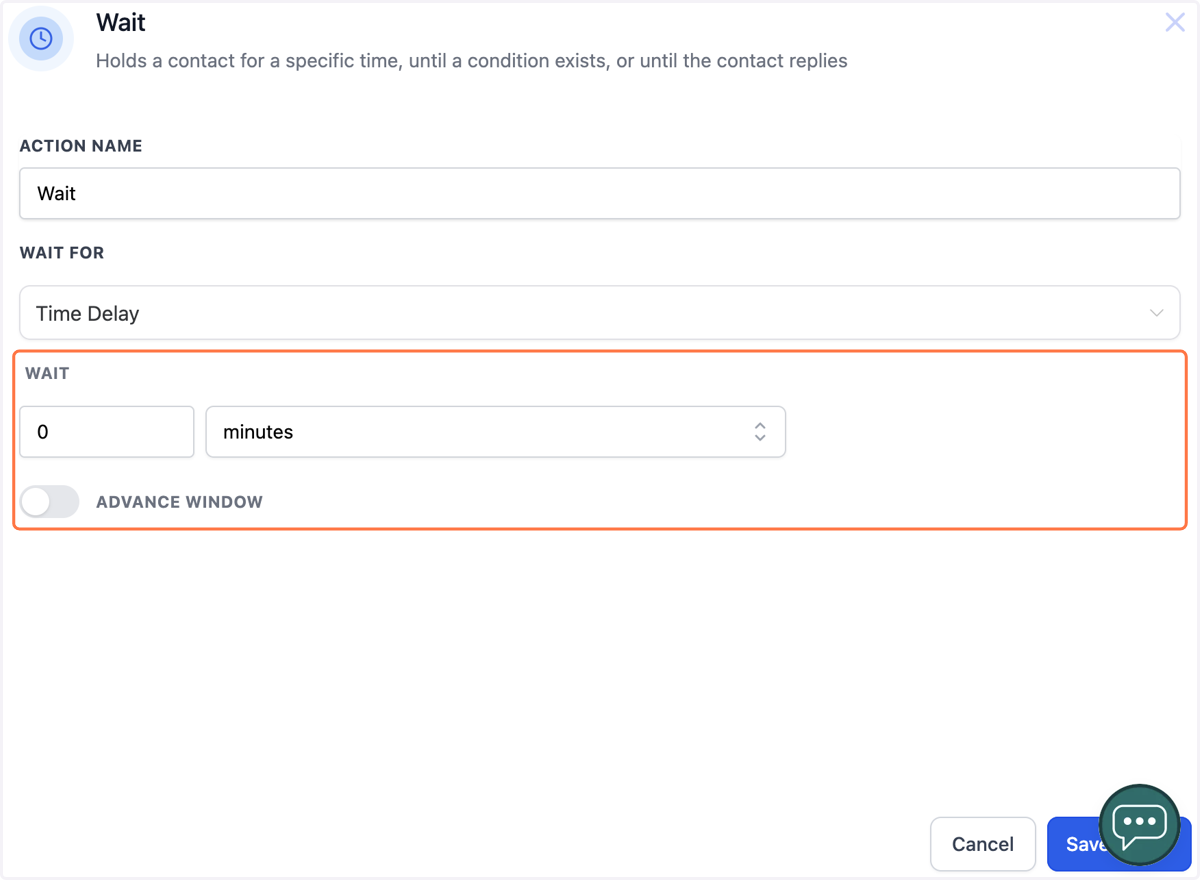
After setting the event start date/time, add a "Wait for Event/Appointment Time" action in your Workflow.
Set the action to wait until a certain number of days/hours/minutes before or after the event start date/time.
For example, if you set this to 2 days before, the Workflow will wait and send off the next action 2 days before the scheduled Event Start Date.