Barcodes (and other AIDC, like QR) in Invent | IV_025
In this tutorial, we'll learn of Invent's capability to create barcode fields and link them to your Invent variables.
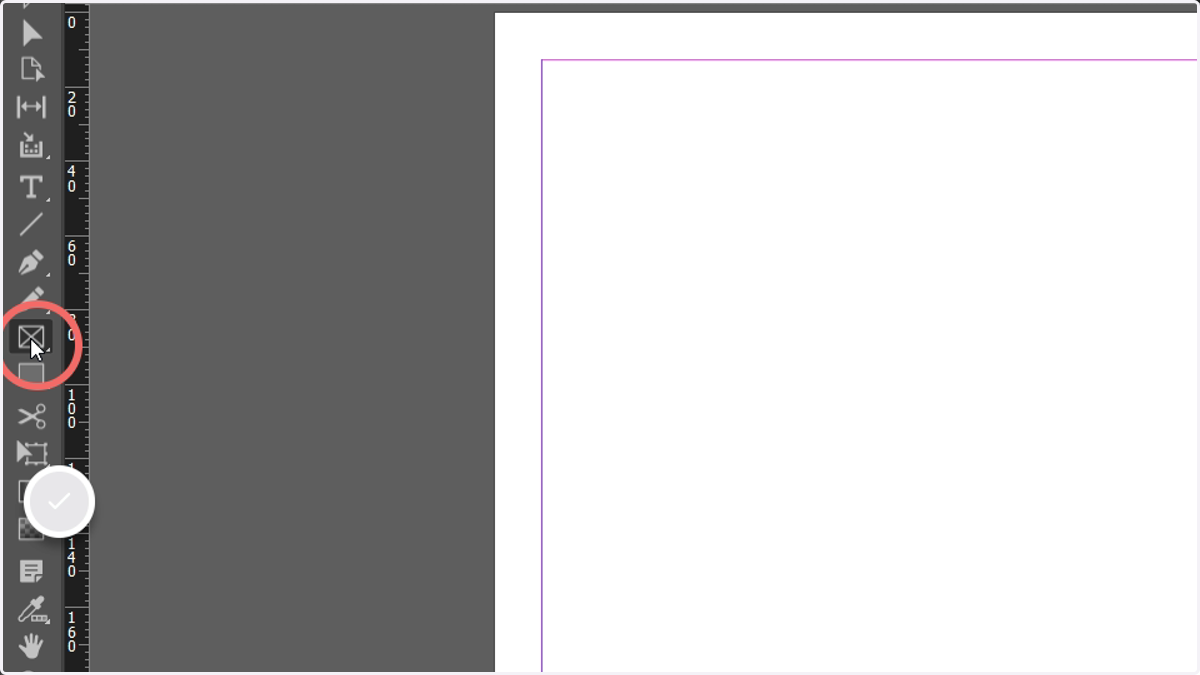
1. We will begin by creating a new rectangular frame within our InDesign file
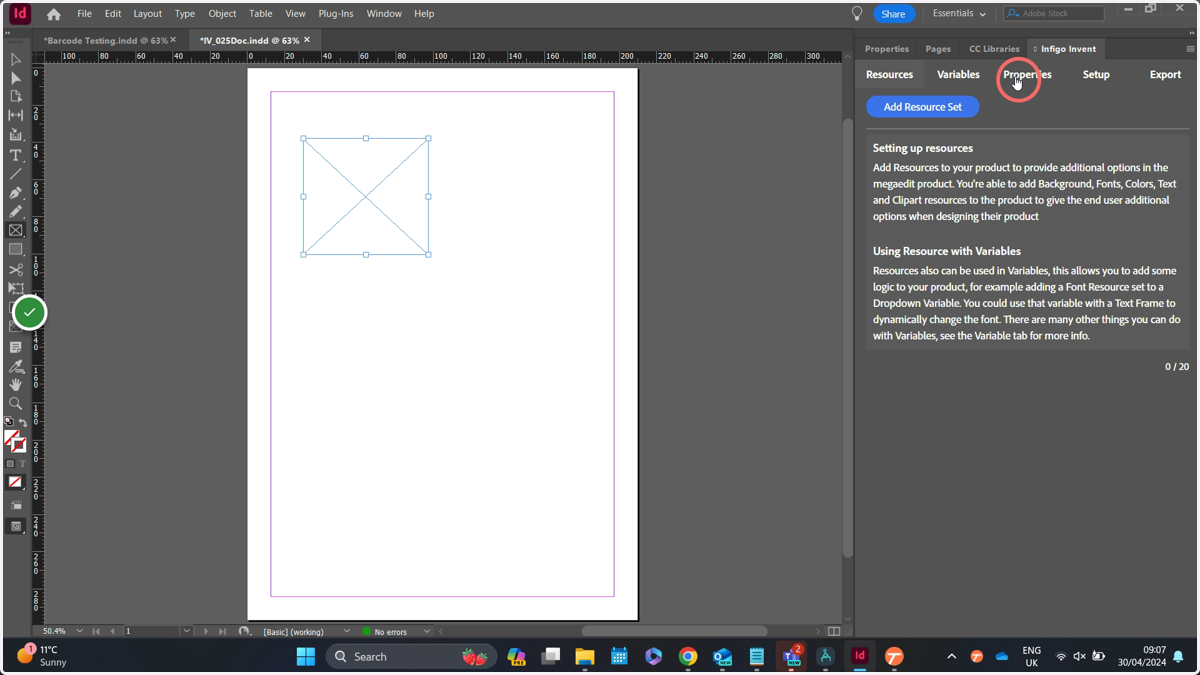
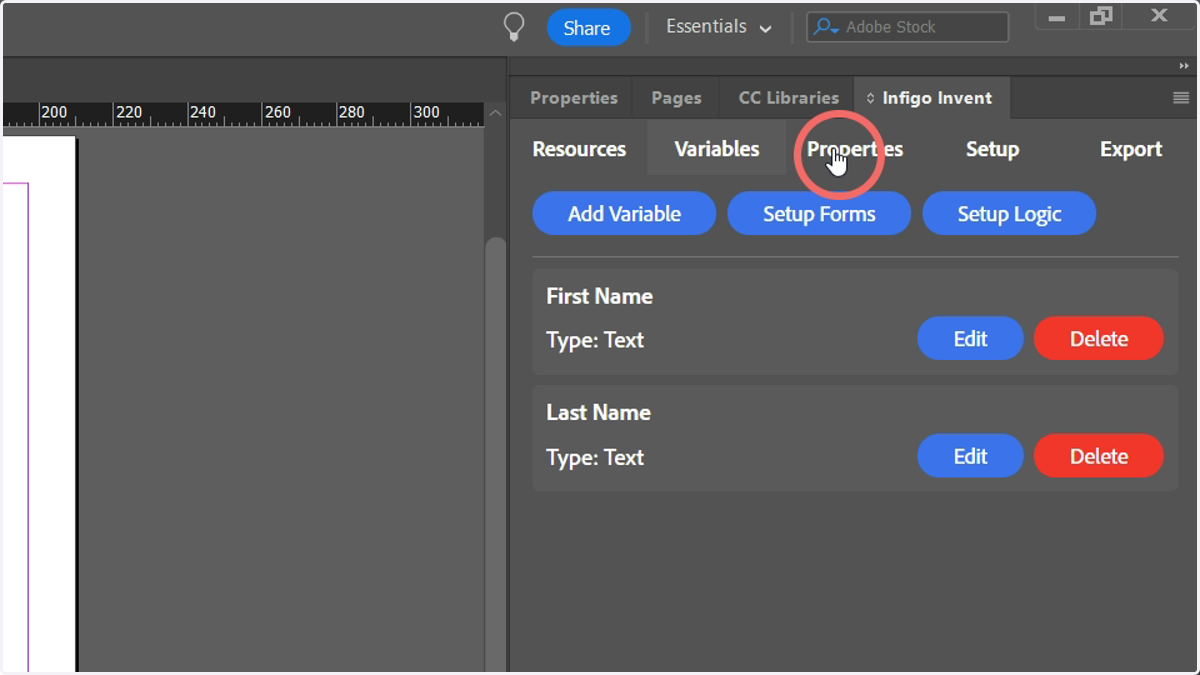
2. On the Infigo Invent tab, navigate to Properties
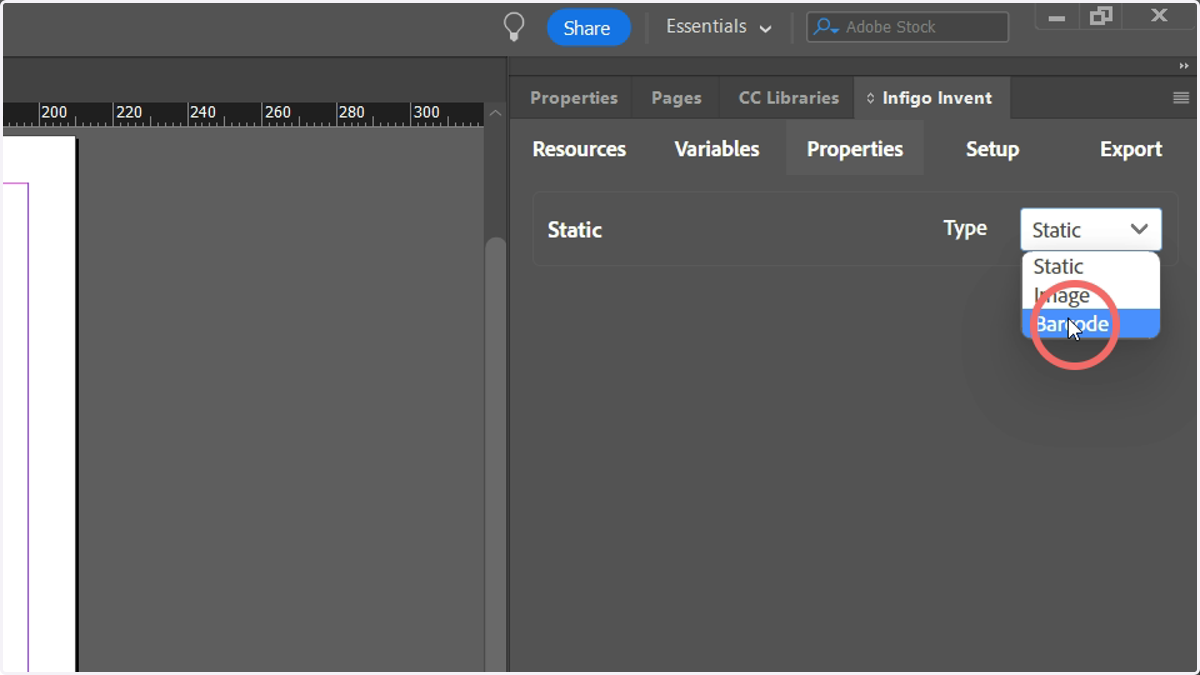
3. Here, you will see a dropdown allowing you to select between Static, Image or Barcode.
"Static" will mean any exported MEX file does not consider this field to be variable. It will be unelectable and flattened into the background layer.
"Image" will give you access to the usual Invent image options, such as being able to link the frame to a clipart gallery or uploaded album imagery.
"Barcode" gives you the ability to define the contents of a barcode, either with static content or linked to other variables specified in your Invent file. You will never see the barcode generated inside InDesign itself, however it will be generated once moved to MegaEdit via MEX file.
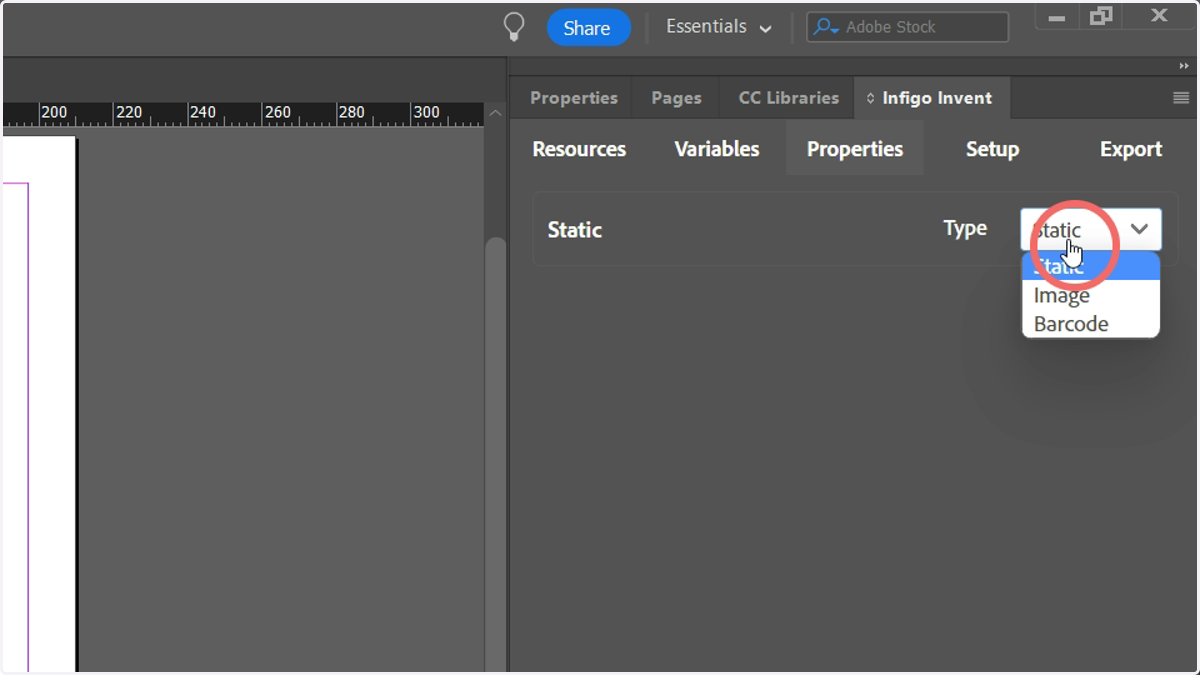
4. Select Barcode.
5. Begin on the General tab
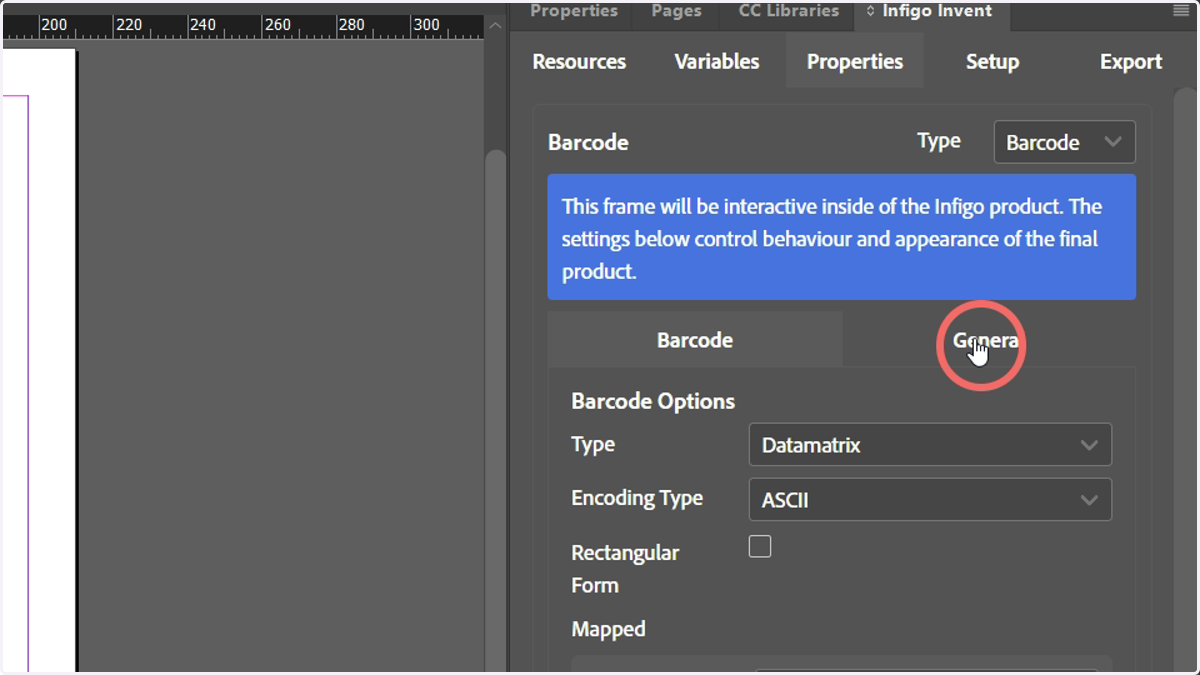
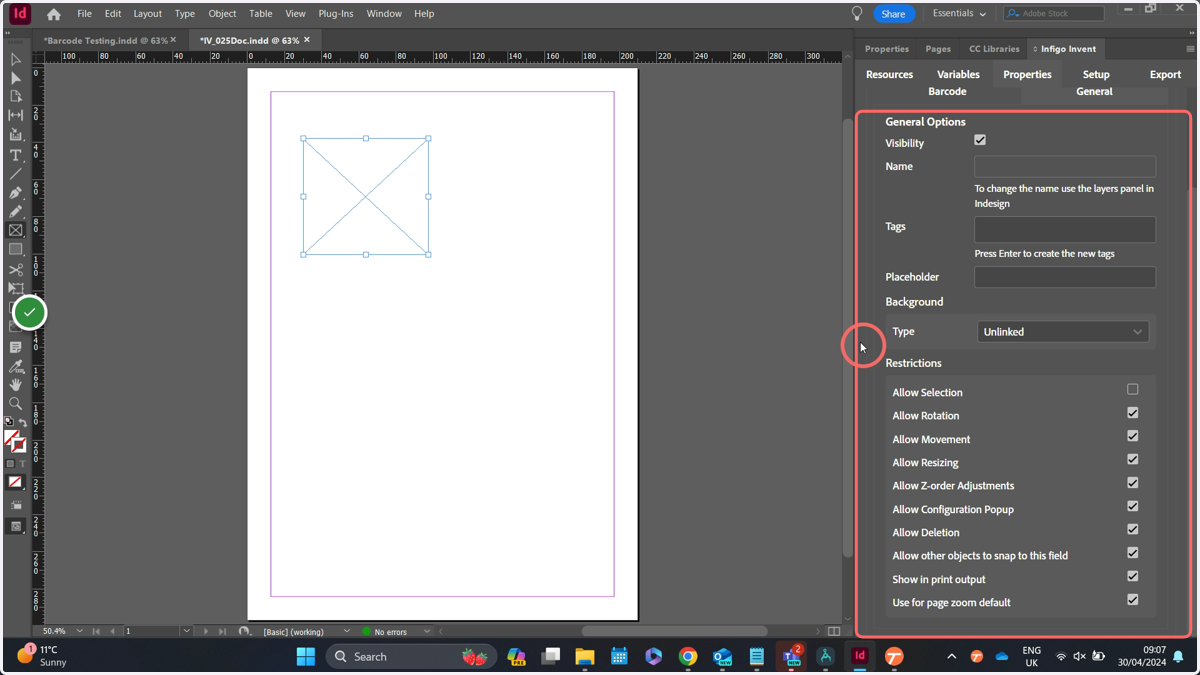
6. The General tab allows you to control settings more related to the frame itself, than its contents.
For example, here you can restrict the end user's ability to interact with the frame in certain ways. You can also control the background of the frame.
7. Switch to the Barcode tab
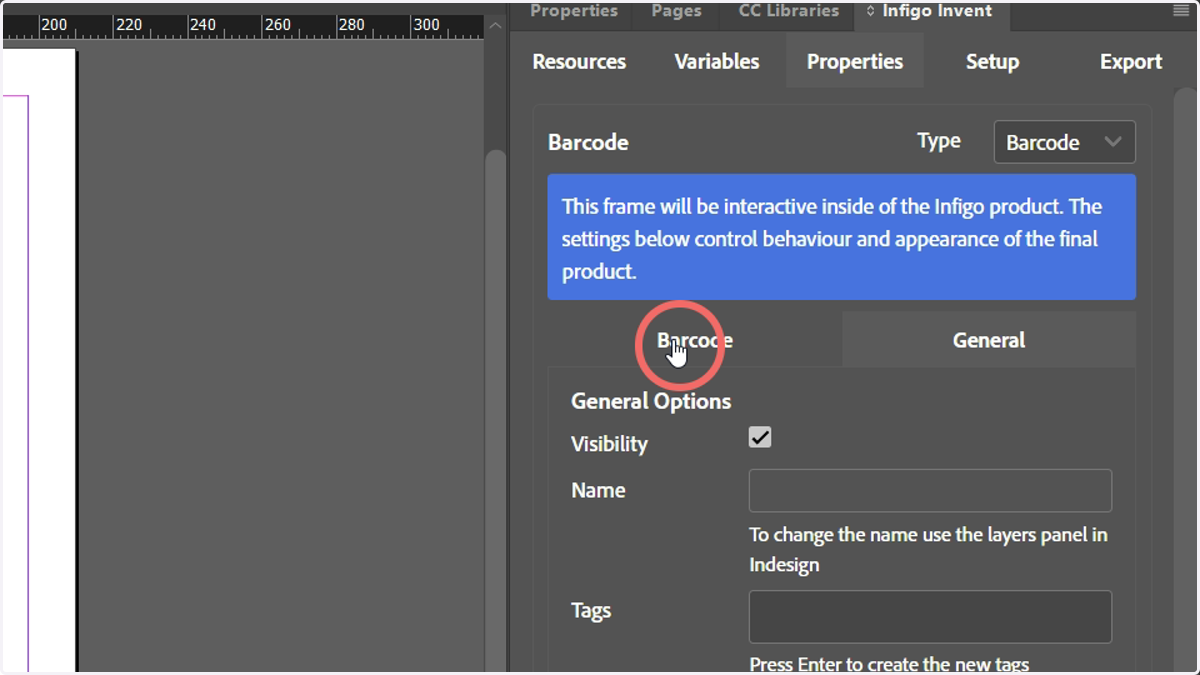
8. The Type dropdown let's you switch between the type of barcode (Or AIDC) you would like to generate
Your selection will have knock-on effects, such as the data you are able to input into the barcode field.
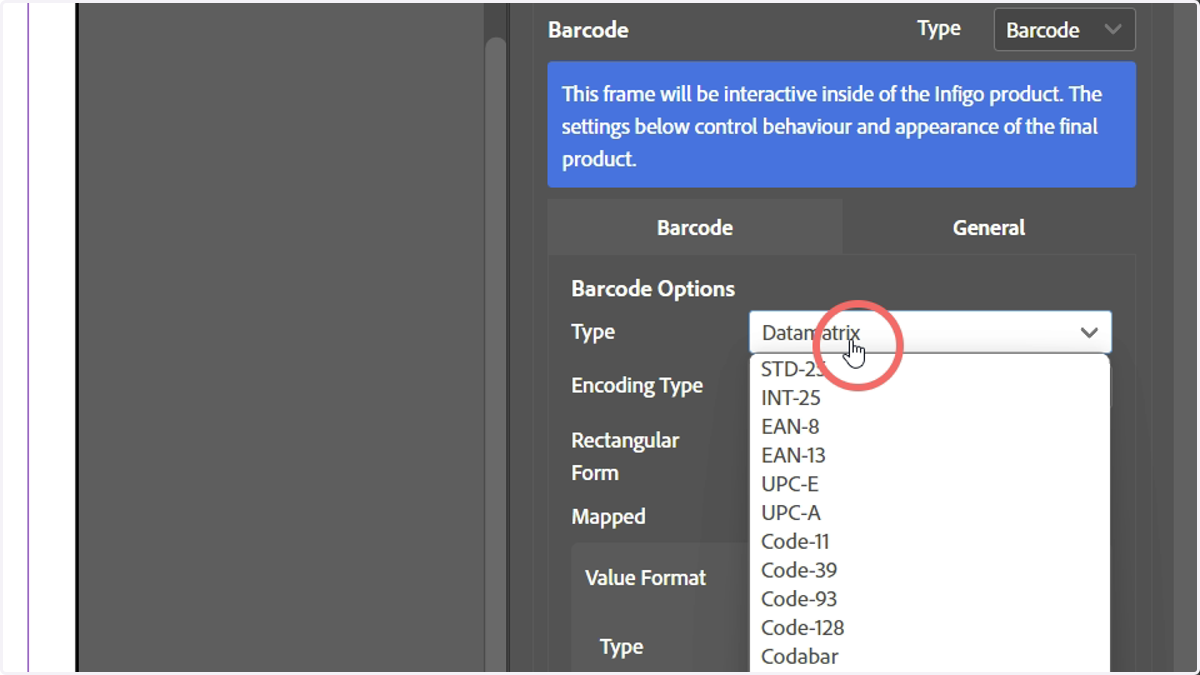
9. Most barcode types will allow you to input a standard value. This is simply one input where you can enter either static text, or switch to the selection of a variable (we'll see this again later)
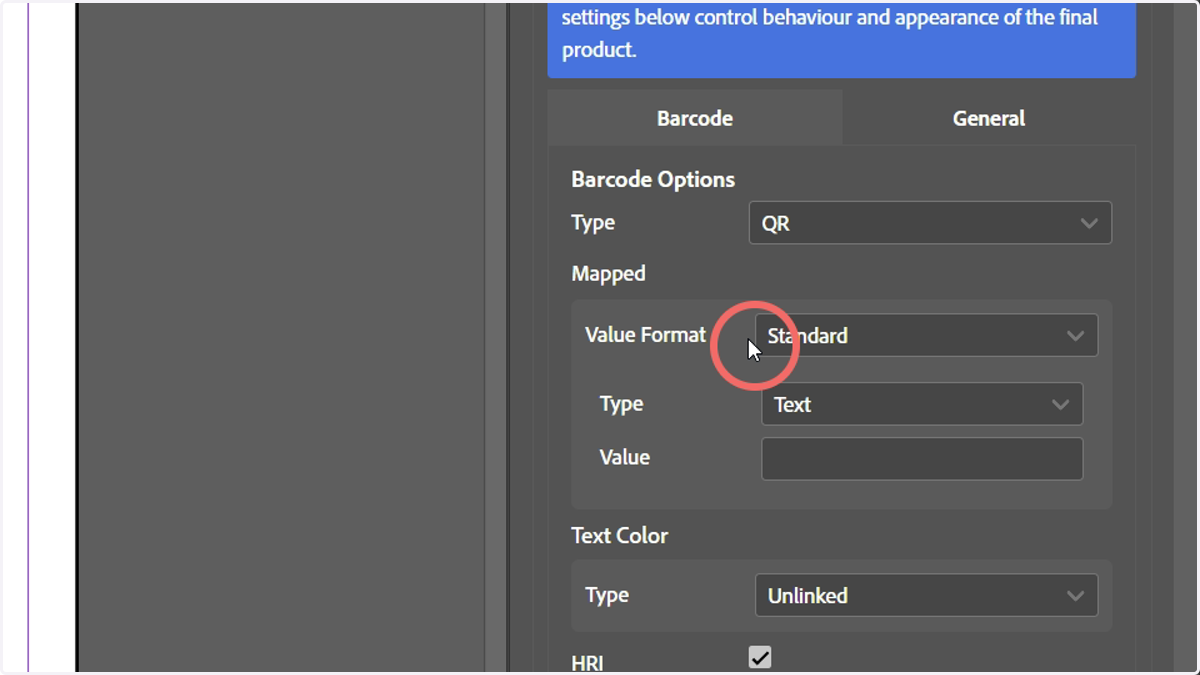
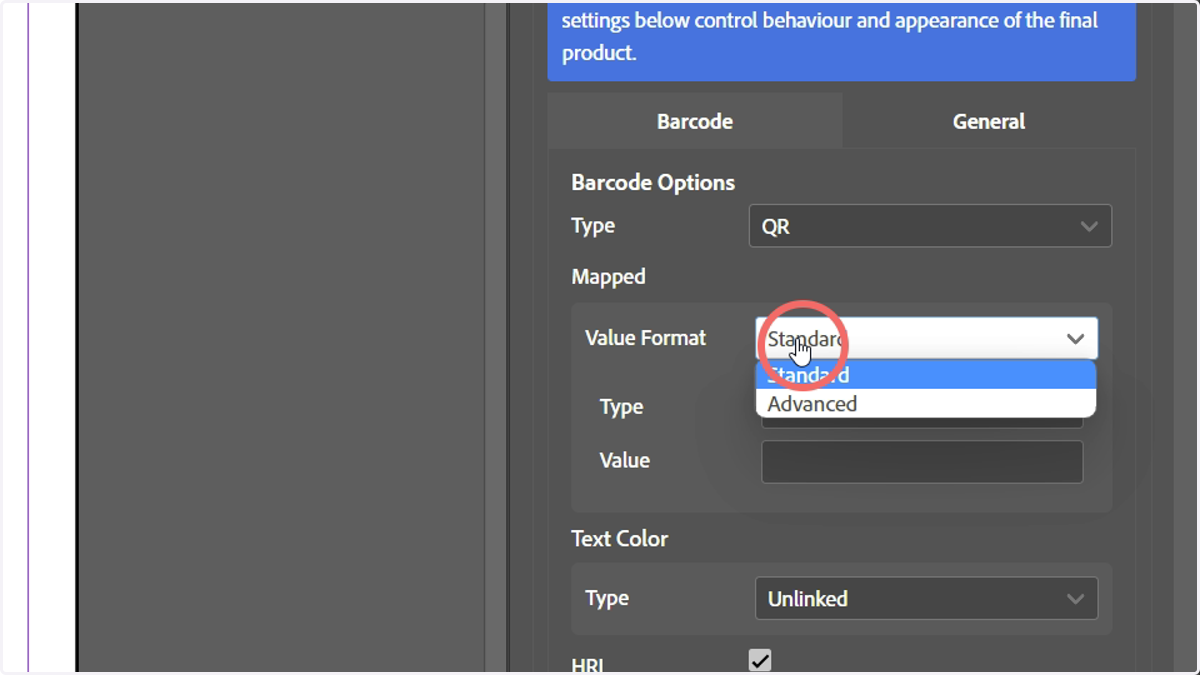
10. QR codes give you additional options, such as access to an Advanced mode of data input, allowing data to be entered into specifically defined fields.
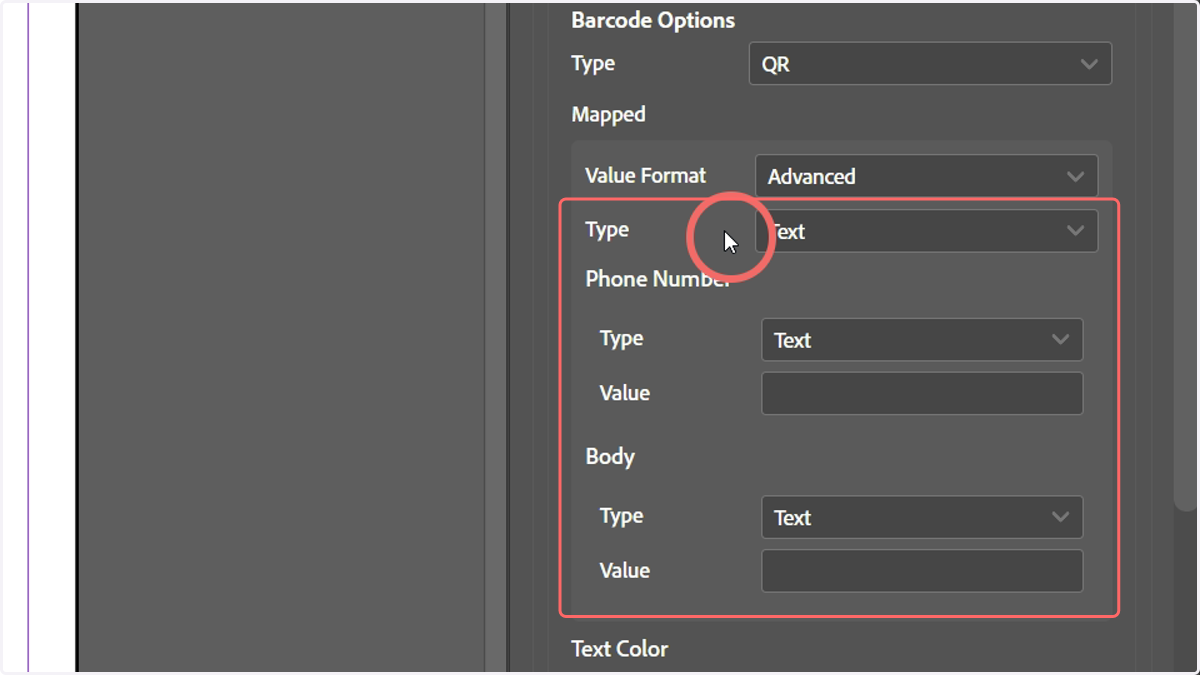
11. The Advanced Text option allows you to input a phone number and a body, either as static text or linked to a variable
12. The Advanced Email option allows you to enter an email address, body and a subject line
This will allow end users to automatically launch a new email in their email app and pre-populate some of the email contents.
Again, this can be static text or variables.
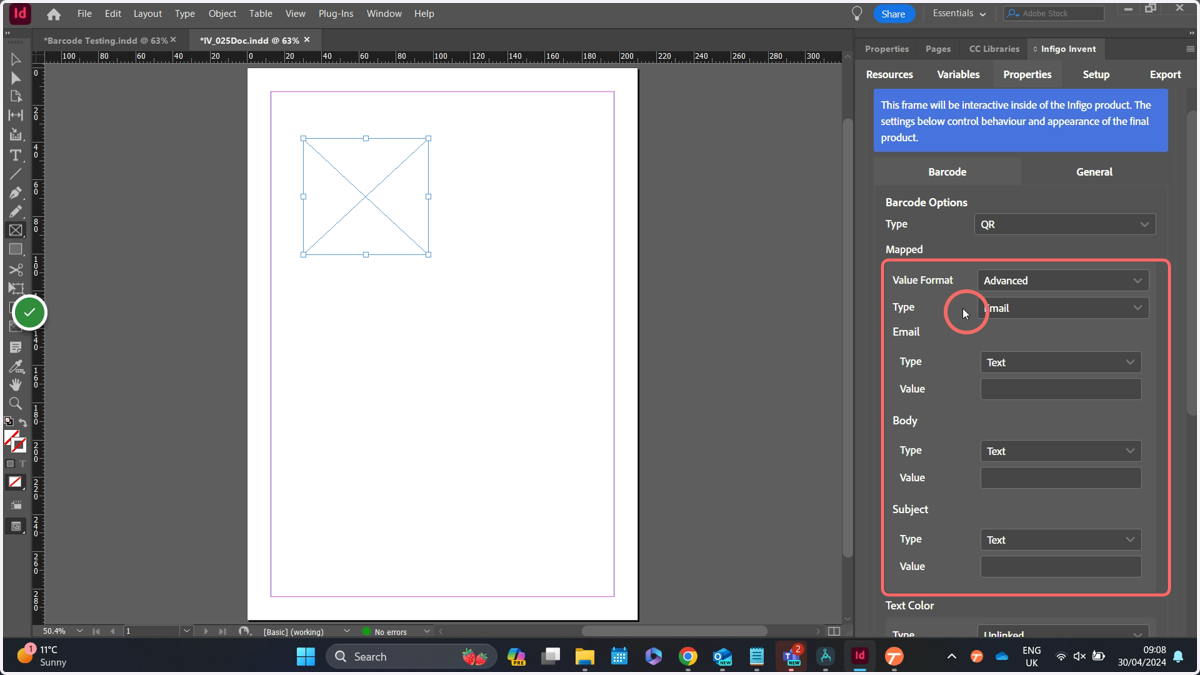
13. The Advanced Business Card option works as a vCard. When scanned with a phone, any information entered into fields (such as name, email or organisation) will be prepopulated into a new contact entry on that person's device.
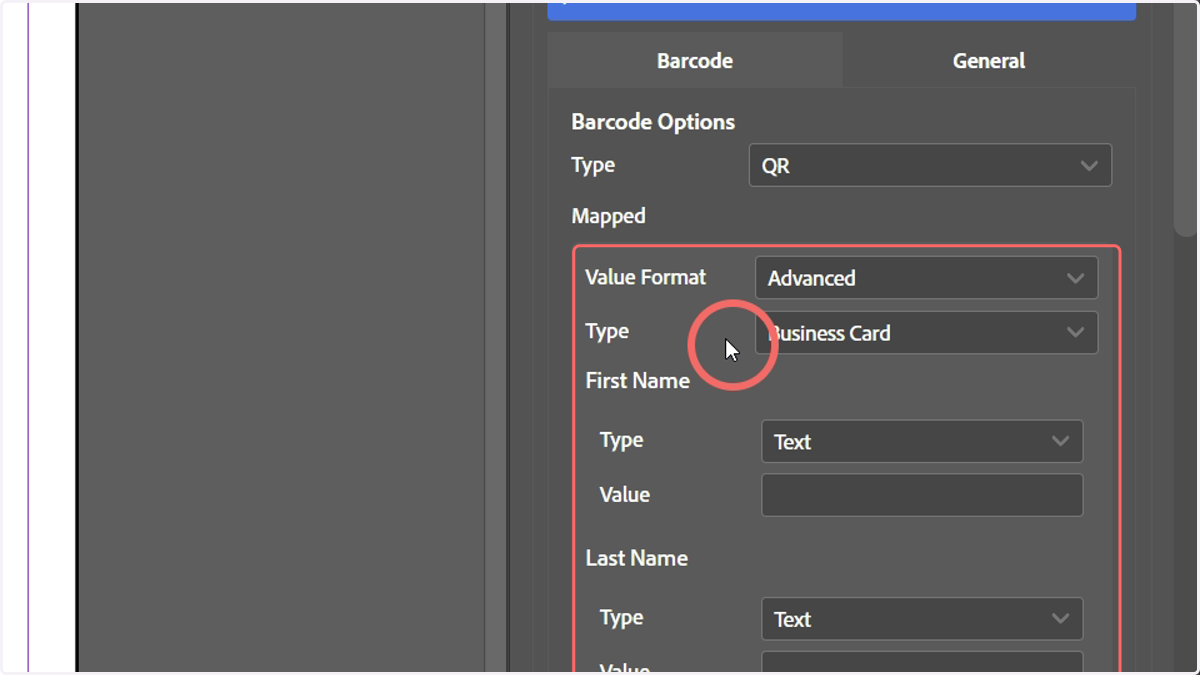
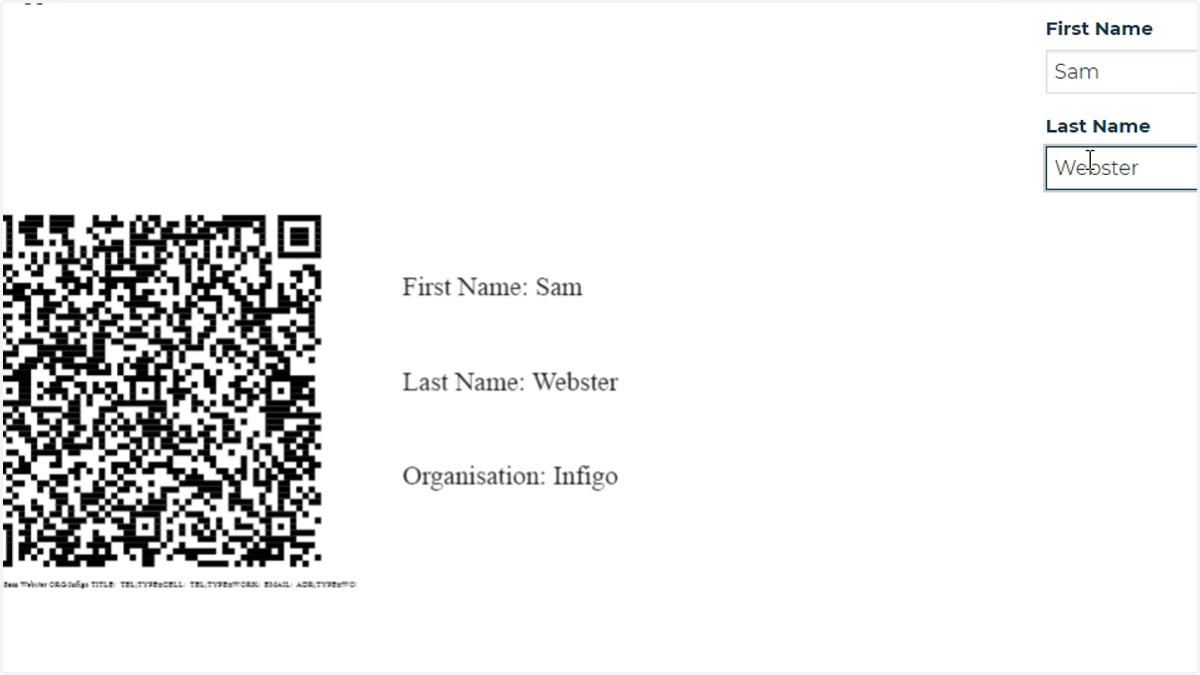
14. In our example, we'll create a QR code from a few pieces of information using the Advanced Business Card option
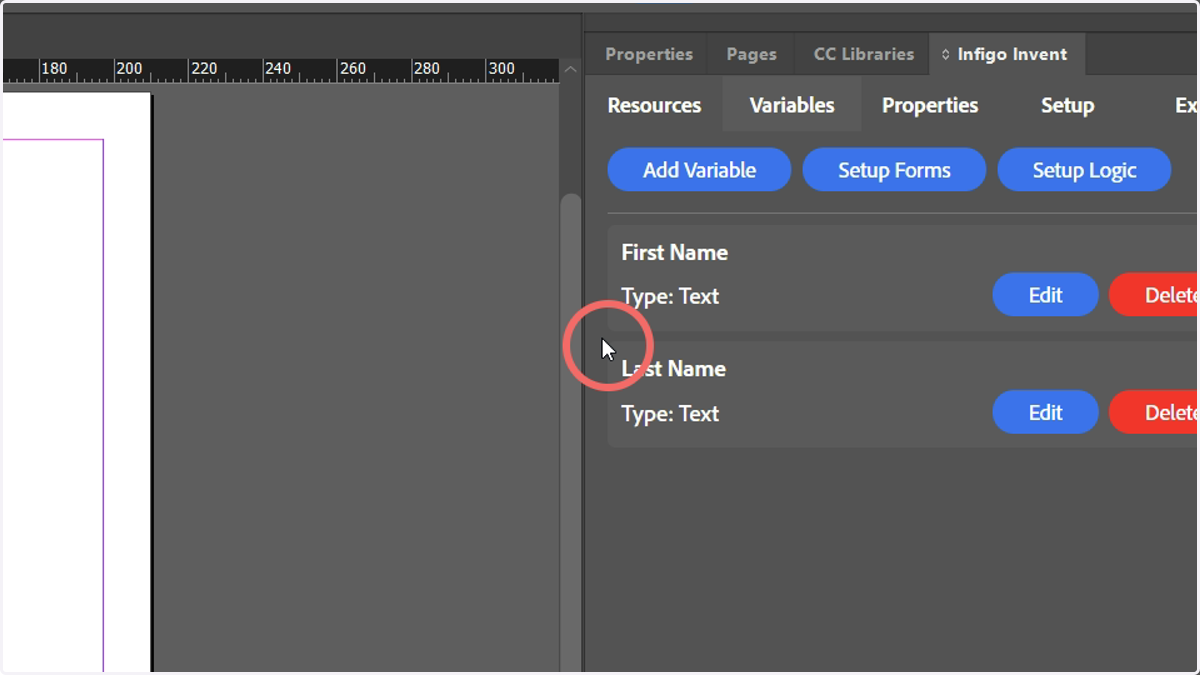
We want this information to be variable based on end user input, so we'll go ahead and create a couple of simple text variables to use as an example.
15. Here, we have created "First Name" and "Last Name" text variables
No advanced configuration was necessary on these variables.
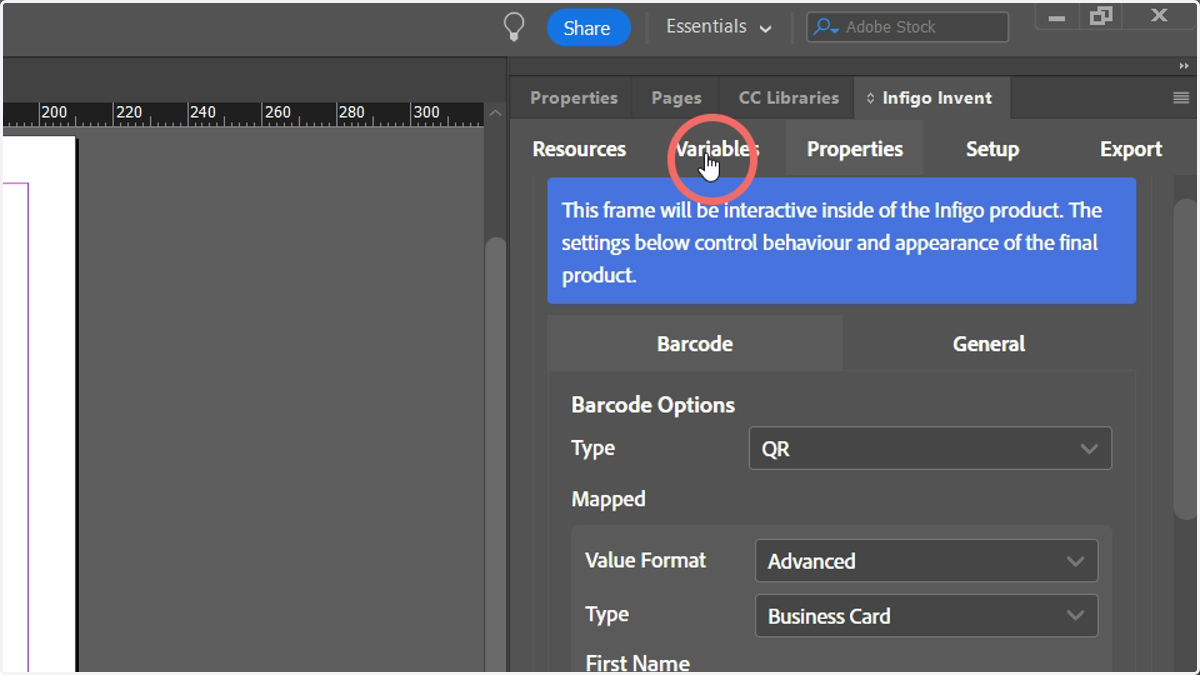
16. Select the barcode field and head back to the Properties tab
17. Locate the fields you wish to populate and change the content type to Variable
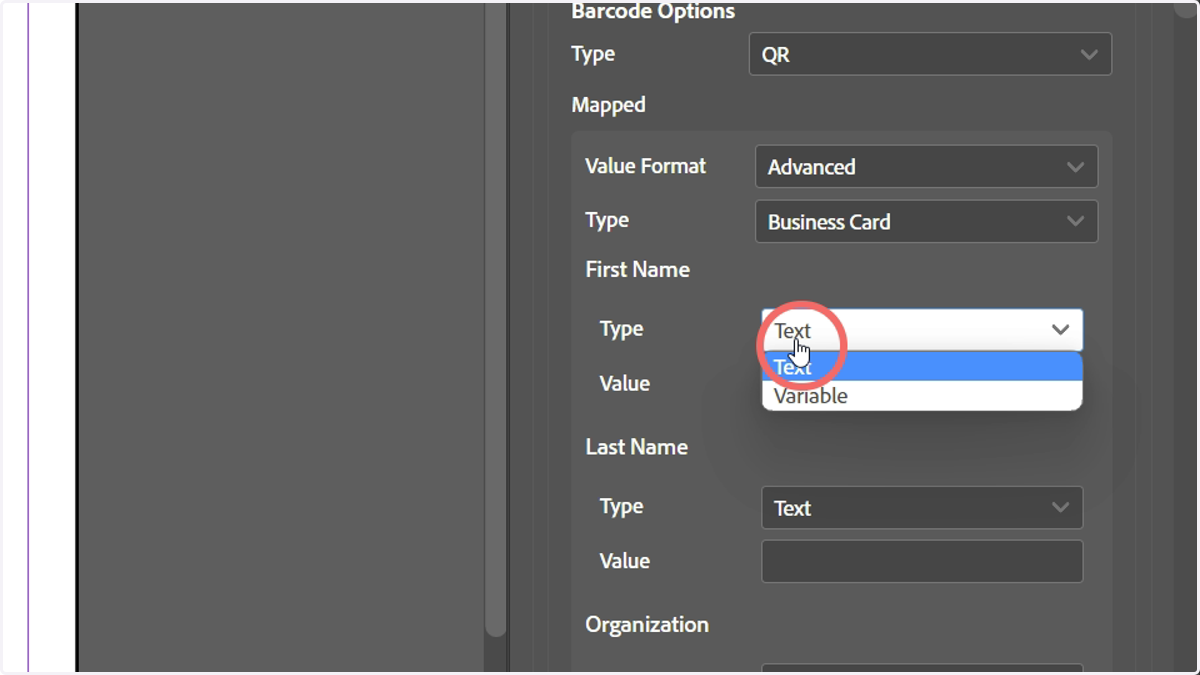
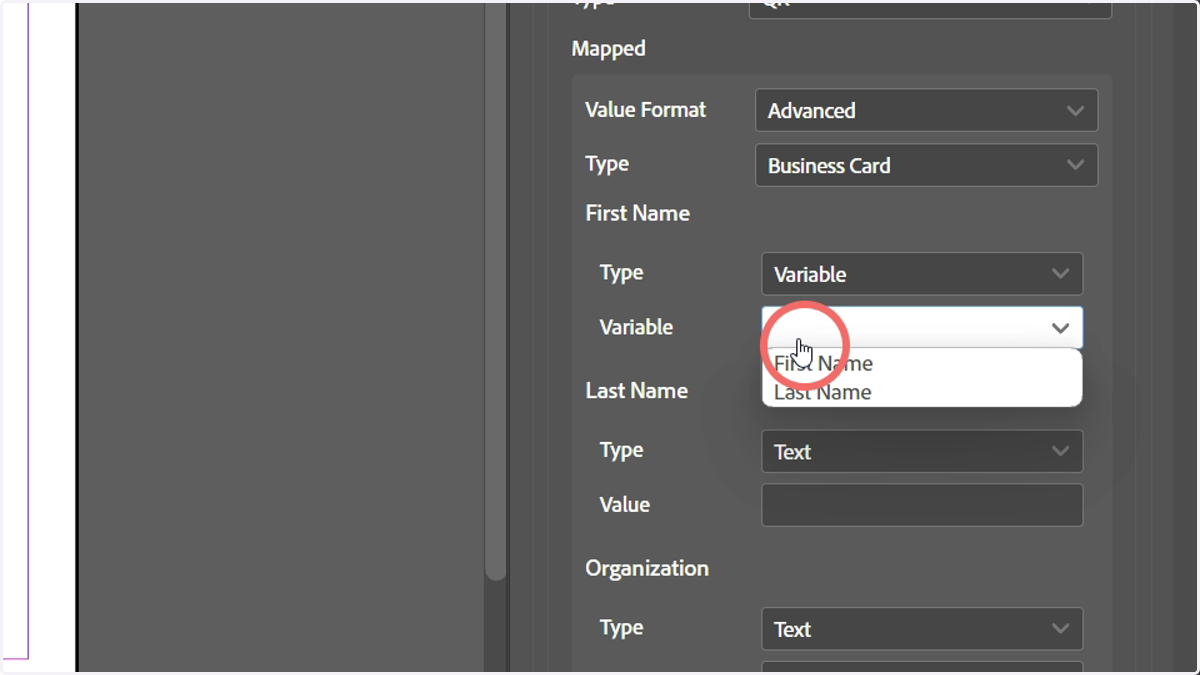
18. This will present you with a list of variables to select between
19. Static text can also be input, if required.
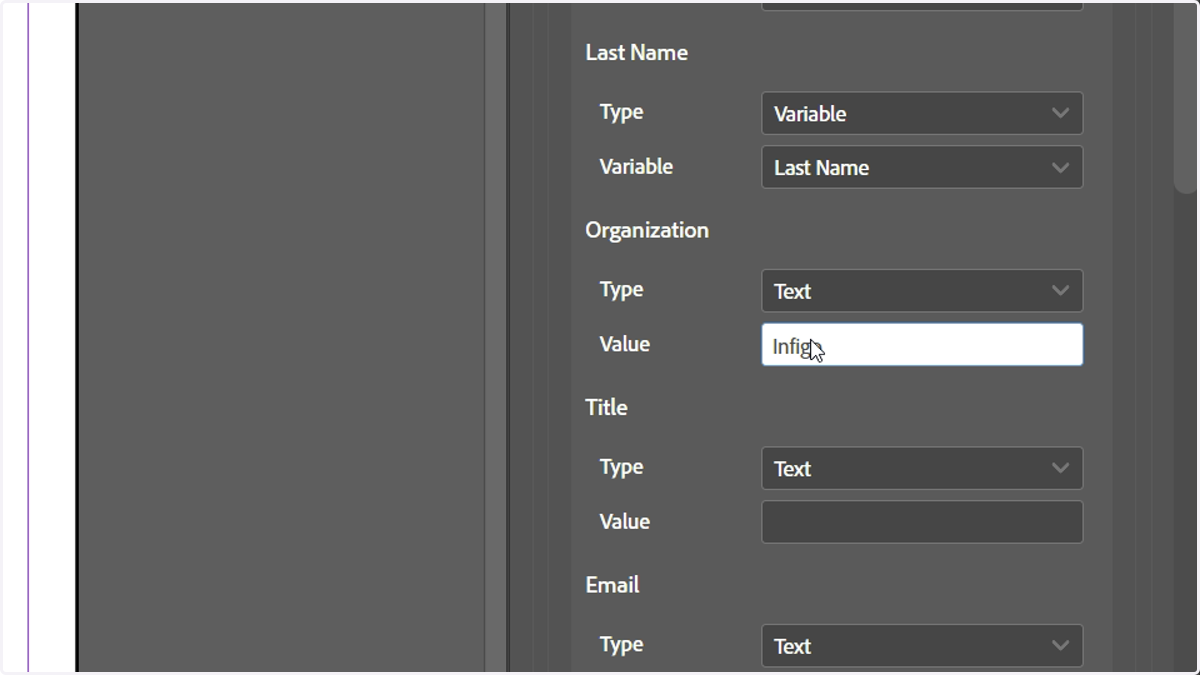
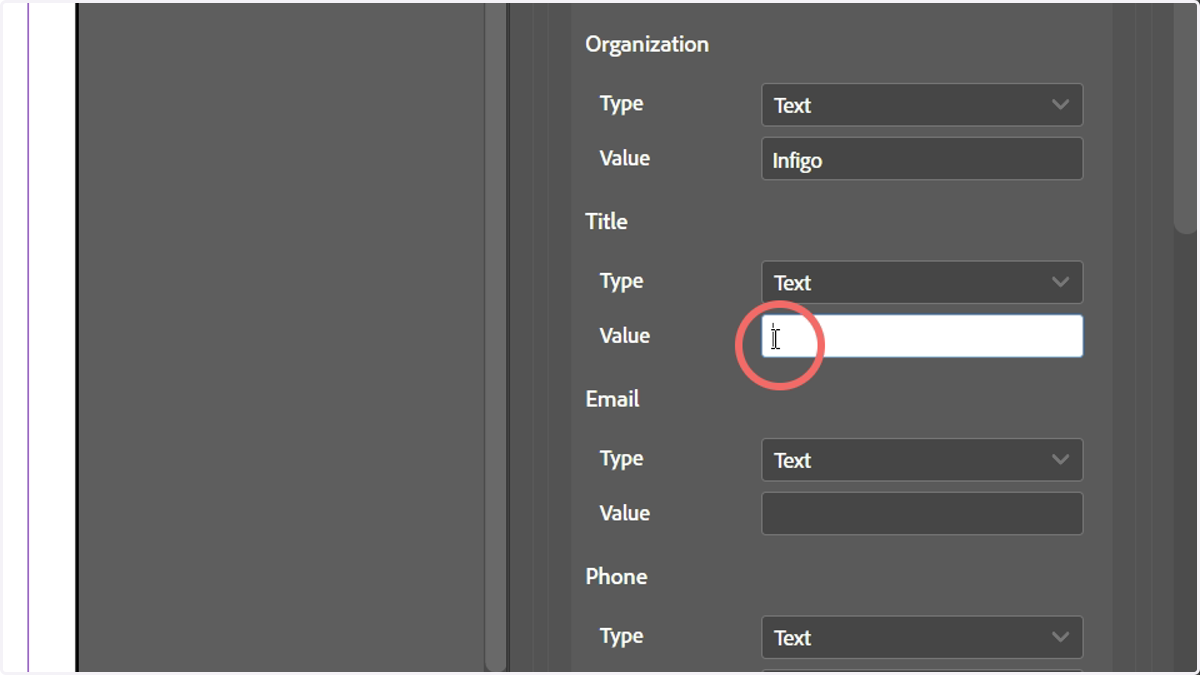
20. At the time of creating this content, for any field you do not wish to populate, please a space in that field.
Invent will not allow you to export the mex file whilst it contains empty barcode fields.
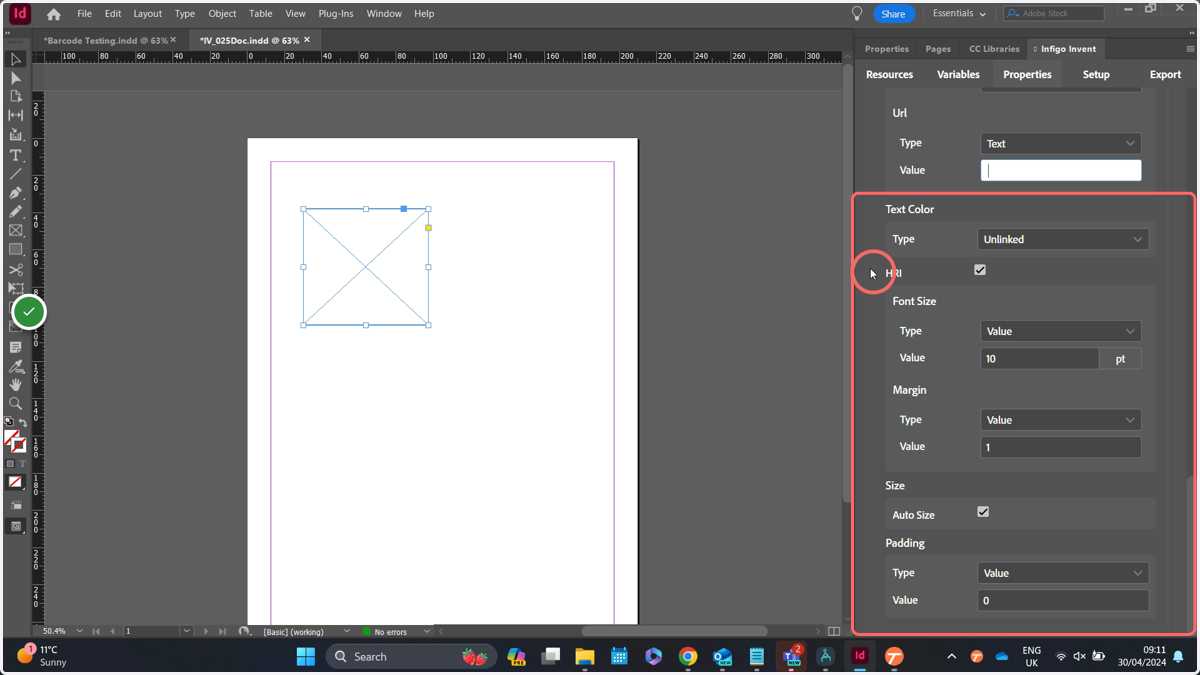
21. Additional configuration options are available, allowing you to control information such as the text size and colour, the human readable interface (HRI) and barcode padding.
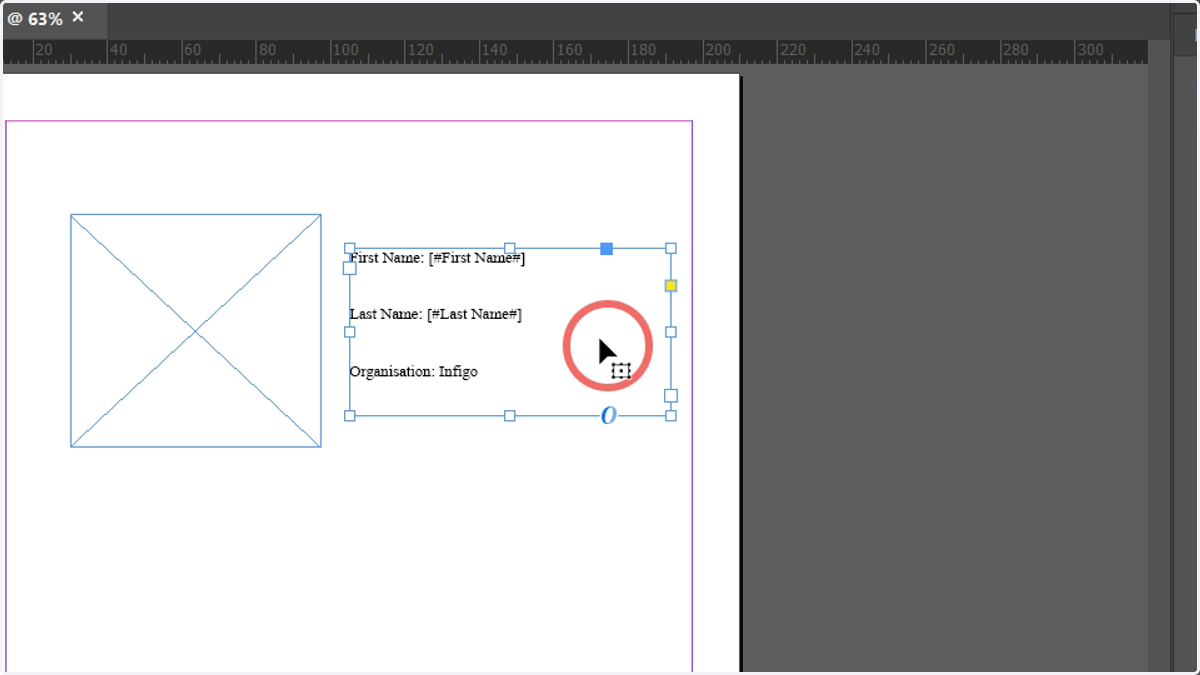
22. In my example, I will also configure a text field displaying the variable values. This is purely for clarity and is not a requirement of using the barcode functionality.
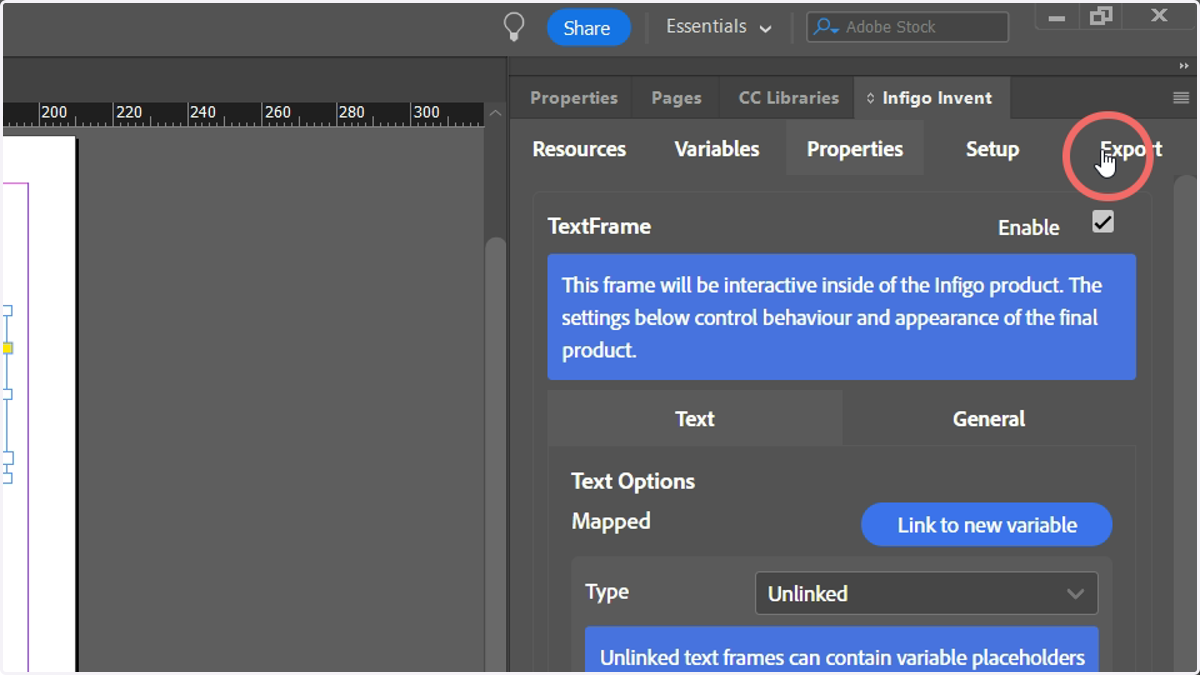
23. Export the Invent file as a mex template and import it into MegaEdit
24. The QR code is successfully generated and is automatically updated to reflect the information placed into the linked variables.