Create your first category
In this tutorial, we will create our first category.
Categories are a way of visually grouping products and presenting them to your users. How you group your products is completely up to you but it is key to focus on making the navigation and location of products within categories as simple and as intuitive as possible.
For example: Business Cards, Letterheads and Compliment Slips Calendars can be added under a single category called Stationery.
Sub-categories can also be created. This will briefly be covered within this tutorial.
1. Click on Catalogue
To begin, we will navigate to the Categories page.
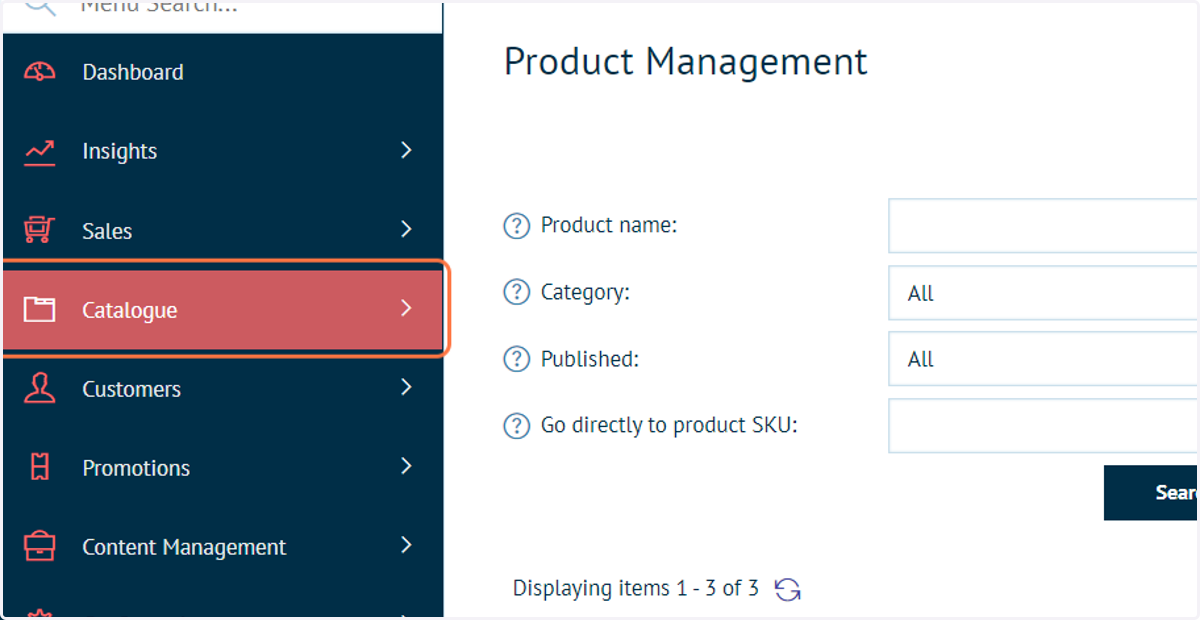
2. Click on Categories
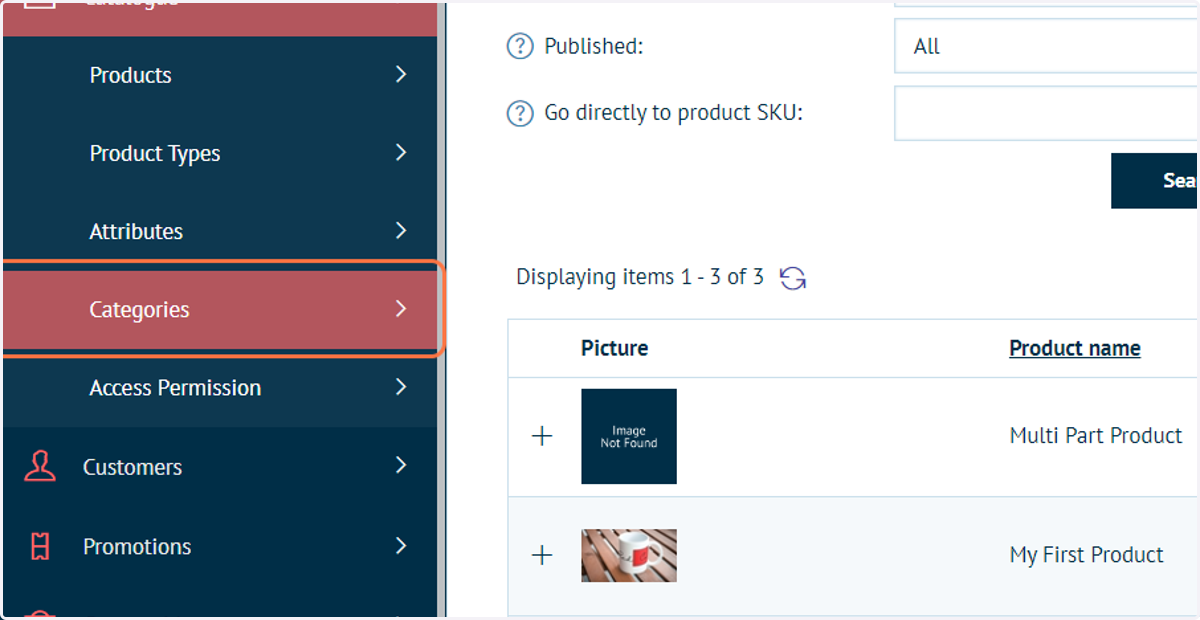
3. Click on Manage Categories
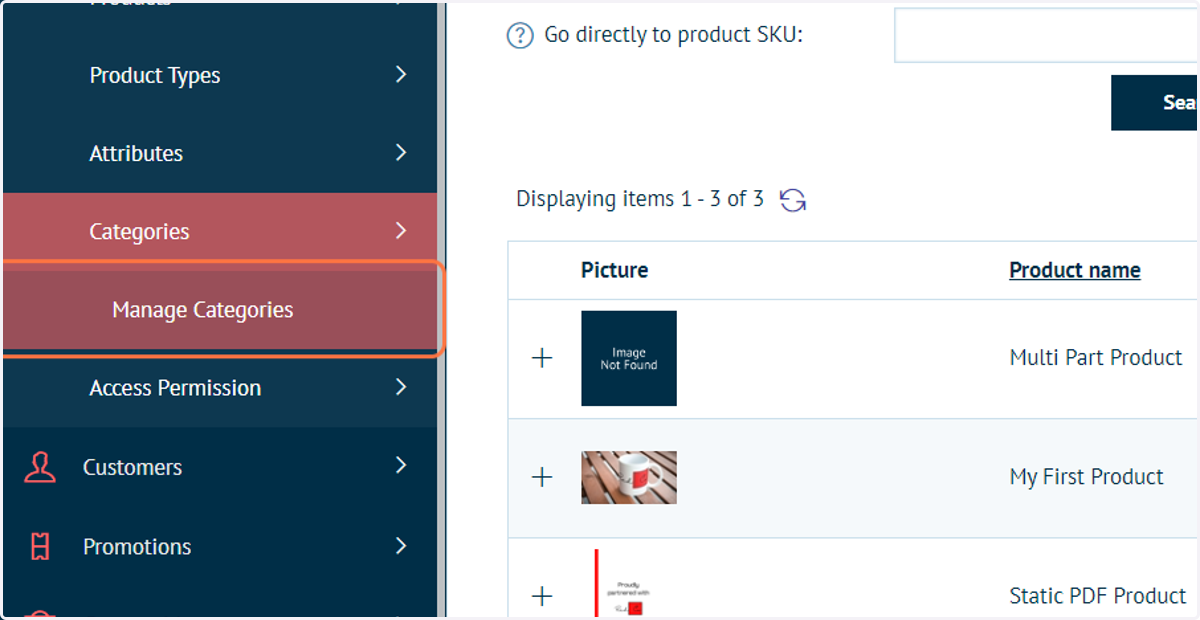
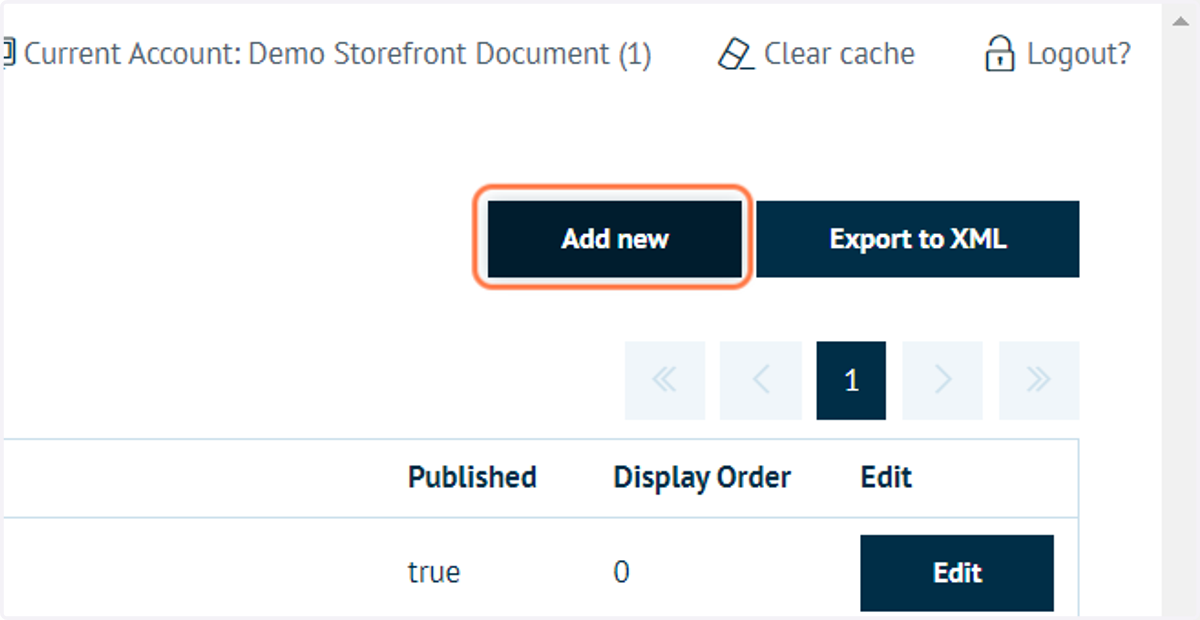
4. Click on Add new
All current categories are listed on this page.
For this tutorial, we will create a new product category.
When clicking Add new, the product category settings will display.
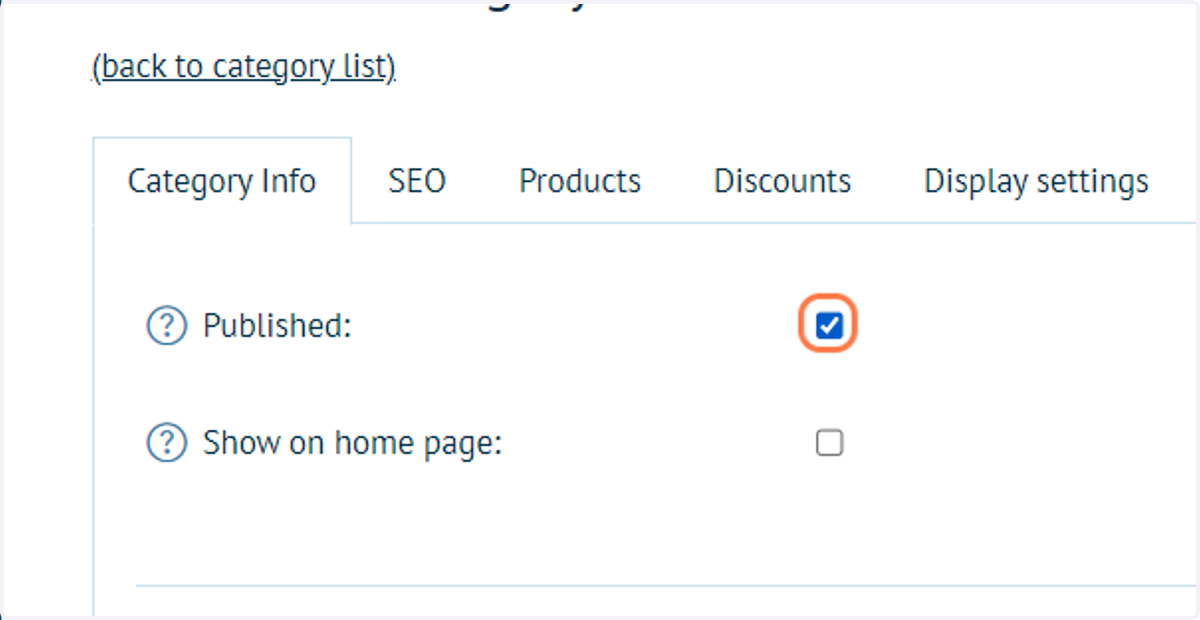
5. Check Published
The Published option means your category and associated products are available to customers on your storefront.
You can also choose to show this category as an icon on your home page using the "Show on home page" checkbox.
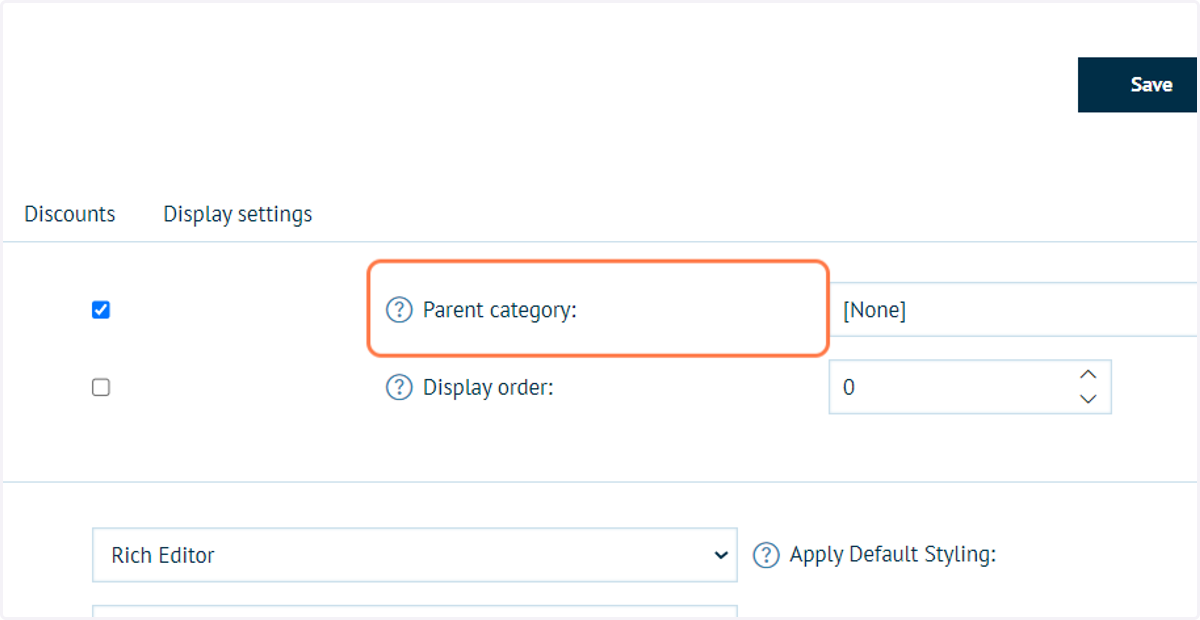
6. Parent category
This option is used if you are creating a sub-category.
For example, if you have a "Stationary" category, but want to further group products into pens and paper, then you would create two sub-categories which are associated with the Stationary top-level category.
When creating the "Pens" category, change the Parent category dropdown to read "Stationary". This adds the Pens category as a sub-category to Stationary.
In this tutorial, we will leave the Parent category option set to None, as we do not require sub-categories.
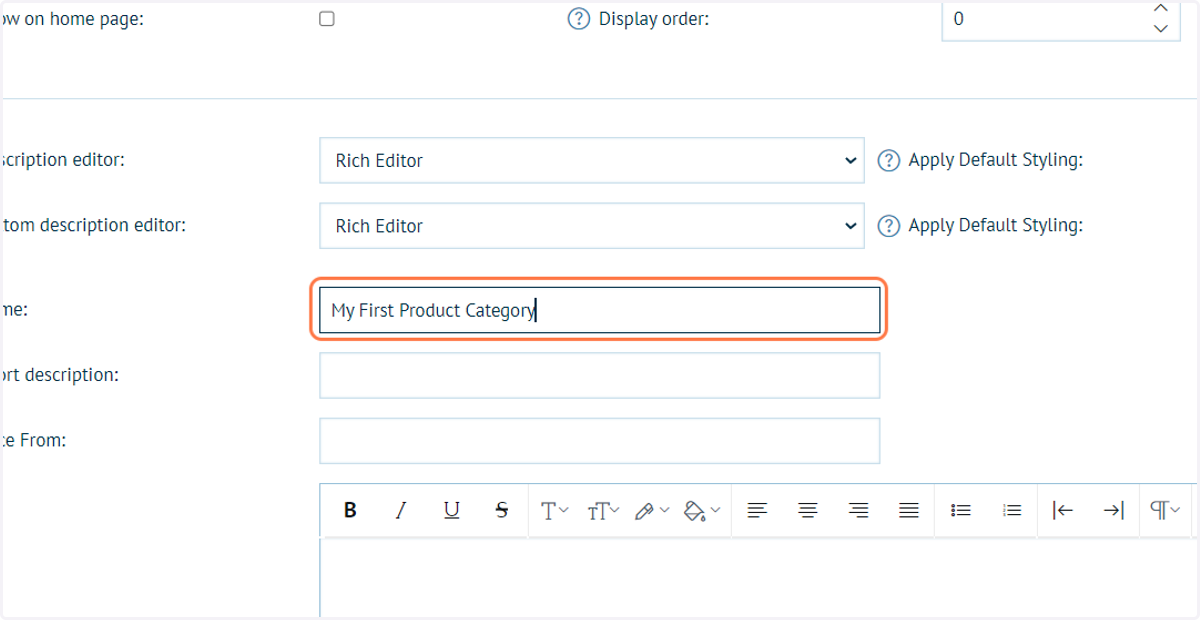
7. Type a category name
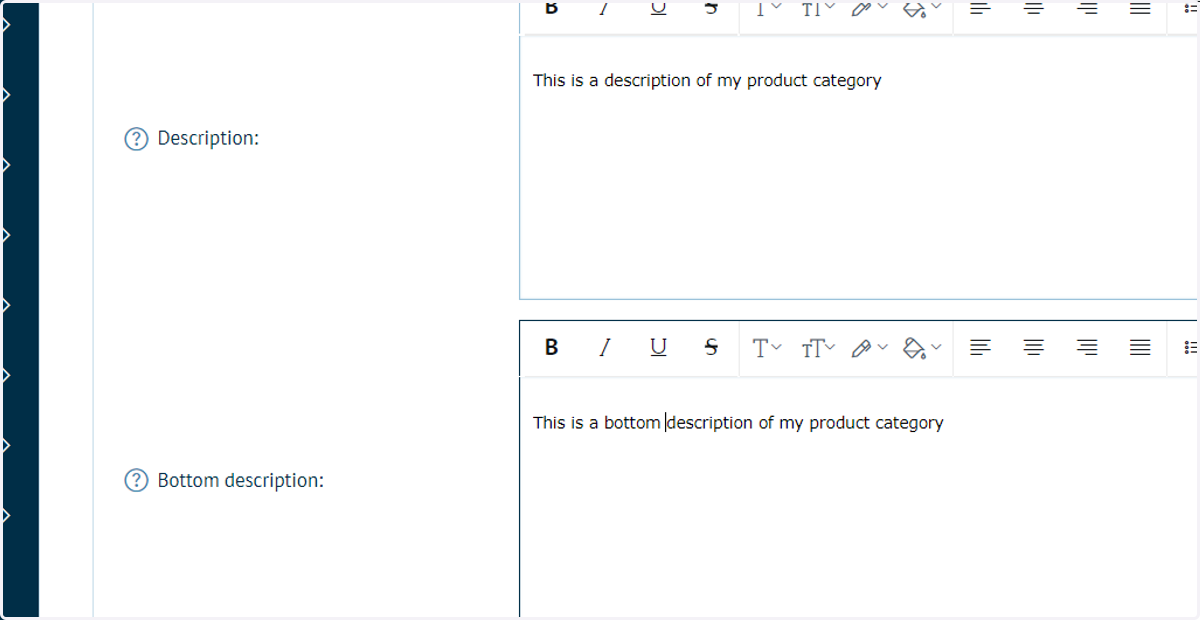
8. Fill some category description information
This is not a requirement, however will add some additional visual information to the category when viewed on your storefront.
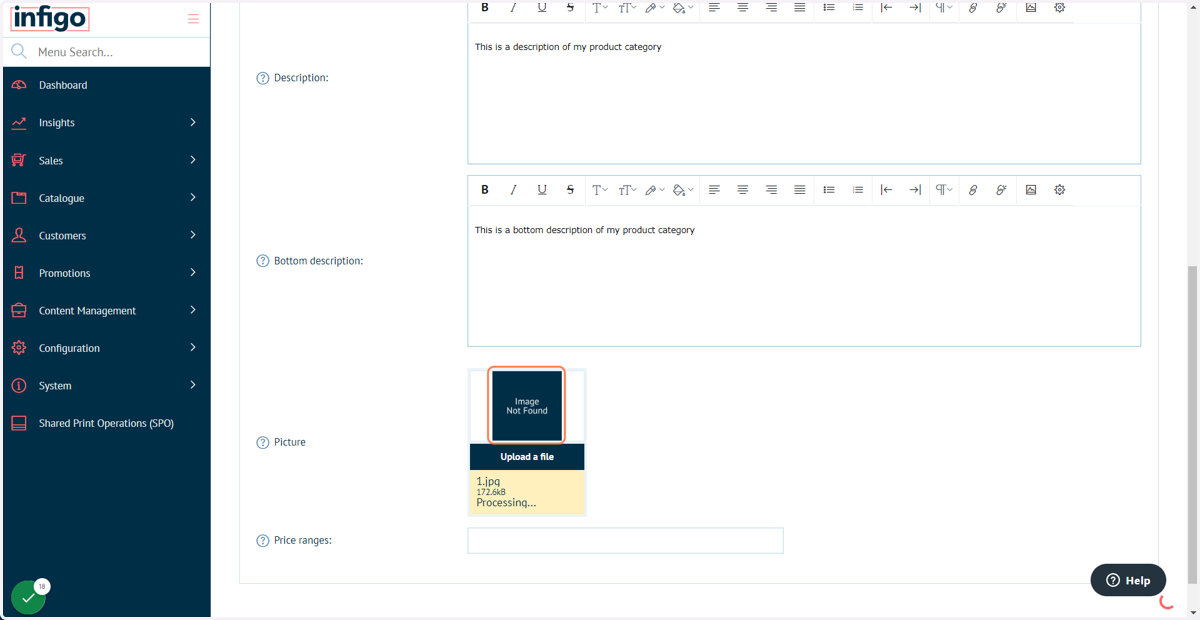
9. Upload a category picture
This is again not a requirement, however without it your customers would see the image placeholder when browsing your storefront.
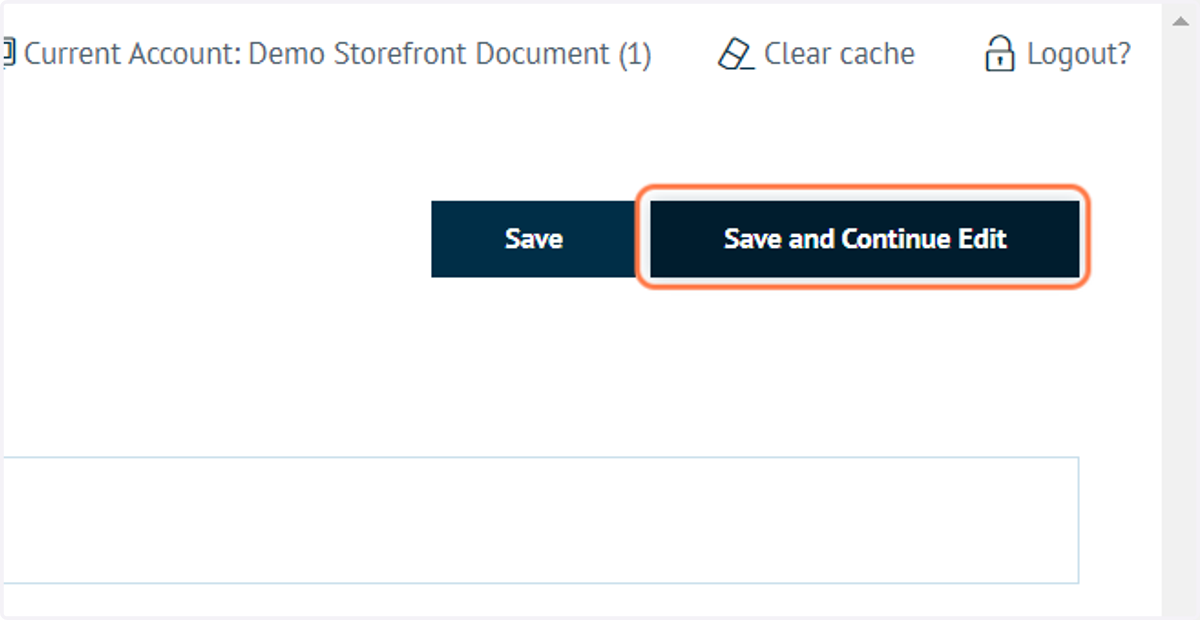
10. Click on Save and Continue Edit
In order to specify the products associated with a category, we must first save the category details.
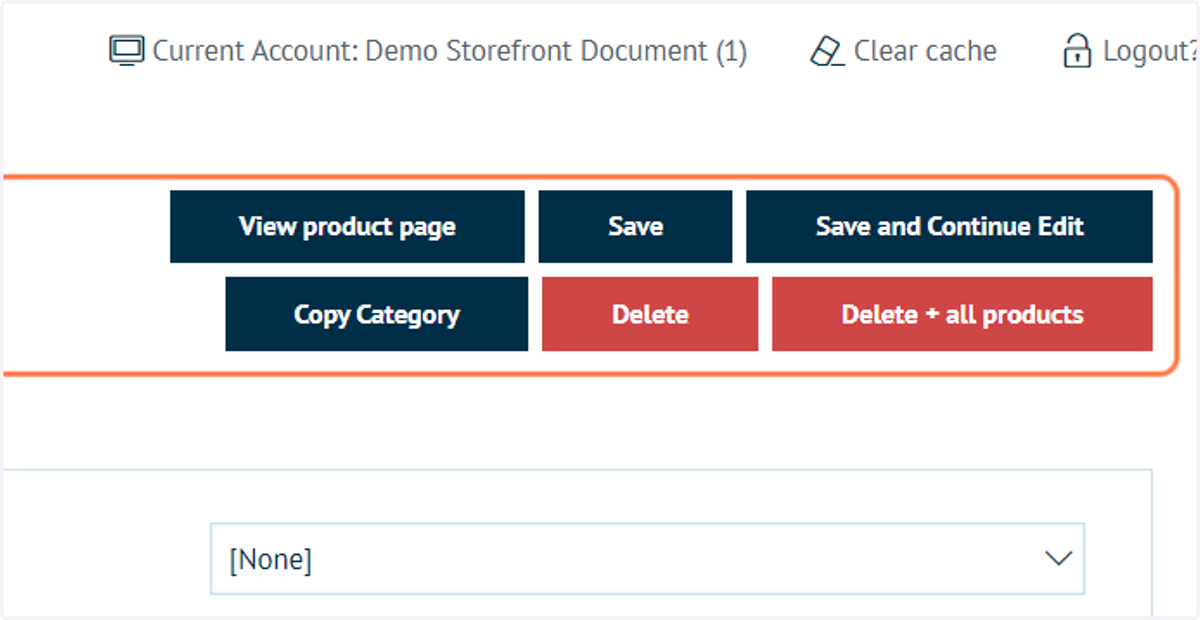
11. Category buttons
When saved, your category will have additional available actions, including:
View product page - view the entire category page on your storefront
Copy category - create a carbon copy of the category to save time setting up future categories
Delete - deletes the category but leaves the products untouched
Delete + all products - deletes a category and all products associated with it
12. Click on Products
We will not specify which products are associated with our new category.
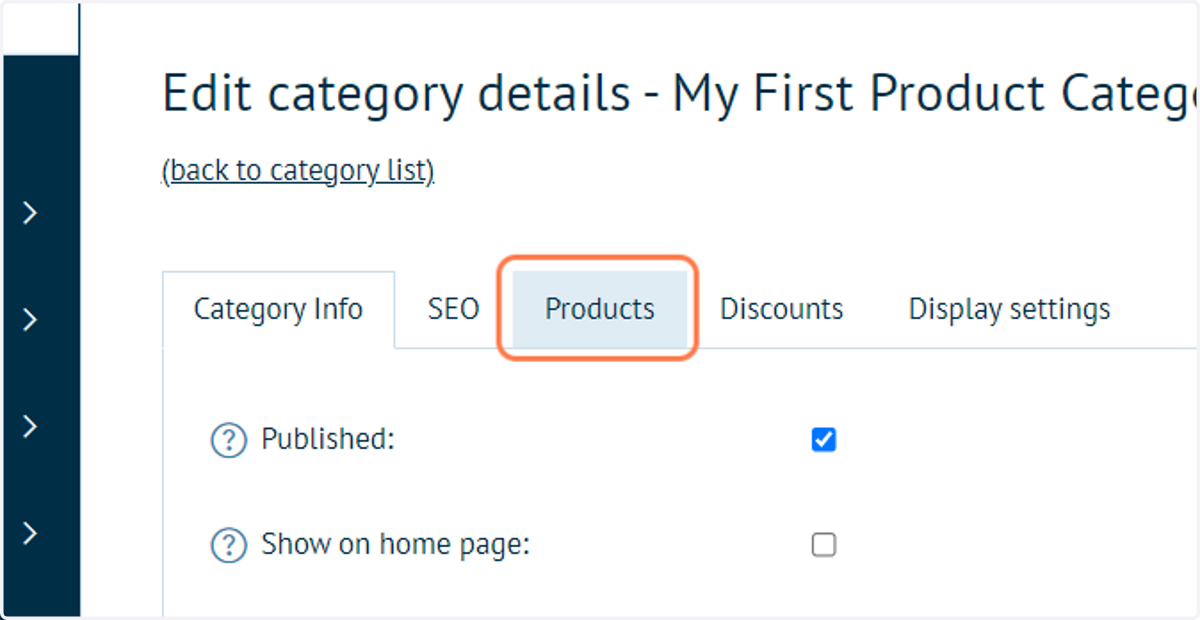
13. Click on Add a new product
This will open a new window with all of your products listed.
14. Select the products to add to this category
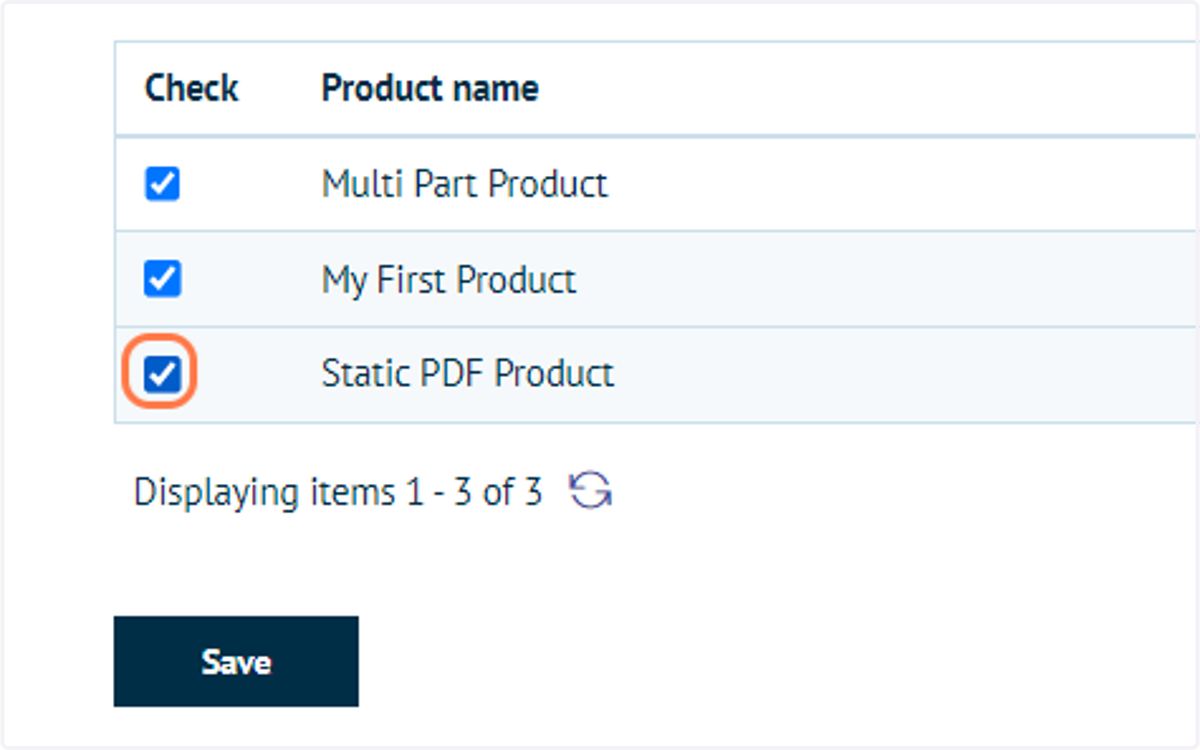
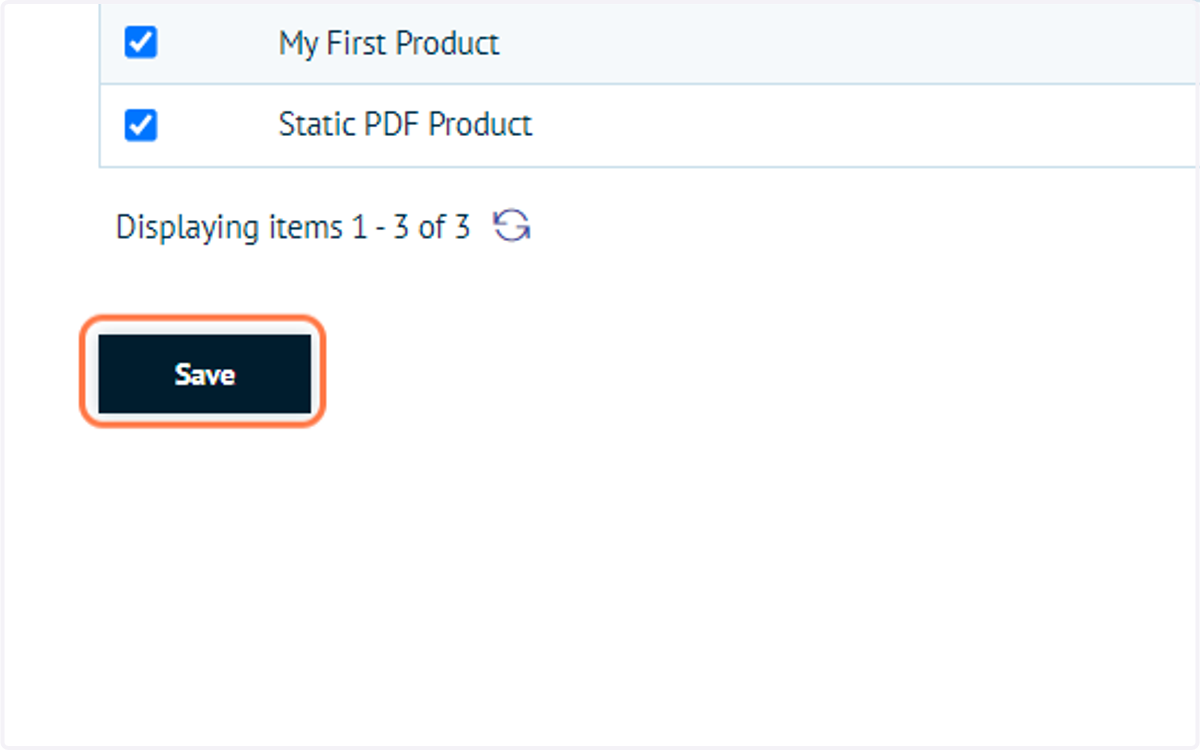
15. Click on Save
16. Click on Save and Continue Edit
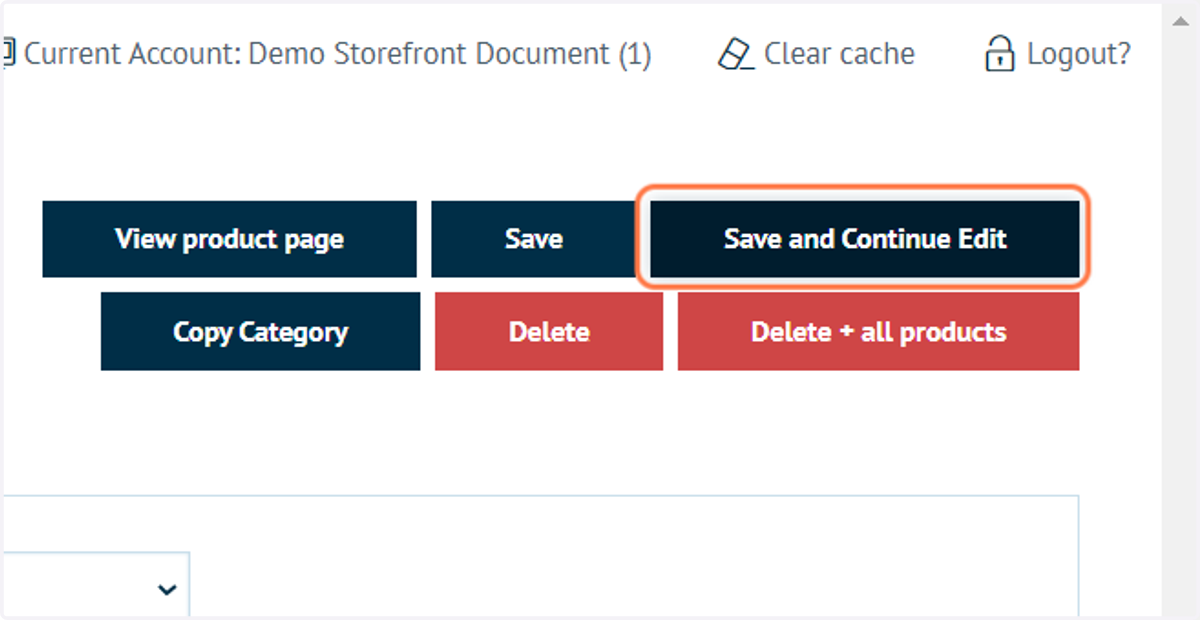
17. Click on View product page
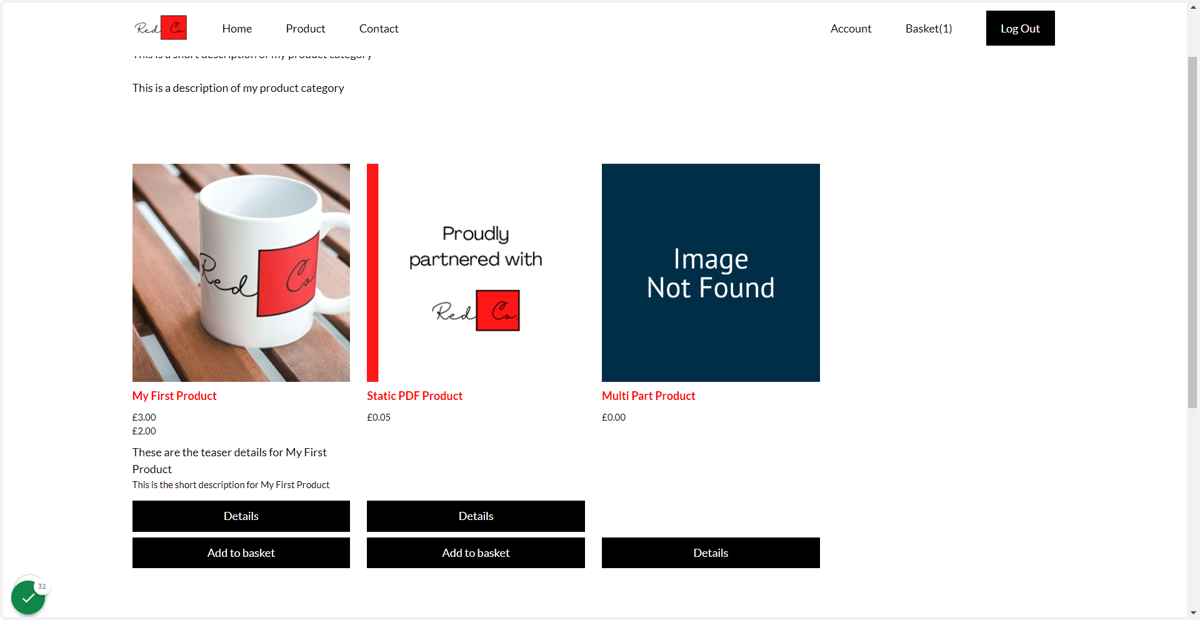
We will now view this category as it appears on your storefront.
18. Category page view