Connect: Veracore Property Mapping
Infigosoftware
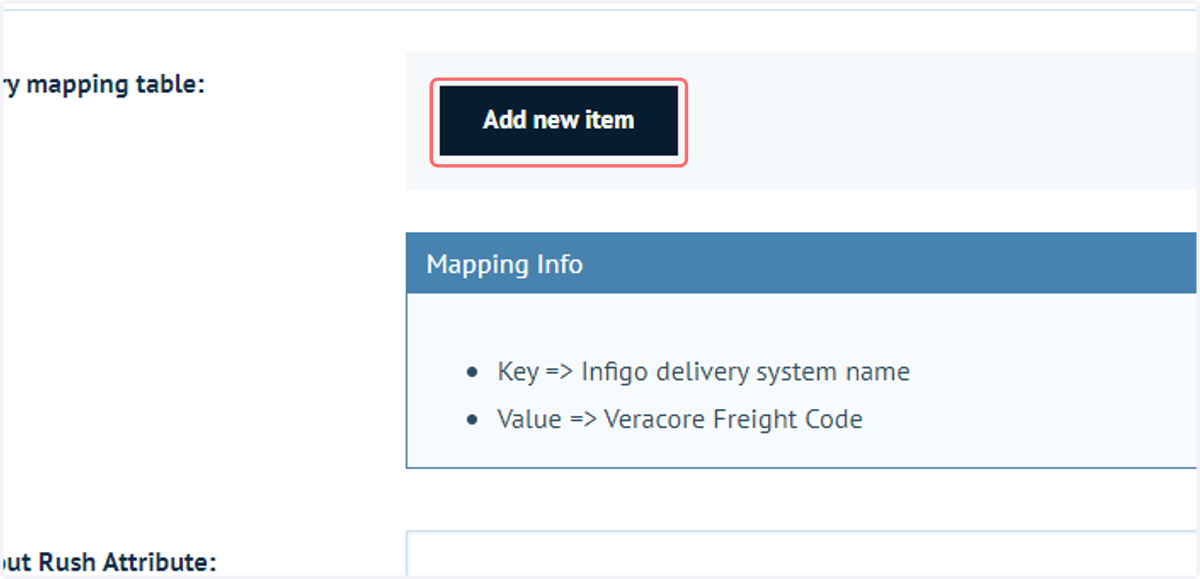
1. Click on Add new item
Delivery mapping can be used as a translation between shipping methods detailed in Infigo and the equivalent Freight Code in Veracore.
To begin, create a new delivery mapping.
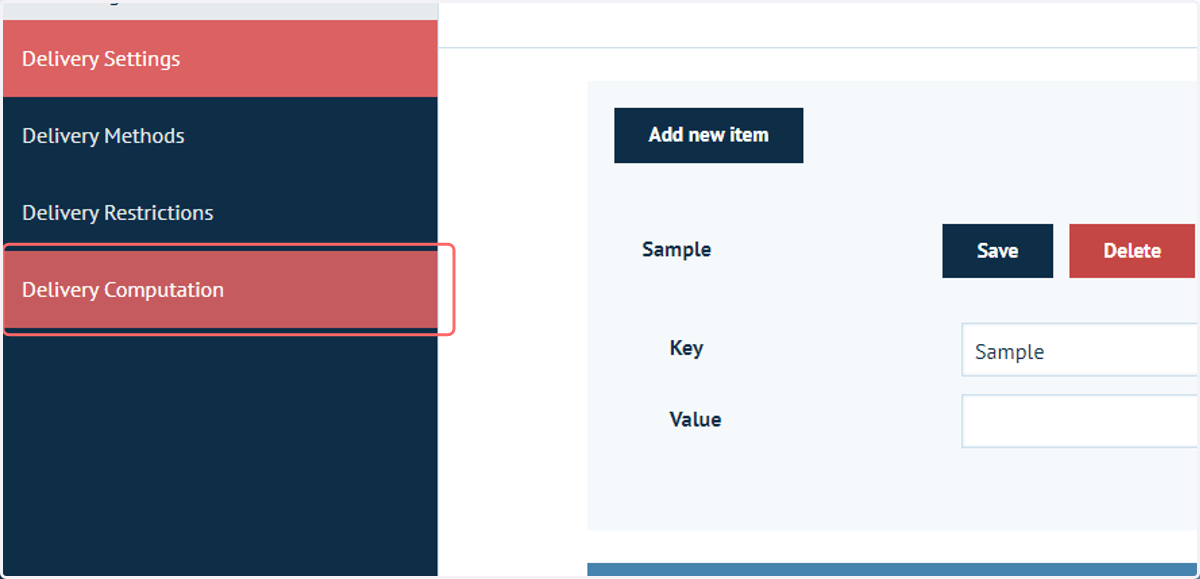
2. Navigate to Delivery Computation
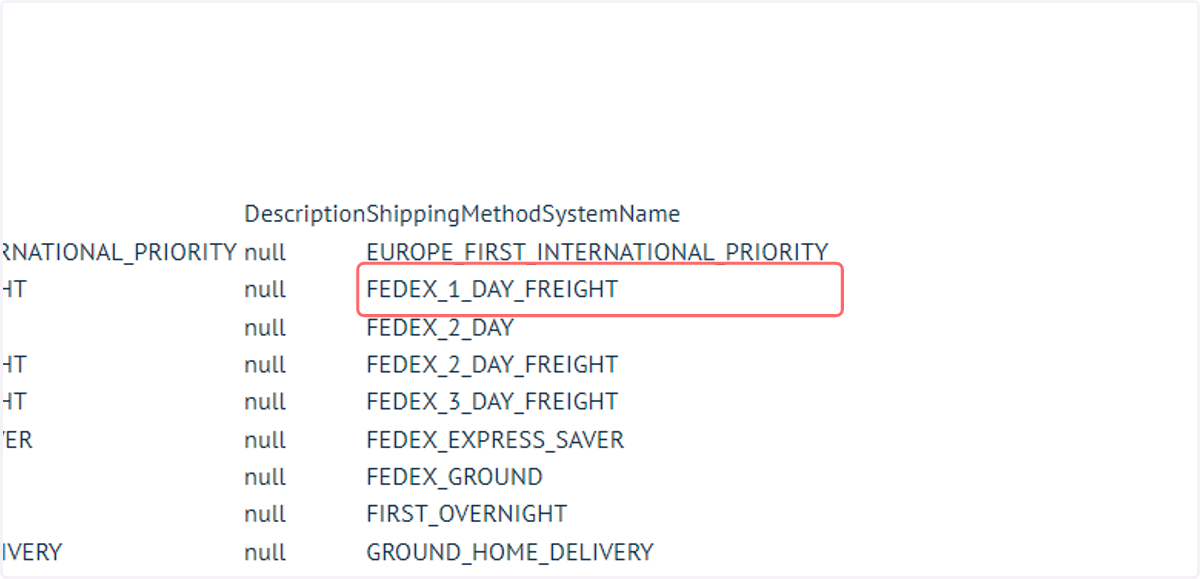
We will identify the ShippingMethodSystemName of one of our delivery methods.
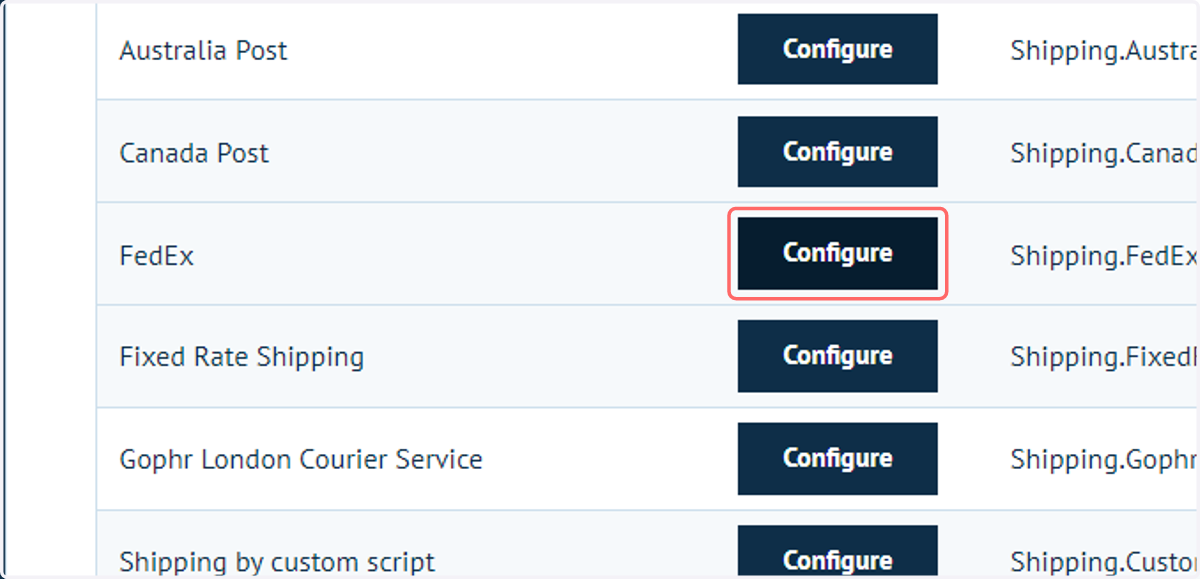
3. Click to Configure a provider
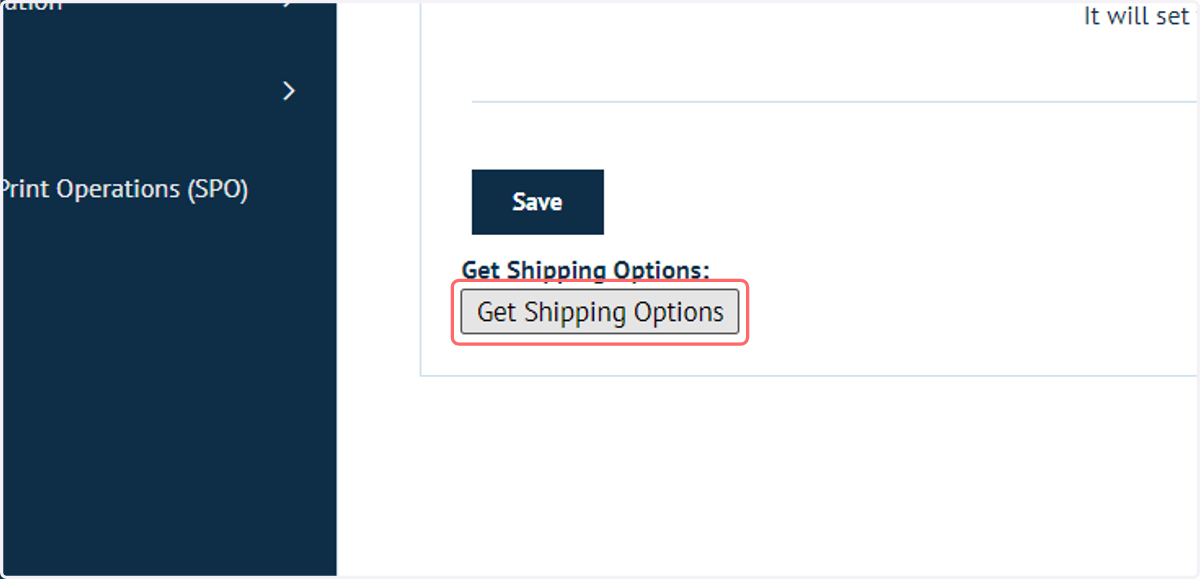
4. Click on Get Shipping Options
This will retrieve a list of delivery option information, including the ShippingMethodDescriptionName we require
5. Locate the relevant method and copy the value
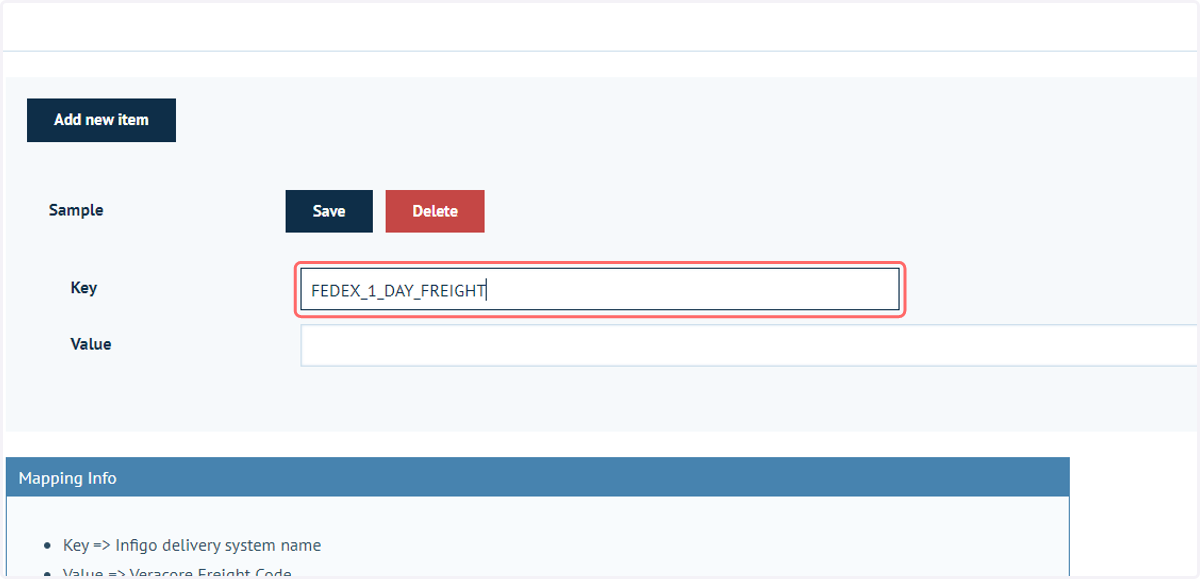
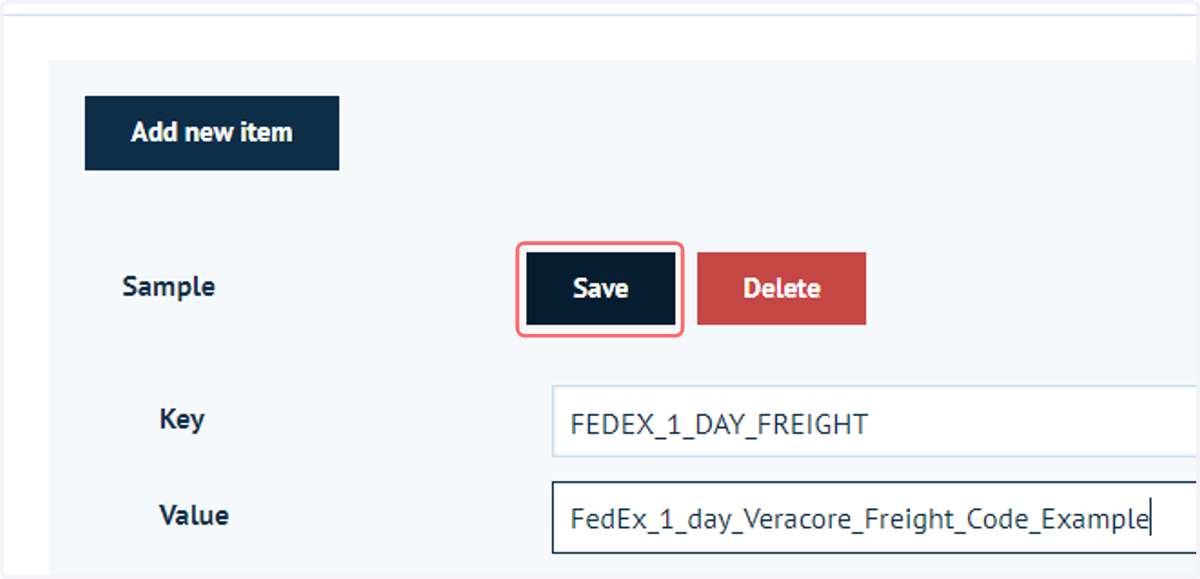
6. Navigate back to the Veracore configuration and input the ShippingMethodSystemName into the Key field
Key => Infigo delivery system name
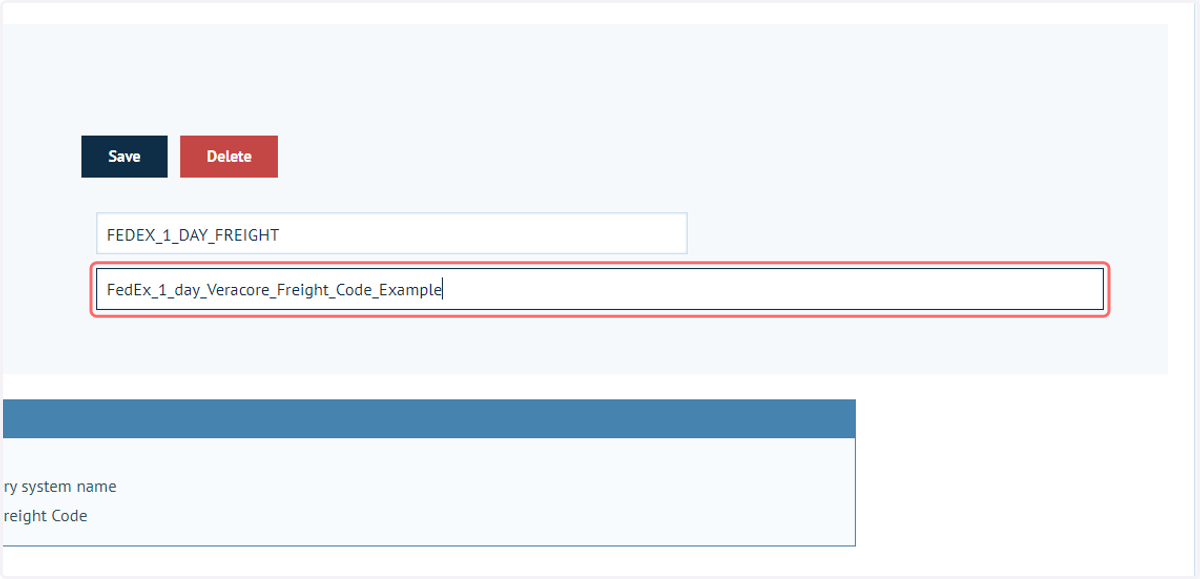
7. Enter the Veracore Freight Code into the Value field
Value => Veracore Freight Code
8. Click on Save to confirm the mapping
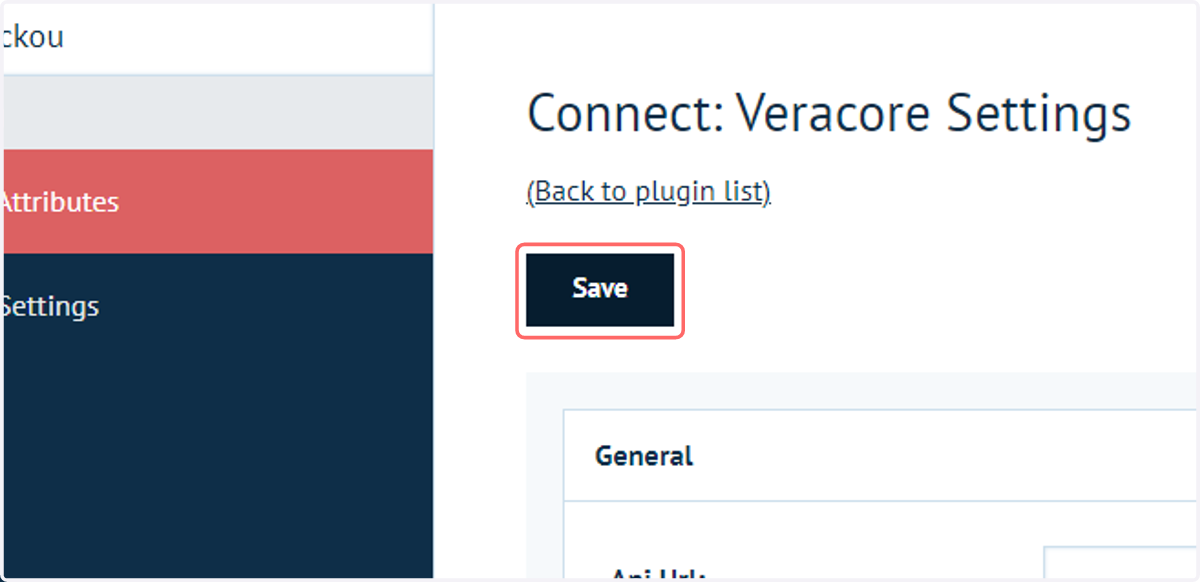
9. Click on Save at the top of the page to confirm all plugin settings
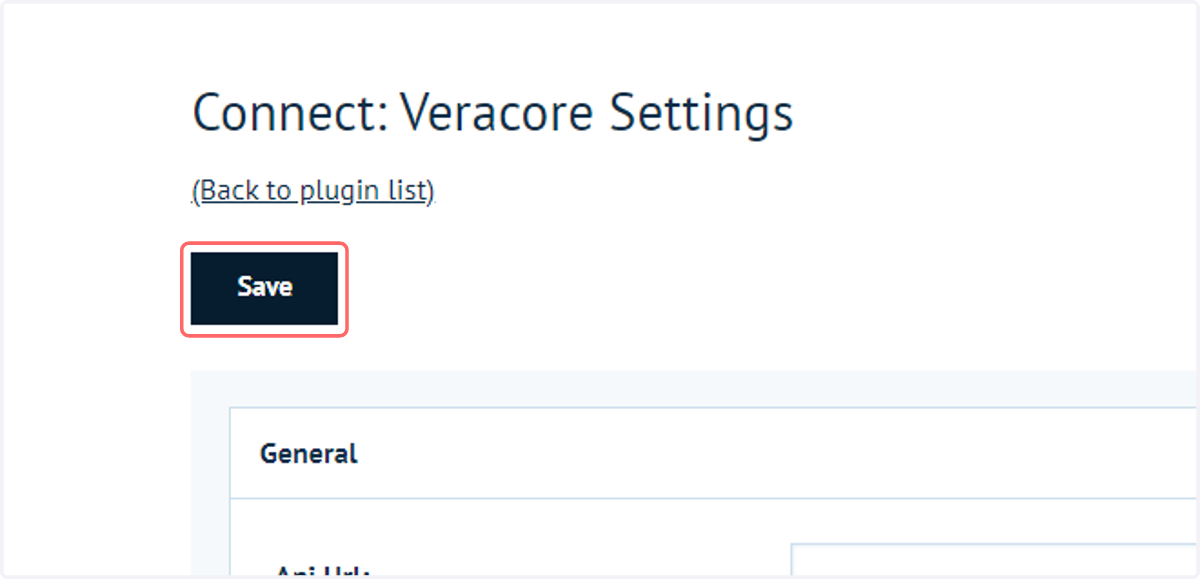
Your individual delivery mappings may not be saved unless you confirm the Veracore Integration settings using this save button.
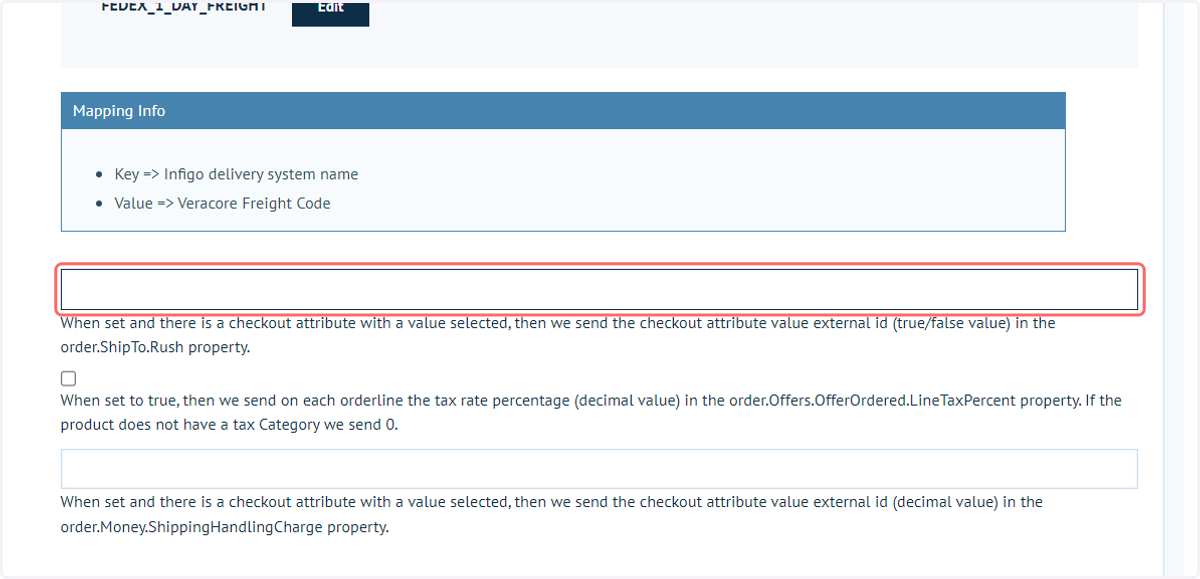
10. Checkout Rush Attribute
This setting should be populated with the name of a checkout attribute. When set and there is a checkout attribute with a value selected, we send the external Id (should be either true/false) of that value in the order.ShipTo.Rush property.
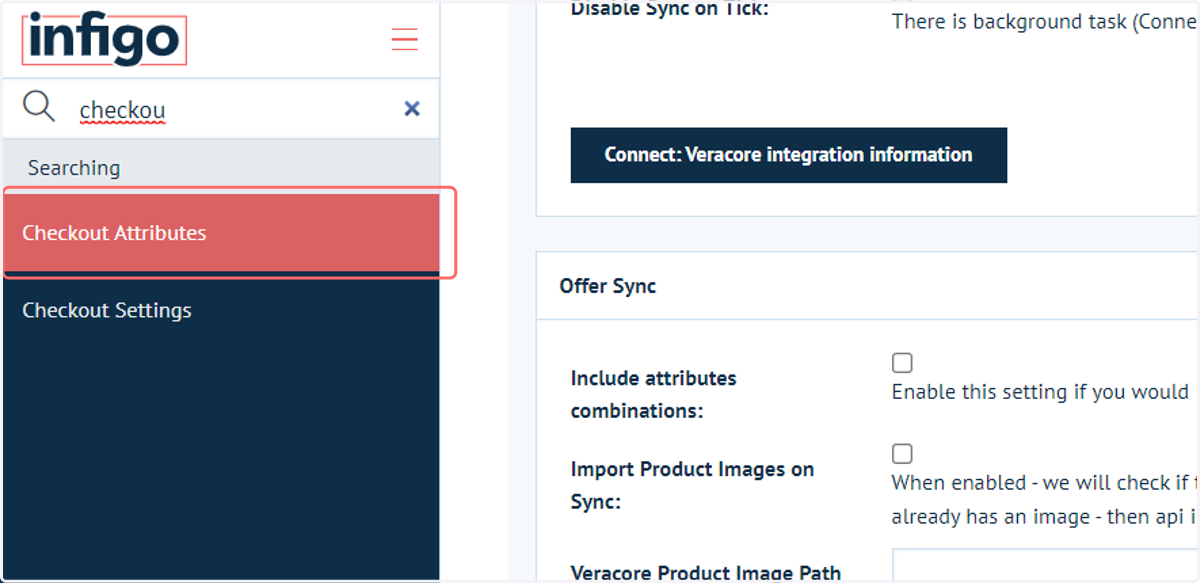
11. Navigate to Checkout Attributes
We need to ensure that our Rush checkout attribute is correctly configured to send information to Veracore in the correct format.
12. Click on Connect Link
In this example, our "Rush order?" attribute has two values, yes and no.
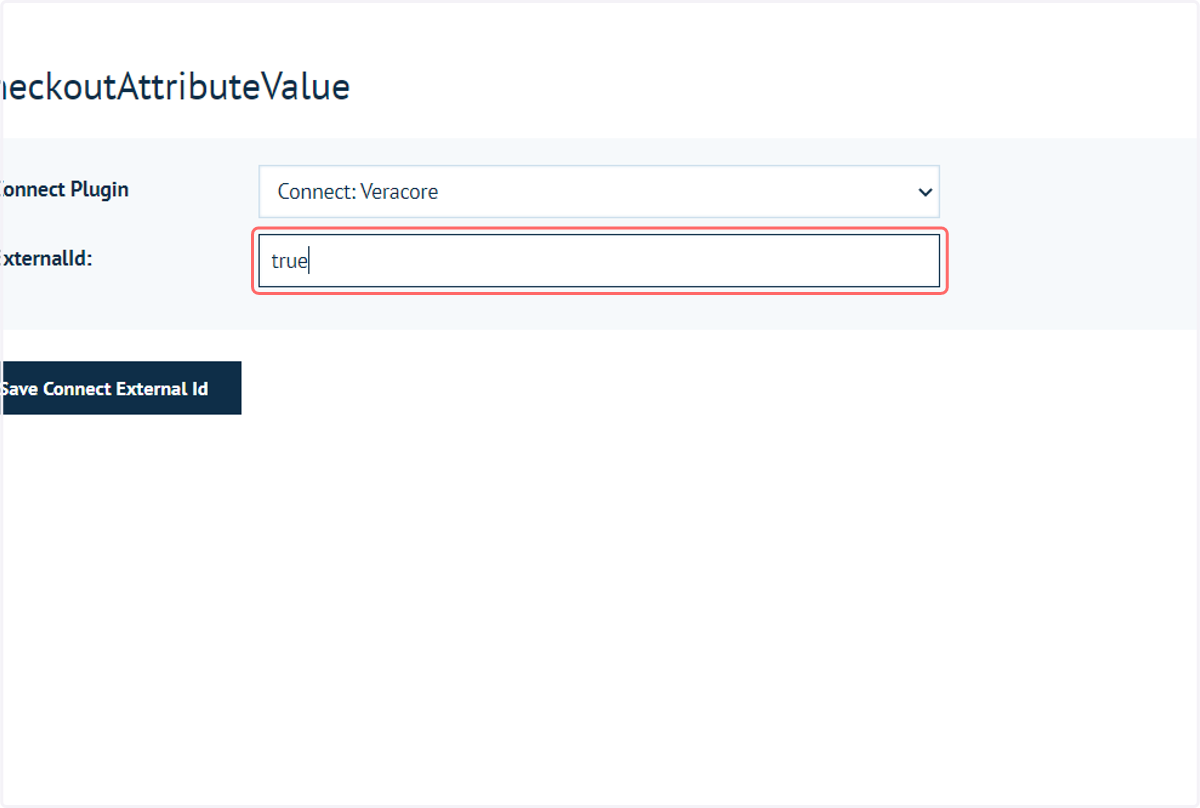
Veracore cannot read these values, instead requiring a True or False value.
We can set these using the Connect Link button on the attribute values.
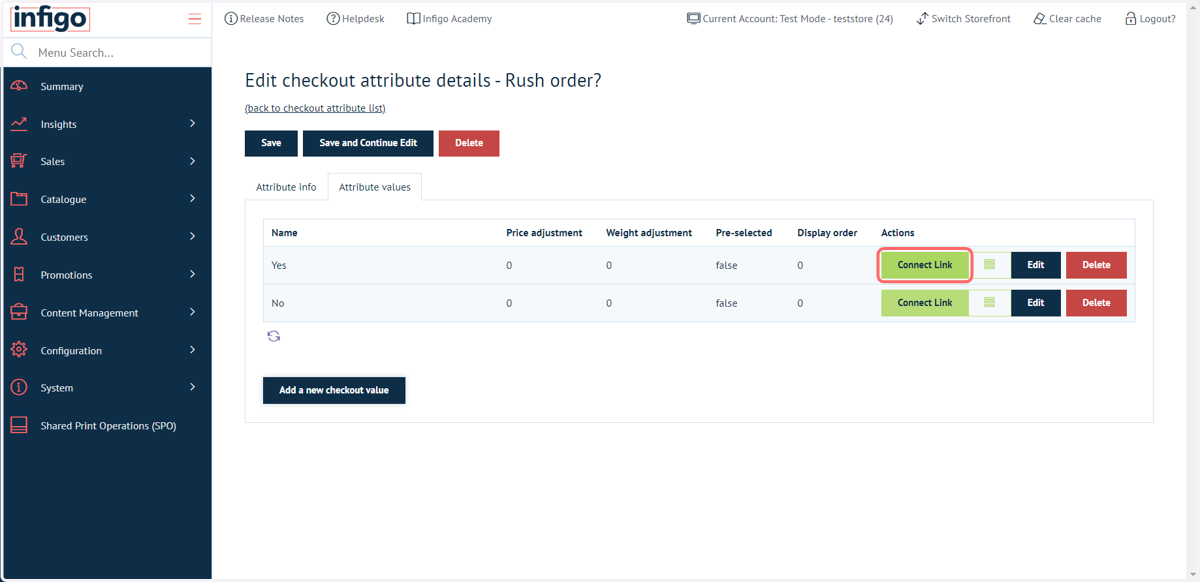
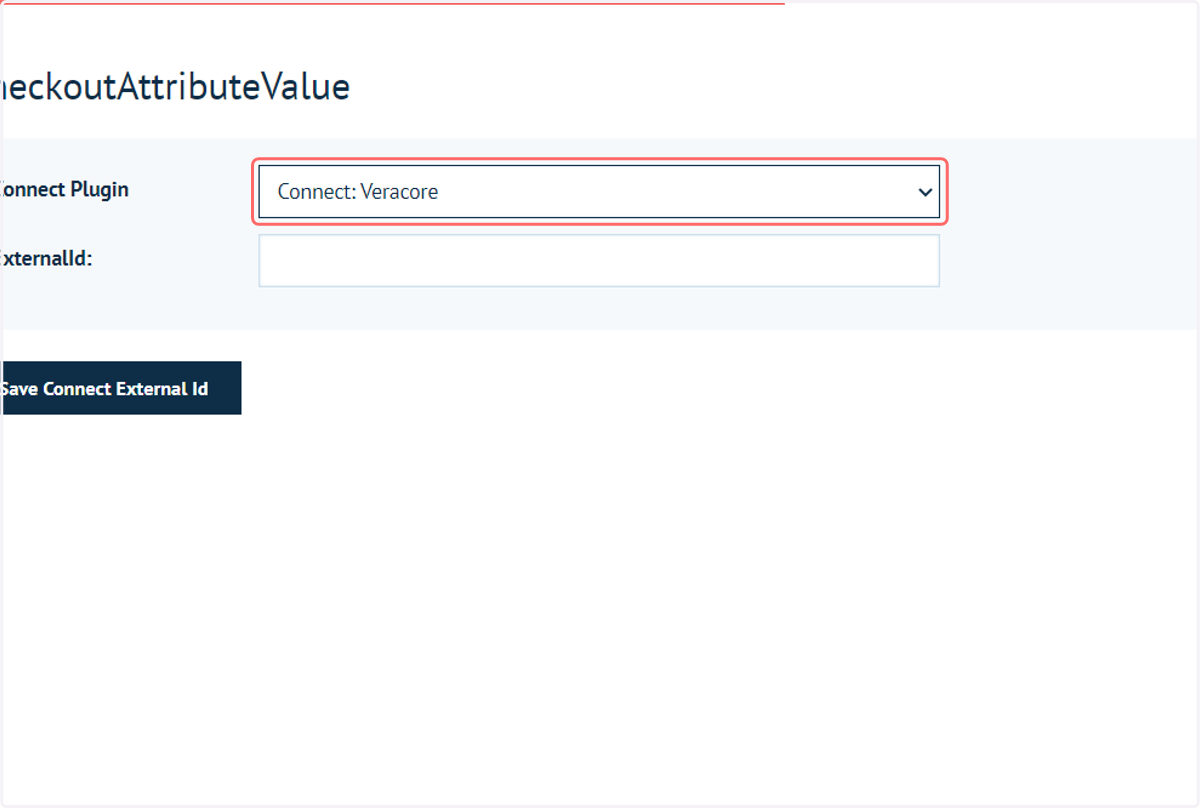
13. Select Connect: Veracore
14. Type "true"
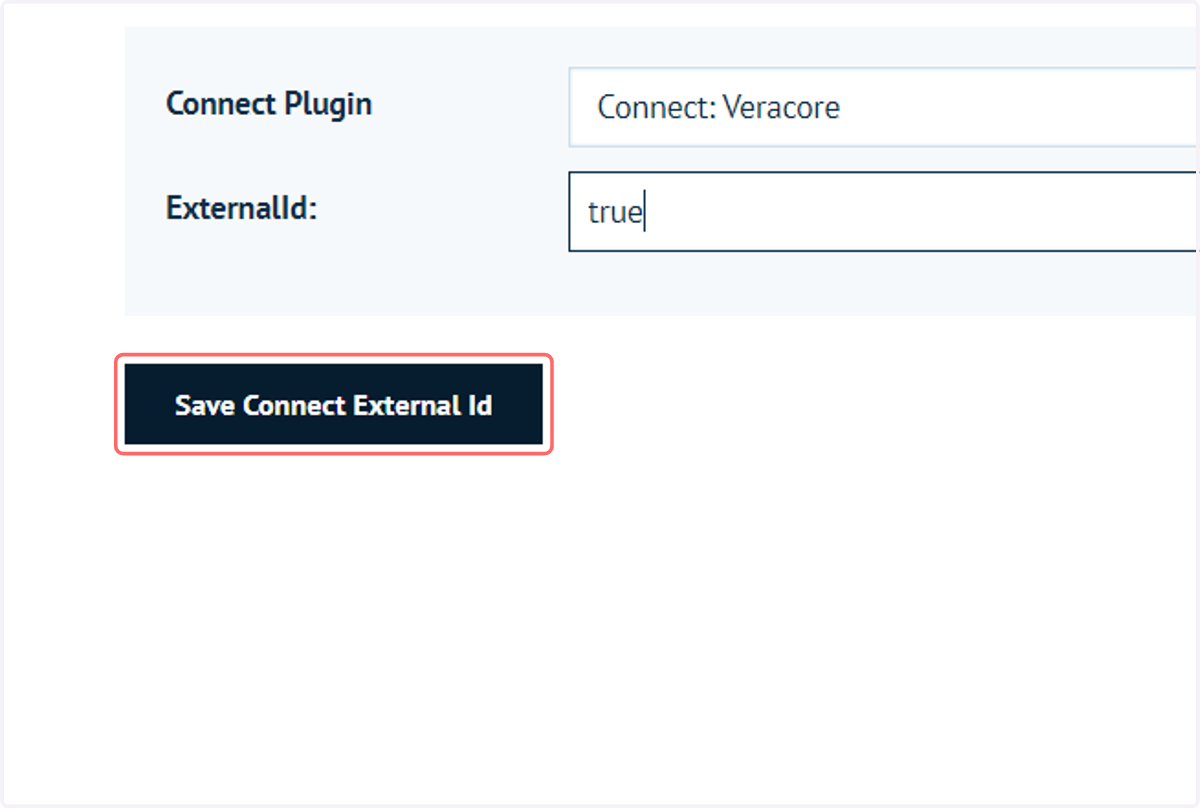
15. Click on Save Connect External Id
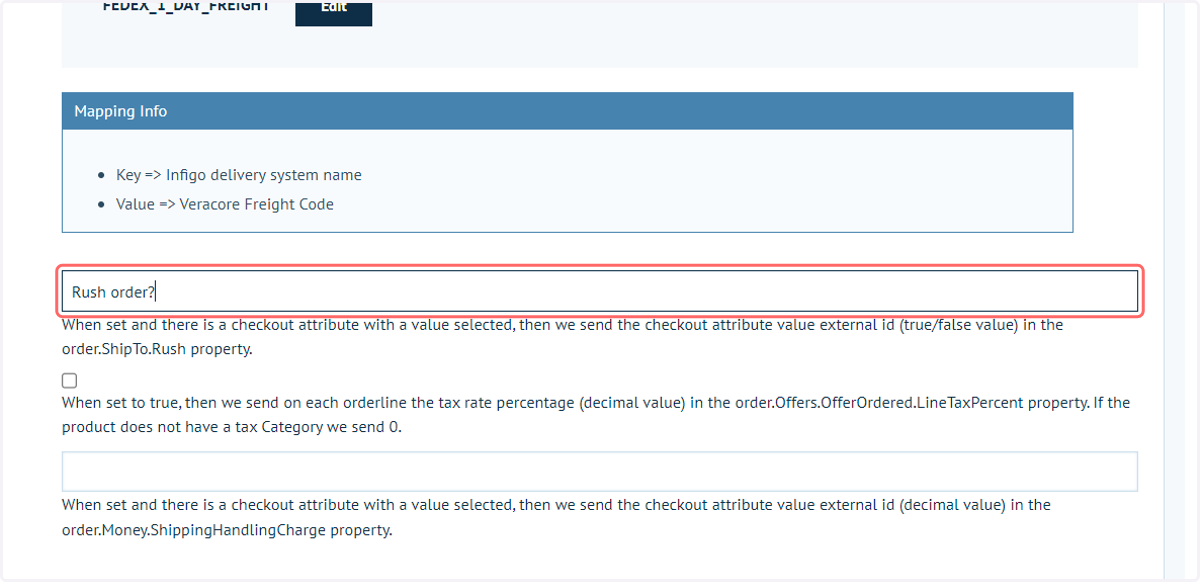
16. Input the Checkout Attribute
Input the Checkout Attribute name into the Checkout Rush Attribute field on the Veracore configuration settings.
17. Click on Save
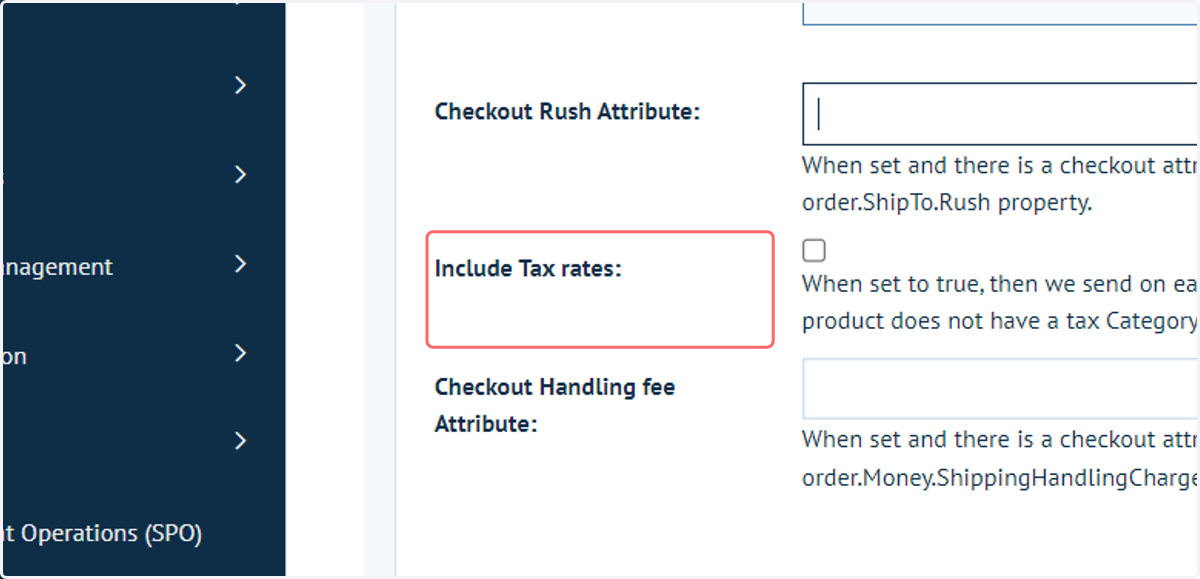
18. Include Tax rates
When set to true, then we send on each orderline the tax rate percentage (decimal value) in the order.Offers.OfferOrdered.LineTaxPercent property. If the product does not have a tax Category we send 0.
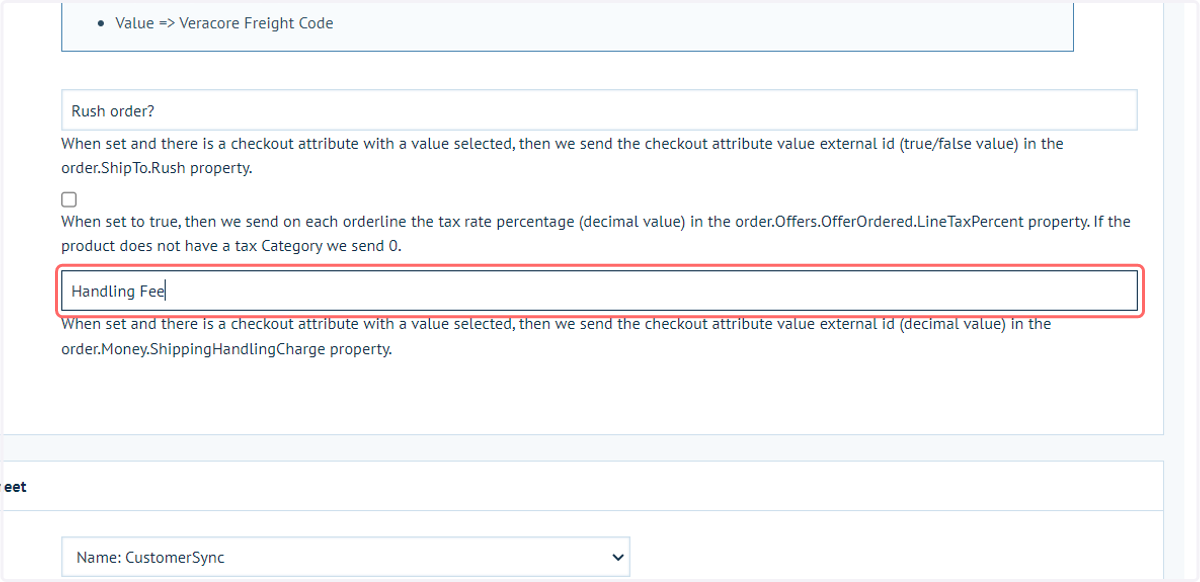
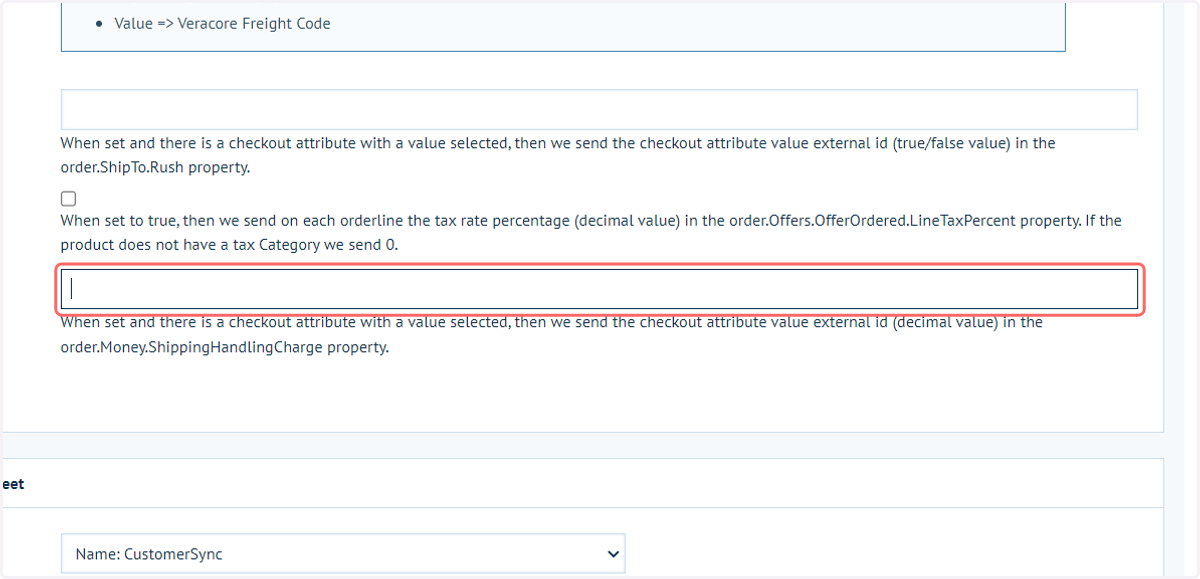
19. Checkout Handling fee Attribute
When set and there is a checkout attribute with a value selected, then we send the checkout attribute value external id (decimal value) in the order.Money.ShippingHandlingCharge property.
20. Specifying a handling fee
Navigate again to the Checkout Attributes area.
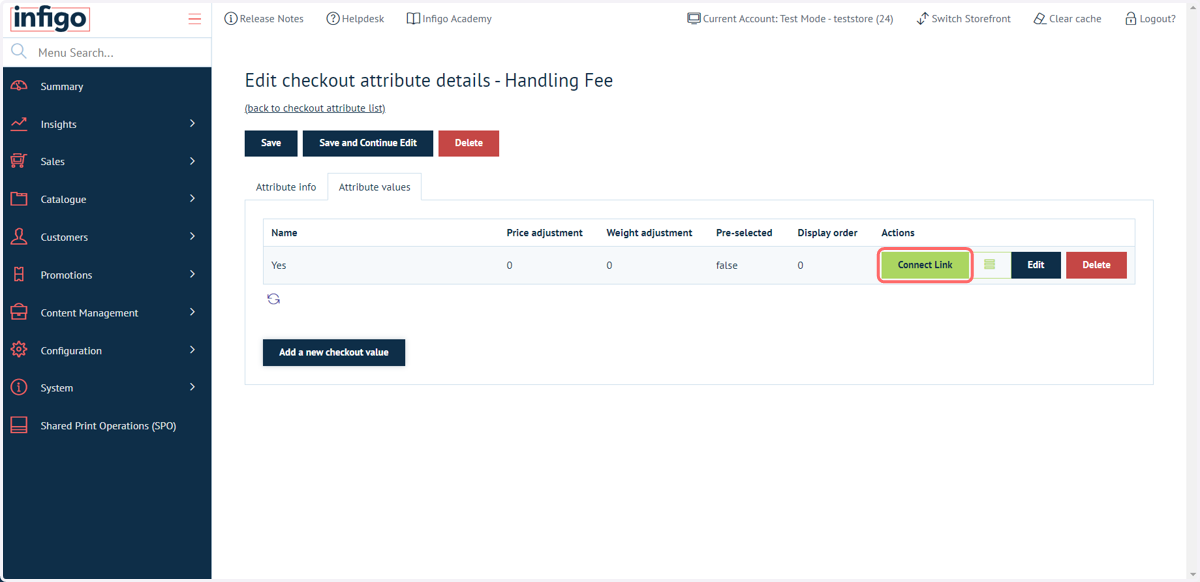
In this example, we have created a Checkout Attribute named "Handling Fee" with a single attribute value of "Yes". Multiple values can be defined if required.
Click on the Connect Link button to determine the information that a "Yes" selection sends to Veracore.
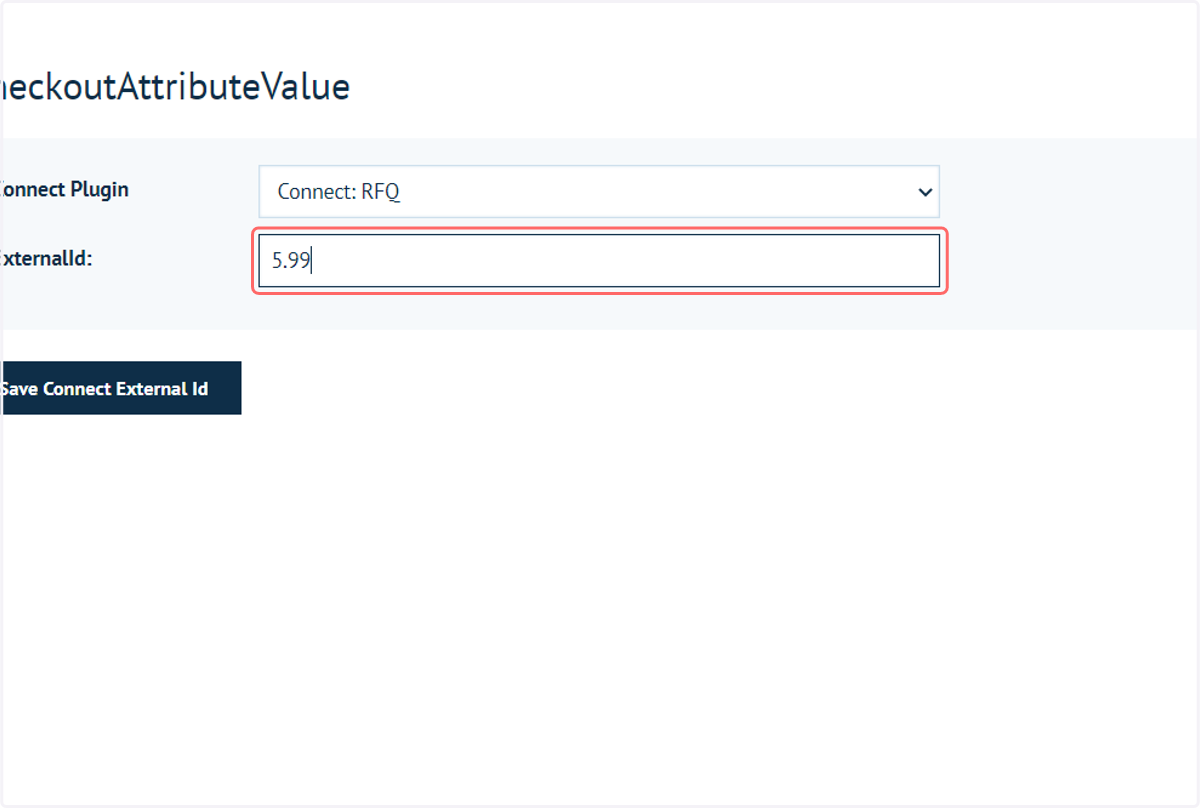
21. Type the numerical handling fee value to be sent to Veracore
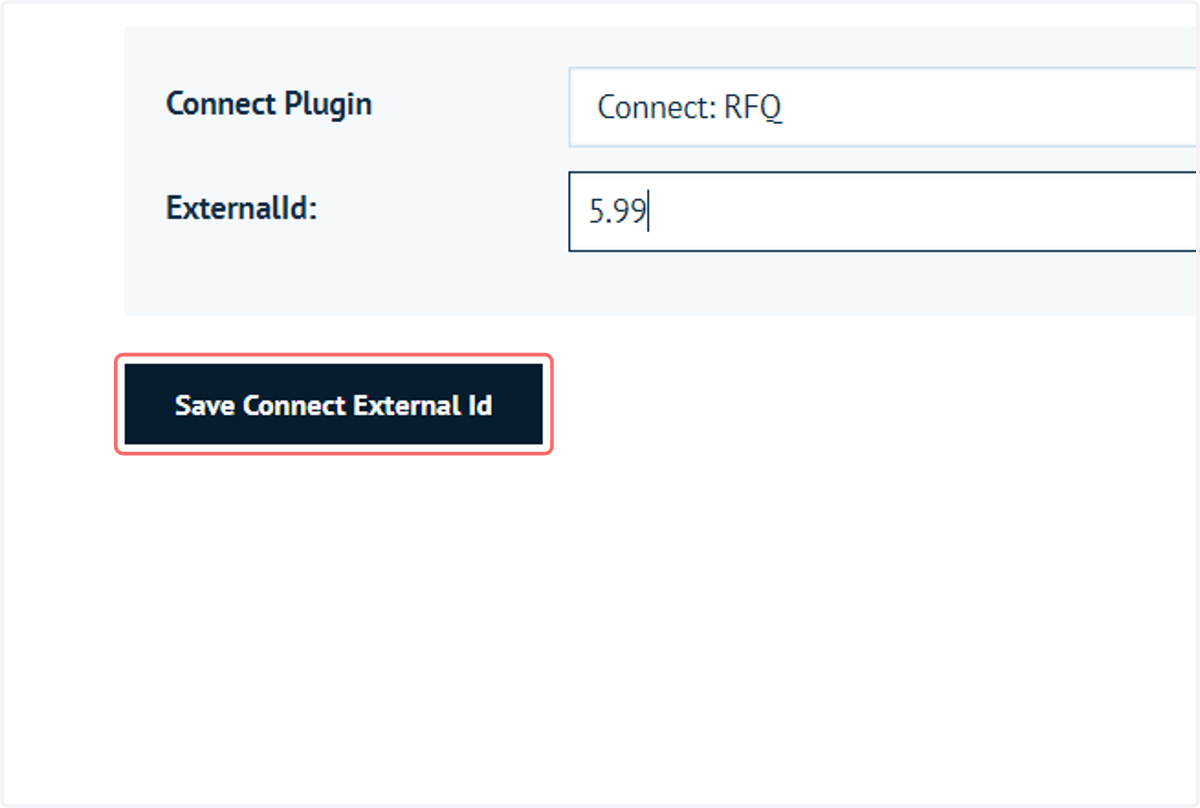
22. Click on Save Connect External Id
23. Navigate back to the Veracore configuration settings and input the Checkout Attribute name
Remember to save the plugin settings at the top of the page!