Workflow with Zapier
My Zaps | Zapier
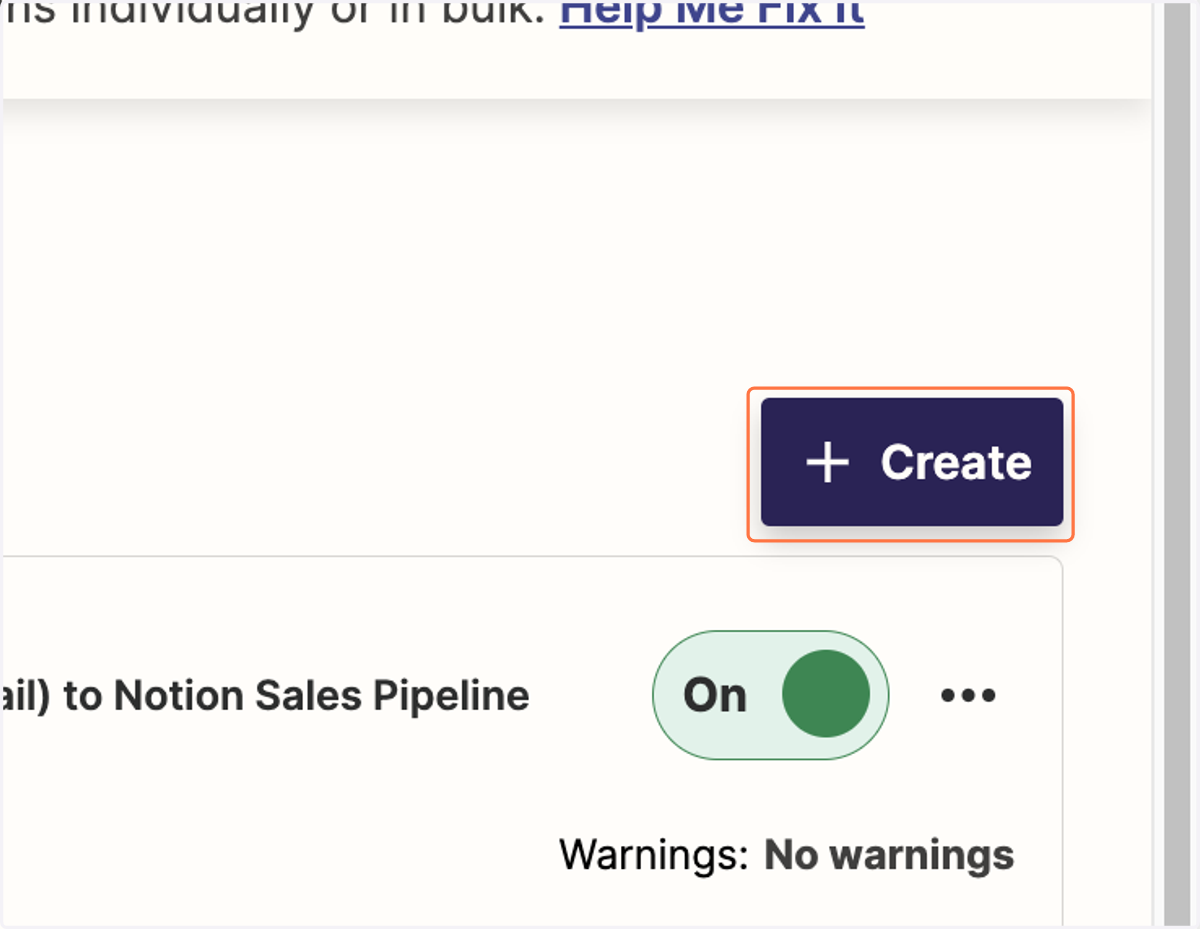
1. Click on Create
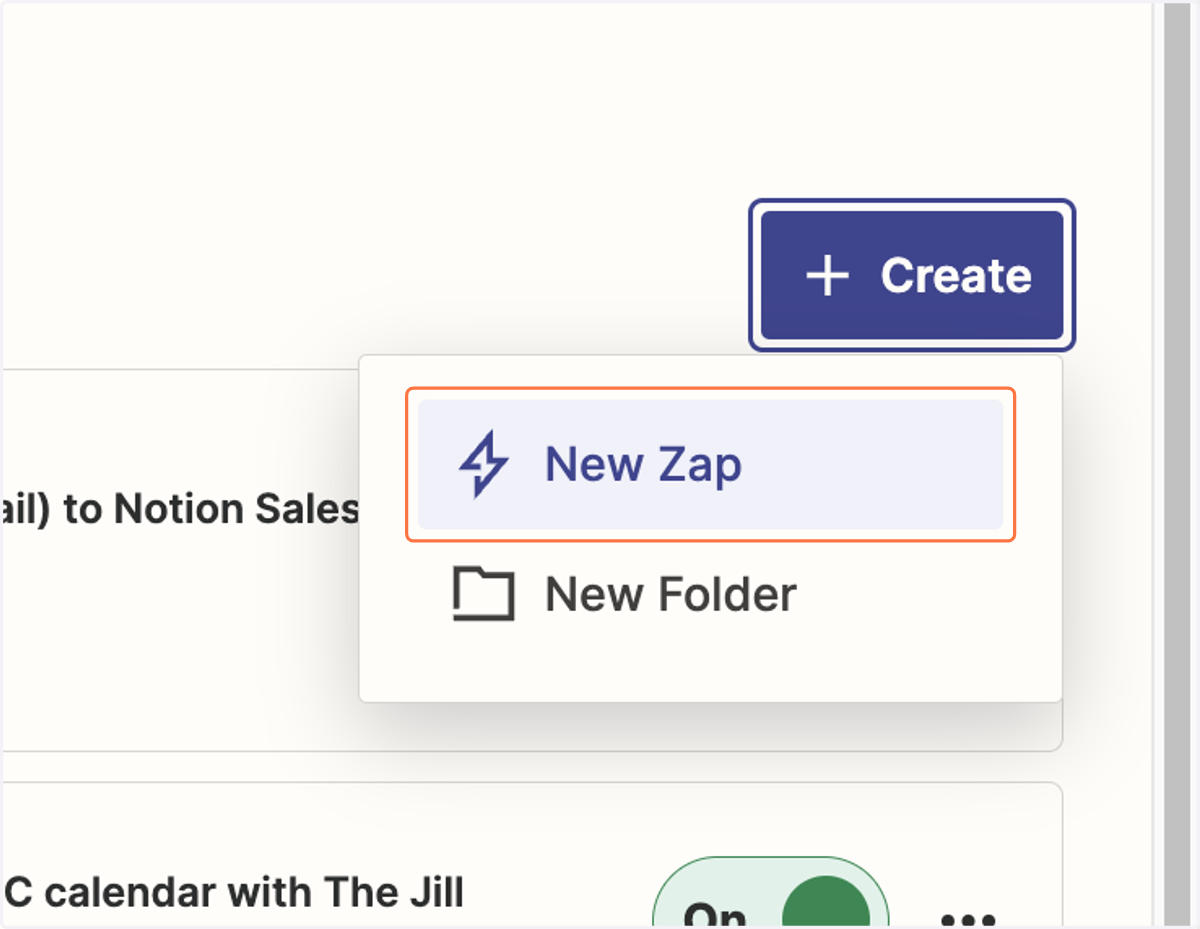
2. Click on New Zap
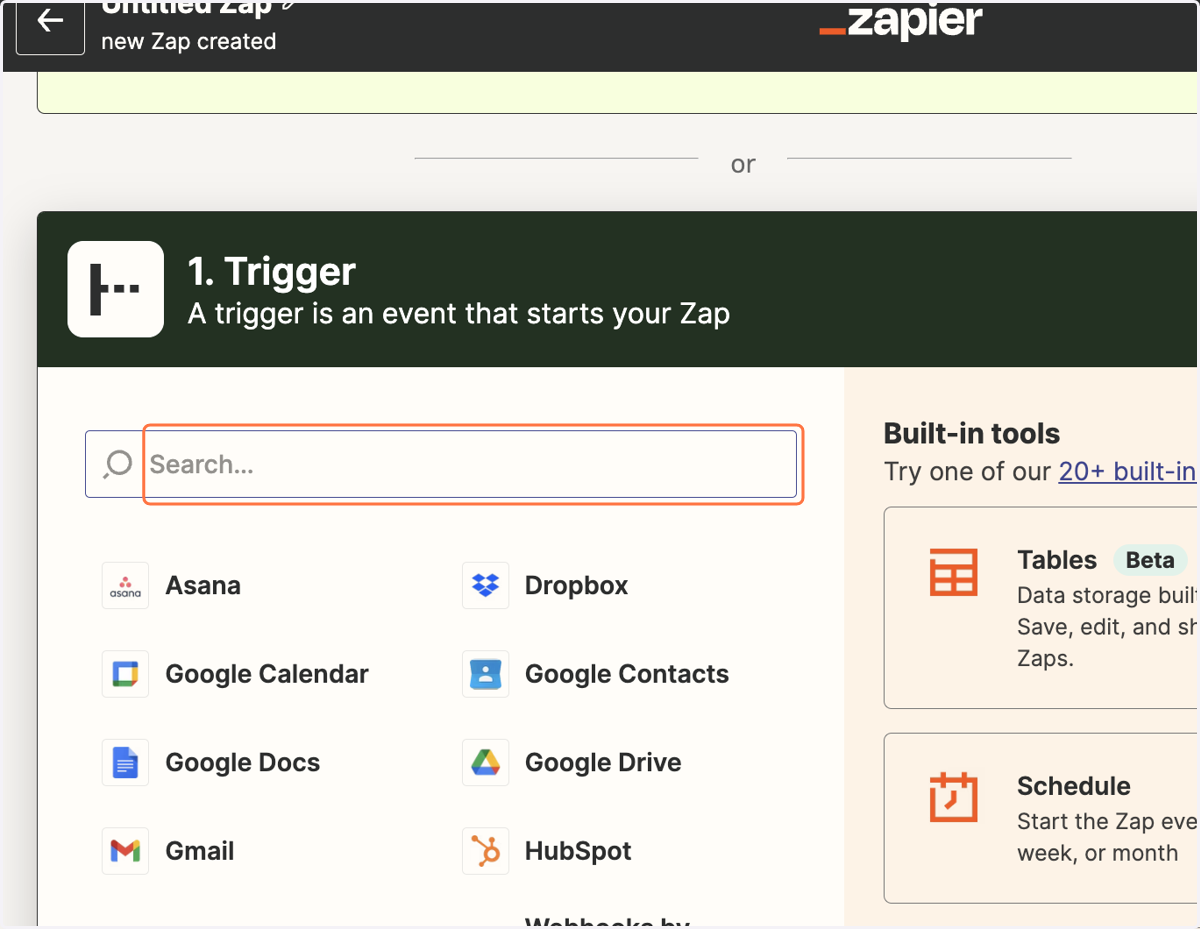
3. You can search for the app of your choice to be your Trigger...
The Trigger is the event that will let Zapier know it's time to take action. For example, getting an email, someone submitting a contact form on your website, publishing content to Instagram.
4. Or click on one of the popular apps provided
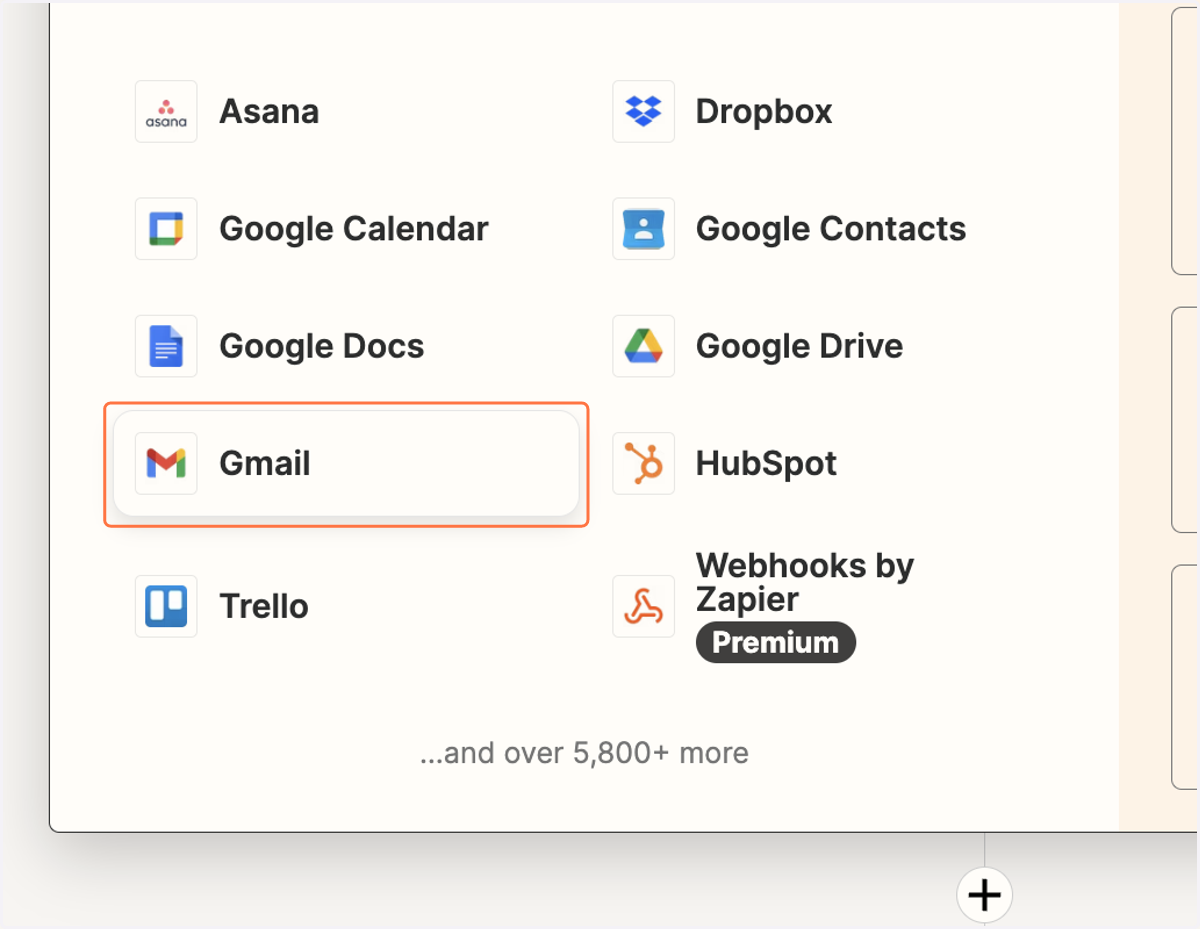
5. Choose the event that will trigger your Zap
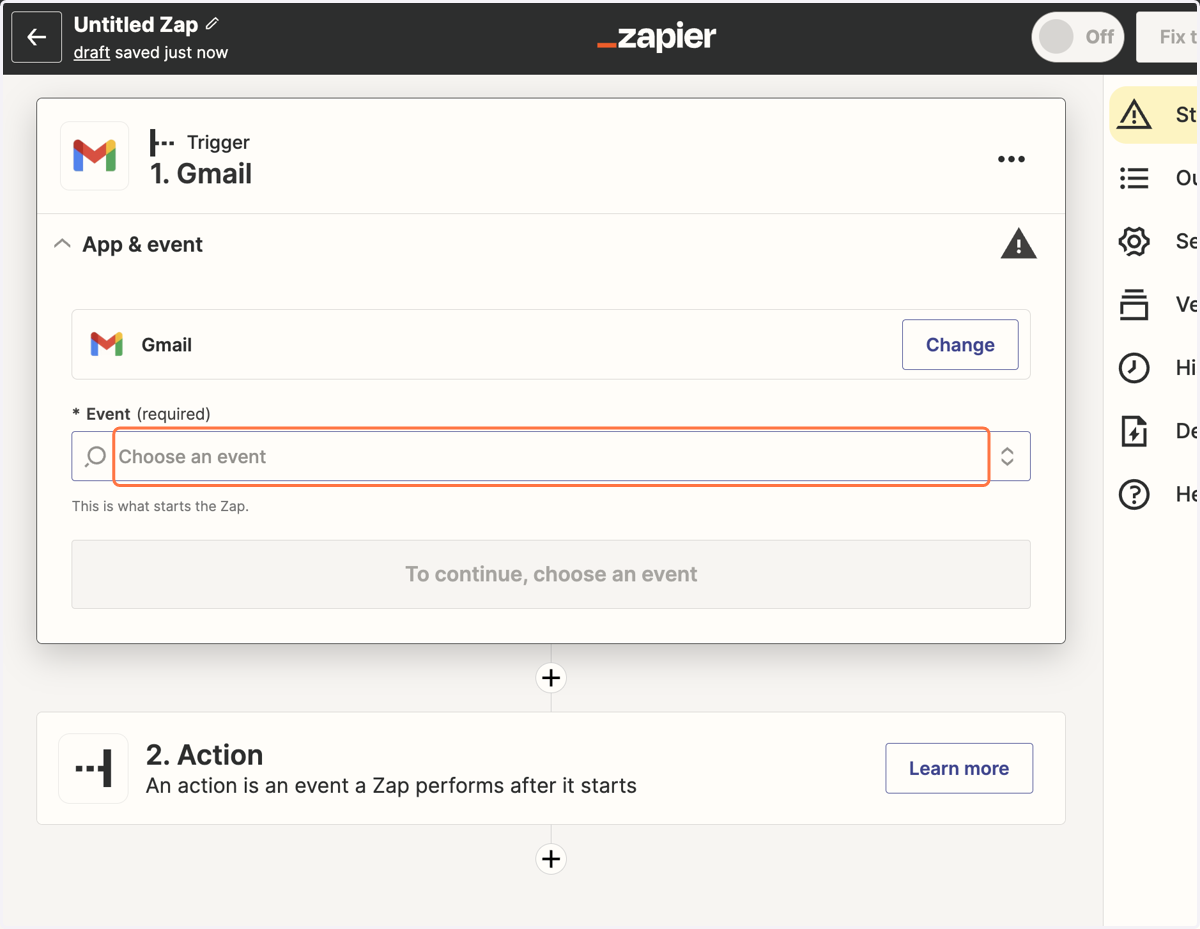
6. Zapier will give you all possible trigger options for that app
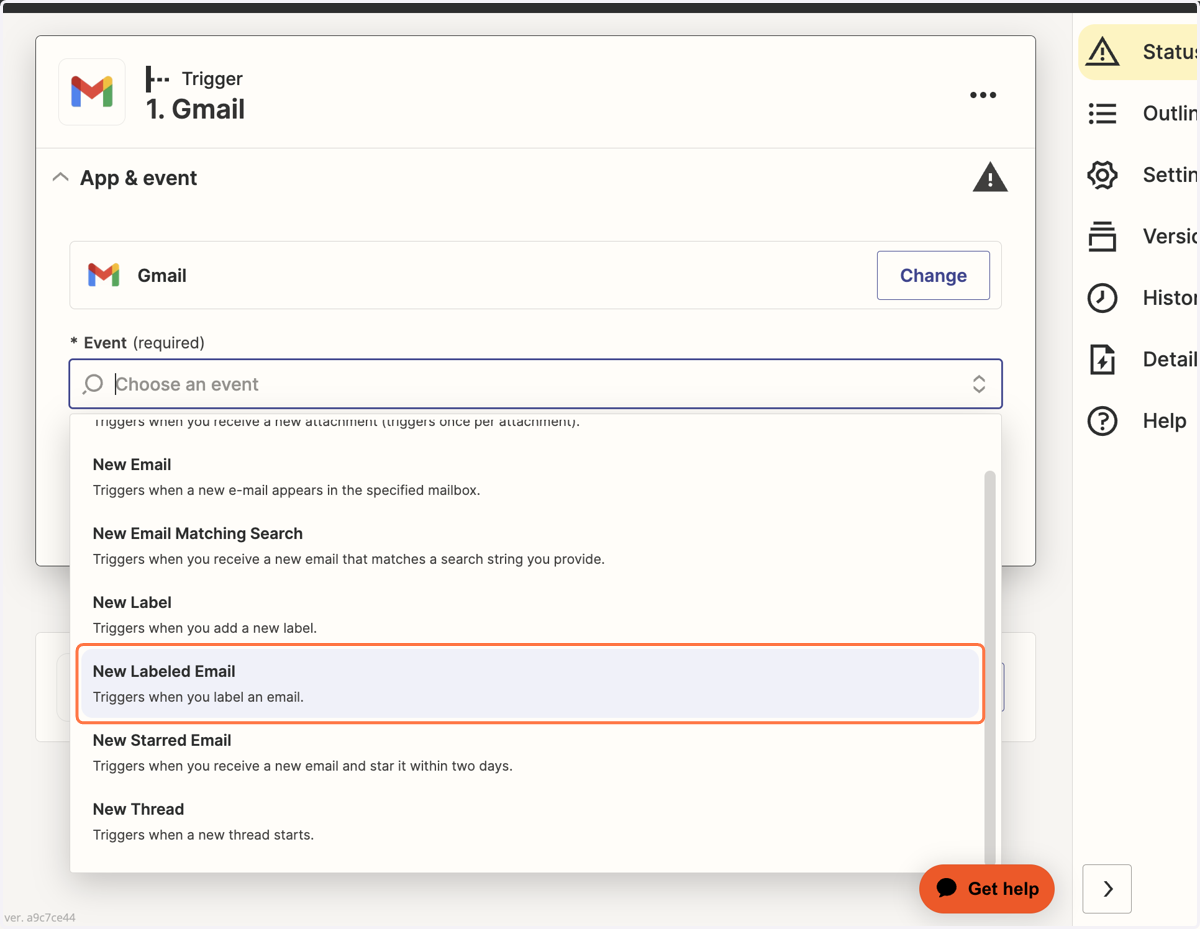
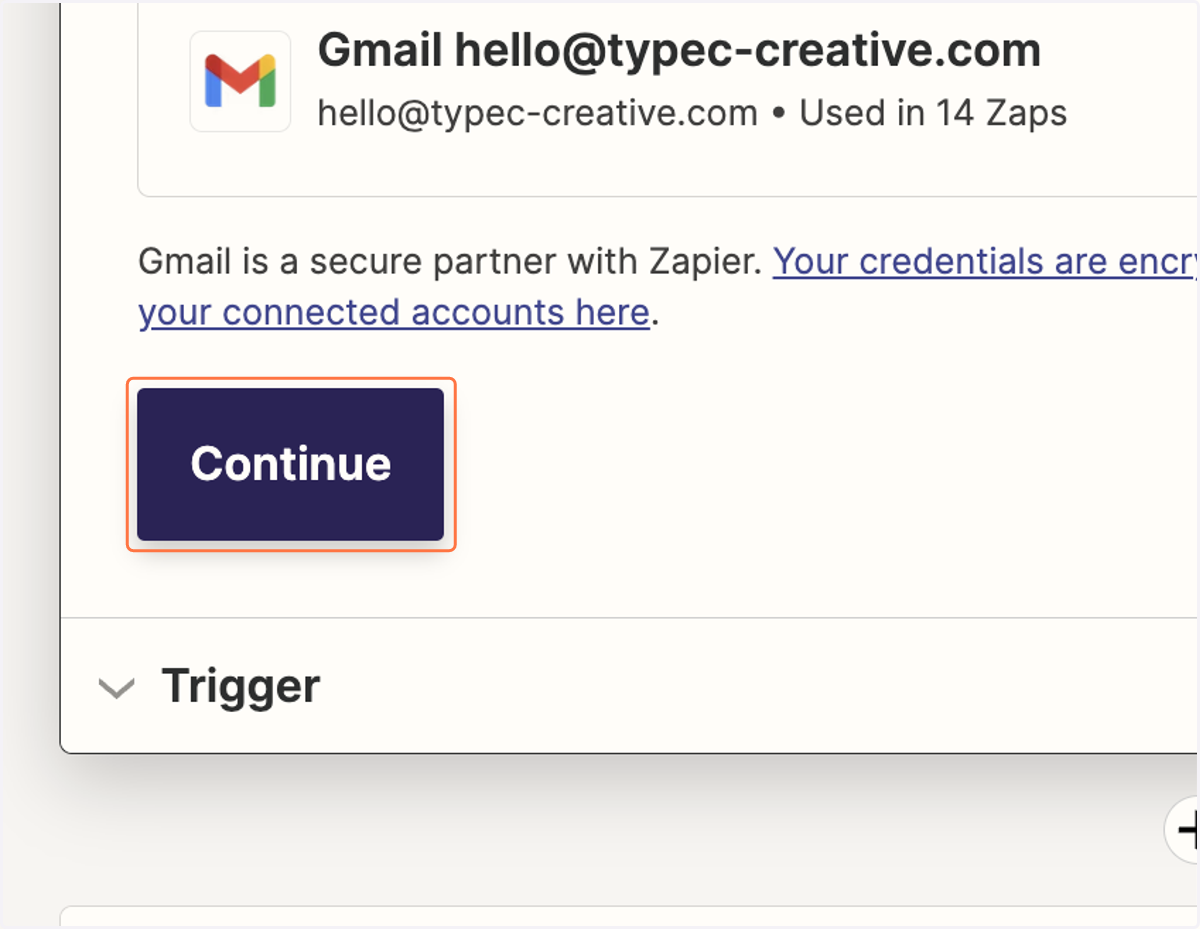
7. Click on Continue
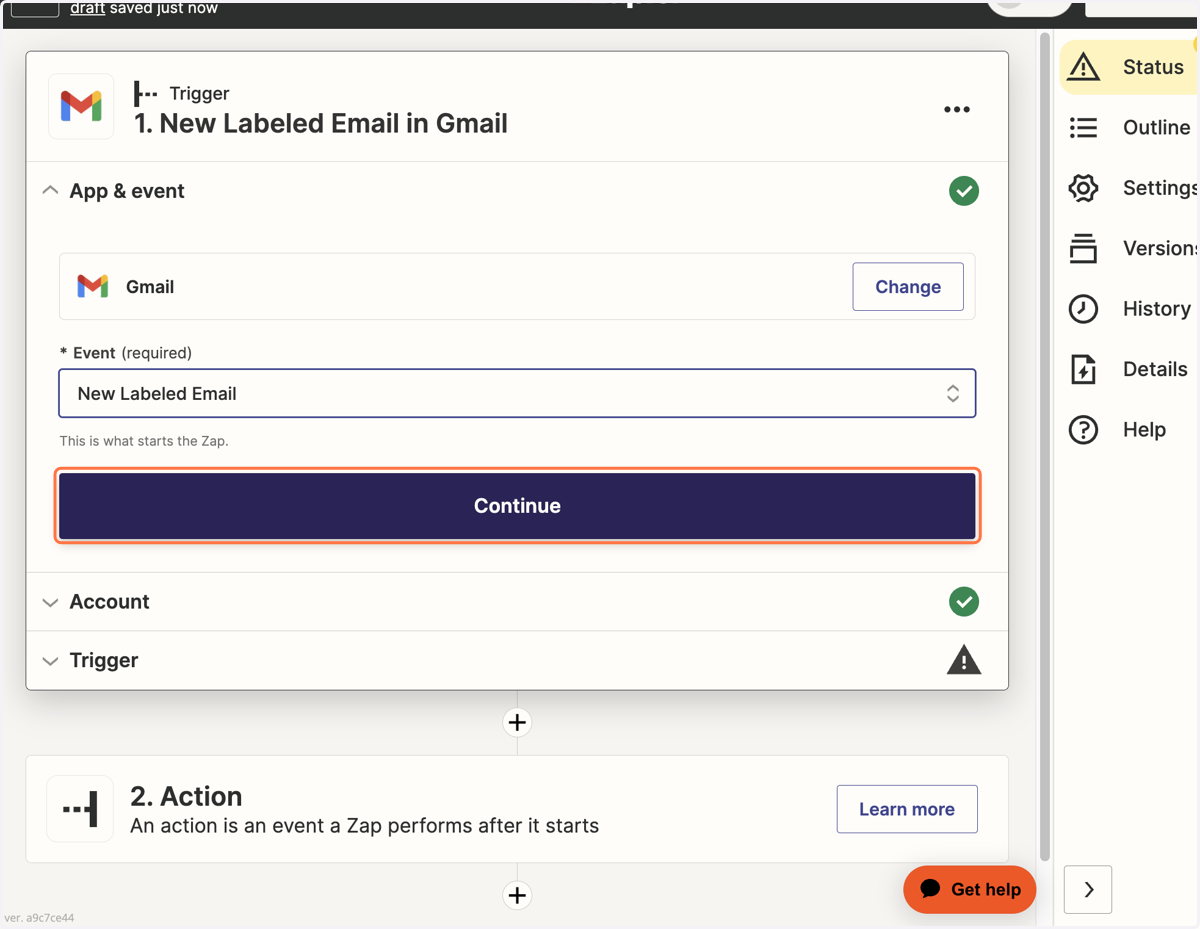
8. Choose the account you would like to use for this Zap and then click on Continue
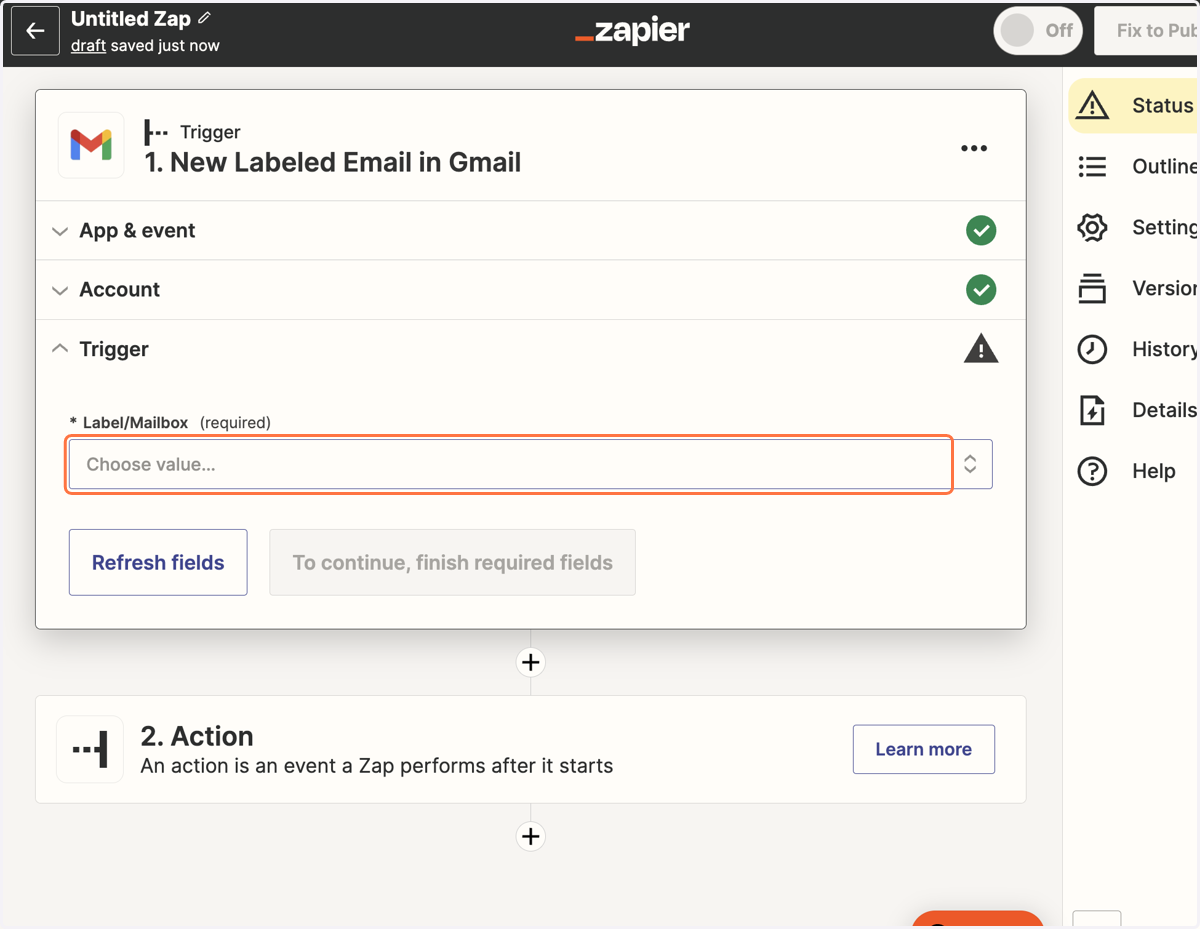
9. Click on Choose value…again, Zapier will show you what's possible in the dropdown menu
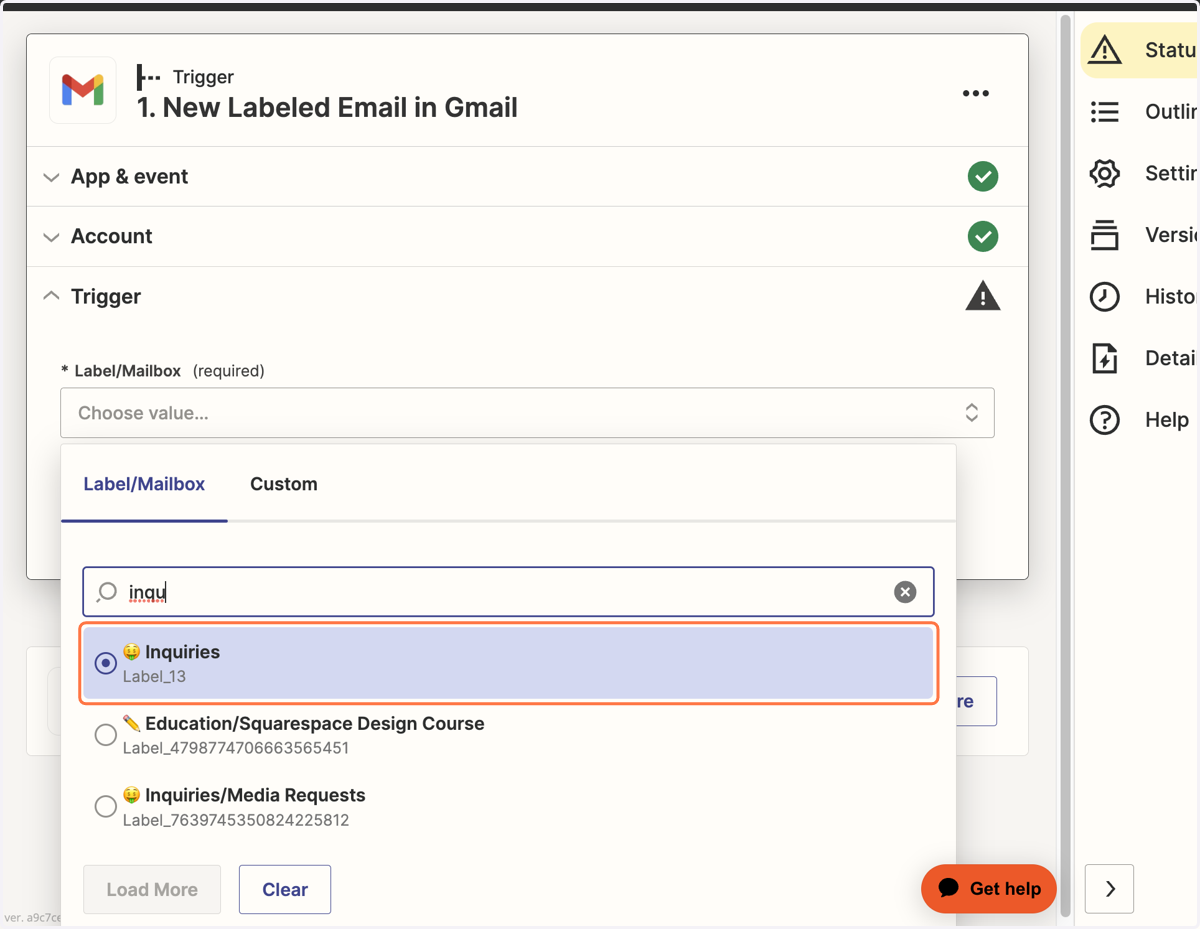
10. Click on your trigger option in the dropdown (this step may not be necessary based on the trigger selected)
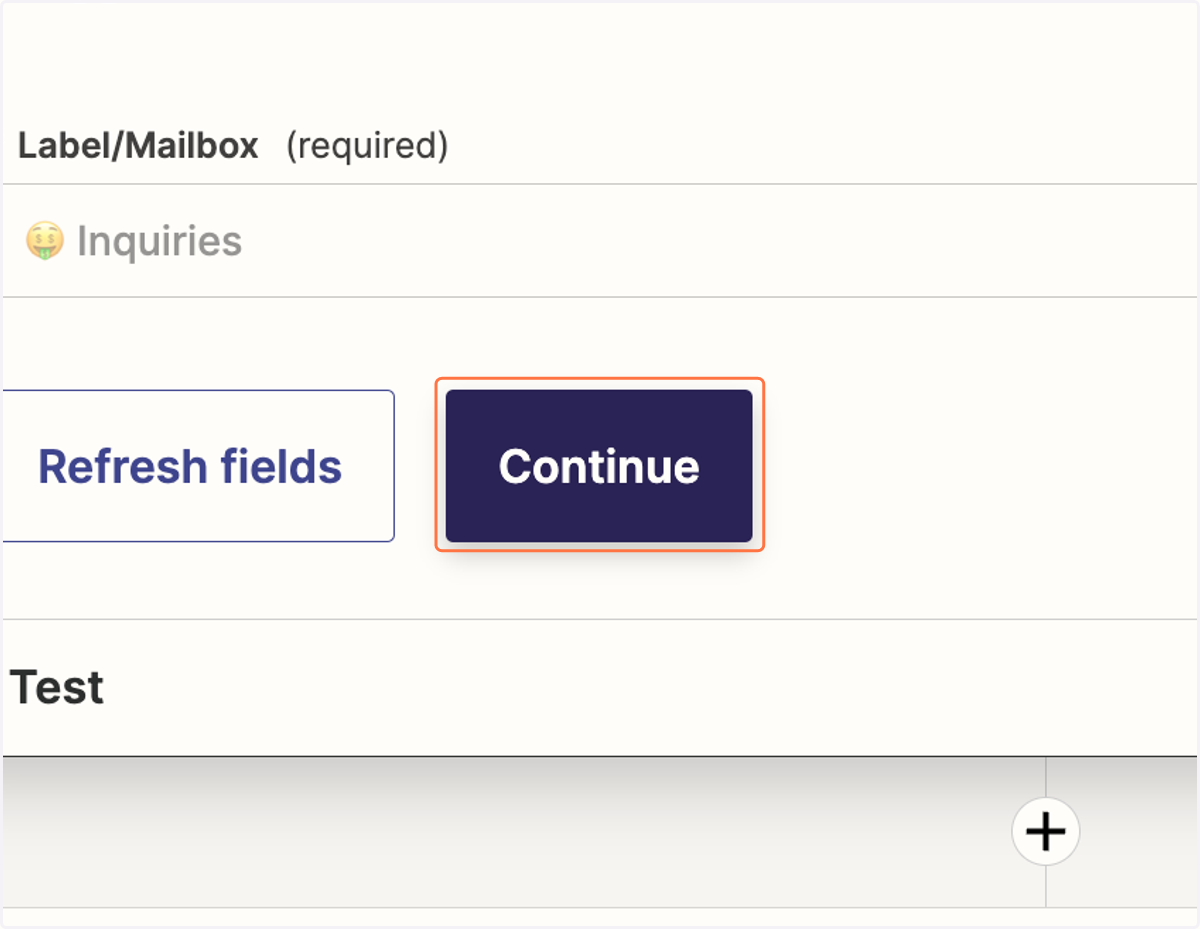
11. Click on Continue
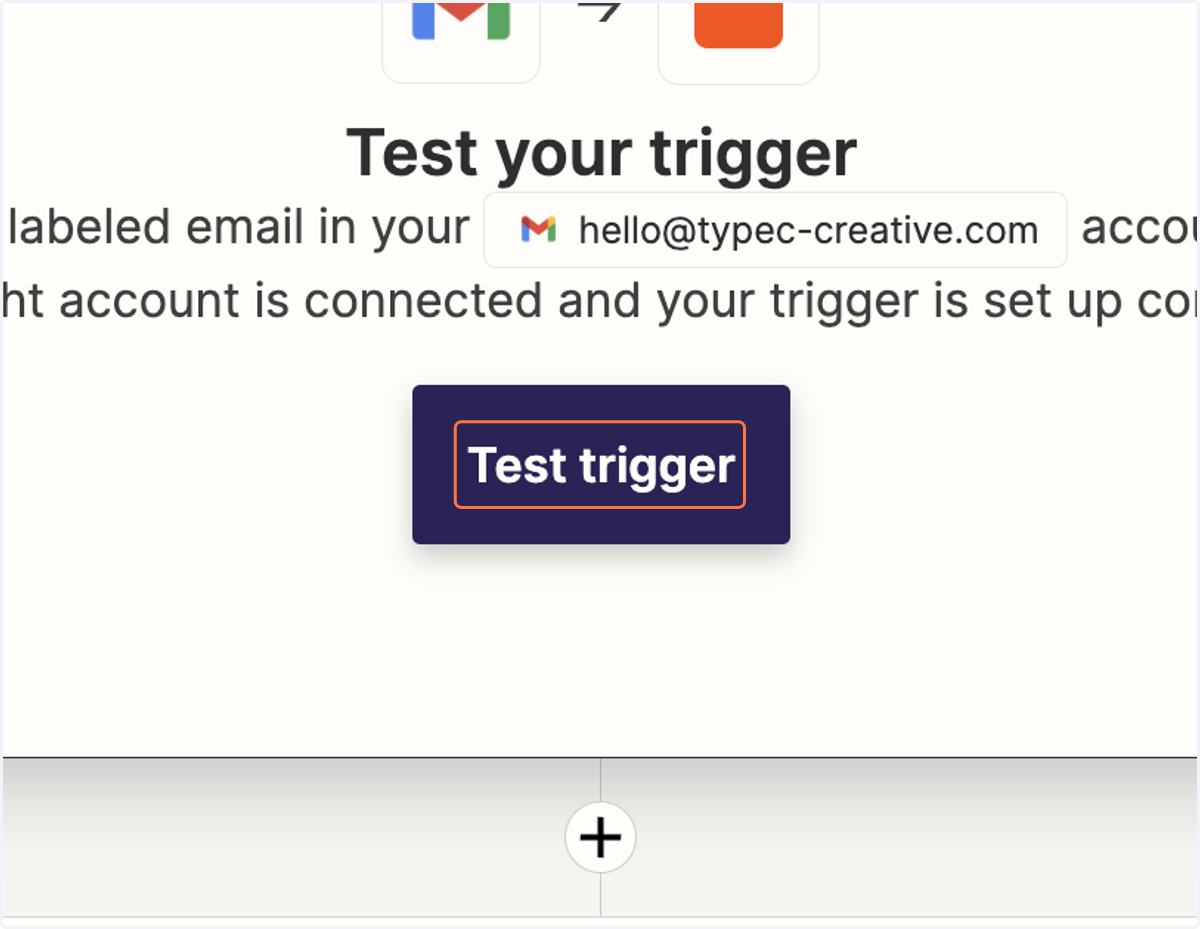
12. Click on Test trigger
This will test the trigger / pull appropriate data so it can inform the action needing to be taken in the next step.
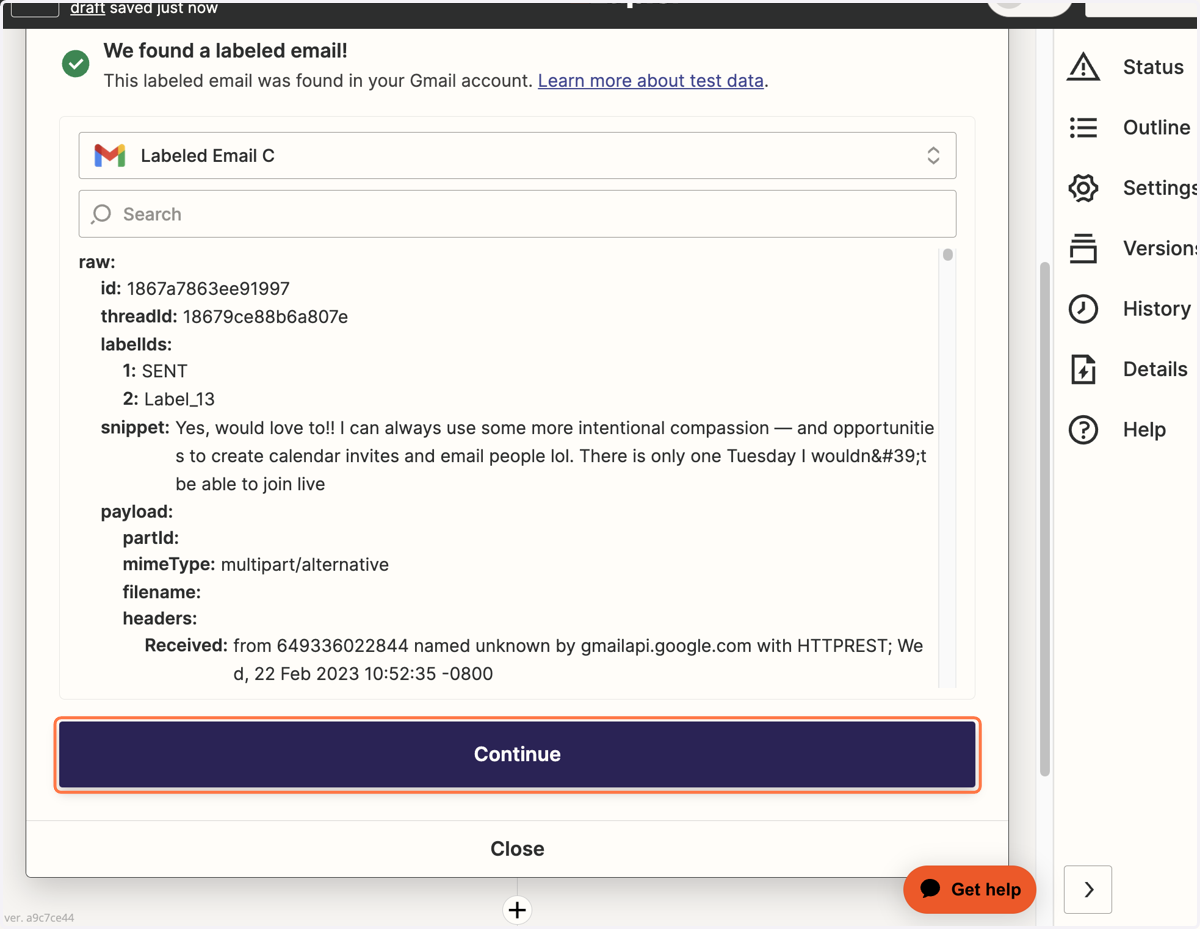
13. Click on Continue once your trigger test is successful
If your test fails in the trigger stage, it means there's no data to collect. In this example, it would mean no email in my inbox is labeled Inquiries. To fix this, I would go into my inbox, label an email with the Inquiries label, and then re-test the trigger. This test HAS TO be successful in order for you to move on to the next step successfully.
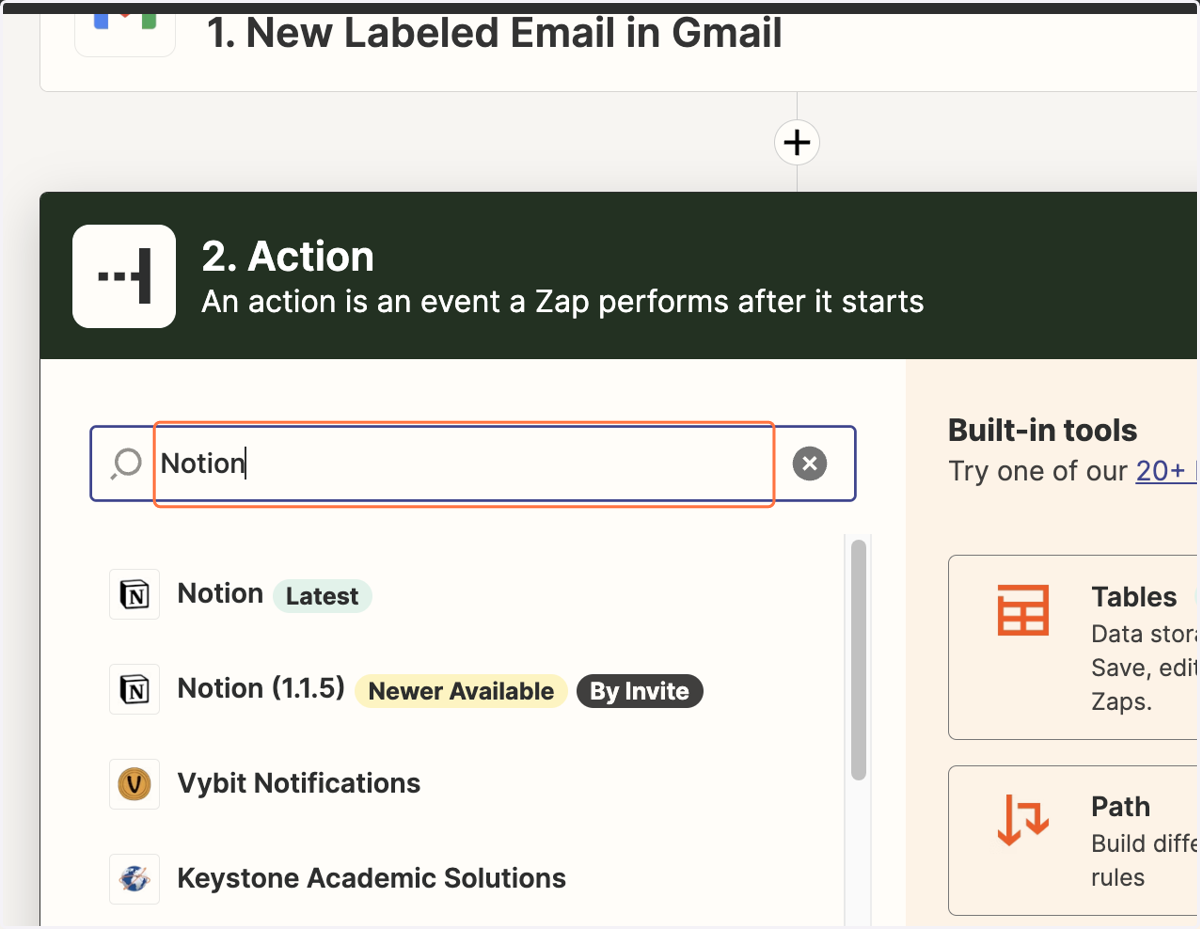
14. Type in the app you'd like to connect to the trigger
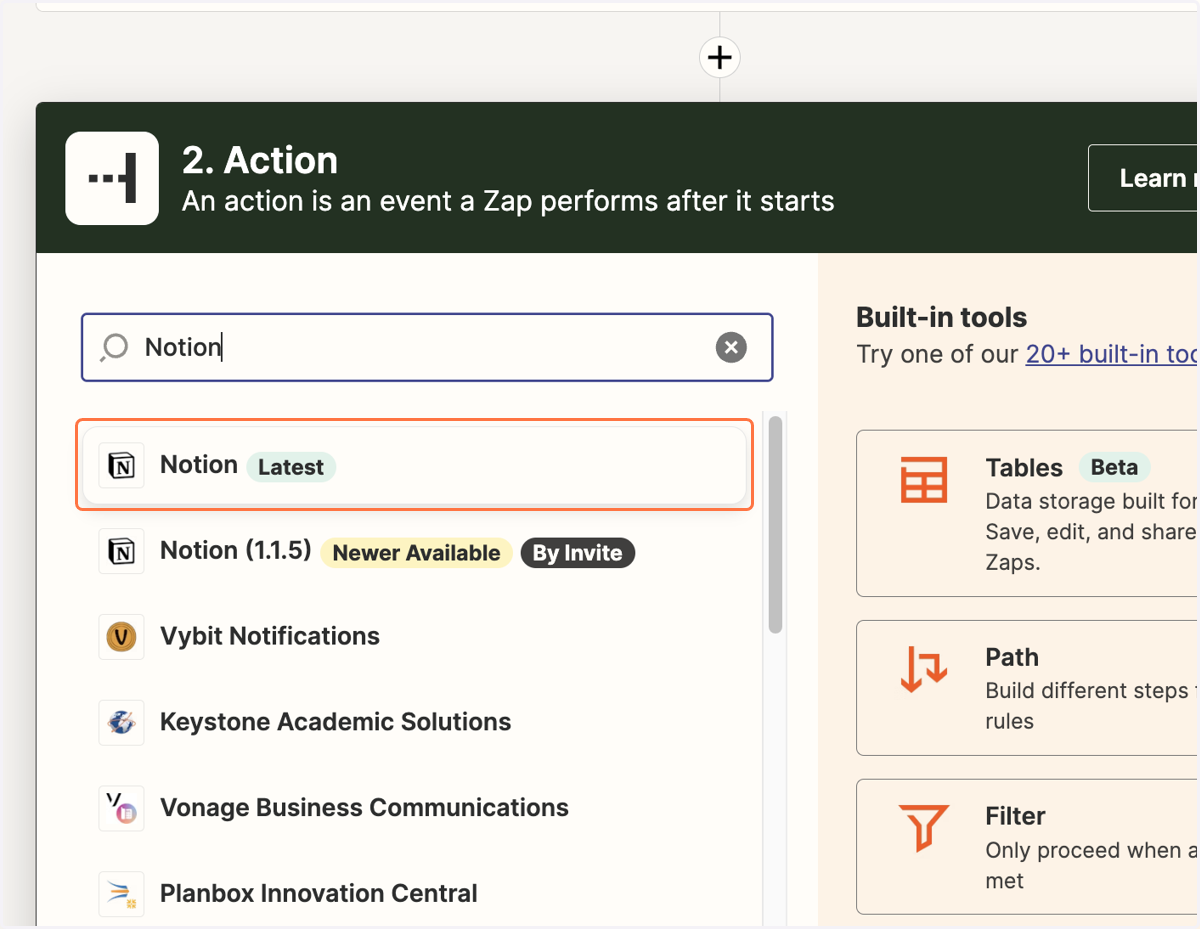
15. Click on the app…
16. Choose the action you'd like the Zap to take once the trigger has happened
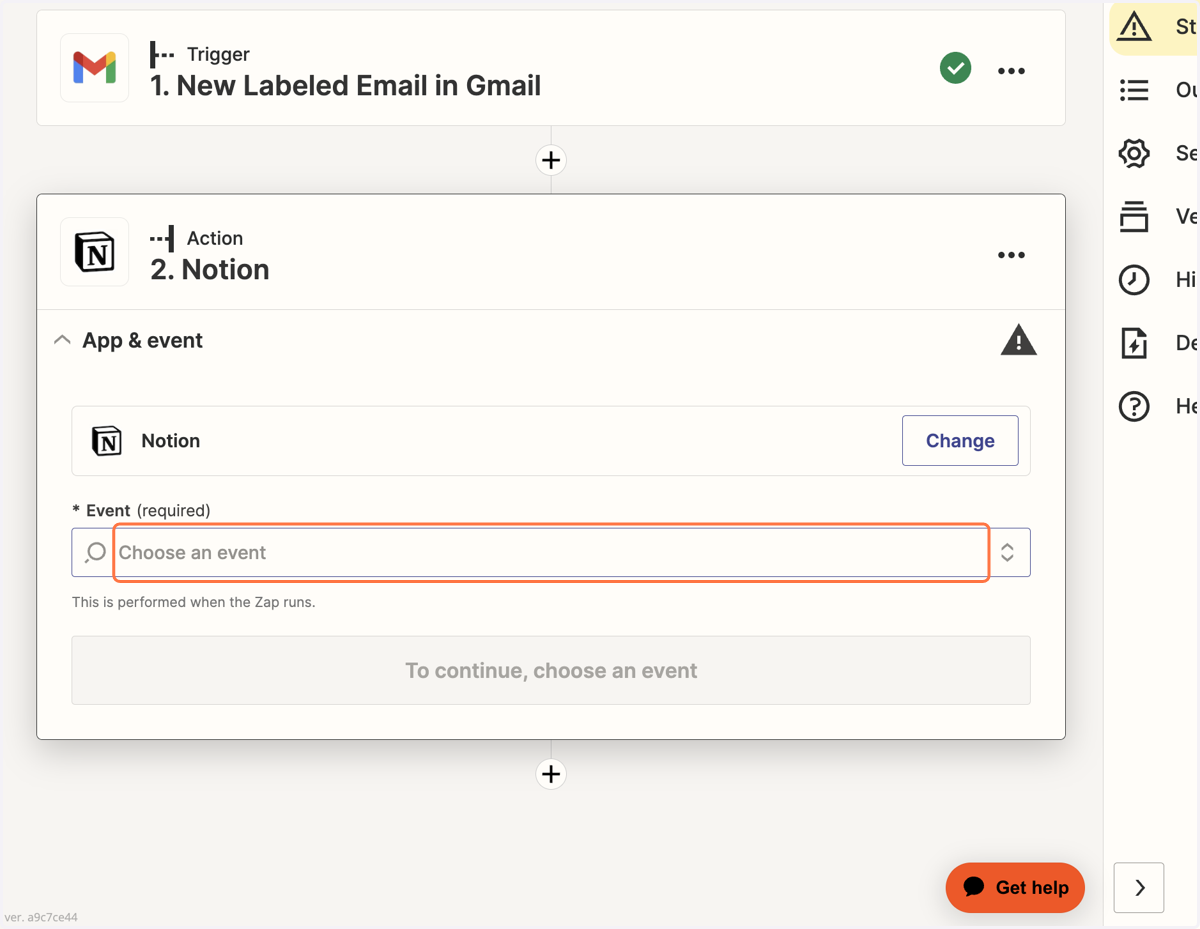
17. Click on Create Database Item of your choice (again, Zapier will show you what's possible within that particular app)
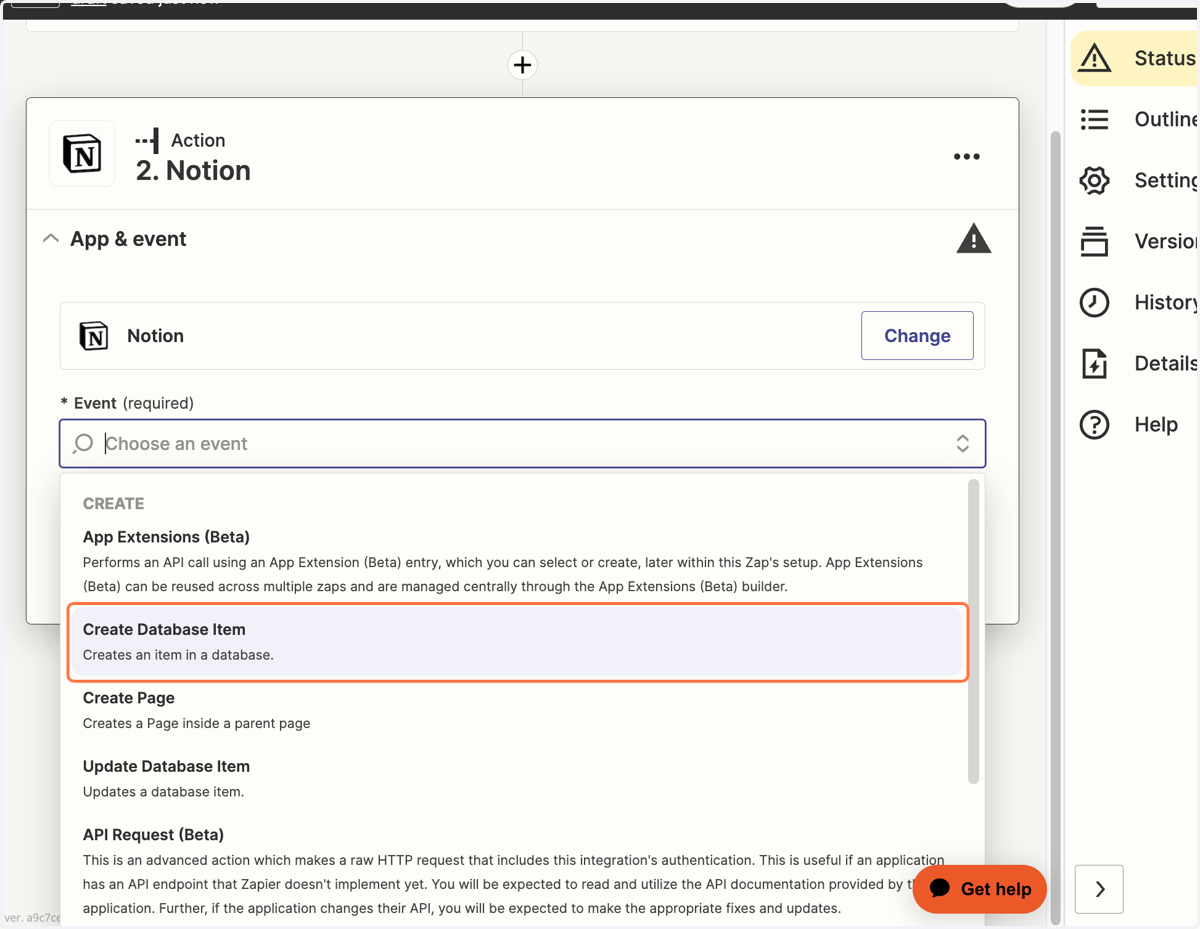
18. Click on Continue once you've chosen the Event
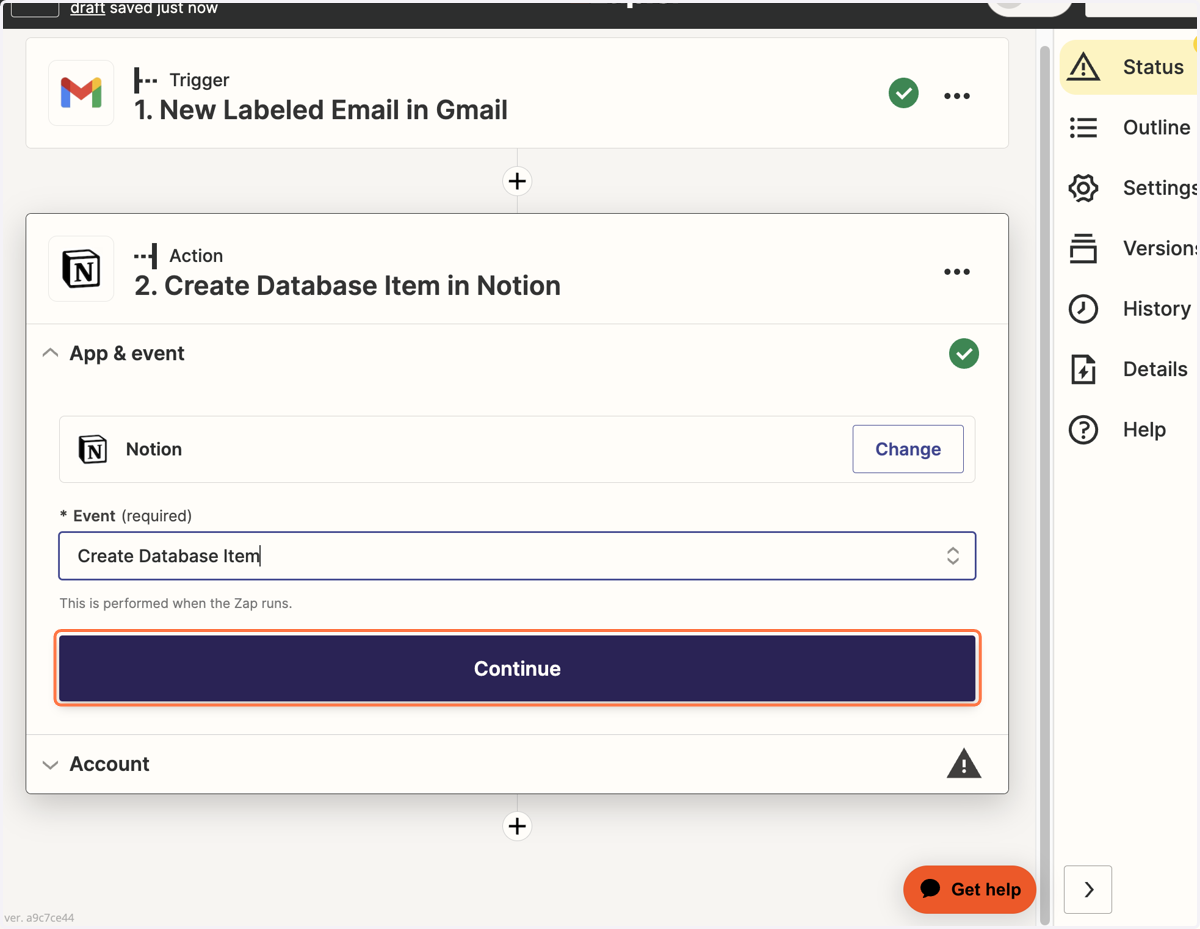
19. Connect your app/account and click on Continue
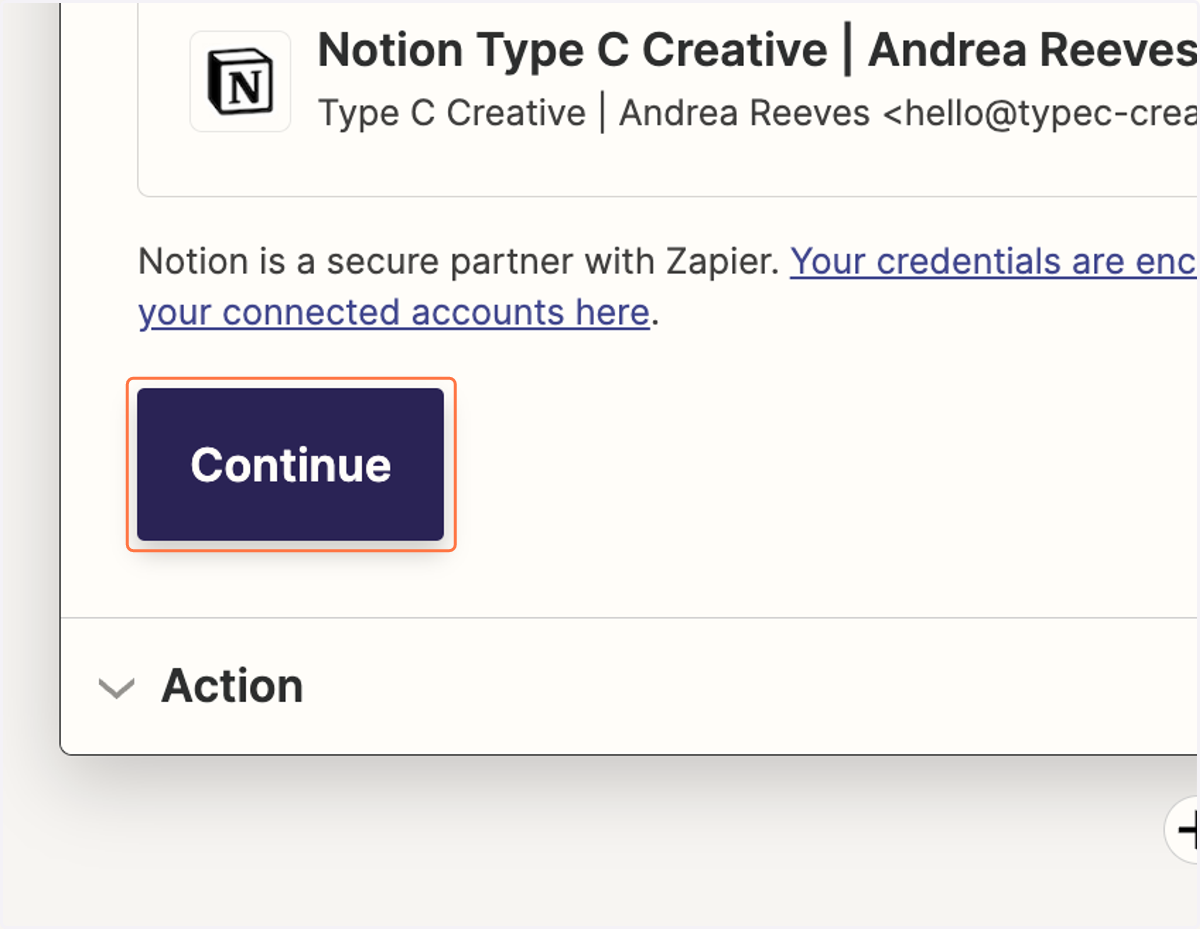
20. Fill out the Action form based on your criteria/data
This step/prompts will vary based on which apps you're using and what you want to make happen.
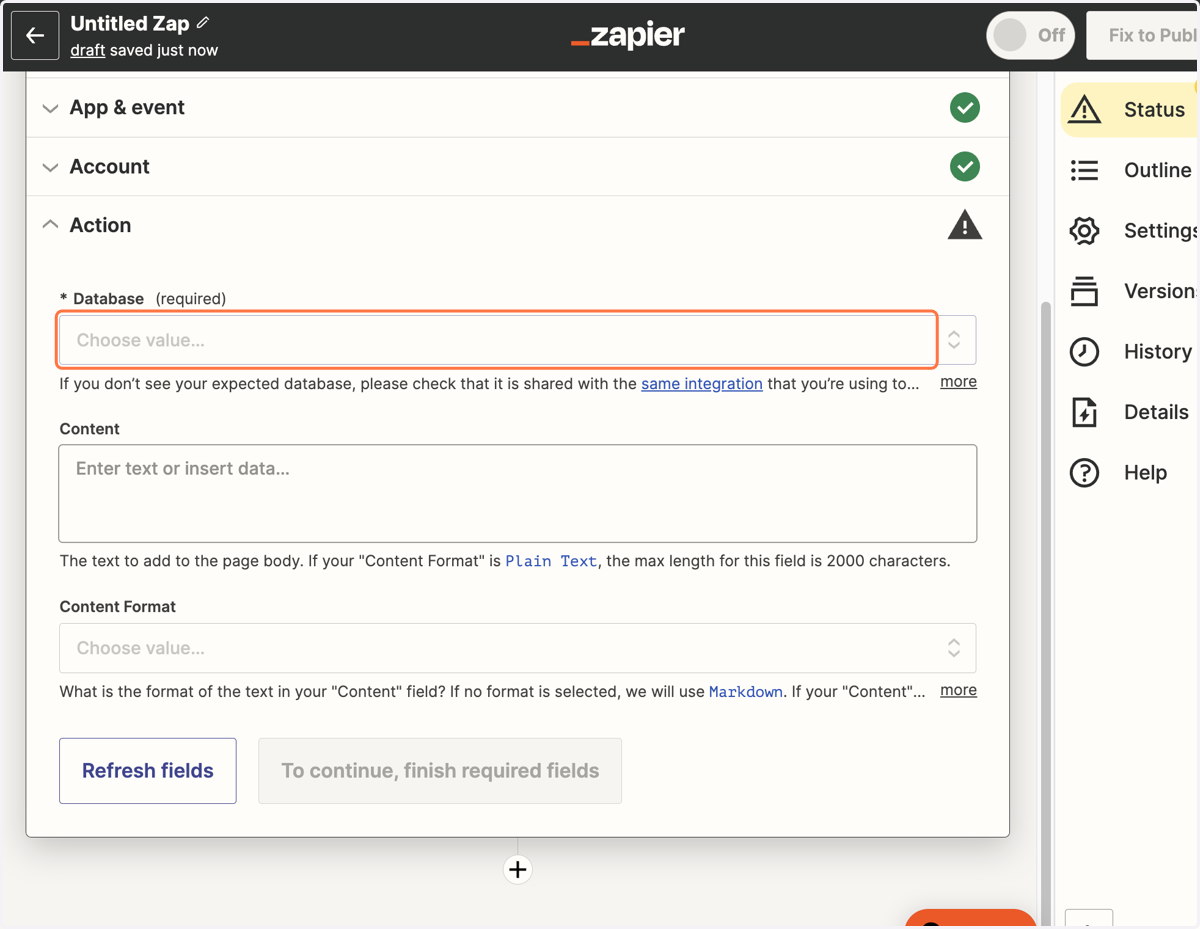
21. Again, Zapier will pre-fill this data based on the data that already lives in your account.
For example, if I wanted new labeled emails to go into my Sales Pipeline database in Notion, but a database with the name Sales Pipeline didn't exist yet, I would have to create that database in Notion before it would show up in Zapier.
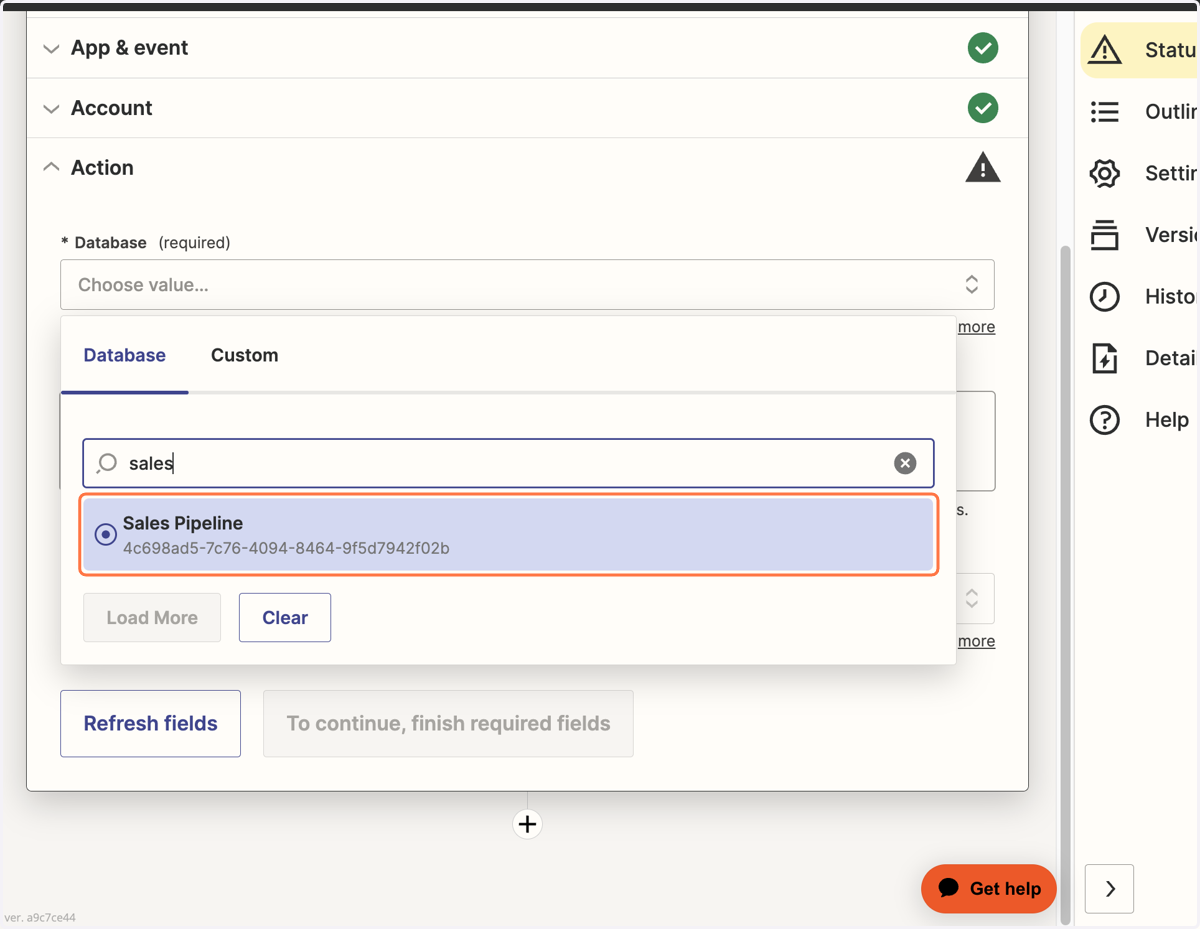
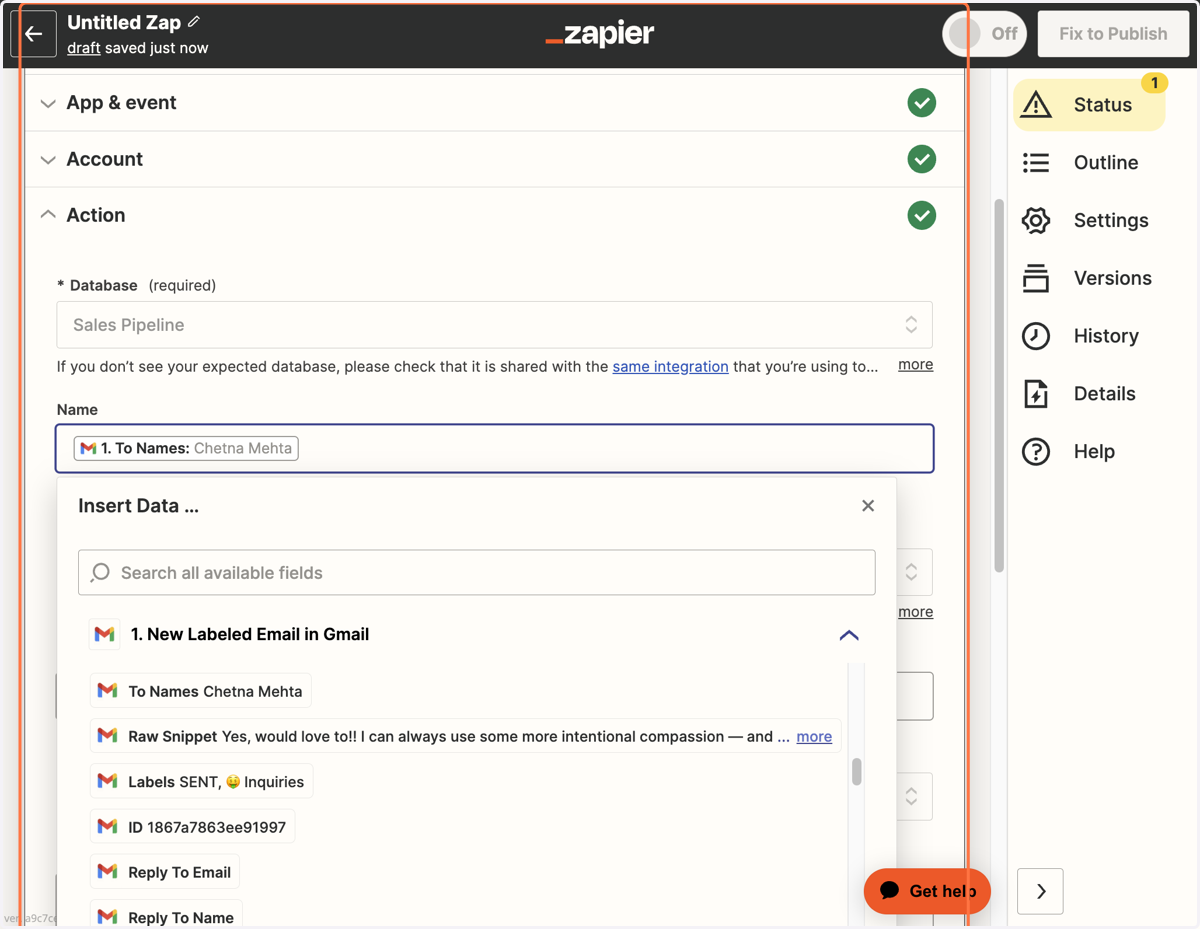
22. Zapier will use the data available from your Trigger to inform the Event. Select which data you want to transfer over based on the prompt
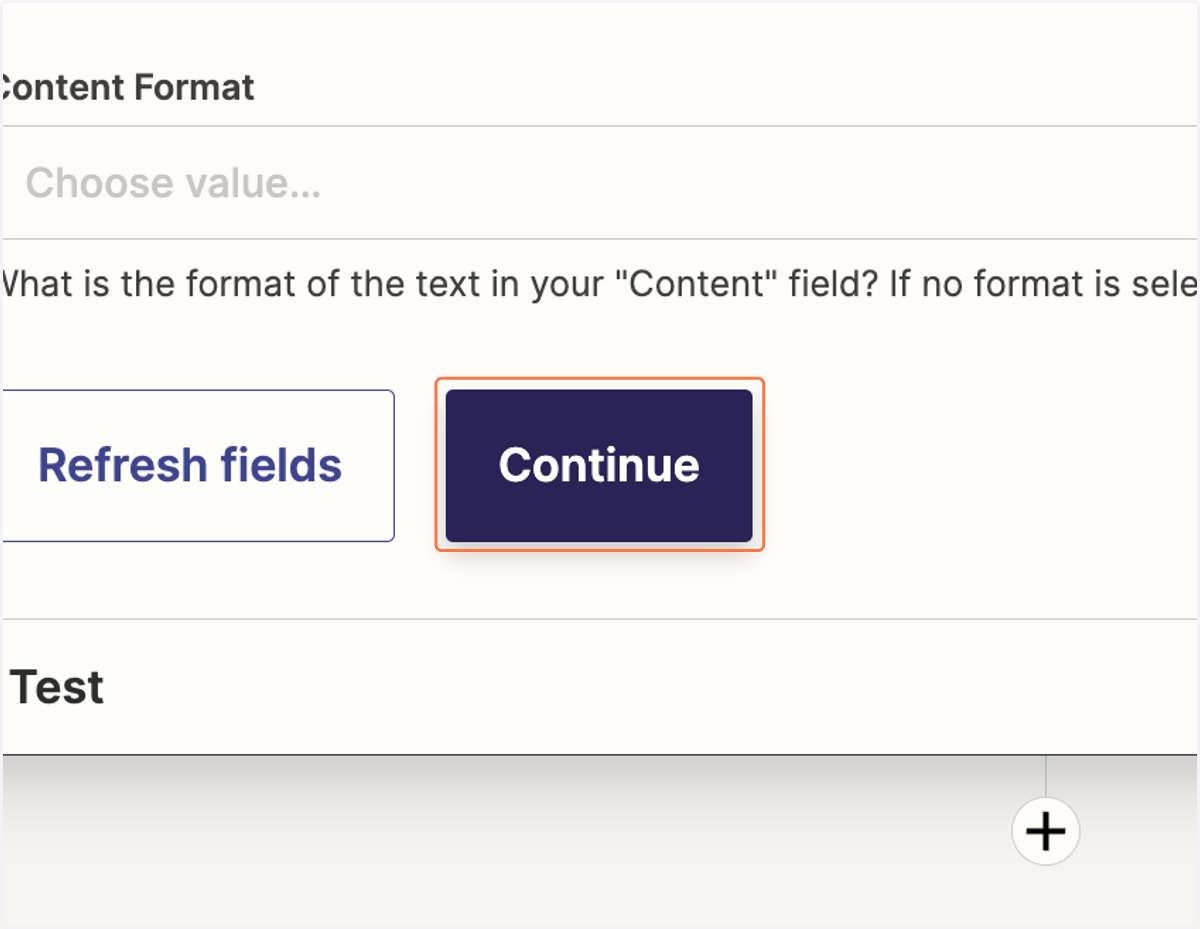
23. When you're done inputting all the data you'd like, click on Continue
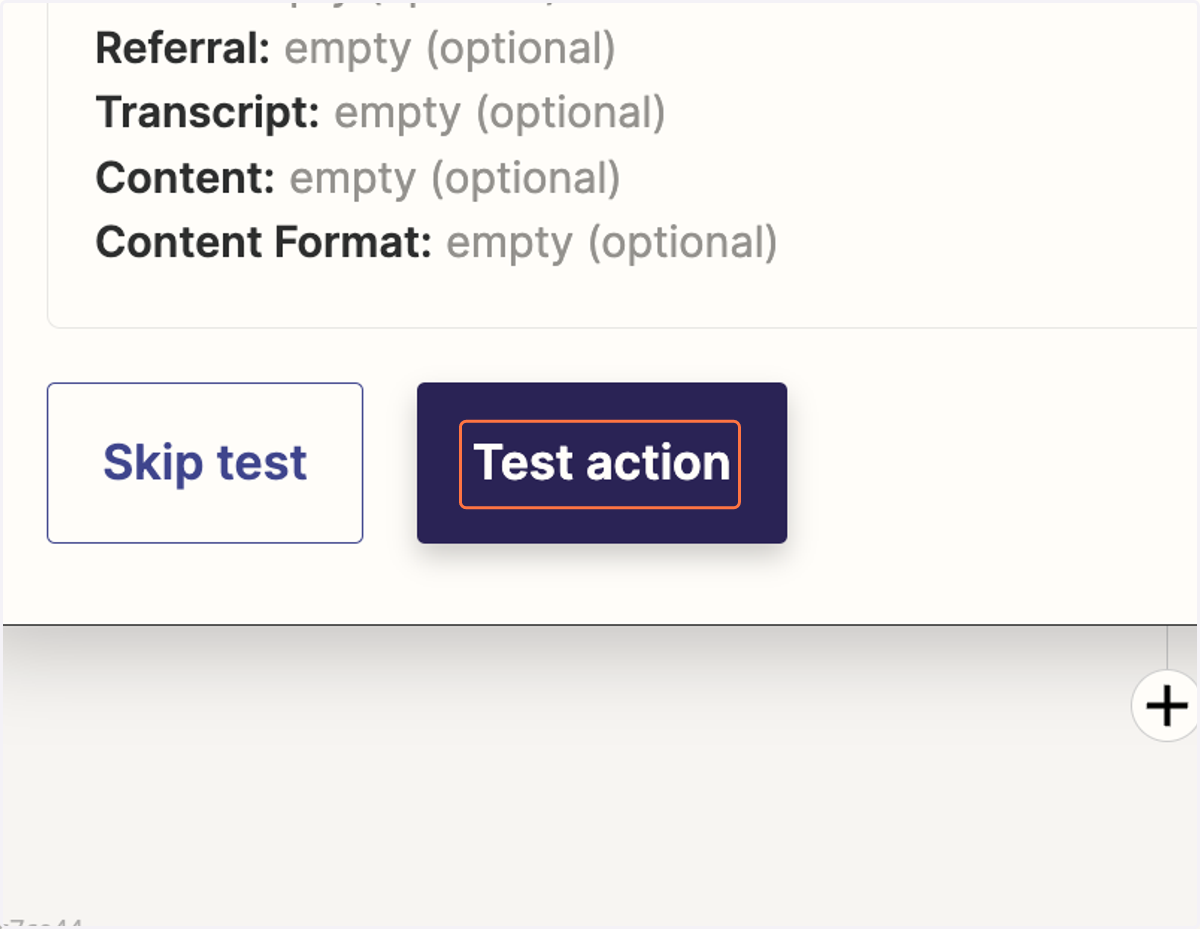
24. Click on Test action
This will test the Zap in its entirety; BE CAREFUL! If your Zap has external action (i.e. emailing someone, publishing something to social, etc.), this test WILL actually do it based on the test data. If you want to test something external, I recommend using test data that only includes your email address or is easily deletable.
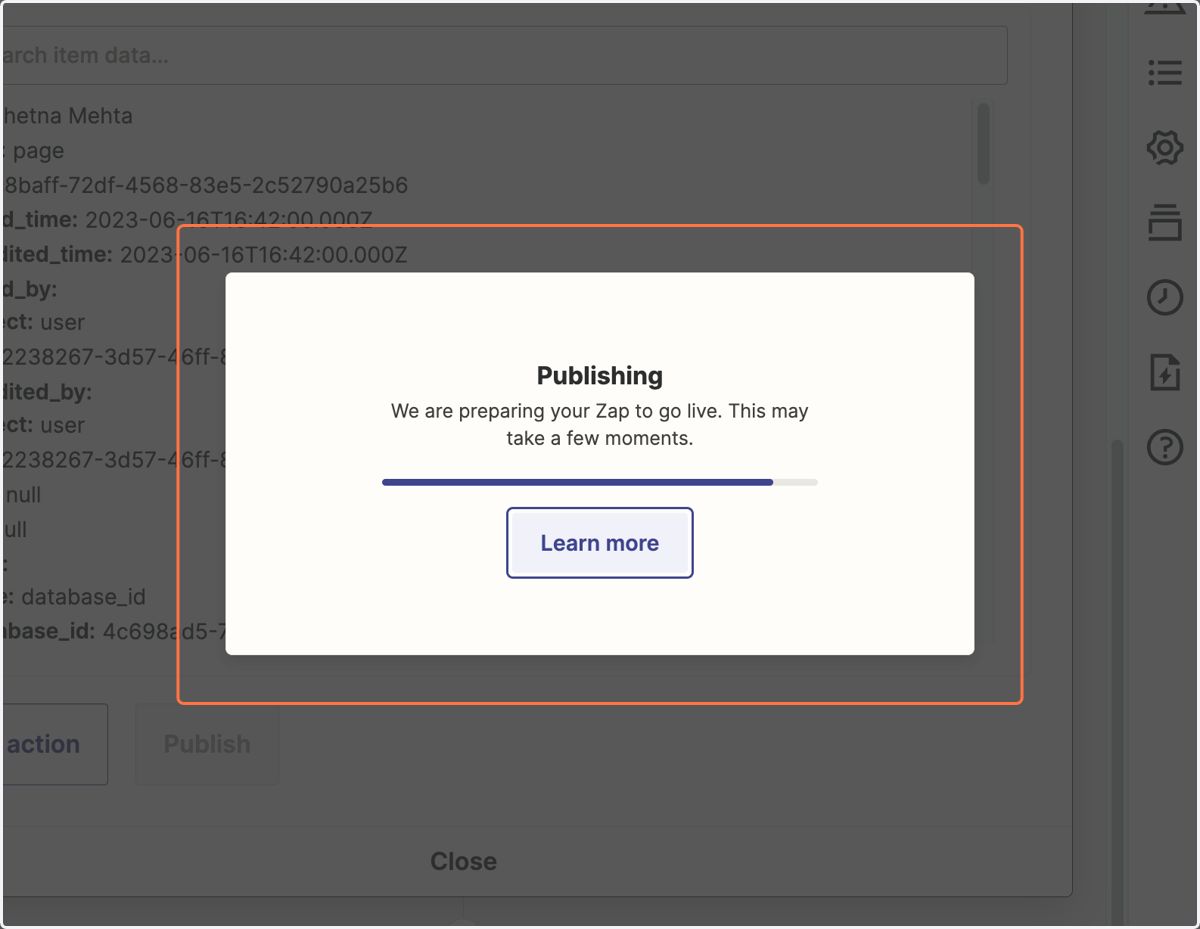
25. Once your Zap test is successful, click Publish
If your Zap test is unsuccessful, it will tell you where to fix it within your Action/Event step.
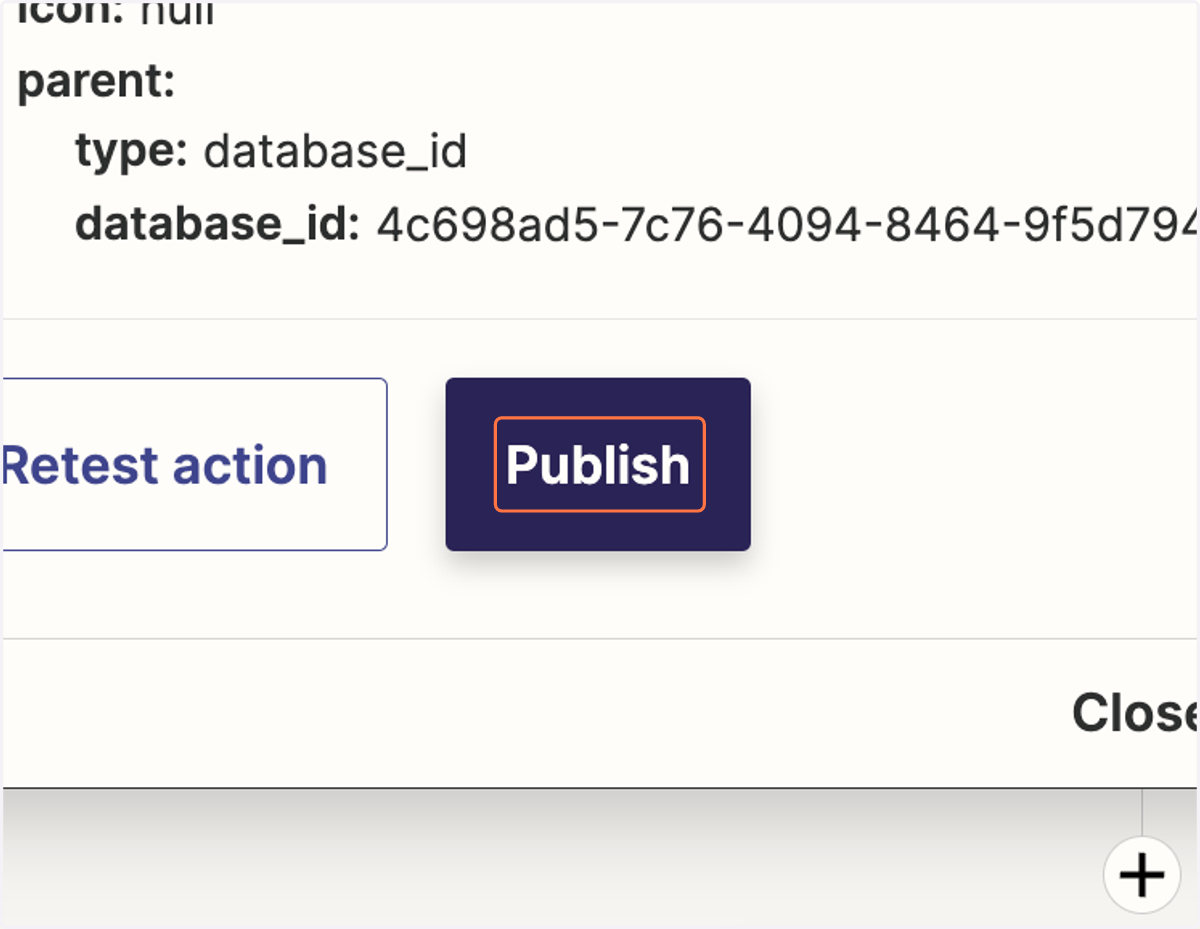
26. And just like that, you published your first Zap!