Workflow with SchoolMint
Schoolmint
1. Accessing the School of Choice Application -SchoolMint
Visit the ABCUSD website to access the Schools of Choice Application.
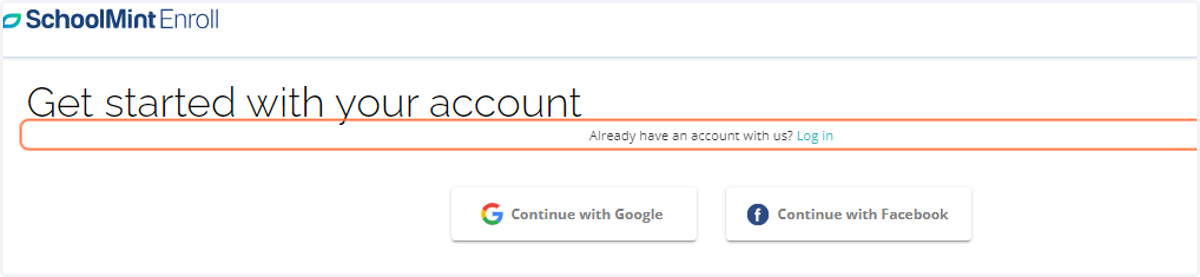
2. Creating a SchoolMint Account through Google or Facebook platform
SchoolMint allows users to create an account through an existing Google/Gmail account or Facebook account. If a user opts to not use these platforms an individual account will need to be created.
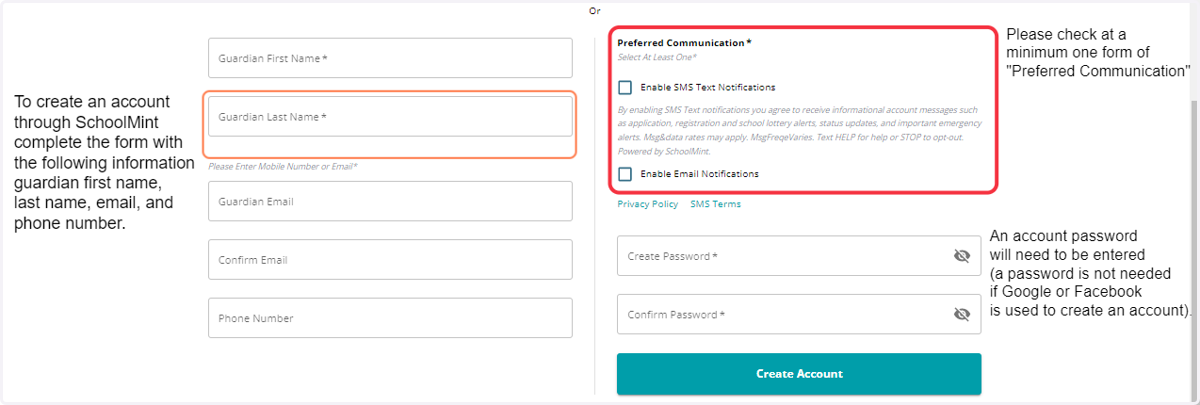
3. Creating a SchoolMint Account
If a Google or Facebook platform is not used to create an account an individual account will need to be created directly through SchoolMint.
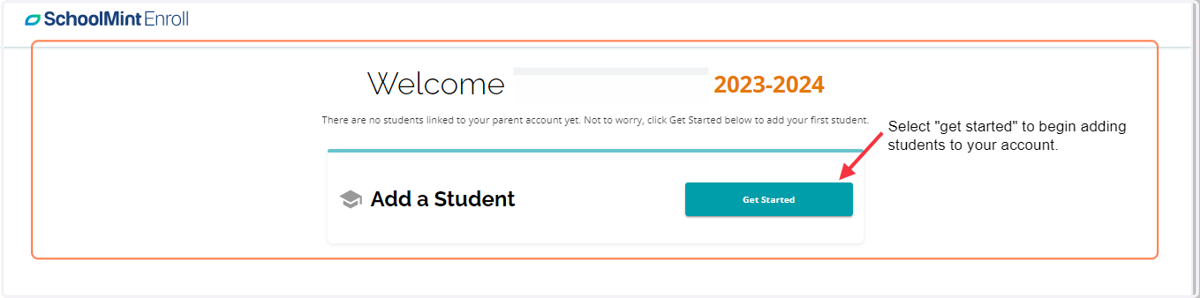
4. SchoolMint Application Created
A welcome screen will indicate a parent/guardian account has been created. Now begin adding students to guardian profile.
Schoolmint
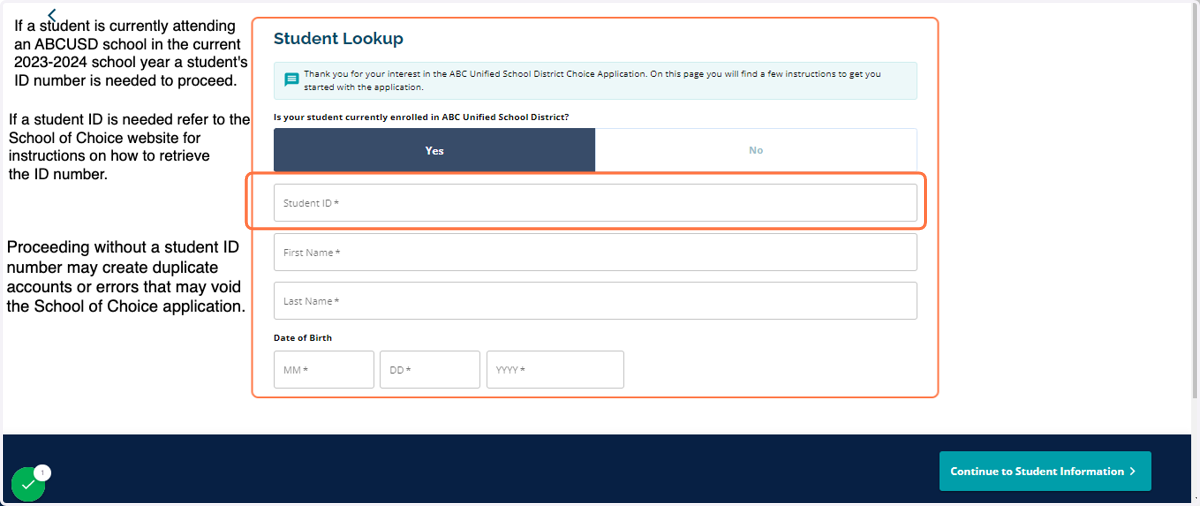
5. Student Lookup…
If the student is currently enrolled in ABCUSD grade(s) K-11 a student student identification number is needed to proceed. New and incoming Kindergarten students to ABCUSD (K-12 grades) for the 2024-2025 school year will not have a current student identification number and must select "no" to proceed.
6. New Students to ABCUSD for the 2024-2025 School Year
Select "no" for a student that is new to ABCUSD for the 2024-2025 school year. Complete the required student information in the fields when prompted (name, grade, date of birth) then proceed.
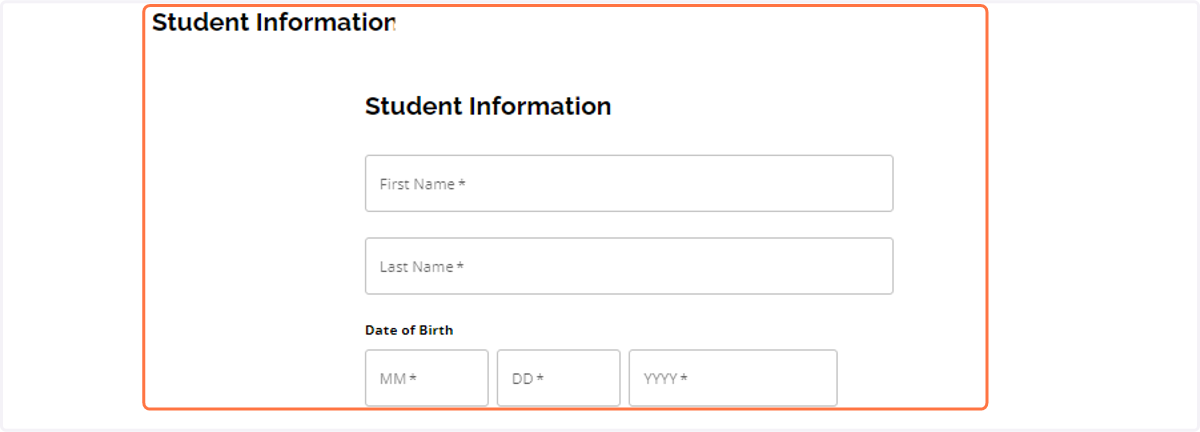
7. Selection of grade level
Select the grade that the student will be in for the 2024-2025 school year.
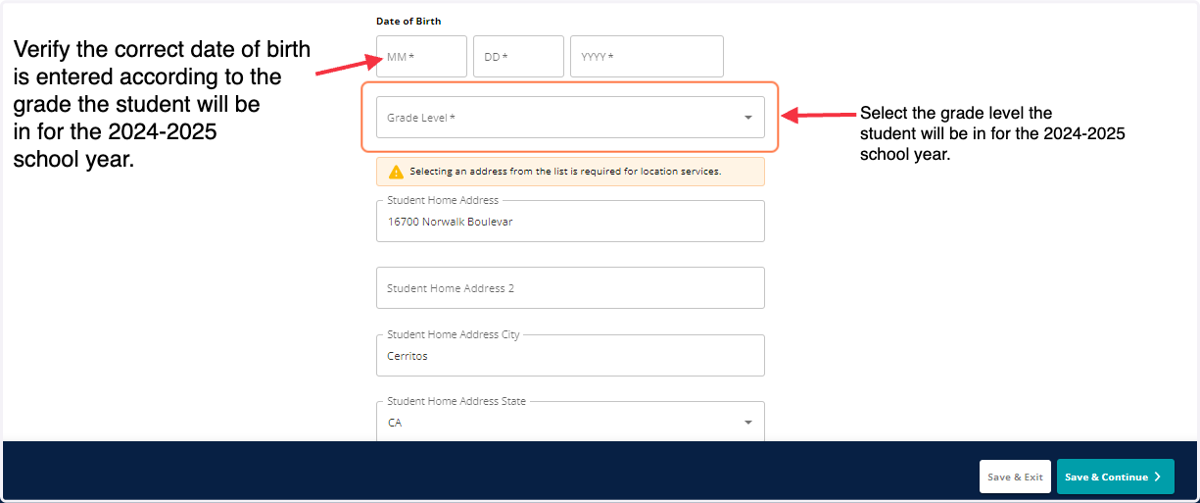
8. Selecting the home address to determine residency
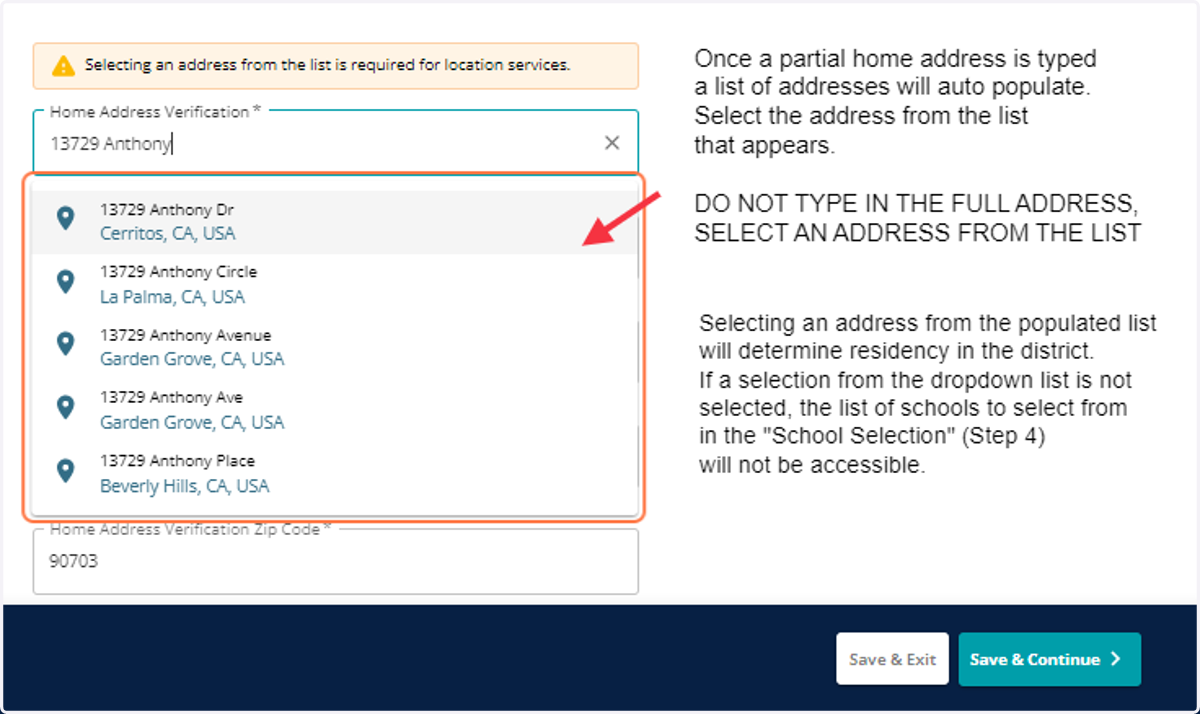
An address MUST be selected from the populated list in order to proceed with selecting schools. Begin entering the home residency address in the "Student Home Address" box. Once the address appears on the populated list click to select it. Residency information entered is verified prior to enrollment.
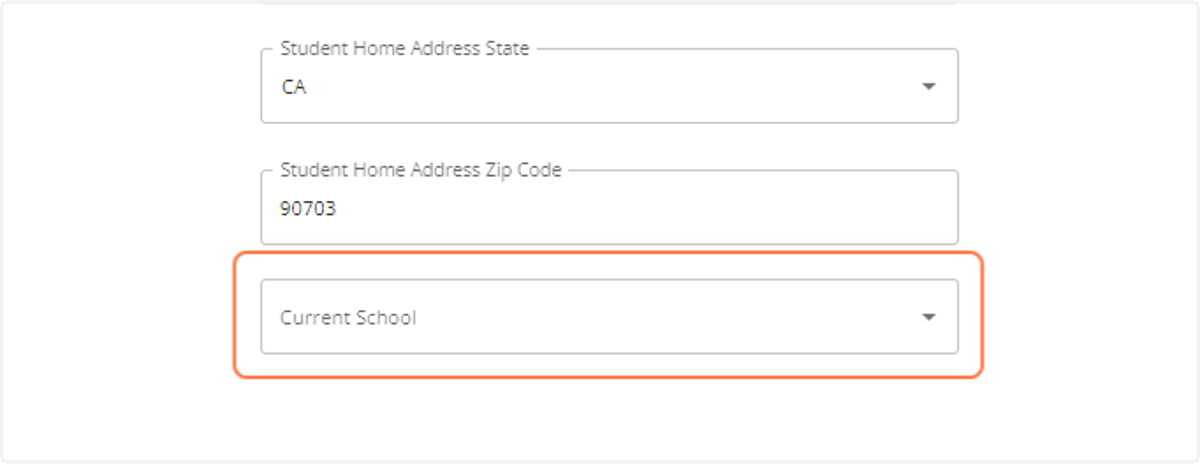
9. Entering Current School Information
Enter the current ABCUSD school the student attends from the drop down list. If the student attends another school outside of ABCUSD (including a preschool) select "other" as the current school option.
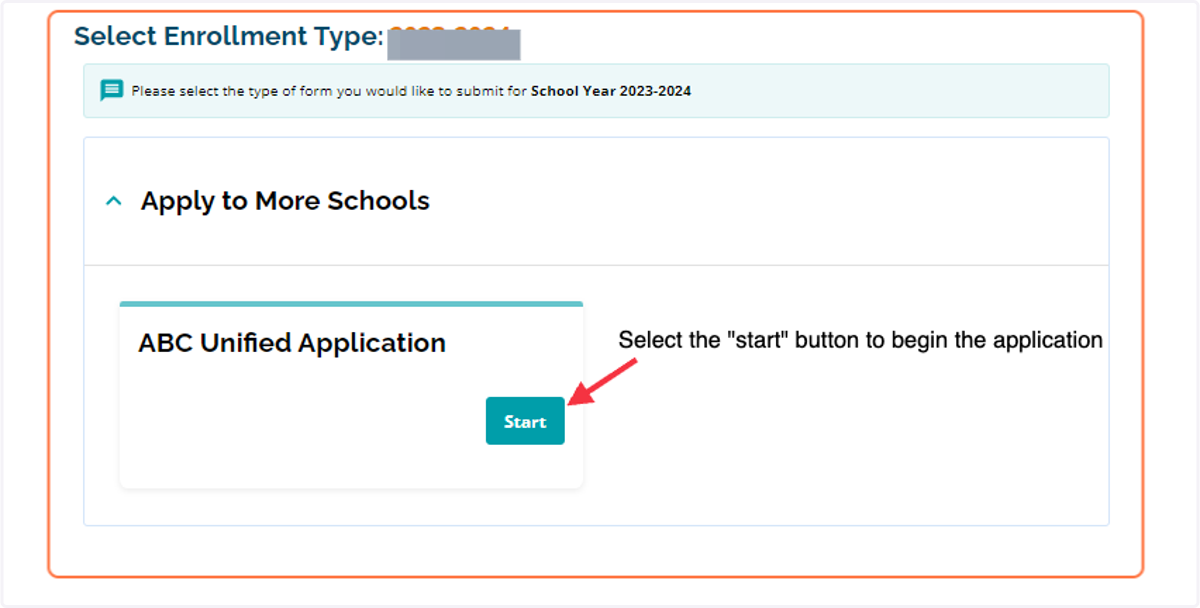
10. Beginning the School of Choice Application
School of Choice Application may not be started.
11. Requirements and Policies
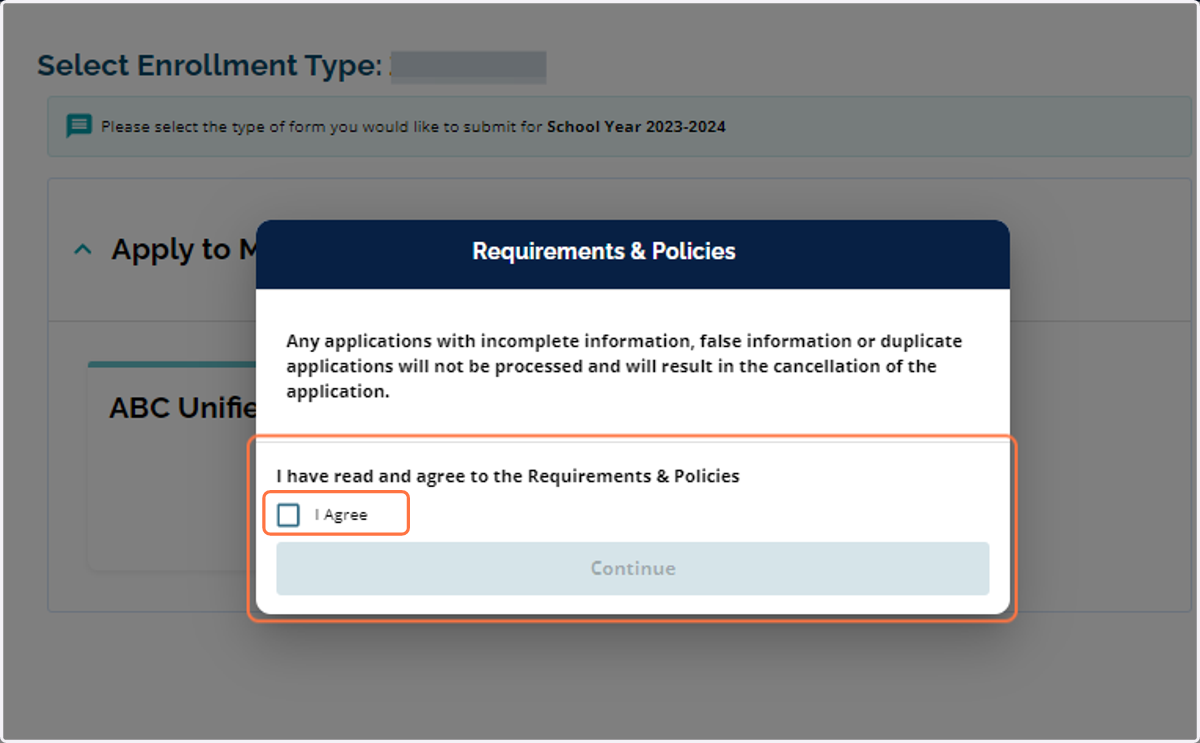
Read the requirements and policies, check the dialog box "I Agree" and continue.
12. School Application Steps
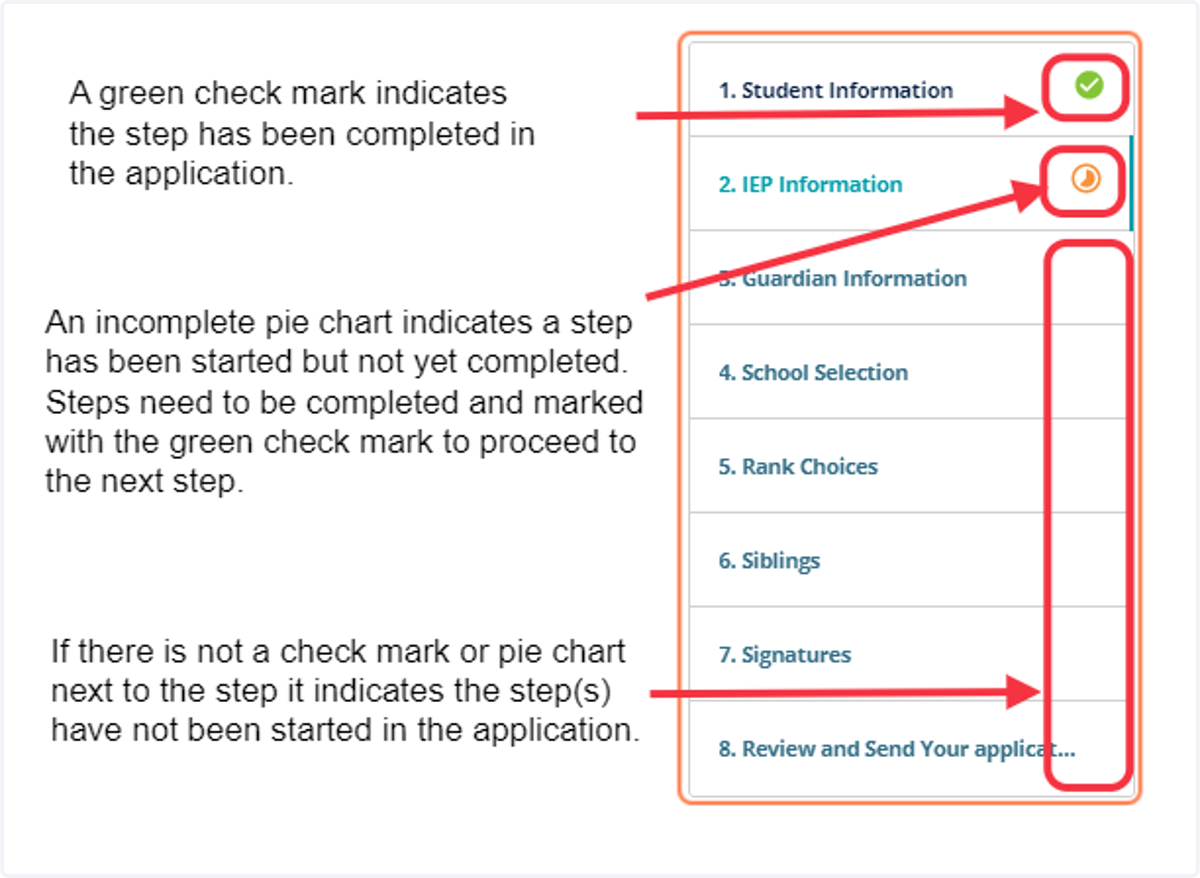
The complete application consists of 8 steps that must be completed before submitting. Steps must be completed in sequential order.
13. Step 1 - Student Information
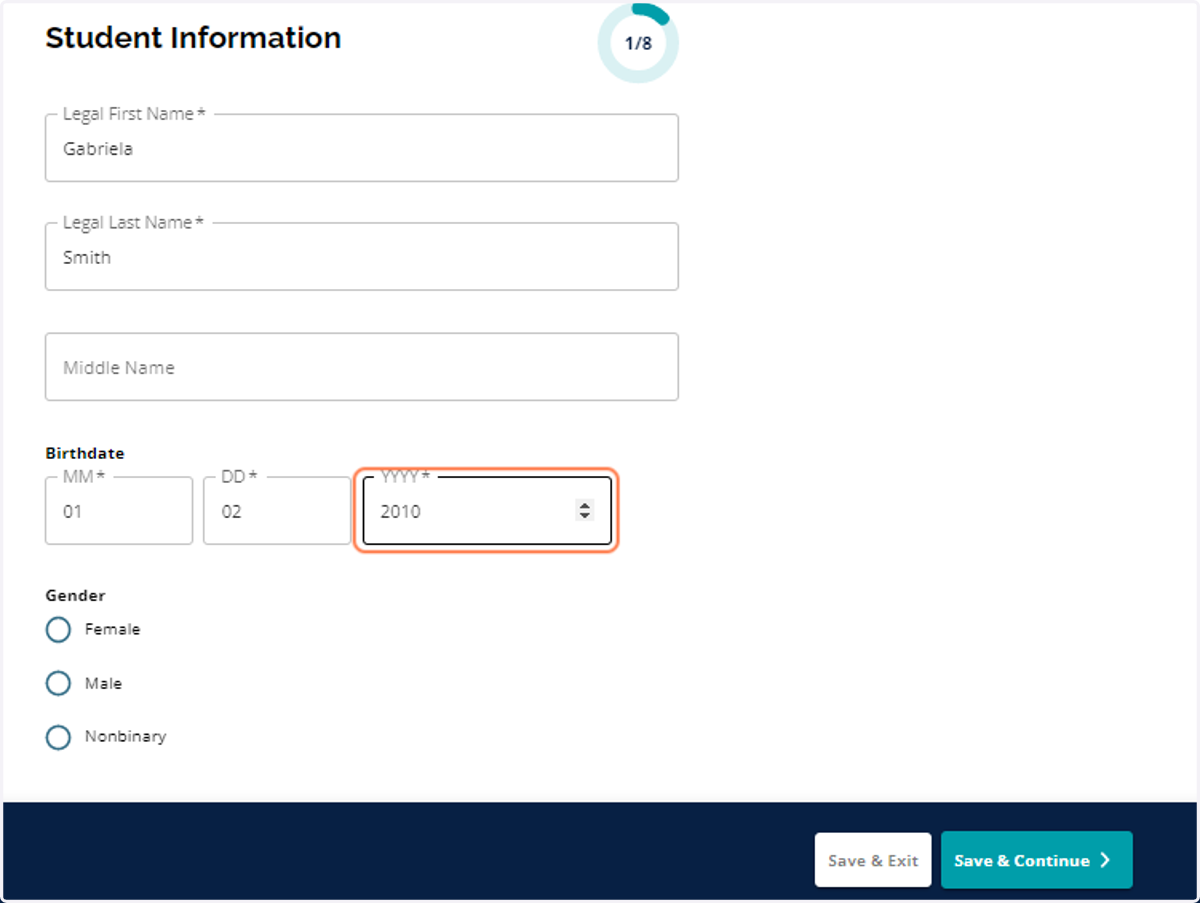
Verify the student information (name, date of birth, grade). Select a gender option.
14. Step 1 - Student Information continued
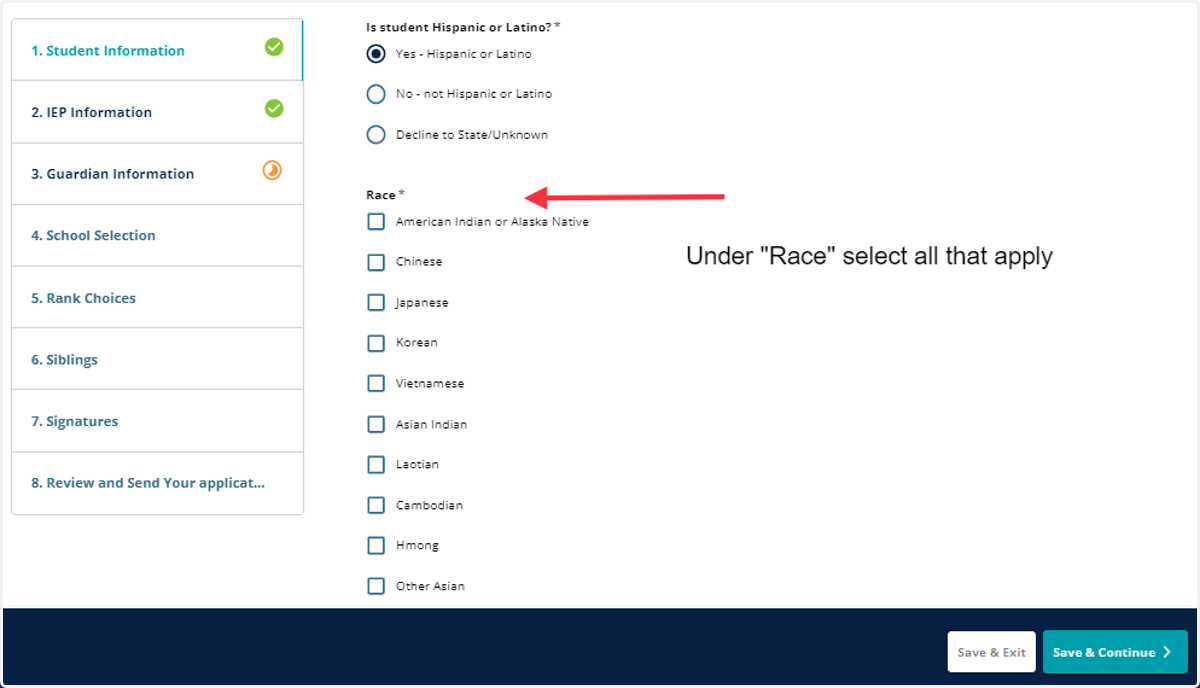
Complete the ethnicity section and race sections. Multiple options may be selected under "race'.
15. Step 1 - Student Information continued
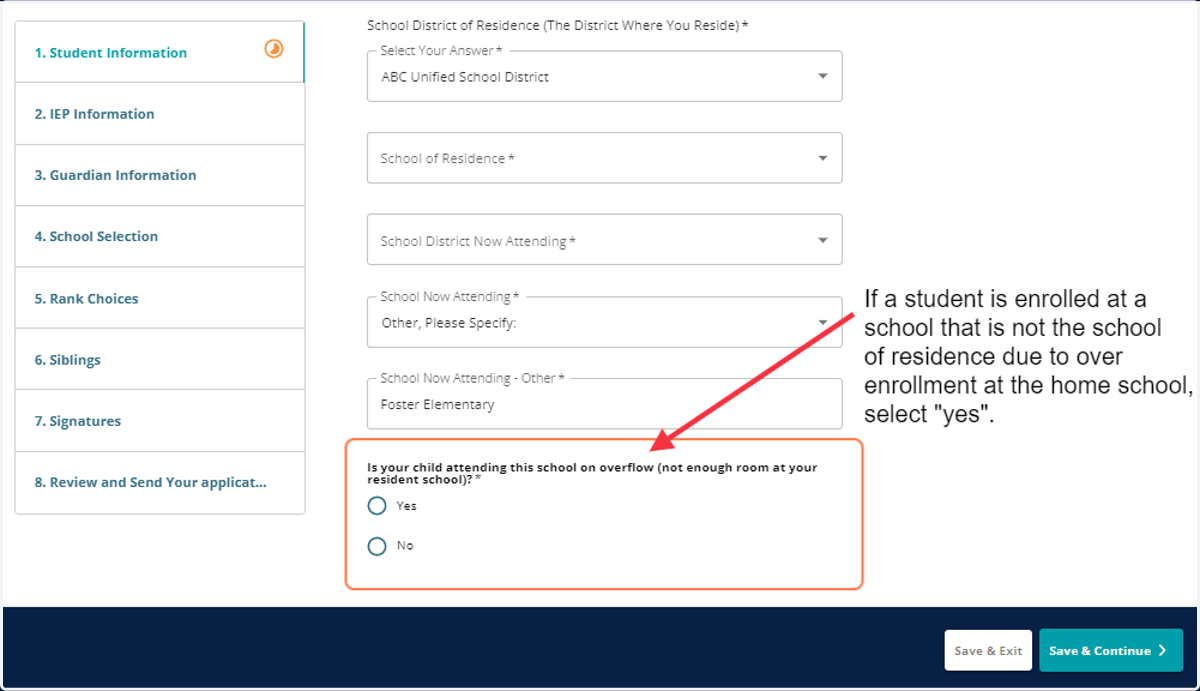
This section will ask to verify the residency address once more and complete the current school and district of attendance. Residency documentation is verified prior to enrollment.
16. Click on Did you submit an application for Whitney? *…

17. Step 2 - Individualized Education Plan (IEP) Information
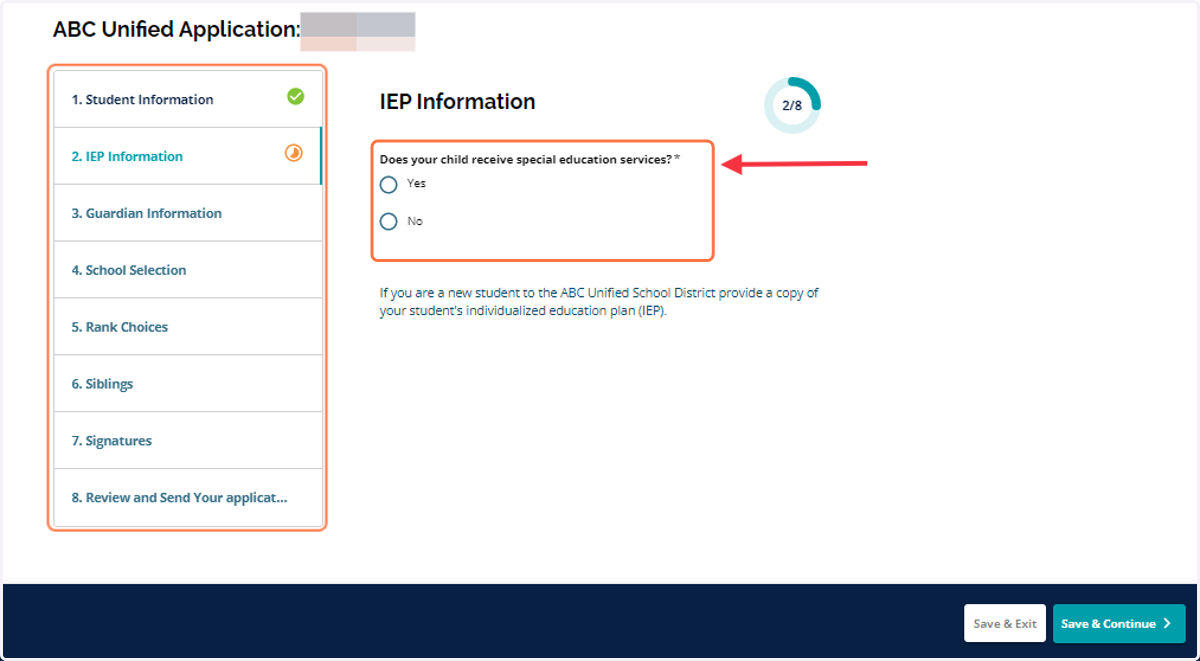
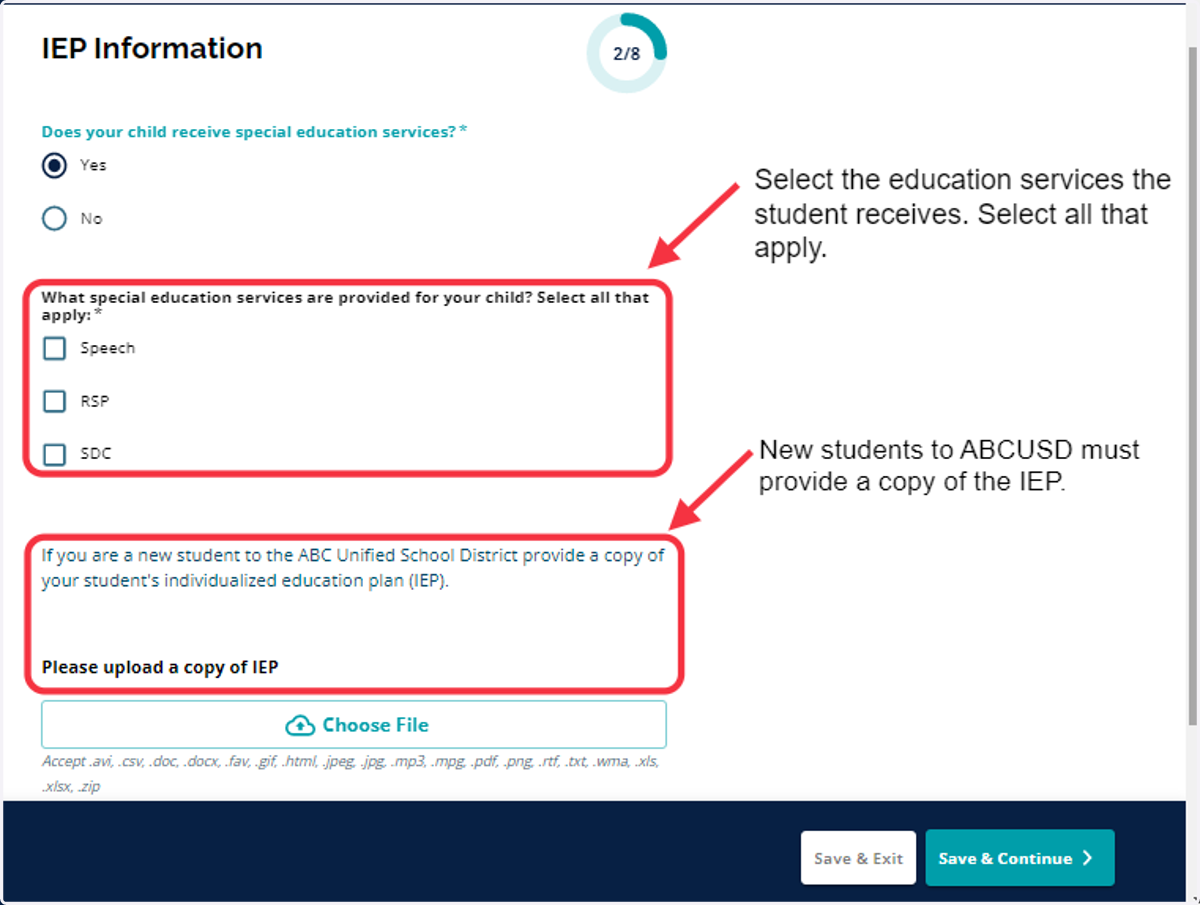
If the student currently receives special education services under an IEP indicate "yes" and select the services the student receives. New incoming students to ABCUSD will be required to upload a copy of the current IEP.
18. Step 2 - Individualized Education Plan (IEP) Information continued
19. Step 3 - Guardian(s) Information
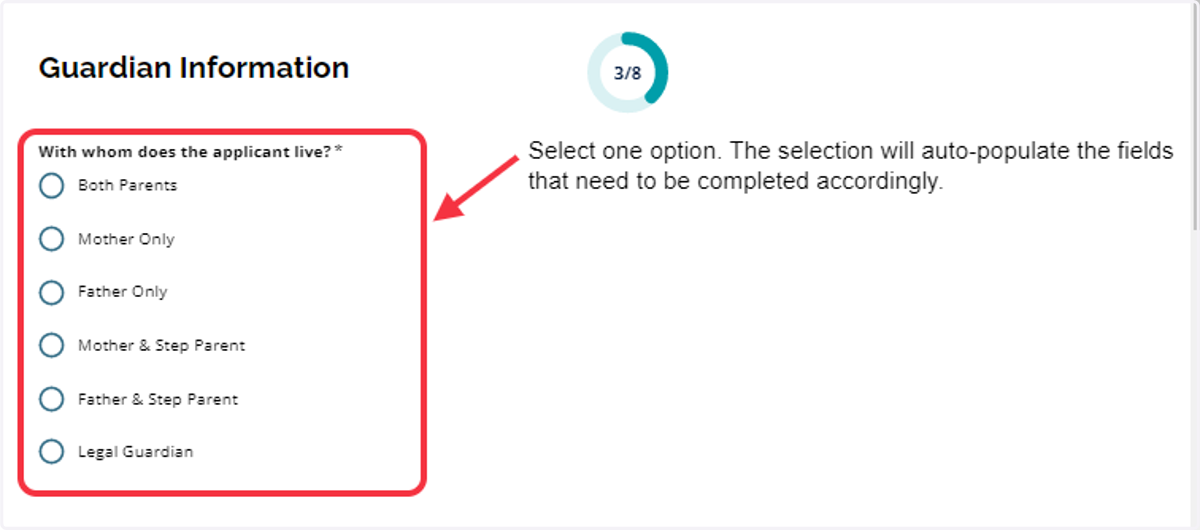
Complete this section with the same parent/guardian(s) that are in the Aeries student portal. Select the combination of parent/guardian(s) that best meets the needs of the family.
20. Step 3 - Guardian(s) Information continued
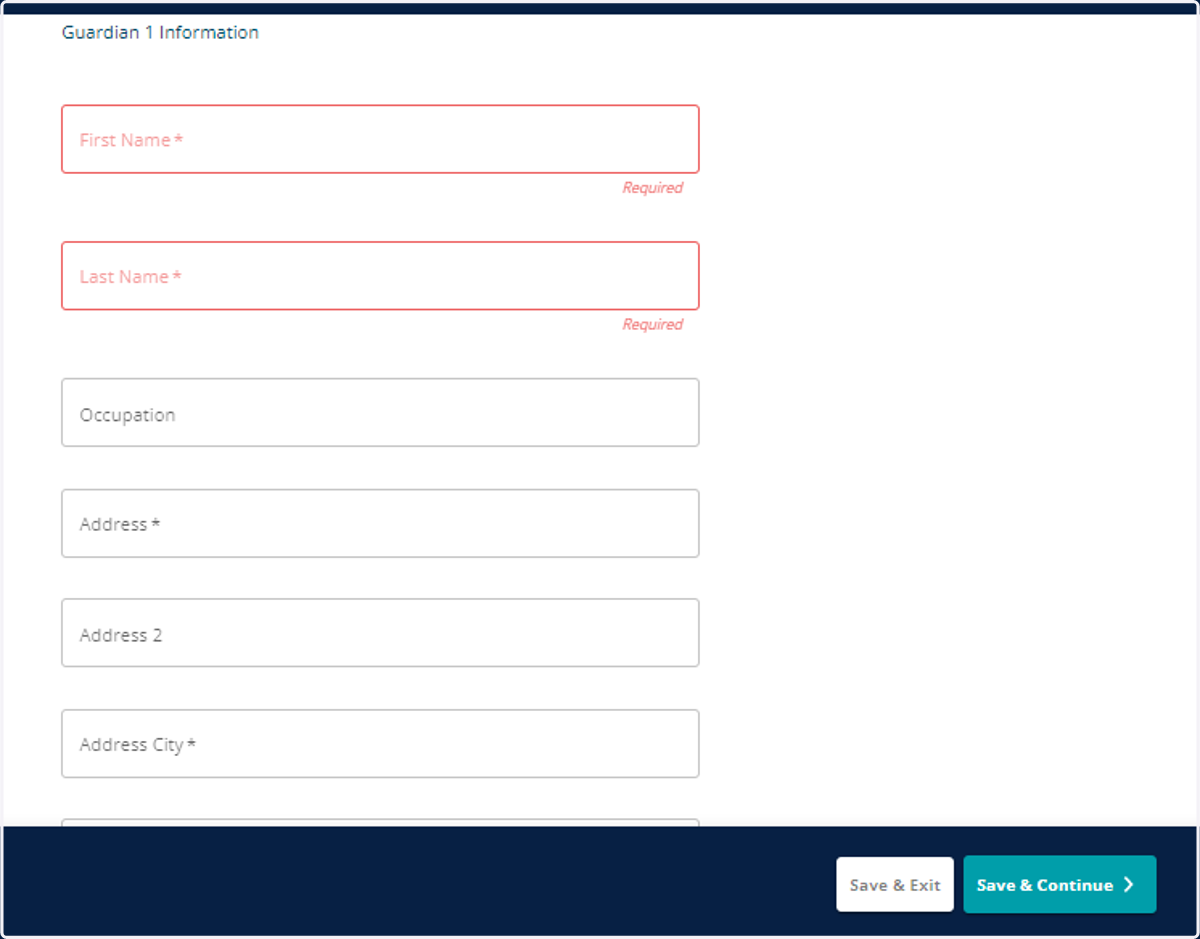
Complete required fields. Fields marked with an asterisk (*) are required fields. Enter and confirm the residential address that the parent/guardian(s) and student reside in. Residency documentation will be verified prior to enrollment.
21. Step 3 - Guardian(s) Information continued
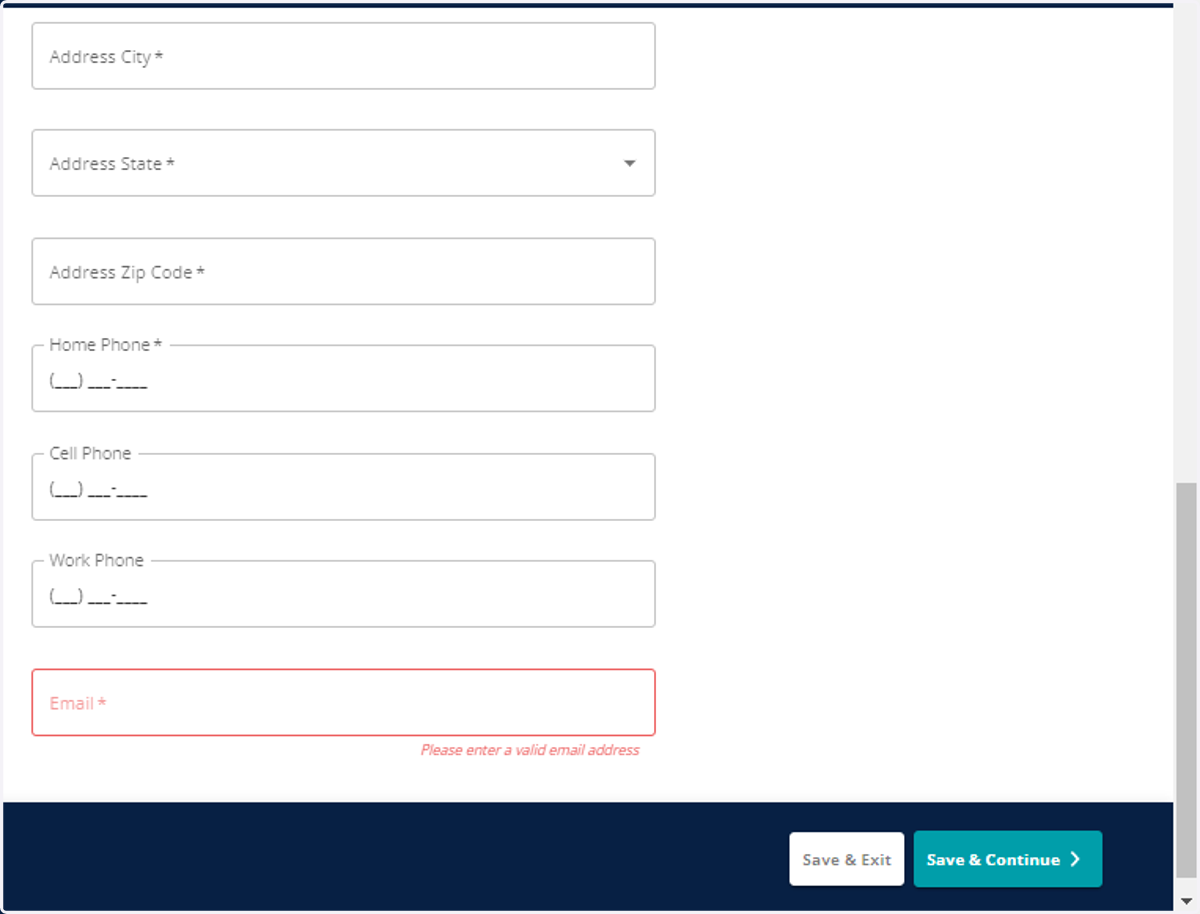
Complete contact information for each parent/guardian(s) and email address.
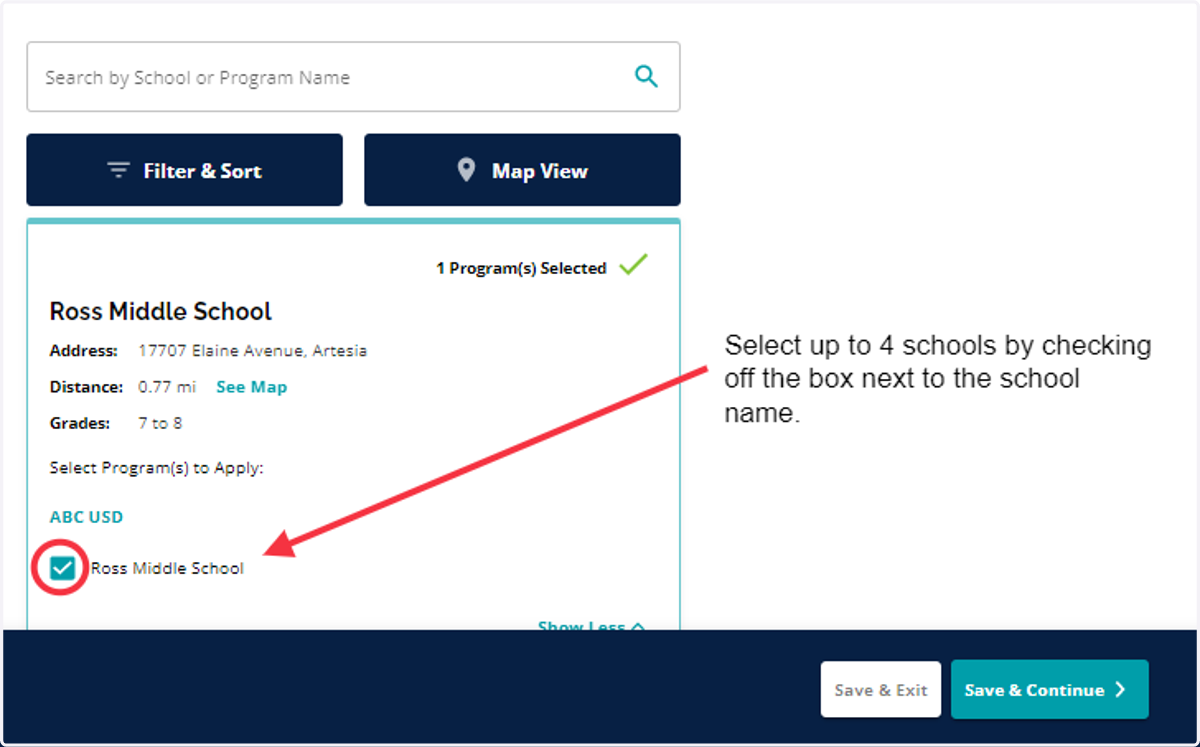
22. Step 4 - School Selection
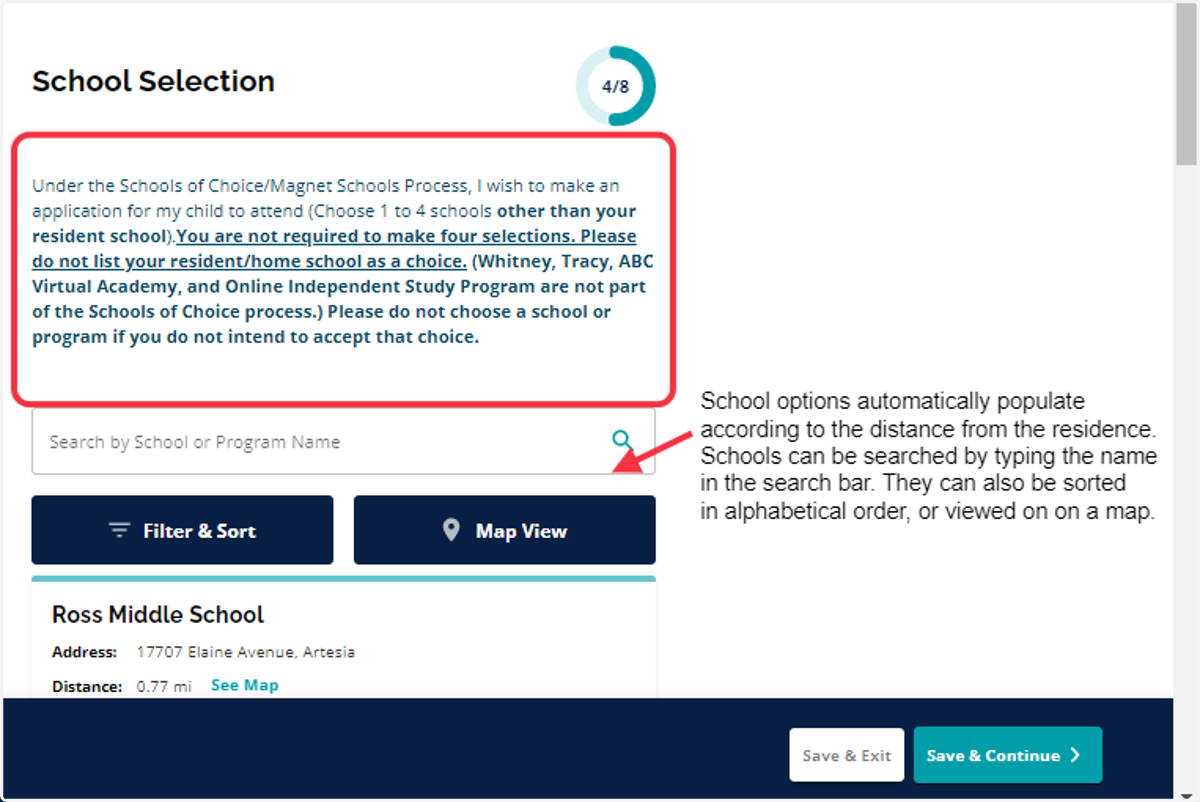
School Selection information populates according to the address information selected in section 1 (Student Information). If there are no options of schools to select verify that an address within ABCUSD residency boundaries was selected. The address must be selected from the drop down list populated after it is entered.
Note the requirements for selecting the school options.
23. Step 4 - School Selection continued
Select up to 4 schools by checking the box. Do not select the student's home school as an option.
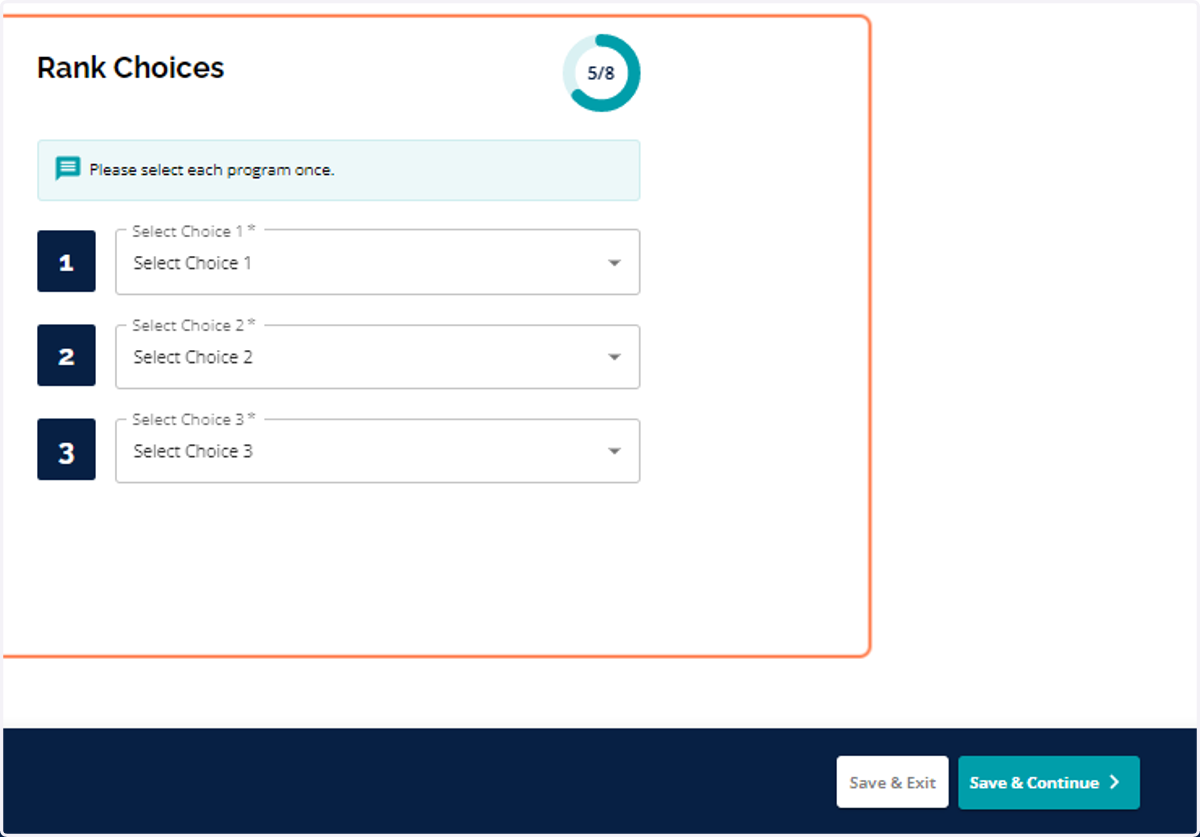
24. Step 5 - Rank Choices
The school options selected in step 4 will appear in the drop down list to be ranked. Select the order of preference, with 1 being the highest priority option. The number of school options that populate are based on the number of selections made in step 4.
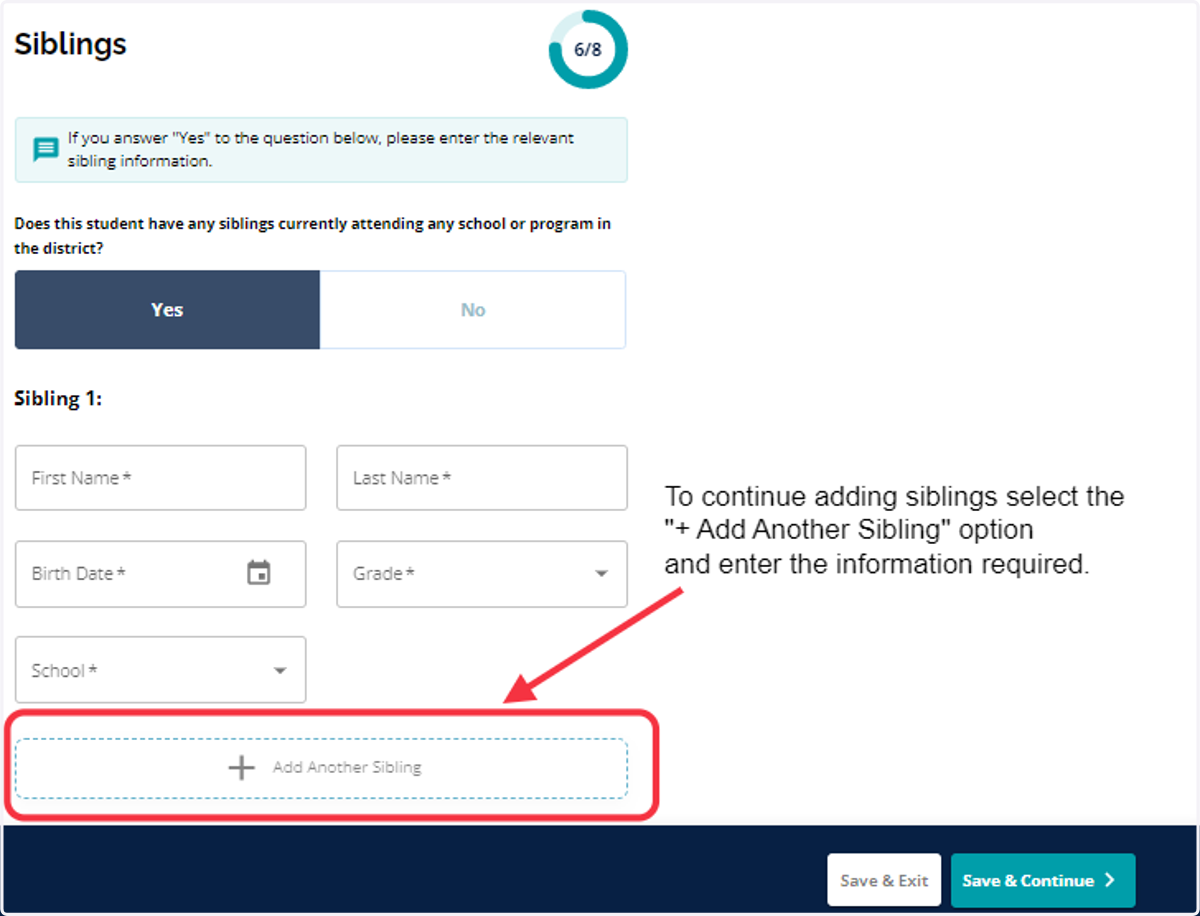
25. Step 6 - Siblings
Answer "yes" and complete all required questions if; the applying student has a sibling(s) currently attending (2023-2024 school year) a selected school of choice option and if that sibling(s) will continue to attend the same school in the 2024-2025 school year.
Completing the sibling information will not create an application for a sibling. A separate application must be completed if the sibling needs to apply for School of Choice.
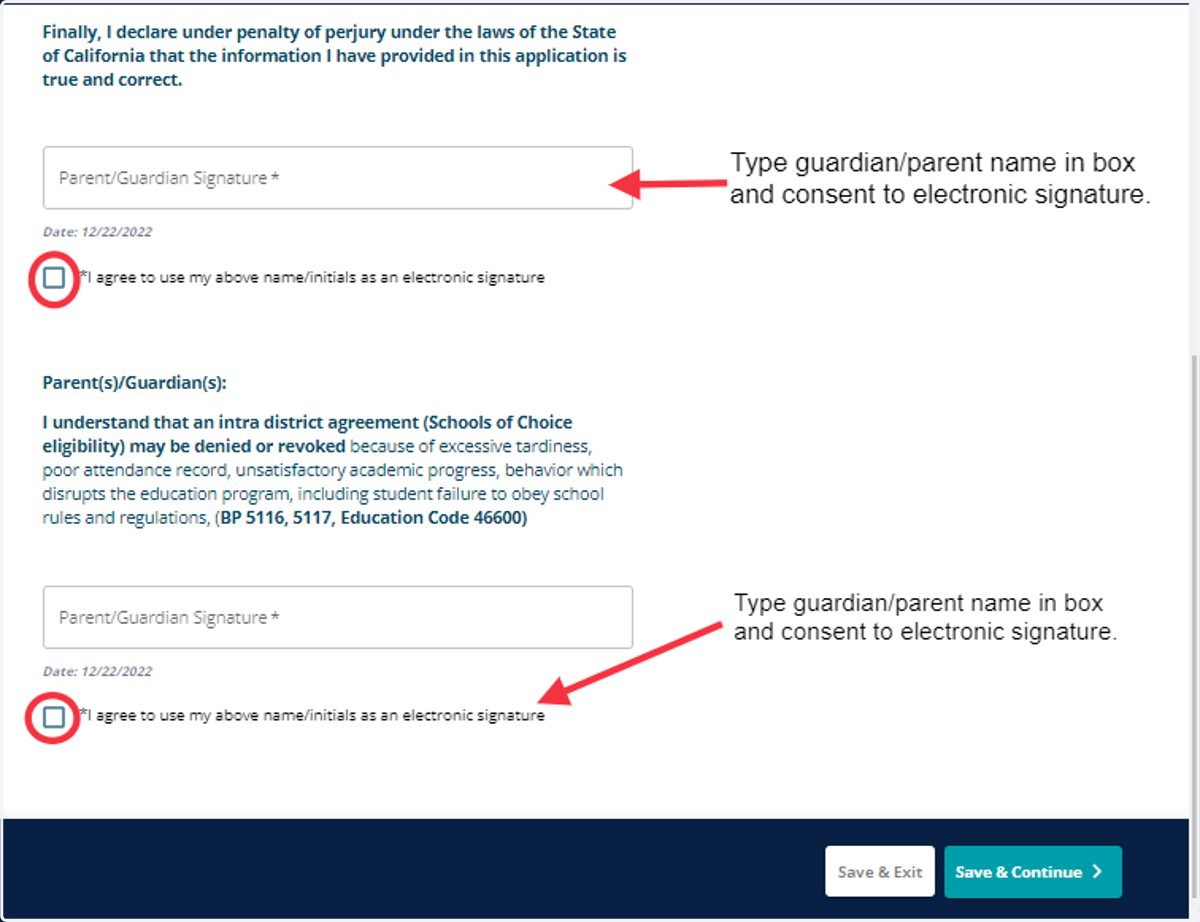
26. Section 7 - Signatures
Read required agreement.
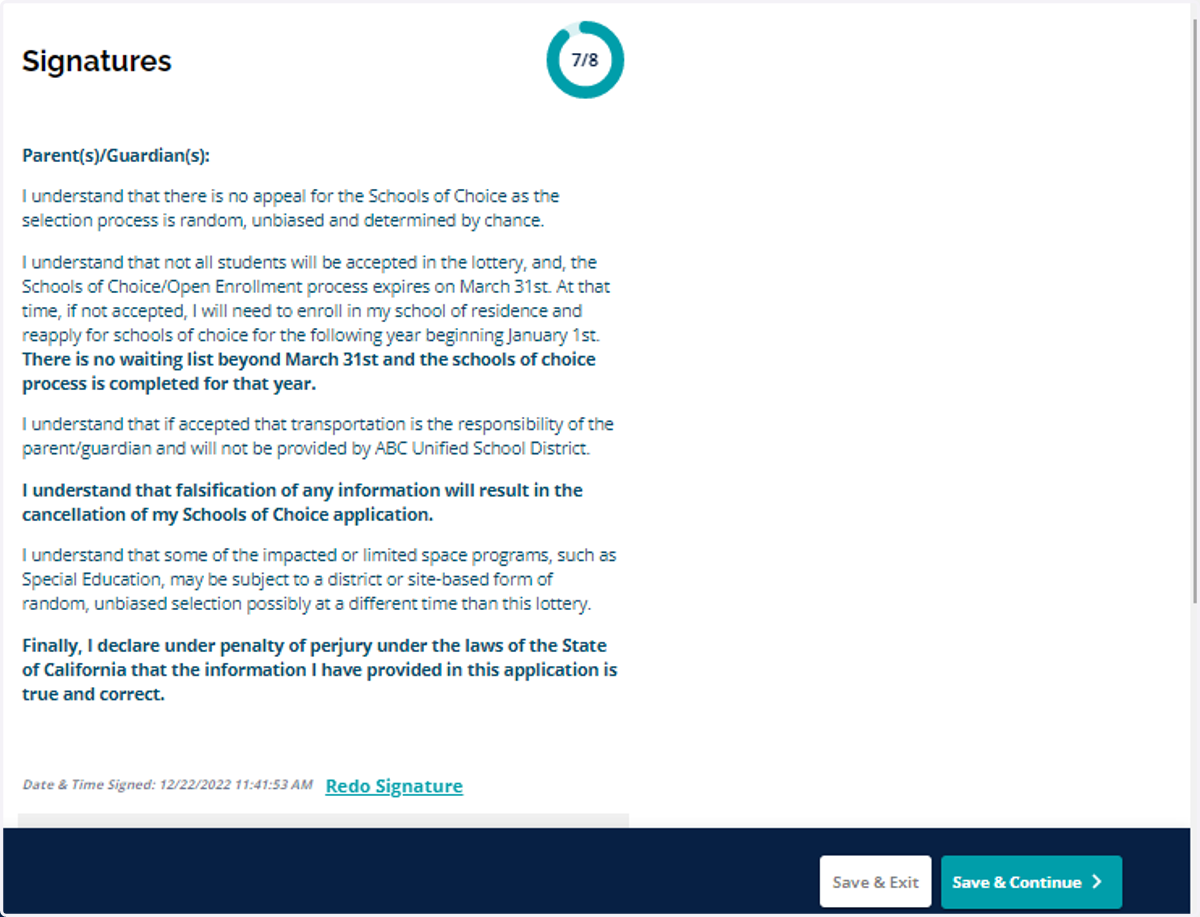
27. Section 7 - Signatures continued
Continue reading required agreement. Electronic signature will be captured by typing in the applying parent/guardian(s) name in the required sections. Check off the electronic signature authorization boxes where indicated.
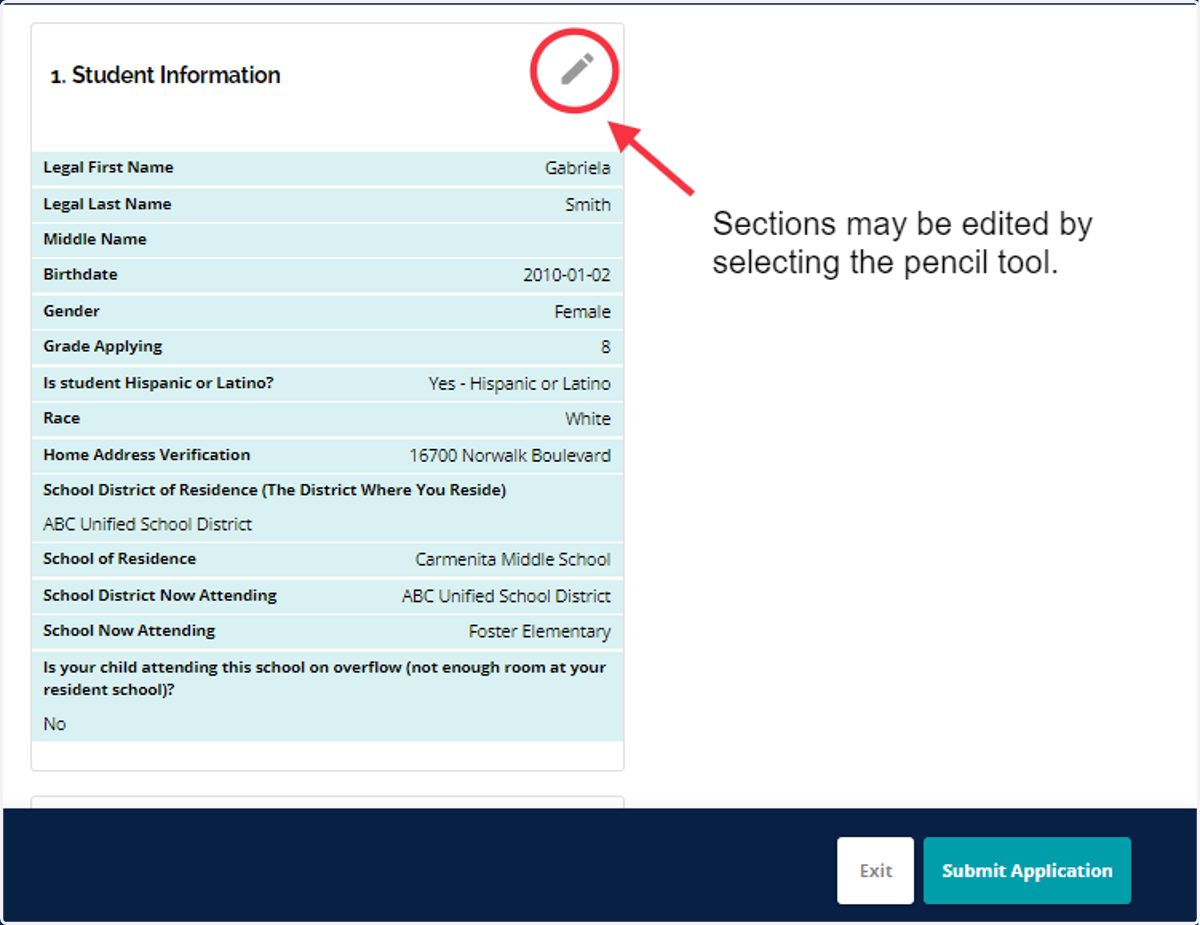
28. Section 8 - Review and Send
Before submitting the application the final step is to review all 7 previous questions of the application. A summary of each section will appear for review. Once the application is reviewed it may be submitted.
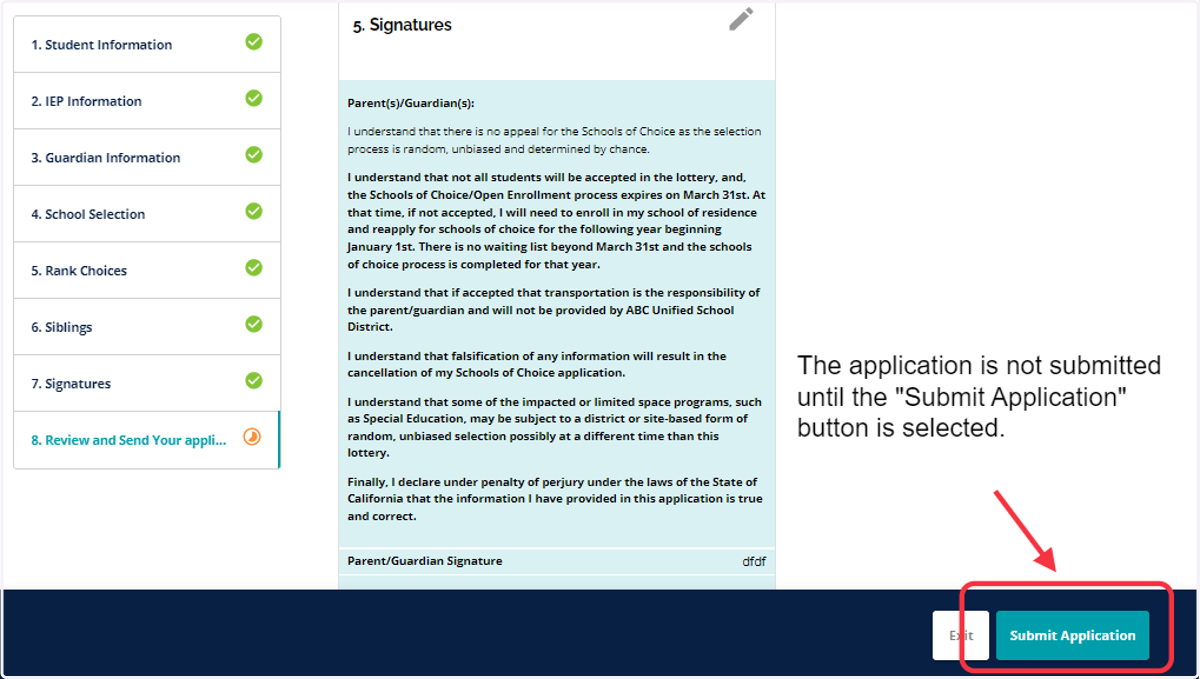
29. Section 8 - Review and Send continued
Confirm all 7 sections are completed and reviewed before submitting the application. Once an application is submitted edits to certain sections will not be possible.
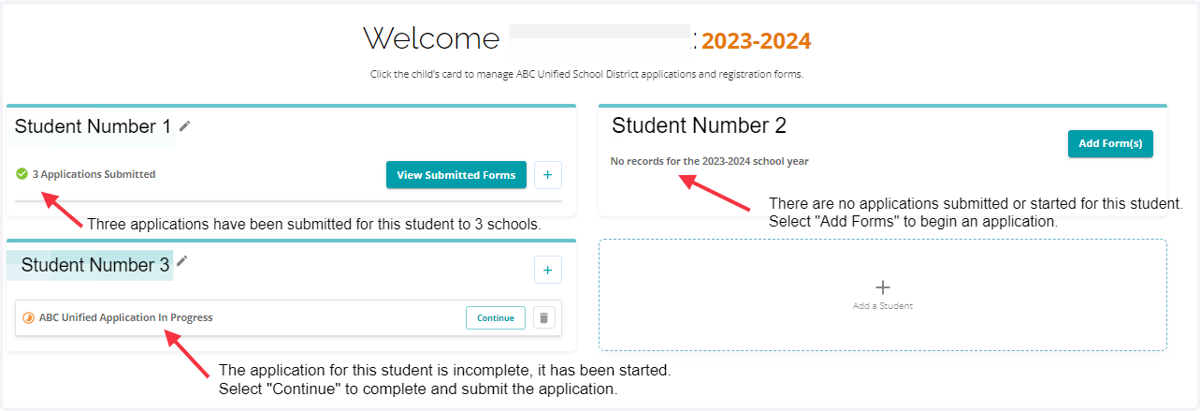
30. Dashboard View
Applications submitted and in progress may be viewed on the "Dashboard".
31. View Applications Submitted
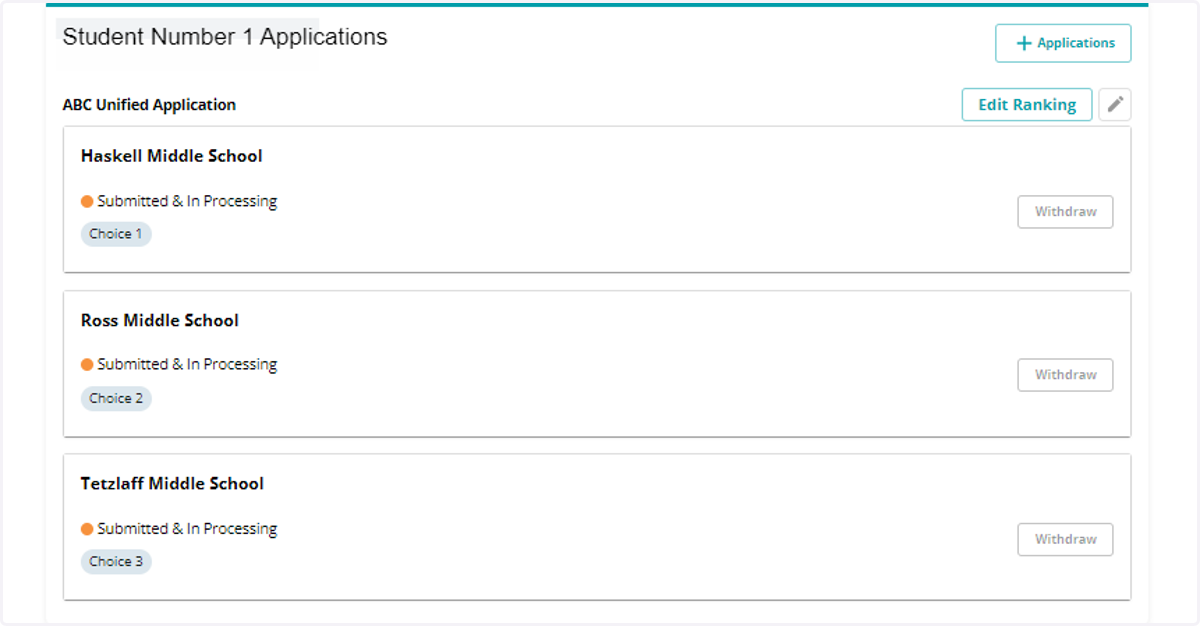
A student's individual application(s) may be viewed once submitted. After an application is submitted additional schools can not be added. Rankings between the selected schools may be edited or an individual application may be withdrawn. Once an application is withdrawn it can't be undone.
32. Important Dates
Stay updated with the upcoming timeline of events for the School of Choice application process. Information regarding the application(s) submitted can be viewed on the SchooMint site under "messages".