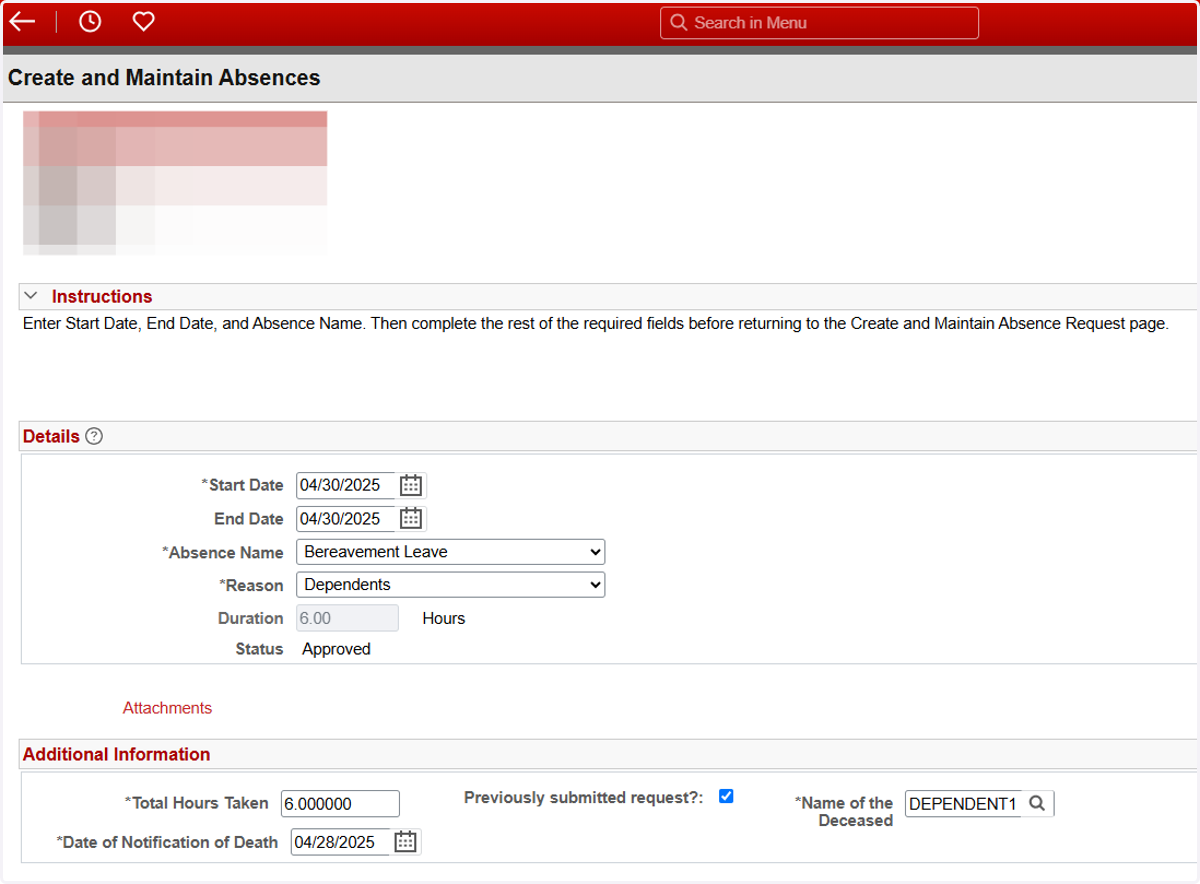
HR Professional's Guide: How to attach documentation to a bereavement leave request?
1. Click on Leave Admin View
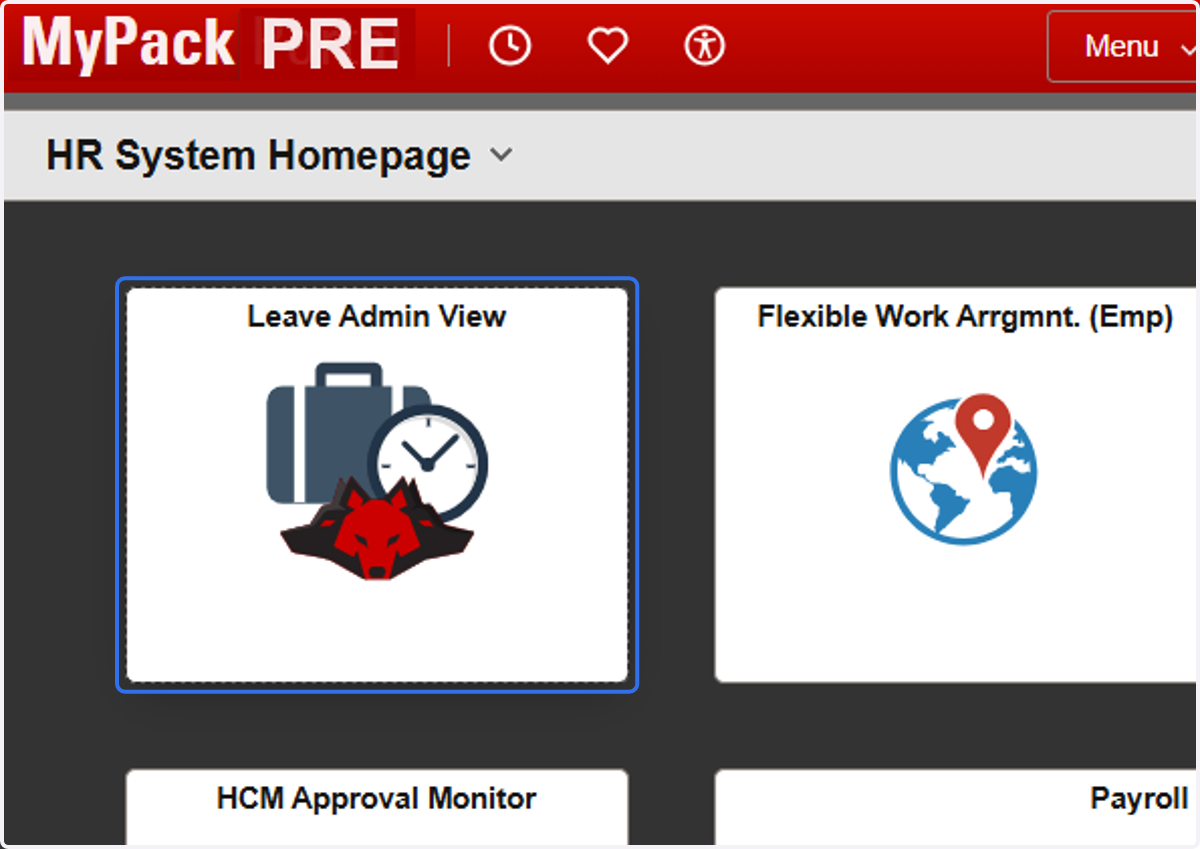
Navigate to HR System Homepage
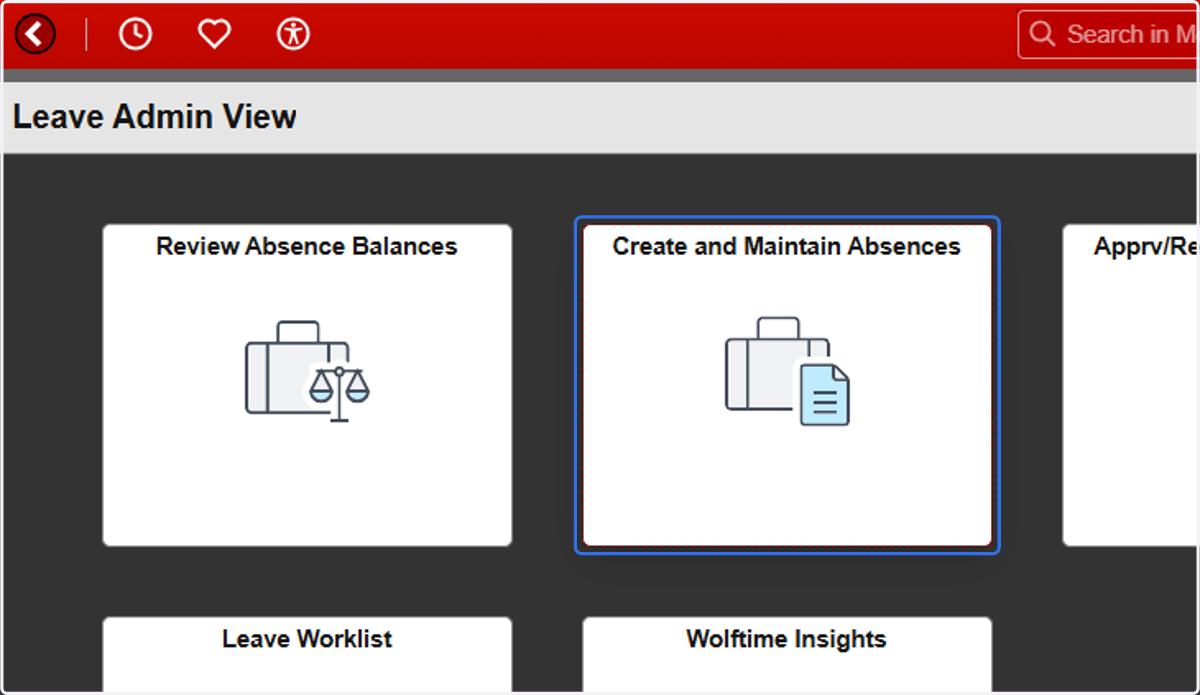
2. Click on Create and Maintain Absences
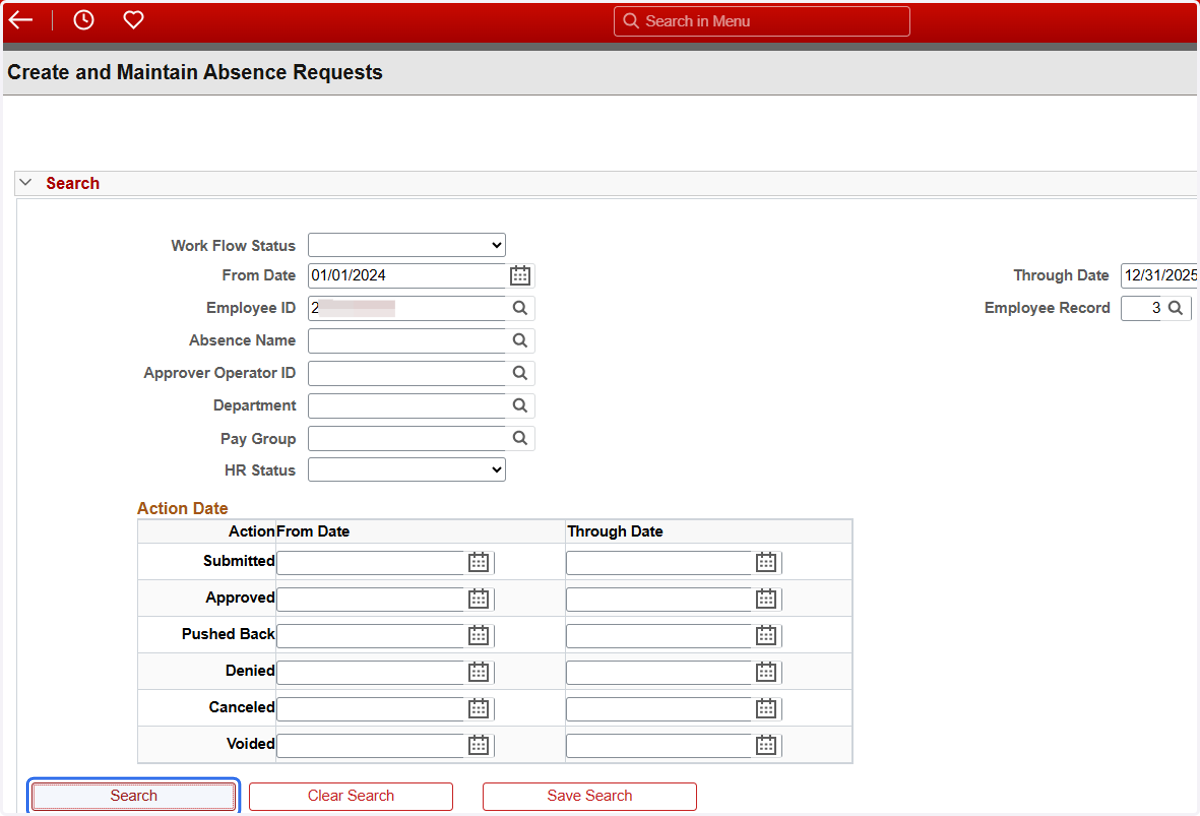
3. Search for Employee by Employee ID
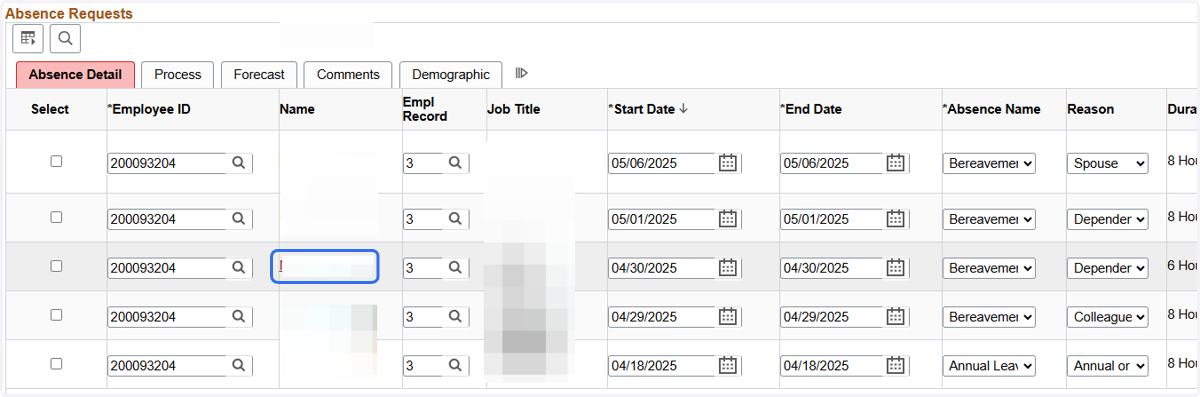
4. Click on Employee's Name to access the details of the Bereavement Leave reques
5. Click on Attachments Link beneath the Details section
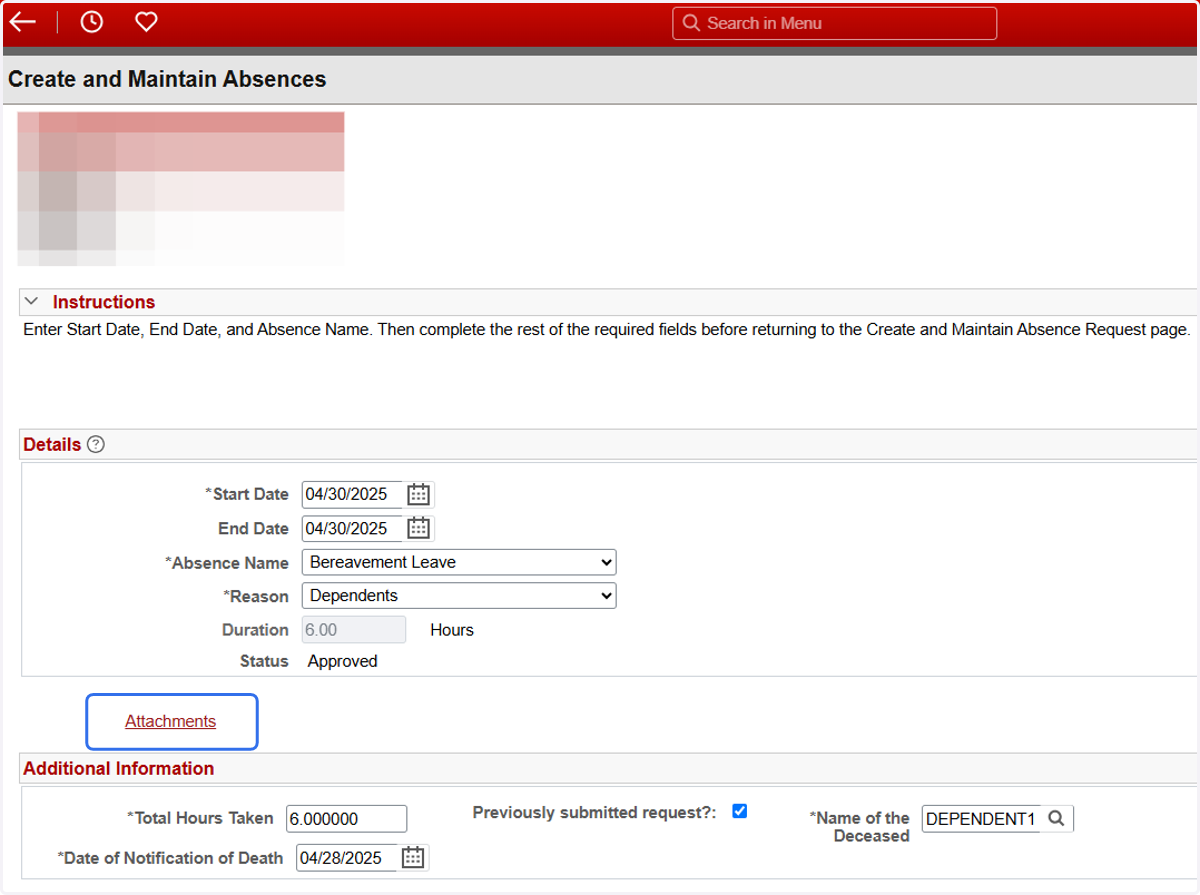
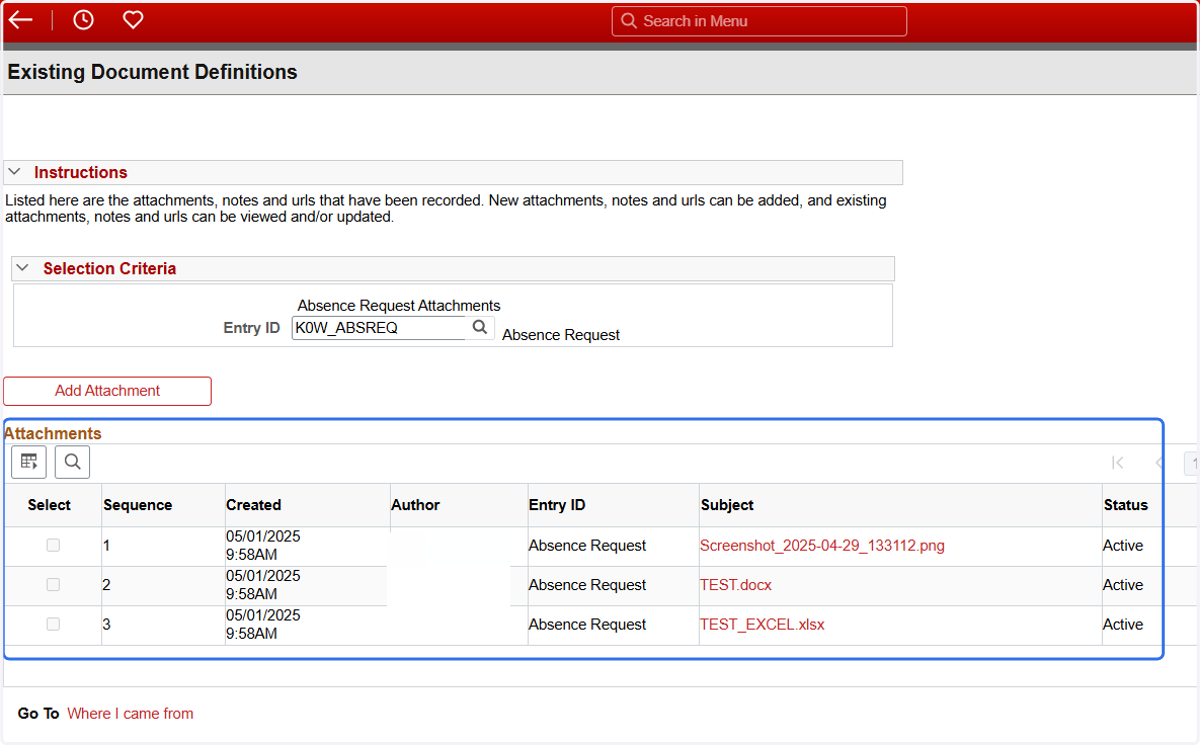
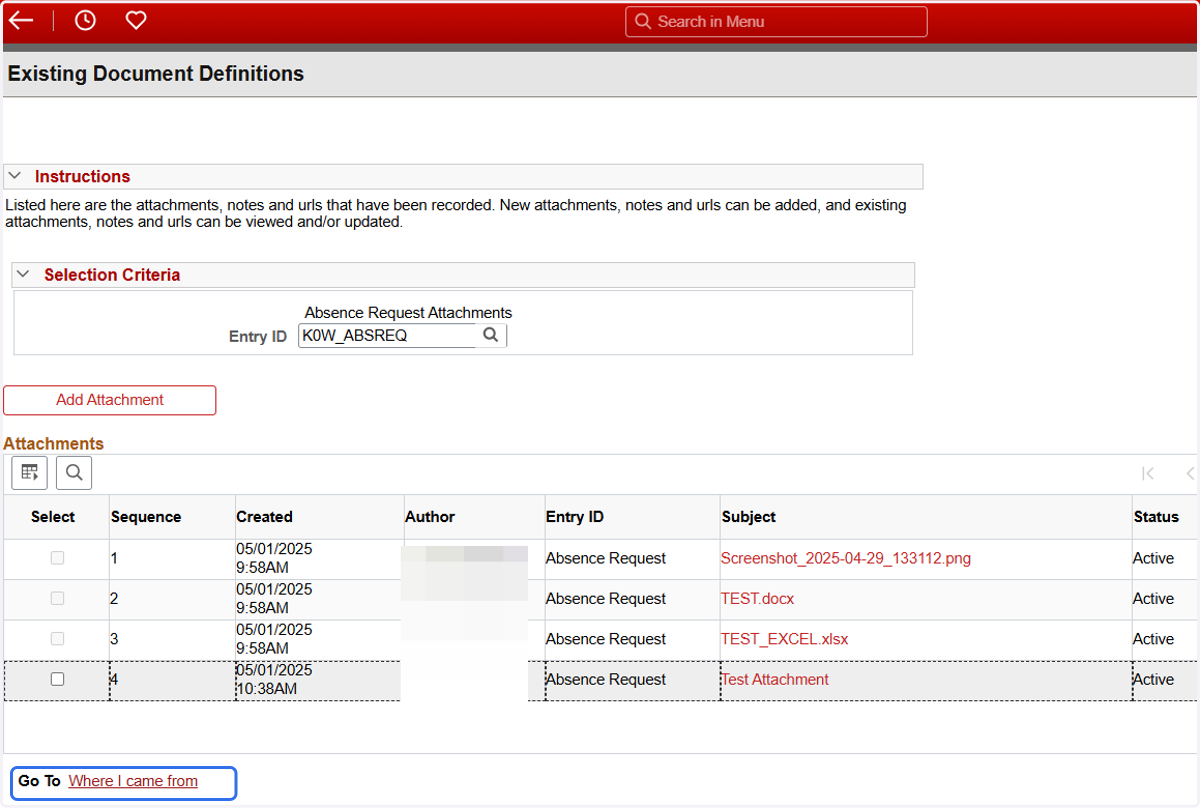
6. Existing Attachments will appear under Attachments
The table will include the attachments, who added each one, and a time stamp of when they were added.
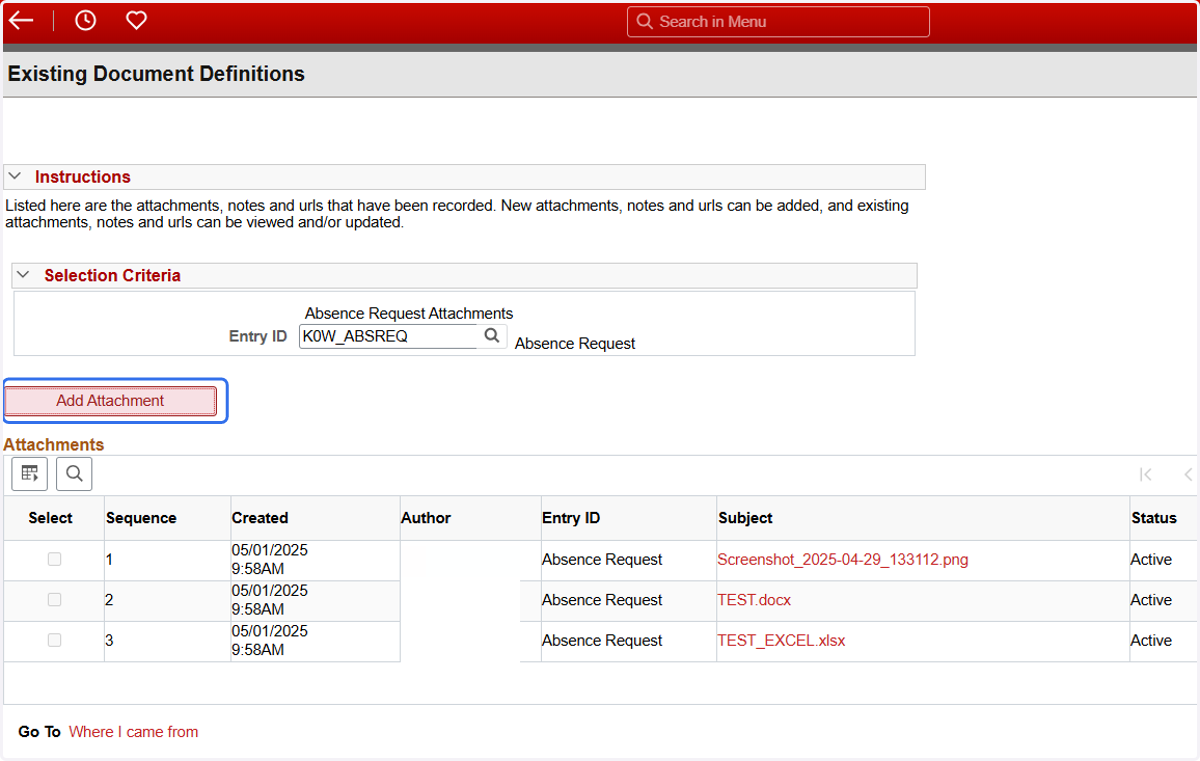
7. Click on Add Attachment
8. Use the Subject field to name the attachment
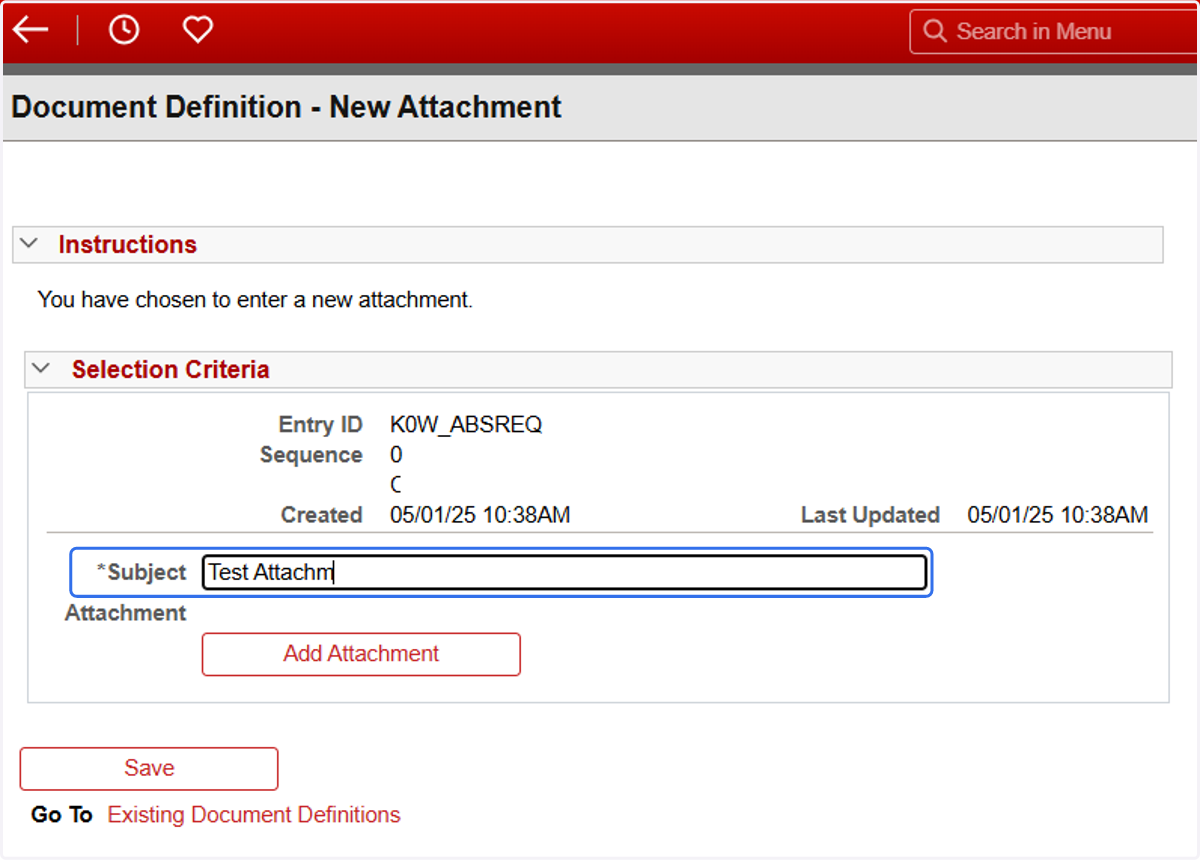
9. Click Add Attachment
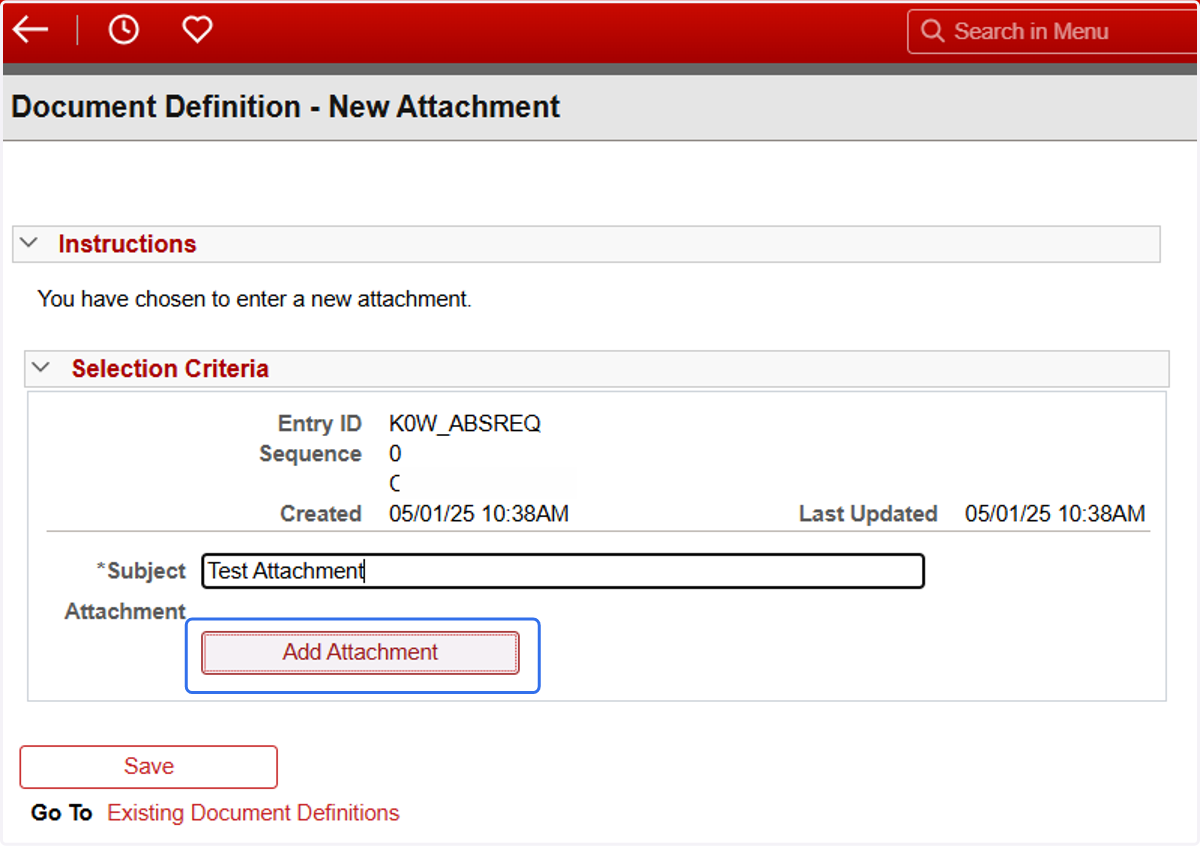
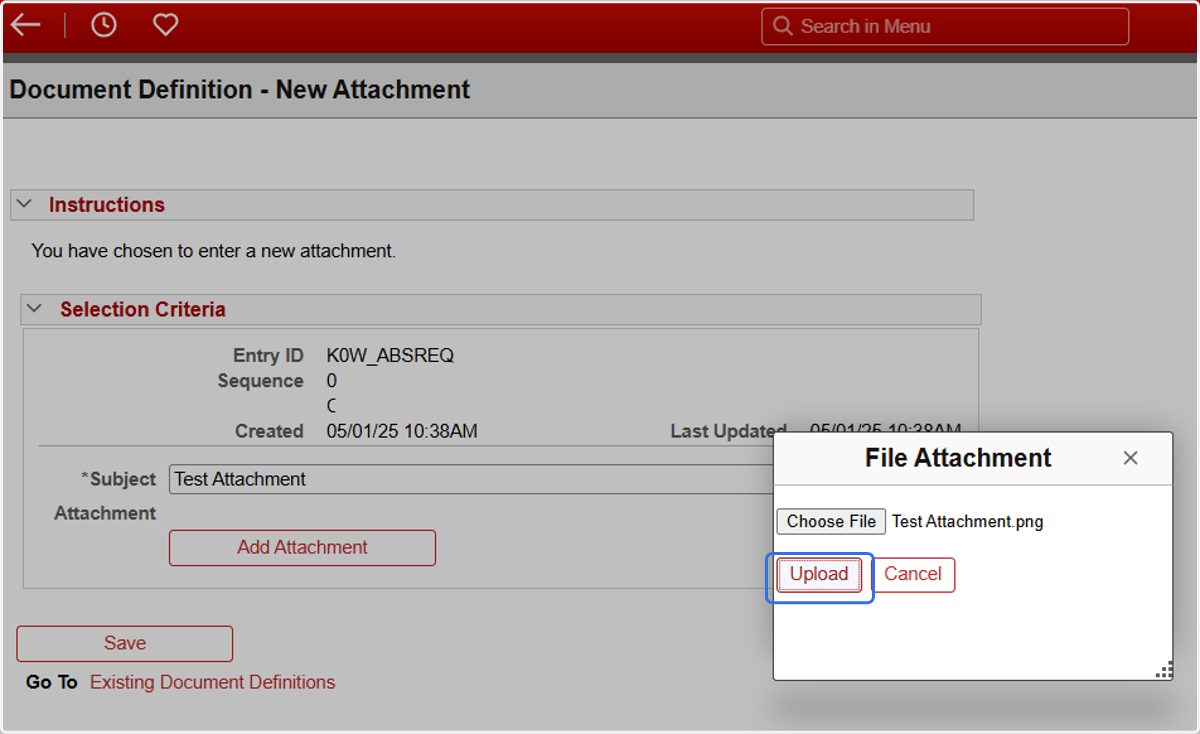
10. Click Choose File
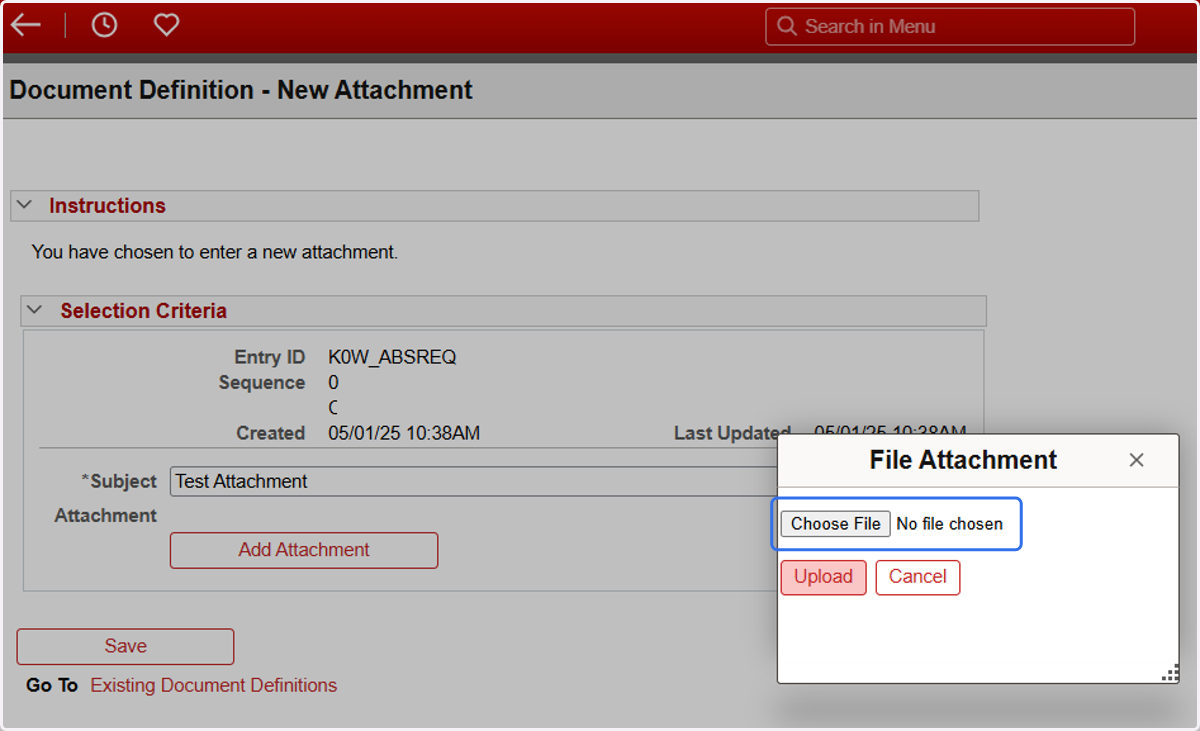
11. Select your attachment from file upload menu
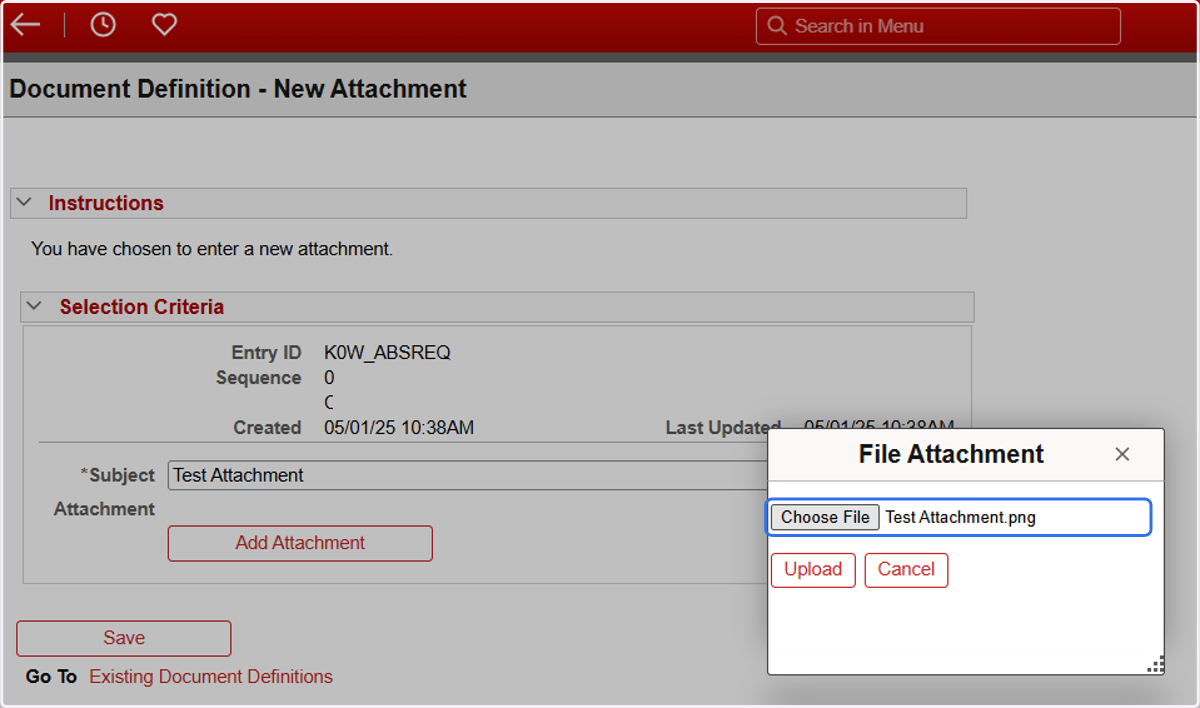
12. Click on Upload
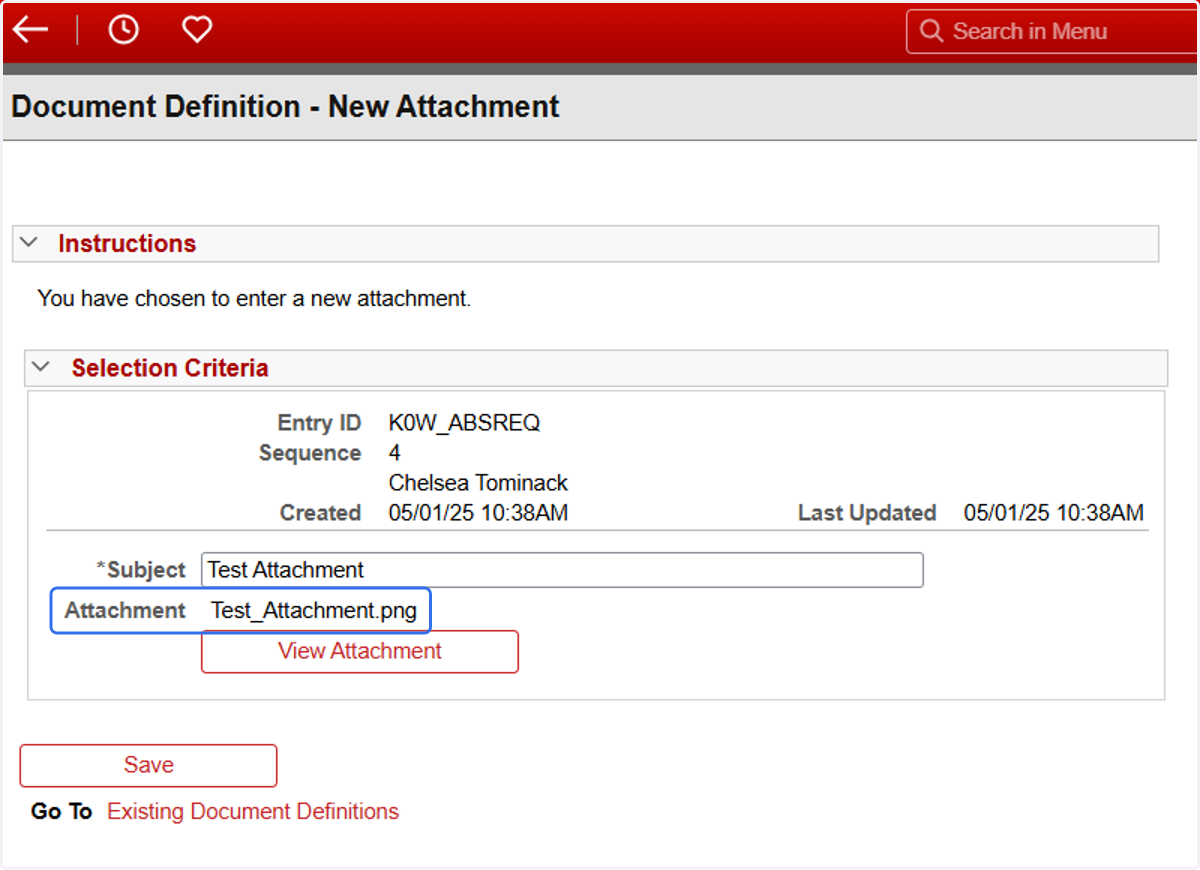
13. The file will appear in the Attachment field
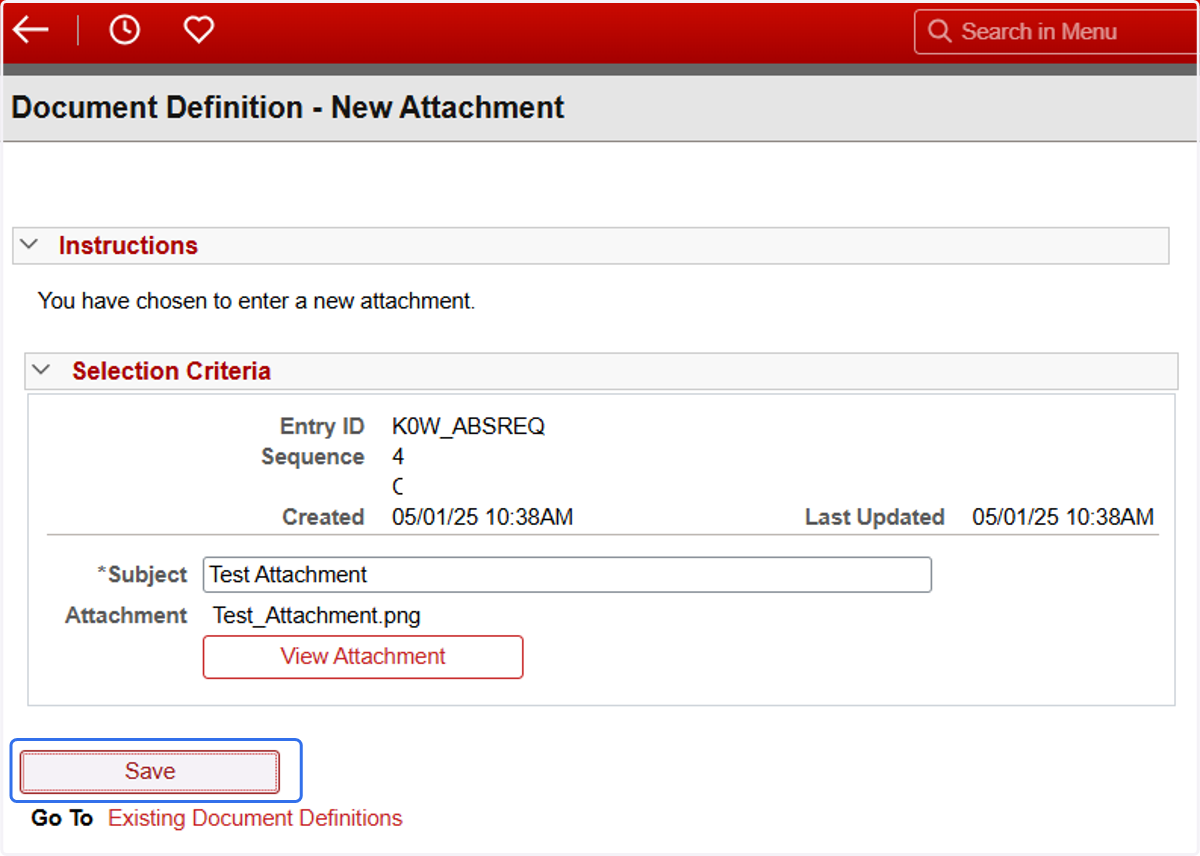
14. Click on Save
15. The new attachment will be added to the table of Attachments
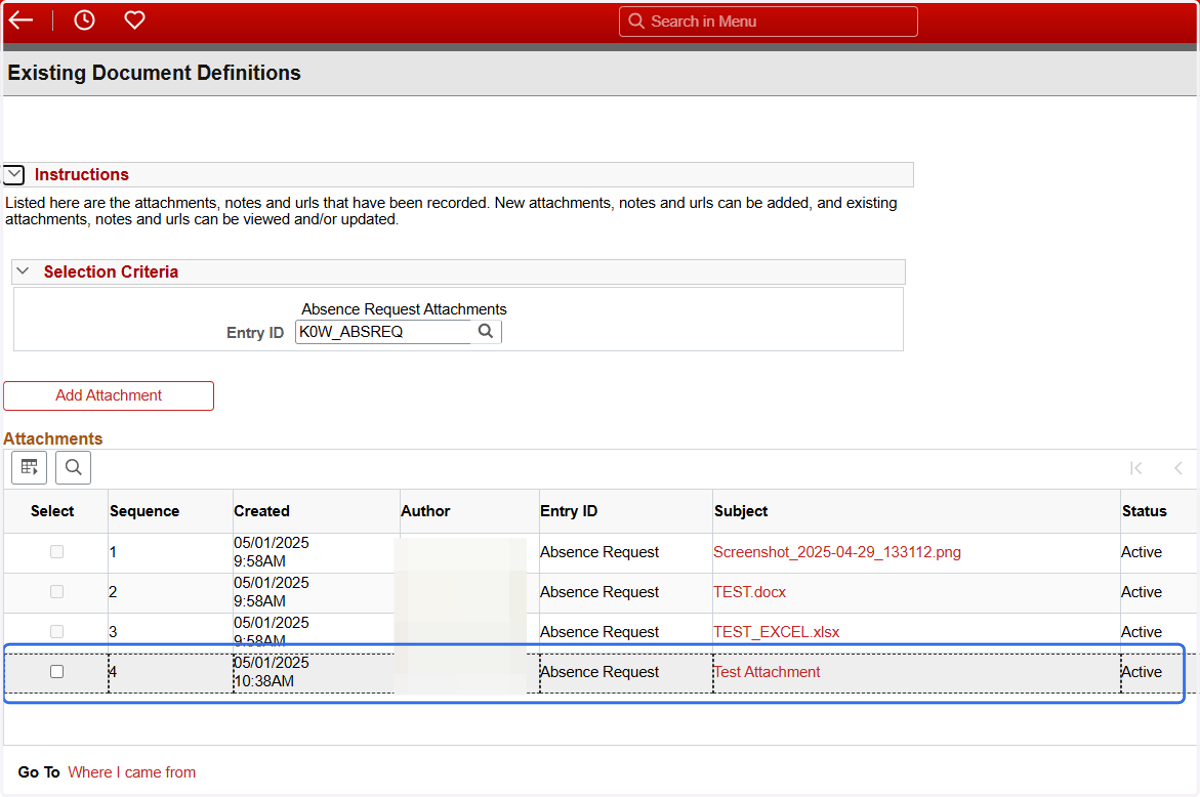
16. Click on 'Go To Where I came from' to return to the absence details
17. You are now back in the Absence Details