Workflow with Eyefinity and VSP
This is a super basic guide for searching patients with VSP benefits.
Eyefinity
1. https://youtu.be/jXr0bkOapHg
Eye Help you is a remote staffing agency that helps solve your staffing burdens remotely: https://www.eyehelpyou.co/
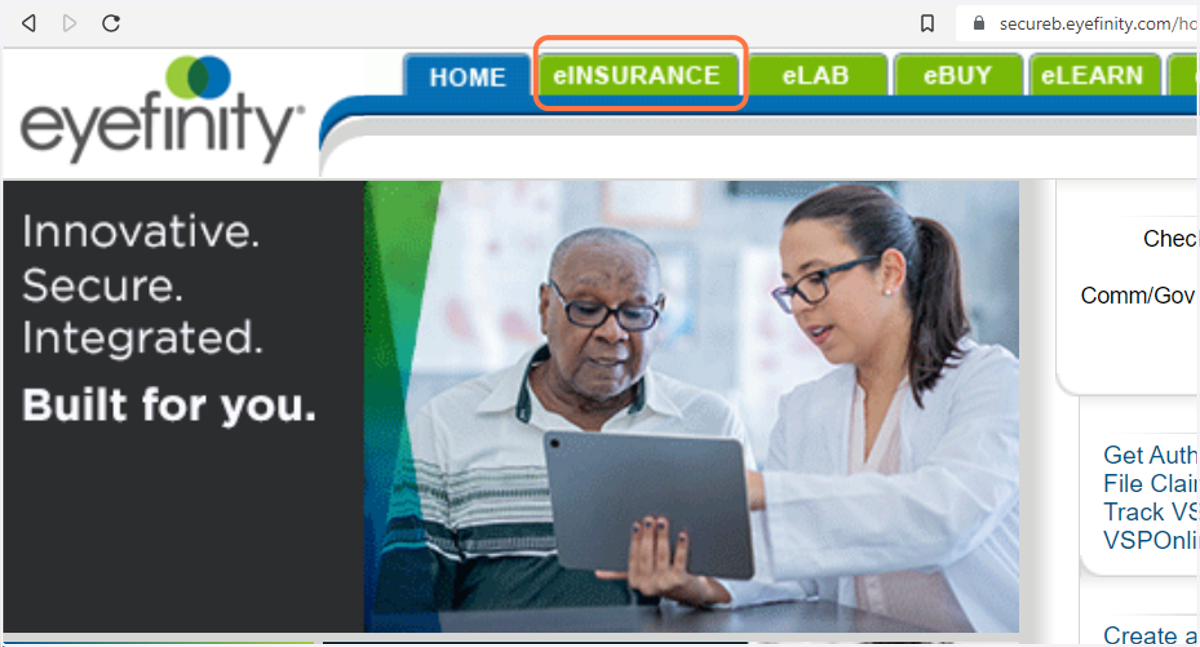
2. Go to Provider Portal
3. Select eINSURANCE
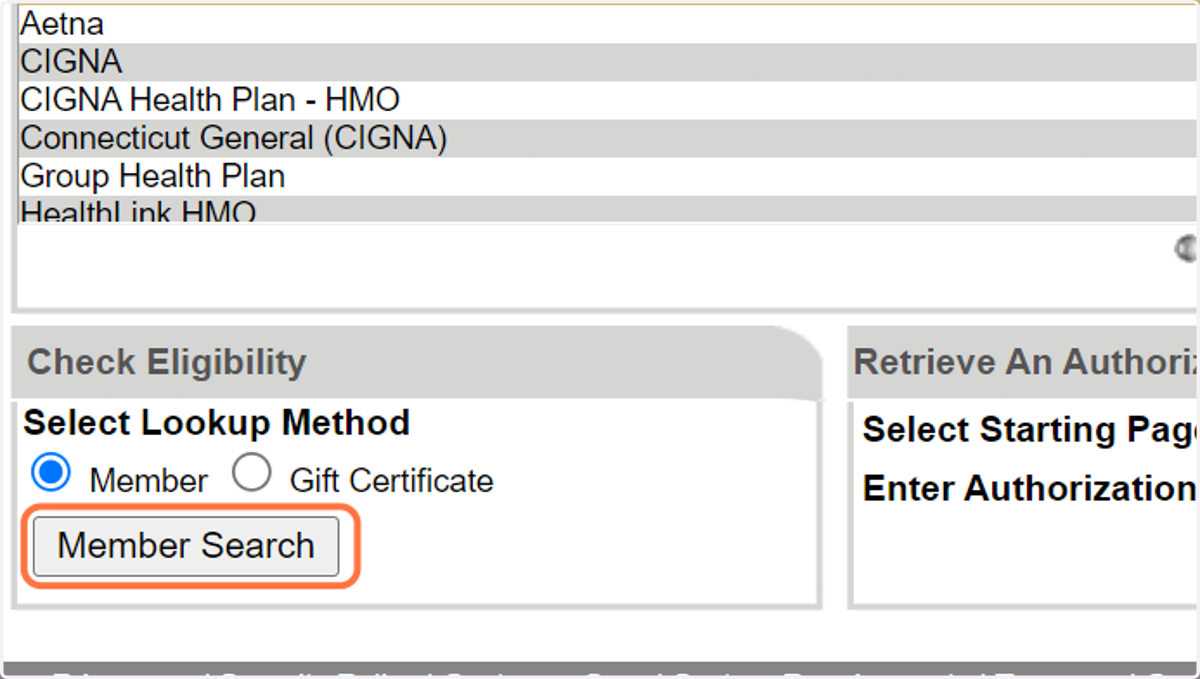
4. Click member search
5. Click on highlight
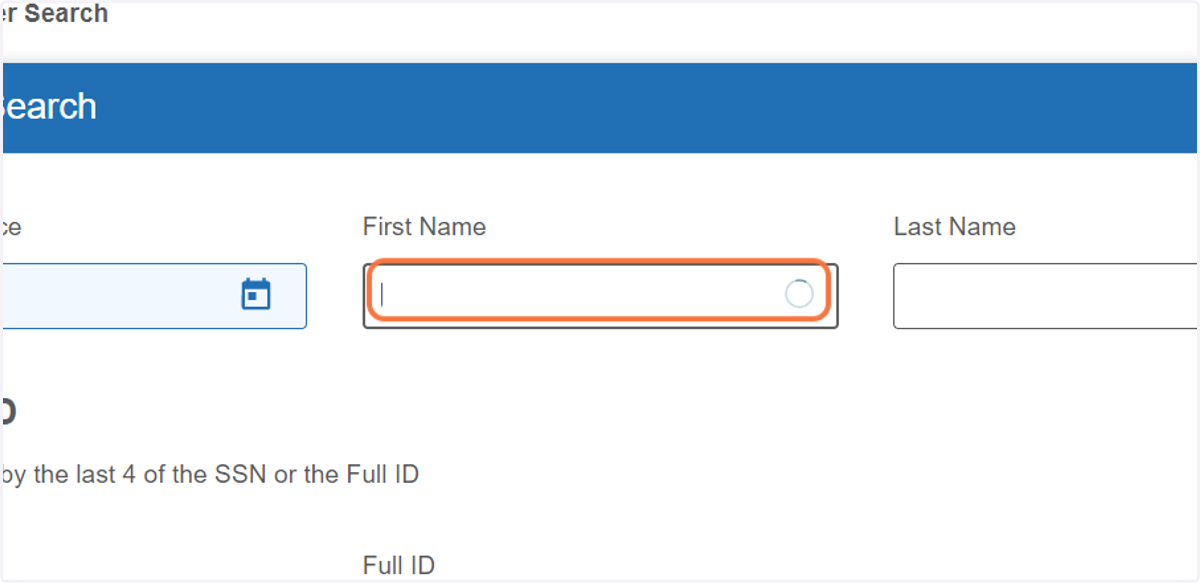
6. Type "Deborah"
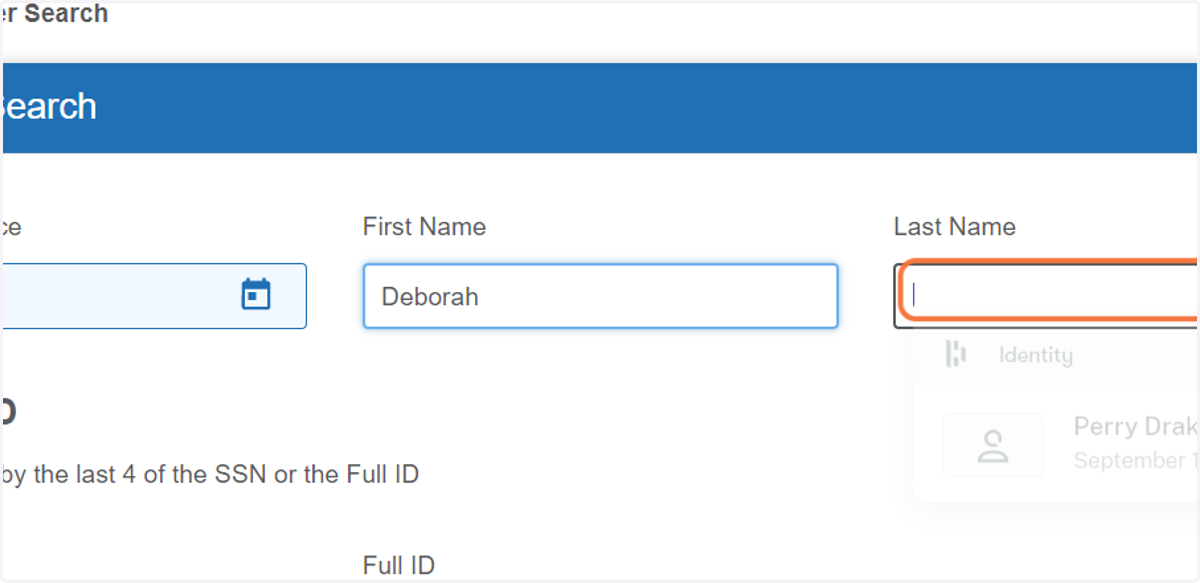
7. Type "Brill"
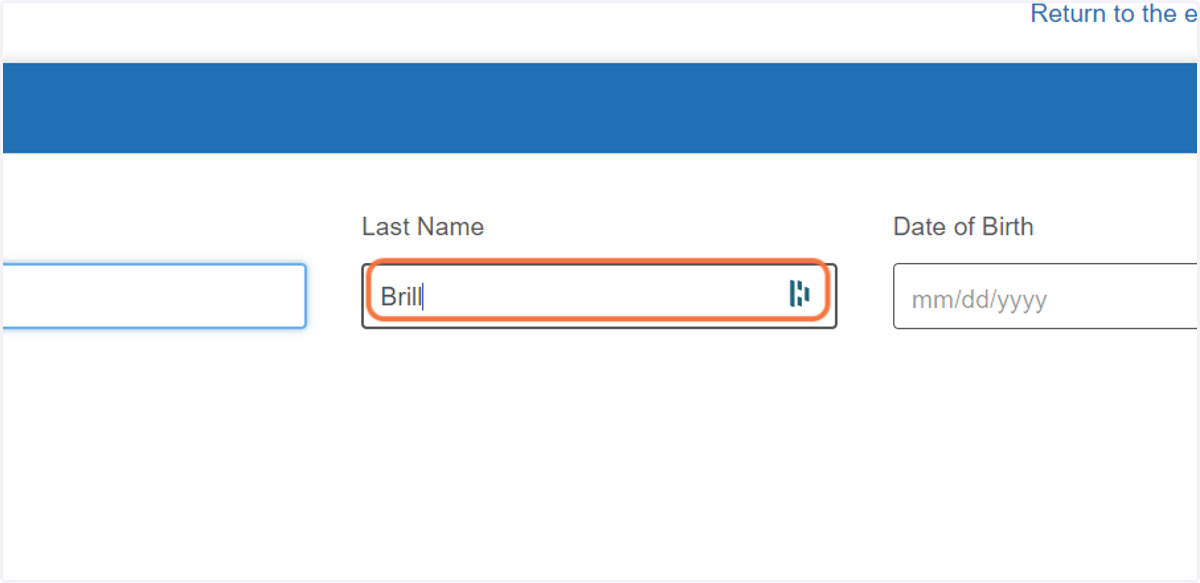
8. Type "12/13/1956"
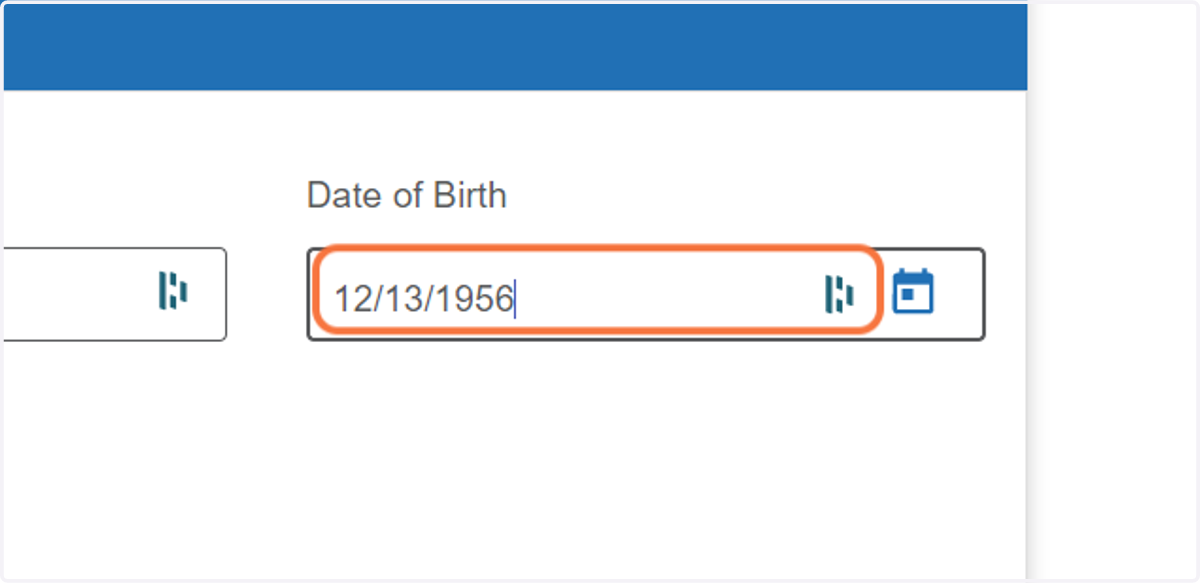
9. Click on Open calendar
Enter the Date of Service the patient is receiving care. DO NOT put in the date you are submitting the claim.
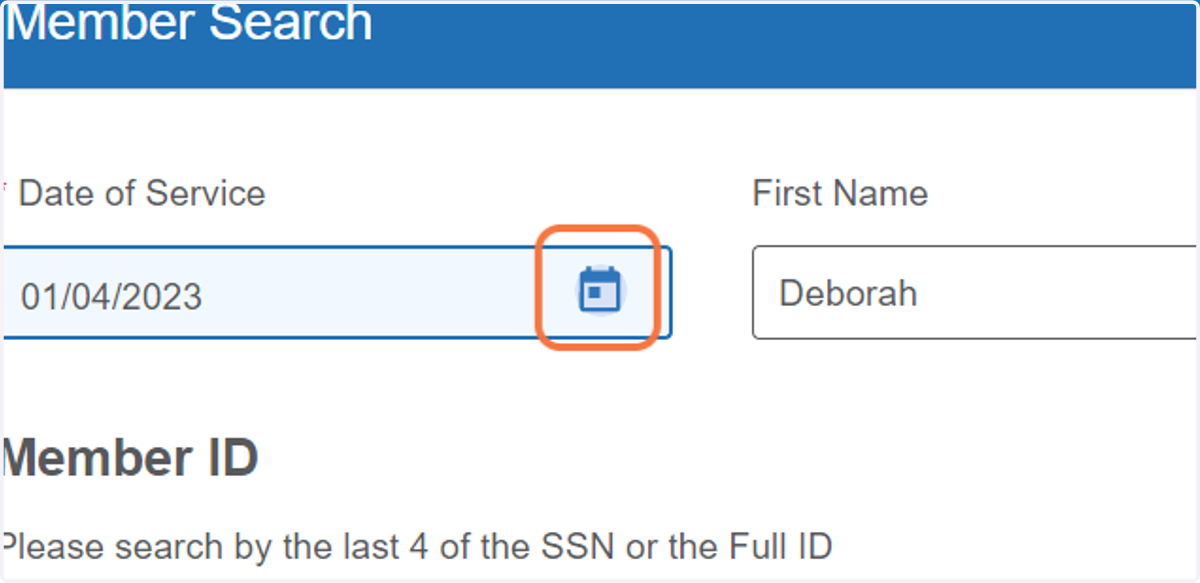
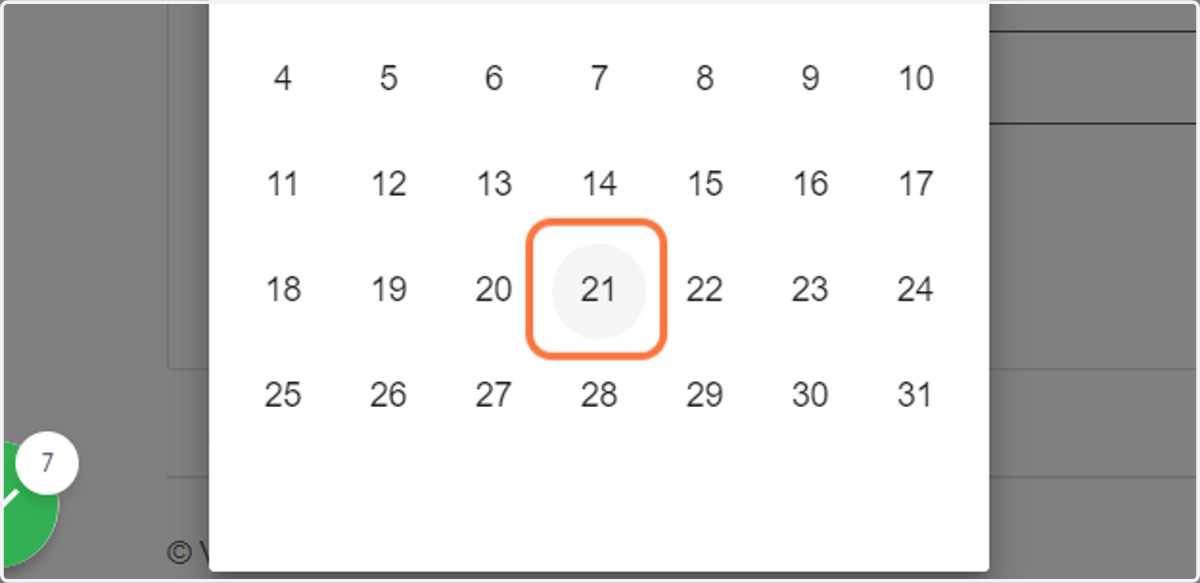
10. Click on December 21, 2022
11. Click on Search
12. Click on BRILL, DEBORAH
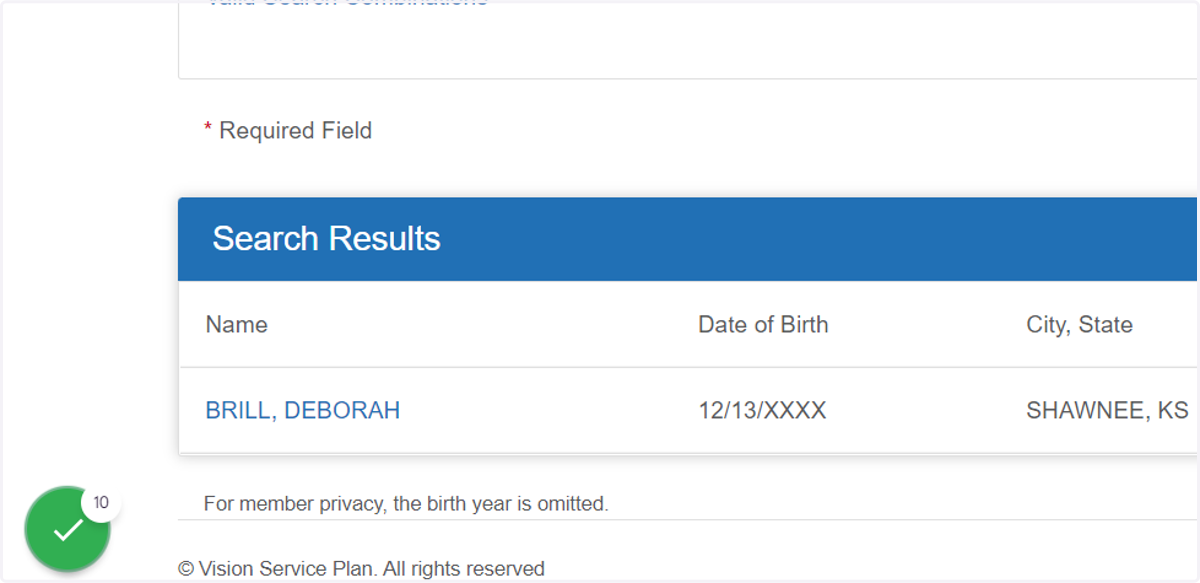
13. Click on BRILL, DEBORAH
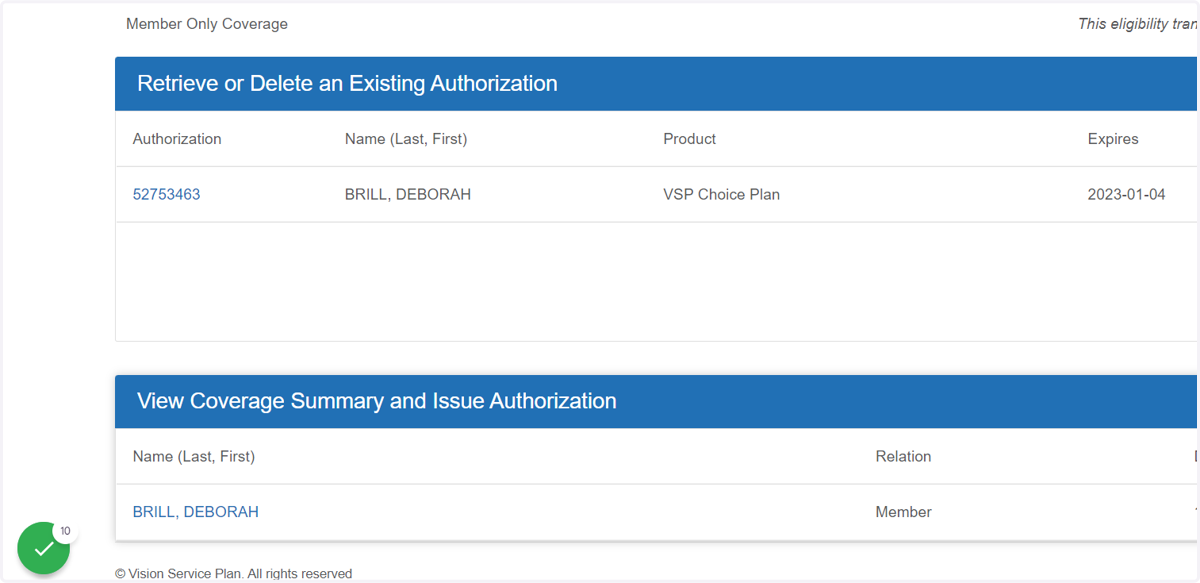
14. Check on
You will see all the benefits that are active for the patient. Pay close attention when booking a patient or selling items that the patient is actually eligible. In this example, the patient is not eligible for frames until the date of 1/1/23. Most practices prefer to authorize all services for each patient visit.
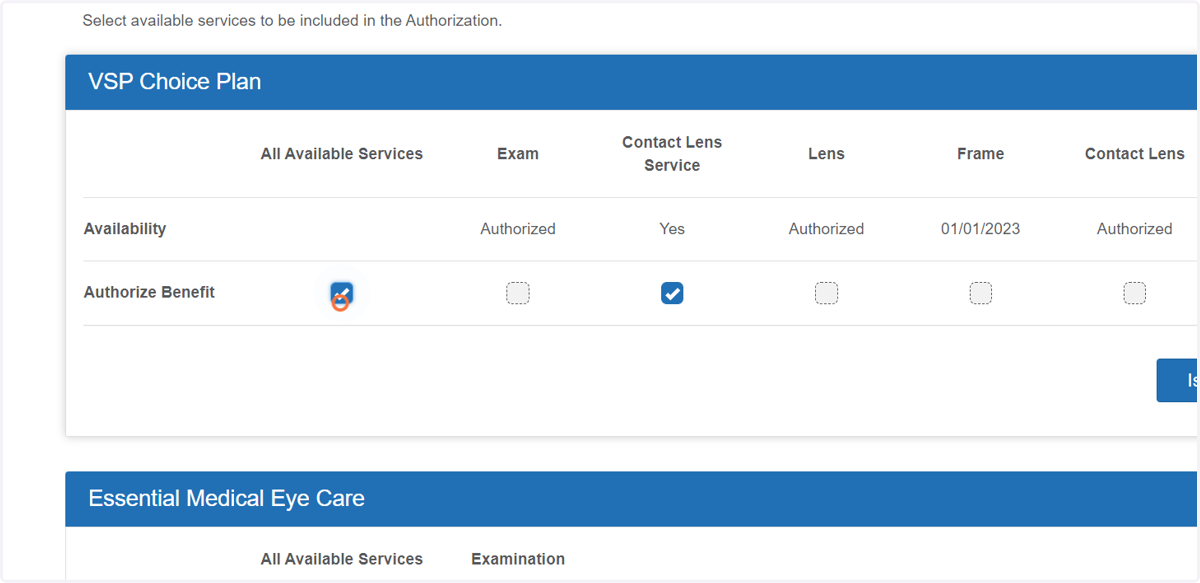
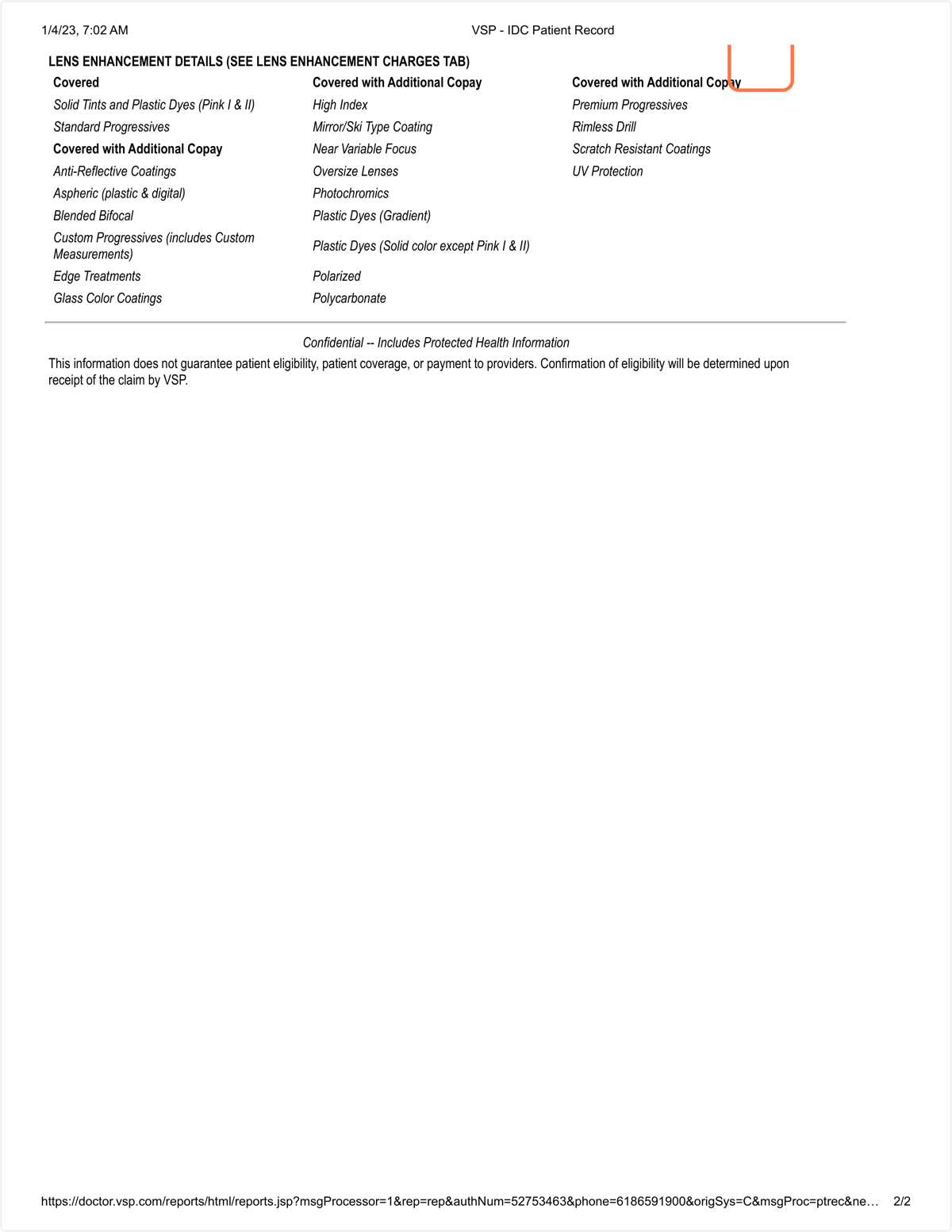
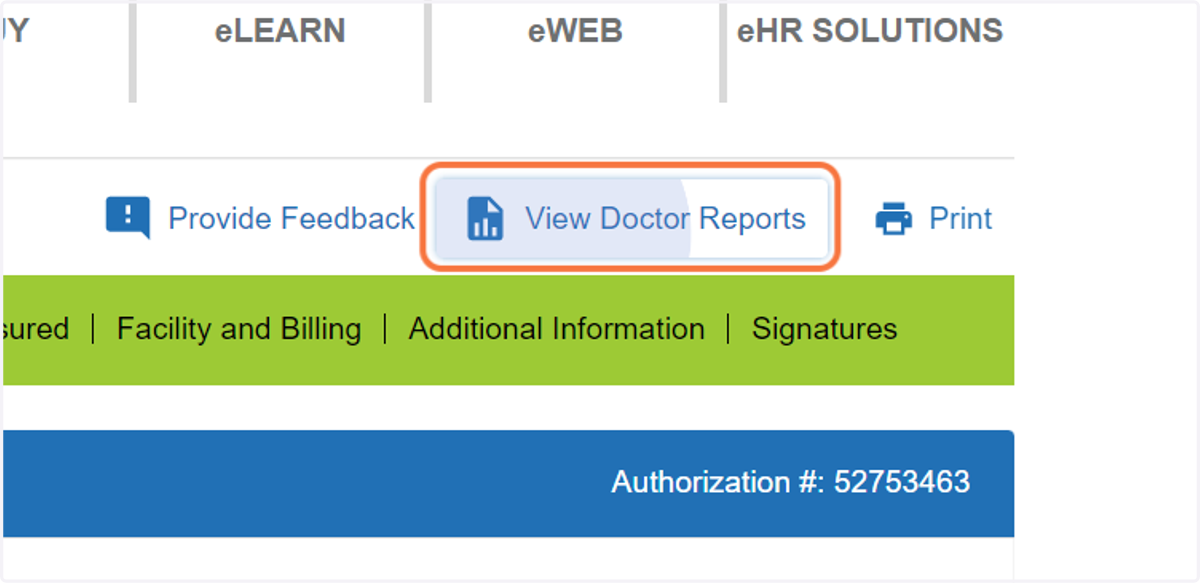
15. Click on View Doctor Reports
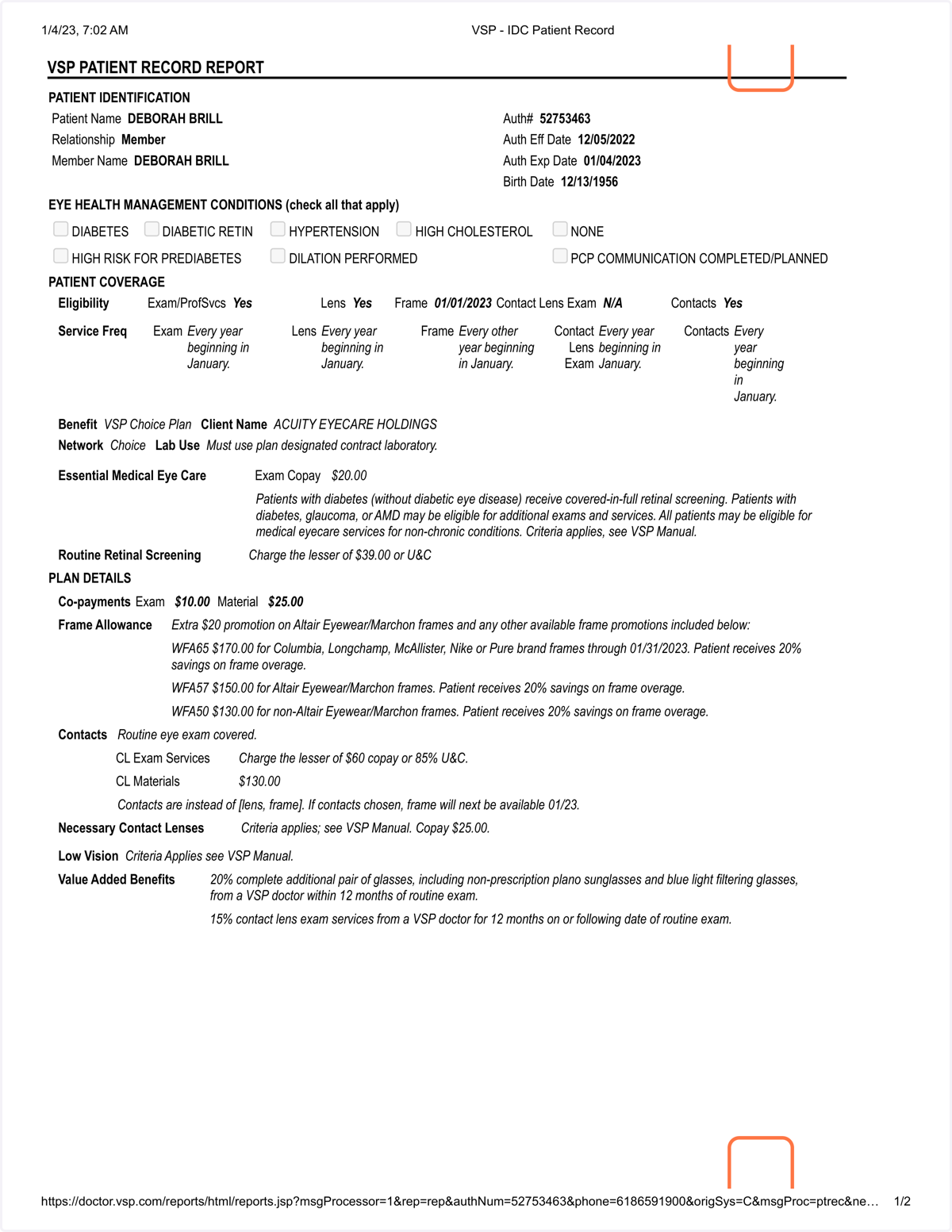
16. Summary
This is the summary of all the patient benefits and your guide to accurately pricing services and products.
17. Untitled step