Viewing all exam results
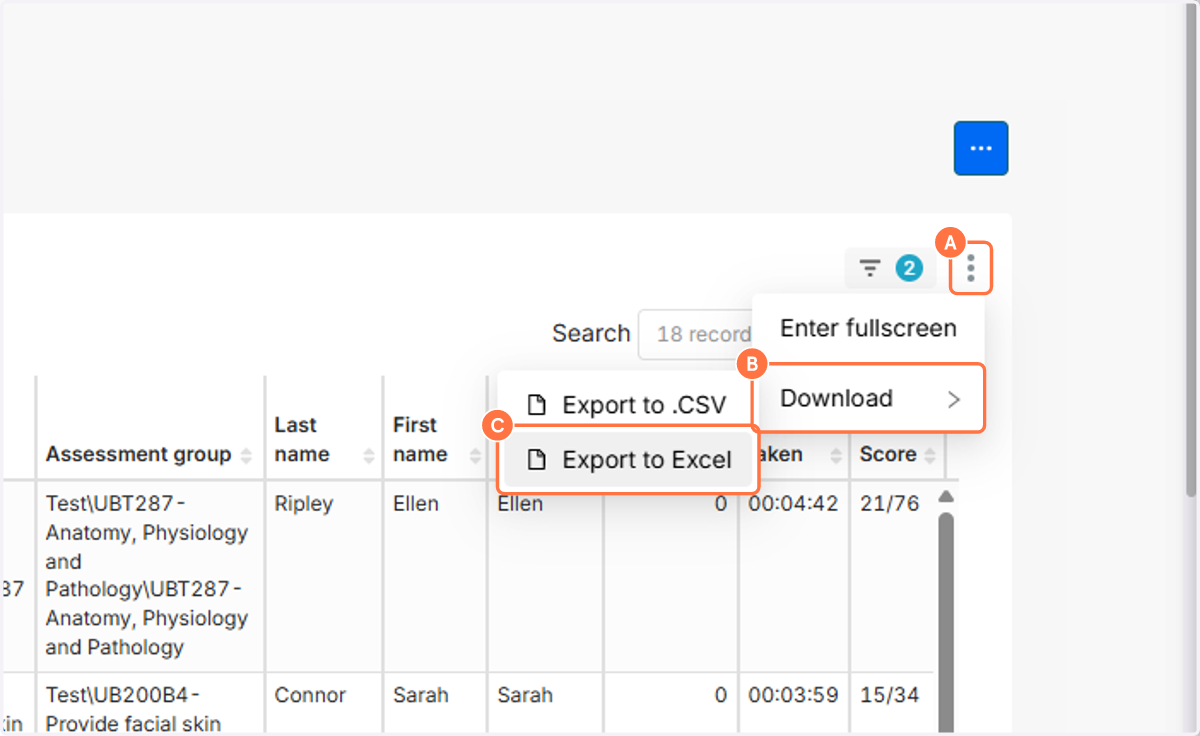
1. A. Hover over the Reports icon
1. B. Click on Data Analytic Reports
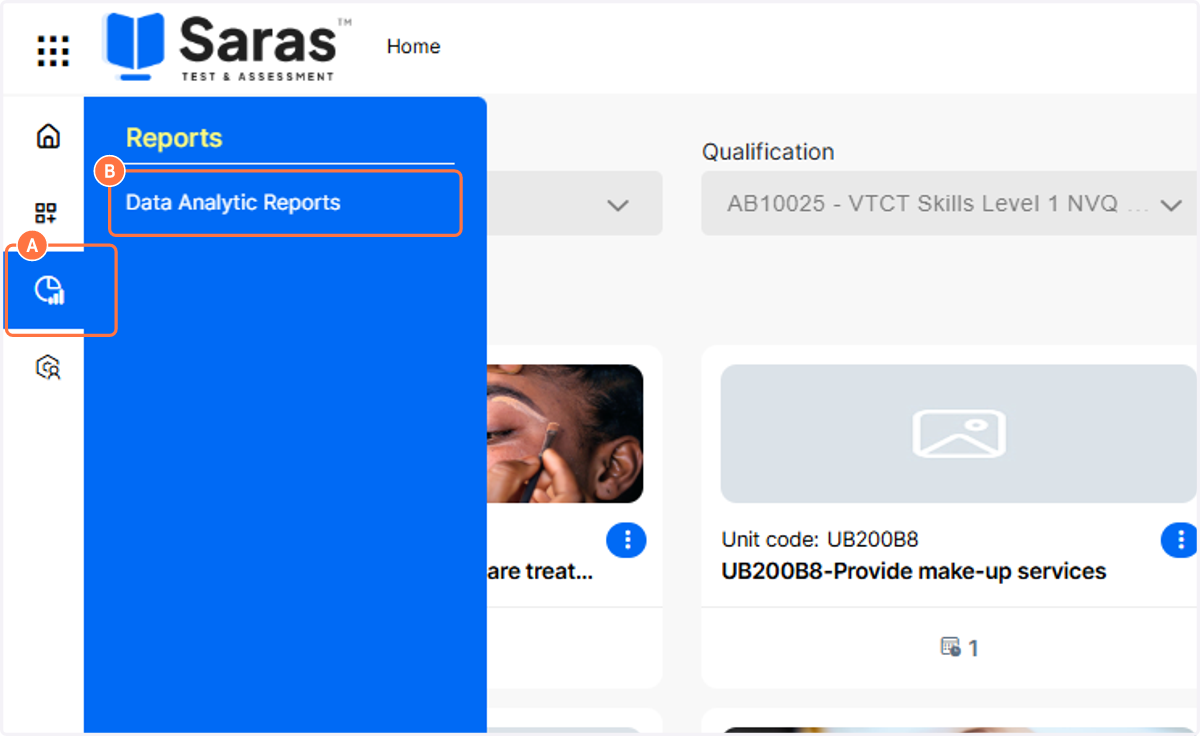
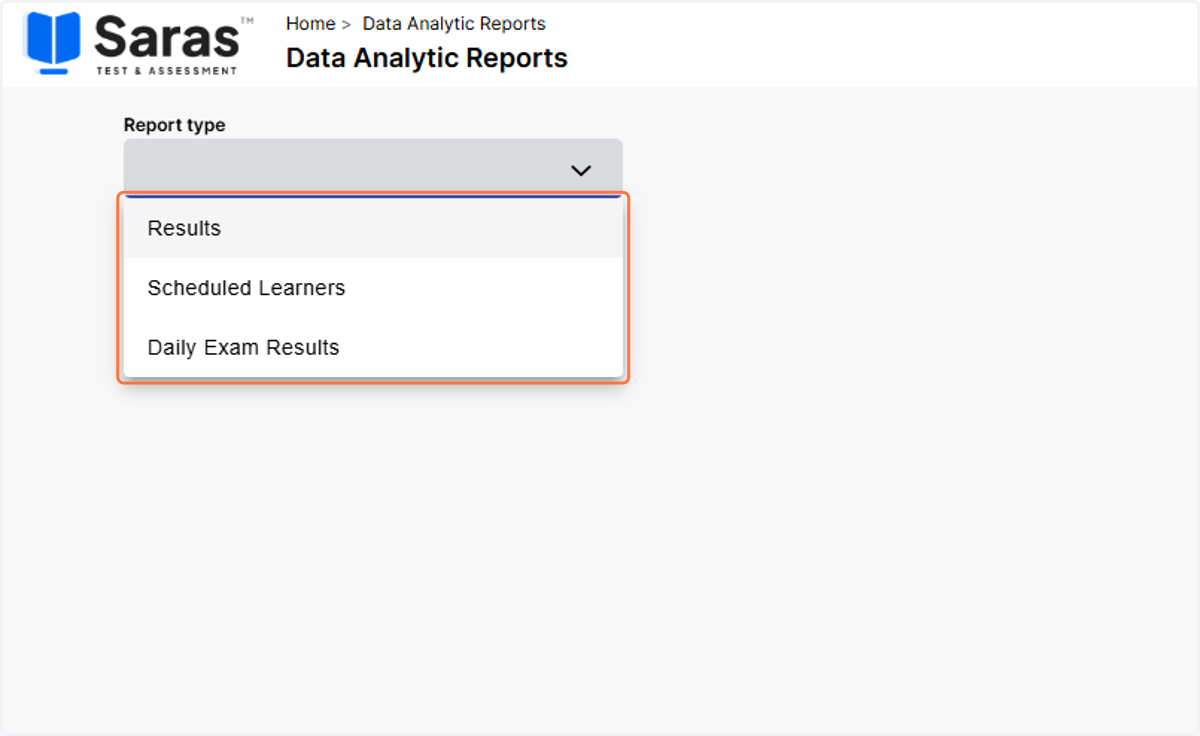
2. In the Report type drop down, select Daily Exam Results
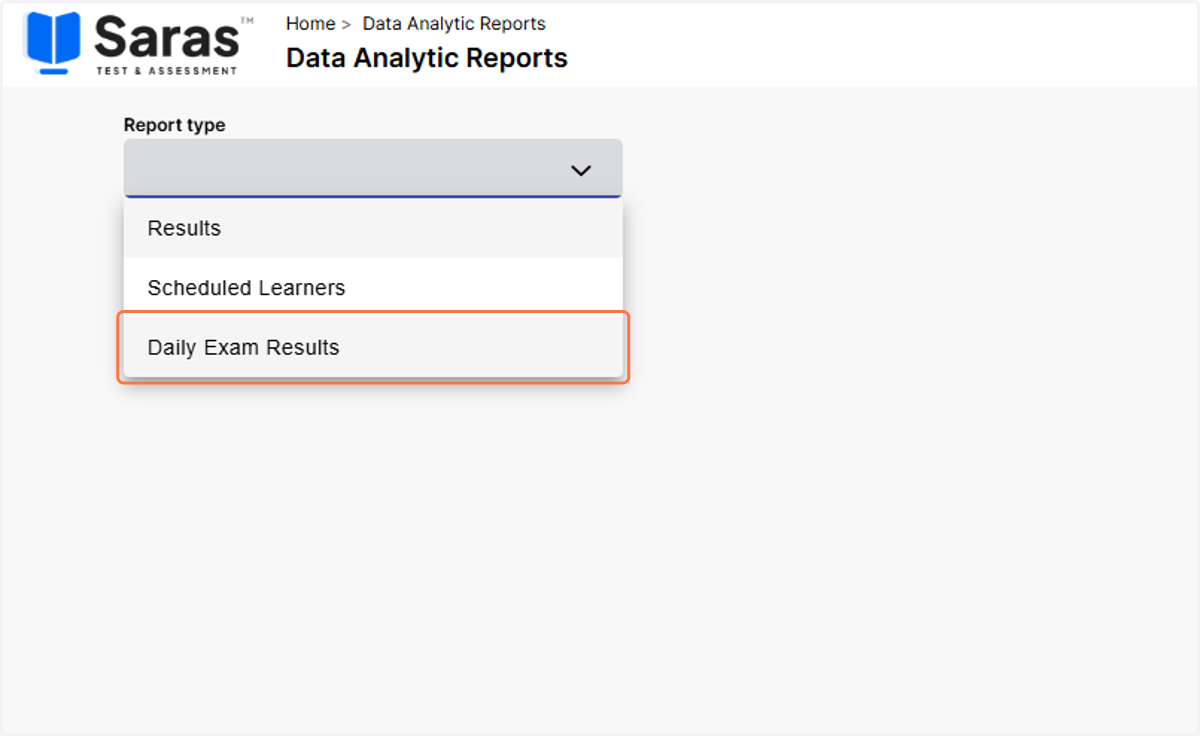
3. This report will show all exam results for the current day, if applicable. Results will be available instantly in this report.
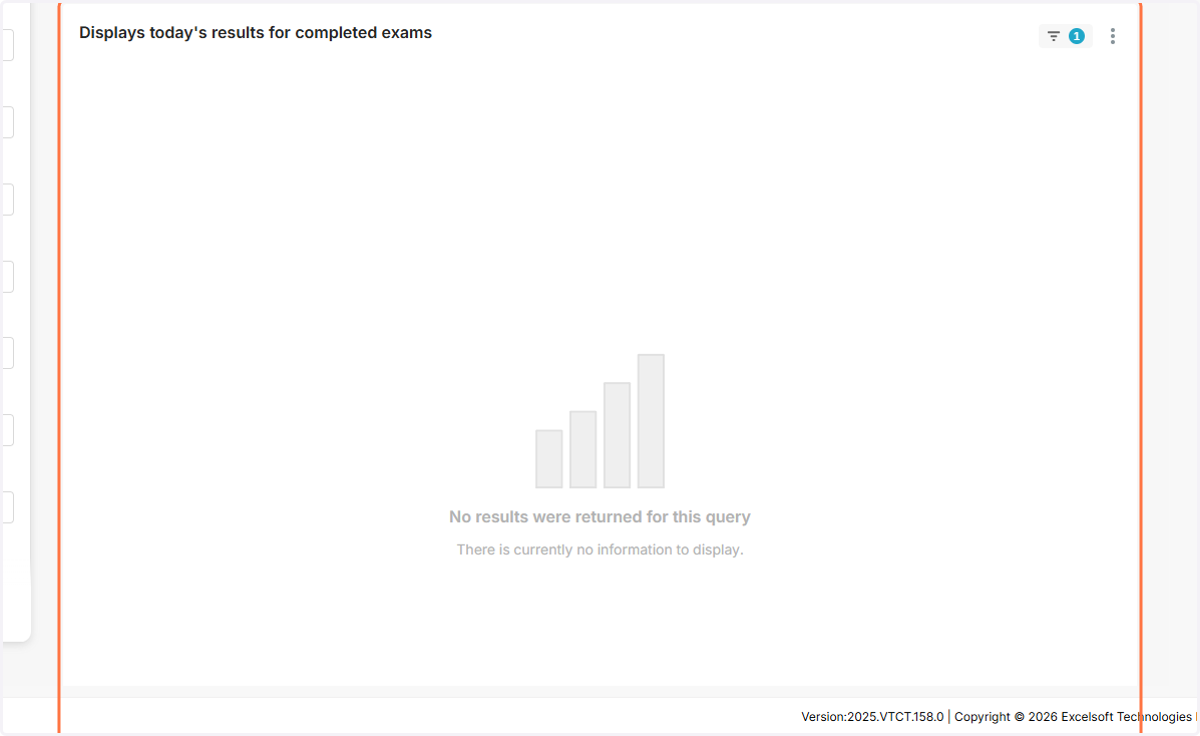
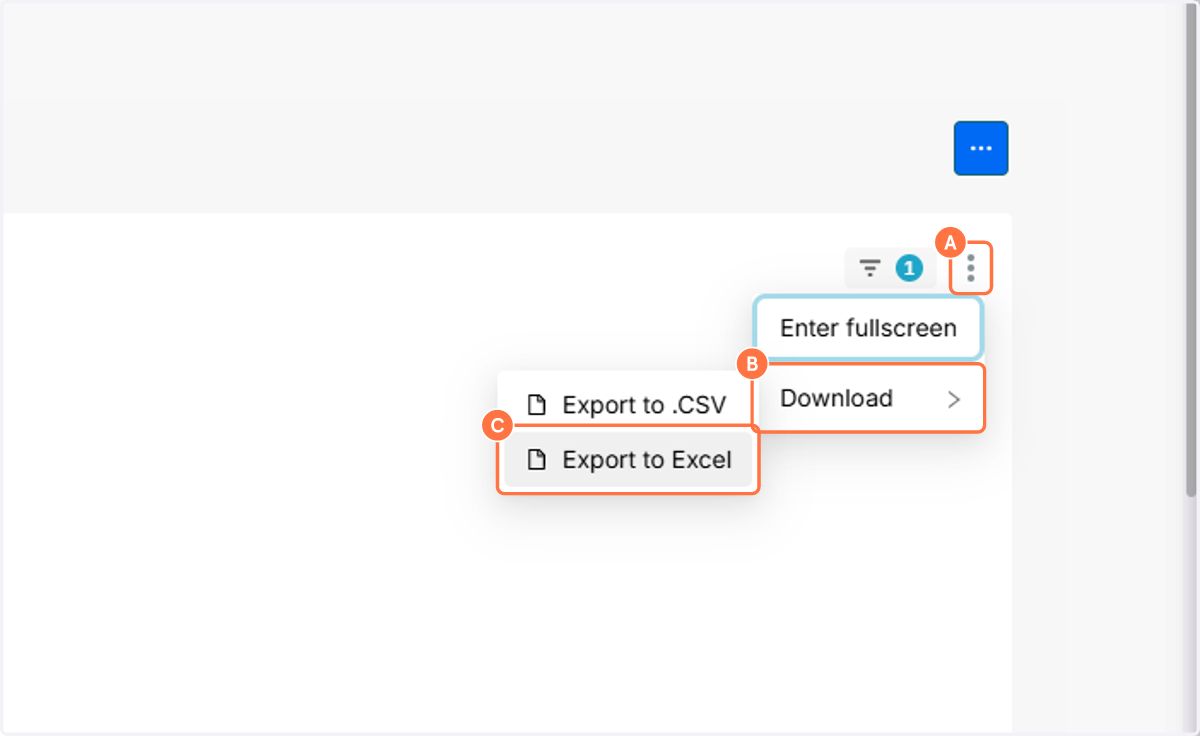
4. A. Should you wish to export this data, firstly click on More Options
4. B. Hover over Download
4. C. Click on Export to Excel or Export to .CSV to complete the export.
5. Should you wish to view all exam results, change the Report type to Results.
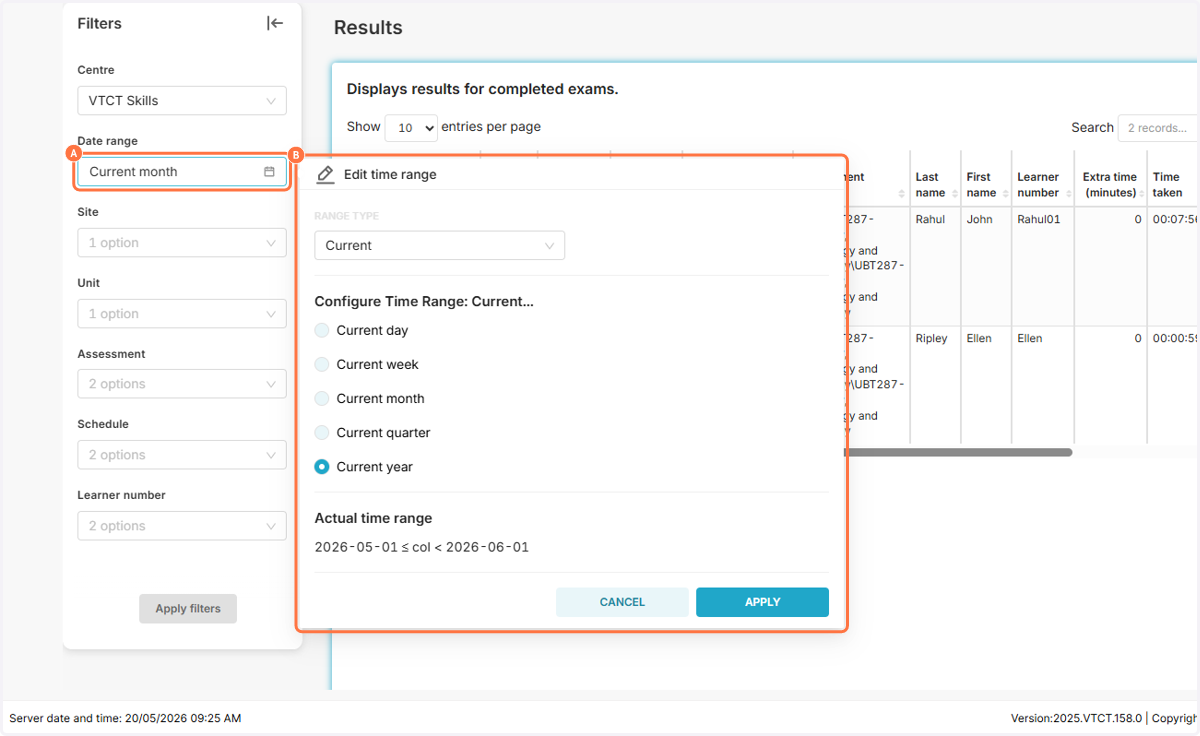
6. A. By default, the report will show exam results for the current month. To change this, click on the Date range drop down.
6. B. You can select from pre configured date ranges by clicking on one of the options in the list.
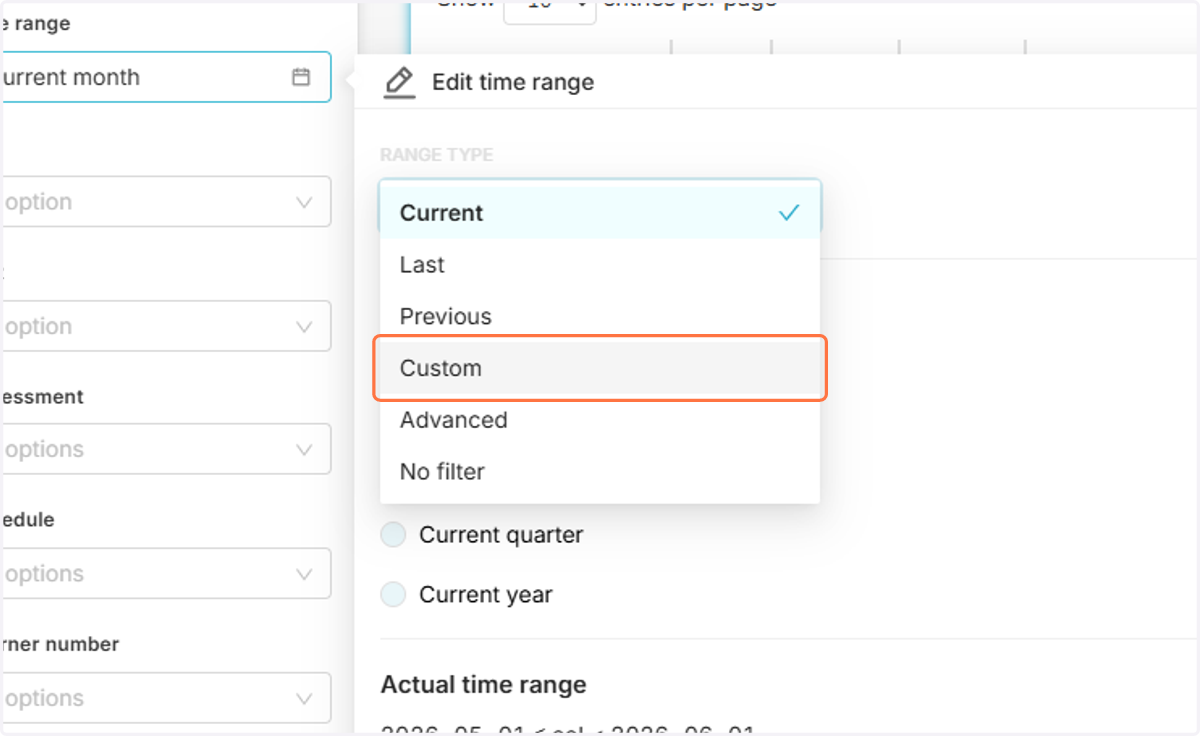
7. Alternatively, to select a custom date range, click on the Range type field and select Custom.
8. Click on the Start date field and change this to Specific Date/Time
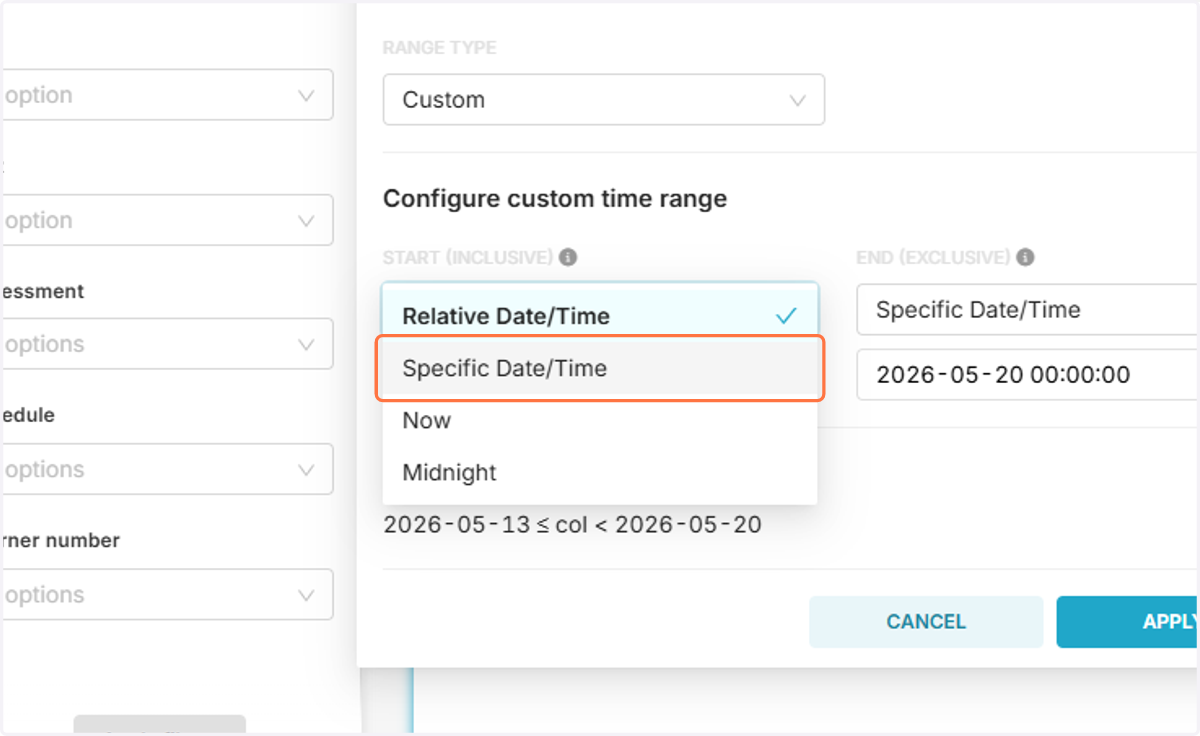
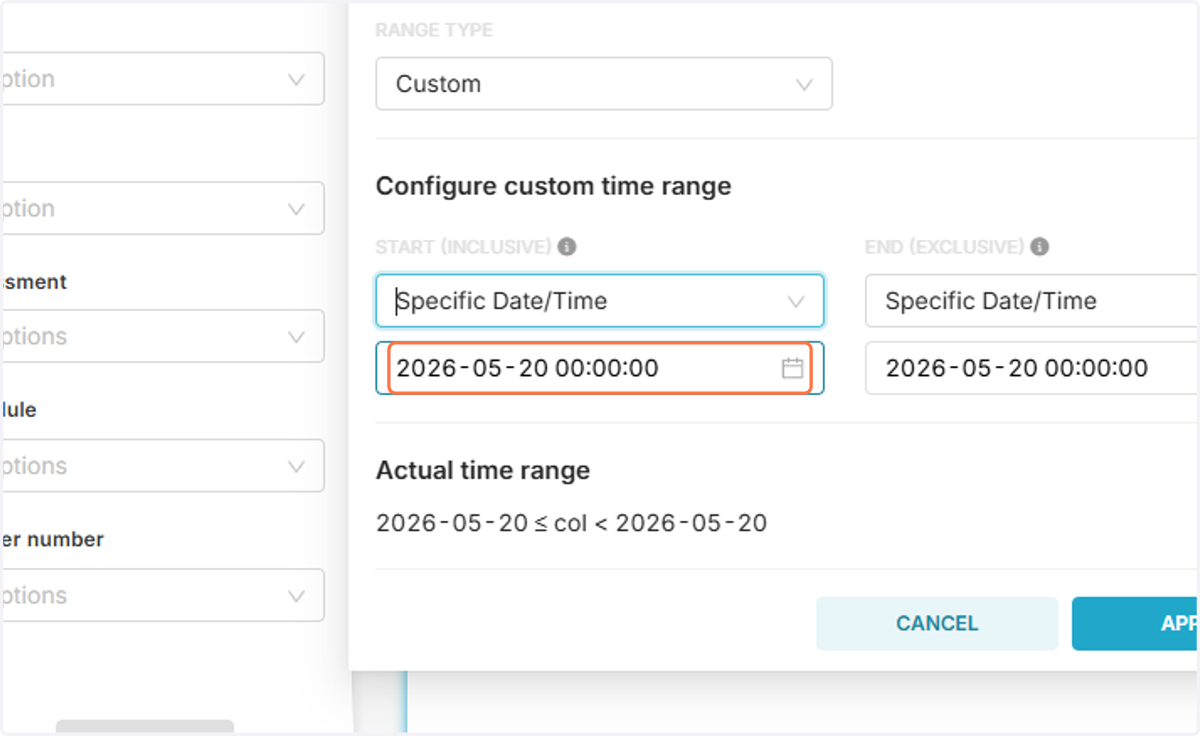
9. Change the date range to your desire date range.
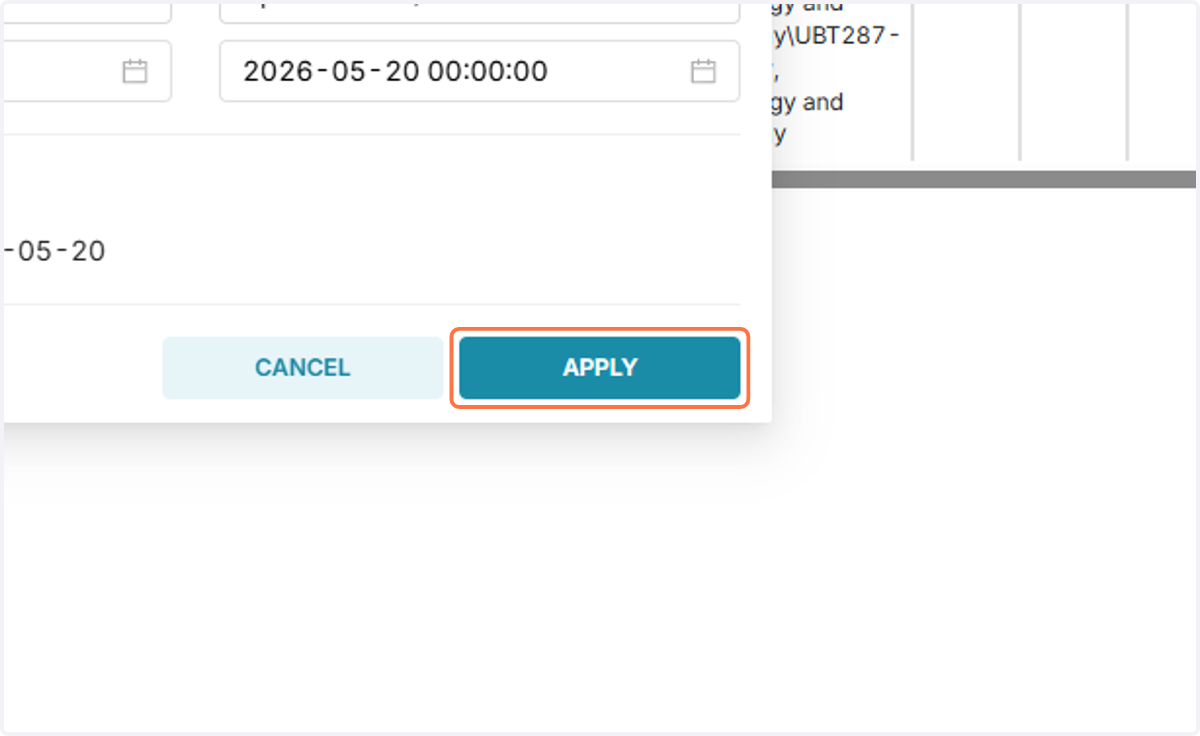
10. Click on Apply to confirm the date range.
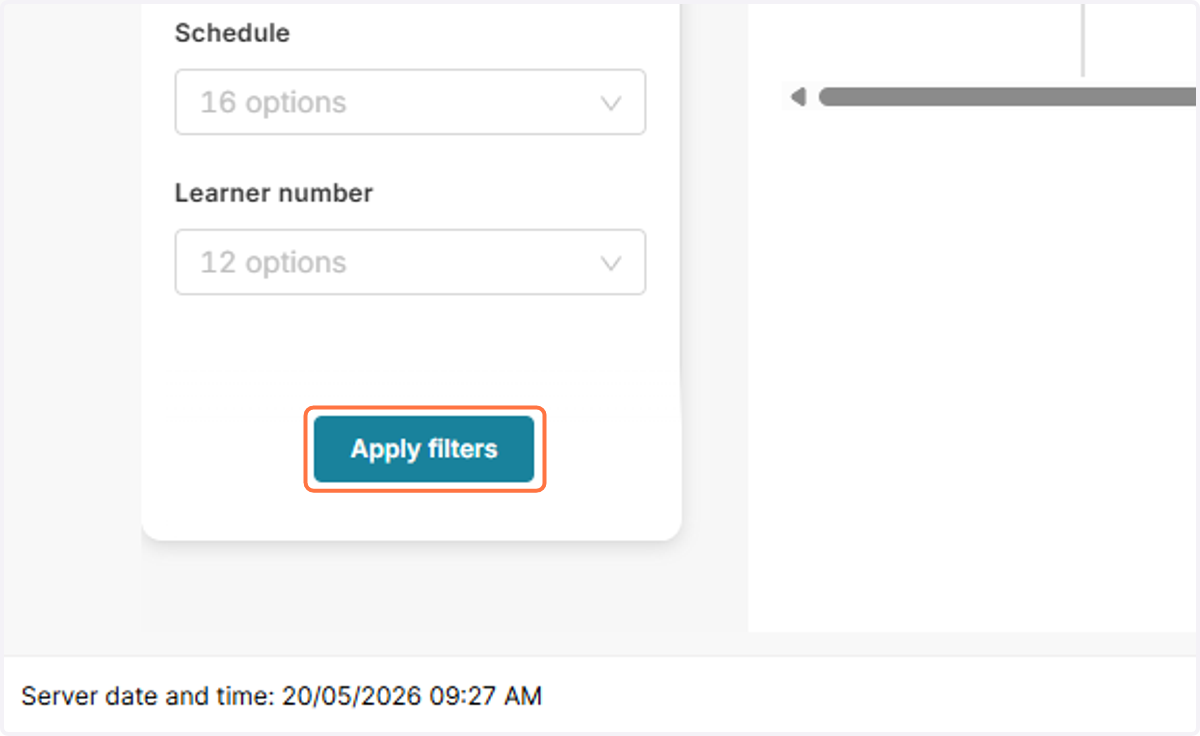
11. Click on Apply filters to update the report.
12. A. Should you wish to export this data, firstly click on More Options
12. B. Hover over Download
12. C. Click on Export to Excel or Export to .CSV to complete the export.