View Student Accommodations and Upload Syllabus in Instructor Portal
This Tango provides an overview of student accommodations and how to upload a syllabus for your course in AIM.
1. Each time you log in to the AIM Portal, you will need to review the ACCESS POLICY
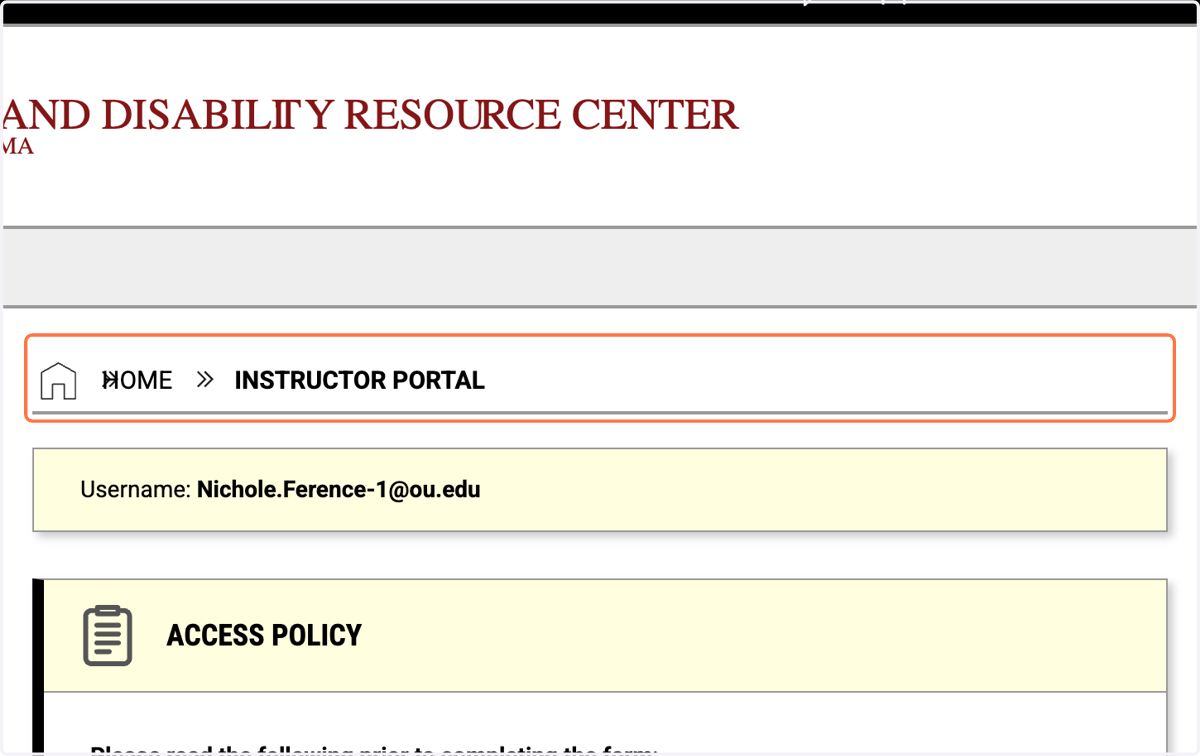
2. Review the ACCESS POLICY
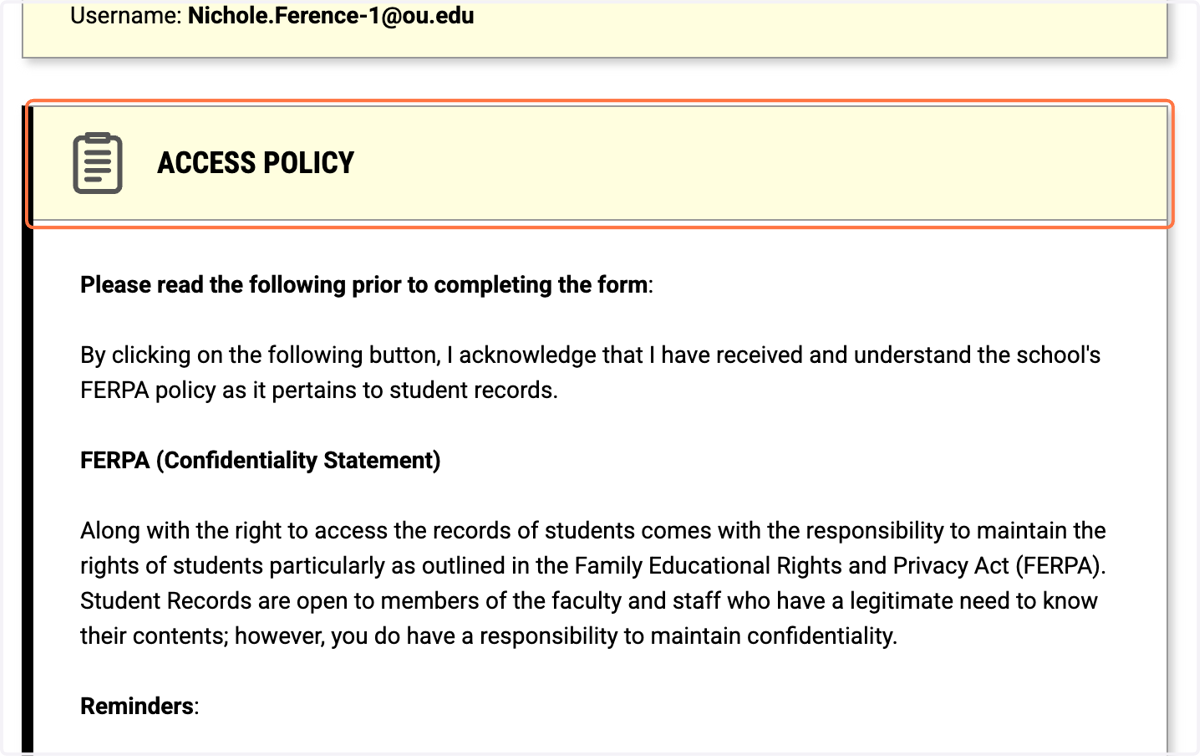
3. Please read the following prior to completing the form
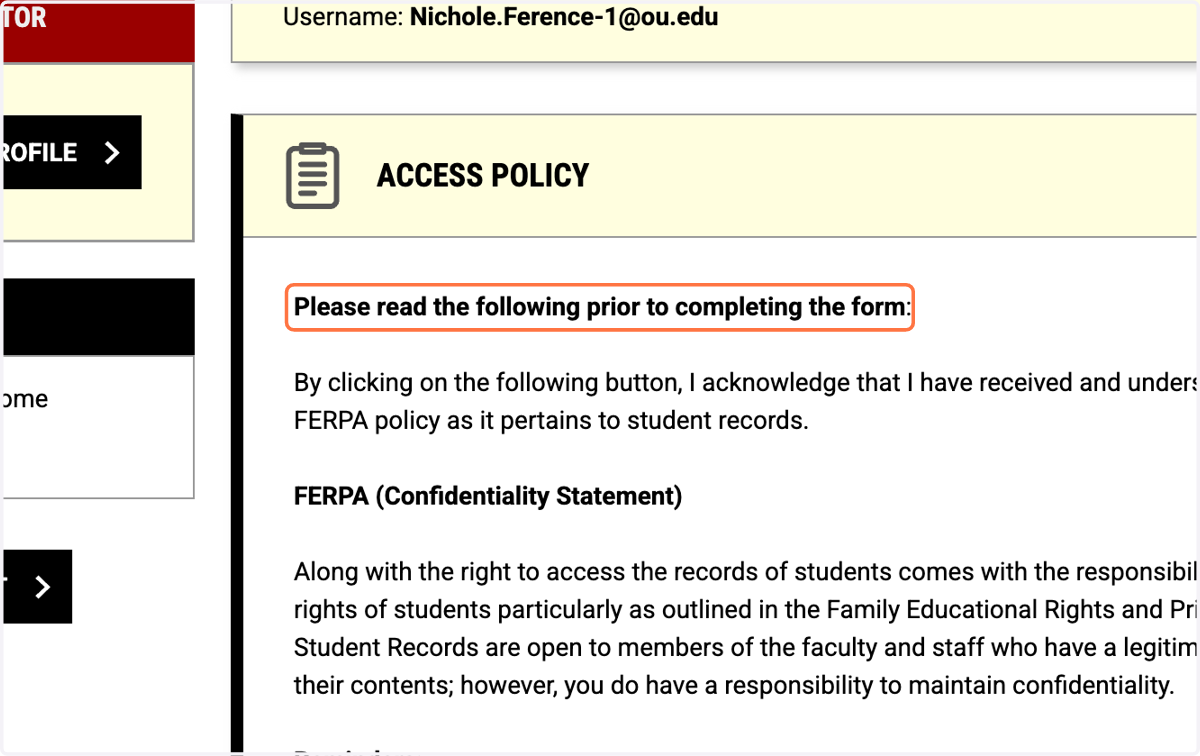
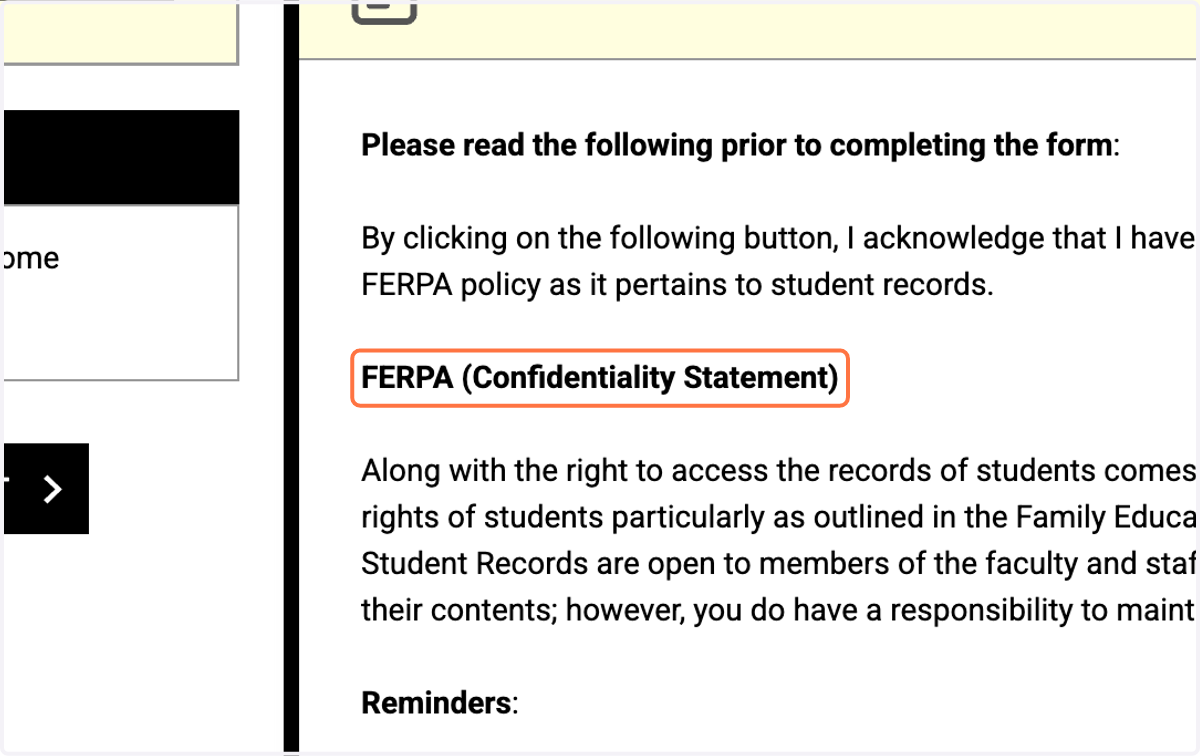
4. Review the FERPA (Confidentiality Statement)
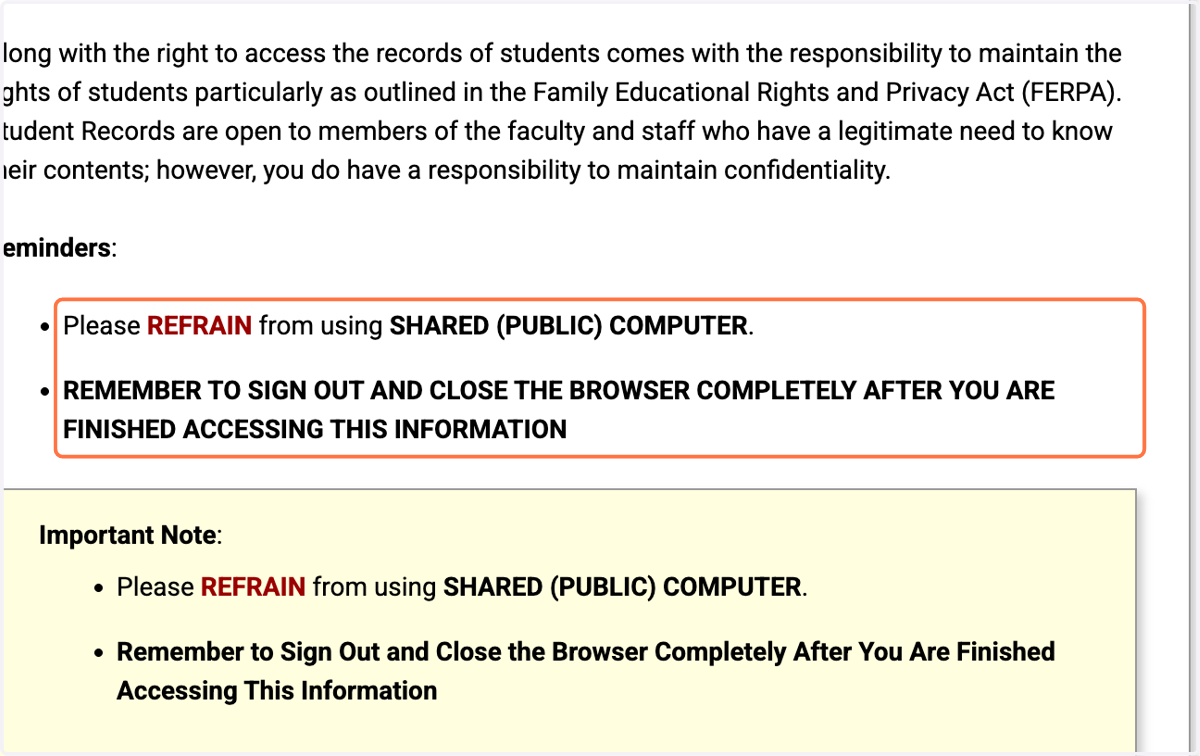
5. Please REFRAIN from using SHARED (PUBLIC) COMPUTER.…
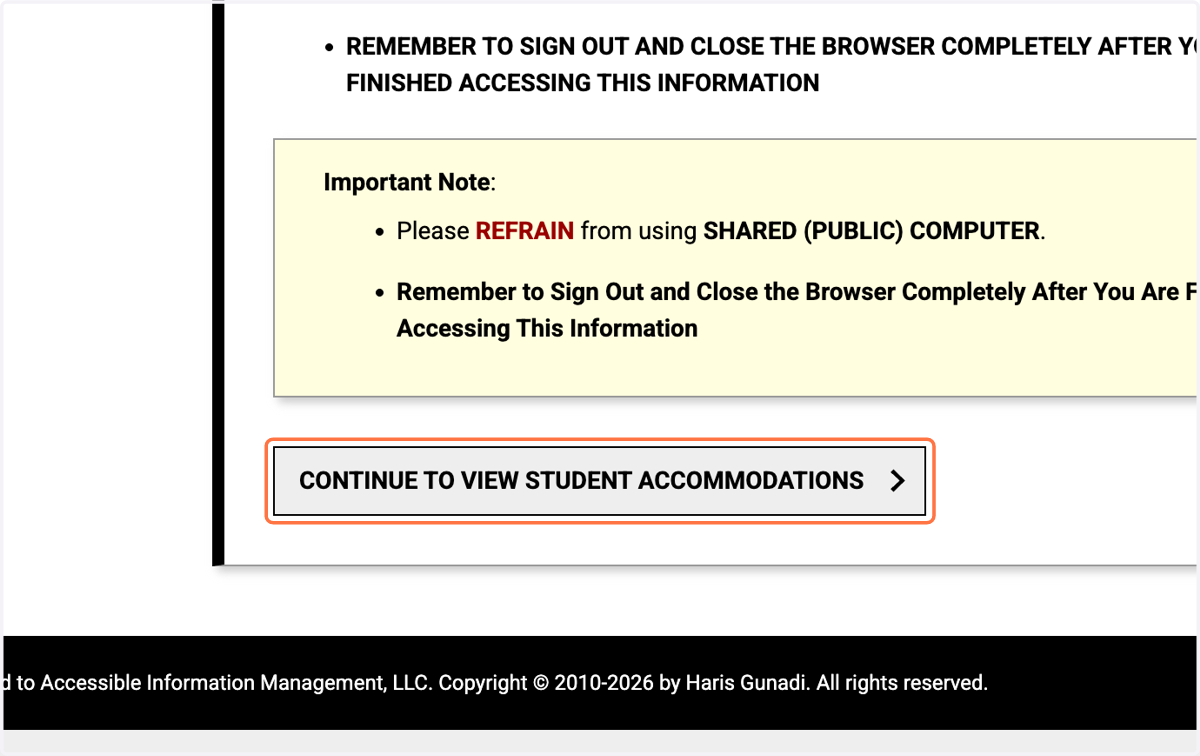
6. Click on CONTINUE TO VIEW STUDENT ACCOMMODATIONS
7. Click on STUDENTS WHO REQUESTED ACCOMMODATIONS
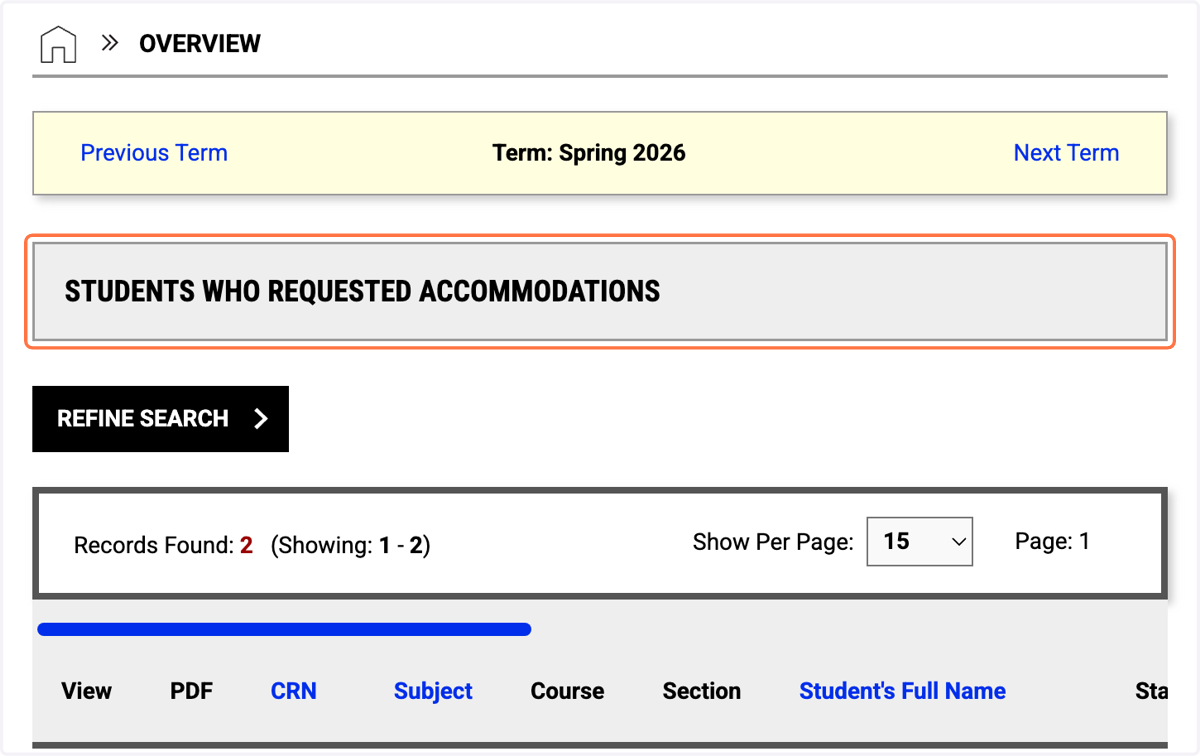
8. Students who requested accommodations in your course(s) will be listed here
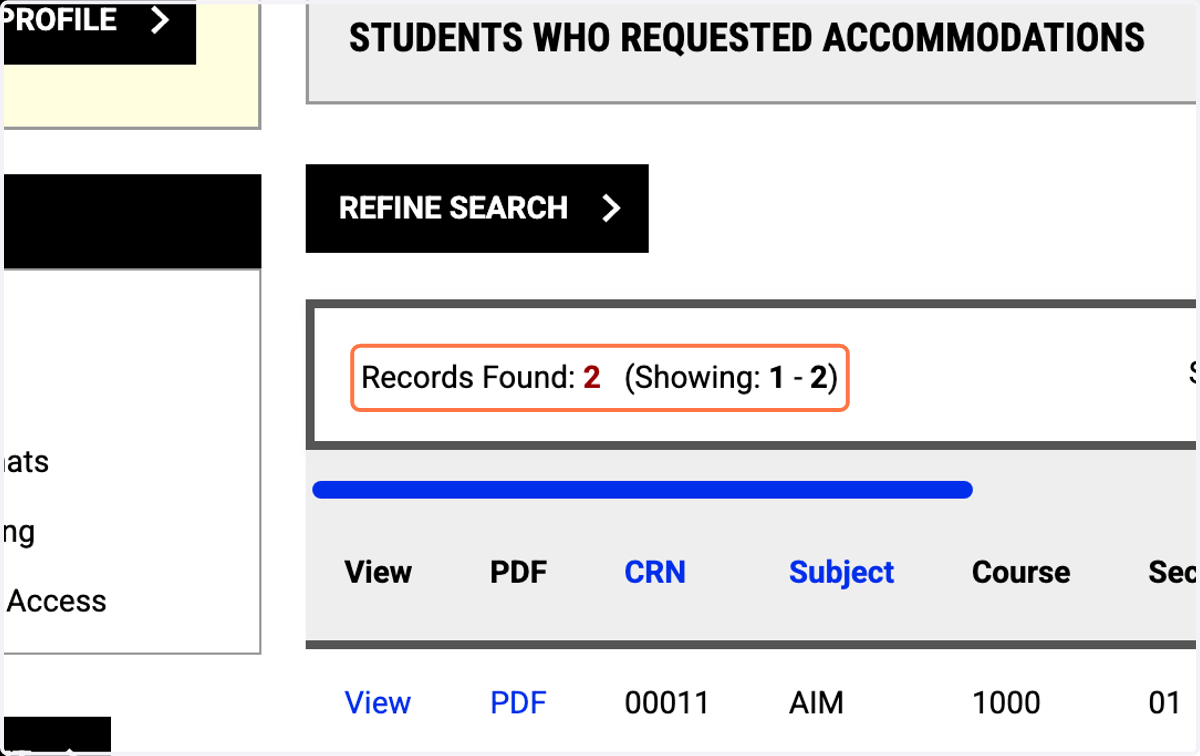
9. Click on View to review a specific student request
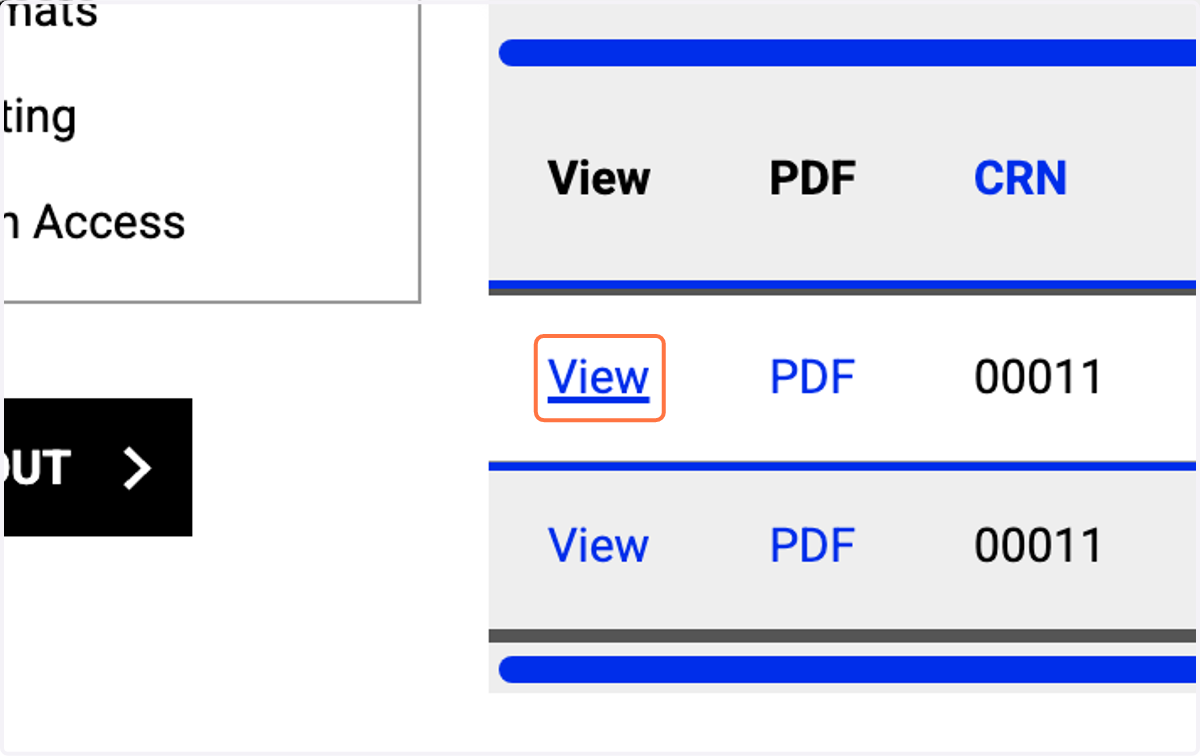
10. Click on ACCOMMODATION REQUEST ACKNOWLEDGEMENT to confirm you have reviewed the request
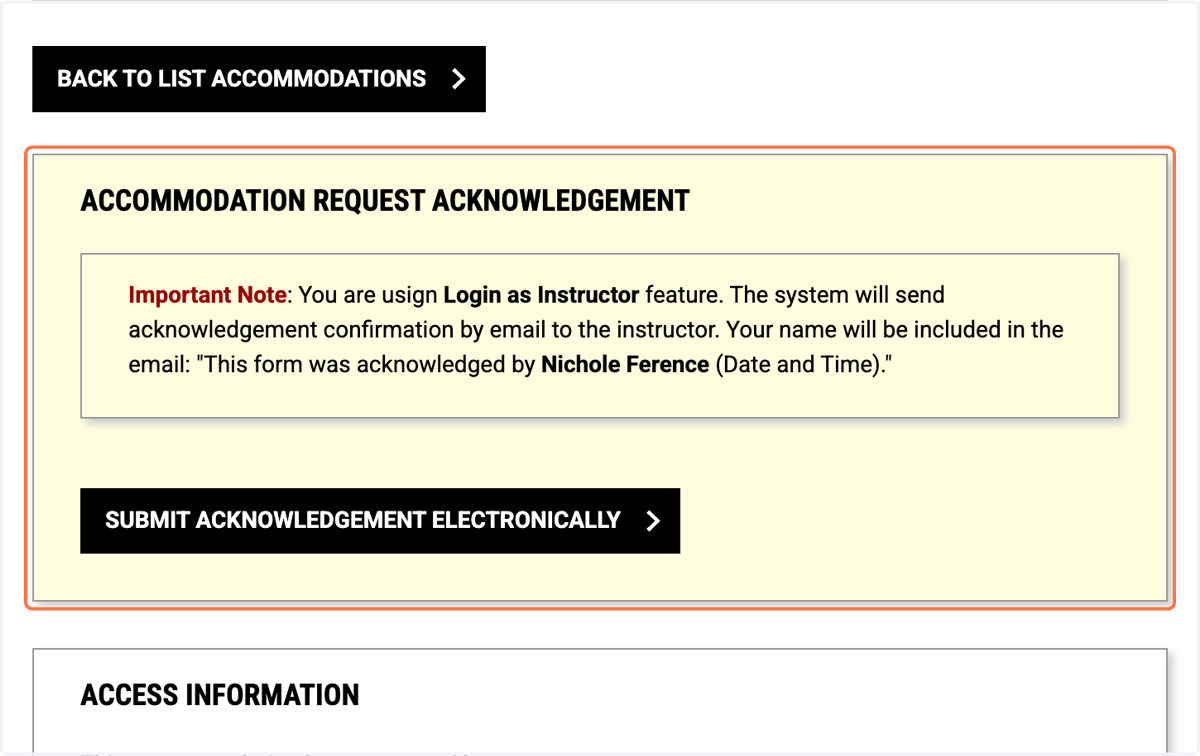
11. Click on SUBMIT ACKNOWLEDGEMENT ELECTRONICALLY
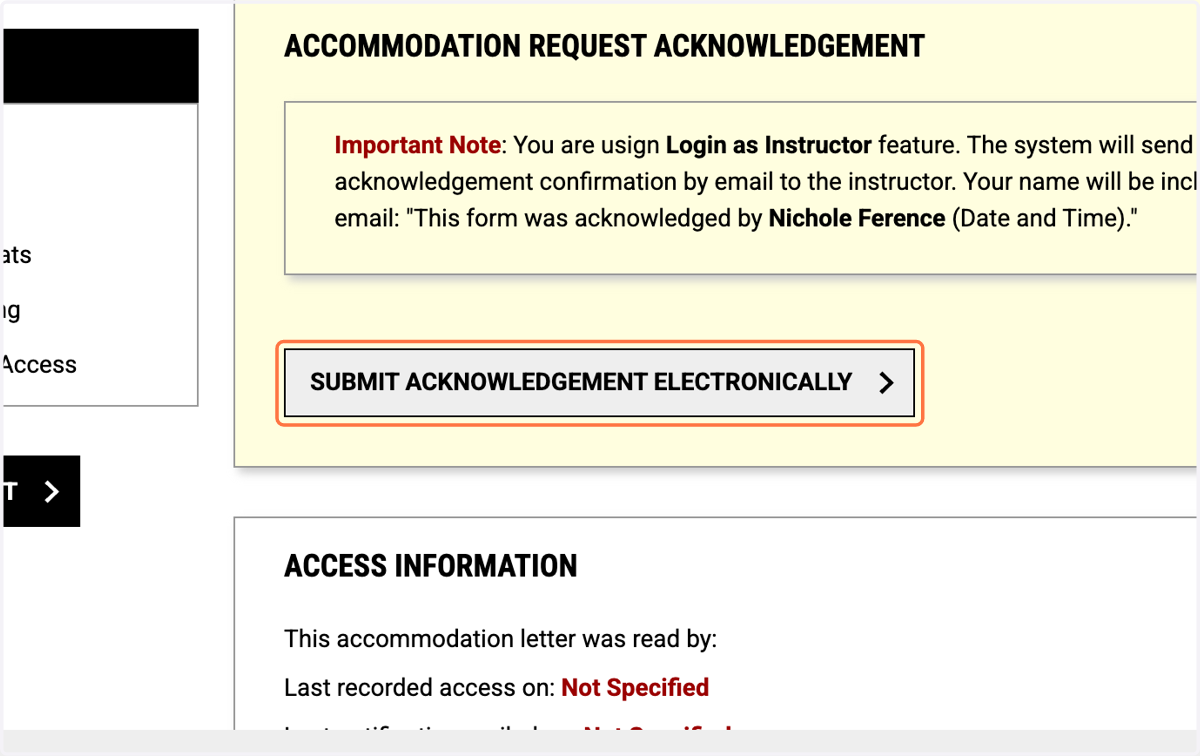
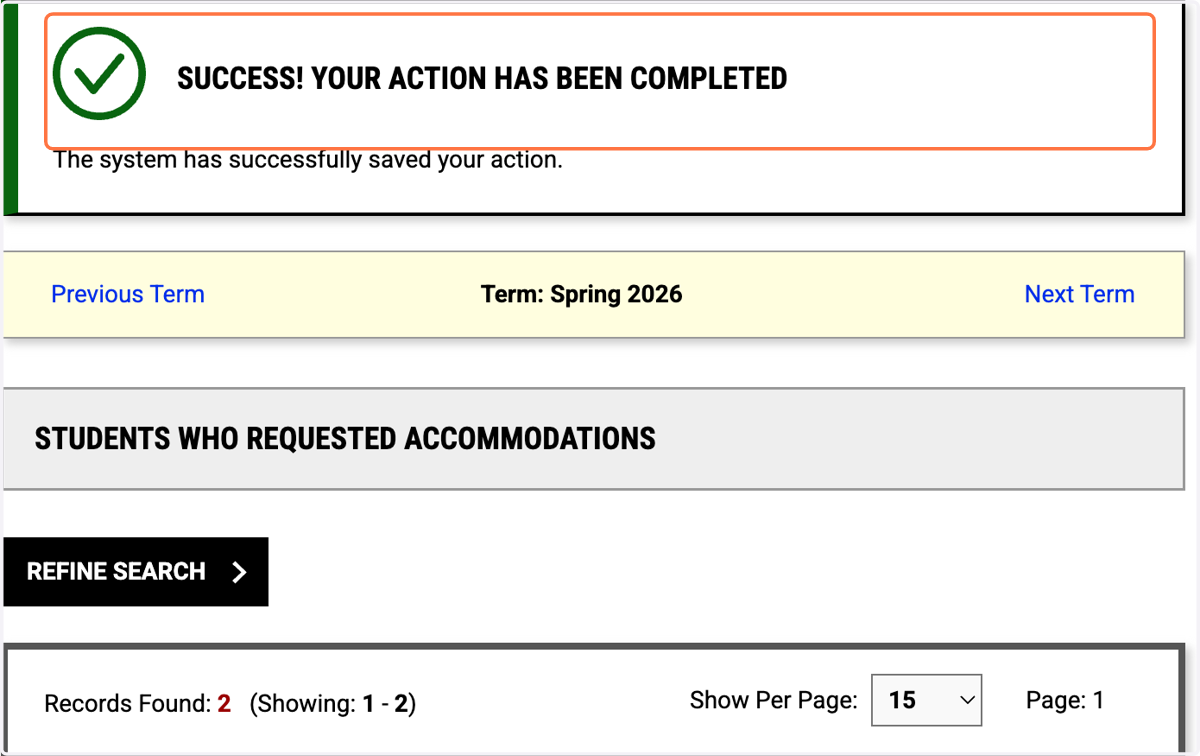
12. SUCCESS! YOUR ACTION HAS BEEN COMPLETED
This indicates that you have successfully saved your acknowledgement
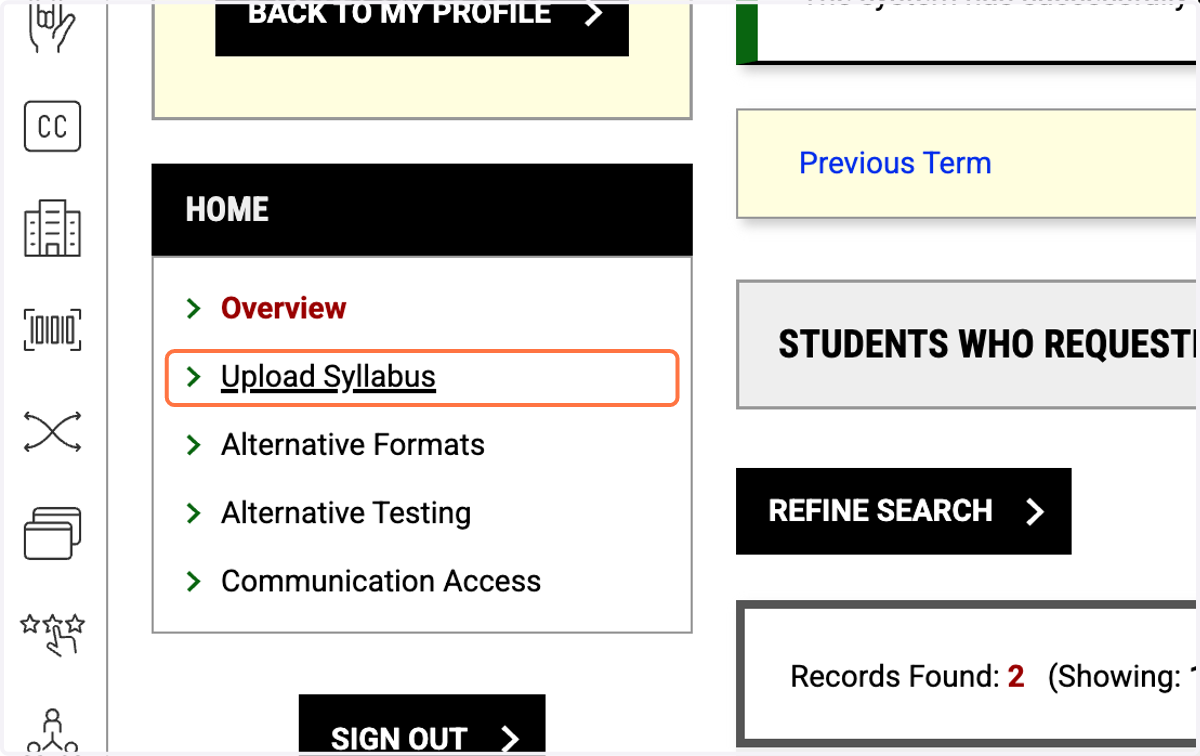
13. Click on Upload Syllabus
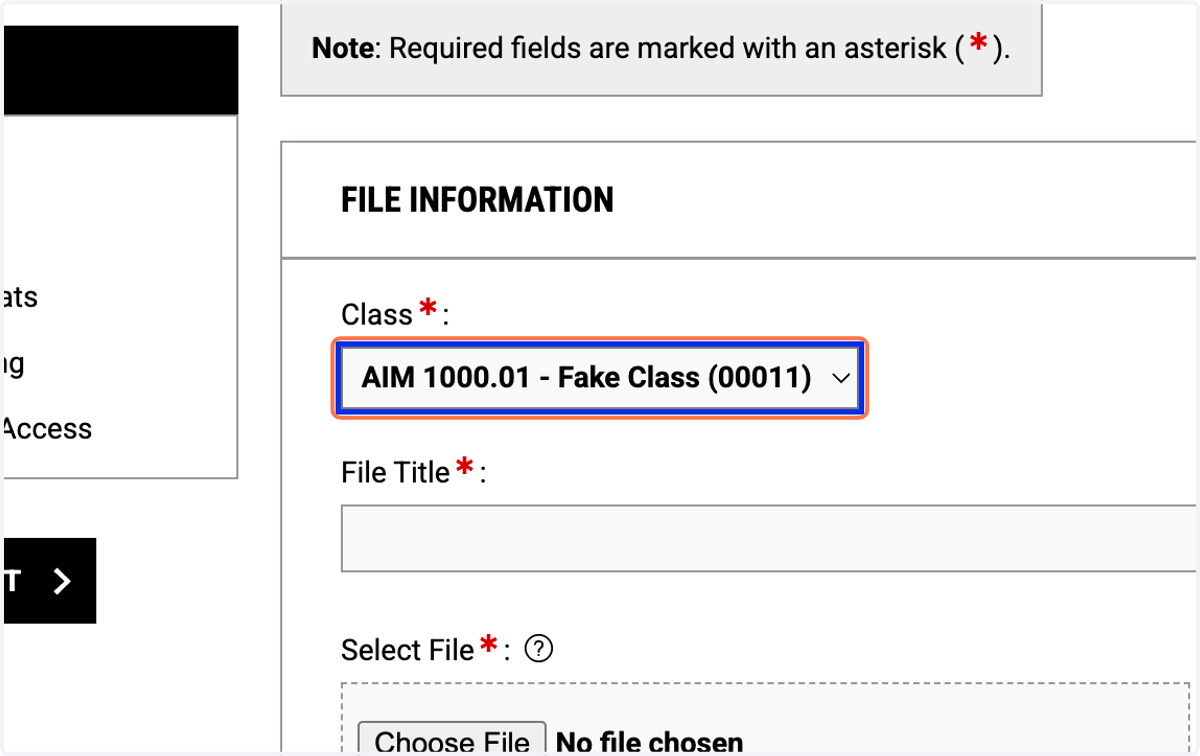
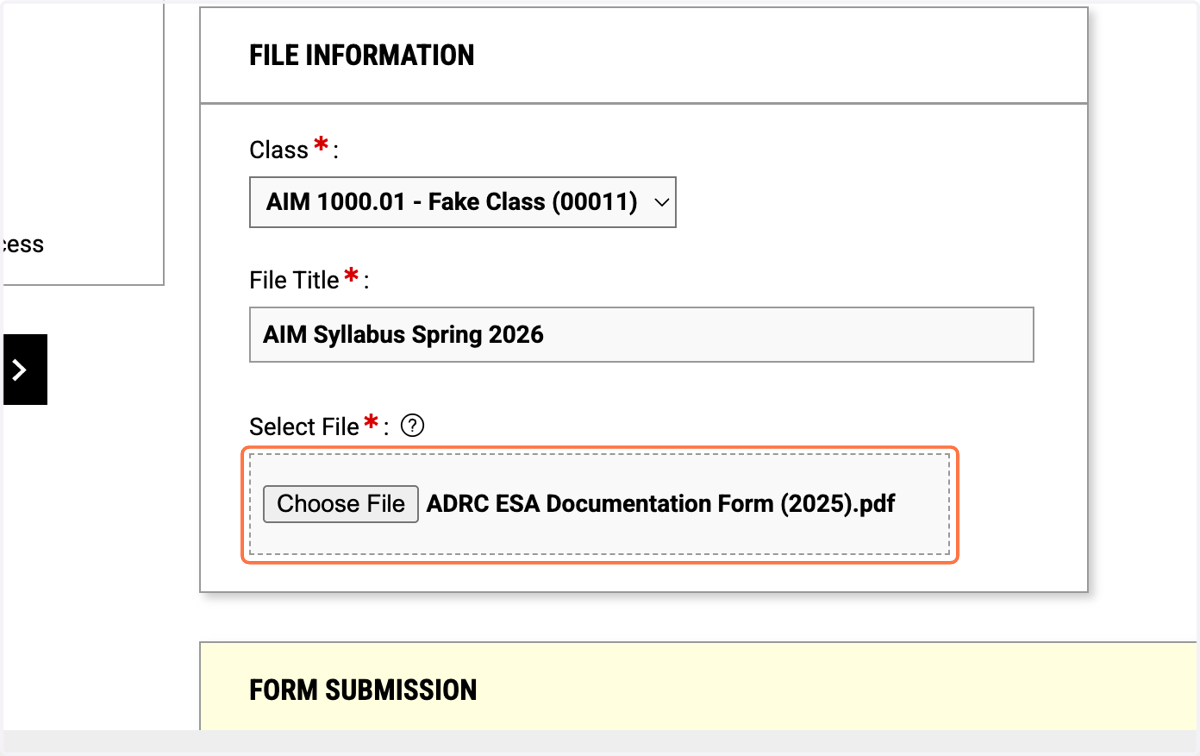
14. Select the Class you would like to upload a syllabus for
15. Type the File Title
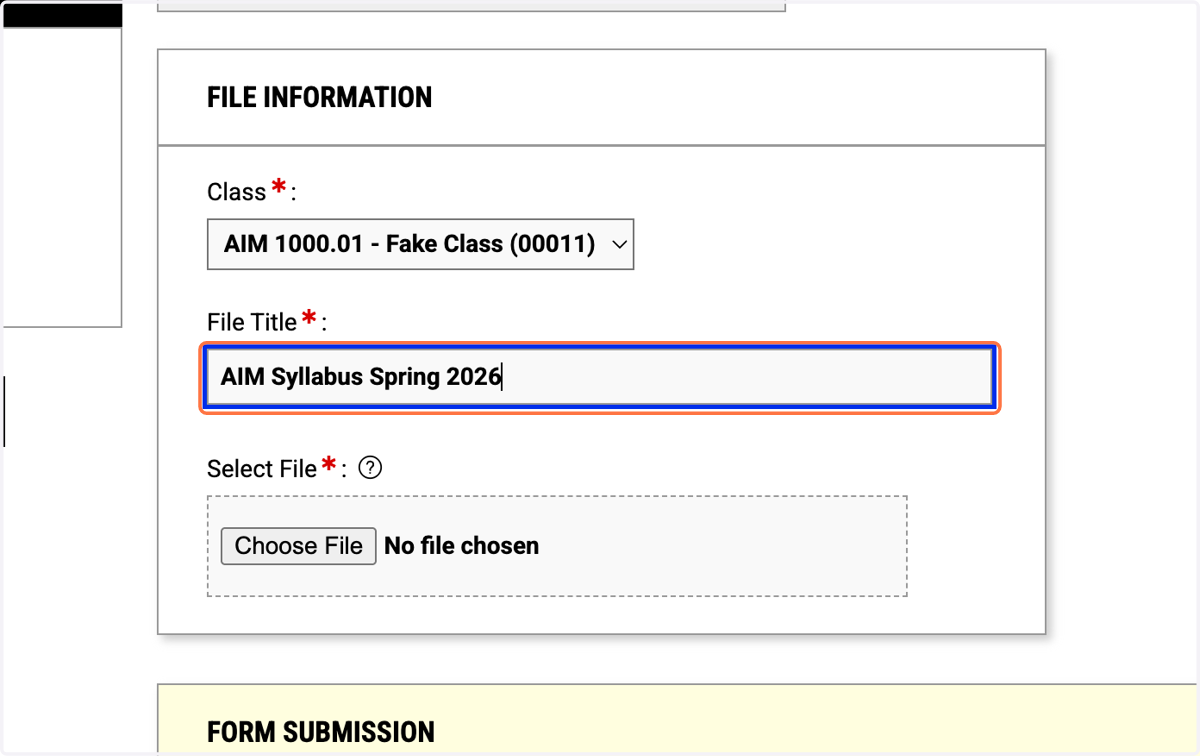
16. Select the file from file upload menu
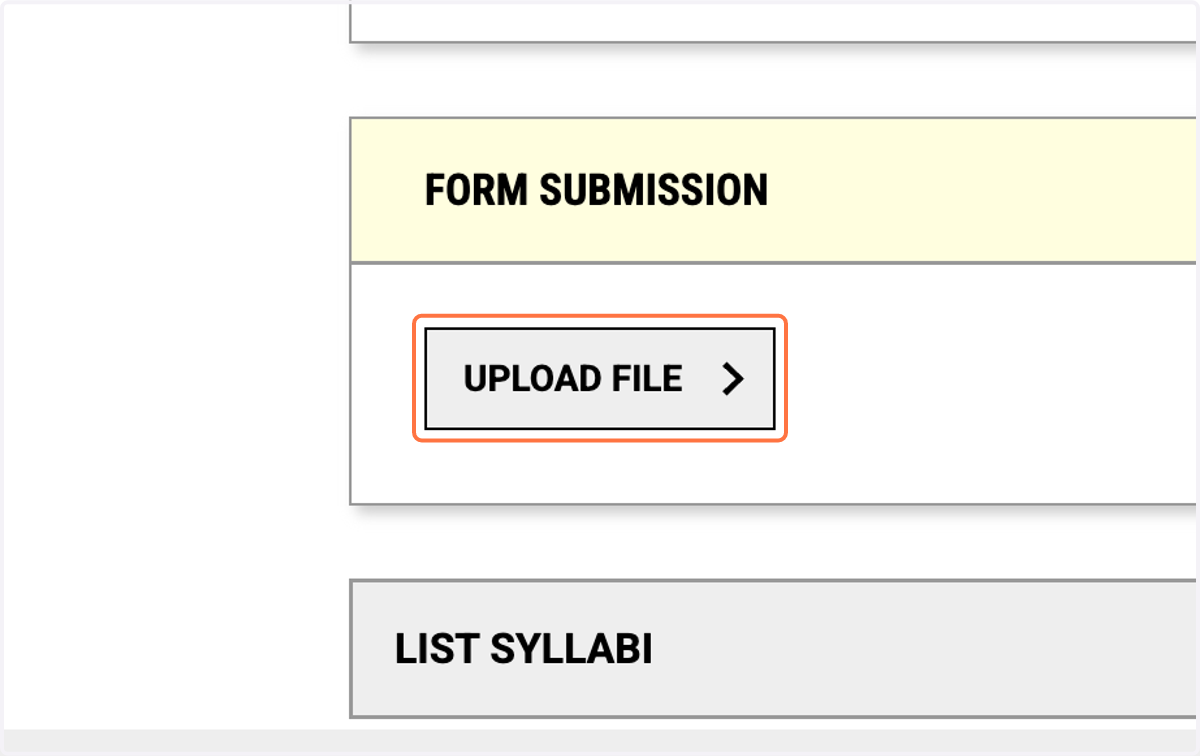
17. Click on UPLOAD FILE
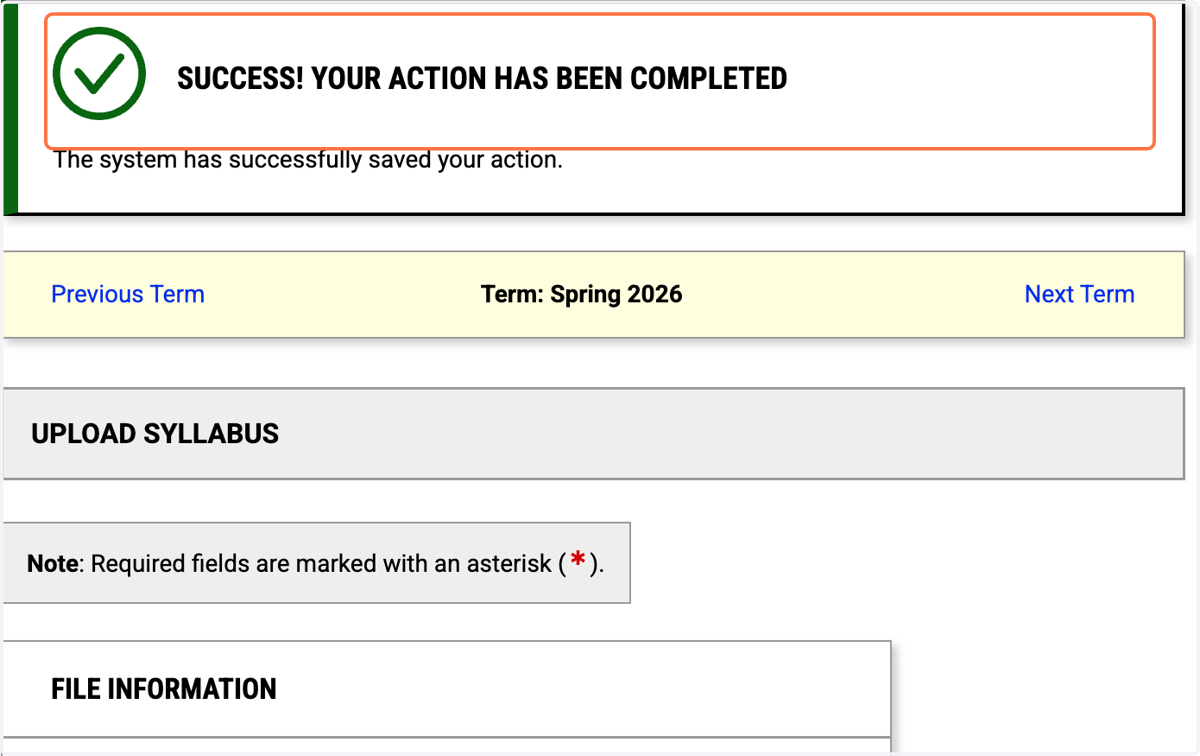
18. SUCCESS! YOUR ACTION HAS BEEN COMPLETED
This indicates that your syllabus has been uploaded