VIRTUS Account Registration, Training, and Background Check
This step-by-step tutorial walks through registering a VIRTUS account to complete Safe Environment/VIRTUS requirements for 1.2 Volunteers (or higher status). The Diocese of Jefferson City uses the VIRTUS platform as the database for Safe Environment requirements (including documents, training history, and background check results) for all clergy, deacons, religious, employees/educators, adult volunteers, and parents involved with any Diocesan agency, parish, or school. All adults (18+ and who have graduated high school) who choose to serve with the Newman Center complete Safe Environment requirements prior to serving with us. These instructions include steps for new users. Volunteers who already have an account or who have previously completed some required items may access their account and skip ahead to the appropriate step. If you are unable to retrieve account information, DO NOT CREATE A NEW ACCOUNT. Instead, please contact parish staff for assistance.
VIRTUS® Online
Go to VIRTUS® Online. For best results, open the webpage in Google Chrome.
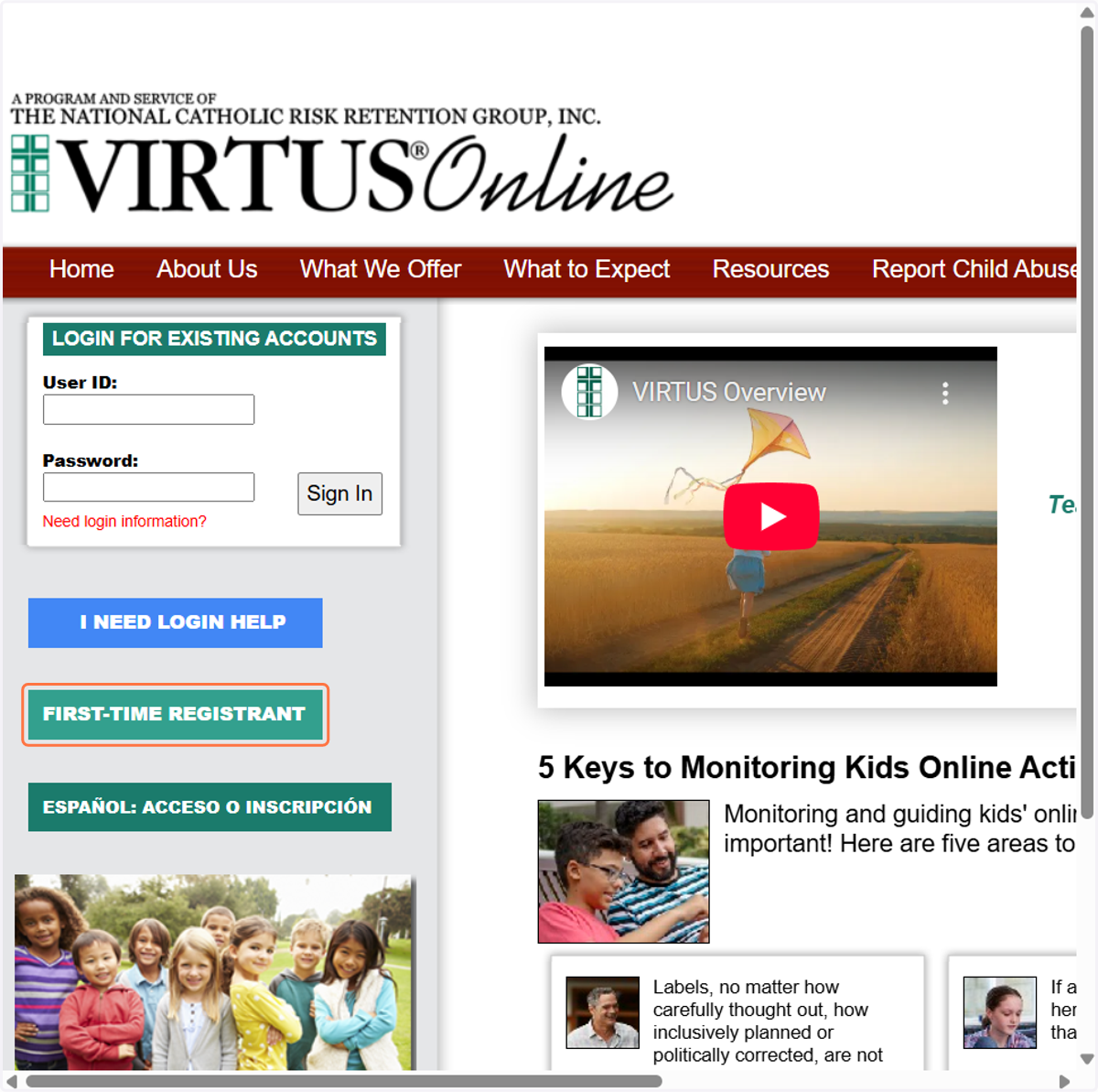
1. Click on FIRST-TIME REGISTRANT
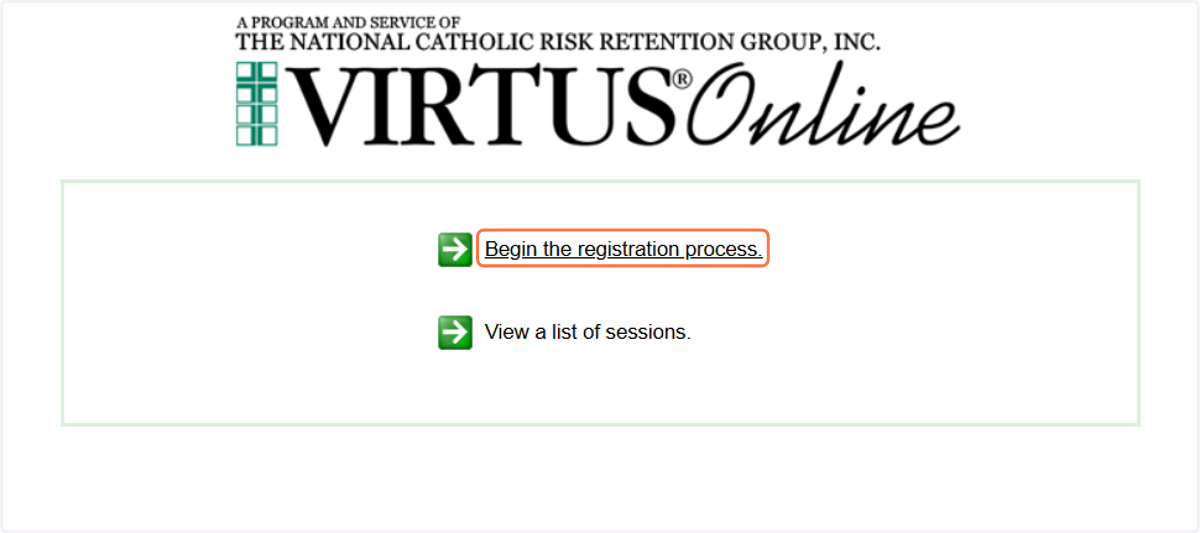
2. Click on Begin the registration process
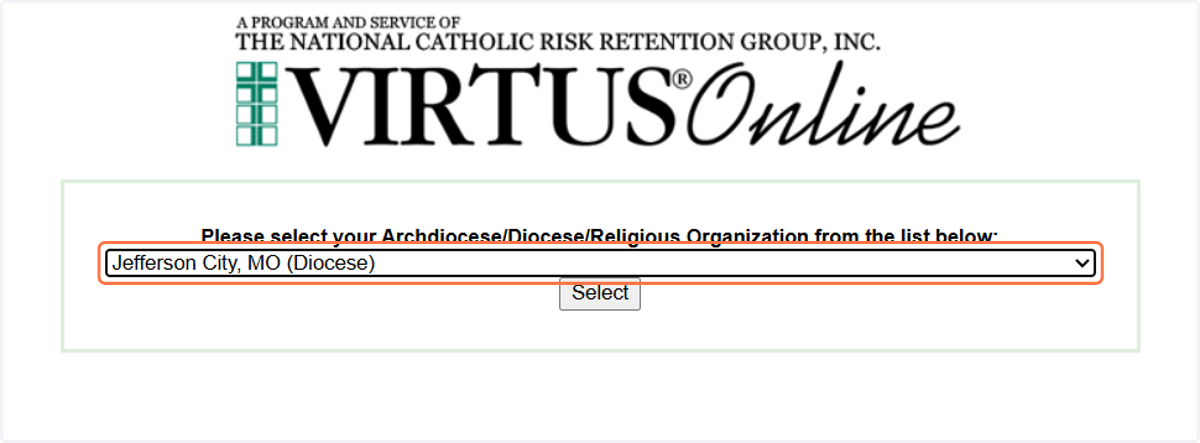
3. Select organization
Select Jefferson City, MO (Diocese) from the dropdown box, then click Select.
4. Click on No
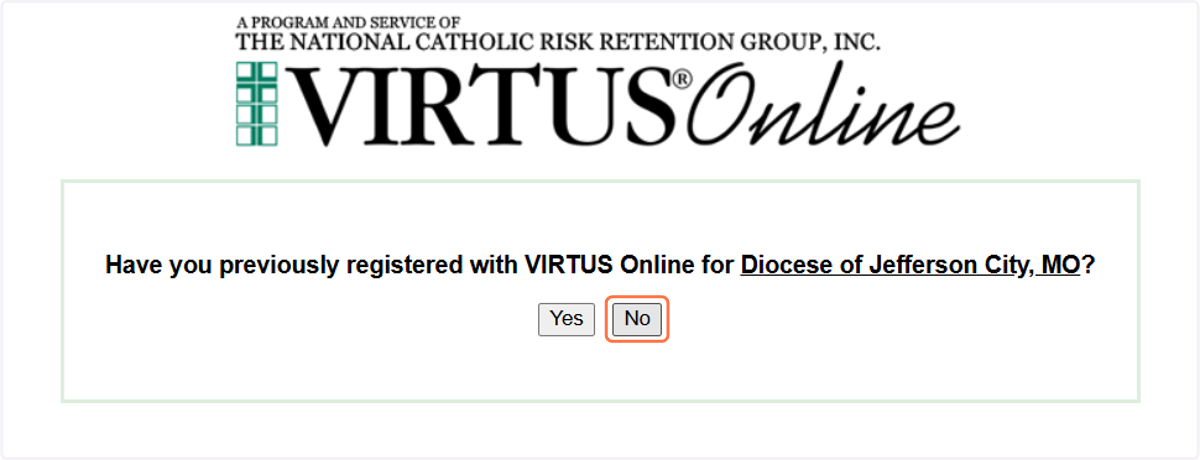
5. Create account
Enter your User ID and Password into the designated fields, then click Continue.
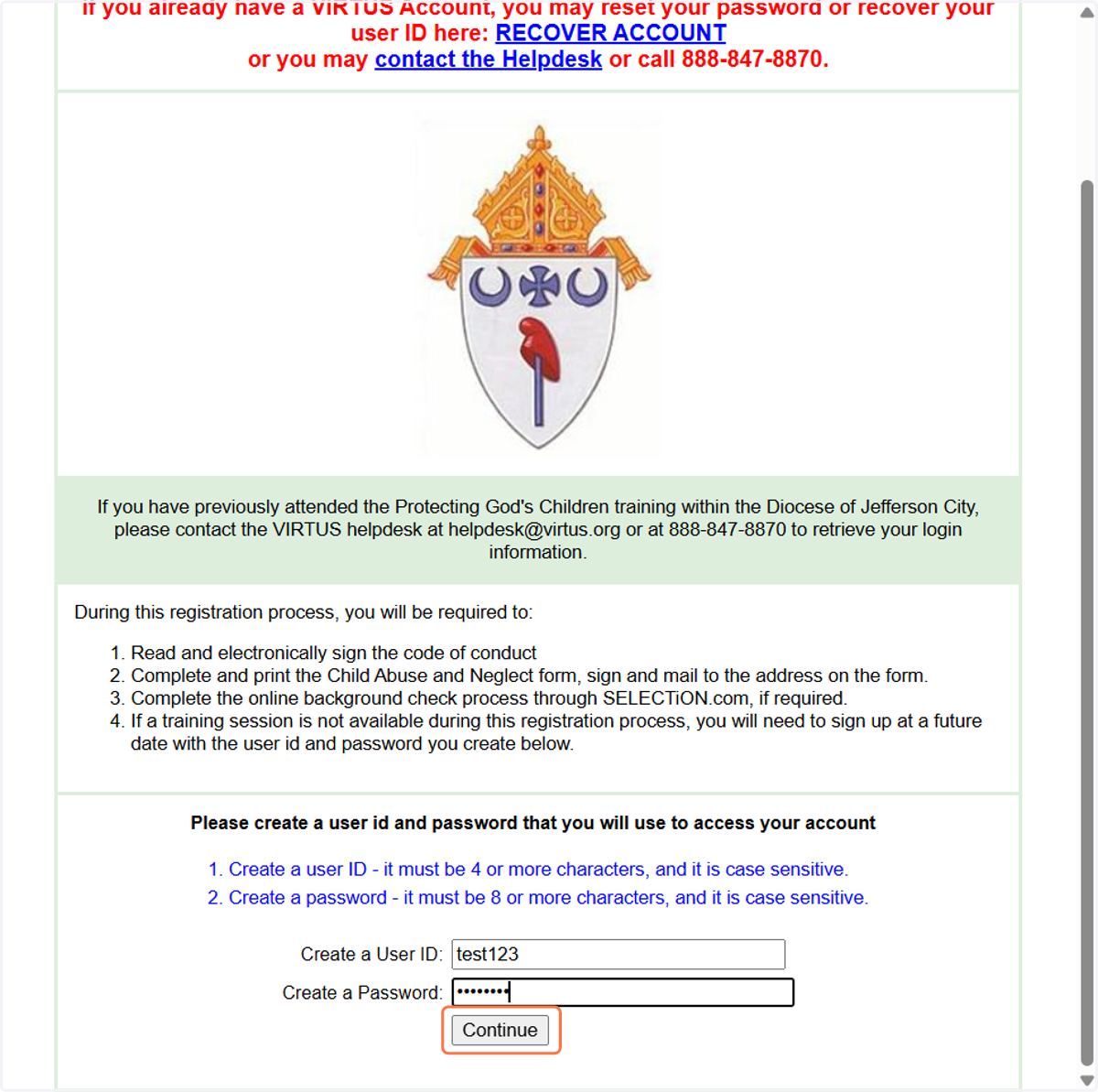
6. Enter account information
Complete the designated fields (a red asterisk indicates a required field), then click Continue.
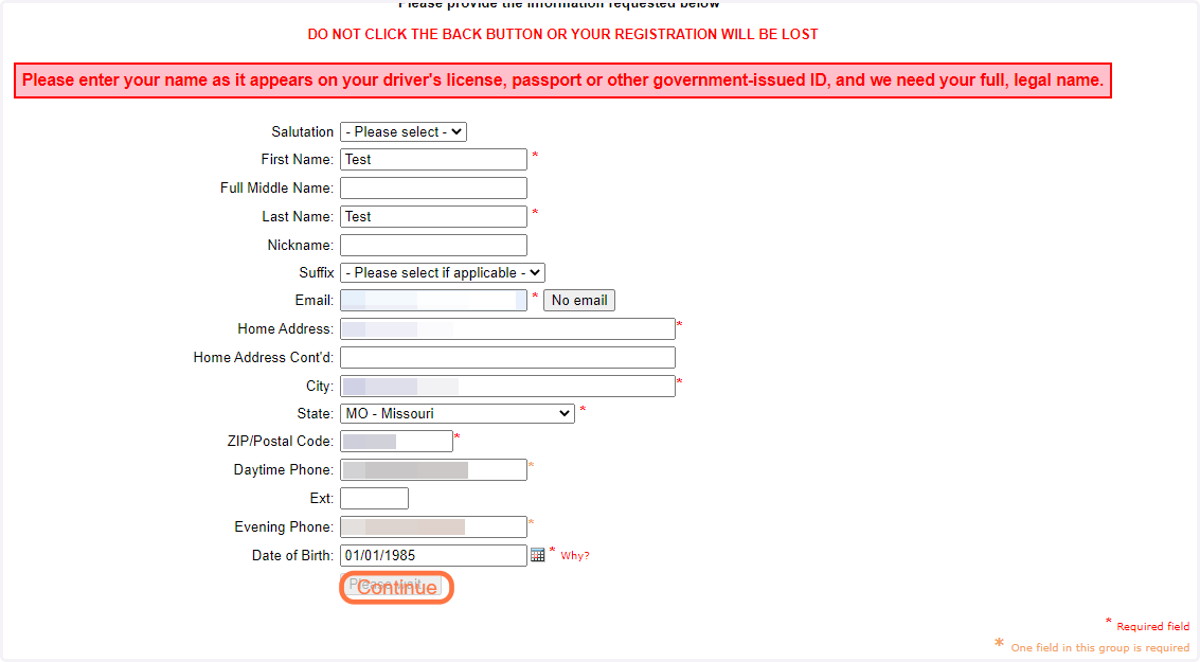
7. Select location
Select Newman Parish & Campus Ministry UMC (Columbia) from the dropdown list of options.
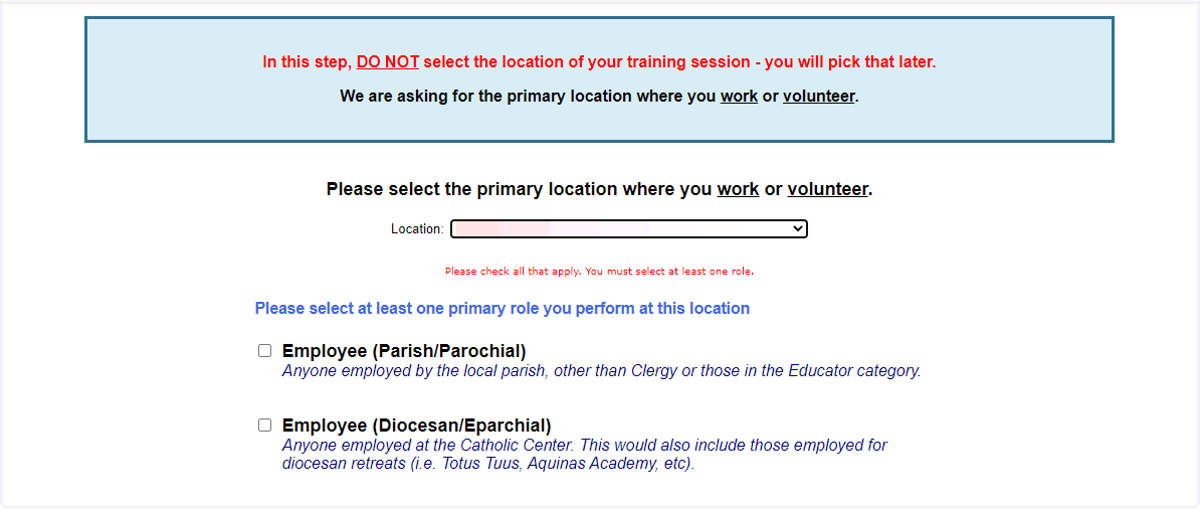
8. Select role
Click the checkbox for Volunteer from the list of options.
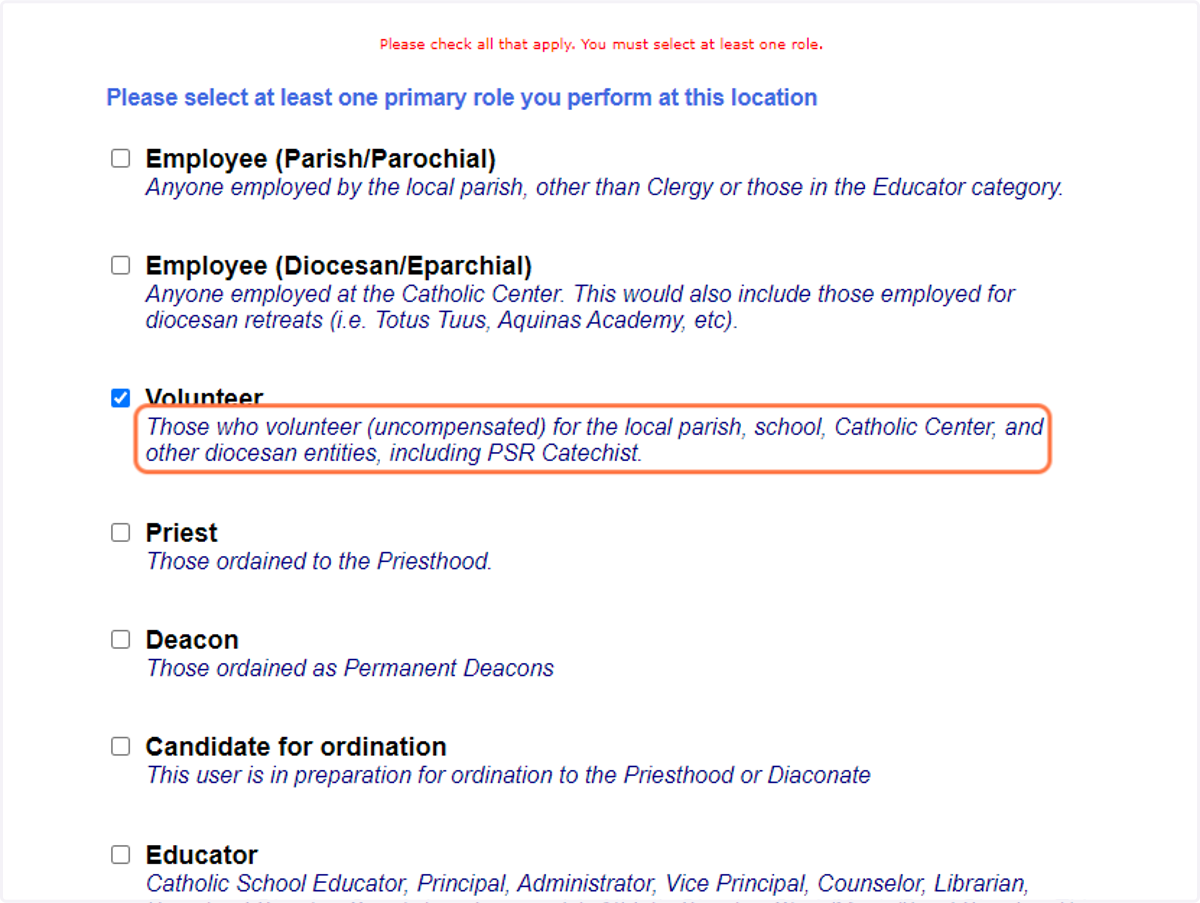
9. Enter title/position
Type your title, position, or ministry in the designated field at the bottom of the page, then select Continue.
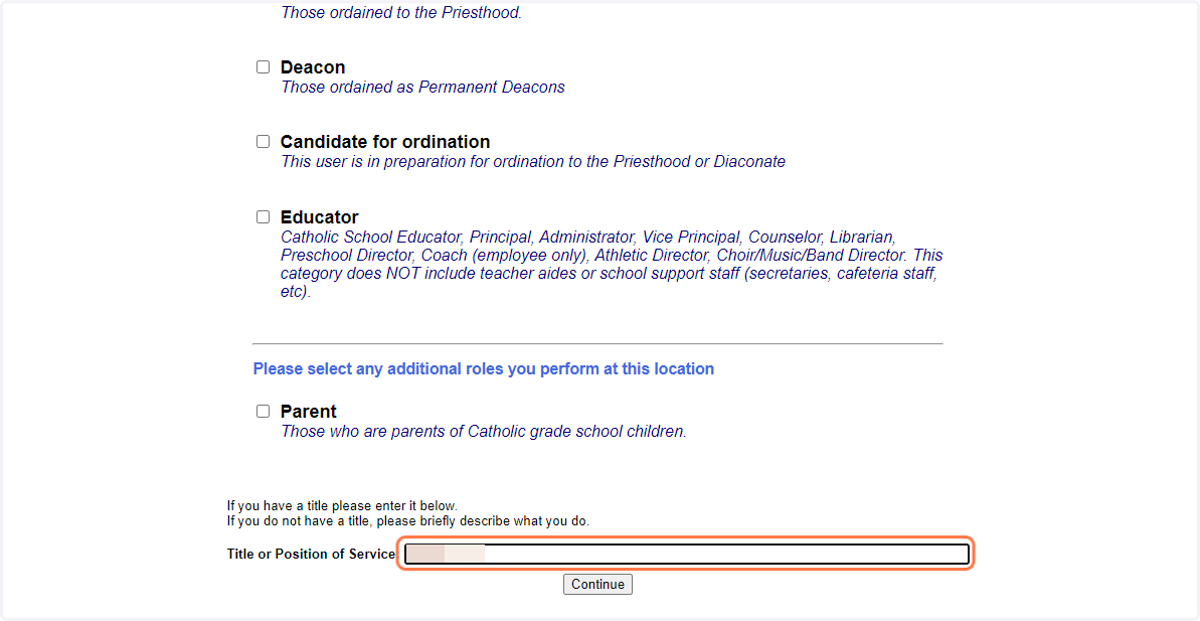
10. Verify location and role
If you serve in another location in the Diocese of Jefferson City, select Yes and follow the prompts to add additional locations/roles to your account. Volunteers intending to be involved with ministries or activities at Sacred Heart, Our Lady of Lourdes, or Catholic Charities should select Yes and choose other locations/roles as needed.
If you are not involved with a ministry at another location in the Diocese of Jefferson City, select No.
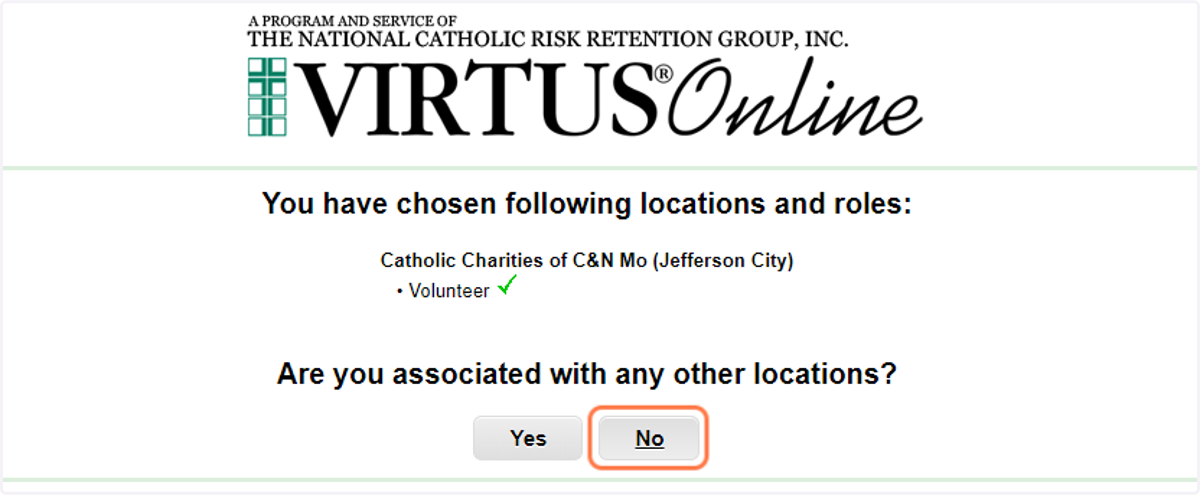
11. Additional selections
Select responses to the three questions, considering the nature of your ministry or service. Those interested in ministries that involve serving the poor and vulnerable should select Yes to the second question (even if details/frequency are unknown), then click Continue.
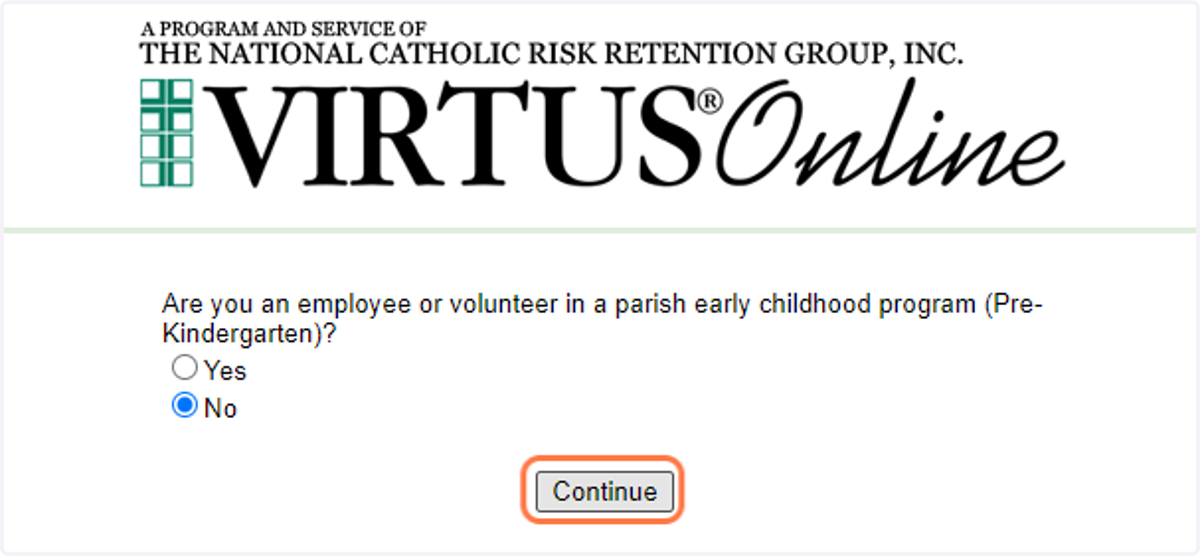
12. Additional selections
Select response, then click Continue.
13. Additional selections
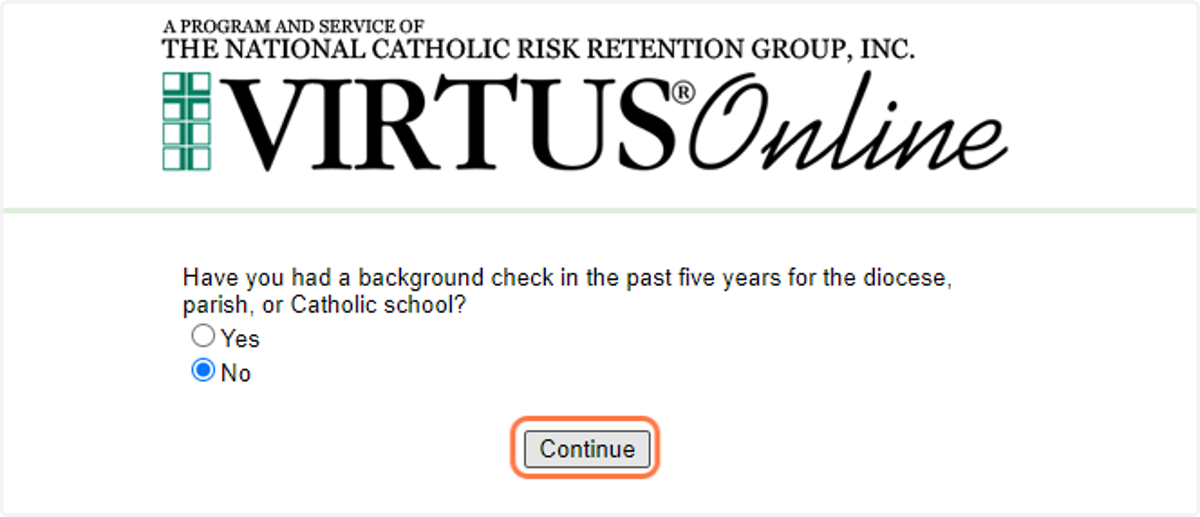
Select No, then click Continue. Even if volunteers have had a recent background check with another agency, the Diocese of Jefferson City will require new users to complete a background through the VIRTUS platform.
14. Code of Pastoral Conduct
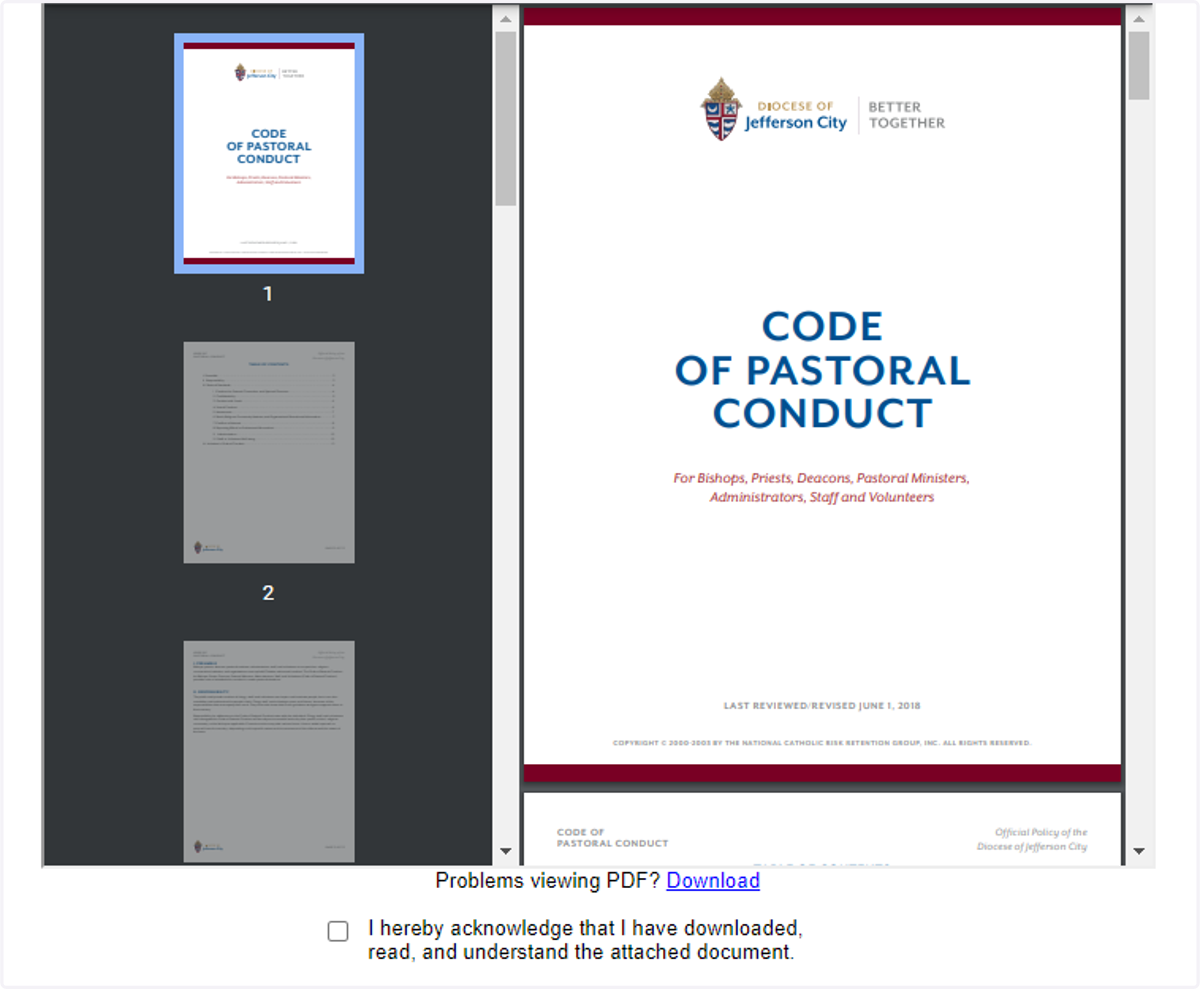
The Code of Pastoral Conduct is a document outlining conduct expectation for clergy, deacons, religious, employees/educators, adult volunteers, and parents involved with any Diocesan agency, parish, or school. After review (particularly the Volunteer’s Code of Conduct on page 13 of 16 [labeled page 11 of the document]), check the box “I hereby acknowledge that I have downloaded, read, and understand the attached document.” Electronically sign acknowledgement of this document by typing in your name (first, middle initial, last name) and entering the date. Click Continue.
15. Register for a VIRTUS Session
(Adult) Newman Parish volunteers are required to complete a VIRTUS Protecting God's Children Session, which is offered free of charge and completed online through self-led modules. By completing this training, volunteers join the network of over 21,000 people in the Diocese of Jefferson City who are committed to a Safe Environment by acknowledging the Diocesan code of conduct, recognizing warning signs of predatory behavior, and knowing how to report suspicious activity.
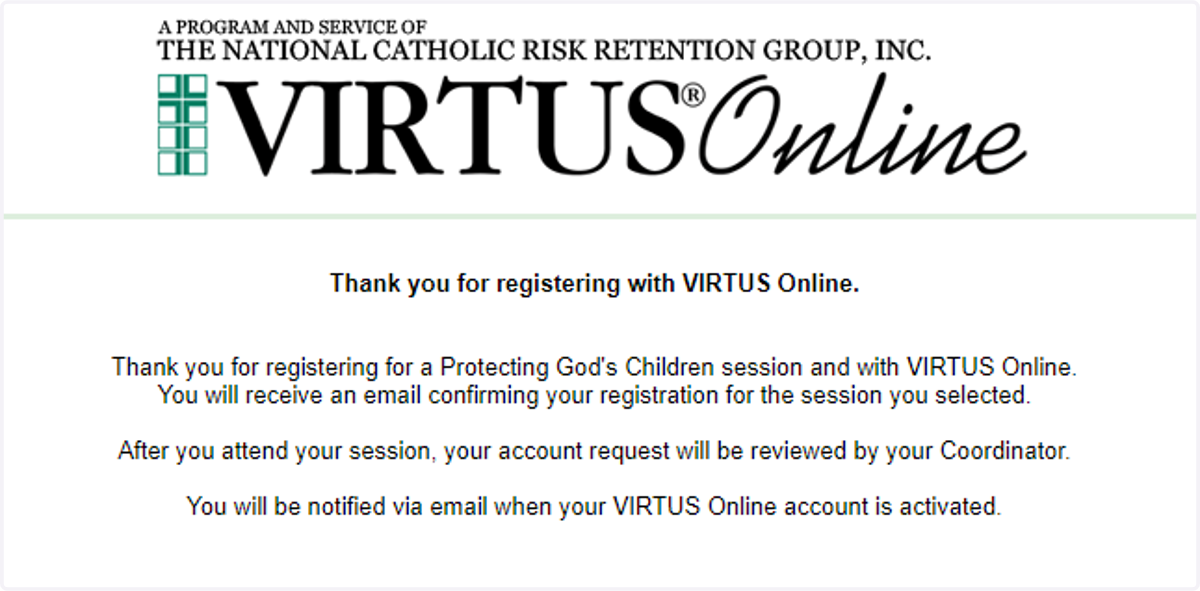
If you have not already completed a VIRTUS Protecting God's Children Session, click No to continue to enrollment. Select the desired session from the list of options, then click Submit to register for a session. After successfully registering, a confirmation message (shown below) will appear on your screen.
Contact the Diocesan Office of Safe Environment for assistance or to request an in-person course with a trained facilitator.
16. Access assigned training
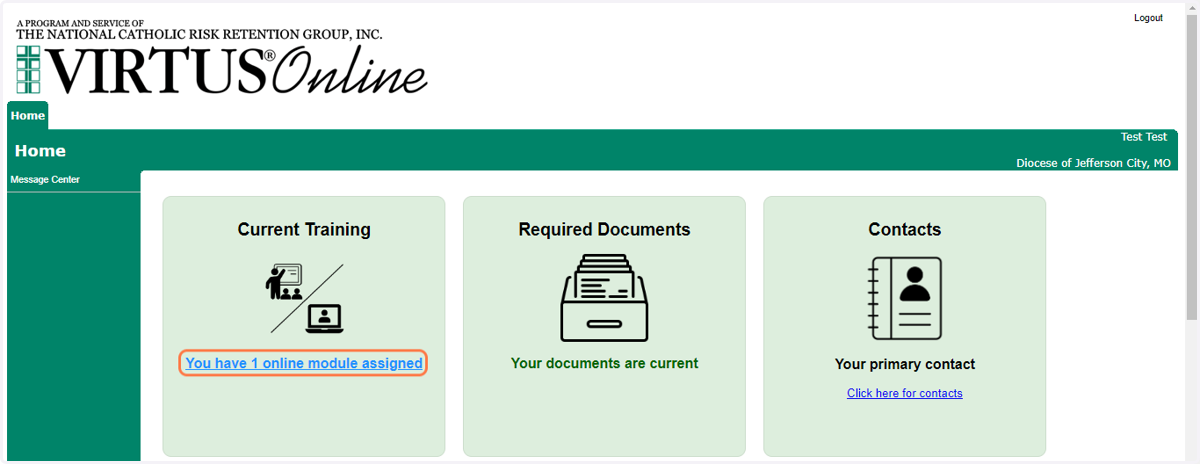
After registering, access your assigned training session by clicking the link under Current Training on your VIRTUS portal home page.
17. Open online training modules
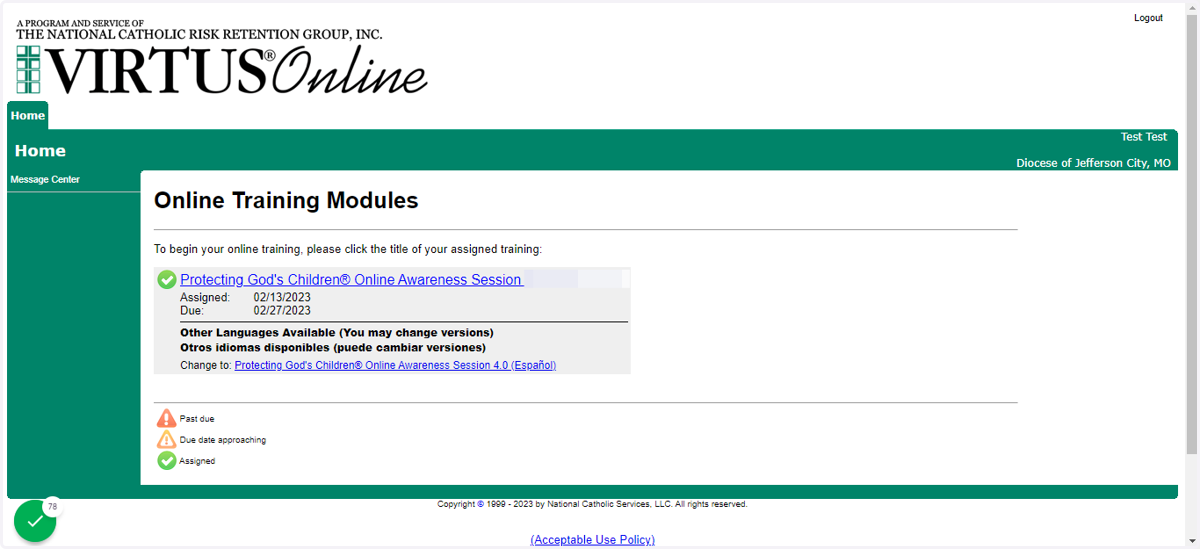
Click the blue link to access the Protecting God's Children® Online Awareness Session.
18. Complete online training modules
The online training will open in a new window. Users should continue using Google Chrome to complete the training modules (using an alternative browser may result in system/page errors). Training takes 1-2 hours to complete, and can be paused and continued at a later time. To begin training, select CLICK HERE TO START.
***This program provides education regarding how to recognize potential signs of abuse, such as grooming behavior and indicators in minors, and includes firsthand accounts from individuals with lived experience. While their testimonies provide meaningful insight to enhance understanding and awareness, it may be difficult for some viewers. Alternative safe environment educational materials are available for survivors of sexual abuse. For inquiries, please contact the director of the Office of Child and Youth Protection in the Diocese of Jefferson City at 573-635-9127.

19. Background check
After completing the VIRTUS Protecting God's Children Session, volunteers with 1.2 Volunteer status (or higher) receive a prompt to complete a background check.
The Diocese of Jefferson City uses Fastrax/Select as their background check provider. Personal information such as social security number is not saved or stored in the VIRTUS platform. Newman Parish does not receive detailed background check reports but rather is notified when a background check is approved.
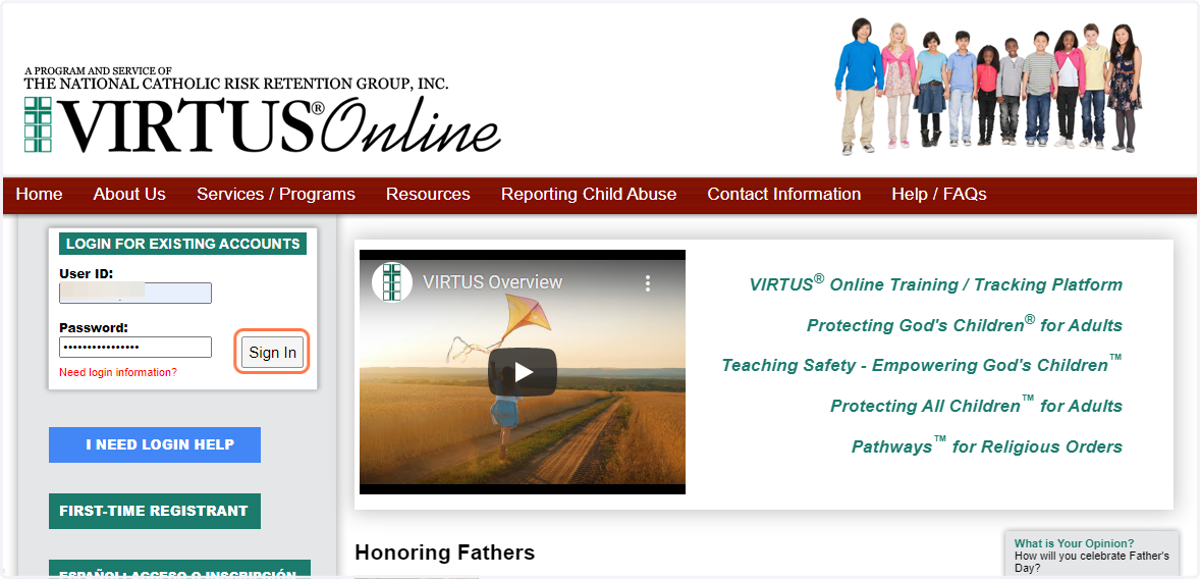
Enter your User ID and Password, then click Sign In to access your account. If you need login information, select the red link for Need login Information? or contact parish staff for assistance.
20. Update user data
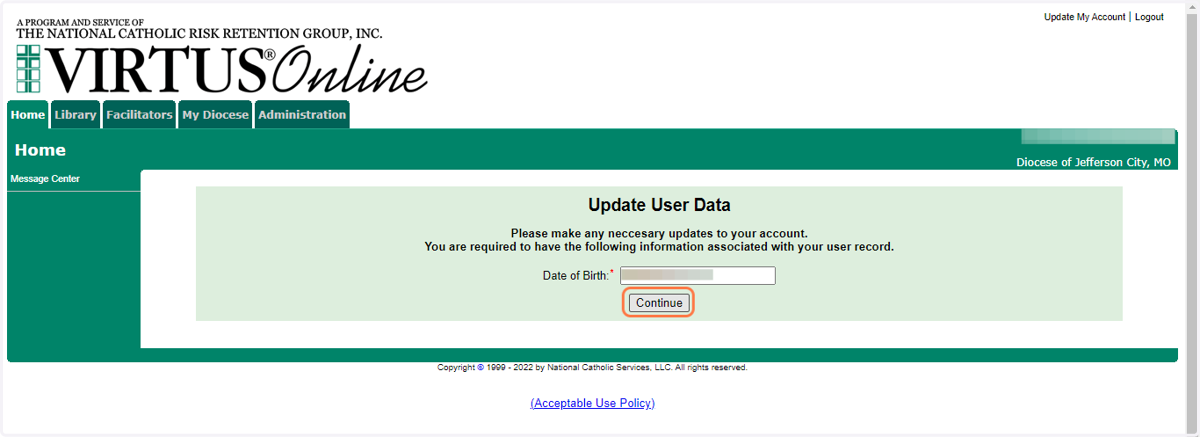
After logging in, you will be prompted to Update User Data. Verify your date of birth, then click Continue.
21. Select response and continue (if applicable)
Users may be asked if they are involved in a parish early childhood program and/or if they have completed a background check within the past 5 years; select the appropriate responses if prompted and click Continue to proceed.
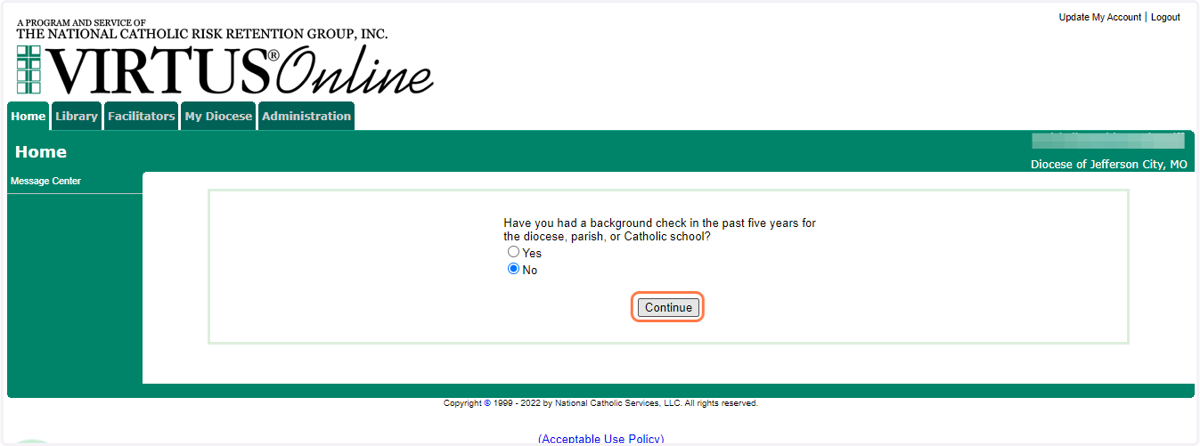
22. Click on Begin Background Check
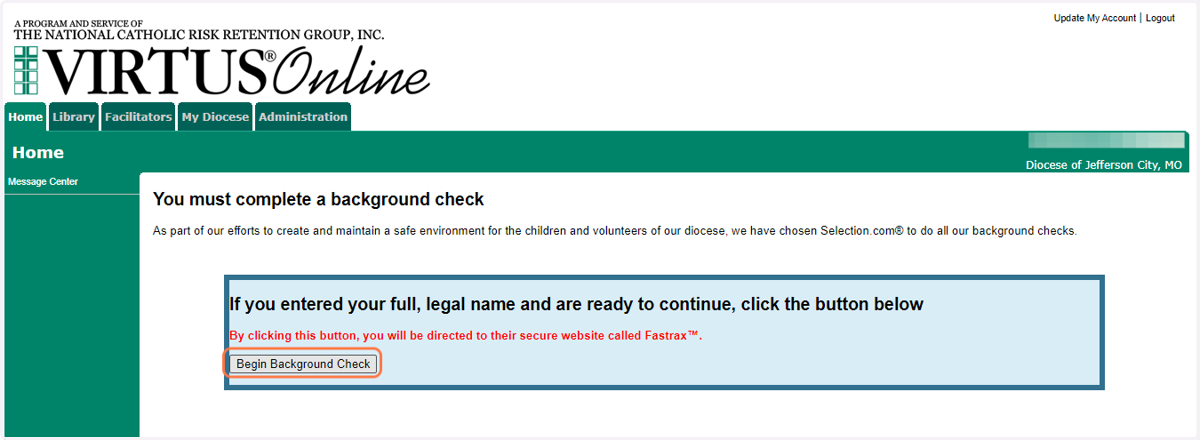
23. Click on Enter Background Check Info
Users are routed to a new page to continue with information collection for Fastrax/Select. Select the Diocese of Jefferson City from the listed agencies, then click Enter Background Check Info.
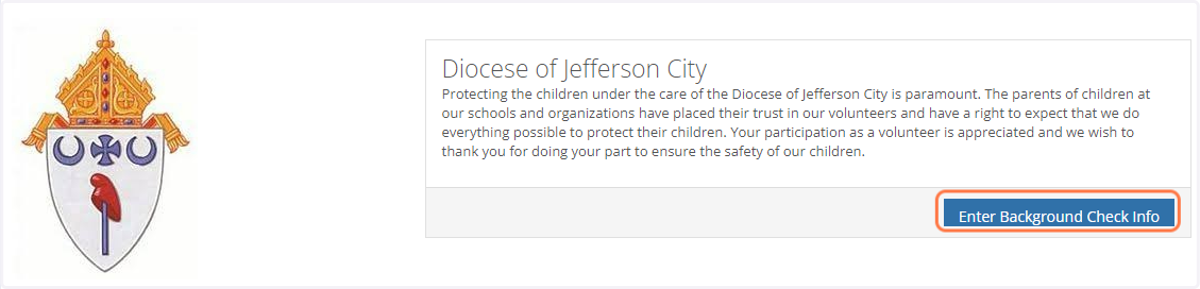
24. Select location
Select Newman Parish & Campus Ministry UMC (Columbia) as the location from the dropdown box. If you are involved with another parish or school in the Diocese of Jefferson City, you may select that option as well. Click Enter Background Check Info to proceed.
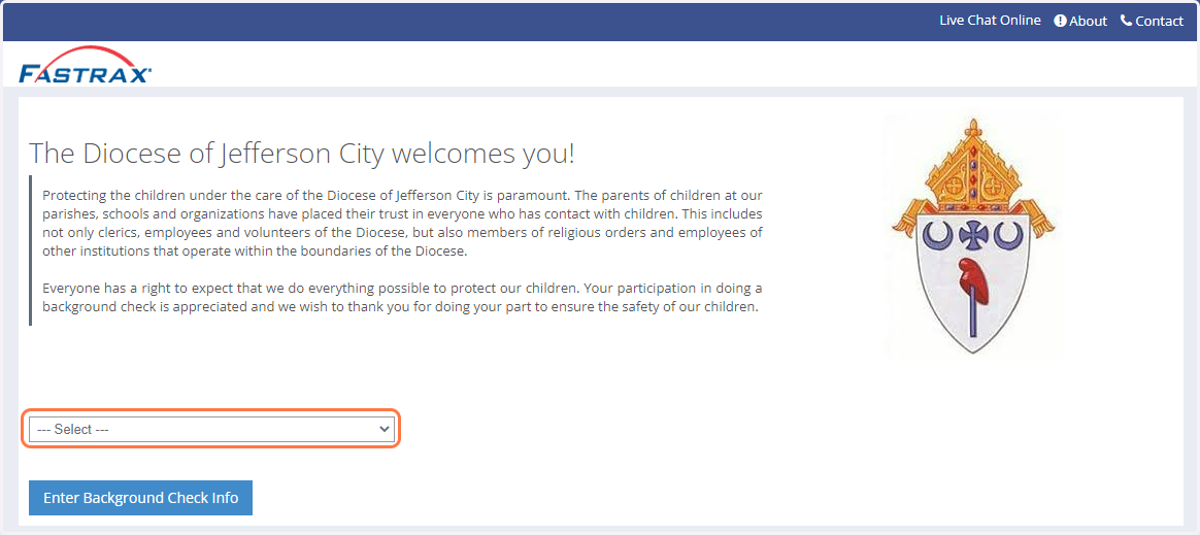
25. Review name and disclosure
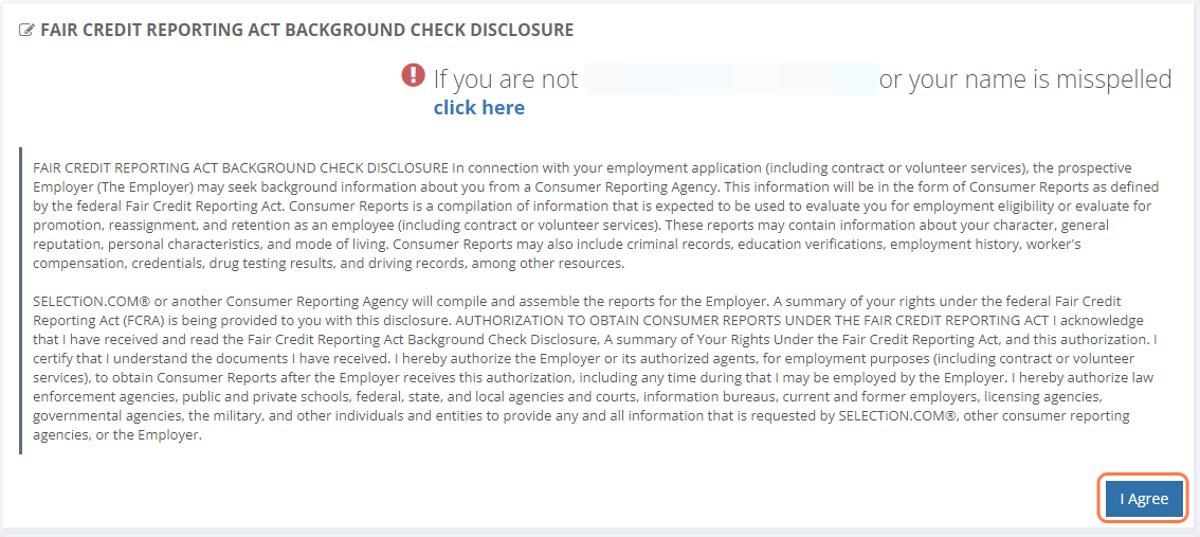
Users will review their name (follow the links to correct this information, if necessary) and the Fair Credit Reporting Act Background Check Disclosure, then click I Agree at the bottom of the page.
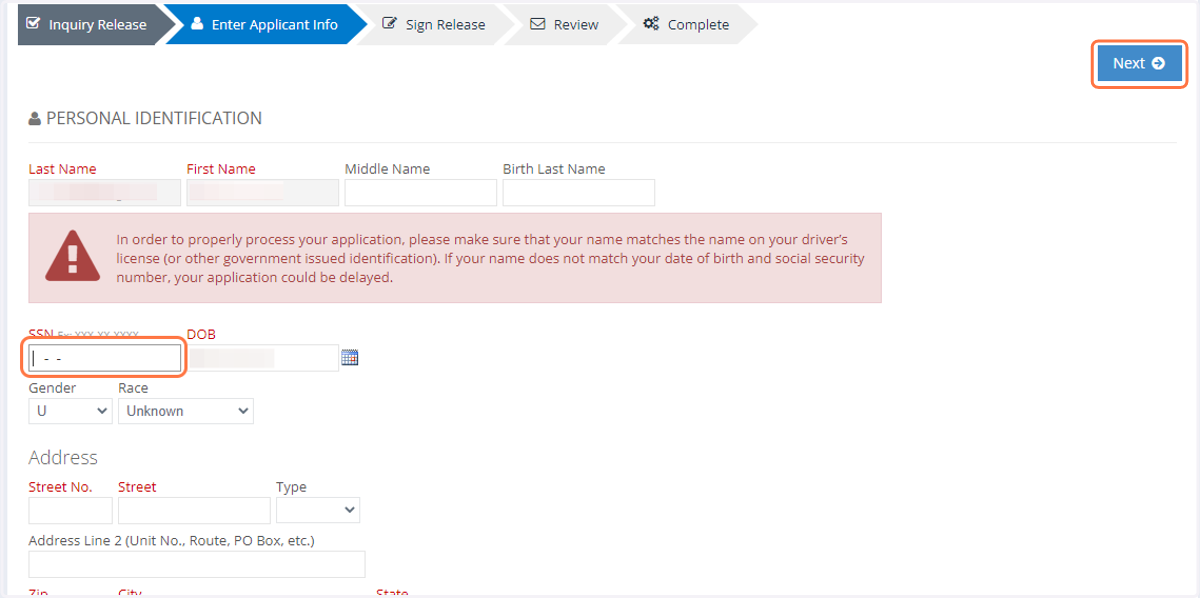
26. Enter personal information
Enter all required information (indicated in red) in the designated fields and review, then click Next.
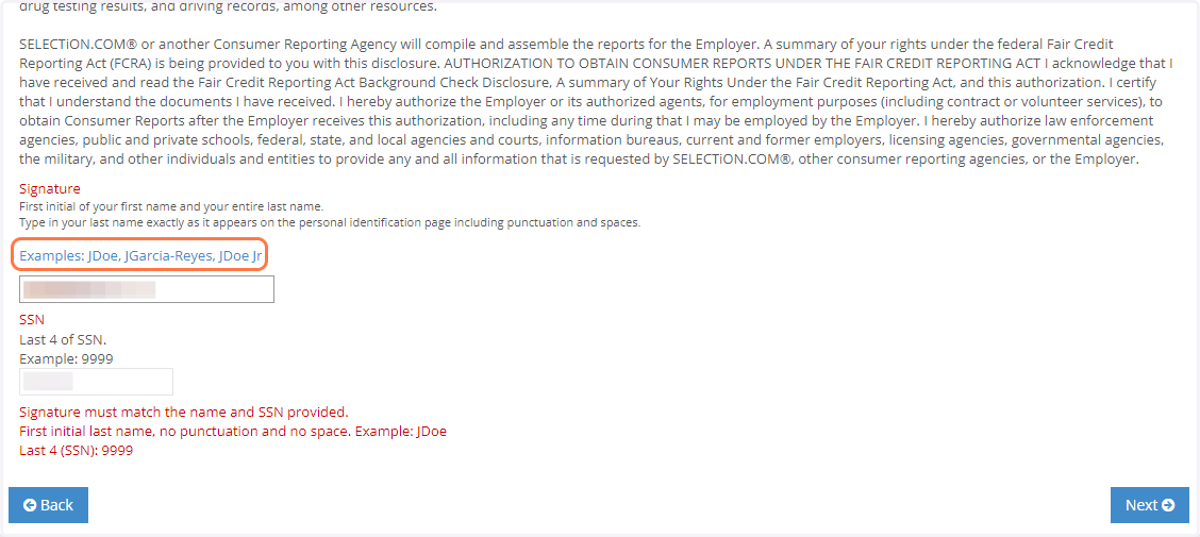
27. E-Sign
Type your signature (using the examples shown), then enter the last 4 digits of your SSN. Click Next at the bottom of the page to proceed.
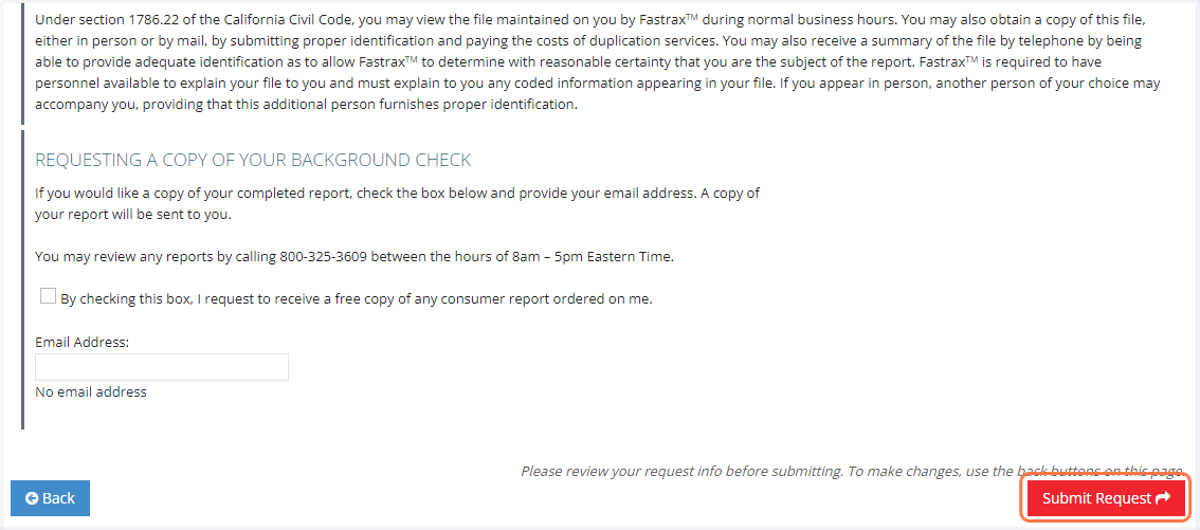
28. Submit background check request
Review the information carefully (including your right to obtain a copy of your background results), then click Submit Request to complete.
29. Volunteer activity and account status
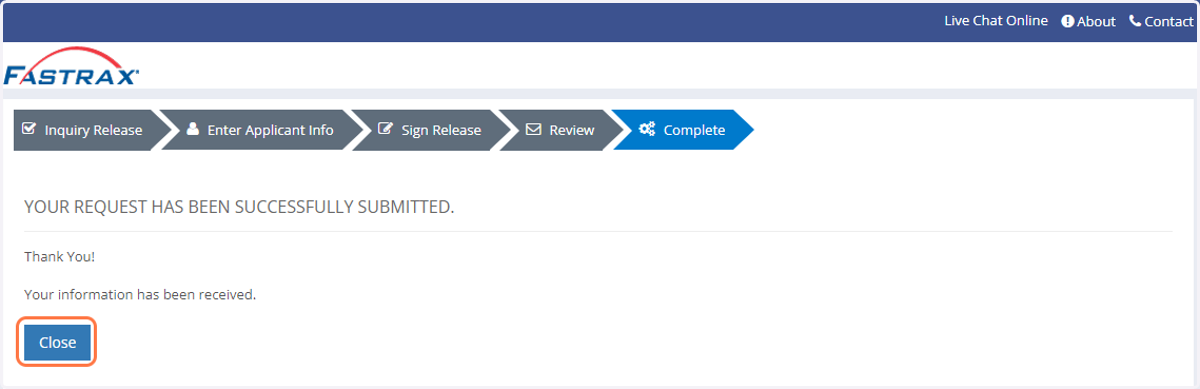
Once you receive confirmation that the request have been successfully submitted, your may close the window by clicking Close or exiting the browser.
The timeline for receiving results and verifying VIRTUS account status may vary; Newman Parish staff will reach out directly if there are unexpected delays or questions about your account and/or background check results.