Using the Tango image editor
1. Go to a workflow you'd like to edit.
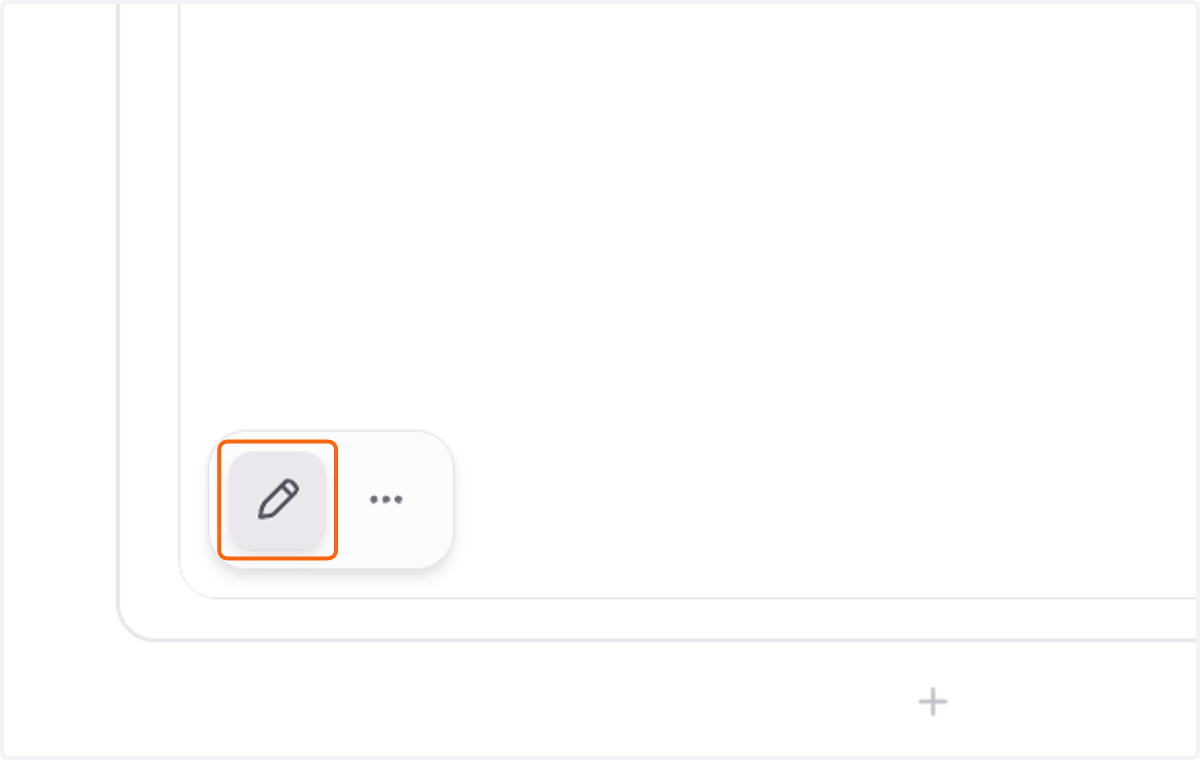
2. Click on the Edit icon on the bottom left of the image
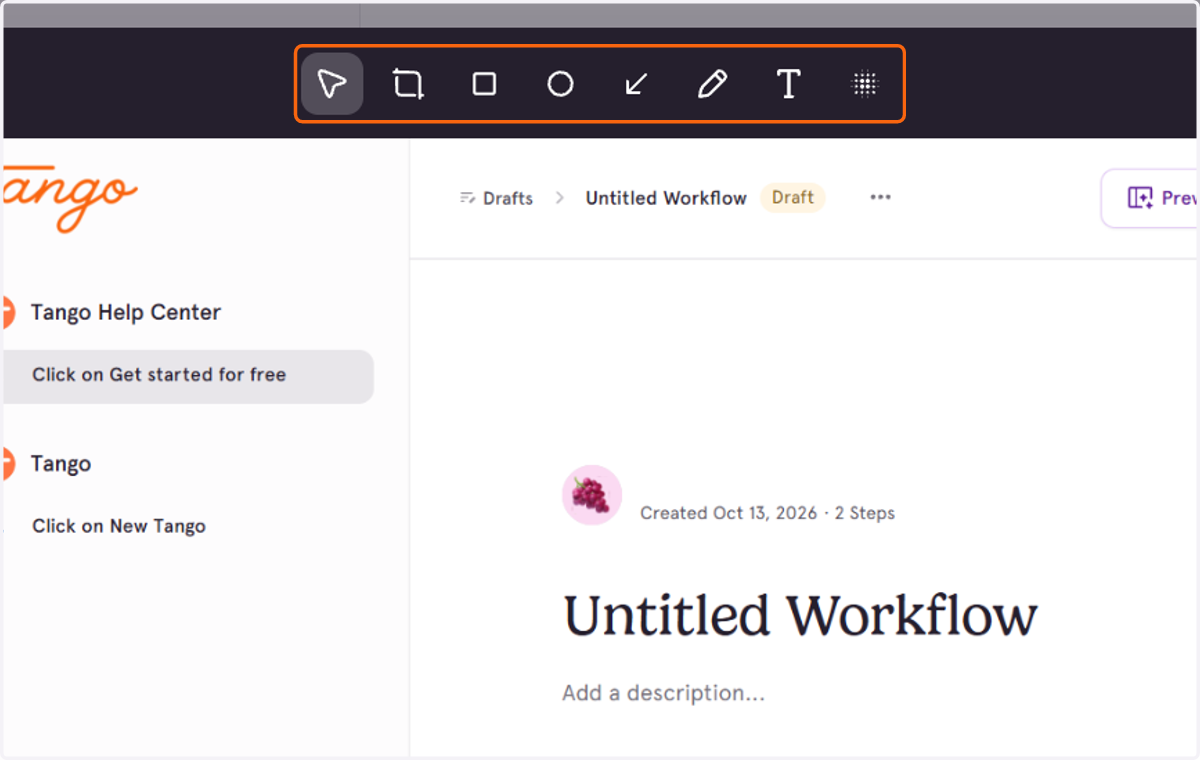
3. Your editor tools are at the top of the image editor
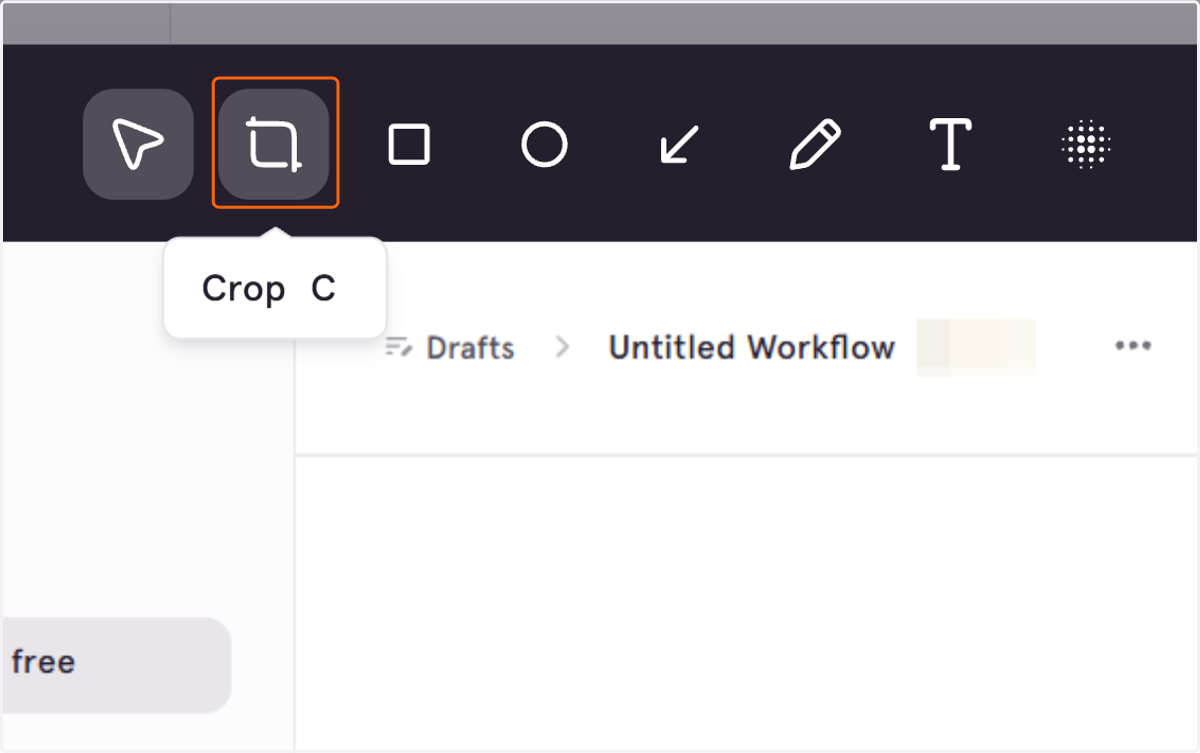
4. Select the Crop tool to cut out aspects of the image
5. Drag to crop your image

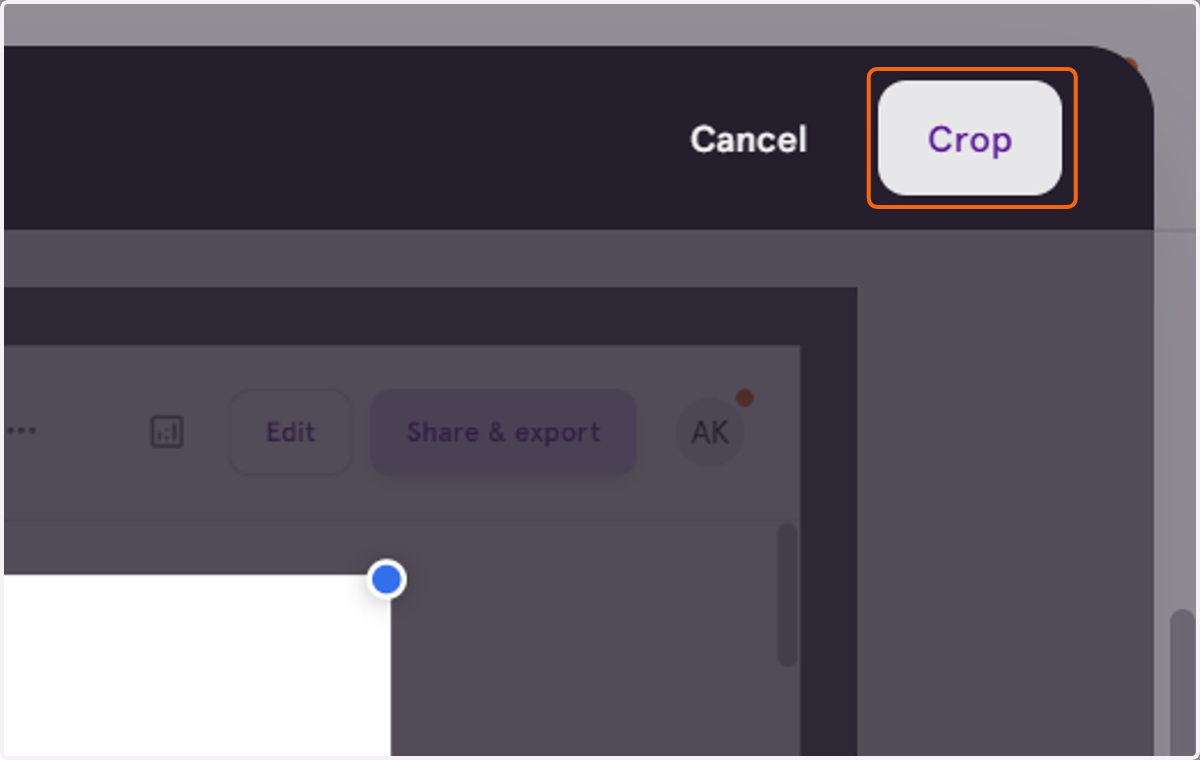
6. Click on Crop to confirm
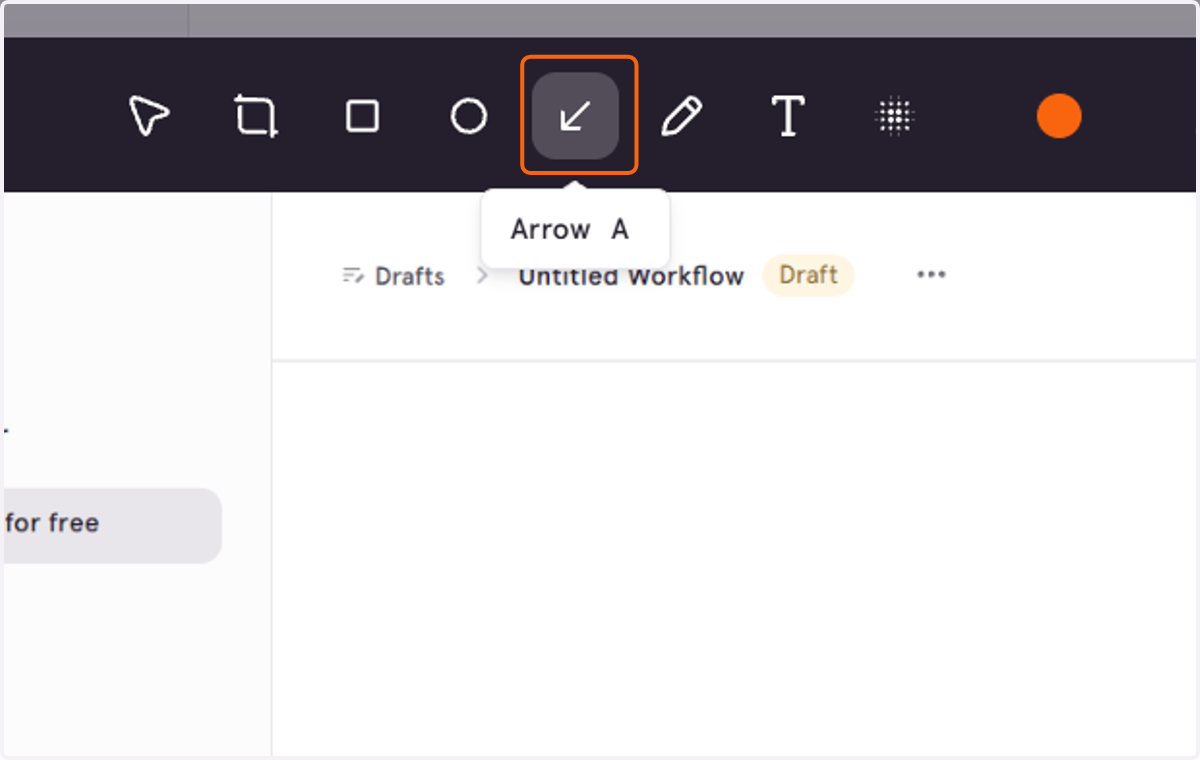
7. The Arrow tool lets you add an arrow anywhere on the image
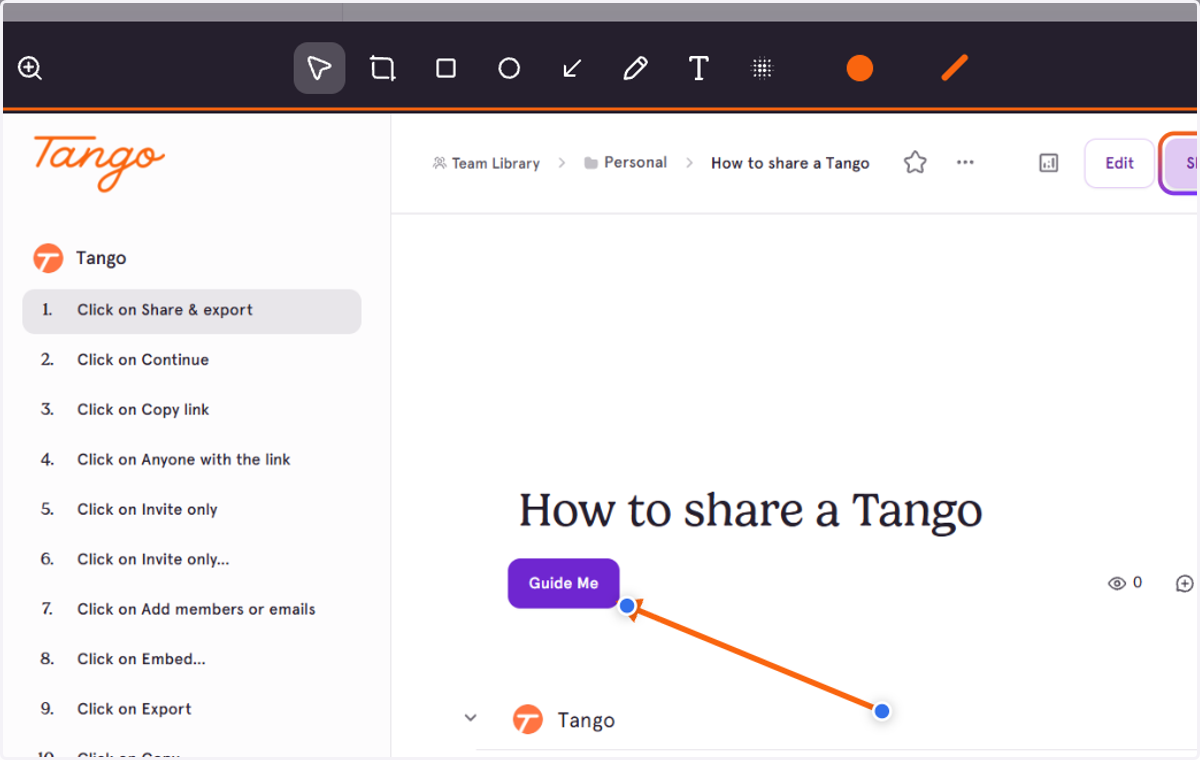
8. Click and drag to adjust the size of the shape, or the direction of the arrow
You can customize your colors!
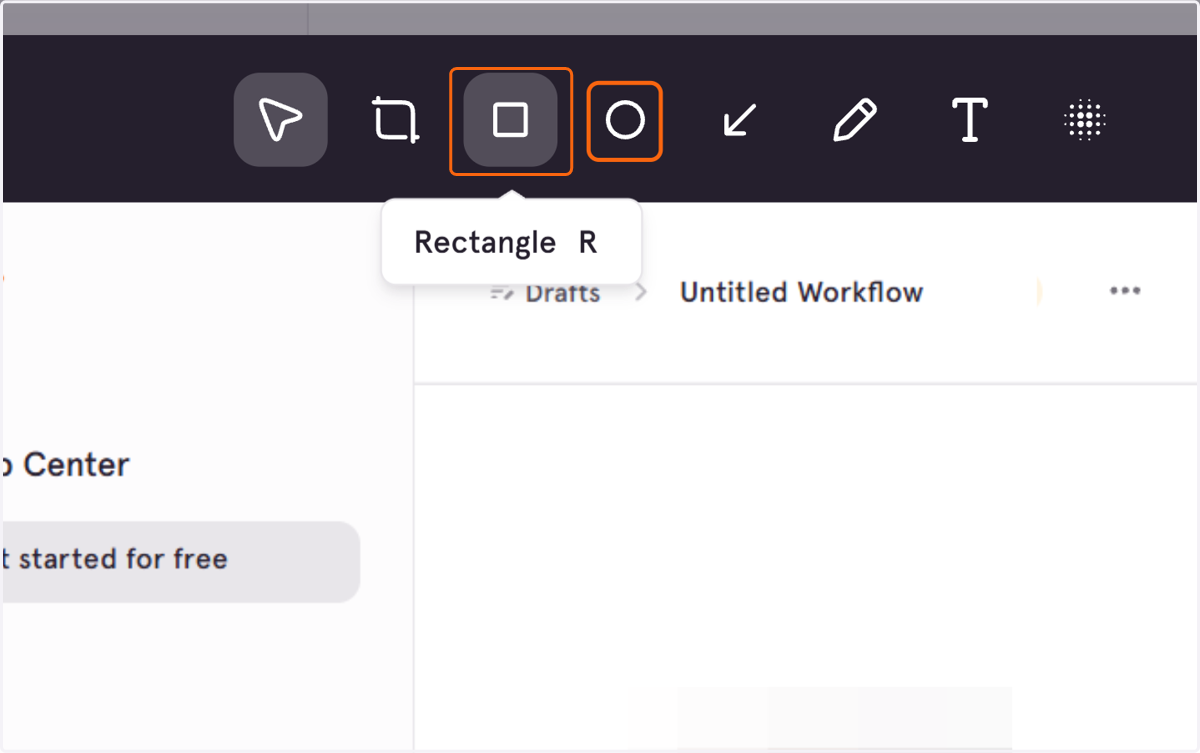
9. Add another rectangular highlight box or an ellipse
You can resize the shapes by dragging them once you've added them
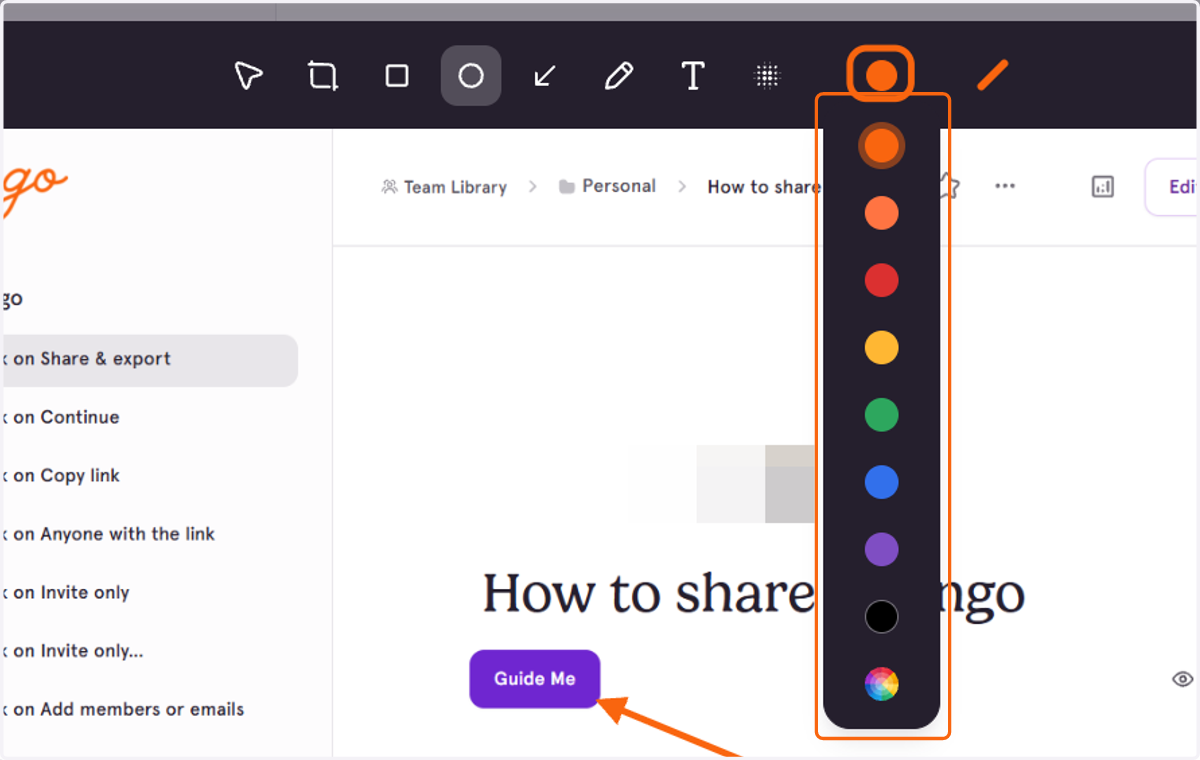
10. You can select the highlight color for your arrow, rectangle or ellipse
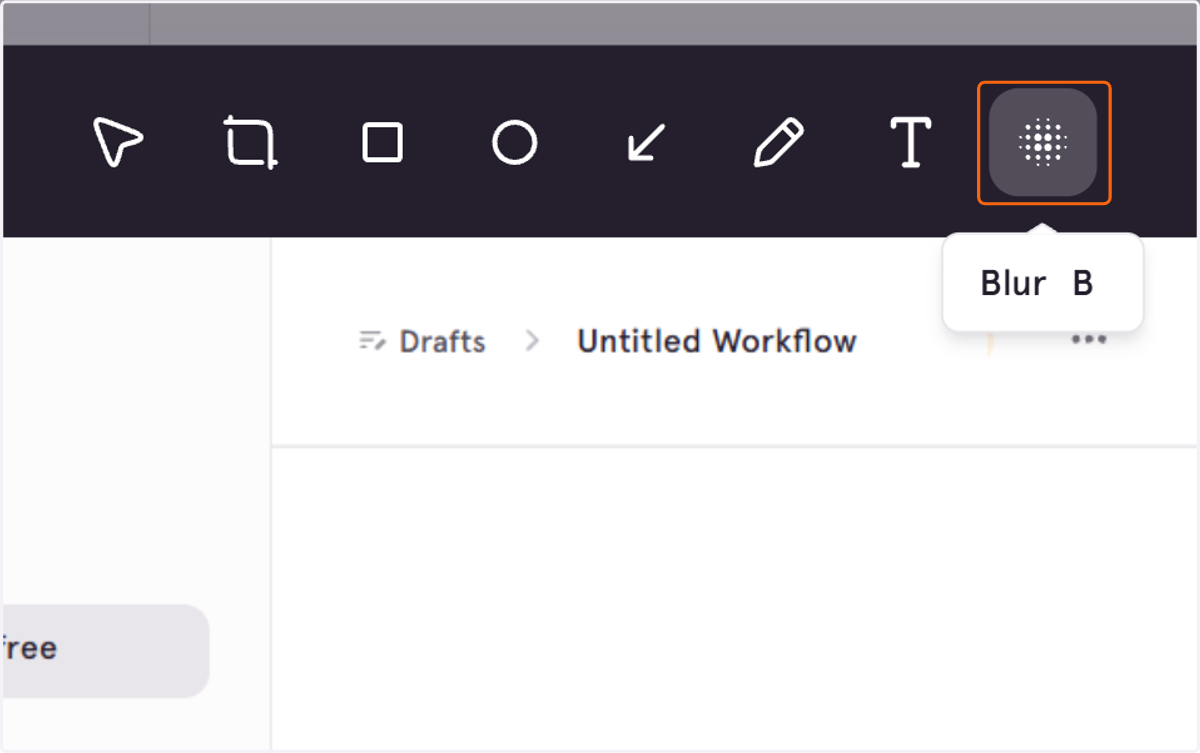
11. The Blur tool lets you hide sensitive information in an image (Pro and Enterprise)
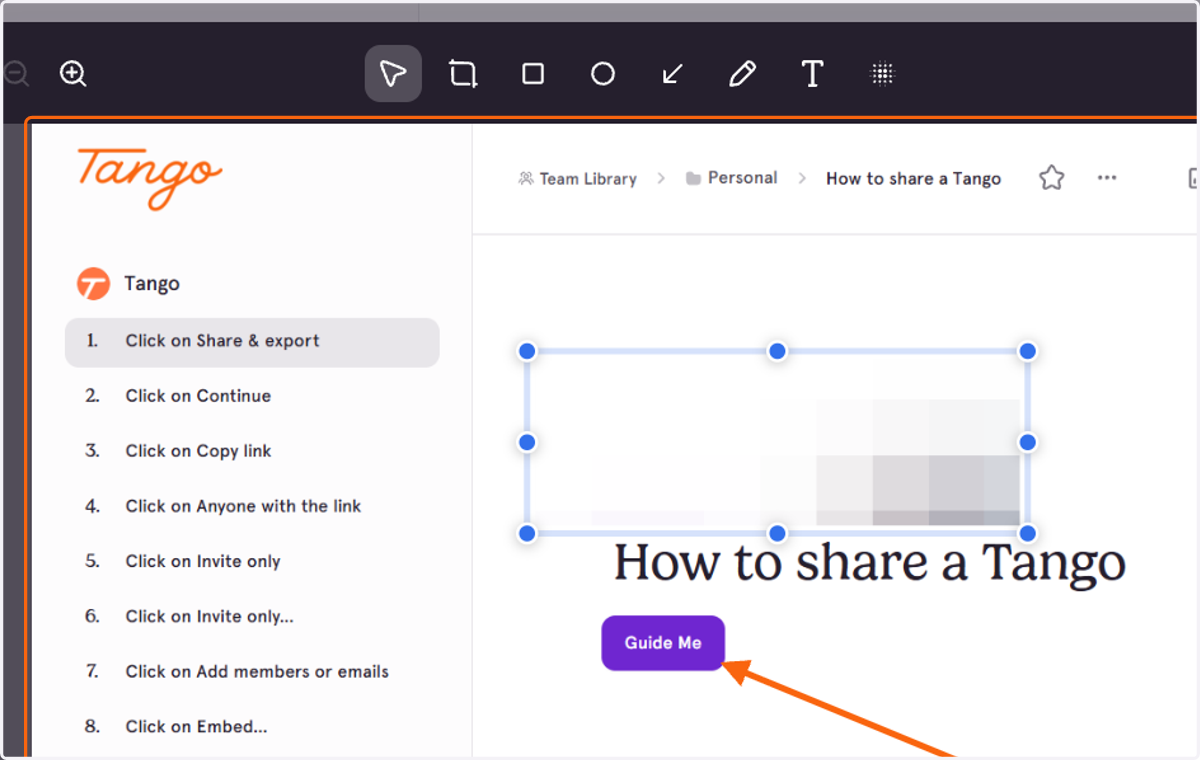
12. Drag to blur a section of your image
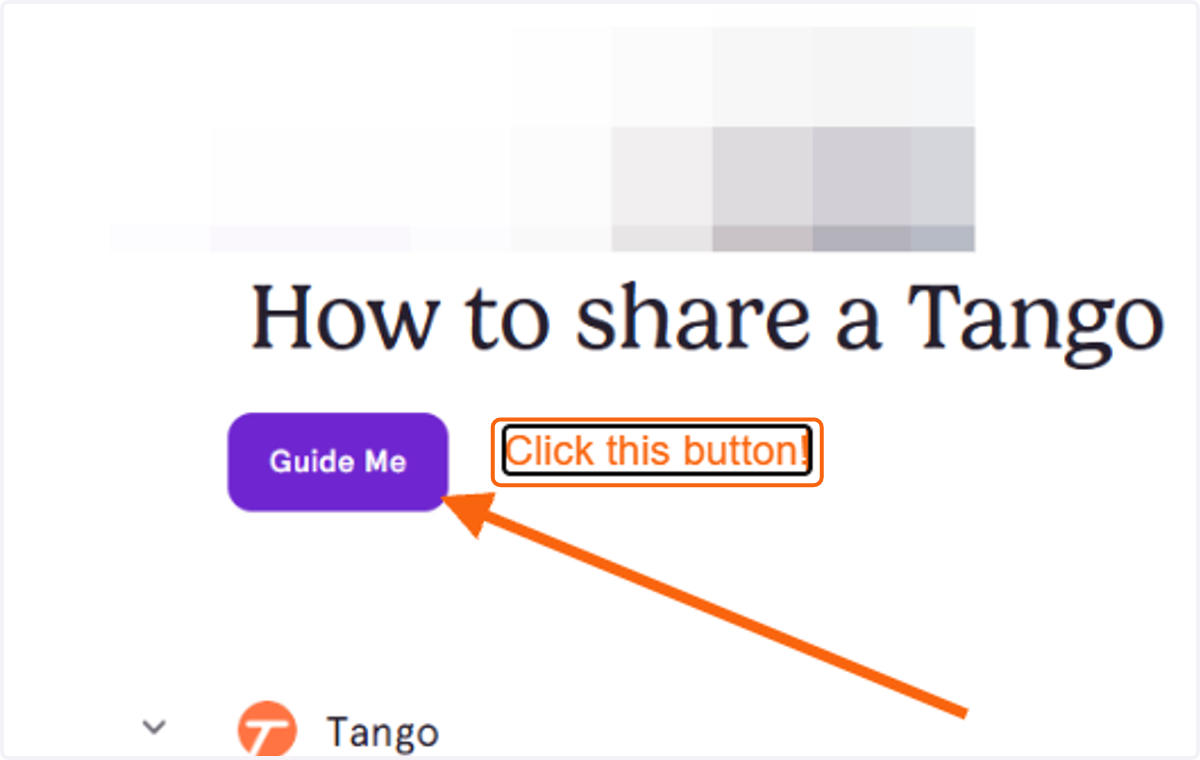
13. Add a text box!
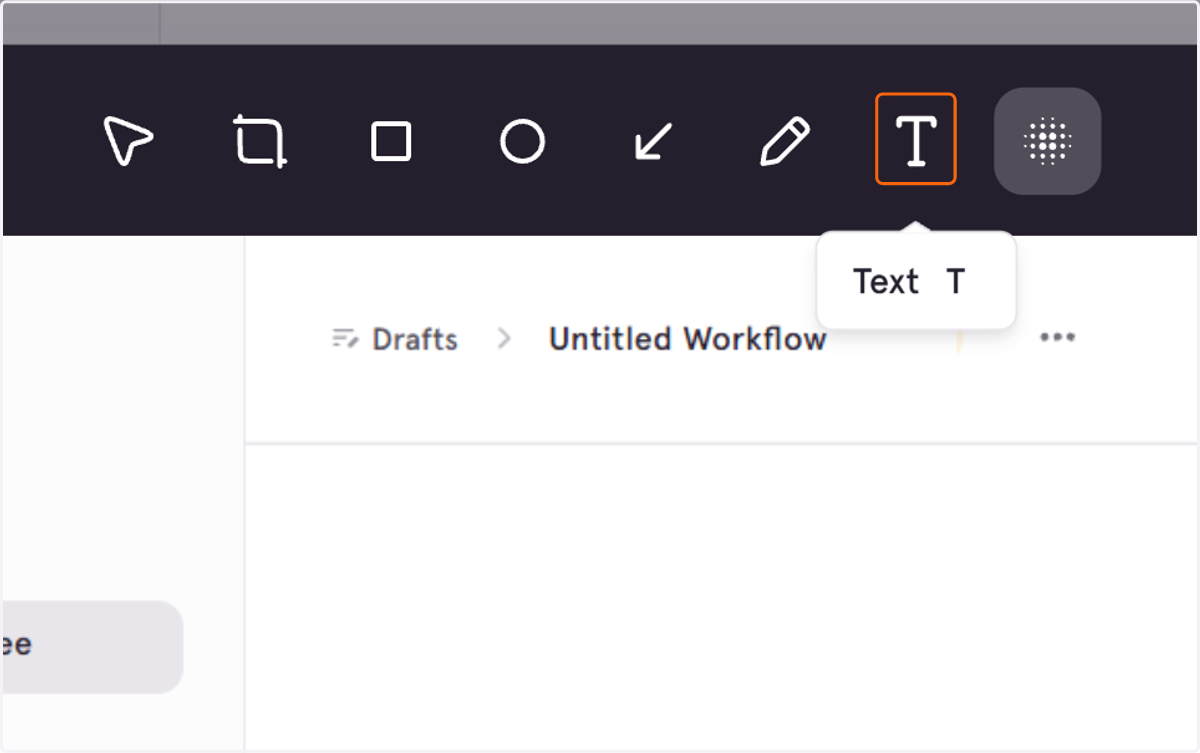
14. Type in the highlight - you can change the size of the box, and update your colors and font size.
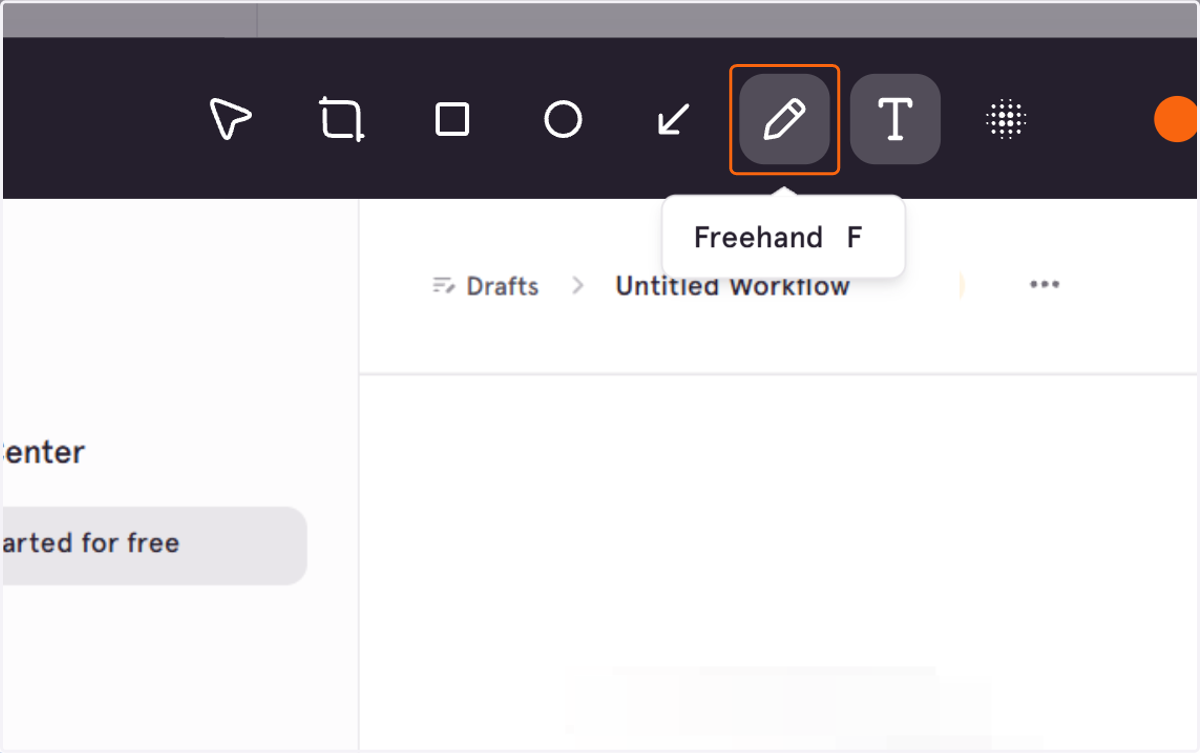
15. Draw in freehand on the image!
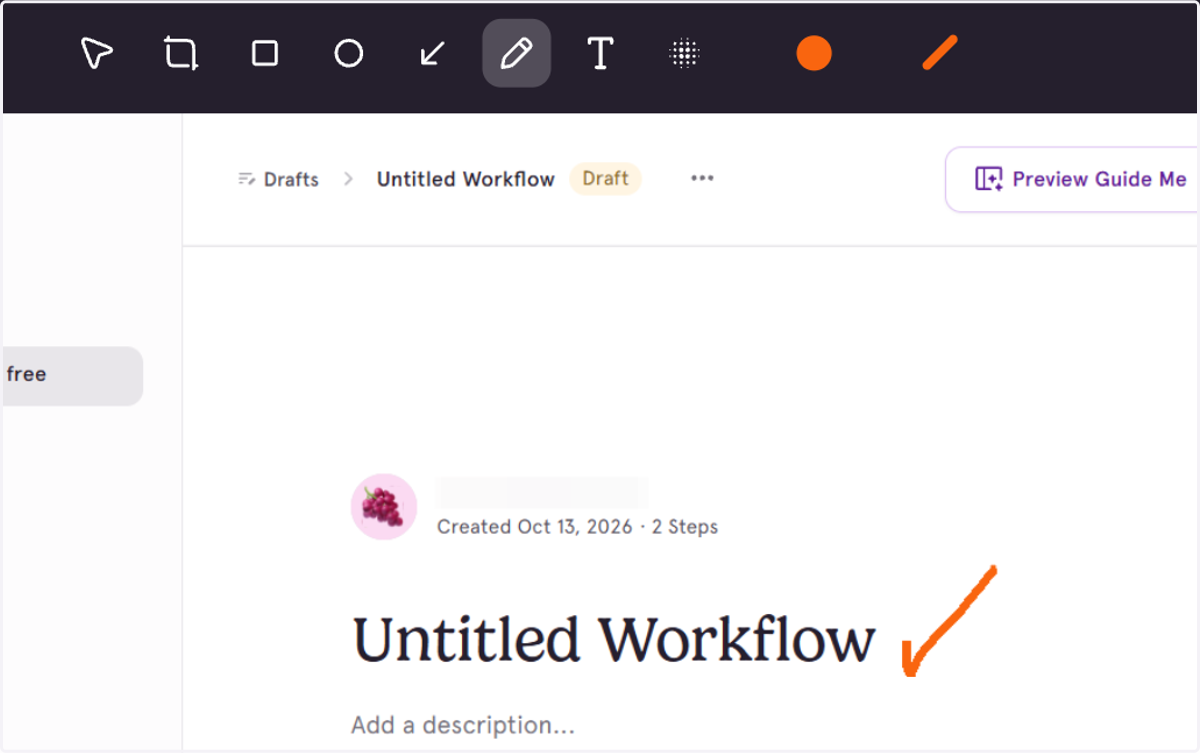
16. Underline, circle, or highlight important elements using your cursor
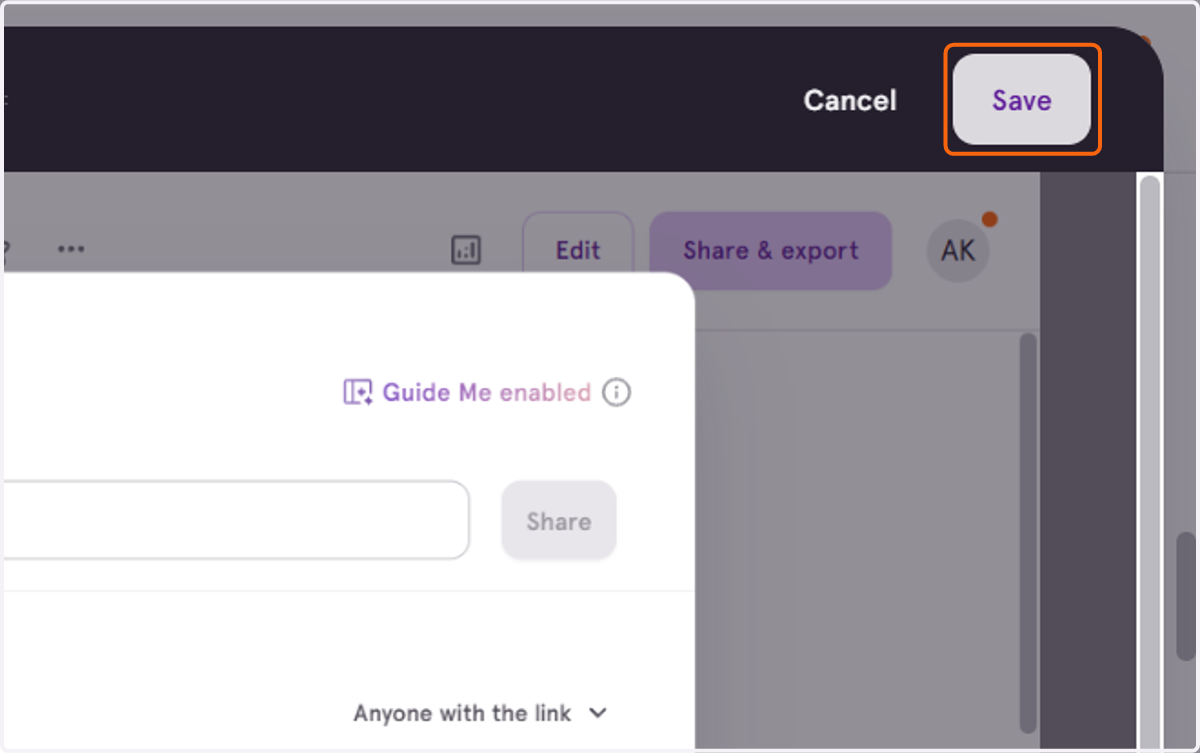
17. Click on Save to confirm all your changes!