Using TMO Turbo to Set Up Appointment Reminders
TMO Turbo
1. A2P Set Up
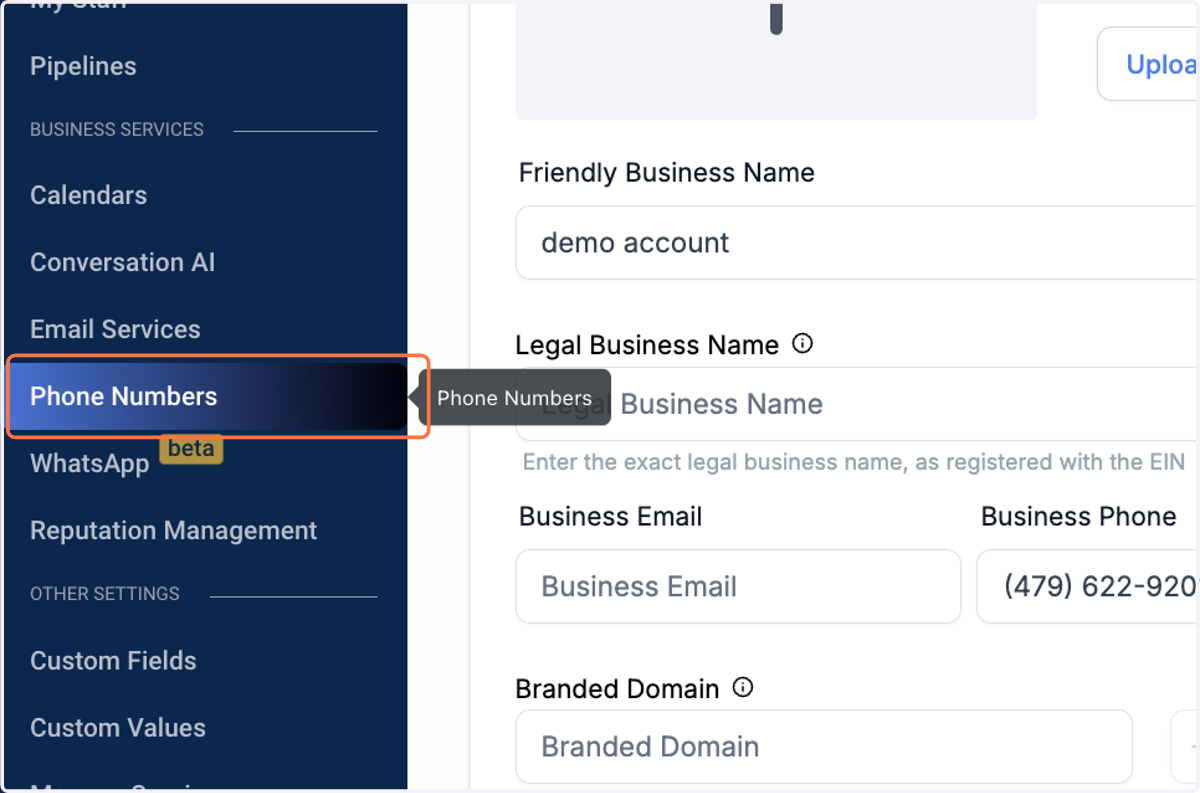
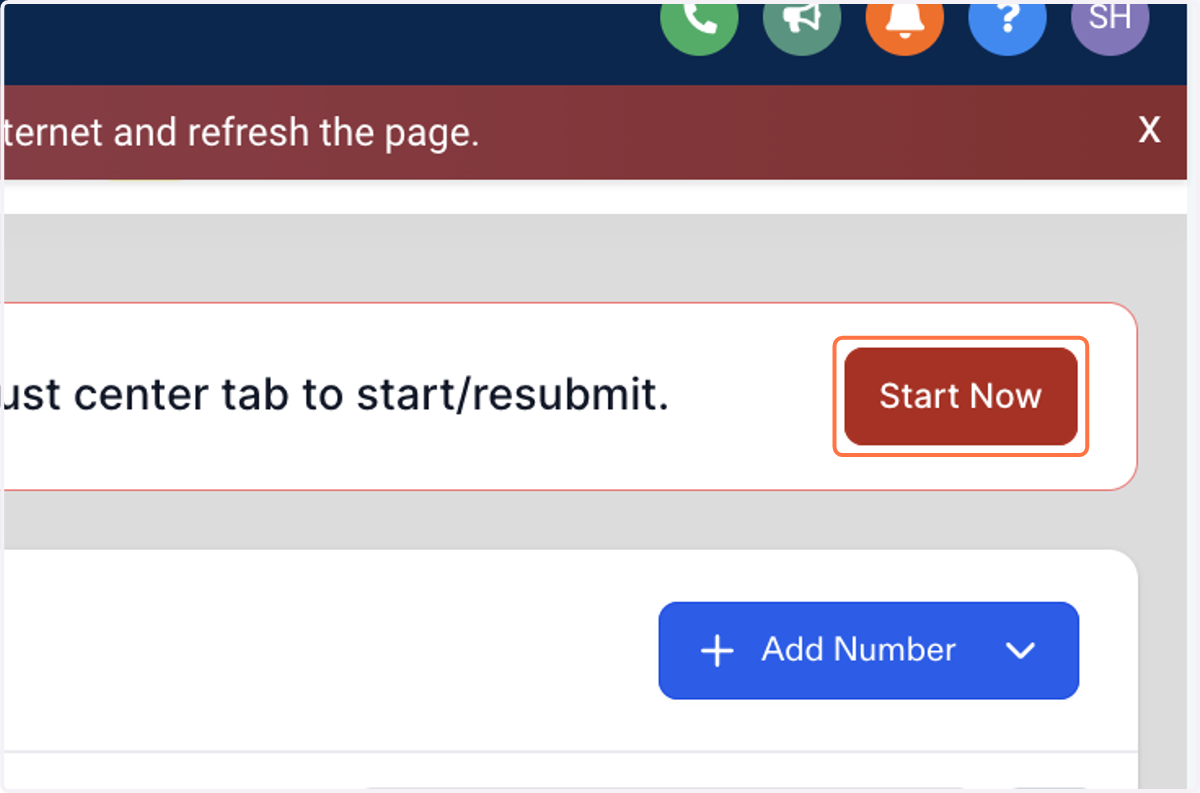
2. Click on Start Now If that no their then go to Trust Center and start.
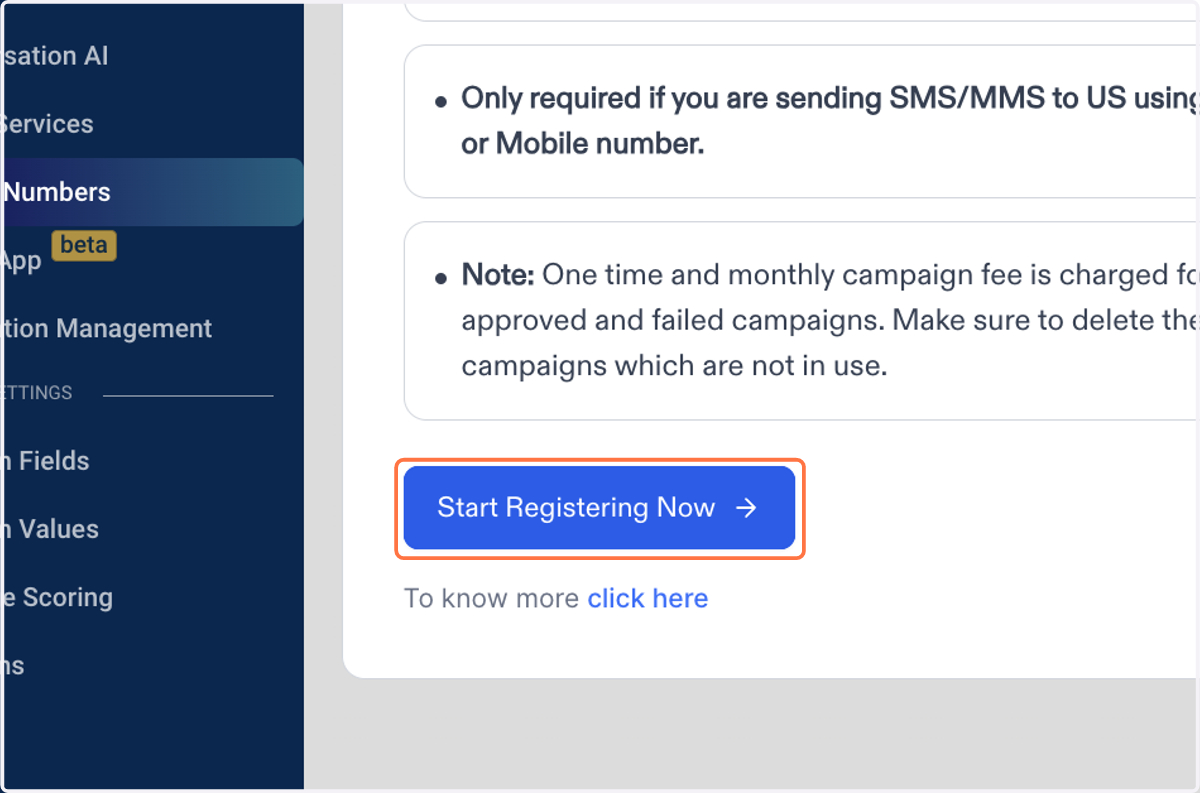
3. Click on Start Registering Now
4. Verify each pages information is correct. it will pull from the business profile page.
5. Verify this is correct.
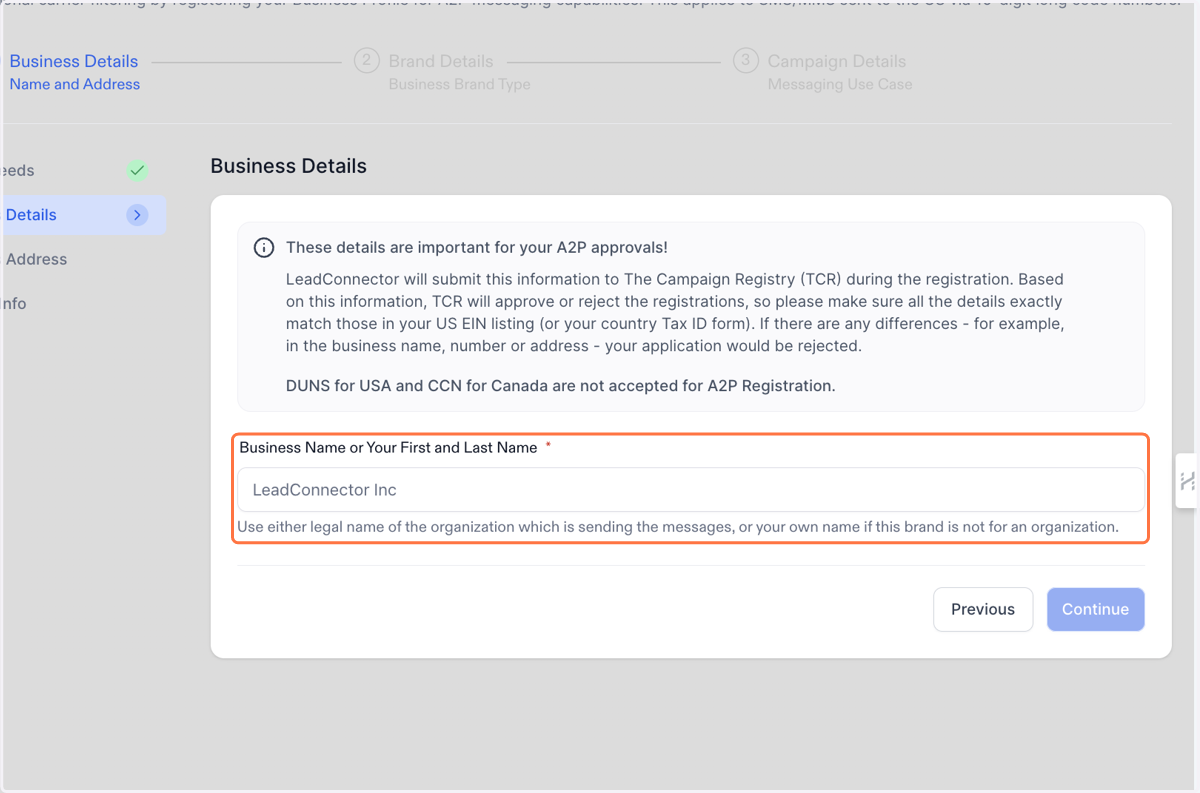
6. Verify Information and continue.
7. Verify Information and continue.
8. Accept and Continue.
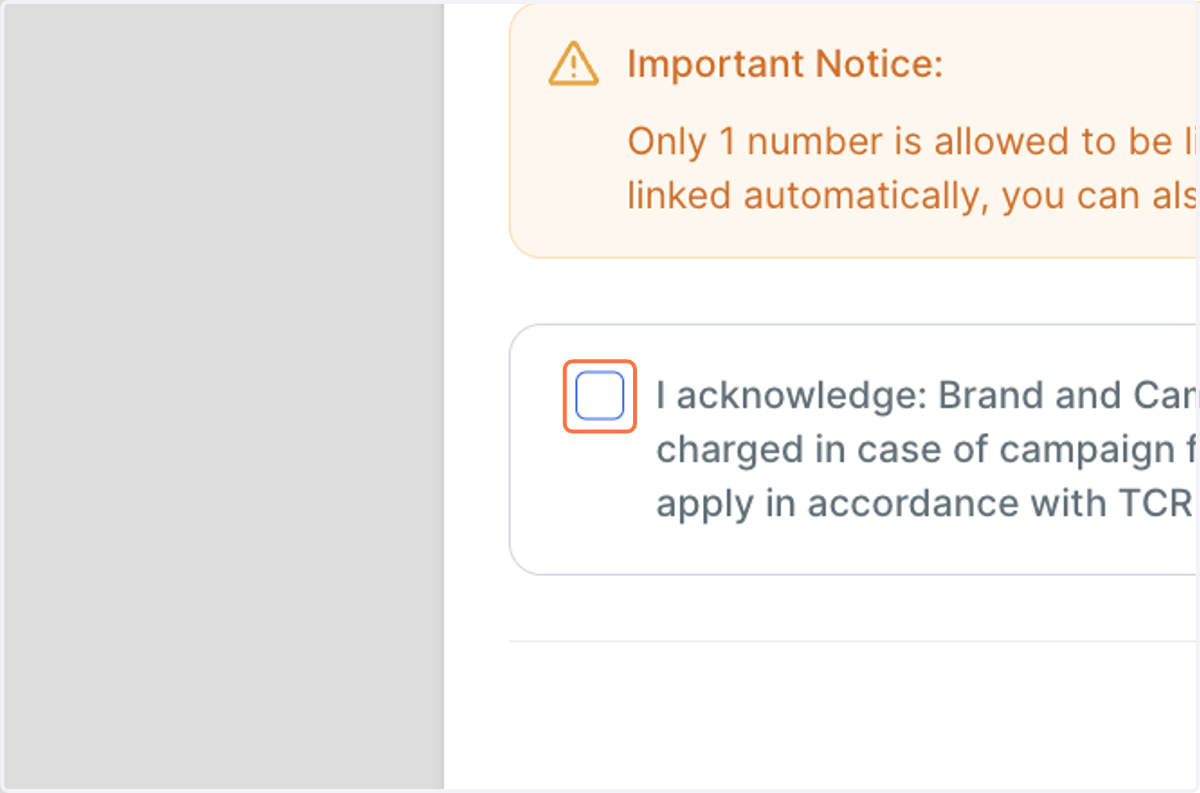
9. Verify Information and continue.
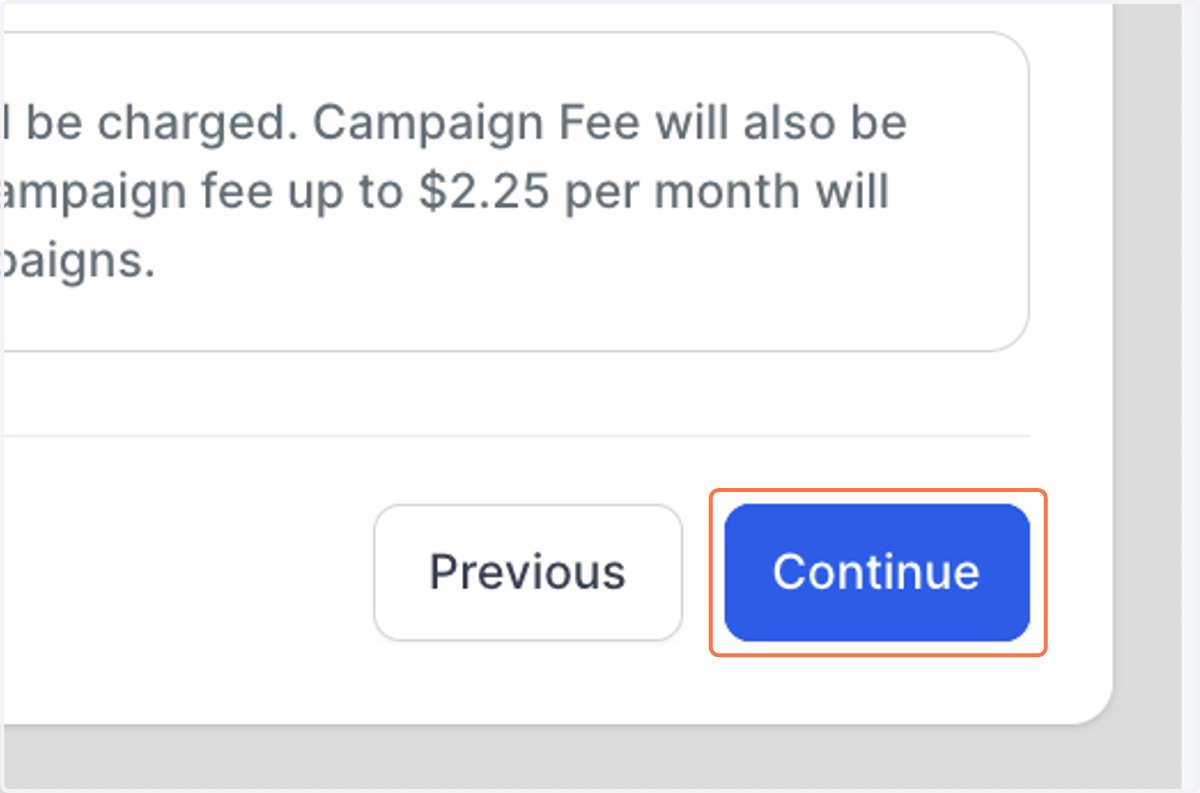
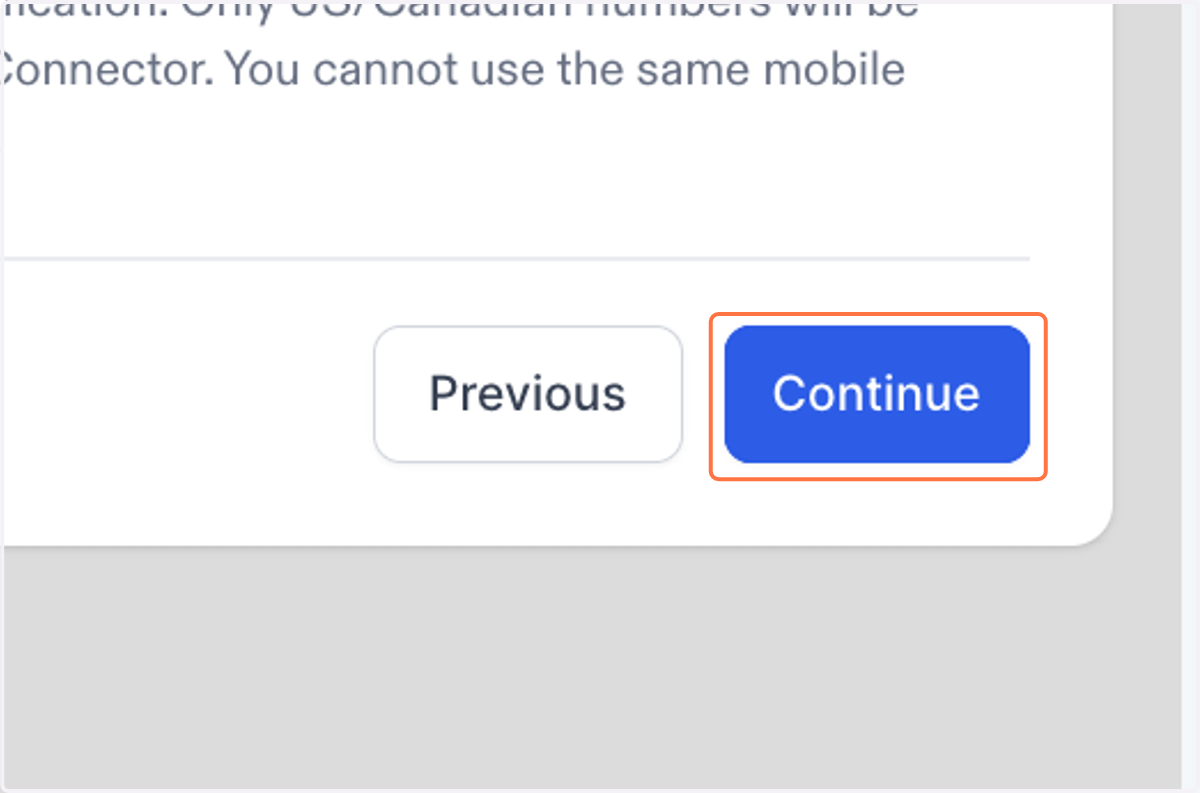
10. Verify Information and continue.
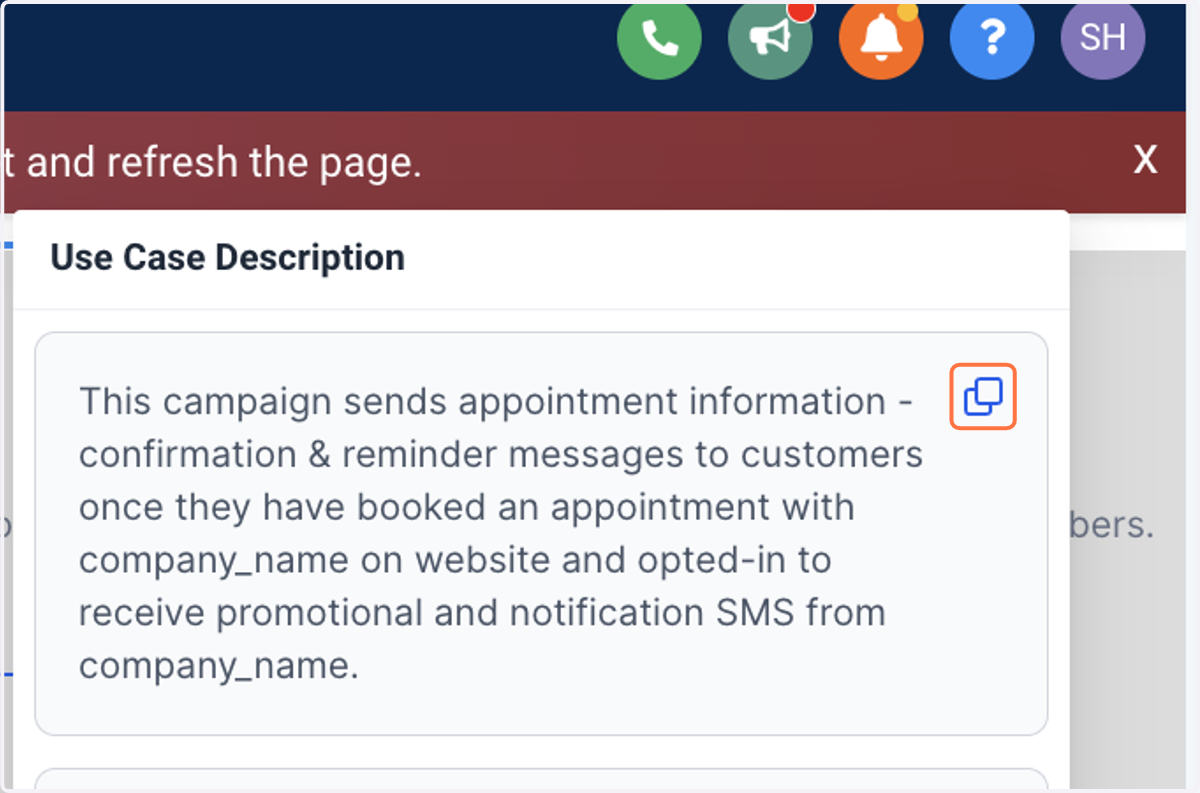
11. Click on See example
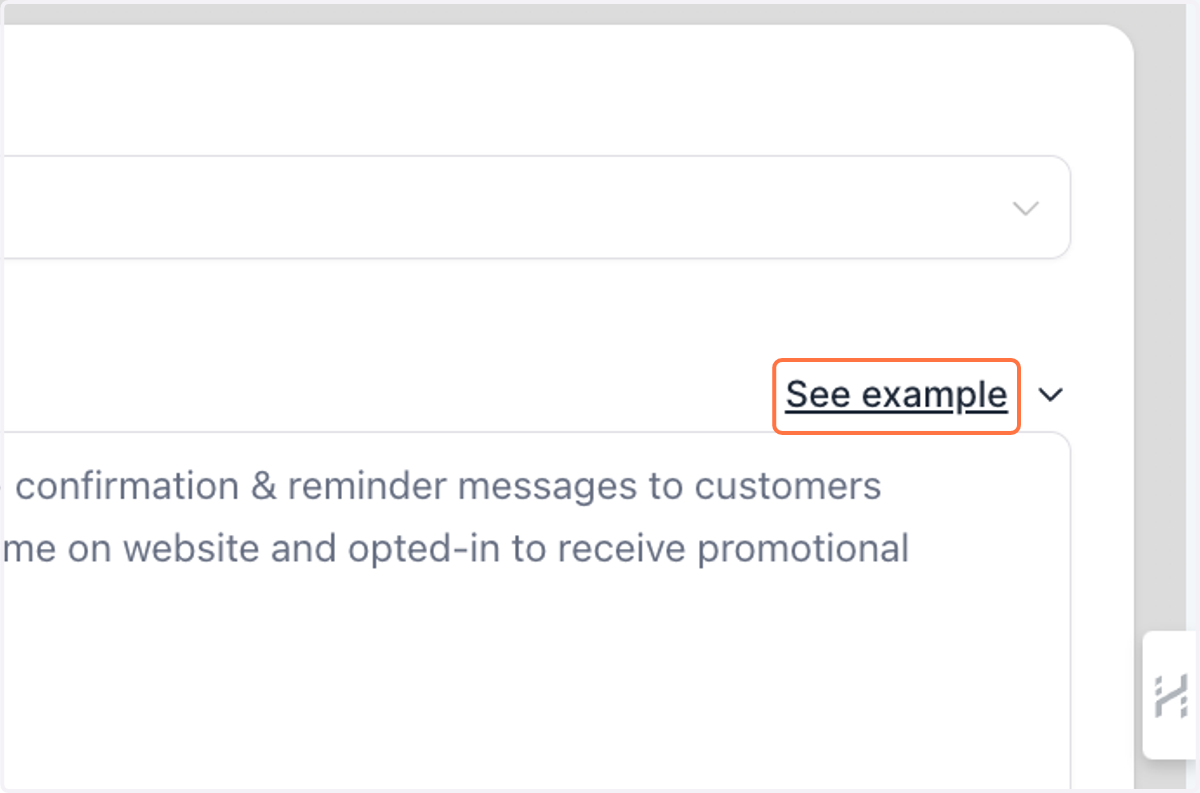
12. Click on This campaign sends appointment information - confirmation & reminder messages to customers once they have booked an appointment with company_name on website and opted-in to receive promotional and notification SMS from company_name.
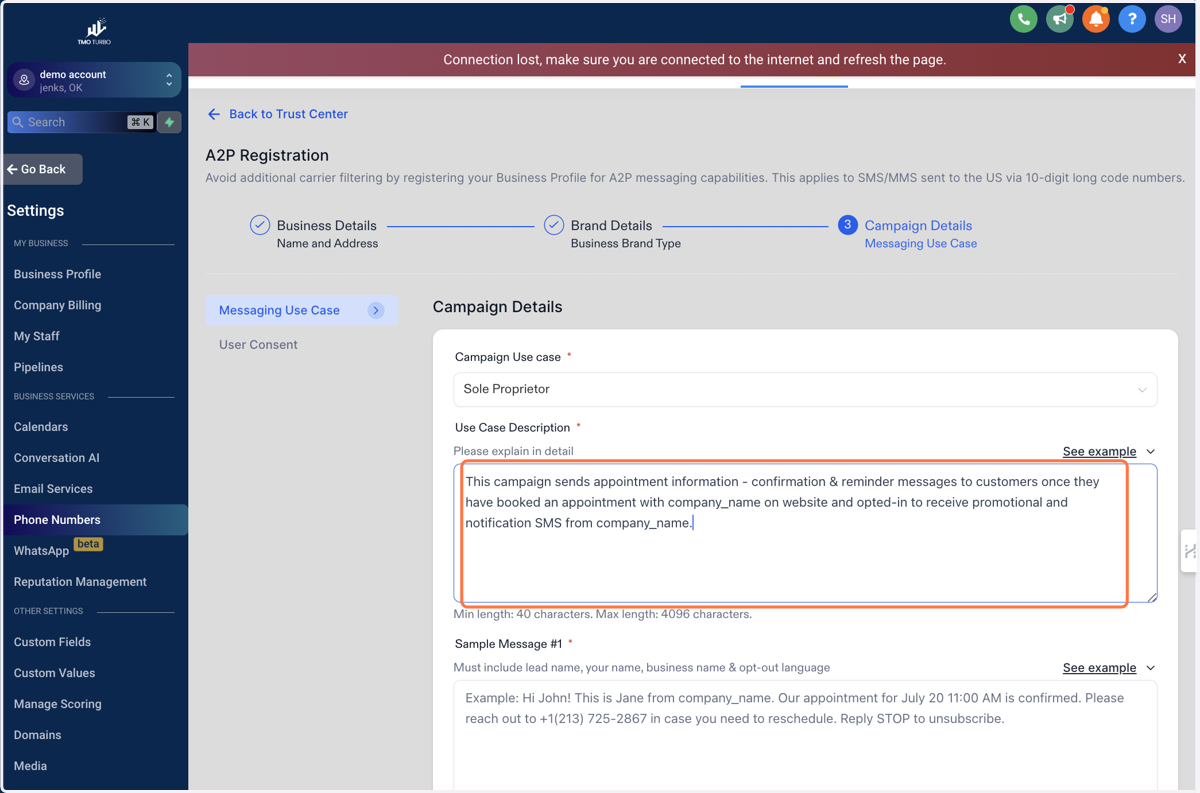
13. Paste selected text into text area
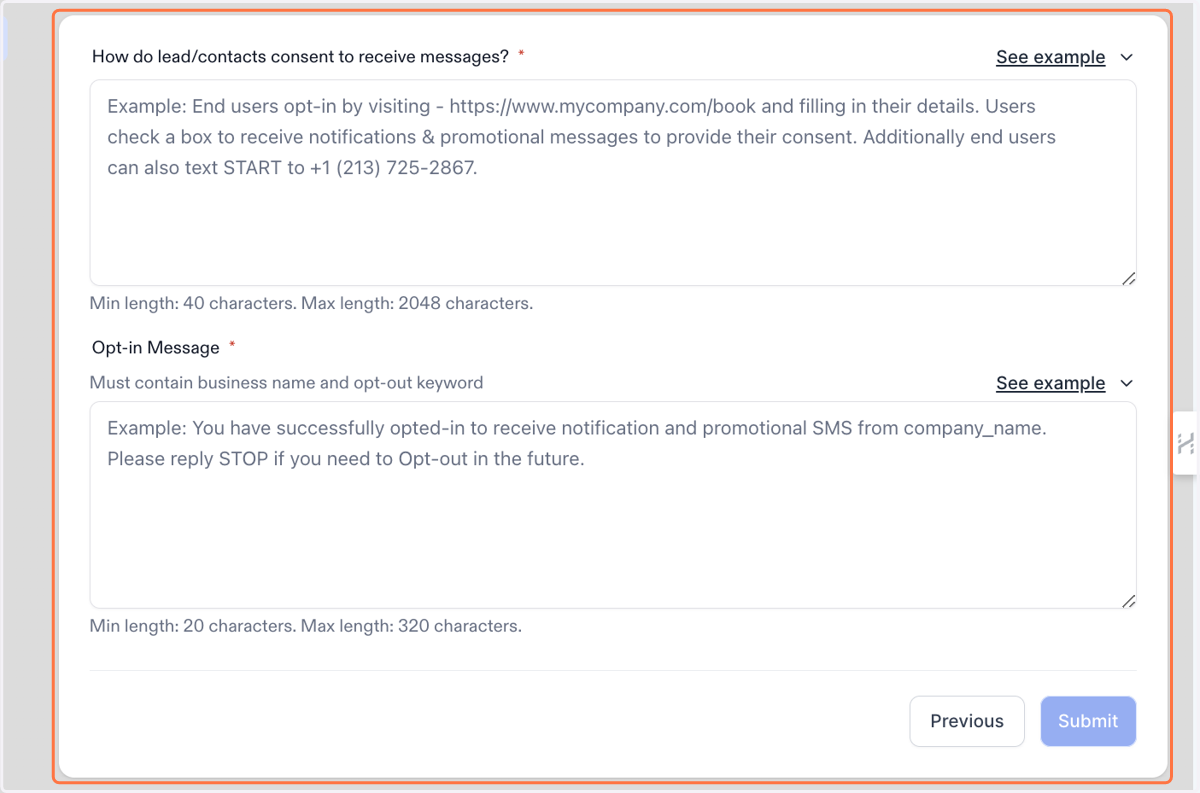
Edit and update with your business information. Do that for each of the campaign boxes.
14. Click on Continue
15. Once finished hit the submit button.