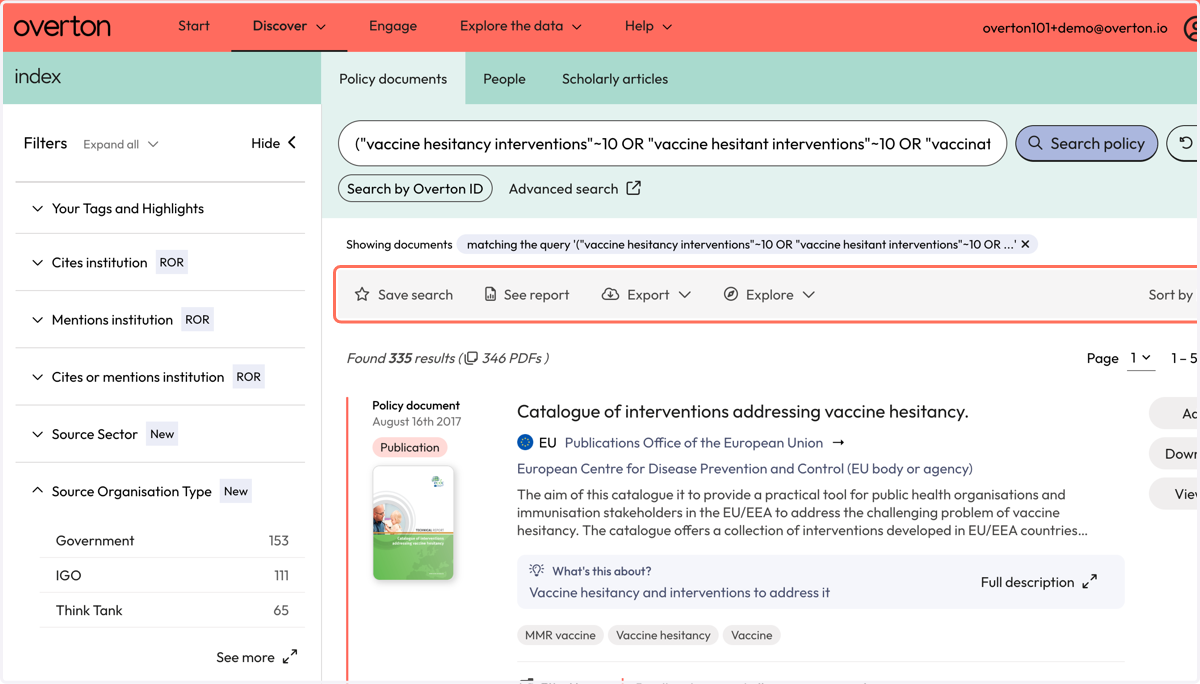
Using Overton's proximity search to find policy documents on a specific topic (trials)
This guide provides an example of how to utilise the proximity search function to find search terms relating to different concepts in relation to each other in the full-text of policy documents. This approach can be helpful as a building block when conducting a systematic search for policy related to a specific topic.
Start with Overton's Advanced Query Builder
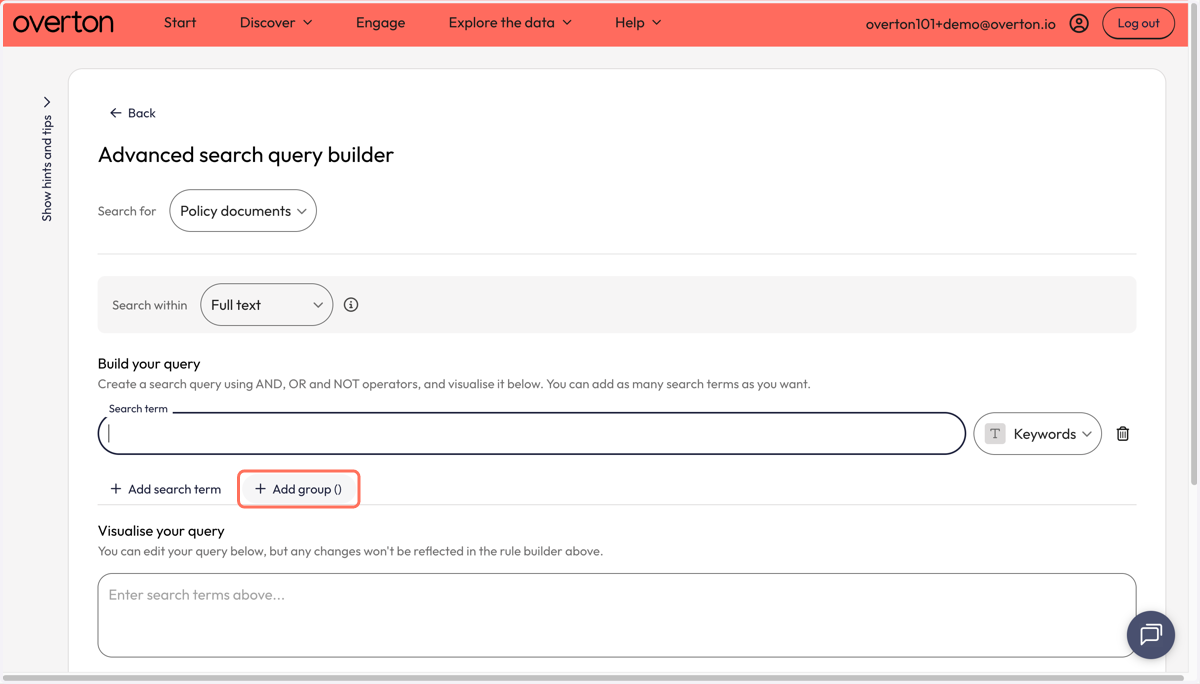
1. Click on 'Add group' to indicate you want to build a group of search terms.
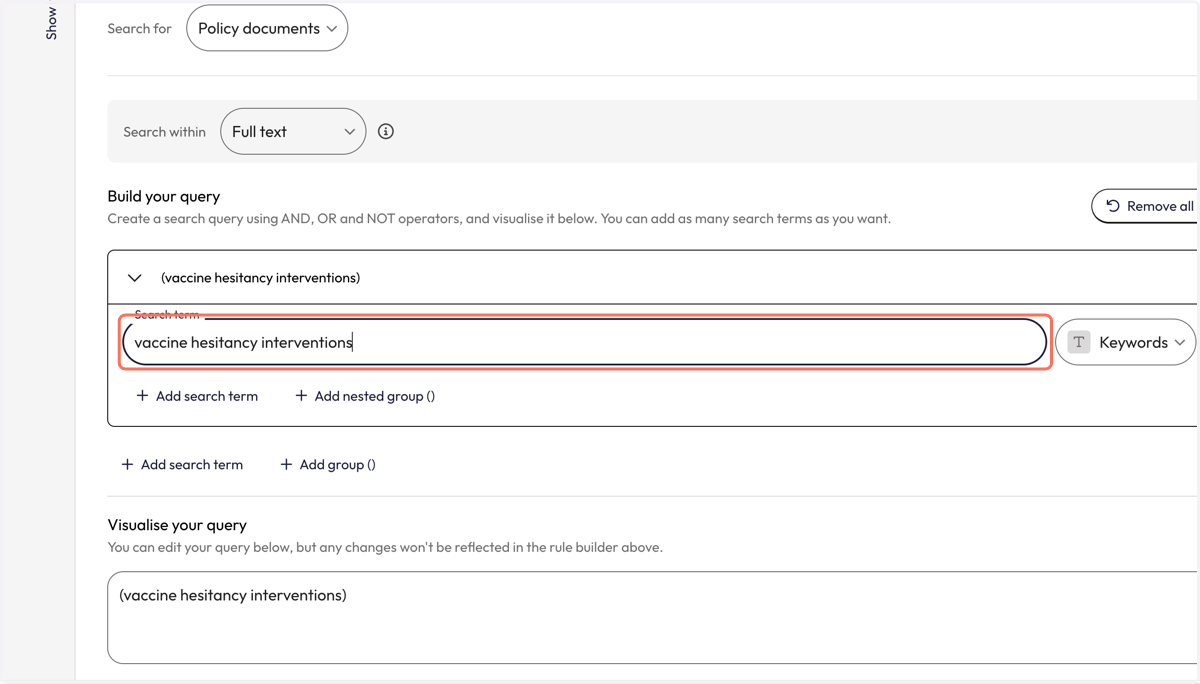
2. Once the group appears, add your first search term to the search box.
Because this example demonstrates how to use the proximity search to search for multiple concepts in relation to each other, for example: vaccine hesitancy and interventions
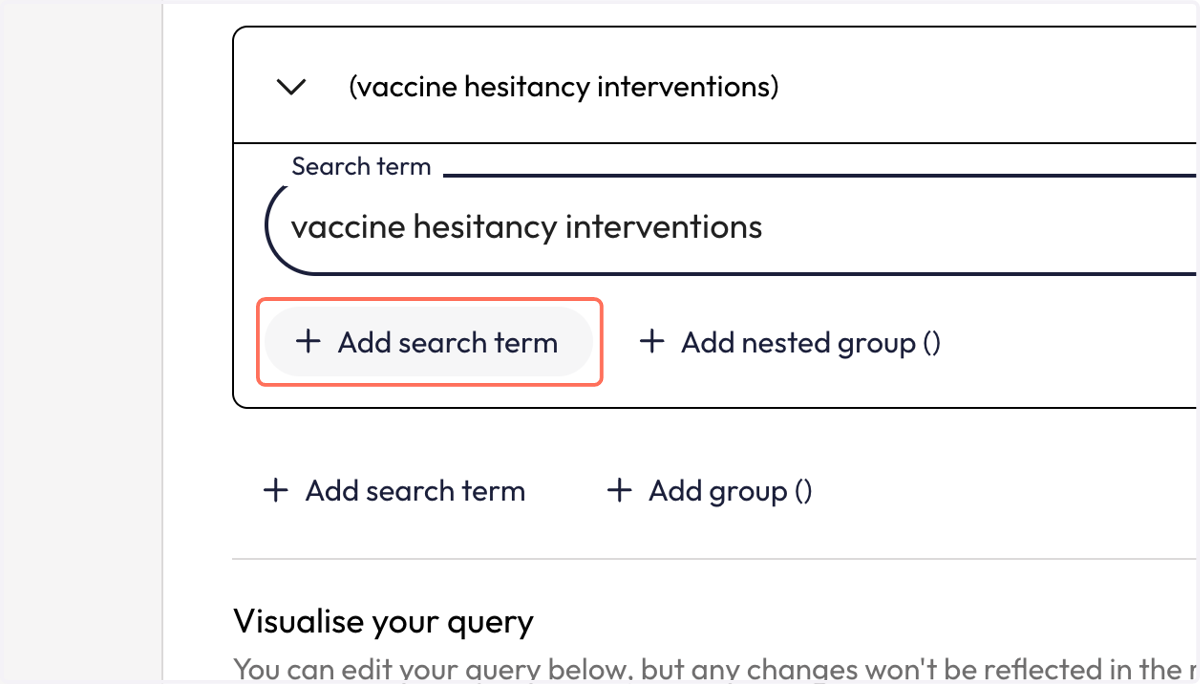
3. Click on 'Add search term'
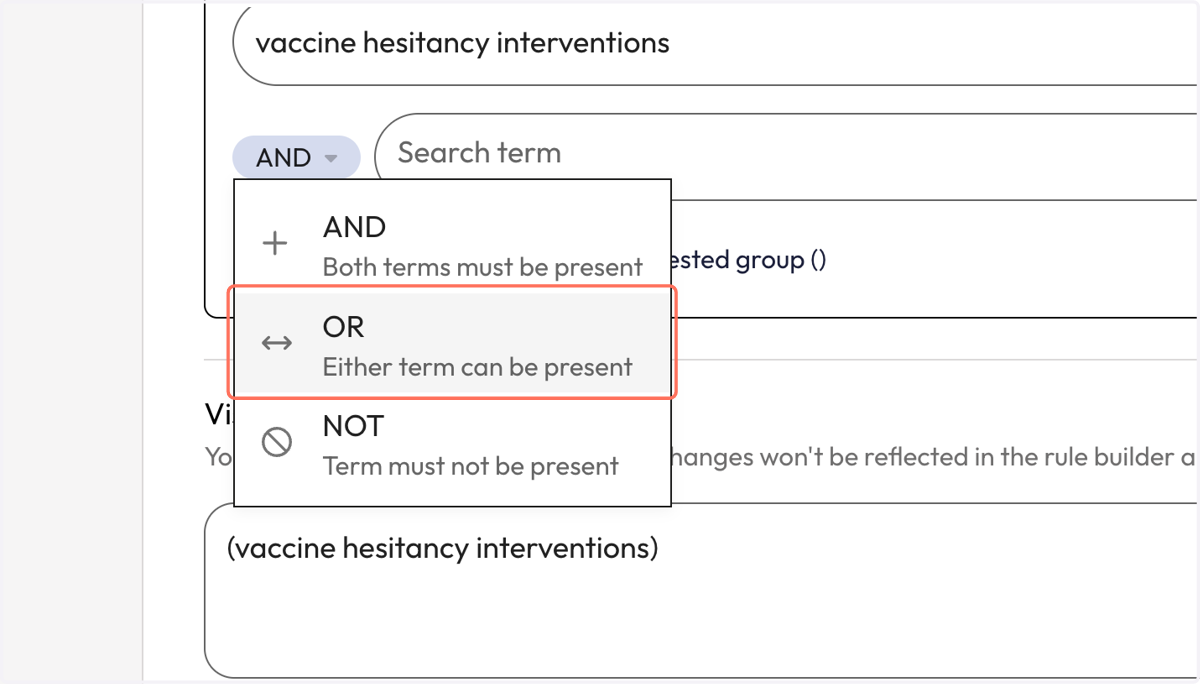
4. Once the new search line appears, you will also see a box that has Boolean operators which connects each search box/term. Select 'OR'
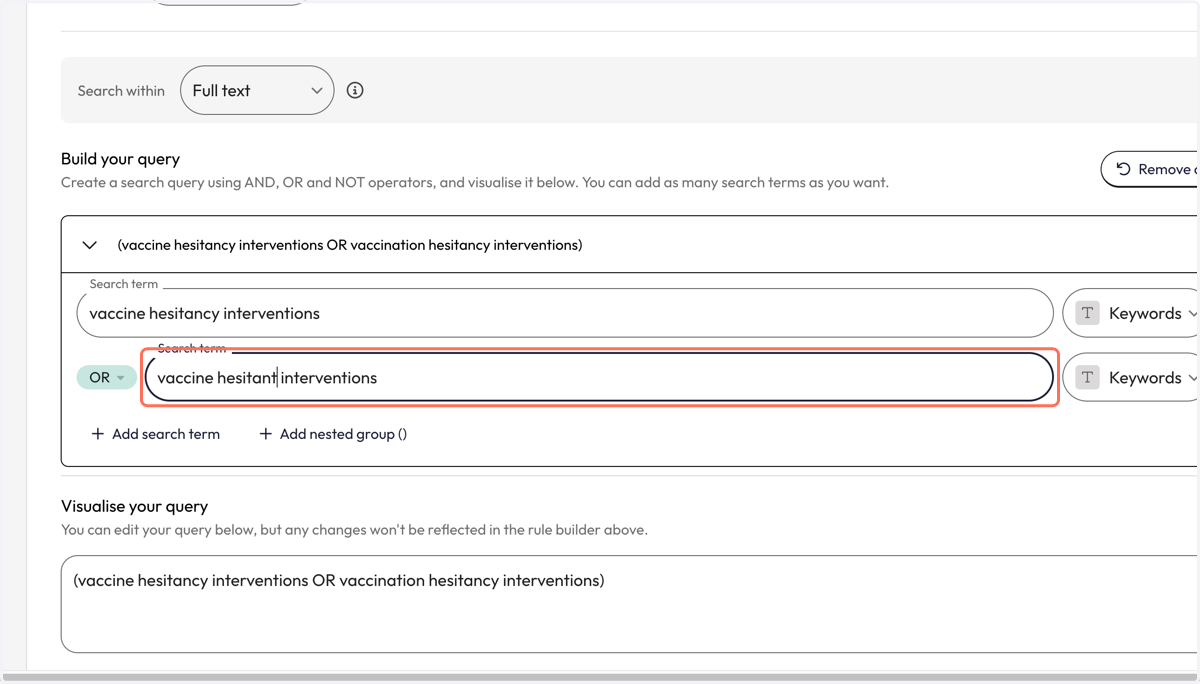
5. Add your next term to the second search box.
6. Once you have added all your variant combinations of terms, you will need to apply the proximity search operator.
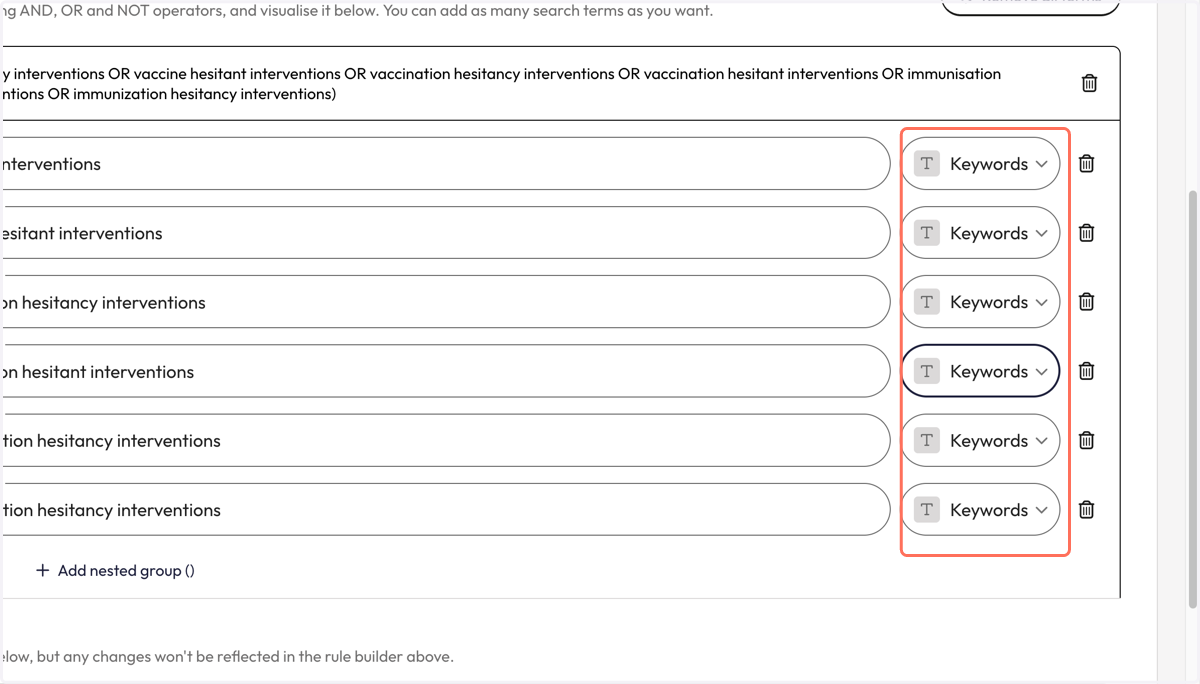
7. From the dropdown, select 'Proximity' beside each search line.
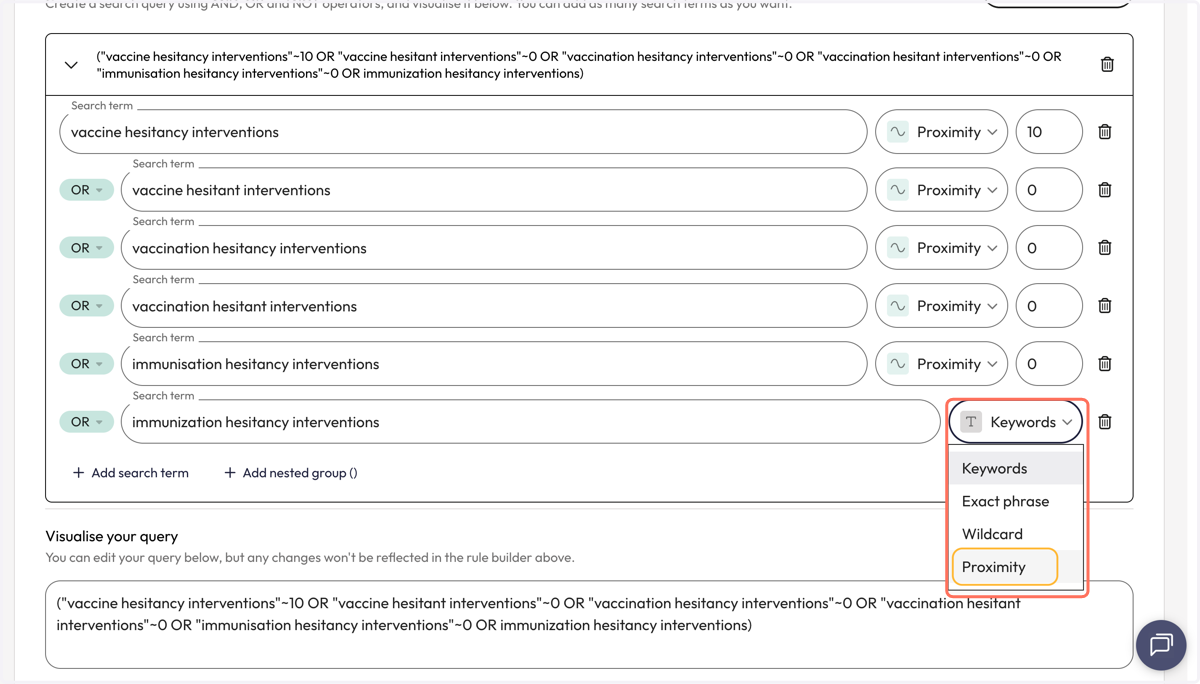
8. You will need to decide on the number of words you will allow between your terms.
This may take some testing - trying a number, running the search and examining results and further iterating if needed.
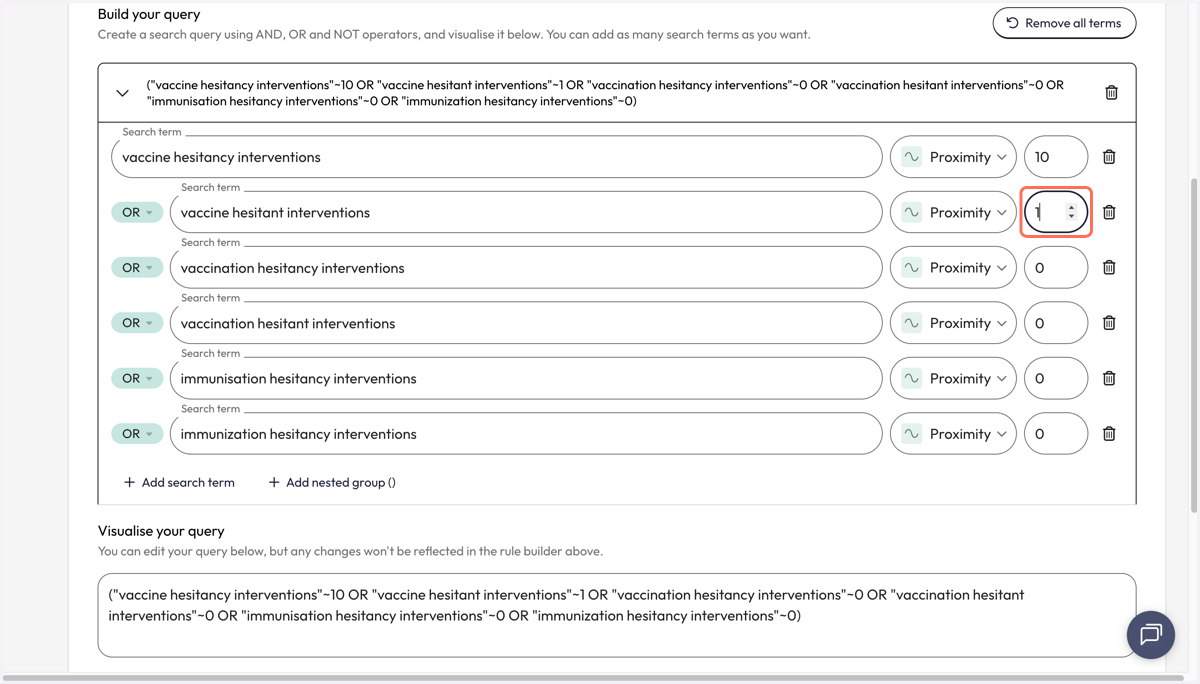
9. See the visualisation of your entire concept group as a search query visualised in the 'Visualise your query' box.
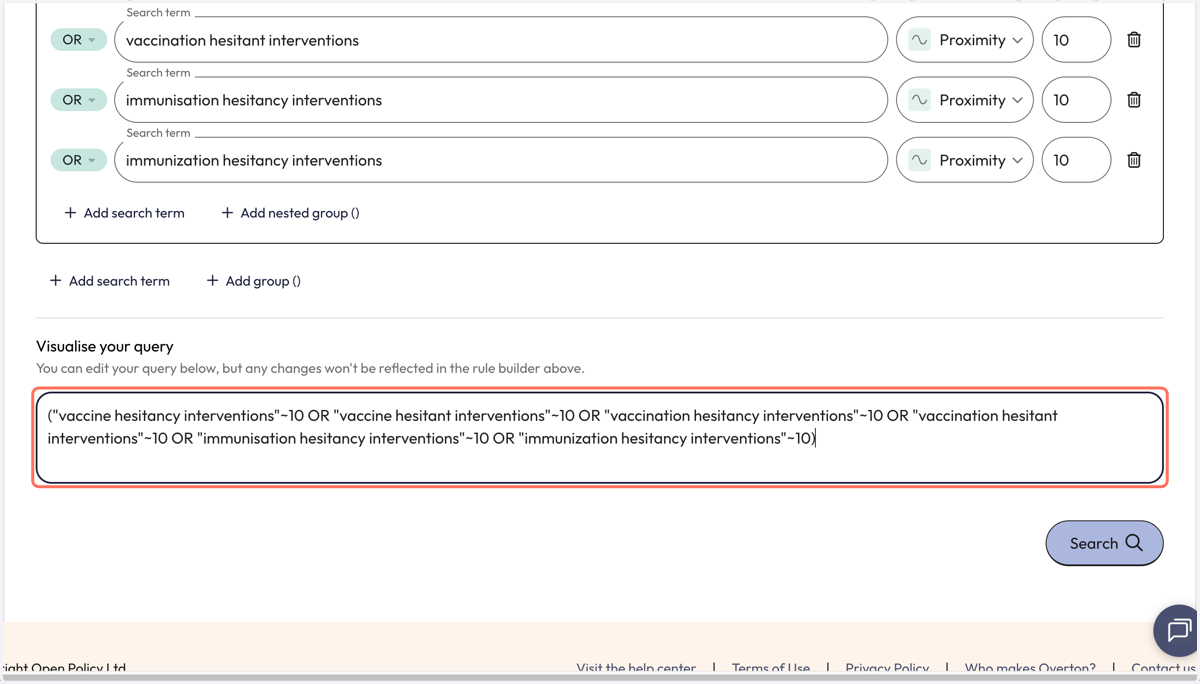
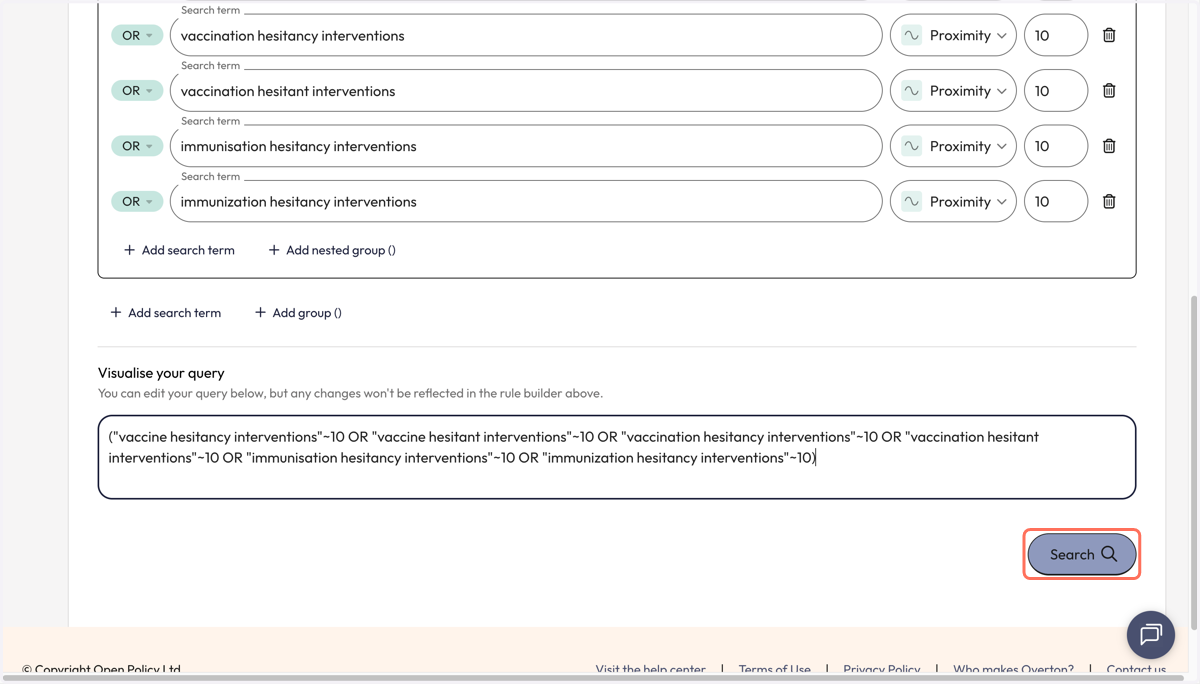
10. Click on 'Search' to launch search.
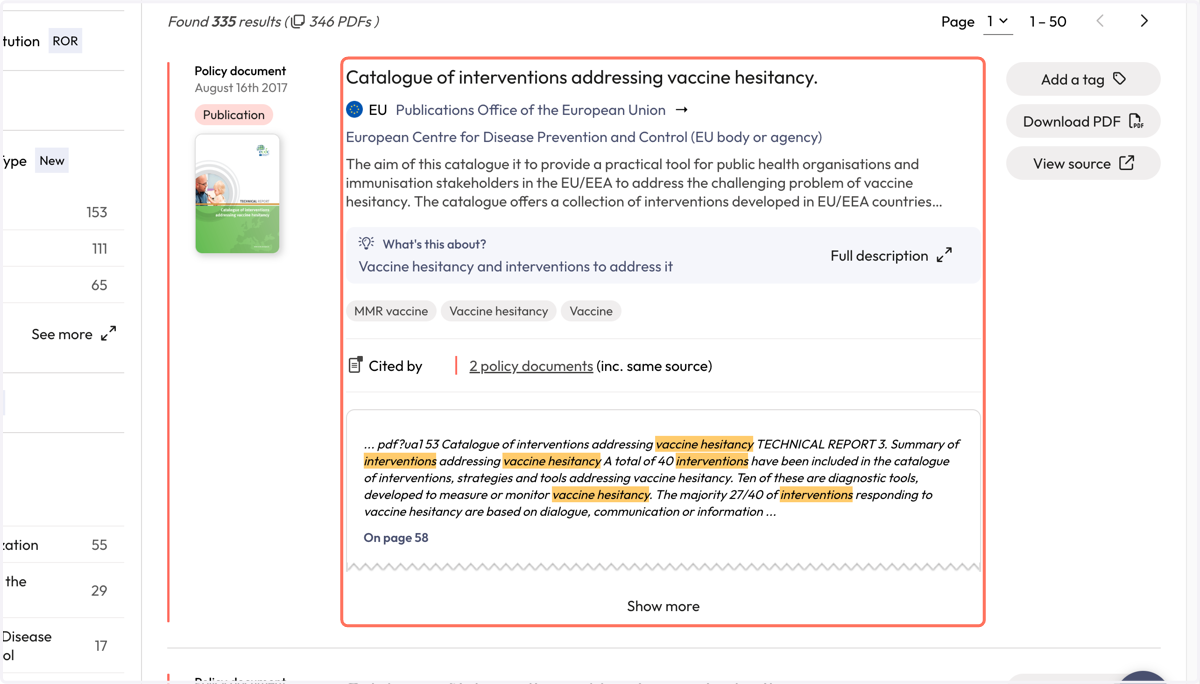
11. Your results will be on the 'Policy Documents' page. We tell you how many documents contained your search terms within proximity to each other.
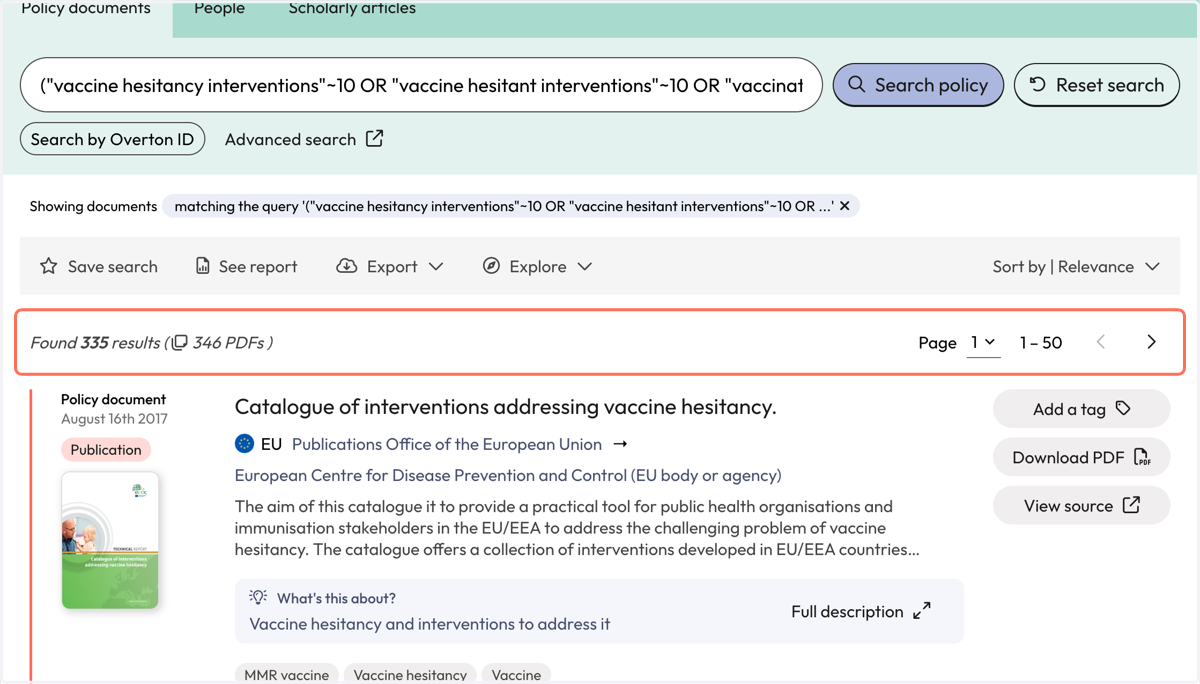
12. The policy document result will show you the name of the policy document, the policy source and includes a snippet of text will show you where your terms were found in-text by the highlight. We provide the page number so you can investigate further for relevancy.
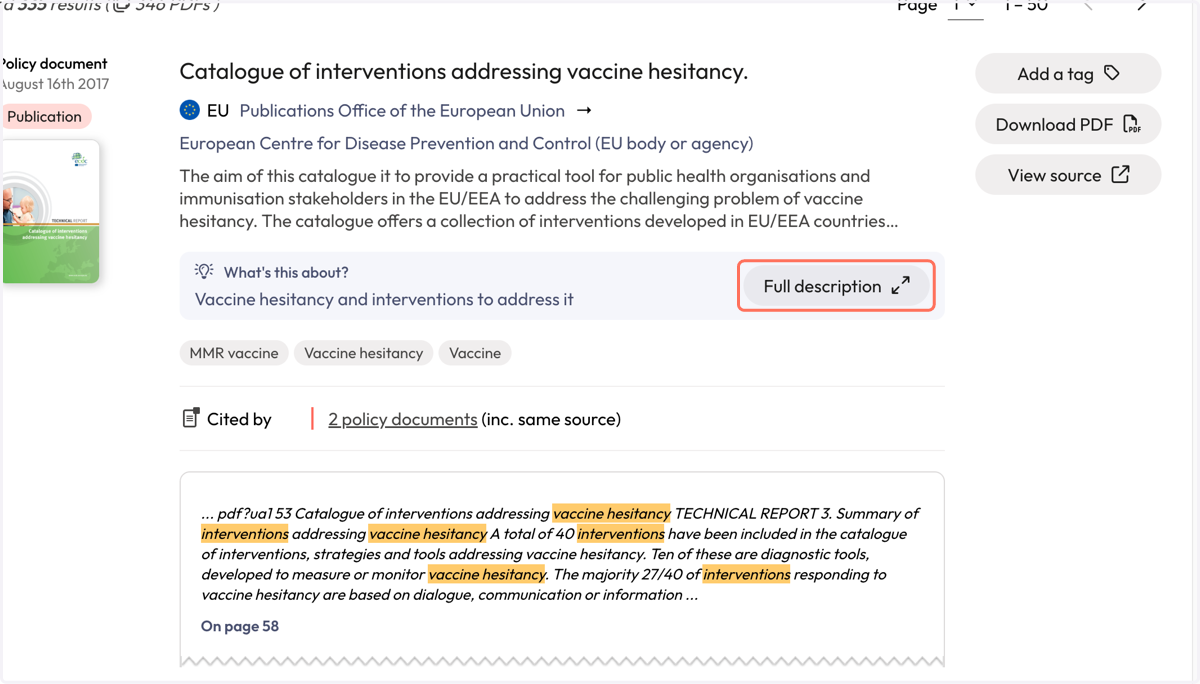
13. If you want to understand more about a document in your results, click on the 'Full description' to read an AI generated document summary.
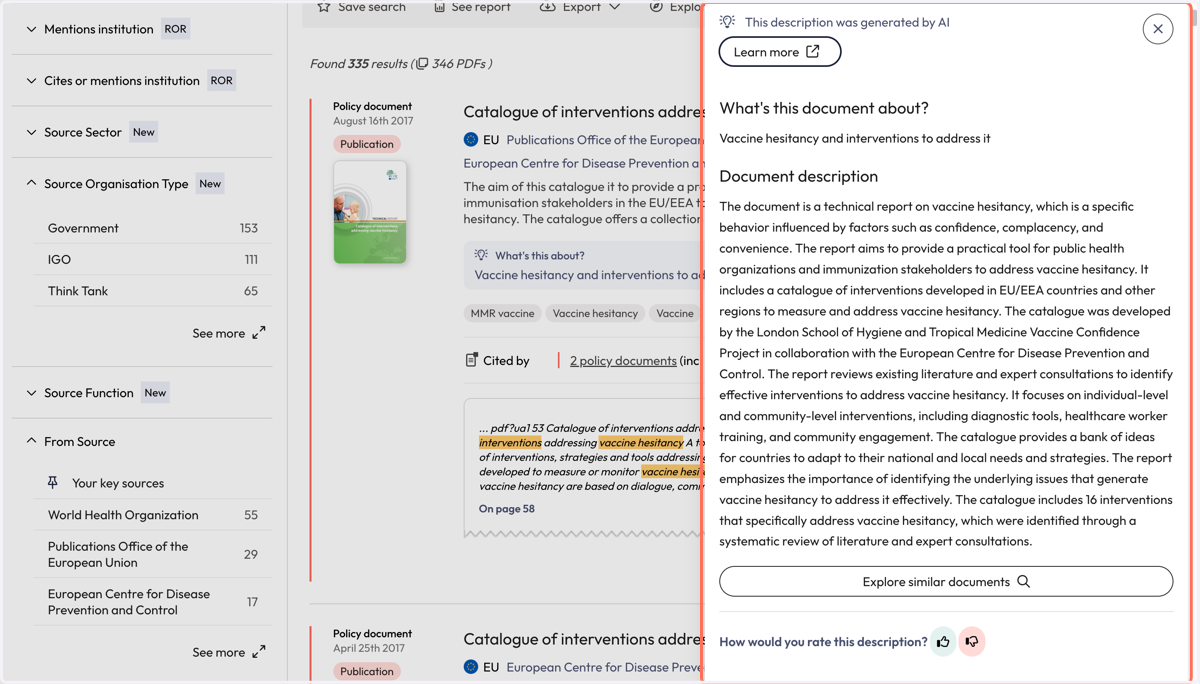
14. The AI generated document summaries provide an overview of the document.
15. At any point, you can click on 'Advanced search' to refine your search or to add additional terms.
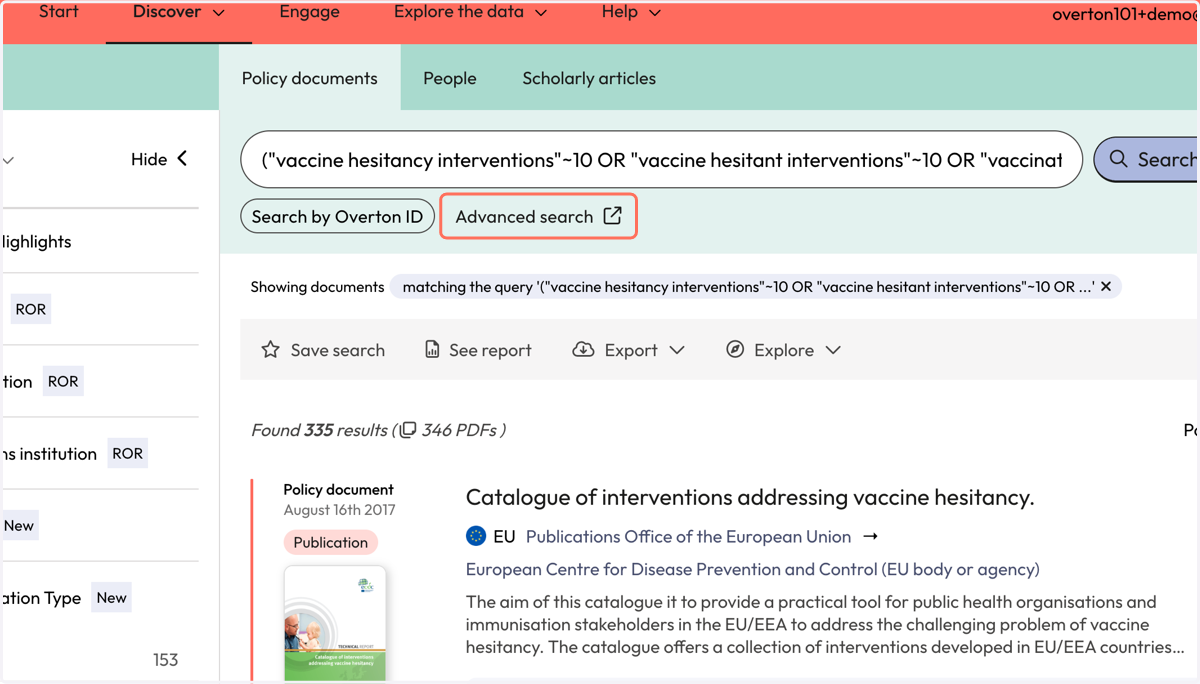
16. Once you are happy with your results, use filters to narrow down the results (if applicable for your search strategy).
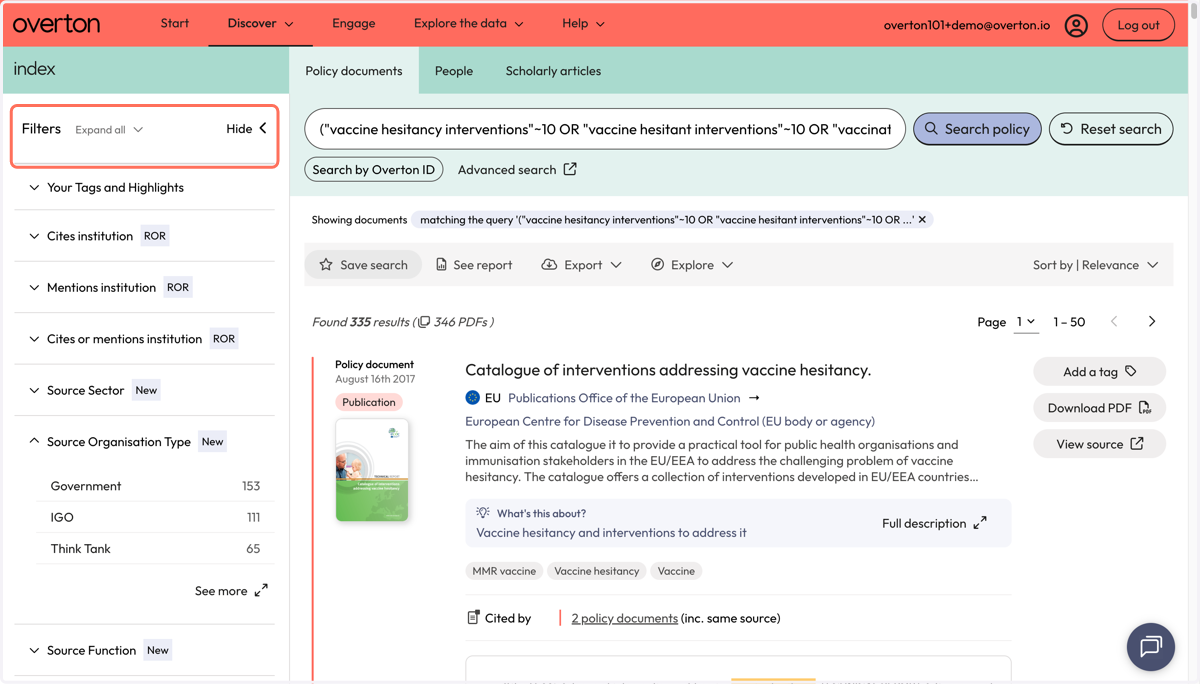
17. Use the grey action bar to save your search, generate a summary report, export*, or explore further if needed.
*exports are not available for limited 14-day trials