Using Handshake
Handshake
Sign in to Handshake with your Eastern email and password. If it's your first time logging in, you might need to set up your profile, but if you log in on a computer or PC, you might be able to skip some steps. Just make sure to update your school year during the process.
1. Once you sign in, click on Jobs on the left sidebar
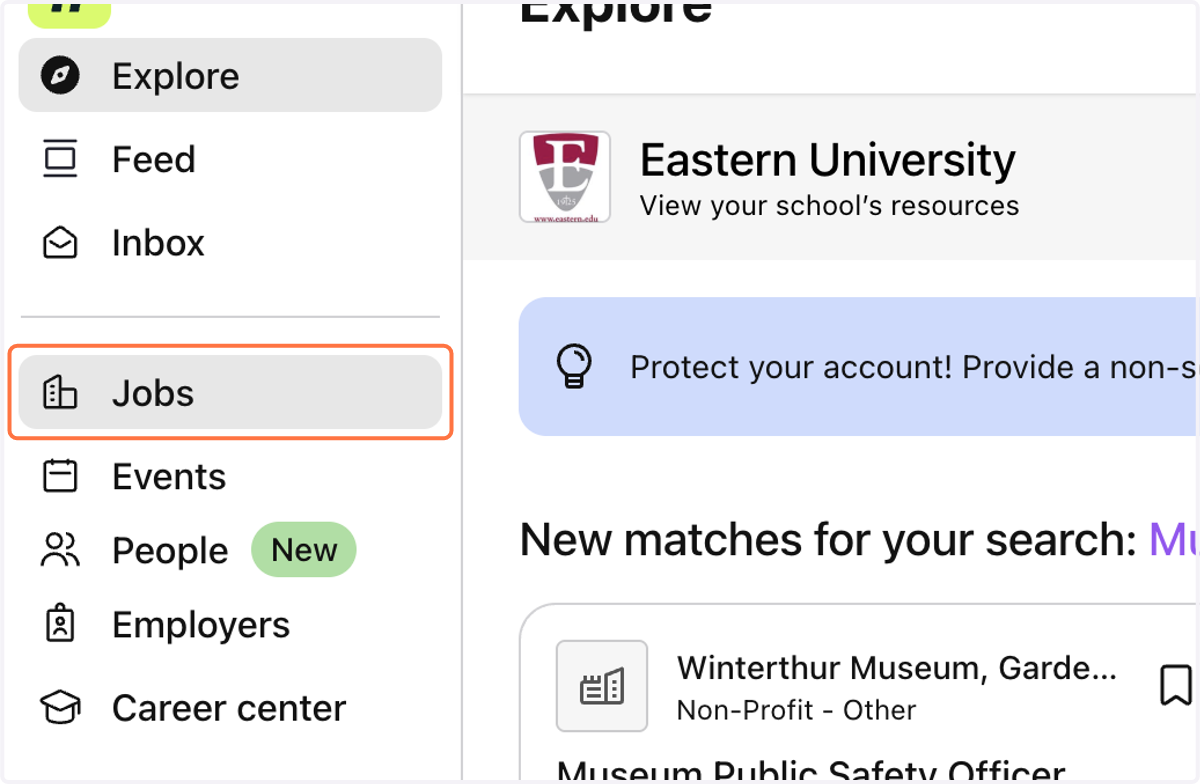
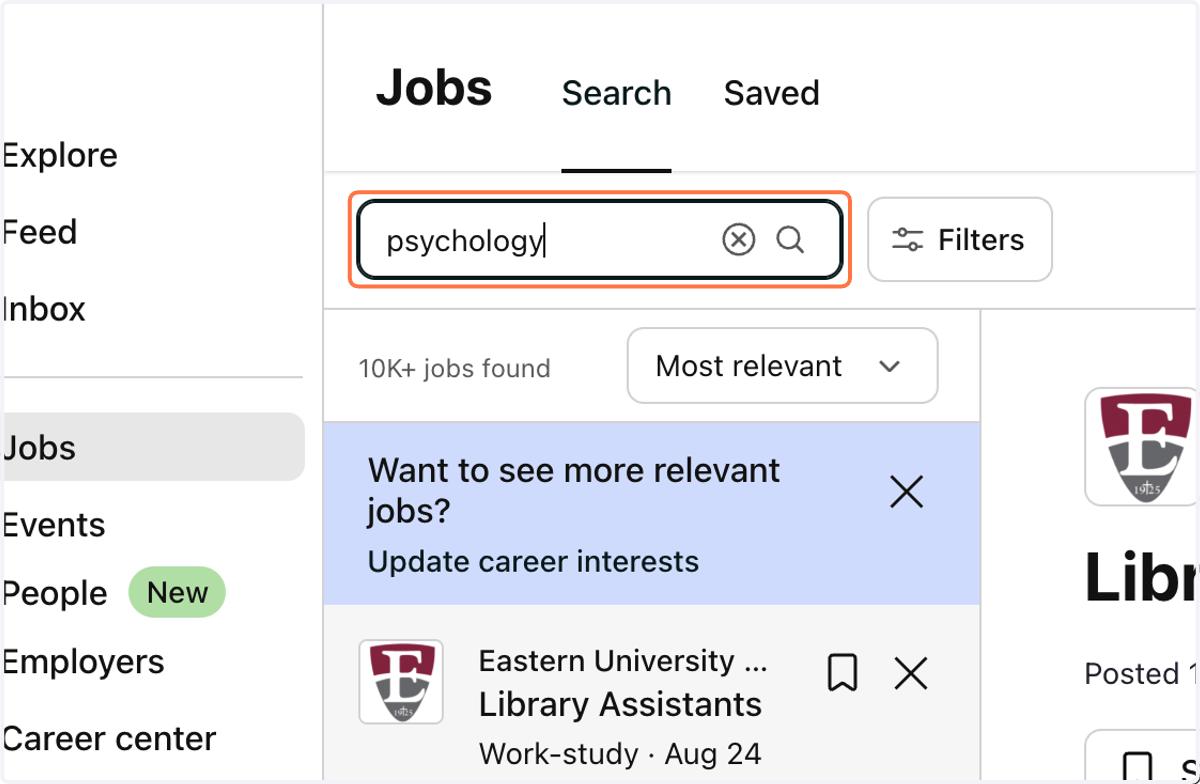
2. When you first start searching, you'll notice that there are 10,000 available jobs on the platform!
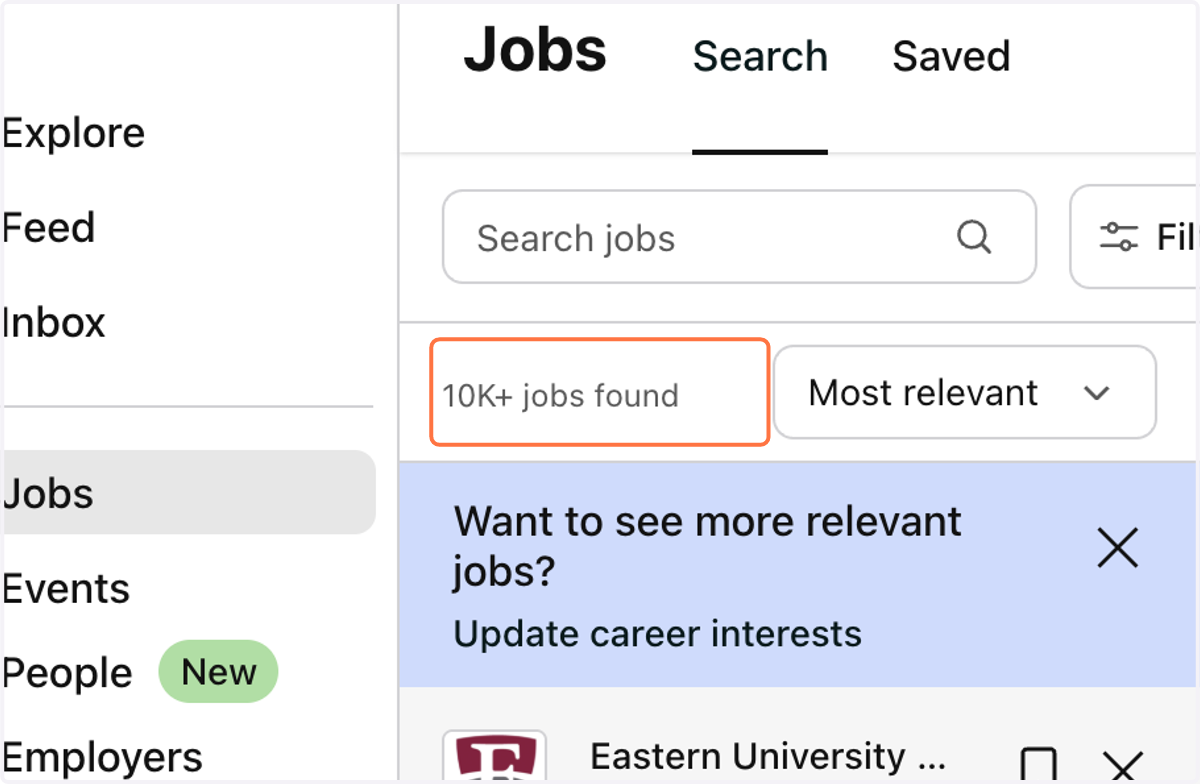
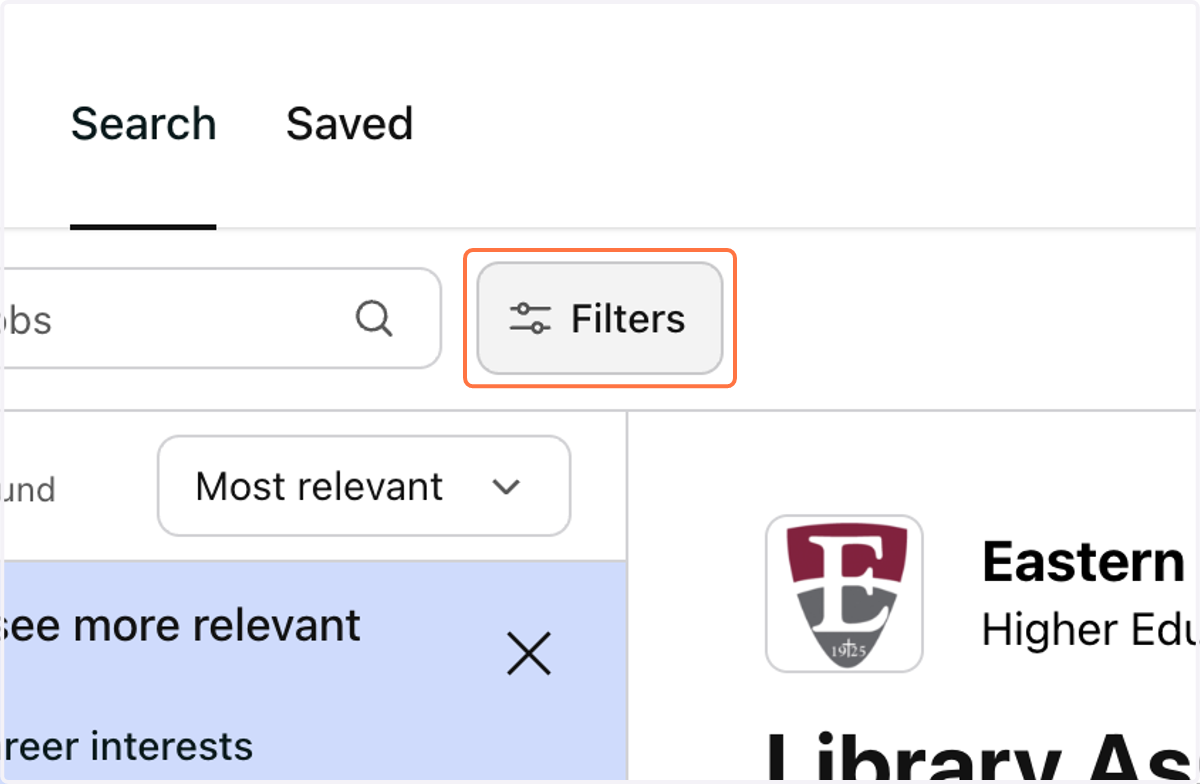
3. That's why we want to use Filters to narrow down your search results
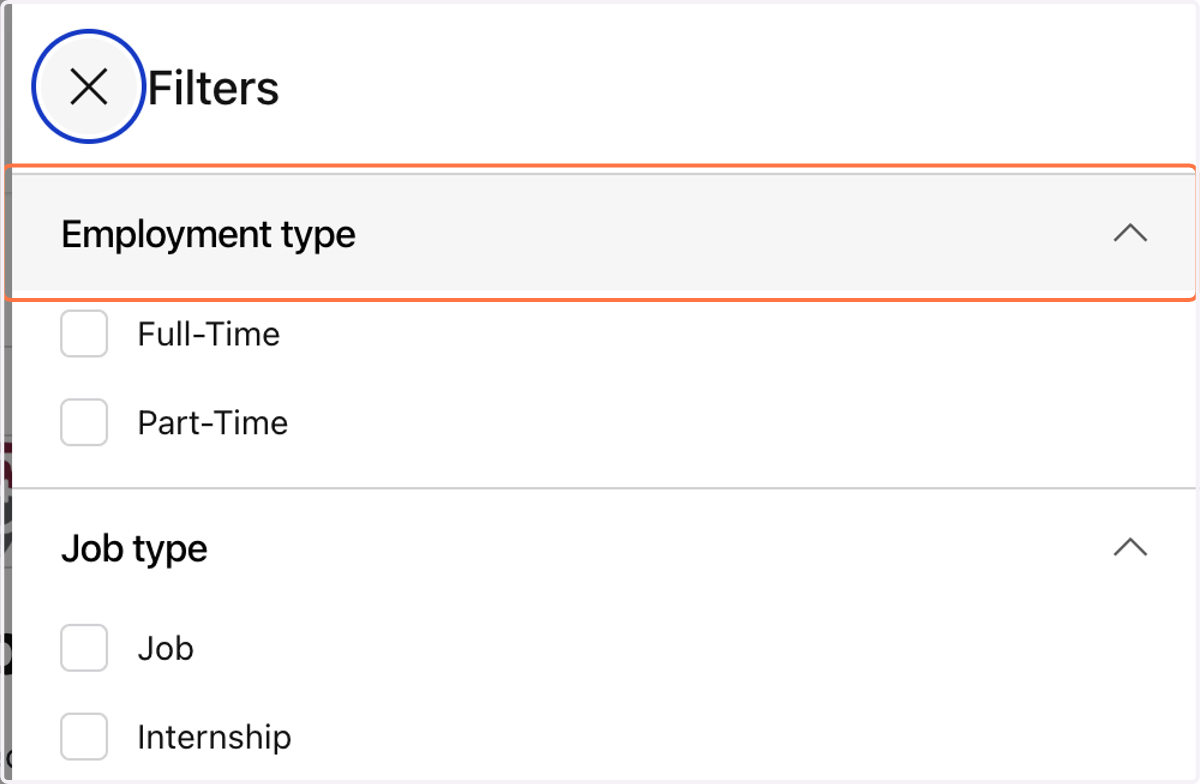
4. You can search by Employment type...
5. Location...
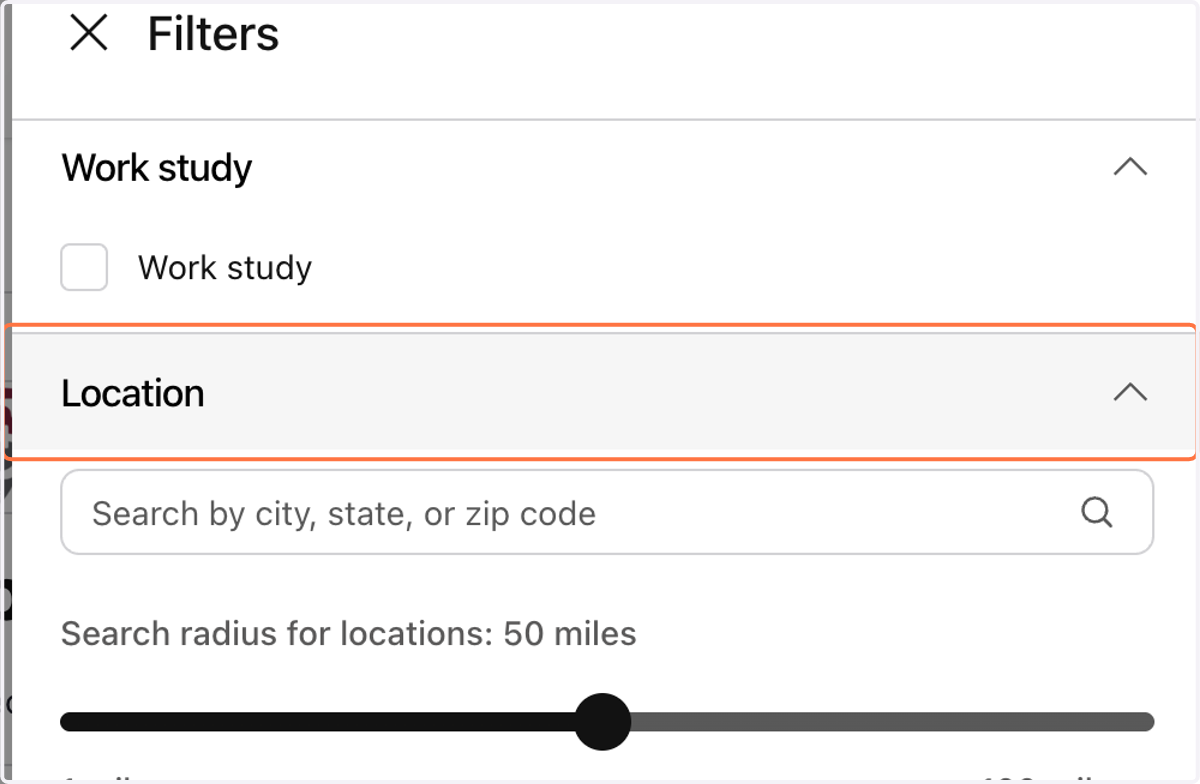
6. Majors...and more!
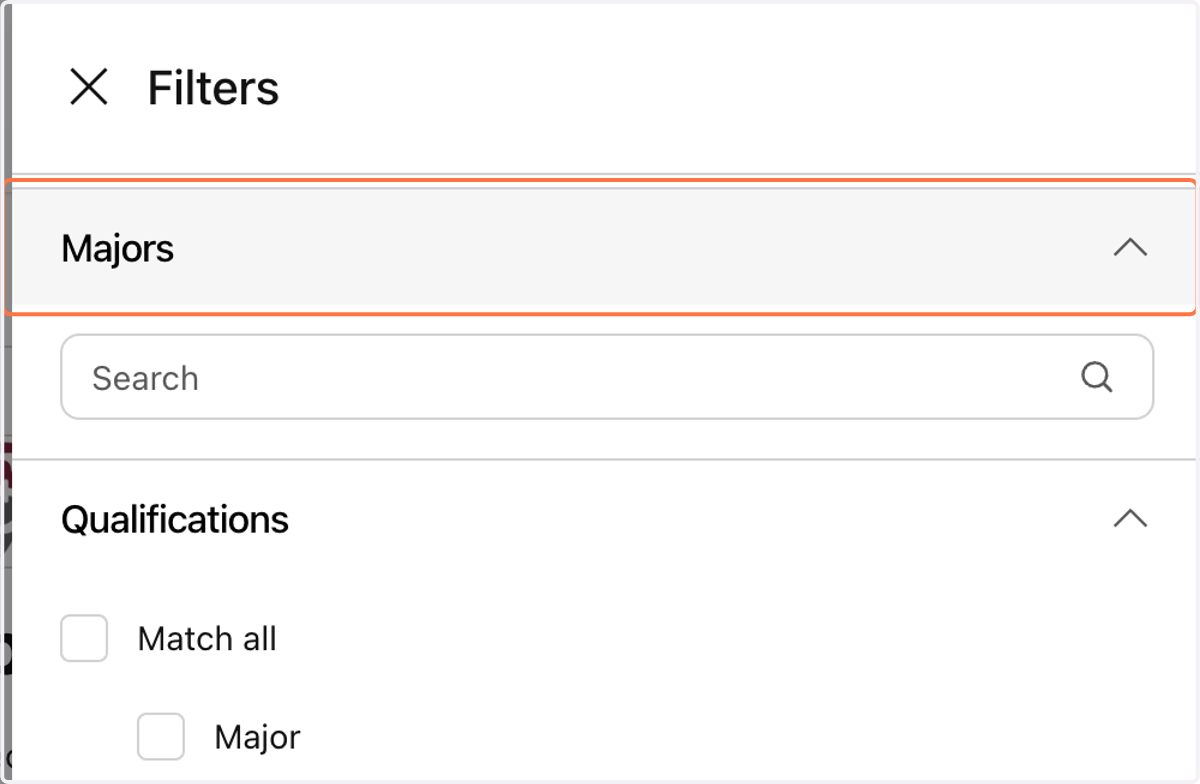
7. You can also search for keywords to help narrow your results
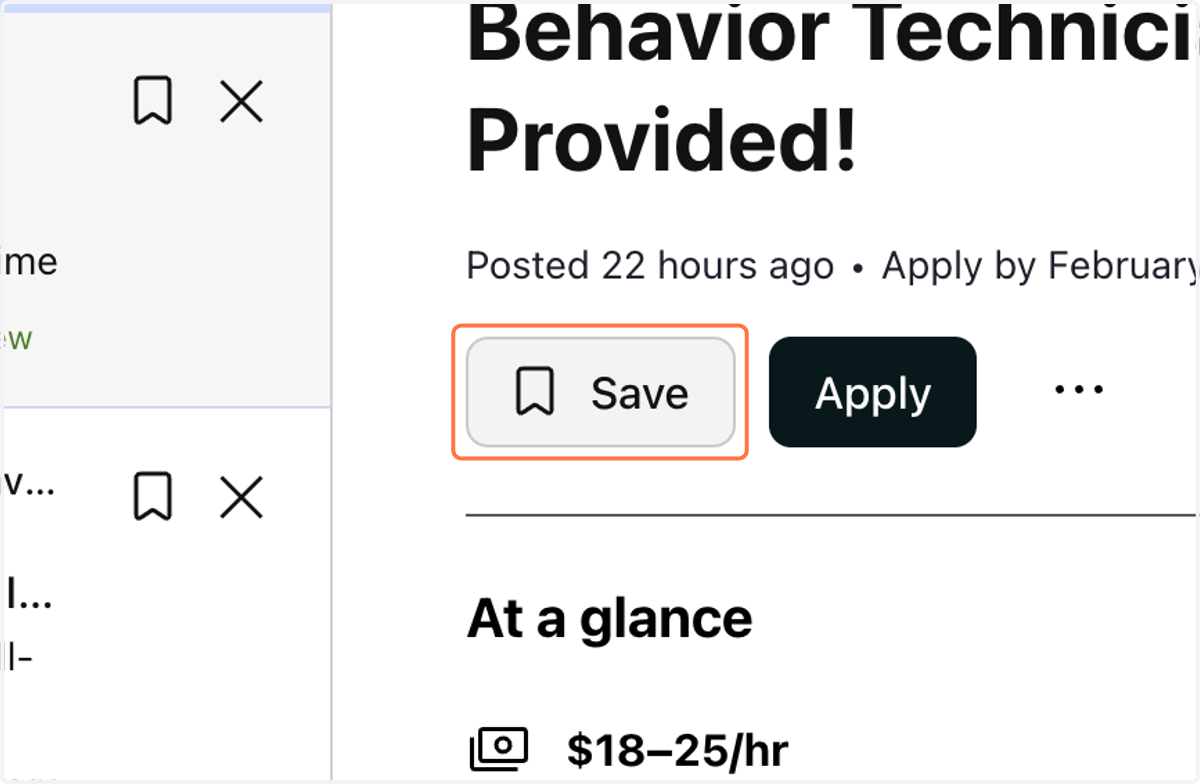
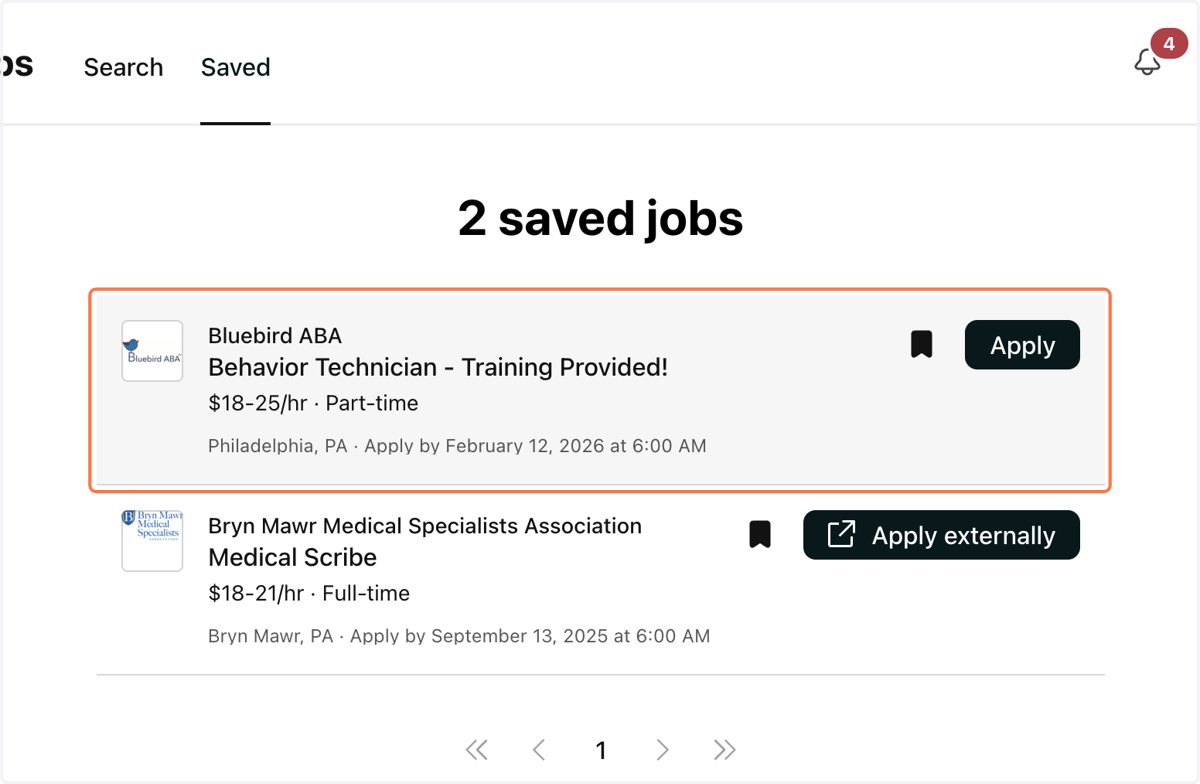
8. Once you find an opportunity you're interested in, you can click the Save button so that you can come back to it.
9. You can view all of your saved jobs in the top navigation bar.
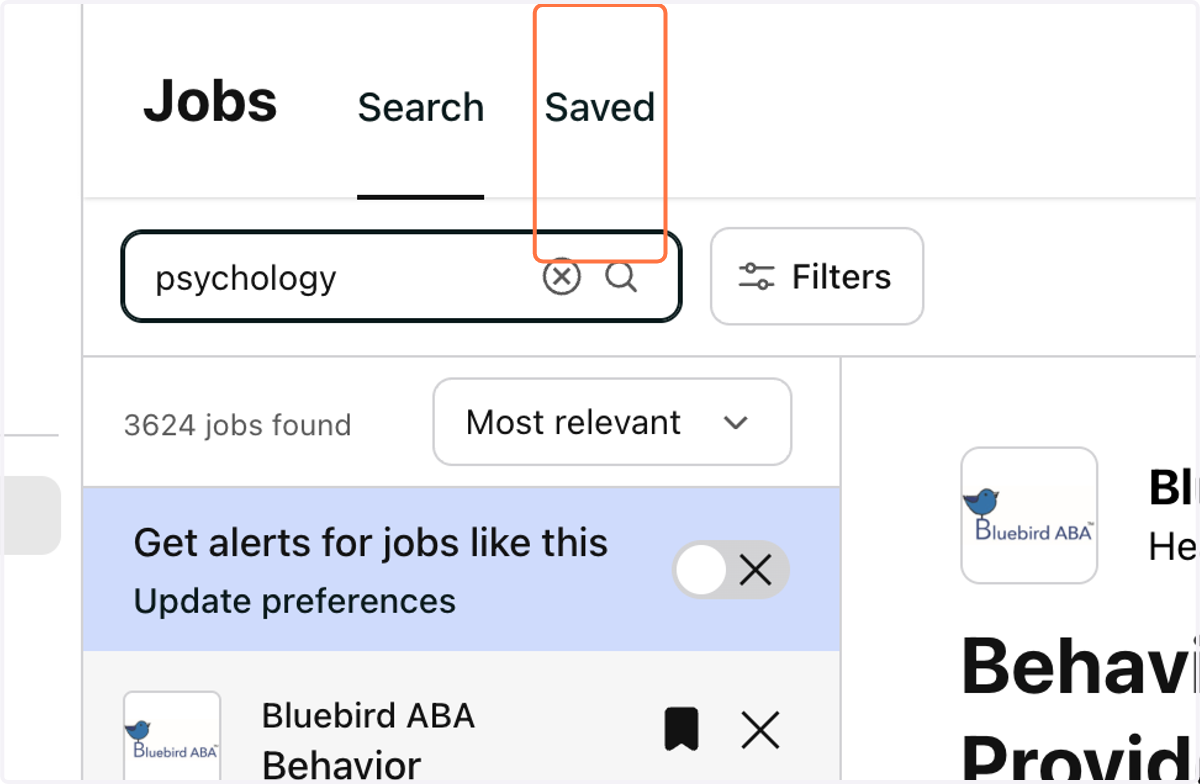
10. You will also receive an email reminder from Handshake as the application deadline for any of your saved jobs approaches.
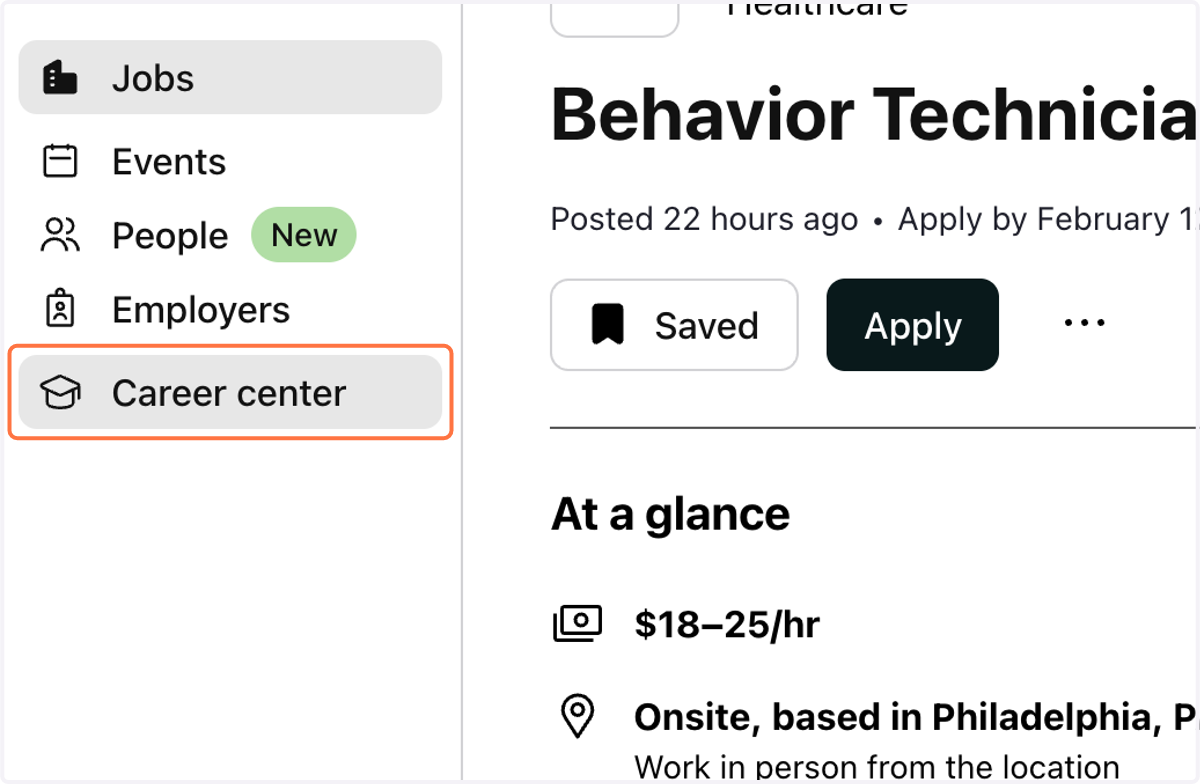
11. You can also schedule an appointment with the Center for Career Development through Handshake.
Click on Career center in the left sidebar to do so.
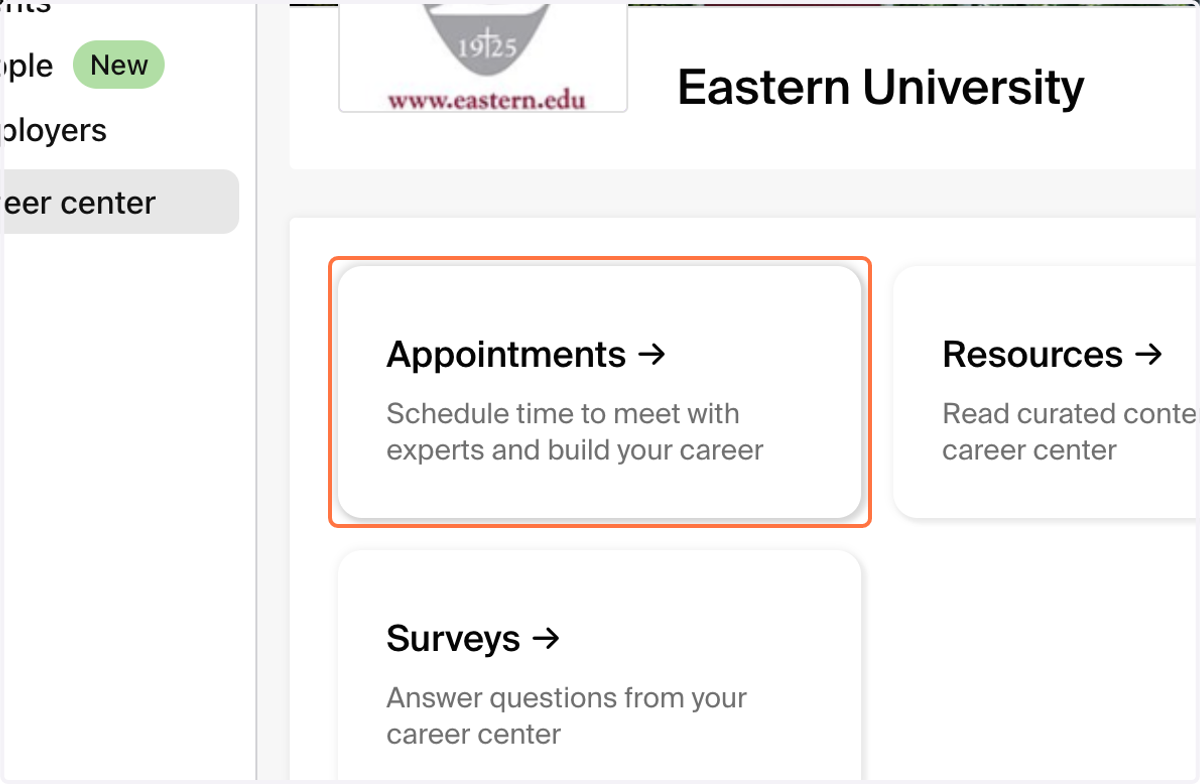
12. Select Appointments
13. Click on Schedule A New Appointment
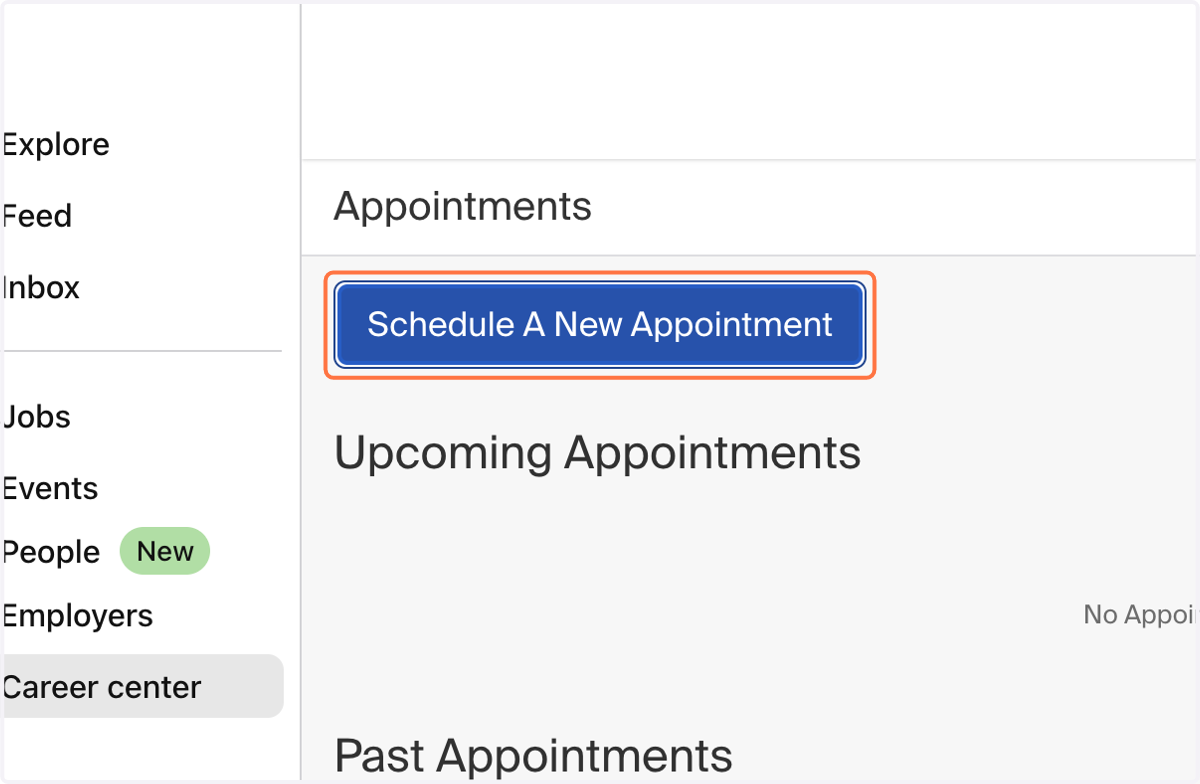
14. Choose what kind of appointment you'd like to schedule.
Keep in mind that all appointments are scheduled for 45 minutes except Application Material Reviews, which are scheduled for 30 minutes.
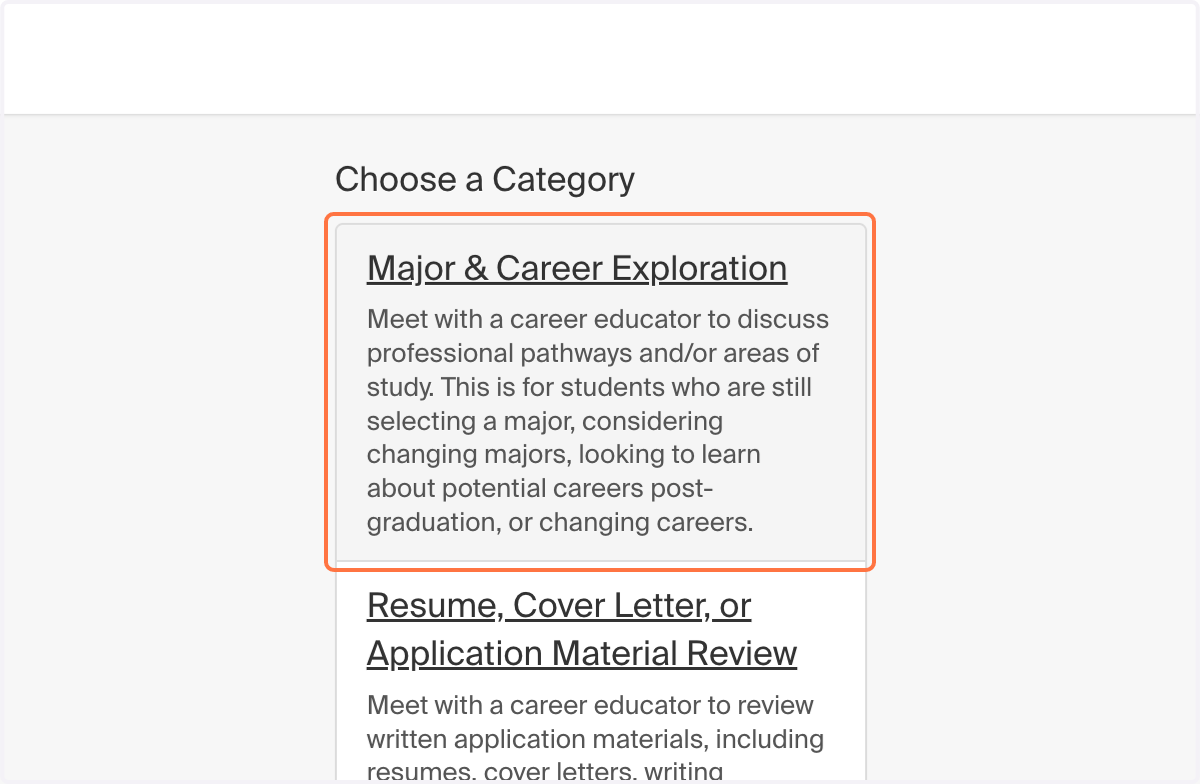
15. Then select what kind of student you are
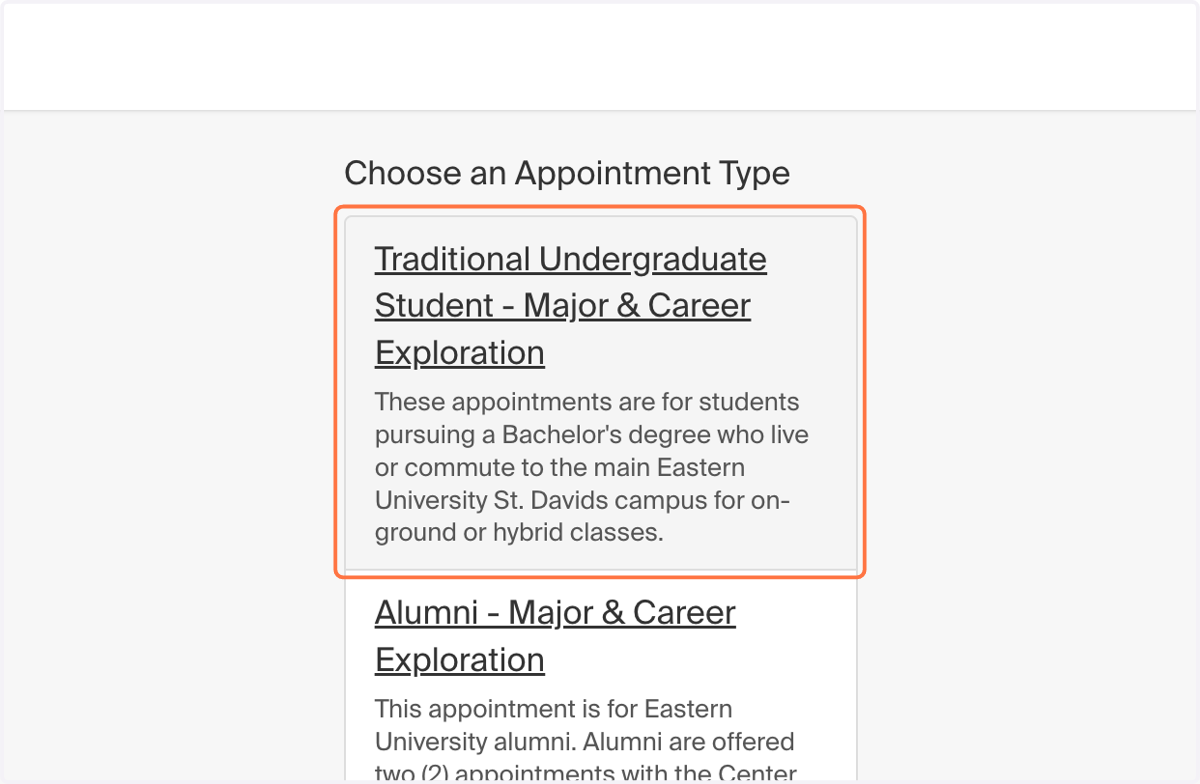
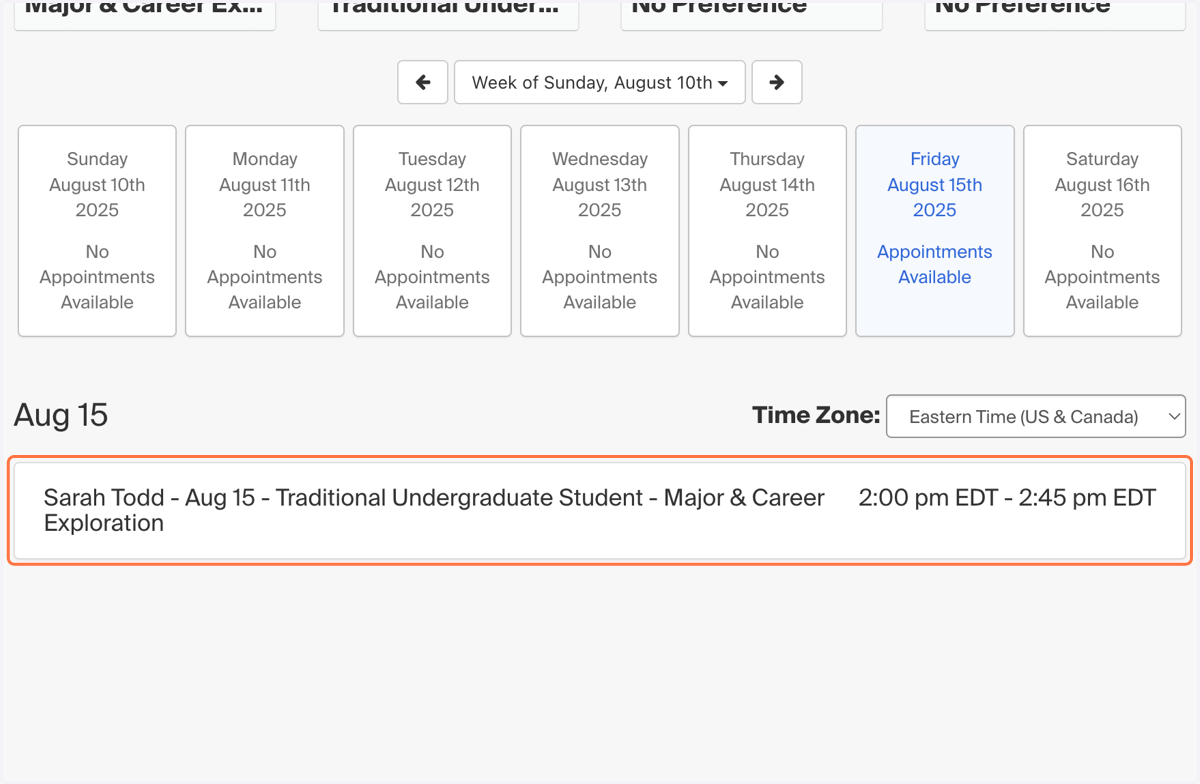
16. Choose a day that suits your schedule
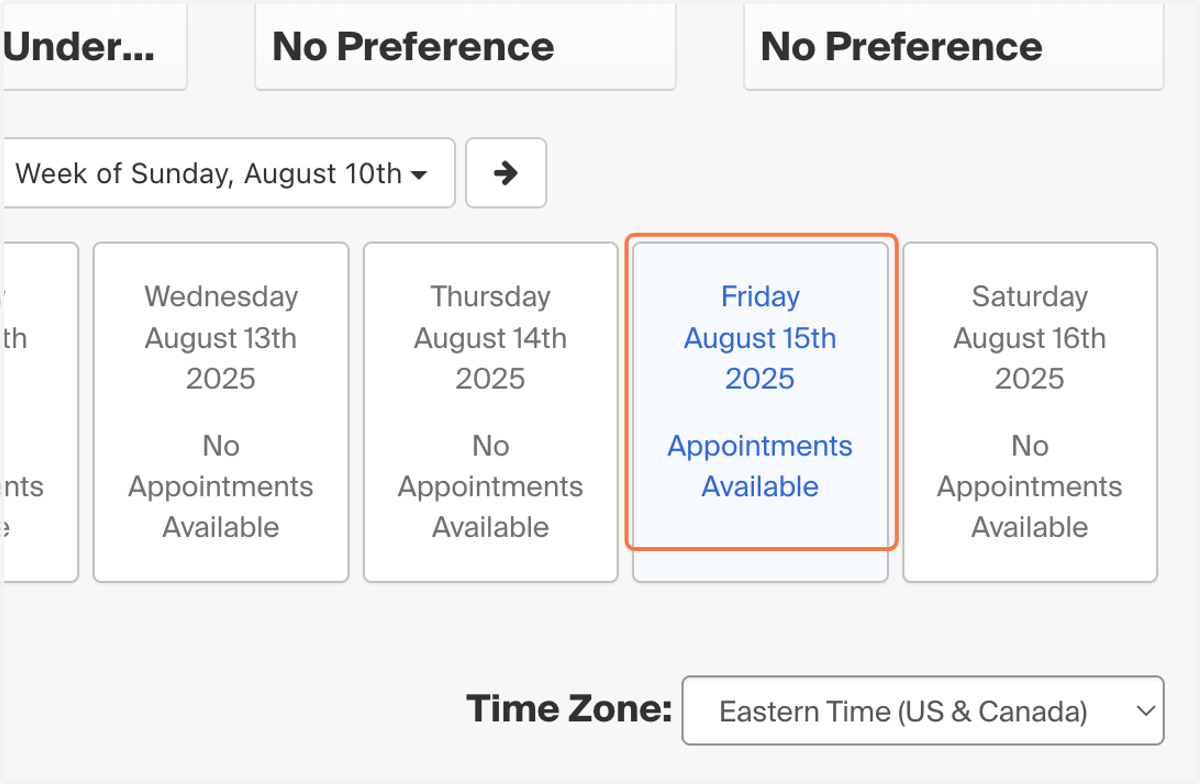
17. And then select a time and career counselor
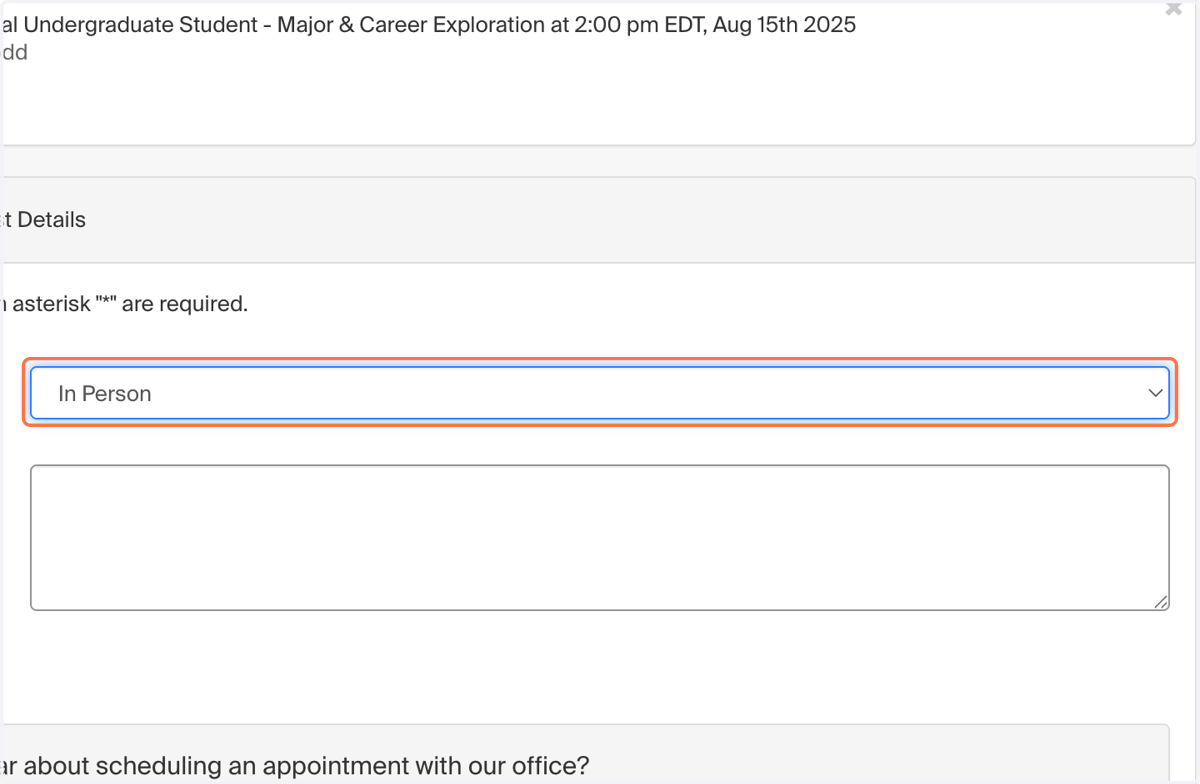
18. Then, fill out our pre-appointment form, which includes your chosen appointment medium.
You can choose between a Zoom appointment, an in-person meeting, or a meeting in another accessible space on campus.
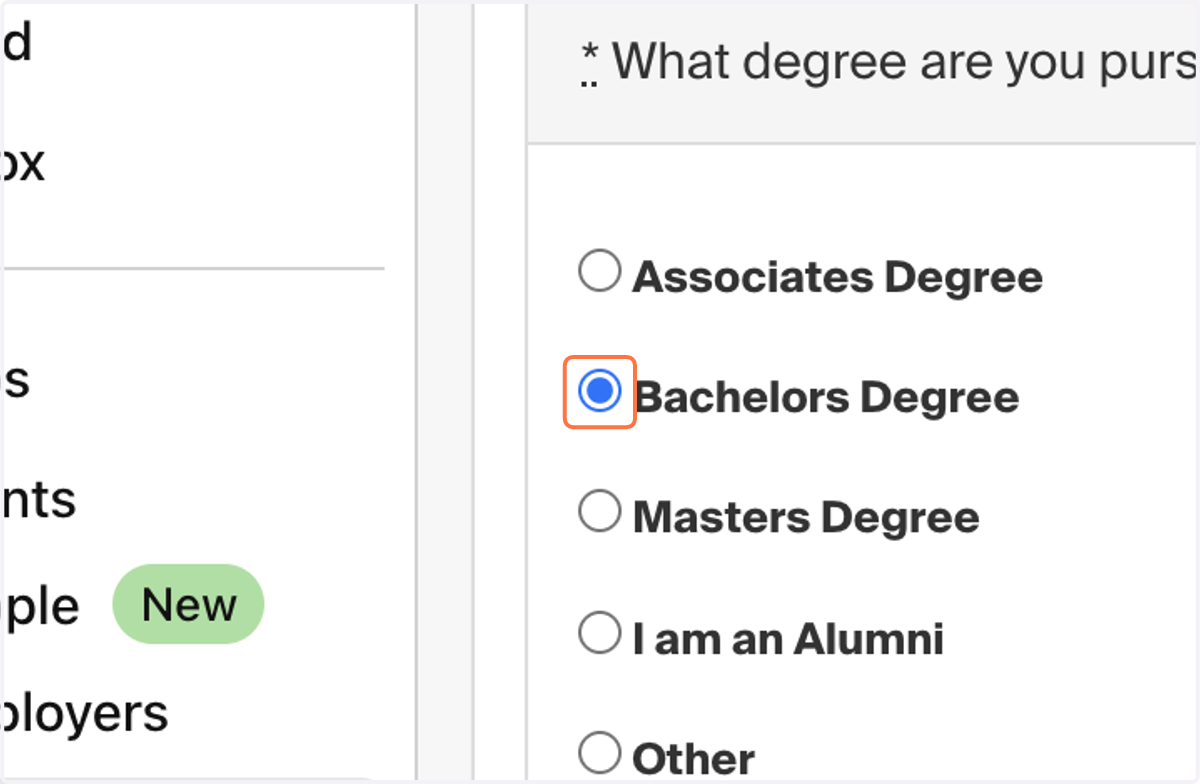
19. Select your degree level
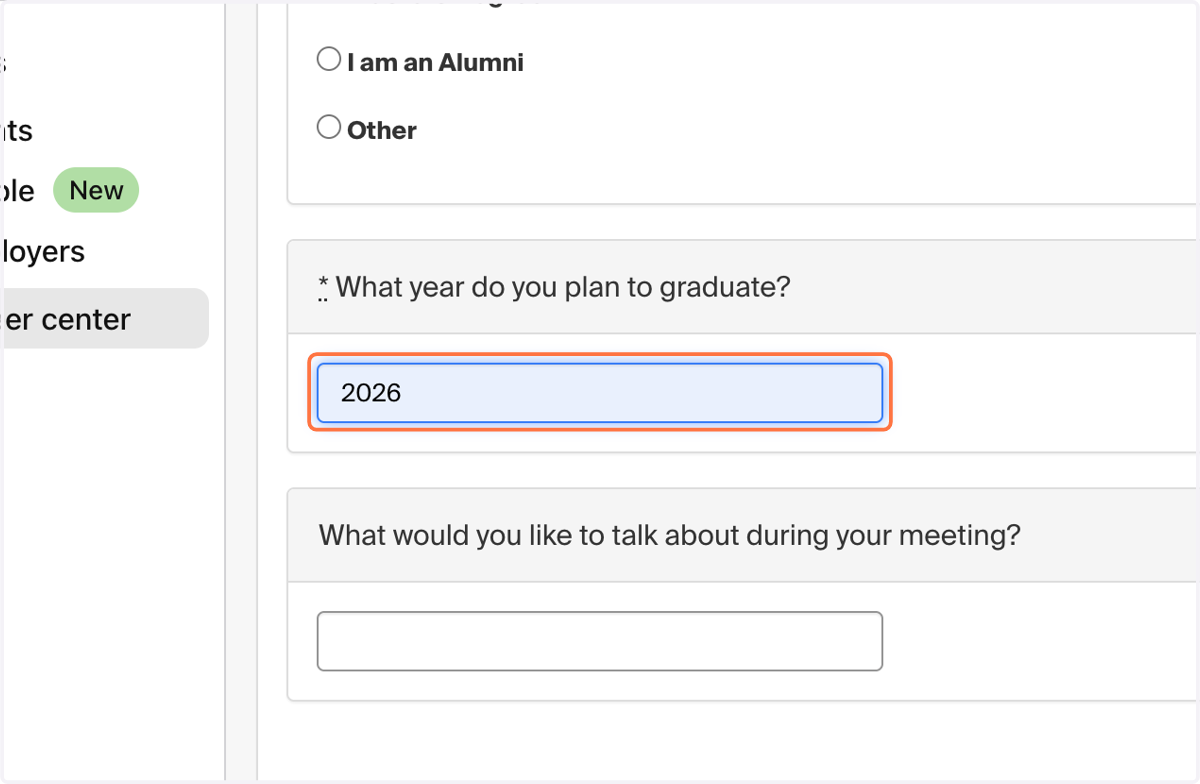
20. Enter your intended graduation year
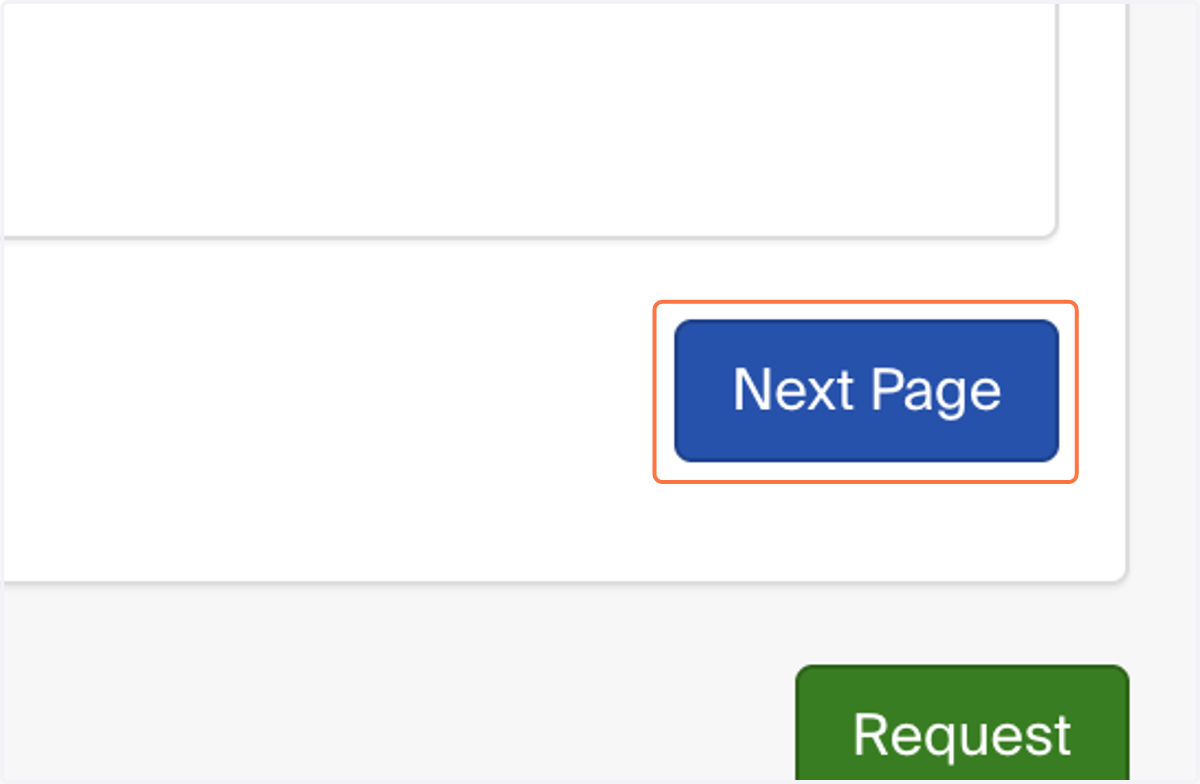
21. Click on Next Page
22. Tell us what we can help you with during our appointment
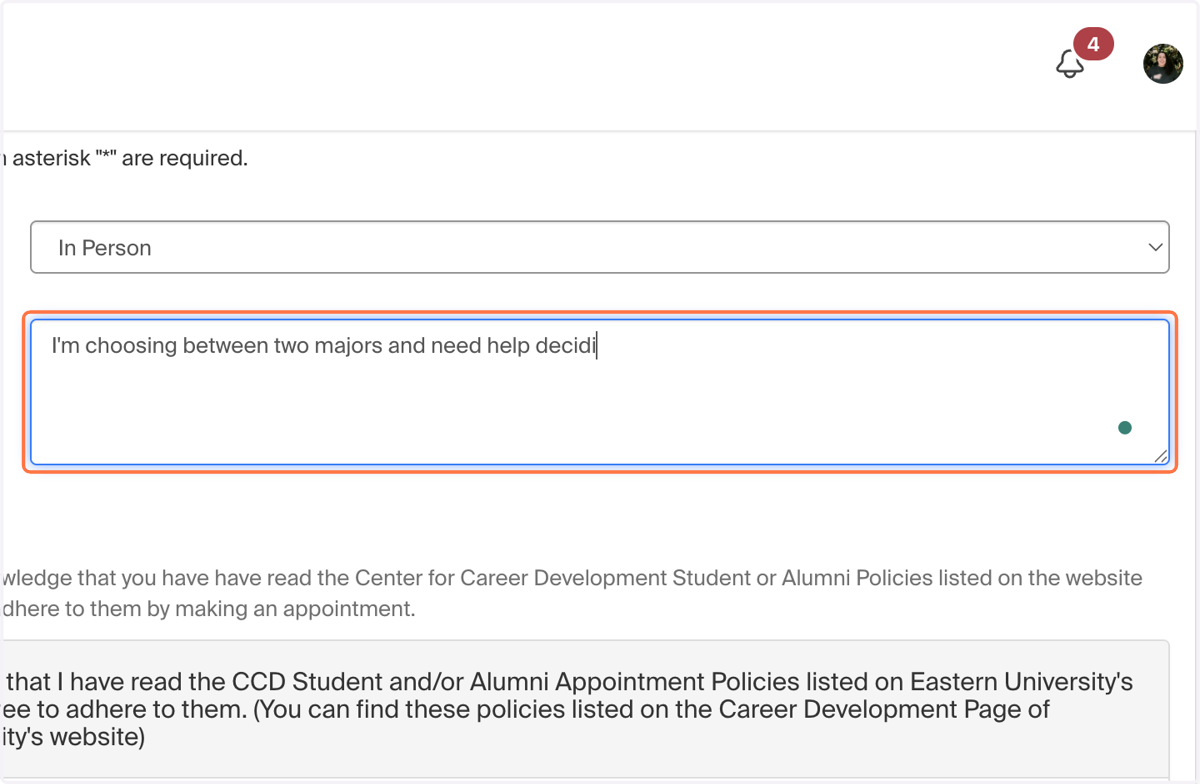
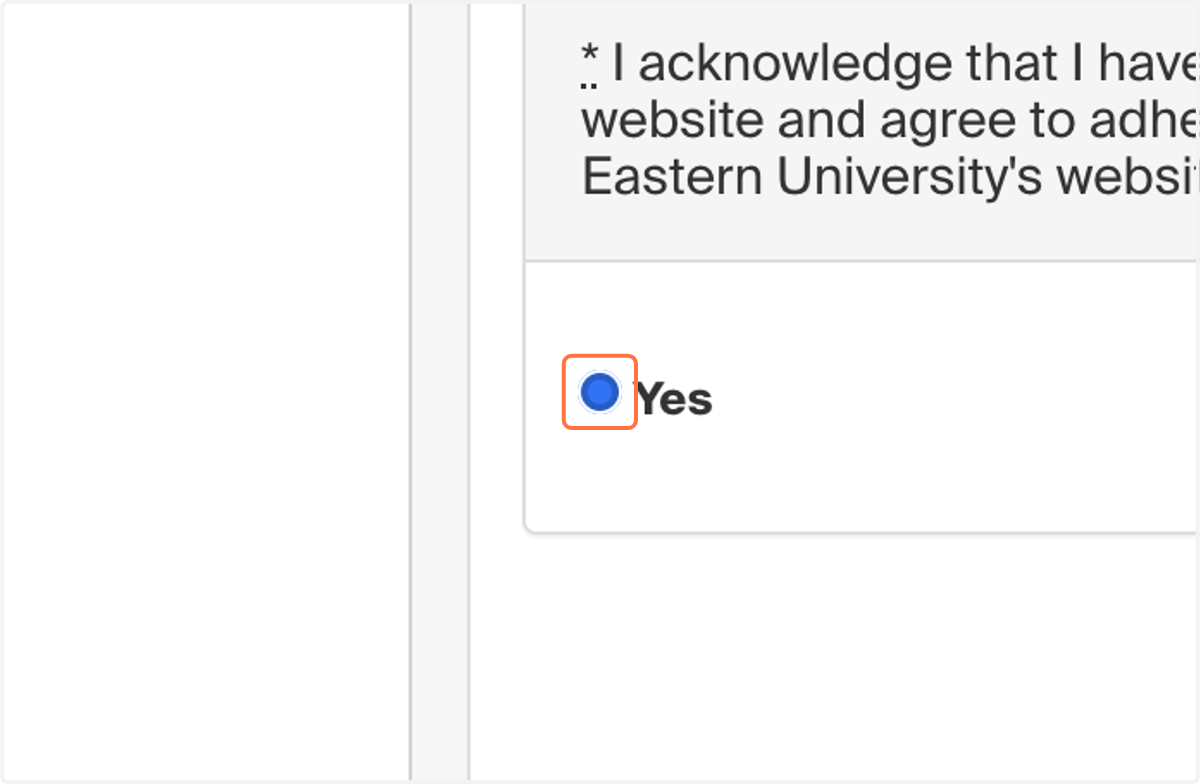
23. And acknowledge our CCD Appointment policies.
24. Click on Request
and then you're done!
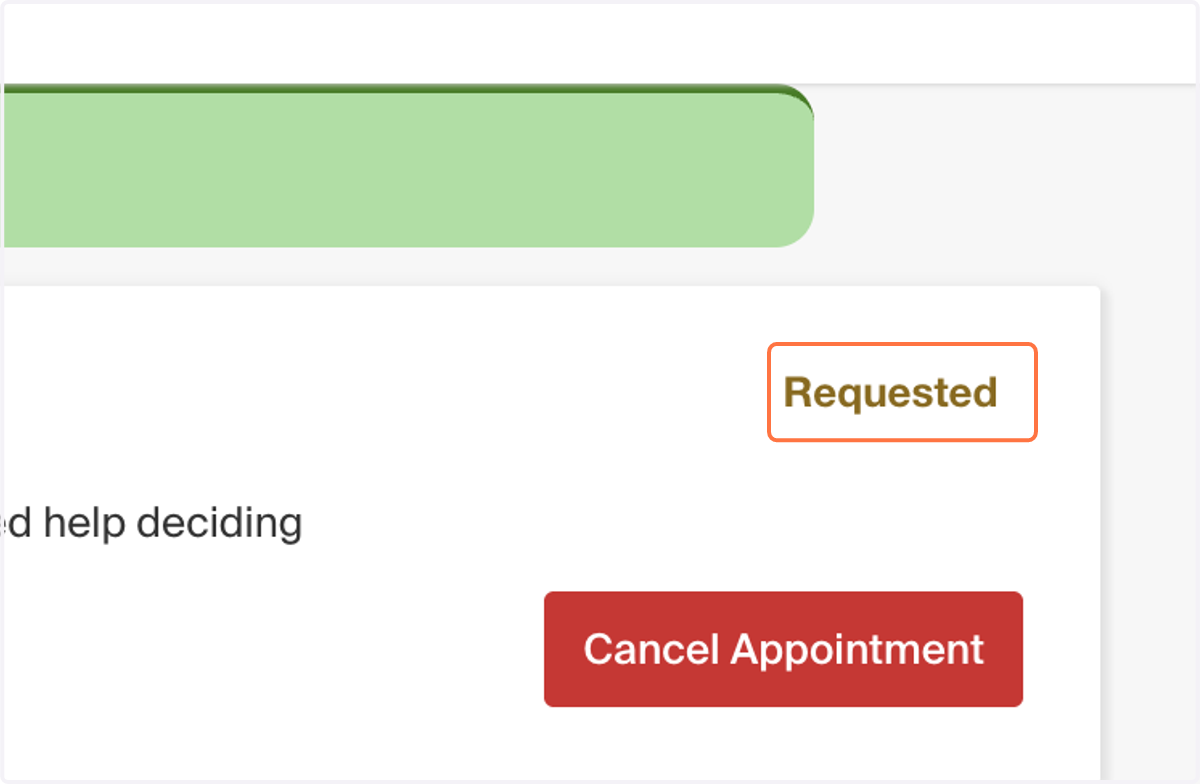
25. Please note that at this stage, your appointment is requested, but not confirmed. Once our team approves your appointment you will receive another email from Handshake confirming your appointment.
26. And that's the basics of using Handshake!
There are plenty of other helpful tools to check out on the platform, so play around and see what else Handshake has to offer. If you have any trouble with this, please refer to Handshake's Help Center or reach out to the Center for Career Development.