Using Dropbox for File Management and Image Library Access
Dropbox
1. Log into Dropbox
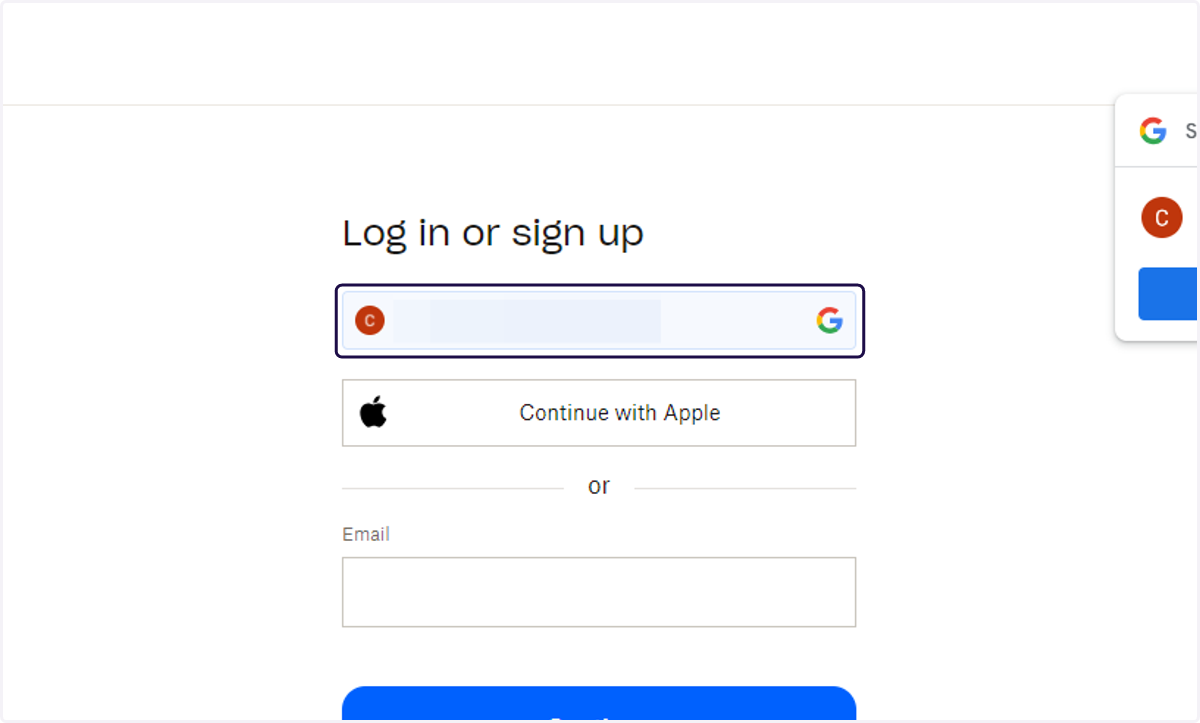
Dropbox
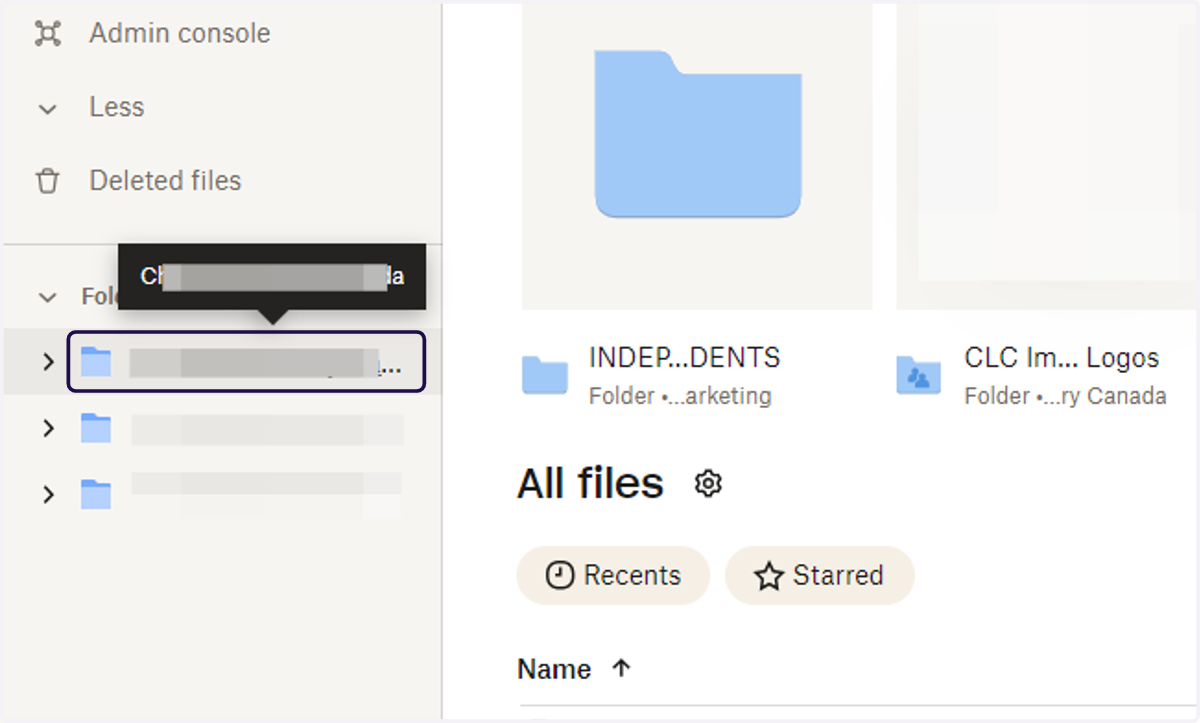
2. Click on Folder where images are saved
3. Click on jpg or png image file
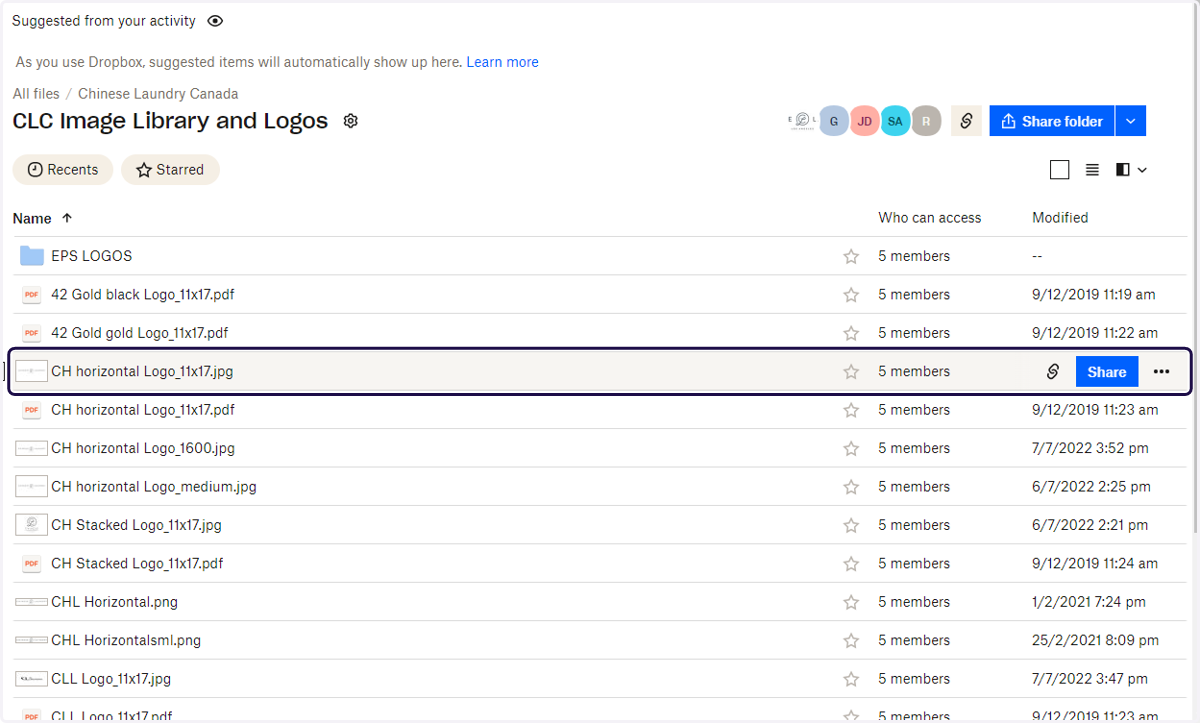
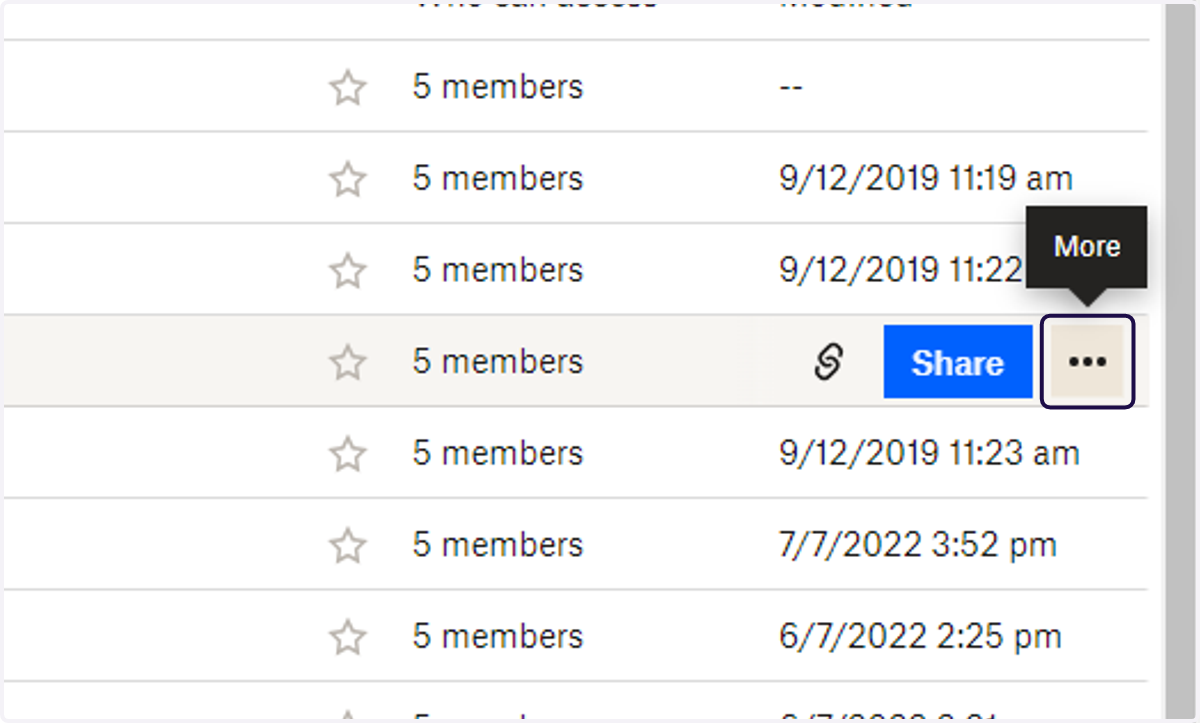
4. Click on More menu
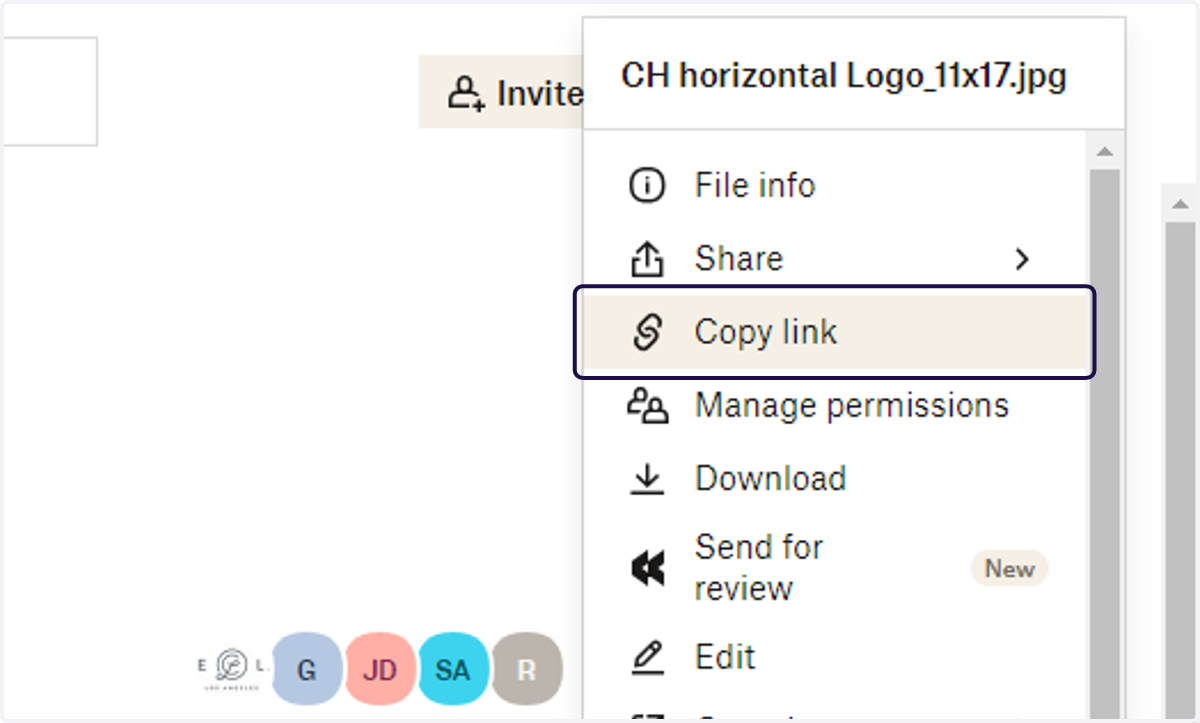
5. Click on Copy link
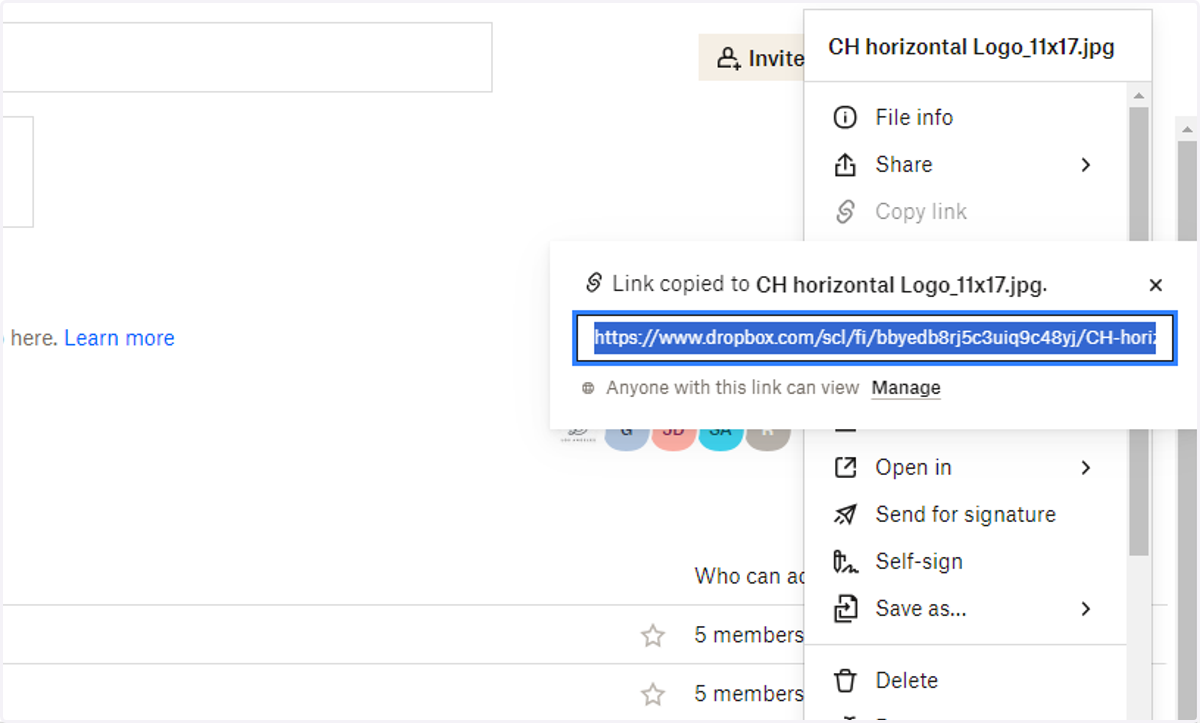
6. Copy input
BRUNETTE THE LABEL BLASTRAMP
Go to Blastramp
7. Click on Inventory
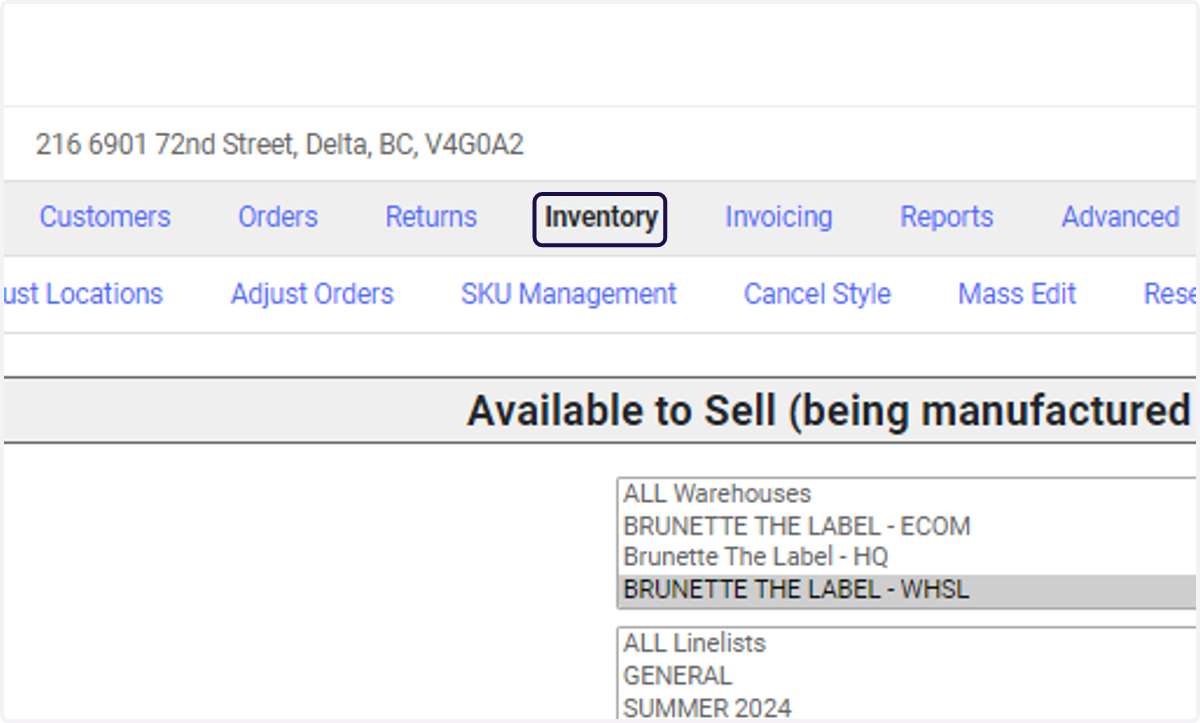
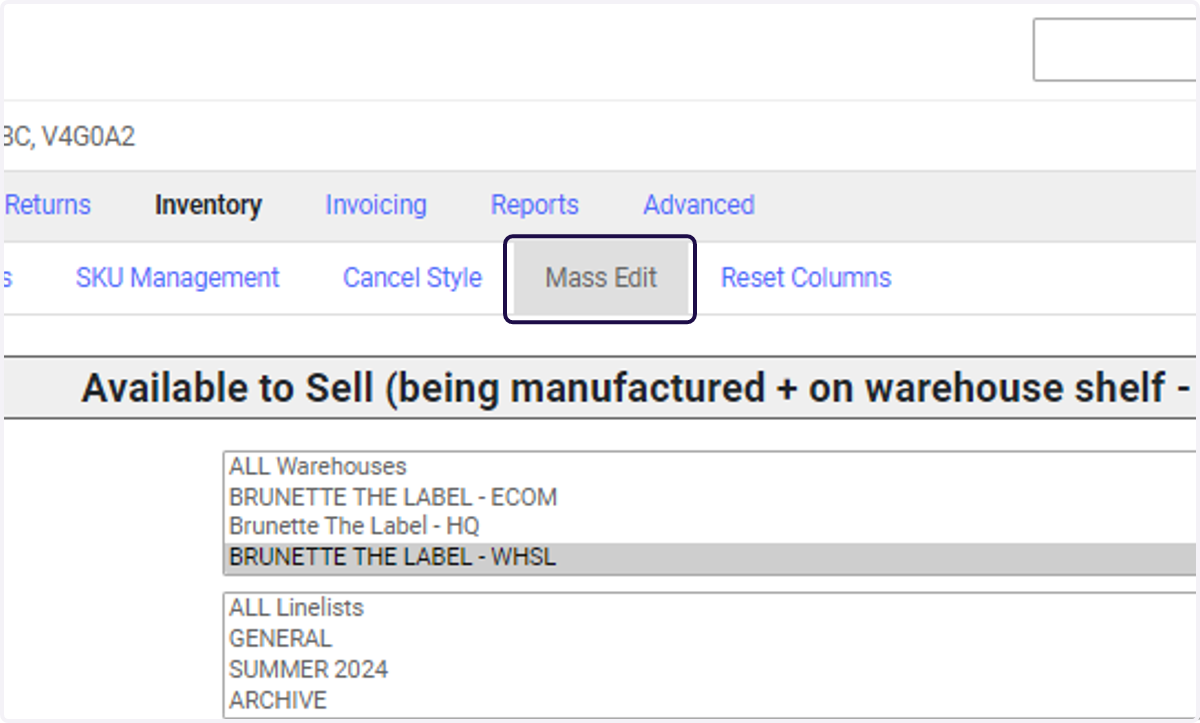
8. Click on Mass Edit
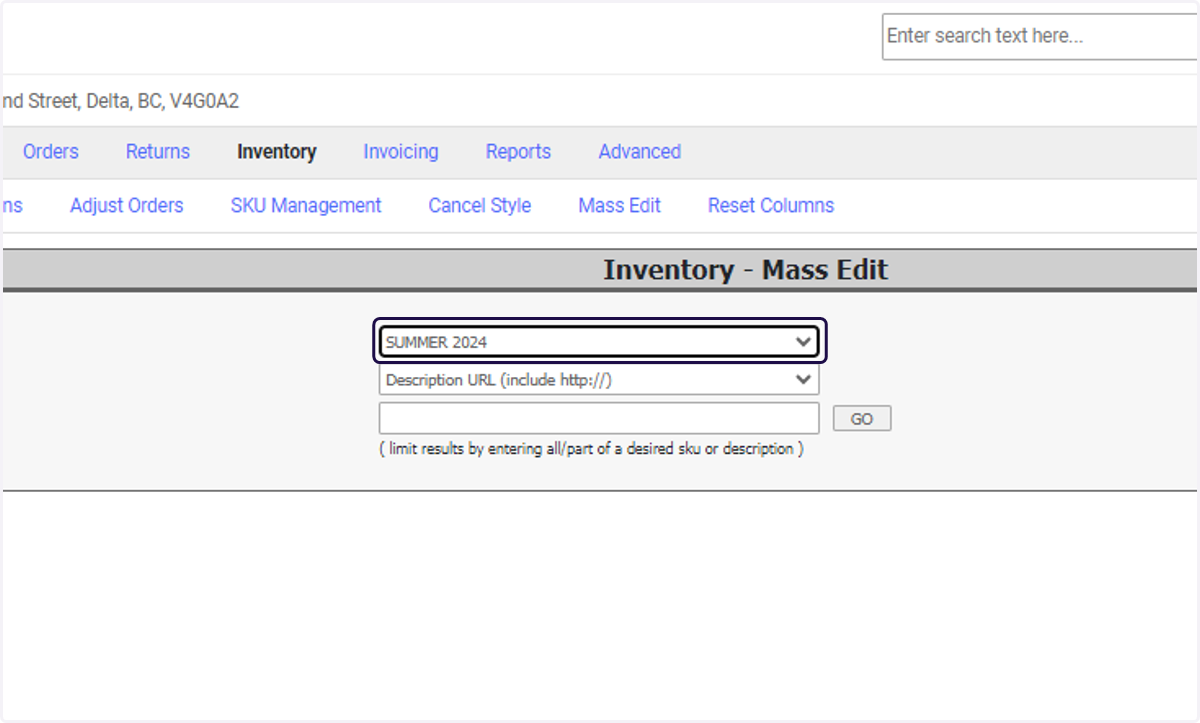
9. Select Season
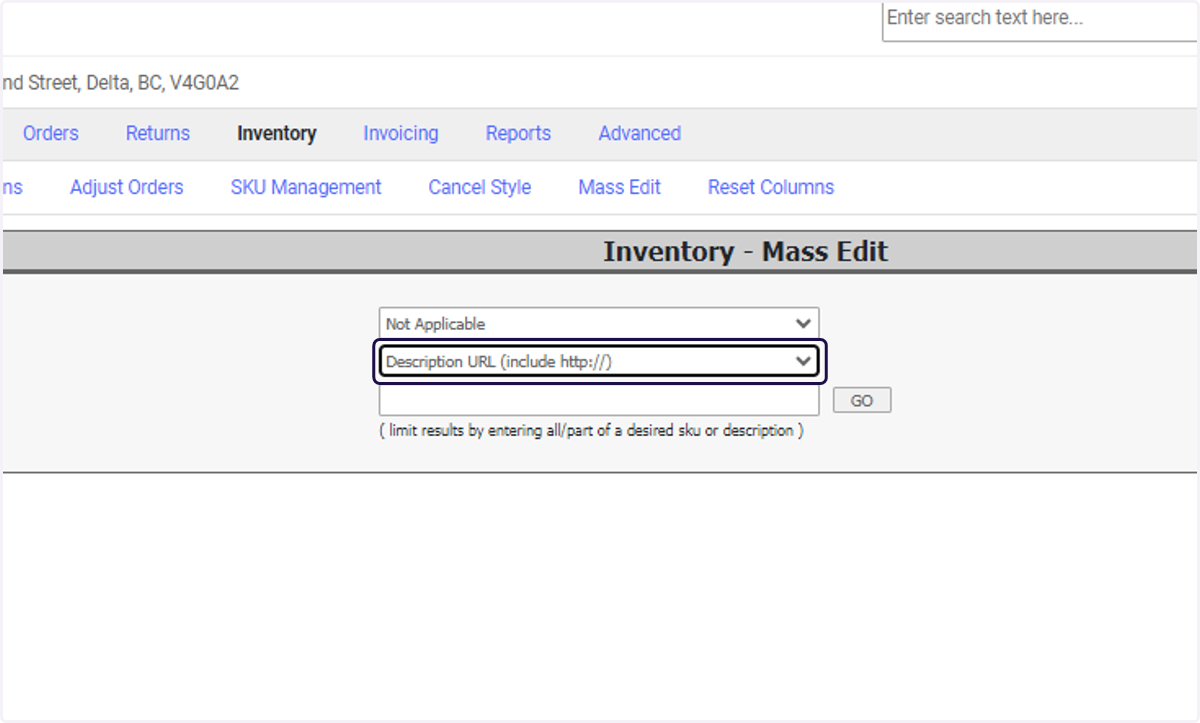
10. Select Description URL (include http://)
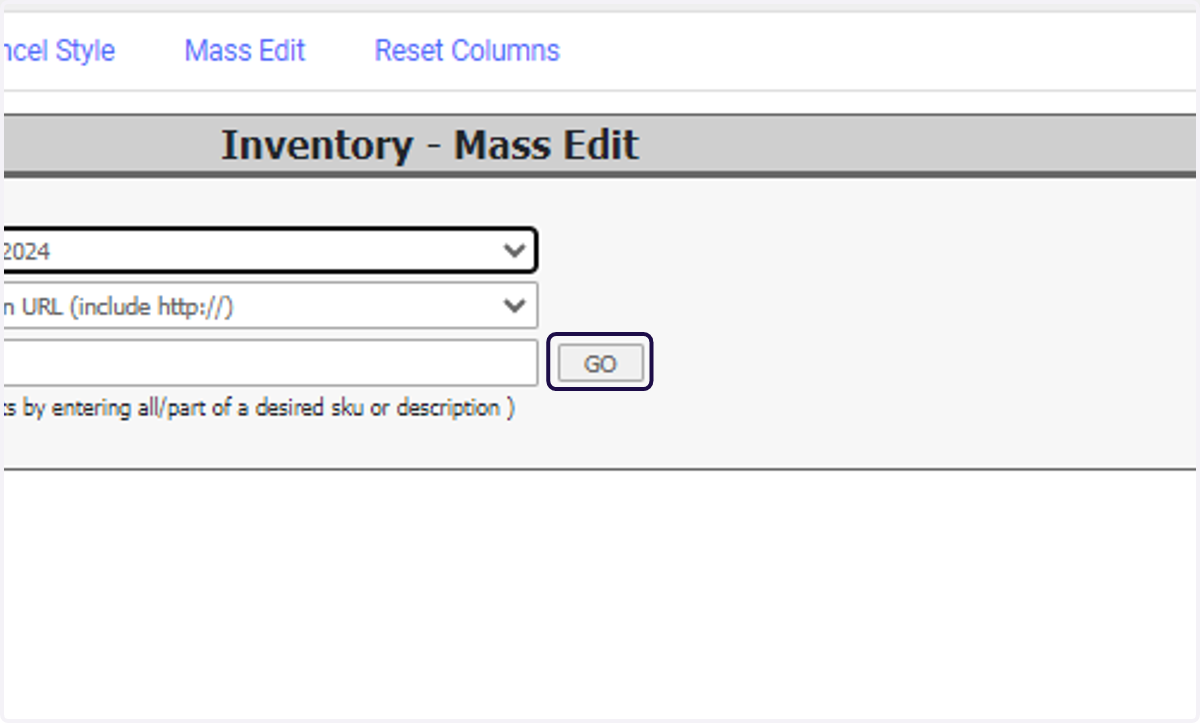
11. Click on GO
12. Paste the copied link from Dropbox
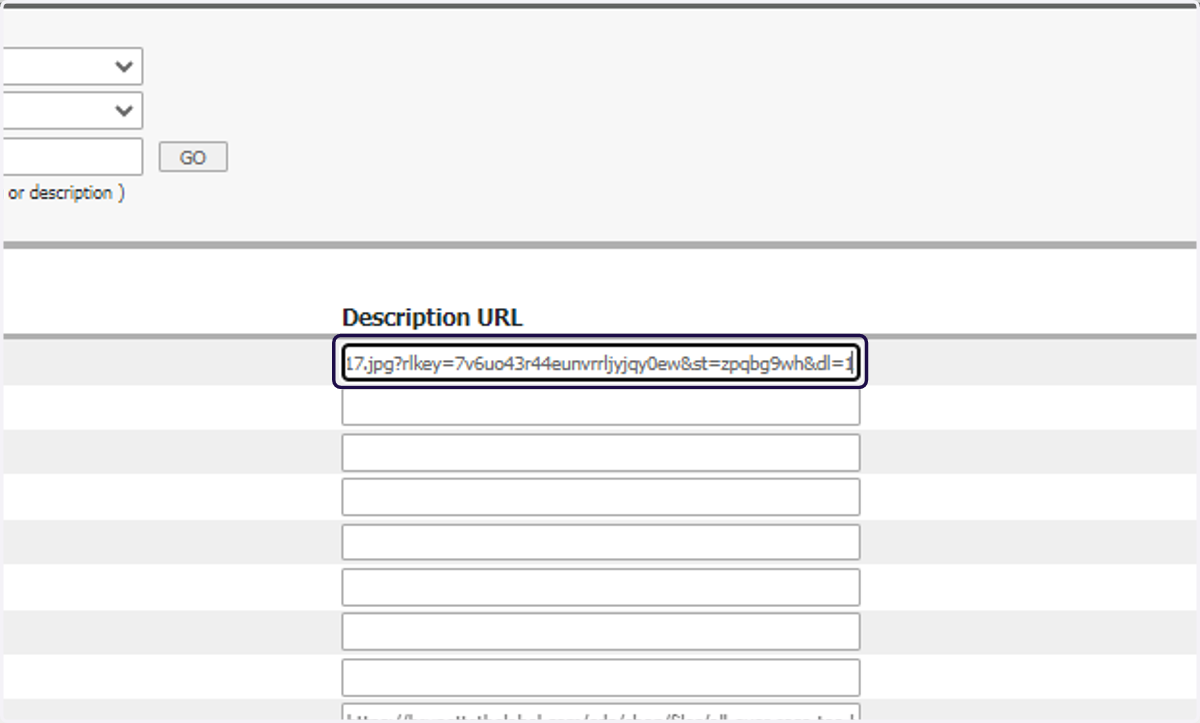
13. Change the "dl=0" from the end of the link to "dl=1" in order to make the link public
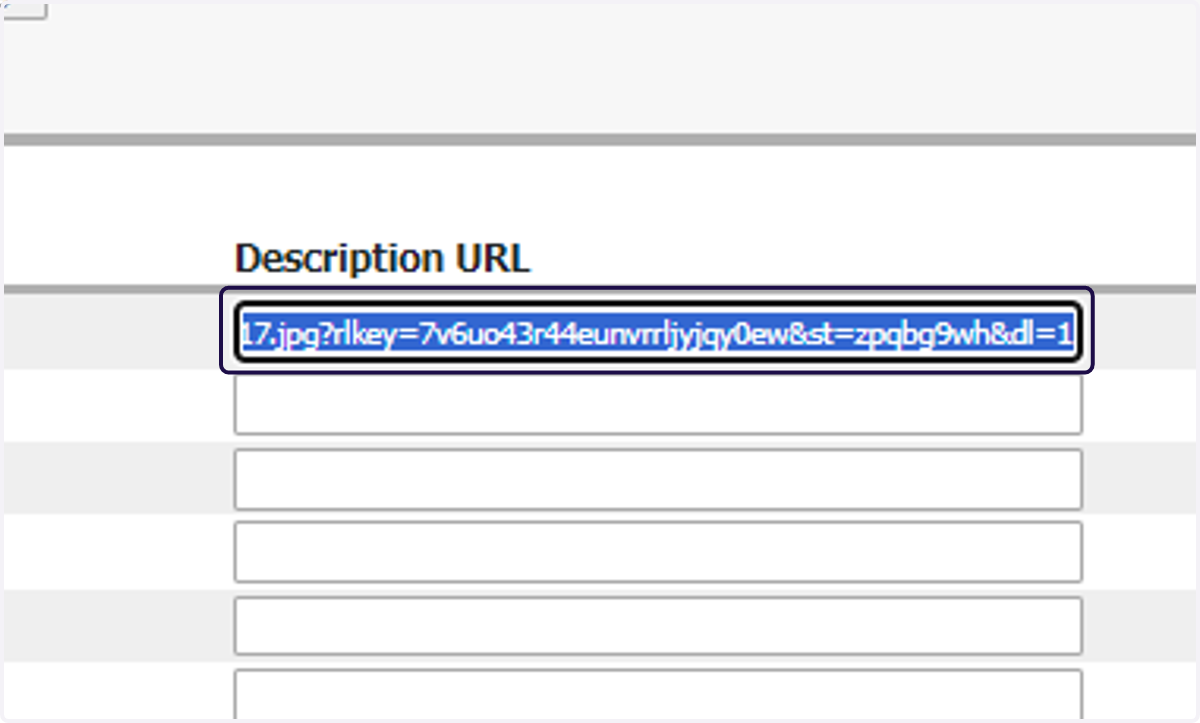
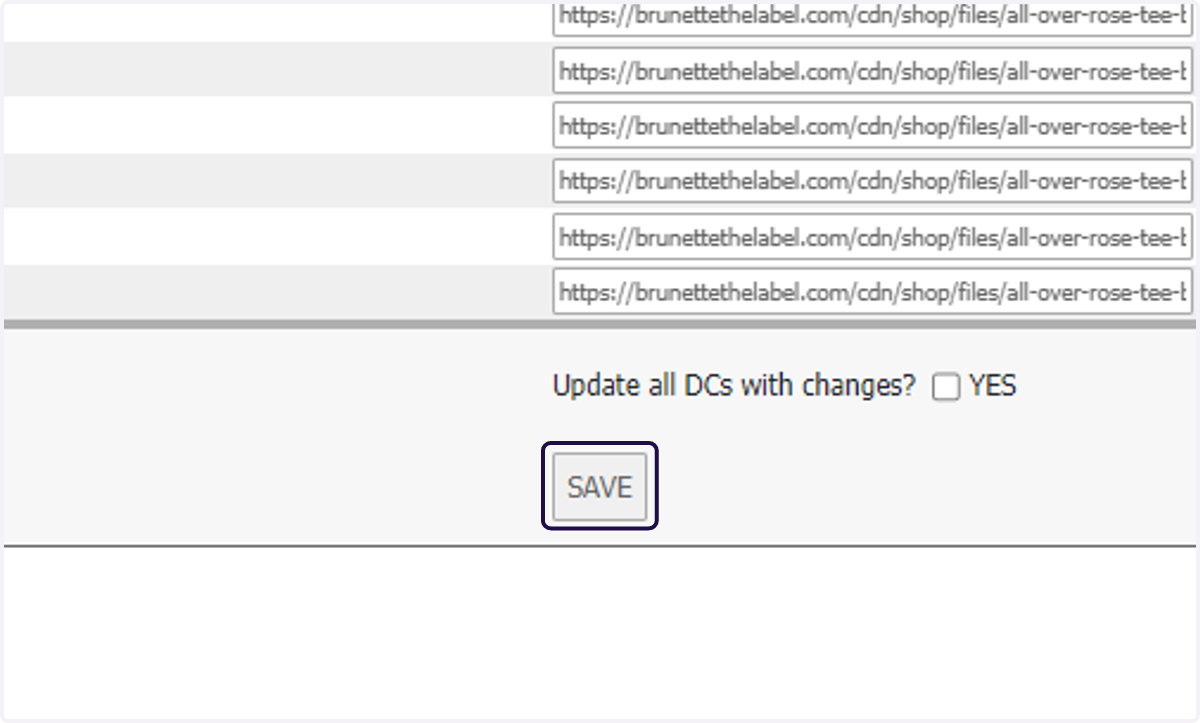
14. Copy the updated link (ending with d=1) and paste into all sizes
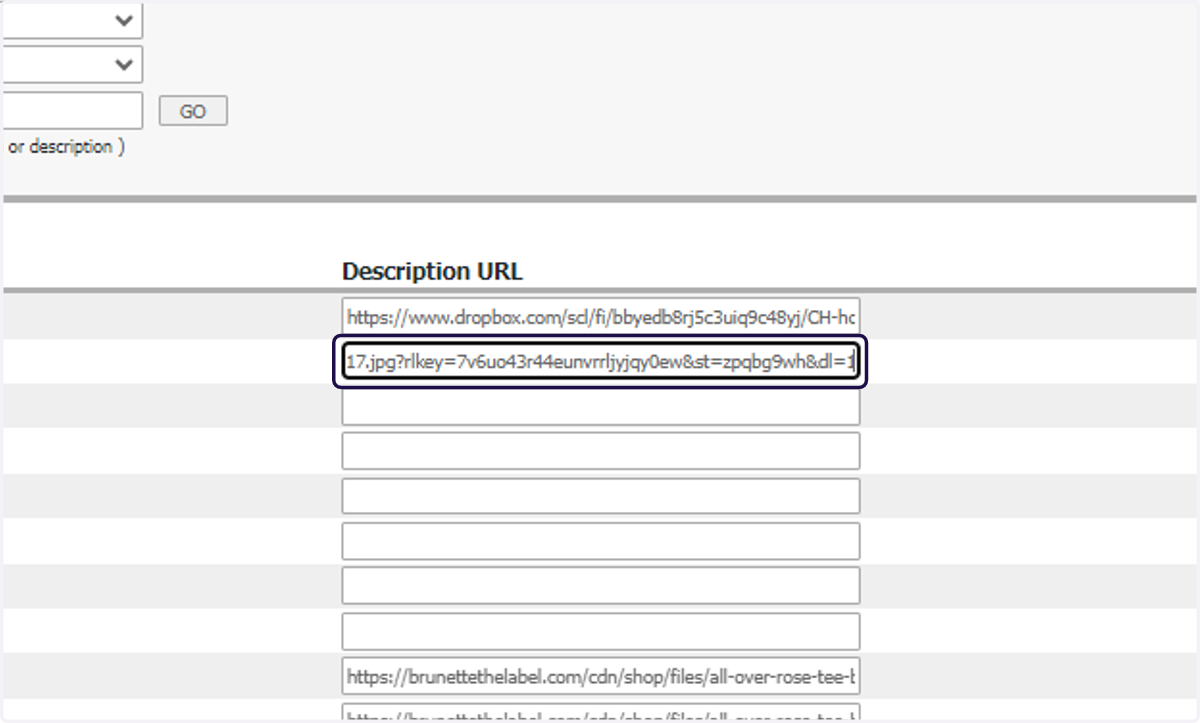
15. Click on SAVE